Windows Home Server For Dummies
®
Chapter 10: Starting Remote Access
&
Chapter 17: Breaking into the Server
ISBN: 978-0-470-18592-6
Copyright of Wiley Publishing, Inc. Indianapolis, Indiana
Starting Remote Access
In this Chapter
Understanding Remote Access — its benefits and potential problems
Convincing Windows Home Server that you really want to access your network from afar
Poking holes in recalcitrant routers
Poking different holes in pesky Internet service providers’ defenses
Getting logged on for the first time
I
f Windows Home Server’s Remote Access feature works for you the first time, you live a charmed life. I’ve set up Remote Access on many net-works, and it seems that no two work the same way.If it takes you a bit of wrangling (either with your router or with your Internet service provider) to get Remote Access working, take solace in the fact that it’s well worth the hassle. Hang in there. You can do it.
With Remote Access enabled and all the pieces put together properly, you can hop onto a computer anywhere in the world, fire up a Web browser, and. . .
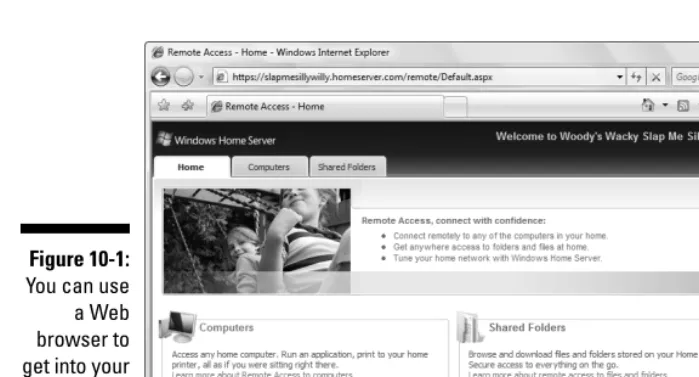
Upload and download files between your server’s shared folders and the computer you’re using (see Figure 10-1).
Run the Windows Home Server console, if you know the server’s password.
Remotely connect to some of the PCs on your home or office network and take control of the PC as if you were sitting in front of it — plus or minus a (substantial) time lag, anyway. For details (including important, not-so-obvious restrictions), see the next section.
Remote Access — the Good, the Bad,
and the Really Frustrating
If you decide to enable Remote Access through your Windows Home Server, you can log on to your home or office network from anywhere in the world, using any Web browser, upload and download files, and even “take control” of a PC on the network, pulling its strings like a puppet, in a way that’s not too dissimilar to sitting down in front of the computer and typing away.
Except . . . but . . . er . . . well, Remote Access doesn’t quitework that way, and it can be an absolute monster to set up. There. I warned you.
Remote Access’s problems, by and large, aren’t Microsoft’s fault. They’re con-genital. By its very nature, Remote Access has to poke through your broadband router (you may call it a “modem,” even though it isn’t technically a modem), and every router’s different. Confounding the problem, many Internet Service Providers play fast and loose with your network’s address, making it very diffi-cult to find your network, or they may block incoming connections entirely to keep you from setting up a Web server on your consumer Internet account. Before you take the plunge and try to get Remote Access working on your network, carefully consider these somewhat embarrassing facts:
FFeeww RReemmoottee AAcccceessss iinnssttaallllaattiioonnss,, aatt lleeaasstt iinn mmyy eexxppeerriieennccee,, ggoo tthhrroouugghh iimmmmeeddiiaatteellyy aanndd wwiitthhoouutt hhaasssslleess.. There are almost always niggling details. To look at it another way, almostall of Windows Home Server works great for an absolute novice, from the get-go, with few required machinations and not that many moving parts. But Remote
Figure 10-1:
Access is a horse of a considerably more complex color. It isn’t plug-and-play. Isn’t even plug-and-swear. It goes outside the box — literally and figuratively — and, unless you’re extremely lucky, getting it to work takes some pushing and pulling.
RReemmoottee AAcccceessss ooppeennss uupp yyoouurr nneettwwoorrkk ttoo tthhee oouuttssiiddee wwoorrlldd.. If you set things properly, there is little security exposure to having your Remote Access enabled network hacked by The Bad Guys. But if you do some-thing stupid — like give away a remote logon id and password to a friend, who passes it on to another friend — you can kiss your system security goodbye.
MMaannyy ppeeooppllee tthhiinnkk tthheeyy ccaann ccoonnttrrooll aannyy ccoommppuutteerr oonn tthheeiirr nneettwwoorrkk v
viiaa RReemmoottee AAcccceessss.. AAiinn’’tt ttrruuee.. When you’re working remotely, you can only take control of PCs that are running Windows XP Pro, XP Media Center Edition, XP Tablet, Vista Business, Enterprise, or Ultimate. That’s it. XP Home, Vista Home Basic, and Vista Premium PCs aren’t sufficiently endowed to do the “puppet” shtick.
I don’t mean to put you off. I love Remote Access and use it all the time, even though it was a bear to set up on my home office network. I also take great care to make sure none of my Remote Access user names leak out — and the passwords would tie your tongue, much less your typing fingers. (Word to the wise there.)
An Overview of Remote Access Setup
Still with me? Good. Remote Access is worth the sweat. No pain no, uh, pain. Something like that.
At the very highest level, and in the best of all possible worlds, here’s how you get Remote Access working:
1
1.. FFiirree uupp tthhee WWiinnddoowwss HHoommee SSeerrvveerr CCoonnssoollee aanndd tteellll WWHHSS tthhaatt yyoouu wwaanntt iitt ttoo ssttaarrtt rreessppoonnddiinngg ttoo iinnqquuiirriieess ffrroomm tthhee ggrreeaatt,, ccoolldd oouuttssiiddee wwoorrlldd.. That part’s easy.
2
2.. EEnnaabbllee RReemmoottee AAcccceessss ffoorr oonnee oorr mmoorree uusseerr nnaammeess ((eerr,, llooggoonn IIDDss)).. These user names have to have “strong” passwords, and they’re the only ones allowed to log on to the server remotely.
3
3.. PPookkee aa hhoollee tthhrroouugghh yyoouurr rroouutteerr..
routers get poked automatically by the Remote Access setup routines. Some routers allow you to poke through manually with relative ease. Many don’t.
4
4.. GGeett aa ppeerrmmaanneenntt aaddddrreessss ffoorr yyoouurr sseerrvveerr..
You need a domain name for your server (for example, mine is AskWoody .homeserver.com) so folks on the Internet — including you — can find your server. And therein lies a tale: see the sidebar on Dynamic DNS. In some cases, using a domain name for your server isn’t an absolute requirement. If you know positively, for sure, that your Internet Service Provider will never change the IP address of your server, you can just type the four-number IP address into your Web browser. But having a name that always points to your server makes life much simpler. The company that sold you your Windows Home Server may offer a free “Dynamic DNS” (see the nearby sidebar). HP, for example, offers the first year free — you can use Microsoft’s Homeserver program, or you can sign up with any of dozens of competitors.
5
5.. IIff yyoouu wwaanntt ttoo ccoonnnneecctt ddiirreeccttllyy ttoo oonnee ooff tthhee ccoommppuutteerrss oonn yyoouurr nne ett--w
woorrkk,, yyoouu hhaavvee ttoo tteellll tthhee ccoommppuutteerr tthhaatt iitt sshhoouulldd aacccceepptt RReemmoottee D
Deesskkttoopp ccoonnnneeccttiioonnss..
Windows Home Server uses Remote Desktop to establish connections to computers in your home or office network. Unless you specifically set up a computer to accept Remote Desktop, it won’t respond, won’t behave like a puppet.
6
6.. TTeesstt eevveerryytthhiinngg..
The proverbial proof of the pudding. 7
7.. IIff yyoouu mmaakkee aa mmaajjoorr cchhaannggee ttoo yyoouurr hhoommee nneettwwoorrkk,, yyoouu mmaayy hhaavvee ttoo rreeppeeaatt SStteepp 33..
They don’t warn you about this in Remote Access school, but if the internal address of your Windows Home Server server changes (it’s an IP address that probably looks like 192.168.1.3or some such), you have to go back and poke another hole through your router. If you do so, remember to close up the old holes!
Step 3 is the tough one. And if things suddenly stop working today, when they were working the day (or hour) before, you most likely need to concentrate on Step 6.
Setting up the Server
Getting your server ready for Remote Access takes just a few minutes, as long as you know the server’s password.
Follow these steps: 1
1.. LLoogg oonn ttoo aannyy ccoommppuutteerr oonn yyoouurr hhoommee oorr ooffffiiccee nneettwwoorrkk.. DDoouubbllee--cclliicckk tthhee WWiinnddoowwss HHoommee SSeerrvveerr iiccoonn iinn tthhee nnoottiiffiiccaattiioonn aarreeaa,, nneexxtt ttoo tthhee s
syysstteemm cclloocckk.. TTyyppee tthhee sseerrvveerr’’ss ppaasssswwoorrdd aanndd pprreessss EEnntteerr..
The server’s password is the one you created when you first installed the server. (See Chapter 3 for details, or Chapter 19 if you forgot the password.) 2
2.. AAtt tthhee ttoopp,, cclliicckk tthhee UUsseerr AAccccoouunnttss iiccoonn..
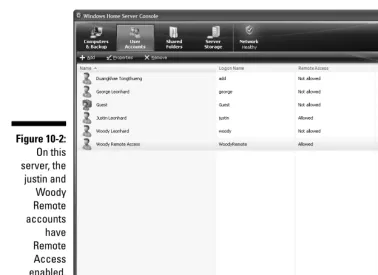
Make sure at least one account has Remote Access permission (see Figure 10-2).
Dynamic DNS
The Internet works with numeric addresses, called IP addresses, much like the telephone system works with telephone numbers. When you type an address into your Web browser —
www.Dummies.com, for example — your browser has to go out and find the numeric address of the Web site, in a process that’s very similar to looking up a telephone number in a phone book. The Internet’s phone book, called a Domain Name Server, translates names like
Dummies.com into IP addresses like 208.215.179.139 (which happens to be the
Dummies.com IP address). Armed with the numeric IP address, your browser can find the site you seek.
Problems arise when your Internet Service Provider changes your home server’s IP address. Big commercial sites like Dummies.comhave permanently assigned phone numbers, er, IP addresses. But little guys like you and me may have our phone numbers re-assigned at any
moment, at the ISP’s whim. If I tried to put my home server entry into the Internet’s phone book, the phone number might work for a day or a week or a month, but then it’d get changed, and the phone book entry would suddenly point to the wrong number. Updating the Internet’s phone book takes a long time, and it’s a hassle. That’s where Dynamic DNS comes into play. Several companies (including Microsoft and HP) maintain their own mini-phone books, their own Dynamic DNS Servers. These phone books can be changed automatically in a fraction of a second — and you don’t need to lift a finger. By setting up a Dynamic DNS address like
AskWoody.homeserver.com, you can fly to the Faroes, fire up Firefox, type in
3
3.. SSccaann tthhee ccoolluummnn mmaarrkkeedd RReemmoottee AAcccceessss.. IIff aallll uusseerrss hhaavvee ssppeecciiffiieedd N
Noott AAlllloowweedd ((oorr iiff yyoouu ddoonn’’tt kknnooww tthhee ppaasssswwoorrdd((ss)) ffoorr tthhee aaccccoouunntt((ss)) tthhaatt aarree mmaarrkkeedd AAlllloowweedd)) rreeffeerr ttoo CChhaapptteerr 44 aanndd aadddd aa nneeww uusseerr wwiitthh R
Reemmoottee AAcccceessss eennaabblleedd..
Every account with Remote Access enabled must have a “strong” pass-word. (See Chapter 4 for details.)
It wouldn’t hurt to write down the precise name of the account, just so you don’t forget it.
4
4.. IInn tthhee uuppppeerr --rriigghhtt ccoorrnneerr,, cclliicckk SSeettttiinnggss.. WWhheenn tthhee WWiinnddoowwss HHoommee S
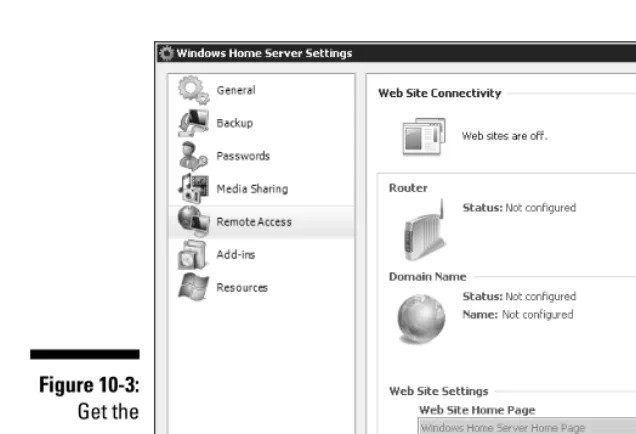
Seerrvveerr SSeettttiinnggss bbooxx aappppeeaarrss,, oonn tthhee lleefftt,, cclliicckk RReemmoottee AAcccceessss.. You see the Remote Access settings shown in Figure 10-3. 5
5.. UUnnddeerr WWeebb SSiittee CCoonnnneeccttiivviittyy,, cclliicckk tthhee TTuurrnn OOnn bbuuttttoonn..
Windows Home Server goes out to lunch for a few seconds, and when it comes back, it says Web Sites are On.
6
6.. TThhaatt ffiinniisshheess pprreeppaarraattiioonn wwoorrkk ffoorr tthhee sseerrvveerr iittsseellff.. CCoonnttiinnuuee wwiitthh tthhee n
neexxtt sseeccttiioonn..
Now things get interesting.
Figure 10-2:
Configuring Your Router
It’s easy to get bogged down in technical gobbledygook. Don’t let the weird names and numbers confuse you. When you set up your router to work with Remote Access, the goal is clear. It’s just that the means can befuddle even the most grizzled veteran.
Your next task involves poking holes in your router.
At the risk of overstretching a well-worn analogy, think of the inbound part of your router as a telephone exchange. When something wants to get into your network from out in the big, bad Internet, the caller not only needs to know your system’s telephone number (the external IP address), but also has to provide an extension number (a portin networking parlance).
Under normal circumstances, if an inquiry comes in from the Internet, your router and/or firewall will simply swallow it — no answer, just stony silence. That’s its job. But if you’retrying to phone home — as is the case when you try to run Remote Access on your server — then the shoe’s on the other foot. You want your router to answer the phone, at least long enough for you to verify that you are who you claim to be.
In order to simplify things a bit, you agree in advance to ask for one of several specific extension numbers (specifically ports 80, 443, or 4125). You want the router to let through calls that come in to those specific extension numbers.
Figure 10-3:
At this point, the analogy’s stretched mightily. Here’s where it breaks down entirely: You want to have your router send any inquiries directed at ports 80, 443, and 4125 to the server. That way the server can monitor the incoming traffic and verify that you are who you claim to be.
The Windows Home Server Console makes a valiant attempt to forward traffic that arrives at ports 80, 443, and 4125 to the server; in some cases, it succeeds automatically. Here’s how to see whether you live a charmed life:
1
1.. IIff yyoouu ddoonn’’tt aallrreeaaddyy sseeee tthhee WWiinnddoowwss HHoommee SSeerrvveerr SSeettttiinnggss ddiiaalloogg bbooxx ((rreeffeerr ttoo FFiigguurree 1100--33)),, ffiirree uupp tthhee WWiinnddoowwss HHoommee SSeerrvveerr CCoonnssoollee,, cclliicckk tthhee SSeettttiinnggss bbuuttttoonn aanndd ((oonn tthhee lleefftt)) cclliicckk RReemmoottee AAcccceessss..
WHS should tell you that Web Sites are On. 2
2.. IInn tthhee rroouutteerr sseeccttiioonn,, cclliicckk tthhee SSeettuupp bbuuttttoonn..
WHS tells you that it will attempt to configure port forwarding, and asks whether you would like to continue.
3
3.. CClliicckk OOKK..
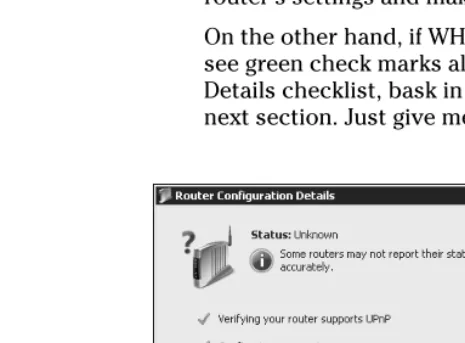
If Windows Home Server can’t get your router to recognize its com-mands, you see a warning that your router doesn’t support UPnP and cannot be configured automatically, or you may see a checklist with red Xs like the one in Figure 10-4. At that point, you need to go into your router’s settings and make the changes yourself. Continue with Step 4. On the other hand, if WHS got your router to respond properly and you see green check marks all the way down the Router Configuration Details checklist, bask in the glory of a charmed life, and go down to the next section. Just give me your autograph the next time I see you, okay?
Figure 10-4:
4
4.. IIff WWHHSS tteellllss yyoouu tthhaatt yyoouurr rroouutteerr ddooeessnn’’tt ssuuppppoorrtt UUPPnnPP ((eeiitthheerr iinn aa ddiiaalloogg b
booxx oorr wwiitthh aa rreedd XX iinn FFiigguurree 1100--44)),, ggoo ttoo yyoouurr rroouutteerr mmaannuuffaaccttuurreerr’’ss WWeebb s
siittee aanndd ffiigguurree oouutt hhooww ttoo ttuurrnn oonn UUPPnnPP.. TThheenn cclliicckk tthhee RReeffrreesshh bbuuttttoonn oonn tthhee RRoouutteerr CCoonnffiigguurraattiioonn DDeettaaiillss ddiiaalloogg bbooxx aanndd ttrryy aaggaaiinn..
Usually it’s easy to turn on UPnP, but each router is different. On my Zyxel 660R router, the screen for enabling UPnP looks like Figure 10-5. Next, in order to forward traffic through your router, you need the IP address of your Windows Home Server server.
5
5.. TThheerree aarree mmaannyy wwaayyss ttoo rreettrriieevvee tthhee sseerr vveerr’’ss IIPP aaddddrreessss,, bbuutt aa vveerr yy e
eaassyy wwaayy iiss ttoo cclliicckk SSttaarrtt➪AAllll PPrrooggrraammss➪AAcccceessssoorriieess ➪CCoommmmaanndd P
Prroommpptt.. WWhheenn tthhee ccoommmmaanndd lliinnee ccoommeess uupp,, ttyyppee ping server ((oorr ping
w
whhaatteevveerr nnaammee yyoouu ggaavvee tthhee sseerrvveerr wwhheenn yyoouu sseett iitt uupp)) aanndd pprreessss EEnntteerr.. Windows tells you the server’s address. In Figure 10-6, the server
address is 192.168.1.3.
Most servers automatically pick up their IP addresses from the net-work’s router: If you unplug the server and plug it in again, it may pick up a different IP address. Your router, on the other hand, requires you to provide specific IP addresses when you go poking holes. After you have Remote Access working, you might want to take the advanced course and assign a permanent IP address to your server. That way, you can
Figure 10-6:
An easy way to find the IP address of your server.
Figure 10-5:
poke the holes through your router and have the incoming traffic always go to your server — even if you unplug your server and plug it back in again. If you assign the IP address properly, you won’t have any conflicts with other computers on your network — but it takes some effort. See Chapter 17 for details.
Or if you’re lazy, you can do what I do. See the section “My Encounter with the Seventh Ring,” at the end of this chapter.
With the server’s IP address in hand, you need to dig into your router and tell it to forward traffic on ports 80, 443 and 4125 to the server. That’s easy to say — and devilishly difficult to do because every router is different. I recommend that you go to the site portforward.comand look for specific instructions for your router.
Many routers are similar to my trusty Linksys WRT54G, and I present (in the following steps) the method for changing the WRT54G. Your mileage may vary. Be sure to consult portforward.comfor details applicable to your router.
6
6.. TToo ggeett iinnttoo mmyy LLiinnkkssyyss WWRRTT5544GG,, II ssttaarrtt IInntteerrnneett EExxpplloorreerr aanndd ttyyppee tthhee IIPP aaddddrreessss ooff tthhee rroouutteerr —— wwhhiicchh II jjuusstt hhaappppeenn ttoo kknnooww iiss
192.168.1.1..
The router asks me to provide the user name and password for the router. 7
7.. TTyyppee tthhee rroouutteerr’’ss uusseerr nnaammee aanndd ppaasssswwoorrdd.. NNoottee tthhaatt tthheessee aarree ddiiffffe err--e
enntt ffrroomm yyoouurr WWiinnddoowwss HHoommee SSeerrvveerr uusseerr nnaammeess aanndd ppaasssswwoorrddss.. P
Prreessss EEnntteerr..
If you don’t know the user name and password of your router, portfor-ward.comlists the defaults for most major brands. You may need to call whoever installed your router to get those essential bits of info. (I warned you this would be fun, didn’t I?)
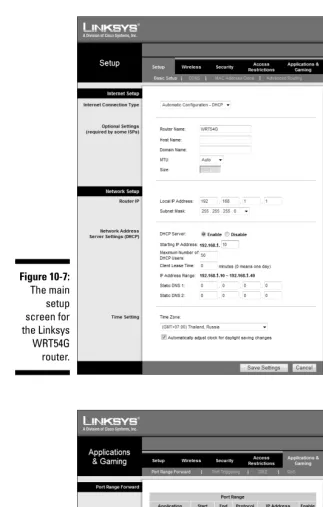
When you (finally) get into the router, you see a setup screen. The Linksys WRT54G setup screen looks like Figure 10-7.
8
8.. CClliicckk tthhee ttaabb mmaarrkkeedd AApppplliiccaattiioonnss && GGaammiinngg..
That’s where Linksys puts the port-forwarding settings, as shown in Figure 10-8.
9
9.. YYoouu nneeeedd ttoo ffoorrwwaarrdd tthhrreeee ppoorrttss.. IInn tthhee AApppplliiccaattiioonn ccoolluummnn ffoorr eeaacchh o
off tthhee tthhrreeee,, ttyyppee WHS Remote Access..
Actually, you can type anything you like; the router ignores what you type. But type this anyway; it may help you in the future if you type something that helps you remember why you changed your router so rudely. 1
100.. IInn tthhee SSttaarrtt aanndd EEnndd bbooxxeess,, ttyyppee 80,, 443,, aanndd 4125 rreessppeeccttiivveellyy.. See Figure 10-8.
1
Figure 10-8:
Here’s where you specify which ports should be forwarded.
Figure 10-7:
1
122.. CChheecckk tthhee EEnnaabbllee bbooxxeess ffoorr aallll tthhrreeee..
Don’t forget — if the box remains unchecked, the changes won’t take effect. 1
133.. CClliicckk SSaavvee SSeettttiinnggss..
Your router goes out to lunch for a while, but when it comes back, it should start forwarding messages sent to those three ports, shuffling them onward to the WHS server.
As you go spelunking through your router, keep the Windows Home Server Console open. If you make a change that you think will finally — finally! — get Remote Access working, flip over to the Router Configuration Details dialog box (Figure 10-4) and click Refresh. The Remote Access setup program will try, once again, to get connected. Your fate hangs in the balance.
Establishing a Permanent Domain Name
With your router suitably trained and playing well with Windows Home Server, you should get a Web address that can move with you.
Therein lies a tale of woe.
Your network (actually, your router) has an address that identifies it uniquely on the Internet — its IP address. If you’re curious, you can see your network’s IP address by going to whatismyipaddress.com. In order to connect to your Windows Home Server network using Remote Access, you have to know the address of your network. You could run to whatismyipaddress.com,
What if you have two routers?
Many people have two routers — one connects to the Internet, the other (typically wireless) serves as the main hub for your home or office network. In my experience, Windows Home Server almost never pokes through two routers successfully. The problem is easy to understand, but difficult to fix: First you must poke a hole through the Internet router that allows stuff to get in from the Internet and through to the main (typically wireless) router. Then you must poke another hole through the main (typically wireless) router
that forwards stuff on to the Windows Home Server. Double your pleasure, double your run. Getting the routers to work together is hard enough. Adding Windows Home Server to the mix can drive you nuts. If you find yourself in a position where you have to get two routers to co-operate well enough to allow Remote Access, take a couple of aspirin and head to
get your network’s IP address and tattoo it to the inside of your eyelids, then type that address into your Web browser — but there’s a little problem . . . . Your IP address can change. Even if you have a DSL router that’s “always on,” from time to time your Internet service provider may change your IP address, and you won’t know a thing about it.
On the Internet, Domain Name Servers are the equivalent of giant, computer-ized telephone books. You type an address like dummies.cominto your Web browser, the browser looks up the name in the Domain Name Server, and comes up with an IP address like 208.215.179.139. That works great for IP addresses that don’t change very often. But imagine what would happen if you had to print a telephone book for a city where many phone numbers change every day.
The solution? Something called a DynamicDomain Name Server (that’s DDNS in alphabet-soup-speak; see the sidebar earlier in this chapter). Here’s how to make DDNS work for you:
1. You register with a company that maintains a DDNS, and the company gives you an address like AskWoody.dynDNS.orgor
SlapMeSillyWilly.homeserver.com.
2. When you want to connect to your Windows Home Server network, you type SlapMeSillyWilly.homeserver.cominto your Web browser and the browser goes to homeserver.com.
3. The computer at home server looks up SlapMeSillyWilly’s current IP address, and automatically shuffles your browser off to the correct location. 4. When your ISP changes your IP address, a program (possibly Windows
Home Server, possibly a program running in your router) notifies the DDNS company that your IP address has changed.
5. The next time you type SlapMeSillyWilly.homeserver.cominto your browser, home server knows where your site went.
If you bought an HP SmartServer, HP offers a free-for-the-first-year dynamic domain name. Microsoft also offers dynamic domain names with their home-server.comservice. DynDNS.com has been in the business for years; they have a free service and several paid ones.
Windows Home Server makes it easy to sign up for a Microsoft home-server.comdynamic domain name. Here’s how:
1
1.. IIff yyoouu ddoonn’’tt aallrreeaaddyy hhaavvee aa WWiinnddoowwss LLiivvee IIDD ((aallssoo kknnoowwnn aass aa HHoottmmaaiill a
addddrreessss,, aa WWiinnddoowwss LLiivvee HHoottmmaaiill aaddddrreessss,, aann MMSSNN HHoottmmaaiill aaddddrreessss,, a
M
MSSNN PPaassssppoorrtt —— tthheeyy’’rree aallll tthhee ssaammee tthhiinngg)),, ggoo ttoo account services.passport.netaanndd ssiiggnn uupp..
The account is free, and you can make things up along the way. (Hey, your name is William H. Gates III and you live at One Microsoft Way, Redmond WA 99362, don’t you? Kidding.)
2
2.. IIff yyoouu ddoonn’’tt aallrreeaaddyy sseeee tthhee WWiinnddoowwss HHoommee SSeerrvveerr SSeettttiinnggss ddiiaalloogg bbooxx ((rreeffeerr ttoo FFiigguurree 1100--33)),, ssttaarrtt WWiinnddoowwss HHoommee SSeerrvveerr CCoonnssoollee,, cclliicckk tthhee S
Seettttiinnggss bbuuttttoonn,, aanndd oonn tthhee lleefftt,, cclliicckk RReemmoottee AAcccceessss..
WHS should tell you that Web Sites are On. The status of your Router may be Unknown. Don’t let that deter you yet.
3
3.. IInn tthhee DDoommaaiinn NNaammee aarreeaa,, cclliicckk tthhee SSeettuupp bbuuttttoonn.. WHS brings up the Domain Name Setup Wizard. 4
4.. CClliicckk NNeexxtt..
The Domain Name Setup Wizard asks for your Windows Live ID and password.
5
5.. TTyyppee iinn aa vvaalliidd WWiinnddoowwss LLiivvee IIDD aanndd ppaasssswwoorrdd ((ffoorr tthhee WWiinnddoowwss LLiivvee IIDD aaccccoouunntt)) aanndd cclliicckk NNeexxtt..
The wizard goes out for a while, verifies your ID and password, and comes back with a warning that the server will periodically phone home to Mother Microsoft. That’s to be expected: it’s the only way Microsoft’s Dynamic Domain Name Server can keep track of your current IP address. 6
6.. SSeelleecctt II AAcccceepptt,, aanndd tthheenn cclliicckk NNeexxtt..
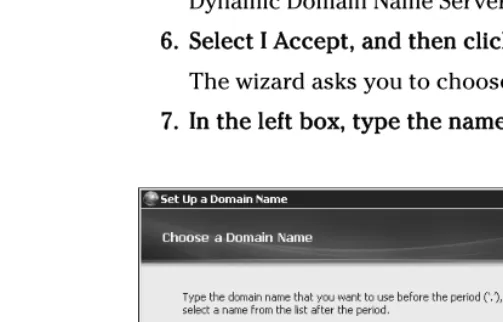
The wizard asks you to choose a domain name, as in Figure 10-9. 7
7.. IInn tthhee lleefftt bbooxx,, ttyyppee tthhee nnaammee yyoouu wwaanntt ttoo rreesseerrvvee..
Figure 10-9:
8
8.. FFrroomm tthhee ddrroopp--ddoowwnn lliisstt oonn tthhee rriigghhtt,, cchhoooossee tthhee rreesstt ooff yyoouurr nneeww d
doommaaiinn nnaammee ffrroomm tthhee ooppttiioonnss oonn ooffffeerr..
For example, if you type SlapMeSillyWillyon the left and choose
homeserver.comon the right, your new dynamic domain name will be
SlapMeSillyWilly.homeserver.com. Microsoft will keep it updated, so it points to your network’s IP address, no matter what indignities your Internet service provider might inflict.
9
9.. CClliicckk CCoonnffiirrmm ttoo mmaakkee ssuurree yyoouurr nnaammee hhaassnn’’tt bbeeeenn rreesseerrvveedd aallrreeaaddyy,, a
anndd wwhheenn yyoouu’’rree ddoonnee,, cclliicckk FFiinniisshh..
You probably didn’t notice, but Windows Home Server snuck out and grabbed your IP address, sent it to Microsoft’s Dynamic Domain Name Server, and associated it with your new domain name.
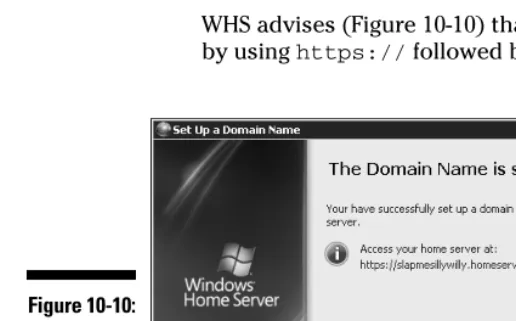
WHS advises (Figure 10-10) that you can now access your home server by using https://followed by your new domain name.
Spreading Out the Welcome Mat
I know you’re itching to get logged on and try Remote Access. There’s one little problem: If you try to use Remote Access from your home network to get on your home network (as any tester worth her salt would try about now), many routers won’t let you do it. If you’re working on your home or office network, and you’ve just finished the preceding steps, and you try to use one of your network’s computers to log on to https://slapmesilly-willy.homeserver.net(just like it says in Figure 10-11), chances are very good your router will get all confused and show you the router logon screen. Bummer.
Figure 10-10:
So hang in there. Follow the last few steps in this section. Then you’ll be ready to go somewhere else — knock down your neighbor’s door and demand to get on the Internet, or schlep your laptop to Starbucks — and try it all out. Patience, grasshopper.
Here’s how to get Remote Access ready to rock: 1
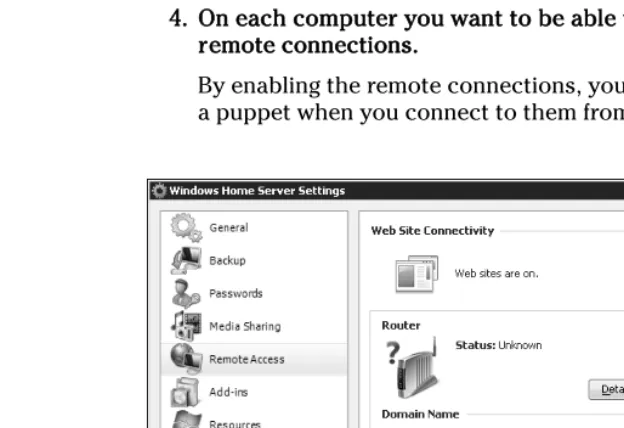
1.. IIff yyoouu ddoonn’’tt aallrreeaaddyy sseeee tthhee WWiinnddoowwss HHoommee SSeerrvveerr SSeettttiinnggss ddiiaalloogg bbooxx ((FFiigguurree 1100--1111)),, ssttaarrtt WWiinnddoowwss HHoommee SSeerrvveerr CCoonnssoollee,, cclliicckk tthhee SSeettttiinnggss b
buuttttoonn,, aanndd ((oonn tthhee lleefftt)) cclliicckk RReemmoottee AAcccceessss..
WHS should tell you that Web Sites are On. The status of your Router and your Domain Name may be Unknown. Persevere.
2
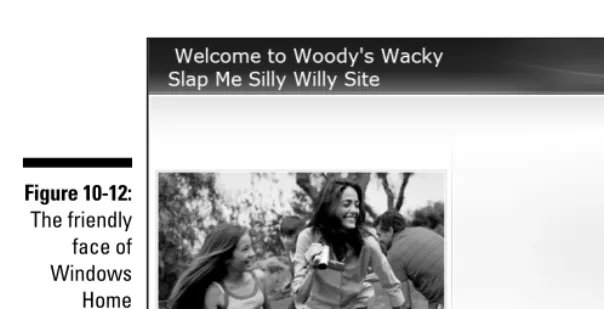
2.. IInn tthhee WWeebb SSiittee HHoommee PPaaggee ddrroopp--ddoowwnn bbooxx,, cchhoooossee bbeettwweeeenn tthhee ffeee ell--g
goooodd WWiinnddoowwss HHoommee SSeerrvveerr HHoommee PPaaggee ((sshhoowwnn iinn FFiigguurree 1100--1122)) aanndd tthhee ddoouurr WWiinnddoowwss HHoommee SSeerrvveerr RReemmoottee AAcccceessss hhoommee ppaaggee ((sshhoowwnn iinn F
Fiigguurree 1100--1133))..
There’s no functional difference between the two. It’s all a matter of style. Or lack thereof.
3
3.. TTyyppee ssoommee tteexxtt iinn tthhee WWeebb SSiittee HHeeaaddlliinnee bbooxx aanndd cclliicckk OOKK..
You can see where the text will appear by looking at Figures 10-13 and 10-14. 4
4.. OOnn eeaacchh ccoommppuutteerr yyoouu wwaanntt ttoo bbee aabbllee ttoo lloogg oonn ttoo rreemmootteellyy,, eennaabbllee rreemmoottee ccoonnnneeccttiioonnss..
By enabling the remote connections, you enable a computer to become a puppet when you connect to them from afar.
Figure 10-11:
While there are several layers of security at work here, it’s a good idea to “enable remote connections” onlyon PCs that you’ll use frequently. If you have a PC that you may need to get into while you’re on a month-long cruise down the Irrawaddy, enable remote connections before you leave — but then close it back down when you get back.
Remember that you can only enable remote connections on PCs running Windows XP Pro, Windows Media Center Edition, Windows XP Tablet, Windows Vista Business, Windows Vista Enterprise, and Windows Vista Ultimate. There’s no way to set up a PC to play the puppet if it’s running XP Home, Vista Home Basic, or even Vista Home Premium.
•To enable remote connections on a Windows XP Pro computer,click Start, right-click My Computer, and choose Properties. On the Remote tab, check the box that says Allow Users to Connect Remotely to this Computer (see Figure 10-14). Then click OK.
Figure 10-13:
The buttoned-down “we just work here” Remote Access home page.
Figure 10-12:
•To enable remote connections on a Vista Business, Enterprise or Ultimate computer,click Start, right-click Computer, and then choose Properties. In the Task list on the left, choose the link to Remote Settings. Under Remote Desktop, choose Allow
Connections from Computers Running any Version of Remote Desktop (Less Secure).
Vista shows you a warning that the computer goes to sleep when it isn’t in use and when it’s asleep, people can’t connect to it remotely. If you want to change the setting, click on the Power Options link offered in the dialog box.
5
5.. OOnn VViissttaa PPCCss,, cclliicckk OOKK ttwwiiccee,, tthheenn XX--bbuuttttoonn yyoouurr wwaayy oouutt ooff tthhee S
Syysstteemm ddiiaalloogg bbooxx..
You are now finallyready to test Remote Access on your home network.
Getting Connected for the First Time —
or Maybe Not
If you really want to test Remote Access to your home network, you should log on from a location that isn’t on your home network. Go to a neighbor’s house and get onto the Internet using her connection, or take your laptop to a local hotspot and log in from there.
Figure 10-14:
Many routers get confused when they see that somebody inside their net-work is trying to get in through the front door — and they respond by show-ing a router logon screen in the browser, as if you wanted to get into the router instead of using Remote Access. It’s most disconcerting, especially if you don’t know that on some networks it simply works that way— there’s nothing you can do about it.
That said, let me fill you in on a little secret: If you really want to see what Remote Access will be like, even though you’re working from a computer that’s on your network, you can bring up the Remote Access main page — and do everything Remote Access should be doing — by going to any home or office computer on your network, cranking up a Web browser, and typing this little command:
http://server
If you gave your server a name other than serverwhen you set up Windows Home Server, you should use that name, for example:
http://server2
When you’ve finished all the steps in the preceding sections, and you’re ready to see if Remote Access will work for you, here’s how to proceed:
1
1.. GGoo ttoo aannyy ccoommppuutteerr tthhaatt’’ss nnoottonon yyoouurr hhoommee oorr ooffffiiccee nneettwwoorrkk.. BBrriinngg u
upp IInntteerrnneett EExxpplloorreerr ((ootthheerr WWeebb bbrroowwsseerrss sseeeemm ttoo hhaavvee pprroobblleemmss w
wiitthh MMiiccrroossoofftt’’ss pprreeffaabbrriiccaatteedd ssiittee ffrroomm ttiimmee ttoo ttiimmee)) aanndd ttyyppee iinn tthhee d
dyynnaammiicc nnaammee ooff yyoouurr RReemmoottee AAcccceessss WWeebb ppaaggee.. I fire up Internet Explorer, and type
https://slapmesillywilly.homeserver.com
Sit back and relax. This can take a while — the Web browser has to run to Microsoft’s homeserver.com service, retrieve your home server’s cur-rent IP address, and redirect you to your Windows Home Server — and then the server at your home or business has to respond.
If all goes well, you see a logon screen (refer to Figure 10-13). 2
2.. IIff yyoouu ccaann’’tt ggeett tthhrroouugghh ttoo yyoouurr RReemmoottee AAcccceessss WWeebb ppaaggee,, ggoo bbaacckk h
hoommee aanndd rruunn tthhee ddiiaaggnnoossttiiccss iinn tthhee WWiinnddoowwss HHoommee SSeerrvveerr SSeettttiinnggss d
diiaalloogg bbooxx ((FFiigguurree 1100--1111))..
You may be in for some interesting times. Follow the tips in this chapter, including the last section which talks about my walkabout with the Dark Side of the Force. If none of the nostrums in this chapter work, hop on the Windows Home Server forum at
forums.microsoft.com/WindowsHomeServer
3
3.. IIff yyoouu ddoo ggeett tthhrroouugghh,, ssiiggnn iinn wwiitthh aa uusseerr nnaammee aanndd ppaasssswwoorrdd tthhaatt hhaavvee b
beeeenn ddeessiiggnnaatteedd RReemmoottee AAcccceessss AAlllloowweedd oonn yyoouurr sseerrvveerr ((rreeffeerr ttoo F
Fiigguurree 1100--22))..
Whether you chose the Windows Home Server Home Page (as in Figure 10-12) or the Windows Home Server Remote Access home page (as in Figure 10-13), you end up on the Remote Access page (refer to Figure 10-1). 4
4.. CClliicckk tthhee CCoommppuutteerrss ttaabb..
For a thorough rundown of the options on offer, see the next chapter. For now, we just want to verify that everything is working, so check to see whether the Computers tab lists all the computers you opened up in Step 4 of the preceding section (see Figure 10-15).
5
5.. CClliicckk tthhee SShhaarreedd FFoollddeerrss ttaabb..
Windows Home Server shows you a list of all the shared folders on the server, as in Figure 10-16.
6
6.. DDoouubbllee--cclliicckk oonn sseevveerraall ffoollddeerrss,, ttoo sseeee tthhaatt yyoouu hhaavvee ffuullll aacccceessss ttoo tthheemm,, jjuusstt aass iiff yyoouu wweerree ssiittttiinngg aatt yyoouurr hhoommee oorr ooffffiiccee ccoommppuutteerr.. The interface is a little clunky, but it works amazingly well. I take you through all the details in the next chapter.
7
7.. YYoouu ccaann XX--bbuuttttoonn oouutt ooff IInntteerrnneett EExxpplloorreerr iiff yyoouu lliikkee,, oorr yyoouu ccaann lleeaavvee IIEE ssiittttiinngg tthheerree aanndd ppiicckk uupp wwiitthh oouurr jjaauunntt aarroouunndd tthhee RReemmoottee AAcccceessss iinntteerrffaaccee,, iinn tthhee nneexxtt cchhaapptteerr..
What if Your ISP Blocks Port 80?
Some people try and try to get Remote Access to work, and ultimately discover that they can’t get into their servers because their Internet ser-vice providers won’t let them. Some ISPs actively block inbound traffic on port 80 (that’s the http:// port) and port 443 (that’s the
https://port). It’s like they put a big, dumb firewall in front of your firewall, just so you can’t get any incoming Web traffic.
If you can’t get Windows Home Server Remote Access to respond to any requests, check with your ISP. If you find that your ISP is blocking ports 80 and 443, yell real loud. Then hit Google
and figure out how to jimmy your router so it routes a different port: For example, you can re-route port 81 to port 80 inside your re-router. Then, instead of typing
https://slapmesillywilly.home-server.com
you type
https://slapmesillywilly.home-server.com:81/remote
My Encounter with the Seventh Ring
Looking back on it, Remote Access sure looks easy, doesn’t it? Let me tell ya something. It isn’t. No way.
Networking for the masses is still in its infancy. The fact that normal con-sumers like you and me have to worry about arcane mumbo-jumbo like IP addresses and Dynamic Domain Name Servers is a sad reflection on the state of the industry. If you don’t understand this stuff, don’t worry — nobody
understands all of it. Nobody.
Figure 10-16:
Get into shared folders, just as you would while sitting at home.
Figure 10-15:
In the course of writing this chapter, I had to reconfigure my entire network dozens of times, looking for the right settings to let Windows Home Server poke through my router. It took many tries and long hours to finally figure out how to do it. My situation is a fairly common one, so I figured I’d take a minute to show you what I had to go through, in the hope that my experience in Dante’s Seventh Ring might help you on the road to WHS Enlightenment. I have two routers. One plugs into my ADSL line. For sake of this discussion, let’s call it a “modem.” The other router is a Linksys WRT54G — probably the most popular wireless router ever made. Hundreds of thousands (maybe mil-lions) of people have the same setup. I plug the modem into the WRT54G using the jack in the back of the WRT54G that the modem’s supposed to use. I plug my other computers into the WRT54G. And I have a handful of comput-ers running with the WRT54G’s wireless connection. It’s a boring, plain-vanilla setup, with everything put together the way the manufacturers recommend. A long time ago, I learned that the easiest way to get the modem and the wire-less router to work together involved setting them up with completely sepa-rate IP address subdomains (there’s another inscrutable term for you). I let the modem stay at 192.168.1.1, but I manually switch the WRT54G over to
192.168.3.1(note the 3). That way all the computers on my network have 192.168.3.xaddresses, the modem doesn’t conflict with the wireless router, and everybody gets to play nice. I’ve written about that method in several books, about how to keep the “mother hen” routers from scratching each others’ eyes out. It works great.
Except . . . that combination doesn’t work at all with Windows Home Server’s Remote Access. Or if it does, I never figured out how.
I’ll spare you the gory details and cut to the chase.
Here’s how I got my system to work. If you have a modem and a separate wireless router, and you’ve pulled out all your hair, try this approach:
1
1.. MMaakkee ssuurree yyoouu kknnooww aallll tthhee aaccccoouunntt sseettttiinnggss tthhaatt yyoouurr mmooddeemm nneeeeddss,, a
anndd tthheenn rreesseett tthhee mmooddeemm.. RReesseett tthhee rroouutteerr..
Push a little pin into their quivering carcasses. Except for your Internet server provider’s account information, everything your modem and router “know” doesn’t work with Windows Home Server.
2
You may need to manually change the IP address of the computer in order to get it to recognize the wireless router. For example, if the freshly reset wireless router starts with the address 192.168.1.1, you probably need to change the IP address of the computer to, say,
192.168.1.2. See the router’s instruction manual for details. 3
3.. SSeett tthhee wwiirreelleessss rroouutteerr uupp wwiitthh aa llooccaall IIPP aaddddrreessss lliikkee 192.168.1.250—— s
soommeetthhiinngg oonn tthhee 192.168.1.xssuubbddoommaaiinn tthhaatt wwoonn’’tt ccoonnfflliicctt wwiitthh a
annyy aauuttoommaattiiccaallllyy aassssiiggnneedd aaddddrreesssseess.. 4
4.. OOnn tthhee wwiirreelleessss rroouutteerr,, ddiissaabbllee DDHHCCPP,, ddiissaabbllee UUPPnnPP,, aanndd ttuurrnn ooffff tthhee ffiirreewwaallll..
Both of those programs are just in the way here:
•DHCPis the program that assigns IP addresses. Arcane terminol-ogy again, eh? Well, Dynamic Host Configuration Protocolis worse. By either name, DHCP is a program that hands out IP addresses to all the computers on a network. You can’t have both the modem
andthe wireless router assigning IP addresses, so I find it’s easiest to shoot the wireless router’s DHCP.
•UPnP(Universal Plug and Play) is the method Windows Home Server uses to change stuff inside the modem and router. If you follow the method I outline here, you don’t want Windows Home Server to change anything on your wireless router. You want WHS to make all the changes to the modem. If you turn off UPnP on the wireless router, there’s no chance that WHS can get confused and start twiddling the wrong box’s bits.
5
5.. IIff yyoouu’’rree ggooiinngg ttoo uussee tthhee wwiirreelleessss rroouutteerr ffoorr wwiirreelleessss aacccceessss ((DD’’OOHH!! wwhhaatt e
ellssee??)),, ddoo wwhhaatteevveerr yyoouu nneeeedd ttoo ddoo iinn oorrddeerr ttoo sseett uupp wwiirreelleessss sseeccuurriittyy.. Might as well secure the router before you set it up. WEP, WPA, WPA 2 — see Wireless Home Networking For Dummies, by Danny Briere, Pat Hurley and Walter Bruce, from Wiley, for lots of good advice.
6
6.. MMaakkee ssuurree yyoouu ssaavvee aallll tthhee sseettttiinnggss iinn tthhee wwiirreelleessss rroouutteerr aanndd tthheenn ddiis s--c
coonnnneecctt iitt ffrroomm tthhee ccoommppuutteerr..
When you save the settings, the router reboots. That can take a while. 7
7.. PPlluugg iinn yyoouurr mmooddeemm.. TTyyppee aallll tthhee aaccccoouunntt ssttuuffff —— ppaasssswwoorrdd,, rroouuttiinngg ttyyppee,, VVPPII,, VVCCII.. MMaakkee ssuurree tthhee ffiirreewwaallll iiss eennaabblleedd..
8
8.. MMaakkee ssuurree tthhaatt DDHHCCPP iiss eennaabblleedd oonn tthhee mmooddeemm oonnllyy,,aanndd tthhaatt tthhee a
assssiiggnneedd IIPP aaddddrreesssseess ddoonn’’tt ccoonnfflliicctt wwiitthh tthhee IIPP aaddddrreessss yyoouu ppuutt iinn tthhee w
wiirreelleessss rroouutteerr..
9
9.. RReeaadd tthhee ddooccuummeennttaattiioonn,, iiff nneecceessssaarryy,, aanndd eennaabbllee UUPPnnPP oonn tthhee m
mooddeemm oonnllyy..
You want Windows Home Server to make its changes to the modem, not to the wireless router.
1
100.. MMaakkee ssuurree yyoouu ssaavvee aallll tthhee sseettttiinnggss oonn tthhee rroouutteerr,, aanndd tthheenn uunnpplluugg iitt ffrroomm tthhee ccoommppuutteerr.. TThheenn ttuurrnn ooffff tthhee mmooddeemm,, tthhee rroouutteerr,, aanndd aallll tthhee c
coommppuutteerrss oonn tthhee nneettwwoorrkk.. 1
111.. TThhiiss iiss tthhee sstteepp tthhaatt wwiillll ddrriivvee yyoouu nnuuttss:: DDoonn’’ttpplluugg tthhee mmooddeemm iinnttoo tthhee mmooddeemm jjaacckk oonn tthhee bbaacckk ooff tthhee wwiirreelleessss rroouutteerr.. IInnsstteeaadd,, pplluugg tthhee m
mooddeemm iinnttoo oonnee ooff tthhee jjaacckkss tthhaatt’’ss ddeessiiggnneedd ffoorr ootthheerr ccoommppuutteerrss oonn tthhee nneettwwoorrkk..
You want the wireless router to treat the modem exactly the same way that it treats all the computers on the network. If you plug the modem into the modem jack, all sorts of weird things happen.
1
122.. TTuurrnn oonn tthhee mmooddeemm.. WWaaiitt 3300 sseeccoonnddss.. TTuurrnn oonn tthhee wwiirreelleessss rroouutteerr.. W
Waaiitt aannootthheerr 3300 sseeccoonnddss.. 1
133.. TTuurrnn oonn tthhee WWiinnddoowwss HHoommee SSeerrvveerr sseerrvveerr..
If you turn on the WHS server before any of the other computers on the network, it will always receive the same IP address. That shouldn’t make any difference, butif you have a hard-wired server address accidentally stuck somewhere, it doesn’t hurt to get the same address on the server every time.
1
144.. TTuurrnn oonn tthhee ootthheerr ccoommppuutteerrss..
If you had to set the IP address manually for one of the computers in Step 2, don’t forget to go back into that computer and reset it to retrieve its IP address automatically.
Breaking into the Server
In this Chapter
Understanding Rule #1: Never, ever break into your server.
Figuring out when you have to ignore Rule #1
Getting into your Windows Home Server server without monitor, keyboard, or mouse
Knowing what to do — and what notto do — while you’re in the server
T
his is the most dangerous chapter in the book.Almost everything that you need to do with your server you can do through the Windows Home Server Console. That’s what it’s there for.
But sometimes you want to do things with your server (defenestration doesn’t count) that you can only accomplish if you get into the server itself. Windows Home Server Console only goes so far. Logging on to the server with an Administrator account gives you full access to essentially everything in the server, and everything that Windows Server 2003 has to offer. One little problem: You really canmess up stuff while you’re rummaging around inside the server. Even simple things like moving a file can have dire consequences if you aren’t extremely careful.
Be afraid. Be very afraid.
Deciding to Break In
Windows Home Server runs on top of Windows Server 2003 — in many respects, it’s a program, just like any other program. But it has very deep ties into the internal workings of Windows Server.
If you can accomplish what you need to accomplish without breaking into your server, by all means do so. The Windows Home Server Console, which forms a common thread throughout this entire book, covers most of the bases. It’s a safe, insulated, supportive, nearly bulletproof environment that does everything most people need to do, most of the time.
Okay, okay. So I didn’t scare you away yet, did I?
Here’s another way to look at it: Windows Home Server, when used the way it was intended, is a remarkably solid and reliable program. But if you sneak into the server and go messing around with just about anything, you can break your system entirely. A broken Windows Home Server system rates high on the pain-o-meter, right up there with root canals and proctologist’s exams. If you can’t get the system working again, your data’s basically hosed. (That’s a technical term.) You can’t pluck a hard drive from your lifeless ex-server, stick it in another computer, and expect to get your data back. All the backup capabilities and stability and peace of mind that you paid for when you bought your Windows Home Server goes right out the, uh, window if you start messing around inside the server.
In particular, Microsoft warns that monkeying around with any of these common Windows Server 2003 tasks can do irreparable harm to Windows Home Server:
CChhaannggiinngg ffiilleess iinn WWiinnddoowwss EExxpplloorreerr.. If you go into your server and start clicking around on your C: or D: or E: drive, you may think that you know where you are, and where your files have gone, but you don’t. Trust me. To get into the server’s shared folders, always type the address into Windows Explorer’s address bar like this: \\server\Photosor\\server\ SharedFolder(as shown in Figure 17-1).
SSeettttiinngg aacccceessss ppeerrmmiissssiioonnss.. Don’t even think about setting folder or file-access permissions by going directly into a folder on the server with Windows Explorer and using the Properties tab (this particular no-no is shown in Figure 17-2). You’ll end up locking everybody out of every-thing. If you can’t set the permissions you need with Windows Home Server Console, take my advice and throw away WHS.
CCrreeaattee nneeww sshhaarreedd ffoollddeerrss oorr mmooddiiffyy eexxiissttiinngg oonneess.. Windows Home Server is very persnickety about how shared folders get set up, and how they are maintained. Trying to do any of that manually is folly.
CChhaannggiinngg uusseerrss,, uusseerr ggrroouuppss,, oorr aaddddiinngg oorr ddeelleettiinngg uusseerrss.. Windows Home Server keeps its own groups in its own way, and you don’t stand a snowball’s chance of getting all the details right. If you need to do some-thing with users, work with Windows Home Server Console. If the Console can’t do what you need to do, then you’ve outgrown Windows Home Server.
Figure 17-2:
Setting access permissions manually will drive you nuts — and may lock out everybody.
Figure 17-1:
That said, there are some things you have to do directly, that require you to go mano a manowith your server. For example:
IIff yyoouu nneeeedd ttoo iinnssttaallll aa ddrriivveerr,, you can’t do it through the Windows Home Server Console; you need to wrestle directly with the server. You may need a driver that doesn’t ship with Windows 2003, particularly if you stick a printer on your server, or add some weird new hardware.
IIff yyoouu wwaanntt ttoo iinnssttaallll ((oorr ssoommeettiimmeess eevveenn rruunn)) aa pprrooggrraamm tthhaatt wwaassnn’’tt d
deessiiggnneedd ffoorr WWiinnddoowwss HHoommee SSeerrvveerr,, a trip to the server is in order. While programs designed to run under WHS can be installed and run using the Console, other programs generally can’t be installed (or some-times even run) through the Windows Home Server Console. To install (run) those programs, you need to get into the server.
IIff yyoouurr nneettwwoorrkk’’ss rroouutteerr ddooeessnn’’tt ppllaayy pprrooppeerrllyy wwiitthh ootthheerrss,, you may need to assign a permanent address — a static IP address— to your server. The only way to do that involves breaking into the server and uttering the proper magic incantations.
IIff yyoouu ddoonn’’tt hhaavvee eeaassyy aacccceessss ttoo aa WWiinnddoowwss XXPP oorr VViissttaa BBuussiinneessss,, E
Enntteerrpprriissee oorr UUllttiimmaattee ccoommppuutteerr oonn yyoouurr nneettwwoorrkk,, aanndd yyoouu nneeeedd ttoo rreessttoorree aa pprreevviioouuss vveerrssiioonn ooff aa ffiillee iinn oonnee ooff tthhee sseerrvveerr’’ss sshhaarreedd ffoollddeerrss,, you have to dig into the server. As I describe in Chapter 14, you can’t get at previous versions of shared files using Windows Vista Home Basic or Premium.
If you’re still hell-bent on breaking into your server, you’re most likely to find success using a Windows feature known as the Remote Desktop Protocol. Newbies call it “Remote Desktop,” but you can sound cool and refer to it by its guru’s nickname, “RDP.”
Logging On to the Server with RDP
If you’re convinced that the only way to solve your problem involves breaking into the server, you’ll be pleasantly surprised to discover how easily you can do it.
Here’s how to log on to the Administrator account on your Windows Home Server server:
1
2
2.. SSttaarrtt RRDDPP iinn tthhee wwaayy tthhaatt wwoorrkkss ffoorr yyoouurr ooppeerraattiinngg ssyysstteemm.. • If the computer is running Windows XP, click Start➪All
Programs➪Accessories➪Communications➪Remote Desktop Connection.
• If the computer is running Windows Vista, click Start➪All Programs➪Accessories➪Remote Desktop Connection.
The Remote Desktop Connection dialog box (see Figure 17-3) asks you which computer you wish to log on to.
3
3.. TTyyppee tthhee nnaammee ooff tthhee sseerrvveerr iinn tthhee bbooxx mmaarrkkeedd CCoommppuutteerr aanndd cclliicckk C
Coonnnneecctt..
Unless you changed it, your server is probably called SERVER. Remote Desktop whines and whirs for a few seconds, and then shows you the logon screen in Figure 17-4. It’s important to realize that the logon screen you see involves logging on to Windows Server 2003, on your Windows Home Server server.
4
4.. IInn tthhee bbooxx mmaarrkkeedd UUsseerr NNaammee,, ttyyppee Administrator.. IInn tthhee bbooxx mmaarrkkeedd P
Paasssswwoorrdd,, ttyyppee tthhee sseerrvveerr’’ss ppaasssswwoorrdd.. TThheenn cclliicckk OOKK..
That’s the same password you use to log on to the Windows Home Server Console. You chose it when you first set up Windows Home Server. When Windows Server 2003 is ready for your command, Windows Home Server butts in and shows the screen in Figure 17-5.
Once you see the screen shown in Figure 17-5, you’re running Windows Server 2003.
Be careful. Don’t run with scissors.
Figure 17-3:
Figure 17-5:
All of Windows Server 2003 lurks directly beneath the surface.
Figure 17-4:
Attaching a Printer with RDP
Windows Server 2003 ships with printer drivers for hundreds of printers — but chances are awfully good that the printer you own isn’t among them. Printer manufacturers work hard to create and maintain drivers that plug and play well with Windows Vista and Windows XP — but Windows Server 2003 drivers seem to get the short end of the stick.
If you want to attach a printer to your Windows Home Server server (which would certainly seem to be a reasonable goal), be aware that you’re going to need a driver that works with Windows Server 2003. Sometimes Windows XP drivers work fine under Windows Server 2003. Frequently, however, they pro-duce weird random errors, which can be daunting if you have to solve printer problems on a server without a monitor or keyboard.
In general terms, here’s how to get a printer attached to your server: 1
1.. GGoo ttoo tthhee pprriinntteerr mmaannuuffaaccttuurreerr’’ss WWeebb ssiittee aanndd ddoowwnnllooaadd tthhee llaatteesstt W
Wiinnddoowwss 22000033 SSeerrvveerr vveerrssiioonn ooff tthhee pprriinntteerr’’ss ddrriivveerr..
In my case, I wanted to hang an older printer/scanner/fax machine (specifically an HP PSC 2410) off the server, so I went to the HP site and looked for a driver. HP doesn’t have a Windows Server 2003 driver for the PSC 2410. So I checked several Web sites and forums, and discovered that the Windows XP driver seems to work with Windows Server 2003, although the scanner won’t work right across a network. Undaunted, I downloaded the Windows XP driver from HP’s site.
Where’s the log file?
If you’re spelunking inside your server because of an error that you can’t possibly understand, you may need to look at the Windows Server 2003 log file (variously called an “error log file” or a “system log file” or a “system event log”). The log file contains an overwhelming mass of detail about every action Windows Server takes, what worked, what didn’t, and why. To get into the log file, once you’ve RDPed into the server, click Start➪Control Panel➪Administrative Tools➪Event Viewer. Windows Server offers four different filters to make it easier to find what ails you:
Application,which contains status mes-sages from various applications
Security,in which lies a full security log, including the times that various machines on your network log on to the server)
System,where you’re most likely to find infor-mation about hardware that isn’t working
Home Server,which includes details about backups and other Windows Home Server activities
2
2.. DDoouubbllee--cclliicckk tthhee SShhaarreedd FFoollddeerrss oonn SSeerrvveerr iiccoonn tthhaatt’’ss ssiittttiinngg oonn yyoouurr d
deesskkttoopp.. TThheenn ccooppyy tthhee ddrriivveerr iinnttoo tthhee sseerrvveerr’’ss sshhaarreedd SSooffttwwaarree ffoollddeerr.. In Figure 17-6, I double-click the Shared Folders on Server shortcut, double-click the Software folder, create a new folder called HP PSC 2410 Driver, and then click and drag the downloaded driver (drv_gc
_w01_ENU.exe) into the folder.
3
3.. UUssiinngg tthhee sstteeppss iinn tthhee pprreecceeddiinngg sseeccttiioonn,, lloogg oonn ttoo tthhee sseerrvveerr uussiinngg RRDDPP.. When you’re done, you are logged in to the Administrator account, and you see the Windows Home Server Desktop page, viewed through Internet Explorer, shown earlier in this chapter in Figure 17-5. 4
4.. IInn IInntteerrnneett EExxpplloorreerr,, cclliicckk FFiillee➪CClloossee..
The remote Windows Home Server desktop, which is a modified version of the Windows Server 2003 desktop, appears as in Figure 17-7.
5
5.. OOnn tthhee WWiinnddoowwss HHoommee SSeerrvveerr ddeesskkttoopp,, ddoouubbllee--cclliicckk tthhee sshhoorrttccuutt tthhaatt s
saayyss SShhaarreedd FFoollddeerrss oonn SSeerrvveerr.. TThheenn ddoouubbllee--cclliicckk SSooffttwwaarree,, aanndd d
doouubbllee--cclliicckk tthhee ffoollddeerr tthhaatt hhoollddss yyoouurr nneeww pprriinntteerr ddrriivveerr..
You should see the driver installer file that you downloaded, as in Figure 17-8.
6
6.. DDoouubbllee--cclliicckk tthhee pprriinntteerr ddrriivveerr aanndd rruunn tthhee iinnssttaalllleerr..
If you encounter warnings, read them, but don’t be overly intimidated; printer drivers designed for Windows XP, for example, can and do work with Windows Server 2003.
Depending on how the installer behaves, you may go through several steps in the wizard. In the end, the driver should be installed on your server, and the printer should work.
Figure 17-6:
7
7.. WWhheenn yyoouu’’rree ssaattiissffiieedd tthhee pprriinntteerr iiss wwoorrkkiinngg pprrooppeerrllyy —— ttrryy rruunnnniinngg aa ffeeww tteesstt sshheeeettss ffrroomm tthhee RReemmoottee DDeesskkttoopp —— cclliicckk tthhee XX iinn tthhee uuppppeerr --rriigghhtt ccoorrnneerr ooff tthhee sseerrvveerr –– RReemmoottee DDeesskkttoopp bbooxx..
Windows advises that This will disconnect your Windows Session. Your programs will continue to run while you are disconnected. You can reconnect to this session later by logging on again.
8
8.. CClliicckk OOKK..
That breaks your Remote Desktop connection, and returns the server to its normal, headless state. (Scary thought, that.)
9
9.. OOnnee bbyy oonnee,, ggoo ttoo eeaacchh ccoommppuutteerr oonn yyoouurr nneettwwoorrkk aanndd aadddd tthhee nneeww p
prriinntteerr..
• IInn WWiinnddoowwss XXPP,, click Start➪Control Panel➪Printers and Other Hardware, and then click the link to Add a Printer.
• IInn VViissttaa,, click Start➪Control Panel, under the Hardware and Sound icon click the link marked Printer, and then at the top click Add a Printer.
Figure 17-8:
The printer driver is right where you put it.
Figure 17-7:
1
100.. IInn eeiitthheerr ccaassee,, yyoouu ggoo tthhrroouugghh aa vveerryy ssiimmppllee wwiizzaarrdd tthhaatt sshhoouulldd rreeccoog g--n
niizzee yyoouurr nneeww pprriinntteerr,, aalltthhoouugghh yyoouu mmaayy nneeeedd ttoo tteellll tthhee wwiizzaarrdd ttoo b
brroowwssee tthhee nneettwwoorrkk llooccaattiioonn \\server((sseeee FFiigguurree 1177--99))..
The printer should work from every computer on your home or office network.
Certain scanners may work across a network — but don’t count on it. I couldn’t get any Windows XP or Vista computers to recognize the scanner that comes with the PSC 2410. If you figure out how to get an HP PSC to scan across a Windows Home Server network, drop me a line, okay?
Restoring a Previous Version
of a Shared File with RDP
Windows Home Server’s “previous versions” capability allows you to bring back earlier versions of a file stored in a shared folder on the server. You can’t get back just any old copy. WHS takes snapshots of all the files in the shared folders on the server every day around noon and midnight. If you sud-denly discover that you messed up (or deleted) a file on the server, you can retrieve one of the older copies.
Cool. But there’s a gotcha.
Figure 17-9:
In Chapter 14, I kvetched (that’s a polite way of saying it) about the fact that you can’t use Windows Home Server’s “previous versions” capability to restore an earlier version of a shared file, if you’re running Windows Vista Home Basic, or Home Premium.
Microsoft’s decision to short-change Vista Home users has more to do with marketing goals and product differentiation than with user-friendliness or customer satisfaction. The previous versions’ capability is built into Vista Business, Enterprise, and Ultimate — and it works for every file on your home or office computer, not just files in shared folders on the server. Apparently somebody decided that Vista Home Basic and Premium users would have to pay more for Vista Ultimate to get the feature, even if they’ve paid for Windows Home Server.
If you sit down at a computer on your network and that computer’s running Windows XP Home, Pro, Media Center, Tablet PC, or Windows Vista Business, Enterprise, or Ultimate, restoring a previous version of a shared file is as simple as right-clicking the file, choosing Properties, and then bringing up the Previous Versions tab (shown in Figure 17-10). I talk about the method in Chapter 14.
If you sit down at a Windows Vista Home Basic or Home Premium computer, bring up a file in a shared folder on the server, right-click it and choose Properties,
there’s no Previous Versions tab, much less a Previous Versions feature.
Figure 17-10:
To get back a previous version of a file in a shared folder on the server, you can use RDP this way:
1
1.. FFrroomm aannyy ccoommppuutteerr oonn yyoouurr nneettwwoorrkk ((WWiinnddoowwss XXPP,, VViissttaa HHoommee,, wwhha att--e
evveerr)) ffoollllooww tthhee sstteeppss iinn tthhee sseeccttiioonn ““LLooggggiinngg oonn ttoo tthhee SSeerrvveerr wwiitthh R
RDDPP,,”” eeaarrlliieerr iinn tthhiiss cchhaapptteerr,, ttoo lloogg oonn ttoo yyoouurr sseerrvveerr..
You are logged in to the Administrator account on the server. You may see the Windows Home Server Desktop page, viewed through Internet Explorer (refer to Figure 17-5); or you may just see the server – Remote Desktop screen shown (refer to Figure 17-7).
2
2.. IIff yyoouu sseeee tthhee WWiinnddoowwss HHoommee SSeerrvveerr DDeesskkttoopp rruunnnniinngg iinnssiiddee IInntteerrnneett E
Exxpplloorreerr,, cclliicckk FFiillee➪CClloossee ttoo ggeett ttoo tthhee sseerrvveerr –– RReemmoottee DDeesskkttoopp s
sccrreeeenn iinn FFiigguurree 1177--77.. 3
3.. WWoorrkkiinngg iinn tthhee RRDDPP sseessssiioonn ((wwhhiicchh iiss aa ggeeeekkyy wwaayy ooff ssaayyiinngg,, ““wwoorrkkiinngg iinn tthhee sseerrvveerr –– RReemmoottee DDeesskkttoopp ssccrreeeenn iinn FFiigguurree 1177--77””)),, ddoouubbllee--cclliicckk tthhee SShhaarreedd FFoollddeerrss oonn SSeerrvveerr sshhoorrttccuutt..
The server brings up a list of all the shared folders on the server. 4
4.. NNaavviiggaattee ttoo tthhee ffiillee yyoouu wwaanntt ttoo rreettrriieevvee.. RRiigghhtt--cclliicckk tthhee ffiillee aanndd c
chhoooossee PPrrooppeerrttiieess.. TThheenn cclliicckk tthhee PPrreevviioouuss VVeerrssiioonnss ttaabb..
Windows Server 2003 brings up a list of all available previous versions of the file in question, as in Figure 17-12.
Figure 17-11:
5
5.. CClliicckk CCooppyy.. NNoo,, ddoonn’’tt cclliicckk RReessttoorree.. CClliicckk CCooppyy..
Working inside Windows Home Server gives me the willies. If you click Restore, chances are good everything will work fine, but why take a chance? It’s far better to Copy the previous version onto your home or office computer. If you decide later that you want to replace the original version in the server’s shared folder, you can copy the previous version from your home or office computer back into the Sharedfolder on the server. Besides, you may be able to recover something worthwhile from the messed-up copy of the file, too. Think of it as “two logs crossing” (with thanks to Walter Edmonds).
Windows Server 2003 offers to copy the file anywhere you like (see Figure 17-13).
Figure 17-13:
Stay safe and sane; don’t deposit the copy on the server.
Figure 17-12:
6
6.. UUnnlleessss yyoouu hhaavvee aa vveerryy ggoooodd rreeaassoonn ffoorr ccooppyyiinngg tthhee ffiillee bbaacckk oonnttoo tthhee s
seerrvveerr,, aavvooiidd uussiinngg DDeesskkttoopp oorr tthhee CC:: ddrriivvee ((SYS)) oorr aannyy ootthheerr ddrriivvee o
onn tthhee sseerrvveerr —— tthhoossee aarree ffoorrbbiiddddeenn ppllaacceess tthhaatt ccaann oonnllyy lleeaadd ttoo rruuiinn.. IInnsstteeaadd,, cchhoooossee aa llooccaattiioonn oonn oonnee ooff yyoouurr nneettwwoorrkk ccoommppuutteerrss.. IIff yyoouu m
muusstt ppuutt tthhee ccooppyy oonn tthhee sseerrvveerr,, ssttiicckk iitt iinn aa ddiiffffeerreenntt sshhaarreedd ffoollddeerr.. C
Clliicckk CCooppyy..
In Figure 17-13, I copy the previous version into the Publicfolder on the computer that I’m using to break into the server.
7
7.. CClliicckk OOKK iinn tthhee CCooppyy ddiiaalloogg bbooxx,, tthheenn cclliicckk tthhee XX iinn tthhee uuppppeerr --rriigghhtt c
coorrnneerr ooff tthhee sseerrvveerr –– RReemmoottee DDeesskkttoopp bbooxx..
Windows displays this message: This will disconnect your Windows Session. Your programs will continue to run while you are disconnected. You can reconnect to this session later by logging on again.
8
8.. CClliicckk OOKK..
The Remote Desktop connection disappears, and everything goes back to normal. You can open your copied file and treat it like any other file. If you want to use it on the server, make sure you have the version of the file that you want, and then manually copy it back into the appropriate place in Shared Folders on Server.
Giving Your Server a Permanent
IP Address
It isn’t supposed to work this way, but on some networks, you just can’t get your Internet connection to work (or you can’t get all the computers talking with each other) unless you manually assign an address — an IP address— to the server. I talk about the vicissitudes of rowdy routers in Chapter 10. Manual IP addressing is a problem that should’ve been solved about two decades ago, but we computer consumers are still stuck with it. If your server won’t work any other way, you have to dig into it to set a hard-wired IP address.
If you change your server’s IP address, you may have to re-run the Home Server Connector CD on all the computers on your network.
If you get to the point where you know that you absolutely mustassign an IP address to your Windows Home Server server, it’s pretty easy to do the dirty deed. Here’s how:
1
1.. FFrroomm aannyy ccoommppuutteerr oonn yyoouurr nneettwwoorrkk,, ffoollllooww tthhee sstteeppss iinn tthhee sseeccttiioonn ““LLooggggiinngg OOnn ttoo tthhee SSeerrvveerr wwiitthh RRDDPP,,”” eeaarrlliieerr iinn tthhiiss cchhaapptteerr,, ttoo lloogg oonn ttoo yyoouurr sseerrvveerr..
“let’s scare them away” page (refer to Figure 17-5); or you may just see the RDP server – Remote Desktop screen (refer to Figure 17-7).
2
2.. IIff yyoouu sseeee IInntteerrnneett EExxpplloorreerr rruunnnniinngg,, cclliicckk FFiillee➪CClloossee ttoo ggeett ttoo tthhee s
seerrvveerr –– RReemmoottee DDeesskkttoopp ssccrreeeenn iinn FFiigguurree 1177--77.. 3
3.. CClliicckk SSttaarrtt➪CCoonnttrrooll PPaanneell➪NNeettwwoorrkk CCoonnnneeccttiioonnss➪LLooccaall AArreeaa C
Coonnnneeccttiioonn..
In some unusual cases, you may see an entry for your local area connec-tion that has a name other than “Local Area Connecconnec-tion.” Basically you’re looking for the connection between your server and the network itself — typically a Network Interface Card of some sort. It may help to hover your mouse over each of the connections shown, if you have an obfuscated choice.
Windows Server 2003 (which is in command) shows you a Local Area Connection Status dialog box.
4
4.. CClliicckk PPrrooppeerrttiieess..
You see the Local Area Connection Properties dialog box shown in Figure 17-14.
Figure 17-14:
To set the IP address for your Internet connection, you have to dig into the TCP/IP