Index
A
Action ... 37
B Band Definitions ... 17
C Canceling a Wakeup Call... 41
Check In... 37
Check Out ... 37
Checking In A Guest ... 38
Checking Out a Guest ... 40
clean room code ... 40
Clear 911 Call ... 37
Clerk Information ... 32
D Digit Match Table ... 19
Band Assignment... 20
Digit Dialed Table ... 19
Digits Dialed ... 19
Surcharge ... 20
Directory... 37
H Hotel Information ... 13
L Logging In/Out... 38
M Maid Information ... 31
Main Menu Options ... 36
Main Screen ... 35
Main Screen Icons ... 36
P PC Connections... 8
Installing with KDX 500... 11
Installing with KSX 32/128 ... 9
PMS Defining Format ... 26
Input Packets... 27
Output Packets ... 27
PMS Interface ... 26
R Reservation ... 37
Room Setup ... 14
S Serial Port Setup... 21
Setting A Wakeup Call... 41
Smart Search... 44
Strip Digit Table... 16
System Parameters ... 25
U Unpacking the InnFone ... 7
W
Atlas InnFone Stand Alone System
If this key is attached and the system still will not work please call technical support.
Windows Starts Up, But No Messages On The Screen
This means the WAV program was not set to start with Windows. Click on Start then Programs then Key System US then InnFone. This should start the InnFone program, if it doesn’t call technical support.
Problem: InnFone Starts, But Not Working Properly
Call Records are not being posted to the rooms.
This could be caused by a couple of things. Please check all of the following before calling technical support.
1) The KSU is not sending any call record to the InnFone.
a) View SMDR log file in the InnFone to see if any recent call records have been received. (Click on FileàViewàLogsàSMDR). (If call records are being received then skip to InnFone receiving call records but not posting.) b) Check dipswitch settings on SMDR. Refer to chapter 2 for correct settings. c) SMDR led for COM port should flicker upon hanging up on a call. If this
does not flicker then double check dipswitch settings and make sure call lasts longer then minimum call duration in KSU programming, 10 seconds from default.
5
Troubleshooting and Frequently Asked
Questions
This section contains troubleshooting information including the most common problems, possible causes and remedies, and references to sections of the Atlas phone system and InnFone system manuals where additional information may be found. If problems still exist please call technical support.
Problem: PC Does Not Boot (Start), No Power
A few things could cause this. Check all of the following before calling technical support.
1) Power cord must be plugged into a 110 volt AC outlet.
2) Check outlet with voltmeter or tester to make sure there is power.
3) Check power switch on the back of the PC to make sure it is on. The side with the “-“ sign should be pushed in. (May not apply to all PCs’)
4) Check voltage selector switch on back of the PC to make sure it is set for 115v. If this is wrong slide the switch from220v to 115v. (May not apply to all PCs’.) 5) If system beeps more then once on start up it is possible that a card may have come
loose during shipping. Please remove the cover and check all cards to make sure they are securely fastened. Please call technical support for help with this step if you are unfamiliar or uneasy with computers.
Problem: No Display On Monitor
This could be caused by a couple of things. Check the following before calling technical support. 1) Power cord must be plugged into a 110 volt AC outlet.
2) Check cable between monitor and PC. It should be securely fastened to the monitor connection on the back of the PC. (Blue 15 pin connector.)
3) Check power light on monitor. If the light is not on there is no power to the monitor. If the light is orange the monitor is not getting a video signal from the PC, check the connection between the monitor and the PC. If the light is green the monitor is functioning correctly check the brightness and contrast settings.
4) Make sure the monitor will support 800x600 resolution.
Problem: Windows Starts, But InnFone Does Not
System Displays Sentinel Device Not Attached
Atlas InnFone Stand Alone System
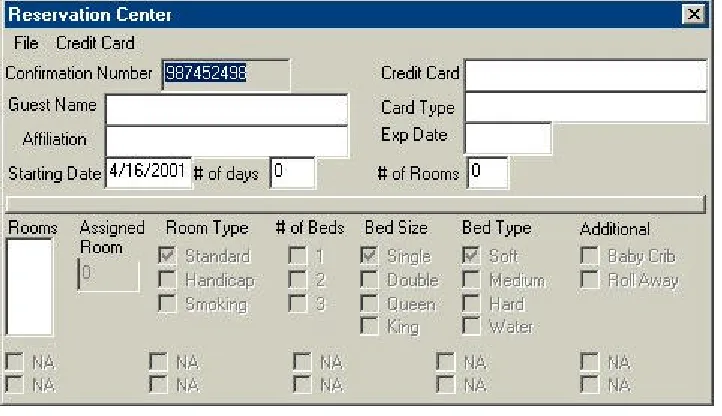
8) Expiration Date is used to enter the expiration date of the credit card. 9) The Room Number field will show the number of rooms that is
reserved for the guest. (If there are two rooms reserved the numbers 1 and 2 will show up.) To select the room to define double click on the room #.
10) The Room Type, # of Beds, Bed Size, Bed Type and additional fields are used to define the type of room for the reservation. Click on the box next to each option you wish to have for the selected room number.
Adding an New Reservation
To add a new reservation click on File and then New. Any information that was on the screen will now be blank. Using the previous descriptions fill in any fields that are relevant to the reservation.
Removing a Reservation
To remove a reservation from the system you must first open that reservation. To open a reservation click on File àà Select. The reservation selection screen will open. Double click on the reservation you wish to remove from the system. The selected reservation will now appear on the screen. To delete the reservation click on File àà Delete.
R
R
E
E
S
S
E
E
R
R
V
V
A
A
T
T
I
I
O
O
N
N
S
S
Y
Y
S
ST
T
E
E
M
M
The InnFone integrates a powerful reservation system that allows the front desk to reserve rooms for guests in advance as well as taking their personal information.
The Reservation system allows you to either view the current reservations or edit the reservation system. When reservations are made the system will automatically assign rooms for the reservation thus removing those rooms from the available list on that day.
Editing Reservations
Editing reservations includes adding new reservations, changing current reservations and removing cancelled reservations from the system.
To access the Edit Reservation Screen click on Reservation and then Edit. The following screen will appear.
Figure 28 Reservation Edit Screen
1) The Guest Name field is used to enter the name of the primary guest for the room. (This should also be the name as it appears on the credit card.)
2) The Affiliation field is used to enter the name of the company or organization the guest is associated with.
3) The Credit Card field is used to enter the guests credit card number 4) The Card Type field is used to enter the type of credit card. You may
select from pre-defined credit cards by clicking on Credit Card from the menu and selecting the type of card to use.
5) Number of rooms is to define how many rooms to reserve for the particular reservation.
6) Date is to define the check in date for the reservation. It should be entered in the format of DD/MM/YY where DD=day MM=month and YY=year. (Use 00 for the year 2000.)
7) Number of days is to define the number of days the guest whishes to reserve the room(s) for.
Atlas InnFone Stand Alone System
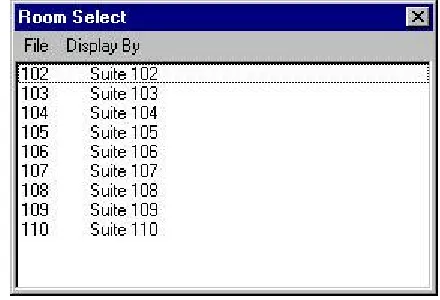
that has already been checked in you may click on Action and then Modify Room or highlight the room by clicking on it and then right click and select modify. The Room Select screen will open. (See Figure 4-3)
Simply double click the room you wish to modify. You may also type the room number in on the keyboard and the InnFone will highlight the room you type. You will still need to double click the room to select it.
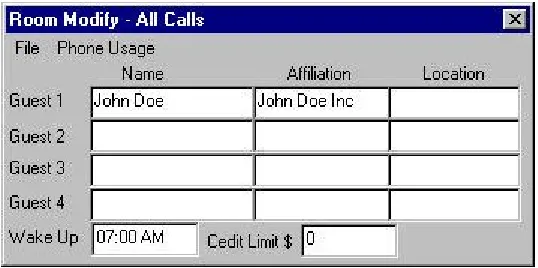
Once you have selected a room the following screen will appear:
Figure 27 Room Modify Screen
Once the Room Modify screen shows up you may enter the time in the Wake up field the guest requested. The time is entered in a regular time format of HH:MM followed by either AM or PM (There should be a space between the minutes and either the AM or PM). This is a once only alarm set in the telephone system. If the wakeup call goes unanswered the system will retry the call again in five minutes for up to three total wake attempts. You may save the changes pressing the ENTER key or by clicking on File àà Save.
Canceling a Wakeup Call
To cancel a wakeup call follow the above procedure and simply delete the time in the wakeup field and save the changes by pressing the ENTER key or by clicking on File àà Save.
9
9
1
1
1
1
E
E
M
M
E
E
R
R
G
G
E
E
N
N
C
C
Y
Y
C
C
A
AL
LL
LS
S
The InnFone system is equipped with a 911 emergency notification. This will notify the front desk when a room dials 911 on an outside line. The system will alert the front desk by both a message on the screen and a voice stating there was an emergency call and the room that dialed it.
To clear the emergency message the front desk can click on Clear 911 Call on the main menu.
b) Local – allows the guest(s) to be checked in for local calls. This will restrict the guest from making long distance calls.
c) Internal – allows the guest(s) to make internal calls only.
d) 0+ – allows the guest(s) to make 0+ calls and local calls without giving them access to direct dial local calls.
e) The installer may have added more options to this menu. Please contact them as to how these options function.
Completing the Check In
To save the check in you may either press the ENTER key or click on File and then Save. If you wish to cancel the current Check In you may either close the window by clicking on the X in the top right hand corner or click on File and the Exit.
C
C
H
H
E
E
C
C
K
K
I
I
N
N
G
G
O
O
U
U
T
T
A
A
G
G
U
U
E
E
S
S
T
T
There are two ways to access the check out function. You may either click on Check Out from the main menu or highlight the room by clicking on it and then right clicking and selecting Check Out. (If you click on Check Out from the main menu a list of all currently occupied rooms will be displayed. (See Figure 4-3 for sample screen.) Simply double click the room you wish to check out. You may also type the room number in on the keyboard and the InnFone will highlight the room you type. You will still need to double click the room to select it.)
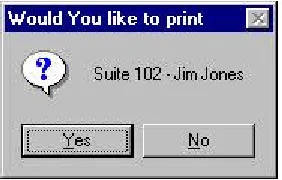
Once you have selected the guest to check out you will be prompted whether or not you wish to print a check out report.
Figure 26 Print Checkout Report Form
If you select yes the system will process the check out and print a report of any costing associated with the room. If you select no the system will only check the room out.
Once the room has been check out the status will switch to dirty. A dirty room is not allowed to be checked in. To clear the dirty status and switch it back to vacant the maid must dial the clean room code (74#) from the room telephone once they have cleaned the room.
S
S
E
E
T
T
T
T
I
I
N
N
G
G
A
A
W
W
A
A
K
K
E
E
U
U
P
P
C
C
A
A
L
L
L
L
Atlas InnFone Stand Alone System
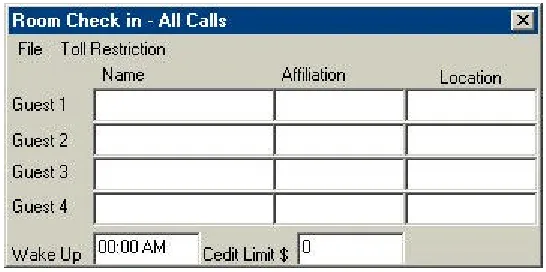
Once you have selected a room the following screen will appear:
Figure 25 Check In Screen
Name
These fields allow you to enter the name of the guest(s) staying in the room. The name should be entered in the format of “First Name (Space) Last Name” (for example “Jim Jones” would be a correct entry). The name entry allows the front desk to search by guests by either first name or last name.
Affiliation
These fields are used to assign a company name to each guest. This company name can be used to search for multiple guests within the same company when using the directory system of the InnFone.
Location
The location field can be used to keep track of a current guest. For example if he is going to be in a conference room or at the pool that information can be entered to track the guest down if needed. This is also a function of some PMS systems and they will automatically update this field.
Wake Up
This field is used to set a wake up call for the guest. The time is entered in a regular time format of HH:MM followed by either am or pm. This is a once only alarm set in the telephone system.
Credit Limit
This field is used to assign a credit limit to the room telephone(s). Once a guest exceeds their credit limit the InnFone will restrict the room to intercom calls only until it is changed by the front desk. The credit limit is entered in whole dollar amounts only.
Room Check In Menu Items
The menu on the Room Check In form also contains information regarding the check in setup. The following is a list of options that are selectable from the menu.
File
a) Save – save the current changes and check in the room b) Exit – closes the Check In form without checking in the guest.
Toll Restriction
a) All Calls – allows the guest(s) to make any calls without toll restriction
¤
Note:
The current toll restriction will be displayed across the top of the screen.
L
L
O
O
G
G
G
G
I
I
N
N
G
G
I
I
N
N
/
/
O
O
U
U
T
T
The InnFone allows for password restriction to access certain options as well as basic functionality such as checking in/out a guest. When setup each user must log in before proceeding any further into the system. The following is an example of the login screen:
Figure 23 Login Screen
To access the Log In screen click on Action àà Clerks àà Log In.
To Log Out click on Action àà Clerks àà Log Out. If you forget to Log Out the system will automatically log you out after five minutes of inactivity.
C
C
H
H
E
E
C
C
K
K
I
I
N
N
G
G
I
I
N
N
A
A
G
G
U
U
E
E
S
S
T
T
There are two ways to access the check in function. You may either click on Check In from the main menu or highlight the room by clicking on it then right click and select check in. If you select to click on Check In from the Main Menu the following screen will appear if you right click skip to the Room Check In Screen.
Figure 24 Room Select Screen
Simply double click the room you wish to check in. You may also type the room number in on the keyboard and the InnFone will highlight the room you type. You will still need to double click the room to select it.
¤
Note:
If Smart Search is enabled the room select screen will not be displayed. You will see the Smart Search screen instead.:
Screen Path:Select:
• Actionà
• Clerk(s)à
Atlas InnFone Stand Alone System
View – This menu selection allows you to view different information in the InnFone. a) Logs – View different logs in the system. Either SMDR or PMS. b) Rooms – View the current status of all the rooms in the system. This
screen also allows you to sort the view by status. See Room Status for further details.
Initialize – This menu selection allows the InnFone to request all current room information from the PMS system.
Reports – This menu selection allows you to run different reports on the system. a) Rooms – Allows you to print a report on different type of room status. b) Audit – Allows you to run audit reports for either day, week, month or year. Exit – This menu selection will close the InnFone program. Doing this will stop the system
from costing any calls.
Action
The action menu contains information regarding the user operation of the InnFone. Clerk(s) – This menu selection allows the front desk personnel to either log on or log off of
the system.
Smart Search – This menu selection opens the smart search form. This can be useful if the smart search option is not turned on in the system.
Reserve Room – This menu selection allows the front desk to reserve a room. This is not related to the reservation system. This would be used to reserve a room for a particular function not for a guest.
Modify Room – This menu selection allows the front desk to modify a room that is currently check in. You can use this to set a wakeup call, change a rooms credit limit, change guest name information or any other options that can be set during the check in screen.
Change – This menu option allows you to manually change the status of a room without having to go through the check in or check out process.
Move – This menu option allows you to move a guest from one room to another.
Check In
This menu selection will initiate the check in process. It will either open the Smart Search screen or the Room Selection screen depending on system settings.
Check Out
This menu selection will initiate the check out process.
Clear 911 Call
This menu selection will clear the emergency call message from the screen.
Reservation
This menu will give you access to the reservation system. You can choose either to edit or to view the reservation information. Please refer to the section on reservation for more detail.
Directory
Main Screen Icons
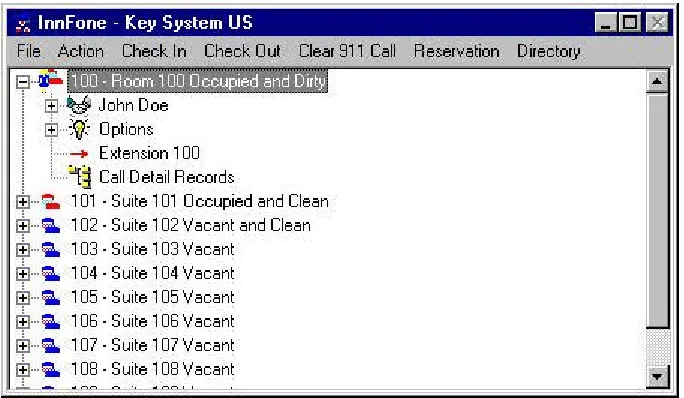
To use the InnFone main screen to view current information use the following guide.
Vacant Occupied
Clean Room Clean Room
Dirty Room Dirty Room
Needs Inspected Needs Inspected
Out Of Service Out Of Service
Reserved Reserved
To View information you may double click on any item with a “+” to the left of it. If there is no “+” to the left that item has no more information to be displayed.
U
U
N
N
D
D
E
E
R
R
S
S
T
T
A
AN
N
D
D
I
I
N
N
G
G
M
M
A
A
I
I
N
N
M
M
E
E
N
N
U
U
O
O
P
P
T
T
I
I
O
O
N
N
S
S
The main menu on the InnFone is broken up into seven selections.
File
This menu contains information regarding the main operation of the InnFone.
Screen – This menu is used to manually refresh the screen to update the most recent activity. (The screen will automatically update after 10 seconds of inactivity.)
Edit – This menu is used in setting up the InnFone. Please refer to chapter 3 for information regarding this selection.
Icons – This menu selection is used to change the size of the icons displayed on the screen. The options are small, large and refresh.
System – This menu selection is used by technical support to log into the system.
Reset – This menu selection is used to reset information in the InnFone. Currently the only option is Year to Date. This option will reset all call information for the current year. Activate – This menu selection is used to activate different features in the system. Currently
the only two options available are Smart Search and Double Click. Smart Search is used for checking in a guest to find a particular type of room. Double click allows the user to double click on a room to access the room menu.
Update – This menu selection is used to update information in the InnFone. This includes daily room rates and reservations.
4
User Operating Instructions
This section is designed to help the property owner and their employees in using the InnFone. This will include checking In/Out a guest, setting wake up calls, modifying room statuses, running reports and any other options that might be used in a day-to-day environment.
M
M
A
A
I
I
N
N
S
S
C
C
R
R
E
E
E
E
N
N
The main InnFone screen will display all current room information in a viewable tree format. This includes room status, checked in/out, current call activity and charges, guest name(s) and affiliations and all other settings that are assigned to the room. The following is a sample of the main screen.
Atlas InnFone Stand Alone System
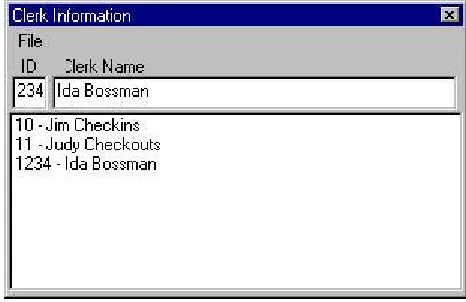
Figure 21 Clerk Information Screen
:
Screen Path:Select:
• Fileà
• Edità
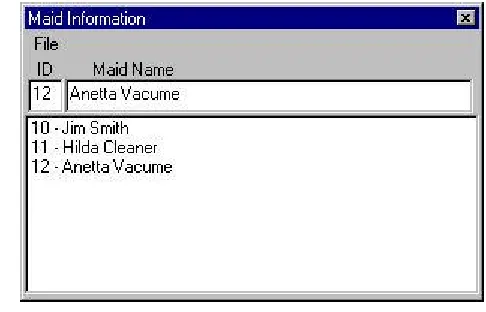
Figure 20 Maid Information Screen
ID
The ID field is used to assign the actual ID number for the maid. This field can be up to 10 digits long. However, all entries must be the same length for the feature to work correctly.
Maid Name
This field is used to assign a name to the maid. This can be in any format that is recognizable to the front desk staff.
Maid Information Menu Items
The menu on the Maid Information form also contains information regarding the maid setup. The following is a list of options that are selectable from the menu.
File
a) New – allows you to add a new maid ID entry.
b) Save – save the current changes. This must be done before selecting a different maid ID entry.
c) Delete – delete the current maid ID entry. d) Exit – closes the Maid Information form.
C
C
L
LE
E
R
R
K
K
I
I
N
N
F
F
O
O
R
R
M
M
A
A
T
T
I
I
O
O
N
N
The InnFone allows the property manager to assign unique names and passwords for each member of their staff for tracking purposes. This information is attached to any transactions that that person processes. This also requires the user to “Log-In” before using the system. The following is an example of the Clerk Information screen:
¤
Note:
To select a different maid entry, simply double click the one you want to program.:
Screen Path:Select:
• Fileà
• Edità
Atlas InnFone Stand Alone System
T
T
O
O
L
L
L
L
R
R
E
E
S
ST
T
R
R
I
I
C
C
T
T
I
I
O
O
N
N
S
S
E
E
T
T
U
U
P
P
The InnFone allows for the ability to change the toll plan for a telephone when the room is checked in. The toll plan that is assigned to the telephone can be selected from one of up to fifteen different options. (From default there are only four options; All Calls, Local Calls O + calls and Room to Room.) Each different toll restriction option can be assigned to select a different toll plan from the KSU. The following is a sample of the Phone Usage Screen.
Figure 19 Phone Usage Screen
Code
This field is the actual toll plan in the KSU that will be selected for the telephone on check in. The toll plan used must be setup in the KSU for the feature to function correctly. Please refer to the KSU manual for instructions.
Description
This field allows for a description of the Toll Plan. The description is what the front desk personnel see when they are checking in a guest. They may pick any of the toll plans that are setup.
M
M
A
A
I
I
D
D
I
I
N
N
F
F
O
O
R
R
M
M
A
AT
T
I
I
O
O
N
N
The InnFone allows the property manager to assign unique maid ID numbers to their staff for tracking purposes. These numbers can be used when cleaning rooms to alert the front desk of current maid activity and/or location. The following is an example of the Maid Screen.
:
Screen Path:Select:
• Fileà
• Edità
• Systemà • Toll
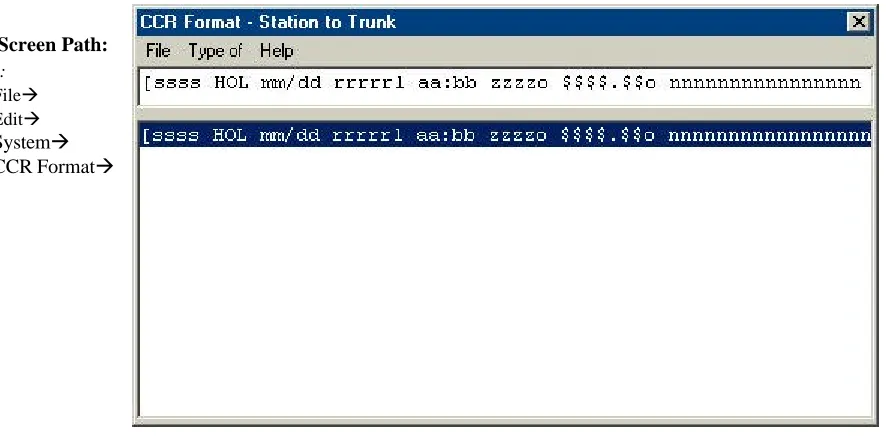
Figure 18 CCR Format Screen
The CCR Format screen is used to change the default call record to match with what the PMS system is expecting. To change this format double click on the format to change and make appropriate changes using the following variables.
Type Variable Description
Extension x Defines the extension number the call
record is for.
Trunk Number t defines the trunk the call as made on.
Starting Time a=hours b=minutes c=seconds
Defines the time the call started.
Duration e=hours
f=minutes g=seconds
Defines the length of the call.
Date Of Call m=month
d=day y=year
Defines the date of the call.
Telephone number n Defines the number dialed.
Cost of Call $ Defines the cost of the Call.
Sequence Number s Defines the sequence of the call (used by the PMS to determine it receives all of the call records.
Block Check Character
q Sends a block check to the PMS informing it of the size of the packet.
Start of Text [ Defines the start of text in the packet.
End of Text ] Defines the end of text in the packet.
Carriage Return | (shift backspace) Sends a carriage return to the PMS.
Line Feed _ Sends a line feed to the PMS.
:
Screen Path:Select:
• Fileà
• Edità
Atlas InnFone Stand Alone System
PMS Format Variables
The following table is a list of all the variables that are used by the InnFone when defining PMS packets:
Type Variable Sample Description
Zero Fill
o
nnnno Fills in remaining information with blank spacesLeft Justify
l
nnnnnnnnnnnnnl Aligns the information to the left of the packetDollar Amount
$
$$$$.$$$ Defines the format in which to send costing information to the PMS.Trunk Number
I
iii Defines the format the trunk information is to be sent to the PMS.Room Number
r
rrrr Defines the room number being sent to the PMS.From Room
f
ffff Defines the room being transferred from.To Room
t
tttt Defines the room being transferred to.Extension
e
eeee Defines an extension numberName
n
nnnnnnnnnn Defines a name to be sent to the PMS.Hour
h
hh Sends the hour of an activity to the PMS.Minutes
m
mm Sends the minutes of an activity to the PMS.Seconds
s
ss Sends the seconds of an activity to the PMS.Month
x
xx Defines the month of an activity to be sent tothe PMS.
Day
d
dd Defines the day of an activity to be sent to thePMS.
Year
y
yy Defines the year of activity to be sent to thePMS.
Credit Card #
z
zzzzzzzzzzzzzzzz Defines the credit card number on a reservation.Credit Card Name
v
vvvvvvvvvv Defines the name on a credit card for a reservationCredit Card Exp
Date
w
ww/ww Defines the expiration date of a credit card on a reservation.
Description
c
cccccccccc Defines a description of the record for the PMS.STX
[
[STS… Defines the start of a text field for the PMS.ETX
]
…rrrr1] Defines the end of a text field for the PMS.Defining The Call Record Format
The call record format allows the InnFone to send the costed call information to the PMS system in a format it will recognize. The default format is setup to match the Holidex standard used by many PMS manufacturers.
The following is a sample of the CCR Setup Screen:
¤
Note:
Packet Type Definition
Acknowledgement Verifies that the InnFone received a recognized packet Neg Acknowledgement Verifies that the InnFone received an unrecognized packet Initialize Requests the PMS to resend all current room information Enquiry Requests the PMS to send information for one particular room Call Record Sends a call record to PMS. (Most PMS systems do not accept call
records on the same port as PMS interface.) Call Cost Sends a call cost to the PMS
Check In Sends a check in to the PMS Check Out Sends a checkout to the PMS Cost Adjustment Sends an adjustment to the PMS Transfer Moves a guest from one room to another Room Service Sends room service charges to the PMS.
Peg Count Uses European standard for call costing and send it to the PMS. Message waiting Changes the message waiting status for a particular room in the
PMS.
Maid Status Updates the current maid status in the PMS.
Toll Restrictions Updates the current toll restriction status of a room in the PMS.
Name Updates a guests’ name in the PMS
Department Updates a guests’ department in the PMS Locate Updates a guests’ location in the PMS
To define a new input packet you must first know what the PMS system is expecting to receive for the particular function you wish to define. For example if you do a checkout on the InnFone for room 123 and the PMS requires a packet of “STS1 rrrrr1” this packet must be defined in the InnFone.
To define this packet in the system you would do the following: 1) Click on File and then New.
2) Enter the packet format required by the PMS, (STS1 rrrrr1) using any wild cards that are needed. (See table on next page for accepted variables for the PMS interface.)
3) Select the type of packet from the Output menu. (Maid Statusà VacantàDirty)
Click on File and then Save to save the new packet
¤
Note:
Atlas InnFone Stand Alone System
Input packets
The following is a list of the available definitions for packets which are received from the PMS and samples of predefined packets in the system.
Packet Type Definition
Are You There This is a “heartbeat” packet sent by the PMS verifying the link between the two systems.
Acknowledgement Verifies that the PMS received a recognized packet. Neg Acknowledgement Verifies that the PMS received an unrecognized packet. Reset PMS system is requiring a reset of all room information. End Defines the end of a group of information sent by the PMS. Check In The PMS has sent a packet requesting a guest to be checked in. Check Out The PMS has sent a packet requesting a guest to be checked out. Enquiry The PMS is requiring information a particular room.
Cost Adjustment A cost for a particular room has been changed in the PMS. Room Service A room service bill has been added by the PMS
Maid The current maid status is being updated by the PMS
Message Waiting The rooms’ message waiting status is being updated by the PMS. Toll Restrictions The rooms current toll restriction is being changed by the PMS. Name The guests name is being updated by a particular room
Locate A guest’s location is being updated by the PMS.
To define a new input packet you must first know what the PMS system is sending and why it is sending it. For example if you do a checkout on the PMS for room 123 and it sends a packet of “CHK0 00123” the following can be assumed:
1) On a checkout the PMS will send a packet of CHK0 followed by the room number.
2) The room number is being expressed in a five-digit format. To define this packet in the system you would do the following:
1) Click on File and then New.
2) Enter the packet format being sent by the PMS, (CHK0 eeeee) using any wild cards that are needed. (See table on next page for accepted variables for the PMS interface.)
3) Select the type of packet from the Input menu. (Check Out) 4) Click on File and then Save to save the new packet. Output Packets
The following is a list of the available definitions for packets which are sent to the PMS and samples of predefined packets in the system.
¤
Note:
Please consult with your PMS manufacturer for the format of their packets being sent to the InnFone. The InnFone is setup to emulate a Mitel system from default.¤
Note:
To view packet information sent between the systems, look in the Process PMS window.P
P
M
M
S
S
I
I
N
N
T
T
E
E
R
R
F
F
A
AC
C
E
E
The InnFone system allows for a bi-directional interface with many Property Management Systems. This interface is combined into two parts
1) PMS – The PMS setup defines the information that is sent between the InnFone and the PMS system. This is usually a two-way type of
communication (bi-directional) between the systems. This means that both systems send information that the other is setup to recognize.
2) Call Records – The call records setup allows the InnFone to send the costed call information to the PMS system in the format that is required.
Defining the PMS Interface Format
The PMS interface format allows the InnFone to assign definitions to different type of information received by or sent to the PMS system. By defining these packets of information the InnFone then becomes a link between the PMS and the KSU. For example, in a system that has been properly setup, (and supports the feature) when a front desk employee checks a guest out from the PMS system it will send the information to the InnFone. Once the InnFone receives the information (packet) it defines the information received and pass that information along to the KSU and the voicemail. This allows for a single point of access for the front desk employees. When setup correctly this function becomes seamless and eliminates the need for having the InnFone at the front desk. This clears up space and clutter.
The following is a sample of the PMS setup screen:
Figure 17 PMS Setup Screen
There are two types of packet that may be defined. They are Input, coming from the PMS, and Output, going to the PMS.
:
Screen Path:Select:
• Fileà
• Edità
• Systemà • PMS
Atlas InnFone Stand Alone System
Field Type
Variables
Extension – used to define the extension number in the call record.
x (use as many x’s as the extension length is. If the extension length is 2 digits use xx etc.) Trunk – used to define the trunk number in
the call record.
t (use as many t’s as the length of the trunk number.)
Start Time – used to define the starting time of the call record.
aa = hours bb = minutes cc = seconds Duration – used to define the duration of the
call.
ee = hours ff = minutes gg = seconds Date – used to define the date of the call
record.
mm = month dd = day yy = year Telephone Number – used to define the
dialed digits of the call record.
n (use as many n’s as the maximum number of digits that the SMDR will print out. The Atlas systems send out 20 digits.)
Maid ID – used to define a maid id code in the SMDR record.
o (the letter o)(use as many o’s as you need to define the maid id code.)
Ring Duration – used to define the incoming ring duration on a call record.
hh = hours ii = minutes jj = seconds
After defining the variables in the call record the type of the record must be defined. There are seven different types of definitions for call records. They are:
1) Station to Station – defines call as a station-to-station call. 2) Station to Trunk – defines call as an outgoing trunk call 3) Trunk to Station – defines call as an incoming trunk call 4) Station Alarm – defines call as an alarm for a particular station 5) Trunk Alarm – defines call as an alarm for a particular trunk 6) Emergency Alarm – defines call as an emergency call (911) 7) Wake Up – defines call as a wake up call.
To define the call records simply click on Type Of from the menu and select the appropriate call type for the current record.
S
S
Y
Y
S
S
T
T
E
E
M
M
P
P
A
A
R
R
A
A
M
M
E
E
T
T
E
E
R
R
S
S
The System parameters fields are only to be changed by Key System US technical support.
¤
Note:
All variables must be in lower case. Upper case letters define a fixed character.
¤
Note:
EveryDefining Call Records
When an undefined call record shows up in the SMDR Format form it will be displayed exactly as received by the InnFone. To define this as a valid type of call record the
information in that call record must be replaced with predefined variables. The following are examples of an undefined call record and then the defined call record.
Figure 15 Undefined SMDR Format
Figure 16 Defined SMDR Format
The following table is a list of all variables that can be used when defining the SMDR format. Undefined
Record
Atlas InnFone Stand Alone System
Data Bits
This field is used to define the data bits required by the connecting device. Your options are four through five. To select a different data bit simply click on the new selection.
XON/XOFF
This field is used to define the characters used when the connecting device requires an XON/XOFF condition. To enter a new value, simply delete the current value and type in what is required by the connecting device.
Communication Port Menu Items
The menu on the communications port form also contains information regarding the communication port setup. The following is a list of options that are selectable from the menu.
File
a) Exit – closes the communication port form
b) Save – saves the current changes in the communication port form.
Enable
a) XON/XOFF – enables the XON/XOFF field in the communication port form.
b) Is Modem – defines the current communication port as a modem.
S
S
M
M
D
D
R
R
F
F
O
O
R
R
M
M
A
A
T
T
The InnFone system allows for the SMDR information to be formatted to match the records being sent out by the telephone system. If the system receives any calls that do not match an already defined format there will be an audio notice and the record will be displayed under the SMDR Format form. The following is an example of an SMDR Format form.
Figure 14 SMDR Format form
The form is divided into two parts. The first section is the current record to be defined. The lower section is all of the currently defined and undefined records in the system.
¤
Note:
XON/XOFF must be enabled under the menu option EnableàXON/XOFF
:
Screen Path:Select:
• Fileà
• Edità
• Systemà • SMDR
that the telephone system will understand and sends the translated information out the SMDI port.
CCR Used to send processed call records to PMS system.
The following screen is an example of the SMDI communication port setup. (All other communication ports have a similar screen, with the only difference being the header on the top of the window.)
Figure 13 SMDI Communications Port
Communication Ports
This field is used to select the physical communications port that is used in the computer for sending and receiving data. To change you may simply click on the port number you wish to change it to.
Handshaking
This field is used when the system being attached to the InnFone requires a handshaking method. The three options are:
CTS Clear to Send. The system holds the clear to send signal high. DSR Data Set Ready. The system will hold the DSR signal high. DTR Data Terminal Ready. The system will hold the DTR signal high.
Stop Bits
This field is used to define the stop bits required by the connecting device. To change the values simply click on the value required by the connecting device.
Baud Rate
This field is used to select the baud rate at which information will be sent and received. To select a different baud rate simply click on the speed that is required by the connecting device.
Parity Type
This field is used to define the parity required by the connecting device. There are five choices; none, even, odd, mark or space. To select a different parity type simply click on the new selection.
Write Delay
This field allows for a delay to be added before any packet is sent out. The write delay is in milliseconds. To enter a new write delay simply delete the current value and replace it with the value required by the connecting device.
:
Screen Path:Select:
• Fileà
• Edità
• Systemà • COMM
Portsà • Select COMM
Atlas InnFone Stand Alone System
Max Digits
This is the maximum number of digits from the number dialed that will be displayed. This field does not include any digits that are removed in the strip digit table. For example on local calls you only need to display seven digits in most circumstances. If this field is left blank all dialed digits will be displayed.
Setup Time
This is the amount of time you wish to remove from the total duration of the call to allow for dialing. Since most phone systems start call timers as soon as the first digit is dialed on a line. For example if your setup time is ten seconds and a call lasts for one minute the call will only be billed as fifty seconds.
Grace Period
This could be referred to as the minimum time for a call to be valid for billing. This field is applied after the setup time has been removed from the total duration of the call. For example if a call lasts for one minute and the setup time is ten seconds the call has a billable length of fifty seconds. If your grace period is more then fifty seconds the call will not be billed. If your grace period is less then fifty seconds the call will be billed.
Digit Match Menu Items
The menu on the band definition form also contains information regarding the band definition setup. The following is a list of options that are selectable from the menu.
File
a) New – allows you to add a digit match entry.
b) Save – save the current changes. This must be done before selecting a different digit match entry.
c) Delete – delete the current digit match entry. d) Exit – closes the digit match form
Select
a) Match – allows you to select another digit match.
Type
a) Incoming – allows you to define an incoming call for records b) Outgoing – allows you to define an outgoing call for records
S
S
E
E
R
R
I
I
A
A
L
L
P
P
O
O
R
R
T
T
S
S
E
E
T
T
U
U
P
P
The InnFone allows for the installer to setup the parameters for the serial ports to match what is required by either the telephone system or the PMS system that the InnFone is to work with. Each different port in use can be defined with its own unique parameters. The four types of ports include:
SMDI Used for sending information to the telephone system.
SMDR Used for receiving call records and other type of SMDR printouts from the system.
PMS Used for receiving and sending information to/from the PMS system. The InnFone then interprets this information and translates it into information
¤
Note:
match table, best match entries are automatically routed into place preceding the subordinate match.
Wildcards are also programmable in the digit match table. They are used to program a group of numbers in a single string. Wildcards are very powerful and can be extremely useful in minimizing the number of keystrokes when programming. However they can also cause unanticipated and undesirable results when they are not used properly. The wild card digit used in the InnFone is the character “X”.
The digit match table illustrated on the previous page has been constructed to provide an understanding of how the digit match table operates and how digit match strings and wildcards interact. The information contained in the digit match table is partially fictitious and to be used for the purpose of illustration only. Some entries have been exaggerated to stress the importance of considering all possibilities before using wildcards. Keep in mind while studying the examples described in this section, the priorities of the digit match entries are as follows; first priority is “specific digit”, second priority is “X”
Examples
Digit Match Entry Description of Consequence
0 VS 01 VS 011
If the number dialed is 0(561) 555-1212 it will match all three entries when the first digit is processed through the table once the second digit is processed only the entry of “0” will match and the call will be processed according to that match.
If the number dialed was 011-9876543 the best match for the call would be “011” rather then “0”
1 VS
1XXX5551212
If the number dialed is 1(561) 555-1212 both the entries of 1 and 1XXX5551212 would match the first digit, however, the best match for the call would be the 1XXX5551212. 1 VS
1800 VS 1877 VS 1888
If the number dialed is 1(800) 123-4567 the system will match to all three entries on the initial digit. Once the second digit is compared only 1800,1877 and 1888 will match. Following this pattern only 1800 would match the called number.
Description
This field allows for a description of the digits dialed for later reference.
Band Assignment
This field allows you to select the band assignment to be associated with the digit match entry. To select the band to assign to the specific entry double click on that band. The InnFone will then highlight that selection.
Surcharge
By entering a value in this field the InnFone will apply a surcharge to the call. For example if a digit match has a surcharge of $.25, $.25 will be added to the total cost of the call. This field does not very by time it is a fixed amount.
Atlas InnFone Stand Alone System
Select
a) Band – allows you to select another band definition.
Type of Call
a) Long Distance – tells the PMS system this is a long distance call b) Foreign – tells the PMS system this is a foreign call
c) Local – tells the PMS system this is a local call.
Digit Match Table
The digit match table is the key to the InnFone’s flexibility when it comes to call costing. This table consists of up to 9999 entries that can be compared to the number dialed to find a match for costing the call. The table also supports a wild card entry of “X” to represent any digit. The following is an example of a digit match form:
Figure 12 Digit Match Table
Digit Dialed Table
This list shows all of the currently defined digit match entries in the system. You can scroll through the list by using the up and down arrow on the right hand side of the list. To select an entry simply double click the entry to modify. The InnFone automatically sorts this list in order.
Digits Dialed
This field represents the actual digits to be matched to the call record. The digit match table is used to determine the rate of a call or the cost of a call. Each entry contains a series of digits identifying various call types. These digits are compared to the digits dialed by the user. Once a match is encountered in the digit match table, the software refers to the band definition associated with the digit match entry to determine the rate of the call. Each entry can use a different band definition with different rate information to accommodate various applications. The digits are stored in the digit match table, best match first, for example “976” is the best match for a “976” call opposed to just the digit “9”. When editing or adding to the digit
:
Screen Path:Select:
• Fileà
• Edità
• Call Costingà • Digit Match
¤
Note:
To select a different digit match entry, simply double click the one to program.Figure 11 Band Definitions
Band
This is the actual band number being used. This number can be between 1 and 9999. The InnFone will automatically sort the band numbers in order once a new band is saved. If a duplicate band is entered the system will not allow it to be saved.
Description
This field allows for a description of the band being programmed. This allows for easy recognition of the band when setting up the digit match table.
Number of Sec
This field allows for different rates for different time periods of the call. The “First” field will be the first part of the call in seconds. In the example above there is an entry of 60 indicating one minute. This entry can be up to 9999 seconds. The next fields will be added onto the first field. If there is no entry in the next “Next” field the system will continue to use the current “Next” field. These fields can also be up to 9999 seconds.
Rate per Minute
The actual charge per minute is defined here. This charge is determined by minute. For example if you had a duration of 30 seconds and a charge of $1.00 in the “First” field the first 30 seconds would only be charged $.50 and then the system would look at the first “Next” field.
Tax Tables
The tax tables are used to add tax onto the total cost of a call. Each tax entry is entered in a percent format. Each tax is calculated on the total cost of the call before tax and then added onto that total. The City, County, State, Federal and additional are displayed merely as a guide to what taxes the property owner may want set up.
Band Definition Menu Items
The menu on the band definition form also contains information regarding the band definition setup. The following is a list of options that are selectable from the menu.
File
a) New – allows you to add a band definition entry.
b) Save – save the current changes. This must be done before selecting a different band definition entry.
c) Delete – delete the current band definition entry. d) Exit – closes the band definition form
:
Screen Path:Select:
• Fileà
• Edità
• Call Costingà • Band
Definition
¤
Note:
To select a different band entry, simply double click the one you want to program.Atlas InnFone Stand Alone System
Figure 10 Strip Digit Table
Digits
The digits field defines the actual digits to be removed from the number dialed. You can use “X” as a wild card to represent any number. Use the letter “X” in place of any digit that is to be removed. The above example would remove the first seven digits from any number starting with “1010”.
Description of
This field allows you to assign a description of the strip digit information for future reference.
Strip Digit Menu Items
The menu on the strip digit form also contains information regarding the strip digit setup. The following is a list of options that are selectable from the menu.
File
a) New – allows you to add a strip digit entry.
b) Save – save the current changes. This must be done before selecting a different strip digit entry.
c) Delete – delete the current strip digit entry. d) Exit – closes the strip digit form.
Band Definitions
The band definition form is used to define the actual rate to be applied to the call. The programmable band table can contain up to 9,999 entries, allowing for extreme flexibility for call costing. Several options are available to determine the actual cost of the call. Each of these options can be programmed to suit various applications. The following is a sample of a band definition form:
:
Screen Path:Select:
• Fileà
• Edità
• Call Costingà • Strip Digits
Other
Under the other selection there will be additional options that may be defined for the current room. These options are defined under the Room Other setup screen.
R
R
O
O
O
O
M
M
O
O
T
T
H
H
E
E
R
R
The InnFone allows the property to define additional information for room descriptions, Ie. Kitchenette, ocean view, pool view etc…
The following is an example of the Room Other screen.
Figure 9 Room Other Screen
To add additional options to the room setup simply enter a description into on of the blank fields on the Other screen and then save the changes. These options will now be available when defining rooms in the setup and when using the reservation system or smart search.
C
C
A
AL
LL
L
C
C
O
O
S
S
T
T
I
I
N
N
G
G
S
S
E
E
T
T
U
U
P
P
There are three parts associated with setting up the call costing. These are the strip digit table, band definition and digit match table. In order for the call accounting to function correctly all three items should be setup.
Strip Digit Table
The strip digit table is used to remove dialed digits off of the beginning of the dialed number field. For example if a guest dialed “1010xxx” followed by a telephone number the InnFone system could be set up to remove the “1010xxx” from the number and the cost the call as a normal outgoing call. The following is sample of a Strip Digit Table:
:
Screen Path:Select:
• Fileà
• Edità
Atlas InnFone Stand Alone System
11) The nightly rate is used to charge the room rate as part of the bill.
Room Menu Items
The menu on the room form also contains information regarding the room setup. The following is a list of options that are selectable from the menu.
File
a) New – allows you to add a new room
b) Save – save the current changes. This must be done before selecting a different room.
c) Delete – delete the current room. d) Exit – closes the room form.
e) Duplicate – make duplicate copies of the current room with different room numbers
Room
Under the Room selection you will see the following options: a) Select – used to select a different room. b) Reserved – used to reserve a room.
c) Type – used to select the room type, either Standard, Handicap or Admin.
d) Bed Size – used to select the size of bed in the room. This feature is used as part of the reservation system.
e) Bed Type – used to select the type of bed in a room. This feature is used a part of the reservation system.
f) Additional – used to define additional items that may be available in the room such as a crib, rollaway bed or a sofa bed.
Toll Restriction
Under the Toll Restriction selection you will see the following options. These options are set when a guest is checked in. (These are the default options there may be more added under the Toll restriction setup.)
a) All Calls – the room is not restricted to from making any type of call. b) Local – the room is restricted to making local calls only.
c) Internal – the room is restricted to making intercom calls only. d) O+ − the room is restricted to making O+ and local calls only.
Billing
Under the billing selection you will see the following options. These are used to determine if the current room is billed for the different selections when a call is made.
a) Surcharge – determines whether the surcharge from the call will be billed to this room.
b) First Minute – determines whether the first minute charge from the call will be billed to this room.
R
R
O
O
O
O
M
M
S
S
E
E
T
T
U
U
P
P
The Room Setup form is used to set up the room information for the property. This includes such fields as extension numbers, number of beds, type of room, phone usage and billing options along with other possible selections. The room setup in this form will be what is displayed on the main screen of the InnFone. The following is a sample of the Room form.
Figure 8 Room Form
1) The room number field is the actual room number to be displayed on the main InnFone screen.
2) The number of beds field is used for the reservation system to define how many beds are in the room.
3) The credit limit field is used to enforce a credit limit on a room. This field is automatically updated when a room is checked in.
4) The description field is used to give a description to the room.
5) The extension field is used to define the extension(s) in a room. If you wish to enter multiple extension separate them with a “ ” (space). For example if a room had an extension of 100 and a data port extension of 120 you would enter “100 120”. Any extensions entered in this will be included in the billing for this room.
6) The guest field is used to display the guests name who is currently occupying the room. This field is automatically updated when a room is checked in.
7) The Affiliation field is used to assign an affiliation to a guest. This is also referred to as company on some systems. This field is updated on check in and is not required. 8) The wake up field displays the time for any current wake up call for the room. This
field is automatically updated when a room is checked in.
9) The total charge field is used to display the total current charges for the room. This field cannot be edited.
10) The check in field is used to display the date that the current guest was checked in. This field is automatically updated when a room is checked in.
:
Screen Path:Select:
• Fileà
• Edità
• Rooms
¤
Note:
To select a different room, simply double click the room you want to program.3
Administration
This section will assist the installer with setting up the system for use. Included in this will be setting up the rate and digit match tables, setting up rooms, setting up strip digit tables, hotel information, serial ports and system parameters.
H
H
O
O
T
T
E
E
L
L
I
I
N
N
F
F
O
O
R
R
M
M
A
A
T
T
I
I
O
O
N
N
The Hotel Information form contains information about the property the system is installed at. This information will be displayed as a header for any report the system prints out. The following is the screen you will see while editing the Hotel Information.
Figure 7 Hotel Information
1) The Name field is for the name of the property
2) The Address fields are for the address of the property or any other information you may want displayed as a header for the reports.
3) The Zip Code field is for the zip code of the property.
4) The Phone Number field is for the telephone number of the property.
5) The Room Rate Tax(s) field allows the property owner to apply up to five different tax rates on a room when they are utilizing the room rate feature. (This is enabled while setting up the room. See next page.)
After entering the information click on File and then Save to save your changes.
:
Screen Path:Select:
• Fileà
• Edità
Figure 5 KDX-MDF Diagram
Wiring Diagram
Atlas InnFone Stand Alone System
Figure 4 InnFone PC to SMDR-E Connections
I
I
N
N
S
S
T
T
A
A
L
L
L
L
I
I
N
N
G
G
W
W
I
I
T
T
H
H
K
K
D
D
X
X
-
-
5
5
0
0
0
0
Installing the InnFone on a KDX-500 system requires no special software in the KSU, as the standard software will support the InnFone functionality. The only hardware required would be an SMDRU card. (Please refer to the KDX-500 installation manual on information for installing the SMDRU card.)
To enable the COM ports on the SMDRU card for normal operation you should have DIP switches 5,6 and 7 in the on position. (If they are off the COM ports will function in test mode only.)
Attaching InnFone to SMDRU
The InnFone attaches to the SMDRU using two serial connections. These cables are supplied with the InnFone and are labeled with their respective connections.
The cable kit that is provided with the Innfone will include two 6 conductor mudular cords two DB-9 to modular adapters and two serial to USB adapters. To connect the InnFone to the SMDRU connect one of the modular cords (supplied) to the RJ jack labeled J2 on the KDX-MDF (right hand side of the main cabinet) and connect the other end of the modular cord to the DB-9 to USB connector labeled Com 2. Plug this connector into one of the USB connectors on back of the InnFone PC. Plug the remaining modular cord (supplied) into the RJ jack labeled J4 on the KDX-MDF and connect the other end to the DB-9 to USB connector labeled Com 1. Plug this connector into the remaining USB connector on back of the InnFone PC.
Figure 2 SMDR-E Diagram
Wiring Diagram
Atlas InnFone Stand Alone System
I
I
N
N
S
S
T
T
A
A
L
L
L
L
I
I
N
N
G
G
W
W
I
I
T
T
H
H
K
K
S
S
X
X
-
-
3
3
2
2
/
/
1
1
2
2
8
8
When installing the InnFone on either a KSX-32 or KSX-128 there are a couple of items that need to be checked before proceeding.
1) The system must already have an SMDR-E unit installed (please refer to KSU manual on directions on installing the SMDR-E)
2) The SMDR-E dipswitches should be set for the InnFone. (Switches 1, 3, 4 and 5 should be on. All others should be off.)
3) The system must have InnFone version software installed. (This can be determined by pressing the “PROG” key on an idle display phone. The word “InnFone should be displayed on the screen before the software version) If the InnFone and KSU were purchased together the KSU should have InnFone software installed.
Attaching InnFone to SMDR-E
The InnFone attaches to the SMDR-E using two serial connections. These cables are supplied with the InnFone and are labeled with their respective connections.
The cable kit that is provided with the Innfone will include two 6 conductor mudular cords, two DB-9 to modular adapters and two serial to USB adapters. To connect the InnFone to the SMDR-E connect one of the modular cords (supplied) to the RJ jack labeled Com 2 on the SMDR-E and connect the other end of the mudular cord to the DB-9 to USB connector labeled Com 1 (supplied). Plug this connector into the back of the InnFone PC to one of the USB connectors. Plug the remaining modular cord (supplied) into the RJ jack labeled Com 1 on the SMDR-E and connect the other end to the DB-9 to USB connector labeled Com 2 (supplied). Plug this connector into the back of the InnFone PC to the remaining USB connector.