Unix Unleashed
UNIX UNLEASHED About the Authors Introduction
Part I — Finding Your Way Around UNIX 1 — Operating System
2 — Getting Started Basic Tutorial
3 — The UNIX File System Go Climb a Tree 4 — Listing Files
5 — Popular Tools 6 — Popular File Tools
7 — Text Editing with vi, EMACS, and sed 8 — Getting Around the Network
9 — Communicating with Others Part II — Hunt for Shells
10 — What Is a Shell? 11 — Bourne Shell 12 — Korn Shell 13 — C Shell
15 — Awk, Awk 16 — Perl
17 — The C Programming Language Part IV — Process Control
18 – What Is a Process?
19 — Administering Processes 20 — Scheduling Processes
Part V — Text Formatting and Printing 21 — Basic Formatting with troff/nroff 22 — Formatting with Macro Packages 23 — Formatting Tables with tbl
24 — Formatting Equations with eqn 25 — Drawing Pictures with pic 26 — Creating Graphs with grap 27 — Writing Your Own Macros 28 — Tools for Writers
29 — Processing and Printing Formatted Files Part VI — Advanced File Utilities
30 — Source Control with SCCS and RCS 31 — Archiving
Part VII — System Administration 33 — UNIX Installation Basics
34 — Starting Up and Shutting Down 35 — File System Administration 36 — User Administration
37 — Networking
38 — UNIX System Accounting 39 — Performance Monitoring 40 — Device Administration 41 — Mail Administration 42 — News Administration 43 — UUCP Administration 44 — UNIX System Security
Part VIII — UNIX Flavors and Graphical User Interfaces 45 — UNIX Flavors
46 — Graphical User Interfaces for End Users
47 — UNIX Graphical User Interfaces for Programmers What's on the CD-ROM Disc
What's on the Disc
UNIX UNLEASHED
Copyright © 1994 by Sams Publishing
■
Trademarks
■
About the Authors
❍
Introduction
by Scott Parker
■
Organization
■
Foreword
■ ❍ ●
UNIX UNLEASHED
Sams Development Team SAMS Publishibng
201 West 103rd Street, Indianapolis, IN 46290
Copyright © 1994 by Sams Publishing FIRST EDITION
All rights reserved. No part of this book shall be reproduced, stored in a retrieval system, or transmitted by any means, electronic, mechanical, photocopying, recording, or otherwise, without written permission from the publisher. No patent liability is assumed with respect to the use of the information contained herein. Although every precaution has been taken in the preparation of this book, the publisher and author assume no responsibility for errors or omissions. Neither is any liability assumed for damages resulting from the use of the information contained herein. For information, address Sams Publishing, 201 W. 103rd St., Indianapolis, IN 46290.
International Standard Book Number: 0-672-30402-3 Library of Congress Catalog Card Number: 93-86957 97 — 96 — 95 ————————— 4 — 3 — 2
Interpretation of the printing code: the rightmost double-digit number is the year of the book's printing; the rightmost single-digit, the number of the book's printing. For example, a printing code of 94-1 shows that the first printing of the book occurred in 1994.
Printed in the United States of America
Trademarks
All terms mentioned in this book that are known to be trademarks or service marks have been appropriately capitalized. Sams Publishing cannot attest to the accuracy of this information. Use of a term in this book should not be regarded as affecting the validity of any trademark or service mark.
UNIX is a registered trademark of UNIX System Laboratories, Inc. Publisher
Associate Publisher
Jordan Gold
Acquisitions Manager
Stacy Hiquet
Managing Editor
Cindy Morrow
Acquisitions Editors
Grace Buechlein Chris Denny Rosemarie Graham
Development Editors
Kristi Hart Scott Parker
Software Development Specialist
Wayne Blankenbeckler
Senior Editor
Sandy Doell
Editors
Marla Abraham Susan Christopherson Fran Hatton
Greg Horman Charles Hutchinson Carolyn Linn Sean Medlock Rosie Piga Andy Saff Angie Trzepacz Kitty Wilson
Editorial Coordinator
Bill Whitmer
Editorial Assistants
Carol Ackerman Sharon Cox Lynette Quinn
Technical Reviewers
Tim Parker Mark Sims Dave Taylor Sandra Tucker
Gregg Bushyeager
Cover Designer
Nathan Clement
Book Designer
Alyssa Yesh
Director of Production and Manufacturing
Jeff Valler
Imprint Manager
Juli Cook
Manufacturing Coordinator
Paul Gilchrist
Production Analysts
Dennis Clay Hager Mary Beth Wakefield
Graphics Image Specialists
Teresa Forrester Clint Lahnen Tim Montgomery Dennis Sheehan Greg Simsic Susan VandeWalle Jeff Yesh
Page Layout
Elaine Brush Rob Falco Ayanna Lacey
Stephanie J. McComb Chad Poore
Casey Price Kim Scott Susan Shepard Scott Tullis Dennis Q. Wesner
Proofreading
Kimberly K. Hannel Jamie Milazzo Brian-Kent Proffitt SA Springer Robert Wolf
Indexers
Jeanne Clark Bront Davis Greg Eldred Johnna VanHoose
About the Authors
Susan Peppard was born many years ago in New York City. She attended New York University where she studied French literature and picked up a couple of degrees. When this failed to produce splendid job offers, she turned to computers (big, blue, room-sized machines, sporting 30 KB of memory).
Today, 30 years later, she confines her computer-related activities to writing on and about them and playing games. She is a documentation consultant (technical writer) and lives in New Jersey with a horrible black dog, an innocuous grey cat, and—between semesters—varying configurations of her children. She and UNIX met in 1985 and have been living together happily ever since.
Pete Holsberg saw his first computer in 1960, as a graduate student at Rutgers, and they have plagued him ever since. While at Rutgers, he was exposed to both analog and digital computers. He went to work for Electronic Associates, Inc., Princeton, New Jersey on leaving Rutgers. EAI was the world's largest manufacturer of analog and hybrid computers.
He later joined Mercer College, Trenton, New Jersey in 1970 as associate professor of electrical engineering and was given responsibility for the PDP-8/I lab. He was instrumental in bringing microcomputers to the campus in 1981; these were used in electronics engineering technology education. Currently, he is systems administrator for the college's UNIX lab, consultant to the college's Academic Computing Committee, secretary of the college's LAN Computing Committee, advisor to the
Educational Technology Users Group for faculty and staff, and coordinator for electronics curricula.
Pete has authored a textbook on C for electronics engineering technology for Macmillan and a book on UNIX tools for
Macmillan Computer Publishing. He has written invited chapters in a number of MCP books, and has been the technical editor or technical reviewer for many of MCP's UNIX book offerings.
Pete lives in Ewing, New Jersey with his wife, Cathy Ann Vandegrift and their four computers. They sail and enjoy the New Jersey Symphony Orchestra. Pete has a private pilot's license and is an avid autocross racer and tennis hacker. Cathy is a Realtor.
James C. Armstrong, Jr., is a software engineer with ten years of industry experience with UNIX and C. He is currently working as a technical editor at Advanced Systems, and also works free-lance for several other companies in the San Francisco Bay area. He can be reached at [email protected].
Salim M. Douba is a network consultant with Proterm Data Systems Ltd./USConnect, Ottawa, Ontario, Canada. He is also an independent certified NetWare Instructor (CNI) teaching NetWare operating systems and advanced courses. He holds a master's degree in electrical engineering from the American University of Beirut. His experience and main career interests have primarily been in Internetworking and multiplatform integration. He is reachable on CompuServe on 70573,2351.
S. Lee Henry writes a systems administration column for SunExpert Magazine, and manages systems and networking for the physics and astronomy department at Johns Hopkins University. She is on the board of directors of the Sun User Group and has been a UNIX programmer and administrator for over twelve years.
start-up efforts. He completed a master's in information systems from Georgia Institute of Technology, after completing undergraduate work at Tulane University and the University of Aberdeen, Scotland. His current position is as a director for Bedford Associates, Inc., in Norwalk, Connecticut, where he leads groups that provide Open Systems and Lotus Notes products, along with related high-performance UNIX systems-integration work. He also has appeared on national television (CNBC) as a management consultant on technology issues.
Richard E. Rummel, CDP, is the president of ASM Computing, Jacksonville, Florida, which specializes in UNIX software development and end user training. He has been actively employed in the computer industry for 20 years. Married for 21 years, he is the father of two children, a dog, and a cat.
Scott Parker has worked as a UNIX system administrator and an ORACLE Database administrator and developer for several companies.
Ann Marshall is a UNIX computer professional specializing in relational database management and system administration. A free-lance writer in her spare time, she has written articles about the RS/6000 in RS/Magazine. She received her undergraduate degree in economics and English from Vanderbilt University and obtained her master's degree in computer science from the University of Alabama in Huntsville. Outside of computers, Ann's hobbies include travel, reading, and writing fiction. You can reach Ann on CompuServe at 71513,335.
Ron Dippold graduated from Rose-Hulman Institute of Technology with a degree in electrical engineering and computer science. He is employed as a senior engineer at Qualcomm, Inc., of San Diego, CA. He is the author of several computer books and is a technical editor for many more. He served as a computer columnist and consulting editor for ComputerEdge
Magazine.
When Chris Negus isn't playing soccer or listening to Indigo Girls, he's usually writing about UNIX. Despite contributions to dozens of books and articles on UNIX, he still maintains that he is not a geek. In the past decade, Chris has worked for AT&T Bell Laboratories, UNIX System Laboratories, and Novell as a UNIX consultant. He most recently coauthored Novell's Guide to UNIXWare for Novell Press. Presently, Chris is a partner in C & L Associates, a UNIX consulting company in Salt Lake City.
John Valley lives in Richmond, Virginia with his wife Terri and his Labrador retriever, Brandon. Mr. Valley currently operates a small practice as an independent consultant for UNIX and Windows tools and applications. With more than twenty years of experience in the computer industry, his background ranges from Cobol business applications and mainframe
operating system development to UNIX tools and Windows programming. He teaches courses in C/C++ programming and UNIX fundamentals.
Mr. Valley is largely self-taught, having started as a night shift computer operator in 1972. After serving time as a Cobol applications programmer and mainframe systems programmer, he signed on with Nixdorf Computer Software Corporation (now defunct) to write operating system code. Soon promoted to project leader, he supervised the company's product design efforts for four years. Almost by coincidence, he encountered the UNIX environment in 1985 and quickly became a devotee of UNIX and C programming.
He has published three books on UNIX topics: UNIX Programmer's Reference (Que; 1991), UNIX Desktop Guide to the Korn
Shell (Hayden; 1992), and C Programming for UNIX (Sams; 1992).
Jeff Smith is a psychology major who took a wrong turn and ended up working with computers. Jeff has worked with UNIX systems since 1982 as a programmer and systems administrator. He has administered mail, news, security, and the domain name system on several varieties of UNIX including 2.9BSD, 4.3BSD, Dynix, SunOS, and AIX. Currently, he manages a network of 180 Sun workstations at Purdue University.
mail package in the UNIX community.
Currently he is working as a consultant for Intuitive Systems in West Lafayette, Indiana, while pursuing a graduate degree in educational computing at Purdue University and working on a new interface to the FTP program.
Sydney S. Weinstein, CDP, CCP, is a consultant, columnist, lecturer, author, professor and president of Myxa Corporation, an Open Systems technology company specializing in helping companies move to and work with Open Systems. He has more than 15 years of experience with UNIX dating all the way back to Version 6. He is a contributing editor for C Users Journal and was a contributing author for UNIX Programmer's Reference (Que, 1990). He can be contacted care of Myxa Corporation, 3837 Byron Road, Huntingdon Valley, PA 19006-2320 or via electronic mail using the Internet/USENET mailbox
[email protected] (dsinc!syd for those who cannot do Internet addressing).
Dave Till holds a master's degree in computer science from the University of Waterloo (a well-respected institution), majoring in programming language design. He also has substantial experience developing compilers and compiler technology, and has several years of technical writing experience.
Introduction
by Scott Parker Are you:
New to UNIX and looking for a book to help you get acquainted with UNIX?
Not so new to UNIX but looking to expand your knowledge?
A programmer looking for a guide to UNIX as a reference and a teaching guide for Perl, awk, and the shells?
A beginning system administrator looking to learn how to install UNIX or how to connect your UNIX to a network?
A system administrator looking for a reference guide or maybe just wanting to expand your knowledge?
A curious soul wanting to know everything about UNIX?
A tutorial for those who are new to UNIX. As you learn more about UNIX and get more and more comfortable, this book will be there to help you become a UNIX power user.
How to navigate the file system and how to use mail.
Instructive lessons on how to use vi, EMACS, sed.
How to program in the Bourne Shell, C Shell, and Korn Shell.
How to program in awk and Perl.
How to create your own man pages and formatted text.
How to install UNIX and power it down.
How to administer the file system, user accounts, the network, security system, mail, news, and devices.
Organization
Part I starts with a tutorial on "Finding Your Way Around UNIX." Robert and Rachel Sartin, Jeff Smith, Rick Rummel, Pete Holsberg, Ron Dippold and Dave Taylor give an introduction to operating systems. In Part I, you will find a step-by-step tutorial on how to log on the UNIX system and how to do some basic commands. There is also a complete introduction to all the file listing commands, file tools, and editing text files. You will also find a quick guide to navigating the network and methods to communicate with other systems on your network.
In Part II, "Hunt for Shells," Rick Rummel and John Valley teach you how to develop shell scripts for the Bourne Shell, Korn Shell, and C Shell.
In Part IV, "Process Control," Robert and Rachel Sartin give you an introduction to how to control your programs on UNIX. Here you find how to start a job (program) and how to kill it.
In Part V, "Text Formatting and Printing," James Armstrong and Susan Peppard give instruction on how to use these powerful macros, and how to create text with graphs, pictures, equations, etc. Learn how to create man pages and how to print
postscript.
In Part VI, "Advanced File Utilities," Robert and Rachel Sartin and S. Lee Henry teach you how to put your programs or text into version control, how to back up and archive your work for protection against hard disk crashes, and more.
In Part VII, "System Administration," Sydney Weinstein, Chris Negus, Scott Parker, Ron Rose, Salim Douba, Jeff Smith, and James Armstrong teach the basics of UNIX System Administration. Here you will learn how to install UNIX, how to create user accounts, how to partition disk drives, and how to administer security, mail, uucp, and news.
Finally, in Part VIII, "UNIX Flavors and Graphical User Interfaces," S. Lee Henry and Kamran Husain give an overview of the history of UNIX and where it is going. You will learn how to navigate X Window and, for the more advanced, how to program in the GUI environment.
Part I Finding Your Way Around UNIX 1 — Operating Systems
2 —Getting Started: Basic Tutorial
3 — The UNIX File System—Go Climb a Tree 4 — Listing Files
5 — Popular Tools 6 — Popular File Tools
7 — Text Editing with vi, EMACS, and sed 8 — Getting Around the Network
9 — Communicating with Others Part II Hunt for Shells
10 — What Is a Shell? 11 — Bourne Shell 12 — Korn Shell 13 — C Shell
14 — Which Shell Is Right for You? Shell Comparison Part III Programming
15 — Awk, Awk 16 — Perl
17 — The C Programming Language Part IV Process Control
Part V Text Formatting and Printing 21 — Basic Formatting with troff/nroff 22 — Formatting with Macro Packages 23 — Formatting Tables with tbl 24 — Formatting Equations with eqn 25 — Drawing Pictures with pic 26 — Creating Graphs with grap 27 — Writing Your Own Macros 28 — Tools for Writers
29 — Processing and Printing Formatted Files Part VI Advanced File Utilities
30 — Source Control with SCCS and RCS 31 — Archiving
32 — Backups
Part VII System Administration 33 — UNIX Installation Basics
34 — Starting Up and Shutting Down 35 — File System Administration 36 — User Administration
37 — Networking
38 — UNIX System Accounting 39 — Performance Monitoring 40 — Device Administration 41 — Mail Administration 42 — News Administration 43 — UUCP Administration 44 — UNIX System Security
PartVIII UNIX Flavors and Graphical User Interfaces 45 — UNIX Flavors
46 — Graphical User Interfaces for End Users
Foreword
Given life by Turing Award winning Bell Labs computer scientist Ken Thompson at Murray Hill, N.J., in August 1969, UNIX spent its early years as a research curiosity. When I met up with Unix in the summer of '82, however, it already possessed the one characteristic that destined it to dominate a major chunk of the world's market for operating systems—portability. UNIX kicked off the era of open systems, the first wholesale paradigm shift in the history of computing, by being the first portable operating system.
Portability is so crucial because it symbolizes everything that open systems is about, and is the critical computing ingredient for the Information Age. You may hear people use the word primarily to talk about their applications that can run on more than one type of computer platform, but, at its highest level of abstraction, portability is much more. When you think about using standard network interfaces to pass data between different computers, that's portability of information; running applications across a range of devices from desktop to mainframe—or even supercomputer—is portability across scale; and the ability to swap out old technology for the latest technical advances without dramatically affecting the rest of your installation is portability through time. All this is necessary to support the extremely sophisticated levels of information malieability that corporations need to make the Information Age really work.
UNIX was always technically cool, advanced, insanely great, etc. So cool that Bell Labs began giving it away to colleges and universities in 1975 because they thought it would be a good recruitment tool—they believed graduate computer engineers would want to work at the place that produced such an elegant piece of technology. But UNIX's all-important portability didn't come about until 1977. Before that, UNIX's technical qualities alone had lured many Bell operating company department heads to Murray Hill, where they learned about UNIX from its small team of creators and began deploying it on Digital Equipment Corporation computers throughout the Bell System. By 1977, AT&T found itself buying a much larger percentage of Digital's annual output than seemed comfortable. (AT&T didn't want to be responsible for a precipitous drop in Digital's fortunes if it had to stop buying for any reason.) So that year, UNIX's creators ported UNIX for the first time, to a non-Digital computer whose only significant characteristic was that it was a non-Digital computer.
After that, UNIX was portable, and entrepreneurs ported it to new microcomputers like crazy. That's when I came on the scene, as a computer industry news reporter covering all that entrepreneurial energy. Even in 1982, the manifest destiny felt by the people in the UNIX industry was clear. And the idea of a common operating system atop different hardware platforms so powerfully fired the imaginations of information systems managers in major corporations that, today, UNIX has become their de facto server operating system.
Given that you've purchased or are considering this book, you already know that UNIX is ubiquitous. What UNIX is not, however—even with the modern graphical user interfaces that paint a pretty face on it—is easy to program or administer compared to DOS or NetWare. Just as a 747 is a bit more complicated to run than, say, a glider, UNIX's increased flexibility and power come with the price of greater complexity.
This book, which delves deeply into the underpinnings of UNIX systems and offers detailed information on many different brands of UNIX , can be your first step on an enjoyable journey into the powerful, technically elegant world of open, portable computing.
Part I — Finding Your Way Around UNIX ●
Part I — Finding Your Way Around UNIX
Operating Systems
Getting Started: Basic Tutorial
The UNIX File System: Go Climb a Tree
Listing Files
Popular Tools
Popular File Tools
Text Editing with vi, EMACS, and sed
Getting Around the Network
1 — Operating System
By Rachel and Robert Sartin
■
What is an Operating System?
Hardware Management, Part 1
■
Process Management
■ ■
The UNIX Operating System
■
The History of UNIX
The Early Days
■
Berkeley Software Distributions
■ ■
UNIX and Standards
UNIX for Mainframes and Workstations
■
UNIX for Intel Platforms
■
Source Versions of "UNIX"
■
Making Changes to UNIX
■ ■
Introduction to the UNIX Philosophy
Simple, Orthogonal Commands
■
Commands Connected Through Pipes
■
A (Mostly) Common Option Interface Style
■
No File Types
■ ■
Summary
■ ●
1 — Operating System
By Rachel and Robert Sartin
What is an Operating System?
An operating system is an important part of a computer system. You can view a computer system as being built from three general components: the hardware, the operating system, and the applications. (See Figure 1.1.) The hardware includes pieces such as a central processing unit (CPU), a keyboard, a hard drive, and a printer. You can think of these as the parts you are able to touch physically. Applications are why you use computers; they use the rest of the system to perform the desired task (for example, play a game, edit a memo, send electronic mail). The operating system is the component that on one side manages and controls the
Figure 1.1. Computer system components.
When you purchase a computer system, you must have at least hardware and an operating system. The hardware you purchase is able to use (or run) one or more different operating systems. You can purchase a bundled computer package, which includes the hardware, the operating system, and possibly one or more applications. The operating system is necessary in order to manage the hardware and the applications.
When you turn on your computer, the operating system performs a series of tasks, presented in chronological order in the next few sections.
Hardware Management, Part 1
One of the first things you do, after successfully plugging together a plethora of cables and components, is turn on your computer. The operating system takes care of all the starting functions that must occur to get your computer to a usable state. Various pieces of hardware need to be initialized. After the start-up procedure is complete, the operating system awaits further instructions. If you shut down the computer, the operating system also has a procedure that makes sure all the hardware is shut down correctly. Before turning your computer off again, you might want to do something useful, which means that one or more applications are executed. Most boot ROMs do some hardware initialization but not much. Initialization of I/O devices is part of the UNIX kernel.
Process Management
After the operating system completes hardware initialization, you can execute an application. This executing application is called a process. (See Chapter 18, "What Is a Process?") It is the operating system's job to manage execution of the application. When you execute a program, the operating system creates a new
process. Many processes can exist simultaneously, but only one process can actually be executing on a CPU at one time. The operating system switches between your processes so quickly that it can appear that the
processes are executing simultaneously. This concept is referred to as time-sharing or multitasking.
When you exit your program (or it finishes executing), the process terminates, and the operating system manages the termination by reclaiming any resources that were being used.
Most applications perform some tasks between the time that the process is created and the time that it terminates. To perform these tasks, the program makes requests to the operating system and the operating system responds to the requests and allocates necessary resources to the program. When an executing process needs to use some hardware, the operating system provides access for the process.
Hardware Management, Part 2
To perform its task, a process may need to access hardware resources. The process may need to read or write to a file, send data to a network card (to communicate with another computer), or send data to a printer. The operating system provides such services for the process. This is referred to as resource allocation. A piece of hardware is a resource, and the operating system allocates available resources to the different processes that are running.
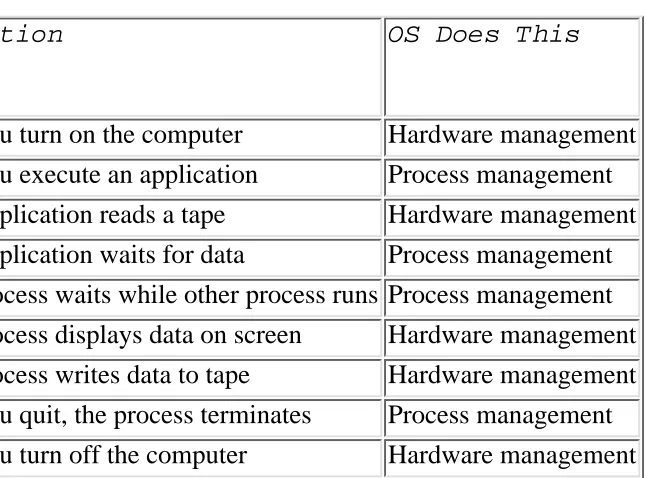
See Table 1.1 for a summary of different actions and what the operating system (OS) does to manage them.
Action OS Does This
You turn on the computer Hardware management
You execute an application Process management
Application reads a tape Hardware management
Application waits for data Process management
Process waits while other process runs Process management
Process displays data on screen Hardware management
Process writes data to tape Hardware management
You quit, the process terminates Process management
You turn off the computer Hardware management
From the time you turn on your computer until you turn it off, the operating system is coordinating the
operations. As hardware is initialized, accessed, or shut down, the operating system manages these resources. As applications execute, request, and receive resources, or terminate, the operating system takes care of these actions. Without an operating system, no application can run and your computer is just an expensive
paperweight.
The UNIX Operating System
The previous section looked at an operating system in general. This section looks at a specific operating system: UNIX. UNIX is an increasingly popular operating system. Traditionally used on minicomputers and workstations in the academic community, UNIX is now available on personal computers, and the business community has started to choose UNIX for its openness. Previous PC and mainframe users are now looking to UNIX as their operating system solution. This section looks at how UNIX fits into the operating system
model.
UNIX, like other operating systems, is a layer between the hardware and the applications that run on the computer. It has functions that manage the hardware and functions that manage executing applications. So what's the difference between UNIX and any other operating system? Basically two things: internal
implementation and the interface that is seen and used by users. For the most part this book ignores the internal implementation. If you wish to know these details, many texts exist that cover them. The interface is what this book describes in detail. The majority of UNIX users need to be familiar with the interface and need not understand the internal workings of UNIX.
[image:17.612.30.353.14.253.2]The UNIX system is actually more than strictly an operating system. UNIX includes the traditional operating system components. In addition, a standard UNIX system includes a set of libraries and a set of applications. Figure 1.2 shows the components and layers of UNIX. Sitting above the hardware are two components: the file system and process control. Next is the set of libraries. On top are the applications. The user has access to the libraries and to the applications. These two components are what many users think of as UNIX, because together they constitute the UNIX interface.
The part of UNIX that manages the hardware and the executing processes is called the kernel. In managing all hardware devices, the UNIX system views each device as a file (called a device file). This allows the same simple method of reading and writing files to be used to access each hardware device. The file system (explained in more detail in Chapter 3, "The UNIX File System: Go Climb a Tree") manages read and write access to user data and to devices, such as printers, attached to the system. It implements security controls to protect the safety and privacy of information. In executing processes (see Chapter 18), the UNIX system allocates resources (including use of the CPU) and mediates accesses to the hardware.
One important advantage that results from the UNIX standard interface is application portability. Application portability is the ability of a single application to be executed on various types of computer hardware without being modified. This can be achieved if the application uses the UNIX interface to manage its hardware needs. UNIX's layered design insulates the application from the different types of hardware. This allows the software developer to support the single application on multiple hardware types with minimal effort. The application writer has lower development costs and a larger potential customer base. Users not only have more
applications available, but can rely on being able to use the same applications on different computer hardware.
UNIX goes beyond the traditional operating system by providing a standard set of libraries and applications that developers and users can use. This standard interface allows application portability and facilitates user familiarity with the interface.
The History of UNIX
How did a system such as UNIX ever come to exist? UNIX has a rather unusual history that has greatly affected its current form.
The Early Days
In the mid-1960s, AT&T Bell Laboratories (among others) was participating in an effort to develop a new operating system called Multics. Multics was intended to supply large-scale computing services as a utility, much like electrical power. Many people who worked on the Bell Labs contributions to Multics later worked on UNIX.
In 1969, Bell Labs pulled out of the Multics effort, and the members of the Computing Science Research center were left with no computing environment. Ken Thompson, Dennis Ritchie, and others developed and simulated an initial design for a file system that later evolved into the UNIX file system. An early version of the system was developed to take advantage of a PDP-7 computer that was available to the group.
An early project that helped lead to the success of UNIX was its deployment to do text processing for the patent department at AT&T. This project moved UNIX to the PDP-11 and resulted in a system known for its small size. Shortly afterward, the now famous C programming language was developed on and for UNIX, and the UNIX operating system itself was rewritten into C. This then radical implementation decision is one of the factors that enabled UNIX to become the open system it is today.
AT&T was not allowed to market computer systems, so it had no way to sell this creative work from Bell Labs. Nonetheless, the popularity of UNIX grew through internal use at AT&T and licensing to universities for educational use. By 1977 commercial licenses for UNIX were being granted, and the first UNIX vendor, Interactive Systems Corporation, began selling UNIX systems for office automation.
(SVR3.2) and Release 4 (SVR4; the most recent version of SVR4 is SVR4.2) remain popular for computers ranging from PCs to mainframes.
All versions of UNIX based on the AT&T work require a license from the current owner, UNIX System Laboratories.
Berkeley Software Distributions
In 1978 the research group turned over distribution of UNIX to the UNIX Support Group (USG), which had distributed an internal version called the Programmer's Workbench. In 1982 USG introduced System III, which incorporated ideas from several different internal versions of and modifications to UNIX, developed by various groups. In 1983 USG released the original UNIX System V, and thanks to the divestiture of AT&T, was able to market it aggressively. A series of follow-on releases continued to introduce new features from other versions of UNIX, including the internal versions from the research group and the Berkeley Software Distribution.
While AT&T (through the research group and USG) developed UNIX, the universities that had acquired educational licenses were far from inactive. Most notably, the Computer Science Research Group at the University of California at Berkeley (UCB) developed a series of releases known as the Berkeley Software Distribution, or BSD. The original PDP-11 modifications were called 1BSD and 2BSD. Support for the Digital Equipment Corporation VAX computers was introduced in 3BSD. VAX development continued with 4.0BSD, 4.1BSD, 4.2BSD, and 4.3BSD, all of which (especially 4.2 and 4.3) had many features (and much source code) adopted into commercial products. Various later releases from UCB have attempted to create a publicly redistributable version of UNIX (prior releases had source code available only to source licensees). Notably, the "Second Networking Release" (Net2) was intended to make available all the parts of the Berkeley Software Distribution that were not subject to license restrictions. UNIX System Laboratories (USL) brought a lawsuit against the University and a company called Berkeley Software Design, Incorporated (BSDI). USL claimed license infringements by the BSD releases and BSDI's BSD/386 product, which was based in part on the BSD code. Recently the lawsuit was settled; the result is that BSDI is shipping BSD/386, and a new 4.4-Lite release of BSD, which requires no license from USL, will be available from UCB.
UNIX and Standards
Because of the multiple versions of UNIX and frequent cross-pollination between variants, many features have diverged in the different versions of UNIX. With the increasing popularity of UNIX in the commercial and government sector came the desire to standardize the features of UNIX so that a user or developer using UNIX could depend on those features.
The Institute of Electrical and Electronic Engineers created a series of standards committees to create
standards for "An Industry-Recognized Operating Systems Interface Standard based on the UNIX Operating System." The results of two of the committees are important for the general user and developer. The POSIX.1 committee standardizes the C library interface used to write programs for UNIX. (See Chapter 17, "C
Language.") The POSIX.2 committee standardizes the commands that are available for the general user. (See especially Chapter 4, "Listing Files," Chapter 5, "Popular Tools," Chapter 6, "Popular File Tools," Chapter 7, " Editing Text Files," Chapter 10, "What Is a Shell?" Chapter 11, "Bourne Shell," Chapter 12, "Korn Shell," Chapter 13, "C Shell," Chapter 14, "Which Shell Is Right for You? Shell Comparison," and Chapter 15, "Awk, Awk.")
specifications called the X/Open Portability Guide, currently at Version 4. XPG4 is a popular specification in Europe, and many companies in the United States supply versions of UNIX that meet XPG.
The United States government has specified a series of standards based on XPG and POSIX. Currently FIPS 151-2 specifies the open systems requirements for federal purchases.
UNIX for Mainframes and Workstations
Many mainframe and workstation vendors make a version of UNIX for their machines. The best way to get information on these is directly from the manufacturer.
UNIX for Intel Platforms
Thanks to the great popularity of personal computers, there are a great number of UNIX versions available for Intel platforms. Choosing from the versions and trying to find software for the version you have can be a tricky business because the UNIX industry has not settled on a complete binary standard for the Intel platform. There are two basic categories of UNIX systems on Intel hardware, the SVR4-based systems and the older, more established SVR3.2 systems.
SVR4 vendors include NCR, IBM, Sequent, SunSoft (which sells Solaris for Intel), and Novell (which sells UnixWare). The Santa Cruz Operation (SCO) is the main vendor in the SVR3.2 camp. Vendors in the first camp are working toward cleaning up the standards to gain full "shrink-wrap portability" between their versions of UNIX. The goal is that this will make UNIX-on-Intel applications available, shrink-wrapped for any version of UNIX, just as you can now buy applications for MS-DOS or Microsoft Windows. SCO UNIX currently has a much larger base of available applications and is working to achieve binary compatibility with UnixWare.
Source Versions of "UNIX"
Several versions of UNIX and UNIX-like systems have been made that are free or extremely cheap and include source code. These versions have become particularly attractive to the modern-day hobbyist, who can now run a UNIX system at home for little investment and with great opportunity to experiment with the operating system or make changes to suit his or her needs.
An early UNIX-like system was MINIX, by Andrew Tanenbaum. His books Operating Systems: Design and Implementations describes MINIX and includes a source listing of the original version of MINIX. The latest version of MINIX is available from the publisher. MINIX is available in binary form for several machines (PC, Amiga, Atari, Macintosh, and SPARCStation).
In addition to the BSD386 product from BSDI, there is a free version of UNIX also based on the BSD releases, and called, confusingly, 386BSD. This is an effort by Bill and Lynne Jolitz to create a system for operating system research and experimentation. The source is freely available, and 386BSD has been described in a series of articles in Dr. Dobbs' Journal.
Another popular source version of UNIX is Linux. Linux was designed from the ground up by Linus Torvalds to be a free replacement for UNIX, and it aims for POSIX compliance. There are current efforts to make Linux reliably run both SVR3.2 and SVR4 binaries. There is also a project called WINE to create Microsoft Windows emulation capability for Linux.
Many people considering making the transition to UNIX have a significant base of PC-based MS-DOS and Microsoft Windows applications. There have been a number of efforts to create programs or packages on UNIX that would ease the migration by allowing users to run their existing DOS and Windows applications on the same machine on which they run UNIX. Products in this arena include SoftPC and SoftWindows from Insignia, WABI from SunSoft, and WINE for Linux and 386BSD.
Introduction to the UNIX Philosophy
As described in the section "The History of UNIX," UNIX has its roots in a system that was intended to be small and supply orthogonal common pieces. Although most UNIX systems have grown to be fairly large and monolithic applications are not uncommon, the original philosophy still lives in the core commands available on all UNIX systems. There are several common key items throughout UNIX:
Simple, orthogonal commands ●
Commands connected through pipes ●
A (mostly) common option interface style ●
No file types ●
For detailed information on commands and connecting them together, see the chapters on shells (Chapters 10—14) and common commands (Chapters 5—9 and Chapter 15).
Simple, Orthogonal Commands
The original UNIX systems were very small, and the designers tried to take every advantage of those small machines by writing small commands. Each command attempted to do one thing well. The tools could then be combined (either with a shell script or a C program) to do more complicated tasks. One command, called wc, was written solely to count the lines, words, and characters in a file. To count all the words in all the files, you would type wc * and get output like that in Listing 1.1.
Listing 1.1. Using a simple command.
$ wc *
351 2514 17021 minix-faq
1011 5982 42139 minix-info
1362 8496 59160 total
$
Commands Connected Through Pipes
would type grep MINIX * | wc and get output like that in Listing 1.2.
Listing 1.2. Using a pipeline.
$ grep MINIX * | wc
105 982 6895
$
A (Mostly) Common Option Interface Style
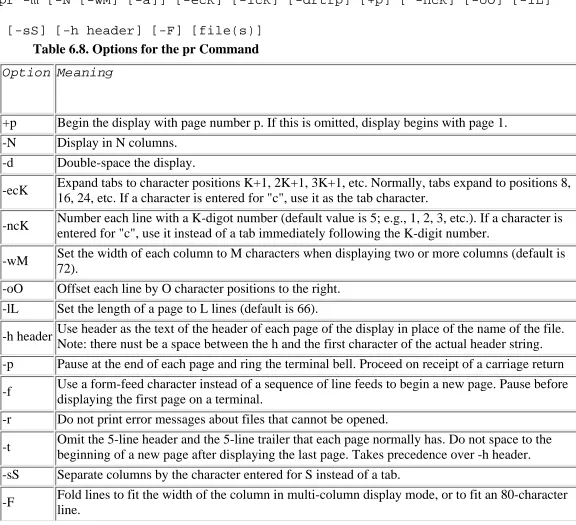
Each command has actions that can be controlled with options, which are specified by a hyphen followed by a single letter option (for example, -l). Some options take option arguments, which are specified by a hyphen followed by a single letter, followed by the argument (for example, -h Header). For example, to print on pages with 16 lines each all the lines in the file minix-info that mention Tanenbaum, you would enter wc minix-info | pr -l 16 and get output like that in Listing 1.3.
Listing 1.3. Using options in a pipeline.
$ grep Tanenbaum minix-info | pr -l 16
Feb 14 16:02 1994 Page 1
[From Andy Tanenbaum <[email protected]> 28 August 1993]
The author of MINIX, Andrew S. Tanenbaum, has written a book describing
Author: Andrew S. Tanenbaum
subjects.ast (list of Andy Tanenbaum's
Andy Tanenbaum since 1987 (on tape)
Version 1.0 is the version in Tanenbaum's book, "Operating Systems: Design
$
The bad news is that some UNIX commands have some quirks in the way they handle options. As more
systems adopt the standards mentioned in the section "The History of UNIX," you will find fewer examples of commands with quirks.
No File Types
Summary
2 — Getting Started Basic Tutorial
By Rachel and Robert Sartin
■
Logging In
User Account Setup
■
Logging In to the System
■
After Login Succeeds
■
Different Priviledges for Different Users
■ ■
Logging Out
■
Using Commands
What Is a Command?
■
Redirecting Input and Output
■ ■
Configuring Your Environment
Viewing and Setting Environment Variables
■
Using Shell Startup Files
■
Configuring with rc files
■ ■
Managing Your Password
■
Working on the System
Erase
■
Kill
■
Stop and Start
■ eof ■ ■ Online Help ■ Summary ■ ●
2 — Getting Started Basic Tutorial
By Rachel and Robert Sartin
Logging In
at a time. In these situations, the computer system has different parts in different places. Regardless of your situation, you will have at least one input device (a keyboard) and at least one output device (a video monitor). These pieces are physically connected to that computer.
User Account Setup
After a UNIX system is booted, you cannot simply start using it as you do a PC. Before you can access the computer system, someone—usually the system administrator—must configure the computer for your use. If you are running UNIX on your PC at home, you will most likely need to do these things for yourself. If you are a UNIX novice trying to set up your home computer system, you can refer to Chapter 33, "UNIX
Installation Basics." If you are using a computer system in your place of work, your employer may have a person or persons whose specific job it is to administer all the systems. If this is the case, you will have to coordinate with a staff member to set up your system account. The company may have an application form on which you can request such things as a certain user name, a temporary password, which shell you want to use (see Chapter 14, "Which Shell Is Right for You"), what your default group is, what groups you should belong to, and which mail aliases you should be added to. Many of these things will depend on what work you will be doing and whom you will be working with.
No matter who sets up your computer account, you must know two things before you can use the system: your user name and your password. If you don't know what these are, you must stop and find out what has been assigned to you. The user name is a unique name that identifies you to the system. It is often related to your real name, such as your first name, your last name, or a combination of first initial and last name (for example, "frank," "brimmer," or "fbrimmer," respectively). If you get to request a user name, try to choose something that makes others think of you alone, and is not vague or common enough to cause confusion with others. The system administrator will verify that no one else on your system has this name before allowing you to have it. The password that you request or that has been assigned to you is a temporary string that allows you to
initially access the computer system. The initial password isn't of any real importance because you should change it to something of your choice the first time you log in to the system (see "Managing Your Password" later in this chapter).
The other items on the account application form are harder for a novice user to determine. Asking a peer who uses the same system for the values his or her account has might be a good place to start. The system
administrator may be able to help you figure out what values you should have. But don't worry; these are all easily changed later if you wish.
Logging In to the System
Now that you know your user name (say it's "brimmer") and password (say it's "new_user"), you can access the system. When you sit down in front of a UNIX workstation, you are expected to log in to the system. The system prompts (asks) you for your user name by printing login:. You should then enter your user name. Next, UNIX will prompt you for your password by printing Password:. Enter your password. As you type your password, don't be alarmed if the characters you type are not displayed on your screen. This is normal and is for your protection. No one else should know your password, and this way no one can look at your screen when you login and see your password.
login: brimmer
Password:
Marine biology word of the day:
Cnidaria (n.) Nigh-DARE-ee-uh (L. a nettle) - a phylum of basically
radially symmetrical marine invertebrates including corals, sea
anemones, jellyfish and hydroids. This phylum was formerly known
as Coelenterata.
$
TIP: Some keyboards have a key labeled "Return." Some have a key labeled "Enter." If your
keyboard has both, then "Return" is probably the correct key to use.
TIP: On some systems, erase is # and kill is @. On others, erase is Backspace or Delete and kill is
Control+U or Control+X.
If you typed everything correctly and the system administrator has everything set up correctly, you are now logged in and may use the system. If you get a message saying Login Incorrect, then you may have typed your user name or password incorrectly. If you make a mistake during your user name, the Backspace key and the Delete key may not undo this mistake for you. The easiest thing to do is to start over by pressing Enter twice to get to a new login: prompt.
Other error messages you might receive are No Shell, No Directory, or Cannot Open Password File. If you see any of these messages, or if multiple attempts at logging in always produce the Login Incorrect message, contact your system administrator for help.
TIP: The No Shell message means that UNIX is not able to start the command interpreter, which
was configured when your account was set up. Depending on the UNIX system, your login may complete successfully and the default shell will be used. If this happens, you can use the chsh command, which will change the shell specified in your account. See Part II, "Hunt For Shells," for more information about various shells. The No Directory message means that UNIX cannot access your home directory, which was specified when your account was set up. Again, depending on the system, your login may complete successfully, placing you in a default directory. You may need to then enlist the help of the system administrator to create your home directory or change the home directory value for your account. See Chapter 3, "The UNIX File System: Go Climb a Tree," regarding directories and specifically your home directory. The Cannot Open Password File message means that UNIX is having a problem accessing the system password file, which holds the account information (user name, password, user id, shell, group, and so on) for each user. If there is a problem with this file, no user can log in to the system. Contact your system administrator if you see this message.
screen performs the same function as the command-line prompts but is presented as a graphical display. The display probably has two boxes for you to fill in, each with a label. One box is for your user name and the other is for your password.
After Login Succeeds
After a successful login, several messages appear on your screen. Some of these may be the date and time of your last login, the system's informative message (called the "Message of the Day"), and a message informing you whether you have (electronic) mail. The Message of the Day can be an important message to watch because it is one way that administrators communicate with the system users. The next scheduled down time (when no one can use the system) is an example of information that you might see here.
After all the messages scroll by, the system is ready and waiting for you to do something. This
ready-and-waiting condition is signified by a prompt followed by a cursor. Typical prompts are $ or %. The dollar-sign prompt is commonly used by Bourne and Korn shells and the percent sign by c-shells. The value of this prompt (your primary prompt) can be changed if you wish. The person who set up your account may have already configured a different prompt value. To change this prompt, you need to change the value of the environment variable PS1 (for Bourne and Korn) or prompt (for C shell). (See the section "Configuring Your Environment" in this chapter for details on environment variables.) The cursor (the spot on the screen where the next character you type is displayed) is commonly an underline (_) or a box, either of which can be blinking. The cursor you see may vary from system to system.
Different Priviledges for Different Users
If you are administering your own personal system, it is still important for you to set up a personal account for yourself, even though your system will come configured with some type of administrative account. This account should be used to do system-wide administrative actions. It is important to be careful when using this account because it has special privileges. UNIX systems have built-in security features. Most users cannot set up a new user account or do other administrative procedures. The user "root" is a special user, sometimes called super-user, which can do anything at all on the system. This high degree of power is necessary to fully administer a UNIX system, but it also allows its user to make a mistake and cause system problems. For this reason, you should set up a personal account for yourself that does not have root privilege. Then, your normal, day-to-day activities will affect only your personal environment and you will be in no danger of causing system-wide problems. In a multiuser, nonpersonal environment, you will most likely have only user (and not super-user) privileges. This security is even more important when more than one person is involved because one mistake by the root can affect every user and the entire system.
UNIX also has security to help prevent different users from harming each other on a multiuser system. Each user "owns" his or her environment and can selectively let groups or all others have access to this work. If you are doing private work in one area that no one else should be allowed to see, then you should restrict access to the owner (you). If you and your team members are working on a group project, you can restrict access to the owner (you) and everyone in your group. If this work should be shared with many or all people on the system, then you should allow access to everyone.
Logging Out
The normal way to log out from almost any shell is to type exit. This causes your shell to exit, or stop running. When you exit from your login shell, you log out. If you are using csh, you can also type logout; if you are in a login shell, then csh will log out. Some shells, depending on your configuration, will also log you out if you type the end-of-file character (typically Control+D; see "Working on the System" later in this chapter).
If you have a graphical user interface, your logout procedure may be different. Please consult your manuals or online help to learn about logging out of your GUI.
Using Commands
During the login process described in the section, "Logging In" UNIX performs several actions that prepare you and the system for each other. These include performing system accounting, initializing your user
environment, and starting a command interpreter (commonly called a shell). Commands are how you tell the system to do something. The command interpreter recognizes these commands and passes the information off to where it is needed. UNIX systems originally came with a command interpreter called the Bourne Shell (usually referred to as sh, though some systems ship Korn or POSIX as sh—see the Note that follows). This shell is still available on most UNIX computer systems. A newer shell that is common to most UNIX systems is the C Shell (referred to as csh). Another commonly used, but not as pervasive, shell is the Korn Shell
(referred to as ksh). Among different shells, there is some variation of the commands that are available. Refer to Part II, "Hunt for Shells," for details on these UNIX shells.
NOTE: What's in a name?
There are a number of different common shells on various UNIX operating systems. The most common are as follows:
sh The Bourne shell is the most common of all the shells. (May be installed as bsh.)
sh The POSIX shell is much like the Korn shell. The POSIX standard requires it to be
installed as sh. Some vendors install it as /bin/sh. Some put it in a special directory and call it sh, leaving the Bourne shell as /bin/sh.
ksh The Korn shell is a derivative of the Bourne shell, which adds history and command-line editing. (Sometimes installed as sh.)
csh The C shell is based on the popular C language.
bash The Born Again shell is less common.
What Is a Command?
A UNIX command is a series of characters that you type. These characters consist of words that are separated by whitespace. Whitespace is the result of typing one or more Space or Tab keys. The first word is the name of the command. The rest of the words are called the command's arguments. The arguments give the command information that it might need, or specify varying behavior of the command. To invoke a command, simply type the command name, followed by arguments (if any), to indicate to the shell that you are done typing and are ready for the command to be executed, press Enter.
Try it out. Enter the date command. The command's name is "date" and it takes no arguments. Therefore, type date and press Enter and see what happens. You should see that the computer has printed the current date and time. If the date or time does not match reality, ask the system administrator to fix it. How about trying a command that has arguments? Try the echo command. The name of the command is "echo" and it takes a series of arguments. The echo command will then write, or echo, these arguments out to your screen. Try creating a command that will write your first and last name on the screen. Here is what these commands and output look like on our system:
$ date
Sat Mar 5 11:11:00 CST 1994
$ echo Arnold Brimmer
Arnold Brimmer
$
NOTE: Some commands such as echo are part of the particular shell you are using. These are called
built-ins. In this case, the commands are not standard from one shell to another. Therefore, if you learn one shell and then later have to (or want to) switch to using a different shell, you may have to learn new
commands (and unlearn others). Other commands are standard UNIX commands and do not depend on what shell you are using. These should be on every UNIX system. The remaining commands are nonstandard UNIX and may or may not be on a particular UNIX system.
UNIX commands use a special type of argument called an option. An option commonly takes the form of a dash (made by using the minus sign key) followed by one or more characters. The options provide information to the command. Most of the time, options are just a single character following a dash. Two of the other lesser used forms are a plus sign rather than a minus sign, and a word following a dash rather than a single character. The following paragraph shows a common command with two of its common options. The ls command lists the files in your current directory.
$ ls
visible
$ ls -a
. .. .hidden visible
$ ls -l
total 0
-rw-rw-rw- 1 sartin uu 0 Mar 5 12:58 visible
$ ls -a -l
total 16
drwxrwxrwx 2 sartin uu 1024 Mar 5 13:03 .
drwxr-xr-x 37 sartin uu 3072 Mar 5 13:03 ..
-rw-rw-rw- 1 sartin uu 0 Mar 5 12:58 .hidden
-rw-rw-rw- 1 sartin uu 0 Mar 5 12:58 visible
$
A command developer often tries to choose option letters that are meaningful. Regarding the ls command, you might think of the -a as meaning that "all" files should be listed (including the special files starting with
period). And you might think of the -l option as meaning a "long" directory listing because the format is changed so that each line contains one file along with its details. This makes for a longer listing.
Redirecting Input and Output
One very pervasive concept in UNIX is the redirection of commands' input and output. Before looking at redirection, though, it is a good idea to look at input and output without modification. UNIX uses the word standard in this subject to mean the default or normal mode. Thus, UNIX has the term standard input, which means input coming from the default setting, and the term standard output, which means output going to the normal place. When you first log in to the system, and your shell executes, your standard input is set to be what you type at the keyboard, and your standard output is set to be your display screen. With this in mind, follow along with the example.
words you typed should be on your screen twice—once caused by you entering them from the keyboard, and next as the cat command outputs them to your screen. This first step used standard input (from you typing on the keyboard), and standard output (the command results being printed on the screen).
$ cat
s
A few words
<CTRL><D>
A few words
$ cat > scotty
Meow, whine
meow
<CTRL><D>
$ cat < scotty
Meow, whine
meow
$ cat scotty
Meow, whine
meow
$
Although this simple case may not seem terribly useful yet, wait to see its use as you add redirection.
UNIX shells have special characters that signify redirection. Only the basics are covered here. Refer to Part II, "Hunt for Shells," for details on each shell's redirection syntax. Output redirection is signified by the >
character and input redirection is signified by the < character. Output is commonly redirected to and input is redirected from a file. Now, continue with the rest of the example.
Next, try the cat command using output redirection, leaving standard input alone. Enter cat > filename. The filename is a name of your choice. Once again, the cat command should be waiting for input (coming from standard input, which is your keyboard) at the beginning of the next line. Enter a few words, as you did before, press Return, and then, at the start of the next line, press Control+D. The words you typed didn't show up on your screen because you redirected the output of the cat command. The output was directed to go to the file filename. But how do you know it is there? In order to verify this, use the cat command with input
CAUTION: <Ctrl><D> must be specified as the first character of an input line for it to be seen as
"eof."
To see the contents of the file filename, you would like the input of the cat command to come from that file, and the output to go to the screen so that you can see it. Therefore, you want to redirect standard input and leave the output alone. Enter cat < filename. This time, the cat command did not wait for you—because you were not supplying the input. The file supplied the input. The cat command printed the contents of the file to the screen.
TIP: Note the subtle distinction between these two commands: cat > filename and cat < filename.
You can remember the difference by verbalizing which way the sign points; does it point into the command or out of the command? Into the command is input redirection and out of the command is output redirection.
The cat command allows you to specify a filename to use as input. Try showing the contents of the file this (more common) way: enter cat filename. Many commands are designed similarly—they have an argument that is used to specify a file as the input. Because of this common command design, redirecting input in this way is not nearly as common as redirecting the output.
UNIX was developed with the philosophy of having simple commands that do well-defined, simple things. Then, by combining these simple commands, the user could do very powerful things. Pipes are one of the ways UNIX allows users to combine several commands. The pipe is signified by the vertical bar (|) symbol. A pipe is a means of taking the output of one command and redirecting it as the input of another command. Say that you want to know how many files you have in your current directory. Recall that the ls command will list all the files in your current directory. You could then count the number of files. But UNIX has a command that counts the number of characters, words, and lines of input and displays these statistics. Therefore, you can combine these two commands to give you the number of files in your directory. One way you could do this is as follows: ls -l | wc -l. Analyzing this command, you can see that the first part is something familiar. The ls -l command gives a directory listing in long format. In fact, it prints one file per line. The wc -l command gives the number of lines that are in the input. Combining the two commands via a pipe takes the output of the first command (the long directory listing) and gives it to the input of the second command. The output of the second command (which is not redirected—it goes to standard output) is displayed on your screen.
These basic forms of redirection allow you to be very versatile as you learn a few commands at a time. Try to learn a command and use it with various options and arguments, then add redirection of input and output. And finally, combine commands with pipes. This approach should help you to feel comfortable with the commands and their varied uses.
Configuring Your Environment
In order to make using the shell easier and more flexible, UNIX uses the concept of an environment. Your environment is a set of values. You can change these values, add new values, or remove existing values. These values are called environment variables—environment because they describe or define your environment, and variables because they can change.
Every user's environment looks a little different. Why don't you see what your environment looks like? Type the env command with no arguments. The output formatting and variable names depend on which shell you are using and how your system is configured. A typical environment might include some of the following:
$ env
HOME=/u/sartin
LOGNAME=sartin
MAIL=/usr/mail/sartin
MANPATH=/usr/man:/usr/contrib/man:/usr/local/man
PATH=/bin/posix:/bin:/usr/bin:/usr/contrib/bin:/usr/local/bin
SHELL=/bin/sh
TERM=vt100
TZ=CST6CDT
$ echo $HOME
/u/sartin
$
Sometimes the number of variables in your environment grows quite large, so much so that you don't want to see all of the values displayed when you are interested in just one. If this is the case, you can use the echo command to show an environment variable's current value. To specify that a word you type should be treated differently—as a value of an environment variable—you immediately precede the variable name with a dollar sign ($). Be careful not to type any whitespace between the $ and the word. One of the variables in the
example is HOME. You probably have this variable in your environment, too. Try to display its value using echo.
NOTE: If you use csh, some environment variables are automatically copied to and from csh variables.
These include HOME, TERM, and PATH, which csh keeps in home, term, and path.
You can create a new environment variable by simply giving it a value. If you give an existing variable a value, the old value is overwritten. One difficulty in setting environment variables is that the way you set them depends on the shell you are using. To see how to set environment variables, look at the details about the shell you are using in Part II, "Hunt For Shells."
systems have various terminal types that they support. These are not standard, so you need to find out which terminal type to use from your support personnel. If you are using a PC to connect to a UNIX system, your PC is running a terminal emulation tool. Most of these tools have the capability to emulate several types of
terminal. The important point here is to make sure that your emulator and your TERM variable are the same (or compatible). Start by seeing what your TERM variable is set to by entering echo $TERM. Refer to your PC terminal emulation manual and ask your system administrator for help to make sure that this is set up correctly.
TIP: Many terminal emulators (including the Microsoft Windows "Terminal" program) support
either "VT100" or ANSI standard terminal control sequences. Try setting TERM to vt100 or ansi for this type of terminal emulator.
Using Shell Startup Files
Where do all these environment variables come from? Well, the system sets up various ones for you. And each user commonly sets up others during the login process. Yes, you may be doing this without even knowing it. During the startup, which happens at login, a shell is started. This shell automatically looks in a special place or two for some startup information. One of these places is in your home directory. The startup information in your home directory is found in special files. The specific shell you are using will determine the name of the particular file. When the shell starts up, it examines this file and performs whatever actions are specified. One of the common actions is to give values to environment variables. This action is called initializing or setting the values.
One environment variable that is commonly set in a user's shell startup file is the PATH variable (or lowercase path for C-shell users). This variable's value is a list of places (directories) on the system where the shell
should look to locate a command. Each command you type is physically located as a file somewhere on your file system. It is possible for the same command name to be located in different places (and to have either the same or different behavior when executed). Say that you have a program called my_program that is stored in your home directory, and your friend has a program called my_program, which is in her home directory. If you type my_program at the prompt, the shell needs to know where to look to find the storage location of my_program. The shell looks at the value of the PATH variable and uses the list of directories as an ordered directory search list. The first directory that has a my_program stops the search, and the shell executes that file. Because all files within a single directory must be unique, this gives a straightforward and sufficient method for finding executables (commands).
You probably want $HOME/bin to be toward the beginning of your PATH directory list, whereas you may want your friend's binary directory to be toward the end, or not listed at all. This way, when you type my_program, you will execute your my_program rather than hers. You can do all types of things in shell startup files in addition to setting environment variable values. If you want, you can add an echo command that prints out a greeting or reminds you to do something. One common item that is configured inside a shell startup file is the setup of your control characters. (See "Working on the System" later in this chapter.) These startup files are a powerful tool for you, the user of the shell, to configure the behavior of the shell
automatically. Shell startup files are covered in more detail in Part II, "Hunt for Shells."
TIP: It is a good idea to create a bin directory in your HOME and store executables there. Include