cp·&
6E.dit Screen Editor Reference Manual
Bull
CP-6
6EDIT SCREEN EDITOR REFERENCE MANUAL
SUBJECT
Reference Information for the Bull CP-6 6Edit Screen-Oriented Editor
SPECIAL INSTRUCTIONS
This edition supersedes CE70-01, dated December 1988.
SOFTWARE SUPPORTED
6Edit Version A03 under CP-6 Operating System EOO
DATE
June 1990
ORDER NUMBER
CE70-02
Worldwide
Preface
This reference describes the concepts, features, and commands for the A03 version of the CP-6 6Edit screen editor, running on the EOO version of the CP-6 operating system. This reference is intended for the experienced user of 6Edit.
UNIX is a registered trademark of AT&T.
The Bull Los Angeles Development Center Documentation Group authors, edits, reviews and creates laser print masters with integrated text and graphics using CP-6 CAP (Computer Aided Publication).
Readers of this document may report errors or suggest changes through a STAR on the
CP-6 STARLOG system.
Bull di .. dain .. the impli ... d ";Irranlit''' ofn1l"rchunhlhilit~ and filM"" for a parlic:ul.u purpo .. e and makf''' no f'xpre .... warnmtie, t'xcf'pl a .. ma~ he ,tall'd in it.. "Titlen n~rt't'n .. nl with and f'or it .. (·u .. lon1l"r. In no ewnl i, Bun ~hlhll' to am-ol1e for ;m~ indirt"cl. 'lX'c:ial or con""qul'nti;lI
d;lma~",.
Tht' information and "pt'dficatiom. in lhi .. doc:un1l"nl nre "Uhjf'CI 10 Ch;I~" "ilhout noti,·". (:o"-,ull your Bull Sale .. Rf'pr~ntalhe for produd or .,enice 8\ailabilil~
Table of Contents
Section 1. Overview of 6Edit What is 6Edit?
Files, Record Keys, and Records File Pointer
Blocks • • • • . . • . . • Specifying a Block • • • . • What You Can Do With a Block Edit Block • . . •
Edit Block Stack Selected Block
• 1-1 • 1-1 1-2 · . . . 1-2 1-3 1-5 1-5 • • 1-6 1-7 • . • • • • 1-9 . . • • 1-9 Compound Blocks
Expressions
String Expressions • • • . Block Expressions
. . . . • . • . • • 1-10 . . . • • . • • • • 1-10
Keywords and Abbreviations Command Lines and Continuation Lexical Functions • • • • .
$CONTROL Identifier
$CONTROL-Literal Function
$CONTROL-Record Function • • • • • • • • • $CONTROL-Value Function
$COMMENT Identifier • • • • • Function Key and Control Key Notation Names· • • • • . • • • • • • •
Value Types • • • . • • • • • • Substitution • • • . • •
Copy and Move Operations Record Key Generation Rekeying a Keyed File
Section 2. Using 6Edit DCBs
Context File
Searching for a Context File Starting 6Edit . . • . • •
Faster 6Edit Invocation Screen Appearance
IBEX Window Command Window
CE70-02
· . . . 1-11 1-11 • 1-13 • 1-13 · • 1-14 • • 1-15 • •• 1-16 • •• 1-17 • • 1-18 • • 1-19 · 1-20 • • 1-22 · • • . . • . 1-22 • . • • • • 1-25 · • • • . • • 1-25 · • • . . 1-26
• • 2-1 • 2-1 · . . . 2-2
· . . . 2-3
• . 2-4 · . • . . . 2-6 · . 2-6
2-7
· • • 2-8
Editing Window • • • • • • Vertical Scroll Margins Horizontal Scroll Margins Wordwrap • • • . . • • • • Multiple Editing Windows Input Editing Functions
Moving the Cursor
Replacing and Inserting Characters Replacement Mode . • • •
Insertion Mode • • • . Deleting Characters • • • • • Splitting and Joining Records
Serial Editing
Section 3. 6Edit Commands
iv
Entering Commands When Full-Screen Editing Command Summary • . . • •
AFTER Command . • • • . COpy Command . . • • • DATE Command
DELETE Command DIRECTORY Command DISPLAY Command DO Command EDIT Command
END, EXIT, QUIT and XIT Commands EQUALS Command
ERASE Command HELP Command
If and ELSE Commands • • • . . KEYIN Command
LOCATION Command • • . • • • MOVE Command
OUTPUT Command
OVER Command • • • • PRINT Command . • • • READ Command • . • •
RESTORE Command . . • • • • • SAVE Command • • • • • •
SHOW Command SYNONYM Command TIME Command WINDOW Command
· 2-9 . . . 2-9 · 2-10 · 2-11
2-11 . . . 2-13
• 2-13 · 2-16 · 2-16 · 2-16 . • • • • . 2-17 . • . • . 2-18 2-19
· 3-1 • • 3-1 · . . • . . . 3-1 · . 3-3 3-4 3-5 3-5 · 3-7 · . . • . . . 3-7 3-9 • • 3-9 · . 3-11 · . 3-11 · 3-13 · . 3-14 • 3-16 3-16 . . . . • • . . 3-24 • 3-25 • • 3-26 3-27 • . 3-28 · 3-29 3-29 · 3-30 • . 3-31 · • • • • • • 3-33 3-35 · 3-36
Section 4. String Expressions String Expressions
LogicaL Operators ReLationaL Operators
WiLdcard Operators . . • • Arithmetic Operators
CONCATENATE Operator
Section 5. BLock Expressions in 6Edit • • • • Using BLock Expressions • • • •
4-1 4-1 4-3 4-4 4-5 4-6 . 4-7
5-1 . 5-1 Specifying User-Defined BLock Operands • • • •
Concepts . . • • • • • • • •
· . 5-1 5-3
BLock Operands • • . • • . . . 5-3
AbsoLute BLock Operands 5-4
ReLative Block Operands BLock Options
Evaluation Options . • • • • .
• • • • • • • • • • • • 5- 5
. • . . . • . 5-6 . . . • 5-6 Processing Options • • • • . . . . • . . 5-7 EvaLuation of Block Operands • • • .
Signals . • • • . . • • . • . . . • • Block Expression Components . • • •
General Form of Block Expressions SELECT Clause • • • • • •
Repeated Blocks Enclosed BLocks
Movement Expressions • • • • THRU Clause • • • • ADJUST Clause
Movement Expression Components ALL OF Option
BACKWARD Option BEGINNING OF Option BY Option • • • • END OF Option
FILE Block Operand • • • • •
FORWARD Option • • • •
· . . . 5-8 · . . . 5-8 · . • . . . . 5-9 5-9 5-10 5-10 · . 5-12 · . 5-13 · • 5-13 5-14 • • 5-17 5-17 · . 5-18 · . . . . • • . • • 5-19 . . • • • 5-19 • • 5-20 • . 5-21 · . 5-22 Names as Block Operands • • • • • • • • • • • · . 5-23
Special location_names • • • . • • • • • Pattern-String Block Operand • • • • •
Syntax of the Pattern String
SCONTROL-Beginning of Match Pattern Function SCONTROL-End of Match Pattern Function
SCONTROL-Question Pattern Function • • • • • SCONTROL-VaLue Function in the Pattern String SCONTROL-Wildcard Pattern Function
POSITION Block Operand • • • . . • • • • . • •
CE70-02
· . 5-24 • • 5-25 • 5-26 5-27 5-27 5-28 · . 5-28 5-29 5-30
• • 5-32
r::: 'l:'l:
PROTECT Option • • • • • • . RECORO Block Operand • • • • Record Keys as Block Operands
• • • J-..,J..I
• 5-34 SKIP Option . • . • •
STRING Block Operand
• • 5-35 · • . • • 5-36
Appendix A. Predefined Names Using Predefined Names Predefined Names
Appendix B. Predefined String Functions
Appendix C. Context Files in 6Edit
Appendix
o.
Customizing the 6Edit User InterfaceReasons to Customize • • • • • • • • • • . . • • . • • • Customizing: Know the Keyboard . • • • • • . • Customizing: Know the Functions Required . • • . • . • • . Customizing: Know the Users • . • . • • . • • . • . Invoking Functions • . • . • • • . • • . . • . • .
Invoking Functions on a Personal Computer . • . . Associating Functions with Invocations • • • •
Established Association . • • • . Mnemonic Association
Physical Association Hazards • • • • . • •
Appendix E. Input Editing Functions
Appendix F. The ASCII Character Set
Tables:
Table 1-1. Operations in the Edit Block Stack.
· .
·
·
· · ·
·
Table 2-1. 6Edit Setup Files· · ·
·
·
·
·
· · ·
·
Table 2-2. Cursor Key Functions.
·
· · · · ·
·
· ·
·
·
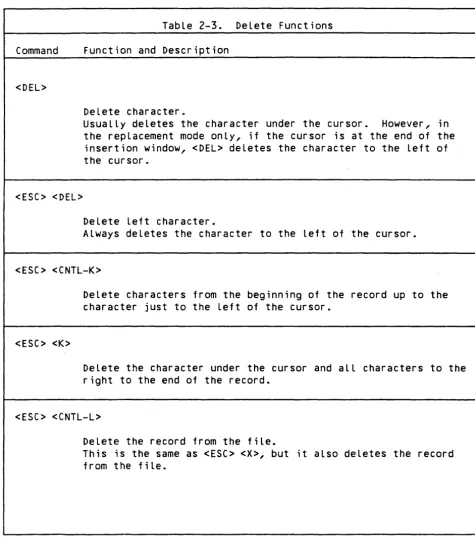
Table 2-3. Oelete Functions.
· ·
·
·
Table 3-1. Command Summary
.
· ·
·
· ·
Table 4-1. String Functions.
· ·
·
·
· · · ·
Table 4-2. String Operators.·
· · ·
· · ·
·
·
Table A-1. Predefined Name Classifications· .
·
·
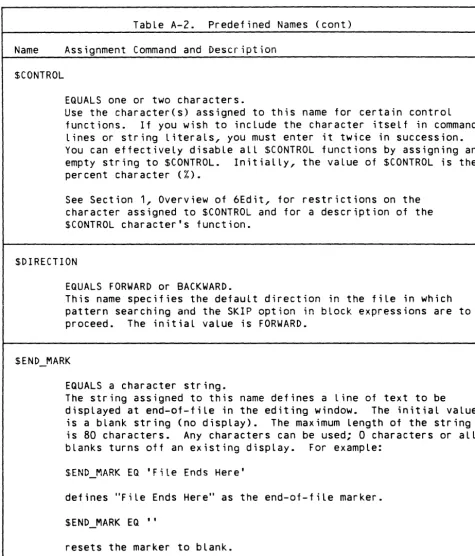
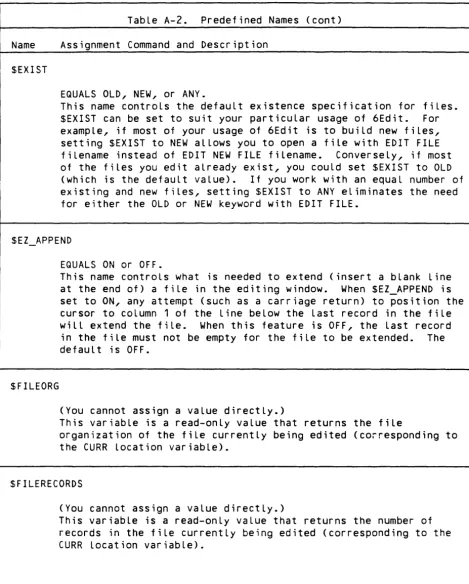
Table A-2. Predefined Names.
· · · · ·
Table B-1. String Functions.
· ·
·
· ·
·
· ·
·
Table C-1. Standard Names in a Context File.·
· ·
Table C-2. Common Functions Oefined By a Context File.
· ·
·
·
Table E-1. Input Editing Functions·
Table F-1. The ASCII Character Set
· · · ·
vi
• A-1 • A-1 • A-4
• B-1
· C-1
· 0-1 · . 0-1 0-1
· 0-2
· . 0-3
· . 0-4
0-5 · 0-6 · . 0-6 · 0-7 · . 0-7 0-8
• E-1
• • F-1
· ·
1-8·
2-4·
·
2-13· ·
2-17·
3-1· ·
4-2·
4-2·
A-2· ·
A-4·
B-1 C-1 C-15 E-1· ·
F-1Figures:
Figure 1-1. ExampLe of a BLock
·
·
· · ·
·
· · .
.
1-3Figure 1-2. ExampLe of a BLock
·
· · ·
·
1-3Figure 1-3. ExampLe of a BLock
·
· ·
·
· ·
· · ·
1-4Figure 1-4. ExampLe of a BLock
·
·
·
· ·
·
1-4Figure 1-5. Keywords and Reserved SpeciaL Characters
· ·
· · ·
1-12Figure 1-6. CONTROL-Record Function Before
·
·
1-16Figure 1-7. CONTROL-Record Function After.
·
·
·
1-17 Figure 2-1. The 6Edit Screen.
· · · ·
·
· · · ·
2-7 Figure 2-2. VerticaL Scro L L Margins.· · ·
· · · ·
· ·
·
2-9 Figure 2-3. HorizontaL ScroLL Margins.·
· ·
· ·
· ·
2-10 Figure 2-4. Two StyLes of MuLtipLe Editing Windows·
·
2-12Figure 5-1. Using the ADJUST CLause.
· ·
·
·
5-16Figure C-1. Standard Context FiLe.
· · · ·
·
· · ·
·
C-4 Figure C-2. DECVT100 Context FiLe.· · · ·
· · · ·
·
C-6 Figure C-3. PCTX364 Context FiLe· ·
· · · ·
C-8Figure C-4. VIP7205 Context FiLe
·
·
C-10Figure C-5. VIP7801/VIP7802 Context FiLe
·
·
· · ·
·
C-12 Figure C-6. Zenith Z19 Context FiLe.· · ·
· ·
·
C-14About This Manual
This document describes the CP-6 6Edit screen editor.
This manual is intended to be a complete reference for the experienced user, and is intended for reference rather than tutorial use. The manual is
organized as follows:
SECTION 1, OVERVIEW OF 6EDIT, describes the conceptual model upon which 6Edit is based: the objects it manipulates and the operations it performs on those objects. No details of actual use are given in Section 1, however.
SECTION 2, USING 6EDIT, presents the details of how to run 6Edit, the environment it requires, and how it appears to the user.
SECTION 3, 6EDIT COMMANDS, presents all of the 6Edit commands, their options, and examples of their use.
SECTION 4, STRING EXPRESSIONS, describes string expressions, how to form them, and how they are evaluated by 6Edit.
SECTION 5, BLOCK EXPRESSIONS IN 6EDIT, describes block expressions, how. to form them, and how they are evaluated by 6Edit.
APPENDIX A, PREDEFINED NAMES, lists 6Edit's predefined names and describes their values and uses.
APPENDIX B, PREDEFINED STRING FUNCTIONS, describes the built-in functions supported by 6Edit in string expressions.
APPENDIX C, CONTEXT FILES IN 6EDIT, describes the standard context file and its components, and presents examples of terminal-specific context files.
APPENDIX D, CUSTOMIZING THE 6EDIT USER INTERFACE, discusses how to tailor the 6Edit user interface to your individual needs.
APPENDIX E, INPUT EDITING FUNCTIONS, lists all input editing functions available to the 6Edit user.
APPENDIX F, THE ASCII CHARACTER SET, lists the ASCII character set with decimal conversions.
Changes Since Last Release
There have been several changes to this manual to answer STARs and to correct spelling, format, and the HELP facility. These changes have been marked with change bars. Significant content changes are:
Overview
o The new predefined string function $KEY (or <key» is explained in 'Function Key and Control Key Notation', Section 1. $KEY (or <key» is provided to represent function key names in KEYIN commands or EQUALS commands.
o The parsing of $CONTROL-functions in string expressions is now performed only when the value of the string is actually used. It is no longer done when simply assigning the string expression to an EQUALS variable. In previous versions, parsing was performed at both times. So, for example,
if a terminal had a function key sending <ESC~%>, ari EQUALS command might assign that string to a variable with the key's name, for later use in a KEYIN command. In previous versions, the EQUALS command would require
four percents. In A03, it only needs two. See '$CONTROL Identifier', Section 1.
Using 6Edit
o 6BUILD and 6X are alternate command names to invoke 6Edit.
o 6Edit chooses unused UC streams for command and editing windows.
NormalLy, it will use UC10 for the command window and UC11 for the first editing window. Additional editing windows normally start at UC12. These points are discussed in 'Command Window' and 'Editing Window' in Section 2 (per star 32148).
o 'Editing Window' in Section 2 explains that it is now possible to enter a command in the command window and have the cursor remain there for another command, by terminating the command with <CNTL-C> instead of <CR>.
o 'MuLtipLe Editing Windows' has been added to Section 2.
o 6Edit can now be used conveniently in batch or on-line modes, or with non-CRT terminaLs. 'Serial Editing' in Section 2 and the subheadings
'Switching between SeriaL and Screen Editing' and 'Manipulating Data in SeriaL Editing Mode' have been added.
6Edit Commands
o The DELETE FILE form of the DELETE command has been added to Section 3 (per STAR 23879).
o DO or ! commands can now be used to call other processors from within 6Edit (per STAR 23353).
o The EQUALS command syntax in Section 3 is changed. The IN phrase now permits identification of a specific editing window.
o An example showing the $KEY predefined string function has been added to the description of the EQUALS command in Section 3 (per STAR 28846).
o The IF and ELSE commands, which provide conditional execution of multiple commands in a single line, have been added to Section 3.
o The KEYIN command syntax in Section 3 is changed. The IN phrase now permits identification of a specific editing window.
o The KEYIN command description in Section 3 has been expanded to explain and illustrate the use of the $KEY predefined string function in KEYIN commands (per STAR 28846).
o A new command, SHOW, displays 6Edit name definitions and selected records (per STAR 26518); see Section 3.
o A new command, WINDOW, has been added to Section 3 (per STAR 26429).
String Expressions
o The discussion of string expressions has been expanded.
Block Expressions in 6Edit
o The BY option is changed for cases in which a block expression also creates a new edit block: that key increment overrides the value in the $BY predefined name for the rest of the life of that edit block. See See the 'BY Option' example, Section 5.
o It is now possible to create and manipulate consecutive files and keyed files with text keys instead of 3-byte binary edit keys, as explained in
'FILE Block Operand', Section 5.
o A new $CONTROL function, W, for wildcard pattern searching has been added to Section 5 (per STAR 32349).
o String block expressions can now be constructed from the corresponding wildcard portions of pattern expressions. See 'STRING Block Operand', Section 5.
Predefined Names
o The following new predefined names have been added to Appendix A:
$BY, $CONTEXT, $DIRECTION, $END_MARK, $EXIST, $FILEORG, $FILERECORDS, $FILETYPE, $INITIALIZE, $KEY_GENERATION, $POINT, $PROTECT, $REKEY,
$SCREEN, $SCROLL, $TEXTEDIT, $WI_BORDER, $WI_PERCENT, ANY, AO, BACKWARD, BIN10, BINHLF, BIN521, BO, DONT_PROTECT, EO, FORWARD, NEW, OLD, PROTECT, STRING (per STARs 36719, 30049, 26518).
o $BY existed previously but was not documented. The default key increment for new records, $BY, is now set and displayed as an edit key. If $BY was used with previous versions of 6Edit, the values used will now have to be divided by 1000.
o The description of the $MATCH_LIMIT predefined name in Appendix A has been modified.
Predefined String Functions
o Three new predefined string functions have been added to Appendix B: $CMDVAR and $KEY (per STAR 28846), and $CNTL.
o The $INPUT string function described in Appendix B now reads from the command window instead of M$UC. This change, the result of an improvement to the X$EVAL routines, allows a more convenient interface for a "string substitution" KEYIN or SYNONYM command. Any other new features and bug fixes in the X$EVAL host library package as of 3/1/90 are also available in A03 6Edit.
Context Files in 6Edit
o Sample context files -- for DECTV100, PCTV7800 and PCTX364 -- have been added to Appendix C.
Customizing the 6Edit User Interface
o A discussion of function key definitions on a personal computer, using the KEYIN command with the $KEY predefined string function, has been added to Appendix D.
Input Editing Functions
o These functions have been added: <ESC> <CNTL-D>, <ESC> <E>, <ESC> <n> <H>, <ESC> <n> <M>.
Additional Changes
In addition to the changes specific to this manual, the following software changes and corrections have also been made to 6Edit:
o String expressions may now include predefined names that start with a dollar sign (per 32020). For example, SHOW LOCATIONS $NOT_COPIED •
o When REKEY (the synonym for COpy CURRENT OVER CURRENT) is used to rekey a file, the cursor now returns to the current position in the editing window (per STAR 25698).
o $CONTROL functions with more than one parameter, such as %V(m,n) and %W(min,max), now work properly in pattern-matching strings. For example, PATTERN %V(75,80). (Per STAR 32349.)
o Moving a string to the left within the same record now works properly (per STAR 37411/25800).
o When you attempt to edit a file that someone else has open in PROTECT mode, 6Edit now lets you open the file, still keeping it in PROTECT mode. The message "File filename is busy; open for reading only" is displayed.
(Per STAR 26824.)
o Per star 31671, 6Edit now stays in serial mode long enough for context file changes to control the building of the command window.
On-Line HELP Facil ity
The 6Edit processor supports an on-line HELP facility. 6Edit users can
display syntax formats, parameter descriptions, and examples at the terminal.
The 6Edit HELP facility includes information about the 6Edit processor and commands.
For a list of HELP topics from the system command level (!) or from another processor, enter the following at the terminal:
HELP (6EDIT) TOPICS
From within the 6Edit processor, enter:
HELP TOPICS
Related Manuals
Following is the list of manuals supporting the CP-6 Operating System, AR 1.0 Release:
ORDER
NUMBER TITLE
End User Facilities
HA03-01 CP-6 Introduction to MAIL HA04-01 CP-6 MAIL Reference
HA09-00 CP-6 Introduction to ARGENT HA10-00 CP-6 ARGENT Reference
HA12-01 CP-6 ADAPT Reference HA13-01 CP-6 FORGE Reference
HA15-00 CP-6 PC Terminal (PCT) Facility Reference CE30-02 CP-6 lOP Reference
CE70-02 CP-6 6Edit Screen Editor Reference
CE73-00 CP-6 Introduction to 6Edit Screen Editing
Database Management
HA01-01 CP-6 Introduction to ARES HA02-03 CP-6 ARES Reference
CE35-03 CP-6 I-D-S/l1 Reference CE36-03 CP-6 1-D-S/11 DBA Reference CES4-01 CP-6 1-D-S/11 Guide
Publishing
HA07-00 CP-6 CAP Administrator Guide (AOO) HA08-00 CP-6 CAP Reference (AOO)
HA18-00 CP-6 Introduction to CAP (AOO) HA19-00 Getting Started with CAP (ADO) HA27-00 CAP DSL Reference (SOD)
HA28-00 CAP ADSL Reference (BOO) HA29-00 CP-6 CAP User Guide (BOO)
HA30-00 CP-6 CAP Administrator Guide (BOO) CE48-02 CP-6 TEXT Processing Reference CE53-00 CP-6 TEXT Processing Primer CE59-00 CP-6 FASTEXT Guide
xiv PUBLICATION DATE October September August October December December July July June April August June December December December February February April August February February February February February June December
1986 * 1986 * 1985 * 1985 * 1988 * 1988 * 1986 * 1982 * 1990 * 1985 *
1985 * 1990 * 1988 * 1988 * 1988 *
1987
*
1987*
1987*
1987*
1989 S 1989 S 1989 S 1989 S 1987 * 1981*
1982 STransaction Processing
CE49-01 CP-6 TP Applications Programmer Guide CESO-02 CP-6 TP Administrator Guide
CES1-02 CP-6 FPL Reference
Application Programming
HA17-00 CP-6 C Language Reference CE28-01 CP-6 SORT/MERGE Reference
CE29-02 CP-6 COBOL Reference (COBOL-74)
CE46-02 CP-6 COBOL Programmer Guide (COBOL-74) CE68-00 CP-6 COBOL Reference (COBOL-8S)
CE69-00 CP-6 COBOL Programmer Guide (COBOL-8S) CE31-0S CP-6 FORTRAN Reference (FORTRAN-77)
CE47-0S CP-6 FORTRAN Programmer Guide (FORTRAN-77) CE32-03 CP-6 BASIC Reference
CE37-00 CP-6 RPGII Reference CE38-0S CP-6 APL Reference
CE40-04 CP-6 Programmer Reference CE42-03 CP-6 Programmer Pocket Guide
CESS-01 CP-6 Application Programmer Handbook CE72-00 CP-6 DIGS (Graphics) Reference
System Programming and Support
HA11-00 CP-6 FEP Programming Concepts
HA20-01 CP-6 System Support Reference (A-P) HA21-01 CP-6 System Support Reference (Q-Z)
HA22-01 CP-6 System Support Reference (Appendices) CE34-0S CP-6 Operations Reference
CE39-04 CP-6 DELTA Reference CE44-03 CP-6 PL-6 Reference
CE60-00 CP-6 System Manager Handbook CE61-01 CP-6 Customer Support Handbook CE62-00 CP-6 System Programmer Guide CE64-03 CP-6 Operations Pocket Guide CE6S-00 CP-6 FEP Assemblers Reference
CE66-02 CP-6 FEP Monitor Services Reference CE67-01 CP-6 FEP Library Services Reference CE71-02 CP-6 Host Library Services Reference
CE74-01 CP-6 Host Monitor Services Reference (Desc.) CE7S-01 CP-6 Host Monitor Services Reference (Struc.)
CE70-02 August December December June February February February April April December December March December December December August January March May December December December December December December March October January August March December December December December December
1985
*
1988*
1988*
1990
*
1983*
1983 * 1983*
1986 * 1986*
1988*
1988*
1985*
1979 N 1988*
1988*
1989*
1984*
1985*
1985 S 1988 *
1988 *
1988 *
1988 *
1988 *
1988 *
1985 *
1987 *
1984 *
1989 *
1985 *
1988 *
1988 *
1988 *
1988 *
1988 *
General Purpose
HA16-01 CP-6 X Account Pocket Guide CE45-01 Getting Started with Timesharing CE56-03 CP-6 Pocket Guide to Documentation CES8-00 CP~6 Monitor Error Message Reference
Hardware
DH03-01 DPS 8 Assembly Instructions DX20-00 DPS 90 Assembly Instructions DZ51-00 DPS 8000 AssembLy Instructions
Legend
August November February December
1989 * 1987 * 1987 * 1988 *
N N N
*
=
order from Newton HighLands (aLso suppLied on software reLease tape) S=
system-suppLied onLy (not currently avaiLabLe from Newton HighLands) N=
avaiLabLe only from Newton HighLands=
electronic update avaiLabLe on reLease tape (EOO or prior reLease) OrderingManuals may be ordered using Form No. HB-2808 from:
Bull HN Information Systems Inc. Customer Services Operation Publications Order Entry 141 Needham Street
MA35/219
Newton Highlands, MA 02161 U.S.A.
or may be ordered by telephone:
Internal orders: (617) 552-5199 (617) 552-5374
Customer orders*: (800) 343-6665 (617) 552-5199
* pubLications and suppLies
xvi
(fax)
(fax)
Notation Conventions
Notation Conventions used in command specifications and exampLes are Listed beLow.
Notation
Brackets
CE70-02
Description
Brackets are used to enclose an optional eLement. For example:
[movement] indicates that a value for movement may be entered.
When enclosing keywords, brackets signify that aLL of the bracketed portion may be entered or omitted. For exampLe:
DI[SPLAY] indicates that the command DISPLAY can be entered as either the word DISPLAY, or simply as the first two characters, DI.
Note: A slash (I) may replace brackets in a figure or List of commands. For exampLe:
ACICEPT SEND means that the first two characters of the ACCEPT name may be entered.
If more than one element is enclosed in brackets, the notation indicates an optional choice. Multiple elements in brackets are separated by an OR bar or
listed on separate Lines. For example,
Notation
OR Bar
Braces
Lowercase
xviii
Description
[ ALL I ldev list ]
and
[ ALL ] [ ldevlist ]
have identical meaning: either ALL or a list of logical device names is permitted.
The OR bar separates elements enclosed in braces or brackets from which one must or may be chosen. For example:
{ENDIXIT} indicates that either END or XIT may be entered.
Braces around words separated by I (OR bars) indicate a required choice. For example:
{E[ND]IXI[T]IQU[IT]} means either END, XIT, or QUIT must be selected.
Lowercase letters identify an element that must be replaced by a user-selected value. For example:
DE[LETE] BL[OCK] block_expression indicates the user supplies a value for block_expression.
Notation
Careted Letters
Description
Letters inside carats
«»
identify physical keys on the terminal. Carats are not typed. The indicated keys are pressed. For example:<ESC> indicates touch the Escape key.
Another example:
<CNTL-T> means press and hold down the Control key while pressing the "T" key.
Horizontal Ellipsis
CE70-02
Horizontal ellipsis indicates that a previous bracketed element may be repeated or that elements have been omitted. For example:
movement[[movement] .•• ] indicates that one or more move-ment expressions may be entered.
Section 1
Overview of 6Edit
This section describes the major concepts behind the operation of the CP-6 6Edit fiLe editor. ActuaL procedures are covered Later in the manuaL.
What is 6Edit?
6Edit is a screen-oriented fiLe editor. It inserts, deLetes, and repLaces data in a fiLe. ALthough 6Edit accesses the fiLe by reading and writing records, when using 6Edit you do not have to give instructions in terms of records.
You normaLLy interact with 6Edit using "fuLL-screen editing," wherein 6Edit dispLays a portion of the fiLe on the screen and you can update it directLy by simpLy moving the cursor to the desired data on the screen, and typing in new data.
When fuLL-screen editing, you press keys on your terminaL. Some of these keys cause 6Edit to perform actions, and some of the keys simpLy insert data into the fiLe being edited. As you move the cursor, 6Edit automaticaLLy scroLLs the fiLe data up or down, using the terminaL screen as a movabLe "window" on the data in the fiLe.
6Edit aLLows you, the user, to edit data in a variety of ways. For exampLe:
o Interactive editing, using the editing window. SingLe keystrokes on your terminaL keyboard aLLow you to perform many common editing functions, such as ad hoc or repeated changes (e.g., change aLL XiS to y's).
o Interactive editing, using the command window. VerbaL commands typed in 6Edit's command window enabLe more compLex changes and additions, often
invoLving data at arbitrary Locations throughout the fiLe.
o Customization. The ability to change commands with user-defined synonyms, to aLter key function definitions, and to customize the 6Edit context fiLe for individuaL editing needs, makes 6Edit a highLy versatiLe editing
processor.
Overview of 6Edit
CE70-02 1-1
Most of the editing that occurs in 6Edit consists of selecting the data to be changed, and actuaLly changing the data. 6Edit offers flexibility in both of these steps. Users can perform them:
o Interactively, for ad hoc editing.
o Semi-automatically, visually selecting information, then either skipping or changing the selection.
o Automatically, using any combination of commands, which can be automatically repeated throughout the file.
Files, Record Keys, and Records
6Edit is used to edit disk files only. It can only access edit-keyed,
string-keyed, consecutive, and unit record (UR) files. Edit-keyed files are CP-6 keyed files with 3-byte binary keys. Each record has a record key associated with it. The record keys are numbers between 0 and 99999.999,
inclusive, with at most three digits to the right of the decimal pOint.
Fiie Pointer
6Edit keeps track of a "file pointer" which "points" to a location in a file. You can move the file pointer in three ways:
o When full-screen editing, the cursor is effectively the file pOinter. When you move the cursor (with, for exampLe, the backspace key on the terminaL), you are moving 6Edit's file pointer.
o You can use the terminal's function keys to move the file pOinter, by moving forward or backward in a file in units of characters, words,
records, matches of a pattern string, etc. You must first tell 6Edit what the terminal's function keys mean, usually in a "context file." (See Appendix C, Context Files in 6Edit.)
o You can enter commands to move the file pointer in the same way as the terminal function keys. (ActuaLly, the terminal function keys simply generate commands; anything you can do with commands, you can make your terminal function keys do). You can also enter commands to move the file pointer to a specific fiLe, or a record within a file, by typing the specific fiLe name and/or record key in a command.
Overview of 6Edit
1-2 CE70-02
Blocks
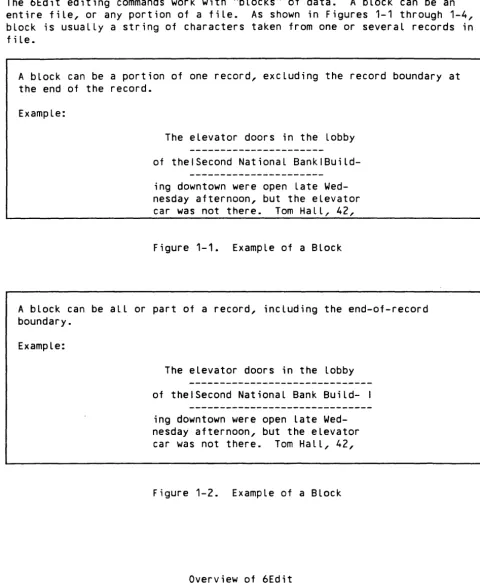
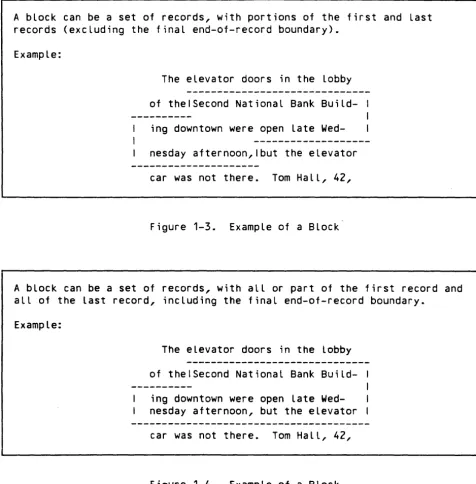
The 6Edit editing commands work with "blocks" of data. A block can be an entire file, or any portion of a file. As shown in Figures 1-1 through 1-4, a block is usually a string of characters taken from one or several records in a file.
A block can be a portion of one record, excluding the record boundary at the end of the record.
Example:
The elevator doors in the lobby
of thelSecond National
BanklBuild-ing downtown were open late Wed-nesday afternoon, but the elevator car was not there. Tom Hall, 42,
Figure 1-1. Example of a Block
A block can be all or part of a record, including the end-of-record boundary.
Example:
CE70-02
The elevator doors in the lobby
of thelSecond National Bank Build- I
ing downtown were open late Wed-nesday afternoon, but the elevator car was not there. Tom Hall, 42,
Figure 1-2. Example of a Block
Overview of 6Edit
Blocks
[image:25.584.50.530.149.732.2]A block can be a set of records, with portions of the first and last records (excluding the final end-of-record boundary).
Example:
The elevator doors in the lobby
of thelSecond National Bank
Build-ing downtown were open late
Wed-nesday afternoon,lbut the elevator
car was not there. Tom Hall, 42,
Figure 1-3. Example of a Block
A block can be a set of records, with all or part of the first record and all of the last record, including the final end-of-record boundary.
Example:
1-4
The elevator doors in the lobby
of thelSecond National Bank
Build-ing downtown were open late Wed-nesday afternoon, but the elevator
car was not there. Tom Hall, 42,
Figure 1-4. Example of a Block
Overview of 6Edit
Blocks
[image:26.585.39.515.109.593.2]Specifying a Block
You specify a block of data to edit by "selecting" the block. There are two ways to select a block:
o When full-screen editing, you can direct the cursor to the beginning and the end of the block, moving it with the arrow keys or the function keys on the terminal. Moving the cursor is equivalent to moving the file pointer.
o You can enter commands which direct the file pointer to the beginning and the end of the block to be selected.
What You Can Do With a Block
Once a block is selected, you can enter an editing command (or use a function key on your terminal) to manipulate the block of data. The things you can do with a block of data include:
o Delete the selected block of data.
o Copy the block of data to another location, either in the same file or a different file.
o Move the block of data to another location (same as copying the block, except that after copying it, it is deleted from its original location) either in the same file or a different file.
o Insert previously selected data after the selected block.
o Replace the selected block with another block of data (which you previously selected).
o Give a name to the location of the selected block. Thereafter, using that name in a 6Edit command tells 6Edit to use the current data at that
location.
o Edit the selected block. (See "Edit Block" below.)
There are two special blocks used in 6Edit: the edit block and the selected block.
Overview of 6Edit CE70-02
What You Can Do With a Block
Edit Block
The implicit subject of all editing operations is the "edit block." The edit block is any set of records in any file. It can comprise one record or an entire file. Usually the edit bLock is alL or a large portion of a file.
You can edit Less than an entire fiLe, simpLy by teLLing 6Edit which portion of the fiLe, or block, you want to edit. This is useful when you want to
limit editing operations to one portion of the file.
You can set the edit bLock explicitLy with the EDIT command; you can refer to it explicitly using the "CURRENT" predefined name.
The default for aLL editing commands is to edit a block which is Located
entireLy inside the edit block. You can override this Limitation, and specify a bLock anywhere in any fiLe. (See Section 5, BLock Expressions in 6Edit.)
When you specify a file, or some other block operand which is Located outside the current edit block, 6Edit automaticaLLy changes the edit bLock to the specified file. This is called an "implicit EDIT" because it is as though 6Edit automatically inserted an EDIT command in front of the command you entered. An implicit EDIT can occur during the following commands:
AFTER DELETE DISPLAY LOCATION OVER
For example, assume you have typed the foLlowing command:
EDIT FILE ACCTS_PAYABLE
The edit block is now all of file "ACCTS_PAYABLE". If you type the command:
DISPLAY 23
it displays record 23 from file ACCTS_PAYABLE. Your search is limited to the material within the existing edit block only; 6Edit does not search for record 23 before the first record, or beyond the last record of the current edit block.
Overview of 6Edit
1-6 CE70-02
NOw, you type this command:
DISPLAY FILE INVENTORY 23
Because you explicitly specified a file, it becomes the new edit block; the command displays record 23 from file "INVENTORY", and the new edit block is all of file INVENTORY.
Note that the following two commands have the same effect on the edit block:
EDIT FILE ACCTS_PAYABLE DISPLAY FILE ACCTS_PAYABLE
Contrast with this the very different effects of the following two commands on the edit block:
EDIT FILE ACCTS_PAYABLE 23 DISPLAY FILE ACCTS_PAYABLE 23
The EDIT command in this example sets the edit block to just record 23 of file ACCTS_PAYABLE; the DISPLAY command in the example sets the edit block to all of the ACCTS_PAYABLE file, then displays record 23.
Edit Block Stack
When you change to a new edit block, the previous edit block is not forgotten. 6Edit maintains an "edit block stack", which holds the specifications of
previous edit blocks.
The edit block stack has a pointer, which refers to the current edit block specification (the "CURRENT" predefined name). When the edit block changes, either explicitly (EDIT command) or implicitly, 6Edit adds an entry to the edit block stack, and stores the specification of the new edit block in that entry.
You can easily refer to the block specification in the previous entry in the edit block stack by using the PREVIOUS block operand in a block expression. The PREVIOUS block operand always changes the edit block, but instead of
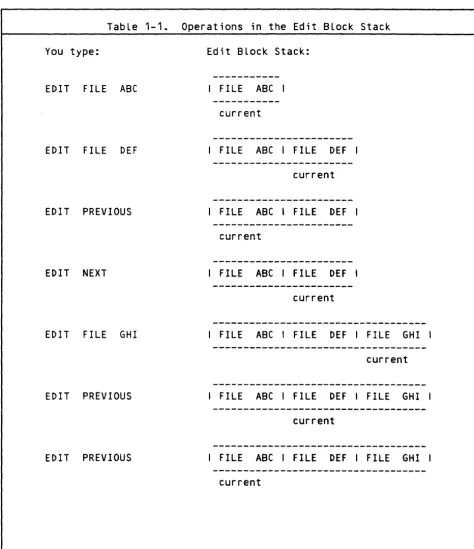
appending the new edit block specification to the end of the edit block stack, 6Edit simpLy moves the edit block stack's pointer backward one entry. The new edit block is the previous edit block specification from the edit block stack. Once you have used PREVIOUS, you can similarly use the NEXT block operand to advance the edit block stack's pointer. The following examples illustrate responses generated by the edit block stack.
Overview of 6Edit
CE70-02 1-7
Note that when you change to a new edit bLock, thus adding a new entry to the stack, any entries from the current entry to the end of the stack are removed from the stack. Thus, you may not EDIT NEXT after introducing a new entry into the stack, since there is no Longer a NEXT fiLe in the stack.
TabLe 1-1. Operations in the Edit BLock Stack
You type: Edit BLock Stack:
EDIT FILE ABC I FILE ABC I
current
EDIT FILE DEF I FILE ABC I FILE DEF I
current
EDIT PREVIOUS I FILE ABC I FILE DEF I
EDIT NEXT I FILE ABC I FILE DEF I
current
EDIT FILE GHI I FILE ABC I FILE DEF I FILE GHI I
current
EDIT PREVIOUS I FILE ABC I FILE DEF I FILE GHI I
current
EDIT PREVIOUS I FILE ABC I FILE DEF I FILE GHI I
current
Overview of 6Edit
1-8 CE70-02
[image:30.587.41.516.148.698.2]TabLe 1-1. Operations in the Edit BLock Stack (cont)
EDIT FILE XYZ I FILE ABC I FILE XYZ I
current
Selected Block
The "seLected bLock" is the Last bLock you specified, either by moving the file pointer (cursor) or by entering commands. You manipuLate the selected block using the editing commands: it can be deleted, moved, replaced, etc.
For example, if you move the cursor to the beginning of a sentence, type THRU in the command window, then move the cursor to the end of the sentence, you have designated the new seLected block. If you then type DELETE THAT in the command window, 6Edit deletes the sentence from the file.
Compound Blocks
In compLex editing situations, you can specify "compound blocks" in 6Edit commands. There are two types of compound blocks: repeated bLocks and encLosed bLocks.
Repeated BLocks
Sometimes you want an editing operation to be performed at severaL Locations in a fiLe. For exampLe, you may want to repLace aLL appearances of the word "horse" with the word "giraffe." Rather than find each Location and perform the operation manually each time, 6Edit allows you to enter a command which specifies a "repeated bLock."
Specification of a repeated bLock in a command causes the entire command to be repeated as many times as needed, each time at a different location in the fiLe. A block expression teLLs 6Edit how to move the fiLe pOinter to find the Location of each repetition of the operation. (See below.)
Overview of 6Edit
CE70-02 1-9
EncLosed BLocks
"EncLosed bLocks" are used in commands to Limit movement of the fiLe pOinter temporariLy. For exampLe, you can specify that a pattern search be Limited to a singLe record. This singLe record is caLled the "encLosing bLock."
Expressions
6Edit commands invoLve two types of expressions: string expressions and bLock expressions.
String Expressions
A string expression specifies either a number or a string of characters,
depending on the context in wh~ch it is used. A string expression can combine different types of strings into one string by concatenating them. ALso, a string expression can combine strings and numbers with the usuaL LogicaL, reLationaL, and arithmetic operators, producing a string of characters which represent LogicaL (true or faLse), or numeric results.
The types of strings which can be used in string expressions are:
o String constants: strings of characters enclosed in apostrophes (I), or decimaL numbers (not encLosed in apostrophes). The strings or decimaL numbers represent constants. Character data (including non-dispLayabLe characters) may be entered using ASCII characters, their decimal codes, or their ASCII names. (See $CONTROL-VaLue Function Later in this section.)
o EQUALS-names: names of variabLes which have been assigned string values with the EQUALS command. These may be names you create or predefined names. 6Edit uses the value of a name in pLace of the name when evaluating the string expression.
o Predefined string functions: functions analogous to IBEX system functions that yieLd vaLues (such as the date, the current directory account, the absolute value of an expression), and functions such as $CNTl and $KEY that yield strings that identify control keys, function keys, and special keystroke sequences.
Overview of 6Edit
1-10 CE70-02
Block Expressions
A block expression specifies a block of data in a file. All editing commands have a single block expression as a parameter. This expression specifies the block of data upon which the editing command is to operate (to delete the block, to copy the block, to replace the block, etc.)
Block expressions can indicate whether the block resides in a specific file, or if it resides in the edit block (the block currently being edited). The boundaries of a block can be given in absolute terms, such as a specific
location in a file, or in relative terms, such as forward or backward from the current file pointer loc~tion, or in a combination of these.
The LOCATION command allows you to give a name to the location of a block. Later, you can use that name in a block expression to refer to the designated block.
Block expressions can be enclosed and repeated. When ~ block expression specifies a repeated block, the entire editing operation of which the block expression is a parameter is repeated.
Keywords and Abbreviations
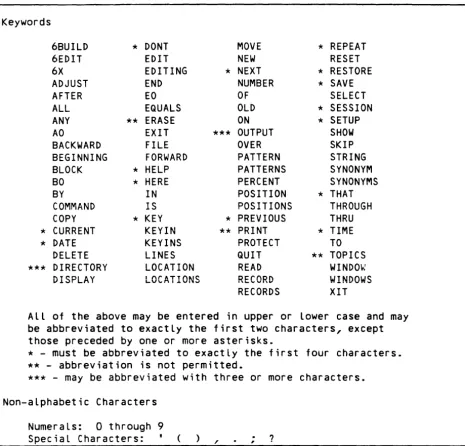
6Edit commands use a keyword-style notation. All keywords may be spelled out fully, or abbreviated. You can choose any editing function by simply using the alphabetic characters, the numerals, and seven special characters. The following figure summarizes the keywords and non-alphabetic characters used.
Overview of 6Edit
CE70-02 1-11
Keywords
6BUILD * DONT MOVE * REPEAT
6EDIT EDIT NEW RESET
6X EDITING * NEXT * RESTORE
ADJUST END NUMBER * SAVE
AFTER EO OF SELECT
ALL EQUALS OLD * SESSION
ANY ** ERASE ON * SETUP
AO EXIT *** OUTPUT SHOW
BACKWARD FILE OVER SKIP
BEGINNING FORWARD PATTERN STRING
BLOCK * HELP PATTERNS SYNONYM
BO * HERE PERCENT SYNONYMS
BY IN POSITION * THAT
COMMAND IS POSITIONS THROUGH
COPY * KEY * PREVIOUS THRU
* CURRENT KEYIN ** PRINT * TIME
* DATE KEY INS PROTECT TO
DELETE LINES QUIT ** TOPICS
*** DIRECTORY LOCATION READ WINDOlo.' " T t ' n l AV I f\ r " T T f\ ~I C
RECORD WINDOWS
1J.1.;)r~t\1 L.v\.n • • v " ...
RECORDS XIT
All of the above may be entered in upper or lower case and may be abbreviated to exactly the first two characters, except those preceded by one or more asterisks.
* -
must be abbreviated to exactly the first four characters.** - abbreviation is not permitted.
*** - may be abbreviated with three or more characters.
Non-alphabetic Characters
1-12
Numerals: 0 through 9
Special Characters: )
,
,.
?Figure 1-5. Keywords and Reserved Special Characters
Overview of 6Edit
Keywords and Abbreviations
[image:34.584.51.517.103.550.2]Command Lines and Continuation
A "command line" is one record from the "command stream." The command stream usually originates from the keyboard of your terminal. (With the READ
command, you can switch the command stream to any file. Command lines will then be read from that file. See Section 3, 6Edit Commands.)
Command lines contain one or more commands. Multiple commands in one command line are separated by a semicolon (;).
If the command you type is longer than one line, type a semicolon as the last ·character of each ongoing line (except the last line of the command).
Example:
CO ST 'This drawn-out line renders the command lengthy' AFTER; FI XYZ 20.5
Lexical Functions
You can instruct 6Edit to perform certain lexical functions during command entry. You can invoke these functions by using identifier characters, which are the values of two predefined names: $CONTROL and $COMMENT.
Initially, 6Edit uses the following default identifier characters for the $CONTROL and $COMMENT functions:
%
"
invokes the $CONTROL function invokes the $COMMENT function
6Edit looks for the $COMMENT identifier in command input and READ-file
records, and for the $CONTROL identifier in quoted strings. It does not look for these identifiers (nor perform their functions) in records read from data
files.
It is possible to use the $CONTROL or $COMMENT identifier without invoking its lexical function. This can be accomplished in two ways. One is to disable the name. To do this, you assign an empty string to the predefined name $CONTROL or $COMMENT. Thereafter, 6Edit does not support the functions
invoked by $CONTROL or $COMMENT, and will not look for the identifier in command lines, READ-file records, or quoted strings.
Or, when using the $CONTROL identifier, you can enter it twice (see $CONTROL-Literal Function, below.)
Overview of 6Edit CE70-02
Lexical Functions
The functions invoked by the $CONTROL and $COMMENT identifiers are described below.
SCONTROL Identifier
The $CONTROL identifier is used to invoke several functions which are called "$CONTROL functions". Initially, the value of $CONTROL is the percent sign
(%).
The character following the $CONTROL identifier is called the "function identifier".
Some of the $CONTROL functions require an operand to be included along with the function identifier. Normally, a $CONTROL function is specified as follows:
$CONTROL_identifier function_identifier
These characters are to be entered together; there is no space between them.
Parameters:
$CONTROL_identifier represents one or two characters designating the current value of the $CONTROL predefined name. (See Lexical Functions, above.)
function_identifier specifies the function 6Edit is to perform.
For example, assume that the $CONTROL identifier is %:
%% invokes the $CONTROL-Literal function %R invokes the $CONTROL-Record function %V invokes the $CONTROL-Value function
Note: $CONTROL functions used in EQUALS commands are not interpreted when assigned, but only when the resulting variable is used in a different command.
Certain $CONTROL functions require one or two operands along with the function identifier. Enclose both in parentheses following the function identifier:
$CONTROL_identifier function_identifier ([operand])
Overview of 6Edit
1-14 CE70-02
For exampLe:
%V() invokes the $CONTROL-VaLue function with no operands %V(23) invokes the $CONTROL-VaLue function with one operand: 23 %V(23,255) invokes the $CONTROL-VaLue function with two operands:
23 and 255
To change the identifier which invokes $CONTROL functions, you assign a different character vaLue to the $CONTROL predefined name. The characters assigned to the $CONTROL name must reside in the foLLowing set:
" >
# /
$
[ %
\
& ]
*
+ @
{
<
}
However, the characters which represent the current vaLue of the $COMMENT predefined name (initiaLLy "), cannot be used in the vaLue of the $CONTROL predefined name.
The foLLowing paragraphs describe most of the $CONTROL functions avaiLabLe. See Section 5, BLock Expressions in 6Edit, for descriptions of additionaL $CONTROL functions which may onLy be used in pattern strings.
$CONTROL-Literal Function
Function Identifier: the $CONTROL identifier itseLf.
This $CONTROL function aLLows you to incLude the $CONTROL identifier itseLf in quoted strings. 6Edit recognizes two adjacent occurrences of the $CONTROL
identifier as representing a singLe $CONTROL identifier; no other LexicaL function is performed.
ExampLe:
COpy STRING '48%% are quaLified' AFTER HERE
inserts the string "48% are qualified" into the fiLe.
Overview of 6Edit
CE70-02 1-15
$CONTROL-Record Function
Function Identifier: R
The $CONTROL-Record function represents an "end-of-record boundary."
This function may be invoked in quoted strings. The $CONTROL-Record function is the only way to represent an end-of-record boundary in quoted strings.
Example:
COpy STRING 'The quick brown fox%Rjumped over the lazy dog%R' AFTER 10
inserts two records after record 10.0 in the file being edited. The first record contains "The quick brown fox"; the second record contains
"jumped over the lazy dog".
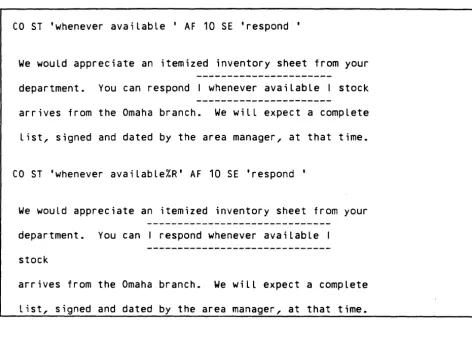
COpy STRING 'whenever available' AFTER 10 SELECT 'respond'
inserts two words into record 10.0 after the word "respond". Note the absence of any $CONTROL-Record function: the quoted string does not represent a
record, but just a string of characters. This command creates no new records. Record 10.0 is simply lengthened.
Figure 1-6, below, illustrates the quoted string before the $CONTROL-Record function.
We would appreciate an itemized inventory sheet from your
department. You can I respond I stock
arrives from the Omaha branch. We will expect a complete
list, signed and dated by the area manager, at that time.
Figure 1-6. CONTROL-Record Function Before
COpy STRING 'whenever available%R' AFTER 10 SELECT 'respond'
inserts two words into record 10.0 after the word "respond". Also, because the $CONTROL-Record function is included in the quoted string, a new record is inserted after record 10.0.
Overview of 6Edit
1-16 CE70-02
Figure 1-7, below, illustrates the quoted string after two $CONTROL-Record commands.
CO ST 'whenever available' AF 10 SE 'respond'
We would appreciate an itemized inventory sheet from your
department. You can respond I whenever available I stock
arrives from the Omaha branch. We will expect a complete
list, signed and dated by the area manager, at that time.
CO ST 'whenever availabLe%R' AF 10 SE 'respond'
We wouLd appreciate an itemized inventory sheet from your
department. You can I respond whenever available I
stock
arrives from the Omaha branch. We will expect a complete
List, signed and dated by the area manager, at that time.
Figure 1-7. CONTROL-Record Function After
$CONTROL-Value Function
Function Identifier: V
Parameters:
value is a decimal number between 0 and 511, inclusive.
The $CONTROL-Value function allows you to enter any 9-bit byte value in quoted strings.
This function requires an operand following the function identifier.
Overview of 6Edit
CE70-02 1-17
[image:39.585.56.529.138.475.2]For exampLe, assuming that $CONTROL is %, to enter a quoted string which contains a singLe byte with a vaLue of 23, you would type:
'%V(23)'
Example:
ESC EQ '%V(27)'
defines a name, ESC, with the vaLue of the escape character. The number 27 is the decimaL ASCII code for the Escape character.
KEYIN '%V(27)A' IS 'harbinger of gLad tidings'
redefines the terminaL key sequence Escape A. Hereafter, whenever <ESC> <A> is typed at the terminaL keyboard, it appears as the phrase "harbinger of gLad tidings".
$COMMENT Identifier
The $COMMENT identifier is used to denote commentary in command Lines. The quotation mark (") is the initial $COMMENT identifier.
When the $COMMENT identifier appears in a command Line outside of a quoted string, 6Edit ignores the foLlowing text, untiL the next appearance of the $COMMENT identifier or the end of the command Line. This aLLows you to append commentary to command Lines by separating the commentary from the actuaL
command(s) with the $COMMENT identifier.
Note that the $COMMENT identifier is not recognized inside quoted Literal strings.
ExampLe:
CASE EQ OFF "This is commentary
is not concLuded by a quotation mark, because the commentary occurs at the end of the command Line.
LOCATION CHAPTER_1 IS "Definition foLlows:" BO CURRENT THRU '.brp'
differs from the former command Line. Here, the commentary occurs in the middle of the command Line, and is therefore encLosed by quotation marks.
Overview of 6Edit
1-18 CE70-02
To change the identifier which invokes $COMMENT functions, you assign a different character value to the $COMMENT predefined name. The characters assigned to the $COMMENT name must reside in the following set:
" # $ % &
*
+ @ <> I [ \ ] { }
However, the characters which represent the current value of the $CONTROL predefined name (initially %) cannot be used in the value of the $COMMENT predefined name.
Function Key and Control Key Notation
6Edit recognizes function keys, control keys, and ASCII control codes as string expressions. The key or code name must be enclosed in angle brackets ("<", ">") or be the argument of the $KEY function, for example:
KEYIN <F1> IS ••• KEYIN <UPARROW> IS KEYIN <ENT> IS •.. KEYIN <F1>11 'A' IS
Note that abbreviations accepted by IMP (such as "ENT" for "ENTER" above) will also be accepted by 6Edit.
Also note the last example above: function keys may be used as introducers for muLti-key sequences.
6Edit accepts the name of any key on the terminaL keyboard inside the angLe brackets. This incLudes not only the FEP/profiLe-defined function keys, but aLso the ASCII controL characters (pLus the DEL character) as mnemonics:
NUL ENQ LF SI DC4 EM RS
SOH ACK VT DLE NAK SUB US
STX BEL FF DC1 SYN ESC DEL
ETX BS CR DC2 ETB FS
EOT HT SO DC3 CAN GS
ALso, ASCII controL keys can be included inside the angLe brackets, using the identifier "CNTL":
<CNTL-x>
where "x" is anyone of: @, A-Z,
[,
\ , ] , A,
,
a-z, {, I, },
-,
Overview of 6Edit
CE70-02 1-19
The ASCII mnemonics evaluate to the corresponding ASCII code (0 - 31 and 127). However, use of the function key elements in a numeric expression yields an error; use of the function key elements in an expression not used (eventually) by the KEVIN command yields unpredictable results.
The angle bracket notation is intended to reinforce the notation used in the manuals when referring to keystrokes at the terminal keyboard. See CE70 and CE73, Notation Conventions.
Additionally, the $CNTL predefined string function is permitted in string expressions:
$CNTL
$CNTL is much like the <CNTL-x> expression element; it is included as a
computational form of <CNTL-x>: $CNTL takes a string argument possibly longer than one character, whereas the angle bracket notation is limited to a single character. $CNTL returns a string which contains the ASCII control-codes for the characters in the original string.
Examples:
KEVIN <ESC>I I 'A' IS <CNTL-C>I I'SA SK 20 RE' I I<CR>
KEVIN ESCI I 'A' IS <ETX>I I'SA SK 20 RE' I ICR
The above two examples are identical; the second assumes that the names "ESC" and "CR" have been defined by the user, probably in the context file as they are now.
DOITTOIT EQ $INPUT( 'Type control char to def ine: ') KEVIN $CNTL(DOITTOIT) IS <ESC>II'SR' II$CNTL( '[WI)
Note that <CNTL-[> is Escape, so "$CNTL('[W')" is the sequence <ESC> <CNTL-W>.
Names
In 6Edit, you can create your own names for things. This makes it easier to remember specific details, such as the location of data. Names also make it easier to refer to something repeatedly, such as an often-used sequence of keywords.
Each name has a value associated with it; the value is the location or object to which the name refers.
Overview of 6Edit
1-20 CE70-02
You create names with the assignment commands; these commands are also used to change the value of a name. The assignment commands are:
EQUALS LOCATION SYNONYM KEYIN
Some names are "predefined" by 6Edit; that is, whenever you run 6Edit the names have already been created. These names are used to communicate details between you and 6Edit. You can change the value of some of the predefined names; others may not be changed by you, their values are changed internally by 6Edit.
Names are used in several ways in 6Edit:
o The EQUALS command assigns a reasonably short value (up to 511 characters) to a name. The value is stored as a string of characters, which may
represent numeric or character data, depending on how the name is later used. The name can be used in the expression component of a command; 6Edit uses the name's value in place of the name -when evaluating the expression.
o The LOCATION command assigns to a name the boundaries of a block of data in a file. To later refer to that location in the file, include the name in an editing command; 6Edit treats the name as a reference to the block.
o The SYNONYM command assigns a fragment of a 6Edit command line to a name. If 6Edit later sees the name in a command line, it replaces it with the fragment which is the name's value.
o The KEYIN command redefines a key on your terminal. Here, the name being assigned is the actual character or sequence of characters generated by the terminal key, or an encoded representation of the name of the key. When a terminal key is redefined, the CP-6 system will cause it to
generate any sequence of characters that you specify. When you type the key (or sequence of keys), the system will echo on your terminal the sequence of characters which represent the name's value.
Overview of 6Edit
CE70-02 1-21