I
I
f
--TURBO
C®
This manual was produced in its entirety with
Sprint: The Professional Word Processor,®
available from Borland.
Borland International, Inc, 4585 Scotts Volley Drive Scotts Valley, California 95066
Copyright ©1987
All Rights Reserved. First Printing, 1987 Printed in U,S,A,
Table of Contents
Introduction . . . .. 1
The TurboC Package ... 1
Requirements ... 2
The Turbo C Implementation ... 2
Volume I: The User's Guide ... 2
Volume II: The Reference Guide ... 3
Recommended Reading . . . .. 4
Typographic Conventions . . . .. 5
Borland's No-Nonsense License Statement ... 5
Acknowledgments ... 6
How to Contact Borland . . . .. 6
Chapter 1. Getting Started ... . . . . .. 9
In This Chapter ... ... 9
Summary of 5-1/4/1 Distribution Disks ... 10
Disk 1: The Integrated Environment ... 10
Disk 2: Command-Line Version & Utilities ... 10
Disk 3: Include Files & Libs I ... 11
Disk 4: Libs II ... 13
Installing Turbo C on Your System ... 14
Read This Before Setting Up Turbo C ... 14
Setting Up Turbo C on a Floppy Disk System ... 15
Using Turbo C with One Floppy ... 15
Your Program Disk . . . .. 15
Your Work Disk ... , ... 15
Using Turbo C with Two Floppies ... 16
To Run the TC Version ... 16
To Run the TCC Version ... 17
Setting Up Turbo C on a Hard Disk ... 17
Setting Up Turbo C on a Laptop System ... 18
If You Don't Want to Use Subdirectories ... 18
TC On a Floppy Disk System ... 18
TCC On a Floppy Disk System ... 19
Writing the Configuration File ... 19
How to Use MicroCalc .. . . .. 20
Where to Now? ... 20
Programmers Learning C ... 20
Experienced C Programmers ... 20
Turbo Pascal Programmers. . . .. 21
Turbo Prolog Programmers ... 21
Chapter 2. The Turbo C Integrated Development Environment ... 23
In This Chapter ... . ... 23
What You Should Read ... 24
How To Get Help . . . .. 24
Part I: Using the Menu System ... 25
Menu Structure . . . .. 29
Menu-Naming Conventions ... 32
The Main Menu . . . .. 32
The Quick-Ref Lines . . . .. 33
The Edit Window . . . .. 33
Quick Guide to Editor Commands . . . .. 35
How to Work with Source Files in the Edit Window ... 35
Creating a New Source File ... 36
Loading an Existing Source File ... 36
Saving a Source File ... 37
Writing an Output File ... 37
The Message Window .. . . .. 37
Part II: The Menu Commands ... 39
The File Menu ... 39
The Edit Command ... 41
The Run Command ... 41
The Compile Menu ... 42
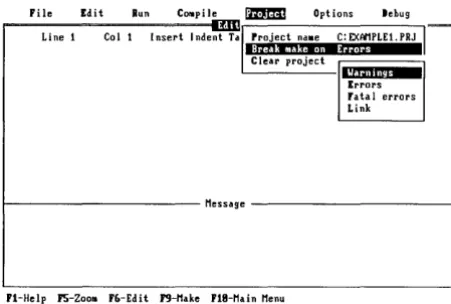
The Project Menu ... 44
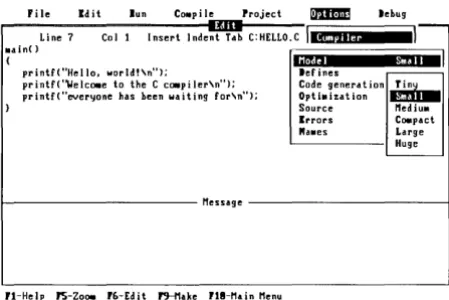
The Options Menu ... 46
Compiler . . . .. 47
Linker ... 57
Environment ... 58
Args ... 60
Retrieve options . . . .. 60
Store options ... 60
Chapter 3. Putting It All Together-Compiling and Running ... 63
In This Chapter... . ... 63
Compiling and Linking from the Integrated Environment ... 64
Building a Single-Source Program ... 64
Step 1: Load Turbo C . . . .. 65
Step 2: Select the example program ... 65
Step 3: Set up your working environment . . . .. 65
Step 4: Load the example into the editor ... 66
Step 5: Build the executable file ... 67
Step 6: Run the program ... 67
Debugging ... 67
The Message Window . . . .. 68
Correcting a Syntax Error ... 68
Using Multiple Source Files ... 70
Building a Multi-Source File Program ... 71
Error Tracking Revisited . . . .. 72
Stopping a Make ... 72
Syntax Errors in Multiple Source Files ... 73
Keeping and Getting Rid of Messages ... 74
The Power of Project Making . . . .. 74
Explicit Dependencies ... 75
What? More Make Features? . . . .. 76
External Object and Library Files ... 76
Overriding the Standard Files ... . . . .. 77
Compiling and Linking from a Command Line . . . .. 77
The TCC Command Line ... . . .. 78
Options on the Command Line ... 78
File Names on the Command Line . . . .. 78
The Executable File ... 79
Some Example Command Lines . . . .. 79
The TURBOC.CFG File ... 80
The MAKE Utility .... . . .. 81
Running Turbo C Programs from the DOS Command Line ... . . . .. 81
All Together Now: Get a Move On with Turbo C ... 82
Chapter 4. Programming in Turbo C . . . .. 83
In This Chapter ... ... 83
Creating Your First Turbo C Program ... 84
Compiling It ... 84
Running It ... . . . .. 85
What Happened? ... ~ ... 86
Sending Your Output to a Printer ... 87
Writing Your Second Turbo C Program ... 88
Writing to Disk . . . .. 89
Running SUM.C ... 89
The Seven Basic Elements of Programming ... 90
Output ... 91
The printf Function ... 91
The Format String ... 91
Other Output Functions: puts and putchar ... 92
Data Types ... " ... 93
Float Type ... 93
The Three ints ... 94
Unsigned ... '. . . . .. 94
Defining a String ... 95
Using a Character Array ... 95
Using a Character Pointer ... 96
Identifiers ... 97
Opera tions ... '. 97
Assignment Operator ... 97
Unary and Binary Operators ... 98
Increment (++) and Decrement (- -) Operators ... 98
Bitwise Operators ... 99
Combined Operators . . . .. 99
Address Operators ... 100
Input ... 101
The scanf Function . . . .. 101
Whitespace ... 101
Passing an Address to scanf ... 101
Using gets and getch for Input ... 102
Conditional Statements ... 103
Relational Operators ... 103
LogicalOperators ... 104
More About Expressions ... 105
Assignment Statements ... 105
The Comma Operator ... 105
The if Statement ... 106
L90ps ... 107
The while Loop ... 107
The for Loop ... 109
The do ... while Loop ... 110
Functions ... 111
Breaking the Program Down ... 112
The get_ratio Function ... 113
The put_ratio Function ... 113
Global Declarations ... 114
Function Declarations ... 114
Function Definitions ... 115
Comments ... 116
Summary ... 116
Chapter 5. More Programming in Turbo C ... 117
In This Chapter. . . . . . .. 117
A Survey of Data Structures ... 118
Pointers ... 118
Dynamic Allocation ... 120
Pointers and Functions . . . .. 121
Pointer Arithmetic. . . .. 122
Arrays ... 124
Arrays and Pointers ... 124
Arrays and Strings ... 125
Multi-Dimensional Arrays ... 125
Arrays and Functions ... 126
Structures ... 128
Structures and Pointers ... . . .. 129
The switch Statement ... 130
Control Flow Commands ... 132
The return Statement ... 133
The break Statement .. . . .. 134
The continue Statement ... 134
The go to Statement ... 135
The Conditional Expression (?:) . . . : ... 135
Style in C Programming: Modern vs. Classic ... 136
Using Function Prototypes and Full Function Definitions. . . .. 137
Using enum Definitions ... 138
Using typedef ... 138
Declaring void functions ... 139
Make Use of Extensions ... 139
String Literals . . . .. 140
Hexadecimal Character Constants ... 140
signed Types ... 140
Pitfalls in C Programming . . . .. 141
Path Names with C Strings. . . .. 141
Using and Misusing Pointers ... 141
Strings. . . .. 142
Confusing Assignment (=) with Equality (==) ... 144
Forgetting the break in Switch Statements ... 144
Array Indexing ... 145
Failure to Pass-by-Address ... 145
Sailing Away ... 146
Chapter 6. Notes for Turbo Pascal Programmers 149 In This Chapter... .. . . .. 149
Program Structure ... 150
An Example ... 151
A Comparison of the Elements of Programming ... 152
Output ... 152
Data Types ... 153
Operations . . . .. 154
Input ... 156
Block Statement .. . . .. 157
Conditional Execution ... 157
Iteration .. . . .. 160
The while Loop ... 160
The do .. while Loop ... 160
The for Loop ... 161
Subroutines ... 162
Function Prototypes . . . .. 164
A Major Example ... 165
A Survey of Data Structures ... " ... 168
Pointers ... 168
Arrays ... 169
Strings ... . . . .. 170
Structures ... 174
Unions ... 175
Programming Issues ... 176
Case Sensitivity ... 177
Type Casting . . . .. 177
Constants, Variable Storage, Initialization ... 178
Constant Types ... 178
Variable Initialization ... 178
Variable Storage. . . .. 179
Dynamic Memory Allocation ... 180
Command-Line Arguments ... 181
File I/O ... 182
PITFALL #1: Assignment vs. Comparison ... 184
PITFALL #2: Forgetting to Pass Addresses (Especially When Using scan£) ... 185
PITFALL #3: Omitting Parentheses on Function Calls ... 185
PITFALL #4: Warning Messages ... 186
PITFALL #5: Indexing Multi-Dimensional Arrays ... . . . .. 186
PITFALL #6: Forgetting the Difference Between Character Arrays and Character Pointers ... 187
PITFALL #7: Forgetting That C is Case Sensitive ... 187
PITFALL #8: Leaving Semicolons Off the Last Statement in a Block ... 187
Chapter 7. Interfacing Turbo C with Turbo Prolog . . . .. 189
In This Chapter... . ... 190
Linking Turbo C and Turbo Prolog: An Overview ... 190
Example 1: Adding Two Integers . . . .. 192
Turbo C Source File: CSUM.C ... 192
Compiling CSUM.C to CSUM.OBJ . . . .. 193
Turbo Prolog Source File: PROSUM.PRO . . . .. 193
Compiling PROSUM.PRO to PROSUM.OBJ . . . .. 193
Linking CSUM.OBJ and PROSUM.OBJ . . . .. 194
Example 2: Using the Math Library ... . . .. 195
Turbo C Source File: CSUMl.C ... 195
Turbo C Source File: FACTRL.C .. . . .. 196
Compiling CSUMl.C and FACTRL.C to .OBJ ... 196
Turbo Prolog Source File: FACTSUM.PRO ... 196
Compiling FACTSUM.PRO to FACTSUM.OBJ .... . . .. 198
Linking CSUM1.0BJ, FACTRL.OBJ and FACTSUM.OBJ ... 198
Example 3: Flow Patterns and Memory Allocation ... 198
Turbo C Source File: DUBLIST.C ... 199
Lists and Functors . . . .. 201
Compiling DUBLIST.C . . . .. 203
Example 4: Drawing a 3-D Bar Chart ... 203
Turbo C Source File: BAR.C ... 203
Compiling BAR.C ... 203
Turbo Prolog Program: PBAR.PRO ... 204
Compiling PBAR.PRO to PBAR.OBJ ... 204
Linking PBAR.OBJ with the Module BAR.OBJ ... 204
Chapter 8. Turbo C Language Reference ... 207
In This Chapter. . . .. . . .. 207
Comments (K&R 2.1) ... 208
Identifier (K&R 2.2) ... 208
Keywords (K&R 2.3) . . . .. 209
Constants (K&R 2.4) . . . .. 209
Integer Constants (K&R 2.4.1) ... 210
Character Constants (K&R 2.4.3) . . . .. 211
Floating Constants (K&R 2.4.4) ... 212
Strings (K&R 2.5) ... 212
Hardware Specifics (K&R 2.6) ... 213
Conversions (K&R 6) ... 213
char, int, and enum (K&R 6.1) ... 213
Pointers (K&R 6.4) ... 214
Arithmetic Conversions (K&R 6.6) ... 214
Operators (K&R Section 7.2) ... 215
Type Specifiers and Modifiers (K&R 8.2) ... 215
The enum Type ... 216
The void Type ... 216
The signed Modifier ... 217
The const Modifier ... 217
The volatile Modifier ... 218
The cdecl and pascal Modifiers ... ' ... 219
pascal ... 219
cdecl ... 219
The near, far, and huge Modifiers ... 220
Structures and Unions (K&R Section 8.5) ... 221
Word Alignment ... 221
Bitfields ... 221
Statements (K&R 9) ... 222
External Function Definitions (K&R 10.1) ... ' ... 222
Function Type Modifiers (K&R 10.1.1) ... 223
The pascal Function Modifier ... 223
The cdecl Function Modifier ... 224
The interrupt Function Modifier . . . .. 224
Function Prototypes (K&R 10.1.2) ... 225
Scope Rules (K&R 11) . . . .. 229
Compiler Control Lines (K&R 12) ... 229
Token Replacement (K&R 12.1) ... 230
File Inclusion (K&R 12.2) ... 231
Conditional Compilation (K&R 12.3) ... 231
Error Directive (ANSI C 3.8.5) ... . . . .. 232
Pragma Directive (ANSI C 3.8.6) ... 233
#pragma inline ... .. . . . .. 233
#pragma warn ... 234
Null Directive (ANSI C 3.7) ... 234
Predefined Macro Names (ANSI C 3.8.8) ... 234
Turbo C Predefined Macros ... . . . .. 235
Anachronisms (K&R 17) . . . .. 236
Chapter 9. Advanced Programming in Turbo C ... 237
Memory Models ... 237
The 8086 Registers ... . . . .. 238
General Purpose Registers ... 239
Segment Registers .. . . .. 239
Special Purpose Registers. . . .. 239
Memory Segmentation ... . . . .. 240
Address Calculation ... 240
Near, Far, and Huge Pointers ... 241
Near Pointers ... 242
Far Pointers .. . . ... . . . .. 242
Huge Pointers . . . .. 243
Turbo C's Six Memory Models ... 244
Mixed-Model Programming: Addressing Modifiers ... 249
Declaring Functions to Be Near or Far ... 250
Declaring Pointers to Be N ear, Far, or Huge ... 251
Pointing to a Given Segment:Offset Address ... . . . .. 252
Building Proper Declarators ... 252
Using Library Files ... 254
Linking Mixed Modules ... 256
Mixed-Language Programming ... 257
Parameter-Passing Sequences: C and Pascal ... 257
C Parameter-Passing Sequence ... 257
Pascal Parameter-Passing Sequence ... 259
Assembly-Language Interface ... 261
Setting Up to Call.ASM from Turbo C ... 261
Defining Data Constants and Variables ... 262
Defining Global and External Identifiers ... . . . .. 263
Setting Up to Call Turbo C from .ASM ... 264
Referencing Data . . . .. 264
Defining Assembly-Language Routines ... 265
Passing Parameters . . . .. 266
Handling Return Values ... 266
Register Conventions ... 269
Calling C Functions from .ASM Routines ... 270
Low-Level Programming: Pseudo-Variables, In-Line Assembly, and Interrupt Functions ... 271
Pseudo-Variables ... 272
Using In-Line Assembly Language ... 274
Opcodes ... 277
String Instructions ... 278
Repeat Prefixes ... 278
Jump Instructions ... 278
Assembly Directives ... 279
In-Line Assembly References to Data and Functions ... 279
In-Line Assembly and Register Variables ... 279
In-Line Assembly, Offsets, and Size Overrides ... 280
Using C Structure Members ... 280
Using Jump Instructions and Labels ... 281
Interrupt Functions ... 281
Using Low-Level Practices ... 283
Using Floating-Point Libraries ... 284
Emulating the 8087/80287 Chip ... 285
Using the 8087/80287 Math Coprocessor Chip ... 286
If You Don't Use Floating Point ... 287
The 87 Environment Variable ... 288
Registers and the 8087 . . . .. 290
Using matherr with Floating Point ... 290
Caveats and Tips . . . .. 290
Turbo C's Use of RAM . . . .. 290
Should You Use Pascal Conventions? ... 291
N T R
o
Du
c
To
NTurbo C is for C programmers who want a fast, efficient compiler; for Turbo Pascal programmers who want to learn C with all the "Turbo" advantages; and for anyone just learning C who wants to start with a fast, easy-to-use implementation.
The C language is the structured, modular, compiled, general-purpose language traditionally used for systems programming. It is portable-you can easily transfer application programs written in C between different computers. You can use C for almost any programming task, anywhere. But while traditional C compilers plod along, Turbo C flies through compilation (7000 lines per minute) and gives you more time to test and perfect your programs.
The Turbo C Package
Your Turbo C package consists of four distribution disks and the two-volume documentation set-the Turbo C User's Guide (this book) and the
Turbo C Reference Guide. The distribution disks contain all the programs, files, and libraries you need to create, compile, link, and run your Turbo C programs; they also contain sample programs, a stand-alone MAKE utility, a context-sensitive help file, and additional C documentation not covered in these guides.
begin with the user's guide before wading into the thicker waters of the reference guide.
Requirements
Turbo C runs on the IBM PC family of computers, including the XT and AT, along with all true IBM compatibles. Turbo C requires DOS 2.0 or higher and at least 384K of RAM; it will run on any 80-column monitor. One floppy disk drive is all that's required, although we recommend two floppy drives or a hard disk with one floppy drive.
It includes floating-point routines that let your programs make use of an 8087 (or 80287) math coprocessor chip, or will emulate the chip if it is not available. The 8087 (or 80287) can significantly enhance performance of your programs, but is not required.
The Turbo C Implementation
Turbo C supports the Draft-Proposed American National Standards Institute (ANSI) C standard, fully supports the Kernighan and Ritchie definition, and includes certain optional extensions for mixed-language and mixed-model programming that allow you to exploit your PC's ca pabilities.
Volume I: The User's Guide
Volume I introduces you to Turbo C, shows you how to create and run programs, and includes background information on topics such as compiling, linking, error-tracking, and project making. Here is a breakdown of the chapters in the user's guide:
Chapter 2: The Turbo C Integrated Development Environment explains Turbo C's menus and text editor and shows you how to use the editor to create and modify C source files.
Chapter 3: Putting It All Together-Compiling and Running shows how to use the Turbo C Run command, and explains how to "make" (rebuild) a program's constituent files, plus guides you through running your first program.
Chapter 4: Programming in Turbo C introduces you to some of the basic steps involved in creating and running Turbo C programs and takes you through a set of short, progressive sample programs.
Chapter 5: More About Programming in Turbo C provides summary explanations of additional C programming elements including arrays, pointers, structures, and statements.
Chapter 6: Notes for Turbo Pascal Programmers uses program examples to compare Turbo Pascal to Turbo C, describes and summarizes the significant differences between the two languages, and gives some tips on avoiding programming pitfalls.
Chapter 7: Interfacing Turbo C with Turbo Prolog shows how to interface modules written in Turbo C with Turbo Prolog programs and provides several examples that demonstrate the process.
Chapter 8: Turbo C Language Reference lists all aspects and features of this implementation that differ from Kernighan and Ritchie's definition of the language, and details the Turbo C extensions not given in the current draft of the ANSI C standard.
Chapter 9: Advanced Programming in Turbo C provides details about the start-up code, memory organization in the different memory models, pointer arithmetic, assembly-language interface, and using floating-point.
Volume II: The Reference Guide
Volume II, the Turbo C Reference Guide, is written for experienced C programmers; it provides implementation-specific details about the language and the run-time environment. In addition, it describes each of the Turbo C functions, listed in alphabetical order. These are the chapters and appendixes in the programmer's reference guide.
Chapter 2: The Turbo C Library is an alphabetical reference of all Turbo C library functions. Each definition gives syntax, include files, related functions, an operative description, return values, and portability information for the function. ,
/
Appendix A: The Turbo"C Interactive Editor gives a more thorough explanation of the editor commands-for those who need more information than that given in Chapter 2.
Appendix B: Compiler Error Messages lists and explains each of the error messages and summarizes the possible or probable causes of the problem that generated the message.
Appendix C: Command-Line Options lists the command-line entry for each of the user-selectable TCC (command-line compiler) options.
Appendix D: Turbo C Utilities discusses three utilities included in the Turbo C package; CPP-the preprocessor, MAKE-the program builder, and TLINK-the Turbo Link utility. The section on CPP summarizes how the C preprocessor functions. The section on MAKE documents how to use MAKE for rebuilding program files. The section on TLINK summarizes how to use the command-line version of Turbo C's built-in Turbo Linker.
Appendix E: Language Syntax Summary uses modified Backus-Naur Forms to detail the syntax of all Turbo C constructs.
Appendix F: Customizing Turbo C takes you on a walk through the installation program (TCINST), which lets you customize your keyboard, modify default values, change your screen colors, etc.
Recommended Reading
You will find these documents useful additions to your Turbo C manuals:
• The most widely known description of C is found in The C Programming Language by Brian W. Kernighan and Dennis M. Ritchie (New Jersey: Prentice-Hall, 1978).
• The ANSI Subcommittee X3Jll on Standardization of C is presently creating a formal standard for the language, and Turbo C supports this upcoming ANSI C standard.
If you are learning C for the first time, we recommend that you use Turbo C to work through the exercises in Kernighan and Ritchie. If you are experienced with C, you should have little difficulty using Turbo C.
Typographic Conventions
All typefaces used in this manual were produced by Borland's Sprint: The Professional Word Processor, on an Apple LaserWriter Plus. Their uses are as follows:
Monospace type This typeface represents text as it appears on the screen
(or in your program) and anything you must type (such as command-line options).
< > Angle brackets in text or DOS command lines enclose optional input or data that depends on your system, which should not be typed verbatim. Angle brackets in the function reference section enclose the names of include files.
Boldface Turbo C function names (such as printf) are shown in boldface when mentioned within text (but not in program examples).
Italics Italics indicate variable names (identifiers) within
sections of text and emphasize certain words (especially new terms).
Bold monospace This typeface represents Turbo C keywords (such as
char, switch, near, and cdecl).
Keycaps This special typeface indicates a key on your keyboard. It is often used when describing a particular key you should type, e.g., "Press Esc to exit a menu."
Borland's No-Nonsense License Statement
This software is protected by both United States Copyright Law and International Treaty provisions. Therefore, you must treat this software just
By saying, "just like a book," Borland means, for example, that this software may be used by any number of people and may be freely moved from one computer location to another so long as there is no possibility of its being used at one location while it's being used at another. Just like a book that can't be read by two different people in two different places at the same time, neither can the software be used by two different people in two different places at the same time. (Unless, of course, Borland's copyright has been violated.)
Acknowledgments
In this manual, we refer to several products:
• Turbo Pascal, Turbo Prolog and Sprint: The Professional Word Processor are registered trademarks of Borland International Inc.
• WordStar is a trademark of MicroPro Inc.
• IBM PC, XT, and AT are trademarks of International Business Machines Inc.
• MS-DOS is a registered trademark of Microsoft Corporation. • UNIX is a registered trademark of ATT.
How to Contact Borland
The best way to contact Borland is to log on to Borland's Forum on CompuServe: Type GO BOR from the main CompuServe menu and select "Enter Language Products Forum" from the Borland main menu. Leave your questions or comments there for the support staff to process.
If you prefer, write a letter detailing your comments and send it to:
Technical Support Department Borland International 4585 Scotts Valley Drive
Scotts Valley, CA 95066, USA
IJ product name and version number IJ computer make and model number
c
H A p T E R1
Getting Started
Your Turbo e package actually includes two different versions of the e compiler: the Integrated Environment version and a separate, stand-alone command-line version. When you install Turbo e on your system, you copy files from the distribution disks to your working floppies or to your hard disk. There is no copy protection, and you do not need to run any installation programs. The distribution disks are formatted for double-sided, double-density disk drives and can be read by IBM pes and close compatibles. For reference, we include a list of the distribution files in this chapter.
As we explained in the "In trod uction," you should make a complete working copy of the distribution disks when you receive them, then store the original disks away in a safe place. Do not run Turbo e from the distribution disks; they are your original (and only) back-ups in case anything happens to your working files.
If you are not familiar with Borland's No-Nonsense License Statement, now is the time to read the agreement in the "Introduction" (it's also at the front of this book) and mail us your filled-in product registration card.
In This Chapter ...
systems with 5-1/4" floppy disk drives or hard disk drives. We end this chapter with some recommendations on which chapters you will want to read next, based on your programming language experience.
Summary of
5-1/4/1
Distribution Disks
The Turbo C package comes with four 5-1/4" distribution disks. The files on these disks are organized in such a way that you can set up Turbo Con your system with a minimum of disk-swapping (floppy-flipping).
Disk
1:
The Integrated Environment
This disk contains the core files for Turbo C: the integrated-environment version of Turbo C, the Turbo C help files, and up-to-the-minute notes and errata on the package. These are the files on Distribution Disk #1:
TC.EXE TCHELP.TCH README README.COM TCINST.COM HELLO.C
Turbo C integrated environment The Turbo C help file
A last-minute update file for your information Program to read the README file
The Turbo C customization program The classic "Hello, World" source code
Disk
2:
Command-Line Version
&
Utilities
This disk contains the command-line version of Turbo C and the other utilities that command-line afficionados will want to use. Refer to Appendixes C and D in the Turbo C Reference Guide for information about using these programs.
TCC.EXE TLINK.EXE CPP.EXE MAKE.EXE TOUCH.COM CNVTCFG.EXE
The command-line version of Turbo C The Turbo Linker program
The C preprocessor as a separate executable program The Turbo C MAKE utility
Files for building start-up: BUILD-CO. BAT CO.ASM RULES.ASI SETENVP.ASM SETARGV.ASM Miscellaneous files: MAIN.C
Batch file for building the start-up code modules Assembler source for start-up code
Assembler include file for start-up code
Assembler source code for preparing the environment Assembler source code for parsing the command line
An alternate main file.
Disk 3: Include Files
&
Libs I
This disk contains the floating-point libraries, the header files, and the run-time libraries for the tiny, small, and large memory models.
Floating-point files:
87.LIB EMU.LIB
Floating point coprocessor (8087/80287) library Floating point emulation library
Include (header) files:
ALLOC.H ASSERT.H BIOS.H CONIO.H CTYPE.H DIR.H DOS.H ERRNO.H FCNTL.H FLOAT.H 10.H LIMITS.H MATH.H MEM.H PROCESS.H SETJMP.H SHARE.H
Memory management functions Debugging macro header file BIOS header file
Direct DOS console I/O
The character classification macros
Structures, macros, and functions for directories and path names
Interfacing with DOS and the 8086 System call error number mnemonic file File control information file
Floating-point parameters file
Input/Output structures and declarations Environmental parameters file
Declarations of various math functions Memory manipulation functions
Process management structures and declarations Declarations for setjmp and longjmp
SIGNAL.H STDARG.H STDDEF.H STDIO.H STDLIB.H STRING.H TIME.H VALUES.H SYS\STAT.H
Signal definitions file
Variable arguments header file
Commonly used types and macros file The standard I/O header file
Declarations for some "standard" routines String manipulation routines file
Time of day function header file
Symbolic names for machine-dependent constants Subdirectory containing STAT.H-an auxiliary I/O header file
Run-time libraries for the tiny, small, and large memory models:
COT.OBI Tiny-model start-up object COS.OBI Small-model start-up code
CS.LIB Small- and tiny-model library routines MATHS.LIB Small- and tiny-model math routines COL.OBI Large-model start-up code
CL.LIB Large-model library routines MATHL.LIB Large-model math routines
MicroCa1c Files: MCALC.DOC MCALC.C MCALC.H MCALC.PRI MCOMMAND.C MCDISPLY.C MCINPUT.C MCPARSER.C MCUTIL.C MCMVSMEM.C MCMVSMEM.OBI MicroCa1c documentation
MicroCa1c main program source code MicroCa1c header file
MicroCa1c project file
MicroCa1c commands source code MicroCa1c screen display source code MicroCa1c input routines source code MicroCa1c input parser source code MicroCa1c utilities source code
MicroCa1c direct screen memory write source code Compiled version of MCMVSMEM-will link with any memory model
Disk 4: Libs II
This disk contains the run-time libraries for the compact, medium, and huge memory models, and some miscellaneous files.
Run-time libraries for the compact, medium, and huge memory models:
COC.OBI Compact-model start-up code CC.LIB Compact-model library routines MATHC.LIB Compact-model math routines
COM.OBI Medium-model start-up code CM.LIB Medium-model library routines MATHM.LIB Medium-model math routines
COH.OBI
CH.LIB MATHH.LIB
Miscellaneous Files:
CPINIT.OBI
MATHERR.C FILECOMP.C GETOPT.C
BAR.C PBAR.PRO
Huge-model start-up code Huge-model library routines Huge-model math routines
Initialization code for linking Turbo C and Turbo Prolog.
Source file for alternate matherr function Example Turbo C program to compare files
Source code for routine that parses options in command line
Example function to be used with PBAR.PRO
Installing Turbo C on Your System
Your Turbo C package includes all the files and programs necessary to run both the integrated-environment and command-line versions of the compiler, along with start-up code and library support for six memory models and 8087 coprocessor emulation. Which files you copy depends on which version and which memory model you will be using for your application.
Note: We assume that you are already familiar with DOS, particularly the
copy, rnkdir, and chdir commands, which you need for setting up Turbo C
on your system.
If you do not already know how to use these DOS commands, refer to your DOS Reference Manual before starting to set up Turbo C on your system.
Read This Before Setting Up Turbo
C
You are not required to set up Turbo C the way we explain in this chapter, but the method we give is logical and easy to use because it takes advantage of DOS's subdirectory capabilities.
For hard-disk systems, the method we give has you place the Turbo C files as follows:
1. the Turbo C program files in a directory called TURBOC
2. the include files (header files) in a subdirectory called TURBOC\INCLUDE
3. the library files in a another subdirectory called TURBOC\LIB.
For floppy-disk systems, the method we give has you place the Turbo C files as follows:
1. the Turbo C program files directly on the floppy disk
2. the include files (header files) in a floppy-disk subdirectory called \INCLUDE
When you use subdirectories to organize your files, it is easiest to use Turbo C with a configuration file. You will use either TCCONFIG.CFG (if you're using TC-the Integrated Environment version of Turbo C), or TURBOC.CFG (if you're using TCC-command-line Turbo C). The configuration file tells Turbo C where to look to find the INCLUDE and LIB subdirectories. You will find information about the configuration files in the section ""Writing the Configuration File" in this chapter.
If you don't want to use subdirectories when you set up Turbo C on your system, refer to the section "If You Don't Want to Use Subdirectories" in this chapter.
Setting Up Turbo
C on a Floppy Disk System
How you set up Turbo C to run from floppies depends on whether your computer system has one or two floppy disk drives. Obviously, having two drives makes life easier, but using Turbo C with just one drive is perfectly possible. Here's how to go about it ....
Using Turbo C with One Floppy
If your computer system has only one floppy drive, you should just use the Turbo C Integrated Environment (the menu-driven version called TC.EXE on your distribution disk). Even though you have only one disk drive, you will have to create two separate floppies-a program disk and a work disk.
Your Program Disk
Onto one floppy, copy the following files:
E:I TC.EXE
13 TCHELP.TCH
If you're not familiar with DOS, refer to your DOS manual for information about the copy command.
Your Work Disk
information on setting up subdirectories with the mkdir and chdir
commands).
Note: If you choose to set up these two subdirectories and you use TCC, you must specify the include directory with the -I option and the library
directory with the -L option (see Appendix C for more on command-line
options). If you're using TC, you must set up the include and library directories from within the Options/Environment menu.
Into the \INCLUDE subdirectory copy the include files from distribution disk 3 (*.H and SYS\STAT.H).
Into the \LIB subdirectory copy the following library files:
• COx.OBI
• EMU.LIB • FP87.LIB • MATHx.LIB • Cx.LIB
Note that the x in these files stands for the first letter of the particular memory model you're using. In other words, if you're using the large memory model, you would substitute an L for the x's. In that case, you would copy COL.OBI, MATHL.LIB, and CL.LIB into the \LIB subdirectory.
To run Turbo C from a single floppy drive, first insert the program disk into the disk drive and type tc. Once the program has loaded into memory, remove the program disk and insert your work disk. If you need on-line help, though, re-insert the program disk before pressing Ft.
Using Turbo C with Two Floppies
If your computer system has two floppy disk drives, you have the choice of running the Turbo C Integrated Environment or the Turbo C command-line version. You will need two different sets of floppies to run each of these versions.
To Run the TC Version
To Run the Tee Version
To run the command-line version of Turbo C (called TCC.EXE), you need to create two new disks-one for drive A, one for drive B.
On the disk for drive A, copy the following:
1:1 TCC.EXE El TLINK.EXE
1:1 a subdirectory called \ LIB
1::1 a subdirectory called \INCLUDE
Into the \LIB subdirectory on this disk, copy the following files:
c COx.OB] c EMU. LIB
c FP87.LIB
IJ MATHx.LIB c Cx.LIB
Note that the x in these files stands for the first letter of the particular memory model you're using. In other words, if you're using the Large memory model, you would substitute an L for the x's. In that case, you would put COL.OB], MATHL.LIB, and CL.LIB into the \LIB subdirectory.
Into the \INCLUDE subdirectory on this disk, copy all the include files (the .H files as found on distribution disk 3).
On the disk for drive B (your work disk), copy all the .C, .OB], and .EXE files that you create with the command-line version of Turbo C.
Setting Up Turbo
C
on a Hard Disk
U sing Turbo C on a hard disk allows you to switch easily from the Integrated Environment version (TC.EXE) to the command-line version (TCC.EXE).
You should first create a subdirectory off your root directory and call it \ TURBOC. Into this subdirectory go all the program files, all your own files, and any .C files that you create with Turbo C.
Then off of the \ TURBOC subdirectory, create two further subdirectories: \LIB and \INCLUDE.
Into the \INCLUDE subdirectory go all the header files (.H files) as found on distribution disk 3.
When using TC, remember that you must set up the include and library directories from within TC's Options/Environment menu. For TCC, specify the include directory with the -I command line option, and the library
directory with the -L option.
Setting Up Turbo
C
on a Laptop System
If you have a laptop computer (one with an LCD or plasma display), in addition to following the procedures given in the previous sections, you should set your screen parameters before using Turbo C. The Turbo C Integrated Development Environment version (TC.EXE) works best if you enter MODE BW80 at the DOS command line before running Turbo C.
Alternatively, you can install TC for a black and white screen using the Turbo C installation program, TCINST. (Refer to Appendix F in the Turbo C
Reference Guide.) With this installation program, you should select "Black and White" from the Screen Modes menu.
If You Don't Want
to
Use Subdirectories
Using Turbo C with subdirectories is optional, so if you don't want to use them to organize your Turbo C files, you can put all the files in one directory on the appropriate disk.
On a Hard
Disk System
We recommend that you create a directory called TURBOC on your hard disk, then copy all the Turbo C files to that directory. If you don't know how to make a directory, refer to the mkdir command in your DOS manual.
TC On a
Floppy Disk System
We describe how to do this in "Setting Up Turbo C on a Floppy Disk System" in this chapter. The difference is that, without subdirectories, you will copy the files you need (as listed in that section) directly to the work disk, without setting up \INCLUDE or \LIB on that disk.
TCC On a
Floppy Disk System
If you don't want to use subdirectories, have two floppy-disk drives, and are using command-line Turbo C (TCC.EXE), follow the directions in "To Run the TCC Version" in this chapter, with the following exceptions:
c instead of setting up \INCLUDE on the disk for drive A, just copy the include (header) files directly to the disk
IJ instead of setting up \LIB on the disk for drive A, just copy the specified
library files directly to the disk
Writing the Configuration File
The Integrated Development Environment version of Turbo C includes a built-in configuration file named TCCONFIG.TC. When you save compiler options, Turbo C automatically writes those options into TCCONFIG.TC, the configuration file.
If you choose to create your own configuration file for use with the command-line version of Turbo C (TCC), you need to follow this procedure:
1. With an ASCII editor, create a file called TURBOC.CFG that contains the following line:
-LC:\TURBOC\LIB -IC:\TURBOC\INCLUDE
(This assumes that your library directory is C:\ TURBOC\LIB and your include files directory is C: \ TURBOC\INCLUDE.)
How
to
Use MicroCalc
When you want to compile and run MicroCalc (a spreadsheet program given in several files on distribution disk 3), refer to Appendix G in the
Turbo C Reference Guide.
Where to Now?
Now that you have loaded the Turbo C files and libraries onto the appropriate floppy disks or hard disk directories, you are ready to start digging into this guide and using Turbo C. But, since this user's guide is written for three different types of users, certain chapters are written with your particular Turbo C programming needs in mind. Take a few moments to read the following, then take off and fly with Turbo C speed!
Programmers Learning
C
If you are just now learning the C language, you will want to read Chapters 4 and 5. These are written in tutorial fashion and take you through the process of creating and compiling your first C programs. If you are not sure how to use the Integrated Development Environment, you will need to read Chapter 2. When you are ready to run programs, Chapter 3 shows you how.
Experienced
C
Programmers
Turbo Pascal Programmers
Chapter 6, "Notes for Turbo Pascal Programmers," is written specifically for you; in it, we provide some examples that compare Turbo Pascal programs with equivalent Turbo C programs, and we elaborate on some of the significant differences between the two languages.
If you have programmed with Turbo Pascal, you are familiar with the seven basic elements of programming. To get up to speed with Turbo C, you will want to read Chapters 2, 4, and 5. (If you have used another menu-driven Borland product, such as SideKick or Turbo Basic, you will only need to skim Chapter 2.)
Turbo Prolog Programmers
c
H A p TThe Turbo C Integrated
Development Environment
E R
2
Turbo C is much more than just a fast C compiler; it is a fast, efficient C compiler with an easy-to-Iearn and easy-to-use Integrated Development Environment. With Turbo C, you don't need to use a separate editor, compiler, linker, and Make software in order to create and run your C programs. All these features are built right into Turbo C, and they are all accessible from one clear and simple display-the Turbo C main screen.
In This Chapter ...
This chapter is divided into two sections: Part I, "Using the Menu System," and Part II, "The Menu Commands."
In Part I, "Using the Menu System," we
1::1 describe the components of the Turbo C main screen II explain how to use the Turbo C main menu selections
EI demonstrate how to get into the Edit window and use the editor (editor
In Part II, "The Menu Commands," we
• examine and explain each menu item's function • summarize the compile-time options
What You Should Read
If you are not familiar with using menu-driven software, you will want to read Part I first. If you are well-versed in working with menu-driven products, such as SideKick or Turbo Prolog, you may want to skip Part I and turn directly to Part II.
How To Get Help
Turbo C, like other Borland products, gives context-sensitive on-screen help at the touch of a single key. You can get help at any point within any Turbo C menu.
To call up Help, press Ft. The Help window details the functions of the item on which you're currently positioned. Any Help screen may contain a
keyword (a highlighted item) on which you can get more information. Use the arrow keys to move to any keyword and press Enter to get more detailed Help on the selected item. You can use the Home and End keys to go to the first and last keywords on the screen, respectively.
Part I: Using the Menu System
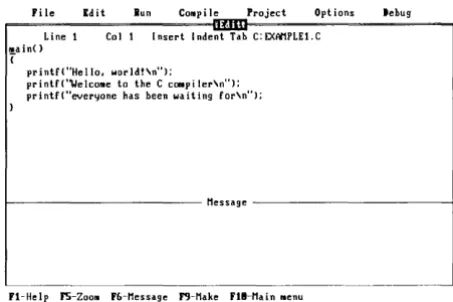
When you load Turbo C (type tc and press Enter at the DOS prompt), the start-up screen includes the main screen and product version information (pressing Alt-F10 any time will bring up this version information). When you press any key, the version information disappears but the main screen remains (see Figure 2.1). Look closely at the main screen; it consists of four parts: the main menu, the Edit window, the Message window, and the Quick Reference (Quick-Ref) Line.
Pi Ie Ed i t lu n COilP i I ~Project Opt ions Line 1
!!.ain( )
Coil Insert Inde~ C:t:XAMPLE1.C
{
printf("Hello. world"n");
printf(''WelcOile to the C cOIIIpi ler\n"); printf("everyone has heen waiting For\n");
Jebug
1 - - - -Nessage - - - 1
[image:38.507.149.376.240.391.2]Fl-Help 1'5-20011 Flj-Nessage I"J-Nake Fl8-Main lIenu
Figure 2.1: Turbo C's Main Screen
To gain familiarity with the Turbo C system, here are some navigating basics:
From within a menu:
EI Use the highlighted capital letter to select a menu item, or use the arrow
keys to move to the option and press Enter.
I!i1 Press Esc to exit a menu.
II Press Esc when in the main menu to go to the previously active window.
(When active, the window will have a double bar at its top and its name will be highlighted.)
• Use the Right and Left arrow keys to move from one pull-down menu to another.
From anywhere in Turbo C:
• Press F1 to get information about your current position (help on running, compiling, etc.).
• Press F10 to invoke the main menu.
I!!I Press Alt plus the first letter of any main menu command (F, E, R, C, P, 0,
D) to invoke the specified command. For example, from anywhere in the system pressing Alt-E will take you to the Edit window; AIt-F takes you to the File menu.
From within the Edit or Message window:
• Press F5to zoom/unzoom. • Press F6 to switch windows.
Note: To exit Turbo C and return to DOS, go to the File menu and select Quit (press Q or move the selection bar to Quit and press Enter). If you select Quit without saving your current work file, the editor will query whether you want to save it or not.
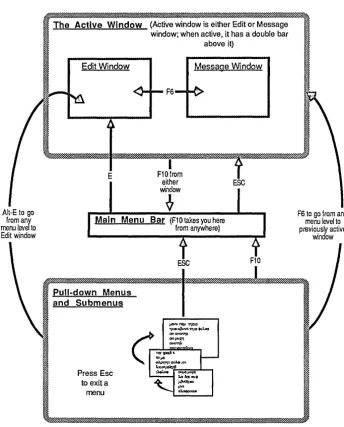
A1t-E to go from any menu level to Edit window
The Active Window (Active window is either Edit or Message window; when active, it has a double bar
above it)
Edit Window Message Window
E
I
F10fromeither window
~
Main Menu Bar (F10takesyouhere from anywhere)
Pull-down Menus and Submenus
Press Esc to exita
menu
[image:40.508.87.431.80.506.2]ESC
Figure 2.2: A Sample Use of Hot Keys F10
F6 to go from any menu level to
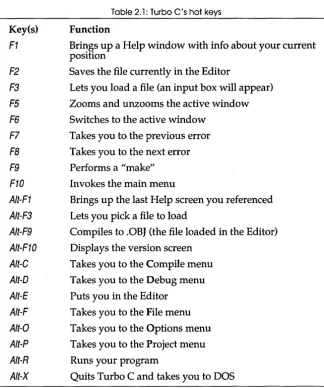
Table 2.1 lists all of the hot keys you can use while in Turbo C. Remember that when these keys are pressed, their specific function is carried out no matter where you are in the Turbo C environment.
Key(s)
F1
F2
F3
F5 F6
F7
FB
F9
F10 Alt-F1
Alt-F3 Alt-F9
Alt-F10
AIt-C
A/t-O
A/t-E
A/t-F
A/t-O A/t-P
Alt-R
[image:41.508.74.398.103.491.2]A/t-X
Table 2.1: Turbo C's hot keys
Function
Brings up a Help window with info about your current position
Saves the file currently in the Editor
Lets you load a file (an input box will appear)
Zooms and unzooms the active window Switches to the active window
Takes you to the previous error
Takes you to the next error
Performs a "make" Invokes the main menu
Brings up the last Help screen you referenced
Lets you pick a file to load
Compiles to .OBJ (the file loaded in the Editor)
Displays the version screen
Takes you to the Compile menu
Takes you to the Debug menu
Puts you in the Editor
Takes you to the File menu
Takes you to the Options menu
Takes you to the Project menu
Runs your program
Menu Structure
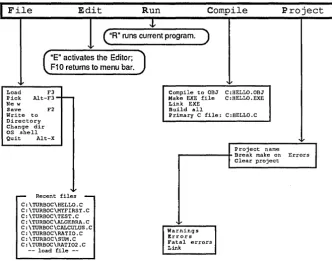
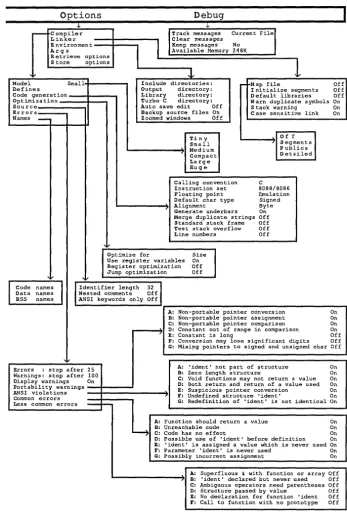
Figure 2.3 shows the complete structure of Turbo C's main menu and its successive pull-down menus. There are three general types of items on the Turbo C menus: commands, toggles and settings.
Commands
Toggles
Settings
perform a task (running, compiling, storing options, and so on).
switch a Turbo C feature on or off (Link map, Test stack overflow, and so on) or cycle through and select one of several options by repeatedly pressing the Enter key till you reach the item desired (such as Instruction set or Calling convention).
File Edit Run Compile Project
,
("R"
runs current program. )'v
(
"E" activates the Editor; F10 returns to menu bar.
Load F3 Compile to OBJ C:HELLO.OBJ
Make EXE file C:HELLO.EXE Link EXE
Pick Alt-F3-~ Ne w
Save F2 Build all
Write to Directory Change dir
Primary C file: C:HELLO.C
OS shell Quit Alt-X
Project name
J
r---+ Break make on Errors Clear project
'"
,... Recent files
-C \TURBO-C\HELLO.-C C \TURBOC\MYFIRST.C C \TURBOC\TEST.C C \TURBOC\ALGEBRA.C C \TURBOC\CALCULUS.C C \TURBOC\RATIO.C C \TURBOC\SUM.C C \TURBOC\RATI02.C
load file
--From within a menu:
Warnings
I
ErrorsFatal errors Link
Navigating In Turbo C
• The initial (highlighted) letter always selects the menu item. • Use Esc to exit a menu. (From the main menu, use Esc to return
to the previously active window.)
• F6 goes from any menu level to the previously active window (either the Edit or Message window).
From anywhere in Turbo C:
·Alt plus the first letter of any main menu command (F, E, R, C, P, 0, D) invokes that command. E.g, Alt-E goes from anywhere
into the Edit window; Alt-F pulls down the File menu. • F1 calls up context-sensitive help information. • F10 takes you to the main menu.
[image:43.508.71.403.48.309.2]• Alt-X quits Turbo C.
Options Debug
r
r
r - Compiler Track messages Current
mel
Linker
I
Clear messagesE nv ironmen t Keep mess ages No
Args Available Memory 248K
Retrieve options Store options
V J,
Model Small Include directories: r- Map file Off
Defines Output directory: I nitialize segments Off
Code generation Library directory: Default libraries Off Optimization Turbo C directory: Warn duplicate symbols On
Source Auto save edit Off S tack warning On
Errors Backup source files On Case sensitive link On
Names
-
Zoomed windows OffTi n y .I
Off
I
Small
'1
SegmentsMedium Publics
Compact Detailed
Large Huge
Calling convention C Instruction set 8088/8086 Floating point Emulation Default char type Signed
,. Alignment Byte
Generate underbars On Merge duplicate strings Off Standard stack frame Off Test stack overflow Off Line numbers Off
V
Optimize for Size
I
Use register variables On Register optimization Off Jump optimization Off
"
Code names
I
I
Identifier length 32I
Data names Nested comments Off BSS names ANSI keywords only OffA: Non-portable pointer conversion On B: Non-portable pointer assigru;tent On C: Non-portable pointer comparl.son On D: Constant out of range in comparison On
, E: Constant is long Off
F: Conversion may lose significant digits Off G: Mixipg pointers to signed and unsigned char Off
v
Errors : stop after 25 A: 'ident' not part of structure On Warnings: stop after 100 B: Zero length structure On Display warnings On C: Void functions may not return a value On D: Both return and return of a value used On Portability warnings E: Suspicious pointer conversion On ANSI violations
Common errors ,. F: Undefined structure 'ident' On
less common errors
-
-
G: Redefinition of . ident' is not identical On A: Function should return a value OnB: Unreachable code On
~ C: Code has no effect On
D: Possible use of 'ident' before definition On E: 'ident' is assigned a value which is never used On F: Parameter 'ident' is never used On G: Possibly incorrect assignment On
A: Superfluous & with function or array Off
[image:44.510.93.440.44.564.2], B: 'ident' declared but never used Off C: Ambiguous operators need parentheses Off D: Structure passed by value Off E: No declaration for function ' ident Off F: Call to function with no prototype Off
Menu-Naming Conventions
In this book, we will refer to all menu items by an abbreviated name. The abbreviated name for a given menu item is represented by the sequence of letters you type to get to that item from the main menu. For example:
• At the main menu, the menu offering compile-time options related to error messages is Options/Compiler/Errors; we'll tell you to select O/C/Errors (press 0 C E, in that order) .
• At the main menu, the menu for specifying the name of the Include directories is the Options/Environment/Include directories; we'll tell you to select OlE/Include (press 0 E I, in that order).
The Main Menu
File Edit Run Compile Project Options Debug
Figure 2.5: Turbo C's Main Menu Bar
At the top of the main screen is the Turbo C main menu bar (see Figure 2.5), which offers seven selections:
File
Edit
Run
Compile
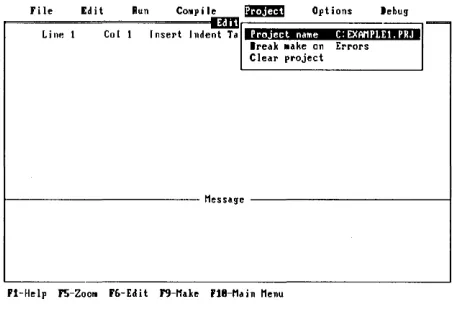
Project
Options
Debug
Handle files (loading, saving, picking, creating, writing to disk), mani pula tes directories (listing, changing), quitting the program, and invokes DOS.
Lets you create and edit source files.
Automatically compiles, links, and runs your program.
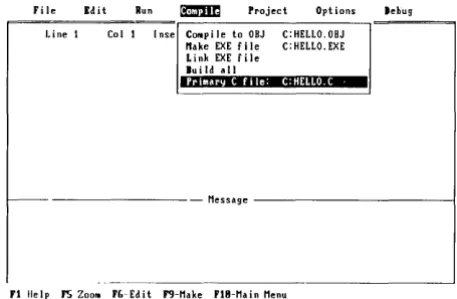
Compiles and makes your programs into object and executable files.
Allows you to specify what files are in your program and manage your project.
Allows you to select compiler options (such as memory model, compile-time options, diagnostics, and linker options) and define macros. Also records the Include, Output, and Library file directories, saves compiler options, and loads options from the configuration file.
Note that two main menu items have only one option: Edit simply invokes the editor; Run simply runs your programs. Several of the other menu items, however, lead to pull-down menus with many options and/or subsequent menus.
The Quick-Ref Lines
Whether you're in one of the windows or one of the menus, a default Quick-Ref line appears at the bottom of the screen. This line provides at-a-glance function-key help for your current position.
To see a summary of what other key combinations do in a different setting, hold down the Alt key for a few seconds. The Quick-Ref line changes to describe what function will be performed when you combine other keys with this key.
When you're in the main menu, the default Quick-Ref line looks like this:
Fl-Help F5-Zoom F6-Edit F9-Make FlO-Main Menu
When you hold down the Alt key, a summary of Alt key combinations is displayed. It looks like this:
Alt-Fl-Last help Alt-F3-Pick Alt-F9-Compile Alt-X-Exit
The Edit Window
In this section, we describe the components of the Turbo C Edit window and explain how to work in the window.
First, to get into the Edit window, go to the Edit option on the main menu and press Enter (or press E from anywhere on the main menu). To get into the Edit window from anywhere in the system, including from the Message window, just press Aft-E. (Remember, Aft-E is just a short cut for F10 E.) Once you're in the Edit window, notice that there are double lines at the top of it and its name is highlighted-that means it's the active window.
The Edit status line at the top of the Edit window gives information about the file you are editing, where in the file the cursor is located, and which editing modes are activated:
Line Col Insert Indent Tab C:FILENAME.EXT Line n Cursor is on file line number n.
Col n Cursor is on file column number n.
Insert Insert mode is on; toggle Insert mode on and off with
Insert or Ctr/-V. See Appendix A for an explanation of Insert and Overwrite mode.
Indent Autoindent is on. Toggle it off and on with Ctrl-O I. See Appendix A for an explanation of autoindent.
Tab Tab mode is on. Toggle it on and off with Ctrl-O T.
C:FILENAME.EXT The drive (C:), name (FILENAME), and extension (.EXT) of the file you are editing.
The Quick-Ref line at the bottom of the screen displays which hot keys perform what action:
Fl-Help FS-Zoom F6-Message F9-Make FlO-Main menu
To select one of these functions, press the listed key:
Fl-Help Opens a Help window that provides information about the Turbo C editor commands.
FS-Zoom
F6-Message
F9-Make FlO-Main menu
Makes the active window full screen. Toggle F5 to get back to the split-screen environment.
In this case, F6 takes you to the Message window; in general, F6 switches between windows. Press it once more to make the Edit window active again.
Makes your .EXE file.
Invokes the main menu.
The editor uses a command structure similar to that of SideKick's Notepad and Turbo Pascal's editor; if you're unfamiliar with the editor these products use, Appendix A describes the editor commands in detail. Page 35 lists some of the most commonly used commands.
past column 77, the window scrolls as you type. The Edit window's status line gives the cursor's location in the file by line and column.
After you've enter~d your code into the Edit window, press F10 to invoke the main menu. Your file will remain onscreen; you need only press E (for Edit) at the main menu to return to it.
Quick Guide to Editor Commands
Here is a summary of the editor commands you will use most often:
• Scroll the cursor through your text with the Upj Down, Left/ Right, and
PgUpj PgDn keys.
III Delete a line with Gtrl-Y. II Delete a word with Gtrl-T.
II Mark a block with Gtrl-K B (beginning) and Gtrl-K K (end).
a Move a block with Gtrl-K V.
II Copy a block with Gtrl-K G. 1:1 Delete a block with Gtrl-K Y.
See Appendix A for a more detailed explanation of the editor commands.
How to Work with Source Files in the Edit
Window
When you invoke the Edit window before loading a particular file, the Turbo C editor automatically names the file NONAME.C. At this point you have all the features of the editor at your fingertips. You can
EiI create a new source file either as NONAME.C or another file name
• load and edit an existing file
EI pick a file from a list of edit files, and then load it into the Edit window
a save the file seen in the Edit window
• write the file in the editor to a new file name
II alternate between the Edit window and the Message window for
finding and correcting compile-time errors
Creating a New Source File
To create a new file, select either of the following methods:
• At the main menu, select File/New, then press Enter. This opens the Edit window with a file named NONAME.C.
• At the main menu, select File/Load. The Load File Name prompt box opens; type in the name of your new source file. (Pressing the shortcut
F3 from within the Edit window will accomplish the same thing.)
Loading an Existing Source File
To load and edit an existing file, you can select two options: File/Load or File/Pick.
If you select File/Load at the main menu, you can
• Type in the name of the file you want to edit; paths are accepted-for example, c: \ TURBOC\ TESTFILE. c.
• Enter a mask in the Load File Name prompt box (using the DOS wildcards * and ?), and press Enter. Entering *.* will display all of the files in the current directory as well as any other directories. Directory names are followed by a backslash (\). Selecting a directory displays the files in that directory. Entering C: \ *.C, for example, will bring up only
the files with that extension in the root directory.
Press the Up/ Down and Left/ Right arrow keys to highlight the file name you want to select. Then press Enter to load the selected file; you are placed in the Edit window.
• At the main menu, invoke the editor by pressing E. This opens the Edit window with the current edit file (or with the default file name NONAME.C if no other edit file has been loaded).
If you select File/Pick (see the discussion of the Pick option later in this chapter), you can
• Press AIt-F then P to bring up your pick list (or press the short cut Alt-F3).
• Use the Up and Down arrow keys to move the selection bar to the file of your choice.
Saving a Source File
iii From anywhere in the system, press F2. g From the main menu, select File/Save.
Writing an Output File
You can write the file in the Editor to a new file or overwrite an existing file. You can write to the current (default) directory or specify a different drive and directory.
At the main menu, select File/Write to. Then, in the New Name prompt box, enter the full path name of the new file name:
C:\DIR\SUBDIR\FILENAME.EXT
and press Enter.
c c: (optional) is the drive.
C \DIR\SUBDIR\ represent optional directories.
IJ FILENAME. EXT is the name of the output file and its extension (the
extension .C is assumed; append a period (.) at the end of your file name if you don't want an extension name).
Press Esc once to return to the main menu, twice to go back to the active window (the editor). You can also press F6 or Alt-E.
If FILENAME. EXT already exists, the editor will verify that you want to
overwrite the existing file before proceeding.
The Message Window
When the cursor is in the Message window, the Quick-Ref line looks like this:
Fl-Help FS-Zoom F6-Edit F9-Make FlO-Main menu
To use one of these features, press the desired key:
Fl-Help
FS-Zoom F6-Edit F9-Make
Opens a Help window that summarizes the Turbo C error-tracking feature.
Expands the Message window to full screen.
Makes the Edit window active.
Makes the .EXE file.
Part II: The Menu Commands
The main menu contains the major selections you'll use to load, edit, compile, link, debug, and run Turbo C programs. The seven selections include File, Edit, Run, Compile, Project, Options, and Debug, each of which will be described here. A few of the options within the main menu pull-downs are actually for use in advanced programming; they are described in more detail in Chapter 3.
Note: The references to "make" in this chapter refer to Project-Make, not to the stand-alone MAKE utility. Project-Make is a program building tool similar to MAKE; refer to Chapter 3 for more on Project-Make. The MAKE utility is described in Appendix D in the Turbo C Reference Guide.
The File Menu
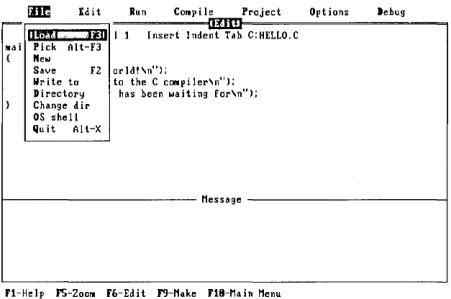
The File pull-down menu offers various choices for loading existing files, creating new files, and saving files. When you load a file, it is automatically placed in the editor. When you finish with a file, you can save it to any directory or file name. In addition, from this pull-down you can change to another directory, temporarily go to the DOS shell, or exit Turbo C.
m
Ed it lIun COIlP i Ie Project Options lehug~
11m, If II I 1 Insert Indent Tab C:HELLO.C lIoi Pick Alt-F3
{ New
Save F2 orld"n"); Write to to the C conpiler\n"); Directory has been waiting for\n"); Change dir
OS shell Quit Alt-X
1 - - - -Message ---~
[image:52.505.150.376.400.550.2]Fi-Help FS-ZOOII FC,-Edit F'J-Make F18-Main Menu
Load
Loads a file. You can use DOS-style masks to get a listing of file choices, or you can load a specific file. Simply type in the name of the file you want to load. Note: If you enter an incorrect drive or directory, you'll get an error box onscreen. You'll get a verify box if you have an unsaved, modified file in the editor while you're trying to load another file. In either case, the hot keys are disabled until you press the key specified in the error or verify box.
Pick
Lets you pick a file from a list of the previous eight files loaded into the Edit window. The file selected is then loaded into the Editor and the cursor is positioned at the location where you last edited that file. If you select the "--load file--" item from the pick list, you'll get a Load File Name prompt box exactly as if you had selected File/Load or F3. Alt-F3 is a short cut to get this list.
You can toggle on the Load/save pick list option from within Turbo C's
installation program (TCINST) to have Turbo C automatically save the current pick list when you exit Turbo C and then reload that file upon reentering the program. If this option is toggled off when you exit Turbo C, you