-ALTOS 586 and ACS 8600
Computer Systems
XENIX Development
System
-\ '-1 - ?, -';,
UA~)
ALTOS 586 ARD ACS 8688 COIIPtrnR SYSTEMS
XENIX DEVELOPMENT SYSTEM
PROGRAMMER'S REFERENCE GUIDE
Altos Computer Systems 2641 Orchard Park Way San Jose, CA 95134
THE INFORllATION IN THIS DOCUMEIft IS SUBJECT TO CHANGE WITHOUT NOTICE. NEW EDITIONS OF THIS DOCUMEIft' WILL INCORPORATE CHARGES AS THEY ARE PUBLISHED.
Copyright ©1983. All rights reserved. Altos Coaputer Systeas.
ACKNOWLEDGEME~S
ALTOS is a registered trademark of Altos Computer Systems.
XENIX is a trademark of Microsoft, Incorporated and is a l6-bit microcomputer implementation of the UNIX operating system, version 7.
UNIX is a trademark of Bell Laboratories
USING THIS MANUAL Purpose/Scope Organization
OTHER DOCUMENTATION AVAILABLE
Altos 586 or ACS 8699 Operator's Guide Altos Introduction to XENIX Manual XENIX Reference Card
Altos Application Software Guide Altos UNET User Guide
Bell Laboratories Manuals UNIX Programmer's Manual Commercially Available Books
2. USIBG XENIX
TOPICS COVERED IN INTRODUCTION TO XENIX MANUAL
INSTALLING XENIX DEVELOPMENT SYSTEM
LEARN PROGRAM
Installing Learn Running Learn
CREATING NEW MENUS
3. UTILITY PROGRAMS RBFERBBCE GUIDE
USEFUL UTILITIES
UNIX MANUAL CHANGES AND ADDITIONS
TABLE OF COftBftS
3 • UTILI'l'Y PROGRAMS REFERENCE GUIDE (Continued)
FOLD(l) FORMAT(l) FROM(I) FSCK (1) FTP(I) HEAD(l) IUL (1)
LAST(I) LAYOUT (1) LEAVE(l) LS(l) MAIL(I) MAKE.HD(I) MAKEWHATIS(I) MAP(l) MKCONF(IM)
MODEM(l), UNMODEM(l) MORE (1)
MULTIUSER(I) PAGE (1)
PRINTENV(I) PS( 1)
INTEGER FORMATS
FLOATING-POINT FORMATS VALUES IN MEMORY
B. SAMPLB LIST OF XBNIX DEVELOPMBNT SYSTEM UTILITIBS
C. TRANSFBRRIRG FILBS BETNEER ACS 8681 AND ALTOS 586 OR OTHER COMPUTER SYSTEIIS (ASY.CBRaBOUS COIUIURICATIORS)
USING CU FACILITY
TRANSFERRING FILES UNDER UUCP FACILITY CONNECTING THE ACS 8699 AND THE 586 PREPARING THE CONFIGURATION FILES
Recommended Entries
IF YOU HAVE SPECIAL REQUIREMENTS Assigning the System Names
Defining the Communications Line Characteristics Supplying the Login Information
Defining the File Accessibility DISABLING AND ENABLING THE TTY PORTS TESTING THE UUCP NETWORK
COPYING FILES USING UUCP USING THE UUCP COMMAND
USING MODEMS WITH ALTOS XENIX SYSTEMS
D. 8886 ASSEllBLY LARGOAGE RBFERERCE MANUAL
XENIX Software Development Extract from Microsoft Manual
E. TUTORIAL AND REFERBRCB MATERIAL
(UNIVERSITY OF CALIFORNIA, BERKELEY MANUALS)
An Introduction to the C Shell
An Introduction to Display Editing with Vi Quick Reference for Ex,Vi
Ex Reference Manual Edit: A Tutorial
, Ex/Edit Command Summary (Version 3.6) Mail Reference Manual
-ME Reference Manual
provided is A User Guide to the UNIX Syste ••
Altos 586 or ACS 8688 Operator's Guide
This manual describes the Altos computer system and its operating specifications. It provides step-by-step procedures on how to unpack and set up the computer system, how to install peripherals, how to verify proper functioning of the system, and briefly describes how to use the Altos diagnostics software.
Altos Introduction to XENIX Manual
This manual, describes the Altos implementation of the XENIX operating system on the Altos 586 and ACS 86~~ computer systems. It provides background information and step-by-step procedures, which are primarily aimed at a first-time computer user, on how to install XENIX, how to log on/off, how to shut down the system properly, how to save and restore files, and describes system maintenance.
XENIX Reference Card
A concise reference card, which contains information on how to use the Al tos implemen ta tion of XENIX, descr ibes the XENIX commands, and lists the Business Shell (BSH) menus.
Altos Application Software Guide
(The ABS Shell is an optional package.) The Altos XENIX Applica-tions Software Guide provides information on how to install the optional ABS Menu Shell and the application programs, and how to access the ABS menus.
Altos URET User Guide
(The communication network services is an optional package.) This document provides information on how to install the optional communication network services and how to use them.
Bell Laboratories Manuals
UNIX Progra •• er's Manual, Seventh Edition. This is a three-volume set.
USING THIS MARUAL
purpose/Scope
This manual describes items that are unique to the Altos implementation of the XENIX operating system or that are useful for the programmer or advanced system user. It also serves as a guide to the other documentation that is available on XENIX/UNIX.
Organization
This manual is divided into three chapters:
Chapter I lists other Altos documents that you receive as part of your XENIX operating system. It also lists commercially-avail-able documentation.
Chapter 2 provides instructions for installing the XENIX Develop-ment System, and discusses the online tutorial, learn, and tells you how to create new menus.
Chapter 3 lists useful utilities and describes the changes and additions that exist between the Altos implementation of XENIX and the Bell Laboratories Standard Version 7 of the UNIX operating system.
The variations and additions are documented in the standard Bell Laboratories format. The Altos documentation can be left in this supplement or can be inserted into the Bell Laboratories UNIX
Programmer's Manual.
The Appendices contain general reference material.
Appendix A. Numeric Formats, C, and Fortran 77:
Reference information on the internal format used for numerical representation in these languages.
Appendix B. Sample List of XENIX Utilities:
A sample list of utilities furnished with your system.
Appendix C. Transferring Files Between ACS 8600 and ALTOS 586 or Other Computer Systems
(Asynchronous Communications):
Xenix-Appendix D. 8086 Assembly Language Reference Manual:
A description of the XENIX 8086 Assembly Language.
Appendix E. Tutorial and Reference Material (University of California, Berkeley Manuals) :
Volume 2A contains supplementary and tutorial information. For example, this volume includes an index to volume 2A and 2B, tutor ials for the UNIX text editor, information on document preparation, and information on Unix programming (C language).
Volume 2B contains additional reference mater ial, and includes advanced topics and languages. For example, this volume includes information or supporting tools and languages such as yacc, which is a tool for writing compilers for other languages. It also includes information on system implementation and maintenance.
Commercially Available Books
There are numerous commercially available books on UNIX that explain it and give tutorial material. Two such books are:
A Oser Guide to the UNIX Syste., by Thomas and Yates.
(This book is supplied with the XENIX operating system.) It explains UNIX concepts and provides tutorials for getting started with UNIX and for the most useful commands. All the utilities listed in the book may not be provided with your XENIX operating system. Refer to Appendix B, Sample Listing of XENIX Development System Utilities, for a listing of utilities provided with your system.
Using the UNIX Syste., by Richard Gauthier.
This book is more like a textbook than the Thomas and Yates' book. It presents a more in depth explanation of UNIX, which is of value to the programmer and those who are already familiar with A User's Guide to the UNIX System.
Three useful programming books related to UNIX are:
The C Progra • • ing Language, by Kernighan and Ritchie.
This book describes the C programming language, which is the language that the UNIX ope ra ting system is wr it ten in. It provides tutorials as well as a reference chapter.
Software Tools, by Kernighan and Plauger.
This books is a guide to good programming techniques and a source of proven, useful programs written in RatFor (Rational Fortan). The C language, which is designed for UNIX, provided the model for RatFor. Many of the tools described in this book are based on UNIX models.
CHAPTER 2: OSIRG XERIX
The Altos Introduction to XERIX Manual covers the XENIX Run-Time
Introduction to Operating System Concepts
Introduction to XENIX Operating System Concepts Introduction to the Business Shell Menu System
Introduction to System Administration and Maintenance Installing XENIX Run-Time System
Upgrading Older Versions of XENIX Getting Started with XENIX
Configuring the Ports
Creating and Changing User Accounts
Starting Up XENIX (Booting from Hard Disk) Log In, Log Off, and Quit
Setting and Changing Passwords Using XENIX on a Regular Basis
Using the Business Shell Menu System Basic Utilities
System Administration Utilities Saving and Restoring Files Random-Access Diskette Files Checking and Cleaning Up Files Shutting Down System
Using the ~ Text Editor Appendices:
Hard Disk Organizatin Floppy Disk Organization Cartridge Tape Organizatio Printer Information
Terminal Capabilities File Transfer Program
IRSTALLIRG XERIX DEVELOPMENT SYSTEM
To install the XENIX Development System on your Al tos Computer System, you should:
1. Install the Xenix Run-Time System by following the instruc-tions in the Altos Introduction to Xenix Manual. Do not shut the system down.
If you interrupt the installation procedure for some reason, or your system was shut down by a power failure or system crash, see the Resuming Interrupted Installation section in the Altos Introduction to XERIX Manual.
2. Make sure you are logged in as super-user (root).
3. Enter
# cd /
<ell>
This command causes the system to go to the top directory (or parent directory) of the XENIX system.
4. Insert the diskette labeled "XENIX DEVELOPMENT SYSTEM UTILITIES #1 of n," where "n" is the total number of utility diskettes.
5. Enter
:II: tar xv
<ell>
This command causes the directories and files on the utility diskette to be loaded onto the XENIX System. As files are copied from diskette to hard disk, you will see messges of the form:
x "Filenamen , nnnnn bytes, nn tape blocks
.
x "Filename", nnnnn bytes, nn tape blocks
ROTE
Utility diskette.
NOTE:
IF AVAILABLE DISK SPACE IS A PROBLEM ON YOUR SYSTEM, YOU CAR INSTALL PORTIONS OF THE XENIX DEVELOPMENT SYSTEM RATHER THAN THE ENTIRE PACKAGE. IF YOU DESIRE, YOU CAB DISPLAY THE CONTENTS OF A DISKETTE BY ENTERING tar tv <CR>. NOTE THE UNWABTED FILES YOU WABT TO REMOVE AFTER INSTALLING DISKETTE PER ABOVE INSTRUC'.rIONS.
8. When you have loaded all of the utility diskettes, enter
# install <CR>
9. This step is optional.
An optional unlinked kernel can be installed. It contains a new swapping algorithm, which swaps out processes that are waiting for other processes first. The old swapping algorithm swapped out the largest process that wasn't actually running. This would occur even if the process was a large application that was just waiting for terminal input.
If you wish to load the "Unlinked Kernel," you should:
Insert the diskette labeled "UNLINKED KERNEL."
Enter
# tar xv <CR>
Enter
# insta1l <CR>
Unlinked Kernel installed.
Remove the diskette and store it in a safe place.
10. To load the C compiler onto the XENIX system, you should:
Insert the diskette labeled "C COMPILER."
Enter
# tar xv
<CR>
Enter
# install
<CR>
C compiler installed.
Remove the diskette and store it in a safe place.
You have just loaded the C Compiler.
11. If you wish to load the XENIX Fortran compiler, you should:
Insert the diskette labeled "F77."
Enter
Enter
Enter
# cd /tap
<CR>
# tar xv
<CR>
# install
<CR>
F77 installed/Remove diskette and store it in a safe place.
You have just loaded the UNIX Fortran compiler.
12. If the prior steps were successful, your XENIX Development System is correctly installed.
If you wish to start up XENIX, see the Getting Started with XENIX chapter in the Altos Introduction to XBRIX Manual.
If you don't plan on using your XENIX system at this time, you can shut the system down by entering:
# sync (OR)
# etc/haltsys (CR)
LEARN PROGRAM
The learn program is an automated instructional facility which provides tutorial information about the XENIX system and some of the programs that run under it. Learn is especially useful for the first-time user because i t is interactive and requires no prior UNIX experience.
At present, the learn program covers the following topics:
Basic File handling commands The UNIX ~ text editor
Advanced file handling
The ~ language for typing mathematics
The "-ms" macro package for document formatting The C programming language
For more information, refer to the UNIX Progra • • er1s Manual,
Seventh Edition, Volume 2A, chapter 7, LEARN - Computer Aided Instruction of UNIX (Second Edition).
Installing Learn
After you have installed the XENIX Development System, install learn as follows:
1) Log in as root.
2) Enter:
# cd /usr/lib/learn <CR) # make <CR)
# .ake play log <CR)
3) When the prompt (#) appears, the learn program is completely activated.
4) To check that the required files are set up properly, enter:
(system prompt) learn <CR>
OR
(system prompt) learn Filename <CR>
CREATIRG NEW IlENOS
A menu system is defined as a collection of menus, each of which is an ASCII text file. It is relatively easy to create a new, customized Business Shell (BSH) menu system or to modify the default menu system. The procedure to create a menu system is as follows:
Create a text file containing the source menu in the following format:
&Menuidentifier
• • • the substance of the menu • • • • • not over 24 lines length
&Actions
• • • zero or more sequences of • • •
<->
prompt size• • • sequences of actions • • • • • • for this prompt • • •
This sequence may be repeated as often as desired. The amper-sand (&) and tilde (-) must appear in the first column. &Actions must appear, even if there are no actions.
The substances of each menu is composed of text which will be reproduced exactly as i t appears in the location where i t appears. There are five exceptions where characters have special meanings:
"!date"
"!user"
"! pwd"
"1@"
denotes a valid "prompt" string (it is the text of the actual prompt)
inserts the current date and time:
Fri Oct 28 16:28 1983
inserts the current user id: Don
inserts the current directory: /user/don/2
indicates where to leave the cursor
The" 1" may appear as a suffix, in which case the string will be right-justified instead of left-justified.
is issued; and BSH resumes without pause after all the actions have been executed.
Transfer to another menu is specified by writing the name of the destination menu in the semantics field.
Commands to be executed by the BSH interpreter must be typed one-per-line.
Commands to be executed by UNIX follow the usual conventions. See the UNIX Programmer's Manoal.
For example, the the menu for Electronic Mail can be created as follows:
!date
&Actions -a
\ELECTRONIC-MAlL-SERVICES
-a - Receive-mail -b - Send-mail
-c - Return-to-starting-menu
8 mail
-1
echo -n "To whom do you wish to send mail?" read x
echo "Now type the message."
echo "Terminate it by typing a control -d." mail $x
Start
USBFUL O'!'ILITIBS
CBAP.rBR 3:
ftILIft PROGRAIIS RBPBREIICE GUIDB
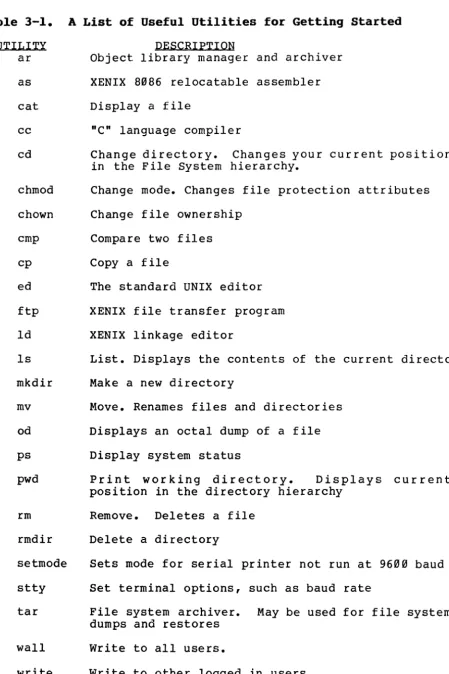
Table 3-1 lists some useful utilities that are supplied with the Altos implementation of XENIX. This list is not intended to be complete, but merely a summary of those utilities you will find useful in getting started with XENIX. A complete listing and description for all utilities may be found in the UNIX
ProgramDler's Manual, Volume 1.
You may l i s t the full set of utilities supplied with any particular release of XENIX by displaying the contents of the /bin, /usr/bin, and /etc directories. Appendix F contains a sample list of utilities.
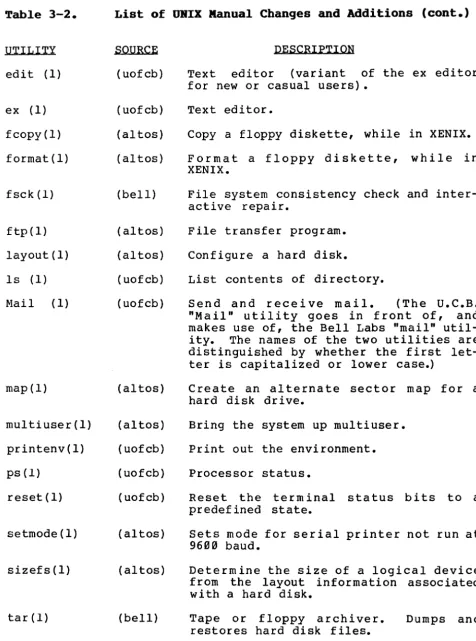
The Altos implementation of XENIX provides some utilities which differ from standard UNIX, and also some new utilities. This chapter documents the changed and new utilities. See Table 3-2 for a quick reference. Note in particular: .f.2.I.m.a.t., fcopy, multiuser, and ~, and the new version of~. The Business Shell, hQh, has two accompanying utilities, menus and ~igest.
as XENIX 8086 relocatable assembler
cat Display a file
cc nCo language compiler
cd Change directory. Changes your current position in the File System hierarchy.
chmod Change mode. Changes file protection attributes
chown Change file ownership
cmp Compare two files
cp Copy a file
ed The standard UNIX editor
ftp XENIX file transfer program
ld XENIX linkage editor
Is List. Displays the contents of the current directory
mkdir Make a new directory
mv Move. Renames files and directories
od Displays an octal dump of a file
ps Display system status
pwd Print working directory. Displays current position in the directory hierarchy
rm Remove. Deletes a file
rmdir Delete a directory
setmode Sets mode for serial printer not run at 9600 baud
stty Set terminal options, such as baud rate
tar File system archiver. May be used for file system dumps and restores
wall Write to all users.
[image:25.593.102.551.46.720.2]UNIX MANUAL CHARGES AND ADDITIONS
The material in this chapter may remain in this supplement or be inserted in Chapters 1 through 5 of Volume 1 of the UNIX
Programmer's Manua1, as you wish. If you insert these documents
into the manual, place them in the chapters corresponding to the number in parentheses after the utility name. (Entries within chapters are in alphabetic order.)
Some of the utilities are enhancements or variations of existing Bell Laboratories UNIX utilities. Others are completely new.
The origin of each utility is specified (in abbreviated form) in column 2 of Table 3-2.
Utilities labelled "(altos)" are provided by Altos Computer Systems.
Utilities labelled "(bell)" were developed by Bell Laboratories after their current manual was published.
Utilities labelled "(msoft)" were developed by Microsoft, Inc.
Utilities labelled "(uofcb)" were developed at the University of California, Berkeley. They are supplied under license from the Regents of the University.
Tab1e 3-2.
UTILITY
add.ct(l)
add.hd(l)
aemail (1)
bsh(l)
csh (1)
digest(l)
List of UNIX Manua1 Changes and Additions
SOURCE
(altos)
(altos)
(altos)
(altos)
(uofcb)
(altos)
DESCRIPTION
Optional. Add cartridge tape to system.
Optional. Add additional hard disk to system.
Optional. Altos Electronic Mail Facili-ty is an intelligent, screen-oriented "user friendly" mail processing system.
Business Shell. A menu-driven user system with special guidance and convenience features. It enables you to access the more commonly used UNIX utilities via menus.
A shell (command interpreter) with C-like syntax.
edit (1)
ex (1)
fcopy(l)
format(l)
fsck (1)
ftp(l)
layout(l)
Is (1)
lvlai 1 (1)
map (1) multiuser(l) printenv(l) ps(l} reset(l} setmode(l) sizefs(l) tar (1) (uofcb) (uofcb) (al tos) (altos) (bell) (al tos) (altos) (uofcb) (uofcb) (altos) (altos) (uofcb) (uofcb) (uofcb) (altos) (altos) (bell)
Text editor (variant of the ex editor for new or casual users).
Text editor.
Copy a floppy diskette, while in XENIX.
Format a floppy diskette, while in XENIX.
File system consistency check and inter-active repair.
File transfer program.
Configure a hard disk.
List contents of directory.
Send and receive mail. (The U.C.B.
"Mail" utility goes in front of, and makes use of, the Bell Labs "mail"
util-ity. The names of the two utilities are distinguished by whether the first let-ter is capitalized or lower case.)
Create an alternate sector map for a hard disk drive.
Bring the system up multiuser.
Print out the environment.
Processor status.
Reset the terminal status bits to a predef ined state.
Sets mode for serial printer not run at
96""
baud.Determine the size of a logical device from the layout information associated with a hard disk.
Tape or floppy archiver. restores hard disk files.
[image:27.596.71.547.66.707.2]~able 3.2.
UTILITY
ua(l)
vi (1)
locking(2)
rdchk (2)
curses(3)
menus(5)
termcap(5)
ttytype (5)
List of URIX Manaal Changes and Additions (Cont.)
SOURCE
(altos)
(uofcb)
(msoft)
(msoft)
(uofcb)
(altos)
(uofcb)
(altos)
DESCRIPTION
User administration. Adds and deletes user accounts on the system.
Screen oriented (visual) display editor.
Lock or unlock a record of a file.
Check if there is data to be read.
Screen functions with "optional" cursor motion. (Has window capability.)
Develop menus for Business Shell.
Data base which defines cursor-control sequences for most commonly used CRT terminals. It is used by most "screen oriented" software, such as the Altos shell and visual screen editor, ~.
NAME
add.ct - add a cartridge tape drive
SYNOPSIS add.ct
DESCRIPTION
Add.ct is a shell script which assists the installer of a cartridge tape drive under XENIX. This script requires no interaction with the installer.
The purpose of this script is to produce a device entry for the cartridge tape drive in the /dev directory. When this script is invoked, a device named /dev/ctr!J will be created in /dev for the ACS 86 r!J r!J.
ADD.UD(I) ADD.UD(I)
NAME
add.hd - add a second hard disk
SYNOPSIS add.hd
DESCRIPTION
Add.hd is a shell script that helps the user to install a second hard disk under XENIX. You must be super user to execute add.hd. The first thing that the script does is prompt the user for the size of the second drive. It asks you whether you have a llll, 21l1, 3 Ill, or a 4111 megabyte drive. Once you reply with a correct number it will tell you that it is making the appropriate sized disk.
Part of the process of making the extra disk is to run the layout(l) program, which divides the disk into two areas. One area is reserved for spare sectors (in case of bad spots), and the other area is ready to be made into a file system. The layout program is immediately followed by the map{l) program, which checks the second drive for bad spots. If there are any, it maps them into the spare area. When the map{l) program is complete (11ll-21l1 minutes), a file system is created on the second drive and checked.
Then add.hd adds ~ and /~mount commands to the /etc/rc file (so that the add-on hard disk is checked and mounted each time that the multiuser command is run), and makes the lost+found directory for subsequent use by the ~ command.
The directory used for the add-on hard disk is /usr2. The add-on hard disk remains mounted as /usr2 when add.hd exits and when the multiuser command is executed.
SEE ALSO
NAME
aemail - send and receive mail
SYNOPSIS aemail
DESCRIPTION
The Altos Electronic Mail facility is an intelligent, screen oriented, "user friendly" mail processing system. It incor-porates the delivery facilities of both Mail(l) and umtp(l), as well as letting the user specify which editor to use for text composition.
~mAi~ is designed around boxes and files. Commands are shown on the top of the screen, boxes or files are numbered. When a command or boxlf ile· is chosen i t is highl ighted (if the users terminal has reverse video). In addi tion to the commands listed, AL and AR (control-L and -R) cause the screen to be cleared and redrawn, backspace (usually AH) unselects the chosen command, and interrupt (the RUB or DEL key) stops the cur rent command. The message "Status: ••• " that appears on the bottom right part of the screen always states what the program is currently doing.
Reading
mail.
Incoming mail is automatically picked up and put in the Inbox. It remains here until i t is deleted by the user.Sending mAi~. The send command invokes the editor (see Options below) on a file with the header lines "To:",
"Sub-ject:" and "Archive-a-copy (yin) ? n". The user must put at least one addressee on the "To:" line. (See Addresses below.) The "Subject:" line is optional, and the last line tells whether or not to save a copy of this in the users Arhive Box. The user adds whatever text they desire to the rest of the file. When the user exits from the editor,
~ail checks the addressee(s) to make sure they exist. If it finds one (or more) addressees that i t doesn't recognize, i t asks if the user wishes to invoke the editor again to correct this. If not, the piece of mail is undeliverable and is left in the users Outbox. If all addresses are recognized, i t is temporarily put in the users Outbox and then delivered.
AEMAIL(l) XENIX Programmer's Manual AEMAIL (1)
list names in it. A distribution list has the form:
DistName: address {, address, address, • • • }
.
Note the colon (':') after the DistName, the commas seperat-ing addresses and the endseperat-ing period ('.'). Distribution list can extend over several lines. A file in the users Distribution List Box can contain several Distribution lists.
Archiye ~ Sayed Mail~. When the user archives a piece of mail, a copy of it is put in this box.
Recipient ~~. This box contains two lists, of all the addresses the aemail systems knows about. One is a list of the users on this machine, the other is a list of all the other machines this machine has UNET connections to.
Options. The user can set four options, either by editing them once the user is running the aemail program, or by set-ting the appropriate environment variables. They are: Edi-tor (environment variable "EDITOR"), a program that takes one argument, the name of a file to edit, Maildrops ("MAIL-DROP"), filename(s) of where incoming mail is to be picked up, Printer ("PRINTPROG"), program that takes one argument, the name of the file to be printed1 and Shell, ("SHELL").
(See below for defaults.)
FILES -/.aemail_dir/Inbox/* -/.aemail_dir/Outbox/* -/.aemail_dir/SavedMail/* -/.aemail_dir/DistLists/* /etc/passwd /etc/UNET/UNET.routes
/usr/bin/vi (8600/586) /usr/ucb/v~ (68000)
/usr/bin/lpr /bin/csh Mail mail
/etc/UNET/umtp (8600/586)
/usr/UNET/umtp (68000)
/usr/bin/aedeliver
/usr/bin/aepickup
SEE ALSO
vi, Mail(l)
users incoming mail
outgoing mail and undeliverable mail
mail that is "archived" distribution lists
to identify recipients
to identify UNET machine con-nections
default editor default editor
default print program default shell
to deliver local or UUCP mail used by Mail to send things to deliver UNET mail
"
"
"
"
figures out whether to call Mail or umtp
BUGS
Addresses can not be a mixture of UNET, UUCP and distribu-tion list names.
Distribution list entries should be able to contain other distribution names.
The locking mechanism has Mail(l)'s imperfections.
The users PATH environment variable must have the proper path for t-lail, vi and lpr.
APROPOS (1) APROPOS(l)
NAME
apropos - locate commands by keyword lookup
SYNOPSIS
apropos keyword •••
DESCRIPTION
Apropos shows which manual sections contain instances of any of the given keywords in their title. Each word is consi-dered separately and case of letters is ignored. Words which are part of other words are considered, thus looking for compile will hit all instances of 'compiler' also. Try
apropos password
and
apropos editor
If the line starts 'name(section) ••• ' you can do 'man section name' to get the documentation for it. Try 'apropos format' and then 'man 3s printf' to get the manual on the subroutine printf.
~~~ is actually just the -k option to the man(l) com-mand.
FILES
/usr/lib/whatis
SEE ALSO
data base
B5B(1) B5B(1)
NAME
bsh -- Altos Computer Systems Business Shell
SYNOPSIS
~ [ -~ ] [ menusystem ]
DESCRIPTION
~ is a menu-driven command language interpreter. It may be installed as the "login shell" in the password file, or it may be invoked directly by the user.
The command is implemented using the termcap and curses facilities from UC Berkeley. It must be run from a terminal which is defined within /etc/termcap.
This command should only be run interactively. A user's terminal may be left in a very strange state if Q~ is run in the backg round.
In the options described below, either "line feed" or "return" performs the newline function.
Options
-.f. Start.b.Q.h in "fast" mode. In this mode, a prompt whose first letter is a lower-case alphabetic or numeric character is executed immediately when the first letter is typed. The system does not wait for a terminating newline. Prompts whose first letter is upper-case alphabetic wait for a terminating newline before exe-cuting the requested actions. Fast mode is the default initial mode, if not over-ridden by the command line or the BSHINIT variable (see below). The current mode may be changed during execution through use of the "?mode" command (described below).
-h
displays a short help message describing how to invoke ~.-g displays a one-line descriptive summary of the syntax used to invoke ~.
-~ Start ~ in "slow" mode. In this mode, all prompts must be terminated by newline before execution occurs. The current mode may be changed during execution through use of the "?mode" command (described below).
A menu system may be specified if desired. In this case,
an existing menu system is described in menus(S).
Commands
prompts
Typing any of the prompts on the current menu screen immediately causes the actions associated with the prompt to be executed. It is the responsibility of the menu designer to ensure that reasonable actions exist for each prompt. Selecting a prompt with no associated action causes an error message to be displayed.
An action may be anyone of the following:
menuname
>
Go to a specified menu>
Execute a sh(l) script>
Execute a bsh internal command (e.g., chdir(l»Typing the name of a menu causes it to immediately become the current menu. If the menu name is mis-spelled, or if it does not exist in the current menu system, an error message is displayed.
newline
Typing a newline causes the immediately preceding menu to become the current one. If there is no previous menu, an error message is displayed. Bah does not dis-tinguish between "line feed" and "return" -- both generate a newline.
? Typing a question mark (?) causes the "help" menu associated with the current menu to be displayed. Help menus are no different from normal menus (except, perhaps, in the type of information they contain). When the current menu is named "xyz", typing a question mark is entirely equivalent to typing "xyz?"
?? Typing a pair of question marks (??) causes the
haD
system help informa tion to be displayed. It contains much the same information as is presented here.
menuname?
Typing the name of a menu followed by question mark causes the designated help menu to become the current one.
manualpage??
8SH(1) 8SH(1)
may type "bsh??" This is precisely equivalent to typing " 1 man bsh."
lcornmand
The exclamation point (1) allows the user to "escape" to the standard shell (sh(l». The command must follow the usual rules as described in the shell documenta-tion. In particular, the command may consist of a sequence of shell commands separated by semicolons --thus several actions may be invoked. If the command is absent, shell is invoked as a sub-shell with no argu-ments. In this case, ~ will be resumed as soon as the sub-shell terminates. (Usually, this is accomp-lished by sending the sub-shell an end-of-file. End-of-file is Control-d on most terminals.) You may escape to the Berkeley C shell (csh(l» by typing "1 csh. "
?index
?mode
This special command causes hQh to display its internal "index" for the current menu system. The index contains the names of every accessible menu.
This special command allows the user to change from "slow" mode to "fast" mode and vice versa. The user is asked if he wishes to change to the alternate mode. If your response begins with "y" or "Y", the change is made, otherwise the current mode remains in effect.
interrupt
~ will immediately return to the top-level command interpreter upon receipt of an interrupt signal. Such a signal is usually generated via the DEL, RUBOUT or BREAK key.
backspace
~ understands the Backspace function (as obtained from /etc/termcap).
CANcel
~ interprets the CANcel key to mean "restart input." The CANcel key is Control-x on many of the more popular terminals.
ESCape
Typing an ESCape has the same effect as does typing CANcel.
DC2 If the screen becomes "dirty" for some reason, you can force b~h to clear i t and redisplay the current contents by transmitting an ASCII "DC2." This is Control-r on most of the currently popular terminals.
also results in your being logged out.
Environment
BSHINIT
The BSHINIT environment variable contains the initial value of the default mode ("fast" or "slow"). If this variable does not exist in the environment, ~ assumes "fast" mode. BSHINIT should be set by inserting the line BSHINIT="fast" or BSHINIT="slow" into your .prof ile file.
Note that even if .Q.Q.b is designated as the "login shell" in /etc/passwd, your .profile file will be interpreted correctly. (See login(l) and sh{l).) In particular, any overriding definitions you may have for the kill and erase characters will be correctly inter-preted by ,bM.
FILES
-/.profile contains commands to be executed
during login(l) /etc/menusys.bin
/etc/passwd
/etc/termcap
/usr/lib/bsh.messages
default menu system used by bsh used to define a user's login name, password, horne directory, shell, etc.
contains terminal attribute des-criptions
system warning and error messages
SEE ALSO
digest(lM), login(l), menus{S), sh(l), termcap{S)
DIAGNOSTICS
BUGS
The diagnostics produced by .Q.Q.b are intended to be self-explanatory.
~ probably should never allow itself to be run in the background.
CSH(I) XENIX Programmer's Manual CSH (1)
NAME
csh - a shell (command interpreter) with C-like syntax
SYNOPSIS
csh [ -cef instvVxX ] [ arg ••• ]
DESCRIPTION
~ is a command language interpreter. It begins by execut-ing commands from the file '.cshrc' in the h2me directory of the invoker. If this is a login shell then it also executes commands from the file '.login' there. In the normal case, the shell will then begin reading commands from the termi-nal, prompting with '% '. Processing of arguments and the use of the shell to process files containing command scripts will be described later.
The shell then repeatedly performs the following actions: a line of command input is read and broken into words. This sequence of words is placed on the command history list and then parsed. Finally each command in the current line is executed.
When a login shell terminates it executes commands from the file '.logout' in the users home directory.
Lexical structure
The shell splits input lines into words at blanks and tabs with the following exceptions. The characters '&' 'I' ';'
' ( I ' ) ' ' ( I ' ) ' form separate words. If doubled in '&&',
'I
I',
'«~I or'»'
these pairs form single words. These parser metacharacters may be made part of other words, or prevented their special meaning, by preceding them with ' \ ' . A newline preceded by a ' \ ' is equivalent to a blank.In addition strings enclosed in matched pairs of quotations,
" ' , "~I or '"I, form parts of a word; metacharacters in these strings, including blanks and tabs, do not form separate words. These quotations have semantics to be described subsequently. Within pairs of " or 'H' charac-ters a newline preceded by a ' \ ' gives a true newline char-acter.
When the shell's input is not a terminal, the character ' I i
introduces a comment which continues to the end of the input line. It is prevented this s~ecial meaning when preceded by
' \ ' and in quotations using' " " ' , and
'H'.
Commands
sequence of simple commands separated by 'I' characters forms a pipeline. The output of each command in a pipeline is connected to the input of ~e next. Sequences of pipe-lines may be separated by';', and are then executed sequen-tially. A sequence of pipelines may be executed without waiting for it to terminate by following it with an '&'. Such a sequence is automatically prevented from being ter-minated by a hangup signal; the nohup command need not be used.
Any of the above may be placed in '(' ')' to form a simple command (which may be a component of a pipeline, etc.) It is also possible to separate pipelines with 'II' or '&&' indi-cating, as in the C language, that the second is to be exe-cuted only if the first fails or succeeds respectively. (See Expressions.)
Substitutions
We now describe the various transformations the shell per-forms on the input in the order In which they occur.
History sUbstitutions
History substitutions can be used to reintroduce sequences of words from previous commands, possibly performing modifi-cations on these words. Thus history sUbstitutions provide a generalization of a ~ function.
History substitutions begin with the character '1' and may begin anywhere in the input stream if a history substitution is not already in progress. This '1' may be preceded by an ' \ ' to prevent its special meaning; a '1' is passed
unchanged when it is followed by a blank, tab, newline,
'='
or ' ( I . History substitutions also occur when an input linebegins with
'fl.
This special abbreviation will be described later.Any input line which contains history substitution is echoed on the terminal before it is executed as it could have been typed without history sUbstitution.
Commands input from the terminal which consist of one or more words are saved on the history list, the size of which
is controlled by the history variable. The previous command is always retained. Commands are numbered sequentially from 1.
CSH(l) XENIX Programmer's Manual
9 write michael
HJ ex write.c 11 cat oldwrite.c 12 diff *write.c
CSH(l)
The commands are shown with their event numbers. It is not usually necessary to use event numbers, but the current event number can be made part of the prompt by placing an
'1' in the prompt string.
with the current event 13 we can refer to previous events by event number 'Ill', relatively as in '1-2' (referring to the same event), by a prefix of a command word as in 'ld' for event 12 or 'lw' for event 9, or by a string contained in a word in the command as in 'l?mic?' also referring to event 9. These forms, without further modification, simply rein-troduce the words of the specified events, each separated by a single blank. As a special case '11' refers to the previ-ous command; thus '11' alone is essentially a~. The form
'1#' references the current command (the one being typed in). It allows a word to be selected from further left in the line, to avoid retyping a long name, as in '1#:1'.
To select words from an event we can follow the event specification by a ' : ' and a designator for the desired words. The words of a input line are numbered from
e,
the first (usually command) word beinge,
the second word (first argument) being 1, etc. The basic word designators are:e
first (command) wordn n'th argument
T
first argument, i.e. '1'$ last argument
% word matched by (immediately preceding) ?~? search
X-~ range of words
-~ abbreviates 'e-~'
* abbreviates 'T-$', or nothing if only 1 word in event x* abbreviates 'x-$'
x- like 'x*' but omitting word '$'
The ' : ' separating the event specification from the word designator can be omitted if the argument selector begins with a 'T', '$', '*' '-' or '%'. After the optional word designator can be placed a sequence of modifiers, each pre-ceded by a ' : ' . The following modifiers are defined:
h r
s/llu
t & gRemove a trailing pathname component, leaving the head. Remove a trailing '.xxx' component, leaving the root naI
Substitute ~ for ~
Remove all leading pathname components, leaving the tai: Repeat the previous sUbstitution.
p Print the new command but do not execute it.
q Quote the substituted words, preventing further substitution x Like q, but break into words at blanks, tabs and newlines.
Unless preceded by a 'g' the modification is applied only to the first modifiable word. In any case it is an error for no word to be applicable.
The left hand side of substitutions are not regular expres-sions in the sense of the editors, but rather strings. Any character may be used as the delimiter in place of
'I';
a ' \ ' quotes the delimiter into the ~ and L strings. Thecharacter '&' in the right hand side is replaced by the text from the left. A ' \ ' quotes '&' also. A null ~ uses the previous string either from a ~ or from a contextual scan string ~ in '1?~?'. The trailing delimiter in the substitu-tion may be omitted if a newline follows immediately as may the trailing '?' in a contextual scan.
A history reference may be given without an event specifica-tion, e.g. '1$'. In this case the reference is to the pre-vious command unless a prepre-vious history reference occurred on the same line in which case this form repeats the previ-ous reference. Thus 'l?foo?T 1$' gives the first and last arguments from the command matching '?foo?'.
A special abbreviation of a history reference occurs when the first non-blank character of an input line is a
'T'.
This is equivalent to 'l:s1' providing a convenient short-hand for substitutions on the text of the previous line. Thus 'TlbTlib' fixes the spelling of 'lib' in the previous command. Finally, a history sUbstitution may be surrounded with '{' and '}' if necessary to insulate it from the char-acters which follow. Thus, after 'Is -ld -paul' we might do'!{l}a' to do 'Is -ld -paula', while 'lla' would look for a command starting 'la'.
Quotations with ' and "
The quotation of strings by'" and 'H' can be used to
prevent all or some of the remaining substitutions. Strings enclosed in '" are prevented any further interpretation. Strings enclosed in 'H' are yet variable and command
expanded as described below.
In both cases the resulting text becomes (all or part of) a single word; only in one special case (see Command
Substiti-tiQn below) does a 'H' quoted string yield parts of more than one word; " quoted strings never do.
CSH(l) XENIX Programmer's Manual CSH(l)
The shell maintains a list of aliases which can be esta-blished, displayed and modified by the alias and unalias commands. After a command line is scanned, it is parsed into distinct commands and the first word of each command, left-to-right, is checked to see if it has an alias. If it does, then the text which is the alias for that command is reread with the history mechanism available as though that command were the previous input line. The resulting words replace the command and argument list. If no reference is made to the history list, then the argument list is left
unchanged.
Thus if the alias for 'Is' is 'Is -I' the command 'Is /usr' would map to 'Is -1 /usr', the argument list here being undisturbed. Similarly if the alias for 'lookup' was 'grep
IT
/etc/passwd' then 'lookup bill' would map to 'grep bill /etc/passwd'.If an alias is found, the word transformation of the input text is performed and the aliasing process begins again on the reformed input line. Looping is prevented if the first word of the new text is the same as the old by flagging it to prevent further aliasing. Other loops are detected and cause an error.
Note that the mechanism allows aliases to introduce parser metasyntax. Thus we can 'alias print 'pr \1* I lpr" to make a command which DL'& its arguments to the line printer. Variable substitution
The shell maintains a set of variables, each of which has as value a list of zero or more words. Some of these variables are set by the shell or referred to by it. For instance, the ~ variable is an image of the shell's argument list, and words of this variable's value are referred to in spe-cial ways.
The values of variables may be displayed and changed by
using the ~ and unset commands. Of the variables referred to by the shell a number are toggles1 the shell does not care what their value is, only whether they are set or not. For instance, the verbose variable is a toggle which causes command input to be echoed. The setting of this variable results from the -v command line option.
Other operations treat variables numerically. The '@' com-mand permits numeric calculations to be performed and the
result aSSigned to a variable. Variable values are, how-ever, always represented as (zero or more) strings. For the purposes of numeric operations, the null string is
multiword values are ignored.
After the input line is aliased and parsed, and before each command is executed, variable substitution is performed
keyed by '$' characters. This expansion can be prevented by preceding the '$' with a ' \ ' except within 'n,s where it always occurs, and within "s where it never occurs. Strings quoted by'" are interpreted later (see Command sUbstitution below) so '$' sUbstitution does not occur there until later, if at all. A '$' is passed unchanged if fol-lowed by a blank, tab, or end-of-line.
Input/output redirections are recognized before variable expansion, and are variable expanded separately. Otherwise, the command name and entire argument list -are expanded
together. It is thus possible for the first (command) word to this point to generate more than one word, the first of which becomes the command name, and the rest of which become arguments.
Unless enclosed in 'n, or given the ':q' modifier the
results of variable substitution may eventually be command and filename substituted. Within 'n, a variable whose value consists of multiple words expands to a (portion of) a sin-gle word, with the words of the variables value separated by blanks. When the ':q' modifier is applied to a substitution the variable will expand to multiple words with each word separated by a blank and quoted to prevent later command or filename substitution.
The following meta sequences are provided for introducing variable values into the shell input. Except as noted, it is an error to reference a variable which is not set.
$name ${name}
Are replaced by the words of the value of variable
name,
each separated by a blank. Braces insulatename
from following characters which would otherwise be part of it. Shell variables have names consisting of up to 20 letters, digits, and underscores.
If
name
is not a shell variable, but is set in the environ-ment, then that value is returned (but : modifiers and the other forms given below are not available in this case).$name [selector] ${name[selector]}
May be used to select only some of the words from the value of ~. The selector is subjected to '$' substi-tution and may consist of a single number or two
CSH(l) XENIX Programmer's Manual CSH(l)
variables value is numbered ' I ' . If the first number of a range is omitted it defaults to 'I'. If the last member of a range is omitted it defaults to '$#name'. The selector '*' selects all words. It is not an error for a range to be empty if the second argument is omit-ted or in range.
$#name ${#name}
$0
Gives the number of words in the variable. This is useful for later use in a '[selector] '.
Substitutes the name of the file from which command input is being read. An error occurs if the name is not known.
$number ${number}
Equivalent to '$argv[number] '.
$*
Equivalent to '$argv[*] '.
The modifiers ':h', ' : t ' , ':r', ':q' and ':x' may be applied to the sUbstitutions above as may ':gh', ':gt' and ':gr'. If braces '{' '}' appear in the command form then the modif-iers must appear within the braces. The current implementa-tion allows only one ' : ' modifier on each '$' expansion.
The following substitutions may not be modified with ' : ' modifiers.
$?name ${?name}
$?0
$$
Substitutes the string 'I' if name is set, '0' if it is not.
Substitutes 'I' if the current input filename is know, '0' if it is not.
Substitute the (decimal) process number of the (parent) shell.
Command and filename substitution
commands which are not internal to the shell, the command name is substituted separately from the argument list. This occurs very late, after input-output redirection is per-formed, and in a child of the main shell.
Command substitution
Command sUbstitution is indicated by a command enclosed in
"~I. The output from such a command is normally broken into separate words at blanks, tabs and newlines, with null words being discarded, this text then replacing the original
string. Within '"IS, only newlines force new words: blanks and tabs are preserved.
In any case, the single final newline does not force a new word. Note that it is thus possible for a command substitu-tion to yield only part of a word, even if the command out-puts a complete line.
Filename substitution
If a word contains any of the characters
'*',
'?', ' [ I or '{' or begins with the character ' - ' , then that word is a candidate for filename substitution, also known as 'glob-bing'. This word is then regarded as a pattern, andreplaced with an alphabetically sorted list of file names which match the pattern. In a list of words specifying
filename substitution it is an error for no pattern to match an existing file name, but it is not required for each pat-tern to match. Only the metacharacters
'*',
'?' and ' [ Iimply pattern matching, the characters ' - I and ' { I being more akin to abbreviations.
In matching filenames, the character ' . ' at the beginning of a filename or immediately following a 'I', as well as the character 'I' must be matched explicitly. The character
'*'
matches any string of characters, including the null string. The character '?' matches any single character. Thesequence '[ ••• ]' ma tches anyone of the character s enclosed. Within '[ ••• ] " a pair of characters separated by ' _ I
matches any character lexically between the two.
The character '-I at the beginning of a filename is us:ed to refer to home directories. Standing alone, i.e. ' - I it expands to the invokers home directory as reflected in the value of the variable ~. When followed by a name consist-ing of letters, digits and '_I characters the shell searches for a user with that name and substitutes their home direc-tory: thus '-ken' might expand to '/usr/ken' and
'-ken/chmach' to '/usr/ken/chmach'. If the character '-I is followed by a character other than a letter or
'I'
oreSH(I) XENIX Programmer's Manual eSH(I)
into the specified file as well as the standard output.
~ is expanded in the same way as
'<'
input filenames are.»
name »& name »1 name »&1 nameUses file ~ as standard output like
'>'
but places output at the end of the file. If the variablenoclobber is set, then it is an error for the file not to exist unless one of the '1' forms is given. Other-wise similar to
'>'.
If a command is run detached (followed by '&') then the default standard input for the command is the empty file
'/dev/nuII'. Otherwise the command receives the environment in which the shell was invoked as modified by the input-output parameters and the presence of the command in a
pipe-line. Thus, unlike some previous shells, commands run from a file of shell commands have no access to the text of the commands by default; rather they receive the original stan-dard input of the shell. The
'«' mechanism should be used
to present inline data. This permits shell command scripts to function as components of pipelines and allows the shell to block read its input.Diagnostic output may be directed through a pipe with the standard output. Simply use the form
'1&'
rather than just, I ' •
Expressions
A number of the builtin commands (to be described subse-quently) take expressions, in which the operators are
simi-lar to those of e, with the same precedence. These expres-sions appear in the @, ~,
if,
and while commands. The following operators are available:II / % 1
&& I T &
( )
1= <= >= < >
«
»
+Here the precedence increases to the right,
'=='
and'1=',
*
, < = ' '> =' '<'
and'>', '< <,
and'> > "
'+' and '-', ,*' '/'
and '%' being, in groups, at the same level. The'=='
and'1='
operators compare their arguments as strings, allwhich are syntactically significant to the parser ('&' 'I'
'<I ' ) ' ' ( I ') ') they should be surrounded by spaces.
Also available in expressions as primitive operands are com-mand executions enclosed in ' { I and '}' and file enquiries of the form '-~ name' where ~ is one of:
r read access
w write access
x execute access
e existence
o ownership
z zero size
f plain file
d directory
The specified name is command and filename expanded and then tested to see if it has the specified relationship to the real user. If the file does not exist or is inaccessible then all enquiries return false, i.e. '0'. Command execu-tions succeed, returning true, i.e. 'I', if the command exits with status 0, otherwise they fail, returning false, i.e. '0'. If more detailed status information is required then the command should be executed outside of an expression and the variable status examined.
Control flow
The shell contains a number of commands which can be used to regulate the flow of control in command files (shell
scripts) and (in limited but useful ways) from terminal input. These commands all operate by forcing the shell to reread or skip in its input and, due to the implementation, restrict the placement of some of the commands.
The foreach, switch, and while statements, as well as the
~-~-~ form of the ~ statement require that the major keywords appear in a single simple command on an input line as shown below.
If the shell's input is not seekable, the shell buffers up input whenever a loop is being read and performs seeks in this internal buffer to accomplish the rereading implied by the loop. (To the extent that this allows, backward goto's will succeed on non-seekable inputs.)
Builtin commands
CSH(I) XENIX Programmer's Manual CSH(I)
alias
alias name
alias name wordlist
alloc
The first form prints all aliases. The second form prints the alias for name. The final form assigns the specified wordlist as the alias of ~; wordlist is command and filename substituted. ~ is not allowed to be alias or unalias
Shows the amount of dynamic core in use, broken down into used and free core, and address of the last loca-tion in the heap. With an argument shows each used and free block on the internal dynamic memory chain indi-cating its address, size, and whether it is used or free. This is a debugging command and may not work in production versions of the shell; it requires a modi-fied version of the system memory allocator.
break
Causes execution to resume after the ~ of the nearest enclosing fora II or while. The remaining commands on the current line are executed. Multi-level breaks are thus possible by writing them all on one line.
breaksw
Causes a break from a switch, resuming after the endsw.
case label:
A label in a switch statement as discussed below.
cd
cd name chdir
chdir name
Change the shells working directory to directory ~.
If no argument is given then change to the horne direc-tory of the user.
If ~ is not found as a subdirectory of the current direc-tory (an~ does not begin with ' / ' , ' . / ' , or ' •• /'), then each component of the variable cdpath is checked to see if
it has a subdirectory~. Finally, if all else fails but
name is a shell variable whose value begins with ' / ' , then
this is tried to see if it is a directory.
continue
default:
Labels the default case in a switch statement. The default should come after all ~ labels.
echo wordlist
The specified words are written to the shells standard output. A '\c' causes the echo to complete without printing a newline, akin to the '\c' in nroff(l). A
'\n' in wordlist causes a newline to be printed. Oth-erwise the words are echoed, separated by spaces.
else end endif endsw
See the description of the foreach,
if,
switch, and while statements below.exec command
The specified command is executed in place of the current shell.
exit
exit(expr)
The shell exits either with the value of the status variable (first form) or with the value of the speci-fied ~ (second form) •
foreach name (wordlist)
end • • •
The variable ~ is successively set to each member of wordlist and the sequence of commands between this com-mand and the matching ~ are executed. (Both for each and ~ must appear alone on separate lines.)
The builtin command continue may be used to continue the loop prematurely and the builtin command break to terminate it prematurely. When this command is read from the terminal, the loop is read up once prompting with '7' before any statements in the loop are exe-cuted. If you make a mistake typing in a loop at the terminal you can rub it out.
glob wordlist
Like ~ but no ' \ ' escapes are recognized and words are delimited by null characters in the output. Useful
for programs which wish to use the shell to filename expand a list of words.
goto word
CSH(l) XENIX programmer's Manual CSH(l)
yield a string of the form 'label'. The shell rewinds its input as much as possible and searches for a line of the form 'label:' possibly preceded by blanks or tabs. Execution continues after the specified line.
history
Displays the history event list.
if (expr) command
If the specified expression evaluates true, then the single command with arguments is executed. Variable sUbstitution on command happens early, at the same time it does for the rest of the i f command. Command must be a simple command, not a pipeline, a command list, or a parenthesized command list. Input/output redirection occurs even if ~ is false, when command is not exe-cuted (this is a bug).
if (expr) then
·
.
.
else if (expr2) then
· .
.
else • • • endif
If the specified ~ is true then the commands to the first ~ are executed; else if expr2 is true then the commands to the second else are executed, etc. Any number of ~-if pairs are possible; only one endif is needed. The ~ part is likewise optional. (The
words ~ and endif must appear at the beginning of input lines; the i f must appear alone on its input line
or after an ~.)
login
Terminate a login shell, replacing it with an instance of /bin/login. This is one way to log off, included for compatibility with /bin/sh.
logout
nice
Terminate a login shell. Especially useful if ignoreeof is set.
nice +number nice command
nice +number command
nOhup
always executed in a sub-shell, and the restrictions place on commands in simple 1! statements apply.
nohup command
The first form can be used in shell scripts to cause hangups to be ignored for the remainder of the script. The second form causes the specified command to be run with hangups ignored. On the Computer Center systems at UC Berkeley, this also submits the process. Unless the shell is running detached, nohup has no effect. All processes detached with "&" are automatically
nohup'~. (Thus, nohup is not really needed.)
on1ntr onintr
onintr label
Control the action of the shell on interrupts. The first form restores the default