!
!
The 918AC Series is designed to provide a visible and audible alarm. It is an A.C. powered device intended
to be located in an ordinary location. The 918AC Series System Interface is configurable for one to four
Intrinsically Safe, normally open or normally closed, dry contact inputs and from zero to four form C (SPDT),
dry contact outputs. The outputs may be configured as normally disengaged or normally engaged (fail-safe). Two possible applications are use as an overfill alarm or as an interstitial alarm.
Failure to follow any or all of the warnings and instructions in this document could result in a hazardous liquid spill, which could result in property damage, environmental contamination, fire, explosion, serious injury or death.
Le fait de ne pas se conformer à l’un ou l’autre des avertissements ou à l’une ou l’autre des directives apparaissant dans ce document pourrait donner lieu à des déversements de liquides dangereux, lesquels pourraient engendrer des dommages matériels, des risques de contamination environnementale, d’incendie ou d’explosion, des blessures graves ou la mort.
Contents
Specifications ...2
Installation and Testing ...3
Mounting ...4
Steps to Wire and Configure the System Interface ...5
Input Module(s) ...5
Facilities Section of the System Interface ...7
Output Module(s) (if so equipped) ...8
Completion ...10
Steps to Configure the 918AC Series System Interface Motherboard ...11
Auto-Silence ...11
Audible Alarm ...12
‘Heartbeat’ Function ...13
Steps to Test the 918AC Series System Interface ...14
Operation ...16
Use as an Overfill Alarm ...16
Use as in Interstitial Alarm ...16
Maintenance ...17
Monthly ...17
Yearly ...18
DIP Switch Configuration Tables ...19
Input Module ...19
Output Module ...19
Motherboard ...19
Replacement Parts ...21
918AC System Interface Control Drawing B-7767-14 ...22
918AC Series System Interface
Specifications
Description
The 918AC Series System Interface is intended to be located in an Ordinary Location. Its inputs are
intrinsically safe for use with Class I, Division 1 Group D. T4 Hazardous location with either normally open or normally closed dry contacts.
WARNING: This is an intrinsically safe device and must be wired in accordance with National Electrical Code Article 500. This device and its wiring may not share any junction box, conduit, or raceway with any other type circuit or wiring. Do not perform live maintenance. Do not substitute components with anything other than Morrison Bros. Co. components. Care must be taken to avoid an ignition hazard from impact or friction with the enclosure.
AVERTISSEMENT:Cet appareil intrinsèquement sécuritaire doit être branché conformément à l’article 500 du code électrique national. Il se peut que ce dispositif et son câblage ne partagent pas de boîte de connexion, de conduit ou de canalisation avec un autre type de circuit ou de câblage. Ne menez pas de travaux de maintenance sous tension. Ne remplacez les composantes que par des composantes de Morrison Bros. Co. Assurez-vous d’éviter le risque d’inflammation pouvant découler d’un impact ou de friction avec l’enceinte.
Entity Parameters for Channel Inputs (Terminal P1 on each Dry Contact Input Module)
VOC = 4.935 VDC ISC = 99.697 mA Ca = 0.37 μF La = 1.43 μH PO = 0.123 W Output Module Contact Rating
240 VAC Maximum 5 Amps Maximum
System Interface Input Power
Nominal Input Voltage: 120/240VAC Maximum Current Draw: 0.0325A Maximum Power Consumption: 1.77W Line Frequency: 50/60Hz
Power Supply Protection Fuse Rating: 1.0A FA 5x20mm
Operating Temperature
-40ºF to 140ºF (-40ºC to 60ºC) to 100% humidity
Enclosure Rating
NEMA 4X
Maximum Wiring Distance
!
!
Installation and Testing
Warnings
• Fire Hazard – Death or serious injury could result from spilled liquids.
• You must be trained to install or maintain this alarm. Stop now if you have not been trained.
• Any modification of this unit beyond what is outlined in this instruction will void product warranty.
• For your safety, it is important to follow local, state, federal and/or OSHA rules that apply to working inside, above, or around the storage tank and piping area. Use all personal protective equipment required for working in the specific environment.
• This device is intended to be used as an auxiliary warning to the operator of an abnormal condition of the system, such as a possible overfill situation and should not be the only system in place to prevent an unwanted condition, such as preventing a tank from overfilling. It is the sole responsibility of the operator to
continuously prevent any spillage regardless of the situation.
• Tanks could be under pressure. Vapors could be expelled from tank vents, piping, valves or fittings while performing maintenance. Vapors could catch fire or cause an explosion. Avoid sparks, open flame, or hot tools when working on tank system.
• Use a dampened cloth when cleaning the alarm enclosure to prevent static buildup and discharge. • In the event of malfunction, contact Morrison Bros. Customer Service.
Avertissements
• Risque d’incendie – Un déversement de liquide pourrait entraîner des blessures graves ou la mort.
• Vous devez avoir reçu une formation pour installer cette alarme ou en assurer la maintenance. Arrêtez-vous immédiatement si vous n’avez reçu aucune formation à cet effet.
• Toutes les modifications apportées à cette unité autres que celles indiquées dans ces directives engendreront
l’annulation de la garantie du produit.
• Pour assurer votre sécurité, il est important de vous conformer à la réglementation locale, d’État, fédérale ou OSHA régissant les travaux à l’intérieur, au-dessus ou autour du réservoir de stockage et de la zone de
canalisation. Utilisez tout l’équipement de protection individuelle exigé pour travailler dans l’environnement
spécifique.
• Cet appareil est destiné à être utilisé comme mécanisme avertissant l’opérateur d’un état anormal du système tel une situation de remplissage excessif et ne devrait pas être le seul système en place pour empêcher un état indésirable, par exemple, un réservoir qui se remplit trop. L’opérateur a l’entière responsabilité de s’assurer
continuellement de prévenir tout déversement, quelle que soit la situation.
• Les réservoirs pourraient être sous pression. Des vapeurs pourraient être expulsées des conduits d’aération,
des canalisations, des soupapes ou des raccords du réservoir durant la maintenance. Les vapeurs pourraient
s’enflammer ou engendrer une explosion. Évitez les étincelles, les flammes nues ou les outils chauds lors de travaux menés dans le système du réservoir.
• Utilisez un linge humide pour nettoyer l’enceinte de l’alarme afin de prévenir l’accumulation d’électricité
statique et les décharges.
• En cas de défaillance, communiquez avec le service à la clientèle de Morrison Bros.
Note: As defined in Article 501 – Class 1 Locations of NFPA 70, this apparatus and its connected wiring are
intrinsically safe. Under normal conditions this apparatus and its wiring cannot release sufficient energy to ignite a specific ignitable atmospheric mixture by opening, shorting, or grounding.
WARNING:
Interconnect wiring between the sensor(s) and the System Interface unit must be kept totally isolated and separate from any other wiring. This wiring must not share any junction box, conduit, raceway, or fixtures with circuits other than those defined by NEC as being intrinsically safe for all Class 1 locations.
These inputs are ground referenced and only require “basic insulation.”
AVERTISSEMENT:
Le câblage d’interconnexion entre la jauge et l’unité d’alarme doit être complètement isolé et distinct du reste
du câblage. Le câblage ne doit partager aucune boîte de connexion, aucun conduit, aucune canalisation, ni
aucun accessoire avec des circuits autres que ceux définis par NEC comme étant intrinsèquement sécuritaires
pour tous les emplacements de classe 1.
Ces entrées sont mises à la terre et ne requièrent qu’une « isolation de base ». Location:
The System Interface enclosure is only approved for operation outside of all hazardous locations as defined by
the National Electrical Code or NFPA 70.
Mounting
To maintain the enclosure’s NEMA 4X rating
• Three openings have been provided in the bottom of the NEMA 4X enclosure for connection and wiring. Only use Thomas & Betts Cat. No. H050GR-TB or H050-TB or
equivalent ½” hubs in these openings.
• Mounting tabs have been provided with the product to mount the enclosure; do not make
additional holes in this enclosure.
• Ensure that both cover latches are latched at all times.
Failure to follow these instructions voids any assurance that the enclosure is NEMA 4X.
Steps to Wire and Configure the System Interface
Imput Module(s)
1. Preparation
a. Open the front cover of the System Interface by releasing the two cover latches and swinging the cover open.
b. Remove and retain the two screws with their flat washers. Remove the metal cover of the
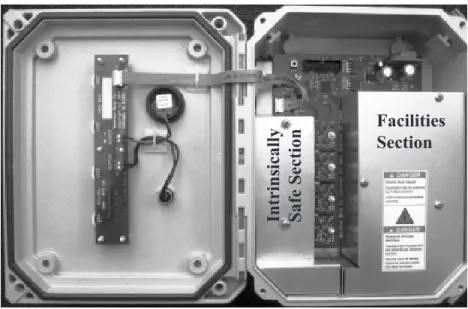
intrinsically safe section (see Figure 1). 2. Wiring
a. Run two oil and gas resistant wires from each input device to the location where the System Interface will be mounted. Enter the enclosure through the LEFT bottom opening ONLY. If a junction box is used, do NOT attach the wires of the input device(s) at this time. If the input device
is a Normally-Closed contact, connect the two wires together at the device end. If the device is a Normally-Open contact, verify that the two wires are not connected to one another.
b. Connect the two wires from each input device to the two screw terminals for each channel input of the Channel Input Connector (P1) for each Input Module (see Figure 2 and Figure 3).
Strip off about ¼ inch (5mm) of insulation from the wire and twist the ends of the wire.
The Channel Input Connector Insert the wire fully into the connector & snug the screw.
Figure 2 Wiring the Channel Input Connector
Intrinsically Safe Section
Facilities
Section
c. Verify that they are securely held in the connector by gently tugging on them.
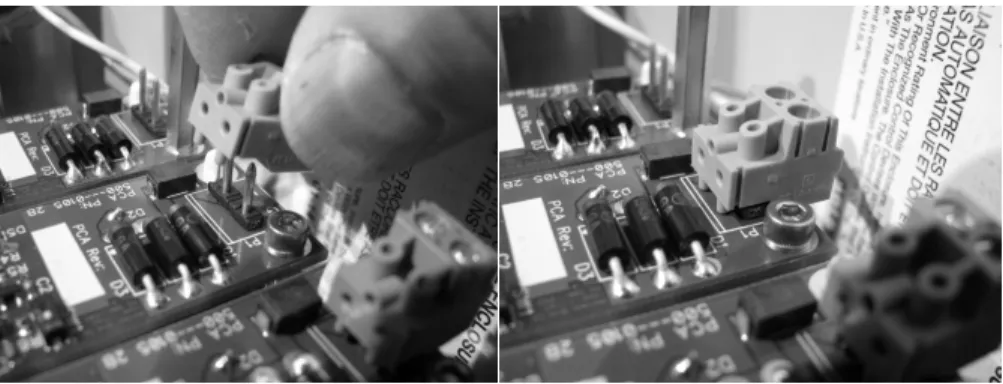
d. Plug the connector onto the Channel Input pins of the Dry Contact Input Module (see Figure 3).
Figure 3 Plug the Channel Input Connector onto the Channel Input Pins of the Alarm Circuit Board
e. Repeat steps 2 through 2.d for each remaining Input Channel. 3. Configuration
a. For Normally Open Contact Input Devices: If the input device to be connected to a particular Dry Contact Input Module utilize normally open contacts, verify that the DIP switch on that module, SW1, is in the “ON” position (see Figure 4).
b. For Normally Closed Contact Input Devices: If the input device to be connected to a particular Dry Contact Input Module utilizes normally closed contacts, place the DIP switch on that module, SW1, in the “OFF” position (see Figure 4).
Figure 4 Configuring Input Mode with SW1
4. Completion
a. Inspect all of the wiring to verify that it has been done properly. Correct any discrepancies and
re-inspect.
b. When the installation has passed inspection, reinstall the cover over the Intrinsically Safe section of the System Interface.
i. Place the cover in place and very loosely install the screws with their flat washers as shown
in Figure 5
ii. Gently push the cover over to the wall of the enclosure and secure in place with the screws. iii. Snug the screws down.
IMPORTANT NOTE: Verify that the power is shut off and the appropriate “Lockout/Tagout” (LOTO)
procedure is being adhered to before attempting any power wiring. This is true for both the Power Input to the System Interface and the devices connected to the Output Modules.
Facilities Section of the System Interface
NOTE:A circuit breaker must be:
• included in this installation • suitably located and easily reached
• marked as the disconnecting device for the 918AC being installed
1. Preparation
a. Remove the cover over the Facilities section of the System Interface (see Figure 1). b. Remove and retain the three screws that secure the cover in place.
c. Remove the cover. 2. Wiring
a. Unplug the System Interface power input connector (J401/LNG) from the Motherboard.
b. Wire AC power from a dedicated circuit breaker, to the System Interface connector with the proper
wire per the appropriate electrical codes. Wiring shall be in accordance with the National Electric Code and local regulation. Enter the enclosure through the center bottom hole ONLY.
NOTE:
A circuit breaker must be:
• included in this installation • suitably located and easily reached
• marked as the disconnecting device for the 918AC being installed
c. Be sure to connect input ground to the Intrinsic Safety Grounding Stud on the baseplate of the Figure 918AC inside the enclosure (see Figure 6).
d. Connect the Intrinsic Safety Grounding Stud to an appropriate ground. Refer to NFPA 70, Article 504 for ground suitability.
Figure 6 Intrinsic Safety Grounding Stud
e. Strip the wire as shown in Figure 2.
f. Insert the wire fully into the power input connector & snug the screw g. Repeat 2.e through 2.f for the remaining wires.
i. “L” → “Line” or HOT ii. “N” → “Neutral” iii. “G” → “Ground”
h. Verify that the wires are securely held in the connector by gently tugging on them.
i. Connect the input power to the Motherboard at J401/LNG being sure to pay attention to the polarization of the connector.
Output Module(s) (if so equipped)
NOTE: See “Output Module Contact Rating” section of the “Specifications” section of this document (on
page 2, above) for the contact rating for the output modules. 1. Wiring
a. Wiring shall be in accordance with the National Electric Code and local regulation. Enter the enclosure from the right bottom hole only.
b. Strip the wire as shown in Figure 2.
c. Insert the wire fully into the connector & snug the screw
d. Repeat 1.b through 1.c above for the remaining wires as required by your application.
i. “C” → “COMMON”
ii. “NO” → “Normally-Open” contacts (C → NO only when relay is activated) iii. “NC” → “Normally-Closed” contacts (C → NC only when relay is de-activated)
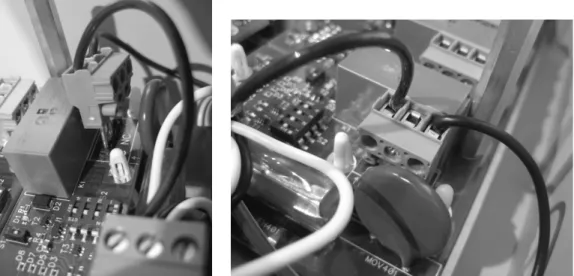
iv. Verify that the wires are securely held in the connector by gently tugging on them. e. Connect the Output Connector to the Output Module connector, P1, as shown in Figure 7.
Figure 7 Connecting the Output Connector to the Output Module connector, P1
f. Repeat 1 through 1.e for each remaining Output Module. 2. Configuration
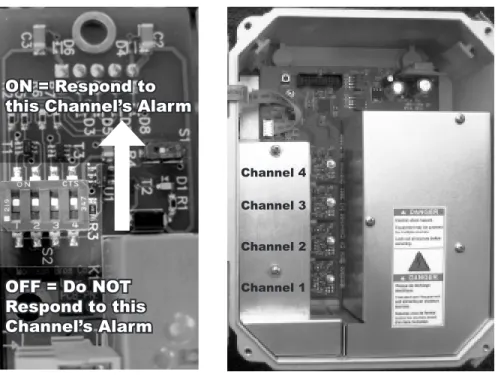
a. Alarm Channel – Configures a Dry Contact Output Module to respond to specific input channels. Each Output Module may be configured to be activated by one or more input channels in any
combination. This is accomplished by setting DIP switch positions one through four of S2 either ON (selecting a channel) or OFF (not selecting a channel).
Figure 8 - Output Module Alarm Channel Configuration
i. Locate the four position DIP switch, S2, on the Output Module to be configured
(see Figure 8).
ii. Place DIP switch Position One in the “ON” position to configure the output module to respond to Input Channel One or in the “OFF” position to configure the Output Module to
not respond to Input Channel one.
iii. Place DIP switch Position Two in the “ON” position to configure the output module to respond to Input Channel Two or in the “OFF” position to configure the Output Module to
not respond to Input Channel two.
iv. Place DIP switch Position Three in the “ON” position to configure the output module to respond to Input Channel Three or in the “OFF” position to configure the Output Module
to not respond to Input Channel three.
v. Place DIP switch Position Four in the “ON” position to configure the output module to respond to Input Channel Four or in the “OFF” position to configure the Output Module to
not respond to Input Channel four.
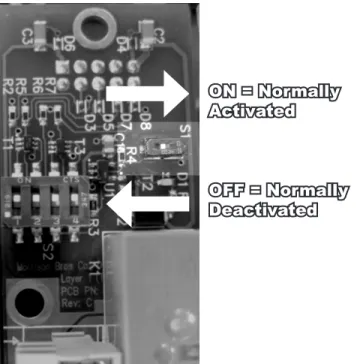
b. Relay Mode – Configure the Dry Contact Output Module as Deactivated or Normally-Activated (fail-safe)
NOTE: Fail-Safe mode swaps the definition of the relay contact state. Normally-Open (NO) contacts become Normally-Closed (NC) and Normally-Closed (NC) contacts become Normally-Open (NO).
ON = Respond to
this Channel’s Alarm
OFF = Do NOT Respond to this Channel’s Alarm Channel 4 Channel 3 Channel 2 Channel 1
Figure 9 - Output Module Mode Configuration
i. Locate the single position DIP switch, S1, on the Output Module to be configured (see
Figure 9).
ii. Place this DIP switch in the “OFF” position if the output is to be configured as
Normally-Deactivated.
iii. Place this DIP switch in the “ON” position if the output is to be configured as
Normally-Activated (Failsafe).
Completion
1. Inspect all of the wiring to verify that it has been done properly. Correct any discrepancies and re-inspect.
2. When the installation has passed inspection, reinstall the cover over the Facilities section of the System Interface
a. Place the cover in place and install the three screws. b. Snug the screws down.
ON = Normally Activated
OFF = Normally Deactivated
Steps to Configure the 918AC Series System Interface Motherboard
Auto-Silence
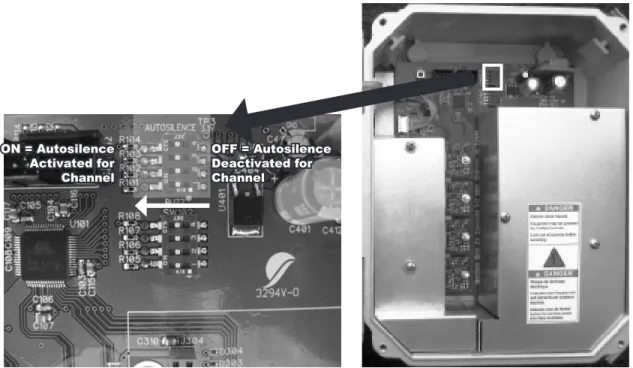
Select which input channels will automatically silence after a 3 minute timeout period.
Figure 10 - Motherboard Auto-Silence Configuration
1. Locate the four position, Auto-Silence DIP switch, SW101, on the Motherboard (see Figure 10).
2. Place DIP switch Position One in the “ON” position to configure the Motherboard to automatically silence an alarm on channel one after timeout. Place DIP switch Position One in the “OFF” position to configure the
Motherboard to continuously indicate an alarm on channel one.
3. Place DIP switch Position Two in the “ON” position to configure the Motherboard to automatically silence an alarm on channel two after timeout. Place DIP switch Position Two in the “OFF” position to configure the
Motherboard to continuously indicate an alarm on channel two.
4. Place DIP switch Position Three in the “ON” position to configure the Motherboard to automatically silence an alarm on channel three after timeout. Place DIP switch Position Three in the “OFF” position to configure
the Motherboard to continuously indicate an alarm on channel three.
5. Place DIP switch Position Four in the “ON” position to configure the Motherboard to automatically silence an alarm on channel four after timeout. Place DIP switch Position Four in the “OFF” position to configure
the Motherboard to continuously indicate an alarm on channel four.
ON = Autosilence Activated for Channel OFF = Autosilence Deactivated for Channel
Audible Alarm
Select which channels will produce an audible alarm.
Figure 11 - Motherboard Buzzer Configuration
1. Locate the four position, Buzz DIP switch, SW102, on the Motherboard (see Figure 11).
2. Place DIP switch Position One in the “ON” position to configure the Motherboard to provide both an audible and a visual alarm for input channel one. Place DIP switch Position One in the “OFF” position to configure
the Motherboard to only provide a visual alarm for channel one.
3. Place DIP switch Position Two in the “ON” position to configure the Motherboard to provide both an audible and a visual alarm for input channel two. Place DIP switch Position Two in the “OFF” position to configure
the Motherboard to only provide a visual alarm for channel two.
4. Place DIP switch Position Three in the “ON” position to configure the Motherboard to provide both an
audible and a visual alarm for input channel three. Place DIP switch Position Three in the “OFF” position to
configure the Motherboard to only provide a visual alarm for channel three.
5. Place DIP switch Position Four in the “ON” position to configure the Motherboard to provide both an audible and a visual alarm for input channel four. Place DIP switch Position Four in the “OFF” position to configure
the Motherboard to only provide a visual alarm for channel four. ON = Audible Alarm Activated for Channel OFF = Audible Alarm Silenced for Channel
‘Heartbeat’ Function
Enable/disable the heartbeat function.
NOTE: The heartbeat function will periodically flash the indicators on the front cover of the System Interface
to show observers that power is on. Any alarm condition present will override the heartbeat function. The heartbeat function is disabled in the factory by default. By enabling the heartbeat function, it will remain active (even after a power cycle) until disabled.
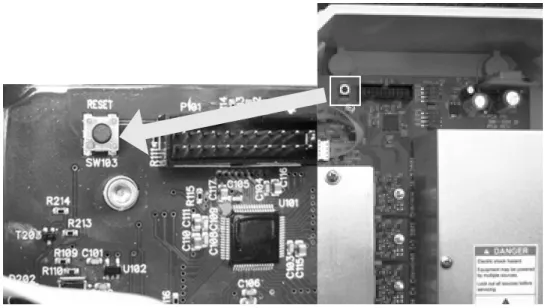
Figure 12 - Motherboard Reset Button
1. Open the front cover of the System Interface by releasing the two cover latches and swinging the cover open. 2. Locate the reset push button on the motherboard.
3. With power applied to the System Interface, press and hold the reset button. 4. On the front cover of the System Interface, press and hold the Silence/Test button. 5. Release the reset button.
6. Once you hear a beep from the System Interface, release the Silence/Test button.
Note: If the beep is followed by a quick flash of the indicators, the heartbeat function was enabled. If the beep was not followed by a quick flash of the indicators the heartbeat function was disabled.
Steps to Test the 918AC Series System Interface
1. Determine which of the devices connected to the Output Module(s) need to be disconnected before beginning this test. Remove the cover over the Facilities Section and unplug these Output Channels.
2. Apply power to the System Interface.
3. Press and hold the “Silence/Test” pushbutton on the front panel of the System Interface. All of the indicators
on the front panel should blink and the audible enunciator should sound.
4. Release the “Silence/Test” button.
5. Test the connection at the alarm and wiring a. For Normally Open Contact Inputs:
i. Create an alarm condition:
1. If a junction box was used and the wires are not connected to the input device, connect the two wires together at the input device end for each input device.
2. If a junction box was not used or the 918AC input was connected to the input device, activate each input device.
ii. The System Interface should show an alarm until the Test/Cancel button is pushed.
iii. If the input being tested is configured to sound the audible enunciator (buzzer), then the
System Interface should also sound the alarm.
iv. Verify that the Output Module(s) (if they are installed) and the devices they are connected
to respond as configured.
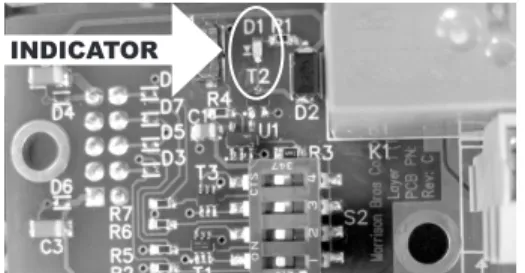
NOTE: There is an indicator ☼ on the output module (see Figure 13) that illuminates when the relay is
activated. It is only visible when the Facilities section cover is removed (see Figure 13).
v. If the System Interface fails to respond properly, check the connections and retest until
results are satisfactory. vi. Repeat for each channel. b. For Normally Closed Contact Inputs:
i. Create an alarm condition:
1. If a junction box was used and the wires are not connected to the input device, disconnect the two wires at the input device end for each input device. 2. If a junction box was not used or the 918AC input was connected to the input
device, activate each input device.
ii. The System Interface should show an alarm until the Test/Cancel button is pushed.
iii. If the input being tested is configured to sound the audible enunciator (buzzer), then the
System Interface should also sound the alarm.
iv. Verify that the Output Module(s) (if they are installed) and the devices they are connected
to respond as configured.
NOTE: There is an indicator ☼ on the output module (see Figure 13) that illuminates when the relay is
activated. It is only visible when the Facilities section cover is removed.
1. If the System Interface fails to respond properly, check the connections and retest
until results are satisfactory. 2. Repeat for each channel.
Figure 13 - Location of the Output Board Indicator
6. Connect the wires from the System Interface Unit to the wires of the input device(s) at the junction box for each device, if not already done. Replace the junction box cover(s).
7. It is recommended to simulate an alarm condition and manually trigger the alarm using input device(s) (Clock Gauge, float switch or other dry contact device). If it does not, check wiring at junction box and verify
that the installation procedure was performed correctly. The alarm can be silenced after being activated by pressing the Test/Cancel button.
8. Remove power from the System Interface.
!
!
DO NOT PROCEED PAST THIS POINT UNTIL ALL TESTS HAVE BEEN PASSED
9. Plug in all Output Connectors to their respective Output Module(s) that were previously disconnected and reinstall the cover over the Facilities Section of the System Interface.
10. Close the enclosure and secure.
11. Power may be applied to the System Interface and the unit put into service.
IMPORTANT: Install the included Warning Tag where it will be visible to the operator filling or unloading the tank that is fitted with this alarm system, if applicable.
Failure to follow any or all of the warnings and instructions in this document could result in a hazardous liquid spill, which could result in property damage, environmental contamination, fire, explosion, serious injury or death.
Le fait de ne pas se conformer à l’un ou l’autre des avertissements ou à l’une ou l’autre des directives apparaissant dans ce document pourrait donner lieu à des déversements de liquides dangereux, lesquels pourraient engendrer des dommages matériels, des risques de contamination environnementale, d’incendie ou d’explosion, des blessures graves ou la mort.
Operation
The 918AC Series System Interface may be used in applications where one to four sets of normally open or
normally closed dry contacts are available. Two possible applications are use as an overfill alarm or as an
interstitial alarm. These two uses are addressed below.
Use as an Overfill Alarm
Use with the Morrison Brothers 918 Clock Gauge or other similar input device. 1. Prior to filling a tank,
a. Check for an existing overfill condition by observing the front panel.
i. A blinking channel indicator and no audible alarm tells you that there is an existing,
auto-silenced alarm on that channel.
ii. A solidly illuminated indicator tells you that there is an existing, manually acknowledged
alarm on that channel.
b. Check the overall operation of the System Interface.
i. Press and hold the “Silence/Test” button while listening to the Audible Alarm and observing the Channel Alarm Indicator(s).
ii. All of the Visual Enunciators should be slowly blinking
iii. The Audible Enunciator/Alarm should be loud and strong, sounding about one second on and one second off.
2. If an overfill occurs while filling the tank, the Channel Alarm Indicator associated with the overfill condition will flash and, if configured to do so, the Audible Alarm will sound.
a. The alarm can be acknowledged and silenced by pressing the “Silence/Test” button on the front of
the Alarm.
b. If the alarm is not silenced by the operator, and the channel is configured to “Auto-Silence”, then the
System Interface will continue in the alarm state for no more than the timeout period at which point
it will silence itself. The visual indicator on the front panel will continue to blink, showing a new, un-acknowledged alarm.
Use as an Interstitial Alarm
1. Should the contacts associated with an interstitial switch be activated, the System Interface will immediately
go into an alarm state; it will illuminate the Channel Alarm Indicator associated with the alarm condition and, if configured to do so, sound the Audible Alarm.
2. If the System Interface is configured to “auto-silence” on the channel associated with the interstitial sensor,
and the alarm is not silenced manually by pressing the “Silence/Test” button, the System Interface will continue in this alarm state for no more than its timeout period at which point it will silence itself. The visual
indicator on the front panel will continue to blink, showing a new, un-acknowledged alarm.
3. If an operator acknowledges the alarm condition by pressing the “Silence/Test” button, the System Interface will silence the audible enunciator (if configured to sound on this input) and the channel alarm indicator will
illuminate continuously until the alarm condition is removed.
4. To check for an alarm state once the Alarm has silenced itself simply observe the front panel. A blinking channel indicator and no audible alarm tells you that there is an existing, auto-silenced alarm on that channel. A channel indicator which is continuously illuminated indicates that there is an existing, acknowledged
!
!
Maintenance
Warnings
• Fire Hazard – Death or serious injury could result from spilled liquids.
• You must be trained to install or maintain this alarm. Stop now if you have not been trained. • Any modification of this unit beyond what is outlined in this instruction will void product warranty.
• For your safety, it is important to follow local, state, federal and/or OSHA rules that apply to working inside, above, or around the storage tank and piping area. Use all personal protective equipment required for working in the specific environment.
• This device is intended to be used as an auxiliary warning to the operator of an abnormal condition of the system, such as a possible overfill situation and should not be the only system in place to prevent an unwanted condition, such as preventing a tank from overfilling. It is the sole responsibility of the operator to continuously
prevent any spillage regardless of the situation.
• Tanks could be under pressure. Vapors could be expelled from tank vents, piping, valves or fittings while performing maintenance. Vapors could catch fire or cause an explosion. Avoid sparks, open flame, or hot tools when working on tank system.
• Use a dampened cloth when cleaning the alarm enclosure to prevent static buildup and discharge. • In the event of malfunction, contact Morrison Bros. Customer Service.
Avertissements
• Risque d’incendie – Un déversement de liquide pourrait entraîner des blessures graves ou la mort.
• Vous devez avoir reçu une formation pour installer cette alarme ou en assurer la maintenance. Arrêtez-vous immédiatement si vous n’avez reçu aucune formation à cet effet.
• Toutes les modifications apportées à cette unité autres que celles indiquées dans ces directives engendreront
l’annulation de la garantie du produit.
• Pour assurer votre sécurité, il est important de vous conformer à la réglementation locale, d’État, fédérale ou OSHA régissant les travaux à l’intérieur, au-dessus ou autour du réservoir de stockage et de la zone de
canalisation. Utilisez tout l’équipement de protection individuelle exigé pour travailler dans l’environnement
spécifique.
• Cet appareil est destiné à être utilisé comme mécanisme avertissant l’opérateur d’un état anormal du système tel une situation de remplissage excessif et ne devrait pas être le seul système en place pour empêcher un état indésirable, par exemple, un réservoir qui se remplit trop. L’opérateur a l’entière responsabilité de s’assurer
continuellement de prévenir tout déversement, quelle que soit la situation.
• Les réservoirs pourraient être sous pression. Des vapeurs pourraient être expulsées des conduits d’aération,
des canalisations, des soupapes ou des raccords du réservoir durant la maintenance. Les vapeurs pourraient
s’enflammer ou engendrer une explosion. Évitez les étincelles, les flammes nues ou les outils chauds lors de travaux menés dans le système du réservoir.
• Utilisez un linge humide pour nettoyer l’enceinte de l’alarme afin de prévenir l’accumulation d’électricité
statique et les décharges.
• En cas de défaillance, communiquez avec le service à la clientèle de Morrison Bros.
There are two scheduled maintenance operations:
• MONTHLY: Test the overall operation of the System Interface (see 2 below) • YEARLY: Check the Enclosure for water ingress (see 0 below)
Monthly
1. If necessary, clean the System Interface enclosure with a damp cloth. 2. Test the overall operation of the Alarm no less than once per month.
a. Press and hold the “Silence/Test” button while listening to the audible alarm and observing the Channel Alarm indicator(s).
• Audible Alarm is loud and strong, sounding about one second on and one second off. • Channel Alarm Indicator(s) is (are) blinking.
!
!
b. If alarm does not sound or the Channel Alarm Indicators do not blink, verify that power is applied to the System Interface and re-test. If the alarm still does not sound replace the System Interface or call
Morrison Bros. Co Customer Service.
c. Inspect the warning tag located near the tank fill or off-loading area. If the tag is damaged or difficult to read, contact Morrison Bros. at (800) 553-4840 for a free replacement tag.
Yearly
This check is to be performed no less than once per year.
1. Check the Enclosure for water ingress.
a. Carefully open the System Interface enclosure.
b. Inspect the interior of enclosure to determine if any water has infiltrated the enclosure. If water has infiltrated the enclosure, take corrective action to seal the points of ingress.
c. Inspect the electronics for corrosion. If there is corrosion present on the electronic assembly(ies)
• Take corrective action to seal the enclosure from further water ingress. • Contact Morrison Bros. Co. for further action.
d. Close and secure the enclosure. Verify that the cover is fully seated to the enclosure base.
2. Perform Monthly check as outlined above to verify the overall operation of the System Interface.
3. It is recommended to simulate an alarm condition and manually trigger the alarm using input device (Clock Gauge, float switch or other dry contact device). Disconnect devices wired to the Output Modules as necessary before performing this check. If it does not, check wiring at junction box and verify that the
installation procedure was performed correctly. The alarm can be silenced after being activated by pressing the “Silence/Test” button. Reconnect the Output devices previously disconnected once the test is passed and complete.
Failure to follow any or all of the warnings and instructions in this document could result in a hazardous liquid spill, which could result in property damage, environmental contamination, fire, explosion, serious injury or death.
Le fait de ne pas se conformer à l’un ou l’autre des avertissements ou à l’une ou l’autre des directives apparaissant dans ce document pourrait donner lieu à des déversements de liquides dangereux, lesquels pourraient engendrer des dommages matériels, des risques de contamination environnementale, d’incendie ou d’explosion, des blessures graves ou la mort.
DIP Switch Configuration Tables
Input Module
Table 1 Input Module SW1 - Normally Open/Normally Closed Contacts
Output Module
Table 2 Output Module S1 - Normally Activated/Deactivated
Table 3 Output Module - Channel Selection
Motherboard
Table 4 Motherboard SW101 – Auto-Silence
Position
ON
Setting
OFF
1
Configures the input module for
Normally Open contacts
Configures the input module for
Normally Closed contacts
Position
ON
Setting
OFF
1
Normally
Activated
(failsafe)
Normally
Deactivated
Position
Setting
ON
Activation of this channel triggers
this output module to change state
OFF
Activation of this channel has no
effect on this output
1
Channel 1
Channel 1
2
Channel 2
Channel 2
3
Channel 3
Channel 3
4
Channel 4
Channel 4
Position
Setting
ON
This channel will automatically
silence the buzzer after 3 minutes.
The LED will remain blinking until
the input is deactivated or the
Silence/Test button is pressed.
OFF
This channel will only be
silenced by pressing the Silence/
Test button.
1
Channel 1
Channel 1
2
Channel 2
Channel 2
3
Channel 3
Channel 3
4
Channel 4
Channel 4
NOTE: This DIP switch will have no effect for a channel if that channel is configured as a silent channel
Table 5 Motherboard SW102 - Buzzer Channel Select
Position
Setting
ON
When this channel input is
activated, the buzzer will sound
until the Auto-Silence period
passes (if so configured) or until
the Silence/Test button is pressed,
whichever comes first.
OFF
This channel is a silent channel.
The buzzer will not sound when
this input is activated.
1
Channel 1
Channel 1
2
Channel 2
Channel 2
3
Channel 3
Channel 3
Replacement Parts
Part Description Part Number
918AC Installation Operation and Maintenance Manual 918AC-0142 PP
918AC Input Module Kit 918AC-0105 AK
918AC Output Module Kit 918AC-0106 AK
Buzzer 918AC-0113 2B
Identification Labels 918AC-0141 2L
Lens Kit, AMBER 918AC-0135 AK
Lens Kit, GREEN 918AC-0134 AK
Lens Kit, RED 918AC-0107 AK
PC Board, Indicator 918AC-0112 AK
Pushbutton 918AC-0109 2B
Screw, Protective Cover 918---0197 2S
Washer, Protective Cover 918AC-0119 2W
Warning Tag, English 918---0172 2T