Guidelines for using
computers
Preventing and managing discomfort, pain and injury
Computer
guidelines
for the prevention and management of discomfort, pain and injuryTable of conTenTs
Introduction ...4
What the guide covers ... 4
The layout of this guide ... 4
What is a computer workstation? ... 6
How do these guidelines relate to the Approved Code of Practice for the Use of visual Display Units in the Place of Work? ... 7
Who should use the guidelines? ... 7
1. Identifying and understanding the potential health issues ...8
1.1 What are the potential health issues associated with computer use? ... 8
Physical discomfort ... 8
visual discomfort... 9
Stress ... 11
Fatigue ... 12
1.2 What are the sources of these health issues? ... 13
Individual factors ... 14
Psychosocial factors... 15
Work organisation ... 16
Workplace layout and awkward postures ... 16
Task invariability ... 17
Loads and forceful movements ... 17
environment ... 18
1.3 Are computer related health issues solely related to workplace computer use? ... 18
1.4 benefits of working safely with computers ... 18
1.5 management commitment ... 19
2. assessing potential hazards ... 20
2.1 Hazard identification ... 20
Hazard assessment checklist ... 21
2.2 Prioritising hazards... 21
2.3 Developing a hazard control plan ... 22
3. controlling the hazards ... 23
3.1 Work organisation ... 23
Job requirements ... 24
Supervision ... 24
Workloads ... 25
3.2 The work environment ... 25
Working space ... 26 Location of workstations ... 26 Lighting ... 27 Décor ... 32 Atmospheric conditions ... 33 Noise ... 35 Housekeeping ... 35
3.3 Postures and practices ... 36
reference postures ... 36
Standing to work ... 38
Working practices ... 39
regular task breaks ... 39
micropauses (brief pauses) ... 39
Alternative tasks ... 40
Keyboard Use ... 40
mouse Use ... 41
3.4 Furniture and equipment ... 42
Assessing the work ... 42
Assessing the task ... 43
Shared workstations and ‘hot desking’ ... 44
Teleworking and working from home... 45
Planning for new furniture, equipment and hardware ... 45 Desks ... 46 Chairs ... 51 Foot rests ... 56 Document holders ... 57 Telephone headsets ... 58
3.5 The computer hardware ... 59
Screens ... 59
Screen placement ... 61
multiple screens ... 63
Keyboard ... 64
mouse and other pointing devices ... 67
Hand-rests ... 71
Laptops and other portable computer devices .... 72
3.6 educating computer users ... 75
4. Managing health issues ... 80
4.1 early reporting ... 80
4.2 referral ... 81
4.3 Injury management – ‘stay at work’ and ‘return to work’ programmes ... 82
5. Health Monitoring and Programme review... 83
5.1 What is health monitoring? ... 83
5.2 What is reviewing? ... 83
5.3 Why monitor or review? ... 83
5.4 monitoring the hazards and the health of employees ... 83
5.5 reviewing hazard management ... 85
frequently asked Questions ... 86
appendices ... 89
Appendix A. obligations under the Health and Safety Act 1992 ... 89
Appendix b. Glossary ... 92
Introduction
In the past three decades computers have significantly changed the working environment, simplifying and speeding up many tasks across many work areas. However, with these advances have come some potential health issues. These guidelines describe how managers, health and safety representatives, occupational health and safety personnel, human resource personnel and computer users can work together to achieve a healthy and productive workplace environment. The guidance reflects current knowledge and best practice for the use of computers so you can achieve maximum efficiency, safety and health in your workplace.
WHaT THe guIdelInes cover
From these guidelines you will learn about how to create healthy and productive computer work environments. You will find advice on organising work, providing an appropriate work environment and furniture, and setting up a computer workstation, including the importance of selecting suitable computer hardware and software. The guidelines also outline the different computer-related health issues and the steps you can take to identify and address hazards in order to prevent these health issues occurring. In the event that a computer user develops a health problem, we have also provided guidance on what your legal obligations are.
Although you may not have any health issues from computer work in your workplace, it is important that you regularly monitor the health of computer users and review your management of computer hazards. These guidelines outline steps for monitoring health, managing hazards and training.
At the end of the guidelines you will find a set of frequently asked questions and a glossary of terms used throughout the document.
THe layouT of THese guIdelInes
These guidelines present a hazard management process that will help you to identify hazards associated with computer use, assess their significance and present controls to eliminate, isolate and/or minimise them. This process will take you through five key steps: 1. Identifying and understanding potential health issues;
2. Assessing potential hazards; 3. Controlling hazards;
4. managing potential health issues;
5. Health monitoring and programme review.
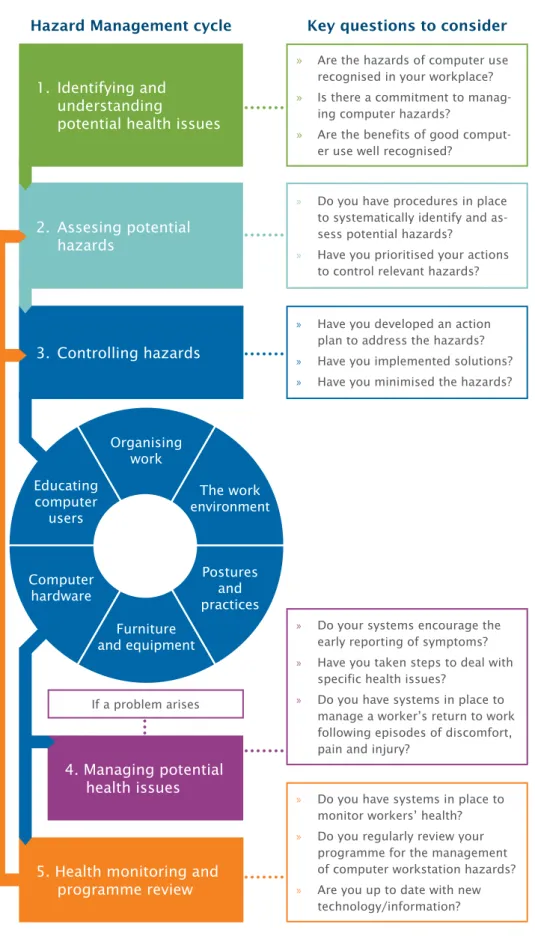
each step is detailed in separate chapters of these guidelines. An overview of the hazard management process is shown in Figure 1.
Other resources that should be used to supplement these guidelines can be found on ACC’s website and elsewhere. For example, HabitAtWork for offices provides examples of preventative approaches, such as stretches and exercise, aimed at reducing the risk of computer-related health issues
(www.habitatwork.co.nz).
Additional information and resources are presented alongside the main body of the text. These identify supplementary sources of information and references in support of specific recommendations, such as dimensional requirements.
fIgure 1. guIde To THe ManageMenT of coMPuTer use
Hazard Management cycle
Key questions to consider
5. Health monitoring and
programme review
1. Identifying and
understanding
potential health issues
2. Assesing potential
hazards
3. Controlling hazards
4. managing potential
health issues
» Are the hazards of computer use recognised in your workplace?
» Is there a commitment to manag-ing computer hazards?
» Are the benefits of good comput-er use well recognised?
» Do you have procedures in place to systematically identify and as-sess potential hazards?
» Have you prioritised your actions to control relevant hazards?
» Have you developed an action plan to address the hazards? » Have you implemented solutions? » Have you minimised the hazards?
» Do your systems encourage the early reporting of symptoms? » Have you taken steps to deal with
specific health issues?
» Do you have systems in place to manage a worker’s return to work following episodes of discomfort, pain and injury?
If a problem arises
» Do you have systems in place to monitor workers’ health? » Do you regularly review your
programme for the management of computer workstation hazards? » Are you up to date with new
technology/information? organising work Furniture and equipment Postures and practices The work environment educating computer users Computer hardware
WHaT Is a coMPuTer WorKsTaTIon?
We define ‘a computer’ as the combination of computer hardware, display screen, keyboard and/or mouse or other input device. The computer workstation typically encompasses the computer and the workstation furniture, such as the desk, chair, footrest, any equipment used (e.g. telephone, document holder and printer) and the environment (e.g. lighting, ventilation and noise).
We have developed these guidelines mainly from the experiences of office-based computer users, but many recommendations will apply to a wide range of environments in which computers are used. For example, computer users in factory or warehouse settings, control centres and educational environments, and those who work from home or are on the move and use different workplaces should all adopt these recommendations.
HoW do THese guIdelInes relaTe To THe aPProved
code of PracTIce for THe use of vIsual dIsPlay unITs
In THe Place of WorK?
It is intended that these guidelines will replace the Approved Code of Practice for the Use of visual Display Units in the Place of Work, published by the Department of Labour in 1995.
The guidelines have been developed in response to changing technology and new ways of managing the hazards of computer use. As a guide to ’best practice’, they reflect the current state of knowledge, particularly with respect to the early identification and management of discomfort, pain and injury.
You can use these guidelines in any situation in the workplace or at home where a person uses a computer for normal work. They explain how you can meet your obligations under the Health and Safety in employment Act 1992 to provide a safe place of work.
You may choose to meet only some of the recommendations in these guidelines, or use other means to provide for the health and safety of computer users. This level of flexibility is necessary because it may be difficult or inappropriate for you to meet a specific requirement in your particular work setting. However, if you are not following this guidance, you should ensure that you have identified all of the relevant hazards and are adequately controlling them to provide a level of health and safety at least equivalent to what would be achieved by these guidelines.
You can also refer to Appendix A for more detailed information on how the Health and Safety in employment Act 1992 applies to the use of computers.
WHo sHould use THe guIdelInes?
Anyone who uses a computer, or works with people who do, will find these guidelines helpful. These recommendations will help computer users to stay comfortable and productive.
In the workplace, a collaborative approach between computer users and managers is encouraged to achieve the most effective use of computers in the workplace.
It is intended that these guidelines will replace the Approved Code of Practice for the Use of Visual Display Units in the Place of Work (1995).
Identifying and
understanding the
problem
1.1
WHaT are THe PoTenTIal HealTH ProbleMs
assocIaTed WITH coMPuTer use?
Four potential health issues are associated with computer work. » Physical discomfort, pain or injury;
» visual discomfort; » Stress;
» Fatigue.
While we discuss these problems separately below, they often influence each other.
PHysIcal dIscoMforT
A range of physical conditions may develop or be made worse by working with computers. by ‘physical conditions’ we mean problems that may affect muscles, connective tissues, tendons, ligaments, joints, bony structures, the blood supply, nerves and the skin.
The symptoms associated with these conditions are sometimes given a medical diagnosis such as ‘epicondylitis’ or ‘carpal tunnel syndrome’, or a general umbrella label such as ’gradual process injury’ (the currently accepted umbrella term for these types of injury). The terms ‘occupational overuse syndrome’ (ooS) or repetitive strain injury’ (rSI) have also been used, amongst others. Within the literature, there are a number of umbrella terms that have been used to describe these symptoms.
many people experience upper limb, neck or back discomfort and pain, whether or not they work with computers. However, the onset of symptoms and the movements or body postures adopted while working at computers are often related. Symptoms may include: » Pain; » Fatigue; » muscle discomfort; » Stiffness; » burning sensations; » Weakness; » Numbness; » Tingling.
1
ACC provides accident cover for personal injury caused by work-related gradual process disease or
infection. Eligibility for cover is defined in Section 30 of the Accident Compensation Act 2001.
Sometimes computer users find that these sorts of symptoms worsen during the day or week and, at least initially, improve at weekends and holidays. It is important to act as soon as symptoms present. Small changes made at the first indications of discomfort usually produce the best outcomes and prevent more significant problems developing.
vIsual dIscoMforT
eye discomfort is a common health problem experienced by computer users. eyesight naturally deteriorates with age. However, several long-term scientific studies comparing computer users and non-computer users have shown that these changes are not necessarily increased through computer use. often, people are unaware of existing visual problems that only become apparent when they begin using computers, because the demands placed on the visual system by computer work can be very high. vision problems are generally only temporary and decline after stopping computer work at the end of the day. However, some computer users may experience continued visual impairment even after work.
Some individuals who experience symptoms of visual discomfort have been found to have uncorrected vision problems. They usually get rapid relief when they are provided with glasses or contact lenses that are suitable for computer screen use (lighting and glare problems should also be considered).
It may be appropriate for computer users to have eye examinations prior to or soon after beginning computer work and periodically thereafter. People with no need for glasses for either distance or near tasks may need specially prescribed glasses for using computers.
The symptoms of visual discomfort vary and include: » Sore eyes;
» red eyes; » Watery eyes; » Dry eyes;
» eyes feeling ‘heavy’ or ’gritty’; » blurring of vision;
» Headaches.
It is not a legal requirement for an employer to pay for an eye examination. However, where an employee is required to spend a significant time at computers and monitors it makes for good staff relations, as well as safety and health, to provide for regular eye and vision assessments for employees. A commitment to meet some or all of the costs of a comprehensive eye examination and lenses can be included in employment agreements where it is appropriate. Regular assessments may result in productivity being increased and/or incidents of eye strain being reduced.
Studies have shown that eye-related symptoms are one of the most frequently occurring health issues amongst users of computers. Blehm et al. (2005)
Like other muscles, those in the eyes need periods of relaxation. As computer users tend to work with the screen a fixed distance away, the unvarying demand on the eye muscles can lead to fatigue. If the position of the screen is too high, you are more likely to widen the eye, exposing more of the eye surface and increasing the risk of eye fatigue and dry eyes. A working environment that is too warm or too dry can make these symptoms worse.
Computer users may also experience visual discomfort from:
» Uncorrected eyesight problems that become apparent with computer use; » visual changes with aging;
» The wrong glasses or contact lens prescriptions for computer work;
» Inadequate lighting (too little or too much, or the position and type of lighting); » Poor computer workstation set-up;
» Lifestyle factors, e.g. smoking, lack of sleep.
People suffering from persistent eye trouble need to have their eyesight tested by an optometrist. The optometrist will need to know details about the person’s computer tasks, both at home and at work, including the size of screen, the distance from the eyes to the screen and average hours of use per day to ensure that, if required, appropriate glasses/lenses are provided. optometrists have forms on which you can write this information before visiting one.
Addressing vision problems arising from computer work might include: » Adjustments to the work environment, such as lighting or window treatments to
reduce glare and minimise variations in light levels;
» reducing visual stress from computer work through, for example, the use of rest or alternate task breaks throughout the workday, or frequently looking into the distance to reduce focusing fatigue;
» Adjustments to the work equipment, such as the location of the screen(s), key-board, mouse, paperwork and chair;
» Adjustments to computer software, such as ensuring that the font, font size and screen display settings meet the visual needs of the user;
» Specific lenses to meet the unique demands of computer work, such as lenses that are focused for the distance of the computer screen, lens designs that incorporate near and intermediate focusing distances, and lens tints or coatings that may help to maximise vision and comfort;
» A programme of optometric vision therapy. Some computer users may experience problems with eye focusing or eye coordination that cannot be adequately corrected with lenses but may be correctable in other ways.
The NZ Association of Optometrists can provide further information about visual issues relating to computer use and a computer assessment form – Visual Examination of VDU Operators (2004) www.nzao.co.nz
The New Zealand Association of Optometrists provides a booklet: ‘How to Adjust a Microsoft Windows Computer for People with Low Vision’. www.nzao.co.nz
sTress
Stressors are events or circumstances that may lead to the perception that physical or psychological demands are about to be exceeded. Stress can occur in a wide range of computer use situations. It can be made worse when the demands and pressures do not match the computer user’s knowledge, resources or abilities. Stress may also occur when the computer user feels unable to cope or that they have little control or social support.
Symptoms of stress can include: » Increasing distress and irritability; » Physical aches and pains;
» Difficulty relaxing, concentrating or sleeping; » Difficulty thinking logically and/or making decisions;
» Decreased enjoyment of work and/or feeling less commitment to work; » Feelings of tiredness, depression or anxiety.
Workplace stressors may be inevitable or avoidable. Inevitable stressors can include: » Starting a new job;
» Learning a new skill; » Fluctuations in work flow;
» Unpredictable emergencies in the workplace. Avoidable stressors can include:
» Working for too many hours each week;
» Working in a situation that is poorly set up for the work being done; » No performance feedback or only adverse feedback.
Work stress can affect your business in a number of ways. Stressed computer users are more likely to have health issues, lack motivation and be less productive. external signs to look for include:
» Increased absenteeism; » Increased staff turnover;
» Impaired performance and productivity;
» Increased unsafe working practices and incident rates.
Stress is not just restricted to the work environment – pressures at home can be a contributing factor. Therefore, good support both from outside work and in the workplace may strengthen the computer users capacity to deal effectively with work stress. It is important to remember that for most people work is good for health and wellbeing – it contributes to self-esteem, social participation, personal identity and fulfilment.
You can find more information about work stress and how to manage it in the New Zealand Department of Labour publication on stress, ACC’s Preventing and Managing Discomfort, Pain and Injury Programme
(www.acc.co.nz/dpi), the World Health Organization publication on ‘Work Organisation and Stress’, the International Labour Organization website on Safe Work: Stress at Work (www.ilo.org/safework/info/lang--en/ WCMS_108557) and the European Agency for Safety and Health at Work website on stress (www.osha.europa. eu/en/topics/stress).
faTIgue
Fatigue is the temporary inability or decrease in ability to respond to a situation because of previous over-activity. This over-activity may be physical, mental or emotional in nature.
Physical fatigue
Physical fatigue is probably the most familiar and, in terms of physically demanding jobs, tends to be naturally self-limiting. However, in sedentary computer use the physical fatigue of smaller postural and arm muscles may not be recognised until the onset of discomfort or pain.
Common approaches for preventing physical fatigue and discomfort when using computers include micropauses, regular breaks, stretching and task variety as discussed in other sections of this document.
mental fatigue
mental fatigue may also occur after long periods of computer use without the user being aware of their developing symptoms. To combat mental fatigue, preventative strategies should be targeted at managing tasks during the day to allow mental resources to be allocated and used effectively:
Task duration
match the task duration to the intensity of attention required. For example, if a computer user is writing a report and:
» There is no deadline pressure; » All necessary resources are at hand; » The author is very familiar with the material,
… this task could probably go on all day without additional breaks. However, if a computer user:
» Is developing a response to an unfamiliar question; » Is under the pressure of a deadline;
» Does not have resources immediately to hand,
… this task may require careful pacing. Time should be spent on planning and extra breaks taken.
Interruptions
Give thought to how computer users can put down and pick up tasks during scheduled and unscheduled breaks.
Stress and fatigue are covered by the Health and Safety in Employment Act 1992 as potential work hazards and sources of harm. The best way to prevent stress and fatigue in the workplace is to promote healthy work through good management and good work organisation. Healthy work is more fulfilling for employees and more productive for organisations than badly designed work.
Deadlines
Computer users will not be able to meet constant, urgent, recurring deadlines for a long time unless effective management strategies are used:
» break large tasks into smaller ones;
» Give computer users the ability to feed back on their progress and negotiate deadlines when required;
» Provide some relief from the continued pressures of work.
Intense tasks
Writing tasks involving complex matters that require reference to a variety of materials (such as data, legislation, company policies, product specifications, export rules) can be very tiring.
This sort of work usually requires several hours of intense attention without interruption. When it ceases, a longer break should be taken.
Note that visual and ocular fatigue may accompany mental fatigue if intense inspection of the screen contents is required for long periods.
emotional fatigue
emotional fatigue may result from the need to complete tasks where mental fatigue is involved and is coupled with the uncertainty of emotional responses.
Working as normal when a restructuring programme is taking place and your job is perceived as under threat can be very difficult. other sources of emotional fatigue are mentioned under the headings of ‘work organisation’ and ‘psychosocial factors’.
1.2
WHaT are THe sources of THese HealTH Issues?
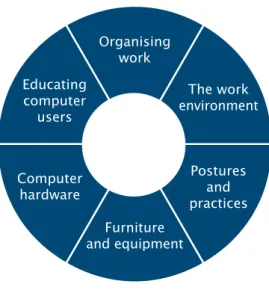
Contributory factors thought to lead to the presence of discomfort, pain and injury in computer users can be grouped into seven categories, as in the diagram below. fIgure 3. conTrIbuTory facTors for dIscoMforT, PaIn and Injury
Contributory factors are not listed in any order of importance, as the impact of each group will vary for different work situations.
You can read more about the seven groups of contributory factors in ‘Preventing and Managing Discomfort, Pain and Injury’ (ACC) and ‘HabitAtWork: Managing Discomfort, Pain and Injury in the Office’ www.habitatwork.co.nz.
We explain these factors below to help you to identify them and recognise the different responses computer user can have to computer work when it is over-demanding. We also include advice to help you put measures in place that will eliminate or minimise the risks these factors pose.
All these factors need to be considered together to prevent or reduce the incidence of discomfort, pain or injury, and it is known that making small, positive changes to several of these factors will have the greatest benefit.
It is also known that human responses to a given situation vary. Different people will respond to situations in different ways, and each individual may respond differently at different times. Some days we feel great and are very resilient, other days we may feel low and be more vulnerable.
Computer work involves a complex interaction between computer users, other people in the work environment, computer equipment, furniture, workstation equipment and the physical and psychosocial aspects of the work environment. The combination effect of these contributory factors alters the overall impact of computer work on the individual. For example, a data entry computer user may manage a work role without discomfort for many years, but with the added pressure of a sick family member they may begin to experience discomfort. other contributory factors for discomfort might include family stress and job-related issues, such as task invariability, workplace layout and a range of work organisation factors.
examples of some of the factors to consider in each category are outlined below. These factors may be listed in more than one category, and this helps to ensure that risks are addressed fully. As an example, note how often ‘monotonous work’ comes up.
IndIvIdual facTors
All individuals are different and some are more likely than others to develop health issues. For each individual there are factors that you can control and some that you can’t. For example, a person’s age, body size, gender and genetic makeup can’t be altered. but a person can influence factors such as smoking, diet, exercise and their ability to perform certain skilled actions.
Individual factors that you need to take into account when planning and organising computer work include:
» The balance of males and females in the workforce, or whether children or young people will use the computers (i.e. it is important to consider the range of sizes of users). This will influence the selection of the sizes, types and adjustability of desks, chairs and other equipment;
» The physical characteristics of computer users (e.g. body weight) as these may affect the selection of equipment – for example, ensuring the strength and stability of a chair are appropriately matched to the weight of the individual;
Individual factors are closely associated with the other contributory factors. For example, if someone has poor knowledge (individual factor) of healthy work practices, they may adopt poor posture (workplace layout and awkward postures) and not take adequate breaks (task invariability). Information on access and mobility design for people with disabilities can be found in NZS 4121:2001 ‘Design for Access and Mobility – Buildings and Associated Facilities’.
» People with disabilities and the accessibility/suitability of the work environment. For example, will computer user with hearing aids cope with the sound levels and acoustic conditions in the office?;
» Computer users who use corrective eyewear and the adequacy and control of lighting levels to cater to their needs;
» The general health of computer users, e.g. do they tend to have an active or sedentary lifestyle? Fit and healthy people are likely to be more resilient and to cope better with work demands;
» The attitudes individuals have towards work and discomfort, pain and injury. Are they positive in their approach to preventing and coping with discomfort, or tend to be reactive and injury-focused?;
» People’s ability to adapt to change and how they might adapt to an open plan style office or prefer smaller offices;
» People’s ability to cope with stress or high workloads.
PsycHosocIal facTors
Psychosocial factors are factors that affect computer users’ perceptions of their work and workplace conditions. These factors can lead to both physical stress (such as tense muscles, altered breathing) and psychological stress (loss of creative thinking, forgetfulness, irritability). Psychosocial work factors often include:
» Lack of personal control over workload management; » monotonous and unfulfilling tasks;
» Deadlines, and tasks with too much (or too little) demand; » Awkward or illogical work processes and tasks;
» Poor social support from managers, supervisors and co-workers; » Poor communication between departments;
» Lack of job security or job development opportunities.
Psychosocial factors can also arise from outside the workplace and may include: » Conflicting demands between work and home;
» Lack of support for work problems at home or home problems at work; » Finance or health concerns;
» Family and relationship issues.
Individuals with strong and supportive relationships both in and out of work, and those who are fit and healthy, tend to be more physically and psychologically resilient.
Researchers believe that the management of psychosocial factors is at least as important as the management of physical factors in preventing discomfort, pain and injury.
WorK organIsaTIon
Work organisation is about the organisation and management of computer work and the jobs involving computer work. This encompasses job design and job training, and the many aspects of work that are the responsibility of managers. Computer users managing their own workloads and managers of computer users must have a good understanding of these issues.
Features of good work organisation that may reduce the risk of computer-related health issues include:
» Work schedules with flexibility, rather than rigid or strict rosters and routines; » Work shifts that are well organised and of suitable duration to reduce the effects
of fatigue;
» Work hours that are predictable and that accommodate outside-work commitments, such as family care and recreational activities;
» The ability for staff to take regular and consistent breaks for rest, micropauses, stretches and exercises. Take care that computer users do not miss breaks owing to high work demands, and that they do not skip breaks in order to finish early; » Well managed workloads that accommodate weekly, monthly or annual peaks
in activity;
» Systems that reinforce healthy work practices. Avoid piece-rate payment schemes and/or reward systems as these can reinforce unhealthy choices and actions; » Good communication within the organisation;
» New employees given adequate time and training to acquire skills;
» Computer users given adequate time to acquire the necessary skills following changes to software, hardware or work processes;
» recognition of challenging tasks, such as activities requiring high mental demand and work that is emotionally demanding;
» Tasks that are varied and/or interesting that promote feelings of fulfilment and value.
WorK layouT and aWKWard PosTures
The design and layout of the workstation have an important influence on the postures and work efficiency of computer users. However, even ‘ideal’ set-ups are not ideal if the operators have not been trained how to, or do not choose to work in, a range of suitable postures. Aspects of workplace layout and posture that may contribute to computer-related health issues include:
» Poor workstation set-up, e.g. desk and/or chair at the wrong height, or a poorly positioned mouse or keyboard;
» Inappropriate selection of computer hardware and software;
» Using a laptop/notebook/netbook in an awkward position frequently or for a long period of time (in a vehicle, at a coffee table, on the kitchen table);
» Poor layout of workstations, e.g. in an open plan office, workstations that are too close; or commonly used reference material placed where it is hard to access; » Working in awkward postures, e.g. over-reaching, bent wrists while typing. Ways to address issues arising from poor workplace layout and awkward postures are covered in Section 3 of these guidelines.
TasK InvarIabIlITy
Task invariability refers to the physical and mental aspects of repetitive work tasks. making sure computer users have enough variation in their work is an important part of preventing computer-related health issues. Note, however, that some computer users find highly variable work prevents them getting any ‘task flow’ (physical rhythm or smoothness, or ‘getting into’ thinking tasks).
Work that has a high degree of invariability may involve: » Tasks with frequent repetition of the same actions;
» Those involving high mental demands or monotonous, under-stimulating, meaningless tasks;
» Tasks that involve holding the same posture(s) for long periods;
» Using just one hand to perform most tasks, e.g. mouse movements, writing, answering the phone and drinking.
loads and forceful MoveMenTs
Loads and forceful movements relate to the way muscles and joints are used and how much work they are required to do. examples of excessive loads or forceful movements that may contribute to computer-related health issues include: » Forceful key strokes;
» Gripping the mouse tightly or holding the mouse when not using it;
» Working with the mouse or keyboard too far from your body, requiring shoulder muscles to work hard to keep your arm and hand in position;
» Using a mouse that is awkward to use e.g. the mouse sticks or the surface on which the mouse is used is poor;
» Having your screen too high, which leads to your lifting your chin up and causes discomfort in your neck;
» mouse movement settings that are very sensitive and lead to additional muscle tension to control the mouse.
envIronMenTal Issues
environmental factors are those associated with your surrounding environment, such as ventilation, temperature, lighting and noise. Computer users may have limited control over these factors, and levels of comfort may vary between individuals. environmental factors that increase the risk of developing computer-related health issues include:
» excessive noise, or noise with a particular sound quality (e.g. high pitched); » Low or high humidity;
» Uncomfortable temperature, i.e. too hot or too cold; » Poor lighting;
» Poor air quality.
1.3
are coMPuTer-relaTed HealTH Issues solely
relaTed To WorKPlace coMPuTer use?
Computer-related health issues are not only work related – many people use computers at home, when travelling or for gaming. The problems that may develop from
computer use can also be caused by domestic or recreational activities that use similar muscle groups or positions, e.g., knitting, model making. Health issues may arise as an accumulation of all activities undertaken.
Although people using computers at home run similar risks of health issues to those described in these guidelines, they often have control over their computer use and when they can stop or take breaks from the computers.
1.4
benefITs of WorKIng safely WITH coMPuTers
People vary enormously. This means you need to ensure that the tasks, working environment and the way you organise work are flexible enough to cater for a range of different computer users. If you incorporate best practice for computer use into your workplace, you will reduce the risk of health issues. The benefits can include: » Less discomfort, pain or injury;
» reduced absenteeism;
» Increased efficiency (work completed more quickly and with fewer errors); » A harmonious work environment.
Consequences of not working safely with computers:
If you don’t manage computer work properly, the consequences may be: » Discomfort or pain;
» Loss of earnings; » Inability to work;
» Problems in quality control and productivity; » Decreases in efficiency;
» Sickness absences;
» Costs of staff replacement and training; » risk of litigation;
» risk of bad publicity; » Increase in ACC premiums.
1.5
ManageMenT coMMITMenT
If you want your programme of managing and reducing the hazards of computer-related health issues to work effectively, you need to demonstrate your commitment to the whole process. This requires:
» both you and senior managers in your organisation to be involved in health and safety management;
» An open management style;
» Two-way communication between staff and management, which encourages ownership of problems and better management of them;
» An appropriate balance between health and safety and business goals; » An environment that encourages the early reporting of discomfort and any
computer-related issues.
Although workplace design and good working practices are important, so are the example you and your managers set and how you show your company’s commitment to health and safety. For example, you might show your commitment by consulting your computer users and acting on their concerns, and by yourself promoting good working practices in the workplace.
Employer commitment is a central element of the joint standard (AS/ NZS4801:2001) on Occupational Health and Safety Management Systems.
The requirements for employee participation are described in Section 19 of the Health and Safety in Employment Act 1992. ACC has developed a ‘Cost Calculator’ that can help you determine the costs of injuries and benefits of making changes to your workplace (www.acc.co.nz/ preventing-injuries/at-work/ injury-cost-calculator/PI00079)
Assessing potential
hazards
Assessing the hazards involved with computer work requires a systematic process of identifying hazards, prioritising their importance, and developing an action plan to control them. You can do this any time: when your workplace is already set up, when you plan to move to new premises, or when you update your existing premises. Changes in technology or work processes are likely to bring about the biggest changes in computer users’ exposure to hazards. As the work changes, the impact of associated hazards may also change, so you need to complete hazard assessments regularly.
2.1
Hazard IdenTIfIcaTIon
The hazards likely to arise from computer work can be grouped according to:
» The way the work is organised;
» The work environment, e.g. lighting, noise, thermal comfort;
» Postures and practices;
» The selection and arrangement of furniture and equipment;
» The selection and arrangement of computer hardware;
» education and training.
When identifying hazards you need to:
» review early report forms;
» review records for previous health issues, e.g. accident reports, ACC claims;
» observe the ways computer users actually perform their computer work, as these may differ from those reported by the computer users or others involved in the work;
» Consider the types of task that will be required and the set-up of the workstation;
» Take account of the preventative or control measures you already have in place. If existing measures are not adequate, you may need to identify further measures you can put in place;
» Work jointly with computer users.
In the following section (Controlling the hazards) we list the possible hazards arising from computer use. For each of the hazards we explain the risks it poses and provide recommendations for creating the best possible conditions for computer work. We recommend you read this section before you move on to the hazard assessment process.
2
The hazards arising from computer work reflect many of the contributory factors for discomfort, pain and injury identified earlier in this document.
Hazards associated with computer work are not listed in any order of importance, as the impact of each group will vary for individuals and different workplace situations.
Hazard assessMenT cHecKlIsT
one way to highlight hazards within your workplace is to use a hazard assessment checklist. A checklist is a particularly valuable tool as it provides a systematic approach to hazard identification so that none of the hazards is overlooked.
A suitable checklist needs to include all significant hazards. It should look beyond obvious physical hazards and consider hazards that are created as a result of the way the work is organised, the training and education of the user, management processes and the culture within the organisation. make sure you consider and include the hazards that are specific to your workplace. You may even find you need to adapt your checklist to suit specific work situations.
2.2
PrIorITIsIng Hazards
The computer workplace can present a number of different hazards. While you may be able to eliminate some hazards, in many cases it may only be possible to isolate or minimise hazards. Here are some practical examples.
Your first aim must be to:
eliminate the hazard from the workplace
If glare from a window is contributing to a computer user suffering migraines, to eliminate the hazard you could block all light from the window.
If eliminating the hazard is not practicable, every effort should be made to: Isolate the hazard
Where noise from a printer or other equipment is a source of stress, to isolate the hazard relocate the printer or equipment to a separate room.
If it is not practicable to eliminate or isolate the hazard, you must:
minimise the likelihood that the hazard will be a cause or source of harm as far as possible
Where a small person is forced to adopt awkward or stressful postures owing to an inappropriately matched desk height, using a footrest could be considered an initial step to minimise the hazard.
Sections 6-10 of the Health and Safety in Employment Act 1992 outline the requirement to eliminate, isolate or minimise hazards in the workplace. Significant hazard means a ‘hazard that is an actual or potential cause or source of:
a) Serious harm; or
b) Harm (being harm that is more than trivial) the severity of whose effects on any person depend (entirely or among other things) on the extent or frequency of the person’s exposure to the hazard; or
c) Harm that does not usually occur, or usually is not easily detectable, until a significant time after exposure to the hazard.’
Health and Safety in Employment Act 1992
You’ll find that you can actually deal with most hazards quickly and easily. However, it may take some time before you can put effective measures into place to control some of them. For example, purchasing new furniture is often costly and may require financial planning. You therefore need to prioritise hazards, and your computer users should be involved in this process. The hazards you prioritise first should include those that:
» Are most likely to cause injury or illness;
» Can be addressed quickly and easily;
» The computer user feels are most important;
» Provide clear benefits in relation to the costs involved in implementing solutions.
owing to the nature of computer work it may be difficult to eliminate or isolate hazards. As such, many of the items in your action plan will involve minimisation strategies. The use of minimisation strategies means that it is important to monitor the effectiveness of the hazard controls.
2.3
develoPIng a Hazard conTrol Plan
once you’ve determined how you are going to tackle the hazards, you need to draw up an action plan. The action plan should record significant findings from the hazard identification and should include:
» Preventative and protective measures you will implement to eliminate, isolate or minimise the potential harm associated with each hazard;
» What further action, if any, is needed to eliminate, isolate or minimise each hazard;
» The timeframe in which you will implement these preventative or protective measures.
You need to review and monitor your action plan regularly to ensure that proposed measures are being implemented and/or re-prioritised.
Controlling the
hazards
This section offers a guide to the most common factors that give rise to hazards associated with the use of computers (Figure 4). We have included information about how hazards can lead to potential health issues and recommendations on how you can prevent or reduce the risks arising from these hazards.
fIgure 4. facTors To consIder WHen usIng coMPuTers
our recommendations are based upon the best research evidence currently available and are primarily drawn from national and international standards and major scientific publications.
owing to the nature of this type of work, it may be difficult to eliminate or isolate hazards. Accordingly most of the controls listed are minimisation steps. because they do not necessarily prevent harm (but minimise the likelihood of it occurring), they require ongoing monitoring and evaluation.
3.1
organIsIng WorK
How work is structured and managed is one of the most important aspects affecting the use of a computer. Work organisation determines whether jobs are varied, stimulating and provide opportunities for people to develop or, instead, are fragmented, monotonous and draining. Psychosocial stressors associated with computer use can be decreased by making sure work is well organised and well managed over time.
3
The order in which each group of factors that give rise to hazards of computer use is presented does not reflect their relative importance. Hazards associated with computer work will vary depending upon individual work situations.
organising work Furniture and equipment Postures and practices The work environment educating computer users Computer hardware
Well organised work should:
» recognise the experience and capabilities of computer users and match work demands to these;
» ensure that there are sufficient resources and time to do the work at all times; » Allow each user to apply a variety of skills and capabilities and undertake a range
of activities;
» Give the computer user a sense of the contribution they are making to the overall output of the organisation;
» Allow the user appropriate control over the priority, pace and procedure; » encourage two-way communication and participation and provide sufficient
feedback on task performance and management;
» Provide opportunities for the user to develop their existing skills and build new skills; » Develop a supportive workplace culture through encouraging participation,
initiative, cooperation, feedback and teamwork. Things to avoid:
» overload or underload, which can lead to unnecessary or excessive stress or fatigue; » Undue repetitiveness, which can lead to excessive strain, monotony or dissatisfaction; » Undue time pressure, which can lead to stress, fatigue or errors;
» Working alone without opportunities for contact with others within or outside the organisation;
» Conflicting communication and/or expectations.
job reQuIreMenTs
Computer users need to have clear descriptions of what their jobs require. This will remove uncertainty, clarify goals and help people to better understand their tasks. Think about the nature of the tasks and the jobs, and any training that may be required to enable people to do their jobs. monotonous tasks, tasks requiring a high degree of specialisation or where computer users have limited control over workflows can all impact negatively on health.
If people are undertaking monotonous or boring tasks, consider rotating a range of varied tasks. It is also worth considering whether the job is interesting to the particular person and, if not, if there is someone else who has a greater interest in it.
When tasks change, you will need to reassess the job for potential problems.
suPervIsIon
Where possible, create clear and unambiguous lines of reporting. Try to make sure that each computer user has only one supervisor. If it’s unavoidable that a computer user has more than one supervisor, there needs to be a system that avoids conflicts. For example, a person with two supervisors may find themselves with conflicting deadlines. The computer user should not be the person deciding which one to meet.
‘User participation in the implementation process is of particular importance with respect to effective implementation and functioning of the system.’ ISO 9241-2:1992
WorKloads
It is important that computer users and managers establish a reasonable balance between the amount of work that has to be done and the number of computer users available to do it. If there has been downsizing or cutbacks on staff, overloading of remaining Computer users is a potential issue.
Computer users also have a responsibility to set reasonable limits for themselves and to talk to managers when the demands are too high. People often find this difficult to do and management may need to take steps to make it possible. Stress arising from recurring deadlines can be avoided by carefully scheduling work flow:
» Plan work to avoid constant, recurring deadlines. People are usually more able and willing to work harder when presented with deadlines that are genuinely urgent (monthly accounting returns, for example);
» Try to anticipate peak workloads. Then, in slack periods, use the downtime to prepare work for those times when deadlines become urgent.
be aware that using bonuses and overtime to increase the productivity of computer users can lead to an increased risk of health issues, as people are tempted to exceed their capabilities. Workloads need to be discussed and agreed on by all parties involved to help reduce these effects.
When some staff are absent, workloads should be managed so that the remaining computer users are not exposed to excessive workloads, as this can increase the risk of health issues. This may mean reducing workloads or temporarily replacing the staff who are absent.
And, remember, you need to allow a gradual build-up to the normal work rate when a person is new to a job or when returning to work after being away, e.g. on holiday or sick leave.
3.2
THe WorK envIronMenT
maintaining the best possible work environment is essential to ensure the health and productivity of all computer users. even if you have selected and arranged the furniture and computer equipment correctly, health issues may still occur if the working
environment is poor.
Physical aspects of the work environment you need to consider include: » Working space; » Location of workstations; » Lighting; » Décor; » Atmospheric conditions; » Noise; » Housekeeping.
The design and arrangement of the work environment are governed by a combination of factors, including work organisation, communication and an individual’s personal environment. ISO 9241-6:1996
WorKIng sPace
You need to make sure that each computer user has the working space they need to carry out their tasks safely and comfortably. The amount of working space needed will depend on the individual user, the nature of their work and the hardware and furniture being used, but you also need to take into account the human need for ‘personal space’. overcrowding caused by placing workstations too close together can contribute to stress and reduced productivity.
Space requirements depend on a number of factors such as: » The nature of the work;
» The hardware used;
» The extent to which facilities are shared; » Storage space;
» Access and egress; » Individual requirements. make sure that:
» The space and design of the workstation allow a range of comfortable working postures.
» Computer users have easy, unobstructed access to and from their workstations.
locaTIon of WorKsTaTIons
It is important to think about the visual environment when planning the workstation layout. The arrangement of lighting, types of light fixture used and locations of windows are all important points to consider. You should aim to provide the appropriate light level to the workstations for all computer users, at the same time accommodating any sources of glare and reflection that may only be apparent in different seasons and at different times of the day.
open office spaces are often divided into smaller or closed offices that rarely account for uniformly positioned overhead lighting. The office layout should be planned around the position of light fixtures to prevent walls or partitions blocking or creating shadows over the work area. Alternatively, lighting configurations should be designed to match the floor plan.
Certain office equipment (e.g. photocopiers and printers) and other people can affect concentration. Computer users who sit near photocopiers and printers may be distracted by the noise and heat of the equipment and the constant coming and going of the people using them.
Draughts created by ventilation ducts, office equipment or open doors may cause discomfort for computer users. Computer workstations should be positioned to avoid these situations. The division of an open-plan office area into smaller enclosed rooms may not allow the ventilation and airflow to function as originally engineered, and therefore should be considered in the planning of the office workstation layout.
For purposes of fire safety, a minimum space requirement of 10 square metres is recommended for offices and staffrooms. Department of Building and Housing (2010).
When you locate a workstation within a room, make sure there is good access to any hardware, wiring or power points that may require maintenance. There need to be enough well positioned power points to prevent the use of multi-plug boards and eliminate trailing power cables.
lIgHTIng
Lighting is particularly important to the comfort, performance and safety of computer users. Poor lighting can cause symptoms of visual discomfort, headaches and migraines. Lighting that causes shadows or glare can also result in awkward working postures as computer users try to get a clear view of their screens or documents. You can use solely artificial sources to provide lighting, but it is preferable to use a combination of natural and artificial light. Lighting intensity falling on a surface is called the ‘illuminance’ and is measured in units of lux.
Illuminance levels
For most computer tasks, the average illuminance level should be at least 320 lux. An acceptable lighting level may require a compromise between the amount of light needed to enhance the computer screen visibility and reduce reflections and glare and the amount needed to perform other office reading and work tasks.
Light needs to be distributed uniformly. In other words, the amount of light falling on horizontal surfaces (the desk top) and vertical surfaces (a sheet of paper on a copyholder) needs to be uniform.
In some instances, higher levels of lighting (600 lux or more) may be appropriate, e.g.: » For visually demanding tasks;
» When liquid crystal display (LCD) screens are used;
» For users who require higher levels of lighting, such as older users.
Lighting requirements will vary with tasks. more lighting may be needed when other source documents are also viewed.
Higher levels of lighting can increase glare and reduce the relative contrast of the screen, making text or characters difficult to read. If additional illuminance is required, the most practical solution is to provide individual task lighting such as a desk lamp. make sure that task lighting:
» Is adjustable in direction and intensity levels;
» Does not produce excessive contrasts in different regions of the workstation; » Does not result in glare or screen reflections at nearby workstations. If you are using a negative polarity display screen (light characters on a dark background), you may need to reduce the workstation illuminance below these recommended levels to avoid screen reflections. If you lower lighting levels, you need to provide task lighting for reading hard copy/print-based work.
For further information on the lighting of interior workplaces, refer to AS/ NZS 1680 (Parts 0-4), ISO 8995 2002, and ISO 9241-6:1996.
‘The arrangement of lighting, the lighting characteristics of the luminaires and the location of the windows can be important variables to consider while selecting the workplace layout.’ ISO 9241-6:1996
Light meters (or lux meters) are often used to measure illuminance. Illuminance should be measured at positions for the task(s) being performed (e.g. level of the screen, document holder).
‘Rapid spatial changes in illuminance around the task area may lead to visual stress and discomfort.’ ISO 8995:2002
Uniform illumination
Computer workstations should be illuminated as uniformly as possible. The difference between the dimmest and brightest areas of the workstation should not be less than 0.8:1, and this includes illumination in the different working planes. This means that the lighting of the screen (vertical plane) should be similar to the lighting of the desk surface (horizontal plane) when the user is in their normal working position. You need to watch particularly for shadows.
A difference of 0.8:1 between the brightest and dimmest areas on a workstation would mean that if the light falling on the desk was 400 lux, the illuminance of the computer screen should not be more than 500 lux.
You should also try to avoid creating large differences in lighting between the wider surroundings and the workstation, as this can cause visual discomfort. The difference between the illuminance of the wider surroundings and the workstation illuminance should not be less than 0.6:1.
A difference of 0.6:1 means that if the workstation illuminance is 500 lux then the illuminance of the wider surroundings should be at least 300 lux.
Colour appearance
Colour appearance is the colour of light coming from an overhead light fixture or task lamp. This is expressed in terms of correlated colour temperature (Tcp). Take care when you choose the colour appearance of artificial lighting as it can affect computer users’ wellbeing and productivity.
If you use daylight for lighting in part of your workplace, you need to make sure that any artificial lighting blends with the natural light. Lamps with a Tcp greater than 4000 K (Kelvin) are best for these situations. However, if a lot of work is done at night, a Tcp less than 4000 K may be more desirable. You can check the Tcp on the design specifications of the light fixture, which you can get from your lighting supplier or the manufacturer. Colour rendering
Computer users’ visual performance is better, and they enjoy greater comfort and wellbeing, when colours appear as natural and as accurately as possible. Artificial lighting can affect this. An objective measure of colour rendering is the general colour rendering index (ra). The poorer the quality of colour rendering, the lower the value. The maximum value of ra is 100. Lighting for computer workstations should have a minimum of 80 ra. You can check the ra in the design specifications of the light fixture, which you can get from your lighting supplier or the manufacturer.
‘The light and luminance distribution of luminaires is the major factor taken into consideration to achieve visual comfort.’ ISO 9241-6:1996
Glare and reflection
You need to prevent or minimise glare and reflection as much as possible. Glare is produced when one area in a person’s visual field is much brighter than another. Glare can result directly from bright light sources that are in the computer user’s line of vision (looking through a window at a bright white wall opposite), or indirectly from surface or screen reflections.
Glare may cause visual discomfort and headaches, as well as reduce the computer user’s performance. Some screen types, particularly those on laptops and notebooks, use technology that gives clear, bright colours, but often at the expense of providing a screen surface that is highly reflective. These may be problematic for users and unsuitable for work environments where the ability to control glare is limited.
Think about how you have positioned workstations in relation to windows or skylights: » Where possible, position workstations at right angles to windows;
» Windows and skylights should have adjustable blinds or drapes to control excess light;
» Consider window coatings that can reduce glare.
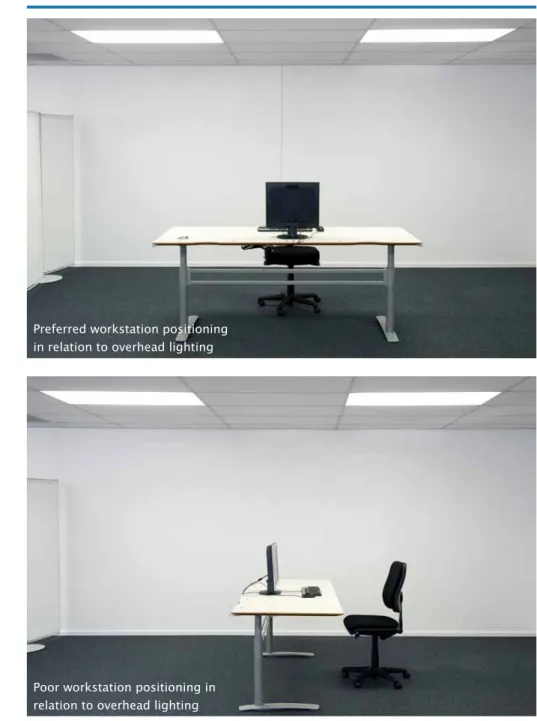
You also need to think about how the workstation is positioned relative to overhead lighting. As far as possible, position the workstation:
» Parallel to, and between, rows of overhead lights (Figure 5);
» So that overhead lights are not directly within the user’s visual field when looking at the screen;
» So that overhead lights are not directly behind the computer workstation (to avoid reflections) (Figure 5).
‘It is important to limit the glare to avoid errors, fatigue and accidents.’ ISO 8995:2002
‘Reflections in the task or its surroundings interfere with visual efficiency and comfort by reducing task contrast and/or causing distraction and annoyance.’ AS/NZS 1680 2.2:2008 ‘The prerequisite to achieve glare control is through the use of screen equipment with an anti-reflection treatment appropriate for the task and the intended environment.’ ISO 9241-6
fIgure 5. exaMPles of WorKsTaTIon PosITIonIng In relaTIon To overHead lIgHTIng
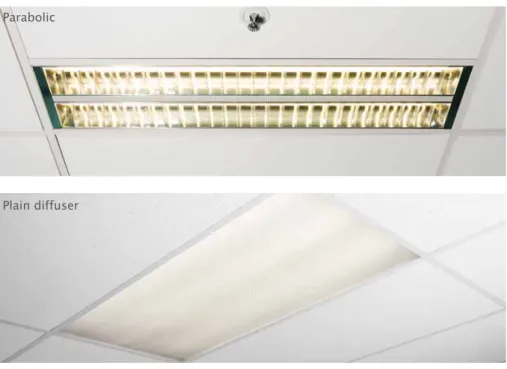
In some instances, you may need to use other measures to reduce glare or reflections: » ensure lights near computer screens are fitted with diffusers, cube louvers or
parabolic louvers (Figure 6);
Poor workstation positioning in relation to overhead lighting Preferred workstation positioning in relation to overhead lighting
fIgure 6. exaMPles of lIgHTIng dIffusers
» Screen visors or hoods may be suitable in certain environments, such as outdoors; » A glare filter should be a last resort, after all other measures fail. (Note that many
modern computer screens come with anti-glare coatings.) Glare filters may not provide a significant improvement and often make it harder to read the screen, reducing image clarity and brightness.
Flicker perception
You need to eliminate any flicker from artificial lighting. Not only is it annoying, it may cause problems such as visual fatigue and headaches. Some individuals are more sensitive to or aware of flicker than others.
If flicker is apparent in older fluorescent luminaires it may be due to the magnetic ballast and/or to the lower operating frequency of the luminaires. In such instances, the luminaires and/or the ballast should be replaced. modern fluorescents with electronic ballasts operate at high frequency and flicker is typically beyond the range of human sensitivity.
maintenance of lighting
Proper maintenance of lighting systems will ensure that they operate efficiently. Clean lamps and light fixtures regularly as this will help to maintain a good level of light. Also make sure that you replace fluorescent luminaires as soon as they age beyond their design lives. You can get the design lifetime specifications from the manufacturer or supplier.
modern fluorescents with electronic ballasts are becoming important for building management systems (bmS) that switch or dim lighting dependent upon the building
Lighting should be cleaned regularly to maintain good lighting levels. Six-monthly cleaning of lights and luminaires is recommended.
Parabolic
occupancy or the contribution of daylight. If sensors are outside the area of occupancy (e.g. in an enclosed office installed subsequent to the bmS design) inadequate lighting levels may result.
energy conservation efforts may result in inadequate illumination if, in the interests of saving power, lights are turned off or lower-wattage and less effective luminaires are installed.
décor
Décor is an important part of the visual environment. Give some thought to décor as you plan the workplace lighting, as the degree to which room surfaces reflect light influences many aspects of lighting. For example, overly dark colours in the décor can create contrasts in brightness so that additional lighting may be required to provide uniform illuminance. This is because dark surfaces do not reflect light as well as lighter surfaces. As a general rule, ceilings should be brighter than walls and walls brighter than floors. The reflectance of room surfaces should be within the ranges recommended in Figure 7. If you are using interior designers, make sure they take this into account at the design stage.
fIgure 7. décor – recoMMended % reflecTance (luMInance) of surfaces
The reflectance of room surfaces for good seeing conditions is based on the recommendations of AS/NZS 1680.1:2006. A. Ceiling 80% or more b. Walls 30% – 70% C. Partitions 30% – 70% D. Furniture 20% – 50% e. Floor 20% – 30% floor Walls brighter than ceiling brighter than A. b. C. e. D.
aTMosPHerIc condITIons
Thermal comfortThermal comfort refers to a person’s satisfaction with their thermal environment. If computer users are not comfortable with their thermal environment they may become tired or irritable and less productive, and this can result in a higher number of errors. Air temperature alone doesn’t determine a person’s comfort. A combination of factors influence thermal comfort, including:
» The level of activity during work; » Air temperature;
» Speed of air movement; » Humidity;
» radiant sources of heat and heat from office equipment; » Insulation from clothing;
» Personal preferences.
The values for temperature, airflow and humidity that we recommend in the following sections apply mainly to computer users undertaking sedentary work. You may need to adjust these where the work involves more physical activity (e.g. warehouse work) or is in extreme thermal environments (e.g. food distribution).
Temperature and airflow
Thermal comfort can be very subjective, with people’s perceived levels of thermal comfort varying significantly. You may find it difficult to suit everyone’s preferences. The recommended temperature and airflow values given below should suit the majority of people.
» For summer (when computer users wear light clothing): – air temperature: between 23°C and 26°C;
– average airflow velocity: 0.1 m/s-0.25 m/s.
» For winter (when computer users wear heavy, winter clothing): – air temperature: between 20°C and 24°C;
– average airflow velocity: 0.1 m/s-0.15 m/s.
In both cases the difference in air temperature from 0.1 metre (ankle height) to 1.1 metres (neck height) above the floor should not exceed 3°C.
If the work involves more physical activity (e.g. warehouse work), air temperature may need to be lowered and airflow increased to suit the individual user. In extreme thermal environments, appropriate clothing may need to be provided.
Humidity
Humidity is the amount of water vapour in the air. relative humidity is the current level of water vapour in the air compared with the level of water vapour that would completely saturate the air. relative humidity is expressed as a percentage.
The relative humidity of the working environment directly affects people’s perceptions of comfort. Humans need a relative humidity of 40% to prevent the mucous
membranes in the mouth, nose and eyes drying out. Humidity levels that are too high can lead to feelings of stuffiness and fatigue.
The recommended relative levels of humidity at specific air temperatures are: Air temperature recommended relative humidity range
20°C 60-80%
22°C 50-70%
24°C 45-65%
26°C 40-60%
If the work involves more physical activity, you may need to lower the relative humidity to suit the individual user.
radiant heat
The most common sources of radiant heat in the workplace are likely to be direct sunlight and equipment such as photocopiers, printers and computer hardware. While radiant heat warms the air, work surfaces and people heat up much more quickly. often the design of office buildings allows for high levels of radiant heat. For example, buildings may lack insulation in the roof or have large windows that let in large amounts of direct sunlight. Air-conditioning systems that have to compete with high levels of radiant heat will have difficulty maintaining a comfortable thermal environment. You need to minimise sources of radiant heat as much as possible. Use outdoor window shades, adjustable blinds, drapes or similar devices to control sunlight, and position workstations to reduce computer users’ exposure to sources of radiant heat. Air quality and ventilation
People react strongly when they think the air is stuffy, stale or polluted and may express this as general dissatisfaction with the environment.
Sources of pollution in buildings may be internal, external or structural. office machinery and fittings, such as photocopiers and laser printers, carpets, wall
coverings, particleboards and cleaning materials may emit a variety of substances such as ozone, formaldehyde and solvent vapours.
You can use natural or mechanical ventilation, or a combination of both, to remove these substances. Inadequate flow rates are associated with a decrease in perceived air quality, increased short-term sick leave and reduced productivity. You may need to seek expert advice to sort out air quality problems, especially if your buildings are air-conditioned. be wary of office modifications where the addition or removal of walls and partitions may impact on ventilation and airflow. modern office buildings are generally designed with air-conditioning appropriate to the initial building layout, and subdividing open spaces into closed office areas rarely takes the position of the air-conditioning inlets and outlets into account. Such disruption to the engineered air-circulation path often leads to ineffective ventilation.
A minimum flow rate of 10 litres per second per person is based on recommendations of NZS 4303:1990. More recent research involving a review of the scientific literature on the ventilation of indoor environments by the European Multidisciplinary Scientific Network on Indoor Environment and Health (EUROVEN, 2002) suggests that flow rates should be closer to 25 litres per second per person.
noIse
In most cases, noise in the office environment (e.g. office equipment, ringing phones, air conditioning/fans, work colleagues) is unlikely to reach levels that are hazardous to hearing. However, office noise can make communicating and concentrating difficult, and may consequently be a source of stress. Generally, the more difficult or complex a task, the lower a user’s tolerance for noise.
Noise is particularly problematic in open-plan offices, with common complaints about interference from nearby conversations and telephones. Special problems arise when the noise has a particular quality. For example, the throbbing of a ventilation duct need not be very loud to be annoying.
measures you can use to reduce noise: » Padding under machines;
» enclosing noisy machines in acoustic hoods; » Carpeting the floor;
» Installing sound-absorbing partitions; » Installing acoustic ceiling tiles;
» repairing, replacing, isolating or relocating noisy equipment; » Lowering the ringer volume on telephones;
» Using telephone headsets rather than speakerphones;
» Providing specific meeting areas that are isolated from normal work areas