Dolby Conferencing Console 2.4.0
Release Notes
1 Introduction
This document provides information about the Dolby Conferencing Console 2.4.0 release, including the latest product features, bug fixes, known issues, and upgrade instructions.
See the Dolby Conferencing Console Administrator's Guide v2.4 for detailed product specifications and operating instructions.
2 New features
Table 1: Features introduced in this release
Dolby Reference Summary
DDMS-1549 Added optional login banner to the Dolby Conferencing Console login page and SSH sessions
Table 2: Features introduced in release 2.3.2
Dolby Reference Summary
N/A N/A
Table 3: Features introduced in release 2.3.1
Dolby Reference Summary
DDMS-1524 Added support for Dolby Voice Huddle 5.0 firmware
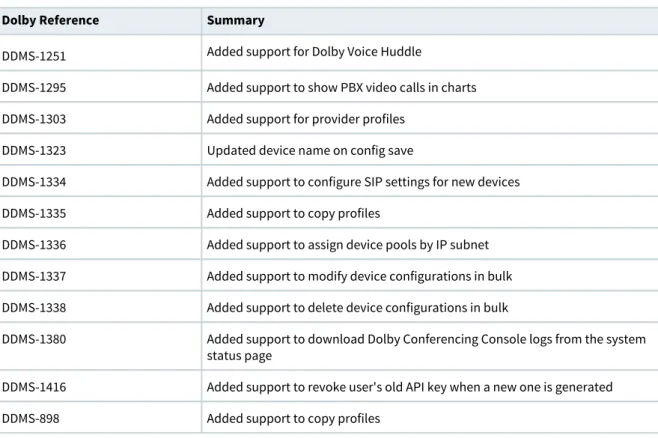
Table 4: Features introduced in release 2.3.0
Dolby Reference Summary
DDMS-1251 Added support for Dolby Voice Huddle
DDMS-1295 Added support to show PBX video calls in charts DDMS-1303 Added support for provider profiles
DDMS-1323 Updated device name on config save
DDMS-1334 Added support to configure SIP settings for new devices DDMS-1335 Added support to copy profiles
DDMS-1336 Added support to assign device pools by IP subnet DDMS-1337 Added support to modify device configurations in bulk DDMS-1338 Added support to delete device configurations in bulk
DDMS-1380 Added support to download Dolby Conferencing Console logs from the system status page
DDMS-1416 Added support to revoke user's old API key when a new one is generated DDMS-898 Added support to copy profiles
3 Fixes
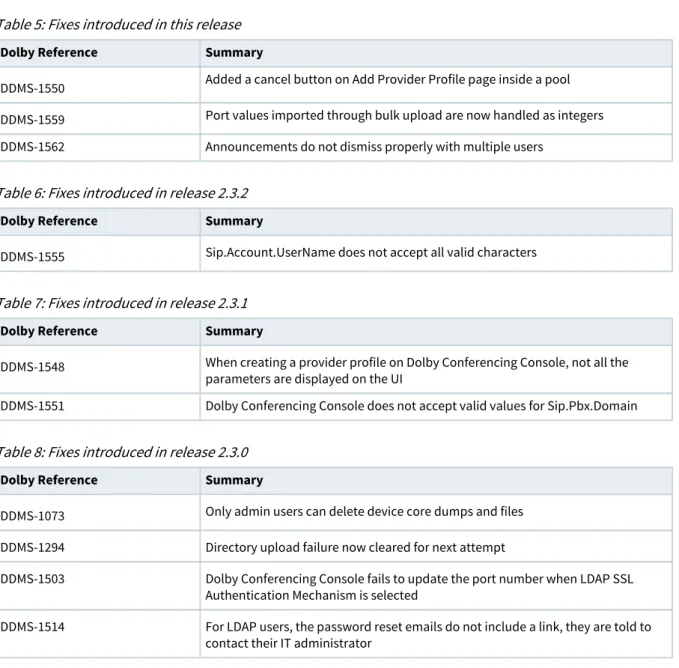
Table 5: Fixes introduced in this release
Dolby Reference Summary
DDMS-1550 Added a cancel button on Add Provider Profile page inside a pool DDMS-1559 Port values imported through bulk upload are now handled as integers DDMS-1562 Announcements do not dismiss properly with multiple users
Table 6: Fixes introduced in release 2.3.2
Dolby Reference Summary
DDMS-1555 Sip.Account.UserName does not accept all valid characters
Table 7: Fixes introduced in release 2.3.1
Dolby Reference Summary
DDMS-1548 When creating a provider profile on Dolby Conferencing Console, not all the parameters are displayed on the UI
DDMS-1551 Dolby Conferencing Console does not accept valid values for Sip.Pbx.Domain
Table 8: Fixes introduced in release 2.3.0
Dolby Reference Summary
DDMS-1073 Only admin users can delete device core dumps and files DDMS-1294 Directory upload failure now cleared for next attempt
DDMS-1503 Dolby Conferencing Console fails to update the port number when LDAP SSL Authentication Mechanism is selected
DDMS-1514 For LDAP users, the password reset emails do not include a link, they are told to contact their IT administrator
4 Notes
Microsoft Internet Explorer and CentOS v6.0 and RedHat v6 will no longer be supported after Dolby Conferencing Console version 2.3.
5 Known issues
Table 9: Known Issues present in this release
Dolby Reference Summary Significance/Impact Workaround
N/A N/A N/A N/A
6 Installation and upgrade procedure
: This section provides instructions on how to upgrade an OVA installation, a RPM installation with a local database, and a RPM installation with a remote database.
Refer to these documents for updated information on how to install and use Dolby Conferencing Console • Dolby Conferencing Console Installation Guide v2.4
• Dolby Conferencing Console Administrator's Guide v2.4
Upgrading from 2.2.0
For EL6 upgrades from Dolby Conferencing Console 2.2.0 to 2.4.0:
yum upgrade dcc-2.4.0.1-1.el6.x86_64.rpm
For EL7 upgrades from Dolby Conferencing Console 2.2.0 to 2.4.0:
yum upgrade dcc-2.4.0.1-1.el7.x86_64.rpm
For Amazon Linux upgrades from Dolby Conferencing Console 2.2.0 to 2.4.0:
yum upgrade dcc-2.4.0.1-1.amzn.x86_64.rpm
When upgrading Dolby Conferencing Console from versions other than 2.2.0 to version 2.4.0, follow the instructions in the Dolby Conferencing Console Installation Guide v2.4.
Amazon deployments
There is a customized procedure for building a Dolby Conferencing Console on an Amazon® Elastic Cloud® instance.
See the Dolby Conferencing Console Installation Guide v2.4. for more information on Amazon® deployments
Duplicate user emails
Starting with Dolby Conferencing Console 2.2.0, duplicate user emails are no longer allowed. Since the email address is used for password recovery, if two users have the same email address, then one user will not be able to perform password recovery. When a new user is created or an existing user’s email address is edited, the change is not saved if the email address is a duplicate. Perform these steps to check for duplicate email addresses:.
1. As the admin user, go to the User list in Dolby Conferencing Console and sort by the new email
addresscolumn. You will be able to see which users have duplicate email addresses.
2. Edit the users with duplicate email addresses to remove the duplication.
You can now change to SAML authentication in the Dolby Conferencing Console UI. • Upgrading an OVA installation
• Upgrading an OVA installation in place
• Upgrading a RPM installation using a local database
6.1 Upgrading an OVA installation
We recommend backing up the data in the current instance, launching a new instance from the new OVA, and restoring the data from the backup prior to upgrading to Dolby Conferencing Console v2.4.0.
About this task
These instructions:
• Use a backup filename of dcc-backup-filename.dat to match what is in the Dolby Conferencing Console Administrator's Guide. However, you can name your backup as desired.
• Use the OVA to create a new instance as a copy of your existing instance. The new OVA instance will be running this Dolby Conferencing Console release. This is the method we recommend. However, if you need to update an OVA instance in place, without creating a new instance, see "Upgrading an OVA installation in place."
Procedure
1. You must enable enable SSH access to copy the backup data out of the old instance and into the new
instance.
Note: SSH must be enabled on both the old instance and new instance. 2. On the old instance, stop Dolby Conferencing Console.
service dcc stop
3. On the old instance, create a backup from the old instance.
See "Backing up the database" in the Dolby Conferencing Console Administrator's Guide
4. On the old instance, copy the newly created backup file to the new one, using a command similar to the
one used on the old instance.
scp /tmp/dcc-backup-filename.dat root@<new instance address>:/tmp
Note: You may want to copy the backup file to another location as a backup. 5. On the new instance, stop Dolby Conferencing Console running:
service dcc stop
Note: This deletes all the data in the database on the new instance.
6. On the new instance, clear and recreate the database.
Note: This deletes all the data in the database on the new instance.
# sudo -u postgres -i psql
postgres=# DROP DATABASE dcc; CREATE DATABASE dcc; GRANT ALL PRIVILEGES ON DATABASE dcc to dcc;
postgres=# \q
7. On the new instance, set the permission on the backup file so the restore script has access.
chown dcc:dcc /tmp/dcc-backup-filename.dat
See "Restoring the database" in the Dolby Conferencing Console Administrator's Guide
8. On the new instance, run the restore script.
9. On the new instance, start Dolby Conferencing Console
service dcc start
You must use the IP address of the new instance to access Dolby Conferencing Console. You may need to change the DNS entry for this.
6.2 Upgrading an OVA installation in place
This section provides instructions on how to upgrade an OVA installation without creating a new instance.
Procedure
1. Copy the Dolby Conferencing Console file dcc-2.4.*.el6.x86_64.rpm to the instance.
2. On the instance, stop Dolby Conferencing Console.
service dcc stop
3. Update the operating system to CentOS 6.10.
yum clean all yum update -y
4. Extract the database data from PostgreSQL.
sudo -u postgres pg_dumpall > /dump.sql service postgresql stop
5. Install PostgreSQL 9.6.
rpm -Uvh https://yum.postgresql.org/9.6/redhat/rhel-6-x86_64/pgdg-redhat-repo-latest.noarch.rpm
yum install -y postgresql96-server service postgresql-9.6 initdb service postgresql-9.6 start
6. Restore the data to the new PostgreSQL version.
sudo -u postgres psql < /dump.sql
7. Install and start Dolby Conferencing Console.
yum update -y dcc-2.4.*.el6.x86_64.rpm service dcc start
8. Make a copy of the database back up file that is located in /dump.sql.
You can remove the file once you have validated that Dolby Conferencing Console is running and contains your data.
6.3 Upgrading a RPM installation using a local database
This section provides instructions on how to upgrade a RPM installation using a local database.
About this task
The commands for PostgreSQL vary with the version installed, these instructions assume your PostgreSQL installation was performed using instructions from the Dolby Conferencing Console Installation Guide . An updated version of PostgreSQL must be installed and the data must be copied from the old PostgreSQL to the new one.
Procedure
1. Stop Dolby Conferencing Console.
service dcc stop
You may want to copy the backup file to another location as a backup.
See "Backing up the database" in the Dolby Conferencing Console Administrator's Guide
3. Stop PostgreSQL.
service postgresql stop
4. Check the /etc/dcc/settings.ini file for the existing database setup and note down the values for DB_USER,
DB_NAME, and DC_PASSWORD.
Note: In the/etc/dcc/settings.ini file, the value for DB_HOST should either be localhost or 127. 0.0.1.
5. Install PostgreSQL 9.6.
You need to use the values from /etc/dcc/settings.ini file.
postgres=# CREATE DATABASE <value from DB_NAME >;
postgres=# CREATE USER <value from DB_USER> WITH PASSWORD '<value from DC_PASSWORD >';
postgres=# GRANT ALL PRIVILEGES ON DATABASE <value from DB_NAME > to <value from DB_USER>;
postgres=# \q
See "Installing a database" in the Dolby Conferencing Console Installation Guide
6. Upgrade the Dolby Conferencing Console installation.
For CentOS 6.0 or RedHat 6
yum upgrade dcc-2.4.*.el6.x86_64.rpm
For CentOS 7.0 or RedHat 7
yum upgrade dcc-2.4.*.el7.x86_64.rpm
For Amazon Linux
yum upgrade dcc-2.4.*.amzn.x86_64.rpm
7. Restore data from the backup
See "Restoring the database" in the Dolby Conferencing Console Administrator's Guide
8. Start Dolby Conferencing Console.
service dcc start
9. (Optional) Uninstall the old version of PostgreSQL or stop it from automatically running.
chkconfig postgresql off
6.4 Upgrading a RPM installation using a remote database
This section provides instructions on how to upgrade a RPM installation using a remote database.
Procedure
1. Stop Dolby Conferencing Console.
service dcc stop
2. Install PostgreSQL RPM.
For CentOS 6.0 or RedHat 6
yum install -y https://download.postgresql.org/pub/repos/yum/reporpms/EL-6-x86_64/ pgdg-redhat-repo-latest.noarch.rpm
For CentOS 7.0 or RedHat 7
yum install -y https://download.postgresql.org/pub/repos/yum/reporpms/EL-7-x86_64/ pgdg-redhat-repo-latest.noarch.rpm
For Amazon Linux
yum install -y https://download.postgresql.org/pub/repos/yum/reporpms/EL-6-x86_64/ pgdg-redhat-repo-latest.noarch.rpm
3. Upgrade the Dolby Conferencing Console installation.
For CentOS 6.0 or RedHat 6
yum upgrade dcc-2.4.*.el6.x86_64.rpm
For CentOS 7.0 or RedHat 7
yum upgrade dcc-2.4.*.el7.x86_64.rpm
For Amazon Linux
yum upgrade dcc-2.4.*.amzn.x86_64.rpm
4. Start Dolby Conferencing Console.
service dcc start
Notices
Copyright
© 2020 Dolby Laboratories. All rights reserved.
Dolby Laboratories, Inc.
1275 Market Street
San Francisco, CA 94103-1410 USA Telephone 415-558-0200
Fax 415-645-4000
http://www.dolby.com
Trademarks
Dolby and the double-D symbol are registered trademarks of Dolby Laboratories. The following are trademarks of Dolby Laboratories:
Dialogue Intelligence™ Dolby®
Dolby Advanced Audio™ Dolby Atmos®
Dolby Audio™ Dolby Cinema® Dolby Digital Plus™
Dolby Digital Plus Advanced Audio™ Dolby Digital Plus Home Theater™ Dolby Home Theater®
Dolby Theatre® Dolby Vision® Dolby Vision IQ™ Dolby Voice®
Feel Every Dimension™
Feel Every Dimension in Dolby™ Feel Every Dimension in Dolby Atmos™ MLP Lossless™
Pro Logic® Surround EX™ All other trademarks remain the property of their respective owners.
Patents
THIS PRODUCT MAY BE PROTECTED BY PATENTS AND PENDING PATENT APPLICATIONS IN THE UNITED STATES AND ELSEWHERE. FOR MORE INFORMATION, INCLUDING A SPECIFIC LIST OF PATENTS PROTECTING THIS PRODUCT, PLEASE VISIT http://www.dolby.com/patents.