TURBO
GAMEWORKS
Owner's Handbook
Copyright ©1985 by
BORLAND INTERNATIONAL Inc.
TABLE OF CONTENTS
INTRODUCTION ... 1
Shake Hands with Your Computer Opponent ... 2
What's Inside Turbo GameWorks? ... 2
Structure of this Manual ... 2
Typography ... 3
The Distribution Diskettes ... 3
Acknowledgments .. . . .. 3
Chapter 1. PLAYING GO-MOKlJ ... 7
How to Play Turbo Go-Moku ... 7
Chapter 2. PLAYING CHESS ... 9
How to Play Turbo Chess ... 10
Making Moves ... 11
The Opening Ubrary ... 12
How Turbo Chess Handles Errors, Checkmates, and Draw Games ... 12
Turbo Chess Commands ... 13
Newgame ... 13
Quit ... 13
Level ...
16
Clocks ... 17
Changing Sides and Terminating Search ... 17
Taking Back Bad Moves ... 18
Need a Hint? ... 18
Changing Colors and Setting Up Positions (The Chess Board Editor) ... 18
Setting Up a Board Using a Text Editor ... 18
Auto ... 19
MultiMove ... 19
SingleStep ... 19
Value Display ... 19
Chapter 3. PLAYING BRIDGE ... 21
How to Play Turbo Bridge ... 21
Options Menu ... 21
Bidding ... 22
The Bidding System ... 24
Table Talk with a Computer? Bidding Strategy ... . . . .. 26
Trick or Treat: Playing the Cards ... 27
Chapter 4. ANATOMY OF A GAME ... 31
Types of Computer Games ... ~ . . . .. 31
How to Recognize a Game When You See One ... . . . .. 32
User Interface And They're Offl
... 33
34 Chapter 5. GO-MOKU PROGRAM DESIGN ... 35
Go-Moku Rules of Thumb ... 35
Basic Playing Strategy ...
36
Evaluating Moves . . . .. 37
Problem Analysis ... 38
Incremental Updating ... 40
Go-Moku Program Structure ... 40
The Data Structure . . . .. 41
Go-Moku Procedures ... 42
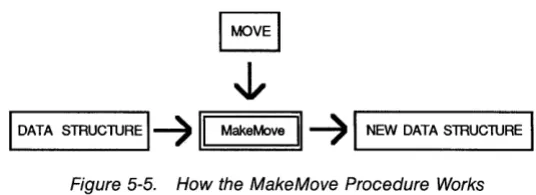
MakeMove ... 42
And and Update . . . .. 44
FindMove ... 45
Chapter 6. CHESS PROGRAM DESIGN ... 47
Evaluating Moves . . . .. 48
The Essence of Chess: Looking Ahead ... 49
The Minimax Search ... 50
How Minimax Helps Turbo Chess Select a Move .. . . .. 50
Alpha-Beta Algorithm ... 52
Iterative Search Before Alpha-Beta ... 55
Tricks for Speedy Searches ... 55
Principal Variation Search ... 57
Sometimes Second Best is Good Enough: The Tolerance Search ... 58
Using Selection ... 59
Horizon Effect ... 60
Program Design: A Closer Look ... 61
Generating Moves ... 61
Chess Evaluation Function ... 64
Rules for the Evaluation Function: "Evaluation Spices" ... 67
Calculation Method . . . .. 69
Advantages/Disadvantages to Piece Value Tables ... 69
Keeping Track of Time ... 70
Program Structure: The What, Not the How ... 71
CHESS.PAS ... 71
TIMEUB.CH ... 71
BOARD.CH .. . . .. 72
MOVGEN.CH ... 78
Move Generation Procedures ... . . .. 78
DISPIAY.CH ... 79
Print Procedures ... 80
INPUT.CH . . . .. 81
EVALU.CH ... 82
SEARCH.CH ... 83
TALK.CH and SMAll.CH ... 86
Chapter 7. BRIDGE PROGRAM DESIGN ... 89
The Challenge of Bridge Program Design . . . .. 89
The Easy Part: The Bidding Algorithm ... , 90
Determining the Bid Class ... 92
The Hard Part: The Play Algorithm ... .. 93
Simplifying the Problem ... 93
Playing a Card ... 95
Program Structure ... 96
BRIDGE ... ' ... 96
Data Types ... 96
Program Body ... 97
DISPIAY.BR ... 102
SCORE.BR ... 103
DEFAUL'fS.BR ... 104
INIT.BR ... 105
INPUT.BR ... 105
BID.BR ... 106
Normal Passes ... 108
Normal Bids ... 108
Normal Double ... 109
Finding and Making the Bid .. . . .. .. .. . .. . . .. ... 109
PIAY.BR ... 110
APPENDICES
Appendix A. TIlE HISTORY OF COMPUTER CHESS ... 117Appendix B. CHESS RlJLES ... 123
Introduction . . . .. 123
The Chess Board and Its Arrangement ... 123
The Pieces and Their Arrangement ... 123
The Conduct of the Game ... 124
The General Definition of the Move ... 124
The Individual Moves of the Pieces ... 124
Completion of the Move . . . .. 125
The Touched Piece ... 126
Illegal Positions ... 126
Check ... 126
The Won Game ... 127
The Drawn Game ... 127
Systems of Chess Notation ... 127
The Algebraic System ... 127
The Descriptive System . . . .. 128
Appendix D. SUGGFSfED READING ... 135
Appendix E. GWSSARY ... 137
LIST OF FIGURES
1-1. Turbo Go-Moku Screen ... 72-1. Turbo Chess Screen ... 10
3-1. Turbo Bridge Screen During Play ... 22
5-1. An Open 4 and Two Open 3s ... 36
5-2. An X at D16 Makes Two Open 3s ... 37
5-3. Go-Moku Evaluator ... 38
5-4. Each Position is Part of 20 lines . . . .. 39
5-5. How the MakeMove Procedure Works ... 42
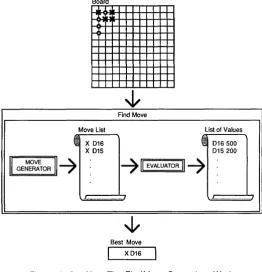
5-6. How the FindMove Procedure Works ... :... 46
6-1. Searching for a Move ... 49
6-2. Sample Game Tree for the Opening Position ... 51
6-3. Sample Search Tree ... 52
6-4. Sample Alpha-Beta Search ... 53
6-5. Searching with Selection ... 60
6-6. The White Bishop is Captured ... 60
6-7. The Move Generator . . . .. 62
6-8. Black Threatens Nc2 ... 63
6-9. Attack Values for White in the Starting Position ... 65
6-10. Piece Value Tables for White in the Starting Position . . . .. 70
6-11. Representation of Squares ... 73
6-12. The Relation between Board and PieceTab ... 75
6-13. Sample Move Representation ... 76
6-14. How the Perform Procedure Works ... 77
6-15. The DISPIAYModule ... 79
6-16. Structure of the Search Procedure ... 84
7 -1. How BidClass and BidSystem Work . . . .. 92
7-2. How the Analysis Algorithm Works ... 95
7-3. Distribution ... 98
7 -4. Data. . . .. 99
7-5. Info ... _ .... 100
7-6. Bids and Game ... 101
7-7. BidTyp ... 106
7-8. Select Lead and Select Card ... 110
A-I. The Turk ... 117
INTRODUCTION
Welcome to the Turbo GameWorks package for the IBM PC and com-patible computers. The software and this manual can enhance your understanding of how to design and program strategic games. The games themselves are also a lot of fun. You can brush up on your Turbo Pascal technique, learn game programming by example, or just sit back and enjoy playing.
To get full benefit from the Turbo GameWorks package, you should be familiar with the Pascal programming language (another program-ming language can be of help, too, but Pascal is best). Turbo Tutor (available from Borland) can get you up to speed in Pascal in a hurry. If your interest is only in playing the games, however, you don't need to know anything about programming.
Computer game programs and what goes on inside them have been, for the most part, the well-kept secret of hobbyists and professional game designers. While we don't divulge any trade secrets here, we do reveal some tricks of the trade for the aspiring game designer.
Turbo GameWorks contains well-commented Pascal source code for three games: go-moku, chess and bridge. The manual walks you through the programs that play each of these games, and provides tips and comments for building computer games in general.
Shake Hands
with Your
Computer
Opponent
What's Inside
Turbo
GameWorks?
Structure of
this Manual
What would a games development package be if you couldn't play? The three games in Turbo GameWorks are all very playable. Each game is introduced with a brief set of rules written by an expert on each topic, followed by the playing instructions.
The games are provided in fully compiled .COM files, so that you won't have to wait even the few seconds that Turbo Pascal would take to compile each program. Turbo GameWorks also provides full source code ready for you to examine, change, and analyze.
Turbo GameWorks takes three well-known games apart for you, to show you what makes them work. We'll cover:
• Evaluating moves- How does a computer game know where to move next? How does it assess your moves? The evaluator is the heart of every computer game.
• Data structures- How does a game designer begin to think about representing the playing field, the pieces and the moves of a stra-tegic game?
• Search strategy-The three fundamental search techniques that help you speed the execution of your games, and the pros and cons of each.
• User interjace-A game is no good if the computer has all the fun! We'll look at Pascal procedures that trap user input, and the aesthetics of screen layout and design.
The body of the manual is divided into two main parts:
• Section I -Playing Turbo Games provides specific instructions for using each game program.
• Section II -Into the Source Code provides a guided tour of each game program, beginning with a description of playing strategy and how that translates into program design and the application of the playing algorithms. Then, the Pascal procedures that affect the play of each game are described.
• Appendix A provides a short history of computer chess. • Appendix B contains the official rules of chess.
• Appendix C covers the rules of bridge.
• Appendix 0 gives a list of suggested books about chess, bridge and Go-Moku.
Typography
The
Distribution
Diskettes
Acknowl-edgments
Throughout the manual, design hints, programmer's tips and anec-dotes that might help your understanding or expand your game pro-gramming horizons are boxed or set apart in the margins separate from the main text.
The body of this manual is printed in normal typeface. Special char-acters are used for the following special purposes:
Alternate An alternate typeface is used in program examples and procedure and function declarationsO
Italics Italics are used to emphasize certain concepts and termi-nologv, such as predefined standard identifiers, parame-ters and other ::,yntax elements.
Boldface Boldface type is used to mark reserved words in the text as well as in programming examples.
Please refer to the Turho Pascal Reference Manual for a complete description of the syntax, special characters, and overall appearance' of the Turbo Pascal language.
The Turbo GameWorks package is contained on two diskettes. Turbo Go-Moku and Turbo Bridge are contained on one diskette, and Turbo Chess on the other. Each game consists of .COM, .PAS, ,CH (for Turbo Chess), .BR (for Turbo Bridge) and help files. Run the README.COM program for a complete list of these files, and for any last minute information not contained in this manual.
To fully benefit from Borland's update and support policy, please complete and mail the license agreement at the front of this manual.
• Turbo Pascal, Turbo Tutor, and Turbo Graphix Toolbox are trade-marks of Borland International
Section I
How to Play
Turbo Go-Moku
Chapter 1
PLAYING GO-MOKU
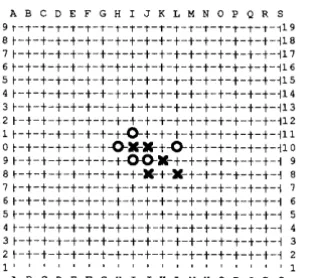
Go-Moku is a simpler version of the ancient Japanese game of Go, and it also closely resembles the contemporary game of Pente. The two players (in this case, the human player and the computer) take turns placing O's and X's on the intersections of a 19 x 19 line grid. The object of the game is to line up five pieces in a row. Watch out-this game is deceptively simple. While Go-Moku isn't nearly as com-plex as Go, it's also not as easy as it first appears. For all its simplicity, Go-Moku can be a real challenge.
ABC D E F G H I J K L M N 0 P Q R S 19r-,-,-,-,-,-,-,-,-,-,-,-,-,-,-,-,-,-119 18r-t-t-t-t-t-t-t-t-t-t-t-t-t-t-t-t-t-,18 17 r-t-t-t-t-t-t-t-t-t-t-t-t-t-t-t-t-t-,17 16r-t-t-t-t-t-t-t-t-t-t-t-t-t-t-t-t-t-,16 15r-t-t-t-t-t-t-t-t-t-t-t-t-t-t-t-t-t-,15 14 r-t-t-t-t-t-t-t-t-t-t-t-t-t-t-t-t-t-,14 13r-t-t-t-t-t-t-t-t-t-t-t-t-t-t-t-t-t-,13 12 r-t-t-t-t-t-t-t-t-t-t-t-t-t-t-t-t-t-,12 11 r-t-t-t-t-t-t-t-O-t-t-t-t-t-t-t-t-t-,ll 10 r-t-t-t-t-t-t-O-X-X-t-O-t-t-t-t-t-t-,l 0 9 r-t-t-t-t-t-t-t-O-O-X-t-t-t-t-t-t-t-, 9 8 r-t-t-t-t-t-t-t-t-X-t-X-t-t-t-t-t-t-, 8 7 r-t-t-t-t-t-t-t-t-t-t-t-t-t-t-t-t-t-, 7 6r-t-t-t-t-t-t-t-t-t-t-t-t-t-t-t-t-t-,6 5r-t-t-t-t-t-t-t-t-t-t-t-t-t-t-t-t-t-,5 4 r-t-t-t-t-t-t-t-t-t-t-t-t-t-t-t-t-t-, 4 3r-t-t-t-t-t-t-t-t-t-t-t-t-t-t-t-t-t-,3 2 r-t-t-t-t-t-t-t-t-t-t-t-t-t-t-t-t-t-, 2
1 I , • , I I I I I I , I , I I I I 1 ABC D E F G H I J K L M N 0 P Q R S
T U R B 0 - G 0 M 0 K U
Newgame Quit Auto Play Hint
U
for Help [image:14.417.129.286.217.356.2]~
Last MoveFigure 1-1. Turbo Go-Moku Screen
On your distribution diskette is a file called GO-MOKU.COM which will let you try your hand at Go-Moku. When you run GO-MOKU.COM (by typing GO-MOKU on the DOS command line), the program dis-plays a playing board containing 19 x 19 squares, laheled from Al to S19. A small cursor appears in the center of the board.
To make a move, use the arrow keys to move the cursor to the intersection where you want to place your piece, and then press
G!J or the space bar. In addition, the
I
PGUPI, I
PGDOWNI, I
HOMEI
andI
ENDI
keys move the cursor diagonally. You can also use the following commands:Newgame Quit Play
Hint Auto
?
Starts a New game.
Quits the program and returns to DOS. The program makes a move. Use this at the beginning of the game to let the program go first, or use it during the game to change sides with the computer.
Gives you a Hint about where to move. The program Automatically plays the rest of the game against itself.
On-line help about whatever you're doing at the moment. Scroll through the help text, then press
I
ESCI
to resume play.To enter a command, press the key of the first letter in the command name
lKJ,
@],
W,
[IJ, [EJ
orOJ·
It's a good idea to try to set up two different rows of three pieces each during the beginning of the game. The program will try to block every row of three that you arrange, but it is possible to win by setting up two of these threats simultaneously. The player who first gets four pieces in a row with hoth ends open will (if vigilant!) automatically win, because the program cannot block two places with one move.
Chapter 2
PLAYING CHESS
According to an Indian legend, chess was originated by a philosopher named Sassa. Sassa invented chess for his King, Shahram, in an at-tempt to devise a game that would rival backgammon in popularity. The King was so pleased by the invention that he offered to give Sassa anything he desired. Sassa asked for a seemingly modest re-ward-an arrangement of corn on the chessboard. He wanted one kernel to be placed on the first square, two kernels on the second square, four on the third square, and so on, doubling the number of kernels on each successive square until all the squares were covered. There is no record of what took place when the King discovered the true nature of this request, but the total amount of corn required to fill the entire chessboard would have been an astronomical 18,446,744,073,709,551,615 kernels!
Legend aside, it does appear that chess was actually invented in North India sometime around the year 500 A.D. The game was apparently supposed to symbolize two Indian armies going into battle. The chess pieces (King, Minister, Elephant, Horse, Chariot, and Foot Soldier) were realistic representatives of the members of the Indian army; their respective moves depicted both the importance of that role and the type of action it performed. For example, the foot soldier of the Indian army filled a weak, menial role-he had to trudge forward and attempt to kill or capture enemy soldiers; this was reflected in the game. The more cautious, circumspect movements of the King and Minister are also represented realistically. The actual method of winning was also portrayed accurately-while it was preferable to kill or capture the king, it was equally effective (although not as glorious a victory) to destroy the army.
Over the next six centuries, chess spread throughout Asia. It made its way to Persia, and then on to China, Korea and Japan. From the Middle East and Northern Africa, it spread to Europe, where the game entered the mainstream culture for the first time. Now, almost 1500 years after it" invention, chess continues to fascinate people all over the world.
How to Play
Turbo Chess
Most chess openings are routine. Chess masters, in fact, memorize openings and responses. We've sup-plied Turbo Chess with a library of traditional open-ings and responses in a file called OPENING.LIB. Until you see the analysis infor-mation on the screen (depth, value, etc.), you'll know that Turbo Chess is playing from its opening library.
enough to challenge a human chess champion. In fact, computer chess is probably the on~v area of artificial intelligence in which the computer can outdo human experts.
You should know how to play chess to get the most out of Turbo Chess. If you don't know how to play, find a beginner's instruction book at your library or bookstore. Consult Appendix D for a list of recommended books. For your convenience, the rules of chess are given in Appendix B.
The file CHESS.COM on your diskette contains the compiled CHESS program file (the main source program is CHESS.PAS). Another file, OPENING.LIB, contains a library of chess openings that the program uses in the early game. Copy these two files to your working copy and then put the distribution diskette away. (Make sure you place the OPENING.LIB file in the same drive and directory as the CHESS.COM file. If OPENING. LIB is not found when the chess program is loading, an error message will be displayed before the game begins.) A script of the games you play will be stored in a text file called CHESS.
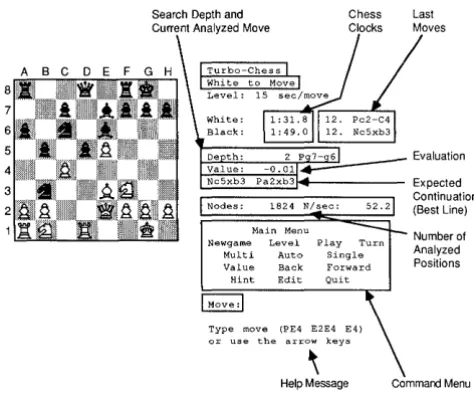
When you run CHESS. COM (by typing CHESS on the DOS command line), the program sets up the chessboard and presents you with a control panel to the right of the board.
8
7
6
4
3
Search Depth and Current Analyzed Move
Chess Clocks
Last Moves
~~~:Eg~;..--- Expected
1824 N/sec:
Main Menu Newgame Level Play
Multi Auto
Value Back
Hint Edit
Type move
the arrow keys
[image:17.416.125.362.305.503.2]Help Message
Figure 2-1. Turbo Chess Screen
Making Moves
• Half Moue or Ply-one
move by one player.
• Full Malle-one turn each for both players.
Non-queen pawn promo-tion is seldom used in practice, but including it in chess code makes for a far more sophisticated and flexible program. Like en
passant, non-queen
promo-tion takes time to imple-ment as a "special case." Perhaps a satisfactory chess program could be designed more simply without these moves, but the resulting game would arguably no longer be ch@ss.
There are three ways to move a chess piece in Turbo Chess: by use of the arrow keys, by algebraic notation, or by short notation. Turbo Chess does not use traditional chess notation (KN-KB3) because each position on the chessboard must be a discrete identifiable location in order for the program to know where each piece is.
The easiest way to make moves is to use the arrow keys and the space bar to point to and move the pieces. To use the arrow keys, press any of the four arrow keys
[IJ, [JJ,
~ and ~ on the numeric keypad (make sure the I NUMLOCK 1 key is off). Fourblink-ing arrows will appear in the middle of the board. Use the arrow keys to point to the piece you wish to move and then press the space bar. Now, move the blinking arrows to the square of your choice and press the space bar again. Additionally, the 1 HOME
I,
1 PGUP I, 1 END I and 1 PGDN 1 keys move the arrows diagonally.For instance, to move white's p-k4, do the following:
1. Press the
[JJ
key three times.2. Press the space bar.
3. Press the
[ I ]
key two times.4. Press the space bar.
While using the arrow keys to make moves is easy, you might prefer to use algebraiC or short notation. In algebraiC notation, each square is labeled, from A1 to H8. You move by entering the square you are moving from followed by the square you are moving to. With short notation, you specify the piece to move and the destination, e.g., NF3.
You can also specify a move by typing in the destination square (legal only for pawn moves). The program makes its move after you make yours. To make the program move first, type [IJ for play.
Instead of entering a move when prompted, you can enter one of the other c()mmands listed in the Quick Reference Guide on pages 14 and 15. Enter a command by typing the first letter of the name (in either upper or lowercase), followed by
Q].
For example, for Newgame, type n, followed by @]. Each of the commands is de-scribed in detail beginning on page 13.Captures are entered just like any other move.
En Pas"sant captures are handled by moving the pawn to the empty destination square; the captured pawn is removed automatically. An en passant capture is a special pawn move that the program some-times uses. Many novice chess players don't know of its existence. But be on guard: Turbo Chess does.
The Opening
Library
How Turbo
Chess Handles
Errors,
Checkmates,
and Draw
Games
• Draw by stalemate: the player whose turn it is to move cannot do so with-out entering check (illegal).
• Draw by third repetition: the same position appears three times with the same player having the move each of the three times. • Draw by 50 moves: a
maximum of 50 moves can take place since last capture or pawn move.
Pawn promotion can be entered in two ways. If you use algebraic notation, the program automatically gives you a queen. If you use the short notation, you should enter the desired piece type as the moving piece (for example QE8 if you want a queen). The program generally chooses a queen for itself, but in some situations it may surprise you by taking a different piece.
The opening library is a binary file named OPENING.LIB on the distribution diskette. During an opening situation, the number of moves a player can make is almost infinite, and the difference in value between them almost infinitesimal. We've supplied Turbo Chess with a library of traditional openings and responses. You will know that Turbo Chess is using this library when it displays the message "Using opening library" in the evaluation panel. When it has left the opening library, Turbo Chess will display its evaluation information (depth, value, etc.) in the evaluation panel.
If you try to make an illegal or impossible move, or try to cheat, Turbo Chess notifies you of the error and prompts you for another move. You cannot enter an illegal move in Turbo Chess.
The program also displays a message near the bottom of the control panel under the follOWing conditions:
• If the program puts you in check • If you put the program in check • If the program resigns
• If the program finds a forced mate (with number of moves to achieve mate)
• If the game is a draw
The program recognizes a draw by a stalemate, third repetition and the 50-move rule (see Appendix E for a definition of these terms). The program will resign when it is heavily behind in material (num-ber and value of remaining chess pieces), but it will not resign if it is being mated by you. When the program reSigns or the game is a draw, you can always choose to ignore this by making the next move, thus forcing the program to continue playing move by move.
• Best Line-the series of
moves that the program expects the game will follow.
• Search Depth-the num-ber of half moves that the program has looked ahead.
Turbo Chess
Commands
Newgame
Quit
on the control panel shows how the program rates its own position in the game. It measures the evaluation in numbers of pawns (for example,
+
3.00 means that the program is three pawns ahead). A positive number indicates that the program believes it has the advan-tage; a negative number means the advantage is yours.During the search for a move, the program tells you the total number of analyzed nodes, as well as the number of analyzed nodes per second. A node is the point in computer logic where a number of potential moves diverge. The number of analyzed nodes is equivalent to the number of positions the program has analyzed.
The program also creates a listing of the moves of the game. This listing is stored on the disk in a file called CHESS. Any number of games can be stored in this file; however, you should rename the CHESS file if you wish to permanent£v save any games, because the file will be overwritten the next time you run CHESS.COM. If you want a hard copy of the game you just played, you can print out the CHESS file.
Sample Chess File Listing
No Player Program Hint Value Level Nodes Time
1. Pe2-e4 Pc7-c5 ( ) 0.00 0: 0 0 0.0 2. Qdl-h5 Ng8-f6 (Qh5-e'5) 0.04 3:19 1250 34.0 3. Qh5-f5 Pd7-d5 (3fl-b5) 0.05 2:12 997 33.0
This is a sample listing of the information Turbo Chess stores in the CHESS file. The CHESS file is always stored in the current logged directory on the logged drive-not necessarily on the games disk.
Enter the letter of the command that is highlighted on the menu followed by
Q]
(for example, to Play, enterW
Q].
Also be aware that some letters are used twice (although in different menus) to indicate different actions. Thus, entering anOJ
from the main menu will get you the Level menu, but if you are in the Edit menu, pressingOJ
will load a previously saved board from disk. Consult the Quick Reference Guide on pages 14 and 15 for an easy-to-follow flowchart and summary of the commands.To terminate the current game and start another, use the Newgame command when prompted for a move.
'""" ~
t:i
d-O G)
III
3
CD
~
*
C/.)
o
~
CD ~
C/.)~
:t:
III
:::)
§:
Chart of Turbo Chess Commands
I
MAIN MENUNewGame (N) Level (L) Play (P) Turn (T)
I
Resets board
T
Renews game
I
Automatic return
Enter seconds per move
Matches your playing speed
Enter number of plies for search
Returns to main menu
Fulltime (F)
Enter minutes for entire game
Indefinite (I)
Will exhaustively evaluate all nodes for best move until you interrupt by typing P
MateSearch (M)
Looks for checkmate solutions only
MultiMove (M) Auto (A)
"1J
s;:
::s
<:
G)
()
~
C/)MAIN MENU
(cont.)
Chart of Turbo Chess Commands continued
Moves the piece that the program believes has the best next move, then moves piece back
Removes all pieces from the board
Loads a previously saved board from disk (enter file name)
Returns to main menu (Note: the program will not let you exit to the main menu with an illegal board position)
Level
Turbo Chess takes, on average, 1'5 seconds to make a move. If you want to play at a different pace, you can set the level h(fore you start the game using the Level command. The Level menu is then dis-played. There are six different ways to set the levels: Normal, Full time, Demo, Infinite, Ply search and Mate search.Normal Full time Demo Infinite Ply search Mate search Quit
Level Menu Options
Enter seconds per move Enter minutes for whole game Plays at the same speed as you Analyzes until you interrupt Enter number of plies Looks for checkmate solutions Returns to main menu
• For Normal level, specify the average response time per move in seconds. The program will maintain a time budget, so that it makes a certain number of moves within the time you specify. The program uses more time for complex moves and less for simple ones, but it averages out the time over a number of moves.
If it uses a lot of time in its opening moves (i.e., if it doesn't use the opening library),,it will play more quickly later on. There is a time control after 40 moves and after each succeeding 20 moves. Thus, if you give the program 180 seconds (3 minutes) per move, it will play 40 moves in 2 hours, and then 20 moves per 1 hour the rest of the game.
• For Full time level, specify the total time for the whole game in minutes. The program budgets its time as mentioned above but it will play the entire game within the specified time limit. Thus, if you want to play "blitz chess," give the program a total of 5 minutes (and if you're going to play fair, don't use more than 5 minutes yourself!).
• Demo level plays at the same speed as you do, regardless of whether you play quickly or slowly. This level is used when you want a nice, quiet home-style chess game with no concern about time.
Clocks
Changing Sides
and
Terminating
Search
a possible move. Note: Even at infinite level the program will use the opening library of moves, so to get an "infinite" analysis of traditional openings, temporarily move OPENING.LIB out of the current directory.
• Ply search level analyzes to a fixed search depth, measured in plies (half moves). This comes in handy when you want to ex-periment after changing the program, or when you want the pro-gram to play at a high level.
• Mate search looks for checkmate solutions. The program first tries to find a mate in 1 move, then a mate in 2, 3, 4, 5 ... moves. When the program finds a definite checkmate solution, it plays it. You can then enter a defensive move, after which the program will complete the mate. A good way to make use of Mate search is to load one of the ready-made chess problem files on your diskette (MATE.01, MATE.02 ... MATElO). Set the level to Mate search, quit level mode, and then press
[I]
to play. Or, you could set up a chess problem from one of the popular chess columns in most newspapers and see what Turbo Chess comes up with for a solution.The program has two internal chess clocks, one for each player. When you change the level during the game, the chess clocks are automat-ically reset. For normal level, the clocks are set to the average time per move, multiplied by the number of played moves. For other levels, the clocks are set to zero. Thus, if you play in a tournament in which the time limit is 2 hours for 40 moves, plus 30 minutes for the rest of the game, you should start by giving the program 180 seconds per move, and then after 2 hours give the program 30 min-utes for the rest of the game. A limit of 180 seconds results in 2 hours for 40 moves (3 minutes x 40 moves). Setting total time for 30 minutes at that point gives a 21/2 hour tournament match.
When you enter
[I]
(for play), the program makes a move. Thus, if you start the game with this command, the program will make a move for white, and you will then play the black pieces. If you also enter the Turn command, the program will turn the board around, so that the black pieces are at the bottom of the screen.Taking Back
Bad Moves
Need
a
Hint?
Changing
Colors and
Setting Up
Positions (The
Chess Board
Editor)
Setting Up
a
Board Using a
Text
Editor
If you make a bad move-or any move, for that matter-you can take it back with the Back command. The Back command takes back the most recent one half-move. For instance, if the program captures your queen, you can recover it by taking back two half moves, one for the program and one for yourself. You can take back as many moves as you like, all the way to the beginning of the game. The Back command enables you to evaluate your previous moves and thus strengthen your game. Afterwards, you can enter Forward to march forward through the moves of the game again, and return to where you were before you started Back.
Enter Hint, and Turbo Chess "advises" you by playing the best move on the board. You can use the Hint command both when it is your turn to move and while the program is analyzing.
When you start experimenting with the program, you will probably want to set up a particular position or chess problem. You can do this with the editor, which is invoked with the Edit command. The edit menu will then appear. place white and black pieces on the board by entering the piece type followed by the square name (for example
QD8 to place a queen on D8). You can use the arrow keys to specify the destination position and edit the board. Chess problems can be set up on a clear board, or you can enter the editor in the middle of your game and add or subtract pieces. You can clear the whole board with the Clear command. You can save chess positions you set up with the SaveBoard command, or load a position with the LoadBoard command. Turbo Chess comes with a number of chess problems already laid out; these programs are contained in the files MATE.OOl, MATE.002 .. MATE.OlO.
You can change which color will move next with the White and Black commands. Remove a piece from the board by entering a space, followed by the square name. Leave the editor with the Quit com-mand. You must have a legal number and configuration of pieces on the board in order to quit the editor. When you leave the editor, the color next to move will be the same color as the last entered piece.
Auto
Mu/tiMove
SingleStep
Value Display
WHITE to Play WHITE=Program WK H2 WP G3 BK C~
You can put comments here. Date match played: 22 OCT 1985 with Koltanowski.
The first line indicates the color of the next piece to be played. The second line indicates which side the computer is playing. The lines that follow indicate which pieces are on the board; they are in the following format:
[Color: W or B][Piece: P,N,B,R,Q,KJ [File: A-H][Rank: 1-8J
For an example of a board saved to disk, please refer to one of the MATE files included on the diskette.
Note that you can easily set up a game using the EDIT selection on the chess program's main menu (see section above).
Auto causes the program to play against itself; this might result in a better game than if you play against the computer, and can thus help you improve your own game. When a game is finished, the program starts a new one. Stop the sequence of games by entering Auto again, or by entering
[MJ
for MultiMove.The MultiMove command permits you to enter moves for both you and the program (or play with another human friend). This feature is useful when you want to set up a particular opening position, or when you otherwise experiment with the program. To return the program to regular playing mode, use the MultiMove or Auto com-mands.
The SingleStep command is used primarily for debugging the pro-gram or to take a look at how the propro-gram "thinks." In SingleStep mode, the program displays its analysis on the screen move by move, one move each time you press
G2].
To turn off SingleStep mode, press[§J
before you pressG2].
squares. Leave the value mode with the Quit command. The evalua-tion funcevalua-tion is described in detail in Chapter 6, Chess Program De-sign.
How to Play
Turbo Bridge
Options Menu
Chapter 3
PLAYING BRIDGE
Bridge is one of the most popular card games in Europe and North America. In the United States it's even more popular than chess, prob-ably because of the social nature of the game and because it offers an ideal combination of fun and intellectual stimulation.
You should already know how to play bridge to get the most out of Turbo Bridge. If you don't know how to play, find a beginner's in-struction book at your library or bookstore. Consult Appendix D for a list of recommended books. For your convenience, a brief descrip-tion of basic bridge rules and strategy is given in Appendix C.
The file BRIDGE.COM on your diskette contains the compiled BRIDGE program file. When you run BRIDGE. COM (by typing
BRIDGE on the DOS command line), the optiOns menu will appear.
The options menu lets you select how you want to play. You can change any of the default settings described below or just press [}] to begin playing. To move the cursor (the two blinking arrows) around within the options menu, use the ~, ~,
[JJ
and[ I ]
keys on the numeric keypad (make sureI
NUMLOCKI
is off). (Note that upper and lowercase letters are treated the same in Turbo Bridge; a capital P is equivalent to a lowercase p, and so on. Just use whichever is easier for you.)The default settings given in the opening menu are listed below.
1. Select hands you wish to Play: NORTH EAST SOUTH WEST [default
=
SOUTH]To select the hand(s) you wish to play, position the cursor over the desired hand and press the space bar. All hands that you select to play will appear on the screen in reverse video. The program will play any hands you don't select.
2. Display all 4 hands?
[default
=
NO (only your hands are displayed)]Bidding
3. Should the program cheat and look at your cards? [default = NO J
Do you want the program to cheat by looking at all hands on the table? Use the arrow keys to position the cursor over the answer and press the space bar to toggle between YES and NO. (Note: as with human players, the program will play a stronger game of bridge if you let it peek at your cards.)
4. Play
When you're ready to start playing, press
IT]
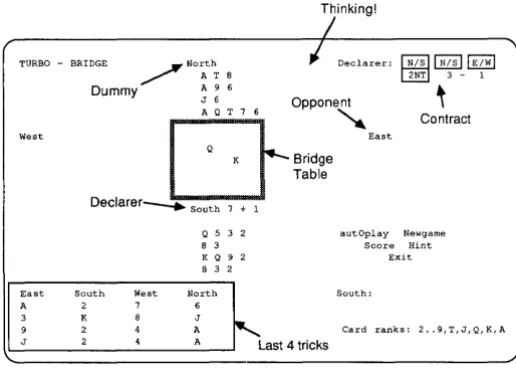
or position the cur-sor over the Play box and press the space bar. The bridge screen and bid menu (described in the next section) will then be dis-played. The bridge screen appears as a square bridge table; the bids and played cards for each trick will be placed on the table.Turbo Bridge uses the same bridge layout convention as most books and newspapers: East-West, North-South as partners (ab-breviated as E, W, N, S), with South at the bottom of the screen.
Thinking!
I
I
Declarer: ~~~~ 3 - 1
TURBO - BRIDGE ~ North
~ AT 8
West
East
A 3 9 J
~
Dummy A 9 6
J 6 Opponent
D
A Q T 7 6 ~EastQ K Bridge
Declarer---. South 7 + 1
Q 5 3 2 8 3
K Q 9 2
8 3 2
Table
Contract
autOplay Newgame Score Hint
Exit
South West North South:
2 7 6
K 8 J
,
.
2 4 A Card ranks: 2 •. 9,T,J,Q,K,A
[image:29.416.126.384.235.424.2]2 4 A Last 4 tncks
Figure 3-1. Turbo Bridge Screen During Play
The program automatically bids and plays its own hands. The bids and the played cards are both shown on the bridge table and in the information window in the lower left part of the screen.
To enter a bid, type the bid level (1-7) and the suit. The suits are entered as C,D,H,S and N for Club, Diamond, Heart, Spade and Notrump. Thus, one club is entered as lC (or Ie) and 7 notrump is entered as 7N (or 7n).
If you make a syntactically correct bid that is illegal, for example, opening the bidding with Double, the computer will ring a bell and tell you that you have made an invalid bid.
The bid menu options are described below. To select an option, press the key indicated by the highlighted letter on your screen.
• [D ]ouble. Press
[QJ
to double the bonus for making a contract and the penalties for defeating the contract.• [R]edouble. If your opponent has doubled your bid, you can, if you wish, press
[KJ
to redouble the bid.• [P] lass. To pass during the bidding, press
IT],
Four other options are also available:
• [C]lear Bids. Press
W
to clear all bids without re-dealing the cards. This is useful if you make a blunder when bidding and want to try again.• [N]ewDeal. If you don't like the hand you've been dealt, you can tell the computer to re-deal the cards by simply pressing
[]J.
This option also clears the bids. You will be given the option of returning to the default menu before new cards are dealt. • [S]core. To view the current score, press
W
from within the bidor play menu (the play menu is discussed on page 27). The menu will be replaced by the score card. The score is accumulated until one of the teams wins a rubber (two out of three games). To return to the appropriate menu after viewing the score, press any key.
The Bidding
System
Bidding Quick Reference
Bidding 1 club 1 diamond 1 heart 1 spade 1 notrump Double Redouble
lC 10 IH IS IN
o
R
Pass P
Other Options from Bid Menu
Clear bids C
New deal Current score eXit to DOS
N S X
(Remember that upper and lowercase letters can be used inter-changeably; for example, lC and lc both indicate 1 club.)
Bidding ends when a bid is followed by three consecutive passes.
The program uses a homemade bidding system called Simplified Goren with Modifications. As with any computer program, we must sometimes restrict input to a set of factors we can handle. We'll talk more about this in the Program Design section of this book.
To get the most out of Turbo Bridge, you should conform to the Simplified Goren system detailed below. For more information, see Goren's books (some of which are listed in Appendix D, "Suggested Reading").
High-card points are counted as usual (ace 4, king 3, queen 2 and jack 1). Distribution points are 3 for void suit, 2 for singleton and 1 for doubleton. The distribution points do not count in NT bids.
Below you can see how many combined points you and your partner should have in order to bid game or slam:
4 in Suit 26 points 3 NT 26 high card points 5 in Suit 29 points
Bid
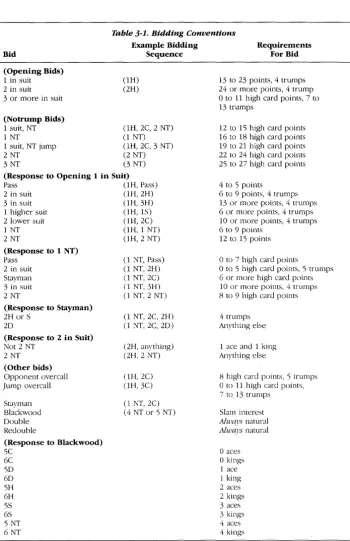
Table 3-1. Bidding Conventions
Example Bidding Sequence
Requirements For Bid
(Opening Bids) 1 in suit 2 in suit 3 or more in suit
(Notrump Bids) 1 suit, NT 1 NT
1 suit, NT jump
2 NT 3 NT
(1H) (2H)
(lH, 2C, 2 NT) (1 NT) (1H, 2C, 3 NT)
(2 NT)
(3 NT) (Response to Opening 1 in Suit)
Pass (1 H, Pass)
2 in suit (1H, 2H) 3 in suit (IH,3H) 1 higher suit (1H, IS) 2 lower suit (1H, 2C)
1 NT (1H, 1 NT)
2 NT (1H,2 NT)
(Response to 1 NT) Pass
2 in suit Stayman 3 in suit 2 NT
(Response to Stayman) 2H or S
20
(Response to 2 in Suit) Not 2 NT
2 NT (Other bids) Opponent overcall Jump overcall
Stayman Blackwood Double Redouble
(Response to Blackwood) 5C 6C 50 60 5H 6H 5S
(1 NT, Pass) (1 NT, 2H)
(1 NT, 2C)
(1 NT, 3H)
(1 NT, 2 NT)
(1 NT, 2C, 2H)
(1 NT, 2C, 20)
(2H, anything) (2H, 2 NT)
(lH,2C) (lH,3C)
(1 NT, 2C) (4 NT or 5 NT)
13 to 23 points, 4 trumps 24 or more points, 4 trump
o
to 11 high card points, 7 to 13 trumps12 to 15 high card points 16 to 18 high card points 19 to 21 high card points 22 to 24 high card points 25 to 27 high card points
4 to 5 points
6 to 9 points, 4 trumps 13 or more points, 4 trumps 6 or more points, 4 trumps 10 or more points, 4 trumps 6 to 9 points
12 to 15 points
o
to 7 high card pointso
to 5 high card points, 5 trumps6 or more high card points 10 or more points, 4 trumps 8 to 9 high card points
4 trumps Anything else
1 ace and 1 king Anything else
8 high card points, '5 trumps
o
to 11 high card points,7 to 13 trumps
Slam interest
Always natural
Always natural
[image:32.417.31.381.19.560.2]Table Talk With
a
Computer?
Bidding
Strategy
All four-card suits are biddable (even 5-4-3-2). There is no weak club bid. When choosing between four-card suits, the lowest ranking suit is bid first. If a five-card suit is available, the highest ranking such suit is bid. Thus, with a 3-4-4-2 distribution you open in diamonds, with a 4-1-4-4 distribution you open in clubs, and with a 5-5-2-1 distribution you open in spades.
With notrump distribution (4-3-3-3, 4-4-3-2 and sometimes 5-3-3-2) you always bid NT, either immediately or in the second bid. Opening one in a suit followed by NT at the lowest possible level means 12-15 high card points (hp), while opening one in a suit followed by jump in NT means 19-21 hp.
With the modified Goren system you can exchange a lot of infor-mation without bidding very high. For example, opening one spade means either you hold five spades or the very rare 4-3-3-3 distribu-tion. With 3-4-4-2 distribution and 12-14 hp you open one diamond. If your partner has four hearts, slhe will bid them (unless of course slhe also has a five-card suit). Thus, if slhe does not bid one heart, you can assume that slhe does not have four hearts. So unless slhe bids hearts or diamonds, you will show your NT distribution in the second bid. If slhe bids one spade you bid one NT, and if slhe bids one NT or two clubs you bid two NT.
One NT in response to opening one in a suit does not promise anything about the distribution. It just means that you cannot bid any of your four-card suits. Thus one NT in response to opening one diamond means no four-card suits in hearts or spades.
Bidding two in a suit (other than clubs) in response to opening one NT is a very weak bid, which means that the player thinks two in the suit is better than one NT. The partner should always pass to this bid. Two clubs in response to one NT (or three clubs in response to two NT) is a special bid called the Stayman convention. It shows nothing about the club suit, but asks the partner to show four-card suits in hearts or spades. If the partner has any, slhe bids it, otherwise slhe bids diamonds. If the partner has four cards in both hearts and spades slhe bids hearts.
Opening two in a suit is a strong bid, which always forces to game. Two NT in response is an "artificial bid." It shows a weak hand. Any response other than two NT means slam interest and suggests at least an ace and a king.
Trick or Treat:
Playing the
Cards
Notice that doubles and redoubles are always natural. An overcall bid requires a five-card suit, and a shutout bid requires a seven-card suit.
The play begins when the bidding is finished. The declarer is the partner of the pair winning the contract to first bid the contract suit. The dummy is the declarer's partner. The player to the left of the dummy (clockwise) plays the opening lead, Then the dummy's cards are revealed. After the opening lead, the screen picture is turned around, so that the declarer is placed at the bottom and the dummy at the top of the screen.
The declaring side, the contract bid, and the current number of tricks won by each side are displayed in the upper right hand corner of the screen. When the computer is playing the current hand, this is indi-cated on the screen (e.g., "West to Play"). When it is your turn, the play menu will come up and you will be prompted with the hand you are to play (e.g., South). (If you are in AutoPlay mode, the mes-sage "Auto Play" is displayed.)
Enter a card to play simply by entering the rank and suit. The values are entered as A,K,Q,J,T for Ace, King, Queen, Jack, Ten and 9-2
for the low cards. Thus AS means ace of spades, TH means 10 of hearts and 2C means 2 of clubs. If just one suit is being played, just enter the value. If clubs have been led, A means ace of clubs. You must follow suit if possible; the program strictly enforces this rule. If only one card can be played, the program will play that card auto-matically without asking you to enter a card. If you press ~ the program will play the lowest card that can be legally played. Trumps are considered to have higher value than non-trump cards. If two cards have the same value, the card in the lowest suit will be played. For example, if clubs are led, press ~ to play the lowest club. If
you have no clubs, press
QJ
to discard the card with lowest value.In addition to playing the cards, there are four other options available from the play menu:
• [S]care. Press
W
to view the correct game score.• Aut[ 0 ]Play. Press
[QJ
to tell the computer to play out the hand for both bridge teams. This is useful if you have made the contract and you are not concerned with the outcome of the game.• [H]int. Press
[ill
to ask for a hint. The computer decides what card you should play and displays it on the command line. To play the suggested card, press ~. To clear the hint, press theI
BACKSPACEI
key.• e[XJit. Press
DO
to end the game. Pertinent information about the game you just played will be stored in a text file named "BRIDGE."ace of spades
Play Quick Reference AS
king of hearts queen of diamonds jack of clubs jack of lead suit
ten of spades 9 of hearts 2 of clubs
Computer selects low KH
QD
JC
J[;D
TS 9H
2C
card of current suit
[;D
Other Options from Play MenuScore S
AutoPlay 0
NewGame N
eXit to DOS X
(if suit has been led, you don't have to specify it)
If you play an invalid card, the computer will ring a bell and tell you that you have made an invalid play.
The bridge table displays the played cards for each trick. When a trick is completed, the number of won tricks will be updated and the cards will remain on the table for your analySiS until a key (any key) is pressed.
When the game is finished, the score card is displayed with the game results. The score card remains on the screen until any key is pressed. Some typical game result comments are: "N/S made contract with one overtrick," which means that the declarer got an extra trick, and "EIW down 1," which means that the contract was missed by one trick.
The score will be displayed until you hit any key to continue to the next game. You will then be asked if you want to reset the playing options before resuming play.
Section II
Types of
Computer
Games
Chapter 4
ANATOMY OF A GAME
This chapter introduces you to computer game design concepts that are taken for granted throughout Section II of this manual. In partic-ular, three fundamental parts of any strategic computer game are discussed: data structure, evaluation, and user interface.
Three different game genres have emerged during the relatively brief history of the game-playing computer:
• Strategy Games-board games and card games, or games played on a (sometimes imaginary) grid. All three games in the Turbo GameWorks package fit this category. These games are strategic because of the superiority of one position over another, calculated according to the rules of the game. Games like bridge and chess figure into the strategy category because players use an array of 52 cards with different values, or an array of 64 squares and pieces with different values.
• Hand/Eye Games-"shoot-'em-ups", driving games, and other video games that pit the speed and coordination of the human player against the processing power of the computer. These games generally use a highly detailed graphic screen display. Strategy here may be limited to hiding in the rocks or among the asteroids as you shoot. The displays for some of these games are extremely realistic. Turbo GameWorks does not deal with games of this type. • Adventure Games-you assume the identity of a character (an array of values, again) in a story-like puzzle that is often repre-sented textually as an underground maze of tunnels and rooms. Zork is one of the more well-known adventure games. The pro-gram translates your responses to different "events" into a better-or-worse position for solving the puzzle. Turbo GameWorks does not deal with role-playing games.
These game genres emphasize different aspects of computer game playing: positional strategy, sophisticated graphics programming or puzzle-solving. Under the skin, though, they are all much more alike than they are different. Strategy games, hand/eye games and adventure games all share common elements, although we'll be concentrating on strategic games in Turbo GameWorks.
How to
Recognize a
Game When
You See One
Data Structure
atively easy to understand, and the data representation of the board and pieces makes good sense.
For a hand/eye game, we'd have to take a lot of time to explain complex shape and animation routines that have little to do with the design of the game itself. In an adventure game, the data structure is more intricate, since part of the fun of these games is that the struc-ture of the puzzle is not immediately obvious. In both hand/eye and role-playing games, these complexities can distract from the real heart of any game: the evaluation procedure that selects the program's move and interprets your response.
Every game has a data structure, a way to communicate with the user, and a procedure to evaluate which moves to make. These correspond to the aspects of a game as it is played; different games emphasize different parts of a program. An emphasized data structure may reflect position or strategy; a high amount of communication pushes the hand/eye coordination aspect; and puzzle-solving emphasizes the evaluation of the user's moves and the program's selection of its own moves. They are the same ingredients in all three instances-just mixed differently for the different types of games.
The challenge to a game designer (or any programmer) is to create a data structure that accurately represents the field of play, moves, and program status, and that helps the program run smoothly with a minimum of code.
The Go-Moku program, for example, builds up the variable Board from three simple elements:
const N = 19; type
Boardtype = (Empty, Cross, Nought); Indextype = 1 .. N;
var
Board: array[Indextype,IndextypeJ of Boardtype;
Translated, this means the board is a 19 x 19 grid, where each square in the grid may hold the value called "Empty," "Cross" (X), or "Nought" (0).
Evaluation
User Interface
Data structure is the logical organization of information about the board, playing pieces, the moves, and winning or losing. For example, in a chess game we might have a record variable for each square on a chess board, like this:
Square = record
Piece : boolean; King : boolean; end;
Then we could create an array [1..64] of type Square, and be able to track whether any particular square holds a piece, and if that piece is a king.
Depending on whether our program can make efficient use of this particular data structure, it might be a good way to organize a chess game.
The heart of any strategic computer game is the evaluation function. This is the part of the program that examines possible moves, weighs them against a set of rules for good and bad moves, and selects from among them.
The ability to look ahead, or search, is crucial to strategic computer games. Three different search techniques are used in Turbo GameWorks.
• In the Go-Moku program, we use no search, and instead rely solely upon the evaluation function. This method is simple, but the eval-uation function must be very reliable for it to be effective. • In the Chess program, we use a brute force search, which means
that we analyze all possible moves to a fixed depth.
• In the Bridge program, a brute force search would be too time-consuming. We therefore use a selective search, which means that we analyze only some of the possible moves. Deciding which moves to analyze can be difficult; designing a reliable selective search can thus be a challenge. The Bridge program also shows how to handle unknown information (for example, when each player knows his or her own cards but not those of the opponent.)
And They're
Off!
interface will allow the user to concentrate on the game rather than on communicating with the program.
The screen 110 in Turbo Gameworks is a compromise between the delightful and the expedient. You can display Turbo games on any IBM PC monitor, with either a monochrome or color card installed. Game pieces are represented as text characters instead of in graphics. This is especially apparent in the Turbo Chess game.
Because of the nature of strategy games and the importance of the evaluator functions, Turbo Gameworks spends a minimum amount of time (and code) on 110. In every Turbo game program, however, 110 is handled in an easily identifiable section of the program. If you want to modify Turbo Chess, for instance, to display graphic chess pieces, go right ahead. Turbo Graphix Toolbox may help you there.
Go-Moku Rules
of Thumb
1. Make 5 in a row if you can.
2. Stop your opponent from making 5 in a row. 3. If program has an open 3 and can make an open
4, do it.
4. If opponent has an open 3 and can make an open
4, block it.
5. If the program can make two different open 3's si-multaneously, do it.
6. If opponent can make two different open 3's si-multaneously, block one.
Chapter 5
GO-MOKU PROGRAM DESIGN
Let's take a look inside the Turbo Go-Moku program. Besides letting you in on our program design, this chapter will help you develop guidelines for creating your own Go-Moku game, and point you in the right direction if you'd like to modify the source code for Turbo Go-Moku.
We start by developing rules of thumb for program design: how to get our program to evaluate and make moves. The last part of the chapter takes the Turbo Go-Moku program apart module by module.
A computer program cannot real~v think on its own; you have to tell it exactly what to do. But you clearly cannot tell it what move to make from every possible board position; even in a deceptively simple game like GO-Moku, the first five moves can be made in 5,962,870,725,840 (that's five trillion) different ways! So if each series of five moves were to take up, for example, twenty bytes of storage, we would need a 100 gigabyte machine for our program - more than the storage capacity of a mainframe computer. Clearly, we must give the program some general rules of thumb that can be used in every possible situation. Deducing the rules of thumb is the first step in good computer game design.
What rules of thumb can we think of? To begin with, we know that the object of the game is to get five pieces in a row. Designing a program that checks for this condition is not a difficult task. Another rule is that if the opponent has four pieces in line, and the fifth grid intersection next to those four is empty, the program should place a piece on this open grid intersection. This prevents the opponent from winning on the next move. It appears that the first rule is the most important of the two, because it is better to win than to simply prevent the opponent from winning.
Basic Playing
Strategy
We can make two new rules here: if the program has an open 3 and can make an open 4, then it should do so. If the opponent has an open 3 and can make an open 4, the program should block it.
ABC D E F G
19 t j j j j j j
-18
~~+-+-+-+-+-17
~~+~+~-+-16
~~+-+~~-+-15
~~+-+-+~-+-14
~-+-+-+-+-+-+-13
~-+-+-+-+-+-+-Figure 5-1. An Open 4 and Two Open 3s
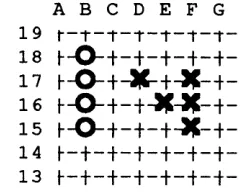
Another strategic technique to force your opponent into a corner is to make two different open 3s. The opponent can only block one of them, and on your next move you can expand the other to an open 4. Thus, if the program can make two different open 3s, it should do so. If the opponent can make two different open 3s, at least one of them should be blocked.
Can you see a pattern forming? It is never possible to foresee every move in every game. However, a good game designer tries to reduce the possible moves into categories of moves, or rules, which can be applied to a variety of situations by the game program.
[image:43.414.187.310.91.189.2]Evaluating
Moves
ABC 0 E F G
19t-T-T-T-T-T-T-18
~~~~+-+-t-17
~~~-+-+-t-16
~~+-~-+-+-t-15
~~-+-+-+-+-t-14 ~-+-+-+-+-+-t-13
~-+-+-+-+-+-t-Figure 5-2. An X at 016 Makes Two Open 3s
Now that we've come up with this first strategy, let's think through our rules and see what can go wrong. Remember: the computer will only do what we tell it, and no more; it will play blindly by any rules we give it. Take a look at Figure 5-2, assuming it is O's turn to move. According to our strategy, the program should expand its own 2 to a 3 by placing an 0 at B15. The opponent will then be likely to make two open 3s by placing an X on D16. Next, the program will place a
o
on B14 and the opponent will block with an X on B13. The op-ponent then has two open 3s, and has won the game. What went wrong?In order to make a single 3 ourselves, we let the opponent make two open 3s, and that was a bad idea. If the program has two moves that make two open 3s, we would like it to choose the move that also makes some 2s. It looks like our first strategy doesn't really work. Let's build on what we've learned and create another.
[image:44.417.196.308.53.149.2]The evaluation strategy we've outlined here is one used by many expert sys-tems. The Turbo Go-Moku program only plays a game; but one of the distinguish-ing characteristics of an ex-pert system is that it can tell you which of its rules it is applying to a particular deciSion. When you are fa-miliar with the program, you may want to modify it to be an expert: tell you which rule it is applying to each move.
Problem
Analysis
Board
.'"
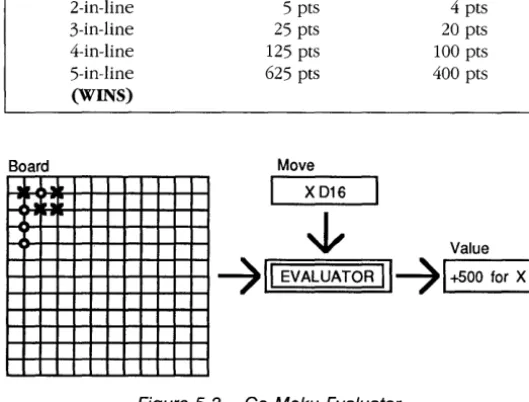
II • •Move 2-in-line 3-in-line 4-in-line 5-in-line (WINS) Scoring Points Making 5 pts 25 pts 125 pts 625 pts
Move
XD16
Blocking 4 pts 20 pts 100 pts 400 pts
~
Value [image:45.419.120.385.72.273.2]t-t--t-+-+-t--t-t-t--t-+-+-1
711
EVALUATOR1171""-+5-0-0
-for-X--',Figure 5-3. Go-Moku Evaluator
The program now has several rules that are assigned different weights to help it choose its moves. To pick a move, the program assesses each possible move, using our rules of thumb to calculate a value for each move. This is called "evaluating the move." Then, it picks the move with the highest value. In short, we try all possibilities, calculate an evaluation for each, and pick the one with the highest score. All this is performed by a procedure called FindMove (described in greater detail later in this chapter). FindMove calculates the score for each unoccupied location on the board.
The method used by FindMove is employed by many computer game programs. Hans Berliner used it in a backgammon program that beat the world champion in a match (Scientific American, June 1980). It has also been used in bridge, go, and poker game programs. With small modifications, it is one of the key decision-making methods used in artificial intelligence research. Some expert systems evaluate rules using this method.
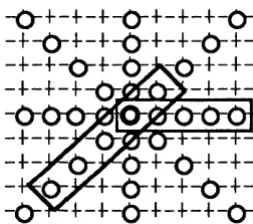
Each position is part of up to 20 five-position lines. This is because a position can hold any of five spots along the line-beginning, middle or end-and sits along four possible line di-rections: up/down, right! left, and diagonals. (sx4=20).
It's always the innermost loop that takes all the eval-uation time. If you cut the time taken by the inner-most loop, you can speed up the program accordingly.
all the demands. This process is called problem ana~ysis, and is the most important part of any software development project. Unfortu-nately, some programmers skip it entirely, and the result is a lot of excellent programs that solve the wrong problems.
The set of rules we've defined to make our decision is called an algorithm. The algorithm used by FindMove evaluates each possible move. There are a maximum of 361 possible moves if the playing board is empty (since 19 x 19
=
361 squares). (The FindMove pro-cedure does not evaluate a position unless it is empty.) Each position on the board is part of up to twenty potential 5-in-lines. FindMove checks to see how a move would affect each of these 5-in-lines. To do this, it must evaluate each of the other four positions in each line. This evaluation results in up to 361 x 20 x 4 = 28,880 checks to eval-uate one move. This would probably take about three secon