Information in this document is subject to change without notice and does not represent a commitment on the part of Mindset Corporation. The software described in this document is furnished under a license agreement or non-disclosure agreement. The software may be used or copied only in accordance with the terms of the agreement.
MINDSET is a tr'ademark of Mindset Corporation.
4-Point Graphics and IMSI are trademarks of International Microcomputer Software, Inc.
WordStar is a registered trademark of MicroPro International Corporation. Lotus 1-2-3 is a trademark of Lotus Development Corporation.
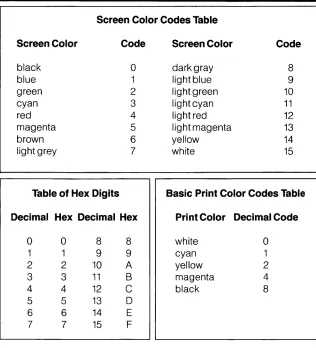
Multiplan is a U.S. trademark of Microsoft Corporation.
pfs: is a registered trademark of Software Publishing Corporation. MS-DOS is a trademark of Microsoft Corporation.
Copyright © 1984, Mindset Corporation. All rights reserved.
Section 1 I ntrod uction
Welcome to 4-Point
What Is 4-Point Graphics Plus? What Can You Do With 4-Point? How This Guide Is Organized Learning 4-Point
Section 2
Getting Started With 4-Point
What You Need
Backing Up the 4-Point Program Diskette Transferring the MS-DOS System
Using 4-Point Diskettes Loading 4-Point
Section 3 4-Point Basics
Lesson 1: The 4-Point Screen and Cursor Lesson 2: Basic Drawing and Color Lesson 3: Circles
Lesson 4: Lines, Triangles, Arcs, and Ellipses Lesson 5: Framed Areas and Framed Images Lesson 6: Saving and Getting Diskette Files Lesson 7: Zooming for Precision
Lesson 8: Creating Presentations
Section 4 4-Point In Depth
Introduction
1. Selecting Cursors 2. Directing the Cursor 3. The Automatic Cursor 4. Color
5. Drawing Circles
6. Drawing Line Segments
7. Drawing Triangles, Arcs, and Ellipses 8. Using Frames
9. Using the Buffer 10. Zooming
11. Operating on the Entire Screen 12. Texturing
13. Creating Presentation Segments 14. Adding Text
15. Storing and Retrieving Files 16. Useful Tools
Section 5
4-Point and the Mindset Graphics Interface
Introduction
What Can You Do With MG 17
An Example ...
Using MGI With 4-Point Graphics Plus Setting and Saving New Defaults MG I Error Messages
Appendix
Setting Up the HP7475A Plotter
Introduction
Welcome to 4-Point
Welcome to 4-Point Graphics Plus - a sophisticated presentation graphics tool for the Mindset™ Personal Computer System.
What Is 4-Point Graphics Plus?
4-Point has 16 different graphic functions, each of which you can use to create particular effects.
Selecting Cursors Cursor Direction Auto-Cursor Color Circles Line Segments
Triangles, Arcs, and Ellipses
4-Point Graphics Plus is a command-driven program. This means that you tel14-Point what to do by issuing commands from the keyboard or mouse, instead of choosing items from a menu. Once you learn the commands, you can use the keyboard and mouse quite dynamically-like a professional graphics console.
What Can You Do With 4-Point?
4-Point gives you a rich graphics environment. You can combine its 16 functions in literally thousands of ways to achieve interesting and - with just a little artistic creativity - dramatic effects.
You can save any image you create as a file on a diskette. Then, whenever you like, you can recall the image and incorporate it (or parts of it) into a new creation. 4-Point's most powerful function, presentations,
lets you record sequences of effects and chain them together to create complete self-running information presentations.
V
Presentation
Finally your 4-Point Graphics Plus package includes the Mindset Graphics Interface (MGI), a remarkable tool that lets you read files
from other programs - Like WordStar, Lotus 1-2-3, Multiplan, and dozens of others - and store them as MGI files. Then you can use 4-Point to add to the files, enhancing them as you wish. When
How This Guide Is Organized
This GUIDE TO 4-POINT GRAPHICS PLUS is organized in four main sections:
• GETTING STARTED, which describes what you need to use 4-Point
and how to get the program up and running.
• 4-POINT BASICS, which teaches you the fundamental techniques of
4-Point. When you complete this section, you'll have a good start on exploring the power of 4-Point.
• 4-POINT IN DEPTH, a reference section that details all 4-Point
commands and functions.
• THE MINDSET GRAPHICS INTERFACE, which shows you how to
use the graphic interface with 4-Point to store, manage, enhance, and print any 4-Point or non-4-Point file.
Learning 4-Point
Since everybody learns in his or her own way, how you approach 4-Point is up to you.
• If you like to learn from the ground up, in a systematic way, try starting with the tutorial section, 4-POINT BASICS.
• If you're the adventurous sort, and like to plunge in, you might want to turn immediately to the reference section, 4-POINT IN DEPTH, and start experimenting.
As with any creative tool, experimenting with 4-Point is the key to discovery. There's no way that a manual can exhaust the possibilities of a tool like 4-Point, so this guide doesn't try. Instead, it shows you how to use the primary functions of the program, and outlines some of the ways that artists have combined these functions. Finally, the guide turns you loose, to experiment creatively and produce pretty much what you can imagine.
reference, so you won't have to struggle to memorize all of the commands. In addition, your 4-Point package includes a Quick
Reference Guide that gives a condensed outline of all 4-Point functions.
Getting Started
With 4-Point
What You Need
To use 4-Point Graphics Plus, you need the following items:
• A Mindset Personal Computer with at least one disk drive and 196K of memory. The instructions in this guide assume you have a two-drive system
• Your MS-DOS system diskette
• The 4-Point Graphics Plus Program Diskette
• A blank, formatted diskette (double-sided, double density) for making a backup copy of the 4-Point Program Diskette
• This guide
• You might also want to have available one or two blank formatted work diskettes on which to store the files you create with 4-Point
Backing Up the 4-Point Program Diskette
Before you start using 4-Point Graphics Plus, it's a good idea to make a backup copy. Follow these steps (see your Introductory Guide to MS-DOS or the MS-DOS Reference Manual for complete details on formatting and copying diSkettes):
• Use your Mindset MS-DOS to format a blank diskette. Use the default
options - that is, type FORMAT, followed by a space, the disk drive designation, and a colon. Then press
I
RETURNI
• Use the MS-DOS DISKCOPY command to copy the 4-Point Program Diskette onto the newly formatted diskette. With the A> prompt on the screen, your original 4-Point Program Diskette in drive A, and your newly formatted blank diskette in drive B, type DISKCOPY A: B:, then press
I
RETURNI .
• Label the backup copy, and store it in a safe place.
Transferring the MS-DOS System
It's also a good idea to transfer the MS-DOS system to your 4-Point Program Diskette. Here are the basic steps for doing this:
• Insert your Mindset MS-DOS diskette into drive A and your original 4-Point Program Diskette into drive B.
• Type SYS B: and press
I
RETURNI .
• Type COpy COMMAND.COM B:/V and press
I
RETURNI
For complete details on transferring the MS-DOS system to the original Program Diskette, refer to your MS-DOS Reference Manual.
Using 4-Point Diskettes
If you accidentally write over any files on your original4-Point diskette, use the MS-DOS DISKCOPY command to copy the 4-Point files from your backup copy back to your original diskette.
If the original Program Diskette becomes damaged, use the backup copy. When you use the backup copy, however, the damaged original diskette must still be inserted into the default drive. Then, when you load 4-Point, make sure you specify the non-default drive (e.g., if drive A is the default drive, type B:4POINT.
Loading 4-Point
The loading process actually loads
two
programs - the MindsetGraphics Interface (MGI) and 4-Point Graphics Plus.
Follow these steps to load the programs:
• If you did not transfer MS-DOS to your Program Diskette, you must first load MS-DOS into your computer. Insert your Mindset MS-DOS
diskette into drive A. Insert a newly formatted work diskette into drive
B. Turn on your Mindset System Unit. When you see the familiar A> on the screen, remove the MS-DOS diskette and replace it with your 4-Point Program Diskette.
Type 4POINT, then press the
I
RETURNI
key.• If you transferred MS-DOS to your Program Diskette, insert your Program Diskette into drive A and your newly formatted work diskette into drive B; then turn on your System Unit.
• Now:
- The MGI program is loaded. You'll see a screen which tells you that MGI has been loaded and prepared for a Diablo C150 Series Ink Jet Printer.
If you have another printer, first learn 4-Point. Then, when you're' ready to use MGI, set up your printer according to instructions in the last section of this guide, 4-POINT AND THE MINDSET GRAPHICS INTERFACE.
- 4-Point is loaded and you'll see the 4-Point screen.
4-Point Basics
This set of eight lessons introduces the basics of 4-Point Graphics Plus. It doesn't cover every single function and combination - 4-Point is much too rich for such an approach. But it should give you a good feel for 4-Point's basic techniques and range of possibilities.
So take the time to work through this section, following all instructions as you go. Then, you can begin using 4-Point on your own, referring to the next section, 4-POINT IN DEPTH, for specific details.
Remember also that there's a Quick Reference Guide included in the 4-Point package, so you don't have to memorize what you learn in this section.
Lesson 1: The 4-Point Screen and Cursor
In this first lesson, you'll take a look at the 4-Point graphics screen, including the status line and palettes, and you'll learn three different ways to move the cursor.
Here's an important tip to keep in mind as you're learning: If you should happen to make a mistake and can't seem to correct a problem, don't worry - just press the
IEscl
key once or twice and things will usually return to normal.A: The 4-Point Screen
To begin, load 4-Point into your computer system - if you need instructions, refer to GETTING STARTED WITH 4-POINT. When you're looking at the 4-Point screen, check the main elements described below: Cursor Position 90 156
---_.
::Dithered Color Color Bar Selector
!!u----t--Status Line _-+---t-- Background Border Top Palette Bottom Palette
• The cursor is the point at which all of your drawing and painting takes place -like the point of a pen or the tip of a brush. You can position the cursor at any of 56,160 points on the screen. Each of these points is called a "pixel" (for "picture element"). The screen measures 320 pixels across and 180 down .
line tell you that the cursor is located 156 pixels from the right and 90 pixels from the top. The Quick Reference Guide includes a complete summary of ali status line information.
• The palette area is where you select 4-Point colors. Notice the following:
- There are two identical palettes - a top palette and a bottom palette.
- At the leftmost end of each palette is a white rectangular outline that shows which color is selected. Right now, black is selected for each palette.
- The long bar at the left shows a mixed or "dithered" color - the color that results from combining the top and bottom palette colors. Right now, the bar is black because black is selected on both the top and bottom palettes.
• The border and background can be changed to any of the palette colors.
B. Moving the Cursor
There are three ways to move the cursor:
Cursor Direction
/
_I
0 120.. 43 I "-Horizontal Position
"'"
1
ICSJI
1 43 178
II
I I I I I
Vertical Position
/
1 78 1 I
I I I I
"'\ I H I 30 1 25
rno
Dr:'D
r=F
B~El
ECDS
Try each one to see how it works. Note that the cursor position information in the status line changes as the cursor moves.
You can hold down any cursor direction key to move the cursor more quickly.
To move the cursor quickly to the edges or corners of the screen,
hold down the
I
SHIFTI
key while pressing the appropriatecursor key .
• With a mouse: If you're using a mouse, the cursor follows the movements of the mouse.
• Automatically: You can set the cursor in motion by pressing the
CSII
key.Auto-Cursor
Indicator
~
As you'll see, this auto-cursor lets you create many dynamic graphic effects.
To get a feel for how the auto-cursor works, press any cursor direction
key and then press the
ITIJ
key. To stop the auto-cursor, press theCSTI
key again.The 20 in the status line tells you the speed of the cursor - 20 is
fastest and 0 is slowest. Use the
C3J
andL8
keys to change thespeed of the cursor.
Let the cursor move to the edge of the screen until it stops. Now
press [QJ (the zero key) to turn on the cursor wrap function. The
cursor then "wraps" around to the opposite edge of the screen. Press
[QJ again to turn off the cursor wrap function.
C. Centering the Cursor
To move the cursor instantly back to the center of the screen, press
IT].
Lesson 2: Basic Drawing and Color
In this lesson, you'll learn how to create simple drawings, how to fill areas with any of 4-Point'scolors, and how to erase the screen.
A. Line Drawing
To draw a line on the screen, you select a color, turn on the draw function, and move the cursor (with the cursor keys or the mouse) to create the line. Follow these steps:
• Use the [TI] and
[£IJ
keys to select a color. Each time you press[Nl ,
the top palette color selector moves to the right to select a new color. Press§]
to move the selector to the left. Select any color other than black, the background color.• Using the cursor movement keys or the mouse, move the cursor to where you want to start drawing.
• Now press the
0
key to turn on the draw function. The draw indicator appears in the center box of the status line to let you know that the function is on.DrawON/OFF
• Now draw:
Draw Indicator (Ught Blue)
If you're using a T.v. or a composite monitor and the colors seem a bit uneven, don't worry - this is a common feature of your monitor.
- To draw with a mouse, press the left button and hold it down as you move the mouse. A line will follow the movement. Release the button to stop drawing.
• Select a new color (with the
[EJ or
ITIl
keys) and continue to draw.B. Auto-Cursor Drawing
You can combine the auto-cursor function with the draw function. Press
o
to turn on the draw function. Then press[lQ
to get the cursor moving automatically. Use the cursor movement keys to change the direction of the moving cursor as it draws across the screen.C. Erasing the Screen
To erase the entire screen, hold down the
I
SHIFTI
key while you press ~ .D. Color Filling
With 4-Point, you can fill an enclosed area with any color. To fill an area, 4-Point needs to know the color to fill with as well as the border color of the area to be filled. You set the border color on the top palette (with
[EJ
and ~) and the fill color on the bottom palette (with[EJ
and ill]).
You can fill the entire screen, too, but it's usually. much faster to change the background color - see section 4 of 4-POINT IN DEPTH for instruc-tions on changing the background color.
Follow these steps to learn color filling.
• Select a color (with
[IT]
and [R]), turn on draw (with0 )
and move the cursor to outline an enclosed area on the screen. Make sure there are no gaps in the border you create.Turn off the draw function (with
0 ).
The status indicator should go off.• Select a fill color from the bottom palette. The
[H]
key moves thebottom color selector to the left, and the
[£ID
key moves it to theright. Make sure the fill color is different from the border color and
different from the background color (if you fill with the border color, you won't be able to refill the area).
• Press
m
to fill the enclosed area. If the whole screen fills, don'tworry - you probably left a gap in the border of the area you tried to
fill. To start over, just erase the screen (
I
SHIFTI
[N])
and start overby drawing another enclosed area.
• Select a new color from the bottom palette (with
[H]
and [£§]) andpress
m
to fill again. Note that once you've filled with the same coloras the border color, you can no longer fill the area.
This is a good time to start experimenting. Draw several enclosed areas by crisscrossing lines - then fill each area with a different color. Try for a gradual blending effect by positioning similar colors next to one another.
Lesson 3: Circles
In 4-Point Graphics, a circle is any enclosed, rounded shape with a horizontal or vertical axis. In other words, 4-Point circles can be tall or short - ellipses, actually - or perfectly round. 4-Point circles cannot, however, be tipped to one side. A tipped circle, in 4-Point terms, is an ellipse. You'll learn about ellipses in Lesson 4.
The Mindset executes 4-Point circle-drawing routines very quickly, allowing you to create some very startling effects.
In this lesson, you'll learn how to draw circles, how to change circle height and width, and how to draw circles filled with solid colors or dithered (mixed) colors.
A. Drawing Circles
To start this lesson, erase the screen (
I
SHIFTI
~), then pressW
to center the cursor.Pick a color (not black) from the top palette (
[IT]
and [TIJ).Now, press ~ to draw a circle with the cursor at its center. The circle information in the status line tells you that the circle's horizontal radius is 30 pixels and its vertical radius is 25 pixels. In other words, the circle is 50 pixels high by 60 pixels wide. The horizontal and vertical radii are different to make up for the distortion that is common with most
T.v.
and monitor screens.Pixel Pixel Width Height
I- -I
I 60 I
I I
I I I
I
----1---I I
I I
I I
.. 50
B. Changing Circle Size
Here are the keys that draw circles and control circle size. Take a look at them - then follow the steps on the next page to draw circles of different dimensions.
DrawCircle
Increase horizontal radius
Decrease horizontal radius
Increase vertical radius
Decrease vertical radius
Auto Circle ON/OFF
Circle hollow/filled
With Z or X: Increase/Decrease both radii at same time
• Increase the circle width by pressing
rn.
Press it about 10 times-until the horizontal radius is 40.• Press
[TI
to draw a circle.• Press
m
to increase the vertical radius to about 70.• Press
[TI
to draw a circle.• Change the circle values a few more times using the [[], []],
m,
and [[] keys, and press[gJ
each time you want to draw the circle.When you're ready to move on, press I RETURN I . This brings the circle radius settings to their original values.
C. Changing Circle Height and Width at the Same Time
You can change the horizontal and vertical dimensions of the circle at the same time with the key combinations
I
CTRLI [[]
andI
CTRLI
[]] . In this way, you can draw circles of different sizes but of the same proportions.To try this, first clear the screen ( I SHIFT
I
[N] )
and reset the circle values (I
RETURNI ).
Then follow these steps.• Press
[TI
to draw a circle.• Hold down the
I
CTRLI
key as you pressm
10 times to increase the horizontal and vertical dimensions.• Press
[TI
to draw another circle.• Continue pressing
I
CTRLI W
10 times, then pressing[TI,
to draw a series of concentric circles.D. Filled Circles
So far, you've been drawing hollow circles. 4-Point also lets you draw circles filled with a dithered (mixed) color. You tell4-Point that you want circles to be filled by pressing
[];D .
When you do so, the indicator on the status line changes from H for Hollow to F for Filled.~
~ Turn on Hollow/Filled Circle
Circle Hollow/Filled
Indicator
Start by clearing the screen (
I
SHIFTI
ITill)
and resetting the circle values (I
RETURNI ).
Now follow these steps:
• Select a color from the top or bottom palette. As you make the selection, note that the dither bar (at the left of the pallette) changes to show what the color mixture looks like. If the color seems to be flickering, don't worry. It's because you're using a
T.v.
or composite monitor. Hold down theI
ALTI
key while you press [E] and the flickering will stop .E. Auto-Circle
Auto-circle lets you draw a circle whenever you change a circle value. You turn on auto-circle by pressing []]. An A appears on the status line to let you know that the function is activated.
Auto-Circle
Auto-Ci rcle Indicator
1
Start by clearing the screen, resetting the circle values, and setting the circle type to Hollow (with the
[0
key). Then:• Press []] to turn on auto-circle, if necessary.
• Press
m
to change the horizontal radius. As you do, 4-Point draws the circle with the new radius. Continue pressingm
until the radius is about 45 or 50.• Now change the top palette color ( [TI] and ~) and press
m
until the radius is about 60 or 65 (you can hold down them
key if you wish).• Continue changing color and increasing the horizontal radius as you like.
F. A Spray of Circles
Now that you're familiar with several 4-Point functions, you might like to see how some of them work in combination.
For example, follow these steps to see how auto-cursor and auto-circle work together.
• Clear the screen (
I
SHIFTI
[£gJ)
and pressI
RETURNI
to center the cursor and reset the circle values.• Press a cursor direction key. Then press [SJJ to set the cursor in motion. Let it move to the edge of the screen.
• Press
[Q]
to turn on the cursor wrap function - when the cursor reaches one edge of the screen, it "wraps" around and appears at the opposite edge.• Press [ill to activate auto-circle.
• Press
m
and hold it down to spray a series of ever-widening circles across the screen.If you like, experiment before moving on. Change colors and make another spray of circles. Then see how holding down []],
[YJ,
and[]J
Lesson 4: Lines, Triangles, Arcs, and Ellipses
In Lessons 1, 2, and 3, you used techniques involving a single point: drawing lines with a single, moving point and drawing circles around a single, central point. In other words, you've been using a 1-point cursor. That's what the 1 in the status line means:
In this lesson, you'll learn techniques that rely on a 2-point and a 3-point cursor.
With the 1-point cursor on the screen, you select the 2-point cursor by holding down the
I
SHIFTI
key while you pressI
TABI .
You select the 3-point cursor by pressingI
SHIFTI I
TAB I again. You move from 3- to 2-point and 2- to 1-point by pressingI
TABI .
Cursor Type
~
\
1-Pt 2-Pt 3-Pt
Changing to 1-, 2-, and 3-Point Cursors
A. Drawing Lines With the 2-Point Cursor
In your graphics work, you'll often need to draw precise lines between two points (as when completing the third side of a triangle). 4-Point lets you do this quickly with a 2-point cursor.
Clear the screen. Then follow these steps to see how the 2-point cursor works:
• Press
I
SHIFTI I
TABI
to select the 2-point cursor. As the cursor changes from the 1-point to the 2-point cursor, the indicator in the status line changes to 2.• Move the cursor to display it more clearly. The 2-point cursor is a "rubber-band" line with the points at each end of the line, one fixed and the other movable. Continue moving the movable point diagonally until the two points are about 3 inches apart.
• Now press IT] to draw a line between the two points. You might have to move the cursor out of the way to see the line.
• Press
I
TABI
to return to the 1-point cursor.B. Lines End-to-End
To draw a series of connected line segments, follow these steps:
• With the 1-point cursor on the screen, press [SHIFT
I I
TABI
to display the 2-point cursor.• Press
D
to turn on the draw function.• Move the 2-point cursor to the length of the first line you want to draw.
• Press
[QJ
and 4-Point quickly moves the fixed point to the movable point as the line is drawn.• Now, move the movable point away in another direction and press
[QJ
to draw the next segment and bring the fixed point to the movable point.• To return to the 1-point cursor, press
I
TABI .
Use these techniques to practice drawing triangles, rectangles, and other polygons before moving on.
C. Triangles, Arcs and Ellipses
You need three points to define a triangle, arc or ellipse.
~ 3-PointCursor
3 _ p O i n t Q
Ellipse •
3-Point
IS
~
Arc3-Point Triangle
You get the three points by first using the 2-point cursor to spread two points. Then you press
I
SHIFTI
I
TABI - a third point appears midway between the first two. This is the 3-point cursor.Clear the screen, center the cursor, and follow these steps to draw triangles, arcs and ellipses.
• Press
I
SHIFTI
I
TABI
to select the 2-point cursor.• Position the movable point about an inch or so to the right.
• Press
I
SHIFT I I TABI
again to select the 3-point cursor. A point appears midway between the first two and the status indicator changes to 3. You may have to move the cursor slightly in order to see the third point.Now the first two points are fixed and this third point is movable.
• Move the third point down about an inch or so.
• Move the third point down about an inch more. This defines the pathway for an arc.
• Press
rn -
4-Point draws the arc.• Press
W -
4-Point uses the same three points to define an ellipse. The third point is at the center of the ellipse.Before moving on to the next lesson, experiment with the 2- and 3-point cursors by constructing cylindrical objects like the one shown here:
3-Point Ellipse
/
~'~"""';
J59
Lesson 5: Framed Areas and Framed Images
4-Point's framing functions are a powerful set of tools that let you put a frame around any part of the screen (including the entire screen) and then manipulate the area or images inside the frame.
To define a frame, you need 4 points, so in this lesson you'll learn how to use the 4-point cursor to:
• Draw rectangles
• Wash framed areas with a dithered color
• Enlarge, reduce, rotate, and move framed images
• Capture and save framed images in a temporary buffer
• Move a captured image
• Use a captured image as a paint brush
With the 1-point cursor on the screen, you select the 4-point cursor by pressing
I
TABI .
You pressI
TABI
again to return to the 1-point cursor from the 4-point cursor. With a mouse, press the right button to change from a 1-point cursor to a 4-point cursor and back again.A. Drawing Rectangles with the 4-Point Cursor
First, clear the screen and center the cursor. Then follow these instructions:
• Press
I
TABI
to select the 4-point cursor - immediately, the cursorchanges from the 1-point to the 4-point cursor.
• Move the cursor diagonally down and to the right to display it more
clearly. The 4-point cursor is a "rubber-band" rectangle with the points at the corners. As you move the cursor, the points spread in the direction of movement. Move the 4-point cursor until the rectangle is about 2 or 3 inches square.
• Press
OJ
to draw the rectangle. You might have to move the 4-pointcursor a little in order to see the rectangle clearly.
• Press
I
TAB I to return to the 1-point cursor.B. Washing Framed Areas
By pressing
I
ALTI
[ffi , you can Wash the area inside a 4-point framewith a dithered color (remember - a dithered color is a combination of top and bottom palette colors).
• Press
I
TABI
to select the 4-point cursor.• Move the cursor and spread the points to a 2-inch square.
• Use
[IT]
and ~, and [E] and[TI]
to select a pleas~ng ditheredcolor (the bar at the left of the palette shows the selected dithered color).
• Press [ffi - the framed area is immediately washed with the
dithered color.
• Press
I
TABI
to return to the 1-point cursor.C. Framing an Image
When you put a frame around any portion of the screen, you can manipulate the enclosed image in various ways.
• Follow these steps to draw a series of nested rectangles:
- Press
I
TABI
to select the 4-point cursor.Move the cursor to produce a
Y2
inch square - pressOJ
to draw a rectangle.- Move the cursor a bit more to define a 1 inch square - press
OJ
again to draw another rectangle.- Continue moving the cursor and pressing OJ until you have an image that looks something like the following:
Nested Rectangles
• Press
I
TABI
to select the 1-point cursor.• Press
[QJ
to move the cursor to the upper left corner of your image.• Press
I
TABI
to select the 4-point cursor.tJfl
I I I I
I I
I!: _ _ _ _ dl
Framing an Image
Queues 1-Point Cursor at Corner
Changes to 4-Point Cursor
Frames Image with 4-Point Cursor
D. Manipulating a Framed Image
Now that your image is framed, you can manipulate it by pressing keys for specific effects. Try each key to see the effect (don't erase the screen, though - you'll need it for the next exercise):
KEY
EFFECT
U Turn the image upside down
Reverse the image right to left
o
Rotate 90 degrees clockwiseP Rotate 90 degrees counter clockwise
R Reduce the image vertically
ALT R Reduce the image horizontally
A particularly useful technique is to "texture" the entire screen with
the framed image. To do this, just frame an image and press
I
CTRLI
1-E. Moving an Image Within a Frame
You can move the image within a frame's boundaries. However, any part of the image that crosses an edge of the frame will be erased.
• To give your image room to move, position the 1-point cursor well above and to the left of the image.
• Press
I
TABI
to select the 4-point cursor.• Move the cursor so that the border of the frame surrounds the image with lots of room to spare.
• Now use these keys to move the image within the frame, remem-bering that any part of the image that crosses an edge will be erased.
KEY EFFECT
CTRL
....
Move image leftCTRL ~ Move image right
CTRL HOME Move image up
CTRL END Move image down
F. Capturing a Framed Image
Several spectacular graphic effects rely on 4-Point's image capturing function. With this function, you frame an image and, by pressing the
BACKSPACE key, capture it in a temporary storage area called a buffer.
You can reproduce the buffered image anywhere on the screen. You can also save the buffered image on your work diskette.
• Position the cursor in each rectangle section, select a pleasing fill color, and press
m
to fill each section of the image with a different color:Filled Nested Rectangles
• Press [QJ to move the 1-point cursor to the upper left corner of the image.
• Press
I
TABI
to select the 4-point cursor.• Press [QJ to frame the image.
• Press
I
BACKSPACEI
(or the left mouse button) - the contents of the frame are immediately captured in the image buffer. The center box of the status line lights up to tell you that the image is being captured.• Press
I
TABI to select the 1-point cursor.• Now, to put the captured image back on the screen, move the cursor to another part of the screen and press
I
BACKSPACE I - thecaptured image appears. You can reproduce the image at as many different points as you like around the screen.
G. Painting With a Captured Image
To use a captured image as a paint brush follow these steps:
• Make sure the 1-point cursor is selected.
• Press the
1=
+I
key to turn on the buffer draw function. An indicator near the center of the status line appears to let you know that the function is activated.Buffer Draw Indicator (Orange)
_1 ______________________ L _
• Move the cursor. The buffer image follows the cursor, leaving a trail of color. Note that the color of the trail depends on the color of the
pixels at the edge of the image. That is, the edge of the image does
the drawing.
Before moving on, turn on the auto-cursor with the ffi] key and
Lesson 6: Saving and Getting Diskette Files
As you work with 4-Point, you'll probably want to save images and use them again in other pictures. You can also create a presentation which gets a picture from a diskette and modifies it.
A. Saving Files
Follow these steps to save the image on your screen. If you've erased the screen, use the techniques you've learned to create a picture that you can save.
• With the 1-point cursor on the screen, press
[]J
to tell4-Point that you want to Save the screen - the palette will be replaced by 4-Point's file name area (where you specify a file in which to save an image), and the status line displays an S to tell you that the function is on.l-T---~-j
}$(!i:'};\{<~;\;:c;t:r;:,vQ;;i\~<~;<;:,l
I I I I I I I I I I I I I I I I
J
Cursor /
File Naming Area
The letters A through 0 refer to disk drives. Note that a cursor is blinking to the left of the letter A .
• Select the default drive by pressing
I
RETURNI .
If you want to select a differE71t drive, just use the right and left cursor directionkeys
50
position the cursor over the appropriate letter before you pressI
RETURNI .
• Enter IMAGE1 for the file name. If you make a mistake, use the ~
key to back up and correct your file name.
• Press
I
RETURNI .
The screen is saved on the diskette in drive A under the name IMAGE1. Note that the center area of the status line flashes red as the image is saved.B. Getting Diskette Files
Now retrieve your file from the diskette. Before you start, erase the screen (
I
SHIFTI
[NJ).• Press
[QJ -
once again, the palette is replaced by a file name area and a G appears in the status line.• Use the left and right cursor direction keys to position the cursor over the appropriate drive. You can also select the default drive simply by pressing
I
RETURNI .
• Enter IMAGE1 and press
I
RETURNI .
4-Point gets the image from the diskette and puts it into the buffer• Move the cursor to the upper left corner of the screen.
• Put the image on the screen as usual- with the 1-point cursor on the screen, press
I
BACKSPACEI .
c.
Looking at Diskette Directories
To look at a diskette directory:
• Select the 1-point cursor and press []].
• When you see the file name area, select a drive: Use the left and right cursor direction keys to position the cursor over the appropriate drive. You can also select the default drive simply by pressing
I
RETURNI .
The first file name will appear in the file name area.• You can browse through the file names with the
m
and [!] keys. You can display the file status of each file at the right side of the file name area by pressing ~ . The letter to the left of the<
symbol is the file type:- I Image file - I Font file - A Segment file
The letter to the right of the
<
symbol tells whether the file is write-protected or not:• Return to the normal drawing screen by pressing
IEsci .
Lesson 7: Zooming For Precision
4-Point's zooming functions let you edit images on your screen pixel by pixel. In this lesson, you'll learn how.
A. Turning On the Zoom Function
When you turn on 4-Point's zoom function, the normal drawing screen is replaced by a magnified version of the area in the vicinity of the cursor. Follow these steps:
• Make sure the 1-Point cursor is on the screen.
• Clear the sc~een (
I
SHIFTI
[NJ ) and draw a circle ([gJ). • Position the cursor directly over the edge of the circle.• Change the level of magnification with the [£[J key. Watch the box at the extreme left of the status line as you press [£ill several times-each press changes the size of the box. Choose the largest box (the highest magnification).
• Turn on the zoom function by pressing
I
* PRT seNI .
After a brief pause, the magnified image will appear. Each pixel is represented as a large colored block. The cursor is a small cross.B. Editing a Magnified Image
Now you can edit the magnified image:
• Select a color from the top palette.
• Move the cursor as usual using the cursor direction keys.
• Press ill§] to color the pixel at the cursor position.
• Press
IDELI
to remove whatever color is at the cursor position.c.
Turning Off Zoom
There are three ways to turn off zoom. Try each one before moving on to the next lesson:
• To return the normal screen and keep all the changes you made while zoomed in, simply press 1* PRT SCN
I
(if you have a mouse, you can also press the right button).• To return to the normal screen without keeping any of the changes you made while zoomed in, press
I
RETURNI .
• To make your zoomed image into a new drawing screen, press
I
CTRLI
I
* PRT SCN I . Be careful here, though - placing the zoomed image onLesson 8: Creating Presentations
Now that you're familiar with most of 4-Point's fundamental concepts, try creating your first self-running presentation. When you turn on the
create segment function, 4-Point will record all subsequent commands in the sequence that you enter them.
You can create a presentation of several segments by chaining them together. You can even build a segment library and then create different presentations by chaining segments together in different orders.
A. Starti ng the Presentation
• Press
I
ALT I [6J - a C appears in the status line to let you know thatyou're ready to create a segment. In addition, the palette area disap-pears and is replaced by the familiar file naming area.
• Press
I
RETURNI
to enter A (the default drive) as the drive name.• Type SEG1 for the file name and press
I
RETURNI .
4-Point reservesspace for the segment on the diskette in drive A. The palette reap-pears and you're ready to create your segment.
B. Recording Your Segment
To create a segment, you can use 4-Point's functions (except for auto-cursor) as usual. The only difference you might notice is an occasional whirring as your commands are stored on the diskette. Try these effects:
• Set the top palette to red (with [IT] and
em)
and the bottom paletteto yellow (with
[EJ
and ~).• Press
[0
to select filled circles.• Press [gJ to draw a dithered red-yellow circle in the middle of the
screen.
• Press [QJ to place the cursor at the upper left corner of the circle.
• Press
I
TAB I to select the 4-point cursor.• Press [QJ to frame the image.
• Press
I
TABI to select the 1-point cursor.
• Press
1=
+I
to turn on the buffer draw function.• Use the cursor direction keys, the auto-cursor ( [SJJ), or the mouse (if you have one) to move the image around the screen.
• Press
[ill
to get a file from the diskette.• Enter the drive letter and type IMAGE1, the file name of the image you stored during Lesson 6.
• Press
1=
+I
to turn on the buffer draw function. Use the cursor direction keys, the auto cursor ( ~), or the mouse (if you have one) to move the image around the screen. Note that the upper left corner of the image is at the cursor location.• Change the screen mode ( [£ill and
m2J)
to different values and move the image some more. See In Depth section 4, Color, for details on screen display mode.• Experiment. Use the techniques you've learned to add to the presentation segment.
• When you're satisfied, press
I
CTRLI
[EQJ
to turn off the segment create function.c.
Running Your Segment
Running your segment is easy.
• Press
rn
to turn on the run segment function. The usual file naming area appears at the bottom of the screen.• Select the proper drive, type SEG1, and press
I
RETURNI .
Your segment will start immediately.• You can control several characteristics of the presentation while it's running. You
can-- change the border color as usual ( IT§] and
ITII );
- turn the status line and the palette on and off (ITrJ); and
- turn the cursor on or off (
I
SHIFT1m) .
• The segment will continue to run until you press
IEscl .
Much more can be done with 4-Point's presentation functions, so when you're ready to extend your knowledge, refer to 4-POINT IN DEPTH for complete details.
Before You
GO . ..
Now that you've learned the fundamentals of 4-Point Graphics Plus, you can start creating your own graphics and presentations.
But remember - the lessons you've gone through in 4-POINT BASICS cover only some of the uses of 4-Point's many powerful functions. All of 4-Point's functions are presented in detail in the next section, 4-POINT IN DEPTH, which you should use for reference as you work.
4-Point In Depth
Introduction
This section presents all functions of 4-Point Graphics Plus in a reference format. Use this section when:
• you have a question about a specific 4-point function, or
• you want to experiment by browsing through the 4-Point functions and trying out the ones that catch your interest.
For a tutorial introduction to the fundamentals of 4-Point Graphics Plus, work through the preceding section, 4-POINT BASICS.
Organization of 4-Point In Depth
Each section of 4-Point In Depth describes a 4-Point function by presenting:
• A Keyboard map which shows the keys associated with the function
• A function table which gives the keypresses or mouse button presses for each desired effect
• Additional details on each function
General Conventions
4-Point In Depth uses these notation conventions:
RB
LB 1,2,3,4
right mouse button left mouse button
1.
Selecting Cursors
To Select This Cursor
i-point
2-point
3-point 4-point
Cursor Type (1-4)
With This Cursoron Screen
4-point 2-point i-point 3-point 2-point i-point
More on Selecting Cursors
Press With
Mouse Press
TAB RB
TAB RB
SHIFT TAB LB
TAB RB
SHIFT TAB LB
TAB RB
2. Directing the Cursor
+
Cursor Position
With This Press
Cursoron Screen
Left, right, up, down 1,2,3,4 ... ~.
...
Diagonally up left 1,2,3,4 PG UP
Diagonally up right 1,2,3,4 PG DOWN
Diagonally down left 1,2,3,4 HOME
Diagonally down right 1,2,3,4 END
To edges and corners 1,2,3,4 SHIFT
(with above keys)
Mark cursor location 1 ALT Q
Move to marked location 1 CTRL Q
Fixed point to movable point 2 Q
Move to center of screen 1 5
Movable point to fixed point 2 5
Center movable point 3 5
Cursorwrap 1 0
Increase horizontal increment 1 0
Decrease horizontal increment 1 p
I ncrease vertical increment 1 [
More on Directing the Cursor
Basic Cursor Direction: Use the cursor movement keys to move any
of the four cursors 1 pixel left, right, up, and down. These keys are particularly useful for very precise movement. If you press []], you can move the cursor beyond the edge of the screen so that it wraps around to the opposite edge.
Moving to Edges and Corners: To move any of the four cursors
quickly to the edges and corners of the screen, use the cursor direction keys with the
I
SHIFTI
key. For example,I
PG UPI
moves the cursor one pixel up and to the left. I SHIFTI I
PG UPI
moves the cursor to the upper left corner of the screen.Marking Cursor Position: You can mark the position of the i-Point
cursor with
I
ALTI
[QJ.
To move the cursor to the marked location, pressI
CTRLI
[QJ.
Changing Cursor Movement Increments: You can change the
vertical and horizontal cursor movement increments with the
[QJ ,
[£J ,CD
andOJ
keys. For example, if you increase the horizontal increment to1])
(with the[QJ
key), then each press of the ~ or0
key will move the cursor 10 pixels to the left or right.Returning the Cursor to Its Original Position: Press
W
to return the cursor to its original position. With the i-point cursor,W
returns the cursor to the center of the screen. With the 2-point cursor,W
moves the movable point back to the fixed point. With the 3-point cursor,W
returns the movable point to a point between the two fixed points.Moving the Cursor With a Mouse: If you have a mouse attached, then
3. Automatic Cursor
..
:-...-'
..
• • 7
Cursor Speed Auto Cursor
(20-1) On
Auto-cursor on/off
Auto-cursor speed increase Auto-cursor speed decrease
With This Press Cursor on
Screen
1,2,3,4 1,2,3,4 1,2,3,4
\1
.>
,<
More on the Automatic Cursor
Many interesting effects can be developed by operating on a cursor which you set in motion with the ~ key. Note that you can change the direction of the automatic cursor with the cursor direction keys while the cursor is moving.
Adjusting Cursor Speed: You adjust the cursor speed with the
[2J
and
C?J
keys. The current cursor speed (from 0 to 20) is displayed on the status line. When you turn 4-Point on, the auto cursor is set at maximum speed (20).Increasing the Cursor Increment: You can increase the apparent
4. Color
Top palette left Top palette right
Bottom palette to top value Bottom palette left
Bottom palette right Border color left Border color right Background color left Background color right Drawon/off
Convert top color to bottom color Fill enclosed area with color Decrement screen mode Increment screen mode
More on Color
Top Palette: The top palette color is the color used for 1-point freehand
and circle drawing, for 2-point line drawing, for 3-point arc and ellipse drawing, and for 4-point rectangle drawing. The top palette color combines with the bottom palette color to produce the dithered color shown in the long bar to the left of the palette area.
Bottom Palette: The bottom palette color is the color you fill with by
pressing
m
with the 1-point cursor on the screen.Changing Background and Border Color: You change the border
and background colors in the sequence that the colors appear on the palette. Here are two examples:
• The light yellow palette color indicator is 13 positions to the right of the black color indicator. Therefore, to change the background color from black to light yellow, press
I
SHIFTI
[@ 13 times.• The black color indicator is two positions to the left of the blue color indicator, so to change the border color from blue to black, press F6 twice.
Drawing: When you press
0
to turn on the draw function, a light blue indicator appears in the center box of the status line. While the draw function is on:• with the 1-point cursor, you can draw a line of color by moving the cursor. Select the draw color from the top palette (with
[IT]
andem ).
• with the 2-point cursor, you can draw connected line segments. The procedure is presented in 6, DRAWING LINE SEGMENTS).
Color Converting: Any color on the screen can be converted to any
Color Filling: Before it can be filled, an area must have a uniform
border color and must be completely enclosed. Attempts to fill open areas or areas with a non-uniform border color will meet with
unpredictable (and possibly undesirable) results. To fill, set the border color of the area to be filled on the top palette, and the fill color on the bottom palette. Once you've filled an area with the same color as the border, you cannot fill it again.
Screen Mode: 4-Point has eight different screen modes (modes 0
through 7). The screen mode determines the way colors interact when they're displayed over one another. Different modes interact in
5. Drawing Circles
o
With This Press
Cursoron Screen
Drawcircle 1,2,3 C
Circle hollow/filled 1,2,3
M
Auto-circle on/off 1 N
Change circle size
• Increase height Z
• Decrease height
X
• Increase width V
• Decrease width B
• Increase heightandwidth CTRL Z
More On Circles
Drawing Circles: In 4-point, a circle is any closed-curved shape with
horizontal and vertical axes. Draw a circle by pressing C with the 1-,2-, or 3-point cursors. The techniques for setting the size and shape of a circle - and the effects you get - depend on the type of cursor:
• With the 1-point cursor, you can change the horizontal and vertical radii (the width and height) with the
W,
[XJ,m,
and [[] keys. The two numbers at the right side of the status line give the current settings (in pixels) for the horizontal and vertical radii.• With the 2-point cursor, a circle appears to have equal horizontal and vertical radii - that is, it's round. The fixed point marks the center of the circle, and the distance between the two points is the radius of the circle. Use this cursor for fast, round concentric circles.
• With the 3-point cursor, the movable point is always at the center of the circle. The shape of the circle depends on the location of the movable point in relation to the midpoint between the two fixed points. Experiment with this cursor to see the many interesting results you can achieve with it.
Combining these techniques with the auto-cursor function can result in some very interesting effects.
Drawing Filled Circles: Each time you press the [}TI key, the circle draw function switches between hollow and filled circles, as shown by the H or F indicator in the status line. The fill color is always dithered -that is, a combination of the top and bottom palette color selections.
Auto-circle: If you turn on auto-circle by pressing [ill, you'll draw a circle whenever you change circle dimensions with the
W,
[XJ,m ,
6. Drawing Line Segments
With This Press
Draw line between points Fill left
Fill right
Draw connected segments
Cursoron Screen
2
2 2
2
More on Drawing Line Segments
L
J
K Q
-(
).
Drawing Line Segments: You draw line segments with the 2-point cursor. The fixed point marks one end of the line and the movable point the other.
Drawing Connected Segments: You draw connected segments with
the keyboard. Turn on the draw function (with
D )
move the movablepoint to where you want the end of the first segment to be. Press
[QJ
todraw the line and move the fixed point to the movable point. Continue to
move the cursor and press
[QJ
to draw the connected segments.2-Point Filling: The 2-point cursor defines the diagonal of a rectangle.
You can fill this rectangle to the left of the diagonal by pressing Q]. Fill
7.
Drawing Triangles, Arcs, and Ellipses
v
With This Press
Draw triangle Draw arc Drawellipse
Cursor on Screen
3 3 3
More On Arcs and Ellipses
T AE
EJE]
r;;lQ ~DDrawing Triangles: Define a triangle with the three points of the 3-Point
cursor. Draw the triangle by pressing
m.
Drawing Arcs: Define an arc with the three points of the 3-point cursor.
You can draw the arc by pressing
m.
Drawing Ellipses: The three points of the 3-point cursor define an
8. Using Frames
With This Press
Cursoron Screen
Draw frame 4 L
Fill framed area (dithered) 4 W
Erase contents of frame 4 [
Erase area outside frame 4 ]
Manipulate framed image
• Enlarge vertically 4 E
• Enlarge horizontally 4 ALT E
• Reduce vertically 4 R
• Reduce horizontally 4 ALT R
• Reverse vertically 4 U
• Reverse horizontally 4 I
• Rotate left 90 degrees 4 0
• Rotate right 90 degrees 4 P
• Move image left 4 CTRL
....
• Move image right 4 CTRL ~
• Move image up 4 CTRL HOME
• Move image down 4 CTRL END
Texture screen with framed image 4 CTRL BACKSPACE
More On Frames
Using Frames: You can spread the points of the 4-point cursor so that
they frame an area of the screen. Once you've framed a part of the screen, you can operate on whatever is in the frame.
Moving Framed Images: Use the
I
CTRLI
key with the cursor direction keys to move the image inside the frame. Notice that when a portion of the framed image crosses the frame edge, that portion is erased. To move an image across the screen, first frame the entire screen.Texture With the Framed Image: You can texture the entire screen
with the image in a frame by pressing
I
CTRLI
I
BACKSPACEI .
You can achieve interesting effects with repeated presses ofI
CTRLI
I
BACKSPACEI .
Saving Framed Images: By pressing []] with the 4-point cursor
selected, you can save the contents of a frame on a diskette. Refer to 16, STORING AND RETRIEVING IMAGE FILES for specific instructions.
Reducing the Image: 4-Point reduces by removing every other pixel,
9. Using the Buffer
Buffer Draw .
With This Press Cursoron Screen
Mouse
• Capture image to buffer 4 BACKSP LB • Capture screen to buffer 1 CTRL BACKSP • Put captured image on screen 1 BACKSP LB • Draw with captured image 1 =
+
More On Using the Buffer
The Buffer: The buffer is an area of computer memory where 4-Point
images - including entire screens - can be temporarily stored. Once an image is "captured" in the buffer, you can place it anywhere on the screen, or you can draw with it.
Capturing Images: Any image framed by the 4-point cursor can be
Putting the Captured Image on the Screen: With an image in the buffer and the 1-point cursor selected, press
I
BACKSPACEI
(or the mouse left button) to display the buffered image at the cursorlocation. Try moving the cursor to random locations and pressing
I
BACKSPACEI
to create an interesting texturing effect.Drawing With or Moving a Captured Image: When the buffer draw function is turned on (with the
1=
+I
key), 4-point displays the10. Zooming
Zoom Level
Zoom On
Set zoom magnification Zoom on
Insert pixel of current color Delete pixel
Terminate zoom • Retain all changes • Abort all zoom changes • Blown up image to screen
With This Cursoron Screen
1,2,3,4 1
Press With
Mouse Press
F8
* PRTSCN
INS LB
DEL
* PRTSCN RB
RETURN
More On Zooming
Setting Zoom Magnification: 4-Point gives you three levels of zoom
magnification. You set and change the level of magnification with successive presses of the
IT§]
key. The level of magnification is indicated by a box at the extreme left of the status line: a large box for high magnification, a medium box for medium magnification, and a small box for low magnification. Since you must have the 1- point cursor on the screen to set zoom magnification, you must terminate zoom in order to reset the magnification level.Turning On Zoom: When you turn on zoom (with
1*
PRT SCNI ),
the screen displays a blowup of the area around the cursor. At low magnification, the area shown is 39 by 30 pixels. At mediummagnification, the area shown is 26 by 20 pixels. At high magnification, the area shown is 13 by 10 pixels.
Editing While Zoomed In: While zoomed in, you can insert or delete
any pixel of any color. To edit, position the cursor (a cross) over the pixel you want to change. Press the [ill[] key to insert a pixel of the currently selected top palette color; press the IDEL
I
key to delete the pixel- that is, to change the pixel to the background color.With a mouse, press the left button to insert a pixel of the currently selected top palette color.
When you edit with the draw function on, a colored pixel is inserted wherever you move the cursor.
Terminating Zoom: When you terminate the zoom function, you return
to the normal screen with the 1-point cursor. You have three options for terminating:
• I
* PRT SCNI
(or the right mouse button) terminates zoom with all thechanges reflected on the normal screen.
• I
RETURNI
terminates zoom with no changes reflected on the normal screen.• I
CTRLI 1*
PRT SCNI
terminates zoom and replaces the normal11. Operating On the Entire Screen
o
With This Press
Erase screen
Fill screen with color (dithered) Turn screen upside-down (mirror)
More On Screenwide Functions
Cursoron Screen
1,2,3,4 1
1
SHIFT F9
ALT W
U
Operating on the Entire Screen: Note that erasing the screen or filling the screen with a dithered color destroys whatever is on the screen
12. Texturing
With This Press
Cursoron Screen
Defining Textures
• Display texture scheme 1 1,2,3,4
• Display texture scheme 2 1,2,3,4 .. , .
• Select color box left 1,2,3,4
....
• Select color box right 1,2,3,4 ~
• Put top palette color in box 1,2,3,4 T
• Store texture scheme 1 or RETURN
• Store texture scheme 2 .. or RETURN , .
Texturing
• Texture screen with texture 1 1 ALT Y
• Texture screen with texture 2 1 ALT T
• Texture framed area (texture 1) 4 Y
More On Texturing
Defining Textures: You can use 4-Point textures to color an area with up to four repeating color bars.
4-Point lets you define two texture schemes, as follows:
• Press
B
to define scheme 1 orD
to define scheme 2. 4-Pointreplaces the dithered color bar with 4 color blocks - initially black for scheme 1 and white for scheme 2.
• Select a color for the first bar with the top palette color selection keys
( (£IJ
and(fl] ),
then press[!]
to insert the color in the first block.• Press ~ to position the cursor over the next block, select a color
from the palette and press
[!]
to insert the color in the block.• Continue inserting colors this way until the blocks are filled with the colors you want.
• Press.
G
(orI
RETURNI )
to store texture scheme 1. PressD
(orRETURN ) to store texture scheme 2.
13. Creating Presentation Segments
•••
Cursor on/off
Cursor On/Off
Play back presentation Append new effects (after
specifying playback) Create segment
Insert pause in segment Terminate presentation creation Interrupt segment for editing Specify segment to chain to Write-protect segment Remove write-protection End presentation playback Freeze/unfreeze presentation
Create/Play
With This Press
Cursoron Screen
SHIFT 3
A
ALT A
ALT A
ALT H
CTRL F10
ALT A
CTRL A
CTRL W
CTRL U
More On Presentation Segments
Presentation Segments: A presentation segment is a sequence of
4-Point operations that is saved on a diskette and played back auto-matically. A presentation can be made up of one or more segments chained together to play automatically in sequence. You can link up to 99 segments in this way. Most of the presentation segment functions require you to specify a file. The procedures for specifying a file are covered in 15, "Storing and Retrieving Files".
Creating Segments: When you press
I
ALTI
rn ,
a C appears in the status line and 4-point asks for a segment file specification. When you specify a segment file, all subsequent 4-Point commands will be saved in the specified file until you pressI
CTRLI
[EQJ
to end the segment. When you're creating a segment:• images captured in the buffer before you began creating will have been lost;
• when you draw with the mouse, the image or line may jump slightly while 4-Point is sending information to the diskette;
• you may not change the border color;
• the auto-cursor does not function.
Chaining Segments: To chain two segments together:
• Press
rn
as if to play back a segment.• Enter the name of the first segment in the pair that you want to chain together - do not press
I
RETURNI .
• Press
I
CTRLI
rn
and then enter the file specification for the second pair that you want to chain together.• Press
I
RETURNI
and the pairs are chained together.Protecting and Unprotecting Segments: Press
m
and specify a segment file without pressing 1 RETURN I. Press 1 CTRL 1[ill
toWrite-protect it from being edited. To remove the write-Write-protection, press
1 CTRL I
[]J
(to Unprotect) after naming the segment file.Inserting Pauses: When the segment create function is on, you can
insert 1-second pauses in the segment by pressing
I
ALTI
[ill
for each pause.Playing Presentations: To play back a presentation, press
0,
specify the first segment file in the presentation, and press
I
RETURNI .
The presentation will loop through all the segments you specified when you created the presentation.Getting an Image During Playback: When creating a segment, you
can press
[QJ
to get an image file from a diskette. On playback, 4-Point will seek the same named file from the drive specified when you created the segment. Therefore, when playing back a segment that Gets a file, take care to insert the diskette with the file in the appropriate drive.Cursor On or Off: With
I
SHIFT1m,
you can choose to keep the cursor visible or invisible during presentation playback. The presentation runs faster with the cursor invisible.Stopping a Presentation: IESC\ stops a presentation, clears the screen, and displays the 1-point cursor.
Editing a Segment: You can edit a segment by interrupting it and
adding effects. To edit a segment, first play it back. When the segment reaches the point where you want to start edit