Intranet for project and
document management
Andreas Lundqvist Niklas Johansson
Simon Yildiz
CDT307 - Thesis basic level, Computer Science, 15 credits Mälardalen University, Västerås
RealTest AB, Västerås June 2013
Advisor (RealTest AB): Niklas Mörth
Advisor (Mälardalen University): Afshin Ameri
3
Abstract
For a software developing company, it is important to have a system that keeps track of different projects with related documentation and data. Without a proper system, it can be hard to find needed information and time consuming, especially if there is much data in the system.
RealTest AB is an IT consultant company located in Västerås that deals with this problem. All of their projects and their information are stored in a folder structure on a server that the employees have access to. This “system” does not have a smart way of finding data and there is no kind of version control of the existing information and this often leads to duplicated data.
The purpose of this project was to provide a smarter and more efficient way of handling projects and documents for RealTest. The project resulted in an intranet solution based on Microsoft SharePoint that takes care of the mentioned problems. This paper describes the design and implementation of certain features of the intranet, such as document management, generation of unique project/document numbers and dynamic webpages. The paper also reviews strengths and weaknesses of existing intranet solutions and application platforms. The conclusions of the conducted research together with meetings with our advisor at RealTest and feedback from demonstrations for the employees led to the first version of the intranet. Since the project only lasted for 10 weeks, time limited us from developing all of the planned features and therefore we were not able to deliver a finished product. However, we managed develop a stable foundation for the intranet which will be finalized by the employees of the company.
5
Sammanfattning
För ett företag som håller på med mjukvaruutveckling är det väldigt viktigt att ha ett system som kan hålla ordning på projekt och dess relaterade dokument och data. Utan ett sådant system kan det vara väldigt svårt och tidskrävande att hitta den information man söker, speciellt om det finns mycket data i systemet.
RealTest AB är ett IT-konsultföretag som finns i Västerås och de har just de här problemen. I nuläget sparas alla deras projekt och information i en mappstruktur på en lokal server som alla anställda har tillgång till. Med detta ”system” finns det inget smart sätt att hitta data på och det finns ingen form av versionshantering för deras existerande information, vilket ofta leder till duplicerad data.
Syftet med detta projekt var att ge RealTest ett smartare och mer effektivt sätt att hantera deras projekt och dokument på. Projektet resulterade i en intranät-lösning baserad på Microsoft SharePoint som löser dessa problem. Rapporten beskriver hur en del av funktionerna i intranätet designades och implementerades och går även igenom styrkor och svagheter för redan existerande lösningar och applikationsplattformar.
Slutsatserna från den utförda forskningen tillsammans med möten med vår handledare vid RealTest och feedback från demonstrationer för de anställda resulterade i den första versionen av intranätet. Eftersom att projektet endast pågick under 10 veckor hann vi inte utveckla alla funktioner och därför levererades inte en komplett version av produkten. Däremot har vi tagit fram en stabil grund för intranätet, som kommer att färdigställas av de anställda på företaget.
7
Preface
We would like to thank a few persons that have been helping us to complete this project. First of all, we want to thank Afshin Ameri, our advisor at Mälardalen University. He was always there for us when we needed help with the report. We would also like to thank Niklas Mörth, our advisor at RealTest, for his support during the project, from the beginning to the end. Without his technical guidance, it would have been much harder to get through this project. Finally we would like to thank RealTest for giving us the opportunity to do our thesis at their company, providing us with an own office, machines, books and other things that we needed.
9
Contents
1 - Background ... 10 1.1 – Introduction ... 10 1.2 – Content management ... 11 1.3 – Metadata ... 12 1.4 – Design considerations ... 13 1.5 – RealTest AB ... 14 1.6 – Purpose ... 15 1.7 – Delimitations ... 15 1.8 – Target group ... 151.9 – Introduction of technologies and terms ... 15
1.10 – Existing systems ... 16 1.10.1 – MindTouch Core ... 16 1.10.2 – HyperOffice ... 17 1.10.3 – Conclusions ... 18 2 – Problem formulation ... 19 2.1 – Current solution ... 19 2.2 – Problems ... 20 2.3 – Intranet solution ... 20 3 – Model/method ... 22 3.1 – Development environment ... 22
3.2 – Microsoft Visual Studio 2010 ... 22
3.3 – Source control ... 23 3.4 – Development method ... 23 3.5 – Microsoft SharePoint ... 24 3.6 – Development process ... 26 3.6.1 – Learning SharePoint ... 26 3.6.2 – Intranet ... 27 3.6.3 – Migration tool ... 31 4 – Results ... 33 4.1 – Intranet ... 33 4.1.1 – Main page ... 33 4.1.2 – Project page ... 36 4.2 – Migration tool ... 40 4.3 – User evaluation ... 41
5 – Discussion & conclusions ... 44
6 – Future work ... 46
7 – References ... 47
7.1 – Books and papers ... 47
7.2 – Internet ... 48
10
1 - Background
1.1 – Introduction
The first electronic digital computers were developed in the 1940s. Originally, they were the size of a large room, consuming as much power as several hundred modern computers and they could only do basic operations. During this era, computers were mostly used for military applications [1].
Modern computers based on integrated circuits are millions to billions of times more capable than the early machines and occupy a fraction of the space1. Computers are today small enough to fit into mobile devices and these small computers can be powered by batteries. There are also the embedded computers that can be found in many devices, from remote controls to aircrafts. However, when talking about computers, most people think of the personal computer (PC).
The PC has been around for some time now and the amount of content a single machine can store just increases every year. Therefore today’s companies are getting more and more dependent on having a proper content management system (CMS).
For an IT consultant company it is crucial to keep everything they do well documented and to be able to retrieve the files easily if a problem occurs or if the customer wants to extend the product/solution. If this information is missing, the task to further develop an existing product/solution is almost impossible or a very time consuming and costly process for the company. But it is not only the documentation that the company needs to track and store; there are a lot of other documents about projects such as procurement and in case it is a digital solution, the solution itself also needs to be stored. To solve these problems, a system that can handle huge amounts of data and that is able to present this data in a good way is needed. A system of this type is often referred to as a content management system which we will address further in this report.
1 Early computers such as ENIAC were able to process between 5 to 100 operations per second and could hold
up to 200 bytes of storage memory. A modern processor (as of 2013) can process billions of operations per second and hard drives can fit many terabytes of data [19].
11 The areas that this study will cover are document management, internal project management/steering, migration of data from an existing system and the technical solution Microsoft SharePoint.
1.2 – Content management
For companies, governments and other organizations it is common to have large amounts of content stored, such as technical documentation, journals, digital material and internal documents. The files are often stored in different places and many of them are not digital [11]. This leads to inefficiency and as the file sizes grow, finding information will become very time consuming.
To structure and organize content there is a process method named content management (CM). CM can be defined as a “process of collecting, organizing, categorizing, and structuring informational resources of any type and format so that they can be saved, retrieved, published, updated, and repurposed or reused in any way desirable” [12]. The CM process is used in many areas of the digital world but the one area that most people think of is web content management [11].
Today, most web content manager’s work according to a template type system [30]. This means that there are certain areas of web pages that cannot be changed by the content owner. This can be used on a news page for an example, so that authors are able to add new articles or change existing ones without destroying the layout. Because changes cannot be made to those areas, this guarantees more standardization across sites that follow these templates. Content management system (CMS) is a software application used for accomplishing content management. These systems have been around for many years, almost since the dawn of the public internet. Back then the phrase “CMS” was mostly used for referring to different systems or software that allowed users to create, manage, edit and publish web site content. In the early 1990’s Microsoft and Lotus created products that allowed users to update some type of online content, but the earliest example of a pure content management tool was released around 1996 by Vignette and was called StoryServer [14]. The years after, many CMS packages were released. Documentum, Interwoven and Broadvision are just a few examples. Between 2000 and 2005, the CMS business went through a massive wave of merger and
12 acquisitions leaving a number of users unsupported after packages were abandoned or merged.
Today there are many different types of CMS and these systems can be placed into different categories, for example: Web content management (WCM) and Enterprise content management (ECM). Web content management system (WCMS) commonly includes functionality that lets inexperienced users in web programming to easily edit, update, and publish web content. WCMS usually provide predefined website interfaces and the possibility for user-customization of web page layouts [13]. Today ECM is a multi-content management system and covers many of the CMS categories. ECM includes document management, web content management and more [18]. Content management systems, no matter of type, require a strong metadata model to ensure correct management of objects and true usability.
1.3 – Metadata
What is metadata? Metadata is simply the information that is attached to content so that it more easily can be cataloged, stored and retrieved. Len Asprey et al. claim that metadata (or metainformation) can be any data or information descriptive of other information [15]. In paper form, this metadata could be the page header and footer. The metadata system of a CMS is really what defines the system. The names and relationships that this meta-framework contain are the skeleton that the content hangs on. Without the structure, the content is formless and loose as a body without bones [16].
Metadata creates the following possibilities according to Sören Ohlsson [17]:
Searching: Information has no value if it cannot be found. The fields of the metadata can be combined with free-text search to point the search to a specific category of documents and thereby reduce undesirable information.
Information about documents and their properties: Metadata gives the possibility to be able to decide if a document is present or not without having to open it. This information can instead be read from the document properties.
Make things more effective: Each person just wants to be shown the information that is relevant to him/her, and not things that are irrelevant.
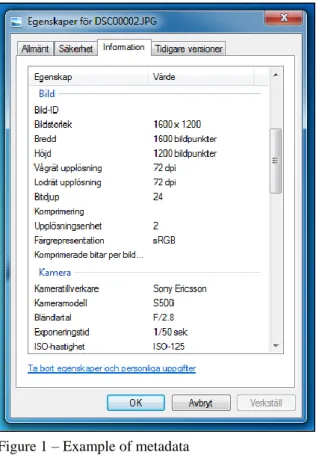
13 Figure 1 shows an example of how metadata can look. In this example, the properties window of a picture has been opened and it shows
information about a picture. Some things that might be interesting can be the resolution of the image, the model of the camera, how large the image file is etc.
A picture usually has a thumbnail that shows a small version of the picture and this makes it easier to find it. Other kinds of files, such as documents or code files do not have this feature. Therefore it can be hard to identify what you are looking for if you have thousands of files. If you add more information to a document, such as author, a short description of it, when it was last edited etc., it will be much easier to filter and find things.
1.4 – Design considerations
Designing useful and attractive products requires skills and creativity. As a product evolves from the initial idea through prototypes, iterative cycles of evaluation can help to ensure that the product meets the needs of the users. According to Preece [8], it is essential to identify usability and to gather user experience for a product to be successful. Something that is important is that this should be done during each stage of product’s development and that to focus on the right things at the different stages. The best form of development takes place when it becomes kind of a constant negotiation between the developers and the users [8]. Initially, it is important to gather ideas from the users to know what needs to be done. The things they want to have and what is possible to do are important in the negotiations and they can be handled by interviews and surveys. When a part has been developed, it should be evaluated by the users to see that it meets the expectations. When the product is finished, larger user tests should be made to make sure that everything works as it should.
14 As mentioned before, it is not easy to develop good products. Developing a program that is useful but also easy to understand can be very difficult. It is easy to think that everything is perfect, but seen from another person’s point of view, it can be a big difference. Douglas K. van Duyne [9] lists some comments that probably mean that the design probably is not solid. Some of them are the following:
“We need to start doing some usability tests before our launch next month.” “How can our customers be so stupid? It’s so obvious!”
“We don’t need to do any user testing. I’m a user, and I find it easy to use.” “Shrink the fonts more so that we can put more content at the top.”
If you have a problem with the design, it is very possible that somebody else has had the same problem. A general solution to this kind of problem is called a design pattern and it arose within architecture but was later introduced within programming [9]. During the development process, general design patterns can be both money saving and time saving, since the coding will be quicker and more failsafe while using a pattern. If the developers have access to design patterns that are suited to the specific company, the different parts of the solution will most likely have a similar design. This makes the users more comfortable because they recognize themselves [10].
1.5 – RealTest AB
RealTest AB is an IT-consultant company that was founded in the year of 2003 in Västerås, Sweden. RealTest offers services within measurement and test systems, embedded systems and system development. Since the founding of the company, the number of employees has increased over the years and right now there are 27 employees2.
RealTest has been working with many of the large companies in Västerås, including. ABB, Bombardier and Westinghouse, and they have been developing different products and systems for them. These projects often result in a whole lot of documentation that has to be stored somewhere. The current solution for managing the different projects and documentation is a simple folder structure on the company’s server that the employees have access to.
2
15 This solution creates a few problems. Firstly, inconsistent data is very common because if someone at the company wants to create a project, they have to reserve a project number in their overview document, create a folder for the project, set a link to the folder and keep this information updated. Another problem is that it is hard to get a good overview of what projects they have done in the past, for a certain company for example.
1.6 – Purpose
The purpose with this project is to solve the problems that the employees of RealTest face today with their current way of managing projects and documents. They want an intranet solution that can take care of their projects, documents and employees and this system will be developed by the project group.
1.7 – Delimitations
An intranet solution can be made very large and no matter how much time is spent on it, there will always be things that can be improved. This thesis project consists of 10 weeks of work for three persons. It is hard to plan a whole project from the beginning and to decide exactly what functionalities it should contain. Therefore we decided, together with our advisor at RealTest, that we would build the intranet with its basic functionalities and then extend it by adding desired features as long as there is time left. This way the final product was limited by the time (however, RealTest will continue working with this project to finalize the product).
1.8 – Target group
The two main target groups for this report are the coworkers at RealTest and persons who are interested of how project and document management works in a medium-sized company. People who are interested in Microsoft SharePoint can also find this report useful.
1.9 – Introduction of technologies and terms
This chapter will introduce technologies and terms that will be used in this report.
The intranet term is used in contrast to internet, a network between organizations. An intranet instead refers to the network within an organization and sometimes, it only refers to
16 the internal website of an organization. The objective is to organize each individual’s desktop with minimal cost, time and effort to be more productive, cost efficient and timely [20].
Internet Information Services (IIS) started out as a web server application, but in later releases, more features have been added. From providing the basic services as an HTTP server, Microsoft has added additional internet services called modules such as FTP, SMTP and POP [2].
VMware Workstation is an application that makes it possible to run multiple instances of different operating systems on one physical computer and an instance of an operating system is also referred as a virtual machine [21].
Active Directory (AD) is a directory service for Windows domain networks and has in later releases been renamed to Active Directory Domain Services [22]. AD is mainly a network directory that stores information about the network and all network resources such as users, files, computers, shares and more. It provides the ability to assign security policies to the different resources and acts as the authority for network security [3].
An integrated development environment (IDE) is a programming environment integrated into a software application and provides functionality facilitates to computer programmers for development of software. An IDE usually has a source code editor, debugger and build automation [23].
1.10 – Existing systems
There are several existing intranet solutions that provide the functionalities that are needed by RealTest. This chapter will cover two of these systems and some conclusions.
1.10.1 – MindTouch Core
MindTouch Core is one of the most popular open source products on the web and according to SourceForge [24], it is one of the leading internet solutions. It is written in C# .NET and licensed under the General Public License, giving it a good foundation to be a Windows intranet solution. In its core, MindTouch Core is an enterprise wiki and collaborative portal made to easily connect people, systems, web services, and web applications for enterprise automation [25].
17 A reason for using MindTouch is the tiny amount of effort needed to get it running. It can be set up either by using the source code and IIS, or just by downloading a VMware virtual machine image with everything already installed. One of the most notable features is the ability to include “extensions”, which are snippets of functionality. An example of this is the RSS extension makes it possible to generate lists from an RSS feed.
Examples of customized experiences using MindTouch core as their foundation: Blackboard
PayPal
HTC official web site
1.10.2 – HyperOffice
Whether it is SharePoint3 Server 2010 or its earlier versions, the costs and complexities of SharePoint are sometimes too much for a small to mid-sized company to bear. Even the terminology of SharePoint is enough to confuse users that do not have much previous knowledge of the platform. Some of these are: SharePoint Foundation, Server, Service, Portal, Sites, WSS and MOSS etc. [26].
Because of this a product called HyperOffice was developed. HyperOffice provides features divided into modules, so that each company just gets the features that are relevant to them. At the same time it is delivered as a packaged and easy to use cloud based solution. Even though it is far from as complex and feature rich as SharePoint, it still provides quite a few features that most companies want, such as document management, intranet software, online project management, social collaboration etc. The selling point of their platform is: “There is no hardware to install, no software to download, no experts to hire. Just get online and get started!” [27].
Examples of companies using HyperOffice: Facebook
McDonald’s
Ohio State University
3
18
1.10.3 – Conclusions
There are many different complete intranet solutions that have been developed before. What are the advantages of using one of these and what are the advantages of developing an own intranet using something like SharePoint or MindTouch as the foundation?
There are many advantages of using an existing intranet solution. One of the reasons for using such a solution is that the product is well-tested and only has to be installed (and, of course, bought if it is not freeware). If it is a big product, there is a good chance of being able to get help on the internet if things are unclear. But at the same time, “getting help on the internet” might not be enough and you might end up having to hire help to be able to use the system. Developing an own intranet also has its advantages. An important factor is that it can be customized so that it will be made exactly as the company wants it. This way the product will not contain features that might never be used. It also makes the intranet more understandable and easier to use if developed correctly. It also brings the possibility to easily make changes to the system in the future, if it is needed. Another important factor is that high costs for support can be avoided while using the system since the company itself made the system in question. But the intranet will still cost the company a huge amount of money if they want to use something like MindTouch or SharePoint as the foundation for their intranet. So why not create one completely from scratch using some technology like ASP.NET?
To create an intranet that includes features like document management with version control and support for multiple users with different privileges is no easy task. It will most likely cost the company more to develop than to buy and take years to get running completely.
Last but not least, RealTest demanded that the intranet would be developed from the beginning but using SharePoint as its foundation. Since most of the employees at RealTest have developed or are developing with SharePoint.
19
2 – Problem formulation
2.1 – Current solution
RealTest is currently keeping track of their projects using a folder hierarchy. Each folder represents a project and is named by the project number. The documents and files that are related to the project are stored in sub folders of the project folder. To be able to get an overview of the projects, there is a word document on the root folder that lists all of the projects, where each line consists of the project number, project name, the responsible person and a comment about the project. Each line also contains a hyperlink to the project folder for quick access.
There are three different types of projects:
Office project: An office project is used for bills, contracts and other office material that is related to RealTest.
Customer project: A customer project is used when RealTest sell products. The contents of this project type are contracts, receipts and customer agreements.
Product project: A product project contains documentation, source code and a lot of other information. This is the project type that contains the most information.
As mentioned earlier, files related to a certain project are stored inside the project folder and its sub folders and these files come from different sources. Some files might be information about the project sent from a customer and these files most often contain a document number that the customer has assigned to it.
Other files are created internally and these files might be anything from code files to important sales documents. Files that RealTest find important, such as the customer contract, will have a document number attached to it in its filename. This number always has to be unique in that project.
A project may contain thousands of files with a big variation of file types and sizes. To manage all of the information, RealTest is currently using Microsoft Active Directory.
20
2.2 – Problems
The current solution of RealTest is not a smart way of handling important information. Firstly, there is no overview of the projects when the folders are browsed. The only thing the user can see is a bunch of folders without names that make them recognizable. The overview information is instead in a word document that shows basic information about the project. This information cannot be ordered, sorted or filtered in any way since there is no support for different types and it is not the most flexible way to show information. The same thing applies to the contents of the project folders. Everything lies in the folders and there are no filtering capabilities. All of the different types of files can be in the same place which makes it hard to find something specific, especially when many of them are named only by their document number.
Another thing is the handling of their files. There is no kind of support for managing different versions of a file. Therefore, there are many duplicates of files in different folders and it is unnecessary and time consuming to need to go through everything to find latest version. A different problem is that two employees can work with the same file at a moment. If this happens, a lot of information could be lost since the data would be overwritten and this is dangerous.
RealTest works with different projects in teams and the employees need access to the project files. A problem with the current solution is that there is no way of handling privileges. All of the users have access to the different projects and its contents and this is also not good. A user should only be able to see the contents that belong to projects that he/she is involved in.
2.3 – Intranet solution
As mentioned in the previous chapter, there are many different problems with the current solution of RealTest. To make a better structure of the projects and their related content, an intranet will be developed using Microsoft SharePoint. By showing the users short announcements, a calendar and a small list of the latest projects on the start screen, it will be much easier to get an overview. The announcements function will show users short news that might be good to see when the intranet is started and the calendar will make it easy to see planned events, such as meetings with customers, company lunches, if somebody is sick etc.
21 However, the most important part of the main page is to see the list of the projects. This can be filtered and ordered by the different metadata such as project number, title, type, status, customer etc. and this will make it very easy to find the wanted project.
It will be easy to add a new project to the intranet. A unique project number based on the current system of RealTest’s number generation will automatically be assigned to the project. The user can then fill in the metadata of the project. All of this information will later be shown in the intranet and it will also be easy to edit information of a project. Depending on what project type the user chooses, the site of the project will look differently. An important feature is that the specified project members in the created project will be the only persons who have privileges to access the project site.
Each project will have its own site containing all of the information related to it. The metadata of the project will be shown in the project site and the files will be located in document libraries that will be used for different types of files and these libraries will have different metadata. Internal files will be located in the internal library and when a file is uploaded to this library, a unique document number will automatically be assigned to it. External files from the customers will be located in an external library and other files will be in a third library. There will also be a library used for referencing documents that are located in physical folders at the company. These different libraries will be sortable and it will be easy to find the wanted information. The libraries will also support version management and it will be possible to see if a user is currently working on a file by having a check out/in function. This will prevent duplicated data and lower the risks of overwriting existing data.
Over the years, RealTest have worked with many different projects and thus they have a lot of data. It would not be smart to use the old system for the old files and this new system for the new files. Therefore, a migration tool will import all of the existing data to the intranet and put the files in the different libraries, assigning metadata and document numbers to the ones that need it.
22
3 – Model/method
This chapter describes the different methods and environments used when developing the intranet. It also provides an introduction to the SharePoint platform.
3.1 – Development environment
RealTest has many developers that are working on different projects. In some of the projects, the developers do their work at the customer’s company, so they can get a better understanding of how their current solution works. In other projects, they perform their tasks at RealTest and need development machines. These machines need to have a subset of tools and software installed to be able to work with the project. Since a project can have anything from 1 to 20 employees working on it at the same time, it would be very time inefficient to install and setup these environments on all of the computers.
Therefore, the developers at RealTest use a VMware virtual machine image based on an installation of Windows 2008 Server with all software and tools installed. This way, all of the developers can get a copy of this image and start working directly, without having to install anything besides VMware, which runs the virtual machine. If a new developer joins the project late, he can just get a copy of the virtual machine and join in.
During the development of the intranet, we have also been using a copy of this virtual machine, with all of the tools we needed preinstalled.
3.2 – Microsoft Visual Studio 2010
Inside the virtual machine, there are many different programs installed. Microsoft Visual Studio 2010 is one of them. Visual Studio is an IDE that can be used to develop different types of applications, such as graphical user interface applications, Windows Forms applications, web sites etc. [28]. Visual Studio has many useful features that make the development process significantly easier, such as IntelliSense for auto completing popups,
23 different debugging4 features. Last, but not least, Visual Studio has built-in support for source control (see chapter 3.3).
3.3 – Source control
When working in teams in software development projects, it is very important to keep track of changes. Several developers might work with the same file and a lot of data could be lost if one person made changes to a file that just had been saved by another person. This is a serious problem and a solution for this is using some kind of source control product.
Microsoft has developed a product called Team Foundation Server (TFS) that is built-in Visual Studio but it is also available as a stand-alone application [6]. Team Foundation Server offers source control, data collection, reporting and project tracking. It is very easy to understand if it is used together with Visual Studio. All that the developers need to do is connect to the same TFS, have credentials for it and select the same solution. Then, if one developer wants to make changes to a file, he would check out the file and, if needed, also lock it to prevent others from making changes. This way, all of the users can see that the file has been checked out and is being worked on. If the developer locked the file, nobody will be able to make changes to the file until it has been unlocked again. When the developer has finished working on that task, he can then check it in again and it will be available to all the other project members again.
The TFS also provides a neat functionality that keeps track of all the changes, by using change sets. Every time a user does a check in, a new change set is created with all of the files that were checked in and each set will have an incremented id, starting from 1. The user can then view all of these change sets and see exactly what has changed in a file between two sets. This way, deleted code can easily be retrieved if it is suddenly needed again.
3.4 – Development method
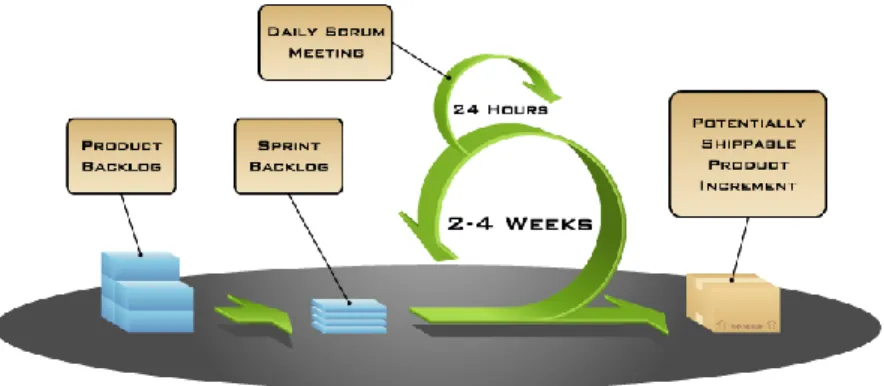
It is necessary to use some kind of development methodology when you are working in big projects because it makes things much easier. Scrum is an example of this. Scrum is an agile process for software development. Using scrum, projects progress via iterations called sprints
4
24 and each sprint is typically 2-4 weeks long. Scrum is ideally suited for projects with rapidly changing requirements [29].
Figure 2 summarizes everything essential in agile software development with scrum. The product backlog on the left contains the wanted features of the product that are known at the time and it has been prioritized by the product owner.
When each sprint starts, the team selects an amount of work from the product backlog and is supposed to complete that work during the sprint. The team creates the sprint backlog which is the list of tasks needed to deliver the selected set of product backlog items to be completed in the sprint. An estimation of how long time each task will take is also made [5].
When the planning is done, the team works with the tasks of the sprint for usually 2-4 weeks. Each day during the spring, the team members meet to present and discuss their progress and any impediments to completing the work for that sprint. This is known as the daily scrum and is shown as the smaller green circle in the figure.
At the end of each sprint, the team produces and demonstrates a potentially shippable product increment, i.e. working and high-quality software. This is known as the demo. The team also has a meeting called “Sprint retrospective” where all of the team members reflect on the past sprint and discuss what was good during the sprint and what can be improved to the next sprint.
3.5 – Microsoft SharePoint
Today there is a rich selection of content management systems and most companies have replaced their homemade solutions with complete systems from a number of different manufactures. Like in most areas of the computer world, Microsoft has developed a solution.
SharePoint is a web application platform with built-in document management and strong ties Figure 2 – The scrum methodology
25 to the Office suite5. SharePoint can be seen as a server that handles communication between all of the components in the Office Suite and all of the users in a common network. By default, SharePoint has an interface that closely resembles the one that you can find in the Office products and it provides the same ease of use. Thus, even non-technical users can handle the included web tools without a big effort. Once you want to start to change the design or modify/add new features, it gets very complex and requires a decent knowledge of both web programming and C#.
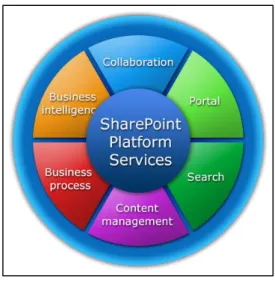
When SharePoint was launched back in 2001, it was mostly associated with content and document management. Today it offers a wide variety
of services and this can be seen in the so called “SharePoint Wheel” in figure 3. This massive platform is built on a flexible architecture. It can be scaled to operate entirely from a single machine, or scaled up to be managed across hundreds of machines. To get this scalability, Microsoft has split SharePoint into tiers that a developer can use to extend or change SharePoint according their own needs [7].
You can say that SharePoint is a web content management system. Where you define content using so called content types or other types of templates. A content type can specify what fields should exist in a list, what format a certain kind of document should have, etc. There are many pre-built content types, but it is also possible to create own content types by either inheriting from other content types and modifying them, or by creating them from scratch. A site in SharePoint can contain different types of content. It can be information about projects, people, images, etc. This information can be stored in different kinds of lists and libraries. A list can be compared to a table in a database and is created by using a list definition that contains important information about the list most often inherited from a content type. The information in a list can be displayed in various ways using views to filter
5 The Microsoft Office suite is a suite of desktop applications, servers and services for the Windows and OS X
operating systems, introduced in 1989. The suite includes applications as Word, Excel, PowerPoint and much more.
Figure 3 – The SharePoint wheel from Microsoft’s marketing campaign in 2010.
26 the data. Lists are mostly for storing texts, to be able to store images, documents and other kinds of files in SharePoint, a document library can be used. Inside a document library files can be stored in a list structure that supports version handling with check in/check out support.
SharePoint has many different user controls built in and it is also possible to create custom user controls that do different things. These user controls can later be placed in web parts, which use them. For example, if you want to show a list and a document library together in several pages, you can put them both in one web part and use that web part in the different pages. This way, you can avoid copying code and have everything in one place instead. To be able to use the content types, site columns, lists etc., they have to be deployed to the SharePoint Server. This is done by using features. A feature activates different functionalities on the server and gives the user the ability to turn on/off functionalities at their will. These features make Microsoft SharePoint a very powerful tool.
3.6 – Development process
The development process can be divided into three parts: the process of learning SharePoint, the development of the intranet and the development of the migration tool. Although the two development parts were under construction simultaneously, we will write about them separately.
3.6.1 – Learning SharePoint
Since none of the team members had any previous knowledge in how Microsoft SharePoint works, it was hard to start working directly. The first days, the team members were going through different tutorials and followed examples in the book “SharePoint 2010 Development with Visual Studio 2010” [4]. Since SharePoint is such a gigantic platform, it was hard to even scratch the surface of it in a few of days. However, we managed to understand a little bit of how things work and could thus start to work with the basic functionalities of the intranet the following week. The process of learning SharePoint would have to be something that would run through the whole project.
27
3.6.2 – Intranet
The first for implementation of the intranet was to start sketching up how a project site should look like and what information it would contain. Once we had a clear view of the project site, the implementation started by creating a so
called site definition. A site definition describes how a page should look like and it can be seen as a template. This was done to ensure that the website has a consistent look through all of the projects and will make it much easier to generate project pages in the future.
3.6.2.1 – Project types
In the beginning, it was decided that there should be support for having two different project types, i.e. two different site definitions. One of them would be a small project type that would contain basic information and a document library, while the other one would be a large project type that would contain more information, several libraries and some extra features that had not been planned at the moment. This was later changed to three types and the two existing types were drastically changed. To be able to fill the site definitions with actual content in SharePoint, site columns that would be used in the content types needed to be created, since all of the site columns that were needed did not already exist. An example of this is the site column for the project number. Other columns that would be used and that already existed was the title, start date, end date, project status, project members etc.
28
3.6.2.2 – Project numbers
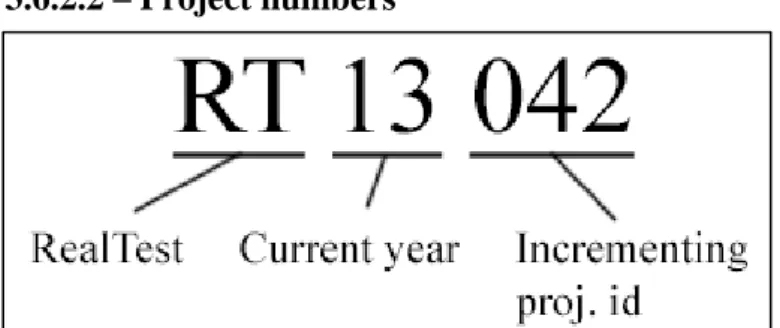
Once a project site could be created, we needed to do a little research on how generation of project numbers worked at the moment and think about a solution for generating this inside the intranet. As you can see in figure 5, project numbers consists of the letters RT (which stands for RealTest) followed by the current year using two numbers and finally an increasing number (starting from 000). For example RT13000 would represent the first project created in the year of 2013. This functionality resulted in a class called NumberGenerator which contains several methods for getting and generating projects numbers and also document numbers, which will be mentioned later in this chapter. After that class was written, a project could be created and it would get a correct project number, even if the way of generating it was changed later. At this point everything was still very new to us and we ran into many different errors, that we later would learn how to manage.
3.6.2.3 – Project overview
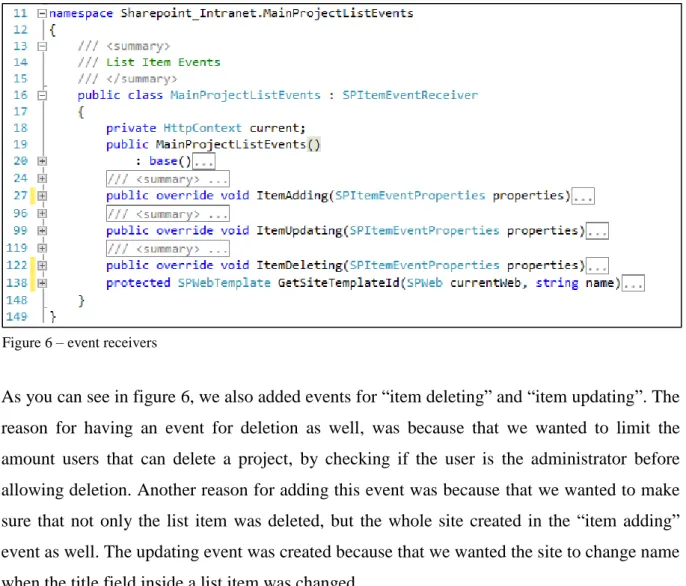
At the first stages of developing the project overview, we gathered information about all the projects by iterating through the project sites that existed under the project overview. We soon realized that this solution was neither smart nor very effective and decided to create a main project list instead, where all of the projects would be stored instead of storing information about each project inside each site. It also allowed us to store additional information like the URL to each sub site inside the list. This, of course, required some rethinking of our part and some refactoring of the code. While refactoring the code, we found some new features of SharePoint called event receivers, and by using these, we could catch events that are created when for example creating a new project. By creating an event receiver that listens to item events on the main project list, we could add a button to the project overview page that would display a popup that allowed the user to create a new project into the list. When the popup Figure 5 – project numbers
29 was filled, the event receiver would receive an “item added” event and create a new site using the entered information.
As you can see in figure 6, we also added events for “item deleting” and “item updating”. The reason for having an event for deletion as well, was because that we wanted to limit the amount users that can delete a project, by checking if the user is the administrator before allowing deletion. Another reason for adding this event was because that we wanted to make sure that not only the list item was deleted, but the whole site created in the “item adding” event as well. The updating event was created because that we wanted the site to change name when the title field inside a list item was changed.
3.6.2.4 – Calendar & company announcements
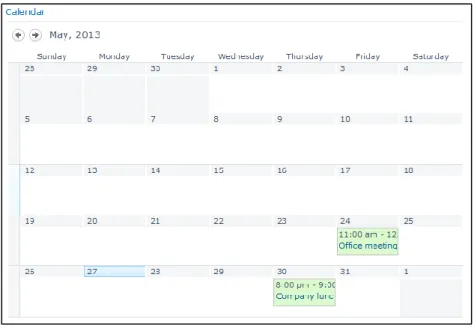
The requirements of the calendar were that it should have the functionality to synchronize all employees Microsoft Outlook calendars and merge them together into one calendar. The idea for the calendar was that it should be easy to get information about the every employee’s schedule. After some researching, this functionality was removed because of limitation of support in Outlook and Microsoft Exchange server. The calendar is a default web part in SharePoint and it has many features to offer. The first part was to add the graphical built-in web part and then create a list, which consists of calendar items to make it possible to add information to the calendar.
30 It is now possible for multiple users to manually add information about their schedule in the same calendar located on the start page. The user can switch between different months and also change to a more detailed view.
The announcement web part is made from scratch using ASP.NET and the main use for this function is to write important announcements, which will be displayed on the start page, where all of the employees at RealTest can take part of this information. A list was created to store the announcements in and the interface was built using HTML and CSS. The information shown is a header, a body of text, date and the author.
3.6.2.5 – Document numbers
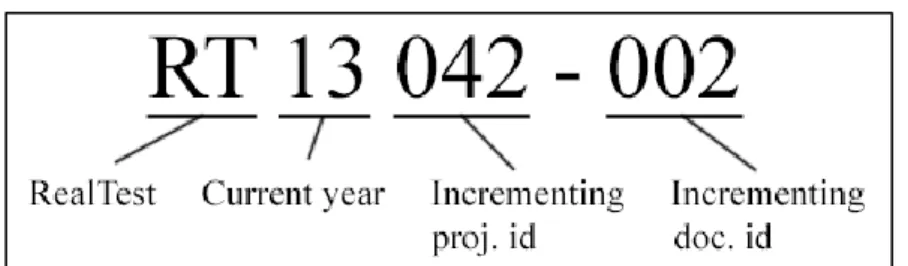
To be able to develop the feature that assigns unique numbers to documents, a bit for research was needed again. We found out that document numbers were currently generated according to figure 7. As you can see in the figure, it is very similar to the project number and actually contains the project number of the project that the document relates to. This was implemented by adding additional functionality to the NumberGenerator class and by creating a new event receiver that listens to “item added“ events inside each document library that needed this functionality.
3.6.2.6 – Move documents
Something that came up late during the development process was that the system needed to give users a way to move documents from one library to another, both inside the same project and to other projects. This was solved by adding a button next to each library that, when clicked, displays a popup window where the user can select the documents that he/she wants to move and select a destination for these documents by easily changing the values of the three different dropdown lists. The first drop down list is for what year the destination project exists in. The next one is the project number and lastly, what list inside the project that the Figure 7 – document numbers
31 documents should be moved to. After the destination and documents have been selected, the user will have to press the move button. The documents will then be moved to the destination with necessary fields added/removed. If the document for example is moved from the external to internal list, the document number field will have to be added and a document number generated. Same comes if an internal document is moved from on project to another. Then, the document number has to be updated to correlate to the new project.
3.6.3 – Migration tool
In the beginning of this subproject, there was a lot of time spent on analyzing the current solution of RealTest and how it was structured. As mentioned before, RealTest is using a folder hierarchy to structure the projects and the associated content and to get an overview of all of the projects, they are using a text document.
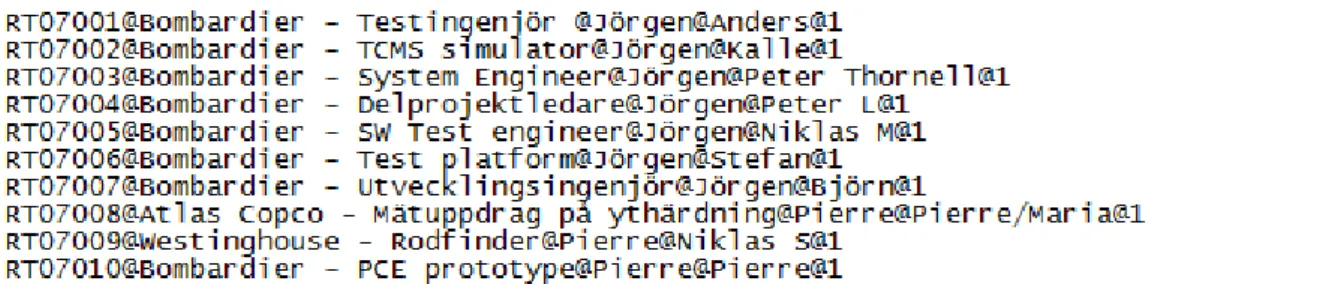
The programming language C#, together with the graphical interface Windows Forms, was used to develop this subproject. The first functionality to be implemented was the ability to extract projects from the project overview text file. To be able to extract all of the information from the file, the data inside of it needed to be separated in a structured way. So what we did was to separate this data according to figure 8 by adding @ in between each cluster of data.
The next part to implement was the functionality to extract all of the important information from the text file which contains project number, name of the project, project responsible and additional information. Regarding the project responsible person, there was some extra functionality needed because inside the overview file, this was just a name of the person responsible of the project and this name had no connection to the Active Directory of Figure 8 – Project overview file
32 RealTest. Therefore, we needed to translate the name to an actual user and this was done by adding functionality that searches for user inside their Active Directory.
Once projects could be extracted, a connection to our SharePoint project was needed, to be able to automatically create projects with the parsed information. Next step was to upload all content located inside each project on their server to SharePoint. This might sound as a simple task, but so many things can go wrong when migrating over 60 gigabytes of files. Since the content stored on their server had a big variation of file types and sizes, it caused problems because that some file types are not supported and SharePoint has a file size limitation of 2047 MB. To solve these problems, the files that caused issues were moved to another location on their server and a list called “Archive documents” was added in the SharePoint project. This list would contain paths to the files that SharePoint does not support. Of course, not every problem could be solved this way. For other errors like unsupported files names etc., we added a functionality that logs all of the errors that occur during the migration. This way, the files that caused issues can be added manually later.
33
4 – Results
The project resulted in two products: the intranet and the migration tool. This chapter will go through the developed parts of the system and explain the different functionalities.
4.1 – Intranet
The intranet consists of two different types of pages: the main page and the project page.
4.1.1 – Main page
When the intranet is started, the main page is loaded. This page contains the calendar, a list of company announcements and an overview of all the projects. It is supposed to give an overview of the intranet by providing the recent news, planned activities and the latest projects that are being worked on at the moment.
34
Calendar
The calendar view shows a monthly view of the planned activities and it can contain anything, such as information about meetings, sick employees etc. The current month can easily be switched by pressing the left and right buttons on the top of the calendar. The planned activities are listed in the different boxes and can be clicked. When an activity is clicked, a popup that contains all of the information about the activity is shown. If the mouse pointer is held over a box, an add button is shown after about a second and if it is clicked, a popup that allows you to create a new activity is shown.
Announcement list
On the left of the calendar, the announcement list is shown. This list can contain news or other types of announcements that are important for the employees to see when they browse the intranet.
Figure 10 – Monthly calendar
35
Project overview
The project overview is simply a list that displays all of the projects in the system and relevant information about each project, such as project number, title, type, status and customer if there is one. This overview can be filtered by project type, customer and status by selecting the appropriate values in the dropdown menus. Each column in the list can also be sorted so that you can easily find the project you are looking for.
Add project popup
Just above the list of projects, there is a button for creating a new project, but before clicking the button, a project type has to be selected from the dropdown list next to it. When the button is clicked, a popup appears where the user will have to fill in the information about the project. The fields that appear in this form are different depending on the project type chosen.
Figure 12 – Project overview
36
4.1.2 – Project page
The project page looks different depending on the project type. For example, an office project does not have a customer or any external project members. The project page can be divided into two parts; one where the project information is displayed and the other where all of the documents of the project are shown.
Project information
This part contains basic information about the project: title, project number, start and end date, project status, customer, project members and a description of the project. This information can easily be edited by clicking the “Edit project” button, which will show a popup window where the user can edit the fields.
Figure 14 – Project page
37
Project documents
The documents part contains four different document libraries:
Documents – this document library contains documents that belong to the project but that are not very important, such as notes, logs or random documents.
Internal documents – this document library contains internal documents and files that come from RealTest. These documents are important and can be identified by the document number.
External documents – this document library contains external documents, i.e. documents that come from the customer. These documents might also have external document numbers, but they are not generated since it is up to the customer to provide them or not.
Archive documents – this document library contains two different types of data. Some documents that belong to a project are only available in paper form in some folder at RealTest. The archive document library can be used to specify in which folder the paper is by writing the name of the folder and a tab number. The other type is files that SharePoint do not support. The file size limit in SharePoint is 2 GB and some of the files in RealTest’s projects are larger than that. These files also need to belong to a project and this can be done by using the archive document library to store the path to folder on the server that the file is located in. This is also used for files that have file extensions that are not supported by SharePoint.
38
Document context menu
There are a couple of important features that exist in the document libraries. Since SharePoint has support for the Office products, the Office documents can easily be edited, e.g. by clicking “Edit in Microsoft Word” in the context menu on a Word document (the context menu is opened by right clicking a document). The document will then be opened in Word, directly from the SharePoint server. This means that it will not download a copy of it and start editing it, it will communicate directly with the SharePoint server. When the document is saved, it will be shown as a new version of the document. This applies to the different Office products, such as Word, Excel, and PowerPoint etc. Even if you have a local file with a new version of a document that exists in a library, you can choose to upload it and save it as a new version of it (see the “Add document popup” chapter).
These different versions can be shown by clicking on the “Version History” item in the context menu. This will open a popup that shows the different versions of the document by showing the document title, version number and a description of that specific version. An older version of a document can easily be downloaded by clicking on the title of it.
Another function is the “Check Out/In” function. When a user checks out a document, it is shown by marking the document with a small green icon next to the title. When the document is checked out, the other users can see it and cannot work with it until it has been checked in again.
39
Add document popup
When the “add document” button is clicked, a popup is shown, allowing the user to browse for a file and upload it. When the next button is pressed, the user is being redirected to another page in the popup (see figure 18), where some other information can be filled in.
One of the fields that the user must specify is the content type that will be used for the uploaded document and this is done by picking one of them from a dropdown list. The implemented document content types are Document and Offert. The Document content type is the “normal” content type is used for all documents that have been imported by the migration tool. The Offert content type will be used for project offers. The developers that will continue working with the intranet will add different document content types that they need later (more on this in chapter 6).
The other fields will contain other information about the document, such as name and description. The external document library has an extra field that is used to store the external project number.
40
4.2 – Migration tool
The migration tool turned out to take much more time than we thought from the beginning, because we did not take into account all of the problems that can occur when migrating such big amounts of data. In the end, the migration tool turned out very well and with a lot of live testing, we can say that the tool can successfully migrate most parts of the data and is able to tell the user what parts did not migrate so it can be fixed manually.
Start screen
When the migration tool is started, there are four different text boxes that need to be filled with information: SharePoint server URL, project folder, project information file and storage location for unsupported files. There is also a checkbox that has to be clicked if the migration tool should import the created documents as
well. When all of the fields have been filled and the user is ready to start the migration, the start button can be clicked. The migration tool will now go through the different projects in the text file and try to add the projects to the intranet. If nothing goes wrong, a project should be added to the intranet with its original project number, the belonging documents should be put in the document libraries and if the documents already have document numbers, they
41
Complement information
When the migration tool cannot identify the name of the project, the project responsible etc., a popup shows. This popup lets the user type in the missing information about the project. When everything is typed, the user clicks the OK button and the migration continues.
4.3 – User evaluation
Even if the team members could get feedback of the work after each sprint demonstration, it was necessary to make a user evaluation in the end to check what the end users thought about the intranet. We selected three of these evaluations to show in the report and you can see these below, while our final user conclusions are based on all of the evaluations.
1. On a scale from 1 to 10, how good are your computer skills? Employee A: 10
Employee B: 10
Employee C: 6
2. Do you think that the intranet is user friendly? Employee A: Yes
Employee B: No, partly not.
Employee C: Yes, I find it quite user friendly.
42
3. Do you think that it is easy to navigate and to find what you are looking for? Employee A: Yes
Employee B: Yes
Employee C: Yes, it is much easier to find a project now than with our old system.
4. Do you think that you will start to use the intranet instead of your current solution? Employee A: Yes, absolutely.
Employee B: Yes
Employee C: Yes, I think we will.
5. If yes, in what way do you think that the intranet will make your daily work easier? Employee A: The new intranet will make our work more effective. We will be able to find the information we need in our daily work much easier. It will also be easier for our consults to get access to the information that they need when they are out on jobs at our customers.
Employee B: The control of data will be better and it will be easier to find information.
Employee C: It will be easier to find what you are looking for and handling documents will be more effective. The version management of documents will really come to use.
6. Do you think that anything is missing in the intranet?
Employee A: No. The new intranet fills our basic needs so I do not think that we will miss anything primary. But as we work with it and more of our coworkers get into it, it will surely show up requests of more features. Exactly which requests that will come up is, however, difficult to predict today.
Employee B: Because it is the standard user interface, I do not think that it looks so funny. It is not super easy to navigate either.
Employee C: The search function, but that is something that we will continue with here.
7. Other comments
Employee A: Generally, we are much happy with the new intranet. We are also impressed by how far the team members got during the relative short period.
43
Employee C: Thank you very much. We look forward to using the new intranet and finalizing it.
Conclusions
The employees have been able to give feedback to us during the demonstrations we have had after each sprint. This has helped us very much during the development process and it often led to changes that we had to make. In the end, we did this evaluation and most of the ones who answered were happy with the new intranet and they all agreed that it would be more efficient than the current system. Most people were impressed about how far we got during this short period of time considering the complexity of SharePoint, while some thought that some features were missing like the search functionality. We are quite happy with the feedback that we got from the employees, especially since all of them wanted to start using our intranet instead of their current solution.
44
5 – Discussion & conclusions
In the end, we have achieved most of the goals that were set for this project and we also managed to add some extra functionality in addition to the main criteria, which came up during the development process. We managed to create an intranet application with the functionality to add project of three different types, upload contents of various types, move contents between different projects and lists, filtering capabilities, the ability for users to publish announcements and a fully functional calendar. With the migration tool it is now possible to transfer all projects and its contents. Trough out this project, we have learned much about SharePoint and other technologies that we used and we learned how it is to work on a real project, which have given us a valuable experience.
A requirement that did not make the first version of the intranet was the ability to search through the system. The reason for this was that RealTest were planning to move their SharePoint server to an Office365 server which has search included by default. This way, no efforts were put on trying to make a search that might never be used.
The most problematic part of this project has been the lack of experience in SharePoint and as a result of that, we have solved problems in a non-optimal way, which we later had to redo. SharePoint is a complex product and according to the software developers at RealTest, they have many years of experience with SharePoint but they only have knowledge in a small percentage of what SharePoint has to offer.
There have been times when our work has been stalled because of the need of administration from RealTest. To be able to test our system, we needed access and higher user rights to be able to run all of the functionality.
Another problem we had was the development environment, because we have been developing on virtual machines using VMware. This resulted in low performance of the computers, which was really slow at times.
SharePoint is a powerful product that allows you to create very complex software solutions. We think that SharePoint had all of the features needed for developing this project, but it is an advanced tool with a lot of functionality that we did not need. Maybe a more basic technology
45 had been more appropriate for our solution. But for future work, we think that SharePoint is a good choice because of its complexity and the huge amount of functionality it provides. It is also a smart choice since most of the employees have experience with it and can easily continue the development.
We would recommend using SharePoint for projects similar to ours, because of the amount of information and help that exists about the platform. But due to the fact that it is such a massive tool and much to learn, to accomplish even the most basic functionality we say this with a warning; it takes time to get started.
46
6 – Future work
The search functionality that we did not develop is a feature of big importance, especially in the future because of the fact that more projects and contents will be added. To find specific files in the current amount of contents, it is going to be problematic and RealTest will continue to work on the intranet and add this functionality.
To make the intranet more user friendly, we recommend adding a function that only shows content related to the individual user and add a notification function, which shows information if there has been new activity in the projects that the users are members of.
RealTest wants to be able to create subprojects within a project and this is because of projects that are divided into different parts. The projects with this structure will be easier to find and more logical because of the relation to each other.
We have discussed with the employees about their suggestions and sometimes they do not know what they want or need, but as the employees of RealTest continue using the application, more suggestions of missing functionality will be reported.