53-1002449-02 18 May 2012
®
Brocade 6505
Copyright © 2011-2012 Brocade Communications Systems, Inc. All Rights Reserved.
Brocade, Brocade Assurance, the B-wing symbol, DCX, Fabric OS, MLX, SAN Health, VCS, and VDX are registered trademarks, and AnyIO, Brocade One, CloudPlex, Effortless Networking, ICX, NET Health, OpenScript, and The Effortless Network are trademarks of Brocade Communications Systems, Inc., in the United States and/or in other countries. Other brands, products, or service names mentioned may be trademarks of their respective owners.
Notice: This document is for informational purposes only and does not set forth any warranty, expressed or implied, concerning any equipment, equipment feature, or service offered or to be offered by Brocade. Brocade reserves the right to make changes to this document at any time, without notice, and assumes no responsibility for its use. This informational document describes features that may not be currently available. Contact a Brocade sales office for information on feature and product availability. Export of technical data contained in this document may require an export license from the United States government. The authors and Brocade Communications Systems, Inc. shall have no liability or responsibility to any person or entity with respect to any loss, cost, liability, or damages arising from the information contained in this book or the computer programs that accompany it.
The product described by this document may contain “open source” software covered by the GNU General Public License or other open source license agreements. To find out which open source software is included in Brocade products, view the licensing terms applicable to the open source software, and obtain a copy of the programming source code, please visit
http://www.brocade.com/support/oscd.
Brocade Communications Systems, Incorporated
Document History
Corporate and Latin American Headquarters Brocade Communications Systems, Inc. 130 Holger Way
San Jose, CA 95134 Tel: 1-408-333-8000 Fax: 1-408-333-8101 E-mail: [email protected]
Asia-Pacific Headquarters
Brocade Communications Systems China HK, Ltd. No. 1 Guanghua Road
Chao Yang District Units 2718 and 2818 Beijing 100020, China Tel: +8610 6588 8888 Fax: +8610 6588 9999 E-mail: [email protected] European Headquarters
Brocade Communications Switzerland Sàrl Centre Swissair
Tour B - 4ème étage 29, Route de l'Aéroport Case Postale 105 CH-1215 Genève 15 Switzerland
Tel: +41 22 799 5640 Fax: +41 22 799 5641 E-mail: [email protected]
Asia-Pacific Headquarters
Brocade Communications Systems Co., Ltd. (Shenzhen WFOE) Citic Plaza
No. 233 Tian He Road North Unit 1308 – 13th Floor Guangzhou, China Tel: +8620 3891 2000 Fax: +8620 3891 2111 E-mail: [email protected]
Document title Publication number Summary of changes Date
Brocade 6505 Hardware Reference Manual 53-1002449-01 New document December 2011
Brocade 6505 Hardware Reference Manual 53-1002449-02 Added second power supply installation instructions. Added new CCC statement. Clarified airflow data. Added 2 Gbps SFP+ transceiver data. Other small corrections made.
Contents
About This Document
In this chapter . . . vii
How this document is organized . . . vii
Supported hardware and software . . . vii
What’s new in this document. . . viii
Document conventions. . . viii
Text formatting . . . viii
Command syntax conventions . . . viii
Command examples . . . ix
Notes, cautions, and warnings . . . ix
Key terms . . . x
Notice to the reader . . . x
Additional information. . . x
Brocade resources. . . x
Other industry resources . . . xi
Getting technical help. . . xi
Document feedback . . . xii
Chapter 1
Brocade 6505 Introduction
In this chapter . . . 1Brocade 6505 overview . . . 1
Platform features . . . 1
Platform components . . . 2
Port side of the Brocade 6505. . . 3
Nonport side of the Brocade 6505 . . . 4
Chapter 2
Brocade 6505 Installation and Configuration
In this chapter . . . 5Items included with the Brocade 6505 . . . 5
Installation and safety considerations. . . 5
Electrical considerations . . . 6
Environmental considerations . . . 6
Cabinet considerations . . . 6
Recommendations for cable management . . . 6
Items required for installation. . . 7
Cabinet installation for a Brocade 6505 . . . 8
Brocade 6505 configuration . . . 8
Providing power to the switch . . . 8
Creating a serial connection . . . 8
Switch IP address. . . 9
Date and time settings . . . 10
Brocade Inter-Switch Link Trunking . . . 13
Brocade switchstatus policy . . . 13
Fabric OS Native and Access Gateway modes . . . 13
Disabling and enabling Access Gateway mode . . . 14
Chapter 3
Brocade 6505 Operation
In this chapter . . . 17Powering the Brocade 6505 on and off . . . 17
LED activity interpretation . . . 18
Brocade 6505 LEDs. . . 18
LED locations . . . 18
LED patterns. . . .20
POST and boot specifications. . . 21
POST . . . .22
Boot. . . .22
Interpreting POST results . . . .22
Brocade 6505 maintenance . . . .23
Installing an SFP+ transceiver . . . .23
Brocade 6505 management . . . .25
Chapter 4
Removal and Replacement of Power Supplies and Fans
In this chapter . . . 27Power supply and fan assembly information . . . 27
Removing and replacing a power supply and fan assembly . . . .28
Determining the need to replace a power supply and fan assembly . . . .29
Time and items required . . . .30
Removing a power supply and fan assembly. . . .30
Replacing a power supply and fan assembly. . . 31
Adding a second power supply and fan assembly in a Brocade 6505 . . . .32
Time and items required . . . .32
Installing a second power supply and fan assembly . . . .32
Appendix A
Brocade 6505 Specifications
In this appendix. . . .35Weight and physical dimensions . . . .35
System power specifications . . . .36
Environmental requirements . . . .36
General specifications . . . 37
Data transmission ranges . . . 37
Memory specifications . . . .38
Fibre Channel port specifications . . . .38
Serial port specifications . . . .39
Access Gateway default port mapping . . . .39
Regulatory compliance . . . .39
FCC warning (US only) . . . .40
German statement. . . .40
KCC statement (Republic of Korea) . . . .40
VCCI statement (Japan) . . . 41
Power cords (Japan DENAN) . . . 41
BSMI statement (Taiwan) . . . 41
CE statement . . . 41
Canadian requirements. . . .42
China statement. . . .43
Laser compliance. . . .43
Electrical cautions. . . .44
RTC battery . . . .44
Electrical safety . . . .44
Regulatory certifications. . . .44
Environmental regulation compliance . . . .45
China RoHS . . . .45
Index
About This Document
In this chapter
•
How this document is organized . . . vii•
Supported hardware and software. . . vii•
What’s new in this document . . . viii•
Document conventions . . . viii•
Notice to the reader . . . x•
Additional information. . . x•
Getting technical help . . . xi•
Document feedback . . . xiiHow this document is organized
This document is organized to help you find the information that you want as quickly and easily as possible.
The document contains the following components:
•
Chapter 1, “Brocade 6505 Introduction” provides an overview of the Brocade 6505 switch, a feature list, and a look at the appearance of the switch.•
Chapter 2, “Brocade 6505 Installation and Configuration” provides the information needed to install the switch in your network.•
Chapter 3, “Brocade 6505 Operation” discusses the day-to-day operational procedures for using the switch.•
Chapter 4, “Removal and Replacement of Power Supplies and Fans” provides procedures for removing and replacing the field-replaceable units (FRUs).•
Appendix A, “Brocade 6505 Specifications” provides tables of physical, environmental, and general specifications.Supported hardware and software
This document includes information specific to the Brocade 6505 running Brocade Fabric OS version 7.0.1. and later.
What’s new in this document
The following changes have been made:
•
Instructions for installing a second power supply and fan assembly have been added. Refer to “Adding a second power supply and fan assembly in a Brocade 6505.”•
The Chinese CCC statement has been replaced. Refere to “China statement.”•
Airflow information has been clarified. Refer to “Environmental requirements.”•
Specifications for 2 Gbps SFP+ transceivers have been added to the Data transmission ranges table. Refer to “Data transmission ranges.”•
The number of ports available in either Fabric OS or Access Gateway modes has been corrected. Refer to “Fabric OS Native and Access Gateway modes.”•
Minor corrections have been made to “Installing an SFP+ transceiver.”Document conventions
This section describes text formatting conventions and important notice formats used in this document.
Text formatting
The narrative-text formatting conventions that are used are as follows: bold text Identifies command names
Identifies the names of user-manipulated GUI elements Identifies keywords and operands
Identifies text to enter at the GUI or CLI italic text Provides emphasis
Identifies variables
Identifies paths and Internet addresses Identifies document titles
code text Identifies CLI output
Identifies command syntax examples
For readability, command names in the narrative portions of this guide are presented in mixed lettercase: for example, switchShow. In actual examples, command lettercase is often all lowercase. Otherwise, this manual specifically notes those cases in which a command is case-sensitive.
Command syntax conventions
Command examples
This book describes how to perform configuration tasks using the Fabric OS command line interface, but does not describe the commands in detail. For complete descriptions of all Fabric OS commands, including syntax, operand description, and sample output, see the Fabric OS
Command Reference.
Notes, cautions, and warnings
The following notices and statements are used in this manual. They are listed below in order of increasing severity of potential hazards.
NOTE
A note provides a tip, guidance, or advice, emphasizes important information, or provides a reference to related information.
ATTENTION
An Attention statement indicates potential damage to hardware or data.
CAUTION
A Caution statement alerts you to situations that can be potentially hazardous to you or cause damage to hardware, firmware, software, or data.
DANGER
A Danger statement indicates conditions or situations that can be potentially lethal or extremely hazardous to you. Safety labels are also attached directly to products to warn of these conditions or situations.
command Commands are printed in bold.
--option, option Command options are printed in bold. -argument, arg Arguments.
[ ] Optional element.
variable Variables are printed in italics. In the help pages, values are underlined or enclosed in angled brackets < >.
... Repeat the previous element, for example “member[;member...]” value Fixed values following arguments are printed in plain font. For example,
--show WWN
Key terms
For definitions specific to Brocade and Fibre Channel, see the technical glossaries on MyBrocade. See “Brocade resources” on page x for instructions on accessing MyBrocade.
For definitions of SAN-specific terms, visit the Storage Networking Industry Association online dictionary at:
http://www.snia.org/education/dictionary
Notice to the reader
This document may contain references to the trademarks of the following corporations. These trademarks are the properties of their respective companies and corporations.
These references are made for informational purposes only.
Additional information
This section lists additional Brocade and industry-specific documentation that you might find helpful.
Brocade resources
To get up-to-the-minute information, go to http://my.brocade.com to register at no cost for a user ID and password.
White papers, online demonstrations, and data sheets are available through the Brocade website at:
http://www.brocade.com/products-solutions/products/index.page
For additional Brocade documentation, visit the Brocade website:
http://www.brocade.com
Release notes are available on the MyBrocade website and are also bundled with the Fabric OS firmware.
Corporation Referenced trademarks and products
Microsoft Corporation Windows, Windows NT, Internet Explorer
Oracle Corporation Solaris
Netscape Communications Corporation Netscape
Red Hat, Inc. Red Hat, Red Hat Network, Maximum RPM, Linux Undercover
Other industry resources
For additional resource information, visit the Technical Committee T11 website. This website provides interface standards for high-performance and mass storage applications for Fibre Channel, storage management, and other applications:
http://www.t11.org
For information about the Fibre Channel industry, visit the Fibre Channel Industry Association website:
http://www.fibrechannel.org
Getting technical help
Contact your switch support supplier for hardware, firmware, and software support, including product repairs and part ordering. To expedite your call, have the following information available: 1. General Information
•
Switch model•
Switch operating system version•
Error numbers and messages received•
supportSave command output•
Detailed description of the problem, including the switch or fabric behavior immediately following the problem, and specific questions•
Description of any troubleshooting steps already performed and the results•
Serial console and Telnet session logs•
syslog message logs 2. Brocade 6505 serial numberThe switch serial number and corresponding bar code are provided on the serial number label, as illustrated below:
The serial number label is located on the switch ID pull-out tab located inside the chassis on the port side on the left.
In addition, the chassisShow command displays the Brocade 6505 serial number, as well as information about the port and application blades, and other field-replaceable units (FRUs). 3. License ID
Use the licenseIdShow command to display the license ID. 4. World Wide Name (WWN)
Use the wwn command to display the switch WWN. *FT00X0054E9*
If you cannot use the wwn command because the switch is inoperable, you can get the WWN from the same place as the serial number.
Document feedback
Quality is our first concern at Brocade and we have made every effort to ensure the accuracy and completeness of this document. However, if you find an error or an omission, or you think that a topic needs further development, we want to hear from you. Forward your feedback to:
Provide the title and version number of the document and as much detail as possible about your comment, including the topic heading and page number and your suggestions for improvement.
Chapter
1
Brocade 6505 Introduction
In this chapter
•
Brocade 6505 overview . . . 1•
Port side of the Brocade 6505 . . . 3•
Nonport side of the Brocade 6505 . . . 4Brocade 6505
overview
The Brocade 6505 is a 24-port auto-sensing 2, 4, 8, or 16 Gbps Fibre Channel (FC) switch that delivers the latest Brocade single-chip architecture for Fibre Channel Storage Area Networks (SANs). The Brocade 6505 is a small-to-midsize business-class switch that is designed to handle smaller-scale SAN requirements.
The Brocade 6505 provides up to 24 ports in a single height (1U) switch that enables the creation of very dense fabrics in a relatively small space.
The Brocade 6505 offers Ports on Demand (POD) licensing as well. “Base” models of the switch contain 12 ports, and an additional 12-port POD license can be purchased. The base model also offers a single power supply and fan module with a second module available as an upgrade for redundancy.
The Brocade 6505 supplies Reliability, Availability, and Serviceability (RAS) performance and the scalability requirements of an enterprise switch along with interoperability and ease-of-use advantages.
The Brocade 6505 can also be configured in Access Gateway (AG) mode that lets you configure your Enterprise fabric to handle additional N_Ports instead of domains. By reducing the number of domain IDs and ports, you simplify configuration and management in a large fabric.
Switches in AG mode are logically transparent to the host and the fabric. You can increase the number of hosts that have access to the fabric without increasing the number of switches.
Platform features
The Brocade 6505 offers the following features and capabilities:
•
Up to 24 auto-sensing ports of high-performance 16-Gbps technology in a single domain.•
Ports on Demand scaling from 12 to 24 ports.•
2, 4, 8, and 16 Gbps auto-sensing Fibre Channel switch and router ports.-
2, 4, and 8 Gbps performance is enabled by 8 Gbps SFP+ transceivers.Brocade 6505 overview
1
•
Universal ports self-configure as E, F, or M ports. EX_Ports can be activated on a per-port basis with the optional Integrated Routing license. D-port functionality is also available fordiagnostics.
•
Airflow is set for port side exhaust.•
Inter-Switch Link (ISL) Trunking, which allows up to eight ports (at 2, 4, 8, or 16 Gbps speeds) between a pair of switches combined to form a single, logical ISL with a speed of up to 128 Gbps (256 Gbps full duplex) for optimal bandwidth utilization and load balancing. The base model permits one eight-port trunk plus one four-port trunk.•
Dynamic Path Selection (DPS), which optimizes fabric-wide performance and load balancing by automatically routing data to the most efficient available path in the fabric.•
Brocade-branded SFP+ optical transceivers that support any combination of Short Wavelength (SWL), Long Wavelength (LWL), and Extended Long Wavelength (ELWL) optical media among the switch ports.•
Extended distance support enables native Fibre Channel extension up to 7,500 km at 2 Gbps.•
Support for unicast traffic type.•
Brocade Fabric OS, which delivers distributed intelligence throughout the network and enables a wide range of value-added applications including Brocade Advanced Web Tools, Brocade Enhanced Group Management, and Brocade Zoning.•
Licensable fabric services include:-
Adaptive Networking with QoS-
Brocade Extended Fabrics-
Brocade Fabric Watch-
ISL Trunking-
Advanced Performance Monitoring (APM)-
Server Application Optimization (SAO)•
Support for Access Gateway configuration where server ports connected to the fabric core will be virtualized.•
Hardware zoning is accomplished at the port level of the switch and by World Wide Name (WWN). Hardware zoning permits or denies delivery of frames to any destination port address.•
Extensive diagnostics and system-monitoring capabilities for enhanced high Reliability, Availability, and Serviceability (RAS).•
The Brocade EZSwitchSetup wizard that makes SAN configuration a three-step point-and-click task.•
Real-time power monitoring enables users to monitor real-time power usage of the fabric at a switch level.•
Port-to-port latency minimized to 800 nanoseconds through the use of cut-through frame routing at 16 Gbps.Platform components
•
A system motherboard that features a PowerPC 440EPx Reduced Instruction Set Computer (RISC) CPU running at 667 MHz, with integrated peripherals.Port side of the Brocade 6505
1
•
An RJ45 10/100 BaseT Ethernet system management port, in conjunction with Brocade EZSwitchSetup, that supports switch IP address discovery and configuration, eliminating the need to attach a serial cable to configure the switch IP address and greatly increasing the ease of use.•
One RS-232 serial port with an RJ45 connector for initial switch setup (if not using EZSwitchSetup) and factory default restoration.•
A USB 2.0 port that provides storage for firmware updates, output of the supportSave command, and storage for configuration uploads and downloads.•
One power supply and fan assembly in the base model. There are two fans per assembly. A second assembly is available for redundancy and hot-swap capability.•
One LED (green/amber) per FC port to indicate status.•
One LED (green) for system power.•
One LED (green/amber) for system status.•
Two Ethernet port LEDs (integrated with RJ45) for speed and port activity. (A green LED for port speed and an amber LED for port activity.)•
SEEPROM for switch identification.•
Voltage monitor.•
Fan monitor.•
Temperature monitor.•
Real-time clock (RTC) with battery.Port side of the Brocade 6505
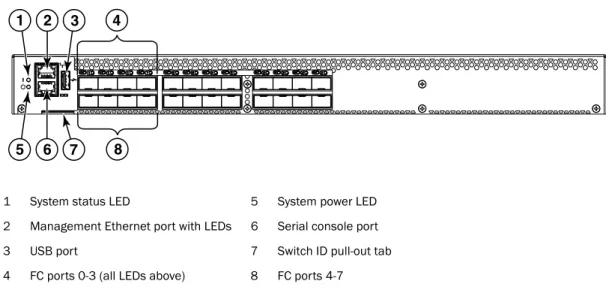
The port side of the Brocade 6505 includes the system status LED, the console port, the Ethernet port and accompanying LEDs, the USB port, and the Fibre Channel ports and corresponding port status LEDs.
Figure 1 shows the port side of the Brocade 6505.
1 System status LED 5 System power LED
2 Management Ethernet port with LEDs 6 Serial console port
3 USB port 7 Switch ID pull-out tab
4 FC ports 0-3 (all LEDs above) 8 FC ports 4-7 4
2 3
1
6 7 8
Nonport side of the Brocade 6505
1
FIGURE 1 Port side of the Brocade 6505
NOTE
The two LEDs on the serial console port are non-functional.
Nonport side of the Brocade 6505
Figure 2 shows the nonport side of the Brocade 6505, which contains the power supply (including the AC power receptacle and AC power switch) and fan assemblies. The base model configuration with a single assembly is shown.
FIGURE 2 Nonport side of the Brocade 6505
1 Filler panel 5 Power plug receptacle (with plug retainer)
2 Power supply and fan assembly #1 6 Captive screw 3 Power supply and fan assembly LED 7 Handle 4 On/off switch
1 2 3
7
6
Chapter
2
Brocade 6505 Installation and Configuration
In this chapter
•
Items included with the Brocade 6505 . . . 5•
Installation and safety considerations . . . 5•
Standalone installation for a Brocade 6505 . . . 7•
Cabinet installation for a Brocade 6505 . . . 8•
Brocade 6505 configuration. . . 8•
Fabric OS Native and Access Gateway modes. . . 13Items included with the Brocade 6505
The following items are included with the standard shipment of a fully-configured Brocade 6505. When you open the Brocade 6505 packaging, verify that these items are included in the package and that no damage has occurred during shipping:
•
The Brocade 6505 switch, containing one combined power supply and fan assembly•
16 Gbps or 8 Gbps SFP+ modules for the Fibre Channel ports (speed and quantity as ordered)•
One accessory kit, containing the following items:-
Serial cable with an RJ45 connector-
RJ45-to-DB9 adapter-
One 6 foot power cord-
Rubber feet, required for setting up the switch as a standalone unit-
Brocade 6505 EZSwitchSetup poster-
EZSwitchSetup CDInstallation and safety considerations
You can install the Brocade 6505 switch in the following ways:
•
As a standalone unit on a flat surface.•
In an EIA cabinet using a slim rail rack mount kit. The rack mount kit can be ordered from your switch retailer.•
In an EIA cabinet using an optional mid-mount rack kit for switches. The optional mid-mount rack kit for switches can be ordered from your switch retailer.Installation and safety considerations
2
Electrical considerations
To install and operate the switch successfully, ensure the following:
•
The primary outlet is correctly wired, protected by a circuit breaker, and grounded in accordance with local electrical codes.•
The supply circuit, line fusing, and wire size are adequate, as specified by the electrical rating on the switch nameplate.•
The power supply standards provided in Table 7, “System power specifications” are met.Environmental considerations
For successful installation and operation of the switch, ensure that the following environmental requirements are met:
•
At a minimum, adequate cooling requires that you install the switch with the intake side, the nonport side of the switch, facing the cool-air aisle.•
All equipment in the rack should force air in the same direction to avoid intake of exhaust air.•
A maximum of 102 cubic meters/hour (60 cubic feet/minute) and a minimum of 74.8 cubic meters/hour (44 cubic feet/minute) of airflow is available for air intake.???•
The ambient air temperature does not exceed 40°
C (104°
F) while the switch is operating.Cabinet considerations
For successful installation and operation of the switch in a cabinet, ensure the following cabinet requirements are met:
•
The cabinet must be a standard EIA cabinet.•
A cabinet space that is at least one rack unit (1U) high; 4.45 cm (1.75 inches) high and 48.3 cm (19 inches) wide.•
The two rack kit options for the Brocade 6505 use rails that are slimmer than standard rails to accommodate the slightly wider chassis. Be sure to use one of these kits. Do not use standard rails to install the Brocade 6505 in a rack; they will not fit with the switch.•
The equipment in the cabinet is grounded through a reliable branch circuit connection and maintains ground at all times. Do not rely on a secondary connection to a branch circuit, such as a power strip.•
Airflow and temperature requirements are met on an ongoing basis, particularly if the switch is installed in a closed or multicabinet assembly.•
The additional weight of the switch does not exceed the cabinet’s weight limits or unbalance the cabinet in any way.•
The cabinet is secured to ensure stability in case of unexpected movement, such as an earthquake.Recommendations for cable management
The minimum radius to which a 50 micron cable can be bent under full tensile load is 5.1 cm (2 in.). For a cable under no tensile load, that minimum is 3.0 cm (1.2 in.).
Standalone installation for a Brocade 6505
2
Cables can be organized and managed in a variety of ways, for example, using cable channels on the sides of the cabinet or patch panels to minimize cable management. Following is a list of recommendations:
NOTE
You should not use tie wraps with optical cables because they are easily overtightened and can damage the optic fibers.
•
Plan for rack space required for cable management before installing the switch.•
Leave at least 1 m (3.28 ft) of slack for each port cable. This provides room to remove and replace the switch, allows for inadvertent movement of the rack, and helps prevent the cables from being bent to less than the minimum bend radius.•
If you are using Brocade ISL Trunking, consider grouping cables by trunking groups. The cables used in trunking groups must meet specific requirements, as described in the Fabric OS Administrator’s Guide.•
For easier maintenance, label the fiber-optic cables and record the devices to which they are connected.•
Keep LEDs visible by routing port cables and other cables away from the LEDs.•
Use Velcro® type straps to secure and organize fiber-optic cables.Items required for installation
The following items are required for installing, configuring, and connecting the Brocade 6505 for use in a network and fabric:
•
A workstation with an installed terminal emulator, such as HyperTerminal•
An unused IP address and corresponding subnet mask and gateway address•
A serial cable (provided) if not using EZSwitchSetup•
An Ethernet cable•
Brocade-branded SFP+ optical transcceivers and compatible cables (Brocade-branded 16 Gbps SFP+ optical transcceivers required for 16 Gbps performance), as required•
Access to an FTP server or USB device for backing up the switch configuration (optional)Standalone installation for a Brocade 6505
Complete the following steps to install the Brocade 6505 as a standalone unit.
1. Unpack the Brocade 6505 and verify the items listed in “Items included with the Brocade 6505” on page 5. Verify the items are present and undamaged.
2. Apply the adhesive rubber feet. Applying the rubber feet onto the switch helps prevent the switch from sliding off the supporting surface.
a. Clean the indentations at each corner of the bottom of the switch to ensure that they are free of dust or other debris that might lessen the adhesion of the feet.
b. With the adhesive side against the chassis, place one rubber foot in each indentation and press into place.
Cabinet installation for a Brocade 6505
2
4. Provide power to the switch as described in “Providing power to the switch” on page 8.
ATTENTION
Do not connect the switch to the network until the IP address is correctly set. For instructions on how to set the IP address, see “Brocade 6505 configuration.”
Cabinet installation for a Brocade 6505
Follow the installation instructions shipped with the appropriate rack mount kit:
•
To install the switch into a fixed-rail rack, refer to the Slim Rail Rack Mount Kit Installation Procedure.•
To install the switch into a 2-post Telco rack, refer to the Flush Mount Rack Mount Kit Installation Procedure.Brocade 6505 configuration
Once you have set up the Brocade 6505 in a rack or as a standalone switch, it is time to apply power and a basic configuration. If you are going to use the Brocade 6505 in a single-switch setup, you can use EZSwitchSetup to complete the basic configuration.
See the EZSwitchSetup CD, included with the Brocade 6505, for more information. You can also use the Brocade 6505 EZSwitchSetup poster.
If you do not want to use EZSwitchSetup, continue with the instructions in this section.
Providing power to the switch
Perform the following steps to provide power to the Brocade 6505.
1. Connect the power cord to the power supply, and then to a power source. If using two power supplies, be sure to connect the cords to power sources on separate circuits to protect against AC failure. Ensure that the cords have a minimum service loop of 6 inches available and are routed to avoid stress.
2. Power on the power supplies by flipping both AC switches to the “I” symbol. The power supply LEDs display amber until power-on self-test (POST) is complete, and then change to green. The switch usually requires several minutes to boot and complete POST.
ATTENTION
Power is supplied to the switch as soon as the first power supply is connected and turned on. 3. After POST is complete, verify that the switch power and status LEDs on the left of the port side
of the switch are green. See Figure 3 for the specific location of the LEDs.
Creating a serial connection
NOTE
Brocade 6505 configuration
2
Complete the following steps to create a serial connection to the switch.
1. Connect the serial cable to the serial port on the switch and to an RS-232 serial port on the workstation.
If the serial port on the workstation is RJ45 instead of RS-232, remove the adapter on the end of the serial cable and insert the exposed RJ45 connector into the RJ45 serial port on the workstation.
2. Open a terminal emulator application (such as HyperTerminal on a PC, or TERM, TIP, or Kermit in a UNIX environment), and configure the application as follows:
•
In a Windows environment, use 9600 bits per second, 8 databits, no parity, 1 stop bit, and no flow control.•
In a UNIX environment using TIP, enter the following string at the prompt:tip /dev/ttyb -9600
If ttyb is already in use, use ttya instead and enter the following string at the prompt:
tip /dev/ttya -9600
Switch IP address
You can configure the Brocade 6505 with a static IP address, or you can use a Dynamic Host Configuration Protocol (DHCP) server to set the IP address of the switch. DHCP is enabled by default. The Brocade 6505 supports both IPv4 and IPv6.
Using DHCP to set the IP address
When using DHCP, the Brocade 6505 obtains its IP address, subnet mask, and default gateway address from the DHCP server. The DHCP client can only connect to a DHCP server that is on the same subnet as the switch. If your DHCP server is not on the same subnet as the Brocade 6505, use a static IP address.
Setting a static IP address
1. Log in to the switch using the default password (which is password). 2. Use the ipaddrset command to set the Ethernet IP address.
If you are going to use an IPv4 IP address, enter the IP address in dotted decimal notation as prompted. As you enter a value and press Enter for a line in the following example, the next line appears.
For instance, the Ethernet IP address appears first. When you enter a new IP address and press Enter or simply press Enter to accept the existing value, the Ethernet Subnetmask line appears.
In addition to the Ethernet IP address itself, you can set the Ethernet subnet mask, the Gateway IP address, and whether to obtain the IP address by way of DHCP.
switch:admin> ipaddrset
Ethernet IP Address [192.168.74.102]: Ethernet Subnetmask [255.255.255.0]: Gateway IP Address [192.168.74.1]: DHCP [Off]: off
Brocade 6505 configuration
2
If you are going to use an IPv6 address, enter the network information in semicolon-separated notation as a standalone command.
switch:admin> ipaddrset -ipv6 --add 1080::8:800:200C:417A/64 IP address is being changed...Done.
Date and time settings
The Brocade 6505 maintains the current date and time inside a battery-backed real-time clock (RTC) circuit. Date and time are used for timestamping log events. Switch operation does not depend on the date and time; a Brocade 6505 with an incorrect date and time value still functions properly. However, because the date and time are used for logging, error detection, and
troubleshooting, you should set them correctly.
Time zones
You can set the time zone for the switch by name. You can select continent, country, or time zone region names.
If the time zone is not set with the named options, the switch retains the offset time zone settings. This is a number of hours offset from Greenwich Mean Time (GMT). If you have set the time zone with a name, you can revert to the offset format if you choose. For more information about the tsTimeZone command, refer to the Fabric OS Command Reference.
You can set the time zone for a switch using the tsTimeZone command. The tsTimeZone command allows you to perform the following tasks:
•
Display all of the time zones supported in the firmware•
Set the time zone based on a country and city combination or based on a time zone ID such as PSTThe time zone setting has the following characteristics:
•
You can view the time zone settings. However, only those with administrative permissions can set the time zones.•
The tsTimeZone setting automatically adjusts for Daylight Savings Time.•
Changing the time zone on a switch updates the local time zone setup and is reflected in local time calculations.•
By default, all switches are in the GMT time zone (0,0). If all switches in a fabric are in one time zone, it is possible for you to keep the time zone setup at the default setting.•
System services that have already started will reflect the time zone changes only after the next reboot.•
Time zone settings persist across failover for high availability.Local time synchronization
You can synchronize the local time of the principal or primary fabric configuration server (FCS) switch to a maximum of eight external Network Time Protocol (NTP) servers. To keep the time in your SAN current, it is recommended that the principal or primary FCS switch has its time synchronized with at least one external NTP server. The other switches in the fabric will automatically take their time from the principal or primary FCS switch.
Brocade 6505 configuration
2
All switches in the fabric maintain the current clock server IP address in non-volatile memory. By default, this value is LOCL, the local clock server of the Principal (when FCS not enabled) or Primary (when FCS is enabled) switch. Changes to the clock server value on the Principal or Primary switch are propagated to all switches in the fabric.
When a new switch enters the fabric, the time server daemon of the Principal or Primary switch sends out the addresses of all existing clock servers and the time to the new switch. If a switch with Fabric OS v5.3.0 or later has entered the fabric, it will be able to store the list of all the clock server addresses; switches running Fabric OS versions earlier than v5.3.0 will ignore the new list
parameter in the payload and will update only the active server address.
If the active NTP server configured is IPv6, then distributing the IP address in the fabric will not be possible to switches earlier than Fabric OS v5.3.0 because IPv6 is supported for Fabric OS v5.3.0 and later. The default value LOCL will be distributed to switches earlier than Fabric OS v5.3.0. The tsClockServer command accepts multiple server addresses in IPv4, IPv6, or DNS name formats. When multiple NTP server addresses are passed, tsClockServer sets the first obtainable address as the active NTP server. The rest are stored as backup servers that can take over if the active NTP server fails. The Principal or Primary switch synchronizes its time with the NTP server every 64 seconds.
Setting the date
1. Log in to the switch using the default password (which is password). 2. Enter the date command, using the following syntax:
date "mmddHHMMyy" The values are:
•
mm is the month; valid values are 01 through 12.•
dd is the date; valid values are 01 through 31.•
HH is the hour; valid values are 00 through 23.•
MM is minutes; valid values are 00 through 59.•
yy is the year; valid values are 00 through 99 (values greater than 69 are interpreted as 1970 through 1999, and values less than 70 are interpreted as 2000 through 2069). switch:admin> dateFri Sep 29 17:01:48 UTC 2007 switch:admin> date "0927123007" Thu Sep 27 12:30:00 UTC 2007 switch:admin>
Setting time zones
You must perform the procedure on all switches for which the time zone must be set. However, you only need to set the time zone once on each switch, because the value is written to nonvolatile memory.
Use one of the two following procedures to set the time zone. The first procedure requires you to select the actual time zone and the second requires you to select the country location of the switch.
The following procedure describes how to set the current time zone to Central Standard time using timezonename mode.
Brocade 6505 configuration
2
1. Log in to the switch using the default password (which is password). 2. Enter the tsTimeZone command as follows:
Use timezonename to set the time zone by time zone ID, such as PST or Country/City. The following example shows how to change the time zone to US/Central. The tsTimeZone command by itself display the current time zone.
switch:admin> tstimezone Time Zone : US/Pacific
switch:admin> tstimezone US/Central switch:admin> tstimezone
Time Zone : US/Central
The following procedure describes how to set the current time zone to Pacific Standard Time using interactive mode.
1. Enter the tsTimeZone command as follows: switch:admin> tstimezone --interactive
2. You are prompted to select a general location from a list.
Please identify a location so that time zone rules can be set correctly. 3. Enter the appropriate number from the list that appears or Ctrl-D to quit.
4. At the prompt, select a country location from the list.
5. At the prompt, enter the appropriate number from the list to specify the time zone region or Ctrl-D to quit.
Synchronizing local time using NTP
Perform the following steps to synchronize the local time using NTP. 1. Log in to the switch using the default password(which is password). 2. Enter the tsClockServer command:
switch:admin> tsclockserver "<ntp1;ntp2>"
In the syntax ntp1 is the IP address or DNS name of the first NTP server, which the switch must be able to access. The value ntp2 is the name of the second NTP server and is optional. The entire operand “<ntp1;ntp2>” is optional; by default, this value is LOCL, which uses the local clock of the principal or primary switch as the clock server.
switch:admin> tsclockserver LOCL
switch:admin> tsclockserver "132.163.135.131"
switch:admin> tsclockserver 132.163.135.131
switch:admin>
The following example shows how to set up more than one NTP server using a DNS name: switch:admin> tsclockserver "10.32.170.1;10.32.170.2;ntp.localdomain.net" Updating Clock Server configuration...done.
Fabric OS Native and Access Gateway modes
2
Changes to the clock server value on the principal or primary FCS switch are propagated to all switches in the fabric.
Brocade Inter-Switch Link Trunking
Brocade Inter-Switch Link (ISL) Trunking is optional software that allows you to create trunking groups of ISLs between adjacent switches. Up to eight FC ports on the Brocade 6505 can be used as a trunking group to achieve speeds up to 128 Gbps (256 Gbps full duplex) for optimal
bandwidth utilization and load balancing. For more information about Brocade ISL Trunking, see the Fabric OS Administrator’s Guide.
Brocade switchstatus policy
Brocade switchstatus policy is a feature that monitors different switch parameters such as power supplies, fan units, and so forth and provides switch status based on their health.
The switchstatus policy configuration can be updated using the switchstatuspolicyset command. The example shows the default settings of 2 and 0 for DOWN and MARGINAL units for both Bad PowerSupplies and Bad Fans.
switch:admin>switchstatuspolicyset
<some output skipped>
The minimum number of
Bad PowerSupplies contributing to DOWN status: (0..2) [2] Bad PowerSupplies contributing to MARGINAL status: (0..2) [0] <some output skipped>
Bad Fans contributing to DOWN status: (0..2) [2] Bad Fans contributing to MARGINAL status: (0..2) [0] <output truncated>
If a second power supply and fan assembly unit is installed in the switch, Brocade recommends changing the configuration to 2 and 1 for DOWN and MARGINAL for both the Bad PowerSupplies and Bad Fans. You can use the switchStatusPolicyShow command to see the results of your changes.
Fabric OS Native and Access Gateway modes
The Brocade 6505 can function in either Fabric OS Native mode or Brocade Access Gateway mode. The switch is shipped in Fabric OS Native mode by default.
•
You can enable Access Gateway mode using Fabric OS commands or Web Tools.•
All additional POD licenses must be installed before you can enable Access Gateway mode.•
When you enable Access Gateway, you can use the default F_Port-to-N_Port mappings or change this mapping using the command line interface (CLI) or Web Tools (after you configure an IP address using instructions under “Switch IP address”).Fabric OS Native and Access Gateway modes
2
•
Access Gateway simplifies SAN deployment by using N_Port ID Virtualization (NPIV). NPIV provides Fibre Channel switch functions that improve switch scalability, manageability, and interoperability. For more information on Access Gateway, refer to the following:-
For a list of F_Ports mapped to N_Ports by default, refer to “Access Gateway default port mapping” on page 39.-
For general information and details on using Access Gateway, refer to the Brocade Access Gateway Administrator’s Guide.-
For specific instructions to prepare the edge fabric before connecting it to Access Gateway (because Access Gateway relies on NPIV technology for its connection to the edge fabric), refer to the Brocade Access Gateway Administrator’s Guide.NOTE
Access Gateway cannot be connected directly into an array; it requires a fabric to support NPIV.
•
Fabric OS features available to the Brocade 6505 depend on whether the switch is configured in Access Gateway or Fabric OS Native mode. For a list of available features for each mode, refer to the Brocade Access Gateway Administrator’s Guide.•
In Access Gateway mode, cascading is not available for the Brocade 6505. Refer to the Brocade Access Gateway Administrator’s Guide for details on any other restrictions specific to the Brocade 6505.•
In Fabric OS Native mode, the switch provides up to 24 external Fibre Channel ports. These universal and self-configuring ports are capable of becoming one of the following port types:-
F_Port (fabric enabled)-
FL_Port (fabric loop enabled)-
E_Port (expansion port)-
M_Port (mirror port)•
In Access Gateway mode, the switch provides up to 24 external Fibre Channel ports. However, these ports are configured as N_Ports, and you cannot reconfigure these as any other port type.Disabling and enabling Access Gateway mode
This section provides steps to disable and enable Access Gateway mode using Fabric OS
commands. For more information on using these commands, refer to the Brocade Access Gateway Administrator’s Guide or the Brocade Fabric OS Administrator’s Guide.
NOTE
You can also disable and enable Access Gateway mode using Web Tools. Refer to the Web Tools Administrator’s Guide for more information.
Enabling Access Gateway mode
Note the following when enabling Access Gateway mode:
•
After you enable Access Gateway mode, some fabric information is erased, such as the zone and security databases.Fabric OS Native and Access Gateway modes
2
•
Ensure that no zoning or Admin Domain (AD) transaction buffers are active. If any transaction buffer is active, enabling Access Gateway mode will fail with the error, “Failed to clearZoning/Admin Domain configuration.”
Use the following steps to enable Access Gateway mode using Fabric OS commands.
1. Before disabling a switch to enable Access Gateway mode, save the current configuration file using the configupload command in case you might need this configuration again.
2. Enter the switchshow command to verify the switch mode.
•
“Access Gateway Mode” displays for the switchMode value if the switch is in Access Gateway mode.•
“Native” displays for the switchMode value if the switch is in Fabric OS Native mode. 3. Enter switchDisable to disable the switch. Access Gateway mode can only be enabled ordisabled when the switch is in a disabled state.
4. Enter ag –modeEnable to enable Access Gateway mode.
5. Enter the ag --modeshow command to verify that Access Gateway mode is enabled.
switch:admin> ag --modeshow Access Gateway mode is enabled.
Disabling Access Gateway mode
When you disable Access Gateway mode, the switch automatically reboots and comes back online using the fabric switch configuration. The Access Gateway parameters, such as F_Port-to-N_Port mapping, Failover, and Failback are automatically removed. When the switch reboots, it starts in Fabric OS Native mode. To rejoin the switch to the core fabric, refer to the Brocade Access Gateway Administrator’s Guide.
Use the following steps to disable Access Gateway mode using Fabric OS commands. 1. Enter the switchshow command to verify the switch mode.
•
“Access Gateway Mode” displays if the switch is in Access Gateway mode.•
“Native” displays if the switch is in Fabric OS Native mode.2. Enter switchDisable to disable the switch. Access Gateway mode can only be disabled or enabled when the switch is in a disabled state.
3. Enter ag --modeDisable to disable Access Gateway mode.
4. Enter the ag --modeshow command to verify that Access Gateway mode is disabled.
switch:admin> ag --modeshow
Fabric OS Native and Access Gateway modes
Chapter
3
Brocade 6505 Operation
In this chapter
•
Powering the Brocade 6505 on and off. . . 17•
LED activity interpretation. . . 18•
POST and boot specifications . . . 21•
Interpreting POST results . . . 22•
Brocade 6505 maintenance. . . 23•
Brocade 6505 management . . . 25Powering the Brocade 6505 on and off
Complete the following steps to power on the Brocade 6505. These steps apply to the base model of the switch which has a single power supply.
1. Connect the power cord to the power connector on the power supply and fan assembly. 2. Set the AC power switch to “I”.
Power is supplied to the switch as soon as the power supply is connected and powered on. The switch runs POST by default each time it is powered on; it can take up to several minutes to boot and complete POST.
Complete the following steps to power off the Brocade 6505. 1. Enter the sysShutDown command.
switch:admin> sysshutdown
This command will shutdown the operating systems on your switch. You are required to power-cycle the switch in order to restore operation.
Are you sure you want to shutdown the switch [y/n]? y Broadcast message from root (ttyS0) Mon Sep 12 17: \ 52:12 2005...
The system is going down for system halt NOW !! INIT: Switching to runlevel:
INIT: Sending processes the TERM signal switch:root> Unmounting all filesystems. The system is halted
flushing ide devices: hda Power down.
2. Set the AC power switches to O.
LED activity interpretation
3
LED activity interpretation
System activity and status can be determined through the activity of the LEDs on the switch. There are three possible LED states: no light, a steady light, and a flashing light. Flashing LEDs may be slow, fast, or flickering. The LED colors are either green or amber.
Sometimes, the LEDs flash either of the colors during boot, POST, or other diagnostic tests. This is normal; it does not indicate a problem unless the LEDs do not indicate a healthy state after all boot processes and diagnostic tests are complete.
Brocade 6505 LEDs
The Brocade 6505 has the following LEDs:
•
One system status LED (upper) on the left side.•
One power status LED (lower) on the left side.•
Two Ethernet port LEDs (one amber, one green).•
One bicolor (green and amber) port status LED for each port on the switch. These LEDs are arrayed above each pair of Fibre Channel ports.•
One power supply and fan assembly LED above the AC power switch on each power supply on the non-port side of the switch.LED locations
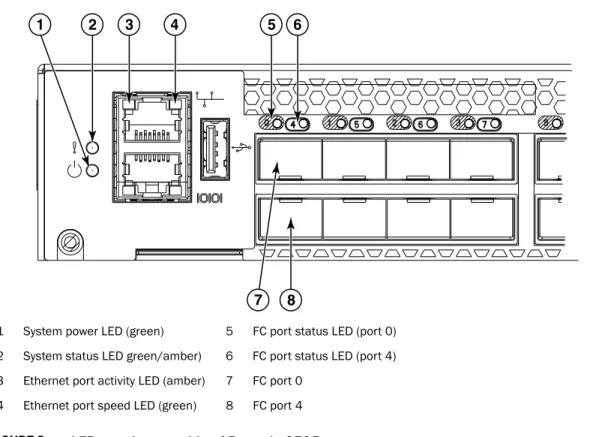
Figure 3 shows the LEd locations on the port side of the Brocade 6505. The port status LEDs for the FC ports are arranged left and right to correspond to the upper and lower ports respectively in each pair. Refer to Figure 1 for the locations of the FC ports.
LED activity interpretation
3
FIGURE 3 LEDs on the port side of Brocade 6505
NOTE
The two LEDs on the serial console port are non-functional. 1 System power LED (green) 5 FC port status LED (port 0) 2 System status LED green/amber) 6 FC port status LED (port 4) 3 Ethernet port activity LED (amber) 7 FC port 0
4 Ethernet port speed LED (green) 8 FC port 4
2 3 4
1
8 7
LED activity interpretation
3
Figure 4 shows the LEDs on the nonport side of the switch.
FIGURE 4 LEDs on the nonport side of Brocade 6505
LED patterns
Table 1 describes the port side LEDs and their behavior. 1 Power supply and fan assembly #1 status LED
TABLE 1 Port side LED patterns during normal operation
LED name LED color Status of hardware Recommended action
Power Status (green)
No light System is off or there is an internal power supply failure.
Verify the system is powered on (power supply switches to I), the power cables are attached, and your power source is live.
Otherwise, contact your switch service provider.
Steady green System is on and power supplies are functioning properly.
No action required. System Status
(bicolor)
No light System is off or there is no power.
Verify the system is on and has completed booting.
Steady green System is on and functioning properly.
No action required. Steady amber (for
more than five seconds)
A system fault has occurred. This LED displays steady amber during POST; this is normal and does not indicate a fault.
Check the failure indicated on the system console.
Contact your switch service provider.
Blinking amber Attention is required. A number of factors can cause this status, including a single power supply failure, a fan failure, or one or more environmental ranges has been exceeded.
Check the management interface and the error log for details on the cause of status.
Contact your switch service provider.
Ethernet Speed (green)
No light Port speed is 10 Mbps. No action required. Steady green Port speed is 100 Mbps. No action required. Ethernet
Activity/Link (amber)
No light There is no link. Verify that the Ethernet cable is connected correctly.
Steady amber There is a link. No action required. Blinking amber There is link activity (traffic). No action required.
POST and boot specifications
3
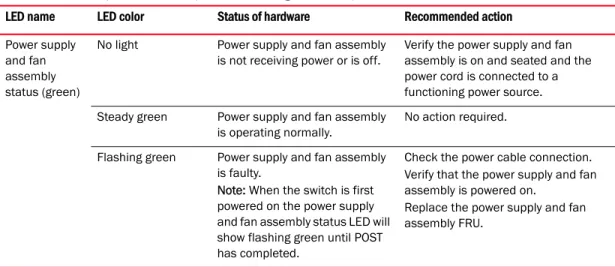
Table 2 describes the LEDs on the nonport side of the switch.
POST and boot specifications
When the switch is turned on or rebooted, the switch performs power-on self-test (POST). Total boot time with POST can be several minutes. POST can be omitted after subsequent reboots by using the fastboot command or entering the diagDisablePost command to persistently disable POST. For more information about these commands, refer to the Fabric OS Command Reference Manual.
Optical media port status (one bicolor LED for each FC port)
Off No light or signal carrier on the media interface.
Verify that the transceiver is installed correctly and that the cable is connected correctly.
Steady amber Receiving light or carrier, but not online.
No action required. Slow blinking amber
(2 sec)
Disabled (by diagnostics or by portDisable command).
Verify that the diagnostic tests are not being run. Re-enable the port using the portEnable command.
Fast blinking amber (1/2 sec)
Port failure. Check the management interface and the error log for details on the cause of the failure. Contact Technical Support if necessary.
Steady green Online. No action required.
Slow blinking green (2 sec)
Online but segmented (loopback cable or incompatible switch).
No action required. Fast blinking green
(1/2 sec)
Internal loopback (diagnostic). No action required. Flickering green Online, frames flowing through
port.
No action required.
TABLE 2 Nonport side LED patterns during normal operation
LED name LED color Status of hardware Recommended action
Power supply and fan assembly status (green)
No light Power supply and fan assembly is not receiving power or is off.
Verify the power supply and fan assembly is on and seated and the power cord is connected to a functioning power source. Steady green Power supply and fan assembly
is operating normally.
No action required. Flashing green Power supply and fan assembly
is faulty.
Note: When the switch is first powered on the power supply and fan assembly status LED will show flashing green until POST has completed.
Check the power cable connection. Verify that the power supply and fan assembly is powered on.
Replace the power supply and fan assembly FRU.
TABLE 1 Port side LED patterns during normal operation (Continued)
Interpreting POST results
3
POST
The success or failure results of the diagnostic tests that run during POST can be monitored through LED activity, the error log, or the command line interface.
POST includes the following tasks:
•
Conducts preliminary POST diagnostics.•
Initializes the operating system.•
Initializes hardware.•
Runs diagnostic tests on several functions, including circuitry, port functionality, memory, statistics counters, and serialization.Boot
In addition to POST, boot includes the following tasks after POST is complete:
•
Performs universal port configuration.•
Initializes links.•
Analyzes fabric. If any ports are connected to other switches, the switch participates in a fabric configuration.•
Obtains a domain ID and assigns port addresses.•
Constructs unicast routing tables.•
Enables normal port operation.Interpreting POST results
POST is a system check that is performed each time the switch is powered on, rebooted, or reset. During POST, the LEDs flash either amber or green. Any errors that occur during POST are listed in the error log.
Complete the following steps to determine whether POST completed successfully and whether any errors were detected.
1. Verify that the switch LEDs indicate that all components are healthy.
See Table 1 and Table 2 for descriptions and interpretations of LED patterns. If one or more LEDs do not display a healthy state, verify that the LEDs on the switch are not set to “beacon” by entering the switchShow command to detect if beaconing is active.
2. Verify that the switch prompt displays on the terminal of a computer workstation connected to the switch.
If there is no switch prompt when POST completes, press Enter. If the switch prompt still does not display, try opening a Telnet session or accessing the switch through another management tool. If this is not successful, the switch did not successfully complete POST. Contact your switch supplier for repair.
3. Review the switch error log for errors. Any errors detected during POST are written to the error log, accessible through the errShow command.
Brocade 6505 maintenance
3
For information about all referenced commands, and on accessing the error log, refer to the Fabric OS Administrator’s Guide. For information about error messages, refer to the Fabric OS Message Reference Manual.
Brocade 6505 maintenance
The Brocade 6505 is designed for high availability and low failure; it does not require any regular physical maintenance. Maintenance includes running diagnostic tests and checking and replacing field-replaceable units, described in the following sections.
Installing an SFP+ transceiver
The Brocade 6505 only supports Brocade-branded 8 Gbps and 16 Gbps SFP+ optical transceivers. For the Fibre Channel connections, the Brocade 6505 uses SFP+ transceivers that support any combination of Short Wavelength (SWL), Long Wavelength (LWL), and Extended Long Wavelength (ELWL) optical media.
If you use an unqualified transceiver, the switchShow command output shows the port in a Mod_Inv state. Fabric OS also logs the issue in the system error log.
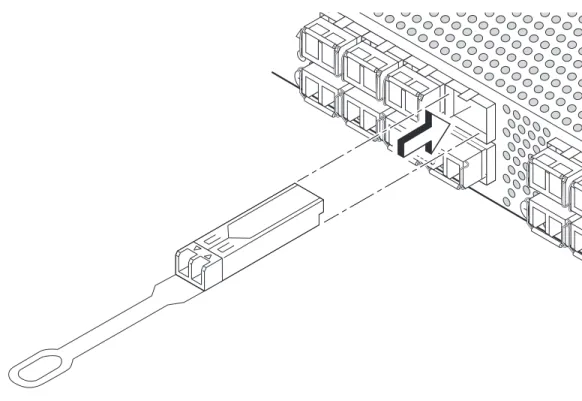
For this procedure, see Figure 5 or Figure 6.
Complete the following steps to install an SFP+ transceiver.
1. Making sure that the bail (wire handle) is in the unlocked position, position the optical transceiver so that the key is oriented correctly to the port. Insert the transceiver into the port until it is firmly seated and the latching mechanism clicks; then close the bail.
The 16 Gbps SFP+ transceivers do not have bails. Use the pull tab on the 16 Gbps SFP+ transceivers to help push the transceiver into the port.
Transceivers are keyed so that they can only be inserted with the correct orientation. If a transceiver does not slide in easily, ensure that it is correctly oriented.
2. Position a cable so that the key (the ridge on one side of the cable connector) is aligned with the slot in the transceiver. Insert the cable into the transceiver until the latching mechanism clicks.
Cables are keyed so that they can be inserted in only one way. If a cable does not slide in easily, ensure that it is correctly oriented. Do not insert a cable intended for an mSFP transceiver into a regular SFP+ transceiver. You may damage the cable. Do not force a standard SFP cable into an mSFP transceiver. You may damage the transceiver.
NOTE
Each SFP+ transceiver has a 10-pad gold-plated PCB-edge connector on the bottom. The correct position to insert an SFP+ transceiver into the upper row of ports is with the gold-plated edge down. The correct position to insert an SFP+ transceiver into the lower row of ports is with the gold-plated edge up.
Brocade 6505 maintenance
3
FIGURE 5 Installing a 16 Gbps SFP+ optical transceiver in the upper row port slot
FIGURE 6 Installing an 8 Gbps SFP+ optical transceiver in the upper row port slot
Diagnostic tests
In addition to POST, Fabric OS includes diagnostic tests to help you troubleshoot the hardware and firmware. This includes tests of internal connections and circuitry, fixed media, and the
transceivers and cables in use.
Brocade 6505 management
3
The tests are implemented by command, either through a Telnet session or through a console set up to the serial connection to the switch. Some tests require the ports to be connected by external cables, to allow diagnostics to verify the serializer/deserializer interface, transceiver, and cable. Some tests require loopback plugs.
Diagnostic tests run at link speeds of 2, 4, 8, or 16 Gbps depending on the speed of the link being tested and the type of port.
NOTE
Diagnostic tests might temporarily lock the transmit and receive speed of the links during diagnostic testing.
For information about specific diagnostic tests, see the Fabric OS Troubleshooting and Diagnostics Guide.
Brocade 6505 management
You can use the management functions built into the Brocade 6505 to monitor the fabric topology, port status, physical status, and other information to help you analyze switch performance and to accelerate system debugging.
The Brocade 6505 automatically performs power-on self-test (POST) each time it is turned on. Any errors are recorded in the system error log. For more information about POST, see “POST and boot specifications” on page 21.
For information about upgrading the version of Fabric OS installed on your switch, see the Fabric OS Administrator’s Guide.
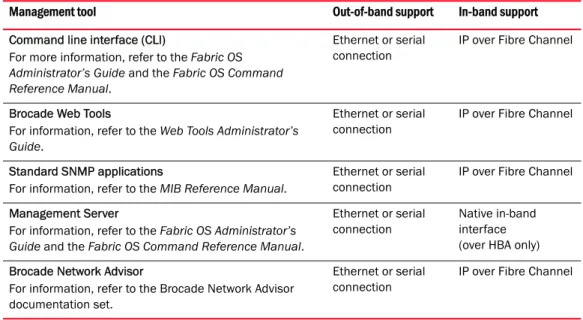
You can manage the Brocade 6505 using any of the management options listed in Table 3. Refer to the Fabric OS Command Reference Manual for more information on the CLI commands.
TABLE 3 Management options for the Brocade 6505 switch
Management tool Out-of-band support In-band support
Command line interface (CLI)
For more information, refer to the Fabric OS Administrator’s Guide and the Fabric OS Command Reference Manual.
Ethernet or serial connection
IP over Fibre Channel
Brocade Web Tools
For information, refer to the Web Tools Administrator’s Guide.
Ethernet or serial connection
IP over Fibre Channel
Standard SNMP applications
For information, refer to the MIB Reference Manual.
Ethernet or serial connection
IP over Fibre Channel Management Server
For information, refer to the Fabric OS Administrator’s Guide and the Fabric OS Command Reference Manual.
Ethernet or serial connection
Native in-band interface (over HBA only) Brocade Network Advisor
For information, refer to the Brocade Network Advisor documentation set.
Ethernet or serial connection
Brocade 6505 management
Chapter
4
Removal and Replacement of Power Supplies and Fans
In this chapter
•
Power supply and fan assembly information. . . 27•
Removing and replacing a power supply and fan assembly. . . 28•
Adding a second power supply and fan assembly in a Brocade 6505 . . . . 32Power supply and fan assembly information
NOTE
Read the “Installation and safety considerations” on page 5 before servicing.
The field-replaceable units (FRUs) in the Brocade 6505 can be removed and replaced without special tools. The Brocade 6505 can continue operating during the FRU replacement if the conditions specified in the procedure are followed.
The base model Brocade 6505 has one power supply and fan assembly, as displayed in Figure 7. Fabric OS identifies the assemblies from right to left on the nonport side. Even though they are contained within a single unit, the power supply and fan components are identified separately. In the chassisShow command they are identified as Power Supply Unit:1 and Fan Unit:1.
FIGURE 7 Nonport side of the Brocade 6505
1 Filler panel 5 Power plug receptacle (with plug retainer)
2 Power supply and fan assembly 1 6 Thumbscrew
3 Power supply and fan assembly LED 7 Handle 4 On/off switch
1 2 3
7
6
Removing and replacing a power supply and fan assembly
4
CAUTION
Disassembling any part of the power supply voids the part warranty and regulatory certifications. There are no user-serviceable parts inside the power supply and fan assembly.
CAUTION
The cooling system relies on pressurized air; if you are using redundant power supply and fan assemblies, do not leave either of the power supply and fan assembly slots empty longer than two minutes when the Brocade 6505 is operating. If one power supply and fan assembly fails, leave the power supply and fan assembly in the Brocade 6505 until it can be replaced. If you are using only one power supply and fan assembly, be sure that the slot filler panel is in place. If that power supply fails, the switch will turn off.
ATTENTION
If you are using two power supply and fan assemblies, maintain both power supply and fan assemblies in operational condition to provide redundancy.
Removing and replacing a power supply and fan assembly
The Brocade 6505 fans are fixed inside the combined power supply and fan assembly to provide necessary airflow to cool the entire system. There are two fans located in each power supply and fan assembly. The system software sets fan speed and measures the speed through the
tachometer interface.
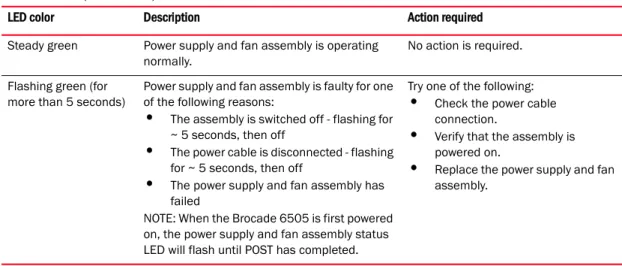
Table 4 describes the power supply and fan assembly status LED colors, behaviors, and actions required, if any.
TABLE 4 Power supply and fan assembly status LED behavior, description, and required actions
LED color Description Action required
No light Power supply and fan assembly is not receiving power, or is off.
Verify that the power supply and fan assembly is on and seated and the power cord is connected to a functioning power source.