Reflections on Using Windows and Mac
The Mac is more elegant, but Outlook 365 for Windows
far surpasses the Mac version. Using Microsoft Exchange
makes cohabitation possible.
Product Code: i14M&W00
Research Track: Mobility & Wireless Date Published: April 2014
Expert Analysis J. Gerry Purdy, Ph.D. Chief Mobility Analyst
[email protected] 404-855-9494
Table of Contents
Methodology ... 3
Background ... 4
MacBook Air vs. MacBook Pro ... 4
Hardware Environment ... 5
Email ... 6
File Storage, Sharing and Backup ... 7
Setting up the Mac ... 9
Windows Outlook vs. Mac Outlook ... 11
iPhone & iPad (iOS) ... 15
Final Comments: Mac vs. Windows ... 17
Table of Figures
Figure 1: Purdy’s Windows, Mac & Mobile Hardware Environment ... 6Figure 2: File & Data Storage ... 8
Figure 3: Sample layout on the MacBook Pro using the Thunderbolt display and four apps: browser, Mac Mail, Outlook and Mac Calendar ... 10
Figure 4: Comparison of MSOutlook Interface on Windows and Mac ... 11
Figure 5: Outlook Superiority on Windows over Mac (1) ... 12
Figure 6: Outlook Superiority on Windows over Mac (2) ... 13
Figure 7: Outlook Superiority on Windows over Mac (3) ... 14
Methodology
Sources: Compass Intelligence’s segment and market forecasts, which include business expenditures, market demographics, and usage and adoption statistics, are built using multiple sources, including proprietary Compass Intelligence research. These sources include, but are not limited to, secondary research, government data and statistics (e.g. Department of Commerce, Federal Communication Commission, Bureau of Labor Statistics and US Census Bureau), primary research, vendor-based research and in-depth interviews with key decision-makers, where relevant. Compass Intelligence selects data sources to provide the greatest degree of perspective on each market or segment, in addition to the highest level of data accuracy, stability, and consistency over time.
Approach: We develop market perspectives and forecasts, such for size-of-business expenditures in certain markets, using a combination of top-down (estimating the total size of the market) and allocation (allocating a total across several segments) methods. Our forecasts are structured to provide a detailed picture of a given market from a segment/directional, such as Size of Business and/or Vertical Industry, perspective. This approach is used to leverage our expertise in these areas and to provide a better basis to benchmark results and correlate them to other markets.
Validation: Our forecasts and research are validated in several ways, including by benchmarking final results with relevant outside data sources, where available, particularly, industry and government statistics, and/or with insights for key decision-makers in the industry. Additionally, for directional forecasts by Size of Business or Vertical Industry, results are validated by calculating firm and/or per-employee averages and these are compared to outside data on other per-firm/per-per-employee expenditures, as well as evaluated based on what is known about firms in each segment.
Background
Being an industry analyst, I get to try out a lot of new mobile products and services. Moreover, people are always asking me, “So, what products do you use?”
I have traditionally used a Windows laptop to do my primary computing and business productivity, e.g. word processing (Word), email (Outlook), spreadsheets (Excel), presentations (PowerPoint), or web browsing (Firefox). I have used an iPhone and iPad to give me information access when I am away from my home office, in a hotel or when I am traveling.
I wanted to document my process of setting up the use of a MacBook Pro in addition to my Windows PC, iPhone, and iPad. Apple provided a MacBook Pro and Thunderbolt display so I could document the process. My objective was to see where it’s easier to use a Mac or where it’s easier to use a PC and to evaluate critical applications like Microsoft Office within the two environments.
It’s interesting to note that Apple is gaining market share against the Windows environment in laptops and desktops. Yes, Macs are more expensive than equivalent Windows PC systems, but the Mac is definitely more elegant. They both run many of the popular desktop applications like Microsoft Office and Adobe Acrobat. I wanted to see where the differences were noticeable – on either the Windows system or Mac system. In addition, I wanted to see where each system exceled.
MacBook Air vs. MacBook Pro
One of the things I had to do was choose whether to get a MacBook Air or MacBook Pro. Both are svelte, but the MacBook Pro has more system resources than the MacBook Air which is thinner and lighter and, therefore, easier to carry around when traveling. One major difference is the display. The MacBook Air has a 13.3” display while the MacBook Pro has a 15.4” display. The MacBook Pro typically has more memory, storage, and ports.
I consider myself a ‘power user’ in that I have a number of applications and documents open at the same time and switching between them all day long. Thus, while the MacBook Air is fine for most people, the MacBook Pro is better for me. I don’t travel as much as I used to so there isn’t a need to have the lightest mobile Mac with me every day, but I still want portability. Therefore, I choose the MacBook Pro, and Apple’s PR department configured the system with 8GB of memory and 500GB of flash storage.
Setting up the MacBook Pro was quite easy. I first loaded Microsoft Office and found that Microsoft allows you to include the Mac as one of your five allotted licenses per subscription. However, when the system finished installing, I quickly noticed Word, Excel, and PowerPoint were very similar to their Windows counterparts whereas Outlook was not anything like the Office 365 version on Windows. I suspect that Microsoft has a new version of Outlook under development for the Mac to have it perform more similarly
to the Windows version. You’ll see obvious differences (deficiencies) below. However, realize that it’s not an Apple deficiency but rather a Microsoft deficiency.
Apple has their own productivity apps under the name iWorks that competes with Word (Pages), Excel (Numbers), and PowerPoint (Keynote), but Apple hasn’t developed a direct competitor to Outlook. Rather, they have a generic (basic, but functional) app called Mac Mail that works with Mac Contacts and Calendar.
Because Apple supports Microsoft Exchange (via a free license to Microsoft’s Active Sync), it was trivial to set up Mac Mail, Calendar & Contacts for my Compass Intelligence Exchange account. This is described in more detail below.
Hardware Environment
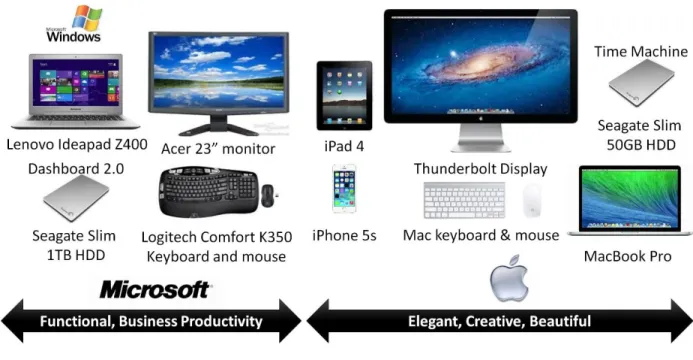
My current hardware set up is shown in Figure 1. I have both a Windows-based system on the left and a Mac-based system on the right with my mobile iOS devices shown in the middle.
The Windows system is a Lenovo Ideapad Z400 with 15.6” display, 750GB storage, and 8GB memory. I don’t use the laptop display when in my home office. Rather, I plug it in to a 23” Acer monitor. I use it with a Logitech Comfort K350 keyboard and mouse to give a desktop PC experience while working in my home office.
I have a Seagate Slim 1TB external Hard Disk Drive (HDD) where I store a local copy of my files, folders, photos, videos, and music. Most of my working files are stored in Dropbox (see details below) so they are kept ‘in sync’ with the MacBook Pro and accessible on my iPhone 5s and iPad (4th generation) as well.
On the right in Figure 1 is a diagram of my Mac setup. I have a MacBook Pro Retina (8GB of memory and 500GB flash storage). I use the emotionally pleasing 27” Thunderbolt display (2550x1440) with the Logitech Easy-Switch Keyboard K811 and Apple mouse. I have another Seagate Slim 500GB drive attached to my MacBook Pro in which I use Time Machine software to back up my files locally.
Figure 1: Purdy’s Windows, Mac & Mobile Hardware Environment
Source: 2014 Compass Intelligence
I have four email accounts: Compass Intelligence, Gmail, Twigs and Tales, and FitnessTrax. I use Exchange for all of these accounts except for Gmail, which is maintained via IMAP.
Using Microsoft Exchange for my business-oriented email accounts ensures that my master Contacts and Calendar are kept in sync between the Mac and the PC – as well as with my iPhone and iPad. I use Gmail for my personal email, which is also maintained on both systems because I set Gmail to not delete any messages for a week. Thus, when Gmail is accessed, the emails are available for all four of my devices. My master Contacts and Calendar are defined in my Compass Intelligence email account. Moreover, since my iPhone and iPad both use ActiveSync to communicate with Exchange, they, too, keep my Contacts and Calendar in sync. Thus, I am able to maintain updated access within all four of my devices (Windows PC, Mac, iPhone and iPad).
I was easily able to bring up all four of my email accounts using the native Mac Mail application. Mac Mail easily set up access to my Exchange email accounts by simply inputting the email address and password, and Gmail is a primary supported email account type as well. It took less than 10 minutes to set this up. In addition, Mac Contacts and Calendar are maintained by having them point to the Compass Intelligence account. The same process is used on my iPhone and iPad.
Interestingly, I was also able to set up my email accounts in Outlook Mac as well, although the app has a very different user interface than Outlook 365 on Windows (see a more detailed comparison below). Right now, I have Outlook 365 open on my Windows PC and Mac Mail and Mac Outlook open on my Mac to see how the three email systems behave.
File Storage, Sharing and Backup
It was only a few years ago that backing up your data files to an external hard drive every week was perfectly adequate. However, as the number of files for everyone has grown as well as the need to share the information between different people and devices, it’s created the need to store your information online ‘in the Cloud’.
I first migrated to Carbonite, an online backup service. There is nothing wrong with the Carbonite service. It works great except for two classes of files: 1) large video files and 2) constantly open files like Outlook OST or PST files. You have to setup Carbonite to exclude these or the backup is hampered trying to constantly back up the ‘always open’ files and will take very long time to back up gigabytes of video files. The solution to this problem came from another direction: the introduction of cloud sharing file systems such as Dropbox. Using Dropbox made it super easy to store files in a Dropbox folder on your desktop, and Dropbox enables those files to be accessed in the Cloud (online via the Internet) or on any mobile device.
The primary difference between the Dropbox desktop app and mobile app is in the Dropbox mobile app, only the files you want to open are actually downloaded to the mobile device. Instead, a directory of the files is available all the time, which prevents too much data from being downloaded onto the mobile device. The metadata (file and folder names) are maintained and kept in sync.
On the Mac, Dropbox keeps the directories (metadata) as well as the actual data in sync so the files are typically available within a few seconds of updating them on the Windows PC.
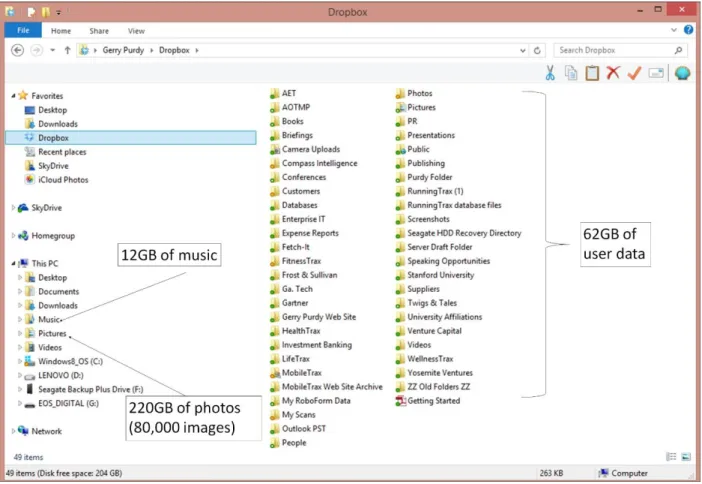
The layout of my files and folders is shown in Figure 2. It’s basically the same on both the Mac and PC. Most of the user data is contained in various files and folders in Dropbox. The music, videos, and photos are currently outside of Dropbox because they are so large. However, because the price of additional storage is not too expensive, I plan to expand the total size of my Dropbox account and move my photos, music, and videos into Dropbox. In addition, because Dropbox stores all of my information in the cloud, it is in sync with all of my devices at all times.
Figure 2: File & Data Storage
Source: 2014 Compass Intelligence
I find it to be most cost-effective to open the files I need on my iPad just before I leave home so they are downloaded locally using Wi-Fi. Then, when I get to the meeting, the file is ready to view. Since I have a wireless LTE modem in my iPad, I can access any file I need when out even though it consumes data via my AT&T cellular account. At times, it has been a godsend to have the cellular connection, especially in places that don’t have guest Wi-Fi access and I need a file immediately.
A funny thing happened when I started to use Dropbox. I started by moving just a few files and folders. However, over time, I gradually moved more files and folders into Dropbox until I finally had ALL of my files and folders stored in Dropbox. As a result, Dropbox serves to make my files and folders available on all four of my devices but to provide a backup of my information.
Setting up the Mac
It was very straight forward setting up the MacBook Pro, keyboard, and mouse. I just went to the appropriate device area in System Preferences and it paired the keyboard & mouse using Bluetooth. Attaching the Thunderbolt display wasn’t quite as easy. The Thunderbolt display takes power from a standard AC outlet. The power is then passed through the display into what appears to be a standard MagSafe connector on the MacBook Pro.
At first, I couldn’t get it work. It seemed that the MagSafe power adapter wouldn’t fit into the MagSafe area on the MacBook Pro. I found out via searching online that there are two kinds of MagSafe connectors: MagSafe, which has been used in past MacBook Pro’s, and MagSafe 2, which is thinner because the new MacBook Pro Retina units are too thin to support the older power adapter. The Thunderbolt display had the older MagSafe connector. That’s why it wouldn’t attach to the MacBook Pro Retina. Fortunately, there was an easy solution: I went to my local Apple store and purchased a MagSafe to MagSafe 2 adapter. Voila! The beautiful 27” Thunderbolt display powered right up.
I got Mac Mail set up for my three Exchange email accounts and Gmail up and running in a snap. I also got Microsoft Office 365 downloaded and running in the first try. It was set up to work under the Office 365 subscription process (which gives you use of Office 365 on five computers), although the Mac Outlook hasn’t yet been updated to give users the same experience as Outlook 365 on the PC (see more comments below).
It didn’t take using the larger 27” Thunderbolt display with much higher resolution to realize an amazing paradigm shift in my thinking about the use of apps. Most people who use a PC or Mac open one app after another with each app taking over the entire display. This is done to maximize the information and ease-of-use appearance on the display (which have 1/4th the resolution of the Thunderbolt display.
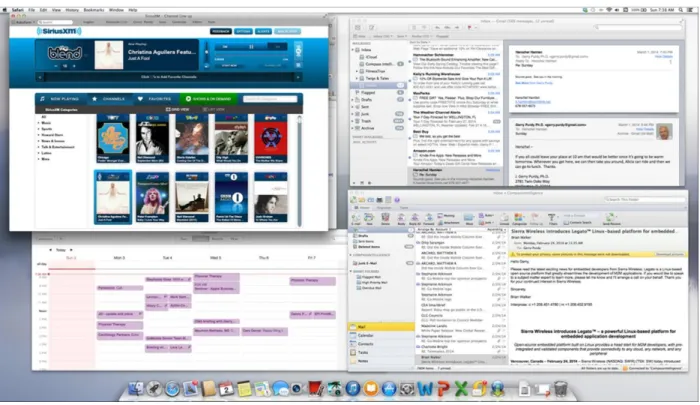
However, with the much higher resolution of the Thunderbolt display, I found it was very visually pleasing to open four apps and position them in a ‘side-by-side’ windows manner as shown in Figure 3. This is more visually appealing vs. ‘swapping screens’ from one app to the other.
Figure 3: Sample layout on the MacBook Pro using the Thunderbolt display and four apps:
browser, Mac Mail, Outlook and Mac Calendar
Source: 2014 Compass Intelligence
The layout in Figure 3 is just one possible arrangement, but it provided me with a browser window in the upper left, Mac Mail in the upper right, Mac Outlook in the lower right and my calendar in lower left. Eventually, I’ll settle on using one mail app and replace the lower right with Microsoft Word as I’m always working on writing one document or article. Before, I had to swap the windows to check on a web site or look at the calendar, but now they are all up there for a visual update at any time.
It was easy to install Dropbox and login to my account, but it took a couple of days to sync up the entire 60+ GB of data. It would just show it was syncing but it eventually caught up. I can now work on a document on the PC, close the file and open it on the Mac almost interchangeable.
I copied my photos and music to my Seagate Slim 1TB HDD and copied the music into the iTunes Library. The music came up in iTunes, and it showed the names of all the Playlists. However, the contents of the Playlists didn’t transfer immediately. It took some time for the Playlists to come in sync via iCloud. My next task is to move my music (and photos) into Dropbox. I’ll then have to redefine where the music is located in iTunes. And, I’ll have to import my photos into iPhoto.
Windows Outlook vs. Mac Outlook
It’s easy to report that one application is easier to use than another is. However, it’s a bit harder to describe it in such a way to make it clear. And, when it’s two versions of the same app, it can be really confusing. It was striking to me that Microsoft would have so much disparity between the Windows and Mac versions of Outlook.
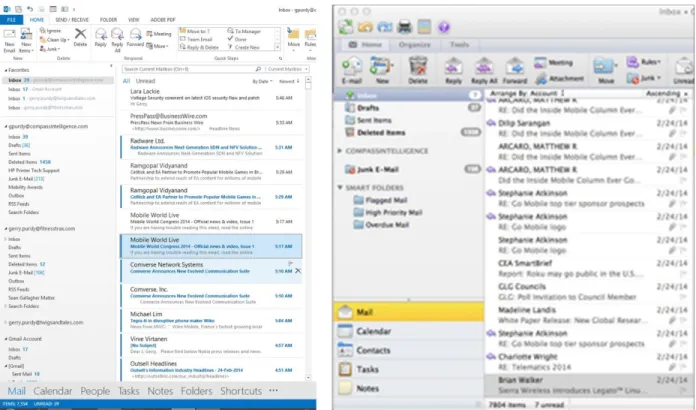
First, look at the two user interfaces side-by-side shown in Figure 4. They are striking. However, more important, the functionality of the two apps are different in a number of critical areas relating to productivity: the Mac version of Outlook is deficient in every one of them. While the icons in the Mac Outlook are visually appealing, the functionality is lacking that this affects the productivity of using the product.
Figure 4: Comparison of MS Outlook Interface on Windows and Mac
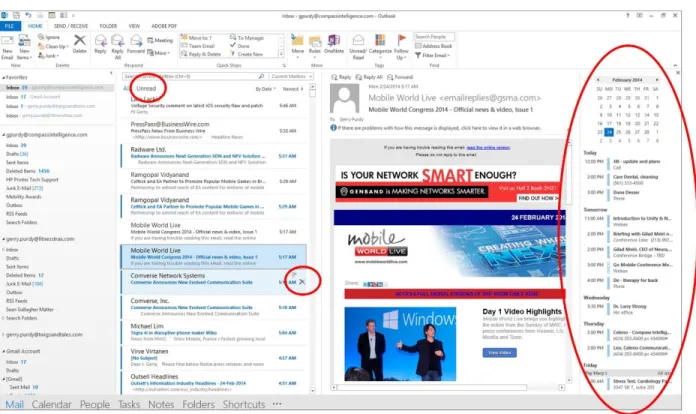
Now, let me identify a number of areas in which Windows Outlook is superior to Mac Outlook. First, notice the three outlined areas in red in Figure 5:
Unread – With this command, you can have the Inbox only display the unread messages. Note also that in the current Inbox, unread are easily identified with the blue bar and bold type. “Delete with a Click” – With the ‘X’ to the right of emails listed in the Inbox, you can delete with a
single click without first highlighting the message.
Upcoming Calendar – Windows Outlook enables the display of the upcoming calendar list on the right side of the page. You can thus see upcoming appointments without having to go to the Calendar processor.
Figure 5: Outlook Superiority on Windows over Mac (1)
Source: 2014 Compass Intelligence
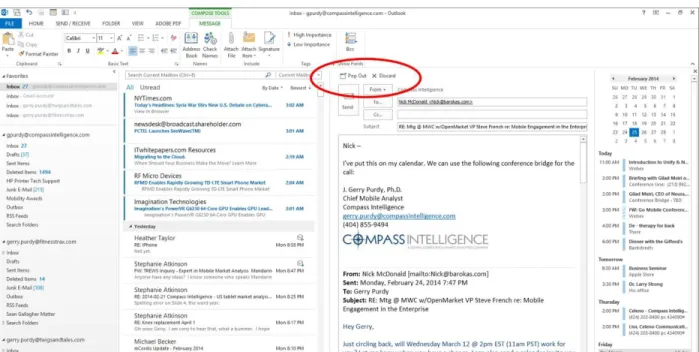
Next, look at Figure 6. It shows that Windows Outlook enables replying inside the Preview Pane. This makes replying to most email quicker and easier than opening and doing a full reply.
Figure 6: Outlook Superiority on Windows over Mac (2)
Source: 2014 Compass Intelligence
Finally, Figure 7 shows how Windows Outlook implements “Quick Parts” which enable you to have text that is automatically inserted in a given area simply by typing the first word or two. These ‘macros’ make typing the same thing much easier and quicker.
Figure 7: Outlook Superiority on Windows over Mac (3)
Source: 2014 Compass Intelligence
It would appear that Microsoft certainly knows about the improvements in Windows Outlook over Mac Outlook and is likely underway developing an upgrade to Mac Outlook to make it operate in a way more similar to Windows Outlook.
While Microsoft has incorporated Outlook in Office for the Mac, it feels like a poorly designed copycat developed by another company.
iPhone & iPad (iOS)
Although this piece has focused on PC and Mac laptops and Microsoft Office, I use my iPhone 5s and iPad (edition just before the Air version came out). While the iPhone 5s display is smaller than other Android smartphones I have tested, this user interface from iOS is very natural and easy to use.
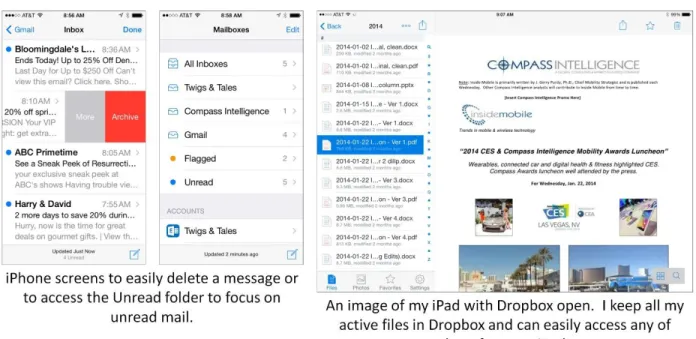
I use my iPhone more than my iPad but not out of preference. It’s simply that I carry it with me wherever I go when away from my home office. Apple has enabled easy access to Microsoft Exchange. I have found that it is easier to eliminate unwanted emails in the integrated Inbox by swiping the message to the left which highlights a red Delete area which is easy to select and the email is deleted (or archived). If I am home and have my iPad and Desktop open, it’s typically just a few seconds before the deleted action syncs across my other devices.
I typically will delete emails that I don’t need while I’m out. Then, when I come home, my various Inbox’s have only the emails that are important and require a more thorough reading and/or action.
I use my iPad for replying more reflectively as it’s easier to type on the iPad on-screen keyboard. I also use the iPad for web searching and conducting webinars while I’m away from home. The webinars provide a desktop-like experience and I can see the shared slides much easier.
Another thing I often do is go to my mailboxes and then select Unread so that it displays only unread email. This allows me to focus on new, unread emails that I can process without flipping through the entire Inbox.
My most important iPad app for me is Dropbox because Apple iOS doesn’t support a formal file and folder system. I can easily store a document in Dropbox on my desktop and then access that file while away from home as shown in Figure 8.
Figure 8: iOS Screens that Enable Continued Working with Mobile
Final Comments: Mac vs. Windows
I found this process of setting up and using both a Windows environment and Mac environment very informative. It’s easy to see why the Mac is more emotionally appealing: the Thunderbolt display is amazing and the higher resolution enables windows to be sitting side by side. You can get higher resolution displays and graphic controllers in Windows environments but at a higher cost. Apple simply has a more emotionally attractive user interface and associated hardware.
It used to be that enterprises would only consider using Windows due to lower cost and a tighter integration with Microsoft. However, the Mac today can match most any Windows environment in performance, particularly concerning working comfortably with Microsoft Exchange. Moreover, the more popular Windows apps are available on the Mac.
In the end, this exercise has proven that using Windows or Mac computers isn’t any longer about winning or losing but, rather, what you need to do and to the extent that you want to emotionally enjoy doing it and can afford a slightly higher cost of using a Mac. This helps explain why the Mac has been gaining market share against Windows in 31 of the past 32 quarters.
What I think may be a bigger question is the future of Apple iOS, Google Android, and Microsoft Windows Phone; and whether people will eventually prefer to adopt tablets and smartphones and no longer deal with buying a laptop. That’s not practical today, but it may become practical within 4-5 years.
Part of the motivation for this happening would be that the mobile products are used most of the time so users get quite familiar using them and, hence, will opt to use them all the time instead of just part of the time. It will take a lot of work by Apple (with iOS), Google (with Android) and Microsoft (with Windows Phone) to make that happen so the desktop experience and network services using a tablet with large monitor, keyboard and display is as good as you can do today with a laptop.