IBM Security Virtual Server Protection for VMware
Installation Guide for Virtual Server
Protection for VMware
(Proventia Server for VMware)
Version 1.1
Copyright statement
© Copyright IBM Corporation 2009, 2010.
U.S. Government Users Restricted Rights — Use, duplication or disclosure restricted by GSA ADP Schedule Contract with IBM Corp.
Contents
About this publication
. . . v
Related publications . . . v
Technical support. . . v
Chapter 1. Introducing Virtual Server
Protection for VMware (Proventia Server
for VMware) . . . 1
Overview . . . 1
About VMware ESX/ESXi . . . 3
About the Security Virtual Machine (SVM) . . . . 3
Integration with IBM Proventia Management SiteProtector system . . . 4
Chapter 2. Upgrading a version 1.0
agent to a version 1.1 agent . . . 5
Chapter 3. Deployment components and
system requirements . . . 7
Deployment components . . . 7
Security Virtual Machine (SVM) requirements . . . 7
Virtual machine requirements. . . 8
Chapter 4. Deploying the SVM . . . 9
Setup overview . . . 9
Deploying the OVF file . . . 10
Running Proventia Setup . . . 10
Configuring the VMO using Proventia Manager . . 11
Configuring network settings for the hosting ESX/ESXi Server . . . 12
Optional: Configuring settings for the Accelerator 13 Configuring SiteProtector system management . . 15
Chapter 5. Uninstalling the SVM . . . . 17
Using Proventia Manager to uninstall the SVM from your system . . . 17
Uninstalling the SVM manually from your system 17
Notices
. . . 19
Trademarks . . . 20
Index . . . 21
About this publication
This section describes the audience and scope for this guide, identifies related publications, and provides contact information.
Audience
Users of this guide should have fundamental knowledge of installing, deploying, and configuring applications on VMware.
Scope
This guide describes the components required for installing and configuring IBM Security Virtual Server Protection for VMware (Proventia Server for VMware) in addition to the procedures you will need to perform for successful deployment.
This guide has been updated to include support for VMware ESXi Server.
Topics
“Related publications” “Technical support”
Related publications
Use this topic to help you access information about Proventia Server for VMware.
Publications
The following documents are available for downloading from the IBM Security Information Center website at http://publib.boulder.ibm.com/infocenter/sprotect/v2r8m0/topic/com.ibm.pvm.doc_1.0/ vsp_pdf_container.htm.
v IBM Security Virtual Server Protection for VMware (Proventia Server for VMware) Installation Guide v IBM Security Virtual Server Protection for VMware (Proventia Server for VMware) Administrator Guide
License agreement
For licensing information about IBM Security products, download the IBM®Licensing Agreement from http://www.ibm.com/services/us/iss/html/contracts_landing.html.
Technical support
IBM Security Solutions provides technical support to customers that are entitled to receive support.
The IBM Support Portal
Before you contact IBM Security Solutions about a problem, see the IBM Support Portal at http://www.ibm.com/software/support.
The IBM Software Support Guide
If you need to contact technical support, use the methods described in the IBM Software Support Guide at http://www14.software.ibm.com/webapp/set2/sas/f/handbook/home.html.
The guide provides the following information:
v Registration and eligibility requirements for receiving support
v Customer support telephone numbers for the country in which you are located v Information you must gather before you call
Chapter 1. Introducing Virtual Server Protection for VMware
(Proventia Server for VMware)
This chapter describes how Virtual Server Protection for VMware (Proventia Server for VMware) interacts with VMware ESX/ESXi and the IBM Proventia®Management SiteProtector™system.
Topics
“Overview”“About VMware ESX/ESXi” on page 3
“About the Security Virtual Machine (SVM)” on page 3
“Integration with IBM Proventia®Management SiteProtector™system” on page 4
Overview
Proventia Server for VMware is a virtual agent that provides intrusion prevention, firewall, and rootkit protection for virtual machines (hosts) running on VMware ESX/ESXi.
Proventia Server for VMware provides the same protection for virtual hosts that conventional security products provide for physical hosts. The intrusion prevention and firewall features protect all traffic to and from any virtual machine in the system. The anti-rootkit feature protects the virtual machines from malicious programs.
How it works
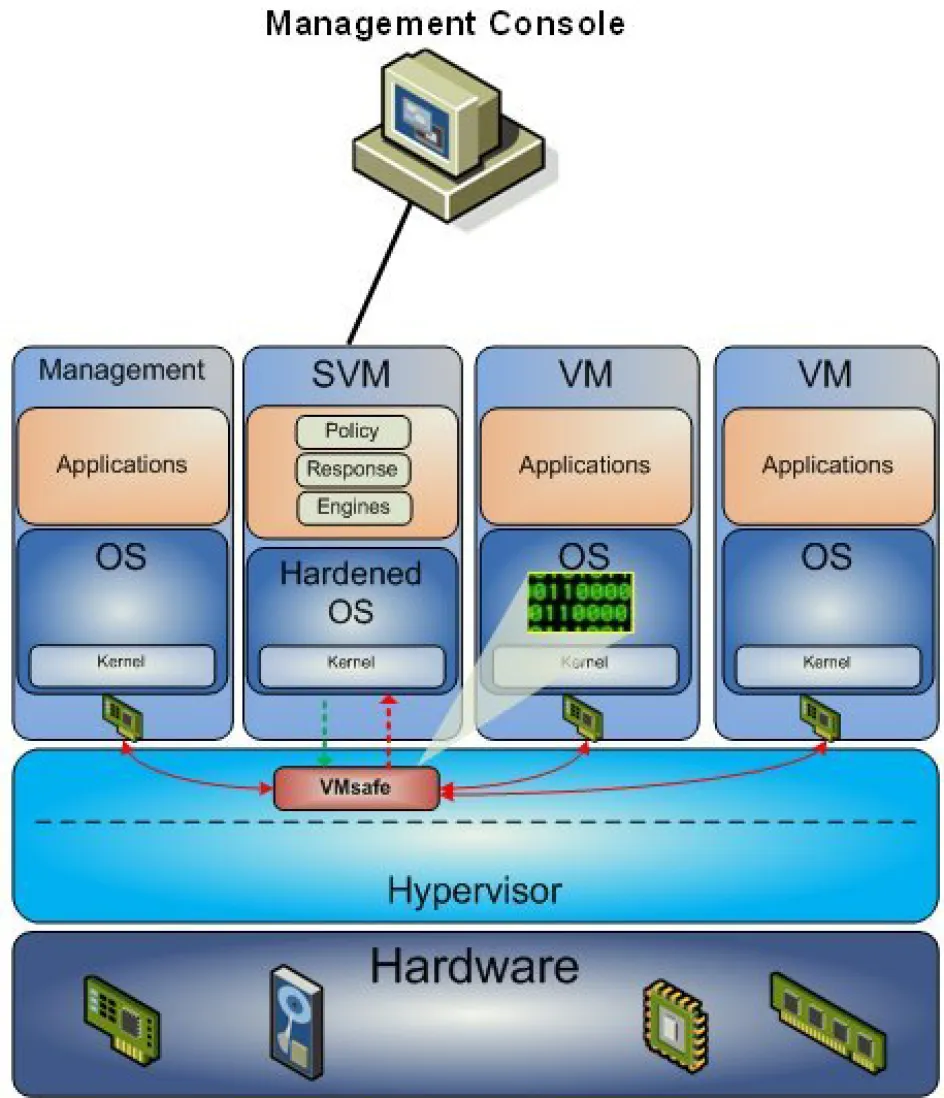
Proventia Server for VMware is an agent that runs on its own virtual machine called the Security Virtual Machine or the SVM. You install the SVM on the same physical host as the virtual hosts it protects, but it remains external to those protected hosts. The SVM can block network-based attacks on virtual machines by inspecting and analyzing network traffic to, from, and between virtual hosts in real time. The firewall can provide policy enforcement for network communication on the external physical network and on all inter-virtual machine traffic. The SVM provides rootkit protection by using introspection, which is the ability to inspect the memory of a virtual machine. Note that when you use the anti-rootkit component, you must ensure NX bit is enabled on the ESX/ESXi Server.
Architectural overview
Proventia Server for VMware protection agents run as a Security Virtual Machine (SVM) on a hosting VMware ESX/ESXi Server, and are responsible for securing all the virtual machines running on a single hosting ESX/ESXi Server. The SVM is deployed into every physical server that must have protection for its virtual machines. This SVM exists as a privileged virtual machine.
The SVM monitors all the traffic involving virtual machines running on a hosting ESX/ESXi Server, including traffic passed between local virtual machines. The SVM uses VMware's Distributed Virtual Filter (DV Filter) API to capture and analyze traffic to and from virtual machines without the need for you to reconfigure the virtual network.
The SiteProtector system manages all the agents in a given installation. A Proventia Server for VMware installation consists of all the SVMs within a VMware deployment.
About VMware ESX/ESXi
VMware ESX/ESXi is an enterprise-level virtualization tool that runs both the SVM and the virtual machines that are protected by the SVM.
Where to install the ESX/ESXi software
You install the ESX/ESXi software directly on a server; it does not need to run on top of an operating system. The ESX/ESXi Server is managed by the VMkernel, which is based on the Linux kernel. The VMkernel eliminates the burden of running an operating system beneath the virtual machines.
About the Security Virtual Machine (SVM)
The SVM is virtual machine that hosts the Proventia Server for VMware protection agent. The SVM runs on a hosting ESX/ESXi Server.
Typical deployment
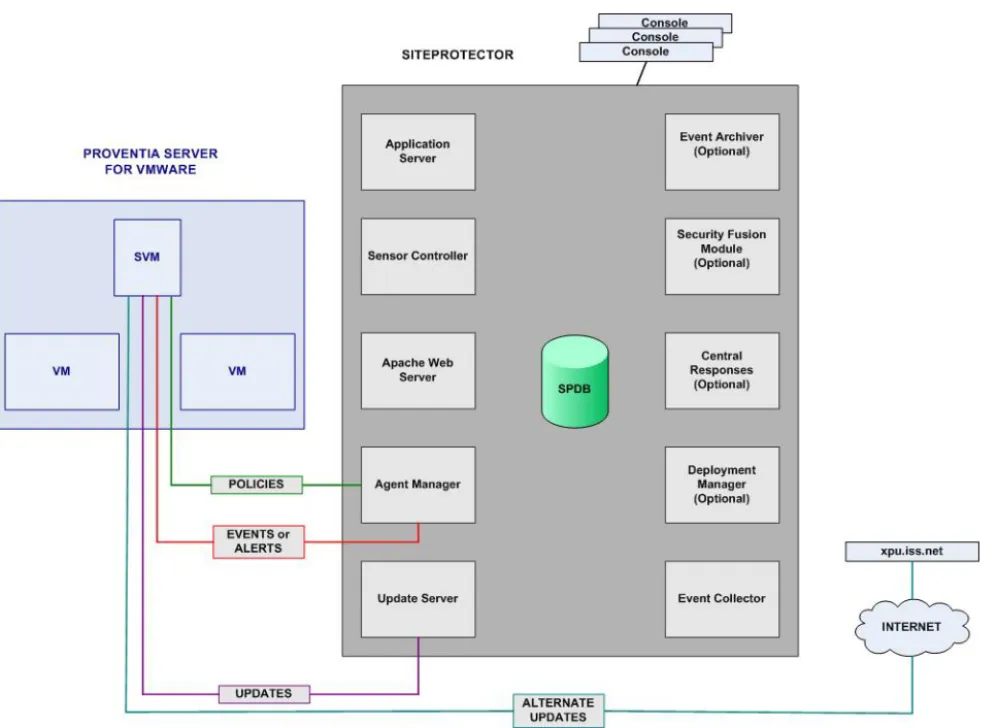
The following diagram shows a simple deployment of Proventia Server for VMware. This diagram shows the SVM within the context of other virtual machines and its hosting ESX/ESXi Server, including the connections between the SVM and the SiteProtector instance that manages it and the policy, event, and update pathways for the SVM.
Policiesare the SiteProtector policies that are subscribed to by the SVM, deployed to the SVM, and are used by the SVM to enforce protection of the virtual environment.
EventsorAlerts contain data that is sent to the SiteProtector system to indicate network attacks, virtual machine audit failures, or other situations detected by the SVM.
Updatesare sent to the SVM from a SiteProtector Update Server (or xpu.iss.net as an alternate) to update components of the SVM.
Integration with IBM Proventia
®Management SiteProtector
™system
The SiteProtector system provides centralized management for SVM.The SVM receives policies and updates from the SiteProtector system, and also transmits alerts and heartbeats to the SiteProtector system.
Chapter 2. Upgrading a version 1.0 agent to a version 1.1
agent
If you already have Proventia Server for VMware, Version 1.0 agents deployed, you can upgrade these agents to Version 1.1. Upgrading your agents to the latest version allows you to use the new features to protect your computer.
Note: If you are upgrading from VMware ESX 4.0 or VMware ESXi 4.0, ensure that you use the VMware Update Manager.
Before you upgrade an agent
Before you upgrade your agent to version 1.1, you must ensure that you have upgraded to the required platforms described in the following table:
If you are running... you must... and then you can...
ESX 4.0 upgrade to ESX 4 update 1 apply agent version 1.1 core update
ESX 4.0 update 1 apply agent version 1.1 core update
ESX 4.0 update 2 uninstall Proventia Server for VMware 1.0. and then upgrade to ESX 4.1
install Proventia Server for VMware 1.1
ESX 4.1 apply agent version 1.1 core update
ESXi 4.0 upgrade to ESXi 4 update 1 apply agent version 1.1 core update and then upgrade to ESXi 4.1
ESXi 4.0 update 1 apply agent version 1.1 core update
and then upgrade to ESXi 4.1 Note: See "Applying the agent 1.1 core update to ESXi 4.0 update 1" below.
ESXi 4 update 2 uninstall Proventia Server for VMware 1.0. and then upgrade to ESXi 4.1
install Proventia Server for VMware 1.1
ESXi 4.1 apply agent version 1.1 core update
After you have successfully upgraded the Proventia Server for VMware agent from 1.0 to 1.1, the agent restarts.
Applying the agent 1.1 core update
Modify the Update Settings policy in the Proventia Server for VMware agent to apply the update automatically during the scheduled period or to apply the update at a specified time.
Important: After applying the agent 1.1 core update, you must restart the ESX/ESXi server to complete the installation.
Applying the agent 1.1 core update to ESXi 4.0 update 1
If you are currently running VSP 1.0 on ESXi 4.0 update 1 and you are upgrading to VSP 1.1, you must upgrade to ESXi 4.1.
After applying the agent 1.1 core update, you must restart the ESXi server and complete the following steps:
1. On the ESXi server, enter the following command line: esxupdate remove -b cross_ibm-iss-vmkmod_400.1.1-164009
2. Restart the ESXi server.
3. Turn on the SVM and transfer the VIB manually from the SVM.
Example: On the ESXi server, you would enter the following command line:scp root@<SVM IP address>:/etc/iss/drivers/pr* /tmp
4. Install the VIB.
On the ESXi server, enter the following command line:
esxupdate update --nosigcheck --nodeps -b /tmp/proventiaServerV-ibm-iss-vmkmod.vib
Chapter 3. Deployment components and system requirements
This chapter describes the components that a Proventia Server for VMware deployment consists of and the requirements for each component.Topics
“Deployment components”
“Security Virtual Machine (SVM) requirements” “Virtual machine requirements” on page 8
Deployment components
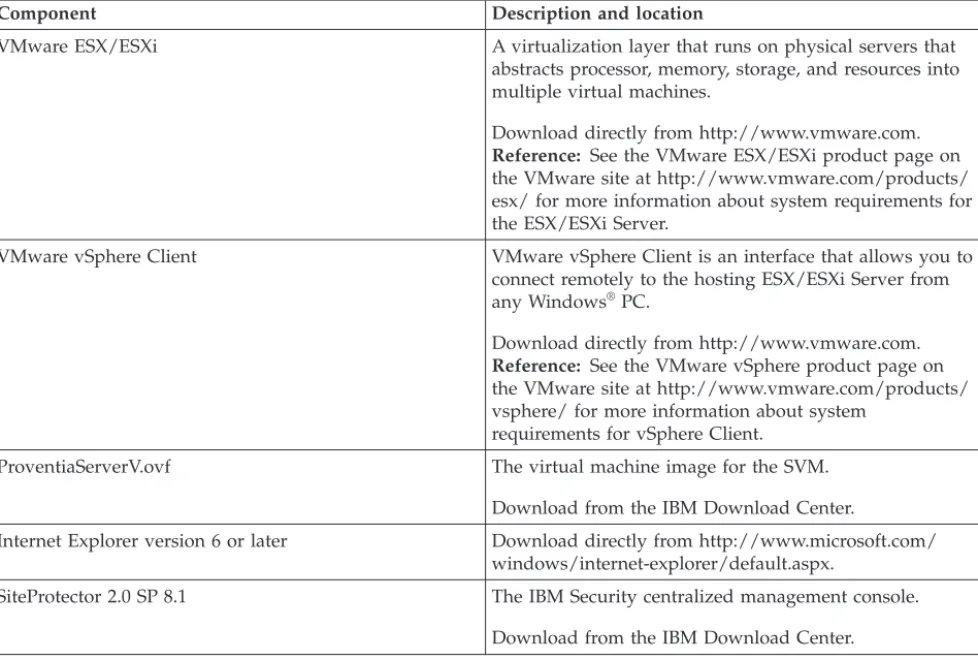
Before you deploy Proventia Server for VMware, make sure you are familiar with its components. Table 1. Proventia Server for VMware deployment components
Component Description and location
VMware ESX/ESXi A virtualization layer that runs on physical servers that abstracts processor, memory, storage, and resources into multiple virtual machines.
Download directly from http://www.vmware.com. Reference: See the VMware ESX/ESXi product page on the VMware site at http://www.vmware.com/products/ esx/ for more information about system requirements for the ESX/ESXi Server.
VMware vSphere Client VMware vSphere Client is an interface that allows you to connect remotely to the hosting ESX/ESXi Server from any Windows®
PC.
Download directly from http://www.vmware.com. Reference: See the VMware vSphere product page on the VMware site at http://www.vmware.com/products/ vsphere/ for more information about system
requirements for vSphere Client. ProventiaServerV.ovf The virtual machine image for the SVM.
Download from the IBM Download Center.
Internet Explorer version 6 or later Download directly from http://www.microsoft.com/ windows/internet-explorer/default.aspx.
SiteProtector 2.0 SP 8.1 The IBM Security centralized management console. Download from the IBM Download Center.
Security Virtual Machine (SVM) requirements
Make sure the SVM meets the requirements listed in this section.Reference: For a complete list of system requirements for Proventia Server for VMware, see the System Requirements document on the IBM Security Information Center website at http://
publib.boulder.ibm.com/infocenter/sprotect/v2r8m0/index.jsp.
Hosting ESX/ESXi Server requirements
You can only install one SVM on each hosting ESX/ESXi Server.
Your SVM must always be directed to its hosting ESX/ESXi Server. The Proventia Manager setup and the Proventia Setup installation steps provide guidance on how to direct your SVM to its hosting ESX/ESXi Server. Do not direct your SVM to a vCenter Server.
VMware Tools
The SVM does not support VMware Tools. Do not install VMware Tools on the SVM.
VMware VMotion and VMware Storage VMotion
The SVM does not support VMware VMotion (a technology that allows the live migration of running virtual machines from one physical server to another server) and VMware Storage VMotion (a component of VMware vSphere that provides an interface for migrating virtual machine disk files across storage arrays or across ESX/ESXi Servers, with no downtime or disruption in service).
You must install the SVM on the local storage for the hosting ESX/ESXi Server so that it cannot use VMotion and Storage VMotion.
Memory requirements
Make sure the SVM has at least 1 GB of RAM and more than 10 GB of available hard disk space. Note: The SVM incurs a memory overhead for each virtual machine that it protects, but only a fixed amount of processor time. The amount of RAM allocated to the SVM must be appropriately scaled for the expected number of virtual hosts.
Virtual machine requirements
Make sure the virtual machines that are protected by the SVM meet the requirements listed in this section.
VMware Tools
You must install VMware Tools on each virtual machine that you want the SVM to protect.
Installing virtual machines- consideration
When you install virtual machines in a virtual environment, you should not install them on the virtual switches that were created as part of the Proventia Server for VMware installation.
The Proventia Server for VMware installation process creates the following virtual switches:
v ibm-vmwarenetwork-switch v ibm-vmwareintrospect-switch v ibm-accelerator-switch
vNetwork Distributed Switch- consideration
If you have a vNetwork Distributed Switch set up in the ESX server, see the following technote for more information: http://www.ibm.com/support/docview.wss?uid=swg21437438.
Chapter 4. Deploying the SVM
This chapter explains how to set up the SVM on your network, how to configure settings for individual components used by the SVM, how to remove the SVM from your system, and how to configure SiteProtector management.
Topics
“Setup overview”
“Deploying the OVF file” on page 10 “Running Proventia Setup” on page 10
“Configuring the VMO using Proventia Manager” on page 11
“Configuring network settings for the hosting ESX/ESXi Server” on page 12 “Optional: Configuring settings for the Accelerator” on page 13
“Configuring SiteProtector system management” on page 15
Setup overview
You manually deploy and configure the SVM that has been provided to you by IBM as a virtual machine image. The SVM is configured successfully when it can report to the SiteProtector Agent Manager.
Process
Important: Before you begin installing and configuring the Proventia Server for VMware agent, ensure that you have migrated your virtual machines away from the ESX/ESXi Server. If you do not migrate the virtual machines, you will be required to restart the ESX/ESXi Server to complete the installation.
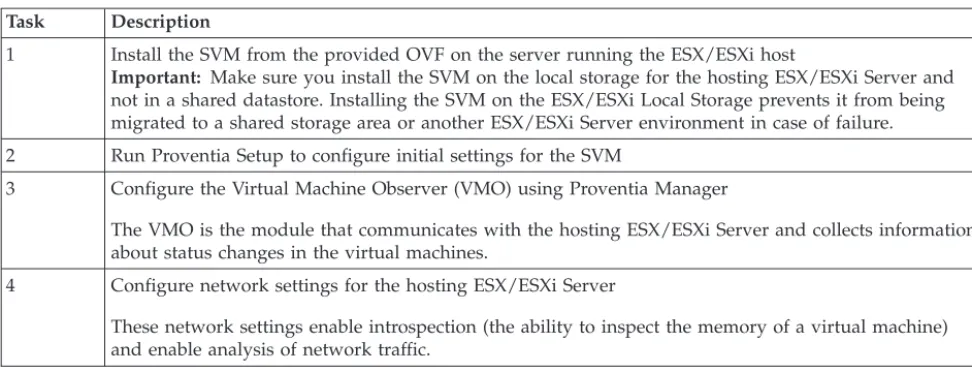
The Proventia Server for VMware setup follows this process: Table 2. Proventia Server for VMware setup tasks
Task Description
1 Install the SVM from the provided OVF on the server running the ESX/ESXi host
Important: Make sure you install the SVM on the local storage for the hosting ESX/ESXi Server and not in a shared datastore. Installing the SVM on the ESX/ESXi Local Storage prevents it from being migrated to a shared storage area or another ESX/ESXi Server environment in case of failure. 2 Run Proventia Setup to configure initial settings for the SVM
3 Configure the Virtual Machine Observer (VMO) using Proventia Manager
The VMO is the module that communicates with the hosting ESX/ESXi Server and collects information about status changes in the virtual machines.
4 Configure network settings for the hosting ESX/ESXi Server
These network settings enable introspection (the ability to inspect the memory of a virtual machine) and enable analysis of network traffic.
Table 2. Proventia Server for VMware setup tasks (continued) Task Description
5 Optional: Configure settings for the Accelerator function
The Accelerator analyzes traffic between one physical NIC (pNIC) on an "accelerated" virtual switch and one other virtual switch already configured on your virtual network.
Deploying the OVF file
The Open Virtualization Format (OVF) template provided by IBM for installation contains the virtual machine image for the SVM.
About this task
OVF is a distribution format that uses existing packaging tools to combine one or more virtual machines with a standards-based XML wrapper. OVF gives the virtualization platform a portable package that contains all required installation and configuration parameters for virtual machines. This format allows any virtualization platform that implements the standard to correctly install and run virtual machines. Reference: See http://www.vmware.com/pdf/ovf_spec_draft.pdf for more information about OVF.
Procedure
1. Connect to your hosting ESX/ESXi Server using VMware vSphere Client. 2. From theFilemenu, select Deploy OVF Template.
3. From the Deploy OVF Template - Source window, select theDeploy from fileoption, clickBrowseto locate the OVF file for the corresponding virtual machine, and clickNext.
4. From the Deploy OVF Template - OVF Template Details window, verify the OVF template settings, and clickNext.
5. From the Deploy OVF Template - Name and Location window, type a name for the SVM. Tip: Consider naming the SVM after the ESX/ESXi Server it is associated with so that you will remember its name when you manage your protection from the SiteProtector system.
6. From the Deploy OVF Template - Network Mapping window, configure theManagementnetwork mapping option. TheManagementnetwork mapping option allows you to access the web
management interface for the SVM from your web browser and also enables the SVM to communicate with SiteProtector.
7. ClickNext.
8. From the Deploy OVF Template - Ready to Complete window, check the properties for the SVM, and click Finish. The OVF is extracted and deployed to the hosting ESX/ESXi Server.
9. Deploy the SVM.
Running Proventia Setup
The Proventia Setup program is a text-based setup program you use to configure the initial settings for the SVM.
Procedure
1. Turn on the SVM.
2. Log on to the SVM, using the management console or by SSH, with the following account credentials:
v password =admin
Note: Default passwords are all set to admin.
3. From the Welcome window, pressENTER, and accept the License Agreement.
4. From the Change Password (admin) window, change the password for the admin user, and press ENTER.
5. From the Change Password (root) window, change the password for the root user, and pressENTER. 6. From the Change Proventia Manager Password (admin) window, change the Proventia Manager
password for the admin user, and pressENTER.
7. From the Network Configuration - Management Interface IP Address window, choose one of the following methods to set the IP address:
To set the IP address automatically via DHCP, selectSet IP Address Automatically (via DHCP), and pressENTER.
After the agent obtains an IP address from the DHCP server, go to Step 9.
If the agent fails to obtain the IP address dynamically, you will receive the following message:
Failed in getting IP Address dynamically.
If you receive this message, make sure your DHCP server is functioning and is available on the network configured for the Management Interface.
Tip: Consider using a static IP address. DHCP environments can pose challenges to a Proventia Server for VMware deployment.
To set a static IP address for the management interface, selectSet IP Address Statically, and press ENTER.
8. From the Network Configuration window, type the IP address, subnet mask, and gateway address for the SVM, and pressENTER.
9. From the Host Configuration window, type the host name and domain name for the SVM, and press ENTER.
10. From the DNS Configuration window, provide DNS settings for the SVM, and pressENTER. 11. Optional: From the Time Zone Configuration window, set the time zone for the SVM, and press
ENTER.
Important: When you deploy the OVF file, the SVM will use the time zone and the system time set for the hosting ESX/ESXi Server.
12. Optional: From the Date/Time Configuration window, set the date and the time for the SVM, and pressENTER.
Important: When you deploy the OVF file, the SVM will use the time zone and the system time set for the hosting ESX/ESXi Server.
13. From the Agent Name Configuration window, type the name for the SVM as it will be displayed in the SiteProtector Console.
Tip: Consider naming the SVM after the ESX/ESXi Server it is associated with so that you will remember its name when you manage your protection from the SiteProtector system.
14. PressENTERto exit the menu.
Configuring the VMO using Proventia Manager
The Virtual Machine Observer (VMO) module communicates with the hosting ESX/ESXi Server and collects information about changes in the status of the virtual machines, such as when new virtual machines come online, when virtual machines are migrated, or when virtual machines are suspended from operation or have resumed operation.
About this task
The VMO serves the following purposes:
v Receives virtual machine events from the hosting ESX/ESXi Server (or Service Console). These events
are reported to the SiteProtector Console, such as events indicating that virtual machines are coming online or going offline. VMO also maintains inventory information for the virtual machines, which can be used by the other modules of Proventia Server for VMware.
v Adds the security agent name to the configuration file of the virtual machines (VMX file), so that the
machines can be protected by the security agent through introspection.
Procedure
1. Open a web browser, and type the IP address for the SVM (the IP address that was set for the management interface during Proventia Setup):https://SVM_IP
2. Log on to Proventia Manager (the Web-based management interface for the SVM) using the following account credentials:
v username =admin
v password = the Proventia Manager password you configured in Proventia Setup
3. ClickSystem→VMwarein the navigation pane.
4. Type the following settings for the hosting ESX/ESXi Server:
Option Description
ESX/ESXi Server IP Address The IP address of the ESX/ESXi Server hosting the SVM. Note: The IP address you enter here is for configuring the VMO module.
Administrator User Name The name of a user who has Administrator privileges to access the hosting ESX/ESXi Server.
Administrator Password The password of the user who has Administrator privileges to access the hosting ESX/ESXi Server.
5. ClickOK.
Note: Because VMware does not provide a CA certificate for ESX/ESXi 4.0, the VMO cannot validate the server certificate on the client side. Instead, the VMO will establish a connection with the hosting ESX/ESXi Server using HTTPS.
Configuring network settings for the hosting ESX/ESXi Server
The ESX/ESXi Server is the host machine on which the SVM and the other virtual machines are running.
Before you begin
Ensure that you have migrated the virtual machines away from the ESX or ESXi Server.
Procedure
1. Log on to the SVM, using the management console or by SSH, with the following account credentials:
v username =admin
v password = the password you configured in Proventia Setup
2. From the Proventia Setup Configuration Menu, selectNetwork Configuration.
3. From the Network Configuration Menu, selectESX Server Configuration, and pressENTER. 4. From the ESX Server Configuration window, type the following settings for the hosting ESX/ESXi
Option Description
ESX IP Address The IP address of the ESX/ESXi Server hosting the SVM. Note: The IP address you enter here is for configuring ARK and IPS protection.
Administrator User Name The name of a user who has Administrator privileges to access the hosting ESX/ESXi Server.
Administrator Password The password of the user who has Administrator privileges to access the hosting ESX/ESXi Server.
5. PressENTERto finish configuring network settings for the hosting ESX/ESXi Server.
6. If you migrated the virtual machines before the installation procedure, you need to migrate the virtual machines back to the ESX/ESXi Server.
Attention: If you did not migrate the virtual machines prior to the installation, you must complete one of the following options for the configuration settings to take effect:
v Migrate the virtual machines away from the ESX/ESXi Server and then back v Pause and resume each virtual machine
v Restart the ESX/ESXi Server
Optional: Configuring settings for the Accelerator
The Accelerator function enhances the performance of the SVM by analyzing traffic between one physical NIC (pNIC) on an "accelerated" virtual switch and one other virtual switch already configured on your virtual network.
Before you begin
v Ensure that you have configured network settings for the hosting ESX/ESXi Server before you
configure settings for the Accelerator.
v Ensure that you have two network interfaces and that the virtual machines that you want to accelerate
are on the second virtual switch.
About this task
When you enable the Accelerator function, the SVM will configure the virtual network to allow the agent to directly capture and monitor traffic on one external pNIC using a new virtual switch. A network interface of the SVM will be attached to the virtual switch that previously hosted the pNIC.
The protected virtual machines do not need special network changes for packet analysis by IPS. The vNIC for a protected virtual machine can be on any virtual switch; traffic will still be analyzed. The Accelerator is an inline protection device that works through a bridged interface, which uses two adapters on the SVM. You can only accelerate one pNIC. You should not accelerate the pNIC connected to the SVM management interface. Also, make sure you set up the SVM management interface on the samevirtual switch as the hosting ESX/ESXi Server management interface.
Important: You should configure this setting after you have deployed the SVM and you have determined how this setting will affect the performance of your virtual network.
Procedure
1. Log on to the SVM, using the management console or by SSH, with the following account credentials:
v username =admin
v password = the password you configured in Proventia Setup
2. From the Network Configuration Menu, select Accelerator Configuration.
3. From the Accelerator Configuration Menu, selectEnable Accelerator.
4. From the Accelerator Configuration window, type the following settings for the Accelerator:
Option Description
ESX/ESXi Server IP Address The IP address of the ESX/ESXi Server hosting the SVM. Administrator User Name The name of a user who has Administrator privileges to
access the hosting ESX/ESXi Server
Administrator Password The password of the user who has Administrator privileges to access the hosting ESX/ESXi Server. Physical NIC Name The device name of the physical NIC (pNIC) to be
monitored by the SVM.
Press the SPACE BAR on your keyboard to toggle through the available pNICs.
Attention: Do not select or accelerate the pNIC connected to the SVM management console. IP Address Range for MIA (Multiple Inspection
Avoidance)
The IP address range for all hosts that will be
accelerated. This range includes all vNICs connected to the pNIC that is being accelerated (the entire subnet). Example: Use one of the following formats in this field:
v Single IP address example: 1.1.1.1 v IP address range example: 1.1.1.1-1.1.1.1 v Network bits (CIDR) example: 1.1.1.10/24 0
You can also use commas to separate IP addresses and ranges of IP addresses:
1.1.1.1,2.2.2.2,3.3.3.1-3.3.3.10,4.4.4.4/24
MIA(Multiple Inspection Avoidance) is used to enhance the frame rate that the IPS engine can analyze. When MIA is enabled, it examines every packet in the packet stream.
5. PressENTERto finish configuring settings for the SVM.
Note: If the screen becomes unresponsive while you are configuring acceleration, try disabling acceleration, and then go through the configuration steps again.
If disabling acceleration does not return the screen back to a responsive state, try removing the acceleration settings manually, and then go through the configuration steps again.
See the topic “Uninstalling the SVM manually from your system” on page 17 later in this guide, which includes steps on how to remove the acceleration settings manually.
Results
After you have configured the accelerator, the vNICs are assigned as follows:
v Network adapter 1: Management interface v Network adapter 2: ibm-vmintrospect-appliance v Network adapter 3: ibm-vmnetwork-appliance v Network adapter 4: ibm-accelerator-group v Network adapter 5: user virtual switch
Configuring SiteProtector system management
SiteProtector is the IBM Security management system. The SiteProtector system manages the connections between the SiteProtector Console and the SVM, including all policy, event, and update settings for the agent.
Procedure
1. Open a web browser, and type the IP address for the SVM (the IP address that was set for the management interface during Proventia Setup):https://SVM_IP
2. Log on to Proventia Manager (the web-based management interface for the SVM) using the following account credentials:
v username =admin
v password = the Proventia Manager password you configured in Proventia Setup
3. ClickLaunch Proventia Manager.
4. ClickSystem→Managementin the navigation pane. 5. ClickAdd Agent Manager.
6. Configure the SiteProtector Agent Manager:
Option Description
Name The Agent Manager name exactly as it appears in the SiteProtector Console.
Address The IP address of the SiteProtector Agent Manager. Port The port number on which alerts are sent to the
SiteProtector system.
Note: The default port number is 3995. If you change the default port number, you must also configure the port number locally on the SiteProtector Agent Manager. Authentication Level Specifies how authentication between the SVM and the
Agent Manager is managed.
Username If the SVM must log into an account to access the Agent Manager, type the user name for that account here. Password If the SVM must use a password to access the Agent
Manager, type the password here.
Proxy Settings If the SVM must go through a proxy to access the Agent Manager, select theUse Proxy Settingscheck box, and then type theProxy Server AddressandProxy Server Port.
7. Select theRegister with SiteProtectorcheck box.
8. In theDesired SiteProtector Groupfield, type the name of the Proventia Server for VMware group registered in the SiteProtector system.
9. In theHeartbeat Interval (secs)field, type the number of seconds you want the SVM to wait between the time it contacts the SiteProtector system for changed policies and updates.Range:60 to 86,400 seconds (1 minute to 2 days). You should use the default of 3600.
Tip: Your SVM registers itself with the SiteProtector system at the end of the first heartbeat. If you want to use a long heartbeat, you might want to set a short heartbeat initially, and then change it after the SVM is registered.
10. Save your changes.
What to do next
See the SiteProtector documentation on the IBM Security Information Center web site at
http://publib.boulder.ibm.com/infocenter/sprotect/v2r8m0/index.jsp for more information about Proventia OneTrust tokens and licensing used by Proventia Server for VMware.
Chapter 5. Uninstalling the SVM
There are two methods for uninstalling the SVM from your system. You can uninstall the SVM using the Proventia Manager or you can uninstall the SVM manually.
Topics
“Using Proventia Manager to uninstall the SVM from your system” “Uninstalling the SVM manually from your system”
Using Proventia Manager to uninstall the SVM from your system
Follow this procedure to use Proventia Manager to remove the SVM from your system.Procedure
1. Unregister the SVM from the SiteProtector system.
a. Open a web browser, and type the IP address for the SVM (the IP address that was set for the management interface during Proventia Setup):https://SVM_IP
b. Log on to Proventia Manager (the web-based management interface for the SVM) using the following account credentials:
v username =admin
v password = the Proventia Manager password you configured in Proventia Setup
c. Click Launch Proventia Manager.
d. ClickSystem→ Managementin the navigation pane. e. Clear theRegister with SiteProtector check box.
2. Log on to the SVM, using the management console or by SSH, with the following account credentials:
v username =admin
v password = the password you configured in Proventia Setup
3. Select Agent Management→Agent Uninstallation.
4. Type the host address, Administrator user name, and Administrator password for the hosting ESX/ESXi Server, and press ENTER.
5. Turn off the SVM.
Important: To avoid errors with removing the SVM from your system, make sure you do not restart or turn off the hosting ESX/ESXi Server before the SVM has finished being uninstalled from your system.
6. Delete the SVM from the disk.
7. If you plan on reinstalling the SVM, then restart the hosting ESX/ESXi Server.
Uninstalling the SVM manually from your system
Follow this procedure to manually remove the SVM from your system.
Procedure
1. Remove the file/etc/crm/issengine.policy. 2. Remove the file/etc/crm/issaccelerator.policy.
3. Run the following command on the command-line as root:service issDaemon restart.
4. Disconnect the pNIC fromibm-accelerator-switch.
5. Locate the virtual switch that is currently connected to eth4 on the SVM. Connect the pNIC (that you disconnected fromibm-accelerator-switch) to this virtual switch.
6. Disconnect eth3 and eth4 on the SVM.
7. Associate eth3 and eth4 on the SVM toVM Network.
8. Removeibm-accelerator-groupandibm-accelerator-switch. 9. Turn off the SVM.
Important: To avoid errors with removing the SVM from your system, make sure you do not restart or turn off the hosting ESX/ESXi Server before the SVM has finished being uninstalled from your system.
10. Delete the SVM from the disk.
11. Delete theibm-vmwarenetwork-switchand ibm-vmwareintrospect-switchswitches.
12. Remove the DV Filter module using this command: esxupdate remove -b cross_ibm-iss-vmkmod_400.1.0-164009
13. Remove the DV Filter IP address from esx.conf using this command:sed -i -e '/DVFilterBindIpAddress/d' /etc/vmware/esx.conf
Notices
This information was developed for products and services offered in the U.S.A.
IBM may not offer the products, services, or features discussed in this document in other countries. Consult your local IBM representative for information on the products and services currently available in your area. Any reference to an IBM product, program, or service is not intended to state or imply that only that IBM product, program, or service may be used. Any functionally equivalent product, program, or service that does not infringe any IBM intellectual property right may be used instead. However, it is the user's responsibility to evaluate and verify the operation of any non-IBM product, program, or service.
IBM may have patents or pending patent applications covering subject matter described in this
document. The furnishing of this document does not grant you any license to these patents. You can send license inquiries, in writing, to:
IBM Director of Licensing IBM Corporation
North Castle Drive Armonk, NY 10504-1785 U.S.A.
For license inquiries regarding double-byte (DBCS) information, contact the IBM Intellectual Property Department in your country or send inquiries, in writing, to:
Intellectual Property Licensing Legal and Intellectual Property Law IBM Japan Ltd.
1623-14, Shimotsuruma, Yamato-shi Kanagawa 242-8502 Japan
The following paragraph does not apply to the United Kingdom or any other country where such provisions are inconsistent with local law: INTERNATIONAL BUSINESS MACHINES CORPORATION PROVIDES THIS PUBLICATION "AS IS" WITHOUT WARRANTY OF ANY KIND, EITHER EXPRESS OR IMPLIED, INCLUDING, BUT NOT LIMITED TO, THE IMPLIED WARRANTIES OF
NON-INFRINGEMENT, MERCHANTABILITY OR FITNESS FOR A PARTICULAR PURPOSE. Some states do not allow disclaimer of express or implied warranties in certain transactions, therefore, this statement may not apply to you.
This information could include technical inaccuracies or typographical errors. Changes are periodically made to the information herein; these changes will be incorporated in new editions of the publication. IBM may make improvements and/or changes in the product(s) and/or the program(s) described in this publication at any time without notice.
Any references in this information to non-IBM Web sites are provided for convenience only and do not in any manner serve as an endorsement of those Web sites. The materials at those Web sites are not part of the materials for this IBM product and use of those Web sites is at your own risk.
IBM may use or distribute any of the information you supply in any way it believes appropriate without incurring any obligation to you.
Licensees of this program who wish to have information about it for the purpose of enabling: (i) the exchange of information between independently created programs and other programs (including this one) and (ii) the mutual use of the information which has been exchanged, should contact:
IBM Corporation Project Management C55A/74KB
6303 Barfield Rd., Atlanta, GA 30328 U.S.A
Such information may be available, subject to appropriate terms and conditions, including in some cases, payment of a fee.
The licensed program described in this document and all licensed material available for it are provided by IBM under terms of the IBM Customer Agreement, IBM International Program License Agreement or any equivalent agreement between us.
All statements regarding IBM's future direction or intent are subject to change or withdrawal without notice, and represent goals and objectives only.
Trademarks
IBM, the IBM logo, and ibm.com are trademarks or registered trademarks of International Business Machines Corp., registered in many jurisdictions worldwide. Other product and service names might be trademarks of IBM or other companies. A current list of IBM trademarks is available on the Web at “Copyright and trademark information” at Copyright and trademark information at www.ibm.com/ legal/copytrade.shtml.
Linux is a registered trademark of Linus Torvalds in the United States, other countries, or both. UNIX is a registered trademark of The Open Group in the United States and other countries.
Microsoft and Windows are trademarks of Microsoft Corporation in the United States, other countries, or both.
Index
A
accelerated mode 13 Accelerator
configuring settings 13 enabling 13
admin user
change password 11 Agent Manager 15 alerts 3
anti-rootkit feature 1 ARK protection 13
C
CA certificate 12 core update 5
D
deployment 7
deployment requirements
Proventia Server for VMware 7 SVM 7
virtual machines 8 DHCP 11
documentation v documentation web site v DV Filter 2
E
ESX/ESXidescription 7 ESX/ESXi Server
about 3
configuring network settings 12 where to install 3
events 3
I
IBM Internet Security Solutions Security Solutions technical
support v
IBM license agreement v IBM Security Solutions
technical support v IPS protection 13
L
licensing 16
licensing agreement v
M
management interface IP address setting automatically 11
management interface IP address
(continued)
setting static 11 MIA 14
Multiple Inspection Avoidance
SeeMIA
N
network adapter assignments 14 network mapping 10
network mapping interfaces Management 10 non-accelerated mode 13
O
Open Virtualization Format
SeeOVF OVF 10
deploying 10 OVF file 7
P
pNIC 13 policies 3 preface vProventia Manager 12, 15, 17 Proventia OneTrust 16 Proventia Server for VMware
architectural overview 1 components 7
deployment 7
deployment requirements 7 how it works 1
licensing 16 overview 1 setup process 9
SiteProtector integration 4 Proventia Setup 10
ProventiaServerV.ovf 7
R
root userchange password 11
S
Security Virtual Machine
SeeSVM SiteProtector 3
configuring management 15 SiteProtector Agent Manager
IP address 15 port 15
SiteProtector integration 4 SiteProtector Update Server 3
SVM 3
date/time configuration 11 deployment 3
deployment diagram 3 deployment requirements 7 DNS configuration 11 host configuration 11 memory requirements 8 network configuration 11 time zone configuration 11 uninstalling (using Proventia
Manager) 17
T
technical support web site v technical support, IBM Security
Solutions v
U
uninstalling manually 17 updates 3
upgrade agent 5
V
virtual machine image 7 Virtual Machine Observer
SeeVMO virtual machines
deployment requirements 8 virtual switch 13
virtual switches 8
ibm-accelerator-switch 8 ibm-vmwareintrospect-switch 8 ibm-vmwarenetwork-switch 8 VMkernel 3
VMO 12 VMware Tools 8
VMware vSphere Client 7 description 7
VMX file 12
X
xpu.iss.net 3