Lab Validation
Report
HP StorageWorks P4000 SAN with
VMware View
Optimizing Virtual Desktop Infrastructure
By Tony Palmer
Contents
Introduction ... 3
Background ... 3
The HP StorageWorks P4000 SAN ... 4
Virtual Desktop Infrastructure with VMware View and VMware vSphere ... 5
ESG Lab Validation ... 6
Reducing Complexity ... 6
Storage Efficiency ... 11
Performance and Scalability ... 16
Availability and Recovery... 19
ESG Lab Validation Highlights ... 21
Issues to Consider ... 21
ESG Lab’s View ... 22
Appendix ... 23
All trademark names are property of their respective companies. Information contained in this publication has been obtained by sources The Enterprise Strategy Group (ESG) considers to be reliable but is not warranted by ESG. This publication may contain opinions of ESG, which are subject to change from time to time. This publication is copyrighted by The Enterprise Strategy Group, Inc. Any reproduction or redistribution of this publication, in whole or in part, whether in hard-copy format, electronically, or otherwise to persons not authorized to receive it, without the express consent of the Enterprise Strategy Group, Inc., is in violation of U.S. Copyright law and will be subject to an action for civil damages and, if applicable, criminal prosecution. Should you have any questions, please contact ESG Client Relations at (508) 482.0188.
ESG Lab Reports
The goal of ESG Lab reports is to educate IT professionals about emerging technologies and products in the storage, data management and information security industries. ESG Lab reports are not meant to replace the evaluation process that should be conducted before making purchasing decisions, but rather to provide insight into these emerging technologies. Our objective is to go over some of the more valuable feature/functions of products, show how they can be used to solve real customer problems and identify any areas needing improvement. ESG Lab's expert third-party perspective is based on our own hands-on testing as well as on interviews with customers who use these products in production environments. This ESG Lab report was sponsored by Hewlett Packard.
Introduction
The use of server virtualization to consolidate server infrastructure, reduce data center floor space, and maximize utilization of existing assets has seen phenomenal growth over the past decade, but server virtualization’s
considerable success is dwarfed by the potential of desktop virtualization. Increasing variety and numbers of client device types, the mobilization of the workforce, “always-on” expectations for corporate IT services, evolving regulatory compliance mandates, tightening security policies, and a driving need to increase operational efficiency all combine to make desktop management a daunting task for even the best IT organizations.
A growing number of organizations are using VDI (virtual desktop infrastructure) technology to reduce the cost, complexity, and risks associated with desktop management while providing a high-quality, predictable, and productive computing environment. This report documents hands-on testing of an HP StorageWorks P4000 SAN in a VMware View environment—paying special attention to ease of management, performance, storage efficiency, and availability.
Background
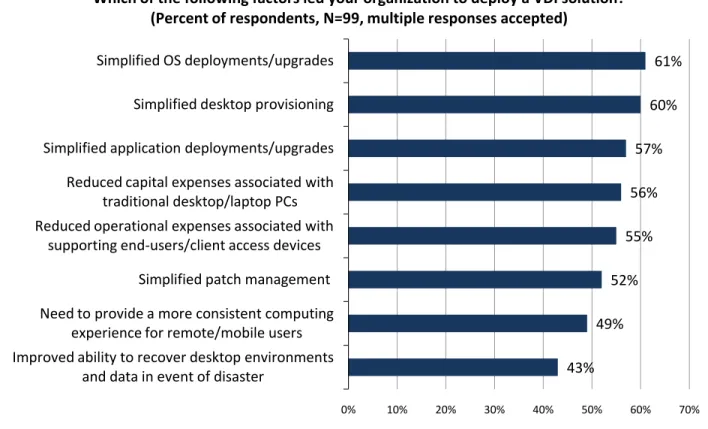
ESG surveyed IT professionals with a goal of understanding the growing interest in VDI.1 As seen in Figure 1, simplification tops the list of factors driving the adoption of VDI technology. Specifically, administrators are looking to simplify the repetitive, hands-on tasks of OS and application deployments, upgrades, patch management, and provisioning while improving remote users’ computing experiences. Given the budgeting and manpower challenges being driven by global economic concerns, it’s not surprising that more than half of respondents indicated that reducing capital and operational expenses is driving an interest in VDI.
Figure 1. VDI Adoption Drivers
Source: Enterprise Strategy Group, 2009.
43% 49% 52% 55% 56% 57% 60% 61%
0% 10% 20% 30% 40% 50% 60% 70% Improved ability to recover desktop environments
and data in event of disaster
Need to provide a more consistent computing experience for remote/mobile users
Simplified patch management Reduced operational expenses associated with
supporting end-users/client access devices Reduced capital expenses associated with
traditional desktop/laptop PCs Simplified application deployments/upgrades
Simplified desktop provisioning Simplified OS deployments/upgrades
Which of the following factors led your organization to deploy a VDI solution? (Percent of respondents, N=99, multiple responses accepted)
In order to address these challenges, a VDI solution must be easy to deploy and manage, highly virtualized, highly available, and predictably scalable. N-way clustered storage architecture is ideally suited to address all of these issues. N-way clustered storage supports multiple storage controllers in a single cluster, which, though it may contain many storage controllers, appears to applications and users as a single logical system for easy management. In traditional dual controller storage systems with fixed architectures, when a user’s environment outgrows their storage system, they may be forced to buy another system to achieve greater performance or capacity. Clustered storage systems allow users to add CPU, memory, and bandwidth transparently, enabling them to scale based on the needs of the business without purchasing a whole new storage system. Such clustered architectures allow for the aggregation and virtualization of all hardware resources, performance, and capacity in a linear fashion—just-in-time and as needed.
The HP StorageWorks P4000 SAN
The HP P4000 SAN is a clustered storage system that scales to meet the needs of VDI environments with ease. HP P4000 SANs are built on enterprise-class, industry-standard platforms configured as fully contained storage nodes that provide CPU, memory, bandwidth, and capacity. Each storage node is powered by SAN/iQ storage software, which provides intelligent storage system functionality. Customers can scale performance and capacity online as needed by adding additional storage nodes without disruption to the SAN, VM’s or physical server applications. The HP P4000 SAN remains a single logical system regardless of how many storage nodes are added to it, making it just as easy to manage a 16-node cluster as it is to manage a 2-node cluster. Additionally, adding nodes to the cluster is a transparent and non-disruptive process. HP advises ESG that the average cluster size sold is 4-6 nodes. The average cluster size deployed in the field is 15-20 TB and 20% of the clusters deployed in production contain more than 10 nodes.
The economics of a clustered network storage system are compelling, with the potential to significantly reduce capital and operational costs. With HP’s P4000 SAN, the customer only has to add another storage node to increase performance and capacity—which costs far less than acquiring a whole new system—and cover its associated software, licensing, and maintenance charges. Most midrange storage systems support, at best, a dual-controller configuration, which limits scalability and flexibility.
At the core of the HP P4000 SAN’s value is the HP SAN/iQ storage software platform, which provides SAN
management features such as storage clustering, application integrated snapshots, thin provisioning, remote copy (asynchronous replication), and SmartClone volumes. In addition, SAN/iQ includes the unique Network RAID feature, which protects against component and environmental failures while keeping data volumes online and accessible. The Network RAID feature provides a level of high availability usually found only in the most expensive SAN arrays, often as an optional software component. Network RAID is included with every P4000 SAN and can be enabled, modified, or disabled online. The ability to keep a volume online and accessible is a key benefit to the VDI environment as the loss of volume access could affect dozens, if not hundreds, of desktop users. The P4000 comes with all software functionality built-in. There is no additional software to purchase.
It is important to note that in a VDI environment, the other benefits of a P4000 highly virtualized storage cluster in combination with VMware, such as thin provisioning and Linked Clones, can be leveraged to significant effect. Thin provisioning offers a simple solution to the problem of stranded capacity—it is a storage system technology that allows users to safely allocate as much logical capacity as needed to a desktop volume while physical capacity is drawn from a common pool of storage on an as-needed basis; only when a desktop application performs writes is physical capacity drawn from the storage pool. Additionally, physical capacity can be added to the storage pool non-disruptively at any time.
All virtual desktops share common data blocks. Using the VMware Linked Clones feature along with P4000 Thin Provisioning produces a highly efficient way of storing desktop data within the SAN. Through conversations with end-users and HP, ESG Lab has observed that a range of 3% to 15% of a desktop system volume is typically
consumed by unique data. Thin provisioned Linked Clones would be 90% efficient in a VDI environment where the unique data written in each desktop is equal to 10%. A 250-desktop environment where each desktop was
allocated 30 GB would normally require over 7.5 TB of usable storage. Linked Clones could reduce the storage requirement in this example to less than 1 TB, a reduction of 85%.
Virtual Desktop Infrastructure with VMware View and VMware vSphere
VMware View is a desktop virtualization system that centralizes and delivers desktops as a managed service to users—anywhere. The VMware solution includes VMware vSphere virtualization software and VMware View for hosting desktops, user and session management, provisioning tools, and application delivery as well as service monitoring, reporting, and support. VMware desktop virtualization leverages PCoIP technology, a server-centric protocol that does the majority of graphics rendering and processing on the VMware servers, transmitting only compressed bitmaps or frames to the remote clients over the LAN or WAN. Through VMware View Manager, VMware View provides a single management tool to provision new desktops or groups of desktops and a simple interface for setting desktop policies. View Composer, based on VMware Linked Clone technology, enables the rapid creation of desktop images from a master image. When updates are implemented on the parent image, they are pushed out to any number of virtual desktops in minutes, simplifying deployment and patches without affecting user settings, data, or applications.
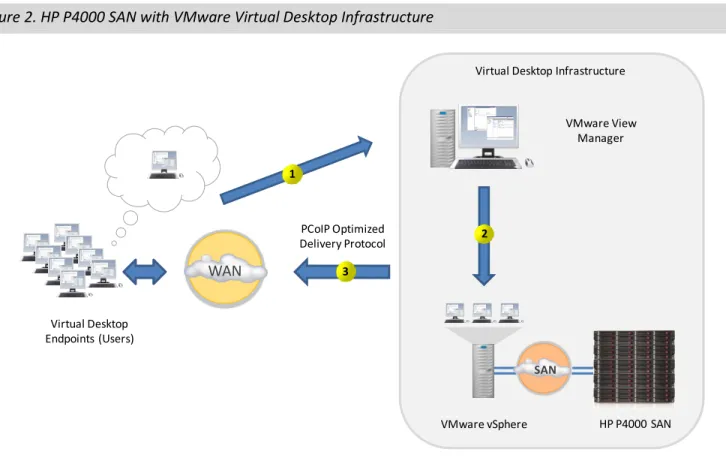
Figure 2 illustrates a virtual desktop environment utilizing VMware View and the HP P4000 SAN.
Figure 2. HP P4000 SAN with VMware Virtual Desktop Infrastructure
Users connect to the VMware View Manager using either the VMware View client or any one of numerous certified third party hardware and software clients.2 VMware View Manager authenticates a user’s credentials and then uses those credentials to automatically authenticate users as they log into their virtual desktops, using volumes residing on the HP P4000 cluster. The virtual desktop is delivered via the PCoIP optimized delivery protocol. The user has access to their personalized desktop, applications, and resources from anywhere while still benefiting from centralized desktop management in the data center.
ESG Lab’s testing was designed to validate the business value of deploying an HP P4000 SAN to support a VMware View VDI, including capacity, performance, and operational efficiencies uniquely enabled by the HP P4000 SAN .
HP P4000 SAN Virtual Desktop
Endpoints (Users)
VMware View Manager Virtual Desktop Infrastructure
1 PCoIP Optimized Delivery Protocol VMware vSphere 3 SAN WAN 2
ESG Lab Validation
ESG Lab conducted hands-on testing of the HP P4000 Virtualization SAN with VMware View VDI at a Hewlett-Packard facility in Houston, Texas.
Reducing Complexity
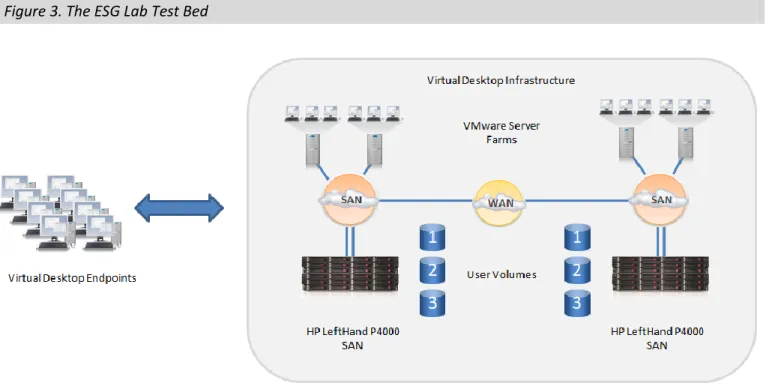
The test bed, shown in Figure 3, consisted of a pre-installed, pre-configured four-node HP P4000 Virtualization SAN supporting a VMware View virtual desktop environment. Two P4000 SANs with two nodes each were configured using HP ProLiant DL385 G6 servers and HP ProCurve switches for the IP traffic between the SANs. Windows workstations running Windows XP were used as virtual desktop endpoints.3
Figure 3. The ESG Lab Test Bed
VMware View offers both persistent and non-persistent hosted virtual desktops. A persistent virtual desktop provides each user with a dedicated virtual machine. Users connect to the same machine each time and all changes and personalization persists between sessions. The assignment can either be pre-determined by the administrator or pulled from a group of available desktops and assigned on first access.
Non-persistent desktops are a group of virtual desktops offering a standard configuration. Users are connected to any of the available desktops and when they log off, that desktop is returned to the pool. Backgrounds, bookmarks, application settings, and other personalization can be captured separately in the user’s profile. System changes, such as installed applications, are discarded and the desktop is reset to its pristine state. This ensures that the virtual desktop is always in a known good state and the next user that connects will get a “fresh” desktop configuration. ESG Lab tested using the persistent method for this report.
ESG Lab Testing
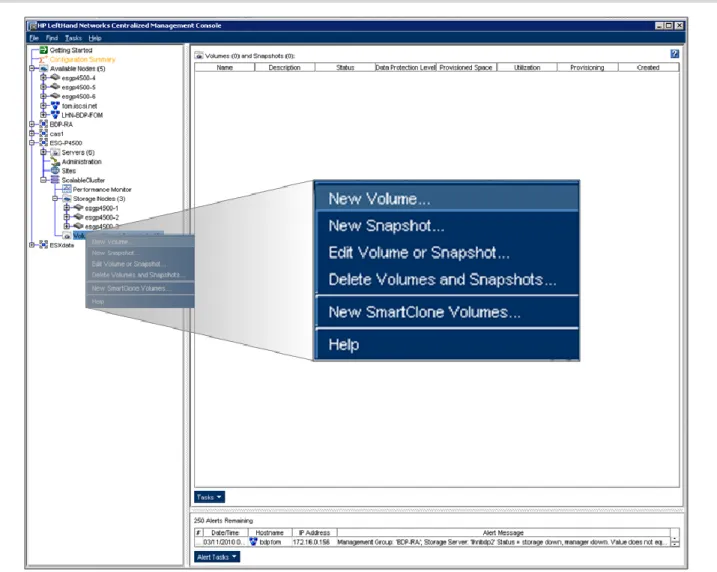
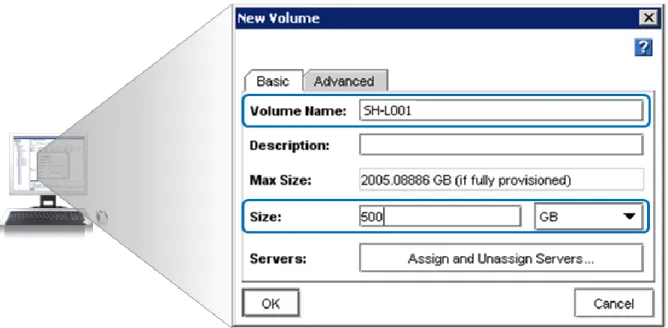
ESG Lab began testing with provisioning and configuration of a new virtual desktop. A new volume was created in two steps using the HP P4000 Centralized Management Console, seen in Figure 4 and Figure 5.
Figure 4. The HP P4000 SAN Centralized Management Console
ESG Lab right clicked on the navigation tree, seen in Figure 4 and selected New Volume, which launched the new volume dialog box.
Figure 5. Creating a New Volume
Next, a name for the volume (SH-L001) was created and the desired capacity (500 GB) was entered, as shown in Figure 5. Finally, Figure 6 shows how the new volume was assigned to the four VMware View servers.
Once the volume was visible to the VMware cluster, the vSphere Client management console was used to rescan the adapter for the new storage and add the volume to the server, shown in Figure 7.
Figure 7. Adding a New Volume
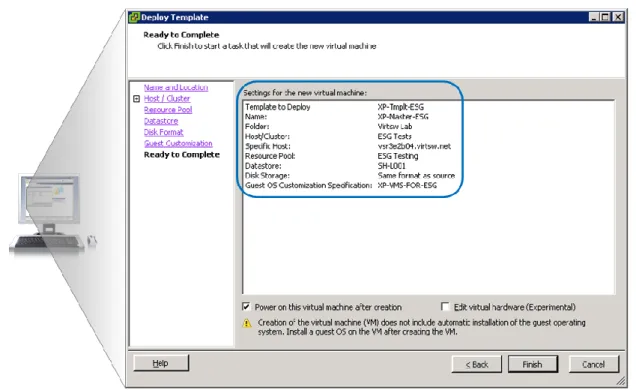
Next, a virtual machine was deployed from a template to provide a master image for cloning large numbers of virtual desktops, shown in Figure 8.
ESG Lab booted the virtual desktop and confirmed that it was accessible from the endpoint machine. The entire process, including storage provisioning and allocation, took just over seven minutes.
Why This Matters
ESG research indicates that simplified deployments and upgrades are among the top drivers to implement virtual desktop infrastructure; more than 60% of IT managers who are using or planning to use desktop virtualization technology indicated that OS or application deployments and upgrades were driving factors in their decision to implement desktop virtualization.
The HP P4000 SAN is easy to configure, implement, and manage in combination with the VMware View
environment. In ESG Lab testing, storage was provisioned and a new virtual machine was installed, configured, and ready to run applications in just over seven minutes with easy-to-use tools and procedures. The HP P4000 SAN Centralized Management Console required only a handful of intuitive, wizard-driven steps for deployment. With HP P4000 SAN and VMware View, organizations have the potential to significantly reduce administration complexity and cost.
Storage Efficiency
One way of provisioning virtual desktop environments is to build fully provisioned volumes that will act as a remote user’s primary computing environment, including their operating system and applications. An administrator will create the volume for the new virtual machine and either install the client OS or (more commonly) import a previously backed up image. This image is then managed as a physical desktop would be— application and OS patches must be applied to each VM individually and each image consumes as much storage as it would on a physical machine.
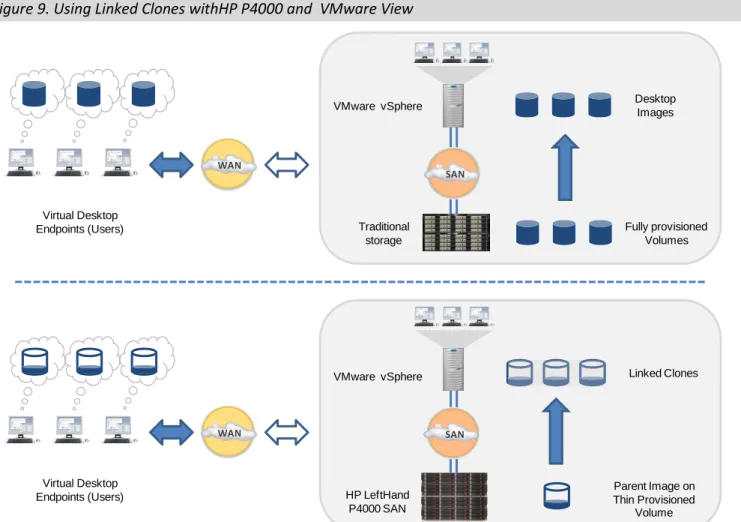
HP P4000 utilizes its thin provisioning technology in combination with VMware Linked Clones to optimize both the allocation process and the capacity consumption of virtual desktops. Figure 9 compares traditional allocation and provisioning with thin provisioned Linked Clones. When using thin provisioning and Linked Clones, a virtual desktop is built and then a snapshot is taken to create a parent image of a virtual machine. Linked Clones are created from the snapshot using VMware View, which sees them as independent read-writable volumes. These volumes already have the OS image and applications installed on them, so the installation or import step is not needed. HP P4000’s thin provisioning technology operates on a zero-reservation principle, meaning that no storage is pre-allocated to a parent image or Linked Clone and data is only drawn from the allocation pool as new data is written.
Figure 9. Using Linked Clones withHP P4000 and VMware View
Virtual desktops are typically very light in terms of the amount of data written as a percentage of the volume capacity, resulting in an environment that is an excellent candidate for thin provisioning. Based on ESG’s experience in the lab and HP’s experience in the field, ESG Lab is confident that 70% to 90% capacity efficiency can be achieved over the life of a VMware Linked Clone in a VDI environment.
Traditional storage Virtual Desktop
Endpoints (Users)
VMware vSphere
Fully provisioned Volumes Desktop Images WAN SAN HP LeftHand P4000 SAN Virtual Desktop Endpoints (Users)
VMware vSphere Linked Clones
SAN WAN
Parent Image on Thin Provisioned
ESG Lab Testing
ESG Lab evaluated the storage efficiency of the HP P4500 Virtualization SAN in a VMware VDI environment by creating 72 virtual desktops using a single parent image.
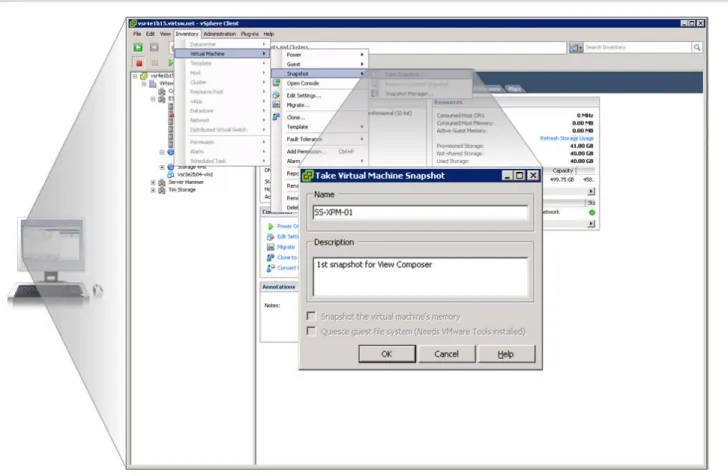
First, ESG Lab accessed the VMware vSphere client and identified the virtual machine to be used as the parent to create the new virtual desktops. As shown in Figure 10, the virtual machine master snapshot (parent image) was created and named SS-XPM-01.
Figure 10. Creating a Virtual Machine Snapshot
Once the snapshot was created, VMware View manager was used to deploy a pool of desktops based on the parent image via a deployment wizard, as detailed in the next few screenshots. First, the wizard asks what type of desktop configuration is being deployed; ESG Lab selected “automated pool.” An automated pool contains desktops that are automatically created and customized by View Manager based on a VMware vCenter virtual machine template (the snapshot created in the earlier step).
Next, the desktops being created were specified to be persistent. Persistent virtual desktops are assigned to their user on the first use, so the user returns each time to the same virtual desktop. This type of pool is used when users want to customize their desktops by installing additional applications and storing local data. Non-persistent
desktops are used in environments where desktops are only required temporarily and can be deleted after every use to give users a clean desktop every time they log in.
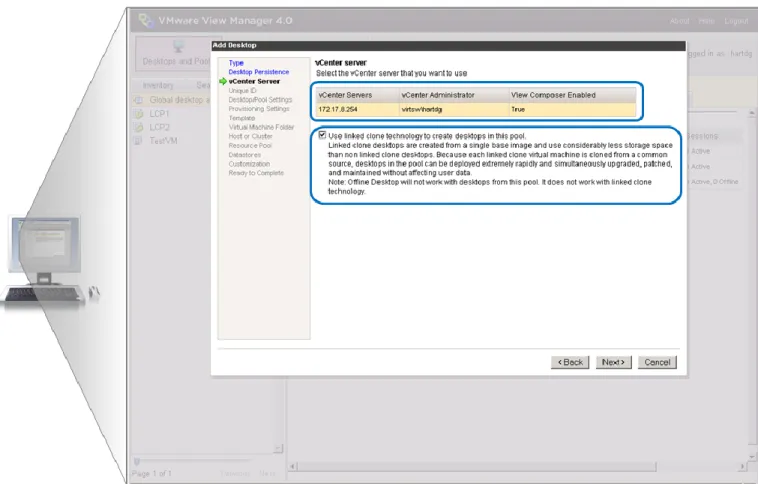
Figure 11 shows the next step, specifying the VMware vCenter servers that will be utilized for this desktop pool and the use of Linked Clones.
Figure 11. Specifying the Server and Linked Clones
Next, a unique ID and desktop settings were specified for the pool, followed by provisioning settings, where the number of desktops was specified as 24 for this pool. Several steps followed where the parent VM was identified as well as the default image snapshot and the cluster on which to run the virtual desktops was selected as well as a location to store users’ data.
Figure 12 shows the datastore selection screen. Storage overcommit, which determines how aggressively the system assigns new VMs to the space available on a datastore, was left at the default (conservative).
Figure 12. Selecting the Datastores
After specifying the datastore, QuickPrep settings were specified, which are used to configure desktops after they have been created, including joining them to a domain, if necessary.
Figure 13 shows the summary screen of the Add Desktop wizard. When ESG Lab clicked “Finish,” the 24 virtual desktops were created and configured.
Figure 13. Ready to Deploy 24 New Desktops
The entire process to create 24 desktops, from the first click of the wizard to the desktops being ready for use, took 35 minutes to complete. ESG Lab repeated the Add Desktop wizard twice to create a total of 72 desktops. The entire process of creating 72 new persistent desktops from start to finish took 101 minutes, or less than one and a half minutes per desktop.
Storage utilization was confirmed using the HP P4000 CMC. The 72 cloned desktops, with a combined virtual capacity of 239 GB, consumed less than 10% of the projected capacity of 2.88 TB based on the 40 GB volume size of the template VM.
Why This Matters
ESG asked IT managers to name their organizations' current operational and business challenges with respect to end-users’ desktop/laptop PCs. 58% cited application deployment time and complexity, while 54% indicated patch management time and/or complexity as well as reducing operational expenditures.
The integration of HP P4000’s thin provisioning and VMware’s Linked Clone technology with VMware View addresses all of these issues in a powerful and compelling way. ESG Lab was able to use a simple, wizard-driven interface to create and present multiple unique virtual desktops to users from one “parent image” with minimal capacity overhead and zero impact to users.
Performance and Scalability
In a virtual desktop environment, performance and scalability are determined more by the number and
configuration of virtual desktop infrastructure servers than by any other factor. Storage performance requirements are less predictable than traditional IT applications and a storage solution in a VDI environment must be able to meet not only the average IO requirements, but the maximum load that will be generated—typically at the start of a shift when many users will all be logging on at once—while scaling to meet the capacity needs of a large user community.
To reduce potential complexity for users, HP uses the phrase “POD” in a VDI environment to describe the aggregated resources required to host a given number of users. A POD contains any number of virtual
infrastructure servers and an HP P4000 SAN system consisting of a specific number of storage nodes as well as software and thin clients. The servers provide the processing power to run additional virtual desktops while the storage nodes provide both additional capacity and storage performance to the cluster.
Figure 14. Scaling the Virtual Desktop Environment
ESG Lab Testing
To test storage performance in a VDI environment, ESG Lab used a proprietary HP load generation tool, which captures actual desktop IO and plays it back to simulate as many desktop sessions as desired. The HP tool was run against storage clusters of three, four, and five nodes. Previously collected Iometer workload characterization results were audited for 10-, 15-, 20-, 25-, and 30-node environments. ESG Lab used the Iometer workload
characterization tool to simulate the type of IO generated by typical desktop operating systems and applications.4
4 Iometer configuration details can be found in the appendix.
Number of Virtual Desktops
P O D s: V D I S er ver s an d H P P 4 0 0 0 E xp an si o n N o d es C ap ac it y an d P er fo rma n ce
HP indicates that a broad range of IOPS has been observed for virtual desktop workers in the field. Additional internet research reveals 5 to 6 IOPS is frequently indicated as a typical value found for Windows XP workstations, but applications and workloads run by users may alter this considerably. ESG Lab ran the Microsoft perfmon utility to monitor the disk traffic on a physical Microsoft XP desktop for a knowledge worker with heavy IO usage. An average of 20 IOPS was observed over multiple eight hour business days. With these data points in mind, a conservative value of 20 IOPs per virtual desktop user and an optimistic value of 5 IOPS per desktop were used to estimate the number of virtual desktops that can be supported as HP P4000 storage nodes are added to the HP P4000 SAN system.
Table 1: Storage Scalability Testing with Spyder and Iometer
Storage Nodes IOPS Virtual Desktops
Conservative
Virtual Desktops Optimistic
Response Time (ms)
3 3,606 180 721 23
4 5,028 251 1,006 38
5 6,140 307 1,228 32
10 15,134 757 3,027 29
15 21,171 1,089 4,354 22
20 29,938 1,497 5,988 16
25 37,281 1,864 7,456 13
30 45,563 2,273 9,093 11
IOPS results recorded by the HP tool and the Iometer workload characterization utility, detailed in Table 1, were used to estimate the number of virtual desktops that might be supported for each of the configurations. Both the conservative estimate of 20 IOPS and the optimistic value of five IOPS per virtual desktop were used for these calculations. The results are summarized graphically in Figure 15.
Figure 15. Virtual Desktop Scalability Enabled by HP P4000 SAN
0 1,000 2,000 3,000 4,000 5,000 6,000 7,000 8,000 9,000 10,000
0 5 10 15 20 25 30
V irtua l De skto p s Storage Nodes Conservative Optimistic
What the Numbers Mean
The number of virtual desktops that the infrastructure can support scales nearly linearly as storage nodes were added to the HP P4500 Virtualization SAN.
As the maximum performance rose, response time got shorter due to the larger pool of storage nodes and drives which were available to respond to IO requests.
Why This Matters
ESG research indicates performance is a top concern with virtual desktop infrastructure; the IT managers surveyed ranked performance (application response time) as their second largest challenge when it comes to implementing desktop virtualization.
Predictable performance scalability is a critical concern when multiple users running diverse applications share a storage system. A burst of IO activity from one desktop (i.e., a user first logging on) can lead to poor response times and lost productivity for other users. A desktop virtualization environment potentially presents one of the most diverse mixes of application types and IO access patterns to a storage array.
The HP P4000’s N-way clustering capability is able to scale performance as needed, hot and online, to provide predictably scalable response-time sensitive performance in a virtual desktop environment. ESG Lab testing has validated that the efficiency and cost effective scalability of the HP P4000 SAN architecture can be used to meet the performance needs of real-world applications deployed in a distributed virtual desktop environment—from modest to high-end and everything in between.
Availability and Recovery
The HP P4000 SAN architecture addresses availability at multiple levels. Disk based RAID technology is used within each storage node in a P4000 SAN as a first line of defense against hard drive failures. In addition, the P4000 cluster stripes data across all of the nodes in a cluster. The Network RAID feature provides the option, volume-by-volume, to create multiple mirrors of data throughout the cluster to protect against data loss due to the failure (or loss of connectivity) of a storage node participating in the cluster. A “stretched cluster” approach is also supported, where one half of a cluster could be located in a data center and the other half in a second location within a building or on a campus. In this manner, data loss can be avoided due to a localized facility error that affects an entire data center (e.g., an overloaded power circuit or network failure).
Figure 16. The High Availability Test Bed
ESG Lab Testing
Availability testing was performed against a six-node P4000 Multi-site SAN comprised of two separate gigabit Ethernet networks connected with a 10 gigabit Ethernet uplink, as shown in Figure 16. The VMware vSphere servers had connectivity to all storage nodes in the stretched cluster.
In the first phase of testing, ESG Lab introduced a variety of hardware errors to validate fault tolerance. The following errors were injected as an Iometer workload was being run continuously on a virtual desktop running in the VMware View cluster as seen in Figure 17:
Pulled a back-end Ethernet interface on node 1 at site 1.
Pulled an active disk drive.
Replaced the pulled drive.
Removed connectivity to all nodes at site 1 from the cluster. Site 1 Virtual Desktop
Endpoints (Users)
Site 2
HP P4000
Multi-site SAN
VMware
vSphere
Figure 17. Highly Available Virtual Desktops
Through all injected faults, Iometer continued to run on the virtual desktop without interruption. Finally, ESG Lab simulated a site failure by removing network connectivity to all storage nodes at site 1. There was a pause of approximately 20 seconds, then user access resumed. Users were not disconnected and could continue working after the pause in IO.
Why This Matters
Desktop virtualization centralizes user infrastructure within the data center, meaning that users cannot access their data or applications if they cannot connect to the data center. This presents a unique set of operational challenges, including providing continuous access for users whose environments reside within virtual machines. In fact, ESG research found that desktop accessibility was the number three concern among VDI planned adopters, just behind performance and bandwidth.
The HP P4000 architecture eliminates single points of failure. The P4000 SAN distributes and protects data across all storage nodes in a cluster and provides the ability to remotely locate storage nodes across a campus LAN. VMware View provides virtual desktop high availability and online mobility between multiple vSphere or ESX servers. ESG Lab has validated that the HP P4000 Virtualization SAN was able to sustain continuous access to a VMware View user through disk, network, node, and site failures.
Site 1 Virtual Desktop
Endpoints (Users)
Site 2 HP P4000
Multi-site SAN VMware
vSphere
SAN
X
x
ESG Lab Validation Highlights
ESG Lab found the HP P4000 SAN easy to configure, implement, and manage in combination with the VMware View environment.
ESG Lab was able to use one “parent image” virtual machine to create and present multiple unique virtual desktops with minimal capacity overhead and no impact to users.
The efficiency and scalability of the HP P4000 SAN architecture was seen to meet the performance needs of real-world applications deployed in a distributed virtual desktop environment.
The HP P4000 SAN was able to sustain continuous access for a VMware View user through disk, network, node, and site failures. Each simulated failure immediately triggered an alert that was sent to a systems administrator.
Issues to Consider
While ESG tested back-end storage performance in a virtual desktop environment, other factors, including the CPU and memory configuration of the infrastructure servers and virtual machines, will have a much greater impact on the end-user experience. ESG Lab recommends that end-users work with their virtual infrastructure vendor to determine the best practices and optimal configuration for each environment.
While leveraging VMware’s snapshot and Linked Clone technology for virtual desktop deployment and management is compelling and powerful, it is a value-added feature that is licensed per user in a VMware environment. A bundling option which leverages the Snapshot and SmartClone technology built into the P4000 SAN and avoids the VMware license fee would make this an even more cost-effective solution.
It is important to note that the Iometer utility, used for some of the performance testing in his report is optimized for generating IO and does not place great demands on server memory or CPU. The performance tests conducted for this validation focused on storage scaling and did not include server sizing
considerations. When sizing a complete VDI solution, care must be taken to follow vendors’ best practices for server sizing and configuration as well as storage.
ESG Lab’s View
Increasing numbers of clients and applications make desktop management a daunting task for IT. The number of applications supported increases with organization size, compounding desktop management challenges for large organizations. With increasing numbers of corporate applications to support, ongoing maintenance and
management tasks directly translate into considerable IT staffing requirements and costs. Like server virtualization, desktop virtualization is establishing a foothold in the data center among IT staffs looking to optimize their current PC environments.
HP’s P4000 SAN has a highly scalable, clustered architecture that simplifies management and allows customers to start at the level of capacity and performance they require today and grow their environments on demand. Additionally, it is easy to use and manage, while providing advanced features such as Network RAID, remote replication, and thin provisioning.
Customers can stretch their clusters to create multi-site SANs. We have seen storage systems that scale in this fashion with NAS and CAS products, but in ESG Lab’s opinion, HP P4000 is a leader in SAN attached true N-way clustered storage. ESG has long been a proponent of scalable clustered storage and believes it will become the dominant approach due to the compelling value it brings.
ESG Lab found that HP P4000 SAN performed well in a virtual desktop environment, providing easy provisioning and powerful integration of thin provisioning and Linked Clone technology to optimize capacity utilization. High
availability functionality was also impressive, sustaining multiple failures while providing continuous access to attached virtual desktop users.
HP’s P4000 SAN systems delivered an easy-to-use, flexible, scalable, highly available, and highly efficient storage solution for VMware View customers. Matching in storage what VMware provides for desktops, HP P4000 supports thin provisioning and Linked Clones for creating large numbers of virtual desktops without the delay and cost of consuming actual storage for each clone. And because it is distributed by design, creating a disaster-resilient storage infrastructure is as easy as choosing which storage nodes to configure in each separate location. Through hands-on testing, ESG Lab confirmed that the HP P4000 SAN provides a robust networked storage foundation for a virtual desktop architecture. With simple configuration, powerful desktop mobility, enterprise class availability, and near-linear scalability, the HP P4000 SAN enhances the intelligence and value of the VMware View virtual desktop infrastructure.
Appendix
Table 2. ESG Lab Test Bed
HP P4500 Virtualization SAN 96x 146 GB SAS drives
12x GbE iSCSI connections (2 per P4000 node)
Firmware 8.0.00.1704
2x HP ProCurve 2610 24 port GbE switches VMware vSphere –
4x HP DL385 G6
Dual Quad core Xeon CPU 32 GB RAM
Virtualized Client Desktops: 1 GB RAM, 1 CPU
Guest Operating Systems: MS Windows XP SP3 Virtual Client Endpoints:
4 HP BL260c G5 MS Windows XP SP 3
IOMETER
Version 2006.07.27
Access Specification Random/Sequential
Distribution
Read/Write Distribution