Full Text Search
Full Text Search
Objectives
• Learn about full-text search capabilities in SQL Server 2000.
• Configure a database for full-text search.
• Write queries using full-text search syntax.
What Is Full-Text Search?
SQL Server has always had the capability of retrieving character-based data based on pattern matching using the LIKE operator and wildcards. Full-text search searches for words, phrases, or multiple forms of a word or phrase in columns defined with char, nchar, varchar, nvarchar, text, or ntext data types. You can perform a linguistic search for words and phrases, different forms of a word, or target words that approximate one another. Full-text querying is totally integrated with Transact-SQLsingle queries can combine full-text searches and regular searches.
Full-text queries on data stored in image columns is also supportedSQL Server 2000 ships with filters for HTML files, text files, and Office
documents. This makes it possible to search the contents of Office and HTML documents stored in image columns.
The component that makes this happen is the Microsoft Search service, which provides indexing support and querying support.
NOTE The Microsoft Search service is also included with the Microsoft Indexing service, Microsoft Exchange 2000, and Microsoft Commerce Server.
The Microsoft Search Service
In order to support text searches, the Microsoft Search service creates full-text catalog and defines indexes supporting full-full-text search. Once the indexes are created, they are populated with data from the tables. The Microsoft Search service then processes all full-text queries, determining which index entries meet the specified criteria. Three types of queries are supported:
• Searching for words or phrases.
• Searching for words in close proximity to each other.
• Searching for inflectional forms of verbs and nouns.
Microsoft Search Components
Microsoft Search consists of the following components:
• A full-text index keeps track of the significant words used in a table and where they are located. Any base table configured for full-text querying must have a primary key or unique key column defined.
What Is Full-Text Search?
returns to SQL Server the key values of the rows that match the search criteria.
• A full-text catalog is the location where the full-text indexes reside. Generally the full-text index data for an entire database is placed into a single full-text catalog, although it can be partitioned into multiple catalogs to support large tables.
Full-text catalogs and indexes are nothing like regular tables and indexes. In fact, they aren’t even stored in a SQL Server database. They’re stored as external files managed by the Microsoft Search service. They do not participate in normal database operations, such as backups and restores and have to be re-synchronized separately after a restore operation.
Full-text catalogs, indexes, and searches apply only to SQL Server database tables. If you want to search external files, then the Windows NT/Windows 2000 Indexing Service OLE DB provider allows you to search for external file data stored in operating system files.
Configuring Full-Text Search
You can work with full-text search through the Enterprise Manager and through the full-text system stored procedures in Transact-SQL. When you’re first getting started, it’s probably easiest to use the graphical tools in the Enterprise Manager.
The Full-Text Indexing Wizard
Like many advanced features in SQL Server, using the wizard is the best way to get started with full-text search.
Try It Out!
Follow these steps to create a full-text index on the tblProduct table in the Shark database:
1. Select the database you want to enable, and choose Tools|Full-Text Indexing from the Enterprise Manager main console. This launches the Full-Text Indexing Wizard. Click Next to move past the
introductory dialog box.
2. The next dialog box prompts you to select the table to create the full-text index on. Select dbo.tblProduct and click Next.
3. You must then select the primary key or another unique index on the table to be used for the full-text index. Tables without a primary key or unique index can’t participate in a full-text search. If you have
multiple unique indexes, always select the smallest one because this will consume fewer system resources. Click Next.
Configuring Full-Text Search
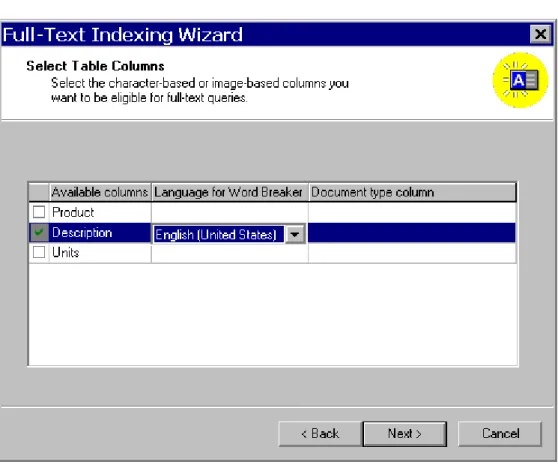
4. Select the columns you want to be able to perform a full-text search on and select the language, as shown in Figure 1. Click Next.
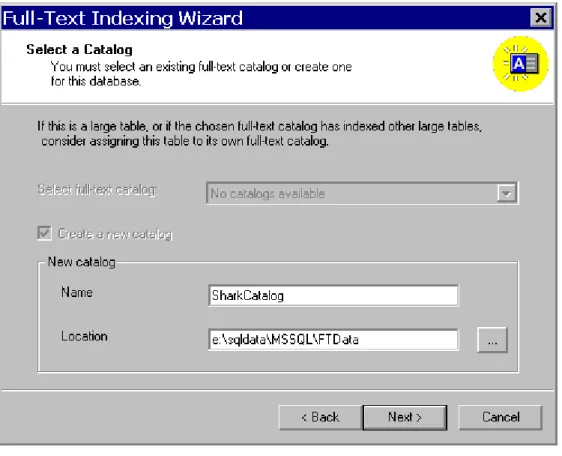
5. Because there are no previously created full-text catalogs for the Shark database, you need to name it SharkCatalog and specify a location, as shown in Figure 2. Click Next.
Figure 2. Naming the catalog and choosing a location.
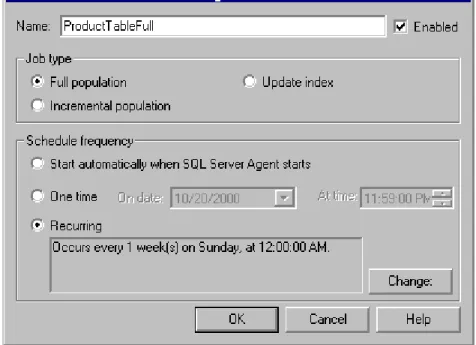
6. Here’s where you can set up a schedule for populating the table or the catalog, as shown in Figure 3. In this case, populating either one would work because there’s only one table in the catalog. If you had multiple tables in a catalog, you could schedule them separately. You can set up full, incremental, or update index modes for repopulation:
• Full population rebuilds all of the index entries for all rows in the tables, and is probably not necessary. Bear in mind that a full repopulation on a large table can take quite a lot of time.
• Incremental population adjusts index entries for edited rows and requires that a timestamp column be added to the table. If incremental is selected, and the meta data for the table changes (altering columns, indexes, or full-text index definitions), then a full population will be performed instead.
• If Update index is selected, then the index will be updated in the background as data changes. This is recommended for very large tables where repopulating indexes might take too long. Scheduling the
Configuring Full-Text Search
by opening the job in the Management|SQL Server Agent|Jobs
node. Click OK and then Next.
Figure 3. Scheduling the population of the index.
7. The final wizard dialog box summarizes your choices. Click Finish. When the wizard is done, you’ll receive a message that the full-text index hasn’t been populated.
8. To populate the index, expand the Shark database and right-click on the SharkCatalog in the Full-Text Catalogs folder. Choose Start Full Population from the menu. Once the catalog has been populated, press F5 and you’ll see the date and time appear in the Last Population Date column, as shown in Figure 4.
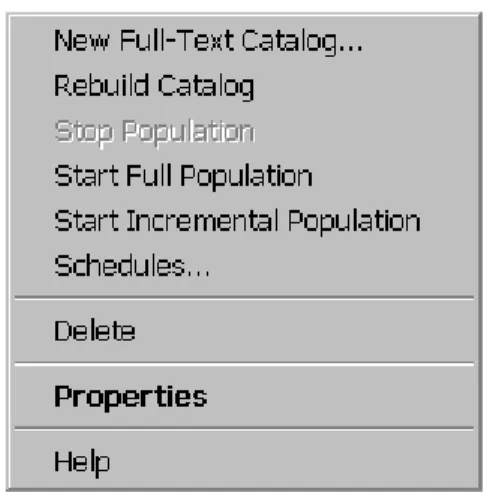
Once the catalog has been created, you can work with it in the Enterprise Manager. Expand the Shark database and select the Full-Text Catalogs folder. Right-click on the Full-Text Catalogs node to bring up the shortcut menu, as shown in Figure 5.
Figure 5. The menu items for working with full-text catalogs in the Enterprise Manager.
Configuring Full-Text Search
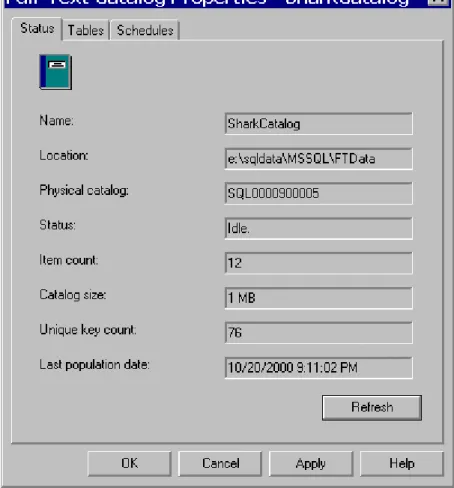
To modify the existing SharkCatalog, select Properties from the menu. This loads the Full Text Properties dialog box, where you can view the catalog status, as shown in Figure 6. Click the Schedules tab to add schedules or modify existing ones. Although you only have one catalog, you can have multiple schedules since different tables may need to be repopulated at different rates.
Figure 6. Working with the catalog after it has been created.
Writing Full-Text Queries
Full-text queries allow you to perform a linguistic search of character data in columns enabled for text search. In order to do so, you must use the full-text Transact-SQL extensions defined for use with the Microsoft Search service, which include the following:
• The CONTAINS predicate
• The FREETEXT predicate
• The CONTAINSTABLE function
• The FREETEXTTABLE function
When performing searches, noise words, such as “about, after, all, and, also” are ignored. For example, “A Shark doll for kids or adults” is the same as specifying the phrase “Shark doll kids adults.”
TIP: Noise words for U.S. English are found in the file noise.enu, which can be opened in Notepad and edited.
The CONTAINS Predicate
The CONTAINS predicate lets you search for a specific term when used in a WHERE clause. However, CONTAINS goes above and beyond using LIKE and pattern matching. CONTAINS supports the following types of search conditions:
• Simple terms, where one or more words or phrases can be matched.
• Generation terms, where the inflectional form of the word is searched. An example of inflectional form would include the words drive, drives, drove, driving, and driven.
• Prefix terms, where words begin with specified text. For example, “auto tran*” would match “automatic transmission” and “automobile transducer.”
• Weighted terms, where words or phrases use weighted values. This returns ranked query results when you want to find a word that has a higher designated weighting than another word.
• Proximity terms, where a word or phrase is close to another word or phrase. For example, you want to find rows where “diving” is near “water” or “scuba diving” is near “open water.”
Writing Full-Text Queries
Syntax
You can combine multiple terms in one query by using AND, AND NOT, and OR. Here’s the partial syntax:
…WHERE CONTAINS ( {column},'<contains_search_condition>' ) <contains_search_condition> ::=
{| <generation_term>| <prefix_term>| <proximity_term> | <simple_term>| <weighted_term>}
Simple Terms
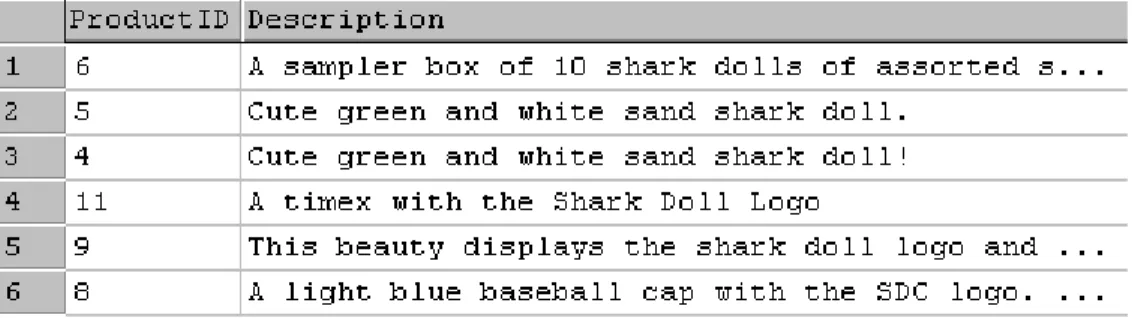
For example, the following query will return product IDs of any products whose description includes the phrase “Shark Doll.” Note that the phrase being searched is contained within double-quotes within single quotes. The result set is shown in Figure 7.
SELECT ProductID, Description FROM tblProduct
WHERE CONTAINS( *, ' "Shark Doll" ' )
Figure 7. Looking for products with the phrase “Shark Doll”.
NOTE Full-text searches are never case-sensitive. Both “Shark Doll” and “shark doll” will yield the same results.
Using Variables
You can also use variables with the CONTAINS predicate. Here’s the same query rewritten to use a variable for the search condition. Note that the double-quotes must be included when assigning a value to the variable:
DECLARE @Search varchar(20) SET @Search = ' "Shark Doll" ' SELECT ProductID, Description FROM tblProduct
WHERE CONTAINS(Description, @Search)
AND or AND NOT
The following query will show products where the description includes the word “shark” and the word “sizes”:
SELECT ProductID, Description FROM tblProduct
WHERE CONTAINS(Description, '"shark" AND "sizes"' )
Or you could reverse the logic and see products that contained the word “shark” but did not include the word “doll”:
SELECT ProductID, Description FROM tblProduct
WHERE CONTAINS(Description, '"shark" AND NOT "doll"' )
Writing Full-Text Queries
Generation Terms
The following query will return rows containing all forms of the word size, such as size, sizes, and sizing:
SELECT ProductID, Description FROM tblProduct
WHERE CONTAINS(Description,
' FORMSOF (INFLECTIONAL, size) ')
Prefix Terms
You can also use wildcard pattern-matching with CONTAINS, as in the following query, which will return the row that contains the phrase, “Unisex boxer shorts”:
SELECT ProductID, Description FROM tblProduct
WHERE CONTAINS(Description, ' "uni box*" ')
NOTE The asterisk is the only wildcard supported by the full-text search service. You can place an asterisk after each word fragment in the search phrase, but one asterisk at the end has the same effect.
Proximity Terms
The following query will look for the word “doll” near the word “sizes”:
SELECT ProductID, Description FROM tblProduct
WHERE CONTAINS(Description, 'doll NEAR sizes')
The tilde character (~) can be used as a synonym for NEAR:
SELECT ProductID, Description FROM tblProduct
Weighted Terms
This example searches for products containing the words sizes or squeak, and gives different weightings to each word:
SELECT ProductID, Description FROM tblProduct
WHERE CONTAINS(Description,
'ISABOUT (sizes weight (.8), squeak weight (.4))' )
Defining weightings has little effect when used with CONTAINS. It is much more useful with CONTAINSTABLE, covered later in this chapter, which returns a ranked result set.
The FREETEXT Predicate
The FREETEXT predicate is similar to CONTAINS, but it is less precise. With FREETEXT, you can enter any set of words, phrases, or sentences. The full-text query engine will find matches even if all the search terms aren’t found, and it will automatically check for variations on the words.
For example, the sentence, “It displays its beauty in a gold box with a green logo” would be translated as “displays beauty gold box green logo,” as seen in the following query. The result set is shown in Figure 8.
SELECT ProductID, Description FROM tblProduct
WHERE FREETEXT (Description,
'displays beauty gold box green logo' )
Writing Full-Text Queries
Combining Full-Text and Transact-SQL
Predicates
You aren’t restricted to writing queries with either full-text or Transact-SQL predicatesyou can combine them. The following query selects products that do not start with the words “The Shark” and also contain “Shark Doll” in the description. The result set is shown in Figure 9.
SELECT ProductID, Product, Description FROM tblProduct
WHERE Product NOT LIKE 'The Shark%'
AND CONTAINS(Description, ' "Shark Doll" ')
Figure 9. Mixing Transact-SQL and full-text predicates.
Using the CONTAINSTABLE Function
Both the CONTAINSTABLE and FREETEXTTABLE functions are used to return a derived table. Otherwise, they are very similar to their CONTAINS and FREETEXT counterparts. CONTAINS and FREETEXT are used in the FROM clause of a SELECT statement as though they were regular table names.
Queries using CONTAINSTABLE return a relevance ranking value for each row. The CONTAINSTABLE function uses the same search conditions as the CONTAINS predicate. Here’s the syntax:
CONTAINSTABLE (table, {column|*},
'<contains_search_condition>' [, top_n_by_rank])
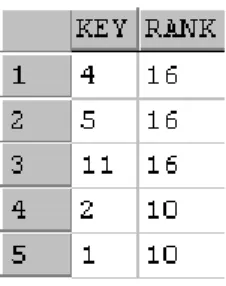
If you select from CONTAINSTABLE, the result set is the key value of the row returned, and the rank, as shown in Figure 10.
SELECT * from CONTAINSTABLE
(tblProduct, Description, ' "doll" ')
Figure 10. The table returned by CONTAINSTABLE.
Using Ranking
If you want to return the top ranking values, specify a numeric value for the optional top_n_by_rank argument. The following query will return the top five rows. The result set is shown in Figure 11.
SELECT * from CONTAINSTABLE
(tblProduct, Description, ' "doll" ', 5)
Writing Full-Text Queries
The Rank column displayed in Figure 11 can contain values between 0 and 1,000. These values rank the rows according to how well they met the selection criteria, and have no value outside of the result set.
When weights are defined, those weights influence the rankings, and when the NEAR operator is used, proximity influences the rankings. Because the “hit ration” also affects rankings, rows containing fewer words will be ranked higher than rows with more text, if the same number of search terms is found. If you want to see values other than the key values and rank, you must explicitly join the CONTAINSTABLE Key value with the key in a SQL Server table.
Using CONTAINSTABLE in Joins
You can join the KEY column in the result set of CONTAINSTABLE to the corresponding column in the table it came from to bring in other columns from the table. The following query retrieves product names and descriptions, along with the KEY and RANK columns that are returned by CONTAINSTABLE. Figure 12 shows the results.
SELECT C.[KEY], C.Rank, P.Product, P.Description FROM tblProduct AS P INNER JOIN CONTAINSTABLE (tblProduct, Description, ' "sizes" ') AS C
ON P.ProductID = C.[KEY] ORDER BY C.Rank DESC
Figure 12. Joining CONTAINSTABLE to tblProduct.
Using the FREETEXTTABLE Function
FREETEXTTABLE is very similar to CONTAINSTABLE, and also produces a derived table. Use FREETEXT in the FROM clause of a SELECT statement the same way you’d use CONTAINSTABLE.
Here’s the syntax:
FREETEXTTABLE (table, {column|*} ,'freetext_string' [, top_n_by_rank] )
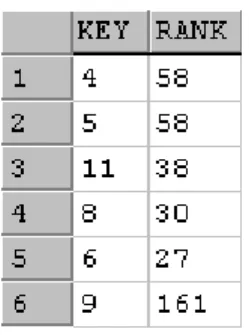
The following query will display the key values and rank for “displays beauty gold box green logo,” as shown in Figure 13.
SELECT * from FREETEXTTABLE (tblProduct, Description, 'displays beauty gold box green logo')
Figure 13. The result set from FREETEXTTABLE.
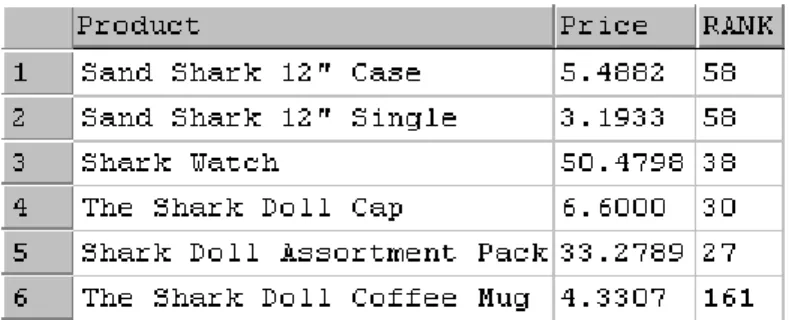
The following query selects the product, price, and rank that match the freetext search for “displays beauty gold box green logo.” The result set is shown in Figure 14.
SELECT Products.Product, Products.Price,
Derived.RANK
FROM tblProduct AS Products INNER JOIN FREETEXTTABLE (tblProduct, Description,
'displays beauty gold box green logo') AS Derived ON Products.ProductID = Derived.[KEY]
Writing Full-Text Queries
Using Full-Text Search with
Documents Stored in SQL Server
Not all the data you want to search will be contained in character-based columns in your SQL Server tables. You will also probably want to perform searches on documents, like Word or Excel files. The full-text search Windows service can be applied to documents stored in the Windows file system (and also to documents in the Exhange 2000 Web Store), but you may want to hold everything in a SQL Server database. A new feature in SQL Server 2000 is the option to create and use full-text indexes for complete documents that are stored in SQL Server tables.
Preparing a Table to Store Documents
To be able to use full text search with documents in SQL Server, you must use a table that contains at least three special columns.
• You need an image column to hold the documents themselves. Text or ntext columns won't work, and neither will binary columns, even if your documents contain less than 8000 bytes.
• You also need a character-based column to hold file extension values that specify the type of document stored in each row. Special filters areused to find the text in documents, and this column specifies which filter is appropriate. SQL Server ships with support for Word, Excel, Powerpoint, HTML, and text documents. To specify the document type, this column must contain one of these values: .doc, .xls, .ppt, .htm, or .txt. If no value appears, .txt is assumed.
• The third required column is a unique index, which is required for any full-text searches.
• You may also want to add a timestamp column, if you want the option to use incremental population of your full-text index.
If you need to support other types of documents, you can build your own filters using an SDK (software development kit) that Microsoft provides. You may find that additional filters will become publicly available from Microsoft or from third parties.
Creating the Columns
Here is Transact-SQL code that creates a table for holding customer
documents. In addition to the three required types of columns, this code adds a timestamp column to support incremental population, a CustomerID column to
Using Full-Text Search with Documents Stored in SQL Server
CREATE TABLE tblCustomerDocs (
DocID int IDENTITY (1, 1) NOT NULL , CustomerID int NULL ,
DocType char (4) , DocName varchar (50) , Document image NULL , TStamp timestamp NULL )
Adding a Unique Index
You also need to create the unique index. In this case, that index is part of the primary key, which is a common pattern:
ALTER TABLE tblCustomerDocs
ADD CONSTRAINT PK_tblCustomerDocs PRIMARY KEY CLUSTERED
(DocID) ON [PRIMARY]
NOTE The final statement, ON [PRIMARY], refers to the primary filegroup, not to the primary key. This part is not necessary if you are only using one filegroup.
Creating a relationship to the customer table is not necessary for full-text searching to work, but it’s still good database design, so here’s the code to do that too:
ALTER TABLE tblCustomerDocs
ADD CONSTRAINT FK_tblCustomerDocs tblCustomer FOREIGN KEY
(CustomerID) REFERENCES tblCustomer (CustomerID)
Loading Documents
This is the hard part. There is no easy way to load a document into a SQL Server 2000 image field. We have provided a VBA module that contains procedures you can use, as well as a document, Q194975.doc, which contains a Microsoft white paper that explains the techniques used in this code. Coverage of these advanced VBA techniques goes beyond the scope of this course.
Using the Sample Code
The sample code for loading documents into SQL Server is contained in the file, LoadDocToShark.bas. You can test this code in Excel, Word, Access, Visual Basic, or any other application that is a VBA host.
Try It Out!
Follow these steps to test the sample code in Excel: 1. Open Excel to a blank worksheet.
2. Under the Tools menu, select Macro|Visual Basic Editor.
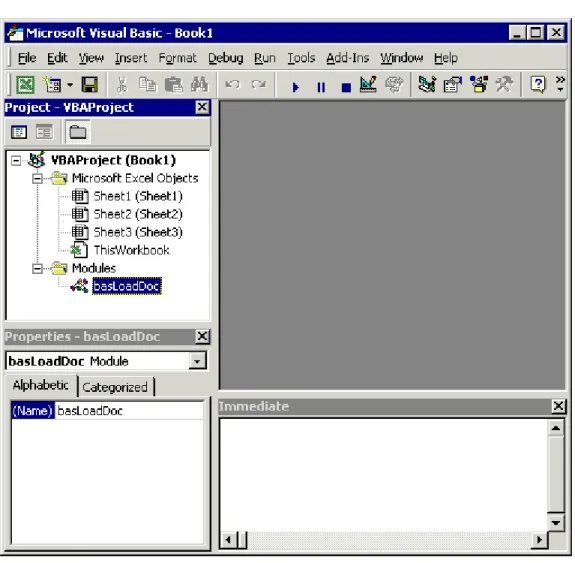
3. Drag the VBA file, LoadDocToShark.bas, from Windows Explorer into the Project Explorer window in the Excel Visual Basic Editor. This creates a module in Excel, which you will see if you expand the new Modules folder, as shown in Figure 15.
4. Under the Tools menu in the Visual Basic Editor, select References, check off Microsoft ActiveX Data Objects 2.6 Library, and click OK. 5. If you don’t see the Immediate window in the Visual Basic Editor,
select Immediate Window from the View menu.
6. In the Immediate window enter and execute the following VBA commands, substituting the appropriate file paths as necessary. When your cursor (insertion point) is on a line the Immediate window, pressing the Enter key causes that line to be executed. Each of the following procedure calls needs to appear on one line in the Immediate window when you execute it:
Call LoadFileToCustomerDoc(1, "C:\Samples\Q194975.doc") Call LoadFileToCustomerDoc(2, "C:\Samples\Payroll.xls")
Using Full-Text Search with Documents Stored in SQL Server
Figure 15. Testing the sample VBA module in Excel.
Adding Full-Text Indexing
To add a full-text index for the new tblCustomerDocs table, right-click on the table in Enterprise Manager, and select Text Index Table|Define Full-Text Index on a Table, to invoke the Full-Text Indexing Wizard.
The steps are essentially the same as those shown earlier in this chapter, except this time you’ll need to specify the Document Type Column, as shown in Figure 16.
Figure 16. Specifying the Document type column is required when indexing a column that contains documents.
To create the index, right-click on the table in Enterprise Manager again, and select Full-Text Index Table|Start Full Population.
Searching for Text in the Documents
Once you have created the necessary columns in a table in your database, loaded them with data, created the full-text index, and populated the index, you are ready to execute full-text queries against the documents stored in your database. At this point, the syntax is the same as for any full-text query. You may want to open and inspect the sample documents before running the following example queries. Not that these queries won’t locate the search terms in the documents. The result sets will just tell you which rows in the table contain documents that meet the search criteria.
SELECT DocID, DocName FROM tblCustomerDocs
Using Full-Text Search with Documents Stored in SQL Server
-- Jerry and Garcia' are in separate columns -- in Payroll.xls. CONTAINS won't find the pair. SELECT DocID, DocName
FROM tblCustomerDocs
WHERE CONTAINS(Document, ' "Jerry Garcia" ' )
-- But FREETEXT will find the document. SELECT DocID, DocName
FROM tblCustomerDocs
WHERE FREETEXT(Document, ' "Jerry Garcia" ' )
-- Not all the listed words need to be found -- when using FREETEXT
SELECT DocID, DocName FROM tblCustomerDocs
WHERE FREETEXT(Document, ' "Jerry Garcia Bullwinkle" ' )
Testing NEAR
The sample product descriptions in the Shark database weren’t long enough to demonstrate how the NEAR operator works. With these longer documents, you can experiment with how far apart words must be before they are no longer considered to be “near” each other. The exact algorithm that is used to make this determination is not documented in Books Online.
-- The words 'reading' and 'writing' are right on the -- cusp of what's NEAR 'Worldwide' in Q194975.doc SELECT DocID, DocName
FROM tblCustomerDocs
WHERE CONTAINS(Document, ' Worldwide NEAR reading ' )
SELECT DocID, DocName FROM tblCustomerDocs
WHERE CONTAINS(Document, ' Worldwide NEAR writing ' )
SELECT DocID, DocName FROM tblCustomerDocs
Once you’ve loaded more documents in your table, you can also use
CONTAINSTABLE with NEAR to rank documents according to how close words are to each other in the documents.
Querying File Data
The Windows NT/Windows 2000 Indexing Service provides the mechanism for going outside of SQL Server and performing a file content search.
SQL Server applications can access the Indexing service OLE DB provider through distributed queries. This allows you to combine full-text searches against SQL Server tables with textual searches of file data by using full-text SQL constructs with distributed query references to the OLE DB provider for Indexing Service. The Indexing Service provider supports two kinds of textual searches:
• Property search, which applies filters to documents to extract properties. For example, Microsoft Word documents have properties such as author, subject, date created, page count, and so on.
• Full-text search, in which indexes of non-noise words in the documents are searched. Both linguistic searches and proximity searches are supported. Once you’ve configured Indexing Services, set up a linked server using the Indexing Services OLE DB provider. You should then be able to run queries like the following which selects files containing the word “SQL” on the D:\ drive through using the linked server “IndexService”.
SELECT * FROM OPENQUERY(IndexService, 'SELECT Directory, FileName, DocAuthor, Size, Create, Write FROM SCOPE('' "d:\" '') WHERE CONTAINS(''SQL'') > 0 AND FileName LIKE ''%.doc%'' ')
Using Full-Text Search with Documents Stored in SQL Server
Summary
• Full-text search allows you to search for words, phrases, or multiple forms of a word or phrase in columns defined with char, nchar, varchar, nvarchar, text, or ntext data types.
• The Microsoft Search service provides indexing support and querying support for full-text search on SQL Server data.
• Full-text indexes and catalogs are stored as external files and are not part of SQL Server.
• The Full-Text Indexing Wizard takes you through the steps of enabling and configuring full-text indexing.
• The CONTAINS and FREETEXT predicates and the
CONTAINSTABLE and FREETEXTTABLE functions are used for querying full-text data.
• Querying external files using full-text syntax is supported by the Windows NT/Windows 2000 Indexing Service.
Using Full-Text Search with Documents Stored in SQL Server
Questions
1. Name five data types that can be enabled for full-text querying. 2. Which component supports full-text querying?
3. Where are full-text catalogs and indexes stored? 4. What is the easiest way to configure a full-text search?
5. Which full-text predicate is used to search for a specific term when used in a WHERE clause?
6. What two values are returned by the CONTAINSTABLE and FREETEXTTABLE functions?
Answers
1. Name five data types that can be enabled for full-text querying.
The char, nchar, varchar, nvarchar, text, ntext, and image data types support full-text querying
2. Which component supports full-text querying?
The Microsoft Search service
3. Where are full-text catalogs and indexes stored?
They’re stored as external files managed by the Microsoft Search service. 4. What is the easiest way to configure a full-text search?
Use the Full-Text Indexing Wizard
5. Which full-text predicate is used to search for a specific term when used in a WHERE clause?
CONTAINS
6. What two values are returned by the CONTAINSTABLE and FREETEXTTABLE functions?
Using Full-Text Search with Documents Stored in SQL Server
Lab 23:
Full Text Search
TIP: Because this lab includes a great deal of typed code, we’ve tried to make itsimpler for you. You’ll find all the code in FullTextLab.SQL, in the same directory as the sample project. To avoid typing the code, you can cut/paste it from the text file instead.
Lab 23 Overview
In this lab you’ll learn how to configure full-text indexing and to write queries using full-text syntax.
To complete this lab, you’ll need to work through two exercises:
• Configure Full-Text Indexing
• Write Queries Using Full-Text Syntax
Each exercise includes an “Objective” section that describes the purpose of the exercise. You are encouraged to try to complete the exercise from the
information given in the Objective section. If you require more information to complete the exercise, the Objective section is followed by detailed step-by-step instructions.
Configure Full-Text Indexing
Configure Full-Text Indexing
Objective
In this exercise, you’ll configure full-text indexing on the Categories table for the Description column using the Full-Text Indexing Wizard.
Things to Consider
• How do you launch the Full-Text Indexing Wizard?
• Which columns can you apply full-text indexing to?
• Do you have enough room on your hard drive to hold the additional files that will be created?
Step-by-Step Instructions
1. Select the Northwind database in the Enterprise Manager and choose
Tools|Full-Text Indexing from the Enterprise Manager main console. This launches the Full-Text Indexing Wizard. Click Next to move past the introductory dialog box.
2. Select the dbo.Categories table and click Next.
3. Select PK_Categories as the primary key for the table. Click Next. 4. Select Description as the column and English (United States) as the
language. Click Next.
5. Name the catalog NorthwindCatalog and click Next.
6. Skip the Create Population Schedule dialog box and click Next. This will take you to the final wizard dialog box. Click Finish to create the catalog. You’ll see the status of the wizard as the catalog is being created. Click OK when the wizard is finished.
7. You now need to populate the catalog. Expand the Full-Text Catalogs
node in the Northwind database and right-click on the
NorthwindCatalog icon. Choose Start Full Population from the menu. Click OK.
8. Press the F5 key a few times until you no longer see “Population in progress” listed in the Status column. Once you see “Idle” then you can move on and write queries against the full-text catalog.
Write Queries Using Full-Text Syntax
Write Queries Using Full-Text Syntax
Objective
In this exercise, you’ll write the following full-text queries:
• Select all the categories that contain the word “sweet.”
• Select all the categories that contain the words “sweet” or “soft.”
• Select all the categories that contain all forms of the word “dry.”
• Select all the categories where “sweet” is near “seasonings.”
• Select all the categories which have any combination of the words “sweet fruit candy drinks.”
• Select the Product and Price from the Products table which have any combination of “meats fish.”
Things to Consider
• What syntax do you use to select data that matches a word or phrase?
• What syntax do you use to join a full-text result set to another table?
Step-by-Step Instructions
1. Open the Query Analyzer and select the Northwind database.
2. Type the following query to select all the categories that contain the word “sweet.” Execute the query by pressing F5.
SELECT CategoryName, Description FROM Categories
3. Type the following query to select all the categories that contain the words “sweet” or “soft.” Execute the query by pressing F5.
SELECT CategoryName, Description FROM Categories
WHERE CONTAINS(Description, ' "sweet" OR "soft" ' )
4. Type the following query to select all the categories that contain all forms of the word “dry.” Execute the query by pressing F5.
SELECT CategoryName, Description FROM Categories
WHERE CONTAINS(Description,
' FORMSOF (INFLECTIONAL, dry) ')
5. Type the following query to select all the categories where “sweet” is near “seasonings.” Execute the query by pressing F5.
SELECT CategoryName, Description FROM Categories
WHERE CONTAINS(Description, 'sweet NEAR seasonings')
6. Type the following query to select all the categories which have any combination of the words “sweet fruit candy drinks.” Execute the query by pressing F5.
SELECT CategoryName, Description FROM Categories
WHERE FREETEXT (Description, 'sweet fruit candy drinks' )
Write Queries Using Full-Text Syntax
7. Type the following query to select the Product and Price from the Products table which have any combination of “meats fish.” Execute the query by pressing F5.
SELECT P.ProductName, P.UnitPrice FROM Products AS P
INNER JOIN FREETEXTTABLE (Categories, Description, 'meats fish' ) AS Derived ON P.CategoryID = Derived.[Key]