BIG-IP® Solutions Guide
version 4.2
ii
Product Version
This manual applies to version 4.2 of the BIG-IP® product family.
Legal Notices
Copyright
Information in this document is subject to change without notice. © 2002 Dell Computer Corporation. All rights reserved.
Reproduction in any manner whatsoever without the written permission of Dell Computer Corporation is strictly forbidden.
Trademarks used in this text: Dell and PowerEdge are trademarks of Dell Computer Corporation. Other trademarks and trade names may be used in this document to refer to either the entities claiming the marks and names or their products. Dell Computer Corporation disclaims any proprietary interest in trademarks and trade names other than its own.
Copyright 1997-2002, F5 Networks, Inc. All rights reserved.
F5 Networks, Inc. (F5) believes the information it furnishes to be accurate and reliable. However, F5 assumes no responsibility for the use of this information, nor any infringement of patents or other rights of third parties which may result from its use. No license is granted by implication or otherwise under any patent, copyright, or other intellectual property right of F5 except as specifically described herein. F5 reserves the right to change specifications at any time without notice.
Trademarks
F5 and the F5 logo, F5 Networks, BIG-IP, 3-DNS, GLOBAL-SITE, SEE-IT, and EDGE-FX are registered trademarks of F5 Networks, Inc. FireGuard, iControl, Internet Control Architecture, and IP Application Switch are trademarks of F5 Networks, Inc. In Japan, the F5 logo is trademark number 4386949, BIG-IP is trademark number 4435184, 3-DNS is trademark number 4435185, and SEE-IT is trademark number 4394516. All other product and company names are registered trademarks or trademarks of their respective holders.
Export Regulation Notice
This product may include cryptographic software. Under the Export Administration Act, the United States government may consider it a criminal offense to export this product from the United States.
Export Warning
This is a Class A product. In a domestic environment this product may cause radio interference in which case the user may be required to take adequate measures.
FCC Compliance
This equipment generates, uses, and may emit radio frequency energy. The equipment has been type tested and found to comply with the limits for a Class A digital device pursuant to Part 15 of FCC rules, which are designed to provide reasonable protection against such radio frequency interference.
Operation of this equipment in a residential area may cause interference, in which case the user at his own expense will be required to take whatever measures may be required to correct the interference.
Any modifications to this device, unless expressly approved by the manufacturer, can void the user's authority to operate this equipment under part 15 of the FCC rules.
Canadian Regulatory Compliance
BIG-IP® Solutions Guide iii
Standards Compliance
The product conforms to ANSI/UL Std 1950 and Certified to CAN/CSA Std. C22.2 No. 950.
Acknowledgments
This product includes software developed by the University of California, Berkeley and its contributors. This product includes software developed by the Computer Systems Engineering Group at the Lawrence Berkeley Laboratory.
This product includes software developed by the NetBSD Foundation, Inc. and its contributors. This product includes software developed by Christopher G. Demetriou for the NetBSD Project. This product includes software developed by Adam Glass.
This product includes software developed by Christian E. Hopps. This product includes software developed by Dean Huxley. This product includes software developed by John Kohl. This product includes software developed by Paul Kranenburg. This product includes software developed by Terrence R. Lambert. This product includes software developed by Philip A. Nelson. This product includes software developed by Herb Peyerl.
This product includes software developed by Jochen Pohl for the NetBSD Project. This product includes software developed by Chris Provenzano.
This product includes software developed by Theo de Raadt. This product includes software developed by David Muir Sharnoff. This product includes software developed by SigmaSoft, Th. Lockert.
This product includes software developed for the NetBSD Project by Jason R. Thorpe. This product includes software developed by Jason R. Thorpe for And Communications, http://www.and.com.
This product includes software developed for the NetBSD Project by Frank Van der Linden. This product includes software developed for the NetBSD Project by John M. Vinopal. This product includes software developed by Christos Zoulas.
This product includes software developed by Charles Hannum.
This product includes software developed by Charles Hannum, by the University of Vermont and State Agricultural College and Garrett A. Wollman, by William F. Jolitz, and by the University of California, Berkeley, Lawrence Berkeley Laboratory, and its contributors.
This product includes software developed by the University of Vermont and State Agricultural College and Garrett A. Wollman.
In the following statement, "This software" refers to the Mitsumi CD-ROM driver: This software was developed by Holger Veit and Brian Moore for use with "386BSD" and similar operating systems. "Similar operating systems" includes mainly non-profit oriented systems for research and education, including but not restricted to "NetBSD," "FreeBSD," "Mach" (by CMU).
In the following statement, "This software" refers to the parallel port driver: This software is a component of "386BSD" developed by William F. Jolitz, TeleMuse.
This product includes software developed by the Apache Group for use in the Apache HTTP server project (http://www.apache.org/).
This product includes software developed by Darren Reed. (© 1993-1998 by Darren Reed).
This product includes software licensed from Richard H. Porter under the GNU Library General Public License (© 1998, Red Hat Software), www.gnu.org/copyleft/lgpl.html.
This product includes the standard version of Perl software licensed under the Perl Artistic License (© 1997, 1998 Tom Christiansen and Nathan Torkington). All rights reserved. You may find the most current standard version of Perl at http://www.perl.com.
Table of Contents
BIG-IP® Solutions Guide vii
Introduction
IMPORTANT HARDWARE INFORMATION ...Intro-1 Getting started ...Intro-1 Choosing a configuration tool ...Intro-1 Using the Administrator Kit ...Intro-2 Stylistic conventions ...Intro-3 Finding additional help and technical support resources ...Intro-4 What’s new in version 4.2 ...Intro-5 Support for the Controller and IP Application Switch platforms ...Intro-5 The Setup utility ...Intro-5 Enhanced pools support ...Intro-5 New filter for rewriting HTTP redirections ...Intro-6 New global variables ...Intro-6 Enhanced rules support ...Intro-6 Enhanced support for virtual servers ...Intro-6 SSL Accelerator proxy enhancements ...Intro-7 Support for the nCipher FIPS 140-1 level 3 certified
SSL cryptographic module ...Intro-7 Enhanced support for Secure Network Address
Translations (SNATs) ...Intro-7 Enhanced interface statistics ...Intro-7 Health monitor enhancements ...Intro-8 Support for LDAP and RADIUS logins ...Intro-8 Enhanced system logging ...Intro-8 Web-based Configuration utility enhancements ...Intro-8 Learning more about the BIG-IP product family ...Intro-8
1
BIG-IP Overview
Introduction ...1-1 User interface ...1-1 A basic configuration ...1-2 Configuring objects and object properties ...1-4 Load balancing modes ...1-5 BIG-IP and intranets ...1-5 Bidirectional load balancing ...1-6 Cache control ...1-8 SSL acceleration ...1-8 Content conversion ...1-8 VLANs ...1-9 Link aggregation and link failover ...1-9 Configuring BIG-IP redundant pairs ...1-9 Making hidden nodes accessible ... 1-10 Address translation ... 1-10 Forwarding ... 1-10
2
Basic Web Site and E-Commerce Configuration
Working with a basic web site and e-commerce configuration ...2-1 Configuring a basic e-commerce site ...2-2 Defining the pools ...2-2 Defining the virtual servers ...2-3 Additional configuration options ...2-4
Table of Contents
viii
3
Installing a BIG-IP without Changing the IP Network
Installing a BIG-IP without changing IP networks ...3-1 Configuring the BIG-IP for the same IP network ...3-2 Additional configuration options ...3-6
4
Hosting for Multiple Customers
Introducing multiple customer hosting ...4-1 Configuring multiple customer hosting ...4-1 Creating VLANs with tagged interfaces ...4-1 Creating the server pools to load balance ...4-2 Creating the virtual server to load balance the web servers ...4-3 Multiple customer hosting using built-in switching ...4-4 Creating VLANs with untagged interfaces ...4-5 Additional configuration options ...4-6
5
A Simple Intranet Configuration
Working with a simple intranet configuration ...5-1 Creating the simple intranet configuration ...5-2 Additional configuration options ...5-4
6
Load Balancing ISPs
Using ISP load balancing ...6-1 Configuring ISP load balancing ...6-1 Configuring network address translation on routers ...6-3 Enabling service 80 and service 443 ...6-4 Additional configuration options ...6-4
7
Load Balancing VPNs
Working with VPN load balancing ...7-1 Configuring VPN load balancing ...7-1 Using VPN and router load balancing ...7-3 Configuring virtual servers for VPN and router load balancing ...7-4 Configuring VPN and router load balancing ...7-4 Additional configuration options ...7-9
8
Load Balancing IPSEC Traffic
Configuring load balancing IPSEC traffic across VPN gateways ...8-1 Configuring IPSEC load balancing ...8-2 IPSEC VPN sandwich configuration ...8-5 Additional configuration options ...8-7
Table of Contents
BIG-IP® Solutions Guide ix
9
Configuring an SSL Accelerator
Introducing the SSL Accelerator ...9-1 Configuring the SSL Accelerator ...9-2 Generating a key and obtaining a certificate ...9-2 Installing certificates from the certificate authority (CA) ...9-7 Creating a pool for the HTTP servers ...9-9 Creating an HTTP virtual server ...9-9 Creating an SSL gateway ... 9-10 Introducing the SSL Accelerator scalable configuration ... 9-11 Creating the scalable SSL Accelerator configuration ... 9-12 Configuring the BIG-IP that load balances the SSL Accelerators ... 9-13 Configuring the SSL Accelerators ... 9-16 Enabling port 443 ... 9-17 Using SSL-to-server ... 9-18 Configuring an SSL Accelerator with SSL-to-server ... 9-18 Additional configuration options ... 9-20
10
Balancing Two-Way Traffic Across Firewalls
Introducing two-way firewall load balancing ... 10-1 Configuring two-way firewall load balancing ... 10-2 Configuring routing to the internal network ... 10-3 Creating pools for firewalls and servers ... 10-3 Enabling port 0 ... 10-4 Creating virtual servers ... 10-4 Configuring administrative routing ... 10-6 Additional configuration options ... 10-7
11
Load Balancing a Cache Array for Local Server Acceleration
Introducing local server acceleration ... 11-1 Maximizing memory or processing power ... 11-2 Using the configuration diagram ... 11-2 Configuring local acceleration ... 11-3 Creating pools ... 11-3 Creating a cache rule ... 11-5 Using a cacheable content expression ... 11-5 Setting content demand status ... 11-7 Creating a virtual server ... 11-8 Configuring for intelligent cache population ... 11-8 Configuring a SNAT ... 11-9 Additional configuration options ... 11-10
12
Load Balancing a Cache Array for Remote Server Acceleration
Introducing remote server acceleration ... 12-1 Maximizing memory or processing power ... 12-2 Configuring remote server acceleration ... 12-3 Creating pools ... 12-3 Creating a cache rule ... 12-5 Working with a cacheable content expression ... 12-5 Understanding content demand status ... 12-7
Table of Contents
x
Creating a virtual server ... 12-8 Configuring for intelligent cache population ... 12-8 Configuring a SNAT ... 12-9 Configuring a SNAT automap for bounceback ... 12-10 Additional configuration options ... 12-10
13
Load Balancing a Forward Proxy Caching Array
Introducing forward proxy caching ... 13-1 Maximizing memory or processing power ... 13-1 Using the configuration diagram ... 13-2 Configuring forward proxy caching ... 13-3 Creating pools ... 13-3 Creating a cache rule ... 13-5 Working with a cacheable content expression ... 13-5 Understanding content demand status ... 13-7 Creating a virtual server ... 13-8 Additional configuration options ... 13-8
14
Configuring a Content Converter
Introducing the content converter ... 14-1 Configuring the content converter ... 14-2 Configuring the on-the-fly conversion software ... 14-2 Creating the load balancing pool ... 14-3 Creating the virtual server ... 14-4 Creating a content converter gateway using the
Configuration utility ... 14-4 Additional configuration options ... 14-5
15
Using Link Aggregation with Tagged VLANs
Introducing link aggregation with tagged VLAN interfaces ... 15-1 Using the two-network aggregated tagged interface topology ... 15-1 Configuring the two-network topology ... 15-2 Aggregating the links ... 15-2 Adding tagged interfaces to VLANs ... 15-3 Creating the pool of web servers to load balance ... 15-4 Creating the virtual server to load balance the web servers ... 15-5 Using the one-network aggregated tagged interface topology ... 15-5 Configuring the one-network topology ... 15-6 Creating a VLAN group ... 15-6 Creating a self IP for the VLAN group ... 15-7 Additional configuration options ... 15-8
16
One IP Network Topologies
Introducing the one-IP network topology ... 16-1 Setting up a one-IP network topology with one interface ... 16-1 Defining the pools for an additional Internet connection ... 16-1 Defining the virtual server ... 16-2 Configuring the client SNAT ... 16-3 Additional configuration options ... 16-3
Table of Contents
BIG-IP® Solutions Guide xi
17
nPath routing
Introducing nPath routing ... 17-1 Configuring nPath routing ... 17-2 Defining a server pool for nPath routing ... 17-2 Defining a virtual server with address translation disabled ... 17-3 Configuring the virtual server on the content server
loopback interface ... 17-4 Setting the route for inbound traffic ... 17-4 Setting the return route ... 17-4 Setting the idle connection time-out ... 17-4 Additional configuration options ... 17-5
Glossary
Index
Table of Contents
Introduction
• IMPORTANT HARDWARE INFORMATION
• Getting started
• Using the Administrator Kit
• What’s new in version 4.2
Introduction
BIG-IP® Solutions Guide Intro - 1
IMPORTANT HARDWARE INFORMATION
References to hardware and upgrades contained in this document are specific to F5 Networks hardware products. For information concerning the initial deployment of your system, see the Deployment Guide that was shipped with your system. For in-depth Dell-specific hardware information, see the server documentation that is provided on the Resource CD and that shipped with your system if you ordered printed documentation.
References to hardware-specific features of the F5 Networks IP Application Switch, such as the spanning tree protocol and port mirroring, are not supported on Dell™ PowerEdge™ hardware.
Getting started
Before you start installing the BIG-IP, we recommend that you browse the
BIG-IP Solutions Guide and find the load balancing solution that most
closely addresses your needs. If the BIG-IP® unit is running the 3-DNS
software module, you may also want to browse the 3-DNS Administrator
Guide to find a wide area load balancing solution. Briefly review the basic
configuration tasks and the few pieces of information, such as IP addresses and host names, that you should gather in preparation for completing the tasks.
Once you find your solution and gather the necessary network information, turn back to the Configuration Worksheet and Hardware Orientation poster for hardware installation instructions, and then return to the BIG-IP
Solutions Guide to follow the steps for setting up your chosen solution.
Choosing a configuration tool
The BIG-IP offers both web-based and command line configuration tools, so that users can work in the environment that they are most comfortable with.
The Setup utility
All users need to use the Setup utility (formerly known as First-Time Boot utility). This utility walks you through the initial system set up. You can run the Setup utility from the command line, or from a web browser. The Setup utility prompts you to enter basic system information including a root password and the IP addresses that will be assigned to the network interfaces. For more information, see Chapter 2 of the BIG-IP Reference
Chapter Intro
Intro - 2
The Configuration utility
The Configuration utility is a web-based application that you use to configure and monitor the load balancing setup on the BIG-IP. Once you complete the installation instructions described in this guide, you can use the Configuration utility to perform the configuration steps necessary for your chosen load balancing solution. In the Configuration utility, you can also monitor current system performance, and download administrative tools such as the SNMP MIB or the SSH client. The Configuration utility requires Netscape Navigator version 4.7, or Microsoft Internet Explorer version 5.0 or later.
The bigpipe and bigtop command line utilities
The bigpipe™ utility is the command line counter-part to the Configuration utility. Using bigpipe commands, you can configure virtual servers, open ports to network traffic, and configure a wide variety of features. To monitor the BIG-IP, you can use certain bigpipe commands, or you can use the
bigtop™ utility, which provides real-time system monitoring. You can use
the command line utilities directly on the BIG-IP console, or you can run commands using a remote shell, such as the SSH client (encrypted communications only), or a Telnet client (for countries restricted by cryptography export laws). For detailed information about the command line syntax, see the Chapter 7 of the BIG-IP Reference Guide.
Using the Administrator Kit
The BIG-IP Administrator Kit provides all of the documentation you need in order to work with the BIG-IP. The information is organized into the guides described below. The following printed documentation is included with the BIG-IP unit.
◆ Hardware Orientation Poster
This poster includes information about the BIG-IP unit. It also contains important environmental warnings.
◆ Configuration Worksheet
This worksheet provides you with a place to plan the basic configuration for the BIG-IP.
The following guides are available in PDF format from the CD-ROM provided with the BIG-IP. These guides are also available from the first Web page you see when you log in to the administrative web server on the BIG-IP.
◆ BIG-IP Solutions Guide
This guide provides examples of common load balancing solutions. Before you begin installing the hardware, we recommend that you browse this guide to find the load balancing solution that works best for you.
Introduction
BIG-IP® Solutions Guide Intro - 3
◆ BIG-IP Reference Guide
This guide provides detailed configuration information for the BIG-IP. It also provides syntax information for bigpipe commands, other command line utilities, configuration files, system utilities, and monitoring and administration information.
◆ 3-DNS Administrator and Reference Guides
If your BIG-IP includes the optional 3-DNS software module, your administrator kit also includes manuals for using 3-DNS software. The
3-DNS Administrator Guide provides wide area load balancing solutions
and general administrative information. The 3-DNS Reference Guide provides information about configuration file syntax and system utilities specific to the 3-DNS software.
Stylistic conventions
To help you easily identify and understand important information, our documentation uses the stylistic conventions described below.
Using the solution examples
All examples in this documentation use only non-routable IP addresses. When you set up the solutions we describe, you must use IP addresses suitable to your own network in place of our sample addresses.
Identifying new terms
To help you identify sections where a term is defined, the term itself is shown in bold italic text. For example, a virtual server is a specific combination of a virtual address and virtual port, associated with a content site that is managed by a BIG-IP or other type of host server.
Identifying references to objects, names, and commands
We apply bold text to a variety of items to help you easily pick them out of a block of text. These items include web addresses, IP addresses, utility names, and portions of commands, such as variables and keywords. For example, with the bigpipe pool <pool_name> show command, you can specify a specific pool to show by specifying a pool name for the
<pool_name> variable.
Identifying references to other documents
We use italic text to denote a reference to another document. In references where we provide the name of a book as well as a specific chapter or section in the book, we show the book name in bold, italic text, and the
chapter/section name in italic text to help quickly differentiate the two. For example, you can find information about bigpipe commands in the BIG-IP
Chapter Intro
Intro - 4
Identifying command syntax
We show complete commands in bold Courier text. Note that we do not include the corresponding screen prompt, unless the command is shown in a figure that depicts an entire command line screen. For example, the
following command shows the configuration of the specified pool name:
bigpipe pool <pool_name> show
or
b pool <pool_name> show
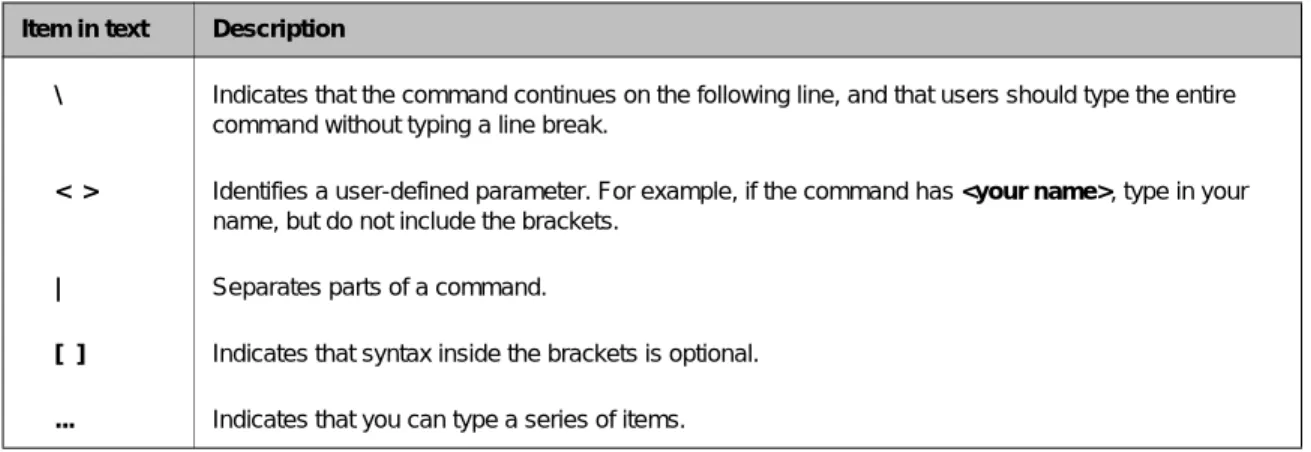
Table Intro.1 explains additional special conventions used in command line syntax.
Finding additional help and technical support resources
You can find additional technical information about this product in the following locations:
◆ Release notes
Release notes for the current version of this product are available from the product web server home page, and are also available on the technical support site. The release notes contain the latest information for the current version, including a list of new features and enhancements, a list of fixes, and, in some cases, a list of known issues.
◆ Online help
You can find help online in three different locations:
• The web server on the product has PDF versions of the guides included in the Administrator Kit.
• The web-based Configuration utility has online help for each screen. Simply click the Help button.
• Individual bigpipe commands have online help, including command syntax and examples, in standard UNIX man page format. Simply type the command followed by the word help, and the BIG-IP displays the syntax and usage associated with the command. Item in text Description
\ Indicates that the command continues on the following line, and that users should type the entire command without typing a line break.
< > Identifies a user-defined parameter. For example, if the command has <your name>, type in your name, but do not include the brackets.
| Separates parts of a command.
[ ] Indicates that syntax inside the brackets is optional. ... Indicates that you can type a series of items.
Introduction
BIG-IP® Solutions Guide Intro - 5
◆ Third-party documentation for software add-ons
The web server on the product contains online documentation for all third-party software, such as GateD.
◆ Technical support through the World Wide Web
The Dell | Support website at support.dell.com provides the latest technical documentation.
What’s new in version 4.2
The BIG-IP offers the following major new features in version 4.2, in addition to many smaller enhancements.
Support for the Controller and IP Application Switch platforms
This release includes support for both the BIG-IP Controller and the IP Application SwitchTM hardware platforms.
The Setup utility
This release includes a new Setup utility for initially configuring your BIG-IP system. The Setup utility replaces the web-based and console-based First-Time Boot utility. For more information, see the BIG-IP Reference
Guide, Chapter 2, Using the Setup Utility.
Enhanced pools support
This release contains several new attributes that you can assign to load-balancing pools. These new attributes include support for Session Initiation Protocol (SIP) Call-ID persistence and Windows Terminal Server (WTS) persistence, enhanced ability to redirect HTTP requests, the ability to insert client IP addresses into HTTP requests, and the ability to set specific Quality of Service (QoS) and Type of Service (ToS) levels within a packet. Furthermore, this release allows you to configure a pool to automatically disable a SNAT or NAT connection, or to bypass the load balancing of a connection by automatically forwarding the connection, using IP routing. In addition to using these new pool attributes, you can also specify a pool of multiple default gateways, used for handling administrative traffic such as SSH, telnet, FTP, and HTTPS connections. For more information, see the
BIG-IP Reference Guide Pools section in Chapter 4, Configuring the
Chapter Intro
Intro - 6
New filter for rewriting HTTP redirections
This release provides an ISAPI filter, called redirectfilter.dll, which allows IIS servers running Netscape to rewrite HTTP redirections. Rewriting HTTP redirections helps to ensure that SSL connections remain on a secure channel. By installing this filter on your IIS server, you offload the task of rewriting HTTP redirections from your SSL Accelerator proxy to your IIS server. For more information, see the Rewriting HTTP redirection section (which is a subsection of the HTTP Redirection section) in Chapter 4 of the
BIG-IP Reference Guide.
New global variables
Two new global variables, open_failover_ports and self_conn_timeout, are included in this release. The open_failover_ports variable allows you to restrict network failover traffic on specific VLANs. The self_conn_timeout variable acts as a tracking mechanism for UDP connections. For more information, see the BIG-IP Reference Guide, Chapter 7, bigpipe
Command Reference.
Enhanced rules support
With this release comes a number of new variables and operators, to enhance the ways that you can select pools for load balancing. Using rule statements, you can now select pools based on such criteria as the IP protocol of a packet, TCP/UDP port numbers, and QoS and ToS levels. A rule can also now balance traffic based on whether the client IP address is a member of a specific class. For SSL Accelerator proxies, you can use rules to rewrite HTTP redirection to ensure that traffic remains on an SSL-secured channel. For more information, see the BIG-IP Reference Guide, the Rules section in Chapter 4, Configuring the High-Level Network.
Enhanced support for virtual servers
This release contains a number of enhancements to the BIG-IP virtual server. First, you can now define multiple wildcard virtual servers instead of a single wildcard virtual server only. For information on configuring multiple wildcard virtual servers, see the Creating multiple wildcard servers section (which is a subsection of the Virtual server types section) in the
BIG-IP Reference Guide. Secondly, you can configure an option known as
dynamic connection rebinding, designed for those virtual servers that are load balancing transparent devices such as firewalls or routers. Dynamic connection rebinding causes any connections to a node address or service to be redirected to another node, if the original node transitions to a DOWN state. Finally, you can prevent a virtual server from sending a TCP reset when a connection is timed out. For more information, see the BIG-IP
Reference Guide, the Virtual Servers section in Chapter 4, Configuring the
Introduction
BIG-IP® Solutions Guide Intro - 7
SSL Accelerator proxy enhancements
This release includes several important enhancements to the SSL Accelerator proxy. For example, you can now configure options such as specifying ways for an SSL proxy to manage client certificates, inserting headers into HTTP requests, specifying ciphers and protocol versions, and configuring SSL session cache size and timeout values.
This release also supports the SSL-to-Server option, which allows you to re-encrypt traffic after it has been decrypted by the BIG-IP. Previously available on the IP Application Switch only, this feature is now available on the BIG-IP Controller platform also. Moreover, this feature has been enhanced in this release to further ensure the security of SSL connections between the proxy and the server. For a complete description of all new SSL Accelerator proxy options, see the BIG-IP Reference Guide, the Proxies section in Chapter 4, Configuring the High-Level Network.
Support for the nCipher FIPS 140-1 level 3 certified SSL cryptographic
module
For BIG-IP Controller platforms, customers can now install a FIPS 140-1-certified cryptographic network module. The BIG-IP FIPS hardware option is specifically designed for processing SSL traffic within
environments that require FIPS 140-1 Level 3 compliant solutions. It comes with the FIPS 140-1 level 3 certified PCI based encryption processing module, attached smart card reader, and 5 smart cards. This product can be installed in any BIG-IP Controller platform (D35) that has BIG-IP software version 4.2 and is authorized by F5 Networks. For more information, see
Configuring FIPS 140 Security World on the BIG-IP in the Documentation
section of the Software and Documentation CD.
Enhanced support for Secure Network Address Translations (SNATs)
In previous releases, BIG-IP allowed you to automatically map VLANs to translation IP addresses during SNAT creation. In this release, you can now use this automapping feature not only for VLANs, but for one or more individual IP addresses. For more information, see the BIG-IP ReferenceGuide, Address Translation: NATs, SNATs, and IP Forwarding section in
Chapter 4, Configuring the High-Level Network.
Enhanced interface statistics
This release features enhanced statistics for BIG-IP interfaces. The following state information and statistics are now available: MTU, Speed, MAC address, packets in, errors in, packets out, errors out, collisions, dropped packets, bits in, bits out. Previously available on the IP Application Switch, this feature is new for the BIG-IP Controller platform. For more information, see the BIG-IP Reference Guide, Chapter 11, Monitoring and
Chapter Intro
Intro - 8
Health monitor enhancements
In addition to the standard SNMP health monitor template included in BIG-IP, this release now includes a second SNMP template, which allows users to collect data on elements other than CPU, disk, and memory usage. For more information, see the BIG-IP Reference Guide, the Health
Monitors section in Chapter 4, Configuring the High-Level Network.
Support for LDAP and RADIUS logins
With this release, BIG-IP can now authenticate SSH users by way of an LDAP or a RADIUS server. For information on configuring this feature, see the To configure RADIUS login support section and the Configuring LDAP
login support section (which are a subsections of the Configuring RADIUS or LDAP authentication section) in Chapter 12 of the BIG-IP Reference
Guide.
Enhanced system logging
System logging in this release provides more detailed information, such as
up or down status for nodes. For more information, see the BIG-IP
Reference Guide, Chapter 11, Monitoring and Administration.
Web-based Configuration utility enhancements
This release includes a number of improvements to the web-based
Configuration utility. All new features for this release are supported by the Configuration utility.
Learning more about the BIG-IP product family
The BIG-IP platform offers many different software systems. These systems can be stand-alone, or can run in redundant pairs, with the exception of the BIG-IP e-Commerce Controller, which is only available as a stand-alone system. You can easily upgrade from any special-purpose BIG-IP to the BIG-IP HA software, which supports all BIG-IP features.
◆ The BIG-IP
The BIG-IP HA, HA+, and 5000 software provides the full suite of local area load balancing functionality. The BIG-IP unit also has an optional 3-DNS software module which supports wide-area load balancing.
◆ The BIG-IP e-Commerce Controller
The BIG-IP e-Commerce Controller uses SSL acceleration technology to increase the speed and reliability of the secure connections that drive e-commerce sites.
Introduction
BIG-IP® Solutions Guide Intro - 9
◆ The BIG-IP special purpose products
The special purpose BIG-IP provides the ability to choose from three different BIG-IP feature sets. When you run the Setup utility, you specify one of three types:
• The BIG-IP Load Balancer
The BIG-IP Load Balancer provides basic load balancing features. • The BIG-IP FireGuard
The BIG-IP FireGuard provides load balancing features that maximize the efficiency and performance of a group of firewalls. • The BIG-IP Cache Controller
The BIG-IP Cache Controller uses content-aware traffic direction to maximize the efficiency and performance of a group of cache servers.
Chapter Intro
1
BIG-IP Overview
• Introduction
• A basic configuration
• Configuring objects and object properties
• BIG-IP and intranets
• Cache control
• SSL acceleration
• Content conversion
• VLANs
• Configuring BIG-IP redundant pairs
• Making hidden nodes accessible
BIG-IP Overview
BIG-IP® Solutions Guide 1 - 1
Introduction
The BIG-IP is an Internet appliance used to implement a wide variety of load balancing and other network traffic solutions, including intelligent cache content determination and SSL acceleration. The subsequent chapters in this guide each outline a solution or solutions and provide configuration instructions for those solutions. This overview introduces you to the BIG-IP, its user interfaces, and the range of solutions possible. This chapter includes these sections:
• User interface • A basic configuration
• Configuring objects and properties • Load balancing modes
• Making hidden nodes accessible
• The external VLAN and outbound load balancing • BIG-IP and intranets
• Cache control • SSL acceleration • Content conversion • VLANs
• Link aggregation and failover • Configuring BIG-IP redundant pairs • Making hidden nodes accessible
User interface
The BIG-IP user interface consists primarily of the web-based
Configuration utility and the command interface bigpipe. The Configuration utility is contained in the BIG-IP unit’s internal Web server. You can access it through the administrative interface on the BIG-IP using Netscape Navigator version 4.7, or Microsoft Internet Explorer version 5.0, or later. (Netscape Navigator version 6.0 is not supported.)
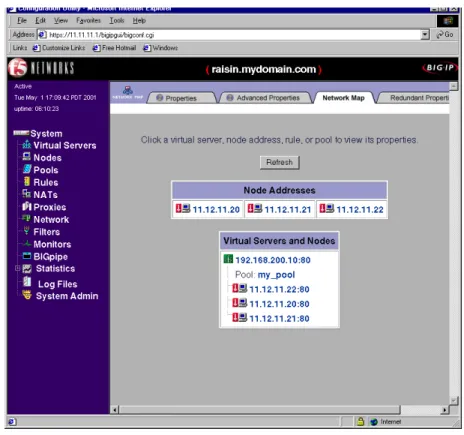
Figure 1.1 shows the Configuration utility as it first appears, displaying the top-level (System) screen with your existing load-balancing configuration. The Configuration utility provides an instant overview of your network as it is currently configured.
Chapter 1
1 - 2
Figure 1.1 The Configuration utility System screen
The left pane of the screen, referred to as the navigation pane, contains links to screens for the main configuration objects that you create and tailor for your network: Virtual Servers, Nodes, Pools, Rules, NATs, Proxies,
Network, Filters, and Monitors. These screens appear in the right pane.
The left pane of the screen also contains links to screens for monitoring and system administration (Statistics, Log Files, and System Admin).
A basic configuration
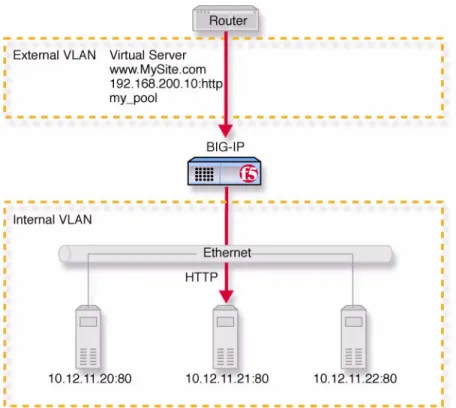
As suggested in the previous section, the System screen shows the objects that are currently configured for the system. These consist of virtual servers, nodes, and a load-balancing pool. What these objects represent is shown in Figure 1.2, a very basic configuration.
BIG-IP Overview
BIG-IP® Solutions Guide 1 - 3
Figure 1.2 A basic configuration
In this configuration, the BIG-IP sits between a router and an array of content servers, and load balances inbound Internet traffic across those servers.
Insertion of the BIG-IP, with its standard two interfaces, divides the network into an external VLAN and an internal VLAN. (However, both VLANs can be on a single IP network, so that inserting the BIG-IP does not require you to change the IP addressing of the network.) The nodes on the external VLAN are routable. The nodes on the internal VLAN, however, are hidden behind the BIG-IP. What will appear in their place is a user-defined virtual server. It is this virtual server that receives requests and distributes them among the physical servers, which are now members of a load-balancing pool.
The key to load balancing through a virtual server is address translation, and the setting of the BIG-IP address as the default route. By default, the virtual server translates the destination address of the incoming packet to that of the server it load balances to, making it the source address of the reply packet. The reply packet returns to the BIG-IP as the default route, and the BIG-IP translates its source address back to that of the virtual server.
Chapter 1
1 - 4
Configuring objects and object properties
Abstract entities like virtual servers and load balancing pools are called
configuration objects, and the options associated with them, like load
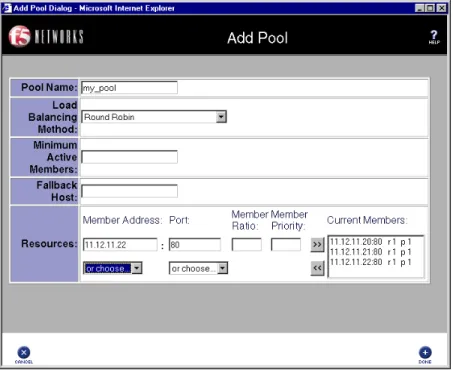
balancing mode, are called object properties. The basic configuration shown in Figure 1.2 contains three types of objects: node, pool, and virtual server. You can create these objects by clicking the object type in the left pane of the Configuration utility. For example, the pool was created by clicking
Pools to open the Pools screen, then clicking the Add (+) button to open the
Add Pool screen, shown in Figure 1.3.
Figure 1.3 Add Pool screen
You could configure the same pool from the BIG-IP command line using
bigpipe as follows:
BIG-IP Overview
BIG-IP® Solutions Guide 1 - 5
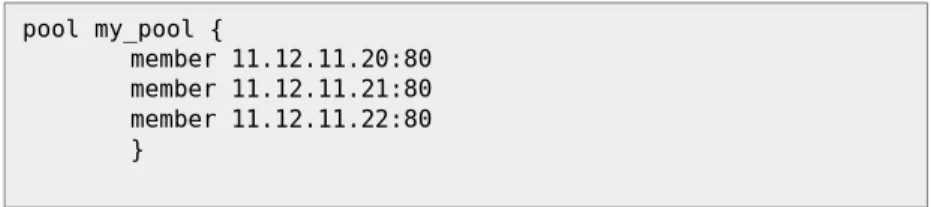
Either configuration method results in the entry shown in Figure 1.4 being placed in the file /config/bigip.conf on the BIG-IP. You can also edit this file directly using a text editor like vi or pico.
For a complete description of the configuration objects and properties, refer to the BIG-IP Reference Guide.
Load balancing modes
Load balancing is the distribution of network traffic across servers that are
elements in the load balancing pool. The user may select from a range of load balancing methods, or modes. The simplest mode is round robin, in which servers are addressed in a set order, and the next request always goes to the next server in the order. Other load balancing modes include ratio, dynamic ratio, fastest, least connections, observed, and predictive. • In ratio mode, connections are distributed based on weight attribute
values that represent load capacity.
• In dynamic ratio mode, the system is configured to read ratio weights determined by the lowest measured response time from external software.
• In fastest mode, the server with the lowest measured average response time is picked.
• In least connections mode, the server with the lowest number of existing connections is picked.
• Observed and predictive modes are combinations of the simpler modes.
For a complete description of the load balancing modes, refer to Pools in the
BIG-IP Reference Guide, Chapter 4, Configuring the High-Level Network.
BIG-IP and intranets
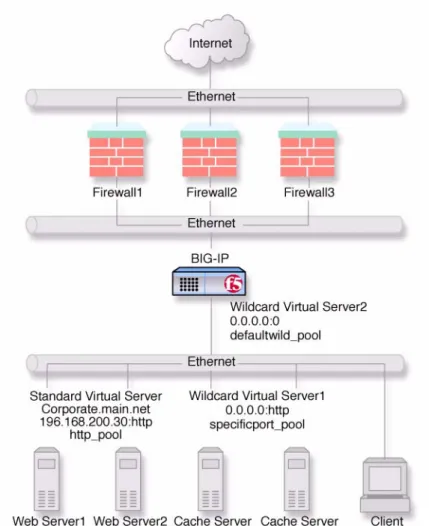
Discussion of previous configurations has been limited to load balancing incoming traffic to the internal VLAN. The BIG-IP can also load balance outbound traffic across routers or firewalls on the external VLAN. This creates the intranet configuration shown in Figure 1.5, which load balances traffic from intranet clients to local servers, to a local cache, or to the Internet.
pool my_pool {
member 11.12.11.20:80 member 11.12.11.21:80 member 11.12.11.22:80 }
Chapter 1
1 - 6
Figure 1.5 A basic intranet configuration
This solution utilizes two wildcard virtual servers: Wildcard Virtual
Server1, which is HTTP port specific, and Wildcard Virtual Server2,
which is not port specific. In this solution, all non-HTTP requests to addresses not on the intranet are directed to the cache server, which provides the resources if they are cached, and otherwise accesses them directly from the Internet. All non-HTTP requests not on the intranet are directed to the Internet.
For detailed information on this solution, refer to Chapter 5, A Simple
Intranet Configuration.
Bidirectional load balancing
The intranet configuration shown in Figure 1.5 would typically be a part of larger configuration supporting inbound and outbound traffic.
BIG-IP Overview
BIG-IP® Solutions Guide 1 - 7
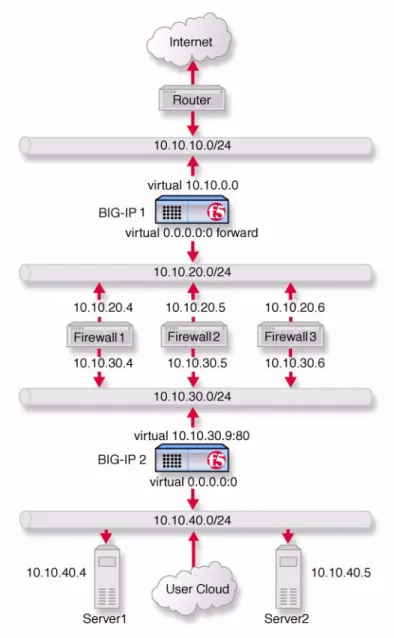
Figure 1.6 shows traffic being load balanced bidirectionally across three firewalls.
Figure 1.6 Load balancing firewalls
This configuration requires two BIG-IP units (or BIG-IP redundant pairs), and the creation of three load balancing pools with corresponding virtual servers. A virtual server on the inside BIG-IP (BIG-IP1 in Figure 1.6) load balances incoming requests across the enterprise servers. Another virtual server on the outside BIG-IP (BIG-IP2 in Figure 1.6) load balances incoming requests across the external interfaces of the firewalls. A third virtual server on the inside BIG-IP redundant system load balances outbound requests across the internal interfaces of the firewalls.
Chapter 1
1 - 8
For detailed information on this solution, refer to Chapter 10, Balancing
Two-Way Traffic Across Firewalls.
Cache control
Using cache control features, you can create rules to distribute content among three server pools, an origin server pool, a cache pool for cachable content, and a hot pool for popular cachable content. The origin pool members contain all content. The cache pool members contain content that is considered cachable (for example all HTTP and all GIF content). The hot pool members contain cachable content that is considered hot, that is, frequently accessed, as determined by a threshold you set. Once identified, hot content is distributed and load balanced across the pool to maximize processing power when it is hot, and localized to the individual caches when it is cool (less frequently accessed).
A special cache feature is destination address affinity (also called sticky persistence). This feature directs requests for a certain destination to the same proxy server, regardless of which client the request comes from. This saves the other proxies from having to duplicate the web page in their caches, which wastes memory.
For detailed information about cache rules, refer to Rules in the BIG-IP
Reference Guide, Chapter 4, Configuring the High-level Network, and
Chapters 11, 12, and 13 of this guide.
SSL acceleration
SSL acceleration uses special software with an accelerator card to speed the encryption and decryption of encoded content. This greatly speeds the flow of HTTPS traffic without affecting the flow of non-HTTPS traffic. In addition, using add-on BIG-IP e-Commerce Controllers, it is possible to create a scalable configuration that can grow with your network. For detailed information about SSL acceleration, refer to Chapter 9,
Configuring an SSL Accelerator.
Content conversion
Content conversion is the on-the-fly switching of URLs to ARLs (Akamai Resource Locators) for web resources that are stored geographically nearby on the Akamai Freeflow NetworkTM. This greatly speeds download of large,
slow-to-load graphics and other types of objects.
For detailed information about content conversion, refer to Chapter 14,
BIG-IP Overview
BIG-IP® Solutions Guide 1 - 9
VLANs
The internal and external VLANs created on the BIG-IP are by default the separate port-specified VLANs external and internal, with the BIG-IP functioning as an L2 switch. In conformance with IEEE 802.lq, the BIG-IP supports both port-specified VLANs and tagged VLANs. This adds the efficiency and flexibility of VLAN segmentation to traffic handling between the networks. For example, with VLANs it is no longer necessary to change any IP addresses after inserting a BIG-IP into a single network.
VLAN capability also supports multi-site hosting, and allows the BIG-IP to fit into and extend a pre-existing VLAN segmentation, or to serve as a VLAN switch in creating a VLAN segmentation for the wider network. For detailed information on VLANs, refer to VLANs in the BIG-IP
Reference Guide, Chapter 2, Using the Setup Utility.
Link aggregation and link failover
You can aggregate links (individual physical interfaces) on the BIG-IP by software means to form a trunk (an aggregation of links). This link aggregation increases the bandwidth of the individual links in an additive manner. Thus four fast Ethernet links, if aggregated, create a single 400 Mb/s link. Link aggregation is highly useful with asymmetric loads. Another advantage of link aggregation is link failover. If one link in a trunk goes down, traffic is simply redistributed over the remaining links. Link aggregation conforms to the IEEE 802.3ad standard.
Configuring BIG-IP redundant pairs
You can configure the BIG-IP units as redundant pairs, with one unit active and the other in standby mode. This is made convenient by the fact that once one unit has been configured, this configuration can be copied automatically to the other unit, a process called configuration synchronization. Once you synchronize the systems, a failure detection system determines whether the active unit has failed, and automatically re-directs traffic to standby unit. This process is called failover.
A special feature of redundant pairs is optional state mirroring. When you use the state mirroring feature, the standby BIG-IP maintains the same state information as the active BIG-IP. Transactions such as FTP file transfers continue uninterrupted if the standby BIG-IP becomes active.
For detailed information about configuring redundant pairs, refer to the
Chapter 1
1 - 10
Making hidden nodes accessible
To perform load balancing, the BIG-IP hides physical servers behind a virtual server. This prevents them from receiving direct administrative connections or from initiating requests as clients (for example, to download software upgrades.) There are two basic methods for making nodes on the internal VLAN routable to the outside world: address translation and forwarding.
Address translation
Address translation consists of providing a routable alias that a node can use as its source address when acting as a client. There are two types of address translation: NAT (Network Address Translation) and SNAT (Secure Network Address Translation). NATs are assigned one per node and can be used for both outbound and inbound connections. SNATs may be assigned to multiple nodes, and permit only outbound connections, hence the greater security.
For detailed information about address translation, refer to the SNATs, NATs and IP Forwarding sections in the BIG-IP Reference Guide, Chapter 4,
Configuring the High-Level Network.
Forwarding
Forwarding is the simple exposure of a node’s IP address to the BIG-IP
unit’s external VLAN so that clients can use it as a standard routable address. There are two types of forwarding: IP forwarding, and the
forwarding virtual server. IP forwarding exposes all nodes and all ports on the internal VLAN. You can use the IP filter feature to implement a layer of security.
A forwarding virtual server is like IP forwarding, but exposes only selected servers and/or ports.
2
Basic Web Site and E-Commerce
Configuration
• Working with a basic web site and e-commerce
configuration
• Configuring a basic e-commerce site
• Additional configuration options
Basic Web Site and E-Commerce Configuration
BIG-IP® Solutions Guide 2 - 1
Working with a basic web site and e-commerce
configuration
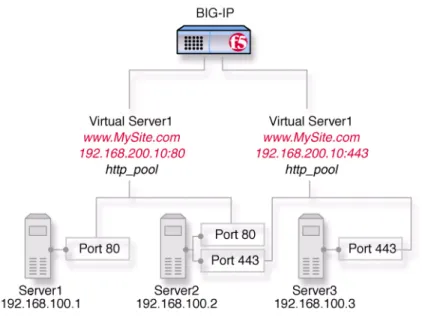
The most common application of the BIG-IP is distributing traffic across an array of web servers that host standard web traffic, including e-commerce traffic. Figure 2.1 shows a configuration where a BIG-IP load balances two sites: www.MySite.com and store.MySite.com. The www.MySite.com site provides standard web content, and the store.MySite.com site is the e-commerce site that sells items to www.MySite.com customers.
To set up load balancing for these sites, you need to create two pools that are referenced by two virtual servers, one for each site. Even though the sites are related and they may even share the same IP address, each requires its own virtual server because it uses a different port to support its particular protocol: port 80 for the HTTP traffic going to www.MySite.com, and port 443 for the SSL traffic going to store.MySite.com. Note that this is true even when there is a port 80 and port 443 on the same physical server, as in the case of Server2.
Note
All BIG-IP products except the BIG-IP e-Commerce Controller support this configuration.
Note
Note that in this example, as in all examples in this guide, we use only non-routable IP addresses. In a real topology, the virtual server IP addresses would have to be routable on the Internet.
Chapter 2
2 - 2
Figure 2.1 A basic configuration
Configuring a basic e-commerce site
To configure the e-commerce site, you need to complete the following tasks in order:
• Define the load balancing pools
• Define virtual servers for the inbound traffic
Defining the pools
The first step in a basic configuration is to define the two load balancing pools, a pool to load balance HTTP connections for Server1 and Server2, and a pool to load balance SSL connections for Server2 and Server3.
To create the pools using the Configuration utility
1. In the navigation pane, click Pools. The Pools screen opens.
2. Click the Add button. The Add Pool screen opens.
3. For each pool, enter the pool name and member addresses in the Add Pool screen. (For additional information about configuring a pool, click the Help button.)
Basic Web Site and E-Commerce Configuration
BIG-IP® Solutions Guide 2 - 3
Configuration Notes
Create pool http_pool containing members 192.168.100.1:80 and
192.168.100.2:80.
Create pool ssl_pool containing members 192.168.100.2:443 and
192.168.100.3:443.
To define the pools from the command line
To define a pool from the command line, use the following syntax:
b pool <pool_name> {member <member_definition> ... member <member_definition>}
To create the pools http_pool and ssl_pool from the command line, you would type the following commands:
b pool http_pool { \ member 192.168.100.1:80 \ member 192.168.100.2:80 }
b pool ssl_pool { \ member 192.168.100.2:443 \ member 192.168.100.3:443 }
Defining the virtual servers
The next step in a basic configuration is to define the virtual servers that reference http_pool and ssl_pool, respectively.
To define the virtual servers using the Configuration utility
1. In the navigation pane, click Virtual Servers. The Virtual Servers screen opens.
2. Click the Add button.
The Add Virtual Server screen opens.
3. For each virtual server, enter the virtual server address and pool name. (For additional information about configuring a virtual server, click the Help button.)
Configuration notes
Create virtual server 192.168.200.10:80 using pool http_pool Create virtual server 192.168.200.10:443 using pool ssl_pool
To define the virtual servers from the command line
Use the bigpipe virtual command as shown below. You can use standard service names in place of port numbers. If you have DNS configured, you can also use host names in place of IP addresses.
Chapter 2
2 - 4
The following command defines a virtual server that maps to pools
http_pool and ssl_pool, respectively:
b virtual 192.168.200.10:80 use pool http_pool b virtual 192.168.200.10:443 use pool ssl_pool
Additional configuration options
Whenever a BIG-IP is configured, you have a number of options:
◆ You have the option in all configurations to configure a BIG-IP redundant system for fail-over. Refer to Chapter 6, Configuring a
Redundant System, in the BIG-IP Reference Guide.
◆ All configurations have health monitoring options. Refer to Health
Monitors in Chapter 4, Configuring the High-Level Network, in the
BIG-IP Reference Guide.
◆ When you create a pool, there is an option to set up persistence and a choice of load balancing methods. Refer to Pools in the Chapter 4,
3
Installing a BIG-IP without Changing the IP
Network
• Installing a BIG-IP without changing IP networks
• Additional configuration options
Installing a BIG-IP without Changing the IP Network
BIG-IP® Solutions Guide 3 - 1
Installing a BIG-IP without changing IP networks
A combination of several features of the BIG-IP allows you to place a BIG-IP in a network without changing the existing IP network.
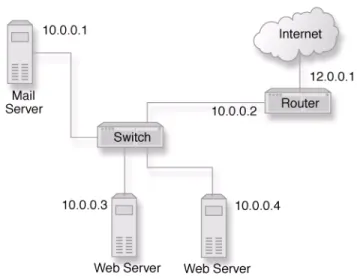
The following figure shows the data center topology before you add the BIG-IP. The data center has one LAN, with one IP network, 10.0.0.0. The data center has one router to the Internet, two web servers, and a back-end mail server.
Figure 3.1 Existing data center network structure
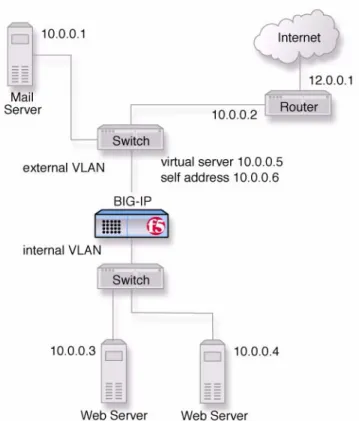
The existing data center structure does not support load balancing or high availability. Figure 3.2 is an example of the data center topology after you add the BIG-IP.
Chapter 3
3 - 2
Figure 3.2 New structure after adding the BIG-IP
Both the internal and external interfaces of the BIG-IP are on the same IP network, 10.0.0.0, but they are effectively on different LANs.
Note that a second switch has been introduced in Figure 3.2. This switch would be eliminated in a configuration using an IP Application Switch.
Configuring the BIG-IP for the same IP network
To configure the BIG-IP for this solution, you must complete the following tasks:
◆ Remove the self IP addresses from the individual VLANs
Remove the self IP addresses from the individual VLANs. Routing is handled by the self IP address you create for the VLAN group.
◆ Create a VLAN group
Create a VLAN group that includes the internal and external VLANs. This enables L2 forwarding. (L2 forwarding causes the two VLANs to behave as a single network.)
◆ Create a self IP for the VLAN group
The self IP for the VLAN group provides a route for packets destined for the network.
Installing a BIG-IP without Changing the IP Network
BIG-IP® Solutions Guide 3 - 3
◆ Create a pool of web servers
Create a pool that contains the web servers that you want to load balance.
◆ Create a virtual server
Create a virtual server that load balances the web servers.
Note
This example assumes that you are using the default internal and external VLAN configuration with self IP addresses on each VLAN that are on the same IP network on which you are installing the BIG-IP.
Note
The default route on each content server should be set to the IP address of the router. In this example, you set the default route to 10.0.0.2.
Removing the self IP addresses from the individual VLANs
Remove the self IP addresses from the individual VLANs. After you create the VLAN group, you will create another self IP address for the VLAN group for routing purposes. The individual VLANs no longer need their own self IP addresses.
We recommend that you perform this step from the console or from a self IP address you are not going to delete. If you are connected from a remote workstation though a self IP address you are going to delete, you will be disconnected when you delete it.
To remove the self IP addresses from the default VLANs
using the Configuration utility
1. In the navigation pane, click Network. The VLANs screen opens.
2. In the VLANs screen, click the Self IP Addresses tab. The Self IP Addresses screen opens.
3. Delete the self IP addresses for the external and internal VLANs. (For additional information about adding and removing self IP addresses, click the Help button.)
To delete self IP addresses from the individual VLANs from
the command line
To delete the self IP addresses from the individual VLANs, use the following syntax.
b self <ip addr> delete
Repeat the command to delete each self IP address on the internal and external VLANs.
Chapter 3
3 - 4
Creating a VLAN group
Create a VLAN group that includes the internal and external VLANs. Packets received by a VLAN in the VLAN group are copied onto the other VLAN in the group. This allows traffic to pass through the BIG-IP on the same IP network. For more information about VLAN groups, refer to the
BIG-IP Reference Guide, Chapter 3, Additional Base Network
Configuration.
Tip
A VLAN group name can be used anywhere a VLAN name can be used.
To create a VLAN group from the Configuration utility
1. In the navigation pane, click Network. The VLANs screen opens.
2. In the VLANs screen, click the VLAN Groups tab. The VLAN Groups screen opens.
3. In the VLAN Groups screen, click the Add button to add the VLAN group.
Configuration notes
For this example:
The VLAN group name is myvlangroup. Make sure the Proxy Forward box is checked.
Add the internal and external VLANs to the VLAN group.
To create a VLAN group from the command line
To create the VLAN group myvlangroup from the command line, type the following command:
b vlangroup myvlangroup { vlans add internal external }
Creating a self IP for the VLAN group
The self IP for the VLAN group provides a route for packets destined for the network. With the BIG-IP, the path to an IP network is a VLAN. However, with the VLAN group feature used in this example, the path to the IP network 10.0.0.0 is actually through more than one VLAN. Since IP routers are designed to have only one physical route to a network, a routing conflict can occur. The self IP address feature on the BIG-IP allows you to resolve the routing conflict by putting a self IP address on the VLAN group.
To create a self IP address for a VLAN group using the
Configuration utility
1. In the navigation pane, click Network. The VLANs screen opens.
Installing a BIG-IP without Changing the IP Network
BIG-IP® Solutions Guide 3 - 5
2. In the VLANs screen, click the Self IP Addresses tab. The Self IP Addresses screen opens.
3. In the Self IP Addresses screen, click the Add button to start the Add Self IP Address wizard
Configuration notes
For the example in Figure 3.2, on page 3-2, the self IP address you add for the VLAN group is 10.0.0.6.
When you choose the VLAN you want to apply the self IP address to, select the VLAN group you created that contains the internal and external VLANs.
To create a self IP address for a VLAN group from the
command line
To create a self IP address on the VLAN group, type the following command:
b self 10.0.0.6 vlan myvlangroup
Creating the pool of web servers to load balance
After you create the network environment for the BIG-IP, you can create the pool of web servers you want to load balance.
To create a pool using the Configuration utility
1. In the navigation pane, click Pools. The Pools screen opens.
2. In the Pools screen, click the Add button to start the Add Pool wizard.
Configuration note
For this example, the pool contains the web servers 10.0.0.3:80 and
10.0.0.4:80.
To create a pool from the command line
To create a pool from the command line, type the following command:
b pool mywebpool { member 10.0.0.3:80 member 10.0.0.4:80 }
In this example, you create the pool name mywebpool with the members
10.0.0.3 and 10.0.0.4.
Creating the virtual server to load balance the web servers
After you create the pool of web servers you want to load balance, you can create the virtual server.
Chapter 3
3 - 6
To create a virtual server using the Configuration utility
1. In the navigation pane, click Virtual Servers. The Virtual Servers screen opens.
2. Click Add (+)
The Add Virtual Servers screen opens.
3. Enter the virtual server address and pool name. (For additional information about adding and removing self IP addresses, click the
Help button.)
Configuration note
Create virtual server 10.0.0.5 using pool mywebpool.
To create a virtual server from the command line
To create the virtual server for this example from the command line, type the following command:
b virtual 10.0.0.5:80 use pool mywebpool
In this example, mywebpool contains the web servers.
Additional configuration options
Whenever a BIG-IP is configured, you have a number of options:
◆ You have the option in all configurations to configure a BIG-IP redundant system for fail-over. Refer to Chapter 6, Configuring a
Redundant System, in the BIG-IP Reference Guide.
◆ All configurations have health monitoring options. Refer to Health
Monitors in Chapter 4, Configuring the High-Level Network, in the
BIG-IP Reference Guide.
◆ When you create a pool, there is an option to set up persistence and a choice of load balancing methods. Refer to Pools in the Chapter 4,
4
Hosting for Multiple Customers
• Introducing multiple customer hosting
• Configuring multiple customer hosting
• Multiple customer hosting using built-in switching
• Additional configuration options
Hosting for Multiple Customers
BIG-IP® Solutions Guide 4 - 1
Introducing multiple customer hosting
You can use the BIG-IP to load balance and provide hosting services for multiple customers. In this example, the BIG-IP has a gigabit Ethernet interface tagged to handle traffic for vlanA, vlanB, and vlanC. The servers, in groups of two, host separate customers.
Figure 4.1 An example of multiple site hosting
Configuring multiple customer hosting
To configure the BIG-IP for this solution, you must complete the following tasks:
• Create VLANs with tagged interfaces.
• Create a pool of web servers that contains the web servers that you want to load balance.
• Create a virtual server that load balances the web servers.
Creating VLANs with tagged interfaces
The first step in configuring the BIG-IP for multiple customer hosting is creating VLANs with tagged interfaces. You can do this using the Configuration utility or from the command line.
Chapter 4
4 - 2
To create VLANs with tagged interfaces using the
Configuration utility
1. In the navigation pane, click Network. The VLAN screen opens.
2. For each VLAN:
a) Click the Add button.
The Add VLAN screen opens.
b) Enter the VLAN name and tag number. If you do not provide a tag number, the BIG-IP automatically generates a number. c) In the Resources box, select the internal interface (in the
example, 5.1) and click tagged >>. The interface appears in the
Current Interfaces box.
Configuration note
For this example, create three VLANs, vlanA, vlanB, and vlanC, adding the internal interface to each VLAN as a tagged interface.
To create VLANs with tagged interfaces from the
command line
To create a VLAN with tagged interface, you must first create the VLAN and then add tagged interfaces to it. You can create a VLAN using the vlan
tag command:
b vlan <vlan_name> tag <tag_number>
You can then add an interface or interfaces to the VLAN using the tagged flag:
b vlan <vlan_name> interfaces add tagged <if_list>
To create VLANs vlanA, vlanB, and vlanC, type:
b vlan vlanA tag 0001 b vlan vlanB tag 0002 b vlan vlanC tag 0003
To add tagged interface 5.1 to VLANs vlanA, vlanB, and vlanC, type:
b vlan vlanA interfaces add tagged 5.1 b vlan vlanB interfaces add tagged 5.1 b vlan vlanC interfaces add tagged 5.1
Creating the server pools to load balance
After you create the network environment for the BIG-IP, create three load balancing pools, one for each network.