SM-10004-02 June 2003
NETGEAR, Inc.
4500 Great America Parkway Santa Clara, CA 95054 USA Phone 1-888-NETGEAR
User’s Guide for Software
v2.1
Technical Support
Please register to obtain technical support. Please retain your proof of purchase and warranty
information.To register your product, get product support or obtain product information and product
documentation, go to http://www.NETGEAR.com. If you do not have access to the World Wide Web, you may register your product by filling out the registration card and mailing it to
NETGEAR customer service.
You will find technical support information at:
http://www.NETGEAR.com/ through the customer service area. If you want to contact technical support by telephone, see the support information card for the correct telephone number for your country.
© 2003 by NETGEAR, Inc. SM-10004-02, June 2003. All rights reserved.
Trademarks
NETGEAR is a registered trademark of NETGEAR, INC. Windows is a registered trademark of Microsoft Corporation. Other brand and product names are trademarks or registered trademarks of their respective holders. Information is subject to change without notice. All rights reserved.
Statement of Conditions
In the interest of improving internal design, operational function, and/or reliability, NETGEAR reserves the right to make changes to the products described in this document without notice. NETGEAR does not assume any liability that may occur due to the use or application of the product(s) or circuit layout(s) described herein.
Mobile Satellite and Radar Systems.
Canadian Department of Communications Compliance Statement
This Class B Digital apparatus (700 Series Managed Switch) meets all the requirements of the Canadian Interference Causing Equipment Regulations.Cet appareil numerique del la classe B respect les exigences du Regalement sur le material broilleur du Canada.
This device comples with Class B limits of Industry of Canada. Operation is subject to the following two conditions:
1. This device may not cause harmful interference.
2. This device must accept any interference received, including interference that may cause undesired operation.
The device is certified to the requirements of RSS-139-1 and RSS-210 for 2.4 GHz spread spectrum devices. The use of this device in a system operating either partially or completely outdoors may require the user to obtain a license for the system according to the Canadian regulations. For further information, contact your local Industry Canada office.
EN 55 022 Declaration of Conformance
This is to certify that the 700 Series Managed Switch is shielded against the generation of radio interference in accordance with the application of Council Directive 89/336/EEC, Article 4a. Conformity is declared by the application of EN 55 022 Class B (CISPR 22).
Chapter 1
About This Guide
Audience ...1-1 Typographical Conventions ...1-1 Special Message Formats ...1-1 Features of the HTML Version of this Manual ...1-2
Chapter 2
Switch Management Overview
Management Access Overview ...1-1 Protocols ...1-2 Virtual Terminal Protocols ...1-3 SNMP Protocol ...1-3 SNMP Access ...1-3
Chapter 3
Software Upgrade Procedure Chapter 4
Administration Console Telnet Interface
Set Up Your Switch Using Direct Console Access ...3-1 Introduction to the Command Menu Interface ...3-3 Main Menu> System ...3-5 Main Menu> Status ...3-5 Main Menu> Status >Statistics ...3-5 Main Menu> Status >Statistics Rest ...3-6 Main Menu> Status > MAC Address Table ...3-6 Main Menu> Set-Up ...3-7 Main Menu> Set-Up> IP Configuration ...3-7 Main Menu> Set-Up> Port Configuration ...3-8 Main Menu> Set-Up> GBIC ...3-10 Main Menu> Tools ...3-10 Main Menu> Security ... 3-11
Main Menu> Advanced> Port Mirroring ...3-15 Main Menu> Advanced> Port Trunking ...3-15 Main Menu> Advanced> Virtual Cable Tester ...3-16 Main Menu> Advanced> Advanced Tools ...3-17 Main Menu> Advanced> Advanced Tools> Software Upgrade ...3-17 Main Menu> Advanced> Advanced Tools> Configuration Management ...3-18 Main Menu> Advanced> Traffic Management ...3-18 Main Menu> Advanced> Traffic Management> Port Priority ...3-19 Main Menu> Advanced> Traffic Management> DiffServ ...3-19 Main Menu> Advanced> Traffic Management> Broadcast Control ...3-20 Main Menu> Advanced> VLANS ...3-20 Main Menu> Advanced> VLANS> VLAN Admin ...3-20 Main Menu> Advanced> VLANS> VLAN Membership ...3-21 Main Menu> Advanced> VLANS> VLAN Ports ...3-21 Main Menu> Advanced> Spanning Tree ...3-22 Main Menu> Advanced> Spanning Tree> Bridge Settings ...3-22 Main Menu> Advanced> Spanning Tree> Port Settings ...3-23 Main Menu> Advanced> MAC Address Manager ...3-24 Main Menu> Advanced> MAC Address Manager> Address Aging ...3-25 Main Menu> Advanced> MAC Address Manager> Static Addresses ...3-25 Main Menu> Advanced> Multimedia Support ...3-26 Main Menu> Advanced> Multimedia Support> Enable/Disable IGMP ...3-26 Main Menu> Advanced> Multimedia Support> Static Multicast Administration 3-26 Main Menu> Advanced> Multimedia Support> Static Multicast Membership ..3-27 Main Menu> Advanced> SNMP ...3-28 Main Menu> Advanced> SNMP> Community Table ...3-28 Main Menu> Advanced> SNMP> Host Table ...3-29 Main Menu> Advanced> SNMP> Trap Settings ...3-29
Chapter 5
Web-Based Management Interface
Web Based Management Overview ...4-2 System Information ...4-3 Status Menus ...4-4
Status > Error Statistics ...4-8 Status > Most Active Ports ...4-9 Status > Reset Statistics ...4-10 Status > Port Settings ...4-10 Status > MAC Address Table ... 4-11 Set-up Menu ...4-12 Set-up> System Configuration ...4-12 Set-up> IP Configuration ...4-13 Set-up> Port Configuration ...4-14 Set-up> GBIC ...4-15 Tools Menu ...4-16 Tools> Save Configuration ...4-16 Tools> Restore Factory Defaults ...4-17 Tools> Device Reset ...4-18 Security> Passwords ...4-18 Advanced Options ...4-19 Advanced > Disable Advanced Alerting ...4-22 Advanced > 802.1x Port-Based Authentication ...4-22 Advanced > Advanced Security ...4-24 Advanced > Port Mirroring ...4-25 Advanced > Port Trunking ...4-25 Advanced > Virtual Cable Tester ...4-26 Advanced> Advanced Tools ...4-27 Advanced> Advanced Tools> Software Upgrade ...4-27 Advanced> Advanced Tools> Configuration Manager ...4-28 Advanced > Traffic Management ...4-29 Advanced > Traffic Management > Traffic Priority ...4-29 Advanced > Traffic Management > Broadcast Control ...4-30 Advanced> VLANS ...4-30 Advanced> VLAN> Primary VLAN ...4-31 Advanced> VLAN> VLAN Port ...4-32 Advanced> Spanning Tree ...4-33
Advanced> MAC> Address Aging ...4-36 Advanced> MAC> Static Addresses ...4-36 Advanced> Multimedia Support ...4-37 Advanced> Multimedia Support>Enable/Disable IGMP ...4-37 Advanced>Multimedia Support> Static Multicast Groups ...4-38 Advanced> SNMP ...4-38 Advanced> SNMP> Community Table ...4-39 Advanced> SNMP> Host Table ...4-39 Advanced> SNMP> Trap Setting ...4-40
Chapter 6
Command Line Interface
Manual Syntax ...5-1 Entering the CLI ...5-1 Help ...5-2 Ping ...5-2 Exit ...5-3 Show ...5-3 DiffServ ...5-3 Interfaces ...5-4 IP ...5-5 Mac-Address-Table ...5-5 SNMP ...5-8 Spanning Tree ...5-8 System ...5-10 Trunking ...5-10 VLAN ... 5-11 Configure ...5-12 DiffServ ...5-12 Exit ...5-13 Interface ...5-13 mac-address-table ...5-19 Multimedia ...5-21 No ...5-21
System ...5-25 IP ...5-26 IP-Filter ...5-26 IP-filter address ...5-27 IP-Mode ...5-27 Mask ...5-27 Gateway ...5-27 Save ...5-28 Restore ...5-28 Web ...5-28 Telnet ...5-28 Username ...5-29 Password ...5-29 Firmware boot ...5-29 Firmware TFTP-IP ...5-30 Firmware TFTP-File ...5-30 RADIUS ...5-30 Reset ...5-31 Stat-Reset ...5-32
Appendix A
Virtual Local Area Network
VLAN Behavior in a 700 Series Managed Switch ... A-2
Appendix B Cabling Guidelines
Fast Ethernet Cable Guidelines ... B-1 Category 5 Cable ... B-2 Category 5 Cable Specifications ... B-2 Twisted Pair Cables ... B-3 Patch Panels and Cables ... B-4 Using 1000BASE-T Gigabit Ethernet over Category 5 Cable ... B-5 Cabling ... B-5 Near End Cross Talk (NEXT) ... B-6
Appendix C
802.1x Port-Based Authentication Overview
Understanding 802.1x Port Based Network Access Control ... C-1
Glossary Index
About This Guide
Thank you for purchasing the NETGEAR™ 700 Series Managed Switch.
Audience
This reference manual assumes that the reader has basic-to-intermediate computer and Internet skills. However, basic computer network, Internet, and wireless technology tutorial information is provided in the Appendices.
Typographical Conventions
This guide uses the following typographical conventions:
Special Message Formats
This guide uses the following formats to highlight special messages: Table 1. Typographical conventions
italics Emphasis.
bold times roman User input.
[Enter] Named keys in text are shown enclosed in square brackets. The notation [Enter] is used for the Enter key and the Return key.
[Ctrl]+C Two or more keys that must be pressed simultaneously are shown in text linked with a plus (+) sign.
SMALL CAPS DOS file and directory names.
Features of the HTML Version of this Manual
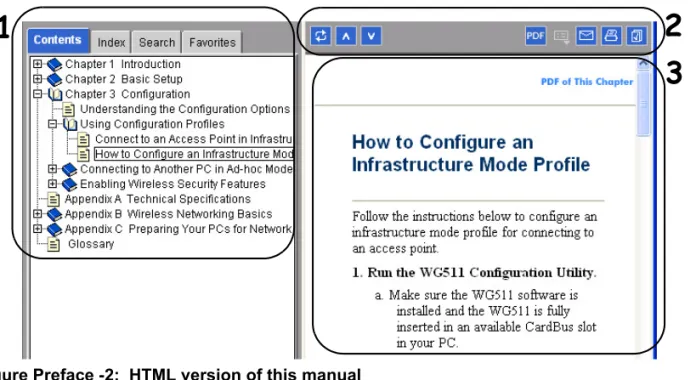
The HTML version of this manual includes these features.
Figure Preface -2: HTML version of this manual
1. Left pane. Use the left pane to view the Contents, Index, Search, and Favorites tabs. To view the HTML version of the manual, you must have a version 4 or later browser with Java or JavaScript enabled. To use the Favorites feature, your browser must be set to accept cookies. You can record a list of favorite pages in the manual for easy later retrieval.
2. Toolbar buttons. Use the toolbar buttons across the top to navigate, print pages, and more. – The Show in Contents button locates the currently displayed topic in the Contents tab. – Previous/Next buttons display the topic that precedes or follows the current topic. – The PDF button links to a PDF version of the full manual.
– The E-mail button enables you to send feedback by e-mail to Netgear support. – The Print button prints the currently displayed topic. Using this button when a
step-by-step procedure is displayed will send the entire procedure to your printer--you do not have to worry about specifying the correct range of pages.
– The Bookmark button bookmarks the currently displayed page in your browser.
3. Right pane. Use the right pane to view the contents of the manual. Also, each page of the manual includes a “PDF of This Chapter” link at the top right which links to a PDF file containing just the currently selected chapter of the manual.
1
2
Switch Management Overview
This chapter gives an overview of switch management, including the methods you can use to manage your NETGEAR 700 Series Managed Switch. Topics include:
• Management Access Overview • SNMP Access
• Protocols
Management Access Overview
Your NETGEAR 700 Series Managed Switch gives you the flexibility to access and manage the switch using any or all of the following methods:
• An administration console • Web browser interface
• External Simple Network Management Protocol (SNMP)-based network-management application
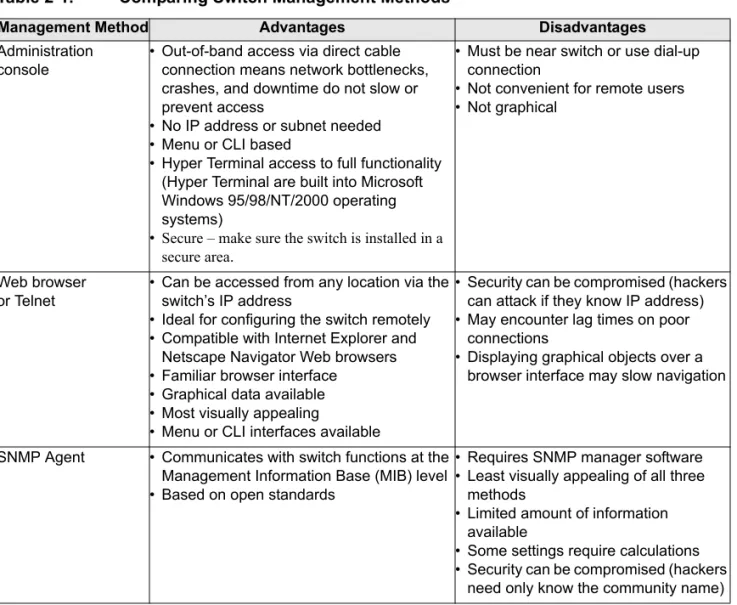
The administration console and Web browser interface support are embedded in the switch’s firmware and available for immediate use. Each of these management methods has advantages. Table 1-1 compares the three management methods.
Table 2-1. Comparing Switch Management Methods
For a more detailed discussion of the Administration Console, see chapter 3. For a more detailed discussion of the Web Browser Interface, see chapter 4.
Protocols
Your NETGEAR 700 Series Managed Switch supports the following protocols: • Virtual terminal protocols, such as Telnet
• SNMP
Management Method Advantages Disadvantages
Administration console
• Out-of-band access via direct cable connection means network bottlenecks, crashes, and downtime do not slow or prevent access
• No IP address or subnet needed • Menu or CLI based
• Hyper Terminal access to full functionality (Hyper Terminal are built into Microsoft Windows 95/98/NT/2000 operating systems)
• Secure – make sure the switch is installed in a secure area.
• Must be near switch or use dial-up connection
• Not convenient for remote users • Not graphical
Web browser or Telnet
• Can be accessed from any location via the switch’s IP address
• Ideal for configuring the switch remotely • Compatible with Internet Explorer and
Netscape Navigator Web browsers • Familiar browser interface
• Graphical data available • Most visually appealing
• Menu or CLI interfaces available
• Security can be compromised (hackers can attack if they know IP address) • May encounter lag times on poor
connections
• Displaying graphical objects over a browser interface may slow navigation
SNMP Agent • Communicates with switch functions at the Management Information Base (MIB) level • Based on open standards
• Requires SNMP manager software • Least visually appealing of all three
methods
• Limited amount of information available
• Some settings require calculations • Security can be compromised (hackers
Virtual Terminal Protocols
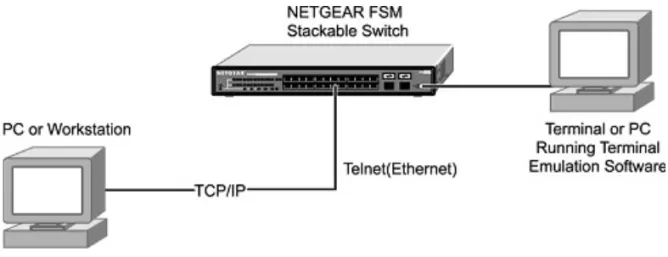
A virtual terminal protocol is a software program, such as Telnet, that allows you to establish a management session from a Macintosh, a PC, or a UNIX workstation. Because Telnet runs over TCP/IP, you must have at least one IP address configured on a NETGEAR 700 Series Managed Switch before you can establish access to it with a virtual terminal protocol.
Terminal emulation differs from a virtual terminal protocol in that you must connect a terminal or PC directly to the console port. Figure 2-1 shows a UNIX workstation connected to the system through a virtual terminal protocol (Telnet), and a terminal connecting directly to the console port through a null-modem cable.
Figure 2-1: Administration Console Access
SNMP Protocol
SNMP is the standard management protocol for multi-vendor IP networks. SNMP supports transaction-based queries that allow the protocol to format messages and to transmit information between reporting devices and data-collection programs. SNMP runs on top of the User Datagram Protocol (UDP), offering a connectionless-mode service.
SNMP Access
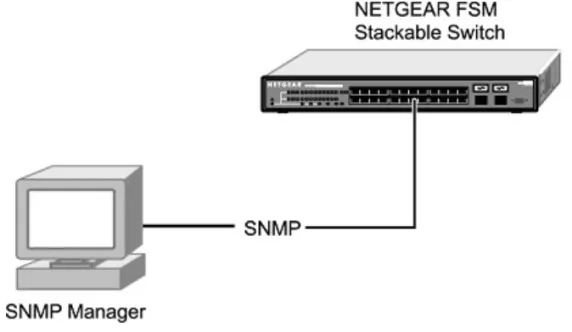
With this access method, you can use an external SNMP-based application to manage your NETGEAR 700 Series Managed Switch. Figure 2-2 shows an example of this management method.
This management method requires the SNMP agent on the switch and the SNMP Network Management Station to use the same community string and that the SNMP Network Management Station is entered in the SNMP Host table on the switch. This management method, in fact, uses two community strings: the GET community string and the SET community string. If the SNMP Network management Station only knows the SET community string, it can read from and write to the MIBs. However, if it only knows the GET community string, it can only read MIBs. The default GET community string for the switch is ‘public’, and the host table is empty.
Software Upgrade Procedure
As networking technology advances, NETGEAR will release new versions of the software that runs the switch. These software releases will provide new capabilities that can extend the useful life of your switch. This manual is updated whenever there is a change in either the first or second positions of the software version number. The third position in the software version number identifies bug fix and patch versions for which this manual is not updated. The upgrade procedure and the required equipment are described in this chapter.
IP address, Network Mask, and Default Gateway are not affected by upgrading the software. These settings will be preserved in non-volatile memory (NVRAM).
The upgrade process is accomplished by having the switch boot from a TFTP server instead of its own NVRAM. To initiate this sequence, the user must set the ‘Next Boot From’ configuration parameter to ‘Boot from Net’, and then perform a ‘reset’. When the ‘Boot from Net’ option is set, the switch will start using an image residing on a TFTP server on the network. Be sure that the TFTP server residing on the network is accessible by the switch. Once completed, the software version should be verified in the System page.
The upgrade procedure below gives the exact steps to follow when using the web interface. The process is similar with either the CMI or CLI interfaces.
1. Go to Main Menu>Advanced>Advanced Tools>Software Upgrade.
2. Select ‘Boot from Net’ option.
3. Verify information such as the IP address for the TFTP Server and the file name of the new software image.
4. Save the setting in non-volatile memory. Use the ‘Apply’ button and then the Tools> Save Configuration screen.
Note: It is highly recommended, though not necessary, to use a RS-232 serial port connection to the switch during the software upgrade procedure. When using a Telnet Session or web interface alone, your connection to the switch will not be available until the switch has completed its boot up and entered the Spanning Tree forwarding mode. This can take up to three minutes.
5. Restart the system via the Tools>Reset command. Bootstrap will retrieve the new software image then pass control to it. The system executes the new software image.
The previous software image in non-volatile memory will not be replaced by the new software image. This enables you to return to the previous image if you do not like the new image.
6. Verify that the new software is loaded by going to the Software Download screen and checking the Software Release information.
Test your switch to make sure the new image is working correctly. If you decide to keep the new image, go to Software Download again. Select ‘Boot from Net & Save’ option.
7. Save the setting in non-volatile memory. Use the ‘Apply’ button, and then the Tools> Save Configuration screen.
8. Restart the system via the Tools>Reset command
The new image should over-write the old image in NVRAM. Verify it by going to the Software Download screen and checking the Software Release information.
Administration Console Telnet Interface
The administration console is an internal, character-oriented, VT-100/ANSI menu-driven user interface for performing management activities. Using this method, you can view the
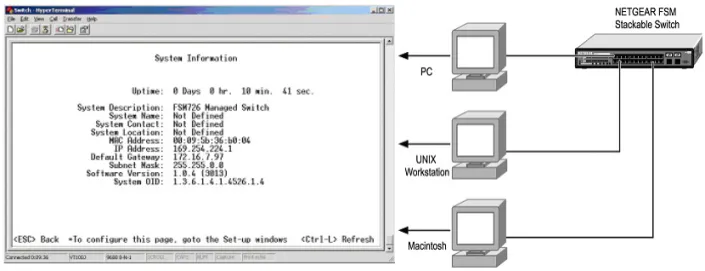
administration console from a terminal, PC, Apple Macintosh, or UNIX workstation connected to the switch’s console port. Figure 4-1 shows an example of this management method.
Figure 4-1: Administration Console Management Method
Set Up Your Switch Using Direct Console Access
The direct access management method is required when you initially set up your switch. Thereafter, the convenience and additional features of the Web management access method (described in chapter 4) make it the best method to manage the switch.
Direct access to the switch console is achieved by connecting the switch’s console port to a VT-100 or compatible terminal or to a PC, Apple Macintosh, or UNIX workstation equipped with a terminal-emulation program. This connection is made using the null-modem cable supplied with the switch.
Examples of terminal-emulation programs include:
• Hyper Terminal, which is included with Microsoft Windows operating systems • ZTerm for the Apple Macintosh
• TIP for UNIX workstations
This example describes how to set up the connection using a Hyper Terminal on a PC, but other systems follow similar steps.
1. Click the Windows Start button. Select Accessories and then Communications. Hyper Terminal should be one of the options listed in this menu. Select Hyper Terminal
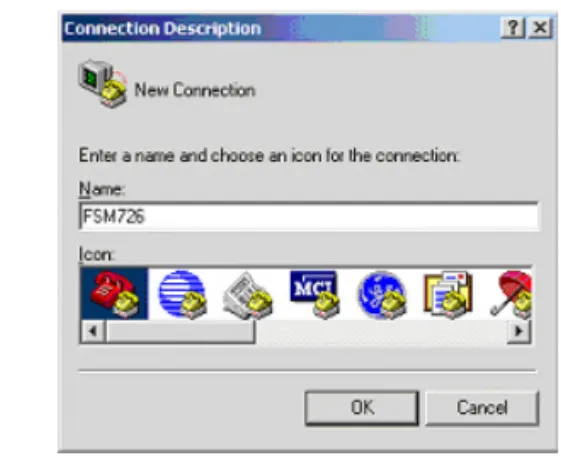
2. The following screen will appear. Enter a name for this connection. In the example below, the name of the connection is FSM726. Click OK.
Figure 4-2: Connection Description
3. The following screen will appear. In the bottom, drop down box labeled Connect Using:, click the arrow and choose the COM port to which the switch will connect. In the example below, COM1 is the port selected. Click OK.
4. When the following screen appears, make sure that the port setting are as follows:
Baud Rate: 9600
Data Bits: 8
Parity: None
Stop Bits: 1
Flow Control: None
Figure 4-4: Connection Settings
5. Click OK.
The Hyper Terminal window will open and you should be connected to the switch. If you do not get a welcome screen or a system menu, hit the return key.
When attached to the User Interface via a Telnet Session, the following must be set in order to use the arrow keys: Under the terminal pull down menu choose Properties and make sure the VT100 Arrows option is turned on.
Introduction to the Command Menu Interface
The switch offers a Command Menu Interface (CMI), which is a menu-driven method for managing the switch, as well as a Command Line Interface (CLI), which uses text inputs to manage the switch. The CLI is accessed through the CMI, but is not addressed in this chapter. Chapter 5 discusses the CLI in detail.
There are several characteristics to the CMI pages that are necessary to know before proceeding to use it. The TAB key or the arrow keys may be used to move within menus and sub-screens. At the bottom of every screen are some key commands available to the user for that particular screen, as well as some helpful information.
The common keystrokes and their definitions and intricacies are listed below: ESC Return to the previous menu or screen, or abort editing
Tab Select field
Ctrl-L Refresh the screen
Ctrl-D Log off (password enabled)
Ctrl-M Move to field (Switch Statistics and Port Configuration menus only) Ctrl-W Saves current configuration to Non-Volatile RAM (NVRAM) Spacebar Toggles between possible settings for a field
Enter Select a menu item, edit a field, or accept a value after editing a field
Ctrl-X Delete a table entry
The main menu displays all the sub-menus that are available. Striking ‘Enter’ when an option is highlighted will confirm the choice of the specified sub-menu. The ‘hotkey’ or letter in front of each menu option can also be typed to directly choose that option. As shown below, there are six menu items to choose from:
Figure 4-5: Main Menu
To logout of the user interface, hit Ctrl-D at any time during your telnet session. You will be brought back to the login screen (password enabled) or Main Menu (password disabled).
Main Menu> System
This screen displays the main menu System Information options. The user definable options are: System Name, System Contact, System Location, IP Address, Default Gateway, and Subnet Mask. The System OID option is used for production testing.
Figure 4-6: System Information
Main Menu> Status
There are two Status sub-menus: Switch Statistics and MAC Address Table.
Main Menu> Status >Statistics
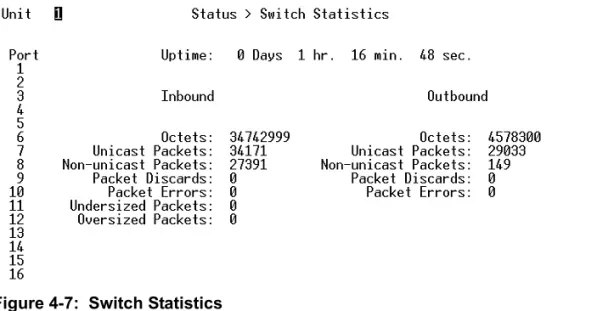
The Port-ID field allows you to choose a port to be observed. To get to the left side, use Ctrl-M to move to that field. The screen displays basic statistics associated with the highlighted port.
Figure 4-7: Switch Statistics
Main Menu> Status >Statistics Rest
The Statistic Reset menu allows the user to reset the statistic counter to zero. When you choose this option, a prompt will appear asking you for a confirmation. Once the confirmation is made, the statistics counters will be reset to zero.
Figure 4-8: Reset Switch Statistics
Main Menu> Status > MAC Address Table
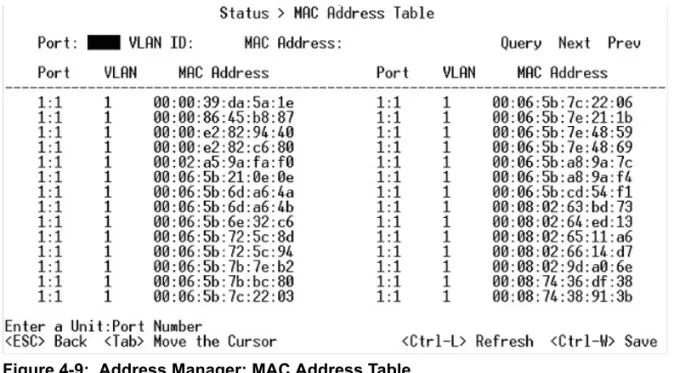
The MAC Address lookup table displays the MAC addresses that are currently in the address database. When addresses are in the database, the packets intended for those addresses are forwarded directly to those ports. You can filter out addresses in the table by port, VLAN, or MAC address by entering a value in those fields, and selecting ‘Query.’
Figure 4-9: Address Manager: MAC Address Table
Main Menu> Set-Up
There are three sub-menus at Set-Up menu, System Configuration, IP Configuration, and Port Configuration.
Main Menu> Set-Up> System Configuration
The System Configuration allows the user to enter a number of system-related information for easy reference in the future. Such items include System Name, Contact Person, and System Location. The MAC address is also shown, but it is not user configurable.
Figure 4-10: System Configuration
IP Assignment Mode. The user manually enters IP related information
• Bootstrap Protocol, which allows the switch to discover its own IP address from a BootP server on the network
• DHCP, which allows the switch to accept DHCP broadcasts from a DHCP server and automatically configures IP related information
The default setting is DHCP, to enable quick and easy set-up. However, since you need to know the IP address of your switch to remotely manage it and DHCP assignments can change, change the IP assignment mode from DHCP to manual after the switch has obtained its IP address.
Figure 4-11: Set-up Manager: IP Configuration
Note: In DHCP mode, if the switch fails to get a DHCP assignment, the switch defaults to 192.168.0.1 as its IP address.
If you are in the manual mode and need to configure the IP information, enter a site-specific IP address, Gateway Address, and Network Mask (or subnet mask). Consult your network administrator for the information.
Press Ctrl-W to save any changes to NVRAM.
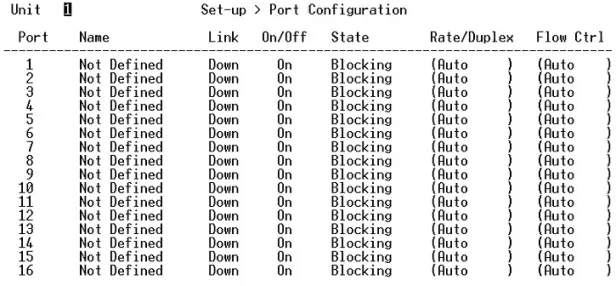
Main Menu> Set-Up> Port Configuration
On this page, you can set up the port characteristics related to link operations. All of the
parameters on this page are toggle settings. To change, or toggle, between options, hit Ctrl-M to move the curser to the ports field and simply strike the space bar when the appropriate option is highlighted. To modify ports 17 to 26, you must tab through ports 1 to 16. The comments field is available for you to enter a description of the port.
Figure 4-12: Port Configuration
Admin field. Allows you to Enable or Disable the port.
State field. The State field displays the Spanning Tree State of the port (Blocking, Listening, Learning, Forwarding, or Disabled). You can only observe the status of the ports; you cannot modify this field. The Spanning Tree Protocol controls this field.
Rate/Duplex field. Offers the choice of Full-duplex, Half-duplex, or Auto negotiation.
Enabling auto-negotiation on a port allows a port to sense the communication speed and negotiate the duplex mode (full duplex or half duplex) automatically. The ports will select the highest possible throughput. The port can auto-negotiate with any port that is compliant with IEEE 802.3u. If the other port is not IEEE802.3u compliant, the port will default to half-duplex, 10 Mbps mode. Users can operate the communication speed and duplex mode manually.
Flow Control. Allows you to enable or disable Flow Control.
Flow control is a protocol that prevents packets from being dropped by reducing the amount of traffic to a level that can be accommodated. If enabled on both ends of a connection, it will prevent the sender from sending data until the receiver can accept it. This switch complies with the IEEE802.3x flow control standard.
Gigabit Ports. For the gigabit ports on each switch, the port type may be chosen. The default is that the port uses the RJ-45 interface (GT). You can select the GBIC interface (GB) by switching the port type from ‘GT’ to ‘GB’. This can be done by hitting the space bar when the cursor is on the port number.
Note: enabling the GBIC connector for a Gigabit Ethernet port disables the built-in 1000BASE-T port. GBIC ports do not support Auto Negotiation. You must manually configure the GBIC port. The default values are 1000 Mbps, full duplex.
Main Menu> Set-Up> GBIC
On this page, you can set up the port characteristics related to GBIC or copper media.
Figure 4-13: GBIC Port Configuration
All of the parameters on this page are toggle settings. To change, or toggle, between options, hit Ctrl-M to move the curser to the ports field and simply strike the space bar when the appropriate option is highlighted.
Main Menu> Tools
These system tools are provided: • Save Configuration to NVRAM • Restore Factory Values
After making changes to any of the information on the screens in the console interface, users must save the changed settings to NVRAM. Save Configuration to NVRAM.
Figure 4-14: Save Settings to NVRAM & Restore Factory Values
• To Save Configuration to NVRAM, select the Save option, and press either ‘Enter’ or ‘Y’ to save the configuration to NVRAM.
• To Restore Factory Values, select the Restore Factory Values to reset the switch parameters to their original default settings. In order for changes to take effect, you must Reset the switch.
Note: Network IP settings (i.e. IP address, Gateway Address, Network Mask) will not be affected by this command.
• To use the Reset Switch option, select it from the menu, which will restart the switch. Resetting the switch is the equivalent of turning the power off and on. Resetting the switch will clear the statistical counters to zero.
Main Menu> Security
This screen allows the user to enable or disable the web and/or telnet interfaces, as well as change the user name and password. To use password protection, you must enable Password Protection. User names and passwords are case sensitive and can be up to 20 characters long. The factory default password is password in lower case letters.
Figure 4-15: Security
Note: Using telnet, you can only enable/disable the web interface. You cannot enable/disable the telnet interface.
If you forget your password, contact NETGEAR technical support at 1-888-NETGEAR (in North America).
Main Menu> Advanced
The Advanced page allows professional users to operate more complicated features of the device, which include VLAN, Spanning Tree, Port Trunking, Multimedia support (IGMP), traffic
prioritization, SNMP, and port mirroring. These features are powerful and can degrade or disable a network if improperly used. The eleven sub-menus are introduced below.
• Advanced Security: The user can configure the security settings of the switch by choosing either to use basic password or RADIUS server to authenticate the user attempting to configure the switch. In addition, the user can also set up IP filtering to allow only approved users on the network to configure the switch.
• Port-Based Authentication: The user can configure the ports of the switch for authentication through a RADIUS server to authenticate the user attempting to connect to the network through a port on the switch.
• Port Mirroring: Users can designate a port for monitoring traffic from one or more other ports or of a single VLAN configured on the switch. The switch monitors the network activity by copying all traffic from the specified monitoring sources to the designated monitoring port, to which a network analyzer can be attached.
• Port Trunking: a feature that allows multiple links between switches to work as one virtual link (aggregate link). Trunks can be defined for similar port types only. For example, a 10/100 port cannot form a Port Trunk with a gigabit port. For 10/100 ports, trunks can only be formed within the same bank. A bank is a set of eight ports. Up to four trunks can be operating at the same time. Toggle the ports to the correct trunk number to set up a trunk. After clicking Apply, the trunk will be enabled. Spanning Tree will treat trunked ports as a single virtual port. • Virtual Cable Tester: The user can use this feature to test the continuity of the cable circuit. • Advanced Tools: The user can upgrade the software of the switch or save/load the switch
configuration file to a TFTP server.
• Traffic Management: Class of Service (CoS), also referred to as Quality of Service (QoS), is a way of managing traffic in a network, by treating different types of traffic with different levels of service priority. Higher priority traffic gets faster treatment during times of switch
congestion. Priority can be based on VLAN tags, ports, or Differentiated Service Code Points (DSCP).
• Broadcast Control: The user can configure the threshold for the maximum broadcast packets per port.
• VLANs: A Virtual Local Area Network (VLAN) is a means to electronically separate ports on the same switch from a single broadcast domain into separate broadcast domains. By using VLAN, users can group by logical function instead of physical location. There are 64 VLAN supported on this switch.
• Spanning Tree Protocol (STP) ensures that only one path at a time is active between any two network nodes. There are maybe more than two physical path between any two nodes for redundant paths; STP ensures only one physical path is active and the others are blocked. STP will prevent an inadvertent loop in a network, which can disable your network due to a “Broadcast storm”, the result of a broadcast message traveling through the loop again and again.
• MAC: MAC address table. This menu allows you to set the aging time, as well as entering static MAC addresses to the switch.
• Multimedia Support (IGMP): The Internet Group Management Protocol (IGMP) is an Internet protocol that provides a way for network devices to report multicast group membership to adjacent routers.
• SNMP: You can use an SNMP-based Network Management Software program to manage your switch. This menu allows you to set up the appropriate tables to enable the switch to respond to SNMP queries.
• Command Line: A user interface that allows the user to configure the switch via a command line interface. See chapter 5 for information about the Command Line Interface (CLI)
Main Menu> Advanced> Advanced Security
This menu option allows you to configure the advanced security settings of the switch to limit the access to the management interfaces.
Figure 4-16: Advanced Security
There are two advanced security options beyond the basic password protection: RADIUS client authentication and IP Filtering. If you have a RADIUS server on your network, you can have authentication of management access done through the RADIUS server. This does not affect traffic passing through the switch, but only authenticates access to the switch management. The same is true for IP Filtering. Here, you can allow only users with specific IP addresses to access the management features, thus preventing unauthorized personnel from configuring to the switch.
Main Menu> Advanced> 802.1x Port-Based Authentication
This menu option allows you to configure the 802.1x security settings of the switch to require RADIUS authorization to access ports on the switch.
802.1x port-based authentication provides RADIUS client authentication and data encryption features (see Appendix C, “802.1x Port-Based Authentication Overview”). If you have a RADIUS server on your network, you can have authentication of port access done through the RADIUS server. This does affect traffic passing through the switch, which can be helpful is securing your network from wireless eavesdropping when a wireless access point is connected to the switch. To enable 802.1x, provide the IP address of the RADIUS server, and the shared secret authentication key. The re-authorization timer determines how frequently the session will refresh the data encryption with a new key.
Main Menu> Advanced> Port Mirroring
This menu option allows you to enable the Port Mirroring capability (see Figure 6-13). You need to specify both the Source and Monitor port.
Figure 4-18: Port Mirroring
The Monitor port will show a copy of every packet that arrives and departs at the Source port.
Main Menu> Advanced> Port Trunking
Port Trunking is a feature that allows multiple links between switches to work as one virtual link or aggregate link.
Figure 4-19: Port Trunking
Trunks can be defined for similar port types only. For example, a 10/100 port cannot form a Port Trunk with a gigabit port. For 10/100 ports, trunks can only be formed within the same bank. A bank is ports 1 to 8, ports 9 to 16, ports 17 to 24, or port 25 and port 26 (using an FSM726 as an example), on the same switch unit. Up to four trunks can be enabled at the same time. To set up a trunk, use the space bar to select the ports that will participate in the trunk. Spanning Tree will treat trunked ports as a single virtual port.
Note: You must use straight-though cables for all links in the trunk. Do not use crossover cables. And, you must disable auto-negotiation on the ports in a trunk prior to setting up the trunk.
Main Menu> Advanced> Virtual Cable Tester
The virtual cable tester feature lets you test the continuity of the GBIOC cable circuit.
Figure 4-20: Virtual Cable Tester
Note: Only the console menu will let you run the virtual cable tester on any port. Other
management interfaces require port access and therefore cannot reliably test the cable continuity of the port they are using to access the switch.
Main Menu> Advanced> Advanced Tools
This menu provides you with the ability to upgrade the software for the switch as well as saving or loading the switch configuration file to a TFTP server.
Main Menu> Advanced> Advanced Tools> Software Upgrade
If new improvements to the software that runs the switch become available, this menu enables you to upgrade your switch to the new software release.
Figure 4-21: Software Upgrade
Once the IP address of the TFTP and the path location of the new software image file is properly configured, the user can choose to boot the switch using one of three options. Please refer to Chapter 2 Software Upgrade Procedure when updating software.
• Net option:. This option allows you to try out a new image before upgrading. It requires a TFTP filename and a server IP address to retrieve the specified image from the given IP address. The new image will not overwrite the one in non-volatile memory.
• Net & save option.This option requires the same setup as the Net option, i.e. TFTP server and a new image. However, it copies the image to non-volatile memory directly and then the system boots from non-volatile memory
Warning: The previous image in non-volatile memory will be lost when the procedure completes.
• Last Saved option. The system will boot from non-volatile memory. This option will automatically show up after the ‘Net & save’ option is selected and the unit is reset. Main Menu> Advanced> Advanced Tools> Configuration Management
This menu allows you to save your configuration, in case you want to keep a copy for back-up purposes.
Warning: Do not edit your configuration file. Editing your file can cause your switch to lose its management capabilities, and possibly degrade its performance. Editing the configuration file will void your warranty.
Figure 4-22: Configuration Management
This menu also allows you to download your configuration file back to the switch to restore your settings.
Main Menu> Advanced> Traffic Management
Traffic management covers the methods to improve the performance of your network by differentiating traffic and limiting excess broadcast traffic.
There are two means to differentiate traffic with this switch- VLAN tags or Differentiated Service Code Points (DSCP) in the header of data packets. By using either the VLAN tags (port-based) or DSCP (DiffServ), you can configure the switch so that certain traffic will take priority over less critical traffic.
Main Menu> Advanced> Traffic Management> Port Priority
Figure 4-24: Traffic Prioritization
Main Menu> Advanced> Traffic Management> DiffServ
Differentiated Service (DiffServ) uses a priority tag in the packet, the Differentiated Service Code Point (DSCP), to determine the priority of the packet.
There are 64 different tags available. This menu maps the various DSCP tags to the two output queues on each port.
Main Menu> Advanced> Traffic Management> Broadcast Control
Broadcast control lets you set a threshold for the number of broadcast packets sent over a port.
Figure 4-26: Broadcast Control
Main Menu> Advanced> VLANS
A Virtual Local Area Network (VLAN) is a means to electronically separate ports on the same switch from a single broadcast domain into separate broadcast domains.
Figure 4-27: VLANS
By using VLAN, users can group by logical function instead of physical location. This switch supports up to 64 VLANs. This switch supports static, port-based VLANs. The VLAN Setup options are as follows:
Main Menu> Advanced> VLANS> VLAN Admin
Up to 64 VLANs with unique ID numbers and names can be added. VLAN ID numbers must be in the range of 1-4094. Per industry standard, the default VLAN has an ID of 1.
Figure 4-28: VLAN Administration
To add a VLAN, enter a unique numeric VLAN ID and then enter a unique VLAN name. To remove a port or an entire VLAN, just press Ctrl-X anywhere on the line of the VLAN. Main Menu> Advanced> VLANS> VLAN Membership
This matrix allows for real time management of up to 64 VLANs.
Figure 4-29: VLAN Membership
To add a port to a VLAN, position the cursor in the desired matrix location and toggle the options with the SPACE bar.
A ‘U’ or ‘T’ will be displayed for each port assigned to the VLAN, where ‘U’ stands for untagged and ‘T’ for tagged. If a port is an untagged member of a VLAN, the VLAN tag will be striped from the frame before it is sent out that port. If the port is a tagged member of a VLAN, the VLAN tag will stay in the frame when it is sent. A ‘_’ space indicates that the port is not a member of the particular VLAN, and will not receive or forward any traffic for that VLAN. VLAN tagging is a standard set by the IEEE to facilitate the spanning of VLANs across multiple switches. (Reference: Appendix B and IEEE Std 802.1Q-1998 Virtual Bridged Local Area Networks). Main Menu> Advanced> VLANS> VLAN Ports
All untagged packets entering the switch will by default be tagged with the ID specified by the port’s PVID.
Figure 4-30: PVID Settings
This screen allows you to specify the PVID for each port. The number next to each port indicates which PVID is set for each port. Following industry standards, PVID 1 is the default PVID.
Main Menu> Advanced> Spanning Tree
This switch is compliant with IEEE802.1D Spanning Tree Protocol (STP).
Figure 4-31: Spanning Tree
STP ensures that only one path at a time is active between any two network nodes. There may be more than one physical path between any two nodes, forming a loop, either created for redundancy or by accident. STP ensures only one physical path is active and the others are blocked. If a loop is created for redundancy, STP will monitor the two paths and activate the stand-by path if the primary path fails. If a loop was created inadvertently, STP will disable one of the two paths. A loop in a network can disable your network by causing a “Broadcast storm”, the result of a broadcast message traveling through the loop again and again.
Main Menu> Advanced> Spanning Tree> Bridge Settings Spanning Tree can be enabled or disabled in this screen.
Figure 4-32: Spanning Tree: Bridge Settings
When Spanning tree is used in conjunction with a set of aggregated ports, otherwise known as a port trunking, Spanning Tree will treat the trunk as a single virtual port.
• Enable: There are four other tunable parameters to be addressed when enabled.
Hello Time Time between configuration messages sent by the Spanning Tree algorithm Max Age Amount of time before a configuration message is discarded by the system Forward Delay Amount of time system spent transitioning from the ‘learning’ to the
‘listening’ to the ‘forwarding’ states
Bridge Priority Priority setting among other switches in the Spanning Tree • Disable: Disable Spanning Tree algorithm on the system.
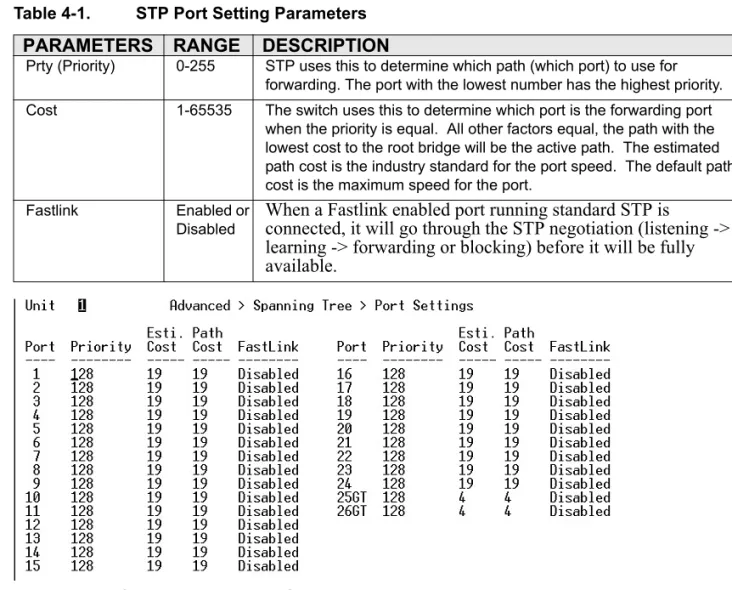
Main Menu> Advanced> Spanning Tree> Port Settings
For the Port Settings options, you can specify Spanning Tree port priority, cost, and Fastlink parameters for each port.
Table 4-1. STP Port Setting Parameters
Figure 4-33: Spanning Tree: Port Settings
Fastlink in STP mode. If a client is trying to access a server through the switch running the STP negotiation, it will not be able to connect to it immediately. This can be a problem for some networks. Fastlink mode solves this problem by setting the port to direct forwarding mode, thus allowing any server access request to be forwarded. Fastlink mode can cause temporary loops in your network, but STP will find and eliminate them. Fastlink is best used on end node ports, i.e. ports connected to PCs or servers, and not on uplink ports to other switches.
Main Menu> Advanced> MAC Address Manager
Static Address and Address Aging can be configured here.
PARAMETERS RANGE DESCRIPTION
Prty (Priority) 0-255 STP uses this to determine which path (which port) to use for forwarding. The port with the lowest number has the highest priority. Cost 1-65535 The switch uses this to determine which port is the forwarding port
when the priority is equal. All other factors equal, the path with the lowest cost to the root bridge will be the active path. The estimated path cost is the industry standard for the port speed. The default path cost is the maximum speed for the port.
Fastlink Enabled or
Disabled
When a Fastlink enabled port running standard STP is
connected, it will go through the STP negotiation (listening -> learning -> forwarding or blocking) before it will be fully available.
Figure 4-34: MAC
Main Menu> Advanced> MAC Address Manager> Address Aging
The aging time is the amount of time that an entry is kept in the bridge tables prior to being purged (or aged). The range (in parentheses) represents the minimum and the maximum values that the timer can be set. The industry standard default is 300 seconds.
Main Menu> Advanced> MAC Address Manager> Static Addresses
The Static Address Table allows you to specify Media Access Control (MAC) addresses for specific ports that will not be purged from the bridge table by the aging function.
Figure 4-35: MAC: Static Address
• Adding an entry. Type the MAC address under the first column, and hit Enter. Then, enter the port number associated with that MAC address.If all the information is correct, the new entry will appear in the list, which is listed by port ID. Otherwise, an error message will be displayed and the cursor will return to the MAC Address field.
• Removing an entry. Tab to the entry and press Ctrl-X. This will erase the MAC address from NVRAM. This action takes effect immediately; you do not need to use Ctrl-W to save the update.
Main Menu> Advanced> Multimedia Support
In networks where multimedia applications generate multicast traffic, Internet Group Multicast Protocol (IGMP) can greatly reduce unnecessary bandwidth usage by limiting traffic forwarding that is otherwise broadcast to the whole network. Enabling IGMP will allow individual ports to detect IGMP queries, report packets, and manage IP multicast traffic through the switch. Main Menu> Advanced> Multimedia Support> Enable/Disable IGMP
Figure 4-36: Multimedia Support
• Enable. The system will detect IGMP queries, report packets, and manage IP multicast traffic through the switch
• Disable. The switch will forward traffic and disregard any IGMP requests.
Main Menu> Advanced> Multimedia Support> Static Multicast Administration Use this menu to configure permanently reachable multicast groups.
Figure 4-37: Static Multicast Administration
The Static Multicast Administration menu lets you create individual groups by entering MAC addresses for your static multicast group. The membership of each group is configured in the Static Multicast Membership menu.
Main Menu> Advanced> Multimedia Support> Static Multicast Membership
Once the static multicast groups are defined in the Static Multicast Administration menu, you can use this menu to specify the membership of each group by specifying the ports that belong to each group.
Main Menu> Advanced> SNMP
Figure 4-39: SNMP Management
You can manage this switch using the Simple Network Management Protocol (SNMP) from a network management station. To do so, you must configure your switch to participate in the SNMP community and you must add the SNMP host agent to the host table. This prevents unauthorized SNMP access to your switch from non-approved SNMP hosts.
Support for these Standard MIBs is included: • MIB II (RFC1213)
• Ethernet Interface MIB (RFC1643) • Bridge MIB (RFC1493)
• Private Enterprise MIB (see the Resource CD for Managed Switches) • 4-Group RMON (RFC1757)
Main Menu> Advanced> SNMP> Community Table
You can create up to eight community strings which combine GET, SET, and TRAP privileges.
These community strings need to be set prior to setting host access, as the host table depends on the existence of community strings. The public string has GET privileges by default.
Main Menu> Advanced> SNMP> Host Table
The screen, shown in Figure 6-29, grants a host the access rights to the switch. Host Authorization is a security feature to limit people who are not listed in the host table from accessing the switch using SNMP.
Figure 4-41: SNMP Management: Host Table
To add a host, enter the host name, IP address, and the community string. Press Enter after each entry to move to the next field. In the Status field, press the Spacebar until the desired Status is displayed. Press Ctrl-W to save all changes.
Main Menu> Advanced> SNMP> Trap Settings
When on, the system will generate an SNMP trap upon a host authorization failure. This failure occurs when a host tries to gain access to the system but the host’s IP is not in the SNMP host table.
Figure 4-42: SNMP Management: Trap Settings
With authentication traps enabled, the system generates a SNMP trap when a host authorization fails. Hosts in community strings with TRAP privileges are notified when a trap occurs.
Web-Based Management Interface
Your NETGEAR 700 Series Managed Switch provides a built-in browser interface that lets you configure and manage it remotely using a standard Web browser such as Microsoft Internet Explorer 5.0 or later or Netscape Navigator 6.0 or later.
This interface also allows for system monitoring and management of the switch. The ‘help’ page will cover many of the basic functions and features of the switch and it’s web interface.
When you configure the switch for the first time from the console, you can assign an IP address and subnet mask to the switch. Thereafter, you can access the switch’s Web interface directly using your Web browser by entering the switch’s IP address into the address bar. In this way, you can use your Web browser to manage the switch from a central location, just as if you were directly connected to the switch’s console port. Figure 4-1 shows this management method.
Web Based Management Overview
The 6 menu options available are: System, Status, Set-up, Tools, Security, and Advanced. There is a help menu in the top of right side of screen; you can click the ‘help’ or the question mark to read the help menu.
The help menu contains:
• Web-Based Management Introduction to the Web management features.
• Device Management Introduction of the basic icons and management of the device • Interface Operations Describes Web browser requirements, and common commands • Product Overview Describes supported SNMP and Web management features • Summary of Features Feature List
Within the various browser interface pages, there are several buttons that you can use. Their names and functions are below:
• Reload: Pulls that screen’s data from current values on the system • Apply: Submits change request to system and refreshes screen data • Add: Adds new entries to table information and refreshes screen data • Remove: Removes selected entries from table and refreshes screen data • Reset: Resets the system, which is equivalent to power off /on.
• Restore: Restores system factory default values, except password and IP. • Query: System will retrieve the useful information in database.
System Information
Figure 5-2: System information page
This welcome page displays system information, such as: • System Description
• System Name • System Contact • System Location
• Current Local Time (according to your computer) • System Uptime
• MAC Address • IP Address • Subnet Mask • Default Gateway • Software Version
These parameters are not editable from this screen. Some of these can be modified in the Set Up> System Configuration page or the Set Up> IP Configuration page.
Status Menus
The Status page contains 5 menus.
Figure 5-3: Status Menu navigation • Switch Statistics
• Port Statistics • Error Statistics • Most Active Ports • Reset Statistics • Port Settings
• MAC Address Table
Status > Switch Statistics
The Switch Statistics Chart allows you to compare one type of statistic across all the ports. You can reset the counters in the Reset Statistics page.
Figure 5-4: Switch Statistics
You can configure the following options on the Switch Statistics Chart: • Statistics The type of system data to be monitored
• Refresh Rate The time interval between automatic refreshes (5, 10, 15, 30 seconds) • Color The color setting for the chart
There are 24 kinds of Statistics that you can review on this screen: • Inbound Octet Rate: Received Byte per second.
• Inbound Unicast Packet Rate: Received Unicast packet per second.
• Inbound Non-unicast Packet rate: Received Non-unicast packet per second. • Inbound Discard Rate: Received and is discarded packet per second. • Inbound Error Rate: Received error packet per second.
• Outbound Non-unicast Packet Rate: Transmitted non-unicast packet per second. • Outbound Discard Rate: Transmitted and is discarded packet per second. • Outbound Error Rate: Transmitted error packet per second.
• Ethernet Undersize Packet Rate: Less than 64byte length packet per second. • Ethernet Oversize Packet Rate: More than 1518byte length packet per second • Inbound Octets: Received bytes
• Inbound Unicast Packets: Received unicast packet
• Inbound Non-unicast Packets: Received non-unicast packet • Inbound Discards: Received and is being discarded packet. • Inbound Errors: Received and is a error packet
• Outbound Octets: Transmitted byte
• Outbound Unicast Packets: Transmitted unicast packet
• Outbound Non-unicast Packets: Transmitted non-unicast packet. • Outbound Discards: Transmitted and is being discarded packet • Outbound Errors: Transmitted and is an Error packet.
• Ethernet Undersize Packets: Less than 64byte length packet • Ethernet Oversize Packets: more than 1518 byte length packet.
Status > Port Statistics
Figure 5-5: Port Statistics
The Port Statistics Chart shows all the statistic types for one port over time. You can reset the counters in the Reset Statistics page.
• Port The port on which data will be monitored. • Refresh Rate The time interval between automatic refreshes • Color The color setting for the data
There are 12 kinds of Port Statistics • Inbound Octets: Received bytes
• Inbound Unicast Packets: Received unicast packet
• Inbound Non-unicast Packets: Received non-unicast packet • Inbound Discards: Received and is being discarded packet. • Inbound Errors: Received and is a error packet
• Outbound Octets: Transmitted byte
• Outbound Discards: Transmitted and is being discarded packet • Outbound Errors: Transmitted and is an Error packet.
• Ethernet Undersize Packets: Less than 64byte length packet • Ethernet Oversize Packets: more than 1518 byte length packet.
Status > Error Statistics
Figure 5-6: Error Statistics
The Error Statistics Graph allows you to chart one type of statistic for any combination of ports. In the case of the Error Statistics Graph, the chart will present data across time so that fluctuations in time can be easily seen.
All charts have a maximum ceiling of more than 2.1 billion (2,147,483,647). You can see the value of each bar or line in the chart by clicking on the bar. The following will outline the settings for each type of graph.
• Statistics The type of system errors to be monitored
• Refresh Rate The time interval between automatic refreshes (5,10,15, 30 seconds) • Port Selection The port for data to be monitored
Status > Most Active Ports
Figure 5-7: Error Statistics
This page allows you to view the transmission and reception utilization of top 10 ports. It is especially useful when you want to see the potential bottlenecks in the switch. A bottleneck is a port with egress traffic closing to line rate. The receive side picture indicates potential nodes causing the problem.
Refresh Rate
:
The time interval between automatic refreshes (5, 10, 15, 30 seconds).
There are four separate colors in the utilization bar to indicate four different types of packets: • Unicast: blue• Non-Unicast: black • Error: red
• Drops: amber
Status > Reset Statistics
Figure 5-8: Statistics Counter Reset
The Reset Statistics screen lets you reset all statistics counters of the switch. By pressing on the Reset button, all counters will be set to 0.
Status > Port Settings
Figure 5-9: Port Settings
This page displays the port settings. To configure the ports, go to the ‘Port Configuration’ under the ‘Set-up’ sub menu.
• Port: The port number on the switch
• Link: A green triangle pointing up indicates a valid link, while a red triangle pointing down indicates no link.
• On/Off: Indicates if the port is enabled or disabled by the Administrator.
• State: This refers to the Spanning Tree state of the port. Ports will be Blocking (Blk), Listening (Lis), Learning (Lrn), Forwarding (Fwd) or Disabled (Dis). • Speed: Indicates the speed and duplex for the port. The possible entries are
Auto-negotiation (Auto); 10 Mbps half duplex (10M Half); 10 Mbps full duplex (10M Full); 100 Mbps half duplex (100M Half); or 100 Mbps full duplex (100M Full).
• Flow Control: Indicates whether Flow Control support is set for automatic (Auto) or off (Disabled)
• Priority Indicates if the port is set to high priority or normalpriority. This is an advanced feature that is configured under Traffic Prioritization
• Trunk ID Indicates if the port is a member of a trunk by showing the ID number of the trunk. This is an advanced feature that is configured under Port Trunking
Status > MAC Address Table
Figure 5-10: MAC Address Table
The MAC Address Table is a dynamic address lookup table that allows you to view the dynamic MAC addresses that are currently in the address database. When a MAC address is in the database, the packets intended for that address are forwarded directly to that port. You can filter the
Set-up Menu
There are four kinds of configuration in the Setup page:
Figure 5-11: Setup menu System Configuration IP Configuration Port Configuration
Gigabit Port Configuration (GBIC)
Set-up> System Configuration
This page will allow access to the system information parameters. To do so:
1. Enter System Name, System Contact, or System Location.
2. Click Apply to change the System Configuration and save it in NVRAM.
3. Reset the system to implement the changes (> Save Configuration).
Set-up> IP Configuration
Figure 5-13: IP Configuration
This menu manages the IP related information of the system. IP Assignment Mode
• Manual – The user manually enters IP related information
• BootP – Bootstrap Protocol, which allows the FSM726 switch to discover its own IP address from a BootP server on the network
• DHCP – The switch accepts DHCP broadcast from a DHCP server and automatically configures IP related information
Note: In DHCP mode, if the switch fails to get a DHCP assignment, the switch defaults to 192.168.0.1 as its IP address.
To enable quick and easy set-up, the default setting is DHCP. However, DHCP addresses change over time, and you need to know the IP address of your switch so that you can remotely manage it. After completing the initial setup, change the IP assignment mode from DHCP to manual. If you choose Manual mode, enter site-specific IP address, Gateway address and Net mask.
Click Apply to change the IP settings
Save Configuration to NVRAM and reset the system to implement the changes (Tools > Save Configuration).
Set-up> Port Configuration
Figure 5-14: Port Configuration
This menu allows you can configure the status of each port.
• Port: The port number on the switch
• Name: The name of the port. This is a user-defined label.
• Link: A green triangle pointing up indicates a valid link, while a red triangle pointing down indicates no link.
• On/Off: Indicates if the port is enabled or disabled by the Administrator.
• State: This refers to the Spanning Tree state of the port. Ports will be Blocking (Blk), Listening (Lis), Learning (Lrn), Forwarding (Fwd) or Disabled (Dis).
• Speed: Indicates the speed and duplex for the port. The possible entries are Auto-negotiation (Auto); 10 Mbps half duplex (10M Half); 10 Mbps full duplex (10M Full); 100 Mbps half duplex (100M Half); or 100 Mbps full duplex (100M Full).
• Flow Control: Indicates whether Flow Control support is set for automatic (Auto) or off (Disabled)
Set-up> GBIC
This page allows the user to choose the port type for the gigabit ports. The default is 1000BASE-T (RJ-45).
Figure 5-15: Setup: GBIC
If you want to use a GBIC, the setting on this page must be set accordingly. The switch auto-detects if the media is copper or GBIC. This Auto-detect feature is enabled by default.
Note: Enabling the GBIC connector for a Gigabit Ethernet port disables the built-in 1000BASE-T port.
Tools Menu
The Tools page contains functions to maintain your switch.
Figure 5-16: Tools Menu
There is a firmware upgrade; the means to save current settings to non-volatile memory (NVRAM); as well as software reset mechanism. The page has two sub-pages:
• Save Configuration • Restore Factory Defaults • Device Reset
Tools> Save Configuration
After making any changes to the screens within the Web Interface, you can save the changed settings to NVRAM. If changes are not saved to NVRAM, then they will be lost during the next switch reset or reboot.
Tools> Restore Factory Defaults
Figure 5-18: Save Configuration
This page allows you to restore the factory configuration by clicking "Restore", the system saves the default settings (including password) into the NVRAM and resets itself.
Note: Network IP settings (i.e. IP address, Gateway Address, Network Mask) will not be affected by the Restore command.
Tools> Device Reset
Figure 5-19: Device Reset
In this screen the user can reset (power cycle) the switch. Reset the switch by selecting 'Reset'
Security> Passwords
The user name and password can be up to 20 characters and are case sensitive. The password entered is encrypted on the screen and will display as a sequence of asterisks (*). The factory default password is password in lower case letters.
On this page, you can:
• Enable or disable password protection • Change the user name and password • Click Apply to activate the new password
Note: If you have enabled password protection without setting your own password, the default password is password in all lower case letters.
Advanced Options
There are 11 sub-menus in the Advanced Section.
Figure 5-21: Advanced menu • Disable Advanced Alerting • Advanced Security
• Port Trunking • Virtual Cable Tester • Advanced Tools • Traffic Management
• VLANS
• Spanning Tree
• MAC
• Multimedia Support
The Advanced page allows professional users to operate more complicated features of the device, which include VLAN, Spanning Tree, Port Trunking, Multimedia support (IGMP), traffic
prioritization, SNMP, and port mirroring. These features are powerful and can degrade or disable a network if improperly used.
• Disable Advanced Alerting: When you select a feature in the Advanced menu, an alert will pop up to inform you that the changes you are about to make may have adverse effect on your network. Experienced users may use this option to disable these alerts.
• Advanced Security: You can configure the security settings of the switch by choosing either to use basic password or RADIUS server to authenticate the user attempting to configure the switch. In addition, the user can also set up IP filtering to allow only approved users on the network to configure the switch.
• Port-Based Authentication: The user can configure the ports of the switch for authentication through a RADIUS server to authenticate the user attempting to connect to the network through a port on the switch.
• Port Mirroring: Users can designate a port for monitoring traffic from one or more other ports or of a single VLAN configured on the switch. The switch monitors the network activity by copying all traffic from the specified monitoring sources to the designated monitoring port, to which a network analyzer can be attached.
• Port Trunking: a feature that allows multiple links between switches to work as one virtual link (aggregate link). Trunks can be defined for similar port types only. For example, a 10/100 port cannot form a Port Trunk with a gigabit port. For 10/100 ports, trunks can only be formed within the same bank. A bank is a set of eight ports. Up to four trunks can be operating at the same time. Toggle the ports to the correct trunk number to set up a trunk. After clicking Apply, the trunk will be enabled. Spanning Tree will treat trunked ports as a single virtual port. • Virtual Cable Tester: The user can use this feature to test the continuity of the cable circuit. • Advanced Tools: The user can upgrade the software of the switch or save/load the switch