D-Link
™ DGS-3100 SERIES
GIGABIT STACKABLE MANAGED SWITCH
User Manual
Information in this document is subject to change without notice. © 2007 D-Link Computer Corporation. All rights reserved.
Reproduction in any manner whatsoever without the written permission of D-Link Computer Corporation is strictly forbidden.
Trademarks used in this text: D-Link and the D-Link logo are trademarks of D-Link Computer Corporation; Microsoft and Windows are registered trademarks of Microsoft Corporation.
Other trademarks and trade names may be used in this document to refer to either the entities claiming the marks and names or their products. D-Link Computer Corporation disclaims any proprietary interest in trademarks and trade names other than its own.
FCC Warning
This equipment has been tested and found to comply with the limits for a Class A digital device, pursuant to Part 15 of the FCC Rules. These limits are designed to provide reasonable protection against harmful interference when the equipment is operated in a commercial environment. This equipment generates, uses, and can radiate radio frequency energy and, if not installed and used in accordance with this user’s guide, may cause harmful interference to radio communications. Operation of this equipment in a residential area is likely to cause harmful interference in which case the user will be required to correct the interference at his own expense.
CE Mark Warning
This is a Class A product. In a domestic environment, this product may cause radio interference in which case the user may be required to take adequate measures.
Warnung!
Dies ist ein Produkt der Klasse A. Im Wohnbereich kann dieses Produkt Funkstoerungen verursachen. In diesem Fall kann vom Benutzer verlangt werden, angemessene Massnahmen zu ergreifen.
Precaución!
Este es un producto de Clase A. En un entorno doméstico, puede causar interferencias de radio, en cuyo case, puede requerirse al usuario para que adopte las medidas adecuadas.
Attention!
Ceci est un produit de classe A. Dans un environnement domestique, ce produit pourrait causer des interférences radio, auquel cas l`utilisateur devrait prendre les mesures adéquates.
Attenzione!
Il presente prodotto appartiene alla classe A. Se utilizzato in ambiente domestico il prodotto può causare interferenze radio, nel cui caso è possibile che l`utente debba assumere provvedimenti adeguati.
VCCI Warning
Table of Contents
PREFACE...I
System Overview ... ii
Viewing the Device... ii
DGS-3100 Series Front Panel ... ii
DGS-3100-24TG Front Panel ... ii
Device Management Methods... iii
User Guide Overview... iv
Intended Audience ... iv
Notes, Notices, and Cautions ... iv
Safety Cautions ... iv
General Precautions for Rack-Mountable Products ... vi
GETTING STARTED...1
Using the Web-Based User Interface ... 1
Understanding the D-Link Embedded Web Interface ... 1
Using the Tool Menu ... 3
Displaying the Stack Status... 3
Locating Devices... 3
Backing up and Restoring Configuration Files ... 4
Resetting the Device ... 5
Downloading the Firmware... 6
Rebooting the System ... 8
Using the Web System Components... 9
CONFIGURING BASIC CONFIGURATION ...10
Viewing Device Information... 11
Defining System Information... 13
Defining IP Addresses ... 14
Managing Stacking ... 15
Managing Stacking Modes... 15
Advanced Stacking... 15
Stack Startup Process ... 17
Building Stacks – Quick Start ... 19
Stack Management Examples ... 20
Configuring Stacking ... 26
Defining Ports ... 27
Configuring Port Properties ... 27
Viewing Port Properties ... 29
ARP Settings ... 30
Configuring User Accounts... 31
Defining SNMP Host Table ... 47
Defining SNMP Engine ID ... 49
Enabling SNMP Traps ... 50
DHCP Auto Configuration... 51
Dual Image Services ... 52
Firmware Information ... 52
Config Firmware Image ... 53
CONFIGURING L2 FEATURES...54
Enabling Jumbo Frames... 55
Configuring VLANs ... 56
Understanding IEEE 802.1p Priority ... 56
VLAN Description ... 56
Notes about VLANs on the DGS-3100 Series ... 56
IEEE 802.1Q VLANs... 56
802.1Q VLAN Tags ... 58
Port VLAN ID... 59
Tagging and Untagging... 59
Ingress Filtering ... 59
Default VLANs ... 60
VLAN and Trunk Groups ... 60
VLAN Status... 60
Defining VLAN Properties ... 61
Configuring GVRP ... 63
Defining Trunking... 65
Traffic Segmentation... 67
Configuring LACP ... 68
Defining IGMP Snooping ... 69
Configuring Port Mirroring... 72
Configuring Spanning Tree... 74
Defining Spanning Tree Global Parameters... 75
Defining STP Port Settings ... 77
Defining Multiple Spanning Tree Configuration Identification... 79
Defining MSTP Port Information ... 80
Defining Forwarding and Filtering ... 82
Defining Unicast Forwarding... 82
Defining Multicast Forwarding... 83
CONFIGURING QUALITY OF SERVICE ...85
Understanding QoS ... 87
Defining Bandwidth Settings ... 88
Configuring Storm Control ... 89
Mapping Ports to Packet Priorities... 90
Configuring Port Security ... 97
Configuring Guest VLANs ... 98
Configuring Port Authentication 802.1X ... 99
Configuring MAC Authentication (by using Guest VLAN, 802.1X and Radius pages) ... 104
Defining RADIUS Settings... 107
Configuring Secure Socket Layer Security ... 108
Configuring Secure Shell Security ... 110
Defining SSH Algorithm Settings... 111
Defining Application Authentication Settings ... 113
Configuring Authentication Server Hosts ... 114
Defining Login Methods ... 115
Defining Enable Methods ... 117
Configuring Local Enable Password... 119
MONITORING THE DEVICE... 120
Viewing Stacking Information ... 121
Viewing CPU Utilization ... 122
Viewing Port Utilization ... 123
Viewing Packet Size Information ... 124
Viewing Received Packet Statistics ... 125
Viewing UMB_cast Packet Statistics... 126
Viewing Transmitted Packet Statistics... 127
Viewing RADIUS Authenticated Session Statistics ... 129
Viewing ARP Table ... 130
Viewing Router Ports... 131
Viewing Session Table... 132
Viewing IGMP Group Information... 133
Defining Dynamic and Static MAC Addresses... 134
Viewing System Log... 136
MANAGING POWER OVER ETHERNET DEVICES... 137
Defining PoE System Information ... 138
Displaying and Editing PoE System Information ... 140
DEFINING ACCESS PROFILE LISTS... 141
ACL Configuration Wizard... 142
Defining Access Profile Lists... 144
Defining Access Rules Lists ... 157
Finding ACL Rules ... 160
Preface
This preface provides an overview to the guide, and includes the following sections: • System Overview
• Viewing the Device
• Device Management Methods • User Guide Overview • Intended Audience
• Notes, Notices, and Cautions • Safety Cautions
System Overview
The DGS-3100 series and the DGS-3100-24TG Gigabit Ethernet Switches enhance networks by providing a powerful switch that eliminates network bottlenecks, enabling network administrators to fine tune network configurations.
The DGS-3100 series and the DGS-3100-24TG are perfect for departmental and enterprise connections, and are ideal for backbone and server connections.
Viewing the Device
The devices described in this section are stackable Gigabit Ethernet Managed Switches. Device management is performed using an Embedded Web Server (EWS) or through a Command Line Interface (CLI). The device configuration is performed via an RS-232 interface. This section contains descriptions for the following:
• DGS-3100 series Front Panel • DGS-3100-24TG Front Panel
DGS-3100 Series Front Panel
The DGS-3100 series provides 24/48 high performance 1000BASE-T ports. The 1000Base-T ports operate at 10/100/1000, and connect to backbones, end-stations, and servers. The DGS-3100 series also provides 4 Mini-GBIC (SFP) combo ports which connect fiber optic media to switches, servers, or network backbone. The DGS-3100 series provides an additional RS-232 port (console port) for managing the switch via a console terminal or PC with a Terminal Emulation Program.
Figure 1 DGS-3100 Series 48 Port Front Panel
DGS-3100 Series Front Panel
The DGS-3100-24TG provides eight high performance 1000BASE-TX ports. The ports operate at 10/100/1000, and connect to backbones, end-stations, and servers. The DGS-3100-24TG also provides 16 Mini-GBIC (SFP) ports which connect fiber optic media to switches, servers, or network backbone. The DGS-3100-24TG provides an additional RS-232 port (console port) for managing the switch via a console terminal or PC with a Terminal Emulation Program.
Device Management Methods
The DGS-3100 series and DGS-3100-24TG provide different methods for managing the device including: • Web Based Management Interface
• SNMP-Based Management • Command Line Console
Web Based Management Interface
Once the device is installed, network mangers can configure the switch, monitor the LED panel, and display statistics graphically via a web browser, including:
• Netscape Navigator (version 7.0 and higher) • Microsoft® Internet Explorer (version 5.0). • Mozilla Firefox (version 2.0)
SNMP-Based Management
The system also supports SNMPv1, SNMPv2c, and SNMPv3. The SNMP agent decodes the incoming SNMP messages, and replies to requests with MIB objects stored in the database. The SNMP agent updates the MIB objects to generate statistics and counters.
Command Line Console
The device also supports device configuration using the Command Line Interface. A terminal is connected to device via the serial console port.
User Guide Overview
This section provides an overview to the DGS-3100 series and the DGS-3100-24TG Switch Manual, including the guide structure and a chapter overview:
• Section 1, Getting Started — Provides general background for understanding and using the Embedded Web System, including an explanation of the interface buttons and general system functions.
• Section 2, Defining the Basic Device Configuration — Provides information for viewing system information, defining IP addresses, managing stacking, defining ports, configuring SNMP management, and defining the system time settings.
• Section 3, Configuring L2 Features — Provides information for enabling and configuring Jumbo frames, VLANs, Trunks (LAGs), Traffic Segmentation, Multicast forwarding, and Spanning Tree.
• Section 4, Configuring Quality of Service — Provides information for ability to implement QoS and priority queuing within a network.
• Section 5, Security Features — Provides information for enabling and configuring device security. • Section 6, Monitoring the Device — Provides information for monitoring the device.
• Section 7, Managing Power over Ethernet Devices — Provides information configuring the PoE function. • Section 8, Defining Access Profile Lists — Provides information for configuring the ACL.
User Guide Overview
The DGS-3100 series/DGS-3100-24TG User Guide contains information for configuring and managing the DGS-3100 series/DGS-3100-24TG Switches. This guide is intended for network managers familiar with network management concepts and terminology.
Notes, Notices, and Cautions
NOTE: A NOTE indicates important information that helps you make better use of your device.
NOTICE: A NOTICE indicates either potential damage to hardware or loss of data and tells you
how to avoid the problem.
CAUTION: A CAUTION indicates a potential for property damage, personal injury, or death.
• Do not service any product except as explained in your system documentation. Opening or removing covers that are marked with the triangular symbol with a lightning bolt may expose you to electrical shock. Only a trained service technician should service components inside these compartments.
• If any of the following conditions occur, unplug the product from the electrical outlet and replace the part or contact your trained service provider:
– The power cable, extension cable, or plug is damaged.
– An object has fallen into the product.
– The product has been exposed to water.
– The product has been dropped or damaged.
– The product does not operate correctly when you follow the operating instructions. • Keep your system away from radiators and heat sources. Also, do not block the cooling vents.
• Do not spill food or liquids on your system components, and never operate the product in a wet environment. If the system gets wet, see the appropriate section in your troubleshooting guide or contact your trained service provider. • Do not push any objects into the openings of your system. Doing so can cause a fire or an electric shock by
shorting out interior components.
• Use the product only with approved equipment.
• Allow the product to cool before removing covers or touching internal components.
• Operate the product only from the type of external power source indicated on the electrical ratings label. If you are not sure of the type of power source required, consult your service provider or local power company.
• To help avoid damaging your system, be sure the voltage selection Switch (if provided) on the power supply is set to match the power available at your location:
– 115 volts (V)/60 hertz (Hz) in most of North and South America and some Far Eastern countries such as South Korea and Taiwan
– 100 V/50 Hz in eastern Japan and 100 V/60 Hz in western Japan
– 230 V/50 Hz in most of Europe, the Middle East, and the Far East
• Also be sure that attached devices are electrically rated to operate with the power available in your location. • Use only approved power cable(s). If you have not been provided with a power cable for your system or for any
AC-powered option intended for your system, purchase a power cable that is approved for use in your country. The power cable must be rated for the product and for the voltage and current marked on the product's electrical ratings label. The voltage and current rating of the cable should be greater than the ratings marked on the product.
• To help prevent an electric shock, plug the system and peripheral power cables into properly grounded electrical outlets. These cables are equipped with three-prong plugs to help ensure proper grounding. Do not use adapter plugs or remove the grounding prong from a cable. If you must use an extension cable, use a 3-wire cable with properly grounded plugs.
• Observe extension cable and power strip ratings. Make sure that the total ampere rating of all products plugged into the extension cable or power strip does not exceed 80 percent of the ampere ratings limit for the extension cable or power strip.
• To help protect your system from sudden, transient increases and decreases in electrical power, use a surge suppressor, line conditioner, or uninterruptible power supply (UPS).
• Position system cables and power cables carefully; route cables so that they cannot be stepped on or tripped over. Be sure that nothing rests on any cables.
• Do not modify power cables or plugs. Consult a licensed electrician or your power company for site modifications. Always follow your local/national wiring rules.
• When connecting or disconnecting power to hot-pluggable power supplies, if offered with your system, observe the following guidelines:
Move products with care; ensure that all casters and/or stabilizers are firmly connected to the system. Avoid sudden stops and uneven surfaces.
General Precautions for Rack-Mountable Products
Observe the following precautions for rack stability and safety. Also refer to the rack installation documentation accompanying the system and the rack for specific caution statements and procedures.Systems are considered to be components in a rack. Thus, "component" refers to any system as well as to various peripherals or supporting hardware.
CAUTION: Installing systems in a rack without the front and side stabilizers installed could cause the rack to tip over, potentially resulting in bodily injury under certain circumstances. Therefore, always install the stabilizers before installing components in the rack.
After installing system/components in a rack, never pull more than one component out of the rack on its slide assemblies at one time. The weight of more than one extended component could cause the rack to tip over and may result in serious injury.
• Before working on the rack, make sure that the stabilizers are secured to the rack, extended to the floor, and that the full weight of the rack rests on the floor. Install front and side stabilizers on a single rack or front stabilizers for joined multiple racks before working on the rack.
Always load the rack from the bottom up, and load the heaviest item in the rack first. Make sure that the rack is level and stable before extending a component from the rack.
Use caution when pressing the component rail release latches and sliding a component into or out of a rack; the slide rails can pinch your fingers.
After a component is inserted into the rack, carefully extend the rail into a locking position, and then slide the component into the rack.
Do not overload the AC supply branch circuit that provides power to the rack. The total rack load should not exceed 80 percent of the branch circuit rating.
Ensure that proper airflow is provided to components in the rack.
Do not step on or stand on any component when servicing other components in a rack.
NOTE: A qualified electrician must perform all connections to DC power and to safety grounds. All electrical wiring must comply with applicable local or national codes and practices.
CAUTION: Never defeat the ground conductor or operate the equipment in the absence of a suitably installed ground conductor. Contact the appropriate electrical inspection authority or an electrician if you are uncertain that suitable grounding is available.
CAUTION: The system chassis must be positively grounded to the rack cabinet frame. Do not attempt to connect power to the system until grounding cables are connected. Completed power
Protecting Against Electrostatic Discharge
Static electricity can harm delicate components inside your system. To prevent static damage, discharge static electricity from your body before you touch any of the electronic components, such as the microprocessor. You can do so by periodically touching an unpainted metal surface on the chassis.
You can also take the following steps to prevent damage from electrostatic discharge (ESD):
1. When unpacking a static-sensitive component from its shipping carton, do not remove the component from the antistatic packing material until you are ready to install the component in your system. Just before unwrapping the antistatic packaging, be sure to discharge static electricity from your body.
2. When transporting a sensitive component, first place it in an antistatic container or packaging.
3. Handle all sensitive components in a static-safe area. If possible, use antistatic floor pads and workbench pads and an antistatic grounding strap.
Battery Handling Reminder
CAUTION: This is danger of explosion if the battery is incorrectly replaced. Replace only with the same or equivalent type recommended by the manufacturer. Discard used batteries according to the manufacturer's instructions.
1
GETTING STARTED
To begin managing the device, simply run the browser installed on the management station and point it to the IP address defined for the device. For example; http://123.123.123.123. Please note that the proxy for session connection should be turned off.
NOTE: The Factory default IP address for the Switch is 10.90.90.90.
This section contains information on starting the D-Link Embedded Web Interface. To access the D-Link user interface: 1. Open an Internet browser. Ensure that pop-up blockers are disabled. If pop-up blockers are enabled, edit, add, and
device information messages may not open.
2. Enter the device IP address in the address bar and press Enter.
Using the Web-Based User Interface
The user interface provides access to various switch configuration and management windows, allows you to view performance statistics, and permits you to graphically monitor the system status. The screen captures in this Guide represent the DGS-3100-48 48 port device. The Web pages in the 24 port and the DGS-3100-24TG devices may vary slightly.
Understanding the D-Link Embedded Web Interface
The D-Link Embedded Web Interface Device Information Page contains the following information:View Description
Tree View Displays the different system features, and configuration options.
Zoom View Located at the top of the home page, the port LED indicators provide a visual representation of the ports on the D-Link front panel.
Menu Information View Located below the Zoom View, displays Save, Tool menu, Stack ID, and Logout buttons. Also displays Up Time information and User Loggin Identification.
Device Information View Located in the main part of the home page, the device view provides a view of the device, an information or table area, and configuration instructions.
Stacking Status View Located at the bottom left corner of the home page, the stacking status view provides a graphic representation of the stacking links and ports status.
Figure 1-1. Device Information Page
The following table describes the main 6 areas on the Device Information Page:
View Description
1. Tree View Select the folder or window to be displayed. The folder icons can be opened to display the hyperlinked menu buttons and subfolders contained within them.
2. Device
Information View
Presents Switch information based on the selection and the entry of configuration data 3. Menu
Information View
Presents the Save button, a menu for accessing device tools, and a menu for Stack ID
selection. The current Up Time and current User Loggin information is reported. The Logout button is also here.
4. Zoom View Presents a graphical near real-time image of the front panel of the Switch. This area displays the Switch's ports and expansion modules, showing port activity, duplex mode, or flow control, depending on the specified mode.
Various areas of the graphic can be selected for performing management functions, including port configuration
5 Device
Application Buttons
Provides access to the device logout, and provides information about the Safe Guard mode currently enabled on the device.
Using the Tool Menu
The tool menu contains menu options for:• Displaying the Stack Status • Locating Devices
• Backing up and Restoring Configuration Files • Resetting the Device
• Downloading the Firmware • Rebooting the System
Displaying the Stack Status
The Stacking Information Page provides specific information for stacked devices. For more information regarding the stacking setup, see Managing Stacking section.
Locating Devices
The Device Locator Page enables locating system devices by activating LED locators. To locate devices: 1. Click > Device Locator. The Device Locator Page opens.
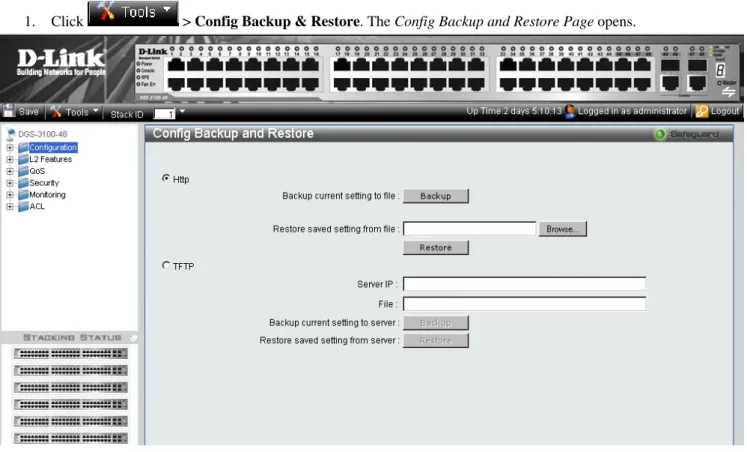
Backing up and Restoring Configuration Files
The Config Backup and Restore Page contains fields for downloading and uploading the configuration file from the device through HTTP or TFTP server. To back up and restore configuration files:
1. Click > Config Backup & Restore. The Config Backup and Restore Page opens.
Figure 1-3 Config Backup and Restore Page
The Config Backup and Restore Page contains the following fields:
Field Description
Http Indicates that the system files are backed up or restored via an HTTP server. The possible fieldvalues are:
Backup current setting to file — Backs up the current configuration files via the HTTP server.
Restore saved setting from file — Restores the current configuration files via the HTTP server.
TFTP Indicates that the system files are backed up or restored via an TFTP server. The possible field values are:
Server IP — Specifies the TFTP Server IP Address to which files are backed up or from which they are restored.
File — Indicates the file that is backed up or restored.
Backup current setting to server — Backs up the current configuration files via the TFTP server.
Restore saved setting from server — Restores the current configuration files via the TFTP server.
Resetting the Device
The Factory Reset Page restores the factory defaults. To restore the device to the factory default settings: 1. Click > Reset. The Factory Reset Page opens:
Figure 1-4 Factory Reset Page
2. Click . The factory default settings are restored once it completely reloaded, and the device is updated.
Downloading the Firmware
The ‘Firmware Download’ web page is used to download the firmware files that will be used to manage the device.
NOTE: Firmware version 1.x.x supports 4 SKUs od DGS-3100 series: 24, DGS-3100-24P, DGS-3100-48 and DGS-3100-48P, Firmware version 2.x.x supports in addition the 5th SKU: DGS-3100-24TG.
Firmware version 2.x.x includes as well additional features comparing to version 1.x.x, for more details, please refer to the Release Notes.
When upgrading firmware from version 1.x.x to version 2.x.x on the switch, the user should upgrade the boot software as well from version 1.0.0.3 to version 1.0.0.4
Upgrade Procedure – Important Notes:
ACL backward compatibility issue - In firmware 1.x.x, TCP/UDP ports of access profile are in hexadecimal instead of decimal values. In version 2.x.x, TCP/UDP port value entries are in decimal value. However - if the user upgrades the switch firmware from version 1.x.x to version 2.x.x, the value will be retained as hexadecimal value.
ACLs access rules priority did not work in firmware version 1.x.x. In firmware version 2.x.x, the priority is supported and it is not allowed two identical access rules priority from different access profiles. If the user download configuration file from version 1.x.x which including ACLs which has more than one rule, it might not work and there will be an error message. The user can delete and create the ACLs again if he encountered a problem.
Tacacs/Radius backwards compatibility issue - In firmware version 1.x.x, it is possible to configure up to 4 Tacacs /Radius servers. In firmware version 2.x.x, it is possible to configure up to 3 servers from each type. In addition to that it was not required to configure priority to Tacacs servers in 1.x.x while in 2.x.x it is required. If the user configured 4 servers in version 1.x.x and try to download the configuration to firmware 2.x.x, he will get an error message, the same event will happened because of the Tacacs priority.
The Firmware Download Page enables downloading files either via an HTTP or a TFTP server. To download Firmware: 1. Click > Firmware Download. The Firmware Download Page opens:
The Firmware Download Page contains the following fields:
Field Description
HTTP Download Indicates that the Firmware file is downloaded via an HTTP server.
Unit — Indicates if the Firmware file is downloaded to a specific stacking member or to All stacking members.
File — Indicates the Firmware file that is downloaded to the stack or specific device. TFTP Download Indicates that the Firmware file is downloaded via a TFTP server.
Unit — Indicates if the Firmware file is downloaded to a specific stacking member or to All stacking members.
Server IP Address — Specifies the TFTP Server IP Address from which files are downloaded.
File — Indicates the Firmware file that is downloaded to the stack or specific device. 2. Select HTTP or TFTP Download field.
3. Define the Unit field.
4. For Http download, define the File field, or alternatively, browse to select the file. 5. Click . The Firmware is downloaded, and the device is updated.
Rebooting the System
The System Reboot Page provides a method for selecting one, or all of the units to be rebooted. To reboot the system: 1. Click > System Reboot. The System Reboot Page opens:
Figure 1-6 System Reboot Page
The System Reboot Page contains the Select Unit to Reboot field. The possible values are:
Value Description
All Reboots all stacking members. Reboots the specific stack member. 01 - 06
2. Define the Select Unit to Reboot field.
Using the Web System Components
The following table contains information regarding the list of buttons:Name Description
Component
Activate Activates field commands
Add Adds selected items
ALL Selects all
Apply Applies field settings
Backup Evokes backup
Cancel Cancels settings
Clear Clears selected settings and fields Clear All Clears all settings and fields
Delete Deletes selected fields
Delete VID Deletes VLAN Identification
Download Starts downloading system files.
Edit Modifies configuration Information
Factory Reset Resets the factory defaults
Find Finds a table entry.
System Reboot Reboot the system
Refresh Refreshes device information.
Restore Restores the specific configuration file. View All Entry Displays table entries.
2
CONFIGURING BASIC CONFIGURATION
This section contains information for viewing device information, defining IP addresses, managing stacking, defining port parameters, configuring system user accounts, configuring and managing system logs, defining the system time, and configuring SNMP system management. This section contains the following topics:
• Viewing Device Information • Defining System Information • Defining IP Addresses • Managing Stacking • Defining Ports • ARP Settings
• Configuring User Accounts • Managing System Logs • Configuring SNTP • Configuring SNMP • DHCP Auto Configuration • Dual Image Services
Viewing Device Information
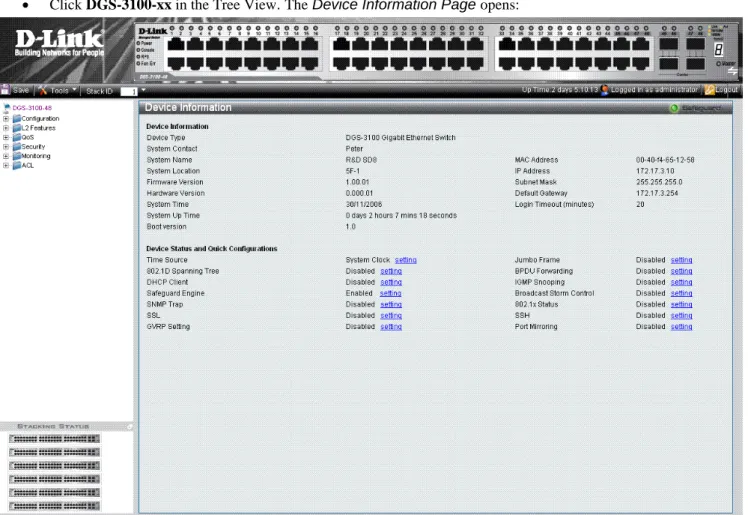
The Device Information Page contains parameters for configuring general device information, including the system name, location, and contact, the system MAC Address, System Up Time, and MAC addresses, and both software, boot, and hardware versions.
In addition the Device Information Page provides shortcuts to device feature pages. To define the general system information:
• Click DGS-3100-xx in the Tree View. TheDevice Information Pageopens:
Figure 2-1 Device Information Page
The Device Information Page contains the following fields:
Field Description
Device Type Displays the factory defined device name and type.
System Contact Displays the name of the contact person. The field range is 0-31 characters. System Name Displays the user-defined system name. The field range is 0-31 characters.
System Location Displays the location where the system is currently running. The field range is 0-31 characters.
Field Description
Boot Version Displays the installed device boot version number. MAC Address Displays the MAC address assigned to the device. IP Address Displays the IP address assigned to the device. Subnet Mask Displays the subnet mask assigned to the device.
Default Gateway Displays the device default gateway assigned to the device.
Login Timeout (minutes) Indicates the amount of time after which if no user activity occurs, the device times out. The default is 10 minutes.
Time Source Provides a shortcut to viewing the system clock settings.
802.1D Spanning Tree Indicates if STP is enabled on the device, and provides a shortcut to viewing the STP settings.
DHCP Client Indicates if DCHP Client is enabled on the device, and provides a shortcut to viewing the DHCP Client settings.
Safeguard Engine Indicates if the Safeguard Engine is enabled on the device, and provides a shortcut to viewing the Safeguard Engine settings.
SNMP Trap Indicates if SNMP Traps are enabled on the device, and provides a shortcut to viewing the SNMP Traps settings.
SSL Indicates if Secure Socket Layer (SSL) is enabled on the device, and provides a shortcut to viewing the SSL settings.
GVRP Setting Indicates if Group VLAN Registration Protocol is enabled.
Jumbo Frames Indicates if Jumbo Frames are enabled on the device, and provides a shortcut to viewing the Jumbo Frames settings.
BPDU Forwarding Indicates if BPDU Forwarding is enabled on the device, and provides a shortcut to viewing the BPDU Forwarding settings.
IGMP Snooping Indicates if IGMP Snooping is enabled on the device, and provides a shortcut to viewing the IGMP Snooping settings.
Broadcast Storm Control Indicates if Broadcast Storm Control is enabled on the device, and provides a shortcut to viewing the Broadcast Storm Control settings.
802.1X Status Indicates if 802.1X is enabled on the device, and provides a shortcut to viewing the 802.1X settings.
SSH Indicates if Secure Shell Protocol (SSH) is enabled on the device, and provides a shortcut to viewing the SSH settings.
Port Mirroring Indicates if Port Mirroring is enabled. To view settings for a device feature:
1. Select a device feature under the Device Status and Quick Configuration Section.
Defining System Information
The System Information Page provides device information about specific stacking members. To view system information: 1. Click Configuration > System Information. The System Information Page opens:
Figure 2-2 System Information Page
The System Information Page contains the following fields:
Field Description
Unit ID Displays the stack unit ID.
MAC Address Displays the MAC address assigned to the device
Firmware Version Displays the stacking member’s software version number. Hardware Version Displays the stacking member’s hardware version number.
System Contact Defines the name of the contact person. The field range is 0-160 characters. System Name Defines the user-defined system name.
System Location Defines the location where the system is currently running. The field range is 0-160 characters.
Defining IP Addresses
The IP Address Page contains fields for assigning IP addresses. Packets are forwarded to the default IP when frames are sent to a remote network via the Default Gateway. The configured IP address must belong to the same IP address subnet of one of the IP interfaces. The Dynamic Host Configuration Protocol (DHCP) assigns dynamic IP addresses to devices on a network. DHCP ensures that network devices can have a different IP address every time the device connects to the network.
1. Click Configuration > IP Address. The IP Address Page opens:
Figure 2-3 IP Address Page
The IP Address Page contains the following fields:
Field Description
When selected, the IP address is static and user-defined in the IP Address field. This is the default value.
Static
DHCP When selected, the IP address is retrieved from a DHCP server. IP Address Defines the IP address. This field is active if the IP address is static.
Subnet Mask Defines the address mask that manages sub-netting on the network. The default value is 255.0.0.0.
Gateway Defines the default gateway. The default gateway manages connections to other subnets and other networks.
Management VLAN VID Defines the management VLAN’s VID. 2. Select the IP address type in either the Static or DHCP fields.
Managing Stacking
Stacking enhances network flexibility by building virtual switches with more ports then are available in a single device. Stacks are managed by stacking member which called Stack Master., All other stacking members serve as ports only. The following paragraphs provide a stacking explanation for DGS-3100 series and include the following topics:
• Managing Stacking Modes • Advanced Stacking
• Building Stacks – Quick Start • Stack Management Examples • Configuring Stacking
Managing Stacking Modes
A switch may operates in one of the following modes:
• Stand-Alone- Switches operating in stand-alone mode run as an independent unit. All ports of a stand-alone switch operate as normal Ethernet links except the HX ports which are Disabled.
NOTE: The DGS-3100 series family stacking connections have two HX ports.
• Stacking - Switches operating in Stack mode run as organized group member of switches known as a Stack. A stack consists of one Stack Master, a Backup Master, and up to four Stack Member Switches. However, in specific scenarios, a single unit can be considered a Stack of One. A Stack of One is a single unit which does not connected to any other stacking members.
Either stacking or stand-alone modes can be selected by the user before the next software boot which using CLI or the Embedded WEB Interface, the new mode takes effect after the unit is rebooted. If the unit is reset to the factory defaults, the unit is reloaded in stacking Auto-Numbering mode.
Advanced Stacking
This section provides information for understanding advanced stacking concepts, including: • Unit ID and how they are allocated
• Stacking member start up process. This section contains the following topics:
• Allocating Unit IDs • Assigning Unit IDs
Allocating Unit IDs
Switches are shipped from the factory without a Unit ID and in Auto Assign mode. All switches must be assigned a Unit ID before switches can operate as stacking members. More than one stacking member cannot receive the same Unit ID. Unit IDs are assigned by:
• Assigned by the system administrator. Unit IDs that are assigned by the system administrator and can only be changed manually by the system administrator.
Stacking members maintain the assigned Unit ID even after the stacking member is rebooted. The Stack Master may reallocate IDs during system initialization to resolve duplicate ID conflicts. Manually assigned IDs cannot be changed by the Stack Master, even if there is a conflict.
Unit ID assignments or modifications are effective only during system initialization, and do not occur during the system up-time.
Stacking members do not have to be numbered in sequence, and can be interconnected, as long as each stacking has a unique ID, and at least, one stacking member serves as the Stack Master.
Assigning Unit IDs
Each stacking member has an assigned unique Unit ID. Unit ID numbers are assigned as follows:
• Unit ID 1 - Assigned to the Stack Master. The Stack Master is indicated by the Master LED on front which is lit solid green.
• Unit ID 2 - Assigned to the Backup Master
• Unit ID 3, 4, 5, and 6 - Assigned to Stacking members.
NOTE: There are cases in which a unit to which Unit ID 1 is assigned is not the stack Master but a Backup Master.
This section contains the following topics: • Defining a Stacking Master
• Defining a Stacking Back Up Master • Defining Stacking Members
• Master Enabled Stacking Members • Electing a Stacking Master
Defining a Stacking Master
The stacking member assigned the Unit ID1 operates as the Stack Master.
The Stack Master provides a single point of control, configuration, and management for the entire stack. In addition, the Stack Master stores all stack member configuration. The individual stacking members do not store any configuration information.
Defining a Stacking Back Up Master
The stacking member assigned the Unit ID 2 is defined as the stack’s Backup Master.
In addition to being a stack member, Backup Master serves as a backup in case the Stack Master fails or disconnected. If the Stack Master fails or disconnected, the Backup Master takes over as the Stack Master.
The Stack Master stores an active configuration which copied on the Backup Master. The active configuration copy is used if the Backup Master takes over for the Stack Master. Only the configuration file is copied. Any dynamically filled tables, for example, learnt address, are not copied from the Stack Master to the Backup Master. If the Backup Master takes over the role of Stack Master, the Backup Master builds new dynamic tables.
Defining Stacking Members
Switches assigned the Unit IDs 3,4,5,6 are called stacking members. The Stack Master (or Backup Master if the Stack Master fails) manages the stack members operation. Stacking members cannot be directly managed or configured. If neither the Stack Master nor the Backup Master were operating, the stacking members cannot function.
Electing a Stacking Master
Whenever a stacking member (or more than one) comes up, one of the stacking members is elected to be the stack Master. The Stack Master is selected as follows:
• If one of the master enabled stacking members in the stack was set to Force Master by the system administrator (through the GUI – Stacking Master selector), that master enabled stacking member is the Stack Master. Stacking members which are defined as Force Master stacking members are manually selected as the Stack Master. Only a master enabled stacking member can be selected as the Force Master.
• If the stack contains more than one stacking member whose Unit ID is either 1 or 2, then one of the stacking members are elected the Stack Master. It does not matter if the Unit ID was originally automatically or manually assigned. These stacking members are called Master Enabled. If there is only one stacking member, that stacking member is selected as the Stack Master, even if the stacking member’s Unit ID is 2.
• If there are more than one stacking members, the two stacking members decide which stacking member is elected Stack Master by checking:
– Which stacking member has been running for a longer time. The up-time is measured in increments of 10 minutes. The stacking member running the longest is elected the Stack Master.
– If they have been running for the same amount of time, the stacking member with the Unit ID 1 is the stack Master.
– If both stacking members have been running for the same amount of time, and both stacking membes have the same Unit ID, the stacking members with the lowest MAC addressis selected as the Stack Master. The other unit is rebooted and is assigned the Unit ID 2.
– If the stack contains one or more stacking members set to the factory default states, and there is no Unit ID assigned to a stacking member, then the Stack Master is one of these stacking members. The stacking member selected to be the Master is the stacking member running for the longest time. If all stacking members are running the same amount of time, the stacking member with the lowest MAC address is selected as the Stack Master.
The Master Election results in an elected Stack Master. The Stack master has a Unit ID of 1 and the Backup Master has a Unit ID of 2 (if a Backup Master was included in the stack).
If a Master Enabled stacking member, a Unit ID of 1 or 2, is added to a stack and powered on, the newly added switch invokes Master Election process. The Master Election process occurs even though the stack has an elected master. However, the newly added switch loses in the election process (lower up-time) and joins the stack as a stacking member or Backup Master.
Stack Startup Process
When a stacking member is initialized, either powered up or rebooted, the stacking member goes through the same exact process including:
• Discovering the Stacking Master.
• Allocating Unit IDs/Resolving Unit ID Conflicts • Unit and Stacking Port Configuration
Discovering the Stacking Master
When a stacking member is initialized in stack mode, the stacking member’s behavior depends on its Unit ID.
• If the stacking member does not have a current Unit ID the stacking member operates in Factory Default mode. If there is a Stacking Master, the stacking member is assigned a Unit ID through Unit ID Allocation. The stacking members receive a Unit ID from the Stacking Master. If the stack does not have a Stacking master then the switch
These stacking members do not participate in the Master Election process, and if no Stack Master is present, the stacking members’ network ports are shut down. Only the stacking ports are operational.
Both the Stack Master and all other stacking members carry out a continuous process of Master Discovery by frequently exchanging stack control messages. This allows the stacking members to discover when a stacking member fails or is unreachable.
Allocating Unit IDs/Resolving Unit ID Conflicts
Once the Stack Master is elected, it allocates the Unit IDs to the stacking members that do not have a Unit ID. Stacking members that do not have a Unit ID operate in the Factory Default mode.
In addition, the stack Master attempts to resolve all duplicate Unit IDs occurrences among stacking members. The Stack Master reallocates the duplicate Unit ID if there are available Unit IDs.
If two stacks are merged, stacking units that were initially in the Stack Master’s sub-group retain their Unit ID. New stacking member are allocated new Unit IDs.
If a conflict occurs after the stacking members are rebooted, the following occurs:
• If both duplicate stacking members are in Auto Assign mode, then the Unit ID is assigned by the MAC address. The stacking member with the lowest MAC address maintains its Unit ID. The other stacking member is assigned a new Unit ID.
• If one of the stacking members with duplicate Unit IDs is in Auto Assign mode and the other stacking member is in manual mode, the stacking member in Manual mode maintains its Unit ID, The other stacking member is assigned a new Unit ID. .
Stacking members are shut down if:
• If both duplicate stacking members are in Manual mode then both stacking members are shut down.
• If the Stack Master is able to allocate a Unit ID to each stacking member, then all stacking members operate as a stack. If the Stack Master is unable to allocate a Unit ID to any stacking member, that stacking member is effectively shut down and does not participate in the stack.
• Stacking members with a conflicting manually set ID are shut down as the Stack Master cannot override the system administrator’s Unit ID assignment to resolve the conflict.
• If there are more stacking members than the maximum number allowed in a stack, and the incoming stacking members are already in FactoryDefault mode, the Stack Master is elected following Master Discovery and Master Election processes. All other stacking members are shut down in some extreme cases, due to during the boot process, where some stacking members may be connected and join the stack. If the new stacking members are already assigned a Unit, then the new stacking members cannot join the stack. The switches are remains shut down. If a stacking member is shut down, the stacking members stacking links are inactive. Moreover, if the stacking members are connected in a chain topology, the shut down of one stacking member breaks the chain. This may cause other stacking members to be disconnected and shut down if the stacking members have no active link to the Stack Master.
Unit and Stacking Port Configuration
Each stacking member has a Unit ID; one of the stacking members is the stack Master, and, possibly, one of the stacking members serves as Backup Master. The Stack Master now configures each stacking member according to the Configuration file stored on the Stack Master.
If the stack has a Backup Master the Configuration file are also be copied to the Backup Master.
Once all the stacking members are configured, the stack proceeds to a normal operational mode. If any change is made to the system configuration, the change is stored by the stack Master and is copied to the Backup Master.
Building Stacks – Quick Start
The DGS-3100 series supports the following stacking scenarios: • Building a new stack from scratch
• Increasing the stack by adding units to an existing stack This section contains the following topics:
• Stack Resiliency
• Managing a Self-Ordered Stack
• Managing a New Manually Ordered Stack
Stack Resiliency
Topologies of stack can be either Ring or Chain. Best practice is to configure the stack in Ring topology, due to the high resiliency in case of unit failure or stacking link failure.
Additionally, in case of redundant power supply usage it is recommended to make sure that Master and Backup Master s are connected to a redundant power supply.
Managing a Self-Ordered Stack
This section describes managing a self-ordered stack. Self–ordered stacks are automatically assigned Unit IDs by the system through the Master Election process. This section contains the following topics:
• Building a New Self-Ordered Stack
• Adding Members to a Self Ordered Running Stack
Building a New Self-Ordered Stack
To build a self ordered stack:
1. Connect the units physically through the stacking ports.
2. Turn on the units. After a short interval the stack will become operational with one of the units selected as the Master of the stack. The Master and Backup selection is known as Master Election. Master Election takes place if there are one or more eligible candidates contending to be the Master unit. The Master Unit is indicated by the green Master LED on the front panel. The Master LED is located near the Unit ID LEDs. If a serial console is connected, the serial cable must be connected to the Stack Master console port since the only operational console port in the stack is the one of the Master unit.
NOTE: To reset the stacking members to the factory defaults, press the Reset button for at least 5 seconds.
Adding Members to a Self Ordered Running Stack
1. Reset the new stacking units to the factory defaults by pressing the Reset button (optional). 2. Connect the stacking members physically to the stack.
3. Turn on the switches, the new units will become stacking members.
This section contains the following topics: • Building New Manually Ordered Stacks
• Adding Stacking Members to an Existing Manually Ordered Stack
Building New Manually Ordered Stacks
To build new a self ordered stack:
1. Connect the units physically through the stacking ports. 2. Turn on the units, one at a time.
3. Assign the Stack Master the Unit ID of 1 using a Stack Management Interfaces either the console port, Telnet, or Embedded Web Interface.
4. Assign the Backup Master the Unit ID of 2 using a Stack Management Interfaces either the console port, Telnet, or Embedded Web Interface.
5. Assign the remaining stacking members using a Stack Management Interfaces either the console port, Telnet, or Embedded Web Interface.
6. Ensure that none of the stacking members have the same Unit ID. 7. Reboot all the stack units.
Adding Stacking Members to an Existing Manually Ordered Stack
To add units to an existing manually ordered stack:
1. Reset the new stacking units to the factory defaults by pressing the Reset button. 2. Connect the stacking members physically to the stack.
3. Turn on the switches, the new units become stacking members, but with automatically assigned Unit IDs.
4. Reassign the Unit ID manually to each of the newly added stacking members using a Stack Management Interfaces either the console port, Telnet, or Embedded Web Interface. This step is optional, and the stack is operational even if some unit IDs were manually configured while others are self-assigned.
5. Reboot the stacking members to ensure the Unit ID is permanent.
Stack Management Examples
This section contains information for troubleshooting stacking, and includes the following topics: • Replacing Failed Stacking-Members in a Running Stack
• Replacing a Failed Stack Master • Dividing Stacks
• Merging Stacks • Stacking Cable Failure
• Inserting Excess Stacking Members
Replacing Failed Stacking-Members in a Running Stack
This example assumes that a stacking member, other than master, has failed in a running stack, when the system administrator is notified of the system failure the stacking member is removed and replaced with a new switch.
When the stacking member fails, the Stack Master identifies the failed stacking member using the Master Discovery process. The Stack Master recognizes that the stacking member no longer responds. If the stack topology was ring topology, the Stack Master directs all other stack members to route traffic around the failed stacking member. At the same time the Stack Master notifies the system administrator of the failure using SYSLOG messages and SNMP traps.
When the failed stacking member is disconnected from the stack, all traffic is routed around the failed stacking member as stated above. As long as all other stacking connections are intact, the stack continues to run.
– If the new stacking member has a Unit ID of 1 or 2, i.e. the stacking member is a master enabled unit, the new stacking member initiates the Master Election process. However, since the running Stack Master has a longer up-time, it remains the Stack Master and the new stacking member does not become a new Stack Master.
– If the new stacking member has a Unit ID of 3 to 6, the new unit attempts to become a stacking member, and is subject to the already running Stack Master. The Master Election process does not occur.
• The Stack Master performs a Unit ID Allocation and Conflict Resolution process.
– If the new stacking member was in Factory Default mode (the unit does not have an assigned Unit ID). The new stacking member is assigned the lowest available Unit ID by the Stack Master. It is strongly recommended that automatic assigned Unit ID mode be used since it provides improved stack resiliency.
– If the new stacking member already has an assigned Unit ID, and that Unit ID is unused in the current stack, the new stacking member retains its assigned Unit ID. The Stack Master applies any configuration relevant to that Unit ID.
– If the new stacking member already has an assigned Unit ID, and that Unit ID conflicts with an existing Unit ID the Stack Master reallocates a new Unit ID to the new stacking member. , The lowest available Unit ID is applied to the new stacking member. This occurs only if new stacking member does not have a manually assigned Unit ID, which the Stack Master cannot change.
– If the new stacking member cannot be assigned an available Unit ID, then the new stacking member is effectively shut down and cannot join the stack. For example, the stacking member replacement can only occur if the new stacking member has a manually assigned Unit ID.
• The Stack Master now performs Unit and Stacking Port Configuration for the new stacking member.
• Any configuration information which the Stack Master stores that is relevant to the Unit ID is assigned to the new stacking member. If the new stacking member was assigned the same Unit ID of the replaced stacking member, then the new stacking member receives the same configuration as the failed stacking member. If the new stacking member is identical to the replaced stacking member, the entire configuration of the replaced stacking member is applied to the new stacking member. The stack reverts to the stacking state it was running in before stacking member failed. However, sometimes the new stacking member is not identical to the failed stacking member. The Stack Master applies the configuration as follows:
• If a 24-port switch replaces a failed 48-port switch, then the new stacking member’s ports are configured according first 24 ports configuration of the failed stacking member.
NOTE: The 48 port configuration of the failed stacking member is recorded, even though only the first 24 port configuration is currently applied. If a 48 port switch is inserted and assigned the same Unit ID, the switch is configured with the port configuration of the original 48 port stacking member.
• If a 48-port stacking member replaces a 24-port stacking member, then the first 24 ports of thenew stacking member are configured according failed stacking member’s ports configuration. The remaining new stacking member ports are configured with the switch’s default settings.
Replacing a Failed Stack Master
This example assumes that that a stacking member acting as the Stack Master has failed in a running stack. When the system administrator is notified of the Stack Master failure and replaces existing Stack Master with a new switch.
When the Stack Master fails, the stack’s Backup Master recognizes the failure and that the Stack Master no longer responds and assumes the role of Stack Master. The Backup Master uses Master Discovery process to identify the failure. In case of Ring topology the Backup Master directs all other stack members to route traffic around the failed stacking member. At the same time the Backup Master notifies the system administrator of the failure using SYSLOG messages and SNMP traps. When the failed stacking member is disconnected from the stack, all traffic is already routed around the failed stacking member. If all other stacking connections are left intact, the stack keeps running. When a new stacking member is inserted
Unit ID 1, and serving as the stack Backup master, while the already running stacking member with Unit ID 2 remains the active Stack Master.
• The Stack Master performs Unit ID Allocation and Conflict Resolution process.
– If the new stacking member is in the Factory Default mode, the new stacking member is assigned the lowest available Unit ID by the Stack Master. It is strongly recommended that Auto Assign mode is used to assign the Unit ID. The Auto Assign mode provides better stack resiliency.
– If the new stacking member already has an assigned Unit ID, and that Unit ID is unused in the current stack, the incoming stacking member is assigned Unit ID. The Stack Master applies any device configuration to the new stacking member.
– If the new stacking member already has an assigned Unit ID, and that UnitID conflicts with an existing Unit ID the Stack Master reallocates a new Unit ID to the new stacking member. The lowest available Unit ID is applied to the new stacking member. This occurs only if new stacking member does not have a manually assigned Unit ID, which the Stack Master cannot change.
– If the new stacking member cannot be assigned an available Unit ID, then the new stacking member is effectively shut down and cannot join stack. For example, if stacking member replacement that can only occur if the new stacking member has a manually assigned Unit ID.
• The Stack Master performs Unit and Stacking Port Configuration for the new stacking member.
• Any configuration information the Stack Master retains that is relevant to the Unit ID of the new stacking member is applied. If the new stacking member was assigned the same Unit ID of the replaced stacking member, then the new stacking member receives the same switch configuration as the failed stacking member, described in Replacing Failed Stacking-Members in a Running Stack.
Dividing Stacks
This example assumes that a working stack is divided into two groups. The stack is divided either by a failed stacking link connected to two stacking members in the stack or by a failed stacking members in a chain topology which causes disconnection between two units in the stack. In this case we should consider each sub-group as an independent running stack configuration. For each sub-group we should consider three sub options:
• Both the Stack Master and the Backup Master are part of the sub-group. • Either the Stack Master or the Backup Master is part of the sub-group. • Neither the Stack Master nor the Backup Master is part of the sub-group.
When a stack is split into two parts, the following occurs in each partial stack according to the following scenario: Both the Stack Master and the Backup Master are part of the sub-group.
Nothing changes, except the Stack Master recognizes the missing stacking members as removed stacking members and routes traffic around them.
Since both the Stack Master and Backup Master are in this stacking section, this section is operating and the other section cannot operate.
The following occurs when the stack is divided and both the Master and Backup master are in the sub-group:
• The Master Discovery, Master Election and Unit ID Allocation & Duplicate Unit ID Conflict Resolution processes are performed, resulting in the following:
– Any configuration information stored by Stack Master, which remained in the group, that is relevant to the stacking members remains unchanged.
– Topology information, inter-stacking member forwarding information for transmitting traffic to any other stacking member, managed by the Stack Master includes only stacking members that remain connected after the stack is divided.
– The divided stack continues to operates normally, the only difference is there are less stacking members than prior to the stack division.
– If the Stack Master remains in this sub-group, the behavior is the same as described above. If the Backup Master remains in this sub group the behavior is the same as described in0 - Replacing a Failed Stack Master .
NOTE: If a stack is divided into two parts with one section which containing the Stack Master, and the other section - Backup Master was operate.
The following occurs if either the Stack Master or the Backup Master remains in the divided group:
• TThe Master Discovery, Master Election and Unit ID Allocation & Duplicate Unit ID Conflict Resolution processes are
performed, resulting in the following:
– When the stack is divided and if the Stack Master remains in the split stack, the Stack Master recognizes that the stacking units were no longer responds. This occurs using the Master Detection Process. The Stack Master notifies the system administrator using SYSLOG messages and SNMP traps of the removed stacking members. In addition the Stack Master also notifies the system administrator whichd ports belong to unreachable stacking members and are reported as Not Present.
– if the Backup Master remains in the split stack, when the stack is divided, the Backup Master identifies this as of the Stack Master failing. The Backup Master takes over and manages the remaining stacking members as a stack. The Backup Master retains the same Unit ID as before the stack was divided. Since the Backup Master was not acting as the Stack Master prior to the split, the Back Master initiates a Topology Database and port learning process. Traffic can be halted for a short period until the stack is synchronized, i.e., stacking member and port configuraiton is completed. New stacking members are learnt by the Backup Master are notified to the system administrator using SYSLOG messages and SNMP traps.
– The divided stack continues to operate normally, the only difference is there are less stacking members than prior to the stack division.No Unit ID changes are performed in each the divided stacks.
– Even if each stacking section has a Stack Master, one section retains the Stack Master and the other section the Backup Master, both stacks have the same configuration and the same IP address.
NOTE: If both stacks have the same IP Address, this can lead to network problem. There is no way for users to connect to any stacks through the stack IP address
If neither the Stack Master nor the Backup Master remain in the divided group. • This is identical to failed Stack Master, where no backup is available.
• Stacking members whose Unit IDs are 3, 4, 5 or 6 in original stack do not renumber themselves. The stacking members’ network ports remains shut down until a Stack Master is enabled, is connected and is operating as the Stack Master .The Master-Discovery process recognized that the Stack Master has been separated from the stack. • The stacking members lose connection with the Stack Master. Since the stacking members started as a running
stack, and the stacking members are not in the Factory Default Mode, the stacking members are not reassigned Unit IDs. Resetting the stacking members will initiate Unit ID auto-assignment. No Unit ID changes are performed in each one of the two stacking sections of the original stacks.
Merging Stacks
This example assumes that the user would like to merge two working stacks. This creates one stack from two separate stacks. There are two scenarios:
If new stacking members are powered down during insertion and then powered up
• This is identical to insert stacking members into a running stack, see Replacing Failed Stacking-Members in a Running Stack. The only difference is that an additional stacking member is inserted into the stack. Therefore, for each stacking member inserted the same process occurs.
If stacks being merged are connecting via stacking cables and, both stacks are running the following occurs:
• If each of the joined stacks has a Stack Master, both Stack Masters s perform the Master Discovery process. Both Stack Masters participate in the Master Election process. One Stack Master is selected as the Stack Master. The criteria for selecting a Stack Master in a merged stack as follows:
– Force Master
– System Up Time
– Lowest Unit ID
– Lowest MAC Address
• The process of master selection between two Stack Masters is as follows:
– If Force Master is enabled, then the Stack Master which was forced is selected.
– The System Up Time is measured in increments of 10 minutes The Stack Master with longest System Up Time is selected as Stack Master.
– If both Stack Masters have the same Up Time, the Stack Master with the lowest Unit ID is selected as Stack Master.
– If both Stack Master Unit IDs are equal the Stack Master with the lowest MAC address is selected.
– The Master Election process assigns a dynamically allocated Unit ID Reassignment of Unit Id to the other Stack Master and is performed by the new Stack Master. The switch is either allocated as a stack memberor the Backup Master. There cannot be two stacking members with the same Unit ID at the process end.
– The Stacking Master that loses the Master election process is shut down if the Unit ID was manually allocated. It is recommended that the administrator configure the switch to Auto Assign mode before reconnecting the switch to the stack.
– When two stacks are combined, all of the configuration information for one of the stacks is lost. After the discovery/election process is completed, only the new Stack Master maintains its configuration information,
– If one of the merged stacks had neither a Stack Master unit nor a Backup Master, then stacking members belonging to this groupare inserted into the stack as in Replacing Failed Stacking-Members in a Running Stack. The Stack Master either connects stacking members to the stack using thecurrent Unit Ids or reallocates the Unit IDs necessary. For more information see Replacing Failed Stacking-Members in a Running Stack. If two stacks are merged into one stack, both stack configuration cannot be to maintained. All stacking member’s dynamic information that belong to the portion of the stack that was not reelected is lost and the new Stack Master relearns the information. .
Stacking Cable Failure
This example assumes that Stacking Connection Cables failed and caused the stack to split, as described in Dividing Stacks. When the stacking cable connection is fixed and stacking members are reconnected, it results in merging two stacks as described in Merging Stacks.
This can be occured only if the topology of the stack is Chain topology. Single stacking cable failure does not causes a stack split if a Ring topology is used.
• A running stacking member group is added to an existing stack, assuming each one of the stack groups has an elected Stack Master. The total of existing stacking members and new stacking members exceeds the maximum allowed number of stacking members in a stack, which is 6 stacking members:
– Master Detection and Master Election processes determine the master out of one of two combined stacking groups.
– When switches are added to a running stack, the Unit ID Allocation and Duplicate ID Conflict Resolution process detects an error if too many switches are present in the stack, and no changes are to stacking members that originally belonged to the group managed by the newly elected master. The original switches retain their ID assignments and configurations. The stacking members that originally belonged to the group managed by the Stack Master that lost the Master Election process are shut down.