Application manual
Robot Application Builder
Industrial Software Products RobotWare 5.0© Copyri ght 200 7 - 2009 ABB . All ri ghts res erved.
Application manual
Robot Application Builder
RobotWare 5.0 Document ID: 3HAC028083-001 Revision: D
© Copyri
ght
200
7
- 2009 ABB.
All rights reserved.
construed as a commitment by ABB. ABB assumes no responsibility for any errors that may appear in this manual.
Except as may be expressly stated anywhere in this manual, nothing herein shall be construed as any kind of guarantee or warranty by ABB for losses, damages to persons or property, fitness for a specific purpose or the like.
In no event shall ABB be liable for incidental or consequential damages arising from use of this manual and products described herein.
This manual and parts thereof must not be reproduced or copied without ABB's written permission, and contents thereof must not be imparted to a third party nor be used for any unauthorized purpose. Contravention will be prosecuted.
Additional copies of this manual may be obtained from ABB at its then current charge.
© Copyright 2007 - 2009 ABB All rights reserved. ABB AB
Robotics Products SE-721 68 Västerås
© Copyri ght 200 7 - 2009 ABB . All ri ghts res erved. Overview . . . 7 Product documentation, M2004 . . . 10 Safety . . . 12 1 Introduction 13 1.1 About Robot Application Builder. . . 14
1.2 Documentation and help . . . 16
1.3 Terminology . . . 18
2 Installation and development environment 21 2.1 Installation overview . . . 22
2.2 How to obtain and install a license key for RAB 5.09 or earlier . . . . 26
2.3 How to set up your PC to robot communication . . . 27
2.4 Development environment . . . 29
2.5 Two development models - virtual and real . . . 31
2.6 Conversion of VS 2005 projects to Visual Studio 2008. . . 33
3 Run-time environment 35 3.1 Two platforms - PC and FlexPendant. . . 36
3.2 Running PC Applications . . . 40
3.2.1 Licence verification - applies only to versions earlier than RAB 5.10 . . . 40
3.2.2 Mastership . . . 41
3.2.3 PC application configuration . . . 43
3.2.4 Communication between PC and controller. . . 46
3.3 Running FlexPendant Applications. . . 47
3.3.1 Components, assemblies and dlls . . . 47
3.3.2 Deployment of FlexPendant application to a robot system . . . 48
3.3.3 Communication between FlexPendant and controller . . . 51
3.3.4 Understanding FlexPendant application life cycle . . . 52
3.3.5 FlexPendant TpsView attribute . . . 54
3.3.6 ITpsViewSetup and ITpsViewActivation . . . 58
3.4 Release upgrades and compatibility . . . 60
4 Developing RAB applications 63 4.1 Introduction . . . 64
4.2 Analysis and design . . . 65
4.3 Controller events and threads . . . 67
4.4 User Authorization System. . . 70
4.5 Exception handling . . . 72
4.6 How to use the online help . . . 75
5 Using the FlexPendant SDK 77 5.1 Introduction . . . 77
5.1.1 About this chapter. . . 77
5.1.2 System features supporting the use of customized screens . . . 78
5.2 Setting up a new project. . . 80
5.2.1 Using the project template in Visual Studio. . . 80
5.2.2 Setting up design support for FlexPendant controls. . . 83
5.3 Building the user interface . . . 84
5.3.1 Introduction to visual design support . . . 84
5.3.2 GUI controls and memory management. . . . 93
5.3.3 Container style . . . 97
© Copyri ght 200 7 - 2009 ABB . All ri ghts res erved. 5.3.5 FlexPendant fonts . . . 103
5.3.6 The use of icons . . . 104
5.3.7 TabControl . . . 106
5.3.8 Button, TextBox and ComboBox. . . 109
5.3.9 AlphaPad . . . 110
5.3.10 ListView . . . 114
5.3.11 CompactAlphaPad and NumPad . . . 116
5.3.12 GTPUMessageBox. . . 117
5.3.13 GTPUFileDialog . . . 119
5.3.14 DataBinding of RAPID data and IO signals . . . 122
5.4 Launching other views . . . 128
5.4.1 Using launch service . . . 128
5.4.2 Using standard dialogs to modify data. . . 131
5.5 Using the Controller API . . . 133
5.5.1 ABB.Robotics.Controllers . . . 133
5.5.2 Accessing the controller . . . 136
5.5.3 Rapid domain . . . 140
5.5.3.1 Working with RAPID data . . . 140
5.5.3.2 Handling RAPID arrays . . . 148
5.5.3.3 ReadItem and WriteItem methods . . . 151
5.5.3.4 UserDefined data . . . 152
5.5.3.5 RAPID symbol search. . . 157
5.5.3.6 RAPID execution . . . 162
5.5.3.7 Modifying modules and programs . . . 164
5.5.4 IO system domain . . . 166
5.5.5 Event log domain . . . 172
5.5.6 Motion domain . . . 174
5.5.7 File system domain . . . 177
5.5.8 System info domain . . . 179
6 Robust FlexPendant applications 181 6.1 Introduction . . . 182 6.2 Memory management. . . 184 6.3 Performance . . . 188 6.4 Reliability . . . 193 7 Using the PC SDK 199 7.1 Controller API . . . 200
7.2 Create a simple PC SDK application . . . 202
7.3 Discovery domain . . . 210
7.4 Accessing the controller . . . 212
7.5 Rapid domain . . . 219
7.5.1 Working with RAPID data. . . 219
7.5.2 Handling arrays . . . 227
7.5.3 ReadItem and WriteItem methods . . . 230
7.5.4 UserDefined data . . . 231
7.5.5 RAPID symbol search . . . 239
7.5.6 Working with RAPID modules and programs . . . 245
7.5.7 Enable operator response to RAPID UI-instructions from a PC . . . 248
7.6 IO system domain. . . 254
7.7 Event log domain . . . 261
7.8 Motion domain . . . 263
7.9 File system domain. . . 265
© Copyri ght 200 7 - 2009 ABB . All ri ghts res erved.
8 Debugging and troubleshooting 279
8.1 FlexPendant - Debugging and troubleshooting . . . 279
8.1.1 Debug output . . . 279
8.1.2 Debugging the virtual FlexPendant . . . 282
8.1.3 Debugging the FlexPendant device . . . 286
8.1.4 Troubleshooting FlexPendant applications . . . 289
8.2 PC - Debugging and troubleshooting . . . 292
8.2.1 Debugging . . . 292
8.2.2 Troubleshooting . . . 296
9 Localizing a FlexPendant application 299 9.1 Adding support for several languages . . . 300
10 Packaging RAB applications 309 10.1 Deployment of a PC SDK application . . . 309
10.1.1 Overview . . . 309
10.2 Deployment of a FlexPendant SDK application . . . 311
10.2.1 Overview . . . 311
10.2.2 Deployment of an application without a license . . . 312
10.2.3 Deployment of a licensed application . . . 315
© Copyri ght 200 7 - 2009 ABB . All ri ghts res erved.
Overview
About this manual
Robot Application Builder (RAB) is a software tool, which enables programmers to develop customized operator interfaces for the IRC5 robot controller.
The purpose of this manual is to help software developers get started with RAB application development.
Usage
Robot Application Builder targets two different platforms. To develop a FlexPendant application you use the FlexPendant SDK. To develop a PC application, on the other hand, you use the PC SDK. This manual covers application development using both of these SDKs. Who should read this manual?
This manual is mainly intended for software developers, who use RAB to create robot applications adapted to end-user needs, but is also useful for anyone who needs an overview of Robot Application Builder.
Prerequisites
The reader should
• be familiar with IRC5, the FlexPendant and Robot Studio.
• be used to Microsoft Visual Studio and Windows programming.
• be familiar with one of the .NET programming languages C# or Visual Basic.NET. For PC applications Visual J# and Visual C++ should also work.
• be used to object oriented programming. Organization of chapters
Most chapters in this manual deal with topics that apply to both platforms (PC and
FlexPendant). Chapter 5, 6 and 9, however, cover the FlexPendant SDK specifically, whereas chapter 7 deals only with the PC SDK. Code samples are written in C# and Visual Basic. The manual is organized as follows:
Chapter Contents
1. Introduction. Terminology. Safety.
2. Installation and setup. Development environment . Virtual robot technology. 3. Two run-time platforms: PC and FlexPendant. Selecting the platform. Software
architecture. Run-time environment for PC/FlexPendant applications. How clients access controller resources and communicate with the robot controller. Application configuration. Life cycle of a FlexPendant application. Upgrades and compatibility.
4. Developing RAB applications. Analysis and design. Important programming issues: controller events and threads, UAS, exception handling. Online help. 5. Using the FlexPendant SDK. Visual design support. GUI controls. Launching
standard views. Data binding. How to add controller functionality using the Controller API. Programming issues and code samples in VB and C#. 6. How to develop well performing and robust FlexPendant applications. Memory
management, performance and reliability. Exception handling.
Overview © Copyri ght 200 7 - 2009 ABB . All ri ghts res erved. References Revisions
7. Using the PC SDK. How to add controller functionality using the Controller API. Programming issues and code samples in VB and C#.
8. Testing, debugging and troubleshooting RAB applications. Using printouts, error codes in exceptions etc. Checklist for contacting a service organization. 9. How to add support for several languages to a custom FlexPendant
applica-tion.
10. How to deploy RAB applications. How to create an additional option and how to make a product of a FlexPendant application.
Chapter Contents
Reference Document Id
Operating Manual -IRC5 with FlexPendant 3HAC 16590-1
Operating Manual - RobotStudio 3HAC032104-001
Technical reference manual - RAPID Instructions, Functions and Data types
3HAC16581-1
Revision Description
- First edition
From RAB 5.08 onwards this manual replaces:
Robot Application Builder - PC SDK User's Guide (3HAC 024913-001) and Robot Application Builder - FlexPendant SDK User's Guide (3HAC 024914-001)
A Improvements and updates for RAB 5.09. B Additions and further improvements for RAB 5.10:
Installation chapter: no license required, working with several PC SDK versions. (2.1- 2.2)
PC application configuration, how to use App.config. (3.2.3)
TpsFont internally retrieves appropriate font for the active language, e.g. Chinese (5.3.5).
The operating system of the first generation FlexPendant device (SX TPU 1) does not support images of more than 256 colors. (5.3.6, 8.1.4)
New FP SDK domain SystemInfoDomain (5.5.8). Maximum size of an FP SDK application (6.1).
No initial events guaranteed (4.3, 5.5.2, 5.5.4, 7.3, 7.6). Create a simple PC SDK application (7.2).
FP and PC SDK Controller API, working with RAPID data. (5.5.3.1 and 7.5.1). High priority event subscriptions in PC SDK (7.5.1).
New PC SDK domain Messaging (7.10). Troubleshooting PC SDK applications (8.2.2). Localizing a FlexPendant application (9). C Improvements and updates for RAB 5.11.
New installation described in Installation overview (2.1)( Continued
© Copyri ght 200 7 - 2009 ABB . All ri ghts res erved.
D Additions and improvements for RAB 5.12: RobotStudio Community (1.2)
Some details about installing RAB on Windows Vista (2.1) Description of improved Project Wizard (3.3.5 and 5.3.3) Removed obsolete section about TpsFont.FontName (5.3.5) How to access user defined data (5.5.3.4 and 7.5.4)
SearchRapidSymbol (5.5.3.5 and 7.5.5)
How to access data declared in Shared module (5.5.3.4, 5.5.3.5 and 7.5.4, 7.5.5)
Enable operator response to RAPID UI-instructions from a PC (7.5.7) Messaging - new system parameter RmqMode (7.10).
Revision Description
Product documentation, M2004 © Copyri ght 200 7 - 2009 ABB . All ri ghts res erved.
Product documentation, M2004
GeneralThe robot documentation may be divided into a number of categories. This listing is based on the type of information contained within the documents, regardless of whether the products are standard or optional. This means that any given delivery of robot products will not contain all documents listed, only the ones pertaining to the equipment delivered.However, all documents listed may be ordered from ABB. The documents listed are valid for M2004 robot systems.
However, all documents listed may be ordered from ABB. The documents listed are valid for M2004 robot systems.
Product manuals
All hardware, robots and controllers, are delivered with a Product manual, which is divided into two parts:
Product manual, procedures
• Safety information
• Installation and commissioning (descriptions of mechanical installation, electrical connections)
• Maintenance (descriptions of all required preventive maintenance procedures including intervals)
• Repair (descriptions of all recommended repair procedures including spare parts)
• Additional procedures, if any (calibration, decommissioning)
Product manual, reference information
• Safety information
• Reference information (article numbers for documentation referred to in Product manual, procedures, lists of tools, safety standards)
• Part list
• Foldouts or exploded views
• Circuit diagrams
The product manual published as a PDF consists of only one file where the two parts are presented together, as one Product manual.
Technical reference manuals
The following manuals describe the robot software in general and contain relevant reference information:
Product manual, procedures
• RAPID overview: An overview of the RAPID programming language.
• RAPID Instructions, Functions and Data types: Description and syntax for all
RAPID instructions, functions and data types.
• System parameters: Description of system parameters and configuration workflow
© Copyri ght 200 7 - 2009 ABB . All ri ghts res erved. Application manuals
Specific applications (e.g. software or hardware options) are described in Application manuals. An application manual can describe one or several applications.
An application manual generally contains information about:
• The purpose of the application (what it does and when it is useful)
• What is included (e.g. cables, I/O boards, RAPID instructions, system parameters, CD with PC software)
• How to use the application
• Examples of how to use the application Operating manuals
This group of manuals is aimed at those having first hand operational contact with the robot, i.e. production cell operators, programmers and trouble shooters. It includes:
• Getting started - IRC5 and RobotStudio
• IRC5 with FlexPendant
• RobotStudio
• Trouble shooting
Safety © Copyri ght 200 7 - 2009 ABB . All ri ghts res erved.
Safety
Safety of personnelA robot is heavy and extremely powerful regardless of its speed. A pause or long stop in movement can be followed by a fast hazardous movement. Even if a pattern of movement is predicted, a change in operation can be triggered by an external signal resulting in an unexpected movement.Therefore, it is important that all safety regulations are followed when entering safeguarded space.
Safety of regulations
Before beginning work with the robot, make sure you are familiar with the safety regulations described in Operating manual - IRC5 with FlexPendant.
Safety © Copyri ght 200 7 - 2009 ABB . All ri ghts res erved.
1 Introduction
1.1. About Robot Application Builder © Copyri ght 200 7 - 2009 ABB . All ri ghts res erved.
1.1. About Robot Application Builder
Flexible user interfacesRobots are usually delivered with a general operator interface. However, different processes require different operator handling and customers need flexible solutions, where the user interface is adapted to user specific needs.
Robot Application Builder (RAB) allows system integrators, third parties or end-users to add their own customized operator interfaces for the IRC5 controller. Such custom applications can either be added to the standard views of the FlexPendant or realized as independent PC applications, which communicate with the robot controller over a network.
To accommodate this, RAB includes the following two components:
• FlexPendant SDK
• PC SDK
NOTE!
RAB applications are not platform independent. You must choose to develop the application for either the FlexPendant or the PC platform.
Ease-of-use on the factory floor
A well-designed user interface presents relevant information and functionality at the right time. In this respect, customized user interfaces are clearly very desirable to the end-user. As tailored solutions are easier to operate, they also optimize user’s investment in automation. RAB is the tool enabling customized user interfaces for IRC5. It is important to keep in mind, however, that RAB itself does not guarantee increased customer value. To achieve this, RAB applications should be developed with care and with a heavy emphasis placed on ease-of-use. Understanding end-users’ needs is in fact crucial to realizing the benefits of customized interfaces.
1.1. About Robot Application Builder © Copyri ght 200 7 - 2009 ABB . All ri ghts res erved.
.NET and Visual Studio
Robot Application Builder uses Microsoft .NET and Microsoft Visual Studio. It is thus assumed that the user knows how to program Windows platforms using Visual Studio. Among programmers .NET distinguishes itself by the programming model provided by the Microsoft .NET Framework. The programming model is very similar for the two run-time platforms supported by Robot Application Builder.
One feature is the programming language independence, leaving the choice to the developer to use any language provided by the integrated development environment Visual Studio. Most prefer C# or Visual Basic, which both offer safe and efficient development. For FlexPendant applications only these two languages are available. For PC applications any of the .NET languages should work, but ABB support is only offered for Visual Basic and C#.
For a Windows programmer familiar with Visual Studio and .NET, developing a customized operator view is rather straight-forward. RAB is fully integrated with Visual Studio, which means that a .NET programmer will recognize wizards for project setup and tools for visual design support and debug etc.
Considerable efforts have been made to allow RAB programmers to start working without having to overcome a steep learning curve. To further speed up the development process, the virtual IRC5 of RobotStudio can be used to test and debug RAB applications.
NOTE!
Some knowledge in Windows programming, object orientation and a .NET programming language is necessary to be able to use Robot Application Builder.
Robustness and performance
Do not underestimate the concern and effort required to achieve the quality and performance needed in industry.
Developing an application for the FlexPendant, a device with limited process and memory resources, can be quite demanding. Issues such as performance and memory management need to be addressed.
As for PC SDK applications as well, there are issues related to performance and reliability that you need to know about before getting started.
In short, even if you are an experienced Windows programmer, you are strongly
recommended to read this manual to learn about specific RAB issues when moving to RAB development.
NOTE!
Take the time to study this manual along with the release notes, and avoiding rushing into coding.
1.2. Documentation and help © Copyri ght 200 7 - 2009 ABB . All ri ghts res erved.
1.2. Documentation and help
IntroductionRobot Application Builder includes an extensive on-line help module, which comes with the installation of the product. After having installed RAB, by clicking Windows’ Start menu, then pointing at Programs > ABB Industrial IT > Robotics IT > Robot Application Builder 5.xx you will find:
• User’s Guide - Application manual - Robot Application Builder
• FP SDK Reference
• PC SDK Reference
• FP StyleGuide User’s Guide
This user’s guide, Application manual - Robot Application Builder, is the recommended way to get started if you are new to RAB development. It explains how RAB works. It has code examples in C# and VB and provides hands-on exercises.
The user’s guide is provided in two formats, Html Help and PDF. Html is the recommended format for the PC screen and PDF is the best choice if you want printouts.
NOTE!
User’s Guide.PDF can be found in the installation directory, at \Program Files\ABB Industrial IT\Robotics IT\Robot Application Builder 5.xx\.
SDK Reference Help
The SDK Reference Help files should be used while programming. Notice that the FlexPendant SDK and the PC SDK have separate help files:
• FP SDK Reference
• PC SDK Reference
These make up the complete reference to the RAB class libraries. Method signatures are provided in C# and Visual Basic.
Please note that they are not integrated with the Visual Studio Help function. Pressing F1 when pointing at code, for example, will open the Visual Studio Programmer’s Reference or the .NET Framework Class Library for the specific language and topic. Many times this is what you want, but if your problem is RAB-related you need to open the appropriate SDK Reference Help to find a solution.
NOTE!
You are recommended to keep the help files open while programming, as you will frequently need them for RAB-related issues.
FP StyleGuide
Good usability is achieved when the program itself communicates possible actions and how to perform them. To encourage careful design of the visual appearance the FP StyleGuide is also part of the RAB installation. It is ABB Robotics’ best practices for visual design of the FlexPendant user interface.
1.2. Documentation and help © Copyri ght 200 7 - 2009 ABB . All ri ghts res erved. RobotStudio Community
In 2008 ABB Robotics launched a new site, RobotStudio Community, for its PC Software users. The Developer Section of RobotStudio Community has information and some videos about programming with the FlexPendant and PC SDKs. At Content Sharing there is a complete FlexPendant SDK application available for download. It is recommended for average users and for beginners.
ABB encourage open conversations and believe everyone has something to contribute. The User Forum of RobotStudio Community has a section dedicated to Robot Application Builder. Here beginners as well as experts discuss code and solutions online. If you are facing a coding problem the User Forum should be your first choice, as there is a good chance that someone will give you the help you need to proceed.
RobotStudio Community also provides the means to share code and videos. Your contribution will be appreciated. Working together is many times the key to success.
RobotStudio Community is also where you find RAB releases for free download.
TIP!
Try it out at www.abb.com/robotics > RobotStudio Community.
RAB Product Specification
The product specification for Robot Application Builder (3HAC025595-001) is available from RobotStudio Community and from ABB Library. It is updated for each new release. MSDN
MSDN (Microsoft Developer Network) at www.msdn.com is a one of many sources of information for general programming issues related to .NET and Visual Studio.
1.3. Terminology © Copyri ght 200 7 - 2009 ABB . All ri ghts res erved.
1.3. Terminology
About terms and acronyms
Some terms used in this manual are product specific and crucial for understanding. Moreover, acronyms, words formed from initial letters, are sometimes used instead of long terms. To avoid confusion, important terminology is clarified below.
Definitions
Term Definition
IRC5 ABB’s new generation robot controller.
Virtual IRC5 Virtual robot technology makes it possible to run a virtual IRC5 controller, virtual mechanical units and a virtual FlexPendant on the desktop. Included as freeware in ABB’s RobotStudio from RAB 5.11.
FlexPendant ABB’s new generation hand held device, used with the IRC5 robot controller. It is developed with Microsoft’s latest technology for embedded systems, Windows CE and .NET Compact Framework.
Device The FlexPendant is a “smart device” in the .NET vocabulary, i.e. a complete computer in itself with its own processor, operating system etc.
Robot Application Builder ABB software tool, which enables the development of custom operator interfaces for IRC5. Often referred to as RAB. RAB programmer A programmer who uses RAB to develop custom applications. RAB application A custom application developed with Robot Application Builder. Controller Application
Programming Interface
The public class libraries of Robot Application Builder, which offer robot controller functionality. Also referred to as CAPI. Network socket A communication end-point unique to a machine
communicat-ing on an Internet Protocol-based network.
Microsoft Visual Studio The integrated development environment that developers work inside when using the .NET Framework.
Microsoft .NET Framework An integral Windows component supporting the building and running of applications.
.NET Compact Framework (.NET CF)
Version of Microsoft's .NET framework providing the run-time environment for applications running on embedded devices, such as the FlexPendant. It includes a class library, which is almost a subset of the rich .NET framework for the desktop. Common Language
Runtime
The core runtime engine in the .NET Framework for execution of managed code. Provides services such as cross-language integration, code access security, object lifetime management, and debugging and profiling support.
C# and Visual Basic.NET .NET programming languages.
Windows CE The embedded operating system running on the FlexPendant-device.
managed code Code that is executed and managed by the Microsoft .NET Framework’s common language runtime. All code produced by Visual Studio executes as managed code.
1.3. Terminology © Copyri ght 200 7 - 2009 ABB . All ri ghts res erved.
unmanaged code Code that is executed directly by the operating system, outside the .NET Framework. Unmanaged code must provide its own memory management, type checking, and security support, unlike managed code, which receives these services from the common language runtime. All code executing in the robot controller, as well as part of the code executing in the FlexPendant is unmanaged.
JIT compiler When compiling managed code, the compiler translates the source code into Microsoft Intermediate Language (MSIL), which is a CPU-independent set of instructions. Before code can be executed, MSIL must be converted to CPU-specific code, usually by a just-in-time (JIT) compiler.
Acronym Definition
CAPI Controller Application Programming Interface
CLR Common Language Runtime
GUI Graphical User Interface
MSDN Microsoft Developer Network, source of information for .NET developers at:
http://msdn2.microsoft.com/en-au/netframework/default.aspx
VS Visual Studio
RAB Robot Application Builder
SDK Software Development Kit
VB Visual Basic
TAF Teach Pendant Application Framework, all applications using the FlexPendant SDK must run as TAF clients. See TAF - Application host framework on page 52 for detailed information. TCP/IP Transmission Control Protocol (TCP) and Internet Protocol (IP)
Term Definition
1.3. Terminology © Copyri ght 200 7 - 2009 ABB . All ri ghts res erved.
1.3. Terminology © Copyri ght 200 7 - 2009 ABB . All ri ghts res erved.
2.1. Installation overview © Copyri ght 200 7 - 2009 ABB . All ri ghts res erved.
2.1. Installation overview
About this sectionThis section describes how to install Robot Application Builder. When the installation is complete, you can program, compile and test PC and FlexPendant applications for the IRC5 controller.
Supported platforms
The following software requirements have to be met:
• Operating system: Microsoft Windows XP + SP2 or Windows Vista + SP1
• Microsoft Visual Studio: VS 2005 (Standard Edition or better is required to use the FP SDK) or VS 2008 (Professional Edition or better is required to use the FP SDK). To use the PC SDK Standard or Express edition will do.
The following hardware requirement have to be met:
• 50 MB free disc-space on the installation disc Both FlexPendant generations are supported:
• SxTPU-1, which executes with .NET CF 2.0 and WinCE 4.2.
• SxTPU-2, which executes with .NET CF 2.0 and WinCE 5.0.
NOTE!
When installing RAB on Windows Vista OS you may get a Visual Studio error message saying “The operation could not be completed. The requested operation requires elevation”. This error is due to failure of the installation of the FP SDK templates and project wizard, which is prevented when Vista's User Account Control (UAC) feature is enabled. To solve the problem you need to uninstall RAB, disable UAC, reinstall RAB, then re-enable UAC (if desired). It is now possible to use the Project Wizard and create a FlexPendant project. NOTE!
Robot Application Builder is developed and tested for the English version of Visual Studio. If you are running Visual Studio in another language you are therefore recommended to switch to the English version.
Requirements for installing and using Robot Application Builder
To install and use Robot Application Builder, the following requirements have to be met. Also make sure that you have administrator permissions on the computer that you are using.
Before... you must...
installing Robot Application Builder install RobotStudio and Microsoft Visual Studio 2005 or 2008.
Note! If you are running under windows Vista you need to disable Vista’s User Account Control (UAC) feature.
debugging using a virtual IRC5 learn how to run the virtual IRC5 in RobotStudio.
2.1. Installation overview © Copyri ght 200 7 - 2009 ABB . All ri ghts res erved. NOTE!
The Visual Studio installation installs .NET and Compact Framework 2.0.
About the Robot Application Builder installation
The RAB installation includes both PC and FlexPendant SDK. It is distributed as freeware on the RobotWare DVD. It can also be downloaded for free along with robotware and
RobotStudio from http://www.abb.com/robotics > RobotStudioCommunity >To Download page >Developer Tools > Robot Application Builder.
For RAB 5.11, the installation was simplified. Before, any existing PC SDK was upgraded when a later RAB was installed. This is no longer the case; both SDK:s will now be installed side-by-side with any existing installation. This section describes the installation of RAB 5.11 and later.
RAB 5.11and later
RAB 5.11 and later installs PC SDK and FP SDK side by side with any previously installed versions. This makes it easier to work with several versions of the PC SDK on a single computer.
The figure below shows what it looks like when clicking the Window’s Start button of a PC that has both RAB 5.10 and RAB 5.11 installed.
2.1_0
debugging using the real FlexPendant device
install the .NET Compact Framework 2.0 Service Pack 1 or 2, which can be downloaded from http://
www.microsoft.com/downloads. The User Forum has information on how to attach the Visual Studio debugger to the device. See also Debugging the FlexPendant device on page 286.
executing the application targeting a real IRC5 system
check that the robot system has the controller option PC Interface (for PC applications) or FlexPendant Interface (for FlexPendant applications).
set up a connection between your PC and the robot controller. See How to set up your PC to robot commu-nication on page 27 for details about how this is done.
Before... you must...
Continued
2.1. Installation overview © Copyri ght 200 7 - 2009 ABB . All ri ghts res erved. RAB 5.10
RAB 5.10 upgraded any previously installed PC SDK to 5.10 and installed FlexPendant SDK 5.08, 5.09 and 5.10 side-by-side. The reason for the side-by-side installation of several FP SDK versions was to make it easier for FP SDK users to work on FP SDK applications targeting different RobotWare versions. Today, as the use of RAB is free of charge you can just download any version you need, and work with several versions on your PC if you need to. Earlier RAB releases can be downloaded from http://www.abb.com/robotics >
RobotStudioCommunity >Developer Tools > Robot Application Builder Overview.
What is installed?
The installation generates the following features on your PC:
• SDK assemblies and resources
• This User’s Guide (Application manual - Robot Application Builder)
• FlexPendant Style Guide
• PC SDK Reference
• FP SDK Reference Working with several versions
A RAB application normally targets a specific RobotWare release. Assuming that you are developing a FP SDK application for a new customer, who will use RW 5.12 and at the same time you are maintaining an existing FP SDK application for a customer whose robot system uses RW 5.09. You will then need to work with two different RAB releases on your PC. See
Release upgrades and compatibility on page 60 for details about releases and compatibility.
FlexPendant applications
If you install RAB 5.10 and RAB 5.12 you will have FP SDK 5.08, 5.09, 5.10 and 5.12 on your PC. You choose which FP SDK version to use when you set up your application project in Visual Studio. See Using the project template in Visual Studio on page 80 for detailed information.
You should make sure that the FP SDK GUI controls the Visual Studio Designer uses is of the same version. If you have worked with another FP SDK version before, you will need to remove the GUI controls that you have added to the Visual Studio Toolbox and then add them again, pointing to the correct version in the browser. See Setting up design support for FlexPendant controls on page 83 for details.
From RAB 5.10 no license is required to develop, build or run RAB applications.To be able to use the 5.08 or 5.09 FP SDK versions of the 5.10 release, however, you will need to install a license key. RAB license keys are no longer available via the order form or SoFa, but ABB’s software support organization can supply a license key at no charge if necessary.
PC applications
If you install RAB 5.10 and RAB 5.12, PC SDK 5.10 and 5.12 will exist on your PC. You choose which PC SDK version to use when adding PC SDK references to your application project in Visual Studio (browse to the installation directory that matches the version when adding the PC SDK references to the project). You should also set the Reference Property Specific Version to true to ensure that the correct version of the PC SDK dlls in the Global Assembly Cache (GAC) is used in run-time.
Continued
2.1. Installation overview © Copyri ght 200 7 - 2009 ABB . All ri ghts res erved. Installation procedure
The installation procedure is very simple. An installation wizard will guide you through it.
NOTE!
Click Window’s Start button and locate the Robot Application Builder folder when the installation is ready (Start >Programs >ABB Industrial IT > Robotics IT >Robot Application Builder 5.XX). This is where you find the user documentation: User’s guide, FP Style Guide and the PC and FP SDK References.
You are also strongly advised to study the Release Notes that you will find on the RW DVD and on the web, as these hold the most up-to-date information, including new features and any known limitations of the release.
2.2. How to obtain and install a license key for RAB 5.09 or earlier © Copyri ght 200 7 - 2009 ABB . All ri ghts res erved.
2.2. How to obtain and install a license key for RAB 5.09 or earlier
OverviewIn RAB 5.10 the license check was removed from the software, which allows anyone to use Robot Application Builder for free. This means you do no longer need to bother about getting a license, or including a licx file in your PC application.
NOTE!
For RAB version 5.09 and earlier, licensing is the second part of the installation procedure. In case you need to develop a RAB application for RW 5.09 or earlier you need to turn to support to get a free license key.
Install licence key
Follow these steps when you have received the e-mail with the license key file:
NOTE!
To execute RAB applications towards a real robot controller you must connect your PC to the robot controller, either via a network or directly to the service port on the controller. For detailed information, see How to set up your PC to robot communication on page 27.
Step Action
1 Detach the license key file from the e-mail and save it to a folder on your PC. 2 Double-click the license key file. This opens the License Install Wizard. 3 Follow the instructions in the wizard.
2.3. How to set up your PC to robot communication © Copyri ght 200 7 - 2009 ABB . All ri ghts res erved.
2.3. How to set up your PC to robot communication
OverviewThis section describes how to connect your PC to the robot controller.
You can either connect the PC to the controller via an Ethernet network or directly to the controller service port. When using the controller service port, you can either obtain an IP address for the PC automatically, or you can specify a fixed IP address.
When the PC and the controller are connected correctly, the controller is automatically detected by RobotStudio.
NOTE!
A PC SDK application requires RobotStudio or ABB Robot Communications Runtime to connect to a controller in run-time. The latter is included in the RAB installation. If RobotStudio is not (and will not be) installed on your PC, you must run the Setup.exe located at C:\Program Files\ABB Industrial IT\Robotics IT\Robot Application Builder
5.xx\redistributable\RobotCommunicationRuntime. Why is a connection needed?
Connecting the PC to the controller is necessary for all online tasks performed in RobotStudio: downloading a robot system or files to the controller, editing configuration files, programming and so on.
It is necessary for executing a RAB PC application targeting a real robot controller. The connection is also used for downloading a FlexPendant application to the controller file system and test it on the real FlexPendant device.
It also enables you to communicate with the controller by means of a console window on the PC and get valuable information about controller status, FlexPendant memory consumption and the like.
Ethernet network connection
If the controller is connected to an Ethernet network, you can connect the PC to that network as well. The settings to use on the PC depends on the network configuration. To find out how to set up your PC, contact the network administrator.
2.3. How to set up your PC to robot communication © Copyri ght 200 7 - 2009 ABB . All ri ghts res erved.
Service port connection with automatic IP address
An alternative to network connection is using the controller service port. It has a DHCP server that automatically gives your PC an IP address if it is configured for this. See Windows Help on Configure TCP/IP settings for detailed information about configuring the PC to obtain an IP address automatically.
NOTE!
Obtaining an IP address automatically might fail if the PC already has an IP address from another controller or Ethernet device. To make sure that you get a correct IP address if the PC has already been connected to an Ethernet device, do one of the following:
• Restart the PC before connecting to the controller.
• Run the command “ipconfig /renew” from the command prompt after connecting the PC to the controller
Service port connection with fixed IP address
Instead of obtaining an IP address automatically, you can specify a fixed IP address on the PC you connect to the controller.
Use the following settings for connecting with a fixed IP address:
Related information
Property Value
IP address 192.168.125.2
Subnet mask 255.255.255.0
Default Gateway 192.168.125.1
For information about See
How to set up PC network connections Windows Help - Configure TCP/IP settings. How to connect the PC to the Controller
service port
Connect a PC to the Service Port in the RobotStudio help.
2.4. Development environment © Copyri ght 200 7 - 2009 ABB . All ri ghts res erved.
2.4. Development environment
OverviewThis section presents an overview of the development environment used to create RAB applications for PC or the FlexPendant. In either case, you program and debug the application using Microsoft Visual Studio 2005 or 2008.
Microsoft .NET and Microsoft Visual Studio
Microsoft Visual Studio is supported by the .NET Framework. A core component of the .NET Framework is the common language runtime (CLR). It manages code execution, threads and memory, while also enforcing type safety.
Another major component is the Base Class Library, which is a comprehensive, object-oriented collection of reusable types. To become a skilled .NET programmer it is essential to learn the functionality offered by the Base Class Library.
It is not in the scope of this manual to teach how to use Visual Studio. For this purpose Msdn (Microsoft Developer Network) at http://msdn.microsoft.com is a useful source of
information. NOTE!
From RAB 5.11 Visual Studio 2008 is also supported. See Conversion of VS 2005 projects to Visual Studio 2008 on page 33 for information about upgrading an existing RAB project to Visual Studio 2008.
Visual design support and data binding
The most significant improvement of Robot Application Builder with Visual Studio 2005 was the visual design support for FlexPendant applications. Thanks to enhanced abilities of the .NET Compact Framework 2.0. for building user interfaces, FlexPendant specific controls are available in the Visual Studio toolbox since RAB 5.08.
Another very useful feature of .NET CF 2.0 is data binding, which allows you to connect a
RapidDataBindingSource or a SignalBindingSource to a GUI control without having to write a single line of code. (Except the Dispose call when the binding sources are no longer needed.)
2.4. Development environment © Copyri ght 200 7 - 2009 ABB . All ri ghts res erved.
Choosing a programming language
Together with Visual Basic, C# is the most widely used.NET language.
C# is an object-oriented language derived from C, with some features from C++, Java and Visual Basic. It was designed for .NET and offers the power and richness of C++ along with the productivity of Visual Basic. Both PC and FlexPendant SDK are implemented using C#. As for FlexPendant SDK applications only C# and Visual Basic are supported. As for PC SDK applications, on the other hand, any of the .NET languages can be used. ABB support, however, is offered only in C# and Visual Basic. Likewise, in this manual there are code samples in C# and Visual Basic, but none in J# or Visual C++.
At run-time it does not matter which language you have used, as compiled .NET code is language independent. The source code compiles from a high-level language into
Intermediate Language (IL), which is then executed, at runtime, by the Common Language Runtime. This makes it possible to use different programming languages, even within the same application. See Definitions on page 18 for further explanation of .NET terms. NOTE!
It is presumed that you are already a .NET programmer. If not, you need to start by learning the programming language to be used. There are numerous books teaching C# and Visual Basic.
Integration with Visual Studio
When Robot Application Builder is installed on your computer, it is integrated with Visual Studio. You will notice when starting a new project, for example, that the project type /Smart Device/FlexPendant is available in the New Project window. When using the wizard to create a FlexPendant project, common SDK references are added to the project and some code is auto generated.
The visual design support for the FlexPendant will be accessible from the Toolbox in VS and work the same way as the design support for an ordinary Windows application. As for a PC application you use the standard design support. As you will see, using RAB is quite intuitive for a developer used to Visual Studio programming.
NOTE!
The help module is not integrated with the Visual Studio Help function. Pressing F1 when pointing at code, for example, will open the Visual Studio Programmer’s Reference or the .NET Framework Class Library for the specific language and topic. If your problem is RAB-related this will not help you.
TIP!
Depending on what kind of application you are working at, locate the FP SDK or PC SDK Reference. You will find it by clicking Windows’ Start button, then pointing at Programs > ABB Industrial IT > Robotics IT > Robot Application Builder 5.xx. Keep the reference file open while programming, as you will be needing it all the time.
2.5. Two development models - virtual and real © Copyri ght 200 7 - 2009 ABB . All ri ghts res erved.
2.5. Two development models - virtual and real
About this sectionWhen trying out a custom application, you can either use a virtual robot controller or a real robot system. This section provides information on how to use both development models. Virtual robot technology
The virtual IRC5 of ABB’s RobotStudio allows the IRC5 controller software to execute on a PC, and supports RAB application developers with a purely virtual environment to be used for development, test and debug.
When you start the virtual IRC5 in RobotStudio, a virtual robot cabinet along with a virtual FlexPendant will appear on the PC screen.
As a real robot controller is normally not readily at hand for application development, virtual technology is very valuable.
Requirements for virtual environment
The following software components must be installed to develop, test and debug using the virtual environment:
• ABB RobotStudio (including the virtual IRC5 and RobotStudio Online)
• ABB Robot Application Builder
• Microsoft Visual Studio 2005 or 2008
Controller option PC Interface or FlexPendant Interface may not be needed in the virtual environment.
Requirements for real environment
The following software components must be installed to develop, test and debug using a real robot controller:
• ABB RobotStudio (RobotStudio Online is needed to create the robot system)
• ABB Robot Application Builder
• Microsoft Visual Studio 2005 or 2008
• Controller option PC Interface or FlexPendant Interface
• Network connection between PC and robot controller
For information about how to set up the network, see How to set up your PC to robot communication on page 27.
Virtual test and debug
Using the virtual environment a FlexPendant application executes on the Virtual FlexPendant as an assembly (dll). You start the application from the ABB menu of the Virtual FlexPendant just like you start it on the real FlexPendant.
A PC application, on the other hand, will run as an independent executable (exe). Using the virtual environment it targets the virtual IRC5 instead of a real robot controller.
Debugging is easy using the virtual IRC5 and Visual Studio. You attach the application process to Visual Studio, set a break point in the code and step through it as it executes. See
Debugging the virtual FlexPendant on page 282 for further information.
2.5. Two development models - virtual and real © Copyri ght 200 7 - 2009 ABB . All ri ghts res erved.
Real tests necessary
The virtual environment is a very convenient choice, especially for testing and debugging. You should be aware, however, that the virtual FlexPendant is more forgiving than the real device. Using only the virtual FlexPendant, it is very easy to neglect the restraints on memory consumption imposed by the real device. Images, for example, can easily consume all the FlexPendant memory available for custom applications!
This means that potential problems may be hard to detect until you test the application using a real robot system. It is almost as easy to debug code running on the real FlexPendant device. See Debugging the FlexPendant device on page 286 for detailed information.
You should also be aware that your application shares CPU, memory and application host with all other FlexPendant applications. This means that a custom application can impact the overall performance of the FlexPendant.
NOTE!
Before shipping a FlexPendant application, it has to be tested properly, using a real system. Relying only on the virtual environment is far too risky. Also study the chapter Robust FlexPendant applications on page 181 carefully.
Porting the application from virtual to real IRC5
As for a PC SDK application, you will hardly notice any difference when using it with a real IRC5 controller. The only real difference is that the communication between the application and the controller will now be done over a network, which may have an impact on
performance.
A FlexPendant application, on the other hand, may run perfectly on the Virtual FlexPendant, but not work at all on the real device. There may be a lag in response time due to TCP/IP communication, but the main problem is limited resources on the device, both memory and processor power.
The FlexPendant SDK does not slow down performance. Therefore your application is supposed to perform like any standard application of the FlexPendant. See Performance on page 188 for some advice on how to speed up a slow FlexPendant application.
Deployment to customer
During development, deployment to the controller is done manually. When the development phase is over and the application needs to be deployed to the customer, this should be done differently.
For information about how this should be done, see Packaging RAB applications on page 309.
2.6. Conversion of VS 2005 projects to Visual Studio 2008 © Copyri ght 200 7 - 2009 ABB . All ri ghts res erved.
2.6. Conversion of VS 2005 projects to Visual Studio 2008
OverviewConverting an existing RAB Visual Studio 2005 project to Visual Studio 2008 is simple. When you open a VS 2005 project in VS 2008, the Visual Studio Conversion Wizard will automatically appear. The procedure which converts the project to VS 2008 is easy to follow. It consists of a few dialogs providing information about what will happen.
NOTE!
If the RAB project is an FP SDK projects, you need to manually edit the post-build event that builds the *gtpu.dll. Find Build Events in the Project Properties and adapt the path to vcvarsall.bat to the new development environment.
2.6. Conversion of VS 2005 projects to Visual Studio 2008 © Copyri ght 200 7 - 2009 ABB . All ri ghts res erved.
2.6. Conversion of VS 2005 projects to Visual Studio 2008 © Copyri ght 200 7 - 2009 ABB . All ri ghts res erved.
3 Run-time environment
3.1. Two platforms - PC and FlexPendant © Copyri ght 200 7 - 2009 ABB . All ri ghts res erved.
3.1. Two platforms - PC and FlexPendant
About this chapterThere are two different platforms that a custom application may use: PC and FlexPendant. Accordingly, RAB consists of two platform dependent SDKs the PC SDK and the FlexPendant SDK.
This chapter provides an overview of the run-time environment of custom applications, including illustrations of the software architecture of the FlexPendant and PC SDK respectively.
How communication is carried out between the client and the robot controllers is explained, as well as how clients access controller resources.
Application configuration is detailed as well as deployment of a FlexPendant application to a robot controller. The life cycle of a FlexPendant application is also explained.
Most of the contents of this chapter is separated in PC and FlexPendant specific sections, as their respective run-time environments considerably differ.
Selecting the platform your application should use
Before you start developing a custom application, you must know which platform is best suited for meeting the needs of the customer. The platform choice depends on what tasks should be performed using the application, whether these tasks must be done at the robot cell and whether there is a PC at hand where the job needs to be done.
If the application should be used at the robot cell and there is no PC available, there evidently is no choice. It has to be a FlexPendant application. On the other hand, if the tasks can be done from a PC this is often a convenient platform, provided that the PC SDK offers the required functionality.
3.1. Two platforms - PC and FlexPendant © Copyri ght 200 7 - 2009 ABB . All ri ghts res erved.
Local vs remote client
One difference between the two platforms is that a FlexPendant application is a local client, whereas a PC application is a remote client.
Remote clients do not have all the privileges of a local client. Both PC and FP applications can reset the program pointer and start RAPID execution, for example, but for a PC SDK application to do this there are certain restrictions. Mastership of the Rapid domain must be requested explicitly by the application programmer and the IRC5 controller has to be in automatic operating mode.
An advantage of a remote client, on the other hand, is the possibility to monitor and access several robot controllers from one location. As for large applications the PC platform is also less limited than the FlexPendant as regards memory resources and process power.
NOTE!
A minimum response time for a real controller should be expected to be in the order of 10-100 milliseconds, meaning that hard real time demands cannot be met on any platform. See
Communication between PC and controller on page 46 and Communication between FlexPendant and controller on page 51 for further information.
Software architecture
The FlexPendant is an integral part of IRC5, yet a complete computer in itself. It has been developed with Microsoft's latest software technology for embedded systems, Windows CE and .NET Compact Framework, which is a subset of the full .NET Framework that the PC uses.
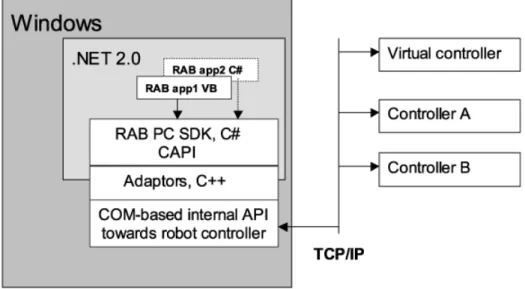
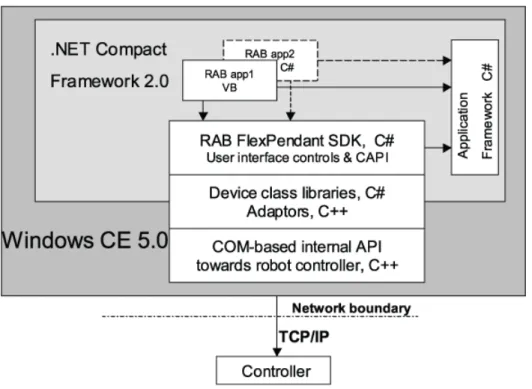
Simple illustrations of the software architecture of the two SDKs are shown below. As you can see the two run-time platforms, PC and FlexPendant, have a lot in common.
PC platform
3.1_1
Figure 1 - PC platform. Two PC SDK applications developed on top of the PC SDK. The PC SDK CAPI is the public API offering controller functionality. A PC SDK application can control many robot controllers on the network. All communication with these is done via the internal RobApi.
Continued
3.1. Two platforms - PC and FlexPendant © Copyri ght 200 7 - 2009 ABB . All ri ghts res erved. FlexPendant platform 3.1_2
Figure 2 - FlexPendant (SxTPU-2) platform. Two FlexPendant applications, one using VB and the other C#, developed on top of the FlexPendant SDK. The FlexPendant SDK CAPI is the public API offering controller functionality. All communication with the robot controller is done via the internal RobApi. The FlexPendant SDK provides ABB made UI controls suitable for the FlexPendant.
CAPI
Both SDKs offer controller functionality through a public application interface called CAPI. The interface can be seen as a specification of the controller services available.
Part of the controller services provided by the PC and FlexPendant SDK are the same. This means that part of the specification is also common (identical method signatures). The internal implementation of these controller services may differ, but for an external client, such as a RAB application, these methods are platform independent and work for both PC and FlexPendant applications.
As illustrated below, however, only a small part of the PC and FlexPendant SDK is common. Therefore, you cannot port a PC application to the FlexPendant platform or vice versa.
3.1_3
Continued
3.1. Two platforms - PC and FlexPendant © Copyri ght 200 7 - 2009 ABB . All ri ghts res erved.
Figure 3 - Common CAPI methods can be used for both platforms. The other CAPI methods are platform dependent. As you can see the FlexPendant SDK is more extensive than the PC SDK. This is mainly due to the fact that the FlexPendant SDK offers its own GUI controls. In this figure these would be in the FlexPendant circle outside of the CAPI circle.
3.2.1. Licence verification - applies only to versions earlier than RAB 5.10 © Copyri ght 200 7 - 2009 ABB . All ri ghts res erved.
3.2 Running PC Applications
3.2.1. Licence verification - applies only to versions earlier than RAB 5.10
OverviewA PC SDK application runs as a .NET executable, started either by double clicking the exe-file or by browsing to the program using the Windows Start menu.
Deployed PC applications do license verification during execution, checking that all application assemblies have been built on a PC with a valid PC SDK license key. If the key is missing some functions in the PC SDK will raise an exception during execution.
NOTE!
The license verification was removed in the 5.10 release. So the licx file detailed in the next section is no longer needed.
Licenses.licx
The license key should be placed in a “Licenses.licx” file, which should be added to your project as an embedded resource. For your convenience, such a file is included in the RAB installation at C:\Program Files\ABB Industrial IT\Robotics IT\Robot Application
Builder\PC SDK. The key for the PC SDK in VS 2005 is:
ABB.Robotics.Controllers.Licenses.PCSdk, ABB.Robotics.Controllers
TIP!
The License Compiler (Lc.exe) is a .Net Framework tool. It generates a .license file from a .licx file. Search in MSDN (licx , lc.exe) if you want more detailed information.
3.2.2. Mastership © Copyri ght 200 7 - 2009 ABB . All ri ghts res erved.
3.2.2. Mastership
Controlling controller resources
Controller resources must be controlled by a single client at a time. Several people can be logged on to the controller, but only one person at a time can run commands or change RAPID data. This is for security reasons as well as for protecting data from being accidentally overwritten.
When logged on to a controller you can have either read-only access or write access. Read only is the default access right. To get write access the client needs to request mastership of the controller resource it wants to manipulate.
NOTE!
In addition to the access right system, there is the User Authorization System, which restricts what each user is allowed to do with the robot. See User Authorization System on page 70 for further information.
Manual and automatic mode
When the controller is in manual mode, the FlexPendant has priority to write access, and mastership will not be given to a remote client unless an operator explicitly allows this via the FlexPendant. At any time, the operator can press Revoke on the FlexPendant to get the write access back.
In automatic mode, the client who first requests write access will get it. If a remote client has taken mastership of a domain other remote clients will not be allowed write access, but will get an exception if they try. For the operator there is no way to revoke mastership to the FlexPendant, but to switch the operating mode of the controller to manual.
As for FlexPendant SDK applications, requesting and releasing mastership is handled internally by the FlexPendant SDK, and the application programmer does not need to worry about it.
As for a remote client, such as a PC SDK application, however, it has to be carefully implemented by the application programmer.
PC SDK mastership domains
The PC SDK domains which require mastership are:
• Rapid
• Configuration
3.2.2. Mastership © Copyri ght 200 7 - 2009 ABB . All ri ghts res erved.
For code examples see Start program execution on page 208 in the PC SDK section.
NOTE!
Operations that require mastership are more resource demanding. Mastership should therefore be released as soon as an operation is completed.
Remote privilege in manual mode
Most of the time, it is not very convenient to have a PC SDK application perform operations that require mastership when the controller is in manual mode. Starting program execution for example is not even possible.
In manual mode when a remote client, e.g. RobotStudio or a PC SDK application, requests mastership a dialog box will appear on the FlexPendant. It enables the operator to grant mastership to the requesting client.
If mastership is granted, the remote application has the privilege to access robot controller resources. Meanwhile, the FlexPendant is locked and cannot be used until the remote application releases mastership or mastership is lost for any of the reasons mentioned in
Losing mastership on page 42.
Losing mastership
Remote clients have to be prepared that mastership may be lost without a warning for a number of reasons. Among these are:
• change from automatic to manual mode
• controller restart
• lost communication
• in manual mode forced revocation of mastership by another client with higher priority - for example the FlexPendant
If mastership is lost, it has to be taken back explicitly by the client. The controller does not store the information.
NOTE!
The FlexPendant may also lose mastership without any warning. This may happen in automatic mode, when a RobotStudio user or a PC SDK application asks for write access to the controller, for example. The status bar of the FlexPendant will then indicate “Remote Access in Auto”.
3.2.3. PC application configuration © Copyri ght 200 7 - 2009 ABB . All ri ghts res erved.
3.2.3. PC application configuration
Application configuration fileAll .NET Winform applications are designed to read configuration from an App.config file in the application directory. It is not mandatory to use such a file in a PC SDK application, but it is sometimes a handy way to add application flexibility.
For your convenience an App.config file that you can use is included in the RAB installation. The default values, which the PC SDK uses if there is no configuration file to read, are entered in the file. To modify application behavior you thus need to change the values of the attributes of this file.
NOTE!
Even if you use the App.config file to specify which controllers to work with you must still use the netscan functionality to be able to establish a connection from your PC application. See Discovery domain on page 210 for further information.
Add App.config to the project
Start by copying the App.config file at C:\Program Files\ABB Industrial IT\Robotics IT\Robot Application Builder 5.xx\PC SDK to the directory of your .csproj file. Then add the file to the project by right-clicking the project icon, pointing to Add and selecting Existing
Item.
NOTE!
The Copy Local property of the PC SDK references used by your application must be set to true to make use of the App.config file. (In the Solution Explorer in Visual Studio, right-click the reference and select Properties.)
Section tag
The <section> tag in the <configSection> part of the App.config should specify that there is a capi section in the file. It should also specify which type is to be used as the configuration container object as well as the assembly that this type belongs to:
<section name="capi"
type="ABB.Robotics.Controllers.ConfigurationHandler, ABB.Robotics.Controllers"/>
Capi section
The PC SDK application specific configuration data should be added to the <capi> section.
<capi> ... </capi>
3.2.3. PC application configuration © Copyri ght 200 7 - 2009 ABB . All ri ghts res erved.
The following tags are implemented in the PC SDK:
<defaultSystem>
If there is a controller (robot system) in the network that you connect to often, you may want to use the <defaultSystem> tag. It has an id attribute containing a string embraced by curly brackets. It is the system’s globally unique identifier (GUID), which can be find in the system.guid file in the INTERNAL folder of the robot system.
<defaultSystem id="{469F56DF-938E-4B06-B036-AABBB3E61F83}" />
Using this mechanism enables you to use the default constructor to create a Controller
object for the specified controller:
VB:
Dim aController As Controller = New Controller()
C#:
Controller aController = new Controller();
<remoteControllers>
It is possible to add controllers outside the local network when scanning for available controllers. One way of doing that is to add the IP address of these controllers in the
<remoteControllers> tag:
<remoteControllers><controller id="192.168.0.9" /> <controller id="192.168.0.19" />
</remoteControllers>
<discovery.networkscanner>
You can configure how long (in ms) a scan operation will last, and increase the value if netscanning fails. The default value is 200, but if you have a slow PC longer time might be needed.
<discovery.networkscanner delay="400" />
<defaultUser>
The <defaultUser> tag holds information about user name, password and an optional application name for the default user. It is used by the UserInfo class to log on to a controller. If an application name is not supplied, the process name is used.
<defaultUser name="user name" password="password" application="application"/>
<rmmp>
When mastership is requested in manual mode by a remote client such as RobotStudio or a PC SDK application, a dialog is launched on the FlexPendant asking the operator to confirm that mastership should be passed from the FlexPendant to a remote client. As long as there is no confirmation on the FlexPendant the PC SDK application is not given mastership. The time-out parameter is the time in seconds that the PC SDK application will wait for someone to confirm remote access in the FlexPendant dialog. The cycle parameter is the time in ms between poll calls from the PC SDK to check whether mastership has been granted.
<rmmp cycle="550" timeout="65" />
Continued
3.2.3. PC application configuration © Copyri ght 200 7 - 2009 ABB . All ri ghts res erved. <controllerCall>
You can add a time-out in ms and a multiplicand for slow calls to the controller. The time-out parameter is the maximum time a call through the Controller API will be permitted. If no answer is returned within the time specified, an exception is thrown. A slow call is a call that takes longer than usual, usually operations which require a UAS grant:
<controllerCall timeout="27000" slow="2.1" />
<eventStrategy>
The default way to handle events from the controller is to use asynchronous delegates (AsyncDelegate), applying the Invoke method to synchronize events and GUI. By using an <eventStrategy> tag, you can choose to use a windows postback delegate instead. To make this work you must also implement a subscription to the event from a windows form, or else the event handler will not receive the event:
<eventStrategy name="WindowDelegate" />
NOTE!
Using this strategy for event handling may affect the performance of your application. Continued