TekRADIUS
Installation & Configuration Guide
Version 5.0
2 Document Revision 12.3
http://www.kaplansoft.com/
TekRADIUS is built by Yasin KAPLAN TekRADIUS Manual is edited by David VANT
Read ‘Readme.rtf’ for last minute changes and updates, which can be found in the application directory.
Copyright © 2007-2015 KaplanSoft. All Rights Reserved. This document is supplied by KaplanSoft. No part of this document may be reproduced, republished or retransmitted in any form or by any means whatsoever, whether electronically or mechanically, including, but not limited to, by way of photocopying, recording, information recording or through retrieval systems, without the written permission of KaplanSoft. If you would like permission to use any of this material, please contact KaplanSoft.
KaplanSoft reserves the right to revise this document and make changes at any time without prior notice. Specifications contained in this document are subject to change without notice. Please send your comments by email to [email protected].
TekRADIUS contains code derived from the RSA Data Security, Inc. MD4 Message-Digest Algorithm.
KaplanSoft is registered trademark of Kaplan Bilisim Teknolojileri Yazılım ve Ticaret Ltd.
Microsoft, Microsoft SQL Server, Win32, Windows 2000, Windows, Windows NT and Windows Vista are either registered trademarks or trademarks of Microsoft Corporation in the United States and/or other countries.
Cisco is a Registered trademark of Cisco Systems, Inc. and/or its affiliates in the U.S. and certain other countries.
3
Table of Contents
Table of Contents ... 3 Introduction ... 4 System Requirements ... 5 Installation ... 6 Configuration ... 7 Settings Tab ... 7 Accounting Table ... 12 Service Parameters ... 13 Alerting ... 17 Clients ... 18 Groups ... 20 Users ... 23 Dictionary Editor ... 24 Reporting ... 26 DHCP Server ... 27 Starting TekRADIUS ... 31 Monitoring ... 32TekRADIUS Log File ... 33
TekRADIUS Specific Attributes (RADIUS Check Items) ... 34
TekRADIUS-Status ... 34 Simultaneous-Use ... 34 Expire-Date ... 34 User-Credit ... 34 Credit-Unit ... 35 Authentication-Method ... 35
TLS-Server-Certificate (TLS-Certificate prior to version 4.0) ... 36
TLS-Client-Certificate ... 36 Windows-Domain ... 37 Directory-Server ... 37 Active-Directory-Group ... 37 Time-Limit ... 37 First-Logon ... 38 Login-Time ... 38 Generate-MS-MPPE-Keys ... 38 Next-Group ... 39 Failure-Reply-Type ... 39 Tunnel-Tag ... 40 Credit-Period ... 40 Credit-Per-Period ... 40 External-Executable ... 40 Credit-Expiry-Action ... 41 EAP-SIM-Triplet-[1|2|3] ... 41 HTTP-Access-Level... 42
HTTP-User-Name & HTTP-User-Password ... 42
Password-Limit ... 42
Password-Reset ... 42
Check-MS-DialinPrivilege ... 43
Data Volume Based Authorization... 44
Change of Authorization Support for Disconnecting User Sessions ... 46
HTTP Reporting Interface ... 47
RADIUS Proxy ... 52
Troubleshooting ... 53
TekRADIUS Service Messages (TekRADIUS log file) ... 55
TekRADIUS Command Line Interface - TRCLI.exe ... 58
Creating and Installing a Self-Signed Certificate for PEAP/EAP-TLS Authentication ... 62
Creation of Self Signed Certificate... 62
Certificate Deployment at Client Side ... 63
Client PEAP Configuration ... 65
Client EAP-TLS Configuration ... 66
SQL Server Configuration ... 69
Connecting to SQL Express Using TCP/IP ... 69
SQL Express Authentication Configuration ... 70
Encoding of Attribute 144 in RFC 4679 (ADSL-Forum Access-Loop-Encapsulation)... 72
Regular Expression Based Check Attributes ... 73
Introduction
TekRADIUS is a RADIUS AAA server (Based on RFC 2865 and RFC 2866) and runs under Microsoft Windows (XP/Vista/7/8, 2003/2008/2012 Server) operating systems. Visit http://www.tekradius.com/ regularly for updates.
The following authentication methods are supported by TekRADIUS:
PAP [RFC 2865] CHAP [RFC 2865] MS-CHAP v1 [RFC 2548, RFC 2759] MS-CHAP v2 [RFC 2548, RFC 2759] EAP-MD5 [RFC 2284, RFC 2869] EAP-MS-CHAP v2 [draft-kamath-pppext-eap-mschapv2-02.txt] EAP-TLS [RFC 2716] , EAP-TTLS [RFC 5281] EAP-SIM [RFC 4186]
PEAPv0-EAP-MS-CHAP v2 [draft-kamath-pppext-peapv0-00.txt] (As implemented in Windows XP SP1)
Digest [draft-sterman-aaa-sip-00.txt] (SIP Authentication)
OTP (One Time Password) authentication based RFC 2289.
TekRADIUS also supports RFC 2868 (RADIUS Attributes for Tunnel Protocol Support) and RFC 3079 (Deriving Keys for use with Microsoft Point-to-Point Encryption (MPPE)). PPTP/L2TP connections may be authenticated and authorized using TekRADIUS. TekRADIUS also supports TCP (RFC 6613) and TLS (RFC 6614-RadSec) transports. TekRADIUS can proxy RADIUS requests to other RADIUS servers.
EAP-TLS, EAP-SIM and EAP-TTLS are only supported in the commercial edition of TekRADIUS. You can use only PAP, CHAP, MS-CHAP and MS-CHAP-v2 as inner authentication methods with EAP-TTLS. Inner authentication methods supported in PEAP are EAP and EAP-MS-CHAP-v2.TekRADIUS has a built-in DHCP server that can assign IP addresses to wireless clients based on the usernames entered for PEAP/EAP authentication and not just based on MAC addresses. The DHCP server function is available in both the free and commercial editions of TekRADIUS.
IP address assignment based on username is only supported in the commercial edition of TekRADIUS.TekRADIUS can send Packet of Disconnect (PoD) or execute a user defined session kill command when a user’s credit is fully consumed (SP Edition only).
The execution of a user defined session kill command when a user’s credit is fully consumed is only supported in the SP Edition of TekRADIUS.5
System Requirements
A Pentium class CPU with 2 GB of RAM is ideal for most configurations; however, it is necessary to have Microsoft .NET Framework 4.0 Client Profile installed with the latest patches.
TekRADIUS standard edition supports only Microsoft SQL Server; TekRADIUS LT edition supports both Microsoft SQL Server and SQLite.
TekRADIUS SQL edition requires Microsoft SQL Server. Any version of Microsoft SQL server, including Express editions, may be used. The disk space required and SQL edition necessary depends on the application. Please see section entitled ‘SQL Server Configuration’ for instructions on how to configure the SQL Server for use with TekRADIUS.
Although an “sa” equivalent SQL user is needed to create the initial database and tables, a less privileged SQL user may be used for regular operations.
TekRADIUS LT does not require an additional database server. TekRADIUS LT uses its own built-in SQLite database. TekRADIUS LT Manager creates database at first run automatically.
Installation
Unzip TekRADIUS.zip or TekRADIUSLT.zip and launch Setup.exe that comes with the distribution. Follow the instructions of the setup wizard. The setup will install TekRADIUS Manager and the TekRADIUS Service, and add a shortcut for TekRADIUS Manager to the desktop and the start menu.
Please uninstall existing version prior to install a new version. You can keep existing TekRADIUS.ini (Configurations settings) and TekRADIUS.db (Dictionary file) files.
7
Configuration
Run TekRADIUS Manager with Administrative privileges from the desktop shortcut or selecting TekRADIUS Manager from Start > Programs > TekRADIUS > TekRADIUS Manager.
Administrative privileges means either logged in as Administrator or as a user that is a member of the built-in ‘Administrator’ group.NOTE: It is not possible to access parameter settings without Administrative privileges. Running TekRADIUS Manager from an ordinary user account causes TekRADIUS Manager to run in ‘Operator’ mode, which only provides for:
Changing existing user profiles, Monitoring active sessions,
Generating usage reports. (Please see related section on generating usage reports.)
Initialization parameters should be configured before running the TekRADIUS Service. It is necessary to save the changes and restart the TekRADIUS service after making any configuration changes.
Settings Tab
Click the Settings tab to start configuration. SQL Connection (Database in LT Edition)
The SQL Connection must be configured first. Enter the following information: SQL Server:
Enter the IP address or the FQDN of the server running the SQL server, or select a detected SQL server from the drop-down list.
If the SQL server is installed on the same server as TekRADIUS, ‘Localhost’ (without quotes)
may be used to identify the SQL Server. If the default instance of an SQL server is used, use ‘.’ (period mark) to denote the default instance.
Timeout:
Enter the connection timeout (in seconds) for the SQL Server. The default value is 30 seconds.
Username:
Enter the SQL username to be used to connect to the SQL server.
The SQL server must be configured to support at least username/password based authentication. The authentication mode may be changed using SQL Server Management Studio (right click the registered SQL Server instance, select Properties and then Security). For SQL Server 2000, consult http://support.microsoft.com/kb/285097. Refer to the section titled ‘SQL Server Configuration’ to configure an SQL Server to use with TekRADIUS.
Password:
Figure 1 - SQL Connection Settings
Ignore ANSI Warnings:
Large attribute values in accounting packets may cause truncation errors. Check this option to force SQL Server to ignore these truncation errors.
Use Default Authentication Query:
Uncheck this box to specify an alternative query to select the authentication attributes from the Users Table to be checked against to the attributes received from the access server.
Authentication Query:
If the Use Def. Authorization Query option is unchecked, enter the alternative query. Always use AttrType=0 to get check attributes. Query syntax is automatically checked.
By default, to fetch the check attributes from the Users Table, TekRADIUS uses:
Select Attribute, Val from <users_table> where UserName='%ietf|1%' and AttrType=0
Use Default Authorization Query:
Uncheck this box to specify an alternative query to select the authorization parameters from the Users Table to be returned to the access server.
Authorization Query:
If the Use Def. Authorization Query option is unchecked, enter the alternative query. Always use AttrType=1 to get success-reply attributes. Query syntax is automatically checked.
By default, to fetch the success-reply attributes from the Users Table, TekRADIUS uses:
Select Attribute, Val from <users_table> where UserName='% ietf|1%' and AttrType=1
Delimiter Character:
Specify the delimiter character to be used when entering multiple string-type, reply attributes in user or group profiles. The default value is a semi-colon “;”.
9
Encrypt Passwords:
Check this option to encrypt passwords for user and group profiles stored in the TekRADIUS database.
DB Session Counter:
Check this option to use multiple instances of TekRADIUS with the same database. By default, TekRADIUS stores simultaneous session counters in memory; however, enabling this option forces the session counters to be stored in the database.
Save Failed Accounting Inserts:
Check this option to save failed accounting table updates into a daily rotated file which can be found under Log sub directory under TekRADIUS application directory.
RegExp Matching:
Check this box to match string type attributes in incoming RADIUS Access-Requests with the check attributes defined in user or group profiles using regular expressions. This feature is available only in commercial editions.
Enable User Editing for non-Admin Users:
TekRADIUS disables user editing functions (Adding, removing, changing user profiles), when you run TekRADIUS manager with a Windows user who is not in Administrators group. You can enable user editing functions for non-Admin users by checking this option. This feature is available only in commercial editions.
To test the settings before saving, click Test Connection. “Connection Successful but database does not exist” or “Connection Successful but there was missing table(s)” responses indicate that the
configuration is valid.
The database and all associated database tables may be either created from within TekRADIUS Manager under the Database Tables tab, or manually using SQL scripts. The SQL scripts for the manual creation of the TekRADIUS database and tables can be found in the TekRADIUS installation directory (TekRADIUS.sql for the database, and Users.sql, Groups.sql, Acconting.sql
and Session.sql for the tables). Database Tables
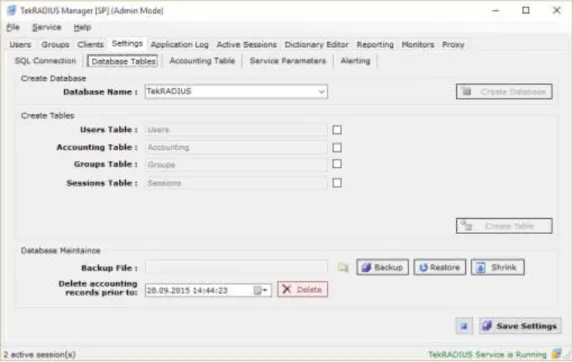
If TekRADIUS Manager can access the SQL Server, it is now possible to create the necessary database and tables. If TekRADIUS finds any previously created tables, it automatically unchecks entries for those tables.
Create Database / Database Name:
Enter the database name. The default name is ‘TekRADIUS’. Click Create Database to create the database. The following SQL clause is executed automatically to create the database:
CREATE DATABASE [TekRADIUS] GO
If the database is created successfully, the message “Database created and connection
Figure 2 - Database Tables Configuration
Create Tables / Users Table:
The Users Table contains the user definitions and the check and reply RADIUS attributes for the users. Uncheck the checkbox if the Users Table is not to be created.
The following SQL clause is automatically executed to create the Users Table:
USE [TekRADIUS] GO
CREATE TABLE [dbo].[Users](
[UserName] [nchar](64) NOT NULL, [Attribute] [nchar](16) NULL, [AttrType] [int] NULL, [Val] [nchar](64) NULL ) ON [PRIMARY]
GO
CREATE NONCLUSTERED INDEX [IX_Users] ON [dbo].[Users] ([UserName] ASC)
GO
Create Tables / Accounting Table:
The Accounting Table stores RADIUS accounting messages. Uncheck the checkbox if the Accounting Table is not to be created.
The following SQL clause is executed to create the Accounting Table (Indexes are vital for high performance!):
USE [TekRADIUS] GO
CREATE TABLE [dbo].[Accounting]( [SessionID] [nchar](255) NOT NULL, [StatusType] [nchar](30) NULL,
[InputOcts] [int] NULL CONSTRAINT [DF_Accounting_InputOcts] DEFAULT ((0)), [OutOcts] [int] NULL CONSTRAINT [DF_Accounting_OutOcts] DEFAULT ((0)), [UserName] [nchar](128) NULL,
[NasIPAddr] [nchar](15) NULL, [NasIdentifier] [nchar](255) NULL, [NasPort] [nchar](40) NULL, [NasPortId] [nchar](255) NULL, [NasPortType] [nchar](40) NULL, [ServiceType] [nchar](40) NULL, [FramedIPAddr] [nchar](15) NULL, [CallingStationId] [nchar](64) NULL, [CalledStationId] [nchar](64) NULL,
11
[AcctSessTime] [int] NULL, [DisconnectCause] [nchar] (128), [TimeStamp] [datetime] NOT NULL, [Amount] [int] NULL)
GO
CREATE NONCLUSTERED INDEX [IX_Accounting_1] ON [dbo].[Accounting] ([TimeStamp] ASC)
GO
CREATE NONCLUSTERED INDEX [IX_Accounting_2] ON [dbo].[Accounting] ([SessionID] ASC)
GO
CREATE NONCLUSTERED INDEX [IX_Accounting_3] ON [dbo].[Accounting] ([UserName] ASC)
GO
CREATE NONCLUSTERED INDEX [IX_Accounting_4] ON [dbo].[Accounting] ([NasIPAddr] ASC)
GO
Create Tables / Groups Table:
The Groups Table contains common check and reply RADIUS attributes for the users. Uncheck the checkbox if the Groups Table is not to be created.
The following SQL clause is executed to create the Groups Table:
USE [TekRADIUS] GO
CREATE TABLE [dbo].[Groups] (
[GroupID] [nchar](64) NULL, [Attribute] [nchar](64) NULL, [AttrType] [int] NULL, [Val] [nchar](128) NULL ) ON [PRIMARY]
GO
CREATE NONCLUSTERED INDEX [IX_Groups] ON [dbo].[Groups] ([GroupID] ASC)
GO
Create Tables / Sessions Table:
TekRADIUS stores active sessions in the Sessions Table. When a RADIUS accounting start message is received, a record for that session will be added to the Sessions Table. TekRADIUS will remove that record as soon as it receives a RADIUS accounting stop message for that session. TekRADIUS clears the Sessions table every time the service starts. The sessions displayed in the Active Sessions tab are derived from the Sessions Table. Uncheck the checkbox if the Sessions table is not to be created.
The following SQL clause is executed to create the Sessions table:
USE [TekRADIUS] GO
CREATE TABLE [dbo].[Sessions](
[TimeStamp] [datetime] NOT NULL, [SessionID] [nchar](255) NULL, [UserName] [nchar](128) NULL, [GroupName] [nchar](128) NULL, [NasIPAddr] [nchar](15) NULL, [NasIdentifier] [nchar](255) NULL, [NasPort] [nchar](40) NULL, [NasPortType] [nchar](40) NULL, [NasPortId] [nchar](255) NULL, [ServiceType] [nchar](40) NULL, [FramedIPAddr] [nchar](15) NULL, [CallingStationID] [nchar](64) NULL, [CalledStationID] [nchar](64) NULL, [auditsessionid] [nchar](64) NULL) GO
CREATE NONCLUSTERED INDEX [IX_Sessions] ON [dbo].[Sessions]
([TimeStamp] ASC)
Click Create Tables to create the selected tables. If the tables are created successfully, the message “Table(s) created and connection settings are updated…” will be displayed. The
AttrType field is set to “0” for RADIUS check attributes, “1” for success-reply attributes and “2” for failure-reply attributes in the Users and Groups tables.
Database Maintenance
The TekRADIUS Database may be shrunk and old accounting records deleted to save space, and a backup may be taken of the database for disaster recovery purposes.
Shrink Database:
To shrink the TekRADIUS database, click Shrink Database. Delete accounting records prior to:
Enter a date and time prior to which all accounting records should be deleted and click Delete. Backup File:
Enter the filename for the database backup and click Backup Database.
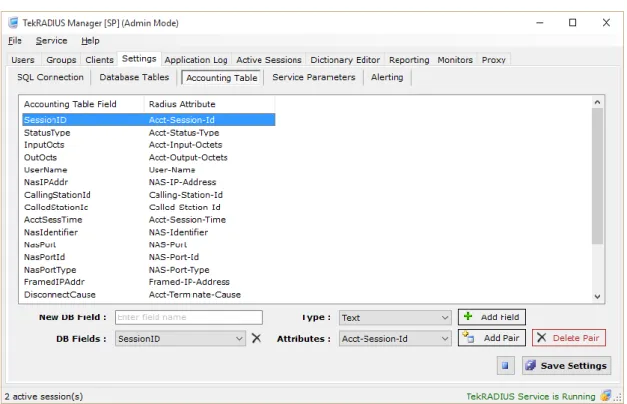
The SQL Server service account must have write privilege to selected backup directory.Figure 3 - Accounting Table Field Selection
Accounting Table
It is possible to define in which field of the Accounting table will store which RADIUS accounting attribute that are received in RADIUS Accounting messages. Additional accounting fields may be created and assigned a RADIUS attribute. Existing field/attribute pairs may also be deleted.
The left list-box identifies the Accounting Table field; the right list-box identifies the matching RADIUS attribute.
13
1. Type a unique field name into the ‘New DB Field’ box,
2. Select type of the RADIUS attribute to be stored in this field from the ‘Type’ drop-down list,
3. Click Add Field. To define Field/Attribute pairs:
1. Select the required field from the ‘DB Fields’ drop-down list and the corresponding RADIUS attribute from the ‘Attributes’ drop-down list,
2. Click Add Pair. To delete Field/Attributes:
1. Select the required pair in the main display, 2. Click Delete Pair.
Special consideration is required for the Cisco-AVPair attribute as it is necessary to manually enter the Cisco-AVPair key to the Radius Attribute. For example, if the Cisco access server sends Cisco-AVPair="connect-progress=LAN Set Up", it would be necessary to add “connect-progress” as the RADIUS Attribute.
Service Parameters
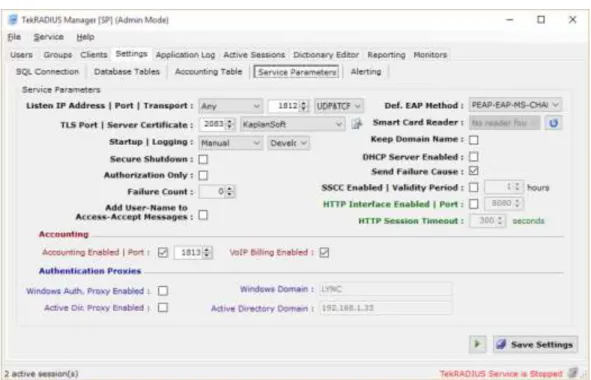
Enter the following information to configure service specific parameters:
Figure 4 - Service Parameters Configuration
Listen IP Address:
From the drop-down list, select an IP address for TekRADIUS to listen for incoming messages. The list contains all IP addresses associated with all enabled network interfaces.
If an IP address, used by TekRADIUS, is removed from the Windows Network configuration, TekRADIUS will automatically select the first available IPv4 address in the network settings at startup.
Listen IP Port:
Enter the UDP RADIUS authentication port between 1 - 65535. If no value is entered, the default port of 1812 will be used.
If the selected port is used by another program, TekRADIUS will disable the RADIUS Authentication thread and add the following event entry to the Windows Event Log: “Unable
to initialize TekRADIUS Authentication thread”. TLS Port:
TekRADIUS uses TCP port 2083 for TLS transport by default. Enter the TCP port between 1 - 65535 for TLS transport.
Server Certificate:
Select a certificate for Server Authentication for TLS transport. TekRADIUS lists valid certificates in Windows Certificate Store / Local Machine. This certificate will also be used by default for PEAP sessions if you do not set a TLS-Server-Certificate in user or group profiles.
Transport:
From the drop-down list, select transport. TekRADIUS enables both UDP and TCP transports Startup:
Select the startup mode of the TekRADIUS Windows service. The default startup mode is ‘Manual’. Click Save Settings to make the selected mode active.
Logging:
Select the logging level of the TekRADIUS service. Select either: ‘None’ for no logging,
‘Errors’ to log errors,
‘Sessions’ to log session information and errors,
‘Debug’ to provide more details on errors and gives packet decodes for authentication exchanges.
Log files are stored under the <Application Directory>\Logs directory. Secure Shutdown:
Check this option to force TekRADIUS to terminate for any active sessions when it is shutdown. Termination is performed by sending a PoD packet by default. Termination is performed with a Kill command if a Kill command is defined for a NAS.
It is not necessary to enable this option if only RADIUS Accounting-Stop messages are received from the access server.
Authorization Only:
Check this option if only authorization requests from RADIUS clients are to be processed. If TekRADIUS is configured to run in ‘Authorization Only’ mode, there must be at least one
Success-Reply attribute configured for the users to be authorized, otherwise users will receive
15
If TekRADIUS finds a valid user entry in the Users Table, success-reply attributes will be returned in an Access-Accept message. NOTE: TekRADIUS will not process any check attributes configured for the user in the user and group profiles.
Use this option with care; if a username is found matching an authentication request, TekRADIUS will reply with an Access-Accept message regardless of the User-Password.Failure Count:
TekRADIUS can disable a User profile after a number of unsuccessful login attempts. Set the Failure Count to the number of allowed unsuccessful login attempts before the User profile is disabled. Entering 0 disables this feature.
If Mail Alerting is enabled, notification will be sent when a User profile is automatically disabled.
Add User-Name to Access-Accept Messages:
Check this option to force TekRADIUS to automatically add the User-Name attribute to RADIUS Access-Accept replies.
Send Failure Reply:
Check this option to force TekRADIUS to add the failure cause to Access-Reject replies using the IETF Reply-Message (18).
Def. EAP Method:
You can select default EAP method. Default EAP authentication method is PEAP-EAP-MS-CHAP v2.
Smart Card Reader:
Select Smart Card Reader to read SIM triplets from a SIM card for EAP-SIM authentication. Keep Domain Name:
Check this option to prevent TekRADIUS from automatically removing characters before a ‘\’ character in a User-Name attribute received in access and accounting requests. The default action is for TekRADIUS to remove all characters before a ‘\’ character.
DHCP Server Enabled:
Check this option to enable the TekRADIUS built-in DHCP server. The DHCP server automatically assigns IP addresses to all wired or wireless devices from pools of IP Addresses defined Pools in the DHCP tab.
A unique feature of the TekRADIUS DHCP server is that it allows IP addresses to be assigned to wireless clients based on the usernames entered in PEAP/EAP authentication and not solely on the client MAC addresses.
The IP address assignment based usernames is available only in commercial editions of TekRADIUS.SSCC (Self Signed Certificate Creation):
Check this option to force TekRADIUS to generate a server certificate dynamically for every PEAP authentication request. If this option is set, it is not necessary to configure a server certificate using the TLS-Server-Certificate attribute.
Server certificate validation must be disabled when this option is enabled.HTTP Interface Enabled | Port:
Check this option to enable the TekRADIUS HTTP interface. Refer to the ‘HTTP Reporting Interface’ section of this manual for more details.
HTTP Session Timeout:
If the HTTP Interface is enabled, select the timeout before a user session expires. Once an HTTP session has expired, the user will need to re-logon to gain HTTP access.
Accounting Enabled:
Check this box to enable the collection and processing of accounting packets from RADIUS clients.
When an Accounting-Checkpoint message is received for a previously unknown session, this checkpoint message is assumed to be an accounting session start (an entry will also be added in the Sessions Table).
When an Accounting-Stop message is received for an already stopped session and the previously received Accounting-Stop of the session has no Acct-Session-Time attribute (Acct-Session-Time=NULL), the session's stored stop record is updated by the newly received one. When an Accounting-Off message is received from a RADIUS client, all active sessions with that RADIUS client will be stopped with Acct-Session-Time=NULL and the session entries will be cleared in the Sessions Table.
Accounting Port:
Enter the UDP RADIUS accounting port between 1- 65535; if no value is entered, the default port of 1813 will be used.
If the port number entered is the same as that used by authentication, accounting will be disabled. If selected port is used by another program, TekRADIUS will disable the RADIUS Accounting thread and add the following event entry to Windows Event Log: “Unable to
initialize TekRADIUS Accounting thread”.
If TekRADIUS cannot initialize either the Authentication or Accounting threads, execution of the startup sequence is halted and adds the following event entry to Windows Event Log:
“Could not start any of TekRADIUS threads; exiting...” VOIP Billing Enabled:
Please see TekRADIUS Rate Editor Manual for details. Windows Authentication Proxy
TekRADIUS can act as a proxy for the user accounts defined in the local Windows Domain / Server. If this feature is enabled and TekRADIUS cannot find a valid entry in the Users Table, the username/password on the local Windows machine is checked. If the username/password is valid in the Windows domain, Success-Reply attributes are fetched from the Default user Group. If specific RADIUS check and reply attributes are required for specific users, create a User profile without the
User-Password attribute and add the Authentication-Method attribute as a check item with the value ‘Windows’. TekRADIUS checks user dial-in privilege by default. You can disable it by adding
Check-MS-DialinPrivilege = False as a check attribute to Default user group or proxy Windows user profile.
Windows Auth. Proxy Enabled:
Check this option to enable the Windows Authentication Proxy feature. Windows Domain:
17
Active Directory Proxy
TekRADIUS can act as a proxy for the user accounts defined in the local Active Directory Domain / Server. If this feature is enabled and TekRADIUS cannot find a valid entry in the Users Table, the username/password on Active Directory is checked. If the username/password is valid in the Active Directory Domain, Success-Reply Attributes are fetched from the Default user Group.
If specific RADIUS check and reply attributes are required, for example, to limit the number of simultaneous sessions using the Simultaneous-Use attribute or to check an AD group with the
Active-Directory-Group attribute, create a User profile entry without the User-Password attribute and add the Authentication-Method attribute as a check item with the value ‘Active-Directory’.
Active Dir. Proxy Enabled:
Check this option to enable the Active Directory Proxy feature. Active Directory Domain:
Enter the Active Directory Domain name of the local Active Directory Domain. Alerting
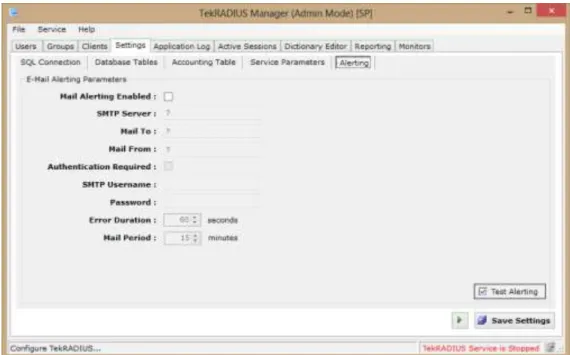
TekRADIUS can be configured to send e-mail alerts if an error condition occurs for a specified duration.
Figure 5 - Alerting Configuration
Enter the following information to configure alerting: Mail Alerting Enabled:
Check this option to enable the Mail Alerting feature. SMTP Server:
Enter the IP address or FQDN of the SMTP server. Mail To:
Mail From:
Enter the e-mail address that will be shown as the sender email address. Authentication Required:
Check this option if the SMTP server requires user authentication. SMTP Username:
If ‘Authentication Required’ has been checked, enter the SMTP username. Password:
If ‘Authentication Required’ has been checked, enter the password of the SMTP user. Error Duration:
Enter the minimum error duration (in seconds) before sending an e-mail alert (Default: 60 seconds).
Mail Period:
Enter the minimum duration (in minutes) before sending the next e-mail alert (Default: 15 minutes).
Click Test Alerting to test the E-Mail Alerting configuration. If the configuration is valid, a test message will be sent by TekRADIUS to the ‘Mail To’ email address.
Clients
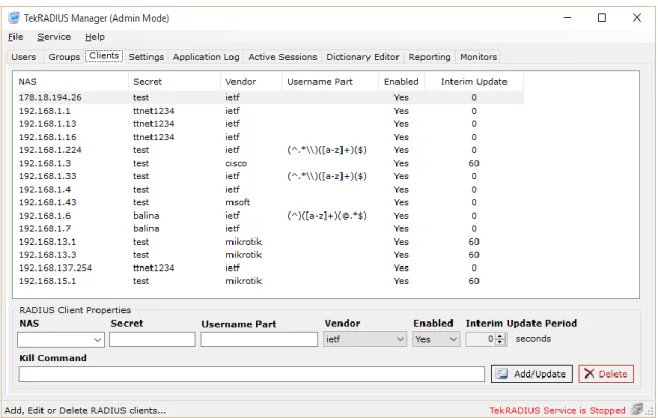
RADIUS clients are defined in the Clients tab. RADIUS client data is stored the ‘Clients Table’ in the TekRADIUS.db file, under the installation directory. When RADIUS client information is added, edited or deleted, the changes will be immediately written to the ‘Clients Table’.
19
Figure 6 - RADIUS Clients
To add a new RADIUS client, enter the following settings and click Add/Update; to alter settings of an existing RADIUS client, select the client from the table and make the required changes to the following settings and click Add/Update. Similarly, to delete an existing RADIUS client entry, select the required client from the table and click the Delete.
NAS:
Select and existing NAS or enter the IP address of a new RADIUS client. You can also specify a subnet like 192.168.1.0/24. The SP edition of TekRADIUS can accept FQDN names, which are automatically queried every 60 seconds for IP address changes, enabling this feature to be used with dynamic DNS services.
Only the SP edition of TekRADIUS can accepts alphanumeric domain names as RADIUS client entries.Secret:
Enter the shared secret for the RADIUS client. The secret cannot be left blank. Username Part:
Enter a regular expression to specify username portion for a received username in User-Name attribute from this RADIUS client. Start always with (^) and end with ($). TekRADIUS will take seconds group of regular expression as username. Matching is performed in case insensitive. Left blank if you do not use this option. Samples;
Regular Expression Input Result
(^.+\\)([a-z]+)($) Domain\user user (^)([a-z]+)(@.+$) user@Domain user
Vendor:
Select the vendor of the RADIUS client. If the vendor is not known, or is not listed, select ‘ietf’ as the Vendor.
Enabled:
To temporarily disable a RADIUS client, select ‘No’ from the drop-down list. The default value is ‘Yes’.
Interim Update Period:
If the RADIUS client supports sending Interim Accounting Messages, the ‘Interim Update Period’ may be set to force TekRADIUS to clear any associated active sessions and simultaneous session entries if an update is not received in the period specified. The minimum allowed value for interim update period is 60 seconds.
Setting interim update period to 0 disables interim update period checking for the selected RADIUS client. The default setting is ‘0’.
A default RADIUS client entry may be created in version 2.5 onwards to enable TekRADIUS toaccept a RADIUS request from unlisted RADIUS clients with the correct shared key.
A ‘Kill’ command can be defined to drop user sessions through the Active Sessions tab if the host supports a command line utility to send an appropriate signal to disconnect a particular user session. The following variables can be used as parameters with the “Kill” command;
$NASIPAddress $SessID $UserName $NasPort $NasPortId $Calling-Station-Id
Some NAS devices support SNMP MIBs that can be used to disconnect users. In this case it is possible to use the command line ‘SNMP set’ utility to disconnect users. Please consult your NAS documentation to find out whether the NAS supports this function and which MIB to use.
This is an example to clear TTY sessions on a Cisco device:
c:\util\snmpset $NASIPAddress public .1.3.6.1.4.1.9.2.9.10.0 integer $NasPort
It is possible to also use other types of utilities that are supported by your access server. Groups
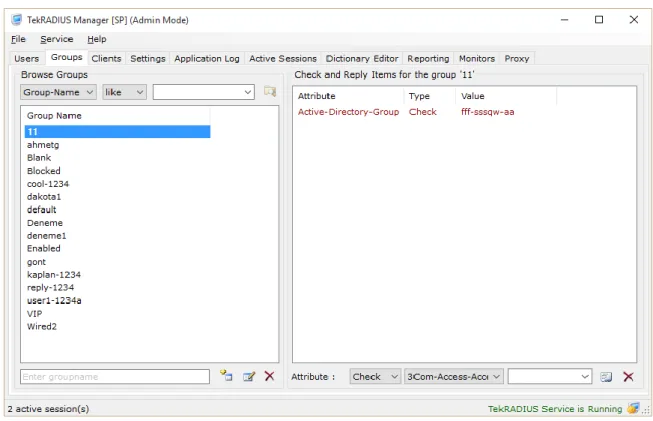
Groups are defined in the Groups tab. Group profiles are used for common RADIUS attributes associated with a group of users. The Default user Group is added automatically when the database tables are created. The Default user Group cannot be deleted as it is required by TekRADIUS for proper operation.
If RegExp Matching is enabled in Settings / SQL Connection, Regular Expressions may be specified to match patterns in Check type attributes
21
Figure 7 - Groups Tab
New Group profiles are defined and attributes assigned in the Groups tab. Existing Groups may be modified or deleted; and the entire Groups Table may be searched to locate any existing Group. To add a new Group:
1. Enter a non-blank group name in the ‘Group:’ text box (Bottom left), 2. Click the Add icon.
To modify an existing Group’s name or its attributes: 1. Select the existing Group,
2. Makes any changes to its name or its attributes (see below), 3. Click the Modify icon.
To delete an existing Group: 1. Select the required Group, 2. Click the Delete icon.
The Default Group can neither be modified nor deleted.
If a group is deleted, the Users associated with that group are moved automatically to the Default group.To search for a particular group:
1. Enter the first letters of the group name in the Browse Groups window (if the search box is left blank, all groups will be retrieved),
Matching group names will be listed in the group list box. It is also possible to search for a specific attribute and its value in the group profiles.
Check and reply attributes may be added or deleted for a user Group. To add an attributes to a Group:
1. Select the required attribute from the entry fields, 2. Click the Add/Update icon.
To delete an existing attribute from a Group: 1. Select the Group and attribute,
2. Click the Delete icon. Attribute:
1. Select the attribute type (Check or Reply) from the first dropdown list, 2. Select the attribute name from the second dropdown list,
3. Select the attribute value from the third dropdown list or manually type in the value as appropriate.
To restrict access to unauthenticated users, add Failure-Reply attributes to the user or group profiles. TekRADIUS will reply with an Access-Accept message containing the Failure-Reply
attributes if that User or Group profile has Failure-Reply attributes defined when the authentication fails; if the User or Group profile does not have any Failure-Reply attributes, TekRADIUS will reply with an Access-Reject message.
This feature is not available for PEAP authentication, VPN authentication or when the authentication failure is caused by an invalid authentication method.
Use this feature with extreme care. If the Default user group has Failure-Reply attributes, all failed authentication attempts will be replied with Access-Reject messages containing the Failure-Reply attributes. When a user is authorized with Failure-Reply, TekRADIUS will NOT check the Simultaneous-Use, Expire-Date, Login-Time, TekRADIUS-Status nor Quota parameters.
To send Failure-Reply attributes in an Access-Accept message, add the Failure-Reply-Type attribute as a check attribute to the user or group profile with value of ‘Accept’.Check items will be listed in dark red, success-reply items will be listed in dark blue and failure-reply items will be listed in turquoise.
If an attempt is made to add a previously defined attribute, the previously defined attribute will be updated with the parameters of the new one.
Hexadecimal strings should be entered with the 0x prefix (for example, enter 0x54656B524144495553 for the string ‘TekRADIUS’).
Multiple reply attributes may be added to a user profile by separating the values with a “;”
(semicolon). Multiple value entries are supported only for string type attributes for RADIUS authentication. It is also possible to have multiple entries for IP address type DHCP reply attributes.
23
Informational type attributes may be added to User or Group profiles. Additional ‘vendors’ may be added to the TekRADIUS dictionary to store User or Group specific data, such as addresses and phone numbers. Informational type attributes, displayed in dark green, are not used while authenticating or authorizing users.
User attributes override Group attributes!Users
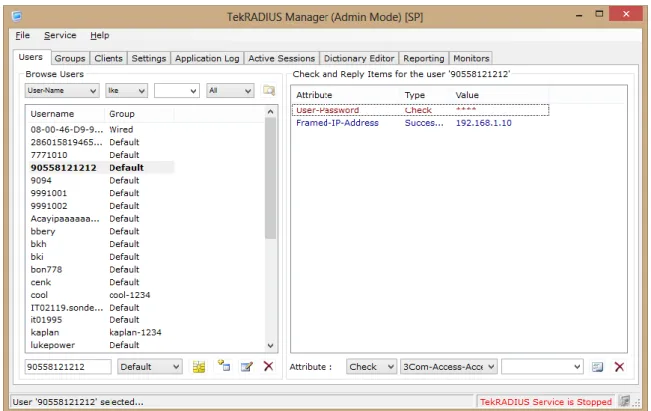
In the Users tab, new Users may be defined, added to existing Groups and attributes assigned; existing Users may be modified or deleted; and the entire Users Table may be searched to locate any existing Users.
Figure 8 - Users Tab
To add a new User:
1. Enter a username in the user text field (bottom left), 2. Select the user Group,
3. Click the Add icon.
Follow the instruction in the ‘Groups’ section above for instructions on how to search for, modify or delete Users.
The User-Password attribute is stored encrypted in the Users and Groups tables.
A default User profile may be defined and will be used when an incoming RADIUS authentication request does not match any of the existing User profiles. If Windows Authentication Proxy (WAP)
or Active Directory Proxy (ADP) is enabled, TekRADIUS will try to authenticate the user against WAP and then ADP, and finally, if a ‘Default’ User profile exists, it will be checked against the
‘Default’ User profile. Simultaneous-Use, User-Credit, Credit-Unit, First-Logon, Credit-Period,
Credit-Per-Period attributes have no function in the ‘Default’ User profile. The username ‘Default’ is reserved for the default User profile.
Attributes defined in User profiles have precedence over those defined in Group profiles. If the same attributes are defined in both a User and associated Group profile, the attribute in the User profile will be preferred. Only one instance of an attribute in check or reply attributes can be used. Click Import SIM Triplets button to import SIM triplets from the SIM card inserted in the smart card reader. The use of a smart card reader can be selected through Settings / Service Parameters. Dictionary Editor
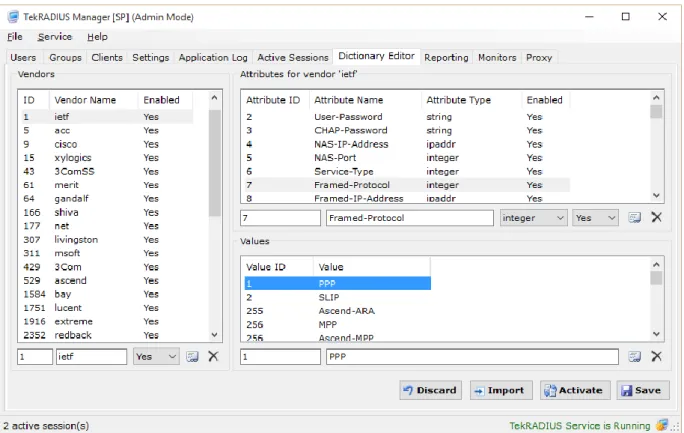
RADIUS dictionary entries can be edited using the Dictionary Editor tab. RADIUS dictionary entries (Vendors, Attributes and Values) and client definitions are stored in TekRADIUS.db, which can be found in the application directory.
Figure 9 - Dictionary Editor
The Dictionary consists of Vendors, Attributes and Values tables. If a valid entry for a vendor could not be found because a vendor or an attribute has been deleted or disabled, VSAs from that vendor are ignored when authenticating the user. Also, reply attributes configured for a vendor are not sent to the NAS if there is no entry for that vendor in the TekRADIUS.db/Vendors table.
The attribute name is automatically added in Cisco and Quintum VSA replies (except for the Cisco-AVPair attribute). For example, the Quintum-h323-preferred-lang reply attribute will be sent as
25
Attributes in received RADIUS packets that are not in the dictionary are ignored. If there are duplicate attributes in request packets, only the first attribute is processed, except for Cisco and Quintum AVPs (Cisco & Quintum VSA 1). To optimize performance, disable unnecessary vendors. Text based dictionary files may be imported by clicking import button. An example of a text based dictionary file is shown below;
VENDOR Netscreen 3224
BEGIN-VENDOR Netscreen
ATTRIBUTE NS-Admin-Privilege 1 integer
ATTRIBUTE NS-VSYS-Name 2 string
ATTRIBUTE NS-User-Group 3 string
ATTRIBUTE NS-Primary-DNS 4 ipaddr
ATTRIBUTE NS-Secondary-DNS 5 ipaddr
ATTRIBUTE NS-Primary-WINS 6 ipaddr
ATTRIBUTE NS-Secondary-WINS 7 ipaddr
ATTRIBUTE NS-NSM-User-Domain-Name 220 string ATTRIBUTE NS-NSM-User-Role-Mapping 221 string VALUE NS-Admin-Privilege Root-Admin 1 VALUE NS-Admin-Privilege All-VSYS-Root-Admin 2 VALUE NS-Admin-Privilege VSYS-Admin 3 VALUE NS-Admin-Privilege Read-Only-Admin 4 VALUE NS-Admin-Privilege Read-Only-VSYS-Admin 5 END-VENDOR Netscreen
Reporting
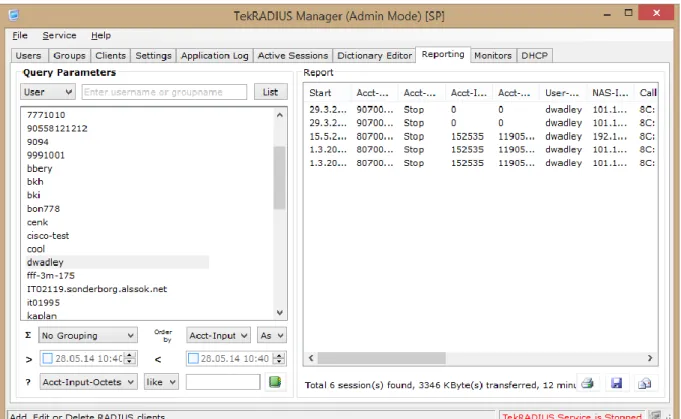
TekRADIUS provides a simple interface for browsing RADIUS Accounting records stored in the Accounting table, and accessed via the Reporting tab. Reports can be generated for a selected User, or all users in a Group, for a specified interval of dates.
Figure 10 - Reporting Tab
To select a User or Group, enter the first letters of the User name or Group name and click the List button. If the Query parameter box is left blank, all users in the TekRADIUS database will be listed if ‘User’ has been selected; and all groups will be listed if ‘Group’ has been selected.
Dates when accounting events occurred may be optionally selected. If no dates are specified, all session entries will be listed for the selected User(s). Click the Report icon to list the accounting entries. The results may be printed or saved as a CSV file.
TekRADIUS generates a user list from the Accounting table. You may not see all users listed when you select “All Users” since some users may not have accounting events in the Accounting table.
27
DHCP Server
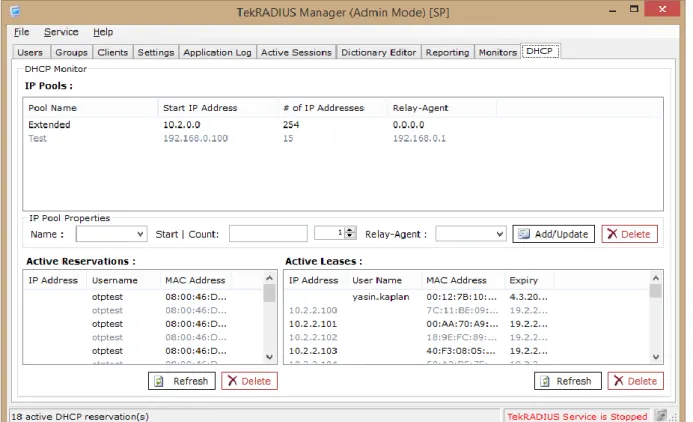
TekRADIUS has a built-in DHCP server to assign IP addresses to the wired or wireless devices on the network, and accessed via the DHCP tab. Within this tab, it is possible to define DHCP pools, and monitor IP address usage and active DHCP assignments.
The DHCP tab is only available if the DHCP server has been enabled in the Settings / Service Parameters tab.Commercial editions of TekRADIUS provide a unique feature; the assignment of static IP addresses to wired/wireless clients on the attributes used when undergoing PEAP/EAP authentication. Most of Ethernet switches and WiFi Access Points do not support the assignment of a static IP address to clients based on their usernames, although they may support Ethernet MAC address based reservation; however, TekRADIUS can assign a static IP address to the user based on the username.
Figure 11 - DHCP Tab
It is necessary to define at least one DHCP pool named ‘Default’. TekRADIUS will assign IP addresses from this pool if an individual DHCP profile is not found for the incoming DHCP request.
Individual profiles for users can be defined based on MAC addresses. IP address can be assigned from a DHCP IP Pool by adding DHCP-IP-Pool option or specifying a specific IP address by adding Framed-IP-Address as a Success-Reply attribute to DHCP profile.
Figure 12 - DHCP Profile based on MAC Address
The commercial edition of TekRADIUS allows DHCP options to be added to the user profile.
29
The following RADIUS attributes are translated to DHCP options if they exist in User profiles; RADIUS Attribute DHCP Option
Framed-IP-Address DHCP-IP-Address
Framed-IP-Netmask DHCP-Subnet-Mask
Framed-Route DHCP-Classless-Static-Route
Session-Timeout DHCP-IP-Address-Lease-Time DHCP-Classless-Static-Route value must be entered in following CIDR format:
<Network>/<Network Bits> <Default Gateway>
Example:
192.168.0.0/24 192.168.0.1
If a DHCP IP pool of IP addresses is exhausted and Mail Alerting is enabled, TekRADIUS will send an e-mail notification.
A DHCP profile can be disabled by adding the TekRADIUS-Status = Disabled(Check) attribute.
Figure 14 -DHCP Tab
A Relay-Agent IP address can be specified in order to distinguish the source network of the DHCP request and assign an IP address accordingly. This is especially useful when multiple VLANs exist within an Ethernet network.
Assigned IP addresses can be viewed in the Active Leases section. If static IP addresses are assigned to EAP authenticated users through DHCP, it is also possible to monitor the IP address reservations in the Active Reservations section.
31
Starting TekRADIUS
Start or stop TekRADIUS from within the Settings tab by clicking the Run or Stop icon to the left of the Save Settings button at the bottom right of the screen.
If the service starts successfully, the “TekRADIUS Service is Running” message will be displayed at
the bottom right message section of TekRADIUS Manager. If the TekRADIUS service is already running when any changes are made to the configuration, TekRADIUS will prompt for confirmation to restart the TekRADIUS service to make the changes active.
If the TekRADIUS service cannot start, examine the Application Log tab and the TekRADIUS log file, located under <Application Directory>\Logs, ensuring that you have enabled logging in Settings / Service Parameters tab.
Monitoring
Application Log entries added by TekRADIUS may be viewed in the Application Log tab. If the ‘Enable Auto Refresh’ option is checked, the list will be automatically refreshed; otherwise the log can be manually refreshed by clicking the Refresh Log button. All log entries can be deleted by clicking the Clear Log button. It is necessary to have Administrative privileges to read from, and write to, the event log in Microsoft Vista.
Figure 15 - Application Log Tab
Active sessions can be monitored from the Active Sessions tab; this list is not refreshed automatically. To refresh the list, click the Refresh button or set a refresh period in seconds. There are additional hidden information columns that can be revealed by checking the ‘Show Detail’ option in context menu accessible when you right click on active session list.
TekRADIUS automatically clears all entries in the Sessions table when the TekRADIUS service is restarted.33
Figure 16 - Active Sessions Tab
In order to view active sessions, the RADIUS clients must send RADIUS accounting Start/Stop packets to TekRADIUS. Most RADIUS clients support Stop-Only mode; if the clients are configured to send only RADIUS Accounting-Stop packets, it is not possible to view the active sessions.
Clear, Kill and Disconnect functions are added to the Active Sessions tab in TekRADIUS version 3.2. The Clear function inserts an artificial stop record for the selected session and clears the entry in the Sessions table, it does not disconnect the user session nor decrement the simultaneous session counter (TekRADIUS Server must be restarted to reset the simultaneous session counters).
If a user has a time based credit limit, clearing the user session will also update the user credit. If a data volume based credit has been defined or a session is a VoIP call, use the Kill or Disconnect functions. Click Kill to execute the user function defined in the Client tab. Click Disconnect to send a RADIUS Disconnect-Message (or Packet of Disconnect, PoD) to the remote client. NOTE: it is necessary to configure the client to accept PoD messages from TekRADIUS.
TekRADIUS Log File
Session details and errors that have occurred are logged in the TekRADIUS log file. The Log files are located under the <Application Directory>\Logs directory. The logging detail level can be specified from the Settings / Service Parameters tab. The TekRADIUS log file is rotated daily. It is also possible to open the current log file from the ‘File’ menu of TekRADIUS Manager.
TekRADIUS Specific Attributes (RADIUS Check Items)
TekRADIUS provides a number of special attributes; their names and functions are described below. These attributes can be added to User or Group profiles only as check attributes. These attributes are listed under vendor KaplanSoft in the dictionary editor.
TekRADIUS-Status
TekRADIUS will reject authentication requests if the TekRADIUS-Status attribute is set to ‘Disabled’ in User or Group profiles. If this attribute does not exist in the User or Group profile,
TekRADIUS will assume that the User or Group is enabled. NOTE: A user attempting authentication will receive failure-reply if the User profile has Failure-Reply attributes when the user profile was disabled.
Simultaneous-Use
In order to use the Simultaneous-Use attribute, Accounting must be enabled on TekRADIUS, otherwise users with the Simultaneous-Use attribute set will receive an Access-Reject. This feature will not function if the RADIUS client sends only RADIUS Accounting-Stop packets (most RADIUS clients only support accounting stop-only mode).
In order to set a simultaneous session limit for a user, add the Simultaneous-Use attribute as a Check attribute in the User profile. If this attribute is added to a Group profile, the number of total sessions for a group can be limited. TekRADIUS first checks if a Group’s limit has been reached and then checks the individual User’s limit.
Expire-Date
An Expire-Date parameter can be specified in User or Group profiles to disallow logins after the specified date for a User or Group of users. Add the Expire-Date as a check item in a User or Group profiles. When Expire-Date is added as a check item to the User profile, TekRADIUS will automatically add the Session-Timeout attribute, with remaining time in seconds, as a reply-item to an authorization response. Define the Expire-Date parameter in dd.MM.yyyy HH:mm (12.03.2013 23:30 for March, 12th 2013 11:30 PM) format. You need use T character in place of space between date and time when you add this attribute using TRCLI (12.03.2013T23:30).
User-Credit
A usage quota may be specified for a user in units specified in the Credit-Unit parameter.The User-Credit attribute can be added as a check item in the User profile.
User-Credit can only be specified in User profiles!In order to use the User-Credit attribute, Accounting must be enabled on TekRADIUS, otherwise users with the User-Quota attribute set will receive an Access-Reject. If the Credit-Unit is not specified, TekRADIUS assume the default units of seconds.
TekRADIUS updates the value in the User-Credit attribute when an Accounting-Stop or Checkpoint
Acct-Input-35
Octets and Acct-Output-Octets attributes in the Accounting-Stop or Checkpoint messages to update the User-Credit value.
If the Acct-Session-Time attribute is not present in the Accounting-Stop or Checkpoint messages, TekRADIUS will use the value of [Accounting Stop Time] - [Accounting Start Time] in place of
Acct-Session-Time. Credit-Unit
The unit of accounting data can be set using the Credit-Unit attribute. If this attribute is added to a User or Group profile and its value set to ‘Seconds’, TekRADIUS will undertake accounting based on seconds. If the Credit-Unit attribute value is set to Bytes, Kbytes or Mbytes, TekRADIUS will undertake accounting based on data usage (Acct-Input-Octets, Acct-Output-Octets or sum of Acct-Input-Octets and Acct-Output-Octets), and not the Acct-Session-Time.
If this attribute does not exist in either the User or Group profile, the default unit of ‘Seconds’ will be used. This attribute also specifies the unit of the values used in the User-Credit attribute.
Authentication-Method
The Authentication-Method attribute may be used as a RADIUS check item within TekRADIUS. For example, if a user is only granted login using PAP, then that user cannot login using the CHAP protocol.
In order to authenticate users with PEAP or EAP-TLS, it is necessary to add the TLS-Server-Certificate attribute to the User or Group profile.
It is not possible to use the Windows Authentication Proxy feature with CHAP or EAP-MD5 authentication methods as TekRADIUS is unable to retrieve a user's clear text password.
Windows Authentication with MS-CHAP-v1, MS-CHAP-v2 EAP-MS-CHAP v2 and PEAPv0-EAP-MS-CHAP-v2 are supported only in the commercial edition.TekRADIUS supports PAP, CHAP, MS-CHAP-v1, MS-CHAP-v2, EAP-MD5, EAP-MS-CHAP v2 and PEAPv0-EAP-MS-CHAP-v2 (as implemented in Windows XP SP1), Digest (draft-sterman-aaa-sip-00.txt) authentication methods.
Active Directory Authentication
There are two options for authenticating users against Active Directory;
1. Activate AD Proxy (or Windows Auth. Proxy on a domain-connected server) in Settings / Service Parameters. A local User profile is not necessary in this case.
2. With a local User or Group profile, add Authentication-Method = Active-Directory and
Directory-Server = <AD Server>. If TekRADIUS is installed on a domain-connected server, add Authentication-Method = Windows.
One-Time Password Authentication
Commercial editions of TekRADIUS Supports OTP (One Time Password) authentication based RFC 2289. To use OTP authentication, the Authentication-Method attribute needs to be added to User or Group profiles with one of following values: OTP-MD4, OTP-MD5 or OTP-SHA1. The initial value of User-Password must be calculated using an OTP password generator. A suitable
OTP password generator is TekOTP (http://www.tekotp.com/). See below for an example of TekOTP OTP generation:
Figure 17 - TekOTP
Note: the initial password must be generated by unchecking the ‘Six Words Output’ option. It is necessary to use the six words form of OTP when implementing CHAP or MS-CHAP-v1/v2.
TLS-Server-Certificate (TLS-Certificate prior to version 4.0)
The TLS-Server-Certificate holds the server certificate name that has been configured for PEAP or EAP-TLS sessions. When TekRADIUS receives a PEAP or EAP-TLS authentication request, the User profile is first searched for a TLS-Server-Certificate attribute, if it is not found then the Group profile is searched. If TekRADIUS cannot find the TLS-Server-Certificate in the User or Group profiles, then PEAP or EAP-TLS authentication requests will be rejected.
Server Certificates must be installed with their private keys in the Windows Certificate Store. Please make sure that you have set Private Key Exportable option while importing a 3rd party certificate to Windows Certificate store / Local Machine.See the section ‘Creating and Installing a Self-Signed Certificate for PEAP/EAP-TLS Authentication’ in this manual for information about installing certificates. TekRADIUS distinguishes certificates using the CN property of the Subject field of the certificates.
TLS-Client-Certificate
The TLS-Client-Certificate holds the client certificate name that has been configured for EAP-TLS sessions. When TekRADIUS receives an EAP-TLS authentication request, the received certificate in the authentication request is first checked against the TLS-Client-Certificate attribute in the User profile; if the User profile does not contain a TLS-Client-Certificate attribute, the received certificate is then checked against the TLS-Client-Certificate attribute in the Group profile.
In order to verify a certificate that has been specifically assigned to a user, a copy of the client certificate must exist in the Local Windows Certificate Store in the server on which TekRADIUS is installed. If TekRADIUS cannot find the user certificate in the local certificate store, TekRADIUS performs a X.509 chain validation only.
Client Certificates must be installed also in the Windows Certificate Store if self-signed certificates are used. Please make sure that you have set Private Key Exportable option while importing a 3rd party certificate to Windows Certificate store / Local Machine. See the section ‘Creating and
37
Installing a Self-Signed Certificate for PEAP/EAP-TLS Authentication’ in this manual for information about installing certificates. TekRADIUS distinguishes certificates using the CN property of the Subject field of the certificates.
Windows-Domain
To authenticate a user against a Windows Domain, add the Authentication-Method check-attribute with a value of Windows to either a User profile, Group profile or the Default Group profile. The domain that holds a user account can either be set globally in the Configuration / Server Settings tab or as a specific Windows-Domain attribute in a User or Group profile.
The local domain can be specified within the Settings / Server Settings tab by entering a ‘.’ (period mark) as the parameter value. Enter the domain name or domain server IP address without the ‘\\’ (double back slash).
Windows-Domain is a string type attribute and only exists as a check attribute in User or Group profiles.
Directory-Server
To authenticate a user against Active Directory, add the Authentication-Method check-attribute with a value of Active-Directory to either a User profile, Group profile or the Default Group profile. The Active Directory that holds a user account can either be set globally in the Configuration / Server Settings tab or as a specific Directory-Server attribute in a User or Group profile.
Enter the domain name or Active Directory IP address without the ‘\\’ (double back slash).
Directory-Server is a string type attribute and only exists as a check attribute in User or Group profiles.
Active-Directory-Group
If Active Directory authentication has been implemented, a user’s Active Directory group membership can be validated by adding the Active-Directory-Group attribute as a check attribute to the User or Group profile. You can concatenate multiple groups with semicolon like Group1;Group2;Group3.
Active-Directory-Group is a string type attribute and can exist as a check attribute only in User or Group profiles.
Time-Limit
If the Time-Limit check-attribute is added to a User or Group profile, TekRADIUS will check if the specified duration (Minutes) has elapsed since the first logon, specified using the First-Logon
attribute. If the First-Logon attribute is not found, TekRADIUS assumes that the current login attempt is the first login attempt and then adds the First-Login attribute to the User profile as a check attribute with the current date and time as its value. Add Time-Limit = 43200 (Check) for one month period to user or group profile.
If the allowed total session time is set using the Session-Timeout attribute and the remaining time for the allowed time span for the user is less than Session-Timeout value, TekRADIUS will set the Session-Timeout value to the remaining time for the allowed period.First-Logon
The First-Logon attribute is automatically added to user profiles at the first login attempt by TekRADIUS if the User or Group profile has a Time-Limit attribute. This attribute can be manually updated using TekRADIUS Manager or trcli.exe.
First-Logon is a string type attribute and can exist as a check attribute only in user profiles. Login-Time
The allowed login days and hours can be limited for a user by adding Login-Time as a check attribute to the User or Group profile. When this attribute is added to a User or Group profile, the default action will be to reject the access request if the authentication request is not received within the defined time period. The syntax of the Login-Time attribute is:
[Su|Mo|Tu|We|Th|Fr|Sa|Wk|Hd|Al]<Begin Hour>-<End Hour>
Where:
Wk : Weekdays (Monday to Friday) Hd : Weekend (Saturday and Sunday)
Al : All days of the week (Sunday to Saturday)
Hours must be in 24-hour format (e.g., 22:55). Several periods may be defined by concatenating the periods with commas ‘,’. Every period is processed individually; ‘Tu11:00-12:00, Tu12:00-14:00’ is not interpreted as ‘Tu:11:00-14:00’. Longer periods are preferred over shorter periods when overlapping periods are defined. If ‘Tu12:00-14:00, Al13:00-17:00’ have been defined, TekRADIUS will prefer ‘Al13:00-17:00’ on Tuesdays at 13:30.
Examples:
1. Wk09:00-18:00, Hd12:00-16:00 will allow logins from 09:00 to 18:00 during weekdays and from 12:00 to 16:00 at weekends.
2. Mo10:00-23:50, We10:00-23:50, Hd11:00-17:00 will allow logins from 10:00 to 23:50 on Monday and Wednesday, and from 11:00 to 17:00 at weekends.
3. Al09:00-18:00, Fr08:00-19:00 will allow logins from 09:00 to 18:00 for all days except Friday; logins are allowed from 08:00 to 19:00 on Fridays.
Login-Time is an integer type attribute and can exist only as a check attribute in User or Group profiles.
Upper and lower time can span across day boundaries. Al22:00-01:30 is valid, for instance. Generate-MS-MPPE-Keys
TekRADIUS automatically generates 128 bits Encryption Keys for authenticated L2TP and PPTP sessions when the incoming RADIUS Access-Request has the Tunnel-Type (64) attribute with the value set to PPTP or L2TP. This behavior can be changed by adding the Generate-MS-MPPE-Keys
39
If this attribute exists in a User or Group profile and its value is set to ‘NOT-Generate’,
TekRADIUS will not generate encryption keys. If its value is set to ‘VPN-Generate-128’ or ‘ VPN-Generate-40’ (For 40 bits encryption keys), TekRADIUS will generate encryption keys if user is authenticated via Microsoft authentication methods regardless of whether the Tunnel-Type attribute was present or not in the Access-Request.
TekRADIUS also automatically generates WPA encryption keys and sends them in a final Access-Accept packet after a successful PEAP authentication session for a wireless connection. Some access points do not report the port type as wireless, so in some cases it is necessary to force TekRADIUS to generate the encryption keys; to achieve this, add the Generate-MS-MPEE-Keys
attribute as a check attribute to a User or Group profile with its value set to WPA-Generate.
The Generate-MS-MPPE-Keys attribute is an integer type attribute and can exist only as a check attribute in user profiles.
Next-Group
This attribute is used to chain Group profiles. The Next-Group attribute can be used only in Group profiles as a check attribute. Authentication of an incoming access-request will first be attempted with the User attributes and then the primary Group of which the user is a member. If this fails, TekRADIUS will then try to authenticate with the User attributes and the next Group’s attributes. NOTE: Attributes in User profiles overrides those used in Group profiles; do not use attributes in User profiles that are used in chained Group profiles.
For example, to authenticate a session based on a specific NAS-IP-Address contained within a pool of NAS devices, each with a different NAS-IP-Address, create a Group profiles for each NAS-IP-Address value and chain these Groups using the Next-Group attribute.
It is not possible to use Next-Group attribute with PEAP authentication.The Next-Group attribute is a string type attribute and can exist only as a check attribute in Group profiles.
Failure-Reply-Type
The Failure-Reply-Type attribute is used as a check attribute in User or Group profiles to alter the behavior of TekRADIUS when Failure-Reply attributes exist in a User or Group profile; the value of Failure-Reply-Type can either be set to Accept or Reject. When it is set to Accept, Failure-Reply
attributes are sent in an Access-Accept; if it is set to Reject, Failure-Reply attributes are sent in an
Access-Reject message.
The default behavior of TekRADIUS if this attribute does not exist in a User or Group profile and
Failure-Reply attributes are configured is be to send Failure-Reply attributes in an Access-Reject
message. Add FailonPasswordFailure=1 parameter under [Server] section of TekRADIUS.ini in order to send Failure-Reply attributes in an Access-Reject message when user entered password is not valid.
Failure-Reply-Type is an integer type attribute and can exist only as a check attribute in user or group profiles.