Analysis of Private Cloud Construction using Microsoft
Cloud Solution
Dhuha B. Abdulla
Computer Science Dept.Computer Science & Mathematics College Mosul University
Mosul, Iraq
Basma B. Alzobeer
Computer Science Dept.Computer Science & Mathematics College Mosul University
Mosul, Iraq
ABSTRACT
In recent years, organizations tend to use private cloud to provide their own services to users. There are many ways to build private cloud using one of the solutions produced by many companies such as Microsoft, VMware, Citrix, etc…
This paper aims to present detailed analysis steps to build and configure private cloud in small environment organization such as for small office or research purpose, using Microsoft cloud solution. It lists all the software, settings and configurations needed to build the private cloud.
General Terms
Cloud computing.Keywords
Private cloud, System Center, VMM.
1.
INTRODUCTION
Cloud computing is where applications and files are hosted on a “cloud” that consists of thousands of computers and servers, all linked together and accessible via Internet. With cloud computing, everything now is web based instead of being desktop based. Users can access all their programs and documents from any computer that’s connected to Internet. With cloud computing, the used software programs aren’t run from the personal computer, but are rather stored on servers accessed via Internet. If the computer crashes, the software is still available for others to use. Same goes for the documents that created; they’re stored on a collection of servers accessed via Internet [1] [2].
There are many types of cloud such as public, private, hybrid, community, etc…
National Institute for Standards and Technology (NIST) defined cloud computing as:
“cloud computing is a model for enabling convenient, on demand network access to a shared pool of configurable computing resources (e.g., networks, servers, storage, applications, and services) that can be rapidly provisioned and released with minimal management effort or service provider interaction” [3].
2.
RELATED WORK
Ling Zheng and Yanxiang Hu,Chaoran Yang [4], they put forward an architecture of private cloud computing, expounds structure of each layer, and presents concept of private cloud computing operating system and network virtualization. They provide the theoretical reference to build the private cloud computing.
Zoran Pantić and Muhammad Ali Babar [5], they presented a background on theoretical concepts of cloud computing, and then they gave practical steps to design and implement private cloud using “open source solution”. They focused on design of the server and network infrastructure related to private cloud.
3.
CHARACTERISTICS
OF
CLOUD
COMPUTING
The four essential characteristics of cloud computing are outlined below [11]:
Resource Pooling: Cloud computing utilizes a multitenant model which allows multiple users/customers to share resources from a large resource pool. The resources are dynamically assigned and reassigned to facilitate each customer’s needs and include processing, storage, memory, network bandwidth, and virtual machines.
On-demand self-service: Cloud computing offers the ability to dynamically scale from ten to thousands of systems and users can self-provision computing resources, such as servers and network storage, as needed without the need to notify the cloud service provider.
Rapid Elasticity: Users can rapidly increase and decrease their computing resources as needed, this is often achieved automatically, which gives the consumer impression that resources are infinite and that the application can always cope when in demand. When resources are no longer needed they are relinquished back into the resource pool.
Pay-Per-Use – Any resources that are used are carefully monitored, controlled and recorded which allows the cloud service provider to be completely transparent with the consumer of the resources and facilities. The user only pays for the amount of resources they consume and are always made aware of any discrepancies, spikes or abnormal behavior regarding resources.
4.
PRIVATE CLOUD
quality of service. Private clouds can be built and managed by a company’s own IT organization or by a cloud provider [6] [7].
A private cloud is entirely dedicated to the needs of a single organization. It can be on or off premises.
On premises private cloud located within organization's data center and managed by IT staff hired for this reason, and fully controlled by organization itself. On the other hand, off premises private cloud uses the existing facilities, skills and experience of other companies, such as a colocation hosting facility [8].
The advantages of private cloud are:
Flexibility: it means that an organization can design its cloud and change it over time to be exactly what they need.
Scalability: it means that an organization could add or remove servers and services on demand.
Free Service: it means that all users in theorganization use the services of private cloud freely without pay.
Full control: it means that organization has full control on the underlying infrastructure of the cloud.5.
VIRTUALIZATION
Virtualization is seen as an efficient solution for optimum use of hardware, improved reliability and security through the use of hypervisors monitoring virtual machines, cost reduction and lower space requirements. Server consolidation which refers to ability for multiple systems to be multiplexed over the same hardware is a major advantage driving virtualization in industry environments. Apart from scalability and multiplexing, the fact that virtual machines provide a solution for legacy systems and applications is helpful. Replication and migration of virtual machines becomes easier without having to terminate any instances [12].
Virtualization allows multiple applications or operations to access and use the same resource while oblivious to accesses to the same resources by others. Virtualization provides access transparency and is a layer between the operating systems and the hardware. The operating systems or higher level applications are managed by a hypervisor or VMM.
Private cloud computing essentially based on virtualization techniques. “Virtualization in computing often refers to the abstraction of some physical component into a logical object”. Virtualizing an object, gives more utilization ratio of utility from the resource the object provides. For example, Virtual LANs (local area networks), or VLANs, increase network performance and enhance administration of network. In this paper Hyper-V is used to provide virtualization level [9].
The hypervisor is a layer of software that located between virtual machines and hardware. In normal case, an operating system interacts directly with the hardware. But with hypervisor, the interaction between virtual machines and hardware that the guests all share it, only achieved through hypervisor.
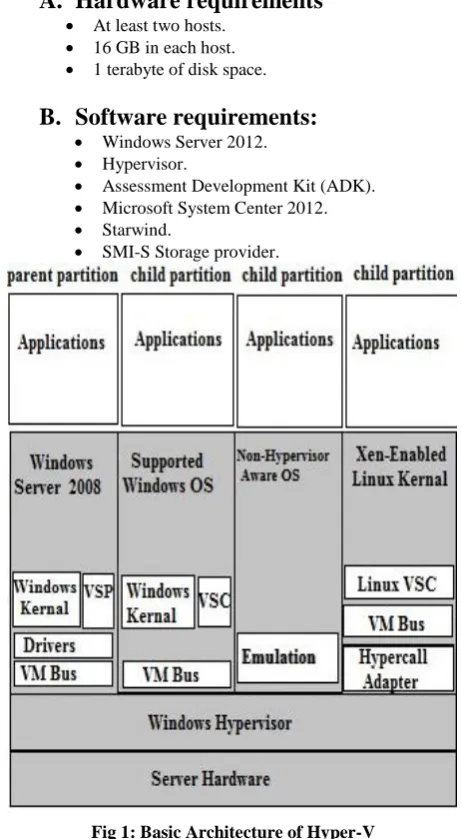
The communication between the parent and child partitions is achieved though Hyper-V that provides high communication speed through the VMBus. The VMBus provides secure point-to-point channels for communication between virtualization service providers (VSP) and virtualization
Service Clients (VSC) [10]. Figure (1) illustrates the basic Architecture of Hyper-V.
6.
REQUIREMENT OF PRIVATE
CLOUD
To construct a private cloud some hardware and software requirement are needed:
A.
Hardware requirements
At least two hosts.
16 GB in each host.
1 terabyte of disk space.
B.
Software requirements:
Windows Server 2012.
Hypervisor.
Assessment Development Kit (ADK).
Microsoft System Center 2012.
Starwind.
SMI-S Storage provider.
7.
SYSTEM ARCHITECTURE
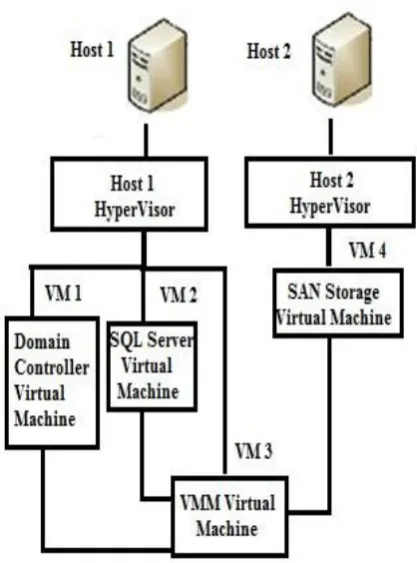
[image:2.595.314.545.154.574.2]The constructed cloud in this work consists of two hosts to build private cloud with three virtual machines on the first host and one virtual machine on the second host, as illustrated in figure(2).
Fig 3: System Outline
8.
SYSTEM OUTLINES
All parts of the work and the practical steps illustrates in details in Fig.(3).
8.1
Windows Server 2012 configurations
Hypervisor role must be added to each server: from “server manager”, “Add role and feature” has been chosen, then “hypervisor” was selected from roles list. Also from features list the following features has been added: Simple TCP/IP.
Wireless LAN Services.
8.2
Hyper-V Configurations
From Hyper-V Manager “External virtual switch” has been created and named as “Local Area Connection”. Then, IP address has been assigned to the first host for example “192.168.1.2” and DNS “192.168.1.3”. Figure (4) illustrates Hyper-V manager Form and its components.
8.3
Domain controller configurations
In order to configure domain controller, the following steps have been done:1- “512MB” of RAM was allocated for this VM. Also, Windows server 2012 was installed on this virtual machine and then the following roles was also installed from Server Manager:
Active Directory.
DNS.
DHCP.
Figure (5) illustrates adding role or features.
Start
Configure Host 1
Install and configure windows
Server 2012
Configure Hyper-V
Create three virtual machines
Domain Controller
virtual machine SQL
Server virtual machine VMM
virtual machine
Install System Center VMM
Install and configure
SQL Server
2012
Configure Domain Controller Join
machine with domain Join
machine with domain
Configure VMM
Configure Host 2
Install and configure windows Server
2012
Configure Hyper-V
Create SAN virtual Machine
Install Starwind and SMI-S
Join machine with domain
Create Cloud
Join host 2 with domain
Make a connection between storage
[image:3.595.319.540.70.735.2]and VMM
[image:3.595.55.264.78.360.2]2- IP address was assigned for this virtual machine, for example, “192.168.1.3”.
3- Active Directory was chosen from Server Manager and “Promote” was selected, then “Add new forest” has been selected and the name of Root domain has been entered. This name must end with “.com” “.org” or“.net”, for example “compsc.com”, and then the least version of Windows that can the domain interact with was selected. The password of this domain controller and the NetBIOS for example “compsc” was entered.
4- The domain was delegated, in order to make a delegation “Active directory user and computers” was chosen and the domain name was selected, i.e., “compsc.com”, then delegation was chosen from list and the administrator account that is responsible of managing the domain has been selected and gave him all the permissions he needs. A container in ADSI has been created, and named “VMMDKM”, to use it later for storing keys in Virtual Machine Manager. In Active directory user and computers a user called “VMMService Admin” was created and added to Domain Administrators group.
5- From Server Manger Tools DHCP was chosen, then IPV4 was selected and new scope was created, i.e., pools of IP addresses. The rang of IP was specified from, “192.168.1.100 to 192.168.1.200”.
6- The host with IP address “192.168.1.2” has been joined with the domain “compsc.com.
8.4
SQL Server configurations
To adjust the setting of this virtual machine the following steps has been followed:
1. “1 GB” of RAM was allocated for this VM. Also, Windows server 2012 and “.NET frame work 3.5” were installed on this virtual machine. Then IP address was assigned to Network adapter for this SQL virtual
machine, as “192.168.1.4”, and the DNS IP address, i.e., the IP address of the Domain controller virtual machine “192.168.1.3”. Then SQL virtual machine was joined with the domain that was created before “compsc.com”. Then the SQL server port was opened from firewall. From advanced firewall setting inbound was selected and then “add role” was chosen and TCP port was selected then SQL Server port numbers “4022 and 1433”was entered.
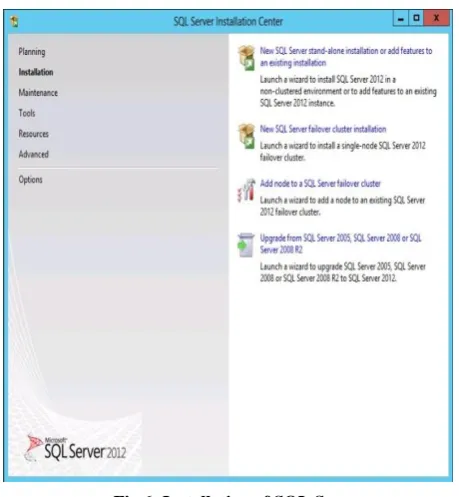
2. SQL Server 2012 has been installed; new SQL Server stand-alone installation was chosen. Figure (6) shows the first step in the SQL server installation.
[image:4.595.312.544.198.565.2]3. The following SQL features was selected to install:
[image:4.595.53.280.208.426.2]Fig 6: Installation of SQL Server Fig 5: Add roles and Features
[image:4.595.314.544.479.728.2] Data Base engine server.
Report service Native.
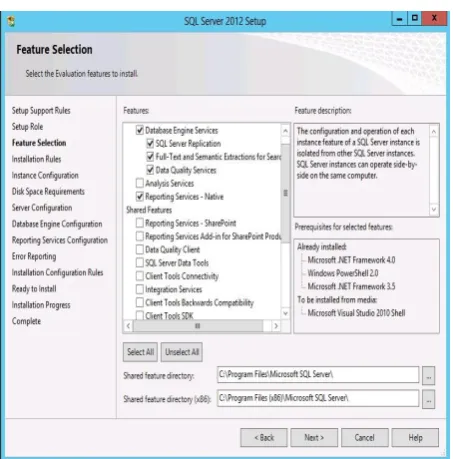
Management tools-Basic. Figure (7) illustrates some of SQL Server Features.
4. SQL server Instance name was entered, it can be left as default “MSSQLSERVER”, but if it is changed then the same name must be entered in the VMM in a later step. Then, the administrator of the SQL server that responsible for managing it and his password were selected. Then, from the following window “Add Current User” was pressed.
8.5
Virtual Machine Manager
Configurations
“2 GB” of RAM was allocated for this VM. Also Windows server 2012 has been installed on this virtual machine. Then IP address was assigned for this virtual machine, “192.168.1.5” and the DNS “192.168.1.3”. After that this VM was joined with the domain “compsc.com”. From Server manager in VMM machine, the following roles were installed:
Web service “IIS”, this option needed for service deployment to enable user to access the service using web application.
Windows server updates “WSUS” (optional). Also, the following features were installed on this VM:
Background integration.
Remote differential compression.
Then from “IIS features” the following features were selected:
Basic authentication.
Windows authentication.
URL authentication.
IP domain authentication.
IIS scripting tools.
IIS management and computability.
IIS management scripts and tools.
Management services.
Also, from Applications developer, the following features were installed:
ASP.NET.
ASP 4.5.
These options needed to use with dynamic Web sites and rich Web applications. Then the path of WSUS’s folder was entered.
Assessment Development Kit (ADK) must be installed. Offline installer of ADK must be provided otherwise, if online installer is used, Internet connection must be available. Only the following options from ADK are needed to be installed:
User state Migration Tool (USMT) , this option provides a highly-customizable user-profile migration experience for IT professionals.
Windows Preinstallation Environment (Windows PE), this option used for the deployment of PCs, workstations, and servers, or troubleshooting an operating system.
Deployment tools.
8.5.1
Installing virtual machine manager
In order to install system center virtual machine manger, the steps mentioned in Microsoft private cloud computing was followed [5].
1. The Virtual Machine Manager which is a component of the Microsoft System Center package was installed. This could be done only if two previous virtual machines (Domain Controller and SQL server) are in running state. The following options from virtual machine manager were installed:
VMM management services.
VMM console.
2. In the next window the administrator account that is responsible for managing the virtual machine manager was entered; “VMMServiceAdmin” was chosen as admin for VMM.
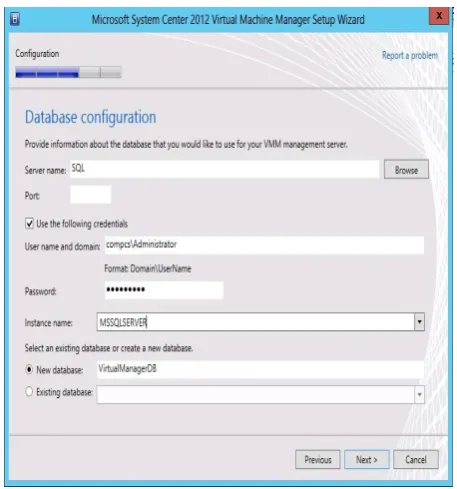
3. The virtual machine that contains SQL server was specified, and then of SQL server instance name “MSSQLSERVER” was entered, also the name of VMM Data base was specified. Figure (8) illustrates this step of VMM installation steps. 4. In the virtual machine manager the name and
password of administrator account “VMMServiceAdmin” was entered and a connection has been occurred. After that the first host was added to the virtual machine manager, this was done by choosing fabric pane from VMM, and then selecting “Add Hyper-V server and cluster”, and then entering the name of the host to be added to the VMM.
8.6
Second Host Configuration
IP address was assigned to the host for example “192.168.1.6” and DNS “192.168.1.3” and then this host was joined with the domain “compsc.com”.
[image:5.595.54.281.201.431.2]this virtual machine for example “192.168.1.7” and DNS “192.168.1.3”. This virtual machine was joined also with the domain “compsc.com. After that this host was added to the VMM in the same way that is mentioned above.
8.7
Cloud storage Configuration
In SAN virtual machine, “Starwind” software has been installed and a connection was made to this application, by entering the user name and password.
Next, the target was chosen and “Add Target” was selected. For the new target “Add device” was chosen and “virtual Hard disk drive” was selected, and then specify the target of this LUN and where this LUN will be saved.
SMI-S provider must be installed to make a connection between the SAN storage and VMM software located on the first host.
From VMM, which is located on the first host, storage was selected from fabric pane. After that “Providers” was chosen, “Add Storage device” was selected. IP address of the machine that contains the SAN storage was entered “192.168.1.7” and port number “5989”, if SSL is used, or “5988” if not. The pool of storage was chosen and then the LUN was selected. Then “Allocate capacity” was made.
8.8
Cloud Network Configuration
1. logical Network creation:The VMM creates a logical network by default, but a site must be added for this logical network.
In order to add the site the logical network was selected and “create Network site” was chosen, then the name has been assigned for this site, “CS site” and also IP address was assigned “192.168.1.0/24”. 2. IP pool Creation:
IP pool must be created for logical network. This can be done by selecting dedicated logical network and its site that the IP pool will be assigned to; the range of this pool has been specified from 192.168.1.80 to 192.168.1.95, also
the VIP IP that is for load balancer was specified from the range “192.168.1.90”.
3. MAC pool Creation:
Also MAC pool is needed for the logical network. This was done by indicating the Logical network to create MAC pool for it and then selecting “Create MAC pool” from networking pane , then entering the Name of this pool and the range of MAC addresses, from 27-b4-bf-a7-4f” to “00-27-b4-bf-a7-7f”.
4. Create VIP template:
The VIP template must be creating also. In order to make VIP template.the Logical network was chosen and then “Create VIP template” was selected from networking pane, then name of this VIP template was entered and VIP IP port “80” was used, this port number for “HTTP protocol”. Also template type must be specified, if there is no hardware load balancer then Microsoft load balancer must be chosen otherwise the hardware balancer profile must be specified, and then transport layer protocol must be selected, in this work “TCP” was used as transport layer protocol.
8.9
Additional setting
1. Run as account:This option provide simple way to save user or administrator account credential, this option eliminate the need to enter the user name or password every time needed, the only thing needed to be done is selecting “Run As Account”, then enter the credential of a user.
2. User Rule:
This option is used to assign permissions to account and the scopes that can this account accesses “Cloud or Hosts”.
User rule was made in this work by choosing security pane from setting and selecting “create user rule”, assigning name for this user rule then assigning this rule to a particular user and then select the scope that this user can access, finally, selecting the permissions that are assigned for this user on the scope.
9.
Create Cloud
Finally, after providing all the requirements of cloud, “Create Cloud” was selected from fabric pane and assigned logical network, IP pool, MAC pool, VIP template, and Storage provider that are created before for this cloud.
10.
System Evaluation
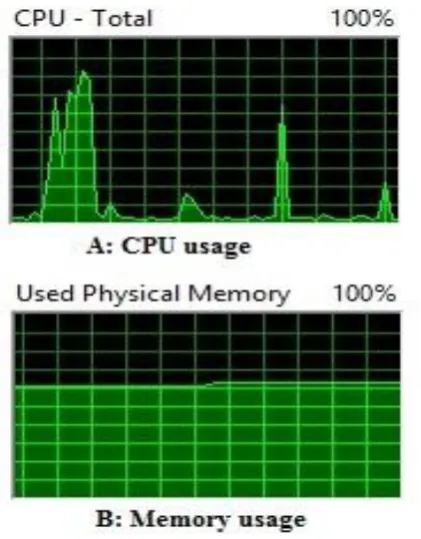
[image:6.595.52.281.120.365.2]In SQL Server virtual machine when connecting to SQL server the usage of CPU reaches to 82% and the memory usage is reach to 62% from 1 GB of RAM that assigned to this VM. Figure (10) shows the usage of CPU and RAM of SQL VM.
In VMM virtual machine when connecting to “Virtual Machine Manager” application the usage of CPU reaches to 72% and the memory usage is reach to 48% from 2 GB of
RAM that assigned to this VM. Figure (11) shows the usage of CPU and RAM of VMM VM.
Totally, these percentages give good performance of the host when the three virtual machines are in running state.
11.
Conclusion
In this paper a private cloud for small organization or scientific research purpose was built. A Hyper-V has been used to provide layer of virtualization.
Virtualization reduced the need to more physical requirements; instead of using 6 physical hosts, only two physical hosts with multiple VMs in each host were used.
Starwind application used to provide virtual SAN storage for cloud, but to make a connection between VMM and SAN storage, the SMI-S provider must be used.
Also, private cloud provides centralized administration instead of distributed administration in traditional networks this makes easy to manage several servers.
12.
REFERENCES
[1] Michael Miller, “cloud computing ”, Que
[2] Rohini C. Ekghare and Prof. Manish Hadap, “Cloud Based Collaboration Tool”, International Journal of Engineering Research and Applications (IJERA), ISSN: 2248-9622, April 2014.
[3] Kaustubh Satpute, Charudatt Satpute and Dipti Bhade, “Review on Internet base Services of Cloud Computing, International Journal on Recent and Innovation Trends in Computing and Communication, Volume: 2 Issue: 2.
[4] Ling Zheng and Yanxiang Hu,Chaoran Yang, “Design and research on private cloud computing architecture to Support Smart Grid”, Third International Conference on Intelligent Human-Machine Systems and Cybernetics, 2011.
[image:7.595.58.269.419.689.2]Fig 11: CPU and Memory Usage of VMM Fig 9: CPU and Memory Usage of Domain Controller
[5] Zoran Pantić and Muhammad Ali Babar, “Guidelines for Building a Private Cloud Infrastructure” IT University of Copenhagen, Denmark, ISBN: 978-87-7949-254-7, 2012.
[6] Borko Furht and Armando Escalante, “Handbook of Cloud Computing”, Springer.
[7] M.Rajendra Prasad, Jayadev Gyani and P.R.K.Murti, “Mobile Cloud Computing: Implications and Challenges”, Journal of Information Engineering and Applications, Vol 2, No.7, 2012.
[8] Aidan Finn, Hans Vredevoort, Patrick Lownds and Damian Flynn., “Microsoft® Private Cloud Computing”.
[9] Matthew Portnoy, “VIRTUALIZATION Essentials”, John Wiley & Sons,Inc.
[10]Robert Larson and Janique Carbone with Virtualization team at Microsoft“Windows Server 2008 Hyper-V Resource Kit”.
[11]Sean Carlin and Kevin Curran, Cloud Computing Technologies, International Journal of Cloud Computing and Services Science (IJ-CLOSER), Vol.1, No.2, June 2012, pp. 59~65 ,ISSN: 2089-3337
[12]M. Rosenblum and T. Gar_nkel. Virtual machine monitors: Current technology and future trends. Computer, 38(5):39{47, 2005.
13.
AUTHOR’S PROFILE
Dhuha Albazaz is the head of Computer Sciences Department, College of Computers and Mathematics, University of Mosul. She received her PhD degree in computer sciences in 2004 in the specialty of computer architecture and operating system. She supervised many Master degree students in operating system, computer architecture, dataflow machines, mobile computing, real time, distributed databases. She supervised three PhD students in FPGA field, distributed real time systems, and Linux clustering. Currently she supervise a PhD student in cloud computing. She also leads and teaches modules at BSc, MSc, and PhD levels in computer science. Also, she teaches many subjects for PhD and master students.