Series 9800 Desktop Computers
HP9825
Operating and Programming
Reference
rli~
HEWLETT
FliOW
HEWLETTa!1!II
PACKARDwarranty Statement
Hewlett-Packard products are warranted against defects in materials and workmanship. For Hewlett-Packard Desktop Computer Division products sold in the U.S.A. and Canada, this warranty applies for ninety (90) days from date of delivery.* Hewlett-Packard will, at its option, repair or replace equipment which proves to be defective during the warranty period. This warranty includes labor, parts, and surface travel costs, if any. Equipment returned to Hewlett-Packard for repair must be shipped freight prepaid. Repairs necessitated by misuse of the equipment, or by hardware, software, or interfacing not provided by Hewlett-Packard are not covered by this warranty.
NO OTHER WARRANTY IS EXPRESSED OR IMPLIED, INCLUDING, BUT NOT LIMITED TO, THE IMPLIED WARRANTIES OF MERCHANTABILITY AND FITNESS FOR A PARTICULAR PURPOSE. HEWLETT-PACKARD SHALL NOT BE LIABLE FOR CONSEQUENTIAL DAMAGES.
* For other countries, contact your local Sales and Service Office to determine warranty terms.
FEDERAL COMMUNICATIONS COMMISSION RADIO FREQUENCY INTERFERENCE
STATEMENT
The Federal Communications Commission (in Subpart J of Part 15, Docket 20780) has specified that the following notice be brought to the attention of the users of this product.
HP 9825 Desktop Computer
Operating and Programming Reference
Manual Part No. 09825-90200 Microfiche No. 09825-99200
Hewlett-Packard Desktop Computer Division 3404 East Harmony Road, Fort Collins, Colorado 80525
ii
Printing History
New editions of this manual will incorporate all material updated since the previous edition.
Update packages may be issued between editions and contain replacement and additional
pages to be merged into the manual by the user. Each updated page will be indicated by a revision date at the bottom of the page. A vertical bar in the margin indicates the changes on each page. Note that pages which are rearranged due to changes on a previous page are not
considered revised.
The manual printing date and part number indicate its current edition. The printing date
changes when a new edition is printed. (Minor corrections and updates which are
incorpo-rated at reprint do not cause the date to change.) The manual part number changes when
extensive technical ch anges are incorporated.
May 1980 ... First Edition.
June 1980 ... Updated pages: 0-5, 0-6, Oisc Programming insert.
November 1980 ... Second Edition. Revised pages: v, 1-8, 1-10, B-1 thru B-23, C-1 thru C-10, 0-9,0-10.
NOTICE
The information contained in this document is subject to change without notice.
HEWLETT-PACKARD MAKES NO WARRANTY OF ANY KIND WITH REGARD TO THIS MATERIAL, INCLUDING, BUT NOT LIMITED TO, THE IMPLIED WARRANTIES OF MERCHANTIBILITY AND FITNESS FOR A PARTICU-LAR PURPOSE. Hewlett-Packard shall not be liable for errors contained herein or for incidental or consequential damages in connection with the furnishing, performance or use of this material.
Hewlett-Packard assumes no responsibility for the use or reliability of its software on equipment that is not furnished by Hewlett-Packard.
This document contains proprietary information which is protected by copyright. All rights are reserved. No part of this document may be photocopied, reproduced or translated to another program language without the prior written consent of Hewlett-Packard Company.
Your Operating and Programming Reference
This reference describes installing, operating and programming an HP 9825A or 98258
De-sktop Computer. The 98258 contains all features of its predecessor, the 9825A. In addition,
the 98258 has many optional language modules (ROMs) built-in and can be configured with
up to 62 Kbytes of read/write memory.
This reference replaces these earlier 9825A manuals:
• 9825A Operating and Programming (09825-90000)
• String Variables Programming (09825-90020)
• Advanced Programming (09825-90021)
• Systems Programming (09825-90027)
Although the information is the same, it's arranged here for easy access and allows us to
provide better documentation updating in the future. You'll find a complete index to topics in
both this reference and the I/O Control Reference at the back of each binder.
This reference also provides room for the optional language ROM manuals currently useable
with the 9825A and 98258:
• Matrix Programming (09825-90022)
• Disk Programming (09885-90000 or 09825-90220).
Since the 9825A and 98258 are often referred to as calculators, computers and desktop
computers, these terms are used interchangably throughout this reference.
We welcome your comments and suggestions for improving HP user documentation. You'll
find a card at the back of this reference. If it's missing, address your comments to:
Hewlett-Packard Company
3404 E. Harmony Road
Fort Collins, CO 80525
ATTN: PL97 User Documentation
iv
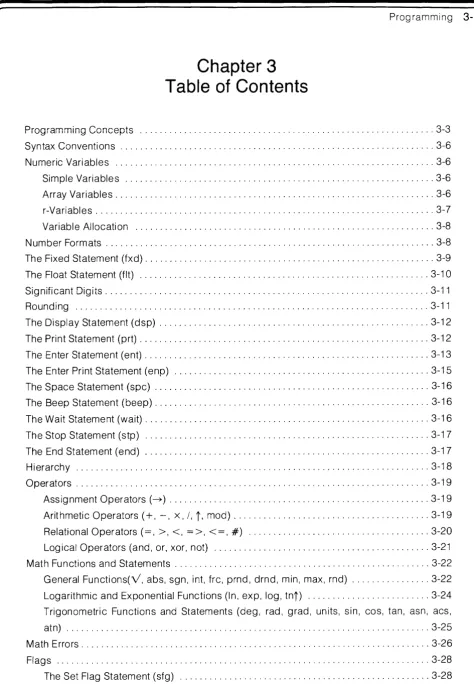
Reference Preview
Chapter 1 : Installation
Covers installing your new desktop computer and describes accessories and services
available for your computer.
Chapter 2: Keyboard Operations
Introduces you to the keyboard functions including editing keys, math operations,
spe-cial function keys and system command keys. If you are not familiar with the 9825, please
read this chapter before starting to program.
Chapter 3:
HPL Programming
Describes the standard 9825 High-speed Programming Language (HPL). Each
state-ment and function is presented, along with typical example program lines. You'll also find
a brief introduction to programming in HPL.
Chapter 4: Advanced Programming
Explains the advanced programming language: for-next loops, subprograms with
parameter passing, split and integer data storage and program cross-referencing. Each
statement and function is covered, accompanied by many example program sequences.
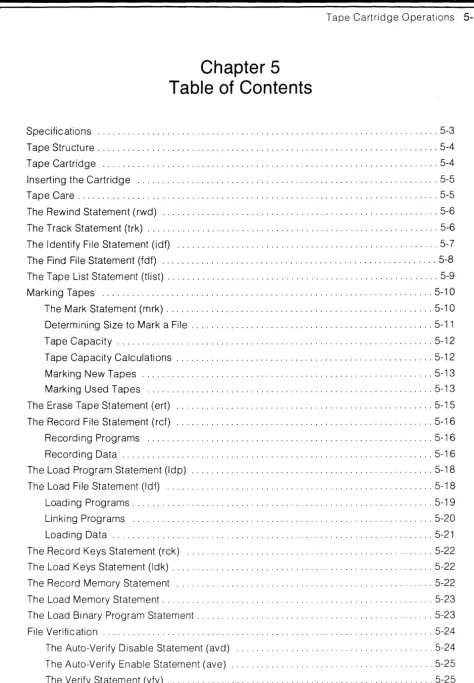
Chapter 5: Tape Cartridge Operations
Shows how to use the built-in tape drive for program and data storage. The statements
and commands covered here can also be used to control external 9875A Tape Drives.
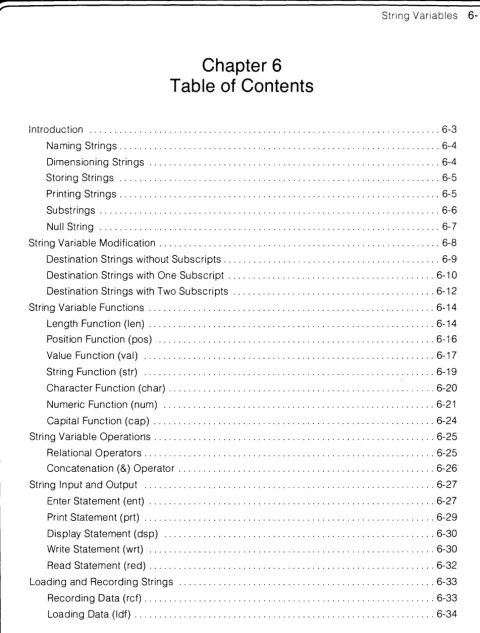
Chapter 6: String Variables
Describes the statements and functions available for handling alphanumeric data, using
either simple string variables or string arrays.
Chapter 7: Systems Programming
Covers the language extensions available with the large memory (9825T), including
remote keyboard operation, terminal emulation, and program self-modification.
You'll find reference tables, a complete list of HPL syntax, all error codes and an index at the
back of the reference. For a table of contents to each chapter, look under the appropriate
98258 User Documentation
The standard set of 98258 manuals is listed here. The first three manuals can be ordered as
the 98258 Manual Kit, 09825-87901.
Operating and Programming Reference (09825-90200) - Explains installation, keyboard and
tape cartridge operations, and the HPL programming language. Additional chapters cover the
Advanced Programming, String Variables and Systems Programming language extensions.
I/O Control Reference (09825-90210) - Describes the interfacing and peripheral-control
op-erations built into the 98258: General 1/0, Extended 1/0, and HP 9862A/9872A Plotter control.
the 9825 Interfacing Concepts Guide is included with this reference. Space is provided for
keeping interface manuals and interface operating notes.
9825A1B Pocket Reference (09825-90012) - Lists all HPL syntax and error codes in a handy,
pocket-size format.
9825A1B System Test Booklet (09825-90037) - Explains how to run each mainframe and
peripheral test supplied on the 9825 System Test Cartridge.
9825A1B Error Codes Booklet (09825-90015) - Error codes listed in a small booklet kept
under the computer's paper-access lid.
Matrix Programming (09825-90022) - Describes the HPL language extensions available with
the optional Matrix ROM.
Disc Programming (09825-90220) - Explains controlling HP Disc Drives via the HPL language
extensions supplied with the optional 98217 A or 98228A Disc ROM. This manual replaces the
9885 Disc Programming Manual, 09885-90000.
rev: 11/80
vi
Peripheral Operating Notes
Each of the following notes is shipped when you order the appropriate interface card or HP
computer peripheral. Each 98032A Interface note shows the interface wiring configuration for
a particular interface application. Most notes contain detailed programming instructions for
the system application. These operating notes are currently available:
• 9863A Tape Reader Operating Note (09825-90041)
• 9864A Digitizer Operating Note (09825-90042)
• 9866A/B Printer Operating Note (09825-90043)
• 9869A Card Reader Operating Note (09825-90044)
• 9871 A Printer Operating Note (09825-90045)
• 9883A Tape Reader Operating Note (09825-90046)
• 9884B Tape Punch Operating Note (09825-90047)
.9881 A Printer Operating Note (09825-90048)
• 6940A Multiprogrammer Operating Note (09825-90049)
• 98035A Real Time Clock Operating Note (09825-90054)
• 9875A Tape Cartridge Memory Operating Note (09825-90075)
Interface Manuals
These 9800-series interfaces and manuals are currently available:
• 98032A Parallel I/O Interface Installation and Service (98032-90000)
• 98033A BCD Interface Installation and Service (98033-90000)
• 98034A HP-IB Interface Installation and Service (98034-90000)
• 98035A Real Time Clock Installation and Service (98035-90000)
• 98036A Serial I/O Interface Installation and Service (98036-90000)
• HP 9878A I/O Expander Installation and Service (09878-90000)
A brief description of each interface is in your 9825B I/O Control Reference. More complete
information can be found in the Interfacing Concepts guide supplied with the 1/0 Control
Chapter 1
Table of Contents
~
Installation
1-1""
Inspection Procedure ... 1-3
Power Cords ... 1-4
Power Req uirements ... 1-5
Fuses ... 1-6
Initial Turn-On Instructions ... 1-6
Computer Testing ... 1-7
Loading Printer Paper ... 1-7
Accessory ROMs ... 1-8
ROM Installation ... 1-8
Pre-recorded Programs ... 1-11
Service Contracts ... 1-11
Keyboard Magazine ... 1-12
[image:9.613.79.577.70.632.2]1-2 Insta;jation
Chapter
1
Installation
Inspection Procedure
The individual parts of your computer system were thoroughly inspected before they were
shipped to you. All equipment should be in good operating order. Carefully check the
compu-ter, plug-in ROMs and peripheral equipment for any physical damage sustained in transit.
Notify HP and file a claim with the carrier if there is any such damage.
Please check to ensure that you have received all of the items which you ordered and that any
options specified on your order have been installed. The options installed are listed on a label
under the computer's paper-access cover.
NOTE
The standard 98258 is configured with 24 Kbytes of read/
write memory and 9872 Plotter operation. If you wish to
con-figure the system for 9862A Plotter operation or a larger
memory, contact your HP Service Representative for
assist-ance.
Also inventory the items in the Manuals Kit 87901) and the Miscellanious Kit
(09825-80003). A pack list is suppled in each kit.
If you have any difficulties with your system, if it is not operating properly, or if any items are
missing, please contact your nearest HP Sales and Service Office; addresses are supplied at
the back of this reference.
1-4 installation
Power Cords
Power cords with different plugs are available for the calculator; the part number of each cord
is shown below. Each plug has a ground connector. The cord packaged with each calculator
depends upon where that calculator is to be delivered. If your calculator has the wrong power
cord for your area, please contact your local HP sales and service office.
~"~'
~~ lL~·
8120·1351 8120-1389
,
8120-1378'
8120-1689
~
~N
L E8120-2104
L = Line or active Conductor (also called "live" or "hot"). N = Neutral or Identified Conductor.
E = Earth or Safety Ground.
CALCULATOR POWER-INPUT SOCKET
To protect operating personnel, we recommend that the computer be properly grounded. The
computer is equipped with a three-conductor power cable which, when connected to an
appropriate power receptacle, grou nds the computer. Do not operate the computer from an
ac power outlet which has no ground connection.
Power Requirements
The 9825 Computer has the following power requirements.
• Line Voltage: 100Vac+5%,-10%
120 Vac + 5%, -10%
220 Vac + 5%, -10%
240 Vac + 5%, -10%
• Line Frequency: 48 to 66 Hertz
• Power Consumption: 1 OOV @ 2.0A
120V @ 1.8A
220V @ 0.8A
240V @ 0.8A
Switch Selectable
1-6 lilstallation
Fuses
For 100 or 120 Vac operation, use a 3A fuse; for 200 or 220 Vac operation use a 1 .5A fuse.
WARNING
TO AVOID THE POSSIBILITY OF SERIOUS INJURY,
DIS-CONNECT THE AC POWER CORD BEFORE REMOVING OR
INSTALLING A FUSE.
Location of Fuse
The figure shows the location of the fuse under the paper cover. To change the fuse, first
disconnect the power cord to the calculator. Then remove the fuse cap by pressing inward
while twisting it counterclockwise. Remove the fuse from the cap and insert the correct
re-placement fuse (either end) into the cap. Finally, put the fuse and cap back into the fuse
holder. Press on the cap and twist it clockwise until it locks in place.
Initial Turn-On Instructions
1. With the calculator disconnected from its ac power source, check that the proper
calculator fuse has been installed for the voltage in your area (see previous section).
2. Next, ensure that the two voltage selector switches under the paper cover are set for the
correct powerline voltage. The ficure below shows the correct settings for each nominal
line Voltage. If it is necessary to alter the setting of either switch, insert the tip of a small
screwdriver into the slot on the switch. Slide the switch so that the position of the slot
corresponds to the desired voltage, as shown below.
~
~,
~
~,
~
~,
~
~,
100 vol'$ 120 VO'ts 220 vo'ts 240vo 'ts
Installation 1-7
3. The operating system module on the right-hand side of the 9825A calculator must be
inserted so that it is even with the side of the calculator.
4. Install the desired ROM cards and interface cards. See the next page and refer to the
appropriate manual for interface installation.
CAUTION
ALWAYS TURN OFF THE CALCULATOR WHEN INSERTING
OR REMOVING ROMS AND INTERFACES. FAILURE TO DO
SO COULD DAMAGE EQUIPMENT.
5. Connect the power cord to the power input connector on the back of the calculator.
Plug the other end of the cord into the ac power outlet.
6. Switch the calculator on using the switch on the right-hand side of the calculator.
Computer Testing
If you wish to test your calculator, or if there is any doubt that your calculator is operating
correctly, refer to the System Test Booklet for the calculator test procedure.
Loading Printer Paper
The internal printer uses special heat-sensitive (thermal) paper. When ordering paper, specify
the six-roll pack, HP part number 9270-0479.
To load a roll of paper:
1. Lift the paper cover and remove the paper spindle. Discard the old paper core and
remove any paper left in the printer using the paper advance wheel.
2. Install the new roll as shown in the following figure.
3. Insert the free end of the paper and advance it through the printer using the paper
1-8 Installation
Loading Printer Paper
CAUTION
HP THERMAL PRINTER PAPERS ARE DESIGNED
SPECIFI-CALLY FOR USE WITH HP DESKTOP COMPUTERS. USE
OF OTHER PAPERS MAY DAMAGE THE PRINTER. TO
MAINTAIN A VALID WARRANTY OR SERVICE CONTRACT
AND ENSURE PROPER PRINTER OPERATION, USE ONLY
HP THERMAL PAPER.
Accessory ROMs
Several ROMs (Read Only Memories) are available for your computer; each provides
addi-tionallanguage capabilities to perform specific tasks such as plotting, controlling peripherals
or extending the programming capabilities. One or more ROMs are packaged in a ROM card.
ROM Installation
A ROM card can be plugged into anyone of the four ROM slots on the bottom front of the
calculator as shown below.
ROM Installation
To install a ROM, first turn off the calculator. Then slide the ROM, with the label right-side-up,
through the ROM slot door. Press it in so that it is even with the front of the calculator.
Installation 1-9
The ROMs listed below are an internal part of the 9825B Computer. They can be purchased in
various combinations for the 9825A.
String Variables ROM
This ROM enables the calculator to recognize and operate on letters and words ("strings") in
much the same way that it recognizes and operates on numbers. Some of the capabilities
which are provided include: single strings and string arrays, numeric value of a string of
digits, concatenation, and displaying or printing all special characters.
Advanced Programming ROM
This ROM extends the programming capabilities of the 9825 Calculator. For/next looping,
split and integer precision number storage, multiparameter functions and subroutines, and
the cross reference statement are the operations provided by the Advanced Programming
ROM.
9862A and 9872A Plotter ROMs
These ROMs enable the 9825 to control HP 9862A and 9872A Plotters. Axes can be drawn and
labeled; functions can be plotted; and in the "typewriter" mode, characters can be printed as
you type them from the keyboard. More than one plotter can be operated at the same time with
each ROM.
General I/O ROM
The General I/O ROM provides basic I/O capability with formatting. Most 9800 series
peripherals (not the 9862A Plotter) can be controlled using this ROM. Binary 110, status
checking, and limited control of instruments via the HP Interface Bus are also provided.
Extended I/O ROM
The Extended I/O ROM extends the I/O capability of the calculator by providing complete
HP-IB control, bit manipulation and testing, auto-starting, error trapping, and interrupt
1-10 installation
These ROMs are available for 9825A and 9825B Computers:
Matrix ROM
The Matrix ROM extends the language to include statements for manipulating matrices and
arrays. Addition, subtraction, multiplication, and division of arrays, as well as inversion,
trans-position, and determinants of matrices are only some of the capabilities provided by this ROM.
Disk ROMs
The HP 98217A Disk ROM adds HPL language statements and functions for controlling
HP 9885M and 9885S Flexible Disk Drives. Each 9885 Drive handles a V2 megabyte flexible
disk. Both data and programs can be stored in a random-access, file-by-name structure. Up
to eight 9885M (master) drives can be accessed. Up to three 9885S (slave) drives can be
accessed via each 9885M.
The HP 98228A Disk ROM provides HPL language for controlling both HP 9885 and HP 9895
Disk Drives. Each 9895 handles one or two 1.2 megabyte flexible disks. The 98228A ROM can
be used only with a 9825T computer.
Systems Programming ROM
This ROM add capability for remote keyboard operation, program self-modification, intelligent
terminal emulation and run-time memory allocation. This ROM is available as the 98224A
plug-in card for 9825A. The ROM is added to the 9825B with the large memory option (9825T).
Installation 1-11
Prerecorded Programs
Tape cartridges containing programs for solving problems from many disciplines are
availa-ble. A utility program cartridge is supplied with each calculator. For a complete list of
pre-recorded programs and for pricing information, contact any HP sales office (addresses are
provided in the back of this manual).
Service Contracts
When you buy a Hewlett-Packard desk-top calculator, service is an important factor. If you are
to get maximum use from your calculator, it must be in good working order. A HP Maintenance
Agreement is the best way to keep your calculator in optimum running condition.
Consider these important advantages:
• Fixed Cost- The cost is the same regardless of the number of calls, so it is a figure that
you can budget.
• Priority Service- Your Maintenance Agreement assures that you receive priority
treat-ment, within an agreed upon response time.
• On-Site Service- There is no need to package your equipment and return it to HP. Fast
and efficient modular replacement at your location saves you both time and money.
• A Complete Package- A single charge covers labor, parts, and transportation.
• Regular Maintenance - Periodic visits are included, per factory recommendations, to
keep your equipment in optimum operating condition.
• Individualized Agreements- Each Maintenance Agreement is tailored to your support
equipment configuration and your requirements.
After considering these advantages, we are sure you will agree that a Maintenance
Agree-ment is an important and cost-effective investAgree-ment.
1-12 ~stallation
Keyboard Magazine
Keyboard is a periodical magazine contafning general information about HP calculators and
related equipment. It includes articles and programs written by calculator users, description
of the latest equipment and prerecorded programs, programming tips, and many other items
of general interest to calculator users.
To receive your free subscription to Keyboard, merely complete the order form supplied.
Table Mounting
Your calculator can be mounted to the top of a desk or table by following these steps:
1. Drill 5 holes in the top of your desk or table to accommodate #6-32 (National Coarse) screws according to the diagram below.
2. Remove the Phillips head #6-32NC screws that hold the rubber feet to the bottom of the calculator.
3. Use screws that are V2 inch longer than the thickness of the table top. This V2 inch allows
for the thickness of the rubber feet and the hole for the screw in the bottom of the
calculator.
ref to rear
r11.e40~
r
S.92O
,
-.-1.500 1.500
T
+
+
+
- L10.705 (dimensions
1
in inches),
+
+:
T
7.300
ref to front 7.300
---*-
front of calculator~
.460
.!+
10.920~
K eyboard 0 pe rations 2-1 "
Chapter 2
Table of Contents
Before Using the Calculator ... 2-3
General Information ... 2-4
The Keyboard ... 2-4
Display and Line Length ... 2-5
Range ... 2-6
Significant Digits ... 2-6
Memory ... 2-6
Languag e ... 2-8
Error Messages ... 2-8
System Keys ... , ... 2-9
Keyboard Arithmetic ... 2-10
Arithmetic Hierarchy ... 2-11
Variables ... 2-11
Operating Modes ... 2-12
Basic Editi ng ... 2-13
System Command Keys ... 2-14
Display Control Keys ... 2-16
Line Editing Keys ... 2-17
Character Editing Keys ... 2-18
Calculator Control Keys ... 2-19
Special Function Keys ... 2-21
Immediate Execute Special Function Keys ... 2-22
Immediate Continue Special Function Keys ... 2-22
Keys with Multiple Statements ... 2-23
Commands ... 2-24
The Run Command (run) ... 2-24
The Continue Command (cont) ... 2-24
The Delete Line Command (del) ... 2-25
The Erase Command (erase) ... 2-26
The Fetch Command (fetch) ... 2-27
Live Keyboard ... 2-28
How Live Keyboard Works ... 2-28
Live Keyboard Math ... 2-28
Statements in Live Keyboard ... 2-28
[image:21.617.82.561.52.746.2]2-2 Keyboard Operations
Special function Keys in Live Keyboard ... 2-29
The Stop Key in Live Keyboard ... 2-30
Live Keyboard Limitations ... 2-30
The Display ... 2-31
The Live Keyboard Enable Statement ... ,' .... " ... ,' ... , .... 2-32
Chapter
2
Keyboard Operations
This chapter introduces some of the operating characteristics of the 9825 Desktop Computer.
The keyboard, display, and range are a few of the topics covered.
Before Using the Calculator
There are a few things you should check each time you turn on the calculator.
If the calculator is turned off:
• Set the power switch on the right-hand side of the calculator to the "1" position:
a
• When the following display appears, the calculator is ready for use:
If the calculator is turned on and the display is blank:
• Press
8
or8
If the display still remains blank, first check the power connection and fuse as described in
chapter 1. If you still have a problem, call your HP sales and service office listed in the back of
this manual.
If the calculator is on and the display shows the "lazy T", you can do keyboard operations or
arithmetic or you can enter programs and run them.
2-4 Keyboard Operations
General Information
The Keyboard
r -
SYSTEM COMMANDS ~ ( - - - L l N E - - - - . . . 18 8 8 8
8 8 8 8
8
G a B
(J)GJGJCDCDCDCDCDCDGJeDG
o0000080[)00c::J
@000000008GJCD
8 0 0 0 8 0 0 0(J
C)
CD 8
(
)
8
EJ
I
Alphanumeric Keys
Special Function Keys \
,
8@000
8·80·08
00008
rl·8·008
L!J0008
\
Numeric Keys
• Alphanumeric Keys - This area is very much like a standard typewriter keyboard. For
instance, to display a capital A, press the shift key and
0
at the same time; or todisplay a percent sign, %, press the shift key and
CD
at the same time.• Numeric Keys - All the keys needed to enter numbers and do simple arithmetic are located in this block. The numeric keys in the alphanumeric section of the keyboard can
also be used to enter numbers. The exponentiation and square root key,
(0,
is locatedin the alphanumeric key section.
• Special Function Keys - The keys in the upper right section of the keyboard, namely
m
through
5],
provide additional calculator abilities. These keys are explained later inKeyboard Operations
2-5
Keys of the same color have similar functions. For example, all the alphanumeric keys are the
same beige color; gold colored keys are control keys used to run programs, store lines, erase
programs, etc.
Be!ow are a few more topics related to keyboard operations:
• Spacing - In general, spaces are not important. It makes no difference, for example if
you key in:
::::·:··C: or :::::
Both are interpreted the same. Spacing, however, is important when using text
(charac-ters within quotes) and when printing and displaying messages.
• Repetition of Keys -When a key is held down, its operation is repeated rapidly. This is
an especially useful feature with the editing keys.
• The i···· Symbol - When the display is clear and awaiting inputs, the "lazy T" symbol
appears in the leftmost character of the display. This symbol also indicates the end of a
stored line.
• The Run Light -A small red light in the left end of the display lights when a program is
running.
Display and Line Length
The 9825 Calculator has a 5
x
7 dot matrix, 32-character display. Even though on Iy 32characters can be displayed at one time, up to 80 characters can be keyed into the display.
After the 32nd character, additional characters which are keyed in cause the displayed line to
shift to the left. After 67 characters are keyed, a beep indicates that only thirteen more
characters can be entered. Up to 73 characters can be stored. This includes any spaces or
2-6 ~eyboard Operations
Range
The range of values which can be entered or stored is -9.99999999999
x
1099 through -1x
10-99,0,1 X 10-99 through 9.99999999999
x
1099 . However, the range of calculations is from-9.99999999999
x
10511 through -1x
10-511,0, and 1x
10 -511 through 9.99999999999x
10511
.
Storage Range
-9.99999999999 X 1099
Calculating Range
-9.99999999999 X 10511
-1 X 10-99 0 1 X 10-99
-1 X 10-511 0 1 X 10-511
out of range [ ] within range
D
9.99999999999 x 1099
.
9.99999999999 X 10511
The extended calculation range is useful for calculations which have intermediate results
outside of the storage range, but which have final results within the storage range. For
in-stance:
(9.2
x
1023x
8.6x
1 OBO)/( 1x
1024 )When the first two values are multiplied their result is:
(7.912
x
10104)This intermediate result cannot be stored, but the final result, 7.912
x
10BO , can.Significant Digits
All numbers are stored internally with 12 significant digits in the mantissa and a two digit
exponent. The format used to display or print numbers (such as!>;': ::,) has no effect on the
internal representation of a number.
Memory
The 9825 Calculator uses two types of memory; Read/Write Memory, and Read Only
Mem-ory. Read/Write Memory is used to store programs and data. When you store a program or
data, you "Write" into the memory. When you access a line of your program or a data element,
Keyboard Operations
2-7
Read Only Memory differs in that it is permanent. When the calculator is turned off, the
contents of the Read/Write memory are lost, whereas the Read Only Memory is unaffected.
ROM (for Read Only Memory) cards can be plugged into the ROM slots on the front of the
calculator. This makes it possible to expand the language.
Programs and data in Read/Write memory can be saved for future use by recording the
information on the tape cartridge.
A small amount of memory is sometimes required by a plug-in ROM. This area is called
"working storage".
Read/Write Memory Organization
low addresses
I
This boundary is fixed at turn-on - . .
r0 r1 r2
:
Permanently fixed boundary ~
high addresses
Working Storage
Special Function Key Definitions
User's program
r-variab!es
Unused area (Used as needed)
Execution Stack
(subroutine return pOinters)
Arrays and simple variables
Loaded Binary program (if any)
2~8 Keyboard Operations
Language
The language used by the HP 9825 Calculator is called HPL. The basic programming unit is
the statement. Statements are typed using lower case abbreviated mnemonics, such as F:>("!:.
for print. Multi-statement lines can be stored by separating statements with semicolons.
Two other characteristics of this language are implied multiplication and the assignment operator. Implied multiplication is a standard algebraic notation, such as 5X. The assignment
operator .. :,. points to the variable being assigned a value, such as ::::: . .:,. C:.
More mnemonics can be added to the language by adding ROM cards which plug into the ROM slots on the front of the calculator.
Error Messages
When an error occurs, the calculator beeps and displays an error number. The number
references a description that will help pinpoint the cause of the error. For example:
Indicates a syntax error.
If an error message is displayed during an attempt to run a program, the program line number
where the error occurs will also be displayed. For example:
... ... ... ... ...
. .. .)LJ
~-..
-
.. -'-'-..-
... -'--':'-'--...-'-'-""'---
Indicates that a parameter is out of range inline 3.
Pressing
8
after some error messages will bring the line containing the error into the displaywith a flashing cursor indicating the location of the error.
Keyboard Operations
2-9
System Keys
The following keys are used often for keyboard operations and programming,
e,
~Iears t,he display; the 1···· symbol remains to show that the calculator is ready for further instructions:I
Performs the operation in the display. For example, to add 2+
2:Press:
080
_____ "'_" ._
....
- - - - D
Press:
CD
\0...-,:::,,,_:::::::::: _ _ _ ) ]Stores program lines in the memory. For example, to store a program line:
*
Type in:
08[
0
, - - - "- - - ) ]
Press:
8
\0...-::::::'_'"- - - D
This program line will assign the value 7 to the variable A,
• Runs the program in memory from line O.
2-10 Keyboard Operations
Keyboard Arithmetic
The six basic arithmetic operations in the 9825 are: addition ( :.-), subtraction ( .. -),
multiplica-tion (-», division
C·t
exponentiationen,
and square rootUl
To perform a math operation, such as 8 x 2, first you key in the expression as follows:
008
"",----::::: -':::'
;? - - - ) ]
Then press:
CD
"",----.:. :,,_.'
...
:: :: . .':_:
. .'
- - - ) - . - 1
(I
To raise a number to a power, such as 82, press:
...
(I
"",----:.'.' . _
. .,. :: :: . .'_::
. .'
- - - ) - . - 1
Notice that an operation such as 8-2 must appear as: :::/i·· :: ... ..;:::::: .
The value which is displayed after pressing the execute key is stored in a location called
"result". This value can be used in other calculations. For example:
808CD
---"."
" ' - ' "- - - ) ]
808CD
,----.:. :_:".::
."
:: .
.'_::
. .' - - - ) - . - 1
( I
808CD
" " ' - - - - . _ " " " . _ " .- - - ) ]
Keyboard Operations 2-11
the calculator displays the result in scientific notation, with 9 digits to the right of the decimal
point:
This is because the number is too large for the fixed 2 notation which is set when you switch on
the calculator.
Arithmetic Hierarchy
When an expression has more than one arithmetic operation, the order in which the operations
take place depends on the following hierarchy:
no operator
square root
exponentiation
implied multiplication
multiplication and division
addition and subtraction
performed first
j
performed last
An expression is scanned from left to right. Each operator is compared to the operator on its
right. If the operator to the right has a higher priority, then that operator is compared to the
next operator on its right. This continues until an operator of equal or lower priority is
encoun-tered. The highest priority operation, or the first of the two equal operations, is performed.
Then any lower priority operations on the left are compared to the next operator to the right. If
parentheses are encountered, the expression within the parentheses is evaluated before the
left-to-right comparison continues. This comparison continues until the entire expression is
evaluated. For example:
... .+. : .. ~ ";=;" J :::l·::+.... : ::.. ... . .,: :
... ... . ... exponentiation implied multiplication multipl ication evaluate parenthesis exponentiation division addition result
Variables
A variable is a name of a location where data is stored. There are two types of variables:
numeric variables and string variables. Each data type can be stored in either simple or array
2,,12 :<eyboard Operations
Simple Variables
Twenty-six simple variables, named A through Z, are used on the 9825 Calculator. Only the
upper case letters can be used for simple variable names.
To assign a value to a variable, the assignment operator is used. For instance, to assign the
value 4.5 to N, press:
8088[0CD
The number always appears on the left, and the variable appears on the right side of the
assignment operation.
Now, N can be used in calculations. For instance, to multiply N by 2, press:
' - . " - " ...
" ' - - - ) ]
N is not changed. New values can be assigned to variables, such as:
[0888[0CD
r-Variables
r-variables are designated by a lower-case "r" followed by a number (e.g., :<i.:::::). They are
useful for one dimensional arrays and can be used in addition to the 26 simple variables.
I n the following two examples, the value 12 is assigned to r1 O. Then the value 20 is assigned to
the register designated by the value of r1 0 (this is called indirect storage).
O' _ 0 • • • • • •
:: ••• :: •• : 0' : : .:. :: •• :
The value 12 is assigned to r10 directly.
The value 20 is assigned to r12 indirectly.
For more information about variables, see the next chapter and the String Variables chapter.
Operating Modes
The calculator can operate in any of three modes: the calculator mode, the program mode,
or the live keyboard mode.
• In calculator mode, no program is running, and the calculator is awaiting inputs or
Keyboard Operations 2-13
• In the program mode, a program is running.
• In live keyboard mode, you can perform many calculator operations while a program is
running.
Basic Editing
If you make a mistake while entering lines into the display, you can use the character editing
keys for changing the line.
~CHARACTEFI ~
8 B 8 8
For instance, suppose you want to type in this line:
But, instead you type:
[
. ... ..J ~:::~ n::" :::~ . ~i
To correct this, simply press
8
until a flashing cursor ~~m appears over the "a".Then type in an i:::)' To delete a "1" in 112, press
B
once and press characterB.
Theresulting display would be:
with a flashing cursor on the "1" of 12. To execute the line, press:
CD
As another example, maybe you want to execute this line:
10
+
18+
222~ 14 ~eyboard Operations
To insert a one in front of the 8, press the
8
key 4 times. The flashing replace cursor lim willbe positioned on the 8. Next, press the
B
key. This changes the replace cursor to the insertcursor '~L Now, type in a 1. The display will be:
Note that the rest of the line shifted to the right 1 character. The insert cursor .;!! will still be
flashing over the 8 indicating that more characters could be inserted if desired. To execute the
line, press
CD.
System Command Keys
r - -
SYSTEM COMMANDS ~8 8 8 8
• Returns the calculator and I/O cards to the power-on state without erasing programs or
variables.
8
is executed immediately when it is pressed; it does not have to be followed byCD.
All calculator activity is halted and the line number of the current location in a program isdisplayed if a program is running. The reset key should be used to reset the calculator when
no other key, such as
8
or8 '
will bring the calculator to a ready state._ Sets the print-all mode on or off. When it is pressed once, the word c;(: appears in the
display. When it is pressed again, the word c;f f appears in the display. In print-all mode,
displayed results, executed lines, and stored lines are printed.
While a program is running in print all mode, all displayed messages and error messages are
printed. Print-all mode can be turned on or off while a program is running .
• Automatically rewinds the tape cartridge to its beginning. Other statements and
com-mands can be executed immediately without waiting for the cartridge to completely rewind. If
B
is pressed while a program is running or while a line is executing from the keyboard, theKeyboard Operations 2-15
• Executes a program, one line at a time. Then, the line number of the next line to be
executed is displayed. When
8
is pressed just after stopping a program, only the linenumber of the next line to be executed is displayed. The next time
8
is pressed, that line isexecuted.
To step from a specific line, execute a gto X, where X is the line to start stepping from. For
example, to begin stepping through your program from line 30, type in gto 30 and press
OJ.
Then use the step key.
III
This typing aid is used to erase all or part of the Read/Write memory.80m
88m
80m
Erases the entire calculator memory.
Erases only the variables.
Erases all the special function keys.
Erases programs and variables.
Erases the special function key represented by "n".
The Reset Table in the Reference Tables appendix lists things affected by the erase com-mand.
• This typing aid is used to load programs and data from the tape cartridge. For example
to load a program which is on file 3:
Loads the program from file 3 into the
cal-culator.
The display shows ::. (:: f (for "load file") when this key is pressed. See the load file statement
in the Tape Cartridge chapter.
• This typing aid is used to record programs and data on the tape cartridge. Before
recording on the tape cartridge, files must be marked (see the Tape Cartridge chapter). In the
following example, it is assumed that the file has been marked:
Record the calculator program on file 6 of the
tape cartridge.
The display shows (for "record file") when this key is pressed (see the record file
2-16 Keyboard Operations
• This typing aid is used to list programs, sections of programs, all special functions keys,
or individual special function keys. For example:
B00CD
B0080CD
Lists the entire program.
Lists all defined special function keys in
numer-icalorder.
Lists special function key, fo.
Lists the program from line 20 to the end.
Lists the program from line 9 to 13, inclusive.
Display Control Keys
, D I S P L A Y j
8
GJ
_ Brings the line with the next higher-valued line number into the display. If there are no
more lines in the program, r +
J
clears the display and allows new program lines to beap-pended to the end of the program.
_ Brings the line with the next lower-valued line number into the display. If a line number is
in the display,
GJ
brings that line into the display. If a stop statement is executed from aprogram,
GJ
brings the line following the line with the stop statement into the display. After aprogram error,
GJ
brings the line containing the error into the display for editing._ Moves the line in the display to the left. This allows all the characters in a line to be
moved into the display. Each time it is pressed, the displayed line moves 8 characters.
_ Moves the line in the display to the right for viewing all the characters in a line. Each
Keyboard Operations 2-17
Line Editing Keys
( 1
8 8 8 8
III
This typing aid is used to bring program lines into the display and to fetch specialfunction keys. For example:
Brings line 20 into the display.
Accesses special function key f4. If f4 is
de-fined, its definition is displayed. Otherwise f'::f'
is displayed.
III
Deletes the program line in the display from the program. If no program line is in thedisplay, the calculator beeps and the key is ignored. To delete a program line, fetch the line
into the display and press
8.
When a line is deleted from a program all subsequent lineaddresses and all relative and absolute go to and go sub statements are renumbered to
reflect the deletion.
This is not the same key as the character delete key explained later. To delete several program lines, the delete (del) command can be used. The delete command is explained later.
• Inserts a line into a program. The inserted line is inserted before the fetched line. The
fetched line and higher line numbers are renumbered. The
8, 8,
orGJ
keys can be usedto fetch a line into the display. For example:
To insert the line:
r' ::::: .. :;.
C; between lines 20 and 21:Press:
808
Type in: .: : ... : .. :;. ::::;
Press:
8
When a line is inserted into a program, the branching addresses of all relative and absolute go
2-18 Keyboard Operations
• Brings back, into the display, one of the two previous keyboard entries. Pressing
8
once brings back the most recent keyboard entry. Pressing it twice brings back the previous
keyboard entry.
Press
8
after errors resulting from keyboard operations to recall the line containing theerror. For many errors, a flashing cursor indicates the location of an error in the line.
Character Editing Keys
r - -CHARACTER ~
B B B B
Lines which are fetched into the display using
8,8,8,
orB, and lines which are typedinto the display can be edited using the character editing keys.
Two flashing cursors are associated with these keys: the replace cursor :::i: and the insert
cursor ·;fi.
III
Moves the flashing replace cursor ::::l, or the flashing insert cursor ';f:, from its currentposition in the line in the display, toward the beginning (left) of the line. If the cursor is not
visible,
B
causes the cursor to appear on the right-most character in the line.• Moves the flashing replace cursor ~ml, or the flashing insert cursor ';i:, from its current
position in the display, towards the last character in the line. For a line which has just been
fetched or typed into the display, pressing
B
causes the flashing cursor to appear on theleft-most character in the display.
l1li
Deletes individual characters which are under the insert or replace cursor. This is not the same key as the line delete key explained previously.• The insert/replace key is used to change the flashing replace cursor to a flashing insert
cursor and vice versa. Use the
B
orG
key to position the cursor in the display. When theinsert cursor is flashing, any characters entered from the keyboard are inserted to the left of
the cursor and the characters under and to the right of the cursor shift to the right.
When the replace cursor is flashing, any character entered replaces the existing display
Calculator Control Keys
'888§8OJ6888GJGB
Keyboard Operations 2-19
•
This key is an immediate execute key which runs the program in the calculator
begin-ning at line zero. All variables, flags, and subroutine return pointers are cleared when
8
is pressed. The run light at the left end of the display indicates a running program.The Reset Table in the Reference Tables appendix lists things which are affected by pressing
G·
Stores individual program lines. Also, when a special function key is fetched and
defined,
8
is used to store the key's definition. A program line can be a singlestatement or several statements separated by semicolons. When an error occurs while
at-tempting to store a line,
B
brings that line back into the display. A flashing cursor usuallyshows where the error was encountered in the line.
• •
are used to obtain shifted keyboard characters, such as ::::1, :::::, and
r".
Whenand •
§
is pressed, the small light above the key lights.§
locks the keyboardfor shifted characters. Press
8
to release shift lock.•
. Stops the program at the end of the current line. The number of the next program line to
be executed is displayed. When
8
is pressed, list, tlist, and wait statements areaborted but the rest of the I ine is executed. When
8
is pressed in an enter statement, flag 13is set and the enter statement is terminated.
There is also a stop statement. For details, see the next chapter.
Executes the single or multi-statement line which is in the display. The two most recently
executed (or stored) keyboard entries are temporarily stored and can be recalled by
pressing
B
once or twice. The result of a numeric keyboard operation which is notassigned to a variable is stored in Result (see
8
key). For example:~"""""""-"
- - - ) ]
Pressing
OJ
displays and stores the result. Pressing the execute key again repeats the same2-20 Keyboard Operations
Although multiple expressions such as:
... .-:-. ;::::
~:
.r-<.
CD
are allowed, only the result of the last expression in the line is displayed and stored in Result.
In print-all mode, both results are printed.
Automatically resumes a program from where it was stopped. When a line
number is in the display (such as after pressing
8)
8
resumes the programfrom that line. However, after pressing
8,
or after editing the program, the programcon-tinues at line
a
when8
is pressed. Pressing8
after an error also causes the program tocontinue from line O.
In an enter statement,
8
is pressed after entering data. If no data is entered and8
ispressed, the variable maintains its previous value and flag 13 is set. See also the continue
command on page 2-24.
•
Accesses the storage location of the result of a numeric keyboard operation which was
, not assigned to a variable. For example:
Press:
888
' - - - " ' - ' : : ' - - - ) ]
Press: ,--->-::::" ... _ ... - - - ) ]
The answer, 18, is also stored in Result and can be used in other operations, such as:
Press:
880
, - - - ' " ...._
...- - - ) ]
Press:
CD
, - - - " - " ...
" ' - - - ) ]
In a program, values cannot be stored in Result; but the value in Result can be assigned to
variables or used in computations.
For example:
•
eli
2€Jfr
E".:::·\
1';
f·'e·'
:=.:.+
~~ ~~:AThis is not allowed.
This assigns the value of Result +2 to the
vari-able A.
Clears the display. If the clear key is pressed during the enter statement, a question
mark appears in the display, indicating that an entry is still expected. If this key is
pressed after a special function key has been fetched, the key number (e.g., .::
:::n
appears inKeyboard Operations
2-21
•
The assignment operator is used to assign values to variables (this is not the same as
the right arrow used for display control.) For example:
Press: [
C0 08 [ 0
CD
This stores the square root of 5 in X .• To enter the value of 1T, this key is pressed. The value entered is 3.14159265360.
•
Press:
Press:
This key enters a lower case ;:::' into the display, representing an exponent of base 10 .
The unshifted
0
key can be used in place ofGB.
For example:8GB00OJ
8000CD
,--:~.
' _ ' Cii?_CiCii?_Cii?i::_:ii?':::· _ ...._~J
'----<._"
i?i::_:i i? C:_C:Ci ::_::::? :?_,::: ... _..._~J
Note that there is no difference between pressing
GB
and pressing0·
Special Function Keys
There are 12 special function keys, which provide 12 unshifted functions and 12 shifted
functions. The special function keys can be used as typing aids, one line immediate execute
keys, or as immediate continue keys.
To define a special function key, press
8
and the special function key to be defined. Thenenter a line in the display. Press
B
to store the definition of the key and to exit key mode. Forexample:
Press:
Type-in:
Press:
B
f C: is displayed if the key was not previously
defined.
Enters :::>("1:. in the display.
This stores :::>:---"!:. under fo, for use as a typing
aid.
If you decide not to define a special function key after fetching one, the
8
key can also beused to exit key mode.
To list all of the defined special function keys in numerical order, type in: k and press
2-22 Keyboard Operations
To list individual special function keys, press
B
and then the special function key to belisted.
Immediate Execute Special Function Keys
If a line to be stored under a special function key is preceded by an asterisk (.:q, it is an
immediate execute key. This means that when the key is pressed, the contents of the key are
appended to the display and the line in the display is executed automatically.
For example:
Press:
EJ [
[9Press:
B
Accesses f23 (shifted fl1).
The asterisk makes this an immediate execute
key.
This stores the line entered in the display
under f23.
Whenever [ [9 is pressed and the display is clear, the following is printed:
Immediate execute keys are useful for executing selected segments of a program. Using the continue command followed by a line number, you can make several entry points in your
programs. For example:
Each time ~ is pressed, the program continues at line 5, or at line 10 if
Q;J
is pressed.Immediate Continue Special Function Keys
If a line to be stored as a special function key is preceded by a slash ( .. ), it is an immediate
continue key for use with the enter statement. "Immediate continue" means that when the key
is pressed, the contents of the key are appended to the display and continue is executed
automatically. Immediate continue keys are used to enter often used values in enter
Press:
Beg
Press:
B
Keyboard Operations
2-23
Fetches special function key f1o.
This enters the value of e, the base of the
natural logarithms, into the display.
This stores the line in the display under ho.
Whenever an enter statement is waiting for a value and the
eg
key is pressed, theapproxi-mate value for e (i.e., 2.71828182846) is entered and the program continues (see enter
statement in the next chapter).
Keys with Multiple Statements
By separating statements with semicolons, several statements can be stored under one
spe-cial function key. As an example, suppose you want to convert inches to centimeters. The
following line is stored under special function key ~.
Press: B~
Type-in:
Press:
B
2-24 Keyboard Operations
Commands
Five commands are explained in this section. Commands can be executed only from the
keyboard; they cannot be stored as part of a program.
The Run Command
(" ! .. ·l ("! [line number or label]
The run command clears all variables, flags, and subroutine return pointers and then starts
program execution. If a line number or label is specified, the program begins execution at the
specified line number or label. Since
3
is an immediate execute key equivalent to ... .(f\! h . . I b l
" ~ !, t e word '." '...1 ('! must be keyed In to run from a line number or a e.
"--LJ
Examples:
Run beginning at line O. This is the same as
pressing
8.
Run, beginning at line 20.
Run, beginning at the label "third".
The Continue Command
c· ':::' ("!
t
[line number or label]The continue key (cant) command continues the program without altering variables, flags, or
subroutine return pointers. If no line number is specified, then the program continues from the
current position of the program line counter. When a line number or label is specified, the
program continues at the specified line or label. If the program has been edited or an error has
occurred since the program ran, continue without parameters causes execution to begin at
( \ ... (T\,
line O. Since \CONT"U' is an immediate execute key equivalent to ,'" :,,'1 5" the word ...
,---/ ~
Examples:
OJ
····:w1"
", c••••. u ,
.: ... : .. :: OJ
Keyboard Operations
2-25
Continue from current position of program line
counter. This is the same as pressing
8.
Continue from line 3.
Continue from the label "loop".
The Delete Line Command
':::: ,:::' ::. beginning line number [:, ending line number] [:; <-]
The delete (del) command is used to delete lines or sections of programs. When one line
number is specified, only that line is deieted. When two line numbers are specified, all lines in
the block are deleted. To delete an entire program, and leave the variables, ... ::/:/:::i':) can
be executed.
Examples:
':::::::::CD!
:.... ... ~
'::::Ci
CD~
... .... :.... ... ~
.:. : ... ::: <.:.:.i: .. ·:.:.i::.:.:.i<.:.:.iOJu!,
Delete line 28.
Delete lines 13 through 20.
Delete program from line 18 to the end. (This
does not affect variables.)
An attempt to delete lines that are destinations of relative or absolute go to or go sub
state-ments (except labels) will cause error 36. To delete these lines, the delete command with the
optional asterisk parameter can be used. When the asterisk is used, any go to or go sub
statements which reference deleted lines are adjusted to reference the first line after the
deleted section. For example to delete line 24 in this program segment:
2,2;
6·n,t.
U;'
iJ
Ij
;;",0 ;,
~=.ii T, 024
24;. F-<rt. ,"FH}:;:!"
t.1
~;!j; '=3E' ",:r./
E~25;: p
r
t
"To 1. (I. 1 .2-26 Keyboard Operations
Type-in:
Press:
CD
Press:
888088CD
The Erase Command
c· ~." ,::~. ::::. ,:::' [,} or ,.) or :.:: or special function key]
The erase command is used to erase programs, variables, and special function keys as shown
below.
Command
.... , ... , ... CGJ
Meaning
Erases program and variables.
Erases everything (like switching the calculator
off and then on again).
Erases all variables.
Erases all special function keys .
Erases the indicated special function key.
Things affected by the erase command are listed in the Reset Table (see the Reference Tables
Keyboard Operations 2-27
The Fetch Command
+'
c't
C'!'''i
[line number or special function key]The fetch command brings individual program lines into the display. This is useful for editing lines or for viewing individual program lines. Fetching a special function key displays the
definition of the key or f followed by the key number if the key is undefined. Executing fetch
alone, fetches line O.
Examples:
Fetch line 10.