User Manual
Part Number 1200226L1
Part Number 1200228L1
DMS 100 is a registered trademark of Northern Telecom. 5ESS is a registered trademark of AT&T.
AT&T is a registered trademark.
901 Explorer Boulevard P.O. Box 140000 Huntsville, AL 35814-4000
1. This equipment complies with Part 68 of the FCC rules. The required label is affixed to the bottom of the chassis.
2. An FCC-compliant telephone cord and modular plug is provided with this equipment. This equip-ment is designed to be connected to the telephone network or premises wiring using a compatible modular jack which is Part 68-compliant. See Chapter 2, Installing the ATLAS 800PLUS, for details. 3. If your telephone equipment (ATLAS) causes harm to the telephone network, the telephone
com-pany may discontinue your service temporarily. If possible, they will notify you in advance. But if advance notice isn’t practical, you will be notified as soon as possible. You will be advised of your right to file a complaint with the FCC.
4. Your telephone company may make changes in its facilities, equipment, operations, or procedures that could affect the proper operation of your equipment. If they do, you will be given advance notice to give you an opportunity to maintain uninterrupted service.
5. If you experience trouble with this equipment (ATLAS), please contact ADTRAN at (256) 963-8000 for repair/ warranty information. The telephone company may ask you to disconnect this equip-ment from the network until the problem has been corrected or until you are sure the equipequip-ment is not malfunctioning.
6. This unit contains no user-serviceable parts.
7. The following information may be required when applying to your local telephone company for leased line facilities.
Service Type REN/SOC FIC USOC
1.544 Mbps - SF 6.0N 04DU9-BN RJ-48C
1.544 Mbps - SF and B8ZS 6.0N 04DU9-DN RJ-48C
1.544 Mbps - ESF 6.0N 04DU9-1KN RJ-48C
1.544 Mbps - ESF and B8ZS 6.0N 04DU9-1SN RJ-48C
This equipment has been tested and found to comply with the limits for a Class A digital device, pur-suant to Part 15 of the FCC Rules. These limits are designed to provide reasonable protection against harmful interference when the equipment is operated in a commercial environment. This equipment generates, uses, and can radiate radio frequency energy and, if not installed and used in accordance with the instruction manual, may cause harmful interference to radio frequencies. Operation of this equipment in a residential area is likely to cause harmful interference in which case the user will be required to correct the interference at his own expense.
Shielded cables must be used with this unit to ensure compliance with Class A FCC limits.
• An affidavit is required to be given to the telephone company whenever digital terminal equipment without encoded analog content and billing protection is used to transmit digital signals contain-ing encoded analog content which are intended for eventual conversion into voiceband analog sig-nals and transmitted on the network.
• The affidavit shall affirm that either no encoded analog content or billing information is being transmitted or that the output of the device meets Part 68 encoded analog content or billing protec-tion specificaprotec-tions.
• End user/customer will be responsible for filing an affidavit with the local exchange carrier when connecting unprotected customer premise equipment (CPE) to 1.544 Mbps or subrate digital ser-vices.
For the work to be performed in the certified territory of ________________________(telco name) State of ________________
County of ________________
I, _____________________________ (name), __________________________________(business address), ____________________ (telephone number) being duly sworn, state:
I have responsibility for the operation and maintenance of the terminal equipment to be connected to 1.544 Mbps and/or ________ subrate digital services. The terminal equipment to be connected com-plies with Part 68 of the FCC rules except for the encoded analog content and billing protection speci-fications. With respect to encoded analog content and billing protection:
( ) I attest that all operations associated with the establishment, maintenance, and adjustment of the digital CPE with respect to analog content and encoded billing protection information continu-ously complies with Part 68 of the FCC Rules and Regulations.
( ) The digital CPE does not transmit digital signals containing encoded analog content or billing information which is intended to be decoded within the telecommunications network.
( ) The encoded analog content and billing protection is factory set and is not under the control of the customer.
I attest that the operator(s)/maintainer(s) of the digital CPE responsible for the establishment, mainte-nance, and adjustment of the encoded analog content and billing information has (have) been trained to perform these functions by successfully having completed one of the following (check appropriate blocks):
( ) A. A training course provided by the manufacturer/grantee of the equipment used to encode analog signals; or
( ) B. A training course provided by the customer or authorized representative, using training mate-rials and instructions provided by the manufacturer/grantee of the equipment used to encode analog signals; or
( ) C. An independent training course (e.g., trade school or technical institution) recognized by the manufacturer/grantee of the equipment used to encode analog signals; or
_________________________________Signature _________________________________Title _________________________________ Date Transcribed and sworn to before me This ________ day of ________, 199___ _________________________________ Notary Public
My commission expires:
Before installing this equipment, users should ensure that it is permissible to be connected to the facil-ities of the local telecommunications company. The equipment must also be installed using an accept-able method of connection. In some cases, the company's inside wiring associated with a single line individual service may be extended by means of a certified connector assembly (telephone extension cord). The customer should be aware that compliance with the above conditions may not prevent deg-radation of service in some situations.
Repairs to certified equipment should be made by an authorized Canadian maintenance facility desig-nated by the supplier. Any repairs or alterations made by the user to this equipment, or equipment malfunctions, may give the telecommunications company cause to request the user to disconnect the equipment.
Users should ensure for their own protection that the electrical ground connections of the power util-ity, telephone lines and internal metallic waterpipe system, if present, are connected together. This precaution may be particularly important in rural areas.
The Load Number (LN) assigned to each terminal device denotes the percentage of the total load to be connected to a telephone loop which is used by the device, to prevent overloading. The termination on a loop may consist of any combination of devices subject only to the equipment that the total of the LNs of all devices does not exceed 100.
The ringer equivalence number (REN) assigned to each terminal adapter is used to determine the total number of devices that may be connected to each circuit. The sum of the RENs from all devices in the circuit should not exceed a total of 5.0.
The Industry Canada Certification label identifies certified equipment. This certification means that the equipment meets certain telecommunications network protective, operational, and safety requirements. The Department does not guarantee the equipment will operate to the user's satisfaction.
ADTRAN warrants that for five (5) years from the date of shipment to Customer, all products manu-factured by ADTRAN will be free from defects in materials and workmanship. ADTRAN also war-rants that products will conform to the applicable specifications and drawings for such products, as contained in the Product Manual or in ADTRAN's internal specifications and drawings for such prod-ucts (which may or may not be reflected in the Product Manual). This warranty only applies if Cus-tomer gives ADTRAN written notice of defects during the warranty period. Upon such notice, ADTRAN will, at its option, either repair or replace the defective item. If ADTRAN is unable, in a rea-sonable time, to repair or replace any equipment to a condition as warranted, Customer is entitled to a full refund of the purchase price upon return of the equipment to ADTRAN. This warranty applies only to the original purchaser and is not transferable without ADTRAN's express written permission. This warranty becomes null and void if Customer modifies or alters the equipment in any way, other than as specifically authorized by ADTRAN.
EXCEPT FOR THE LIMITED WARRANTY DESCRIBED ABOVE, THE FOREGOING CONSTITUTES THE SOLE AND EXCLUSIVE REMEDY OF THE CUSTOMER AND THE EXCLUSIVE LIABILITY OF ADTRAN AND IS IN LIEU OF ANY AND ALL OTHER WARRANTIES (EXPRESSED OR IMPLIED). ADTRAN SPECIFICALLY DISCLAIMS ALL OTHER WARRANTIES, INCLUDING (WITHOUT LIM-ITATION), ALL WARRANTIES OF MERCHANTABILITY AND FITNESS FOR A PARTICULAR PUR-POSE. SOME STATES DO NOT ALLOW THE EXCLUSION OF IMPLIED WARRANTIES, SO THIS EXCLUSION MAY NOT APPLY TO CUSTOMER.
The ATLAS 800 system consists of the Base Unit and one or more option modules. (Each option module includes its own user manual which contains specific information about installing, configur-ing, and testing the option module; insert the option module manuals into this binder.) This ATLAS User Manual provides the information you need to install, configure, test, and troubleshoot the ATLAS 800PLUS system; when applicable, this manual refers you to the individual option module user manual. The arrangement of this user manual allows you to quickly and easily find the information you need. An overview of the contents of this manual follows:
Introduction
• Chapter 1, Introducing the ATLAS 800PLUS, familiarizes you with the ATLAS 800PLUS Base Unit and provides some sample ATLAS 800PLUS applications.
Getting Started
• Chapter 2, Installing the ATLAS 800PLUS, describes the rear panel layout and how to install the ATLAS 800PLUS.
• Chapter 3, Operating the ATLAS 800PLUS, describes the front panel layout and different ways to op-erate the ATLAS 800PLUS.
Reference Information
• Chapter 4, Using the Front Panel, describes how to use the front panel. This chapter also describes each menu option that is accessible through the front panel.
• Chapter 5, Navigating the Terminal Menu, describes how to navigate the terminal menu.
• Chapter 6, Terminal Menu and System Control, describes the terminal menus used for system control. • Chapter 7, Modules Terminal Menu, describes the terminal menus used for module and T1/PRI port
control.
• Chapter 8, Dedicated Maps Terminal Menu, describes the terminal menus used for Dedicated Maps and provides some examples.
• Chapter 9, Dedicated Circuit Backup and Circuit Status, describes the terminal menus used for Circuit Status.
• Chapter 10, Dial Plan Terminal Menu, describes the terminal menus used for Dial Plans and provides some examples.
Working with the ATLAS 800PLUS
• Chapter 11, Updating Firmware, provides step-by-step instruction on how to update the ATLAS 800PLUS firmware.
• Chapter 12, SNMP Management, describes how to control the ATLAS 800PLUS via SNMP.
• Chapter 13, ADTRAN Utilities, describes the SysLog, Telnet, VT-100, and TFTP Server programs de-livered with the ATLAS 800PLUS.
Appendices
• Appendix A, System Event Logging, describes the events monitored by the ATLAS 800PLUS. • Appendix B, Troubleshooting, describes how to diagnose different problems you may experience. • Appendix C, Warranty and Technical Support Information, describes your warranty and how to
con-tact technical support.
Cautions signify information that could prevent service interruptions.
List of Figures... xxiii
List of Tables ... xxv
Chapter 1 Introducing the ATLAS 800PLUS ... 1-1
Product Overview... 1-1 ATLAS 800PLUS Base Unit ... 1-1 ATLAS 800PLUS Features ... 1-6
Chapter 2 Installing the ATLAS 800PLUS ... 2-1
Inspect the ADTRAN Shipment ... 2-1 Contents of ADTRAN Shipments... 2-1 Check the Power Connection ... 2-1 AC Powered Unit... 2-2 DC Powered Unit... 2-2 Grounding Instructions... 2-2 Review the Rear Panel Design ... 2-3 Control/Chain In Port ... 2-4 Connection... 2-4 Control/Chain Out Port ... 2-5 Connection... 2-5 Network Connection ... 2-6 Connection... 2-6 Ethernet 10BaseT Connection ... 2-7 Connection... 2-7 MON ... 2-7 Option Slots ... 2-7 Install Any Option Modules... 2-8 Power-Up ... 2-8
Chapter 3 Operating the ATLAS 800PLUS ... 3-1
Methods of Operating the ATLAS 800PLUS ... 3-1 Using the Front Panel ... 3-1 Using The Terminal Menu... 3-2 Using Telnet... 3-3 Starting a Telnet Session ... 3-4 Using VT-100 Terminal Emulation ... 3-4 Using T-Watch PRO ... 3-5
Chapter 4 Using the Front Panel ... 4-1
Submenus ... 4-7 Sub-submenus ... 4-7 Status... 4-7 S0 System ... 4-7 Ethernet Status ... 4-7 Chain Port Status ... 4-7 S1—S8 ... 4-7 Config... 4-7 S0 System ... 4-7 Ethernet ... 4-8 Chain Port ... 4-8 S1—S8 ... 4-9 Util ... 4-9 Time/Date ... 4-9 Software Rev ... 4-9 Selftest ... 4-10 Run Selftest ... 4-10 Show Results ... 4-10 Clear Results ... 4-11 Set Passcode ... 4-11 Password Reset ... 4-11 ALRM Menu ... 4-11 Active Alarms ... 4-11 View History ... 4-12 Clear History ... 4-12
Chapter 5 Navigating the Terminal Menu ...5-1
Terminal Menu Window... 5-1 Menu Path ...5-1 Window Panes...5-2 Window Pane Navigation ... 5-2 Right Window Pane Notation... 5-2 Additional Terminal Menu Window Features ...5-3 Navigating Using the Keyboard Keys ... 5-3 Moving through the Menus ...5-3 Session Management Keystrokes ...5-4 Configuration Keystrokes...5-4 Getting Help ...5-5
Chapter 6 Terminal Menu and System Control ...6-1
TXINIT Timer ... 6-12 TXFA Timer ... 6-12 TXADD01 Timer ... 6-12 TXDEQ Timer ... 6-12 TANULL Timer ... 6-12 TCID Timer ... 6-13 Call Stagger ... 6-13 System Utility ... 6-13 Update Firmware ... 6-13 Module Slot ... 6-14 Module Type ... 6-14 Transfer Method ... 6-14 Restart Schedule ... 6-14 Current Update Status ... 6-15 Previous Update Status ... 6-15 Begin Firmware Update ... 6-15 Update Status ... 6-16 Config Transfer ... 6-16 Transfer Method ... 6-16 TFTP Server IP Address ... 6-16 TFTP Server Filename ... 6-16 Current Transfer Status ... 6-16 Previous Transfer Status ... 6-16 Load and Use Config ... 6-17 Save Config Remotely ... 6-17 System Utilization ... 6-17 System Selftest ... 6-17 Selftest Run ... 6-17 Status ... 6-17 View Selftest Log ... 6-17 Clear Self-test Log ... 6-18 Ping ... 6-19 IP Address ... 6-19 Count ... 6-19 Size ... 6-19 Timeout ... 6-19 Round trip min ... 6-19 Round trip avg ... 6-19 Round trip max ... 6-19 Tx Stats ... 6-19 Reset Stats ... 6-19 Start/Stop ... 6-19 Reboot System ... 6-20 Factory Default System ... 6-20
Chapter 7 Modules Terminal Menu ...7-1
Test ...7-2 State ...7-2 Status ...7-3 Rev ...7-3 Modules (Quad T1/PRI) Menu ... 7-3 Controller Info ...7-3 Alarm Status ...7-3 DS0 Status ...7-4 DS0 Alarms ...7-4 Sig Status ...7-4 Performance: Current ...7-5 Performance: 15 Min ...7-5 Performance: 24 Hr. ...7-5 Configuration ...7-5 Test ...7-6
Chapter 8 Dedicated Maps Terminal Menu ... 8-1
Overview ... 8-1 Menus ... 8-1 Submenus ...8-1 Sub-submenus ...8-1 Activate Map ... 8-2 Auto ...8-2 Maps 1—5 ...8-2 Current Map ... 8-2 Create / Edit Maps ... 8-2 # ...8-2 Map Name ...8-2 Sort TO/FROM ...8-2 Connects ...8-2 # ...8-3 FROM Slt ...8-3 Port ...8-3 TO Slot ...8-3 Port ...8-3 From Config ...8-3 To Config ...8-5 RBS ...8-5 Activate Time ...8-5 Enbl Day ...8-5 Designing a Dedicated map ... 8-6 Configuring the Ports... 8-7 Defining the Connections ... 8-8
Chapter 9 Dedicated Circuit Backup and Circuit Status... 9-1
Source ID ... 9-3 Outdial Number ... 9-3 Force Mode ... 9-3 Backup Criteria ... 9-3 Restore Criteria ... 9-3 Startup Delay ... 9-3 Backup Delay ... 9-3 Restore Delay ... 9-4 Max Num Redials ... 9-4 Redial Timer ... 9-4 Enable Schedule ... 9-4 Test Call ... 9-4 Min Num DS0s ... 9-4 Max Num DS0s ... 9-4 Circuit Status Menu ... 9-5 From ... 9-5 MAN (Manual Backup)... 9-5 BKUP Status (Backup Status) ... 9-6 Line Status ... 9-6 Delay ... 9-6 Test ... 9-7 Last Run Time ... 9-7 Next Run Time ... 9-7 Last Test Status ... 9-7 Pass : Fail ... 9-7 Test Now ... 9-7
Chapter 10 Dial Plan Terminal Menu ...10-1
Dial Call As ... 10-18 Source ID ... 10-18 Min DS0s ... 10-18 Max DS0s ... 10-18 Octal BRI Module (Network Termination) ... 10-18 Switch Type ... 10-18 SPID List ... 10-18 Strip MSD ... 10-19 Source ID ... 10-19 Octal BRI Module (User Termination) ... 10-20 Switch Type ... 10-20 SPID List ... 10-20 Strip MSD ... 10-20 Source ID ... 10-20 Outgoing Caller ID ... 10-20 ID Presentation ... 10-21 ID Number ... 10-21 Creating Dial Plans—Examples ... 10-21 Understanding Dial Plan Configurations...10-21
Chapter 11 Updating Firmware ...11-1
Overview ... 11-1 XMODEM Firmware Updates... 11-1 Updating Firmware using XMODEM ...11-2 TFTP Firmware Updates ... 11-4 Updating Firmware using TFTP...11-4
Chapter 12 SNMP Management...12-1
SNMP ... 12-1 Basic Components...12-1 Network Manager... 12-1 Agent ... 12-1 MIB... 12-1 SNMP Traps ... 12-2 Trap Destination List ...12-2 Configuring a Trap Destination List via Terminal Menu ...12-2 Filtering (Disabling) Traps...12-2 Standard Traps ... 12-3 DS1 Traps ... 12-3 DS1 Alarm Traps... 12-3 DS1 Alert Traps... 12-4
Chapter 13 ADTRAN Utilities...13-1
Disable ... 13-11 Abort ... 13-11 Exit ... 13-11 Print Log ... 13-11 ...to Clipboard ... 13-11 ...to Printer ... 13-11 Clear Log ... 13-11 Help... 13-12 Contents ... 13-12 About ... 13-12 Status Field ... 13-12 Meter Field ... 13-12 Log Field ... 13-12 Saving the Current Configuration to a TFTP Server ...13-12 Successful Transfer ... 13-13 Unsuccessful Transfer ... 13-13 Retrieving the Configuration from a TFTP Server...13-13
Appendix A System Event Logging...A-1
Appendix B Troubleshooting... B-1
Appendix C Warranty and Technical Support Information...C-1
Appendix D Acronyms and Abbreviations... D-1
Appendix E Glossary ... E-1
PRODUCT OVERVIEW
The ATLAS 800PLUS is a modular, highly scalable platform that provides ro-bust solutions for the wide area communication needs of medium-to-large corporations and network access providers. ATLAS is an Integrated Access System with the most extensive support of dedicated bandwidth manage-ment and access switching in the industry.
The ATLAS 800PLUS is a high performance version of the ATLAS 800. The ATLAS 800PLUS contains a high-performance CPU, more memory, and powerful communications drivers which allow the support of optional ap-plications such as frame relay.
With the ATLAS 800PLUS, you can consolidate your voice, data, and video applications into a single platform while optimizing wide area bandwidth and reducing equipment costs. The ATLAS 800PLUS architecture and the chassis’ eight expansion slots allow for a variety of modules, making it one of the most versatile access systems on the market. With the appropriate modules installed, the ATLAS 800PLUS functions as follows:
• A Frame Relay Switch
• A Digital Access Cross-Connect System (DACS) • A T1 Bandwidth Manager
• An ISDN Access Switch • A Remote Access Manager
ATLAS 800
PLUS
BASE UNIT
The modules include the following: • Quad Nx 56/64 Module • Quad T1/PRI Module
• Octal Basic Rate ISDN Module • T3 Module
• Async-232 Module • Modem-16 Module Frame Relay
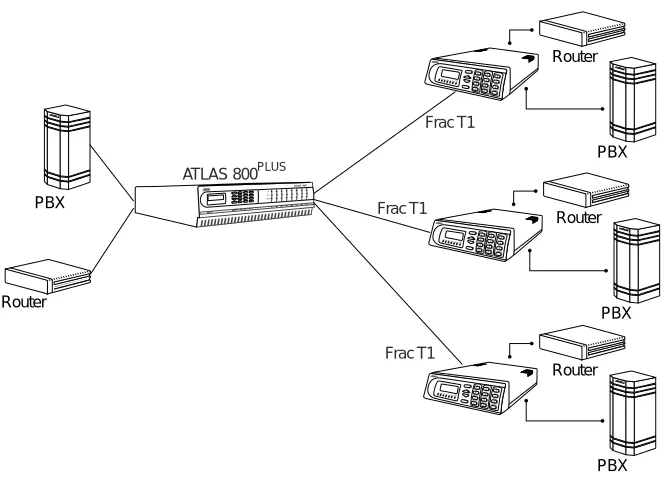
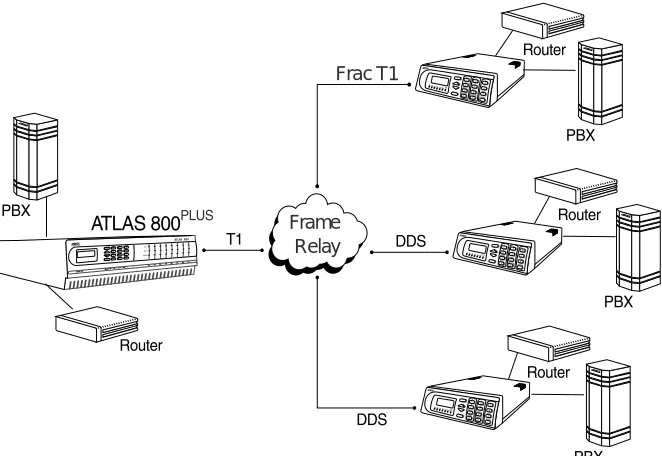
Frame relay is a packet-switched service that allows efficient transfer of bursty traffic in a WAN environment. It offers lower-cost data transfer when compared to typical point-to-point applications. Using virtual connections within the frame relay network and combining those into a single physical connection at each location results in lower cost. Frame relay providers use a frame relay switch to route the data on each virtual circuit to the appropri-ate destination. Figures 1-1 and 1-2 illustrappropri-ate a conversion from a typical point-to-point application to a frame relay application.
Figure 1-1. Point-to-Point Circuit Router
Router Router
Router
PBX
PBX PBX PBX
Frac T1
Frac T1
Figure 1-2. Frame Relay Circuit
The Frame Relay/Router upgrade option adds the capability for the ATLAS series of Integrated Access Devices to act as a voice/data FRAD, a frame re-lay switch, and an IP router in addition to the current available bandwidth manager and switch applications.
Dedicated and Switched Connection Maps in a Single Platform
The ATLAS 800PLUS allocates dedicated bandwidth according to any of up to five unique connection maps. Any DS0 on any T1 circuit can be mapped to any other DS0 on up to 34 T1 circuits in the system. Dedicated Connection Maps can be invoked manually or implemented automatically based on the time of day and day of the week.
Additionally, the ATLAS 800PLUS can be configured to switch dialup calls to specific ports or DS0s based on the number that is dialed. Switched connec-tion mapping is supported for dial calls placed over basic rate ISDN, prima-ry rate ISDN, or channelized T1.
Signaling Conversion for Maximum Interoperability
The ATLAS 800PLUS can convert between Robbed Bit Signaling and ISDN D channel signaling, giving you the flexibility to get the speed and reliability of ISDN, while preserving your investment in non-ISDN equipment. AT-LAS can also convert between D4 and ESF frame formats as well as AMI and B8ZS line coding, providing interoperability with legacy equipment. Flexible Network Management and Maintainability
Several network management methods are available for the
ATLAS 800PLUS, including SNMP support. VT 100 and Telnet are also
of-Frame Relay
fered, providing detailed system configuration through an easy-to-use menu system. The terminal interface is secured by six levels of password protection with varying degrees of management privileges. The terminal in-terface is accessed locally or remotely using either the EIA-232 Chain In port on the rear of the unit or the Telnet interface. The 10BaseT interface on the Base Unit provides an Ethernet connection for SNMP and Telnet connec-tions.
Additionally, T-Watch PRO, ADTRAN’s Microsoft® Windows®-based GUI management system can allow end-to-end management with downstream ADTRAN T1 products. User configurations can be preserved in non-volatile memory and duplicated for managing multiple ATLAS implementations. ATLAS also supports FLASH upgrades for future enhancements. You can remotely download software using TFTP or XMODEM.
The front panel contains a 2x16 character backlit LCD display and an exten-sive array of LEDs for alarm and status information pertaining to the system and the individual modules. A front panel keypad allows navigation through the menu system and access to system testing.
Several test capabilities allow you to diagnose the health of your T1, PRI, or BRI circuits without additional test equipment. Standard Bantam test jacks located on the rear panel also allow you to use external test equipment to monitor traffic. Tests include local, remote, and V.54 loopbacks utilizing the 511, QRSS, all zeros, and all ones test patterns.
Digital Access Cross-Connect System (DACS)
Inherent in the ATLAS 800PLUS architecture is the ability to cross connect, or DACS, up to thirty-four T1 circuits. DACSing allows the assignment and re-distribution, or grooming, of any DS0 on any T1 circuit to any other DS0 on any of the thirty-four T1 circuits in the system. For optimizing network re-sources, any of five dedicated connection maps can be invoked manually or automatically, based on the time of day and day of the week (see Figure 1-3).
Figure 1-3. Digital Access Cross-Connect System (DACS)
T1 Bandwidth Manager
plications including T1 “drop and insert,” channel grooming, and wide area data transport. ATLAS is ideal for point-to-point configurations or access to public networks. For optimization of existing equipment and network re-sources, ATLAS can be paired with ADTRAN’s TSU product offerings to support a variety of data and analog voice applications (see Figure 1-4).
Figure 1-4. T1 Bandwidth Management
ISDN Access Switch
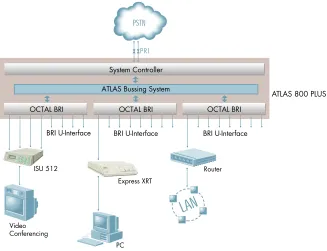
The ATLAS 800PLUS includes an advanced access architecture for switching dial-up calls to specific ports or DS0s. As an access switch functioning in a user-to-user network and user-to-user mode, ATLAS consolidates multiple basic rate ISDN (BRI) connections onto T1/PRI access lines. Additionally, BRI-to-BRI, BRI-to-PRI, and PRI-to-PRI switching are supported. ATLAS also converts between ISDN D channel (PRI or BRI) and T1 robbed bit sig-naling, allowing a non-ISDN PBX to access a more efficient ISDN facility. For network optimization, when bandwidth is not being used for switched ap-plications such as video conferencing, switched connection mapping dy-namically allocates bandwidth to the PB for voice traffic. Call Filtering allows you to program the call types that will be answered and/or originat-ed on a per-user basis.
WAN Overbooking
Figure 1-5. WAN Overbooking
ATLAS 800
PLUS
FEATURES
Configuration and Management • VT 100 Emulation
• T-Watch PRO, Microsoft Windows based GUI
• SNMP, per MIB II (RFC1213), DS1 MIB (RFC1406), and ADTRAN pri-vate MIBs
• Telnet
• LCD Front Panel
• Six levels of password protection and privileges Software Upgrade
• Flash Memory • TFTP Download
• XMODEM via control port Signaling Support
• ISDN D Channel
• Robbed bit, E&M, Ground Start, Loop Start
• Convert between Robbed Bit Signaling and ISDN D Channel • Direct Inward Dialing
ISDN Switch Types
Dedicated Connection Maps • Up to five connection maps
• Time of day/day of week configurable • Preserves signaling through cross-connect • No effect on non-configured channels Switched Connection Maps
• Inbound and outbound call filtering and blocking Testing
• Local and remote: payload/line, V.54 • Patterns: 511, QRSS, all ones, all zeros Performance Monitoring
• Reports: Information stored for last 24 hours in 15 minute increments • Performance statistics per TR54016, T1.403, RFC1406
INSPECT THE ADTRAN SHIPMENT
Before installing the ATLAS 800PLUS, carefully inspect the ATLAS 800PLUS Base Unit for shipping damage. If you suspect damage, file a claim immedi-ately with the carrier and then contact ADTRAN Technical Support (see Warranty and Technical Support Information on page C-1). If possible, keep the original shipping container for returning the ATLAS 800PLUS for repair or for verification of damage during shipment.
CONTENTS OF ADTRAN SHIPMENTS
Your ADTRAN shipment includes the following items:
• The ATLAS 800PLUS Base Unit • The ATLAS 800PLUS User Manual
• Power cord (AC unit only) - ADTRAN P/N 3127031 • Network cables (2) - ADTRAN P/N 3125M008 • Rackmount brackets (left and right)
• RJ45—DB-25 adapter (modem and direct)
• RJ-45 control port cable (1) - ADTRAN P/N 3127004 • DSX-1 crossover cable (1) - ADTRAN P/N 3125M010 • RJ48—DB15 adapter (1)
• ADTRAN Utilities diskettes (3)
CHECK THE POWER CONNECTION
AC Powered Unit
The AC powered ATLAS 800PLUS (P/N 1200226L1) comes equipped with a detachable 8-foot power cord with a three-prong plug for connecting to a grounded power receptacle.
DC Powered Unit
The DC powered ATLAS 800PLUS (P/N 1200228L1) comes equipped with a terminal block on the rear of the unit. The power source should be connected to the terminal block according to the polarity markings on the unit. For ex-ample, a -48 V source would be connected with the -48V return connected to the (+) terminal and the -48VDC attached to the (-) terminal. Power must be from a DC power source in the range of 42 to 57 VDC, capable of delivering up to 7 A of current.
The
GROUNDING INSTRUCTIONS
This section provides grounding instruction information from the Under-writers' Laboratory UL 1459 Standard for Safety: Telephone Equipment, of September 20, 1993.
An equipment grounding conductor that is not smaller in size than the un-grounded branch-circuit supply conductors is to be installed as part of the circuit that supplies the product or system. Bare, covered, or insulated grounding conductors are acceptable. Individually covered or insulated equipment grounding conductors shall have a continuous outer finish that is either green, or green with one or more yellow stripes. The equipment grounding conductor is to be connected to ground at the service equipment. The attachment-plug receptacles in the vicinity of the product or system are all to be of a grounding type, and the equipment grounding conductors serv-ing these receptacles are to be connected to earth ground at the service equipment.
A supplementary equipment grounding conductor shall be installed be-Power to the ATLAS 800PLUS must be from a grounded 115 VAC, 60 Hz or 220 VAC, 50-60 Hz source.
The branch circuit overcurrent protection shall be a fuse or circuit breaker rated minimum 48 V, maximum 20A.
The supplementary equipment grounding conductor shall not be smaller in size than the ungrounded branch-circuit supply conductors. The supple-mentary equipment grounding conductor shall be connected to the product at the terminal provided, and shall be connected to ground in a manner that will retain the ground connection when the product is unplugged from the receptacle. The connection to ground of the supplementary equipment grounding conductor shall be in compliance with the rules for terminating bonding jumpers at Part K or Article 250 of the National Electrical Code, ANSI/NFPA 70. Termination of the supplementary equipment grounding conductor is permitted to be made to building steel, to a metal electrical race-way system, or to any grounded item that is permanently and reliably con-nected to the electrical service equipment ground.
REVIEW THE REAR PANEL DESIGN
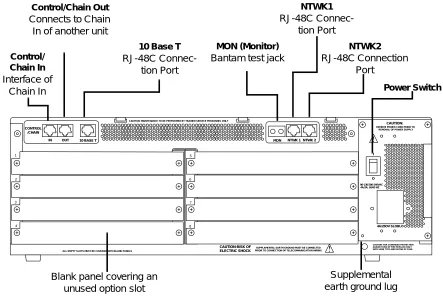
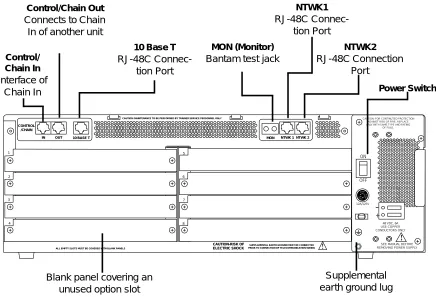
The ATLAS 800PLUS rear panel contains eight slots for housing option mod-ules which provide a variety of additional resources and data ports. All slots are functionally identical, except slots 7 and 8. These slots can also accom-modate an optional power supply for redundancy Figure 2-1 (AC powered unit) and Figure 2-2 (DC powered unit).
Figure 2-1. AC Powered ATLAS 800PLUS Rear Panel
4A/25OV SLOBLO
I
O CONTROL
/CHAIN
IN OUT 10 BASE T MON NTWK 1 NTWK 2
CAUTION:
CAUTION: FOR CONTINUED PROTECTION AGAINST RISK OF FIRE REPLACE ONLY WITH SAME TYPE AND RATING OF FUSE.
1 2 3 4 5 6 7 8 90-130/190-240VAC 4A/2A, 50/60 HZ CAUTION: MAINTENANCE TO BE PERFORMED BY TRAINED SERVICE PERSONNEL ONLY
REMOVE POWER CORD PRIOR TO
ALL EMPTY SLOTS MUST BE COVERED WITH BLANK PANELS
CAUTION-RISK OF ELECTRIC SHOCK
SUPPLAMENTAL EARTH GROUND MUST BE CONNECTED PRIOR TO CONNECTION OF TELECOMMUNICATION WIRING
REMOVAL OF POWER SUPPLY
Power Switch
Blank panel covering an unused option slot Control/
Chain In Interface of
Chain In
Control/Chain Out Connects to Chain
In of another unit
10 Base T RJ-48C
Connec-tion Port
MON (Monitor) Bantam test jack
Figure 2-2. DC Powered ATLAS 800PLUS Rear Panel
Control/Chain In Port
The Control In/Chain In port (EIA-232) connects to a computer or modem (Control In) or to another ATLAS 800PLUS Base Unit (Chain In). The control port input provides the following functions:
• Accepts EIA-232 input from a PC or a modem for control of the ATLAS 800PLUS .
• Attaches to another ATLAS 800PLUS (chain input). • Operates at 2400, 9600, 19200, or 38400 bps.
• Acts as input for PC control or as input for a chained connection. • Acts as an interface for flash memory software downloads using
XMODEM. Connection
The Control/Chain In connection follows, with the pinout shown in Table 2-1 on page 2-5.
CONTROL /CHAIN
IN OUT 10 BASE T MON NTWK 1 NTWK 2
1 2 3 4 5 6 7 8
CAUTION: MAINTENANCE TO BE PERFORMED BY TRAINED SERVICE PERSONNEL ONLY
ALL EMPTY SLOTS MUST BE COVERED WITH BLANK PANELS
CAUTION-RISK OF ELECTRIC SHOCK
SUPPLAMENTAL EARTH GROUND MUST BE CONNECTED PRIOR TO CONNECTION OF TELECOMMUNICATION WIRING
CAUTION: FOR CONTINUTED PROTECTION AGAINST RISK OF FIRE, REPLACE ONLY WITH SAME TYPE AND RATING
OF FUSE.
12A/125V
-+
48 VDC, 6A USE COPPER CONDUCTORS ONLY
! SEE MANUAL BEFORE REMOVING POWER SUPPLY
ON OFF FUSE F U S E FU S E Power Switch
Blank panel covering an unused option slot Control/
Chain In Interface of
Chain In
Control/Chain Out Connects to Chain
In of another unit
10 Base T RJ-48C
Connec-tion Port
MON (Monitor) Bantam test jack
Control/Chain Out Port
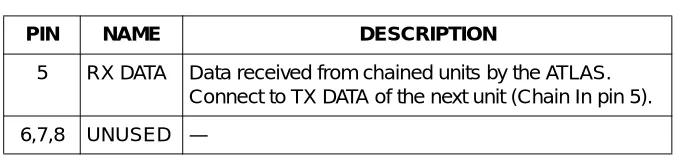
The Control/Chain Out port (RJ-48C) connects to another ATLAS 800PLUS Chain In connector. The Control/Chain Out port output provides the fol-lowing:
• EIA-232 output to chain control to other ATLAS 800PLUS Base Units • 2400, 9600, 19200, or 38400 bps operation
• Automatic setup; no user input required Connection
The Control/Chain Out connection follows, with the pinout shown in Table 2-2.
Table 2-1. Control/Chain In Pinout
PIN NAME DESCRIPTION
1 GND Ground - connected to unit chassis
2 RTS Request to send - flow control
3 RXDATA Data received by the ATLAS 800PLUS
4 DTR Data terminal ready
5 TXDATA Date transmitted by the ATLAS 800PLUS
6 CD Carrier detect
7 UNUSED —
8 CTS Clear to send - flow control
Connector type RJ-48C
Part number AMP# 555164-2
Table 2-2. Control/Chain Out Pinout
PIN NAME DESCRIPTION
1 GND Ground - connected to unit chassis. Connects to GND of next unit (pin1).
2 UNUSED —
3 TX DATA Data transmitted to chained units by the ATLAS. Connect to RX DATA of the next unit (Chain In pin 3).
Network Connection
The two eight-pin modular jacks labeled NTWK 1 and NTWK 2 provide the network connection. The two Network Interface (NI) ports comply with the applicable ANSI and AT&T® standards. The NIs provide the following func-tions:
• AMI or B8ZS coding • Manual line build out • D4 or ESF framing
• Network performance monitoring and reporting • Test loopbacks with QRSS generation and checking • Extensive self-testing
Connection
The network connection follows, with the pinout shown in Table 2-3 on page 2-6.
5 RX DATA Data received from chained units by the ATLAS. Connect to TX DATA of the next unit (Chain In pin 5).
6,7,8 UNUSED —
Table 2-2. Control/Chain Out Pinout (Continued)
PIN NAME DESCRIPTION
Connector type (USOC) RJ-48C
Part number AMP# 555164-2
Table 2-3. Network Pinout
PIN NAME DESCRIPTION
1 R1 RXDATA-RING Receive data from the network
2 T1 RXDATA-TIP Receive data from the network
3 UNUSED —
4 R TXDATA-RING Send data toward the network
5 T TXDATA-TIP Send data toward the network
Ethernet 10BaseT Connection
The 10BaseT Ethernet port (RJ-48C) provides an Ethernet LAN connection, which is used for TFTP, SNMP, and Telnet connection.
Connection
The network connection follows, with the pinout shown in Table 2-4.
MON
The MON (monitor) test jack provides a bridged access jack for non-intru-sive monitoring of the T1 circuits receiving data. When connected to this jack, the test equipment should be configured for a bridged termination.
Option Slots
Figure 2-3 shows the option slot numbering designation, as viewed from the rear of the ATLAS 800PLUS. All slots are functionally identical except slots seven and eight, which can also accommodate an optional power supply for redundancy.
Connector type (USOC) RJ-48C
Part number AMP# 555164-2
Table 2-4. Ethernet 10BaseT Pinout
PIN NAME DESCRIPTION
1 TX1 Transmit Positive
2 TX2 Transmit Negative
3 RX1 Receive Positive
4 & 5 UNUSED —
6 RX2 Receive Negative
Figure 2-3. ATLAS 800PLUS Slot Designation (Rear View)
INSTALL ANY OPTION MODULES
After installing the base ATLAS 800PLUS Base Unit and connecting the re-quired cables, you can install your choice of option modules. Instructions for installing option modules are given in the user manuals for the chosen mod-ules.
POWER-UP
As shipped, the ATLAS 800PLUS is set to factory default conditions. After in-stalling the Base Unit and any option modules, the ATLAS 800PLUS is ready for power-up.
SLOT 1
SLOT 2
SLOT 3
SLOT 4
SLOT 5
SLOT 6
SLOT 7
SLOT 8
P
O
WER SU
PP
LY
METHODS OF OPERATING THE ATLAS 800
PLUS
You can access basic setup functions from the ATLAS 800PLUS Front Panel. However, to access all of the ATLAS 800PLUS functions, set up a Telnet ses-sion or use a VT-100 terminal emulation. In addition, T-Watch PRO provides limited configuration control. The following sections provide an overview of these methods of operating the ATLAS 800PLUS. After you understand the different ways to operate the ATLAS 800PLUS, you will be ready to configure the unit.
USING THE FRONT PANEL
With the ATLAS 800PLUS powered-up, the Front Panel LCD window dis-plays four menu items (see Figure 3-1). To select a menu item, either press the corresponding number on the Front Panel keypad or press the Front Panel up and down arrows to scroll to the menu selection. For detailed in-formation on the Front Panel menus, see
Figure 3-1. Front Panel LCD
Example 1
Using Front Panel Menu CONFIG to Set Up the Unit ID
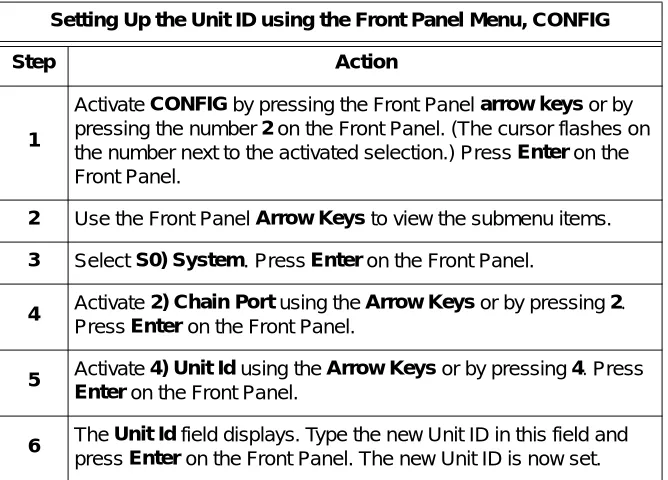
Figure 3-2 shows the path you would follow to set up the Unit ID from the Front Panel. The following Step/Action table provides step-by-step instruc-tions to do the same.
Figure 3-2. Example of Basic Front Panel Menu Navigation
USING THE TERMINAL MENU
The terminal menu provides a primary means of monitoring and configur-ing the ATLAS 800PLUS. The terminal menu interface uses the full capabili-ties of the VT-100 terminal to provide the quickest and most intuitive operation possible. To receive the full benefit of the terminal menu interface, you should use a fully VT-100 compatible client. The ADTRAN Utilities flop-py disks (that you can install on a PC) contain both a VT-100 client and a cus-tomized Telnet program. See ADTRAN Utilities on page 13-1 for details on the available programs. You can access the terminal menu using a VT-100 terminal or a computer running VT-100 terminal-emulation software.
The two basic connection methods supported by the ATLAS 800PLUS are a a Telnet session and a direct connection through the EIA-232 Chain In port. The following sections describe using both of these methods.
1) ETHERNET 1) BAUD RT 9600
S0) SYSTEM 2) FLOW CTL
2) CONFIG S1) 2) CHAIN PORT 3) TYPE
: 4) UNIT ID
S8) 5) INIT MODEM
Setting Up the Unit ID using the Front Panel Menu, CONFIG
Step Action
1
Activate CONFIG by pressing the Front Panel arrow keys or by pressing the number 2 on the Front Panel. (The cursor flashes on the number next to the activated selection.) Press Enter on the Front Panel.
2 Use the Front Panel Arrow Keys to view the submenu items.
3 Select S0) System. Press Enter on the Front Panel.
4 Activate 2) Chain Port using the Arrow Keys or by pressing 2. Press Enter on the Front Panel.
5 Activate 4) Unit Id using the Arrow Keys or by pressing4. Press Enter on the Front Panel.
Using Telnet
To connect to the ATLAS 800PLUS via Telnet, define the IP address, set the subnet mask, and, typically, wet the default gateway IP address. The follow-ing Step/Action tables provide instructions for performfollow-ing these tasks.
You must define the IP address before attempting to connect via Telnet.
Instructions for Defining the IP Address
Step Action
1 Obtain an IP address for the ATLAS 800PLUS from your LAN administrator.
2 From the Front Panel, select 2) CONFIG, then S0) SYSTEM, then 1) ETHERNET.
3 When the submenu displays, select 1) IP ADDRESS.
4 Enter the IP address by entering each number followed by Enter to move to the next field.
5 Press Enter after keying in the entire IP address.
Instructions for Setting the Subnet Mask
Step Action
1 Obtain a subnet mask address from your LAN administrator.
2 From the Front Panel, select 2) CONFIG, then S0) SYSTEM, then 1) ETHERNET.
3 When the submenu displays, select 2) SUBNET MASK.
4 Enter the subnet mask by entering each number followed by Enter to move to the next field.
Starting a Telnet Session
When you begin the Telnet session, you will be prompted for a password. The default password is password (which is a Level 0 superuser password). You can change this password using the Access Passwords option, which is only accessible through the terminal menus. See Access Passwords on page 6-11 for details. The Telnet session will time out and display the Login prompt after a pre-defined time that is set in the Session Timeout option (see Session Timeout on page 6-8 for details).
Using VT-100 Terminal Emulation
An EIA-232 serial connection is available via the Chain In port on the rear panel of the ATLAS 800PLUS. The ATLAS 800PLUS provides the Front Panel menus to a VT-100 type terminal. The following Step/Action table provides instructions for setting up the ATLAS 800PLUS for VT-100 terminal mode.
Instructions for Setting the Gateway IP Address
Step Action
1 From the Front Panel, select 2) CONFIG, then S0) SYSTEM, then 1) ETHERNET.
2 When the submenu displays, select 3) DEF GATEWAY.
3 Enter the default gateway by entering each number followed by Enter to move to the next field.
4 Press Enter after keying in the entire address.
You will need a default gateway if the LAN contains multiple segments. Contact your LAN administrator for the appropriate address.
Use the Max Telnet Sessions option to define the number of Telnet sessions that can be active at one time (see Max Telnet Sessions on page 6-8 for details).
After connecting a VT-100 terminal or a computer running VT-100 terminal-emulation software to this port, you may need to press Ctrl-R to refresh the display.
When you begin the VT-100 session, you will be prompted for a password. The default password is password (which is a Level 0 superuser password). You can change this password using the Access Passwords option, which is only accessible through the terminal menu. See Access Passwords on page 6-11 for details.
Using T-Watch PRO
T-Watch PRO is the ADTRAN Microsoft Windows management software program designed to control TSU units from a remote PC. It provides limit-ed control over the configuration of the ATLAS 800PLUS using a graphic in-terface. Currently, you can choose ATLAS 800PLUS from a list of products, and T-Watch PRO automatically initiates a Telnet session by which you can connect to and manage the ATLAS 800PLUS Base Unit. Currently,
T-Watch PRO automatically receives SNMP traps from an ATLAS 800PLUS. Instructions for Setting Up an ATLAS 800 for VT-100 Terminal Mode
Step Action
1 Set the baud rate on the VT-100 terminal to 9600 baud (8/N/1).
2
Use the Front Panel to set the ATLAS 800PLUS baud rate to match the terminal baud rate. Select 2) CONFIG, S0) SYSTEM, 2) CHAIN PORT, then 1) BAUD RATE.
3
Use the ADTRAN-provided VT-100 terminal adapter to connect the COM port of a VT-100 compatible terminal, or equivalent, to the eight-pin modular jack labeled CONTROL on the rear of the unit. This connection provides both local and remote
configuration.
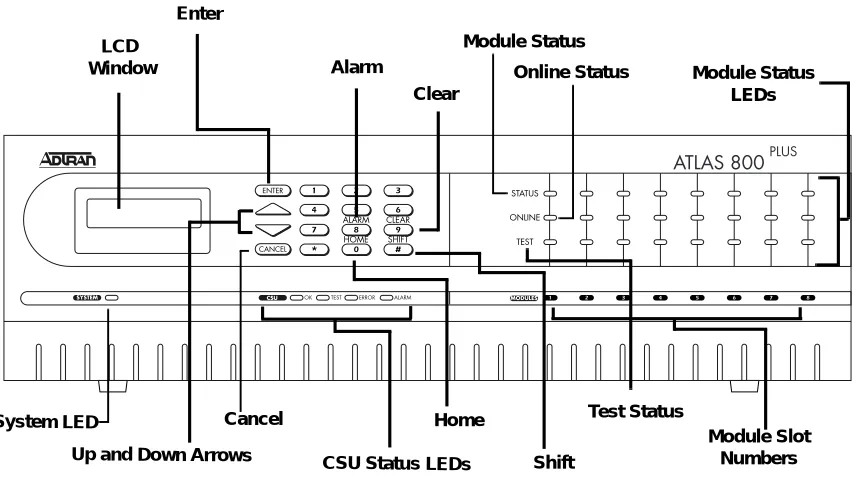
Use the Front Panel to select and set up the method of connectivity for con-trolling the ATLAS 800PLUS Base Unit and to monitor the operation and sta-tus of the Base Unit. Figure 4-1 identifies the display panels and the operation keys located on the Front Panel.
Figure 4-1. ATLAS 800PLUS Front Panel Layout
Table 4-1 on page 4-2 provides a brief description of the Front Panel features; Table 4-2 on page 4-3 provides detailed information about the LEDs; and Ta-ble 4-3 on page 4-4 provides information on operation keys.
LCD Window
Cancel
Up and Down Arrows
CSU Status LEDs Enter
Home
Shift
Module Slot Numbers Clear
Module Status LEDs Module Status
Alarm
System LED
Online Status
Table 4-1. ATLAS 800PLUS Front Panel Description
Feature Description
LCD Window Displays menu items and messages in two lines by sixteen characters in a backlit liquid crystal display (LCD). It also displays alarm and status information.
Enter Selects active menu items. To select a menu item, press the number of the item. The menu item flashes, indicating it is activated. Press Enter to select the menu item.
Alarm Provides quick access to the active alarm display menus.
Clear Clears data/results fields.
Module Status Displays the operational condition of modules installed in the option slots.
Online Status Indicates that the module is available for use or is currently in use. If the module is manually taken offline, this LED is turned off.
Module Status LEDs Displays, by row, the operational condition (Status, Online, and Test) of each module installed in the option slots.
Module Slot Numbers Illuminates to indicate that option modules are installed in the corresponding slot.
Test Status Indicates that one or more ports within a module is in test.
Shift Activates the Front Panel operation keys (Alarm, Clear, and Home). First, press Shift on the Front Panel. The next section describes all of the available operation keys. If you press a key without using Shift, the numbered item becomes active instead of the operation key.
Home Returns to the main menu.
CSU Status LEDs Indicates the status of both network interfaces.
Cancel Stops the current activity and returns to the previous menu. (To return to a previous menus, repeatedly press the Cancel key until you reach the desired menu level.)
Up and Down Arrows Use to scroll through and activate the submenu items available in the current menu. When the submenu items are scrolled, the flashing cursor indicates the active parameter.
System LED Indicates the status of the entire ATLAS 800PLUS. The System LED
indicates the general status of the entire ATLAS 800PLUS. A green light indicates that conditions are normal. A red light indicates a system problem or alarm condition.
Table 4-2. LED Descriptions
For these LEDs... This color light... Indicates that...
System Green (solid) No diagnosed system faults were found.
Green (fast blink) Flash download is in progress.
Yellow (solid) Fault was diagnosed, but the condition no longer exists. The condition will be recorded in the system log.
Red (solid) An error condition is present with either the power supply or temperature.
Red (fast blink) A fatal error occurred during flash download.
Off Power is not currently applied to the system.
CSU Status OK (green) Both network interfaces are operating normally with error-free operation. If either interface experiences alarms, the OK LED remains off.
Test (yellow) One of the interfaces is operating in a test mode. This includes a self-test, a test pattern, or a test loopback. When illuminated, this LED also indicates that normal data flow is not occurring in at least one of the module ports.
Error (flashing red) The Error LED indicates an error such as BPV (bipolar violation), OOF (out of frame), or CRC (cyclic redundancy check).
Alarm (red) An alarm condition has been detected. When the alarm condition is no longer valid, the OK LED illuminates. To view an alarm condition, select the active alarm menu item or select Alarm by pressing Shift + 8. If the alarm conditions have been corrected, you can view the alarm which caused the activation of the Alarm LED under the View History menu.
Module Status Green (solid) The module is OK.
Green (blinking) The module has been disabled by the user.
Red (solid) At least one port on the module has an alarm.
Red (blinking) The module is enabled, but is not responding to the system controller.
Off No module occupies the slot.
Module Online The module is available for use or is currently in use. If the module is manually taken offline, this LED is turned off.
OPERATION KEYS
Operation keys are ATLAS 800 Front Panel keys that perform alternate func-tions. To activate an operation key, simultaneously press the Front Panel Shift key and the operation key that you want to activate, as shown in Table 4-3.
FRONT PANEL MENU STRUCTURE
The ATLAS 800PLUS uses a multilevel menu structure containing both menu items and data fields. All menu operations and data display in the LCD win-dow. However, you only have access to limited configuration options through the Front Panel; to access all of the ATLAS 800PLUS options, use the Terminal menu.
The Front Panel opening menu (Main menu) is the access point to all other operations. Each Main menu item has several functions and submenus to identify and access specific parameters.
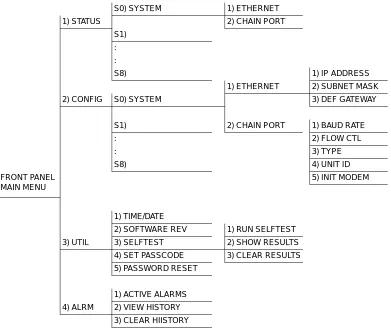
The Front Panel LCD of the Main menu contains the submenu options STATUS, CONFIG, UTIL, and ALRM (see Figure 4-2).
Figure 4-2. Front Panel LCD Table 4-3. Operation Keys
To do this... Press these keys...
Access the active alarm display menus.
(This function can be activated while any other menu item is in use.)
Shift + Alarm
Clear data/result fields in various menus. Shift + Clear
Return to the Main menu from any menu location. Shift + Home
Selecting Front Panel Menus
To do this... Go to this menu... See also page...
Display the status of the ATLAS 800PLUS STATUS 4-7
Display the card type in each slot STATUS 4-7
Perform limited configuration of the ATLAS 800PLUS CONFIG 4-7
Monitor and modify miscellaneous settings UTIL 4-9
View a log of system events ALRM 4-11
Using the Front Panel Menus
Menu Item/Activity... Comments...
Data Field Menu items followed by a colon (:) indicate a data field that you can edit, for example, changing the baud rate. See also Editing a Data Field on page 4-5.
Status Field Menu items followed by an equal sign (=) indicate the state of the item, for example, Online.
Select and Activate a Menu Item To select a menu item, place the cursor on the menu item
1. by pressing the number corresponding to the menu item or
2. by highlighting the menu item with the up or down arrows.
Exit any Menu Field Operation or Display
Press Cancel as many times as required to return to the desired menu level.
or
Press Home to return to the Main menu.
Editing a Data Field
Step Action
1 With the cursor positioned on the submenu item number, press Enter on the Front Panel.
The cursor moves to the data field (to the right of the submenu item name).
2 Use the Front Panel arrows to scroll and scan the available value settings.
(The value settings display one at a time.)
3
When the desired value displays, press Enter on the Front Panel to set the value.
FRONT PANEL MAIN MENU
The Front Panel Main menu provides limited configuration and control of the ATLAS 800PLUS. Figure 4-3 shows the submenu options provided.
Figure 4-3. Front Panel Menu Tree 4 Select another data field to edit, or press Cancel to return to the submenu.
Pressing Cancel prior to pressing Enter voids any data changes. The original data value is restored and the cursor returns to the submenu field.
Editing a Data Field (Continued)
Step Action
S0) SYSTEM 1) ETHERNET
1) STATUS 2) CHAIN PORT
S1)
:
:
S8) 1) IP ADDRESS
1) ETHERNET 2) SUBNET MASK
2) CONFIG S0) SYSTEM 3) DEF GATEWAY
S1) 2) CHAIN PORT 1) BAUD RATE
: 2) FLOW CTL
: 3) TYPE
S8) 4) UNIT ID
FRONT PANEL MAIN MENU
5) INIT MODEM
1) TIME/DATE
2) SOFTWARE REV 1) RUN SELFTEST
3) UTIL 3) SELFTEST 2) SHOW RESULTS
4) SET PASSCODE 3) CLEAR RESULTS
5) PASSWORD RESET
1) ACTIVE ALARMS
4) ALRM 2) VIEW HISTORY
>
STATUS
The Status menu branch lets you view the status of the ATLAS 800PLUS Base Unit and any installed modules.» S0 System
Displays status options that are available for the ATLAS 800PLUS Base Unit.Choose from Ethernet (see Ethernet Status on page 4-7) or Chain Port (see Chain Port Status on page 4-7).
»» Ethernet Status Shows the status of the 10BaseT Ethernet connection port. The following port status options display in the LCD window. An asterisk (*) indicates ac-tivity for the item.
»» Chain Port Status Indicates the status of the Chain Port. The following port status options dis-play in the LCD window. An asterisk (*) indicates activity for the item. (Read-only.)
» S1—S8
Displays the current status of installed modules. S1 corresponds to slot 1, S2to slot 2, and so on. When you select one of these options, an expanded de-scription of the card status displays. The status types include ON (Online), OFF (Offline), NRSP (No Response), NRDY (Not Ready), and RST (Restart-ing).
>
CONFIG
The Config (Configuration) menu branch provides limited configuration control of the ATLAS 800PLUS.» S0 System
Displays configuration options that are available for the ATLAS 800PLUSBase Unit. Choose from Ethernet Configuration (see Ethernet on page 4-8) or Chain Port Configuration (see Chain Port on page 4-8).
To help you follow the terminal menu hierarchy, the following notations are used.
>
MENUS
» Submenus
»» Sub-submenus
TX Data is being transmitted from the 10BaseT port on the system con-troller.
RX Data is being received on the 10BaseT port.
LNK The current status of the 10BaseT link integrity test is indicated (LNK should always be on when the unit is connected to a function-al 10BaseT hub).
»» Ethernet Allows you to create and change configuration settings for the 10BaseT Ethernet connection.
»» Chain Port The Chain Port configuration menu option modifies selected items in its menu branch.
IP Address Uniquely identifies the ATLAS 800PLUS on a TCP/IP network. This address is composed of four decimal num-bers, each in the range of 0 to 255, separated by periods. This value is set to 0.0.0.0 by default. The IP address is used for the 10BaseT Ethernet interface. Obtain the cor-rect IP address from your LAN administrator. Enter the IP address by entering each number followed by Enter to move to the next field.
You must define the IP address before attempting to use a Telnet program.
Subnet Mask Defines which part of a destination IP address is the Network number. This address is composed of four dec-imal numbers, each in the range of 0 to 255, separated by periods. This option is used along with the
ATLAS 800PLUS IP address to determine which nodes must be reached through the default IP gateway. Enter the subnet mask address by entering each number fol-lowed by Enter to move to the next field.
Def Gateway Allows you to define or change the default gateway. You will need a default gateway if the LAN contains multi-ple segments. This address is composed of four decimal numbers, each in the range of 0 to 255, separated by periods. This value is set to 0.0.0.0 by default. Contact your LAN administrator for the appropriate address. Enter the default gateway address by entering each number followed by Enter to move to the next field.
Baud Rate Displays and changes the baud rate. The supported baud rates for the chain port include 2400 and 9600 bps. If Type is set to Dial, make sure this field matches the modem baud rate.
Flow Ctl Sets the flow control for the chain port. You can config-ure the chain port flow control for OFF or H/W (hard-ware).
» S1—S8
Displays the current configuration options of installed modules. S1 corre-sponds to slot 1, S2 to slot 2, and so on. When you select one of these options, you can enable or disable the selected module. The current status, ENA (En-abled) or DIS (Disabled), displays next to the module name. Set this field to DIS (Disable) prior to removing a module from the ATLAS 800PLUS unit.>
UTIL
The Utility menu allows miscellaneous settings to be displayed or modified.» Time/Date
Displays and/or edits the current time and date. The ATLAS 800PLUSmain-tains the time and date during power off conditions.
After any numeric change, press Enter to record the entry and move to the next editing position. You can also move to a different field to edit by press-ing Enter at the editing position without making any change, or by using the up and down arrowkeys. Press Cancel at any time to end the editing pro-cess.
» Software Rev
Displays the current software revision level loaded into the Base Unitcon-troller. This information is required when requesting assistance from ADT-RAN Technical Support or when updates are needed. Press Cancel to exit this option.
Unit ID Accesses the current Unit ID setting, which is the system identifier used for ADTRAN Data Link Layer Protocol (ADLP) configuration control (such as using T-Watch PRO).
Editing or changing the Unit ID requires the use of a passcode if a passcode is defined. See Set Passcode on page 4-11 for details on working with passcodes. Unit Identification numbers must be between 2 and 9999. The number 1 is reserved for the PC.
Press Enter to record the Unit ID number and establish its availability when operating by remote control. Press Cancel at any time to end the editing process.
Init Modem Provides the option to send the modem initialization string (e.g., ATE0V1&D2S0=1) from the chain port to a modem connected to the chain port. Configure this string in the terminal menus. See Modem Initialization String on page 6-9 for details on how to change this field.
» Selftest
Executes a system self-test, and the LCD displays the Pass or Fail when the test is complete. Options include Run Selftest, Show Results, and Clear Re-sults.»» Run Selftest Initiates a self-test. When you select this option, the prompt Selftest, Are You Sure Y/N? displays. To initiate the self-test, select Y and press Enter. Select N and press Enter to cancel the self-test.
If you select Y and proceed with the self-test, the LCD displays the message Selftest in progress.... When the self-test is complete with no failures detected, the OK LED illuminates and the LCD momentarily displays Self-Test Passed. If failures are detected, a list of failures displays in the LCD window.
The full self-test procedure consists of the following steps:
1. Board-level tests. An on-board processor executes a series of tests checking the circuitry on the board.
2. RAM tests; EPROM checksum. 3. TDM map tests.
4. On-board data path. Sending a known test pattern through an on- board loop.
5. Board-to-board interface test. Verifies the data path, clocks, and con-trol signals. A test pattern is sent from the concon-troller through a loop-back on all other boards and checked on the controller.
During a self-test, ATLAS 800PLUS checks data integrity and verifies proces-sor control to each port. Each port is looped back and a data pattern is sent and tested.
»» Show Results Displays the types of tests performed during a self-test, as well as the results of the tests. Each item in the list displays either Passed or Failed. A RAM test failure indicates a controller board problem. If a slot fails, the module in the slot may have a problem.The following items display:
The Selftest option disrupts data flow.
NVRAM Non-volatile RAM
DSP RAM Digital signal processor RAM RTC RAM Real time clock RAM
TDM MAP TDM time slot mapping RAM
»» Clear Results Resets the self-test log that you access with the Show Results option. When you select this option, the message Self-Test Log Clearing displays. After the command is finished executing, the message Self-Test Log Cleared displays.
» Set Passcode
Provides security for Front Panel access. You can change or set the FrontPanel passcode at any time or eliminate it altogether through the Set Pass-code option. By default, the Front Panel does not have a passcode.
The passcode can only be entered by using numbers (any number except ze-ro). After entering the desired passcode, press Enter. The prompt Verify Passcode displays. Enter the passcode again and press Enter.
Set a null passcode by pressing 0 and then pressing Enter. When the Verify Password prompt displays, press 0 and Enter again. A null passcode grants unlimited access to Front Panel options.
» Password Reset
Creates a list of system passwords with the terminal menus (see AccessPass-words on page 6-11 for details). If you forget the password and are unable to log in to the terminal menus, use the Password Reset option. When you se-lect this option, two items display in the LCD window: CHALLENGE # and RESPONSE #.
Call ADTRAN technical support, and tell them the challenge number. They use this to generate a random response number. Enter this response number in the RESPONSE # field, and ATLAS 800PLUS inserts a default password into the system password list. You can then use the new default password to log into the terminal menus.
>
ALRM MENU
From the ALRM (alarm) menu you can view a log of system events. To con-trol the types of events logged, a series of filters have been defined for each event source (System, T1/PRI, ISDN, Ethernet, etc.). Any event with a sever-ity greater than or equal to the threshold defined in the event logging filter list is logged to the system event log. Events that do not appear in the event log do not appear in the Front Panel alarm lists. Therefore, the event logging filters are applied to both the terminal and the Front Panel menu lists. See System Event Logging on page 6-10 for details on setting the thresholds for event logging.» Active Alarms
Displays a list of current alarms reported by the base controller. If no alarmsare current, this menu item displays End of List. If there are current alarms, this display includes two lines of text. The top line is the alarm source. The bottom line is the alarm message.
» View History
Displays a time and date-stamped list of the alarms that have occurred in the ATLAS 800PLUS. Some alarm types include -A to indicate the alarm is active and -I to indicate the alarm is inactive.» Clear History
Clears the alarm history log.TERMINAL MENU WINDOW
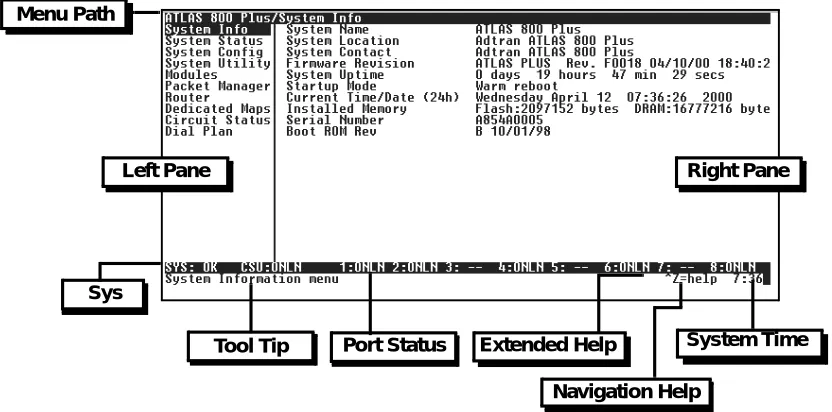
The ATLAS 800PLUS uses a multilevel menu structure that contains both menu items and data fields. All menu items and data fields display in the terminal menu window, through which you have complete control of the ATLAS 800PLUS (see Figure 5-1).
Figure 5-1. Top-level Terminal Menu Window
Menu Path
The first line of the terminal menu window (the menu path) shows the session’s current position (path) in the menu structure. For example, Figure 5-1 shows the top-level menu with the cursor on the System Info submenu; therefore, the menu path reads ATLAS 800/System Info.
Left Pane Right Pane
Menu Path
Sys
Tool Tip Port Status Extended Help
Navigation Help
Window Panes
When you first start a terminal menu session, the terminal menu window is divided into left and right panes. The left pane shows the list of available submenus, while the right pane shows the contents of the currently selected submenu.
Window Pane Navigation
Use the following chart to assist you in moving between and within the two window panes.
Right Window Pane Notation
The right window pane shows the contents of the currently selected menu. These contents can include both submenu items and data fields. Some sub-menus contain additional subsub-menus and some data fields contain additional data fields. The following chart explains the notation used to identify these additional items.
To move... Press one of these keys...
From left pane to right pane Tab Enter Left arrow Right arrow
From right pane to left pane Tab Escape Left arrow Right arrow
Within each pane Up arrow Down arrow Left arrow Right arrow
This notation... Means that...
[+] More items are available when selected.
[DATA] More items are available when selected.
<+> An action is to be taken, such as activating a test.
Highlighted menu item You can enter data in this field.
Additional Terminal Menu Window Features
NAVIGATING USING THE KEYBOARD KEYS
You can use various keystrokes to move through the terminal menu, to man-age a terminal menu session, and to configure the system. Press Ctrl-Z to ac-tivate a pop-up screen listing the navigation keystrokes.
Moving through the Menus
Sys Describes the status of the ATLAS base unit (system). Tool Tip Provides a brief description of the currently selected
(highlighted) command.
Port Status Displays status information, such as OK, WARN, or ALRM, about ports 1—8.
Extended Help Displays information about selected commands (Ctrl-A).
Navigation Help Lists characters used for navigating the terminal menu (Ctrl-Z). See also Moving through the Menus on page 5-3 System Time Displays current time. See Current Time/Date (24h) on
page 6-3 for details on editing the time.
To do this... Press this key...
Return to the home screen. H
Jump between two menu items.
Press J while the cursor is located on a menu item, and you jump back to the main screen.
Go to another menu item, pre