
AT&T
585-322-501
Issue 1
August 1992
PARTNER MAIL ™
Every effort was made to ensure that the information in this book was complete and accurate at the time of printing. However, information is subject to change.
Federal Communications Commission (FCC) Interference Notice
This equipment has been tested and found to comply with the limits of a Class A digital device, pursuant to Part 15 of FCC rules. These limits are designed to provide reasonable protection against harmful interference when the equipment is operated in a commercial environment. This equipment generates, uses, and can radiate radio frequency energy and, if not installed and used in accordance with the instruction manual, may cause harmful interference to radio communications. Operation of this equipment in a residential area is likely to cause harmful interference in which case the user will be required to correct the interference at his or her own expense.
Canadian Emissions Requirements
This digital apparatus does not exceed the Class A limits for radio noise emissions from digital apparatus set out in the Radio Interference Regulations of the Canadian Department of Communications.
Le present appareil numerique n’emet pas de bruits radioelectriques depassant les limites applicables aux appareils numeriques de la classe A prescrites dans le Reglement sur le brouillage radioelectrique edicte par le ministere des Communications du Canada.
Trademarks
PARTNER is a registered trademark of AT&T. PARTNER MAIL is a trademark of AT&T.
Dictaphone is a trademark of Dictaphone Corp. (a division of Pitney-Bowes, Inc.)
Ordering Information
The order number for this book is 585-322-501. To order additional books, call 1-800-432-6600 in the U.S. and 1-800-255-1242 in Canada.
Support Telephone Numbers
Contents
About This Guide
v■
■
■
Guide to the Instructions vi
Conventions vii
Related Guides v i i i
1
Introduction
1-1■
■
Responsibilities 1-2
System Services and Features 1-4
2
PARTNER System Planning
2-1■
■
■
■
Form A: System Configuration 2-2
Form B1: System Extensions 2-4
Form B2: Customized Extension Setting 2-6
Form C: Button Programming 2-9
3
PARTNER MAIL Planning
■ ■ ■ ■ ■ ■ ■ ■ ■ ■
Form 1: Mailbox Assignments
Form 2: System Parameters
Form 3: Voice Mail Greeting
Form 4: Automated Attendant Settings
Form 5: Day Greeting and Menu
Form 6: Night Greeting and Menu
Form 7: Submenus
Form 8: Announcements
Form 9: Group Lists
Form 10: Line Ownership
A
Appendix A: PARTNER MAIL Forms
B
Appendix B: Factory Settings
B-1
C
Appendix C: PARTNER MAIL Case Studies
C-1
Glossary
G-1
Index
Figures
1
Introduction
1-11-1. Overview of PARTNER MAIL Services 1-5
1-2. PARTNER MAIL System as Immediate Call Handler 1-8
1-3. PARTNER MAIL System as Delayed Call Handler 1-9
2
PARTNER System Planning
2-12-1. PARTNER II Form A: System Configuration 2-2
2-2. PARTNER II Form B1: System Extensions 2-4
2-3. PARTNER II Form B2: Customized Extension Settings 2-6
2-4. PARTNER System Template for Night Service 2-10
2-5. PARTNER II R3 Form C for MLS12/12D and 18D 2-11
3
PARTNER MAIL Planning
3-1. 3-2. 3-3. 3-4. 3-5. 3-6. 3-7. 3-8. 3-9. 3-10. 3-11. 3-12. 3-13. 3-14. 3-15.
PARTNER MAIL Form 1 PARTNER MAIL Form 2 PARTNER MAIL Form 3 PARTNER MAIL Form 4
PARTNER MAIL Form 5 Page 1: Day Greeting PARTNER MAIL Form 5 Page 2: Day Menu Definition PARTNER MAIL Form 5 Page 3: Day Menu Script PARTNER MAIL Form 6 Page 1: Night Greeting Script PARTNER MAIL Form 6 Page 2: Night Menu Definition PARTNER MAIL Form 6 Page 3: Night Menu Script PARTNER MAIL Form 7 Page 1: Submenu Definition PARTNER MAIL Form 7 Page 2: Submenu Script PARTNER MAIL Form 8: Automated Attendant
Announcements
PARTNER MAIL Form 9: Group Lists PARTNER MAIL Form 10: Line Ownership
This guide provides planning information and forms for the PARTNER MAIL™ Voice Messaging System. As the system owner, use this guide to:
■ update the System Planner for the PARTNER® II Release 3 Communications
System to indicate how a technician should program the PARTNER System to integrate with the PARTNER MAIL system,
■ complete the PARTNER MAIL system planning forms to indicate how an
implementor should program the PARTNER MAIL system.
AT&T support personnel, or your AT&T authorized dealer, will help you complete both sets of forms.
Chapter 1 describes the many features available with the PARTNER MAIL Voice
Messaging System. Although your company’s needs dictate how you plan to use this flexible system, this guide also includes a series of planning examples in Appendix C which lead you through the PARTNER MAIL system feature selection and planning process.
Chapter 2 guides you through the process of completing the PARTNER II Release 3
system planning forms required to integrate the PARTNER MAIL system.
Chapter 3 provides a guide for completing the PARTNER MAIL system planning
forms.
In addition to planning instructions, this guide contains blank PARTNER MAIL system planning forms in Appendix A, a table of factory settings in Appendix B, a glossary of terms used in this guide, and an index.
About This Guide
Guide to the Instructions
Refer to the following table for a list of planning items, the tasks required to perform each item, and the chapter number where you will find the instructions.
ITEM TASKS CHAPTER
NUMBER
Select PARTNER Select Automated Attendant Chapter 1
MAIL system VMS Hunt Schedule
Features VMS Hunt Delay
Select Call Answer Service Extension Coverage Line Coverage
Voice Mailbox Transfer
Plan the Integration Update: Chapter 2
of PARTNER II with Form A: System Configuration
the PARTNER Form B1: System Extensions
MAIL system Form B2: Customized Extension
Settings
Form C: Telephone Button Programming
Plan the Complete the PARTNER MAIL Chapter 3
Administration of system Planning Forms 1 through
the PARTNER 10.
MAIL system
Conventions
The following conventions are used throughout this guide:
EXTENSION means press the buttons on the dialpad for the appropriate extension.
[#] means press the pound button. The pound button is frequently used as a termination character, enabling the system to detect the end of an extension or password you have entered.
PASSWORD means press the buttons on the dialpad for the appropriate password.
MAILBOX means press the buttons on the dialpad to dial the Mailbox number of a
subscriber. Usually the Mailbox number is the same as a subscriber’s extension number.
[*] means press the star button on the dialpad.
The prompts or responses played by the system are shown in this manner:
Record at the tone.
✔ means that the programmable setting to the left of the ✔ is the factory setting.
About This Guide
Related Guides
The following guides are available to help you set up, use, and maintain the PARTNER MAIL system when it is installed with the PARTNER II Release 3 Communications System. PARTNER MAIL™ Voice Messaging System Installation
and Use is supplied with the PARTNER MAIL system.
You can order additional copies of the related system guides listed in the following table from the AT&T Customer Information Center. Phone numbers are listed on the inside front cover.
Guide Title Order Number
PARTNER MAIL system
Planning Guide and Forms 585-322-501
Installation and Use 585-322-101
User’s Quick Reference Card 585-322-701
PARTNER II Release 3
Programming and Use 518-455-311
System Planner 518-455-315
Quick Reference for Use with MLS-Series Telephones 518-455-306
Installation 518-455-313
1
The PARTNER MAIL Voice Messaging System is a single unit that adds the capabilities of Automated Attendant service, Call Answer Service, and Voice Mail Service to the PARTNER II Release 3 Communications System.
The PARTNER MAIL system automates call handling by answering calls and
presenting the caller with a menu of options so that the call can be routed directly to the desired extension. The PARTNER MAIL system routes calls and fax
transmissions, answers calls, provides after-hours service and allows subscribers to send and receive messages.
The PARTNER MAIL system is available in two configurations: single voice processing card (2-port) and two voice processing cards (4-port).
A Remote Maintenance Device (RMD) is included to provide AT&T Service personnel remote access to the PARTNER MAIL system.
Introduction
Responsibilities
Take a moment to identify the personnel resonsible for planning, installing,
programming, and maintaining the PARTNER MAIL system. With the exception of the Implementor / Technician, all of the remaining functions could be performed by a single person.
System Planner
The system planner works closely with the PARTNER II System Manager to coordinate the programming. (In many companies, the System Administrator for the PARTNER MAIL system and the System Manager for the PARTNER System are the same person.) The two systems must function as an integrated unit.
Implementor / Technician
The implementor or technician installs the PARTNER MAIL system and performs the initial programming. An implementor or technician must also program the initial settings for the PARTNER System to integrate it with the PARTNER MAIL system. The implementor needs the completed planning forms to program the systems.
System Administrator
The PARTNER MAIL System Administrator maintains the PARTNER MAIL system by modifying mailboxes, changing menus and greetings, and reporting any system problems. The System Administrator should provide a copy of the procedure titled
Forwarding General Mailbox Messages to the General Mailbox Owner. This
procedure is included at the back of this guide.
General Mailbox Owner
Messages that are not directed to a subscriber’s mailbox may be stored in the General Mailbox. The General Mailbox Owner forwards messages from the General Mailbox to the intended subscriber’s mailbox. The System Administrator should provide a copy of the procedure titled Forwarding General Mailbox Messages to the General Mailbox Owner. This procedure is included at the back of this guide.
System Operator
The System Operator is the receptionist or system user who is primarily responsible for answering calls. Typically, this person is also the General Mailbox Owner.
Fax Message Receiver
The Fax Message Receiver is the person to notify whenever a fax is received at a fax extension.
Introduction
System Services and Features
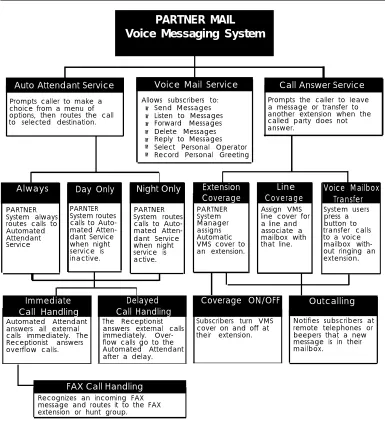
Figure 1-1 provides an overview of the services offered by the PARTNER MAIL system. Read the following descriptions of the Automated Attendant service, Call Answer Service, Voice Mail Service and their related features; then keep in mind the type of service and features your company needs.
Refer to “Appendix C: PARTNER MAIL Case Studies” to determine how hypothetical customers planned the implementation of the PARTNER MAIL system. Appendix C provides practical examples of how to select, plan, and program the PARTNER II and PARTNER MAIL systems.
PARTNER MAIL
Voice Messaging System
Auto Attendant Service Voice Mail Service Call Answer Service
Prompts caller to make a choice from a menu of options, then routes the call to selected destination.
Allows subscribers to:
■ ■ ■ ■ ■ ■ ■ Send Messages Listen to Messages Forward Messages Delete Messages Reply to Messages Select Personal Operator Record Personal Greeting
Always Day Only Night Only
PARTNER System always routes calls to Automated Attendant Service Extension Coverage Line Coverage Voice Mailbox Transfer PARNTER System routes calls to Auto-mated Atten-dant Service when night service is inactive. PARTNER System routes calls to Auto-mated Atten-dant Service when night service is active. Immediate Call Handling Delayed Call Handling
Coverage ON/OFF Outcalling
Automated Attendant The Receptionist answers all external answers external calls calls immediately. The immediately. Over-Receptionist answers flow calls go to the overflow calls. Automated Attendant
after a delay.
FAX Call Handling
Recognizes an incoming FAX message and routes it to the FAX extension or hunt group.
Prompts the caller to Ieave a message or transfer to another extension when the called party does not answer. PARTNER System Manager assigns Automatic VMS cover to an extension.
Assign VMS line cover for a line and associate a mailbox with that line. System users press a button to transfer calls to a voice mailbox with-out ringing an extension.
Subscribers turn VMS Notifies subscribers at cover on and off at remote telephones or their extension. beepers that a new
message is in their mailbox.
Figure 1-1. Overview of PARTNER MAIL Services
Automated Attendant Service
The Automated Attendant service consists of a greeting and a multi-level menu, which provides callers with a number of options that enable them to reach an extension, a group of extensions, or obtain information, by pressing a single digit or by dialing an extension number.
Introduction
This service provides several benefits to callers and your company. The Automated Attendant service: ■ ■ ■ ■ ■
Efficiently routes calls to the correct party.
Prompts the caller to leave a message or try another extension if the called party does not answer or the phone is busy.
Enables the caller to access the dial-by-name directory if they do not know the extension that they need.
Plays announcements of frequently requested information (such as directions or business hours) as menu options, thereby freeing an employee’s time for other tasks.
Receives and transfers fax calls to a designated extension(s).
The PARTNER MAIL Automated Attendant service is useful for many businesses, such as banks, insurance agencies, post offices, and stores. A bank could, for example, use Automated Attendant service to allow its customers to select
information from a multi-level menu. This information could include current mortgage interest rates or the current interest rates on money market funds. The Automated Attendant service also allows callers to wait to speak to a customer representative.
The menu frees the bank employees to handle customer transactions while the Automated Attendant service provides general information. In a business like this, the PARTNER MAIL System Administrator would program the Automated Attendant service to allow callers to stay on the line or enter an extension to reach a banker.
Selection Considerations
When planning PARTNER MAIL Automated Attendant service you must decide:
■
■
■
Which outside lines (if any) are answered by the Automated Attendant service.
When you want the PARTNER System to route calls to the PARTNER MAIL system — Always, Day Only, or Night Only. This is called the VMS Hunt
Schedule.
If you want Immediate Call Handling (the Automated Attendant service answers most calls, and your receptionist and other system users serve as a backup) or Delayed Call Handling (the system users handle most calls and the Automated Attendant services is the backup). This is called the VMS Hunt
Delay.
The following three sections explain how to make selections for each feature of the Automated Attendant service.
Selecting Outside Lines for Automated Attendant Service
Select the outside lines that require the Automated Attendant service.
Selecting the VMS Hunt Schedule
You can set the PARTNER II Release 3 system to route outside calls to the PARTNER MAIL Automated Attendant service always, during the day only, or only during the night. The schedule that you select and the greeting that the caller hears depend upon the setting of the PARTNER II Night Service button. When Night Service is ON — and the Hunt Schedule is Always or Night only — the PARTNER MAIL Automated Attendant service plays the Night Greeting. When the Night Service button is OFF — and the Hunt Schedule is set to Always or Day only — the Day Greeting plays. What follows is a summary of the three choices:
■
■
■
Always ✔ : Causes the PARTNER System always to route outside calls to the
PARTNER MAIL Automated Attendant service for call handling.
Day Only: Causes the PARTNER System to route outside calls to the
PARTNER MAIL Automated Attendant service only when the Night Service is OFF.
Night Only: Causes the PARTNER System to route outside calls to the PARTNER MAIL Automated Attendant service only when the Night Service is ON.
Selecting the VMS Hunt Delay
You must set the Automated Attendant service to handle calls in one of two ways: Immediate Call Handling or Delayed Call Handling.
Immediate Call Handling
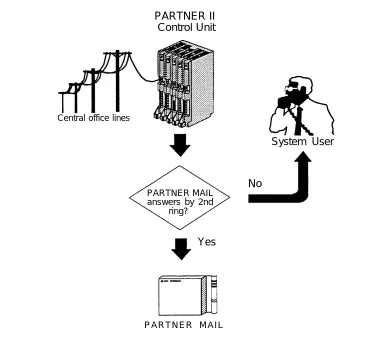
The PARTNER MAIL system answers incoming calls after the second ring by playing the Automated Attendant Day or Night Greeting (Figure 1-2). Callers using rotary phones or callers requesting assistance can be transferred to the receptionist’s extension or any other predesignated extension.
Introduction
PARTNER II
Control Unit
Central office lines
System User
No
PARTNER MAILanswers by 2nd ring?
Yes
P A R T N E R M A I L
Figure 1-2. PARTNER MAIL System as Immediate Call Handler
Fax Call Handling
The Automated Attendant service recognizes and routes fax calls the fax machine(s) if the PARTNER MAIL system has a Fax Extension or Fax Extension Hunt Group administered. You must select Immediate Call Handling to use the Fax Call Handling feature. Fax Call Handling eliminates the need to dedicate a line for fax machines. You can enhance this feature by designating a Fax Message Receiver as described earlier in this chapter.
Delayed Call Handling
An outside call rings at the system extensions. If a system user does not answer the call after the fourth ring, the PARTNER System sends the call to the Automated Attendant service as shown in Figure 1-3. This delay allows any system user to answer the call before the PARTNER System routes the call to the PARTNER MAIL system.
PARTNER II
Control Unit
Central office lines
System User
Answers call after fourth ring
Overflow
PARTNER MAIL
Figure 1-3. PARTNER MAIL System as Delayed Call Handler
Voice Mail Service
The Voice Mail Service allows subscribers (people registered on the PARTNER MAIL system) to perform these tasks:
■
■
■
■
■
■
Listen to messages.
Create a message and send it to one or more subscribers.
Receive a message and forward it to one or more subscribers, with additional comments, if desired.
Record their own personal greeting and name.
Assign their own password, which they can change at any time to ensure that messages are kept confidential.
Designate a subscriber to serve as their Personal Operator. The PARTNER MAIL system connects callers to a Personal Operator if they press [0] after a personal greeting plays.
Introduction
In addition, the Voice Mail Service allows the System Administrator to do the following:
■
■
■
Create group lists to enable subscribers to send a single message to several subscribers.
Use the Broadcast feature to send a single message to all subscribers.
Perform administration of the PARTNER MAIL system.
Subscriber’s Mailbox
By default, the PARTNER MAIL system provides mailboxes for extensions 10 through 57. Users assigned to those extensions are PARTNER MAIL subscribers. Except for the General Mailbox, a user’s extension number and mailbox number are the same. When a caller Ieaves a message, the PARTNER MAIL system places the message in the called subscriber’s mailbox, and turns ON the message light at the subscriber’s system phone. Subscribers with the Outcalling feature can also have the system call an off-site telephone, or beeper to inform the subscriber that a new message has arrived in his or her mailbox. The Outcalling feature is described later in this chapter.
Call Answer Service
Call Answer Service provides three major features:
■
■
■
Extension Coverage
CO Line Coverage
Voice Mailbox Transfer
Call Answer Service is useful to employees who rely exclusively on the telephone, are on the road during the day, or may be unavailable much of the time. With Call Answer, potential clients can leave detailed messages in the employee’s mailbox. The employee can retrieve the message at his or her convenience and get back to the client. These features and two additional features are described below.
Extension Coverage
Extension coverage consists of the following:
■
■
Automatic VMS Cover which allows callers to leave messages or transfer to another extension when the extension called is busy or does not answer, and
the VMS Cover button which enables users to turn VMS Cover ON and OFF at their extension.
Automatic VMS Cover
When VMS cover is activated at the called extension, the system greets the caller with the called party’s personal greeting or with the system greeting if a personal greeting is not recorded. The caller may do one of the following:
■ Press [0] to transfer to the System Operator or the called party’s personal
operator.
■ Press [*] [8] to transfer to another extension.
■ Record a message that the PARTNER MAIL system leaves in the called
party’s mailbox.
VMS Cover Button
Regardless of the Automatic VMS Cover setting, the PARTNER System enables users to press a programmed button to turn Voice Mail Cover ON or OFF at an extension. Users must program a button with lights on their system telephone (MLS-34D, MLS-18D, MLS-12, MLS12D, MLS-6, MLC-6 model telephones) for this purpose.
CO Line Coverage
The PARTNER MAIL system provides two levels of line coverage if you do not want to use PARTNER MAIL Automated Attendant service, or you want to provide coverage for a private line.
CO Line Coverage consists of assigning VMS Line Cover to a line enabling callers who call in on the covered line to leave messages in the General Mailbox if no owner is assigned to the line and no one answers the call. To enhance this feature, the System Administrator assigns PARTNER MAIL Line Ownership to specify a subscriber’s extension (mailbox) as the “owner” of the covered line. When a call comes in on the covered line, the system routes the caller to the line owner’s
mailbox if the call is not answered. The caller has the option of leaving a message or transferring to another extension.
Introduction
Voice Mailbox Transfer
Users may program buttons on their system phones that allow them to transfer callers directly to another subscriber’s voice mailbox without causing the phone to ring at the subscriber’s extension. This feature is useful when handling a call for a person who is not at his or her desk. You can transfer callers to the subscriber’s voice mailbox where they can leave a message.
Outcalling
The Outcalling feature enables the PARTNER MAIL system to notify a subscriber at a remote telephone, or activate the subscriber's beeper or pager, when a new message is in the subscriber’s mailbox. Subscribers who have the Outcalling feature administered to their mailbox, can remotely log on to PARTNER MAIL Voice mail Service and retreive the new message or turn Outcalling ON or OFF. They can also enter and change their outcalling telephone, beeper or pager number using the Voice Mail Service (see the previous section).
2
This chapter describes how to complete the PARTNER II Release 3 planning forms to integrate the PARTNER MAIL system and the PARTNER II Communications System.
Ask the System Manager for the PARTNER System to provide the following PARTNER II Release 3 planning forms:
■
■
■
■
Form A: System Configuration
Form B1: System Extensions
Form B2: Customized System Extensions
Form C: Telephone Button Programming
Update these forms when adding a new PARTNER MAIL system to your existing PARTNER Communications System. Complete the forms “from scratch” when installing a new PARTNER MAIL system and a new PARTNER System.
Copy the completed forms, and store the copies in the pocket of the back cover of
PARTNER MAIL™ Voice Messaging System Installation and Use. Return the originals
to the System Manager
PARTNER System Planning
Form A: System Configuration
Figure 2-1. PARTNER II Form A: System Configuration
PARTNER II Form A (Figure 2-1) shows the basic configuration of your
Communications System. Use this procedure to specify the system-wide settings required when adding a new PARTNER MAIL system to your existing PARTNER
System. Refer to the PARTNER®
II Communications System Release 3 System Planner for instructions on how to complete the forms when installing a new
PARTNER MAIL system and a new PARTNER System.
■
■
■
Obtain Form A.
Ensure that the Telephone Number and Line Type are completed for each Line.
Identify each line that the PARTNER MAIL system covers using Automated Attendant or Call Answer Service.
For Automated Attendant service: write “VMS-AA” for each Line that you want to receive the PARTNER MAIL Automated Attendant service.
For Call Answer Service:
■
■
Write "VMS-MAIL" for each Line covered by the PARTNER MAIL Call Answer service.
Write the name of the subscriber who owns the Line in the Line Owner column. Refer to Chapter 1 of this guide for a description of the Line Coverage feature.
If you intend to use the PARTNER MAIL Automated Attendant service to cover calls during the night, or whenever the office is closed, check the box next to “Night Service Button”.
Check the box next to “VMS Automated Attendant Service” if you intend to use the PARTNER MAIL Automated Attendant Service.
NOTE:
The ✔ indicates the factory setting.
Indicate whether outside calls should ring at the PARTNER MAIL Automated Attendant with no delay — Immediate Call Handling — or ring at the PARTNER MAIL Automated Attendant if the user does not answer the call after three rings — Delayed Call Handling.
■ No Delay ✔ : Check this block to select Immediate Call Handling.
■ Delay for 3 rings: Check this block to select Delayed Call Handling.
Indicate when the Automated Attendant Immediate or Delayed Call Handling feature is active:
■ Always ✔ : Check this block to cause the PARTNER System to always
route outside calls to the PARTNER MAIL system for call handling.
■ Day only: Check this block to cause the PARTNER System to only
route outside calls to the Automated Attendant when Night Service is OFF.
■ Night only: Check this block to cause the PARTNER System to only
route outside calls to the Automated Attendant when Night Service is ON.
PARTNER System Planning
Form B1: System Extensions
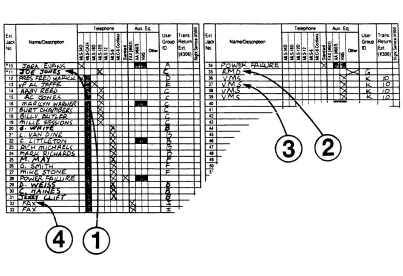
Figure 2-2. PARTNER II Form B1: System Extensions
Use Form B1 (Figure 2-2) to record the equipment connected to an extension, and who owns the extension. Complete the following information to reflect the addition of the PARTNER MAIL system.
For Subscribers:
■
■
Ensure that the Name of each PARTNER MAIL subscriber is listed on the form. Since the PARTNER MAIL system is shipped with mailboxes created for extensions 10 through 57, the subscriber’s mailbox number corresponds to their extension.
Ensure that the type of system telephone connected at each subscriber’s extension is indicated in the Telephone column.
For the PARTNER MAIL RMD:
■
■
■
■
Write “MAIL RMD” next to the extension number that corresponds to the extension jack on the 206 module that connects to the RMD.
Mark an X in the “Aux. Eq. — Other” column.
Do not use the top jack of any 206 module or any of the power failure transfer extensions 10, 16, 22, 28, 34, 40, 46, or 52.
Refer to Form B2 (if completed) and locate the ID for the RMD User Group. Write the User Group ID shown on Form B2 into the “User Group ID” column. In this example you would write “G” in the “User Group ID” column.
For the two or four PARTNER MAIL system extensions:
■
■
■
■
■
Write “VMS” next to the each extension number that corresponds to an extension jack on the 206 module that connects to a PARTNER MAIL system port.
Mark an X in the “Aux. Eq. — VMS” column for each PARTNER MAIL system extension.
Write the extension (usually the System Operator’s extension) in “Trans. Return Ext.” column. If the system transfers a call to an extension which has VMS coverage turned OFF, and that extension does not answer, the system transfers the call to the Transfer Return Extension.
Refer to Form B2 (if completed) and locate the ID for the VMS User Group. Write the User Group ID shown on Form B2 into the “User Group ID” column. In this example you would write “K” in the “User Group ID” column.
Do not use the top jack of any 206 module or any of the power failure
For Fax Call Handling:
■
■
■
transfer extensions 10, 16, 22, 28, 34, 40, 46, or 52.
Write “FAX” next to the extension number that corresponds to each extension jack on the 206 module where a fax machine is connected.
Mark an X in the “Aux. Eq. — FAX" column for each Fax extension.
Refer to Form B2 (if completed) and locate the ID for the FAX User Group. Write the User Group ID shown on Form B2 into the “User Group ID” column. In this example you would write “I” in the “User Group ID” column.
PARTNER System Planning
Form B2: Customized Extension Setting
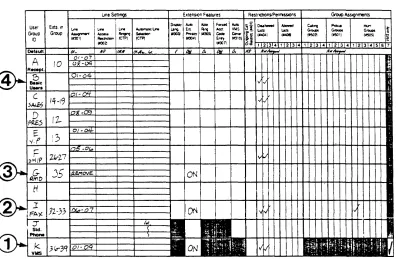
Figure 2-3. PARTNER II Form B2: Customized Extension Settings
Use Form B2 (Figure 2-3) to identify groups of extensions which have the same settings. A single extension may be included in its own user group if it has unique settings. Whoever programs the PARTNER System can copy these settings from a previously programmed extension using the Copy Settings programming option (#399). The System Planner provides instructions for how to complete Form B2 for the Receptionist (System Operator), other users and for fax extensions. Use the procedure below to complete Form B2 for the PARTNER MAIL system extensions and the Mail RMD.
For the PARTNER MAIL system extensions:
■
■
■
Locate VMS in the “User Group ID” column and write K in that column.
Write the extension numbers for the PARTNER MAIL system extensions in the “Exts. in Group” column.
This setting determines whether users may join calls on an extension.
— For Delayed Call Handling: Write OFF in the “Auto Ext. Privacy” column to make sure privacy is not assigned to the PARTNER MAIL system extensions. This allows users to join a call after it has been answered by the Automated Attendant service. The system automatically disconnects from the call.
— For Immediate Call Handling: Write ON in the “Auto Ext. Privacy” column to make sure privacy is assigned to the PARTNER MAIL system extensions. This prevents users from joining a call after it has been answered by the Automated Attendant service.
■
■
Leave the remaining items blank if you intend to use the “Default” settings listed at the bottom of the form.
Write an ID (K in this example) in the “User Group ID” column on Form B1 for each PARTNER MAIL system extension (Figure 2-2).
The example in Figure 2-3 indicates that the default settings will apply to the PARTNER MAIL system extensions except for the following:
■ Disallowed List number 1 is assigned to the PARTNER MAIL system
extensions. This means that the outcalling feature cannot be used to place calls to the numbers listed in Disallowed List 1. (Refer to Chapter 1 in this guide for a description of the outcalling feature, and refer to
PARTNER II Release 3 Programming and Use for instructions on how
to program Disallowed Lists.
For Fax Call Handling:
■
■
■
■
■
Write FAX in the “User Group ID” column, and assign an ID (An unused Alpha character from A to Z).
Write the fax extension number(s) into the “Exts. in Group” column.
Write the group ID (I in this example) into the “User Group ID” column of Form B1 for each fax extension (Figure 2-2).
Write YES in the “Auto. Ext. Privacy” column. This setting ensures that fax calls are not interrupted.
Make entries as appropriate for the remaining items, or leave the remaining items blank if you intend to use the “Default” settings listed at the bottom of the form.
If you intend to send and receive faxes, you may assign lines using the “Line Assignment” column, and indicate “No Ring” in the “Line Ringing” column.
PARTNER System Planning
For the RMD:
■
■
■
■
Write MAIL RMD in the “User Group” column and assign an ID.
Write the RMD extension number into the “Exts. in Group” column.
Write “Remove all lines” in the Line Assignment column.
Write YES in the “Auto. Ext. Privacy” column. This setting ensures that maintenance calls are not interrupted.
■
■
Make entries as appropriate for the remaining items, or leave the remaining items blank if you intend to use the “Default” settings listed at the bottom of the form.
Write the group ID into the “User Group ID” column of Form B1 for the RMD (Figure 2-2).
For other users:
■
■
■
Determine if Auto VMS Cover should be ON or OFF for the Basic User extensions. Write ON, or OFF in the Auto. VMS Cover column.
Assign User Group IDs.
Write the group ID (B in this example) into the “User Group ID” column of Form B1 for the users (Figure 2-2).
Form C: Button Programming
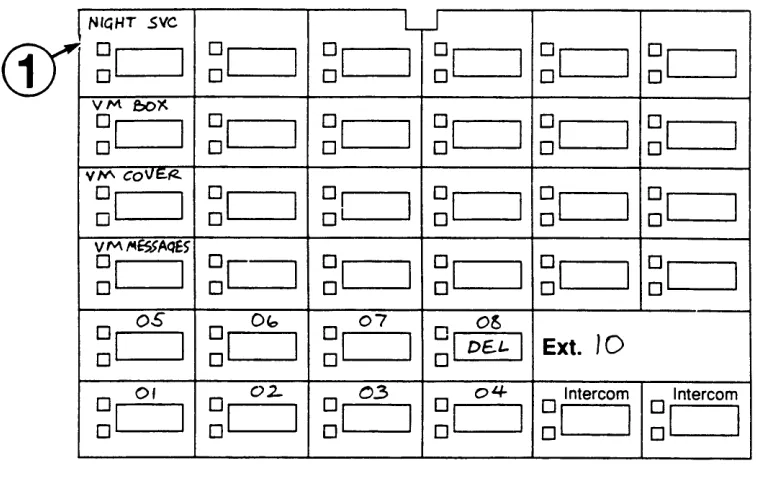
Form C provides button templates for each type of MLS and MLC telephone. It is recommended that you program a button on the telephone for the following PARTNER MAIL system features:
■ Night Service button (Program on a system telephone at extension 10 only):
enables user to turn Night Service ON or OFF. When Night Service is ON, and the PARTNER MAIL Automated Attendant handles calls always or at night only, the system plays the Night Greeting and Night Menu.
The following buttons may be programmed onto any telephone.
■
■
■
VMS Cover button: enables users to turn VMS Coverage ON or OFF at their extensions.
Voice Mailbox button: enables users to transfer callers directly to a PARTNER MAIL system subscriber’s mailbox so that the caller can leave a message.
Auto Dial to the PARTNER MAIL system: enables users to press one button to dial the PARTNER MAIL Hunt Group (777).
PARTNER System Planning
Night Service
Figure 2-4. PARTNER System Template for Night Service
Refer to section “8. System Settings” on PARTNER II Form A: System Configuration. If “Night Service Button” is checked. Obtain the template for the system telephone (MLS-34D, MLS-12D, or MLS-18D) at extension 10.
Select a button with lights and write “NightSVC” on the template area for the selected button (Figure 2-4). When the feature button light is ON, the Night Service feature is ON.
Any System Phone Features
The following feature buttons may be programmed on any user’s system telephone. Obtain the template for the system telephone (MLS-6/MLC-6, MLS-12D/MLS-12, MLS-18D) at the user’s extension.
Figure 2-5. PARTNER II R3 Form C for MLS6 and MLS18D
PARTNER System Planning
VMS Cover
Select a button with lights and write “VMCover” on the template area for the button (Figure 2-5).
NOTE:
Turning VMS coverage ON and OFF at an extension does not affect CO Line Coverage for outside calls ringing at that extension.
Voice Mailbox Transfer
Select a button to activate the Voice Mailbox Transfer feature and write “VMBox” on the template area for the selected button.
Auto Dial into PARTNER MAIL System
Select a button that enables callers to automatically dial the PARTNER MAIL system Hunt Group and write “VM Messages” on the template area for the selected button.
3
This chapter contains instructions for completing the PARTNER MAIL system planning forms. You need information from the following PARTNER II Release 3 forms:
■
■
■
Form A: System Configuration
Form B1: System Extensions
Form B2: Customized Extension Settings
You can find blank PARTNER MAIL system planning forms in Appendix A. Make copies of the forms for planning and leave the originals in this manual. Store the completed forms in the back cover of PARTNER MAIL™ Installation and Use.
The PARTNER MAIL system forms you need are listed below:
■
■
■
■
■
■
■
■
■
■
Form 1: Mailbox Assignments
Form 2: System Parameters
Form 3: Voice Mail Greeting
Form 4: Automated Attendant Settings
Form 5: Automated Attendant Day Greeting and Menu
Form 6: Automated Attendant Night Greeting and Menu
Form 7: Automated Attendant Submenus
Form 8: Automated Attendant Announcements
Form 9: Group Lists
Form 10: Line Ownership
PARTNER MAIL Planning
Form 1: Mailbox Assignments
Figure 3-1. PARTNER MAIL Form 1
The PARTNER MAIL system is shipped with mailboxes created for extensions 10 through 57. Use Form 1 (Figure 3-1) to record the name of each PARTNER MAIL system subscriber assigned to each extension at your office. Form 1 makes it easier to record subscriber names for the PARTNER MAIL system directory, should you decide to use one, and also makes it easier to keep track of subscribers if you must modify or delete mailbox assignments.
You can also use Form 1 to designate Guest Mailboxes for users who do not have their own extensions, but still require a mailbox. Assign a COS of 7, 8, or 9 to an unused extension from 10 through 57. Assign the first Guest Mailbox to the highest numbered extension available (e.g., extension 57) and work backwards toward extension 10 to assign additional Guest Mailboxes. The PARTNER MAIL system does not attempt to transfer callers receiving Automated Attendant Service to the extension associated with the Guest Mailbox. Instead, it transfers callers directly to the Guest Mailbox where they can leave a message. Guests may log on and retrieve messages from any touch-tone phone.
To use the PARTNER MAIL system’s Voice Mailbox Transfer features, assign a two digit mailbox number from 10 through 57 for each mailbox. If you assign a mailbox greater than 57, you must administer a “Transfer Not Permitted” COS of 7, 8, or 9 for that mailbox. The system routes callers receiving the Automated Attendant Service to the mailbox (greater than 57), not to the extension associated with the mailbox. The System Administrator programs mailboxes using the Mailboxes menu. Refer to Chapter 6 in PARTNER MAIL™ Installation and Use for details on how to change, add, or delete mailboxes. Complete items 1 through 4 as instructed below.
Mailbox
Enter extension numbers for each subscriber (maximum of 48 for extensions 10 through 57). The extension number corresponds to the mailbox number. Make additional copies of Form 1 as required.
Name
Refer to PARTNER II Release 3 Form B1 and write the name of each subscriber next to the appropriate mailbox number. Since you can organize your directory (if you plan to use one) by first or last name, consider entering the names in a manner that highlights the name you plan to record. For example, if you plan to record only the first name, write the first name in all capital letters and the last name in inital capital letters: BOB Smith. If you plan to record only the last name, write SMITH, Bob.
COS (Class of Service)
The Class of Service describes the characteristics of the mailbox. The factory-setting COS for each mailbox is 2. This COS should satisfy the majority of subscribers. Review the Class of Service table and the guidelines which follow. To modify the COS for an extension, choose a number from the Class column, and write that number into the COS column for the appropriate extension. Make no entry if you are not modifying the COS for a mailbox.
COS Key
Class M i n s . Transfer Outcalling
1 5 Permitted Not Permitted
2 ✔ 10 Permitted Not Permitted
3 15 Permitted Not Permitted
4 5 Permitted Permitted
5 10 Permitted Permitted
6 15 Permitted Permitted
7 15 Not Permitted Not Permitted
8 15 Not Permitted Permitted
9 6 0 Not Permitted Not Permitted
PARTNER MAIL Planning
Use the following guidelines to select the Class of Service:
■
■
Mins. (Minutes) (10 ✔ ) — the size of the mailbox. Each mailbox can have 5, 10, 15, or 60 minutes of storage available. Use the 60-minute size only for mailboxes used to record orders, lengthy messages, or as a Dictaphone™. The total storage time for all mailboxes is four hours. The sum of messages stored in each mailbox may exceed four hours.
Transfer Type — determines how the PARTNER MAIL system
processes a call when a caller indicates this mailbox as a transfer destination.
— Transfer Permitted ✔ : the system attempts to transfer the call to
the extension entered by the caller.
— Transfer Not Permitted: the system does not attempt to transfer
the call to the extension entered by the caller. Instead, the system transfers the caller directly to the extension’s voice mailbox. Assign a COS of 7, 8, or 9 (Transfer Not Permitted) to mailboxes that provide a place for callers to leave messages for people who do not have dedicated extensions, such as visitors, guests, or employees who do not have their own phones. When a caller dials an extension with a COS of 7, 8, or 9, the system immediately prompts that caller to leave a message.
■ Outcalling (Not Permitted ✔ ) — if outcalling is permitted, and the subscriber administered it using the Voice Mail Service, the system calls the subscriber at a designated telephone or beeper number whenever a new message is in the subscriber’s mailbox. Use discretion when permitting use of the outcalling feature. Unless a Disallowed List has been programmed into the PARTNER Communications System, the system does not restrict the destination of the outside call. Refer to
PARTNER®
II Communications System Release 3 Programming and Use for instructions on how to program disallowed lists.
Letter Key
The directory feature enables callers to reach an extension by dialing a subscriber’s first or last name, use the the Letter Key to translate up to four letters of the first or last name of the person to whom the mailbox is assigned. Each letter of the name has a two-digit code (see the Letter Key on the next page). The first digit represents the number on the dialpad where the letter appears. The second digit represents whether the letter appears in the first, second, third, or fourth position on the button. For example, the first four characters of the name “Henderson” translate as shown below:
H E N D
4 2 3 2 6 2 3 1
The “H” is on the “4” button in the second position, “E” is on the “3” button in the second position, and so on.
Write the first four characters of a subscriber’s first or last name into the upper block on the letter key, then use the Letter Key as a reference to write the correct translation digits into the blocks immediately below each character. The implementor uses the Letter Key to program the directory list. The PARTNER MAIL system creates the directory as mailboxes are created for each subscriber. If the Automated Attendant Main Menu informs callers how to access the directory service, be sure to indicate which name (first or last) is used in the directory.
Letter Key
A = 21 N = 62
B = 22 O = 63
C = 23 P = 71
D = 31 Q = 72
E = 32 R = 73
F = 33 S = 74
G = 41 T = 81
H = 42 U = 82
I = 43 V = 83
J = 51 W = 91
K = 52 X = 92
L = 53 Y = 93
M = 61 Z = 94
PARTNER MAIL Planning
Form 2: System Parameters
Position N a m e M a i l b o x
E X T . Factory Setting
Fax Extension or Fax Hunt Group Extension
System Administrator
General Mailbox Owner 10 ✔
System Operator 10 ✔
Fax Message Receiver
Figure 3-2. PARTNER MAIL Form 2
Complete Form 2 (Figure 3-2) to define the parameters of your PARTNER MAIL system. The System Administrator programs System Parameters from the PARTNER MAIL System Parameters menu. Refer to Chapter 6 in PARTNER MAIL™ Installation
and Use for details on how to change, add, or delete each of the parameters
described below.
NOTE:
You can only use Fax Call Handling with Immediate Call Handling.
Voice Mail Positions
Use PARTNER II Release 3 Form B1 to identify the names and extensions for subscribers you are assigning as the System Administrator, the General Mailbox Owner, the System Operator and the Fax Message Receiver. Refer to Chapter 1 of this guide for a description of responsibilities.
■
■
■
■
■
Fax Extension
— Refer to PARTNER II Release 3 Form B1 to identify the
extension jack number (on the PARTNER System’s 206 module) that connects to the Fax machine.
— If there is more than one fax machine, refer to PARTNER II Release 3 form B2 to determine the Fax Hunt Group extension (771 to 776).
— Write the fax extension or Hunt Group number into the space provided.
System Administrator
Enter the name and extension of the person responsible for PARTNER MAIL system administration.
General Mailbox Owner
Enter the name and extension of the person responsible for maintaining the General Mailbox (stores messages not directed to a specific voice mailbox). The default is extension 10.
System Operator Extension
Enter the name and extension of the receptionist or person primarily responsible for answering telephones at your office. The default is extension 10.
Fax Message Receiver
Enter the name and the extension of the subscriber who you want notified via the Message light when a fax transmission has been received at a fax extension. Do not assign this responsibility to a person using a single line telephone.
PARTNER MAIL Planning
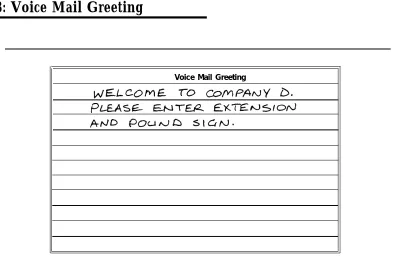
Form 3: Voice Mail Greeting
Voice Mail Greeting
Figure 3-3. PARTNER MAIL Form 3
When subscribers dial into PARTNER MAIL Voice Mail Service they hear the following factory-set greeting:
Welcome to PARTNER MAIL. Please enter extension and pound sign.
It is recommended that you use the factory-set greeting. If, however, your company prefers a customized greeting, use Form 3 (Figure 3-3), and the instructions which follow, to write a script. To record your Voice Mail Greeting, follow the instructions found in Chapter 6 of PARTNER MAIL™ Installation and Use.
■
■
■
Write the greeting that plays to voice mail subscribers.
Your greeting can be up to two minutes long.
The greeting must include instructions to enter the subscriber's extension and the pound sign.
Form 4: Automated Attendant Settings
Touch-Tone Gate
■ The Touch-Tone Gate is automatically set to ON if the system is used for Fax
Call Handling.
■ Check one:
❑ ❑
✓
O NOFF ✔
■ To administer: Press [ Intercom ] [7] [7] [7] Enter administrator's EXTENSION [#] and PASSWORD [#] . Press [9] [3] [5] .
Extensions in Enter Plan
■ Check the first digit of each extension used in the dial plan.
1 ❑
✓
2 ❑✓
3 ❑✓
4 ❏ 5 ❏ 7 ❑✓
Figure 3-4. PARTNER MAIL Form 4
Complete Form 4 (Figure 3-4) to record the system-wide settings that you must keep in mind when planning the PARTNER MAIL Automated Attendant greetings and menus.
Complete Form 4 only if you plan to use PARTNER MAIL Automated Attendant service.
Touch-Tone Gate
Read the following guidelines before checking the ON or OFF box to indicate your Touch-Tone Gate setting.
■ If you do not have a fax extension, read the following to decide whether
to set the gate ON or OFF.
■ The Touch-Tone Gate factory-setting is OFF.
■ If you have a Fax Machine Extension (see Form 2), the Touch-Tone
Gate is automatically set to ON and cannot be turned OFF.
PARTNER MAIL Planning
—
—
When the Touch-Tone Gate is ON, the Automated Attendant Day or Night greeting prompts the caller to press [1] if he or she is calling from a touch-tone phone. If the system does not detect a touch-tone, it assumes that the caller is using a rotary phone and handles the call based upon the Dial 0 / Timeout Options set by the System Administrator. This enables rotary callers to quickly bypass the Automated Attendant menu, and reach a receptionist or system user who handles their call.
If the Touch-Tone gate is OFF, rotary callers are not transferred until the Automated Attendant menu plays. However, if most callers to your company have touch-tone phones, leave the Touch-Tone Gate set to OFF to eliminate a step in reaching the desired destination.
Extensions in Dial Plan
Check the first digit of each extension, Hunt Group extension, or Calling Group. used in the dial plan. If, for example, you use extensions 10 through 30, you would check 1, 2 and 3. If you plan to program extension Hunt Groups or Calling Groups, check box 7 since Hunt Groups are reached by dialing 771 — 776 and Calling Groups are reached by dialing 71 — 74. You will use the dial plan when planning the Automated Attendant Menus on Forms 5 and 6.
Form 5: Day Greeting and Menu
Form 5 consists of three pages:
■ Page 1: the Day Greeting Script,
■ Page 2: the Day Main Menu Definition form, and
■ Page 3: the Day Main Menu Script
Day Greeting Script
Day Greeting Script
Figure 3-5. PARTNER MAIL Form 5 Page 1: Day Greeting
Use Page 1 of Form 5 (Figure 3-5) to write the script for the greeting that plays when callers reach the Automated Attendant Service during business hours. Ten seconds are allocated for the greeting. If the Touch-Tone Gate is ON (see Form 4) you must
instruct the caller to Press 1 now if you are calling from a touch-tone
phone.
PARTNER MAIL Planning
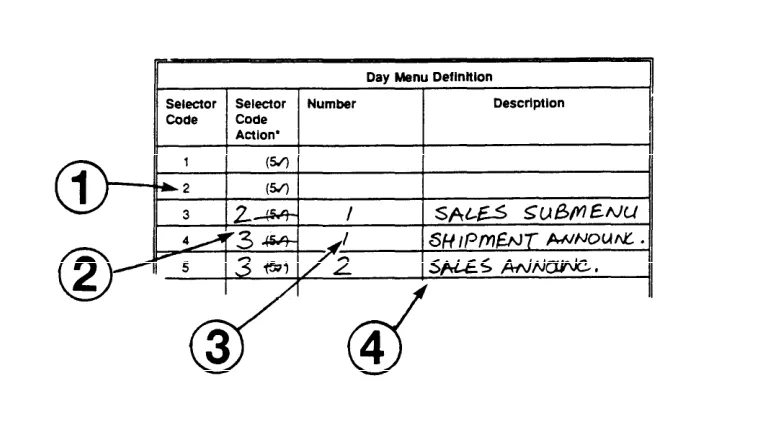
Day Main Menu Definition
Figure 3-6. PARTNER MAIL Form 5 Page 2: Day Menu Definition
NOTE:
If you plan to use submenus or a prerecorded announcement as options on your Main Menu, you must create them before you can complete the Day Main Menu programming. See Form 7 for setting up submenus and Form 8 for setting up announcements.
Write the following information on the Day Main Menu Definition form (Figure 3-6):
Selector Code
Callers press a Selector Code (a key from [1] to [9] on the dialpad) to select an item from the Main Menu. Each Selector Code has a corresponding Selector Code Action that causes the system to transfer callers to the department or individual that they want to speak to, or to the announcement or submenu that they want to hear. Assign the most requested department or extension as the first route and list the Selector Codes in ascending order so that it’s easier for callers to remember them. For the same reason, try to limit the menu to five or fewer selections.
Selector Code Action 5 (Direct Extension Transfer, see description below) is the factory-setting for Selector Codes 1 through 5. This enables callers to dial an extension directly from the main menu. Use step 2 of this procedure to change these settings.
Selector Code Action
The Selector Code Action determines the action the system takes after a caller presses a Selector Code. Write the appropriate Selector Code Action from the list below:
■
■
■
■
■
Action 1 — Selector Code Transfer
When a caller presses the Selector Code, the system transfers the call to the specific extension, Hunt Group, or Calling Group that you assign.
Action 2 — Play an Existing Submenu
When a caller presses the Selector Code, the system plays another menu from which the caller presses another Selector Code. Be sure to complete Form 7: Automated Attendant Submenus. The submenu must
already exist before you can program this action.
Action 3 — Play an Existing Announcement
When a caller presses the Selector Code, the system plays a
prerecorded announcement. Use this Action to provide information such as your business hours or a mailing address. Be sure to complete Form 8: Automated Attendant Announcements. The announcement must
already exist before you can program this action.
Action 4 — Prompted Transfer
When callers press a Selector Code, the system prompts them to enter an extension. For example: ANY Travel uses extensions 10 through 40 in their dial plan (see Form 4). They use Selector Codes 1 through 4 to direct callers to submenus and announcements. To enable callers to dial extensions from the main menu, ANY travel assigns Prompted Transfer to Selector Code 5. Callers to ANY Travel press [5] at the main menu then dial an extension number.
Action 5 ✔ — Direct Extension Transfer
Callers can dial an extension directly from the Day Main Menu. Write 5 (the default) next to the Selector Code(s) that match the first digit(s) of the dial plan (Form 4). For example, if extensions 1 and 2 are checked on Form 4 (indicating that all of your extensions begin with 1 or 2) leave Selector Codes 1 and 2 at the factory-setting of 5.
Number
For Selector Code Actions 1, 2, or 3, write the corresponding extension, Hunt Group, or Calling Group number, submenu number, or announcement number associated with the Action. Actions 4 and 5 do not require an entry in the
Number column.
Description
Write the name of the extension, Hunt Group, Calling Group, submenu, or announcement, that describes the Selector Code Action.
PARTNER MAIL Planning
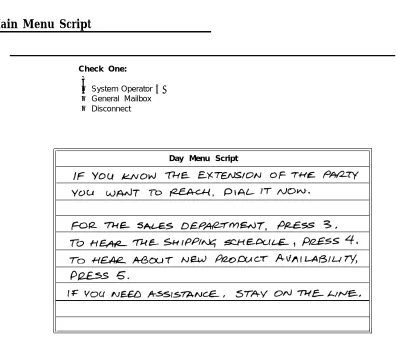
Day Main Menu Script
Check One:
✓
❏ ❏ ❏System Operator ✔
General Mailbox Disconnect
Day Menu Script
Figure 3-7. PARTNER MAIL Form 5 Page 3: Day Menu Script
Day Dial 0/Timeout Action Options
Review the three options described below to choose how the system handles calls when callers press [0] , or do not enter a Selector Code or extension, within four seconds after being prompted. Select one of the following by marking a check in the appropriate box on Form 5 (Figure 3-7):
■
■
■
System Operator ✔ — Transfer caller to the System Operator for assistance
General Mailbox — Transfer caller to the General Mailbox to leave a
message.
Disconnect — Disconnect the call.
Use page 3 of Form 5 (Figure 3-7) to write a script that presents the menu choices to the caller. Your script could prompt callers to:
■
■
■
■
■
Enter the extension if Selector Code Action 5 (direct extension transfer) is specified for some Selector Codes.
If you know the extension that you wish to reach, dial it now.
Access the directory.
If you know the last name of the person you want to speak to, press [*]
[2] to access the directory.
If you offer a caller the directory list, tell them whether it is listed by first or last name.
Press a Selector Code to:
— Transfer to an extension, Hunt Group or Calling Group,
— Access a submenu,
— Hear an announcement
Press [*] [4] to replay the menu.
Tell callers what happens if they do nothing. This is the Dial 0 / Timeout Option that you indicated during the previous step.
If you need assistance, stay on the line and an operator will assist you.
If applicable, the script should explain to callers how they can reach an individual extension, how to send a fax, and how to hear an announcement, or access a submenu.
NOTE:
PARTNER MAIL subscribers calling from outside on a line answered by the Automated Attendant service can enter [*] [7] to receive Voice Mail Service and retrieve their messages.
PARTNER MAIL Planning
Form 6: Night Greeting and Menu
Form 6 consists of three pages:
■ Page 1: the Night Greeting Script,
■ Page 2: the Night Main Menu Definition form, and
■ Page 3: the Night Main Menu Script
Night Greeting Script
Night Greeting Script
Figure 3-8. PARTNER MAIL Form 6 Page 1: Night Greeting Script
Use Page 1 of Form 6 (Figure 3-8) to write the script for the greeting that plays when callers reach the Automated Attendant Service when Night Service is ON. Ten seconds are allocated for the greeting. If the Touch-Tone Gate is ON (see Form 4)
instruct the caller to . . . press 1 now if you are calling from a
touch-tone phone.
Night Menu Definition Form
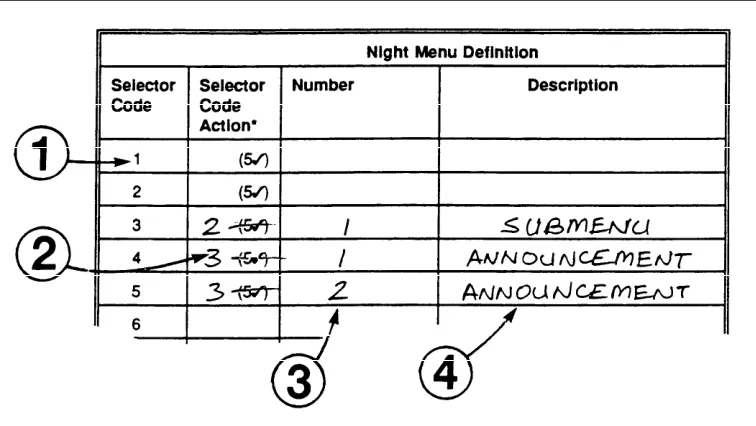
Complete page 2 of Form 6 (Figure 3-9) to design the night menu. These are the menu selections that the caller hears if Automated Attendant coverage is chosen for hours when Night Service is ON. Use this form even if the Night Menu and the Day Menu are identical.
NOTE:
If you plan to use submenus or a prerecorded announcement as options on your Night Menu, you must create them before you can complete the Night Menu programming. See Form 7 for setting up submenus and Form 8 for setting up announcements.
Figure 3-9. PARTNER MAIL Form 6 Page 2: Night Menu Definition
Write the following information on the Night Main Menu Definition form (Figure 3-6). Refer to “Day Menu Definition Form” earlier in this Chapter for a description of each f i e l d .
Selector Code
PARTNER MAIL Planning
Selector Code Action
Write in the appropriate Selector Code Action from the list below.
■ Action 1 — Selector Code Transfer
■ Action 2 — Play an Existing Submenu
■ Action 3 — Play an Existing Announcement
■ Action 4 — Prompted Transfer
■ Action 5 ✔ — Direct Extension Transfer
Number
For Selector Code Actions 1, 2, or 3, write the corresponding extension, Hunt Group, or Calling Group number, submenu number, or announcement number associated with the Action. Actions 4 and 5 do not require an entry in the
Number column.
Description
Write the name of the extension, Hunt Group, Calling Group, submenu, or announcement, that describes the Selector Code Action.
Night Main Menu Script
Check One:
❏ ❏ ❏
✓
System OperatorGeneral Mailbox ✔Disconnect
Night Menu Script
Figure 3-10. PARTNER MAIL Form 6 Page 3: Night Menu Script
Night Dial 0/Timeout Action Options
Review the options described below to choose how the system handles calls when callers press 0, or do not enter a Selector Code or extension, within four seconds after being prompted. Select one of the following by marking a check in the appropriate box on page 2 of Form 6 (Figure 3-10):
■ System Operator — Transfer caller to the System Operator for assistance
■ General Mailbox ✔ — Transfer caller to the General Mailbox to leave a
message.
■ Disconnect — Disconnect the call.
Use page 3 of Form 6 (Figure 3-10) to write a script that presents the night menu choices to the caller. Tell the caller to:
■ Dial the extension.
If you know the extension that you wish to reach, dial it now.
■ Access the directory.
If you know the last name of the person you want to speak to, press [*]
[2] to access the directory.
If you offer a caller the directory list, tell them whether it is listed by first or last name.
■
■
■
Press a Selector Code to:
— Transfer to an extension, Hunt Group or Calling Group,
— Access a submenu,
— Hear an announcement
Press [*] [4] to replay the menu.
Tell the caller what happens if he or she does nothing. This is the Dial 0 / Timeout Option that you specified during the previous step.
If you’d like to leave a message, please hold. Your call will be returned during business hours.
PARTNER MAIL Planning
Form 7: Submenus
If you specified a Selector Code Action of 2 — Play an existing submenu — on Form 5 (Day Greeting and Menu Definition) or Form 6 (Night Greeting and Menu
Definition) use Form 7 (Figure 3-11) to define and write a script for the submenu.
You can create up to 99 submenus, but keep in mind that more than two levels of submenus can confuse callers. You must create and record each submenu (last level first) before you record the Automated Attendant Day or Night Menu that refers to the submenu.
Make additional copies of this form as required.
Form 7 consists of the following two pages:
■
■
Page 1: the Submenu Definition Form,
Page 2: the Submenu Script
Submenu Definition Form
Figure 3-11. PARTNER MAIL Form 7 Page 1: Submenu Definition
Write the Submenu Number (01 through 99) in the heading of the Submenu Definition form (Figure 3-11). You will need this number when you specify Action 2 on a Day or Night Menu, or a Submenu Definition form. Also, the system prompts the System Administrator to enter this number when he or she creates a submenu.
Write the following information on the Submenu Definition Form (Figure 3-11). Refer to “Day Menu Definition Form” earlier in this Chapter for a description of each field.
Selector Code
Selector Code Action
Write in the appropriate Selector Code Action from the list below.
■
■
■
■
■
Action 1 — Selector Code Transfer
Action 2 — Play an Existing Submenu
Action 3 — Play an Existing Announcement
Action 4 — Prompted Transfer
Action 5 — Direct Extension Transfer
PARTNER MAIL Planning
Number
For Selector Code Actions 1, 2, or 3, write the corresponding extension, Hunt Group, or Calling Group number, submenu number, or announcement number associated with the Action. Actions 4 and 5 do not require an entry in the
Number column.
Description
Write the name of the extension, Hunt Group, Calling Group, submenu, or announcement, that describes the Selector Code Action.
Submenu Script
Submenu No. _______ Script
Figure 3-12. PARTNER MAIL Form 7 Page 2: Submenu Script
Use page 2 of Form 7 (Figure 3-12) to write a script that presents the submenu choices to the caller. Tell the caller to:
■
■
■
■
Press [*] [4] to replay the menu.
Press [*] [#] to go back to the previous menu.
Press [*] [7] to go back to the first menu.
Enter a selector code to hear an announcement, hear another submenu, or transfer to an extension, Calling Group, or Hunt Group.
For the cruise travel agent, press 3 now.
Form 8: Announcements
Complete Form 8 to create announcements providing current or frequently requested information. You can create up to 99 announcements. Since you can also create up to 99 submenus, you could enable callers to access many different announcements. Remember, however, that more than two levels of submenus confuse callers. Update the announcements regularly to provide the latest information, such as weather reports, interest rates, product information, directions, and entertainment listings. Each announcement can be up to two minutes long.
Make additional copies as required.
PARTNER MAIL Planning
Figure 3-13. PARTNER MAIL Form 8: Automated Attendant Announcements
Complete the following information on Form 8 (Figure 3-13):
Announcement No.
Assign each announcement an identifying number (1 through 99). You will need this number when you specify Action 3 on a menu or submenu Definition form. Also, the system prompts the System Administrator to enter this number when he or she creates an announcement. If you want to record more than one announcement, make additional copies of the blank planning form. Note that an announcement must be created and recorded before you can program
a Selector Code to refer to it.
Script
Write the announcement script in the space provided.
If a caller does not respond to the announcement within four seconds, the system disconnects. Therefore, be sure to tell the caller near the end of the announcement to perform the following if you do not want the caller to be disconnected:
■ press [0] to transfer to the System Operator,
■ press [*] [4] to go back to the previous submenu,
■ press [*] [8] to transfer to an extension.
Form 9: Group Lists
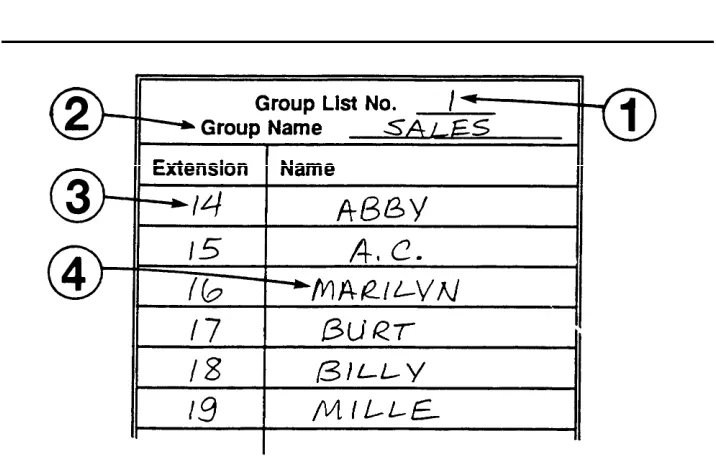
Figure 3-14. PARTNER MAIL Form 9: Group Lists
Use Form 9 to organize Group Lists for your office. You can create up to 99 Group Lists which provide the ability to send voice mail messages to multiple subscribers without entering each extension. A subscriber can enter [*] [5] followed by a Group List Number, rather than an extension, to send the message to all mailboxes on the Group List. Create Group Lists to suit business needs. Provide a copy of the list to each subscriber who is a member of the group.
Fill in the following information on Form 9 (Figure 3-14):
Group List No.
Write the number of the Group List. This is the number subscribers use to address their Group List messages. If you want more than one Group List, number the lists sequentially.
Group Name
Write the Name of the group to which the members of the list belong.
Extension
Write the extensions to be included on the Group List. Your business needs determine which subscribers to include in a Group List.
Name
Write the name of the subscriber assigned to each extension.
PARTNER MAIL Planning
Form 10: Line Ownership
L i n e Telephone Number
Line Owner Owner's
Extension
Figure 3-15. PARTNER MAIL Form 10: Line Ownership
Use Form 10 (Figure 3-15) to identify the CO (outside) lines at your site covered by VMS Line Cover, and dedicated to a specific person or project. Specify the extension and the subscriber who “owns” the CO line. When a call coming in on this line is not answered manually, the system associates the CO line number with an extension and plays the extension’s personal greeeting. This enables the caller to leave a message in the called party’s voice mailbox. Use the following instructions to complete Form 10 (Figure 3-15):
CO Line
■ Refer to PARTNER II Release 3 Form A to identify the two digit CO
Line number of each line that has “VMS MAIL” in the Line Coverage
column.
■ Write the CO Line number in the space provided.
Telephone Number
■ Locate the Telephone number on PARTNER II Form A.
■ Write that number in the space provided.
Line Owner
■ Locate the Line Owner on PARTNER II Form A.
■ Write the name of the Line Owner in the space provided.
Owner's Ext.
■ Locate the owner’s extension on PARTNER II Form B1.
■ Write the extension number in the space provided.
Figure
Related documents