726+,%$
Digital Solutions DivisionCall Center Solutions
General Description
Publication Information
Toshiba America Information Systems, Inc., Digital Solutions Division, reserves the right, without prior notice, to revise this information publication for any reason, including, but not limited to, utilization of new advances in the state of technical arts or to simply change the design of this document.
Further, Toshiba America Information Systems, Inc., Digital Solutions Division, also reserves the right, without prior notice, to make such changes in equipment design or components as engineering or manufacturing methods may warrant.
© Copyright 2004
Toshiba America Information Systems, Inc. Digital Solutions Division
All rights reserved. No part of this manual, covered by the copyrights hereon, may be reproduced in any form or by any means—graphic, electronic, or mechanical, including recording, taping, photocopying, or information retrieval systems—without express written permission of the publisher of this material.
Strata and SmartMedia are registered trademarks of Toshiba Corporation. Stratagy is a registered trademark of Toshiba America Information Systems, Inc.
Trademarks, registered trademarks, and service marks are the property of their respective owners.
Strata CTX100 and CTX670
General End User Information
The Strata CTX100 or CTX670 Digital Business Telephone System is registered in accordance with the provisions of Part 68 of the Federal Communications Commission’s Rules and Regulations.
FCC Requirements
Means of Connection: The Federal Communications Commission (FCC) has established rules which permit the Strata CTX100 or CTX670 system to be connected directly to the telephone network. Connection points are provided by the telephone company—connections for this type of customer-provided equipment will not be provided on coin lines. Connections to party lines are subject to state tariffs. Incidence of Harm: If the system is malfunctioning, it may also be disrupting the telephone network. The system should be disconnected until the problem can be determined and repaired. If this is not done, the telephone company may temporarily disconnect service. If possible, they will notify you in advance, but, if advance notice is not practical, you will be notified as soon as possible. You will be informed of your right to file a complaint with the FCC.
Service or Repair: For service or repair, contact your local Toshiba telecommunications distributor. To obtain the nearest Toshiba telecommunications distributor in your area, log onto www.toshiba.com/taistsd/locator.htm or call (800) 222-5805 and ask for a Toshiba Telecom Dealer.
Telephone Network Compatibility: The telephone company may make changes in its facilities, equipment, operations, and procedures. If such changes affect the compatibility or use of the Strata CTX100 or CTX670 system, the telephone company will notify you in advance to give you an opportunity to maintain uninterrupted service.
Notification of Telephone Company: Before connecting a Strata CTX100 or CTX670 system to the telephone network, the telephone company may request the following: 1. Your telephone number.
2. FCC registration number:
• Strata CTX100 or CTX670 may be configured as a Key, Hybrid or PBX telephone system. The appropriate configuration for your system is dependent upon your operation of the system.
• If the operation of your system is only manual selection of outgoing lines, it may be registered as a Key telephone system.
• If your operation requires automatic selection of outgoing lines, such as dial access, Least Cost Routing, Pooled Line Buttons, etc., the system must be registered as a Hybrid telephone system. In addition to the above, certain features (tie Lines, Off-premises Stations, etc.) may also require Hybrid telephone system registration in some areas.
• If you are unsure of your type of operation and/or the appropriate FCC registration number, contact your local Toshiba telecommunications distributor for assistance.
CTX100 Registration Numbers
PBX: CJ6MUL-35931-PF-E, fully-protected PBXs
Hybrid: CJ6MUL-35930-MF-E, fully-protected multifunction systems Key: CJ6MUL-35929-KF-E, fully-protected telephone key systems
• CTX670 Registration Numbers
PBX: CJ6MUL-35934-PF-E, fully-protected PBXs
Hybrid: CJ6MUL-35933-MF-E, fully-protected multifunction systems Key: CJ6MUL-35932-KF-E, fully-protected telephone key systems
• Ringer equivalence number: 0.3B. The ringer equivalence number (REN) is useful to determine the quantity of devices which you may connect to your telephone line and still have all of those devices ring when your number is called. In most areas, but not all, the sum of the RENs of all devices connected to one line should not exceed five (5.0B). To be certain of the number of devices you may connect to your line, as determined by the REN, you should contact your local telephone company to ascertain the maximum REN for your calling area.
3. Network connection information USOC jack required: RJ11/14C,
RJ21/2E/2F/2G/2HX/RJ49C (see Network Requirements in this document). Items 2, 3 and 4 are also indicated on the equipment label.
4. Authorized Network Parts: 02LS2/GS2, 02RV2-T/O, OL13C/B, T11/12/31/32M, 04DU9-BN/DN/1SN, 02IS5, 04DU9-BN/DN/1SN1ZN
Radio Frequency Interference
Warning: This equipment generates, uses, and can radiate radio frequency energy and if not installed and used in accordance with the manufacturer’s instruction manual, may cause interference to radio communications. It has been tested and found to comply with the limits for a Class A computing device pursuant to Subpart J of Part 15 of FCC Rules, which are designed to provide reasonable protection against such interference when operated in a commercial environment. Operation of this equipment in a residential area is likely to cause interference, in which case, the user, at his/her own expense, will be required to take whatever measures may be required to correct the interference.
This system is listed with Underwriters Laboratory.
UL Requirement: If wiring from any telephone exits the building or is subject to lightning or other electrical surges, then secondary protection is required. Secondary protection is also required on DID, OPS, and Tie lines. (Additional information is provided in this manual.)
Important Notice — Music-On-Hold In accordance with U.S. Copyright Law, a license may be required from the American Society of Composers, Authors and Publishers, or other similar organization, if radio or TV broadcasts are transmitted through the music-on-hold feature of this telecommunication system. Toshiba America Information Systems, Inc., hereby disclaims any liability arising out of the failure to obtain such a license. CP01, Issue 8, Part I Section 14.1
Notice: The Industry Canada label identifies certified equipment. This certification means that the equipment meets certain telecommunications network protective, operational and safety requirements as prescribed in the appropriate Terminal Equipment Technical Requirements document(s). The Department does not guarantee the Equipment will operate to the user’s satisfaction.
Before installing this equipment, users should ensure that it is permissible to be connected to the facilities of the local telecommunications company. The equipment must also be installed using an acceptable method of connection. The customer should be aware that compliance with the above conditions may not prevent degradation of service in some situations.
Repairs to certified equipment should be coordinated by a representative designated by the supplier. Any repairs or alterations made by the user to this equipment, or equipment malfunctions, may give the telecommunications company cause to request the user to disconnect the equipment.
Users should ensure for their own protection that the electrical ground connections of the power utility, telephone lines and internal metallic water pipe system, if present, are connected together. This precaution may be particularly important in rural areas.
CAUTION! Users should not attempt to make such connections themselves, but should contact the appropriate electric inspection authority, or electrician, as appropriate.
CP01, Issue 8, Part I Section 14.2
Notice: The Ringer Equivalence Number (REN) assigned to each terminal device provides an indication of the maximum number of terminals allowed to be connected to a telephone interface. The terminal on an interface may consist of any combination of devices subject only to the requirement that the sum of the Ringer Equivalence Numbers of all the Devices does not exceed 5.
TOSHIBA AMERICA INFORMATION SYSTEMS, INC. (“TAIS”)
Digital Solutions Division License Agreement
IMPORTANT: THIS LICENSE AGREEMENT (“AGREEMENT”) IS A LEGAL AGREEMENT BETWEEN YOU (“YOU”) AND TAIS. CAREFULLY READ THIS LICENSE AGREEMENT. USE OF ANY SOFTWARE OR ANY RELATED INFORMATION (COLLECTIVELY, “SOFTWARE”) INSTALLED ON OR SHIPPED WITH A TAIS DIGITAL SOLUTIONS PRODUCT OR OTHERWISE MADE AVAILABLE TO YOU BY TAIS IN WHATEVER FORM OR MEDIA, WILL CONSTITUTE YOUR ACCEPTANCE OF THESE TERMS, UNLESS SEPARATE TERMS ARE PROVIDED BY THE SOFTWARE SUPPLIER. IF YOU DO NOT AGREE WITH THE TERMS OF THIS LICENSE AGREEMENT, DO NOT INSTALL, COPY OR USE THE SOFTWARE AND PROMPTLY RETURN IT TO THE LOCATION FROM WHICH YOU OBTAINED IT IN ACCORDANCE WITH APPLICABLE RETURN POLICIES. EXCEPT AS OTHERWISE AUTHORIZED IN WRITING BY TAIS, THIS SOFTWARE IS LICENSED FOR DISTRIBUTION ONLY TO END-USERS PURSUANT TO THIS LICENSE AGREEMENT.
1. License Grant. The Software is not sold; it is licensed upon payment of applicable charges. TAIS grants to you a personal, non-transferable and non-exclusive right to use the copy of the Software provided under this License Agreement. You agree you will not copy the Software except as necessary to use it on one TAIS system at a time at one location. Modifying, translating, renting, copying, distributing, transferring or assigning all or part of the Software, or any rights granted hereunder, to any other persons and removing any proprietary notices, labels or marks from the Software is strictly prohibited; You agree violation of such restrictions will cause irreparable harm to TAIS and provide grounds for injunctive relief, without notice, against You or any other person in possession of the Software. You and any other person whose possession of the software violates this License Agreement shall promptly surrender possession of the Software to TAIS, upon demand. Furthermore, you hereby agree not to create derivative works based on the Software. TAIS reserves the right to terminate this license and to immediately repossess the software in the event that You or any other person violates this License Agreement.
2. Intellectual Property. You acknowledge that no title to the intellectual property in the Software is transferred to you. You further acknowledge that title and full ownership rights to the Software will remain the exclusive property of TAIS and/or its suppliers, and you will not acquire any rights to the Software, except the license expressly set forth above. You will not remove or change any proprietary notices contained in or on the Software. The Software is protected under US patent, copyright, trade secret, and/or other proprietary laws, as well as international treaties. Any transfer, use, or copying of the software in violation of the License Agreement constitutes copyright infringement. You are hereby on notice that any transfer, use, or copying of the Software in violation of this License Agreement constitutes a willful infringement of copyright.
3. No Reverse Engineering. You agree that you will not attempt, and if you employ employees or engage contractors, you will use your best efforts to prevent your employees and contractors from attempting to reverse compile, reverse engineer, modify, translate or disassemble the Software in whole or in part. Any failure to comply with the above or any other terms and conditions contained herein will result in the automatic termination of this license and the reversion of the rights granted hereunder back to TAIS.
4. Limited Warranty. THE SOFTWARE IS PROVIDED “AS IS” WITHOUT WARRANTY OF ANY KIND. TO THE MAXIMUM EXTENT PERMITTED BY APPLICABLE LAW, TAIS AND ITS SUPPLIERS DISCLAIM ALL WARRANTIES WITH REGARD TO THE SOFTWARE, EITHER EXPRESS OR IMPLIED, INCLUDING, BUT NOT LIMITED TO, THE WARRANTY OF NON-INFRINGEMENT OF THIRD PARTY RIGHTS, THE WARRANTY OF YEAR 2000 COMPLIANCE, AND THE IMPLIED WARRANTIES OF MERCHANTABILITY AND FITNESS FOR A PARTICULAR PURPOSE. THE ENTIRE RISK AS TO THE QUALITY AND PERFORMANCE OF THE SOFTWARE IS WITH YOU. NEITHER TAIS NOR ITS SUPPLIERS WARRANT THAT THE FUNCTIONS CONTAINED IN THE SOFTWARE WILL MEET YOUR REQUIREMENTS OR THAT THE OPERATION OF THE SOFTWARE WILL BE UNINTERRUPTED OR ERROR-FREE. HOWEVER, TAIS WARRANTS THAT ANY MEDIA ON WHICH THE SOFTWARE IS FURNISHED IS FREE FROM DEFECTS IN MATERIAL AND WORKMANSHIP UNDER NORMAL USE FOR A PERIOD OF NINETY (90) DAYS FROM THE DATE OF DELIVERY TO YOU.
5. Limitation Of Liability. TAIS’ ENTIRE LIABILITY AND YOUR SOLE AND EXCLUSIVE REMEDY UNDER THIS LICENSE AGREEMENT SHALL BE AT TAIS’ OPTION REPLACEMENT OF THE MEDIA OR REFUND OF THE PRICE PAID. TO THE MAXIMUM EXTENT PERMITTED BY APPLICABLE LAW, IN NO EVENT SHALL TAIS OR ITS SUPPLIERS BE LIABLE TO YOU FOR ANY CONSEQUENTIAL, SPECIAL, INCIDENTAL OR INDIRECT DAMAGES FOR PERSONAL INJURY, LOSS OF BUSINESS PROFITS, BUSINESS INTERRUPTION, LOSS OF BUSINESS INFORMATION/DATA, OR ANY OTHER PECUNIARY LOSS OF ANY KIND ARISING OUT OF THE USE OR INABILITY TO USE THE SOFTWARE, EVEN IF TAIS OR ITS SUPPLIER HAS BEEN ADVISED OF THE POSSIBILITY OF SUCH DAMAGES. IN NO EVENT SHALL TAIS OR ITS SUPPLIERS BE LIABLE FOR ANY CLAIM BY A THIRD PARTY.
6. State/Jurisdiction Laws. SOME STATES/JURISDICTIONS DO NOT ALLOW THE EXCLUSION OF IMPLIED WARRANTIES OR LIMITATIONS ON HOW LONG AN IMPLIED WARRANTY MAY LAST, OR THE EXCLUSION OR LIMITATION OF INCIDENTAL OR CONSEQUENTIAL DAMAGES, SO SUCH LIMITATIONS OR EXCLUSIONS MAY NOT APPLY TO YOU. THIS LIMITED WARRANTY GIVES YOU SPECIFIC RIGHTS AND YOU MAY ALSO HAVE OTHER RIGHTS WHICH VARY FROM STATE/JURISDICTION TO STATE/JURISDICTION.
7. Export Laws. This License Agreement involves products and/or technical data that may be controlled under the United States Export Administration Regulations and may be subject to the approval of the United States Department of Commerce prior to export. Any export, directly or indirectly, in contravention of the United States Export Administration Regulations, or any other applicable law, regulation or order, is prohibited.
8. Governing Law. This License Agreement will be governed by the laws of the State of California, United States of America, excluding its conflict of law provisions.
9. United States Government Restricted Rights. The Software is provided with Restricted Rights. Use, duplication, or disclosure by the United States Government, its agencies and/or instrumentalities is subject to restrictions as set forth in subparagraph (c)(1)(ii) of The Rights in Technical Data and Computer Software Clause at DFARS 252.227-7013 (October 1988) or subparagraphs (c)(1) and (2) of the Commercial Computer Software - Restricted Rights at 48 CFR 52.227-19, as applicable.
10. Severability. If any provision of this License Agreement shall be held to be invalid, illegal or unenforceable, the validity, legality and enforceability of the remaining provisions hereof shall not in any way be affected or impaired.
11. No Waiver. No waiver of any breach of any provision of this License Agreement shall constitute a waiver of any prior, concurrent or subsequent breach of the same or any other provisions hereof, and no waiver shall be effective unless made in writing and signed by an authorized representative of the waiving party.
YOU ACKNOWLEDGE THAT YOU HAVE READ THIS LICENSE AGREEMENT AND THAT YOU UNDERSTAND ITS PROVISIONS. YOU AGREE TO BE BOUND BY ITS TERMS AND CONDITIONS. YOU FURTHER AGREE THAT THIS LICENSE AGREEMENT CONTAINS THE COMPLETE AND EXCLUSIVE AGREEMENT BETWEEN YOU AND TAIS AND SUPERSEDES ANY PROPOSAL OR PRIOR AGREEMENT, ORAL OR WRITTEN, OR ANY OTHER COMMUNICATION RELATING TO THE SUBJECT MATTER OF THIS LICENSE AGREEMENT.
Toshiba America Information Systems, Inc. Digital Solutions Division
9740 Irvine Boulevard Irvine, California 92618-1697 United States of America DSD 060204
Toshiba America Information Systems, Inc.
Digital Solutions Division
Limited Warranty
Toshiba America Information Systems, Inc., (“TAIS”) warrants that:• The Call Center Solutions equipment (except for fuses, lamps, and other consumables) will, upon delivery by TAIS or an authorized TAIS dealer to a retail customer in new condition, be free from defects in material and workmanship for twelve (12) months after delivery.
• And that the Toshiba telephone equipment (except for fuses, lamps, and other consumables) will, upon delivery by TAIS or an authorized TAIS dealer to a retail customer in new condition, be free from defects in material and workmanship for twenty-four (24) months after delivery.
This warranty is void (a) if the equipment is used under other than normal use and maintenance conditions, (b) if the equipment is modified or altered, unless the modification or alteration is expressly authorized by TAIS, (c) if the equipment is subject to abuse, neglect, lightning, electrical fault, or accident, (d) if the equipment is repaired by someone other than TAIS or an authorized TAIS dealer, (e) if the equipment’s serial number is defaced or missing, or (f) if the equipment is installed or used in combination or in assembly with products not supplied by TAIS and which are not compatible or are of inferior quality, design, or performance.
The sole obligation of TAIS or Toshiba Corporation under this warranty, or under any other legal obligation with respect to the equipment, is the repair or replacement by TAIS or its authorized dealer of such defective or missing parts as are causing the malfunction with new or refurbished parts (at their option). If TAIS or one of its authorized dealers does not replace or repair such parts, the retail customer’s sole remedy will be a refund of the price charged by TAIS to its dealers for such parts as are proven to be defective, and which are returned to TAIS through one of its authorized dealers within the warranty period and no later than thirty (30) days after such malfunction, whichever first occurs.
Under no circumstances will the retail customer or any user or dealer or other person be entitled to any direct, special, indirect, consequential, or exemplary damages, for breach of contract, tort, or otherwise. Under no circumstances will any such person be entitled to any sum greater than the purchase price paid for the item of equipment that is
malfunctioning.
To obtain service under this warranty, the retail customer must bring the malfunction of the machine to the attention of one of TAIS’ authorized dealers within the twenty-four (24) month period and no later than thirty (30) days after such malfunction, whichever first occurs. Failure to bring the malfunction to the attention of an authorized TAIS dealer within the prescribed time results in the customer being not entitled to warranty service.
THERE ARE NO OTHER WARRANTIES FROM EITHER TOSHIBA AMERICA INFORMATION SYSTEMS, INC., OR TOSHIBA CORPORATION WHICH EXTEND BEYOND THE FACE OF THIS WARRANTY. ALL OTHER WARRANTIES, EXPRESS OR IMPLIED, INCLUDING THE WARRANTIES OF
MERCHANTABILITY, FITNESS FOR A PARTICULAR PURPOSE, AND FITNESS FOR USE, ARE EXCLUDED.
No TAIS dealer and no person other than an officer of TAIS may extend or modify this warranty. No such modification or extension is effective unless it is in writing and signed by the vice president and general manager, Digital Solutions Division.
Contents
Introduction
Organization ... v
Conventions ... vi
Related Documents/Media ... vii
User Guides and Manuals ... vii
CD-ROMs ...vii
Chapter 1 – Strata CTX ACD
Pilot Directory Number ... 2Music or Announcement Sources ... 3
Agent Search Methods ... 3
Call Handling ... 4
Multiple Group Agent/Supervisor Login ... 4
Priority Queuing ... 4
Call Backs (Real Time) ... 5
Missed Call Unavailable ... 5
Abandoned Calls ... 5
Overflow/Reroute ... 5
Enhanced Queue Management ... 6
System Capacities ... 6
Feature Summary ... 6
License Policy ... 8
PBX Services ... 8
Server Models ... 8
Hardware Configuration ... 9
Chapter 2 – Telephone Features
Agent Telephone Features ... 12Log In/Log Out ... 12
Available/Unavailable ... 12
Wrap Up Time ... 13
Work Unit ... 13
ACD Help ... 13
ACD Call Pickup ... 13
Auto Answer with Zip Tone ... 13
Supervisor Telephone Features ... 14
Chapter 3 – ACD System Administration
ACD Call Pickup ... 15
Queue Alarm Indication ... 15
Start/End Shifts ... 15
Chapter 3 – ACD System Administration
ACD Groups ... 17Edit ACD Group Window ... 17
Agents and Supervisors ... 19
Actions ... 19
Unavailable Reasons ... 19
Miscellaneous ... 19
Chapter 4 – Insight CTX
Configurations ... 21Single Supervisor Configurations ... 22
Single Supervisor with inView Wallboard Clients ... 22
Multiple Supervisors Configurations ... 23
Multiple Supervisors with inView LAN Displays ... 23
Client PC Requirements ... 24
System Functionality ... 24
General Features ... 24
License Options ... 24
Sizing ... 24
Multiple Supervisors ... 24
Remote Access ... 24
Password Protection ... 24
Help File ... 24
Alarms ... 24
Flexible Reporting ... 25
Automatic Reporting ... 25
Automated Reporting Output Options ... 25
Retrospective Analysis ... 25
Insight CTX Features ... 26
Real Time Displays ... 26
Insight CTX Plus Features ... 27
Insight CTX Plus Real Time Displays ... 27
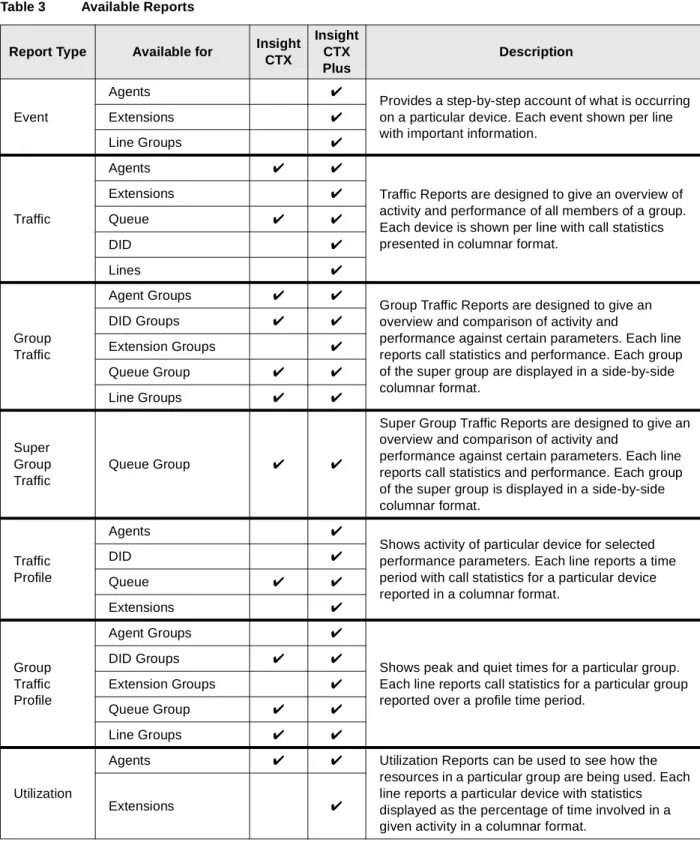
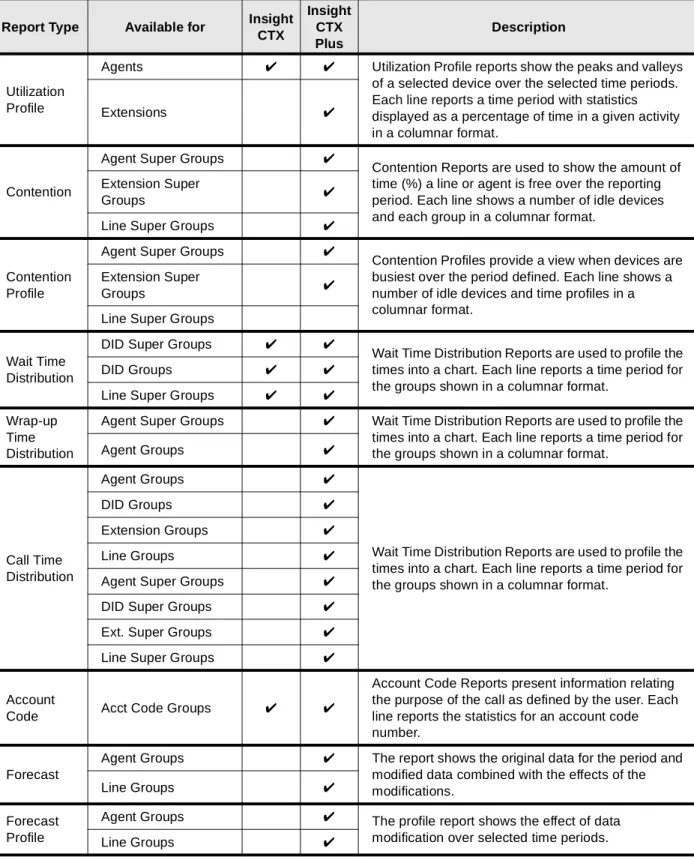
CTX Reports ... 28
Types of Reports ... 29
inView Features ... 31
Wallboard ... 31
Status View ... 31
Spectrum Electronic Wall Boards ... 32
Chapter 5 – TASKE Reporting and Monitoring
Chapter 5 – TASKE Reporting and Monitoring
TASKE Contact ... 33
ACD Monitor with Replay Application ... 33
Reports Application ... 34
WallSign Application ... 34
myTASKE ... 34
Traffic Analyzer Application ... 35
Desktop Sign (Optional Agent Desktop Application) ... 35
TASKE Enterprise (Option) ... 35
TASKE Workforce Management Interface (Option) ... 35
Chapter 6 – Optional Application Products
OAISYS Call Router ... 37The Right Person At The Right Time ... 37
Intelligent Routing ... 37
24/7 ... 37
OAISYS Voice Assistant IVR with ODBC Access ... 38
Virtual Employee ... 38
Actions Speak Louder than Words ... 38
OAISYS Net Phone ... 39
Centralized Communication Tool ... 39
Advanced Call Management ... 39
Screen Pops ... 40
Personal Call Handler ... 40
Chat ... 40
Programmable Keys ... 40
Call History ... 41
Directory ... 41
Hot Key Dialing ... 41
OAISYS Tracer ... 42
Calls Recording and Monitoring ... 42
Advanced Recording Technology ... 43
Digital TAP? Technology ... 43
“Cradle to Grave” Recording ... 43
CTI Enabled ... 43
Bookmarks ... 43
Desktop Control ... 43
Look Back Recording ... 43
E-Mail Notification ... 43
Call Monitoring ... 43
Chapter 7 – CTI / ACD Applications
Chapter 7 – CTI / ACD Applications
CTI Applications ... 45
Screen Pop Applications ... 45
Chat ... 45
Basic ACD Applications ... 46
Typical ACD Queuing ... 46
Example ... 46
Call Routing Based on Geographic Territory ... 47
Example ... 47
Call Center with Screen Pops ... 48
Example ... 48
Account Number Routing ... 49
Example ... 49
Enhanced ACD Applications ... 50
Group Overflow with Look-back Routing ... 50
Example ... 50
Agent Priority Routing ... 51
Example ... 51
Preferred Agent Priority ... 52
Example ... 52
Priority Call Handling ... 53
Example – Priority of Call Type ... 53
Example – Tiered Routing with Call Identity ... 54
Basic Skills-based Routing ... 55
Example ... 55
Using Customer’s Database ... 56
Example ... 56
Introduction
This document provides an overview of Strata CTX Call Center Solutions consisting of Automatic Call Distribution (ACD), Management Information Systems (MIS), and related Computer
Telephony Integration (CTI) applications.
Organization
This document is divided into the following major topics:
• Chapter 1 – Strata CTX ACD provides an overview of the ACD features, including basic and
enhanced call handling features, system features and licensing.
• Chapter 2 – Telephone Features covers the ACD Agent and Supervisor telephone options.
• Chapter 3 – ACD System Administration covers the capabilities provided with this PC
software that interfaces with the Strata ACD system.
• Chapter 4 – Insight CTX describes the MIS features and their interactions with the Strata
ACD application and the Strata CTX.
• Chapter 5 – TASKE Reporting and Monitoring covers TASKE Contact, WallSign
Application, myTASKE, Traffic Analyzer Application, Desktop Sign, TASKE Enterprise, and TASKE Workforce Management Interface.
• Chapter 6 – Optional Application Products describes applications available for Strata CTX
to enhance its operations.
• Chapter 7 – CTI/ACD Applications describes the types of application solutions that the
Conventions
Conventions
Conventions Description
Note
Elaborates specific items or references other information. Within some tables, general notes apply to the entire table and numbered notes apply to specific items.
Important! Calls attention to important instructions or information. $ULDO%ROG Represents telephone buttons.
Courier Shows a computer keyboard entry or screen display.
+
shows a multiple PC keyboard or phone button entry. Entries without spaces between them show a simultaneous entry.
Example: Delete+Enter.
Entries with spaces between them show a sequential entry.
Example: + .
Tilde (~) Means “through.” Example: 350~640 Hz frequency range.
See Figure 10
Grey words within the printed text denote cross-references. In the electronic version of this document (Strata CTX ACD Application Software and Documentation Library CD-ROM or FYI Internet download), cross-references appear in blue hypertext.
Related Documents/Media
Related Documents/Media
Note Some documents listed here may appear in different versions on CD-ROM or in print. To
find the most current version, check the version/date in the Publication Information on the back of the document’s title page.
User Guides and Manuals
Located on the Strata CTX Call Center Solutions Application Software and Documentation Library CD-ROM:
• Strata CTX ACD Agent/Supervisor User Guide
• Strata CTX ACD System Administrator Guide
• Strata CTX ACD Installation Guide
• Strata CTX DKT/IPT Telephone User Guide
• Strata CTX Insight CTX Installation Manual
• Strata CTX Insight CTX Supervisor Guide
• Strata CTX Insight CTX inView Quick Reference Guide
Located on the OAISYS CD-ROM:
• OAISYS Net Server Operations Manual
• OAISYS Voice Assistant Installation Guide
• OAISYS Chat, System Administrator’s Guide
• OAISYS Call Router on CTX Operations Manual
• OAISYS Net Phone System Administrator’s Guide
CD-ROMs
• Strata CTX Call Center Solutions Application Software and Documentation Library for
Strata CTX ACD, Insight CTX, OAISYS Net Server, and OAISYS Voice Assistant
• OAISYS includes software and documentation for OAISYS Chat, Call Router, and Net Phone
• Strata CTX WinAdmin Application Software and CTX/DK/Partner Products Documentation
Library
For authorized users, Internet site FYI (http://fyi.tsd.toshiba.com) contains all current Strata CTX
Strata CTX ACD
1
This chapter discusses the capabilities of the Strata CTX Automatic Call Distribution (ACD) application. It describes the ACD features and services provided by the Strata CTX digital business telephone system to support the various features.
The Strata CTX ACD application gives call centers the ability to determine how calls are best distributed to their ACD Agents. ACD call centers can be Telemarketing, Customer Service, Technical Support, or any other group that handles large numbers of calls. With the Strata ACD application, calls can be directed in a variety of ways to ensure that calls are handled quickly and efficiently.
Strata CTX ACD also interacts with Computer Telephony Integration (CTI) applications that help meet the overall needs of a call center. These additional applications can provide “screen pops,” on-line chat between Agents and Supervisors, OAISYS Net Phone (a PC telephone that enables data/information exchange with the ACD application), OAISYS Call Router (for advanced call routing by time-of-day, day-of-year and other types of filtering), voice recording, and more. The Strata ACD Server application, the MIS reporting application, and other CTI applications run on the platforms Toshiba provides.
The ACD application is available with Basic and Enhanced feature functionality, along with the number of ACD groups and active agent size increments to provide cost-effective pricing levels according to the user’s needs.
When the Strata CTX receives an ACD call, it routes the call to a Pilot DN and the call enters the call center queue. From the queue, the call progresses to one of these options (see the flowchart on next page):
• Search for an Agent.
• Follow the specified call management rules.
Pilot Directory Number
Pilot Directory Number
When the Strata CTX receives an ACD call, it routes to a type of phantom directory number (Pilot DN). From the Pilot DN, the ACD call enters the call center queue. When a call is directed to the ACD Pilot DN, the ACD software takes over control of the call, instead of the Strata CTX. The Pilot DN can redirect calls to a voice mailbox or After Shift destination if the link to the ACD Agents is down. The ACD System software provides a control to turn routing on or off to the After Shift destination.
Caller Leaves Callback Information which is Placed in the Queue.
Looks for Agent in Another Queue Agent Answers Call Management Processes Call No Answer
End of ACD Shift Mode or All Agents Logged Off Overflow Operation Transfer to Voice Mailbox, Attendant, or other option User Chooses to
Transfer Call rings Pilot DN and
enters Call Center Queue, announcements/music plays
Ring Agent's Telephone
ACD Call Talk
Incoming ACD Call
Call Reroutes
Possible destinations: Ring another ACD Group, Distributed Hunt Group, Auto Attendant, Attendant Console, designated station(s), bell, or play an announcement and hang up.
6918
User Chooses to Call Back
Overflows to Another Queue
Agent Search Methods
Music or Announcement Sources
Calls waiting in queue are connected to a music source port that plays music or to pre-recorded announcements. These are defined per queue in order to provide information related to the function of that queue. Strata CTX provides up to 15 music sources. The source for
announcements is the ACD server hard disk. No external digital devices are required. The call control software assigns the music source on a call-by-call basis.
Announcements
Informative announcements can be played to callers in queue at various intervals. If an Agent becomes available during an announcement, callers keep their place in queue even while listening to an announcement.
Two types of announcements can be programmed to play per queue: Initial and Periodic
(repeating). For Initial announcements, if the timer is set to zero, it is always played before a call is routed to any Agent.
Once a call has been answered and the Initial announcement has been played, the call is placed into a holding pattern and the assigned announcement or music plays for the caller. The timing of the initial and periodic announcements is programmable.
The announcement can be either a fixed message or an intelligent message that provides information about the call wait time or options for the caller.
The enhanced version of ACD supports intelligent announcements that provide information on call queue position and estimated wait time. An intelligent announcement can also offer alternatives to continuing to hold, such as going to voice mail or retaining your place in queue and electing a callback. Parameters in the ACD System software estimates average wait time.
Intelligent announcements should not be used in some configurations. For example, priority queuing, where higher priority calls push back existing calls in queue, thus changing the estimated wait time.
Agent Search Methods
Once a call enters the ACD queue, it searches for available Agents. The search methods are: • Linear – Always starts from the top of the Agent list and finds the first available Agent.
• Round Robin – Next Agent on the Agent list gets the waiting call. The next call rotates to the
next Agent, etc.
• Longest Idle – The Agent who has been idle the longest receives the next call. An Agent’s
“start of idle” status affects all queues – that is if the Agent just completed a call in Queue #1, that Agent is now idle for any other queue that the Agent is logged into.
• Balanced Call Count – The Agent who has handled the lowest number of calls receives the
next call. When an Agent logs in, the Agent is set to zero calls if the Agent is the first to log into the group or the Agent can be set to the lowest call count of any Agent already logged in. This prevents Agents that logged in late from getting all of the calls.
Call Handling
• Preferred Agent – Based on integration with optional applications, the system can route the
call to the Agent assigned to a specific account to handle the call. If that Agent is not available, the call routes to the next available Agent.
In the Enhanced version, the following options are also available:
• Timer – A timer per ACD queue enables a call to wait a certain number of seconds to see
if the agent becomes available prior to going into queue.
• Auto-Learn – (requires OAISYS Call Router) Sends Preferred Agent information to
OAISYS Call Router. The Call Router updates it’s Preferred Agent field for that CallerID/ ANI so that the Preferred Agent is used on all future calls from that telephone number.
• Change Preferred Agent – (requires Net Phone) An agent can answer a call, change the
Preferred Agent field, and then transfer the call back to the ACD queue. The call then tries to give the call to that preferred agent.
• Skills-Based Routing – Agents can log into the queues that they have the skills to support—for
example, one queue for English-speaking clients, another for Spanish-speaking clients. An Agent who is bilingual can log into both queues. The ACD system can work with Interactive Voice Response (IVR) to send calls to the appropriately skilled Agents.
• Agent Priority – The Agent with the highest priority setting receives the next call. If multiple
Agents have the same priority level, the Agent who was idle the longest gets the call. This provides a method for automatically expanding the pool of Agents searched based upon call traffic.
Call Handling
The ACD application is available in a basic and enhanced package. Enhanced ACD includes all basic capabilities plus multiple group login, priority queuing, time-scheduled ACD queues, agent and call priority escalation handling, balanced call count agent search, and intelligent
announcements.
In addition to the Agent search methods described earlier, there are a number of enhanced features that provide greater flexibility and automatic call sorting.
Multiple Group Agent/Supervisor Login
System Availability: Enhanced Version
ACD agents can be logged into multiple ACD groups, enabling agents to answer calls for multiple groups. This is very useful for back up coverage between groups. It is also the foundation for skills-based routing and agent priority routing, enabling many advanced call center applications.
Priority Queuing
System Availability: Enhanced Version
This feature enables high priority calls to be answered sooner than low priority calls. ACD calls can be tagged optionally with a priority number before they are placed into the ACD queue. The priority number assigned to the call determines where the call is placed in queue. Priority values range from 0 to 100, with 100 being the highest priority. Call priorities can be assigned through IVR or the Call Router. Identifying the caller when the call arrives is key to setting call priorities. This can be done using Net Phone (manually) or automatically using the Call Router or IVR.
Overflow/Reroute
Priority Escalation
The escalation parameter ensures that calls in queue will advance in answer status despite an influx of high priority calls. An escalation value can be assigned to increment the priority value to ensure that calls with a lower initial value are eventually answered. Escalation value is programmed in seconds.
Each queue can have a pre-set priority value. Calls without an assigned priority take on the queue value. Calls with higher values keep the higher value.
Escalation ensures that calls are routed to available Agents based on two factors: highest priority and oldest ringing call. Agents logged into multiple groups receive the highest priority call of all of those groups.
Call Backs (Real Time)
System Availability: Enhanced Version
At an IVR “Announcement” prompt, the caller is offered the choice to be called back when his/her place in queue occurs. If the caller chooses the Call Back option, he/she is prompted for his call back number and optionally to describe the reason for his call. The ACD holds his/her place in queue, and when it’s ready to be answered by an Agent, the ACD places the callback call.
If the caller does not choose the Call Back option, the call remains in the ACD queue searching for the next available agent.
This option uses the same criteria provided for queue management, thus the option will only begin when the queue conditions deem it necessary.
Missed Call Unavailable
System Availability: Basic or Enhanced Versions
Options are provided to make an Agent automatically unavailable or logged out if they miss an offered ACD call. A call is considered missed if the call is not answered and advanced to the next Agent using the “No-Answer Advance” timer.
Abandoned Calls
System Availability: Basic or Enhanced Versions
Callers who hang up without ever being answered by an Agent are considered “abandoned.” Whenever this occurs, appropriate MIS events are generated and an action can be triggered (for example, to log the call).
Overflow/Reroute
The amount of time that a call stays in this queue before it is routed to the overflow destination is programmable.
An overflow action can occur when calls remain in queue beyond an acceptable time period. The action to be taken is programmable, but typically the call is moved to another location.
A reroute action is triggered when the queue is disabled or no Agents are logged in to take calls. This action is also programmable, but frequently, the caller is sent to a reroute destination.
System Capacities
Enhanced Queue Management
System Availability: Enhanced Version
Adds three programmable triggers per ACD queue and new actions for providing ways to move or intelligently manage calls that are “unlikely to be answered in a timely fashion.”
The thresholds are: Waiting Calls, Waiting Calls/Agent, Agent Utilization. The new actions are:
• Re-routing to On-site ACD Queue based on target ACD pilot, target threshold type and target
threshold value.
• Use of available agents from other ACD groups based on the target ACD pilot.
System Capacities
The ACD software is scalable from a small system of 20 Agents and 10 Queues to at least 360 Agents and 180 Queues (increments in multiples of 20 and 10, respectively). However, the maximum number of groups is affected by the maximum number of Pilot DNs available for each
CTX system (see Table 1).
Feature Summary
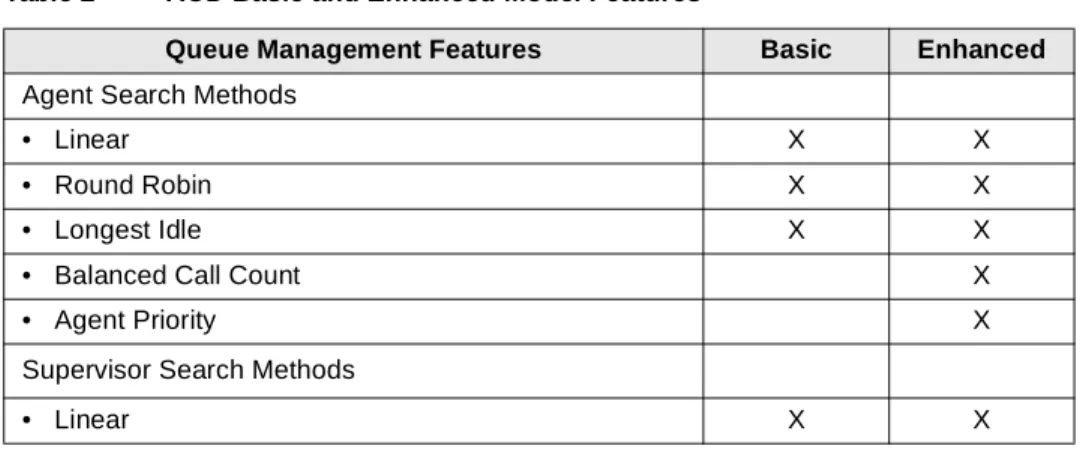
Basic and Enhanced features are shown in Table 2. (X = Feature included.)
Table 1 Strata CTX System ACD Capacities
ACD Max. Capacities CTX100
CTX670 Basic Processor
BBCU + BECU
CTX670 Expanded Processor
BBCU + BECU+ BEXU + BBMS
Number of Pilot DNs 100 200 256
Number of ACD Groups 100 180 180
Music-on-hold Sources 15 15 15
Voice Assistant Announcement Ports 721
1.Actual capacity depends on the platform and the card.
961 961
Agents/Supervisors 360 360 360
Maximum Number of Extensions (PDNs) 72 160 560
Table 2 ACD Basic and Enhanced Model Features
Queue Management Features Basic Enhanced
Agent Search Methods
• Linear X X
• Round Robin X X
• Longest Idle X X
• Balanced Call Count X
• Agent Priority X
Supervisor Search Methods
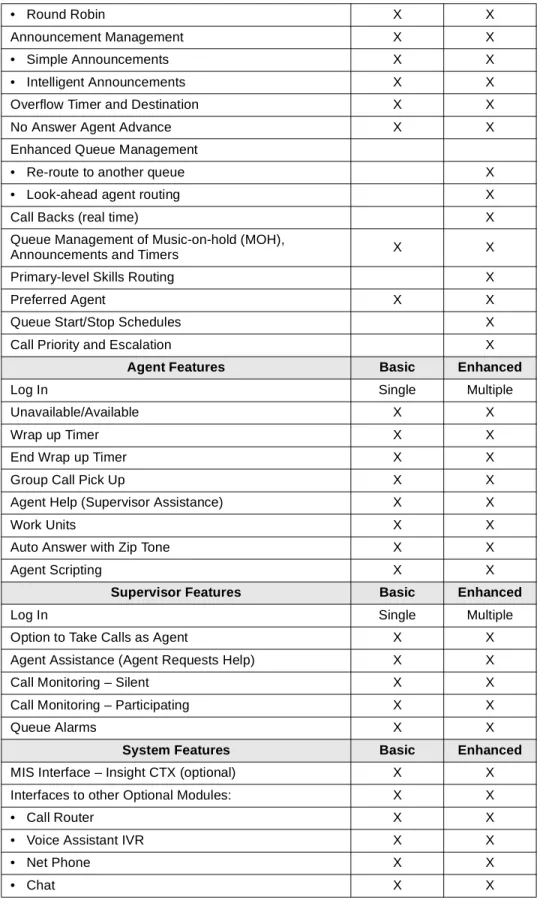
Feature Summary
• Round Robin X X
Announcement Management X X
• Simple Announcements X X
• Intelligent Announcements X X
Overflow Timer and Destination X X
No Answer Agent Advance X X
Enhanced Queue Management
• Re-route to another queue X
• Look-ahead agent routing X
Call Backs (real time) X
Queue Management of Music-on-hold (MOH),
Announcements and Timers X X
Primary-level Skills Routing X
Preferred Agent X X
Queue Start/Stop Schedules X
Call Priority and Escalation X
Agent Features Basic Enhanced
Log In Single Multiple
Unavailable/Available X X
Wrap up Timer X X
End Wrap up Timer X X
Group Call Pick Up X X
Agent Help (Supervisor Assistance) X X
Work Units X X
Auto Answer with Zip Tone X X
Agent Scripting X X
Supervisor Features Basic Enhanced
Log In Single Multiple
Option to Take Calls as Agent X X
Agent Assistance (Agent Requests Help) X X
Call Monitoring – Silent X X
Call Monitoring – Participating X X
Queue Alarms X X
System Features Basic Enhanced
MIS Interface – Insight CTX (optional) X X
Interfaces to other Optional Modules: X X
• Call Router X X
• Voice Assistant IVR X X
• Net Phone X X
• Chat X X
License Policy
License Policy
The set of features provided are controlled through an external license key that defines these capabilities:
• Basic or Enhanced mode of operation
• Activates Agents and Groups (depending on the license, increments in multiples of 20 Agents
and 10 Groups)
The same license key is used for offering other components to the overall suite of products being offered. These include items such as Call Routing, Net Phone, etc. The license key plugs into the printer port of the ACD server.
PBX Services
ACD and MIS are provided by CTI applications running on an external ACD server module connected to Strata CTX via the Computer Supported Telephone Applications (CSTA) Open Architecture Interface (OAI) port. The CTI server runs both the ACD call processing application and the separate MIS application, such as Insight CTX, as well as other CTI applications.
Strata CTX provides a number of services to support ACD beyond the CSTA link. These services allow features and functions to occur in an orderly manner within the PBX. All calls are handled
by the PBX at the instruction of the external software. See Chapter 7 – CTI / ACD Applications for
more information.
Server Models
The Strata ACD Server application runs on an industrial-grade computer that serves the ACD application, the MIS reporting application, and other CTI applications. It is important to use a high quality, dependable PC with card slots that fit the required Intel® Dialogic® trunk cards.
ACD Release 2 is shipped with Dialogic drivers V5.1.1 which supports both ISA and PCI card slot types. Please note that not all Dialogic PCI cards will work in all PCI motherboards because there are two different standards for the PCI slots. The new standard uses a 3.3 volt power lead. Some Dialogic cards use the older 5 volt power lead and do not fit in the newer PCI slots.
Toshiba provides packaged models including necessary hardware and software. Toshiba also provides multiple server models to accommodate customer’s specific needs.
PBX Services
Hardware Configuration
There are two ways to configure the ACD system with the Strata CTX.
Single NIC Configuration
The first is with a single Network Interface Card (NIC), where the Strata CTX and all the users are connected directly to the customer’s Local Area Network (LAN) and must be coordinated with the rules for that LAN (see illustration below).
ACD Server
Strata CTX
WinAdmin
Stratagy ES
6247
Office PCs LAN
- Net Phone - Chat
- Insight Supervisor - Insight inView - Other Office Apps
NIC
Strata CTX Attendant
Consoles
Switch Hub
PBX Services
Dual NIC Configuration
The second method, dual NIC configuration, enables you to separate the office PCs from the core telephone system. This separates traffic for both the telephone equipment and the customer’s other uses for an in-house LAN (see illustration below).
ACD Server
Strata CTX
WinAdmin
Stratagy ES
Strata CTX Attendant
Consoles
6248
Office PCs LAN
NIC NIC
LAN
- Net Phone - Chat
- Insight Supervisor - Insight inView - Other Office Apps
Switch Hub
Telephone Features
2
This chapter covers the telephone features for ACD Agents and Supervisors.
ACD Agents can use a Toshiba Strata 3000- or 2000-series digital telephone to log into an ACD Group, provided that the telephone has a unique, single-appearing extension. Toshiba recommends using a Strata 3000-series Liquid Crystal Display (LCD) telephone for all Agents requiring display functions. The Strata 3000-series LCD digital telephone has improved data handling capabilities for instantaneous display updates. If the Strata 2000-series LCD digital telephone is used, the display will go blank for one to several seconds during ACD information updates.
Tones are provided for most features to indicate “entry accepted,” “entry rejected,” etc., for those Agents and Supervisors who do not have an LCD telephone.
A DKT3000-series model telephone with typical ACD feature buttons is shown below.
Page Scroll
Mode Feature
Msg
Mic Redial Spdial
Spkr Cnf/Trn Hold Vol
LCD shows Queue Sales group status.
5 of 6 Agents are logged in.
Calls Waiting = 2 in queue.
Longest call is 4 minutes.
QUEUE SALES
A 5/6 CW 2 04:00
Start/End Shift Monitor Call
Join
Log In/Out
ACD PU Work Unit Avail/
Unavail
End Wrap Up Display Status ACD Help
ACD Call
207-1
ACD buttons Supervisor buttons (shown in grey)
Agent Telephone Features
Agent Telephone Features
The following features are available from the Strata DKT3000 or 2000-series telephone or from the OAISYS Net Phone, an on-screen PC telephone.
Log In/Log Out
After a valid Agent ID, password (optional), and queue number is entered, the telephone becomes available for receiving ACD calls and the ACD feature codes are activated. The extension that is
used to log into an ACD Group becomes the telephone’s $&'&DOO button.
After logging out, the ACD features are deactivated on the telephone and the telephone is logged out of the ACD Group. Non-ACD calls are not registered as PBX calls for MIS reporting purposes. After all Agents have logged out, new ACD calls are redirected to the reroute destination. Calls currently in queue go to the overflow destination.
Agents are identified by name and an Agent ID code. A pass code can be assigned to each Agent for log in purposes. Agents log in or out using a DKT telephone or Net Phone. Each Agent is assigned a priority to allow calls to be routed to an available Agent with the highest priority for the enhanced version.
The Agent may have the following states:
• Logged Out – Not logged into the queue.
• Available – Logged in and available to handle the next call.
• Unavailable – Logged in, but not available to handle calls.
• Wrap Up Work – Not open to ACD calls, completing paperwork or other post ACD-call
information before handling the next call. Also known as “After Call Work.”
• PBX Call – Logged in, but busy on the $&'&DOO button with a non-ACD Call.
Available/Unavailable
This feature enables temporary unavailability for ACD calls without logging out. Unavailable status can be used for lunch and coffee breaks, or extended times away from the telephone during the shift.
While in the Unavailable status, calls are not delivered to that Agent. Agents can change their
status by pressing the $YDLO8QDYDLObutton.
An option is provided within each group to automatically place an Agent in the Unavailable status if the Agent does not answer an ACD call within the Ring Timing Interval. This avoids delivering calls to an Agent that does not answer calls because he/she failed to change status.
Calls stack up in queue if all Agents are Unavailable. An alarm can be set to trigger when too many calls are in queue. New calls go to the reroute destination only if all Agents log out. Calls in queue follow the overflow destination.
When using Net Phone to place an Agent in an Unavailable status, there are 10 codes that can be used to identify the reason for the unavailability. These codes are reported in the MIS reports and appear on the monitor screen.
Agent Telephone Features
Wrap Up Time
This mode (also known as “After Call Work” mode) is a pre-defined mode with a time limit that enables an Agent to process information related to the last ACD call without interruption. When the wrap up time limit expires, ACD calls are routed to the Agent. The Agent can also have an
(QG:UDS8Stelephone button. When the Agent presses (QG:UDS8S, wrap up time ends in one second. An Agent can make/receive PBX calls during the wrap up time period.
Work Unit
This feature enters an Account Code. The code is sent to the MIS reporting system for inclusion in its reports.
ACD Help
Agents using digital telephones may have an $&'+HOS button on their telephone as a hot-line to
the Supervisor for assistance. Pressing this feature button, alerts the ACD software to find the Supervisor, if logged in, and create a call to that location placing the current call on hold. Once the call is completed, the user may use PBX features to conference the caller into the call as a three-way call or hang up and return to the original caller.
Multiple Supervisors are allowed for each queue, so the ACD system can be set to use either a linear or round-robin method to find an available Supervisor.
ACD Call Pickup
This feature provides an easy method for an Agent to quickly pick up a ringing ACD call on
another Agent’s telephone. By pressing the $&'38 button, the Agent redirects the longest
ringing call within the Agent’s group(s) to his/her telephone. This feature follows these guidelines for picking up ACD calls:
• Both stations must be in the same ACD Group.
• The incoming call must be an ACD call for that group.
• Your $&'&DOO button must be idle.
• You must be in an available state.
Auto Answer with Zip Tone
This option determines whether ACD auto-answers a call and then sends an audible tone to the connection. This feature is enabled on an Agent-by-Agent basis.
Supervisor Telephone Features
Supervisor Telephone Features
ACD Group Supervisors must use a Toshiba Strata 3000-series digital telephone with an LCD. The LCD provides important information about the ACD Group or an individual Agent’s activities. The ACD Group Supervisor’s log in enables access to features that are exclusive to Supervisors. Each Supervisor is identified by an ID code and a name. Each Supervisor can have a unique log in code. Supervisors can log in or out using a digital telephone or Net Phone.
• 6WDUW(QG6KLIW is used to start or end an ACD shift. End Shift prevents calls from entering
the ACD queue.
• Another ACD button is 0RQLWRU&DOO, which enables Supervisors to monitor Agent’s
conversations on ACD calls. Supervisors can also participate in the call by pressing -RLQ&DOO.
• Both Agents and Supervisors can display the queue status, but Supervisors can display the call
status of individual Agents.
• Agents can call the ACD Group Supervisor for help with an ACD call. The Supervisor can talk
to the Agent with the ACD call on hold, or talk exclusively to the caller while the Agent drops out, or participate in a three-way conversation with the Agent and the ACD caller. When an
Agent presses $&'+HOS, the call is routed to an available Supervisor using linear or round
robin search. If the Supervisor is busy on the $&'&DOO button, the call is delivered to that button with the camp-on option, not overridden.
• Supervisors can opt to log in as an Agent in order to alleviate heavy call loads. They receive
calls only when no agent is available for the next call.
Log In/Log Out
The log in/log out procedure for the Supervisor is the same as for an Agent with one additional input. The Supervisor is asked to indicate if he/she wants to receive calls as an Agent. If yes, then the Supervisor is an Agent of last resort for that group.
In the Basic models, a Supervisor may only log into one group. In the Enhanced models, a Supervisor may log into multiple groups at the same time.
Agent Assistance
Agents can call the ACD Group Supervisor(s) for assistance by pressing $&'+HOS on their
telephones. $&'+HOS rings the Supervisor telephone if the Supervisor’s $&'&DOO button is
available. This feature enables the Agent to:
• Talk to a Supervisor with the ACD call on hold
• Talk to an ACD caller with the Supervisor dropping out of the call by hanging up
Supervisor Telephone Features
Call Monitoring/Join Call
Call Monitoring or Join Call enables the Supervisor to monitor conversations between an ACD
Agent and caller. When the Supervisor presses 0RQLWRU&DOO, a one-way, listen-only path is
established for the Supervisor. The monitoring feature does not apply to non-ACD calls. The
Supervisor may participate in the conversation by pressing -RLQ&DOO. This provides a three-way
conference with the Agent and the caller.
Only one Supervisor can monitor an Agent at a time and that Agent must be a member of the group the Supervisor logged into. Monitoring continues until it is cancelled or the Agent logs out. The point of entry may be done with or without a warning tone to the existing parties of the call.
Important! This feature is only intended for ACD Supervisors, so the Supervisor log in ID code should be kept confidential to prevent unauthorized use of this and other Supervisor features.
Notes
• Monitor only works when your telephone is idle.
• This feature is limited by the availability of conference channels. If there are no conference
channels available, a reorder tone is heard.
ACD Call Pickup
This feature works the same way as it does for Agents (see page 13).
Queue Alarm Indication
Alarms may be created for indicating conditions within the queue that may need the attention of Agents and Supervisors. These indications can be made through ringing DKT telephones and
through the LCD, or via pagers, or PC displays. LCD telephones provide the CLR (Clear)Soft Key
to turn Alarms off.
Start/End Shifts
An ACD Group Supervisor can have a 6WDUW(QG6KLIW button on the telephone to start or end
the shift for an ACD Group. When this button is used to enable or disable the queue, the ACD queue starts or stops receiving new calls. Calls already in queue remain there until handled by the remaining Agents.
This capability can be used at the end of the work day or shift, or used during the normal shift to deflect calls during meetings when calls need to be handled in an After Shift manner.
There are two ways to start and end shifts: one way is from the telephone using the 6WDUW(QG
6KLIWbutton, the second is by using the administrative software, ACD System Administrator. From the ACD System Administrator, there are three different modes for enabling the queue: Always Enabled, Disabled or Scheduled. A scheduled Start/End Shift can be temporarily disabled.
ACD System Administration
3
The Strata CTX ACD System Administrator application enables Administrators to assign and organize Agents and Supervisors into ACD groups, as well as provide capabilities and actions needed for the call center.
ACD Administrators can easily change assignments for the categories represented by tabs (shown below).
ACD Groups
Administrators can easily create or edit ACD Groups by selecting File > Create ACD Groups or by double-clicking on an existing group. This is described further in the following section, “Edit ACD Group Window.”
Edit ACD Group Window
This window (shown right) enables the Administrator to assign the following:General Tab
• Enable/Disable or schedule the queue
(scheduling requires the Enhanced package)
Call Management Tab
• Time initial and periodic
announcements
• Set overflow call time
• Reroute calls when disabled
• Reroute calls based on trigger actions
Assignment Tabs
ACD Groups
Agent and/or Supervisor Tab
• Set the Agent or Supervisor hunt method:
• Basic ACD: linear, round robin or longest idle
• Enhanced ACD: linear, round robin, longest idle, balanced call, and agent priority
Note Used only when more than one agent logs into the same group.
• Add or delete Agents to the group
• Timers:
• No-Answer Advance – Set the time before a call advances to next Agent, if not answered.
• Wrap-Up – Set length of Wrap Up time, no answer advance.
Agent Tab Only
• Log out an Agent that doesn’t answer within the Ring-No Answer time
• Make an Agent Unavailable if the agent doesn’t answer within the Ring-No Answer time
• Allow the last agent to log out or go Unavailable only if there are no calls in queue
Alarms Tab
Alarms can be generated when certain conditions occur in the queue. These alarms can be delivered to the Agents and Supervisor(s) for that group, or delivered to other devices to alert a condition has occurred that needs attention.
Set the types of conditions that trigger alarms, and specifying actions made by the system (default or custom actions can be selected). The following alarms are preprogrammed into the system:
• Agent Utilization, Busy Ratio/percentage.
• Active Agents + Supers, Available Agents + Supers/number of agents.
• Call Abandoned
• Calls Waiting/number of calls.
• Longest Call Waiting/number of seconds.
Miscellaneous Tab
• Route calls to the Preferred Agent set in this screen. Choices are: Never, Always, If preferred
agent is missing on entry. Also sets a preferred-agent timeout in seconds.
• Define initial priority level and set an escalation value to increment the call to the next priority
value.
• Set the Music-on-hold (MOH) source to be used by the ACD group when calls are placed back
into the queue.
• Attach a “scripting” reference (URL) to the call so that when a call arrives on an agent’s
telephone, the agent sees the “scripting” information to lead the agent through specific statements and questions.
• Set calculated wait time based on number of seconds entered in this screen (available in
Agents and Supervisors
Agents and Supervisors
The Agents and Supervisors tabs from the top level (shown on page 17) enables setting the
following:
• Add or delete Agents or Supervisors to the group
• Assign Agents or Supervisor IDs and priorities
Actions
From the Actions tab, users can view or change actions.
• Add, edit or delete actions. Although a number of predefined actions are provided with the
software, new actions can be defined. New or existing Voice Assistant scripts and parameters can be used with the actions.
• Actions are programmable and used for many different purposes like: Announcement,
Abandoned Calls, Overflow, Alarms, Notifications, etc.). Actions can encompass a number of types such as the following:
• Transfer Call to VA/Announcement
• Run VA Script
• Transfer Call
• Send Dynamic Data Exchange (DDE) Message
• Log to File
• Send LCD Message
• Send Email
• Announce with Callback (Enhanced version)
• Interflow (Enhanced version)
• Share Agents (Enhanced version)
Unavailable Reasons
The DKT telephone has two fixed unavailable codes—Forced and General Unavailable. Forced is used when Strata ACD forces an agent unavailable due to a call not being answered in the
allocated time frame. General is used when the manual button on the phone is used.
The 10 additional codes (Unavailable, On Break, Away from Desk, Wrapping Up, Making Calls, Sales Demo, In a Meeting, In Conference, Scheduling, Conference Call) are not available from the telephone, but can be entered using Net Phone. By clicking Change, these reasons can be changed to meet the customer’s needs by replacing the text with your own customized text.
Miscellaneous
From the Miscellaneous tab, users can view or change the following:
• Trunk Access Code – used to dial out (e.g., 8 or 9) when callbacks are used.
Insight CTX
4
The Insight CTX family of products are call center management software solutions that can be configured for businesses served by the Strata CTX Business Telephone Systems and the ACD application. Insight CTX may be purchased in many configurations to provide management solutions to both small, informal call centers requiring basic, single supervisor packages to large call centers requiring sophisticated, networked solutions. Each model is easily upgraded by entering new license codes which feature additional capabilities.
The management package is available in two versions: Insight CTX and Insight CTX Plus. Both systems are full-featured management tools for call center supervisors providing user-defined real time displays and historical reports. Both can support the inView LAN wallboard as an option as well as external, LED-based readerboards from Spectrum Corporation.
• Insight CTX is designed for simple single Supervisor applications offering four types of real
time windows, four real time window templates, and 15 varieties of reports which cover up to a year’s worth of data. Wallboards are supported as previously noted.
• Insight CTX Plus is an enhanced, networked solution supporting up to 100 supervisor
positions. It provides more extensive display and reporting capabilities, including graphical information, forecasting, and data exporting.
Insight CTX Plus provides four types of real time windows, and an unlimited number of real time templates, 35 kinds of reports which cover up to a year’s worth of data.
Note The upgrade from Insight CTX to Insight CTX Plus only upgrades the initial single
Supervisor position. If additional Supervisor positions are required these should be purchased separately.
Configurations
The configurations start with a single Supervisory position. System option modules can be added, including:
• External, wall mounted electronic reader boards for displaying information to a group.
• inView LAN-based PC displays that provide information to Agents or Supervisory personnel.
(See “inView Features” on page 31 for graphics of the displays.)
• Fully featured additional Supervisor positions that can be used to create and manage displays
and reports for other departments across the LAN/WAN can be added to CTX Plus.
Typically, the server component (Gateway) is installed on the same PC as the ACD server and each Supervisory or inView Client is loaded on a Supervisor’s or Agent’s PC across the LAN/WAN.
Configurations
Single Supervisor Configurations
A single Supervisor configuration can be implemented using all Insight models. The software is installed as a Server. In this option, the client applications can run on the same PC as the server or across the LAN/WAN. All data is collected and reported from this single position. As with all Insight CTX configurations, external electronic reader boards, such as a Spectrum Wallboard, can be added using an additional COM Port. An example of a single Supervisor configuration is shown below.
Single Supervisor with inView Wallboard Clients
All Insight versions can be upgraded to support inView LAN wallboard clients. This is achieved by adding a new license code and installing client software in the relevant locations. The inView clients are licensed in a concurrent user mode so the software can be deployed in many locations and the number of users who can log on at any one time is controlled by the license.
The Insight CTX controls a list of possible users which can be larger than the number of concurrent licenses. These clients can be started at any time and reflect the current status and statistics maintained by the MIS Server. An example of a single Supervisor with inView displays is shown below.
CALLS WAITING: 18 LCW: 15:10
MIS Supervisor
Serial Port Connection Strata ACD
& Insight Gateway Strata CTX
7270
inView Client MIS
Supervisor
inView Client LAN Connection
Strata ACD & Insight Gateway Strata CTX
Configurations
Multiple Supervisors Configurations
Multiple Supervisor configurations are supported using the Insight CTX Plus version.
In this scenario Insight CTX Plus sub-supervisors as they are called, are installed on each client PC. The LAN is used to distribute event messages and to maintain configuration.
The Insight Gateway keeps an accurate database of events that individual MIS Supervisors can draw from to prepare reports. An example of a multiple MIS Client configuration is shown below.
Multiple Supervisors with inView LAN Displays
The combinations of the previous configurations can be extended to include both MIS Supervisors and inView displays at the same time. This combination provides the best of both applications. Call center Supervisors can control the reports and Agents in that particular group while still providing key information to Agents or other management personnel using inView Client. An example of multiple Supervisors with inView LAN displays is shown below.
CALLS WAITING: 18 LCW: 15:10
Serial Port Connection
MIS Sub-supervisor
MIS Sub-supervisor LAN Connection
Strata CTX
MIS Main Supervisor
7271
Strata ACD & Insight Gateway
LAN Connection Strata CTX
MIS Sub-supervisor MIS Main
Supervisor
MIS Sub-supervisor
7272
inView Client inView Client Strata ACD
& Insight Gateway