App Orchestration 2.5
Configuring NetScaler 10.5 Load Balancing with
StoreFront 2.5.2 and NetScaler Gateway for
App Orchestration 2.5
Prepared by: James Richards Last Updated: August 20, 2014
Contents
Introduction ... 3
Configure the NetScaler load balancer certificates ... 3
To configure the SSL certificates ... 4
To create a certificate file to import to NetScaler ... 7
To link the installed certificates to the root certificates ... 15
Configure LDAP authentication ... 16
NetScaler load balancing ... 18
To configure load balancer certificates ... 18
To configure internal domain DNS settings ... 20
To configure NetScaler DNS settings ... 21
To configure the NetScaler load balancer ... 21
Configure and install StoreFront servers ... 38
NetScaler Gateway ... 40
To configure NetScaler Gateway ... 40
App Orchestration 2.5 ... 44
To configure App Orchestration for NetScaler Gateway ... 45
To configure App Orchestration for load balancing with StoreFront ... 48
To verify your configuration ... 50
Introduction
This document provides procedures for configuring NetScaler 10.5 Load Balancing with StoreFront 2.5.2 servers and NetScaler Gateway in an App Orchestration 2.5 environment, to enable tenant user authentication and access to XenDesktop and XenApp resources. NetScaler placement and general setup are not covered in this document; refer to the NetScaler 10.5 documentation in Citrix eDocs.
If you are using NetScaler 10.1, refer to the document Configuring NetScaler 10.1 Load Balancing with StoreFront 2.5.2 and NetScaler Gateway for App Orchestration 2.5.
The sample configuration illustrated in this document covers the use of certificates obtained from a Microsoft Certificate Authority (CA). For details on SSL and certificate usage in NetScaler, refer to SSL FAQs in Citrix eDocs.
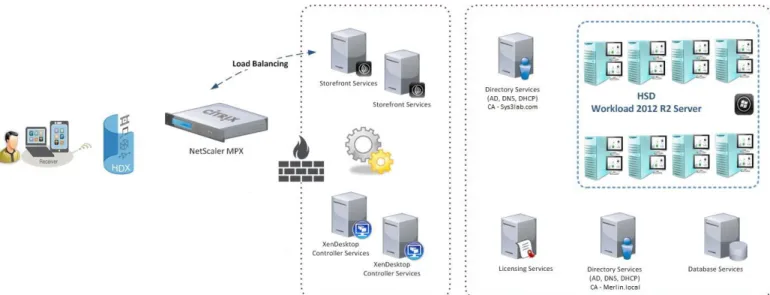
Figure 1. Environment Layout
Configure the NetScaler load balancer certificates
The default and recommended configuration for StoreFront uses SSL to secure tenant user connections. To enable NetScaler to communicate with StoreFront, you must configure NetScaler with valid SSL certificates: The external root CA certificate, which corresponds to the external URL domain\DNS settings:
silab-root-cert
The external FQDN name certificate, which also corresponds to the external URL: WildCard.sys3lab.com
The internal FQDN name certificate, which corresponds to the internal domain\DNS settings that are also used by the StoreFront servers: WildCard.Merlin.local
Complete the following process: 1. Configure the SSL certificates.
2. Create a certificate file to import into NetScaler. Although some steps describe using Microsoft Active Directory Certificate Services, you can use your own certificate server to create the file.
3. Link the installed certificates to the root certificates. This enables the tenant users’ browsers, NetScaler, and StoreFront to make secure connections.
To configure the SSL certificates
1. To create a private key with which to access your certificate request, log on to the NetScaler configuration utility and perform the following actions:
a. In the navigation pane, click Traffic Management> SSL. b. In the details pane, under SSL Keys, click Create RSA Key.
c. Specify a Key Filename to enable you to identify it. d. Specify a Key Size of 2048 bits.
2. In the details pane, under SSL Certificates, perform the following actions: a. Click Create CSR (Certificate Signing Request).
b. Specify a suitable Key Filename to enable you to identify it, then browse to and select the private key that you created in the Step 1.
c. In Key Format, select PEM and enter the PEM Passphrase you specified when you created the key. d. In Common Name, use the address used to access the web site.
e. Enter additional details as required for your organization.
f. In Challenge Password, use the passphrase that you specified when you created the private key. Click OK to close the Create CSR (Certificate Signing Request) dialog box.
3. In the details pane, under Tools, perform the following actions: a. Click Manage Certificates/Keys/CSRs.
b. Select the request file you created in the Step 2 and click Download.
c. In the Download Files dialog box, specify a location in which to save the file and click Download. d. After the file has been downloaded, close both dialog boxes.
To create a certificate file to import to NetScaler
1. From a web browser, log on to your certificate server and perform the following actions: a. Click Request a certificate.
b. Click advanced certificate request.
c. Click Submit a certificate request by using a base-64.
d. Using a text editor, open the file that you downloaded in Step 3 of the previous procedure and copy the entire contents.
e. On the certificate server web page, paste the copied text (which is the key) into the Saved Request
box.
2. On the Certificate Issued page, select Base 64 encoded and click Download certificate chain. Save the file to a suitable location so that it is available to be copied to NetScaler.
The downloaded file should have an extension of .P7B. Downloading the certificate chain means that the root certificate for the domain and any intermediate certificates are also included.
3. Double-click the downloaded file to open it and select Certificates. On the right side of the screen, the certificates you need to download are listed.
Perform the following actions:
a. Double-click the certificate with the web site address that you entered as the Common Name in your request.
d. Give the certificate a suitable name to enable you to identify it, click Next, and then click Finish.
4. In the navigation pane of the NetScaler configuration utility, click Traffic Management> SSL. Perform the following actions:
a. In the details pane, under Tools, click Manage Certificates/Keys/CSRs.
b. Click Upload and, in the Select Files dialog box, select the certificates that you created in the previous steps.
5. In the navigation pane of the NetScaler configuration utility, click Traffic Management > SSL > Certificates and then perform the following actions:
a. Click Install.
b. Specify a suitable Certificate-Key Pair Name to enable you to identify them.
d. For non-root certificates, under Private Key File Name, browse to and select the private key file you created earlier. You do not need to do this for root certificates.
e. Click Install.
f. Repeat the process for any remaining certificates. The certificates should be installed as shown:
To link the installed certificates to the root certificates
1. In the navigation pane of the NetScaler configuration utility, click Traffic Management > SSL >
Certificates and select the newly-installed certificate.
Configure LDAP authentication
You can enable authentication integration between NetScaler Gateway and Active Directory (or other directory services). To do this, you add an authentication connection between NetScaler Gateway and the domain controllers in your environment.
1. To add an authentication connection, log on to the NetScaler Gateway configuration utility. In the navigation pane, select System > Authentication > LDAP.
2. Add your specific Active Directory domain controller information and then click Create: a. Click the Add button.
b. Complete the LDAP settings as required. For details on NetScaler LDAP settings, refer to LDAP Authentication policies in Citrix eDocs.
Note: For security reasons, Citrix recommends that you use SSL for LDAP authentication and that the account you use for administrator binding should have only the permissions necessary to perform the validation. This example uses PLAINTEXT since it is a only test environment.
NetScaler load balancing
For multiple server StoreFront deployments, external load balancing is required. You can use the NetScaler load balancing feature to optimize the distribution of tenant user connections across StoreFront servers in a multiple server deployment.
To configure load balancer certificates
For this configuration, NetScaler resides on the outside and has access to a valid external web site, while the StoreFront and App Orchestration servers reside in an internal domain. This configuration requires three certificates: an external certificate, an external CA root certificate, and an internal certificate from the internal domain.
In the following example, the external certificate uses WildCard.sys3lab.com, which corresponds to the external URL of https://ag-ao.sys3lab.com
In the following example, the internal certificate uses WildCard.Merlin.local, which was obtained from the internal Microsoft Certificate Authority in the Merlin.local domain where both the StoreFront and App Orchestration servers reside.
To configure internal domain DNS settings
1. Configure an internal DNS static Host A record entry that points to the external name: a. Create a new zone of the external DNS name.
b. Create the Host A record matching the external URL name.
To configure NetScaler DNS settings
Configure the NetScaler DNS Name Servers and DNS Suffix pointing to your internal DNS settings. Name Servers:
DNS Suffix:
To configure the NetScaler load balancer
NetScaler load balances connections to StoreFront server groups by pointing a virtual IP address to the IP addresses or host names of the StoreFront servers. Incoming requests to the virtual IP address are distributed to the StoreFront servers based on load balancing algorithms such as round robin or least connection.
1. Log on to the NetScaler configuration utility and, in the navigation pane, perform the following actions: a. Click Traffic Management > Load Balancing > Servers.
b. In the details pane, click Add and specify a suitable Server Name to enable you to identify the StoreFront server.
c. Enter the IP address of the server and click Create.
2. Repeat the process for the remaining servers in the StoreFront server group. When you have created entries for all the servers, click Close.
You must now create services to map protocols to the servers, which enables NetScaler to send HTTP or SSL requests to the appropriate servers.
3. In the navigation pane, click Traffic Management > Load Balancing > Service Groups. In the details pane, click Add and give the service group a suitable name to enable you to identify it and click Continue.
4. Under Advanced, click Members and perform the following actions:
b. Click Add.
c. Specify a suitable Server Name and Port, and then click Create.
e. After you have entered all the servers, click Close.
a. Under Monitors, click the arrow as shown below.
d. When finished, click Save.
a. Under Settings, select Client IP and then in the Header box, type X-Forwarded-For.
b. Click Save and then click Done.
7. In the navigation pane, click Traffic Management > Load Balancing > Virtual Servers and perform the following actions:
a. In the details pane, click Add and give the virtual server a suitable Name to enable you to identify it.
b. Select the appropriate protocol, port, and IP address for the virtual server. c. Click Continue to complete the configuration.
The virtual server Name and IP address should be set up for address resolution on your DNS server. This address must be unique and must not be in any DHCP scopes to prevent address conflicts.
8. Under Advanced, click Service Group and perform the following actions:
c. Select the service group that you created in the previous steps and click Insert.
9. Under Advanced, click Persistence.
10. Under Persistence, select SOURCEIPand then click Save. You can use alternative load balancing and persistence settings if they are more appropriate for your deployment.
11. Under Advanced, click SSL Certificate and perform the following actions:
a. Under Certificates, click the arrow as shown below.
c. Select the load balancer certificate that you created earlier and then click Insert.
12. When finished, click Done.
Configure and install StoreFront servers
On each StoreFront server from Internet Information Services (IIS), create a Certificate Request for Web Hosting. Ensure that you change the SSL port 443 binding to use the newly-added certificate.
1. In IIS Manager, create a certificate request to the internal Microsoft CA. Make a note of the Friendly Name as App Orchestration will need this later.
StoreFront server 1 (SF1)
2. Within each StoreFront server, obtain and import the following certificates into the Local Computer\Trusted Root Authority:
The external DNS Root CA certificate (in this example, silab-ROOTDC01-CA) The internal DNS Root CA certificate (in this example, Merlin-MERLIN-DC01-CA)
After StoreFront is installed you’ll configure the servers further from the App Orchestration 2.5 console. Refer to the section “To configure App Orchestration for NetScaler Gateway” on page 45 for further details. You can launch the Citrix StoreFront console to confirm that you don’t have a deployment already
configured.
NetScaler Gateway
You can secure access to your App Orchestration deployment with NetScaler Gateway (formerly known as Access Gateway), which enables you to apply policy and action controls while providing tenant users with secure access to their desktops and apps.
To configure NetScaler Gateway
NetScaler Gateway enables you to apply endpoint analysis to user connection requests. For example, NetScaler Gateway can verify the operating system version and the presence of antivirus software before permitting user devices to connect to your network.
1. Configure a new NetScaler Gateway using the wizard.
3. Under NetScaler Gateway Settings, enter the Virtual Server Name, NetScaler Gateway IP Address, and Port. Click Continue.
4. Under Server Certificate, click Use existing certificate and specify the appropriate certificate. Click
5. Select the externally-accessible certificate and click Continue.
7. Configure the following StoreFront settings:
StoreFront FQDN: The NetScaler load balanced site name
Receiver for Web Path: Comes from StoreFront or App Orchestration Single Sign-on Domain: Must match your StoreFront Authentication settings
App Orchestration 2.5
App Orchestration is designed to help facilitate the provisioning and configuration of XenDesktop, XenApp, and StoreFront. Although they are separate products, App Orchestration uses smart logic to quickly and efficiently configure the environment for you. This makes the administration of the system easier to manage, especially for complex environments with multiple users and clients.
This document addresses the specific settings for configuring App Orchestration 2.5 to work with NetScaler 10.5 and StoreFront 2.5.2. This example uses only a single tenant, so only the App Orchestration 2.5 Global Settings for a datacenter are used.
Note: App Orchestration 2.5 also allows you to specify a NetScaler Gateway for a specific tenant.
To configure App Orchestration for NetScaler Gateway
1. In the App Orchestration web console, during the initial configuration of Global Settings, enter your external DNS suffix on the DNS Settingspage and click Next.
2. On the Advanced Settings page, make sure the Enable NetScaler Gateway box is selected. Enter your NetScaler Gateway URL and click Save.
Note: Enter only the NetScaler Gateway URL; do not enter port numbers as they might prevent App Orchestration from communicating with the appliance.
3. In the App Orchestration web console, select Define > Datacenters. Perform the following actions: a. Select the first datacenter and click Edit.
b. On the NetScaler Gateway tab, enter your NetScaler Gateway URL and click Save Datacenter. Repeat this process for any other datacenters in your environment.
To configure App Orchestration for load balancing with StoreFront
In order for StoreFront to interact with NetScaler, you must configure the load balancer address in AppOrchestration. When you create a StoreFront server group in the App Orchestration web console, on the Basic Settings screen enter the URL of the load balancer you created earlier.
Important: Ensure that you enter the load balancer URL correctly, since you cannot modify the URL after you create the server group. If you need to change the load balancer URL later, you must first delete the StoreFront server group in the App Orchestration web console, then move the StoreFront servers from the DecommissionedServers OU to the appropriate resource OU in Active Directory, and finally create a new server group using the new load balancer URL in the App Orchestration web console.
The name you specify when adding a tenant in App Orchestration directly impacts the StoreFront settings. Specifically, the Receiver for Website URL corresponds to the Enterprise Store Settings used earlier during the NetScaler Gateway wizard configuration.
Tenant page in the App Orchestration web consonole
To verify your configuration
After you have finished configuring your deployment, verify the settings on the StoreFront servers to ensure that tenant users can access the deployment.
1. Log on to the StoreFront server specified in the configuration.
2. On the Windows Start screen or Apps screen, locate and click the Citrix StoreFront tile. 3. Select the Server Group node in the left pane of the Citrix StoreFront management console.
4. Verify that the load balanced URL you entered previously in App Orchestration is shown as the Base URL
5. Select the NetScaler Gateway node in the left pane of the console and perform the following actions: a. Verify the NetScaler Gateway URL you entered earlier in App Orchestration is shown in the results
pane of the console.
b. In the Actions pane of the console, click Secure Ticket Authority. Confirm that the STA URLs shown in the Manage Secure Ticket Authority Settings dialog box are identical to the STA URLs you configured for NetScaler Gateway earlier.
6. In the Stores option of the console, click Enable Remote Access and confirm that the correct settings for your NetScaler Gateway are configured.
7. In the Authentication option of the console, select the Pass-through from NetScaler Gateway method. Click the Configure Trusted Domains andconfigure the Trusted Domains option to match the value used during your NetScaler configuration.
8. After you have verified the StoreFront configuration, refresh your server group and then propagate the changes to both StoreFront servers. Once complete, verify that external tenant users can access the deployment.
9. Install Citrix Receiver on an external user device. From a web browser, enter the URL of the NetScaler Gateway URL you created earlier.
10. Log on as a valid user to ensure that Citrix Receiver can connect to StoreFront through the NetScaler load balancer.
References
NetScaler for the XenDesktop\XenApp Dummy
http://blogs.citrix.com/2012/04/10/netscaler-for-the-xendesktopxenapp-dummy/ How to Configure NetScaler Gateway with StoreFront and App Controller
http://support.citrix.com/article/CTX139319
Configuring NetScaler 10.1 Load Balancing with StoreFront 2.5.2 and NetScaler Gateway for App Orchestration 2.5