SD-T225/SD-T245
ViewSonic Device Manager Pro
User Guide
1
Copyright and Trademark Statements
© 2015 ViewSonic Corporation. All rights reserved.
This document contains proprietary information that is protected by copyright. No part of this document may be photocopied, reproduced, or translated to another language without the prior written consent of ViewSonic Corporation.
Limitation of Liability
While reasonable efforts have been made to ensure the accuracy of this manual, the manufacturer and distributor assume no liability resulting from errors or omissions in this manual , or from the use of the information contained herein.
Trademark statements
Microsoft and Windows are trademarks of the Microsoft group of companies.
Citrix, ICA, and XenApp are trademarks of Citrix Systems, Inc. and/or one or more of its subsidiaries, and may be registered in the United States Patent and Trademark Office and in other countries. VMware and VMware View are trademarks or registered trademarks of the VMware, Inc.
GraphOn and GO-Global are registered trademarks and the GO logo is a trademark of GraphOn Corporation.
The Firefox logo is a registered trademark of Mozilla Foundation or Mozilla Corporation. Adobe and Adobe Reader are either registered trademarks or trademarks of Adobe Systems Incorporated in the United States and/or other countries.
Other product names mentioned herein are used for identification purposes only and may be trademarks and/or registered trademarks of their respective companies.
2
Table of Contents
Copyright and Trademark Statements ... 1
Table of Contents ... 2
Acronyms and Abbreviations ... 5
Convention Types ... 6
Global Declaration ... 6
Chapter 1 ... 7
VDM Pro Smart Client Management Suite ... 7
VDM Pro Base Framework - Introduction ... 7
System Requirements ... 8
Chapter 2 ... 9
VDM Pro Base Framework Installation ... 9
Chapter 3 ... 17
Getting Started ... ... 17
Start VDM Pro Service ... 17
Stop VDM Pro Service ... 17
Login VDM Pro Application ... 17
Logout VDM Pro Application ... 18
Chapter 4 ... 19
VDM Pro Welcome Dialog ... 19
Quick Tips ... 19
Shortcuts ... 19
Chapter 5 ... 20
VDM Pro GUI Layout... 20
Chapter 6 ... 21
VDM Pro Configuration ... 21
Discovery Configuration ... 22
Messaging Window ... 26
SSL Upload ... 27
VDM Pro Users ... 28
Language Selection ... 32
Chapter 7 ... 33
VDM Pro Tools ... ... 33
VDM Pro Reports Framework ... 33
Retrieving VDM Pro Server Events ... 39
Downloading VDM Pro Logs ... 41
3
Chapter 8 ... 44
Device List Operation ... 44
Node Management Group ... 45
Device Options ... 45
Messaging Console Options ... 45
Category Summaries ... 46
IP Management Group ... 47
Chapter 9 ... 49
About VDM Pro .. ... 49
View VDM Pro Information ... 49
Generate Debug Report... 50
Chapter 10 ... 51
Smart Client Management (SCX) ... 51
Introduction ... 51
Hardware Requirement ... 51
System Requirement for Installing SCX ... 52
Supported Operating Systems for Installing SCX ... 52
Security ... 52
Compatibility ... 52
Chapter 11 ... 53
Smart Client Management Configuration ... 53
Viewing Smart Client Management Page ... 53
Group Management ... 55
Firmware Manager ... 56
Quick Connection Policy Manager ... 62
Connection Manager ... 66
Managing Client Policies... 70
Quick Connection ... 75
Connection Manager ... 76
Client Setup ... 77
Password Setting ... 78
SCX Tools ... ... 78
Power Control ... 78
VNC Connector ... 79
Send Message ... 80
Certificate Upload ... 80
Firmware Update ... 81
4
Chapter 12 ... 84
Appendix ... ... 84 Event Logs ... 84
5
Acronyms and Abbreviations
Acronyms Abbreviations
CIM Common Information Model DN Domain Name
DNS Domain Name Server GUI Graphical User Interface IP Internet Protocol
KVM Kernel-based Virtual Machine
LDAP Lightweight Directory Access Protocol OS Operating System
PRN Purchase Reference Number SCX Smart Client Management
SNMP Simple Network Management Protocol SSL Secure Sockets Layer
TLS Transport Layer Security VNC Virtual Network Computing WSMAN Web Services for Management VDM Pro ViewSonic Device Manager Pro
6
Convention Types
Types Usage
Text Button Names, Text Boxes, Labels
Text Hyperlink
“Text” Cross Reference
Text Code
Note Remember Mandatory field
Text Refer
Global Declaration
Button Usage
Cancel Cancel the current process and return to the previous screen Back Go back to the previous screen
7
Chapter 1
VDM Pro Smart Client Management Suite
VDM Pro Base Framework - Introduction
VDM Pro is an ViewSonic Device Manager Pro that provides centralized management of systems deployed in a network. Organized as a plug-in framework, VDM Pro provides device specific management features for individual plug-ins.
Following are the VDM Pro plug-ins:
Smart Client Management (SCX) is a thin client management plugin for VDM Pro that provides aggregated management of thin client devices equipped with ViewSonic thin client agents. SCX will provide remote manageability of the system.
VDM Pro uses industry standard protocols and completely provide remote manageability. VDM Pro provides a browser agnostic and intuitive web interface that allows an administrator to manage the devices by using any standard web browser. In addition, VDM Pro also supports CIM-XML, WSMAN and SSH for remote manageability.
8
System Requirements
Minimum hardware and software requirements for installing VDM Pro are as follows:
Hardware Requirements
System Processor: 2 GHZ System Memory: 4 GB RAM
Free Disk Space: 10 GB (May need more disk space depending on the nodes managed and the amount of history information needed)
Note: The minimum system requirements listed above can support up to 200 devices. The VDM Pro software is capable of managing up to 10,000 clients and licenses.
Software requirements
Browser:
Internet Explorer 7 or later Mozilla Firefox 3.5 or later Google Chrome 5.0 or later
Operating System:
The details of VDM Pro installable OS are shown in a table below.
S.No VDM Pro Installable OS
1 Windows 7 Enterprise – 32 bit 2 Windows 7 Enterprise – 64 bit
3 Windows Server 2008 R2 Standard - 64 bit 4 Windows 7 Ultimate – 32 bit
5 Windows 2012 Server 6 Windows 8
Port requirements
VDM Pro requires ports 80/443 (http), 2121 (FTP), 50000 (Agent). Make sure no other application is using these ports.
9
Chapter 2
VDM Pro Base Framework Installation
VDM Pro installation includes install and uninstall actions for Windows operating system.
For Windows
Installing VDM Pro
1. Uninstall the old version of VDM Pro, if available. This step is for clean installation.
2. Right click the VDM Pro.client-3.0-xxxxxx-win32-x86.exe and click Run as Administrator. An Extracting window appears for displaying the progress stage and then VDM Pro Base
Framework Setup dialog box appears as displayed in the subsequent screenshot.
10
3. Click Next to continue. This action opens Destination Folder section in the same dialog box as displayed in the subsequent screenshot.
Figure 2: Destination Folder
4. Click Next to continue installation in the default folder, (Or) click Change to choose another folder. By clicking Next button, the install options appear in the Setup dialog box.
11
5. Click Install button to start the installation process. Click Back to review or change the installation settings. Click Cancel to exit the wizard. A related screenshot is displayed below.
12
6. Installation process is started by clicking Install button. A related screenshot is shown below.
Figure 4: Installation Process
7. Click Finish to exit the Setup Wizard as shown in the subsequent screenshot.
13
8. Once the installation is successfully completed, VDM Pro Installer dialog box appears to display the successful installation.
Figure 6: Installation Complete
Uninstalling VDM Pro
Before uninstalling VDM Pro, the user has to follow the steps given below:
• Close all the instances of VDM Pro application and make sure that no files within the VDM Pro installation folder are opened in the external editors.
• Stop the service from Start menu. Go to Start > All Programs > VDM Pro > VDM Pro > Stop Service. This is required for making a clean un-installation. For more information on how to stop the service, see “Stop VDM Pro Service”.
There are two ways to uninstall VDM Pro. They are as follows:
Uninstalling from Start Menu (Recommended)
1. In Window 7, go to Start > All Programs > VSC > VDM Pro > Uninstall folder to uninstall VDM Pro.
2. (OR) In Windows 8, enter uninstall VDM Pro in Search text box, and then click Uninstall VDM Pro appears in the screen to uninstall the VDM Pro.
3. Clicking Uninstall folder displays Uninstall VDM Pro and Uninstall VDM Pro icons. A related screenshot is displayed below.
14
4. Click Uninstall VDM Pro icon to start un-installation process only for VDM Pro. Base Framework will be available in the machine.
The installer will automatically uninstall only the client management suite without uninstalling Base.
5. (Or) click Uninstall VDM Pro icon to start un-installation process for entire VDM Pro in the machine and removes Client Management Suite too.
Wait until VDM Pro is uninstalled completely. The installer will automatically uninstall the client management suite installed with the Base Framework installation.
6. A confirmation message box appears to confirm the un-installation. Click Yes to begin the uninstall action. A related screenshot is displayed below.
Figure 8: Windows Installer
Uninstalling from Control Panel
1. Go to Start > Control Panel > Programs and Features.
2. Select VDM Pro Base Framework from the list and right click on it and select uninstall. This starts the un-installation process for entire VDM Pro in the machine and removes Client Management Suite too.
Wait until VDM Pro is uninstalled completely. The installer will automatically uninstall the client management suite installed with the Base Framework installation.
3. (OR), select VDM Pro and click Uninstall to start un-installation process only for Client Management Suite. Base Framework will be available in the machine.
The installer will automatically uninstall the client management suite only without uninstalling the Base framework.
15
Configuring VDM Pro at the End of Installation
At the end of the installation process, an VDM Pro Configuration window appears as shown in the subsequent screenshot.
Figure 9: VDM Pro Configuration – Installation
The web server ports section displays the availability of default web server ports.
In HTTP Port, 80 is set as the default port during installation. In HTTPS Port, 443 is set as the default port during installation.
1. Click Check Port Availability button to check the port availability before applying the settings. 2. Select the other options such as Restart Services and Launch Web UI as per the need. (This
16
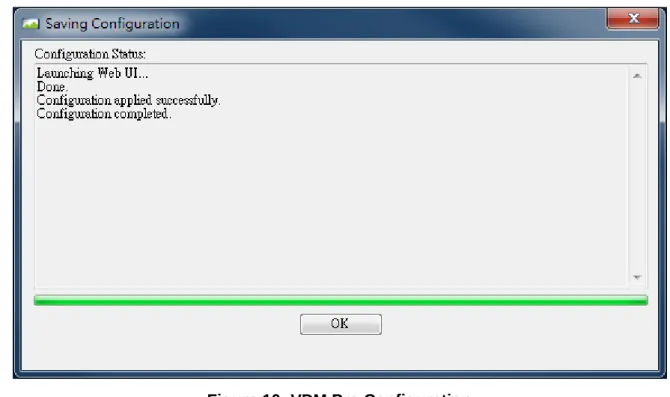
3. Click Apply to save the entered settings successfully. VDM Pro Configuration dialog appears as shown in the subsequent screenshot. The Saving Configuration process may take a few minutes to complete. VDM Pro will get launched in a web browser, when Start Services and Launch UI Options are chosen.
Figure 10: VDM Pro Configuration
4. Click OK to complete the installation.
Configuring VDM Pro after Installation
VDM Pro configuration can be done anytime even after the installation.
1. Click Start > All Programs > VSC > VDM Pro > VDM Pro Configuration as shown in the screenshot below.
Figure 11: Launch VDM Pro Configuration
17
Chapter 3
Getting Started
To get started with the VDM Pro application, the user has to perform the following steps:
• Start the VDM Pro service from Start menu. For more information on how to start the service, see
“Start VDM Pro Service”.
• Open a browser and type http://127.0.0.1/launch.html in the address bar or double click icon in the Windows desktop to open VDM Pro login page.
• Login the VDM Pro application by using default user name and password. For more information on how to log in, see “Login VDM Pro Application”.
Start VDM Pro Service
Before logging into the VDM Pro application, the user has to start the service if it is not automatically started.
For Windows:
Go to Start > All Programs > VSC > VDM Pro > Start VDM Pro Service. This opens the command prompt, where it displays all the background processes and waits until the command prompt
disappears.
Stop VDM Pro Service
Before uninstalling the VDM Pro application, the user has to stop the services that are running.
For Windows:
Go to Start > All Programs > VSC > VDM Pro > Stop VDM Pro Service. This opens the command prompt, where it displays all the background processes. Wait until the command prompt disappears.
Login VDM Pro Application
To log into the VDM Pro application, the user has to follow the steps given below:
1. Enter the name of the user in Name text box. The user name can be either in alphabets or in alpha numerals.
2. Enter the user password in Password text box. The default user name and password is shown below.
Field Default
User Name admin Password password
Default user name and password must be in lower-case characters. It is advised that once you log in, the user must change the “admin” password.
18
The VDM Pro Users can create a new user name and password to login to the VDM Pro application. For more details, see “Configuring User”.
3. Click Log In to log in the VDM Pro application.
4. Enable Use LDAP Authentication checkbox to login using LDAP credentials that has been configured. If an LDAP setting is not configured, a warning message “TheLDAP Server is not configured” will be displayed.
A sample Login screenshot is shown below.
Figure 12: Login
Logout VDM Pro Application
To logout of the VDM Pro application:
1. Click button on the top right corner of the VDM Pro application. A confirmation message is displayed.
19
Chapter 4
VDM Pro Welcome Dialog
Once logged into VDM Pro, a Welcome Dialog appears as shown in the screenshot below.
Figure 13: Welcome to VDM Pro
Quick Tips
The Welcome Dialog includes quick tips for the users. To view more tips, click Get another tip. To enable the Welcome Dialog at the startup of VDM Pro, select Show this dialog at startup. The Welcome dialog can be accessed by another way; click About > Show Welcome Dialog.
Shortcuts
To get started, the user has to set discovery ranges and create global users for the devices. The Welcome Dialog provides shortcuts to set discovery ranges, create global users and to add IP address or the type of manageability.
1. To add a new device by the IP address or the type of manageability, click Add new device or manageability. To know more about discovery ranges, refer “Device Options”. 2. To set discovery ranges, click Add or edit discovery ranges. To know more about
20
Chapter 5
VDM Pro GUI Layout
The following screenshot explains the layout of VDM Pro:
Figure 14: VDM Pro Layout
Device Details Window Breadcrumbs
Node Categories List Top Banner
Base categories
Built-in Categories List Logout Button Database Usage Bar
General Menu Bar
Device List Tool Bar
Messaging System Window Device Category Summary
21
Chapter 6
VDM Pro Configuration
VDM Pro facilitates the user with options for configuring an application for various features according to the user needs and identifies the attributes of the product to meet the requirements of an end user. This helps the user to manage a device easily and effectively.
Various feature configurations are as follows:
• Discovery Configuration
• DNS Configuration
• Messaging Window
• SSL Upload
• VDM Pro Users
22
Discovery Configuration
Scouts the network for manageable devices and presents in a web interface. The liveliness of the devices is also monitored and presented to the end user. Discovered devices are listed in the IP Management.
Discovery range is a range of IP address of devices available over intranet and internet. Range must be in the following format.
Example: Start End
192.168.1.1 192.168.1.255
So defining one range the user can discover maximum of 255 devices. To configure discovery range, follow the steps given below:
1. Login the VDM Pro application, a Welcome to VDM Pro page appears.
2. Click OpenDiscovery Settings button in the bottom left-hand side of the Welcome page to configure the discovery ranges. (Or) Click VDM Pro Options > Configuration > Discovery Configuration.DiscoveryConfiguration tab is selected by default in VDM Pro Configuration
screen as shown in the screenshot below.
23
To Create/Delete Discovery Ranges by Start and End IP:
1. Click New Range button to create a new blank entry for providing the IP ranges as shown in the following screenshot.
Figure 16: Discovery Ranges – Start and End IP
2. Enter the IP address ranges in Start and End columns to discover the devices within the specified range to avoid unwanted device discovery.
3. Click Save to trigger the discovery process. A Confirmation message appears, click Yes to save the discovery settings successfully or click No to return to the previous screen.
4. Click Reload Discovery Settings, a Confirmation message appears. Click Yes to reload all the settings to the saved values or click No to return to the previous screen.
24
5. Select a required discovery range and click Delete Range button to delete a discovery range.
Click Save to commit all changes. Entries are limited to 256 addresses.
To Create/Delete a Single IP:
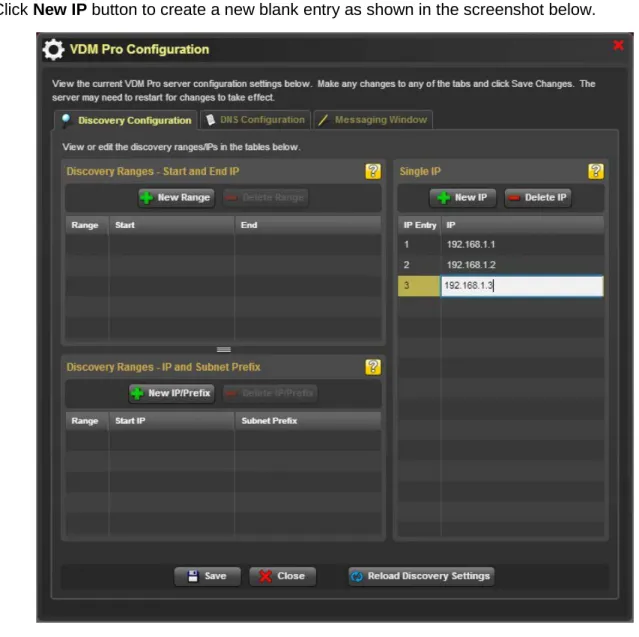
1. Click New IP buttonto create a new blank entry as shown in the screenshot below.
Figure 17: Create New IP
2. Enter the IP address in the IP field.
3. Click Save to trigger the discovery process. A Confirmation message appears, click Yes to save the discovery settings successfully or click No to return to the previous screen.
4. Click Reload Discovery Settings, a Confirmation message appears. Click Yes to reload all the settings to the saved values or click No to return to the previous screen.
5. Select a required IP address and click Delete IP button to delete an IP address.
Click Save to commit all changes. The single IP addresses may have also been added manually or created with the Add Device function.
25
To Create/Delete Discovery Ranges by IP and Subnet Prefix:
1. Click New IP/Prefix buttonto create a new blank entry as shown in the screenshot below.
Figure 18: Create New IP/Prefix
2. Enter the starting IP address and Subnet Prefix in the Start IP and Subnet Prefix fields, respectively.
3. Click Save to trigger the discovery process. A Confirmation message appears, click Yes to save the discovery settings successfully or click No to return to the previous screen.
4. Click Reload Discovery Settings, a Confirmation message appears. Click Yes to reload all the settings to the saved values or click No to return to the previous screen.
5. Select a required entry and click Delete IP/Prefix button to delete a discovery range.
Click Save to commit all changes.
The discovered devices in the device tree are unauthenticated devices. To authenticate these devices, the user has to select the required unauthenticated devices and provide the corresponding user credentials to identify the devices as SCX Device.
26
Messaging Window
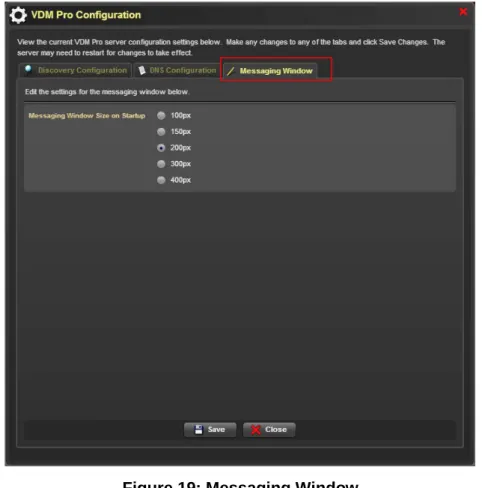
Messaging Window provides information for various activities performed by the VDM Pro application. Whenever the user performs some activities like system login, system logout, device discovery and so on, a message will be displayed with the timestamp in the Messaging Window. The user can also configure the output window and optimize the messaging window size according to their needs. 1. Click VDM Pro Options > Configuration > Messaging Window to configure the messaging
window as shown in the screenshot below.
Figure 19: Messaging Window
2. Choose the size of the messaging window from the Messaging Window Size on Startup section. 3. Click Save button to save the settings for messaging window successfully.
27
SSL Upload
SSL means Secure Socket Layer, which is a protocol used to ensure secure transactions between web servers and browsers. The protocol uses a third party, a Certificate Authority (CA) to identify one end or both end of the transactions. SSL encrypt the segments of network connections at the
Application Layer to ensure secure end-to-end transit at the Transport Layer. SSL certificate is needed for secured communications over the networks.
VDM Pro supports only .cert and .key files to be part of SSL configuration. Other formats have not been tested.
To upload SSL certificate:
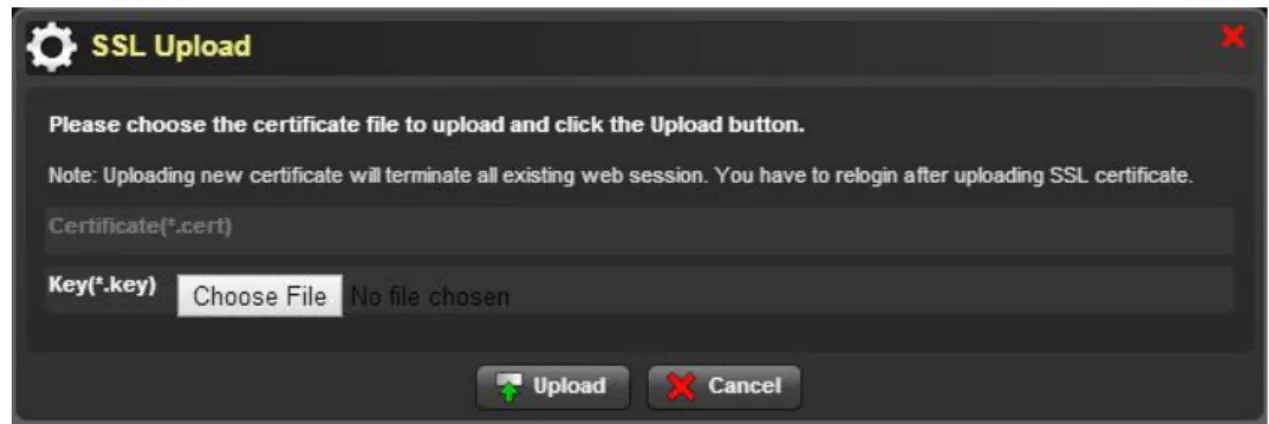
1. Click VDM Pro Options > SSL to upload the SSL certificate file as shown in the screenshot below.
Figure 20: Certificate Upload
2. Click Browse to select the SSL certificate file. 3. Click Upload to upload the SSL certificate file.
4. Once the SSL certificate file is uploaded, Key text box is enabled. Click Browse to select the SSL key. A related screenshot is displayed below.
Figure 21: Key Upload
5. Click Upload to upload the SSL key.
Uploading new certificate will terminate all existing web sessions. You have to login again after uploading SSL certificate.
28
VDM Pro Users
VDM Pro provides an option to the user for configuring and managing the users on a domain. User configuration includes
• Configuring User
To configure the user account, the user has to log into the application by providing the user
credentials, the user can login and authenticate the credentials from anywhere in the network. This helps the administrators to manage many numbers of users on a domain.
Configuring User
VDM Pro provides an option to create their own credentials for logging the VDM Pro application apart from logging with default username and password. After configuring the user, the user can log into the application with the newly created user credentials.
Various actions performed on VDM Pro user configuration are as follows:
• Add New User
• Edit User
• Delete User To add new user:
1. Click VDM Pro Options > VDM Pro Users > VDM Pro Users to configure the user as shown in the screenshot below.
29
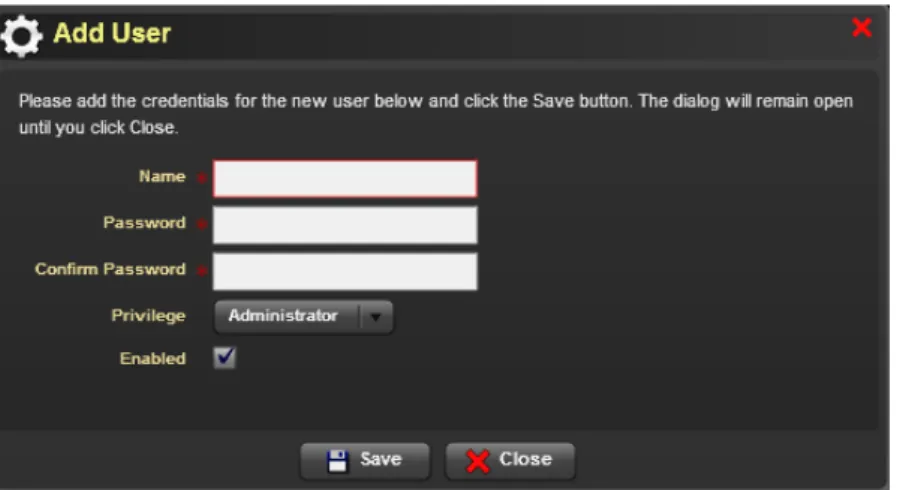
2. Click Add New button to add the credentials as shown in the screenshot below.
Figure 23: Add User
3. Enter the name of the user in Name text box. 4. Enter the user password in Password text box.
5. Enter the same user password in Confirm Password text box as in Password text box. 6. Select the privilege rights to be Administrator or User or Operator or KVM from the Privilege
drop-down box.
7. Check the Enabled checkbox to identify the status of the user. If checkbox is not checked, it will give a message “The user has been disabled” while logging the VDM Pro application.
8. Click Save to save the new credentials successfully.
To edit user:
1. Click VDM Pro Options > VDM Pro Users > VDM Pro Users to edit the user credentials to avoid unwanted users from accessing the account.
2. Select the required user and click Edit button. An Edit User window is displayed. By default,
Name text box is disabled.
3. Enter user password in Password and Confirm Password text boxes.
4. Select the privilege rights to be Administrator or User or Operator or KVM from the Privilege
drop-down box.
5. Check the Enabled checkbox to identify the status of the user. If checkbox is not checked, it will throw a message “The user has been disabled” while logging the VDM Pro application.
6. Click Save to save the user credential changes successfully.
To delete user:
1. Click VDM Pro Options > VDM Pro Users> VDM Pro Users to delete any one of the required user.
30
Configuring LDAP
LDAP is Lightweight Directory Access Protocol, which is an emerging industry standard protocol for accessing directory servers. LDAP server can authenticate the users as it supports authentication. Using LDAP in a local network, the user can configure LDAP Server information, where the data is transferred on a secured layer and authenticate the users from anywhere on the network.
1. Click VDM Pro Options > VDM Pro Users > LDAP Configuration to configure LDAP settings as displayed in the subsequent screenshot.
Figure 24: Basic LDAP Configuration
2. Enter the name of the host or IP address in the Host/IP Address text box. This could be the IP address of the LDAP server.
3. Enter the port address in the Port text box. Default port is 389. 4. Enter the domain name in the Bind DN text box.
5. Enter the password in the Bind Password text box.
6. Enter the base domain name under which the user accounts are located in the Base DN/Searchbase text box. This option is required for most account related operations.
31
7. Select the type of directory to be either LDAP or Active Directory based on the LDAP server configuration on your network.
If LDAP directory type is selected, Bind Requires DN checkbox under Advanced settings will be enabled (or) if Active Directory is selected, Bind Requires DN checkbox under Advanced
settings will be disabled.
8. Click Advanced tab to configure LDAP settings as shown in the screenshot below.
Figure 25: Advanced LDAP Configuration
9. Select None or Use Start TLS or Use SSL from the Encrypted Transport button.
10. Check the Bind Requires DN checkbox to retrieve the domain name for the account used to bind if the username is not already in DN form.
11. Select an account format that indicates the form to which the account names are canonicalized from the Account Canonical Form drop-down list.
12. Enter the name of the account domain in the Account Domain Name text box. 13. Enter the short name of account domain in Account Short Domain Name text box. 14. Enter the filter format to search for the accounts in the Account Filter Format text box. 15. Check the Allow Empty Password checkbox to allow empty password during bind. 16. Check the Referrals checkbox to allow referrals.
32
Language Selection
VDM Pro supports localization for the list of languages. The GUI will take the local browser’s language by default. VDM Pro provides an option to change the language settings according to the needs of the user.
1. Click VDM Pro Options > Language, a Language selection window is displayed as shown in the screenshot below.
Figure 26: Language Selection
2. Choose either Automatically determine language button to determine the language as English (default language) automatically or Manually select language button to choose the language type manually from the drop-down list. Depending upon the language selection, the language name will be displayed in the Active Language.
While selecting Automatically determine language button, manually select language drop-down list will be disabled.
3. Click Save to save the language settings successfully.
VDM Pro needs to be reloaded for the language selection to take effect.
Language Language code
English EN-US
Traditional Chinese ZH-TW Simplified Chinese ZH-CN
French FR
Korean KR
Spanish SP
Portuguese PT
33
Chapter 7
VDM Pro Tools
VDM Pro Reports Framework
Report Manager is a framework that allows users to create various type of reports based on the data available in the back end database. The reports include from simple computer information to a complex system statistics in a graph. Reports can be generated either in tabular data or in graphical format. It is a very useful tool provided as a part of VDM Pro, which provides data information for the user.
Report Manager provides a rich set of feature that allows the user to configure and export the report results to the report file. The report file supports various formats like HTML, XML, PDF and
spreadsheet (CSV). The reports generated using Report Manager is independent of plug-ins. There are two types of reports. They are as follows.
• System Report - Generates pre-defined reports for the selected plug-ins. In addition, the user can select multiple reports and multiple result formats for generating the reports. At least one result format must be selected for generating the reports.
• User Report - Generates user-defined reports for the selected plug-ins. In addition, the user can select multiple reports and multiple result formats for generating the reports. At least one result format must be selected for generating the reports.
Following are the System Report features:
System Report Feature
Description
Edit Report Allows the user to edit the required system report and save as user report.
• Click Report List tab from the VDM Pro Report Manager page.
• Select System Report from the Report Type drop-down list.
• Select the required plug-ins from the Extensions drop-down list.
• Select the required system reports from the Selection field column.
• Select the required format for the selected system report.
• Click Save as button, Edit Report page appears. Make necessary changes in the field’s text boxes.
• Click Advance Filter button, Filter Settings window is displayed. Select the operator from the drop-down list and enter the value
in the text box for the required fields.
• Click Add commandbutton to display the values for the selected fields in the text box and click the required operator buttons ( ) to filter the selected fields.
34
• Click OK button to set the filter for the selected fields.
• Select the required field from the Add fields, and click to include in the Selected fields. If needed, the user can exclude the required fields from the Selected fields by clicking .
• Click Save to user report to save the report as User Report successfully.
Generate Report Allows the user to generate the required system reports in the desired formats.
• Click Report List tab from the VDM Pro Report Manager page.
• Select System Report from the Report Type drop-down list.
• Select the required plug-ins from the Extensions drop-down list.
• Select the required system reports from the Selection field column.
• Select the required format for the selected system report.
• Click Generate button, Device Selection window appears. Select the required tab and select the required device from the
Selection field column.
• Click OK to generate the reports. The generated reports are viewed in Generated Report tab or click List > Result List.
• Select the required result from the Selection field column and click Preview to view the generated reports in the browser or click
Download button to download the report in a particular location. Delete
Generated Report
Allows the user to delete the generated reports.
Select the required report from the Selection field column under
Generated Report tab and click Delete to delete the selected system reports successfully.
Schedule Report Allows the user to schedule a selected system report from the list of reports.
• Click Report List tab from the VDM Pro Report Manager page.
• Select System Report from the Report Type drop-down list.
• Select the required plug-ins from the Extensions drop-down list.
• Select the required system reports from the Selection field column.
• Select the required format for the selected system report.
• Click Schedule > New Schedule, Schedule Report page is displayed. Make necessary changes in the field’s text boxes and click the required tabs ( ) to schedule a report on daily or weekly or monthly or yearly basis.
• Click Set, a Choose Email Destinations… window is displayed. For more information, see “Choose Email Destinations...”.
35
An Email address will be automatically populated in the Email
text box.
• Click Next button, Device Selection window appears. Select the required device from the Selection field column.
• Click OK to schedule the reports. The scheduled reports are viewed under Scheduler tab or click Schedule > Schedule List. Edit Scheduled
Report
Allows the user to make necessary changes in the scheduled system reports.
• Click Scheduler tab from the VDM Pro Report Manager page.
• Select the required scheduled report from the Selection field column and click Edit. An Edit Schedule page is displayed. Make necessary changes and click Next button. A Device Selection window appears. Select the required device from the
Selection field column.
• Click OK to save the changes successfully, and viewed under
Scheduler tab or click Schedule > Schedule List. Delete
Scheduled Report
Allows the user to delete the unwanted scheduled system reports.
• Select the required schedule report from the Selection field column under Scheduler tab.
• Click Delete to delete the selected scheduled reports successfully.
36
Following are the User Report features:
User Report Feature Description
Add Report Allows the user to add a new user report.
• Click Report List tab from the VDM Pro Report Manager page.
• Select User Report from the Report Type drop-down list.
• Click Add button, New Report page is displayed.
• Provide necessary details in the field’s text boxes and select the required plug-ins from the Extension drop-down list.
• Click Advance Filter button, Filter Settings window is displayed. Make necessary filter settings for the fields.
• Click OK button to set the filter for the selected fields.
• Select the required field from the Add fields button, and click to include in the Selected fields. If needed, the user can exclude the required fields from the Selected fields by clicking
.
• Click Next to add a report successfully.
Edit Report Allows the user to make necessary changes in the required user reports.
• Click Report List tab from the VDM Pro Report Manager page.
• Select User Report from the Report Type drop-down list.
• Select the required plug-ins from the Extensions drop-down list.
• Select the required user reports from the Selection field column.
• Click Edit button, Edit Report page is displayed. Make necessary changes in the fields.
• Click Advance Filter button to make the necessary changes in the filter settings.
• Include or exclude the required fields by clicking and .
• Click Save to save the changes successfully. Delete Report Allows the user to delete the unwanted user reports.
• Click Report List tab from the VDM Pro Report Manager page.
• Select User Report from the Report Type drop-down list.
• Select the required plug-ins from the Extensions drop-down list.
• Select the required user reports from the Selection field column.
• Click Delete button, a Confirmation message appears. Click Yes
to delete the selected user reports successfully.
Generate Report Allows the user to generate the required user reports in the desired formats.
37
• Click Report List tab from the VDM Pro Report Manager page.
• Select User Report from the Report Type drop-down list.
• Select the required plug-ins from the Extensions drop-down list.
• Select the required user reports from the Selection field column.
• Click Generate button, Device Selection window appears. Select the required tab and select the required devices from the
Selection field column.
• Click OK to generate the reports. The generated reports are viewed in Results tab or click List > Result List.
• Select the required user report from the Selection field column and click Preview to view the generated reports in the browser or click Download button to download the report in a particular location.
Schedule Report Allows the user to schedule the required user reports.
• Click Report List tab from the VDM Pro Report Manager page.
• Select User Report from the Report Type drop-down list.
• Select the required plug-ins from the Extensions drop-down list.
• Select the required user reports from the Selection field column.
• Click Schedule > New Schedule, Schedule Report page is displayed. Make necessary changes in the field’s text boxes and click the required tabs ( ) to schedule a report on daily or weekly or monthly or yearly basis.
• Click Next button, Device Selection window appears. Select the required device from the Selection field column.
• Click OK to schedule the user reports. The scheduled user reports are viewed under Scheduler tab or click Schedule > Schedule List.
Edit Scheduled Report
Allows the user to make necessary changes for the scheduled user reports.
• Click Scheduler tab from the VDM Pro Report Manager page.
• Select the required scheduled report from the Selection field column and click Edit. An Edit Schedule page is displayed. Make necessary changes and click Next button. A Device Selection window appears. Select the required device from the
Selection field column.
• Click OK to save the changes successfully, and viewed under
Scheduler tab or click Schedule > Schedule List. Delete
Scheduled Report
Allows the user to delete the unwanted scheduled user reports.
• Select the required schedule report from the Selection field column under Scheduler tab and click Delete to delete the selected scheduled reports successfully.
38
Click VDM Pro Tools > Launch Report Manager to launch report manager from VDM Pro as shown in the subsequent screenshot.
Figure 27: Report Manager
List of Reports Top Banner Menu Bar
39
Retrieving VDM Pro Server Events
An event is any significant occurrence in the system or in a program that requires the users to be notified or an entry is added to a log. Therefore, event logs help the user to identify and diagnose the source of current system problems, predict potential system problems and records the activities performed by the VDM Pro Server.
VDM Pro has its own event logging mechanism that helps end user to identify the problems on the managed devices. VDM Pro does not log any events from the managed devices in this section. List of possible events are available in the Appendix: Event Logs.
To retrieve VDM Pro server events:
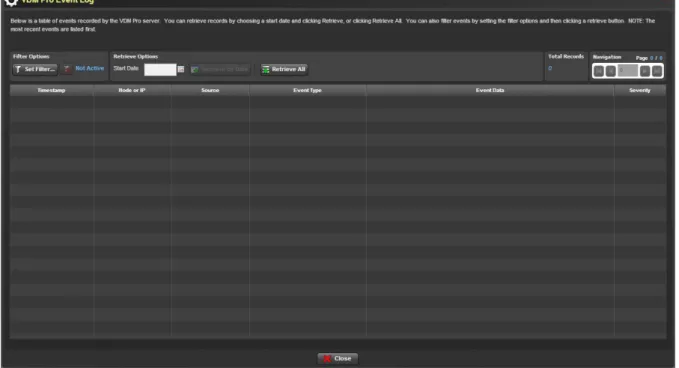
1. Click VDM Pro Tools > VDM Pro Event Log, an VDM Pro Server Events window is displayed as shown in the following screenshot.
40
Field Description
Fields Description
Timestamp Time at which the event is generated.
Node or IP Represents the node or IP associated with the event. Component
and Event Type
Represents the major component that logged the event, such as, Base, HX, CX and DX.
Represents the type of event that is logged in.
Event Data Represents any extra data associated with an event. This may include any additional text information that is specific to the event, such as a user name.
Severity Measures the impact of the defect on the overall operation of the events. They are Unknown, Good / Normal, Warning, Critical, Non Recoverable and Information.
Pagination Description
Icon Description
Moves to the first page. Moves to the previous page. Moves to the next page. Moves to the last page.
2. Click Set Filter… button, a Set Filter Options… window is displayed to set the filtering option for the event components.
a. Select All or required component to filter from the Component drop-down list. If the component is selected, then the fields under Event Source and Cause will be enabled.
b. Select All or required reason and cause from Primary Reason, Secondary Reason and
Generic Cause drop-down lists.
c. Select All or required severity for the event source from the Severity drop-down list.
d. Click Set Filter to set the filter for the selected event source or click Clear Filter to clear the set filter.
3. Click to select start date and click Retrieve by Date to retrieve a record date wise. 4. Click Retrieve All to retrieve all the records and the count is displayed in Total Records.
41
Downloading VDM Pro Logs
In VDM Pro, the user can download the logs that contain Access log, Error log and VDM Pro log.
VDM Pro Logs
This VDM Pro core log file keeps track of VDM Pro core processing like database access, command execution, etc.
Access Log
This is an access log for httpd server, which records all the requests processed by the httpd server. The information’s stored in the access log can be used to analyze for producing useful statistics.
Error Log
This is an error log for httpd server, which is the most important log file and is the place, where Apache httpd will send diagnostic information and record any errors that encounter in processing the requests. It is the first place to look, when a problem occurs with the operation of the server or starting the server, because it contains details of what went wrong and how to fix it. The format of an error log is relatively free form and descriptive. However, there is certain information that is contained in most of the error log entries. For example, here is a typical message.
[Fri Jan 22 10:43:02 2010] [notice] Parent: Created child process 2424
A wide variety of different messages can appear in the error log. Error log entries dealing with particular requests have corresponding entries in the access log.
1. Click VDM Pro Tools > Download VDM Pro Logs, a window is displayed to download the logs. 2. Select a required location to download the logs and click Save to complete the download
42
Messaging Actions
VDM Pro allows the user to perform the following messaging actions:
• Restart Messaging
• Stop Messaging
Restart Messaging
Restart Messaging action restarts the messaging system in the message console. During this action, the system will be reset that is clear the fault status and reset the timestamp retrieval to zero.
1. Click VDM Pro Tools > Restart Messaging as shown in the screenshot below.
Figure 29: Restart Messaging
2. Check the Auto Scroll checkbox to scroll the messages displayed in the message console. 3. Click Clear Console Entries button to clear the message entries displayed in the message
console.
4. Click Copy to clipboard button to copy the entries to clipboard.
5. Click Add/Edit Filter button to add or edit filters. This opens a Messaging Console window as shown in the screenshot.
43
Figure 30: Messaging Console - Add/Edit Filter
6. Select the required filters from the grids Filter by Source and Filter by Severity. 7. Click Close and Set Filter to save the selected filters and return to the previous page.
8. Click Clear Filter buttonto clear the filters to de fault.
Stop Messaging
Stop Messaging action stops displaying the numerous real time updates like adding new devices to the list, removing ignored devices, health status and connectivity status of the device and so on in the message console. To stop displaying the messages in the message console, click VDM Pro Tools > Stop Messaging.
44
Chapter 8
Device List Operation
In VDM Pro, various operations are performed on the device list. The device list includes the following:
• Node Management Groups - includes management devices
• IP Management Groups - includes list of discovered IPs
• Device Options - includes tooltip and button labels for the devices
• Messaging Console Options - includes the options to control messaging console
• Category Summaries – includes the statistical summary of the Nodes within each category. A sample screenshot is shown below.
Figure 31: Device List Layout
A. Node Management Group, B. Device Options, C. Navigation Pane, D. IP Management Group, E.
Node Distribution Status, F. Category Summary, G. Messaging Console Group
45
Node Management Group
Node Management Group consists of Smart Client Management devices.
On clicking any one of the managed devices in the Node Management Group, a list of node manageable devices appears.
To manage a device, select a manageable device. This opens Node Manageability page. For more information on how to manage a selected device type, refer VDM Pro SCX.
Device Options
The user can perform the following device options:
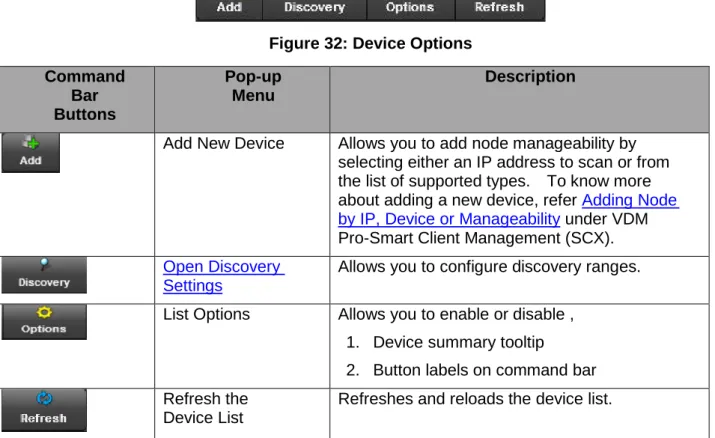
Figure 32: Device Options Command Bar Buttons Pop-up Menu Description
Add New Device Allows you to add node manageability by selecting either an IP address to scan or from the list of supported types. To know more about adding a new device, refer Adding Node by IP, Device or Manageability under VDM Pro-Smart Client Management (SCX).
Open Discovery Settings
Allows you to configure discovery ranges.
List Options Allows you to enable or disable , 1. Device summary tooltip
2. Button labels on command bar Refresh the
Device List
Refreshes and reloads the device list.
Messaging Console Options
Messaging Console allows the user to control messaging actions. For information on how to use the options in messaging console, refer “Messaging Actions”.
46
Category Summaries
The Category Summaries shows a statistical breakdown of the nodes inside each category, including the total number of detected nodes, and the health status of the nodes.
The health status of the device is displayed in the following table.
Health Icon
Health Status Description
Good Device’s overall health status is in good state. Warning Device’s overall health status is in warning state. Critical Device’s overall health status is in critical state. Non- Recoverable Device’s overall health status is in non-recovery state. Status Pending Device’s overall health status is in unknown state. Offline Device is offline.
Update Device is undergoing upgrade process.
Click Select this Category from any one of nodes in the Category Summaries window, a Node List
window appears as shown in the screenshot below.
The Node List window is highlighted in red, whereas the Node Manageability window is highlighted in green.
Figure 33: Node List
From the Node List window, the user can check the health status of the devices. In addition, a tooltip appears where the user can view the status of the health icon by placing the cursor on an icon.
47
IP Management Group
The IP Management group shows all the detected IP addresses and their detected protocols. Click IP Management grid, a Discovered IP List window appears as shown in the screenshot below.
Figure 34: IP Management
Figure 35: Discovered IP list
The Discovered IP List shows the list of all discovered IPs with their supported manageability and authentication status. The list will be filled with new entries as they are discovered.
48
Use the controls below to launch Discovery settings, Authentication Manager, or change the Ignored status of an IP.
Button Options Description
Allows the user to dispatch Wake-On-LAN command for the selected IPs.
Adds an IP address to allow the server to discover the associated devices.
Allows the user to set ignore state for the selected IPs. Allows the user to undo the ignore state for the selected IPs. IP Address Indicates the list of available IP addresses.
Protocols such as AMT, Windows OS
Indicates the detected protocols such as AMT, Windows OS, and Linux OS that are currently installed.
Manageability Status
Indicates the current manageability status of the IP. For a device to be considered managed, at least one protocol must authenticate successfully. If any IPs are ignored, their status will be reflected here as well.
The manageability status of the detected IPs is displayed on the left-hand bottom side of the page.
Button Options Description
Indicates the devices that support at least a single manageability. Indicates the devices that cannot authenticate or support any protocol.
Indicates the devices that are ignored. Indicates the devices that are not licensed.
49
Chapter 9
About VDM Pro
View VDM Pro Information
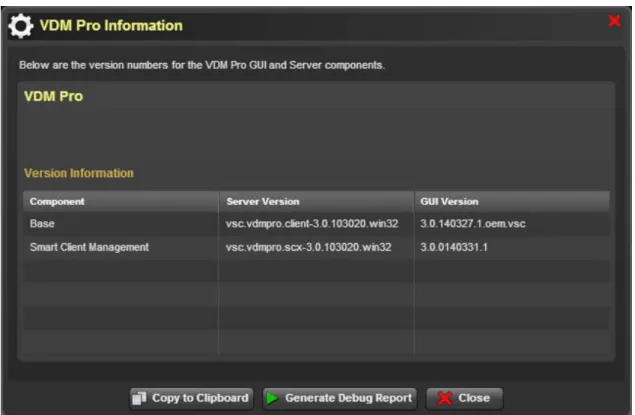
In About VDM Pro, details about the version information of VDM Pro GUI and Server components are provided.
Click About>VDM Pro Information. A screenshot is shown below.
Figure 36: VDM Pro Information
50
Generate Debug Report
To generate Debug report, click Generate Debug Report. This opens a Generate Debug Report
dialog as shown in the screenshot below.
Figure 37: Generate Debug Report
Select the required options from the dialog and click Generate Report to Clipboard to generate the debug report to a clipboard.
51
Chapter 10
Smart Client Management (SCX)
Introduction
Smart Client Management (SCX) is a thin client management extension for VDM Pro that provides aggregated management of thin client devices equipped with VDM Pro thin client agents. SCX will provide remote manageability of the system.
Following are the major features that are provided by SCX, in multiple phases:
• System Information - Provides hardware information of thin client device.
• Quick Connection- Provides basic connection setting for Citrix HDX, Microsoft RemoteFX, and VMware.
• Client Setting – Provides advanced thin client device setting such as, connection, appearance, IP and keyboard.
• Password Setting- Provides password setting for administrator for the thin client device.
• Power Control - Allows the user to control power of the managed client.
• VNC Connector - KVM Viewer helps the users (mainly IT administrators) to remotely view or manage a single thin client device.
• Send Message
• Remote FW Update - Users can update Firmware from remote for the selected client systems.
• Group management - Divides devices into various groups for different connection and general settings.
If the user needs to manage the managed device through SCX, then VDM Pro thin client agent should be enabled in the managed device.
Hardware Requirement
• Required in Managed Clients for being managed by SCX –
52
System Requirement for Installing SCX
Minimum system requirements for the installing SCX are:
• System Processor - 2.0 GHz and above
• System Memory - Minimum 4 GB RAM
• Free Disk Space - 10GB (May need more disk space depending on the nodes managed and the amount of history information needed)
Supported Operating Systems for Installing SCX
• Windows 2003
• Windows 2008
• Windows Vista
• Windows 7
• Windows 8
Security
SCX provides a secured way to manage the servers and other components in a data center or enterprise.
• HTTPS is used to secure the web interface
• ViewSonic propriety protocol is used to secure agent interface
• MD5-CHAP will be used for a secured authentication
Compatibility
The web interface of SCX is compatible with the following browsers:
• IE 6.0 and later
53
Chapter 11
Smart Client Management Configuration
Smart Client Management facilitates the user with options for configuring an application for various features according to the user needs and identifying the attributes of the product to meet the purpose of an end user. This helps the user to use an application easily and effectively.
Various feature configurations are as follows:
• Adding Single Device
• Managing Groups
• Managing Firmware
• Managing Connection Policies
• Managing Client Policies
• Configuring Connection Settings
• Configuring Client Settings
• Configuring Password Settings
Viewing Smart Client Management Page
To view Smart Client Management page, follow the steps given below:
1. After logging into VDM Pro, click VDM Pro from the left-hand side of the Node Management
page as shown in the subsequent screenshot.
54
2. This opens a Node Manageability window, as shown in the subsequent screenshot. Select the required device(s) from the Node List and click Manage Smart Client from the Manageability Types in selected Nodes grid.
Figure 39: Node Manageability
3. This opens Smart Client device window, as shown in the screenshot below.
55
Group Management
SCX allows the user to divide devices into various groups for different connections and general settings. The user can create a new group, edit an existing group, or delete a group. Follow the steps given below to manage groups.
1. Click Plugins > Smart Client Management > Group Management. A Group Management dialog is displayed as shown in the subsequent screenshot.
Figure 41: Group Management
2. Click Create to add a group. This opens an Add Group dialog as shown in the subsequent screenshot.
Figure 42: Add Group
3. In Add Group dialog, under Step 1, enter the group name and description in the Group Name
56
4. In Step 2, select the required devices from the device list.
5. Select the type of device that needs to be listed from Any option Enter the device details in search bar and click Filter.
6. Click OK to save the entered details.
7. In the Group Management Page, the included devices will be displayed in the Included Devices list.
8. In the device list and click Edit to edit a selected group. An Add Group dialog is displayed as shown in the above screenshot.
9. Follow the steps mentioned above in order to edit a group.
10. In the Group Management Page, select a required group and click Delete to delete a group.
Firmware Manager
Administrators have a need to update Firmware in a thin client that they manage, when a new
Firmware is available. Doing this operation on all managed systems without any automation or remote capabilities is a difficult task. SCX simplifies this by providing options to remotely update Firmware of multiple client systems. SCX allows the user to upload a new firmware and manage firmware. Follow the steps given below to manage Firmware.
Uploading Firmware
1. Click Plugins > Smart Client Management > Firmware Manager > Firmware Upload. A Firmware Management dialog is displayed as shown in the subsequent screen.
57
2. Click Create to create a new firmware. A Firmware Upload dialog is displayed as shown in the subsequent screenshot.
Figure 44: Firmware Upload
3. Enter the firmware descriptions in the Firmware Name and Description text fields. 4. Click Upload to select a firmware from the local machine and upload a firmware. 5. Click Save to upload a firmware successfully.
6. In the Firmware Management dialog, select a required firmware and click Edit to edit a selected firmware’s details. An Edit Firmware Information dialog is displayed as shown in the subsequent screenshot.
Figure 45: Edit Firmware Information
7. Enter the required firmware details in the Firmware Name and Description text fields. 8. Click Save to save the entered details.
9. In the Firmware Management dialog, select a required firmware and click Delete to delete a firmware.
58
Deploying Firmware
1. Click Plugins > Smart Client Management > Firmware Manager > Firmware Update. A Firmware Update dialog is displayed as shown in the subsequent screen.
Figure 46: Firmware Update
2. In the Firmware Update dialog, select Upload new firmware image to display option. 3. Enter the firmware descriptions in Firmware Name and Description text fields. 4. Select Upload in order to select and upload a new firmware image.
5. Choose Select exist firmware image to update. This action enables the Step 1 Set Firmware Image options as shown in the subsequent screenshot. When you select “Normal”, all the “normal packages” will be shown on the list; when you select “Force Only”, only “force packages” will be presented.
59
6. Click Next to move to the Choose the device step as shown in the subsequent screenshot.
Figure 48: Firmware Update - Choose the devices
7. In the Choose the device step, click By Filter tab. Select the required devices and click Add to Update List. The selected devices will be added to Update List.
8. Click the select devices from the Update List and click Remove All to remove the selected devices from the Update List.
9. In the Choose the device step, click By Group tab as shown in the subsequent screenshot.
60
10. Select the required group name from the Group List and select the required group devices. Click
Add to Update List in order to add the selected devices to the Update List.
11. In order to create a group, click Create New group. Click Create to add a group. This opens an
Add Group dialog as shown in the subsequent screenshot.
Figure 50: Add Group
12. In Add Group dialog, under Step 1, enter the group name and description in the Group Name
and Description text fields, respectively.
13. In Step 2, select the required devices from the device list.
14. Select the type of device that needs to be listed from Any option Enter the device details in search bar and click Filter.
15. Click OK to save the entered details.
61
Figure 51: Schedule
17. Select Start Firmware update immediately in order to start the firmware update immediately. 18. Choose Select the date and time for schedule in order to select a particular date and time for
the schedule to start.
19. Click Done in order to start the update process.
Retrieving Firmware Update History
1. Click Plugins > Smart Client Management > Firmware Manager > Firmware History. A Firmware Update History dialog is displayed as shown in the subsequent screen.
62
2. Click Retrieve All to retrieve all archived events from firmware update. The Firmware Update History dialog displays all the events from firmware update.
Quick Connection Policy Manager
Smart Client Management provides connection settings for HDX, RemoteFX and VMware. These connection settings include domain, user name, password, and server IP address. SCX allows the user to manage connection policies and deploy connections.
Follow the steps given below to manage connection policies.
Quick Connection Policy List
1. Click Plugins >Smart Client Management > Quick Connection Policy Manager > Quick Connection Policy List. A Widget Policy Management dialog is a displayed as shown in the subsequent
screenshot.
Figure 53: Widget Policy Management
2. In Widget Policy Management dialog, click New. A Save to Policy dialog is displayed as shown in the subsequent screenshot.
63
3. Enter the required policy name and description in the Policy Name and Description, respectively. 4. Enter the required system details in the System option.
5. Select the required widgets in the Widget option. 6. Click Save to save the changes done.
Quick Connection Deployment
1. Click Plugins >Smart Client Management > Quick Connection Policy Manager > Quick Connection Deployment. A Quick Connection Deployment dialog is a displayed as shown in the subsequent screenshot.
Figure 55: Quick Connection Deployment
2. Under Step 1 Set Quick Connection Setting, select Create New Policy and enter the policy name and details in the Policy Name and Description text fields, respectively.
3. Enter the system details in the System option. 4. Select the required widgets from the Widget option.
5. Click Next to move to Step 2 Choose the Device as shown in the subsequent screenshot.
64
6. In Choose the devices step, click By Filter tab. Select the required devices and click Add To Update List option in order to add the devices to update list.
7. Select the required devices from the Update List and click Remove All to remove the devices from the Update List.
8. In Choose the devices step, click By Group tab as shown in the subsequent screenshot.
Figure 57: Choose the devices - By Group
9. In order to create a group, click Create New group. Click Create to add a group. This opens an
Add Group dialog as shown in the subsequent screenshot.
Figure 58: Add Group
10. In Add Group dialog, under Step 1, enter the group name and description in the Group Name
and Description text fields, respectively.
65
12. Select the type of device that needs to be listed from Any option Enter the device details in search bar and click Filter.
13. Click OK to save the entered details.
14. In the Choose the devices step, select the required devices from the group devices list and click
Add to Update List. The selected devices will be added to the Update List. 15. Click Next to move to the Step 3 Schedule as shown in subsequent screenshot.
Figure 59: Connection Deployment - Set Schedule
16. Select Start Firmware update immediately in order to start the firmware update immediately. 17. Choose Select the date and time for schedule in order to select a particular date and time for
the schedule to start.
18. Click Done in order to start the update process.
Quick Connection Setting History
1. Click Plugins > Smart Client Management > Quick Connection Policy Manager > Quick
Connection Setting History. A Quick Connection Setting History dialog is displayed as shown in the subsequent screen.