Windows Server 2008 R2
Licensing Guide
Your Comprehensive Resource for
Licensing and Pricing
Table of Contents
Summary 3
Table of Windows Server 2008 R2 Core Product Offerings 3
License Terms – Windows Server 2008 R2 Product Line Updates 4
Edition Comparison by Server Role 5
New and Updated Features in Windows Server 2008 R2 6
General Windows Server Licensing Construct 7
Windows Server 2008 R2 Foundation 8
Windows Server 2008 R2 Standard 9
Windows Server 2008 R2 Enterprise 11
Windows Server 2008 R2 Datacenter 13
Windows Server 2008 R2 for Itanium-Based Systems 14
Windows Web Server 2008 R2 16
Windows HPC Server 2008 17
Windows Server 2008 Client Access Licensing:
Decision Trees, Types, and Modes 18
Windows Server 2008/Terminal Services 2008/Remote Desktop
Services 2008 External Connector License Requirements 22
Remote Desktop Services Licensing Requirements 24
Virtual Desktop Infrastructure Suites 26
Licensing Scenarios 29
Upgrade/Downgrade Options 32
Pricing Tables and SKUs 35
License Tracking Best Practices 36
Below is an overview of the Windows Server® 2008 R2 core product offerings,
indicating product names, available sales channels, licensing models, and number of running instances allowed per license in physical and virtual operating system environments (POSEs and VOSEs)
Table of Windows Server 2008 R2 Core Product Offerings
License Channels License models in POSEs and VOSEsRunning instances
Windows Server 2008 R2
Foundation OEM (Direct OEM) Server License 1, in POSE only
Windows Server 2008 R2
Standard Retail, OEM, VL, SPLA VL and OEM: Server + CALSPLA: Processor or SAL 1 + 1 Windows Server 2008 R2
Enterprise Retail, OEM, VL, SPLA VL and OEM: Server + CALSPLA: Processor or SAL 1 + 4 Windows Server 2008 R2
Datacenter OEM, VL Processor + CAL 1 + unlimited
Windows Server 2008 R2
for Itanium-Based Systems OEM, VL Processor + CAL 1 + unlimited
Windows Web Server
2008 R2 Retail, OEM, VL, SPLA Server License 1 or 1
Windows HPC Server 2008 OEM, VL,
SPLA Server License 1 + 1
Windows Server 2008
Client Access License (CAL) Retail, OEM, VL, SPLA VL and OEM: CALSPLA: Windows Standard or Enterprise SAL
N/A Windows Server 2008
Remote Desktop Services (RDS) CAL
Retail, OEM, VL, SPLA, ISVR
VL, OEM, ISVR: RDS CAL
SPLA: RDS SAL N/A
Windows Server 2008 Rights Management Services (RMS) CAL
VL, SPLA VL: RMS CAL
SPLA: RMS SAL N/A
Windows Server 2008
External Connector VL Server License N/A
Windows Server 2008 RDS
External Connector VL Server License N/A
Windows Server 2008 RMS
External Connector VL Server License N/A
Licensing of Windows Server 2008 R2 remains generally consistent with Windows Server 2008 licensing, with a few highlights:
License Terms – Windows Server 2008 R2 Product Line Updates
Products Change Explanation
CAL for Windows
Server 2008 R2 No Windows Server 2008 R2 CALs were created and they are not required to access a server running Windows Server 2008 or Windows Server 2008 R2 Windows Server 2008 CALs can be used to access either Windows Server 2008 or Windows Server 2008 R2 servers
Want to further enable use and access of Windows Server 2008 R2
Windows Server 2008 without Hyper–V™ editions
Removal of Windows Server 2008 R2 Standard, Windows Server 2008 R2 Enterprise, and Windows Server 2008 R2 Datacenter without Hyper-V editions
Simplification of the product line, price list, and product ordering for customers and partners CAL requirement
when using Windows Server 2008 to host virtual machines
When Windows Server 2008 is only running the Hyper-V role, the requirement to upgrade to Windows 2008 CALs is not initiated The CAL upgrade requirement will be initiated if any additional server roles are running on the server
This change puts Windows Server 2008 on a level playing field with the Microsoft Hyper-V Server 2008 R2 and other hypervisors which are able to manage virtual machines without requiring a customer to upgrade to Windows Server 2008 CALs Remote Desktop
Services The latest version of the Terminal Services (TS) CAL is being renamed to Remote Desktop Services (RDS CAL) With the new and updated Remote Desktop Services and features of Windows Server 2008 R2, new Windows Server 2008 RDS CALs and Windows Server 2008 RDS External Connector licenses are being created Both Windows Server 2008 TS CALs and the new RDS CALs can be used to access Windows Server 2008 R2 Pricing for RDS CALs has increased by approximately 5 percent
Terminal Services now has additional features for providing a centralized desktop delivery architecture that enables desktop environments to run and be managed on virtual machines from one centralized server To reflect these broader capabilities, the Terminal Services role has been renamed to Remote Desktop Services (RDS)
Windows Server 2008 R2 Foundation
A new OEM-only product that targets small businesses with fewer than 15 users and that purchase low-priced servers with one processor (1P)
The low cost 1P hardware market is growing rapidly for our OEM partners, and they were not able to sell traditional Windows Server products to this segment of customers
Virtual Desktop Infrastructure (VDI) License Suites
Two new licensing suites combine the necessary Microsoft products for an optimum VDI user experience in a value package
VDI suites enable customers to purchase all the components needed to create their virtual desktop infrastructure with a single easy-to-order set of offerings
Edition Comparison by Server Role
Server Role
Foundation Standar
d
Ent
erpr
ise
Datacent
er
Itanium Web
Web Services (IIS)
Application Server
Print and Document Services
Hyper-V
Active Directory Domain Services
Active Directory Lightweight Directory Services
Active Directory Rights Management Services
DHCP Server
DNS Server
Fax Server
UDDI Services
Windows Deployment Services
Active Directory Certificate Services 1 1
File Services 2 2
Network Policy and Access Services 5 3
Remote Desktop Services 6 4
Active Directory Federation Services
Windows Server Update Services (WSUS)
- Full - Partial/Limited - Not Available1 Limited to creating Certificate Authorities – no other ADCS features (NDES, Online Responder Service). See ADCS role documentation on TechNet for more information
2 Limited to 1 standalone DFS root
3 Limited to 250 RRAS connections, 50 IAS connections, and 2 IAS Server Groups 4 Limited to 250 Remote Desktop Services connections
5 Limited to 50 RRAS connections, 10 IAS connections 6 Limited to 50 Remote Desktop Services connections
New and Updated Features in Windows Server 2008 R2
New/Updated Feature Foundation Standar d Ent erpr ise Datacent erItanium Web
License Requirements
Hyper-V Covered by server license No incremental licensing
requirements Internet
Information
Services 7 5
Covered by server license No incremental licensing requirements
Network Access
Protection
Covered by server license No incremental licensing requirements
AD Rights Management
Services
Covered by server license, but incremental RMS CALs required, similar to Remote Desktop Services
Remote Desktop
Services
Covered by server license, but incremental RDS CALs required, similar to AD Rights Management Services
Server Manager Covered by server license No incremental licensing
requirements Windows
Deployment
Services
Covered by server license No incremental licensing requirements
Server Core Covered by server license No incremental licensing
requirements Windows
PowerShell™
Covered by server license No incremental licensing requirements
BranchCache™
Content Server
Covered by server license No incremental licensing requirements
BranchCache
Hosted Server
Covered by server license No incremental licensing requirements
DirectAccess Covered by server license No incremental licensing
requirements
General Windows Server Licensing Construct
Microsoft offers flexible, cost-effective options for licensing the Windows Server 2008 and Windows Server 2008 R2 family of products Prior to running an instance of Windows Server software (loading it into memory and executing one or more of its instructions) customers must assign a Windows Server license to a physical server Assignment/reassignment rules for original equipment manufacturer (OEM) licenses are different from Volume Licensing and retail license rights With a license
purchased with a server from an OEM, the Windows Server license is already assigned to that specific server, and lives and dies with that server. The OEM end customer is not allowed to reassign that OEM license to another server
Windows Server is primarily licensed using a Server + CAL model or a Processor + CAL model Windows Server Standard and Enterprise editions are licensed using the Server + CAL model, while Windows Server Datacenter and Windows Server for Itanium-Based Systems editions are licensed using the Processor + CAL model Under both models, the CAL that accesses the instance of Windows Server must be equivalent or higher in version than the server being accessed An exception to this rule was introduced with Windows Server 2008 and continued with Windows Server 2008 R2 Under that exception, customers must still license the appropriate CAL version to access the version of the server software running in each virtual operating system environment, but they are not required to upgrade their CALs based on the version of Windows Server that is running in the physical operating system environment In this scenario, the Hyper-V server role must be the only role running in the physical operating system environment
A Windows Server 2008 Client Access License (CAL) must be purchased for every user or device that accesses or uses the Windows Server 2008 or Windows Server 2008 R2 server software, except under the following circumstances:
• If the instances of the server software are accessed only through the Internet, without access being authenticated or otherwise individually identified by the server software or through any other means
• If the server software being accessed is Windows Web Server 2008, Windows Web Server 2008 R2, Windows Server 2008 Foundation, or Windows Server 2008 R2 Foundation
• If external users are accessing the instances of the server software and a Windows Server 2008 External Connector license for each server being accessed has been acquired
• If up to two devices or users are accessing the instances of the server software for the purpose of administering those instances
• If Windows Server 2008 R2 serves solely as a virtualization host (CALs for the appropriate edition of Windows Server running in the virtual machine(s) are still required)
Windows Server 2008 R2 Foundation
Windows Server 2008 R2 Foundation is available through OEMs only on select single-processor servers For details on exact server models, please contact the server manufacturer
Windows Server 2008 R2 Foundation is licensed by server Each license of Windows Server 2008 R2 Foundation is limited to a maximum of 15 user accounts Moreover, a user account can be assigned to only one distinct user at a time
Because Windows Server 2008 R2 Foundation is licensed in this way, Windows Server CALs are not required Although Windows Server 2008 R2 Foundation does not require Windows Server CALs, RDS CALs or RMS CALs are required to use those server roles on a Windows Server 2008 R2 Foundation–based server
Windows Server Foundation:
If Running Apps in Virtual OSE (VOSE)
Windows Server
Hypervisor Server Hardware
Application Software Application Software Windows Server If Running Apps in Physical OSE
(POSE)
Application Software Windows Server
Hypervisor Server Hardware
Windows Server 2008 R2 Standard
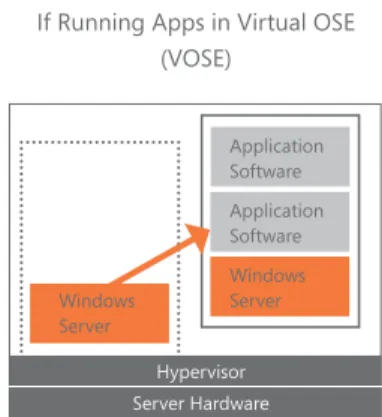
A customer licensed with Windows Server 2008 R2 Standard may run one instance of the server software in the physical operating system environment (POSE) and one instance of the server software in a virtual operating system environment (VOSE) If the customer is running the instance in the VOSE, the instance running in the POSE can only be used to manage the instance of the operating system running in the VOSE
The orange arrow in the diagram indicates that when running both instances, the instance of the server software running in the POSE may only be used to manage and service the instance of the operating system running in the VOSE
Diagram A: Running Instances of Windows Server 2008 R2 Standard
Use Right: 1 Physical and 1 Virtual OSE
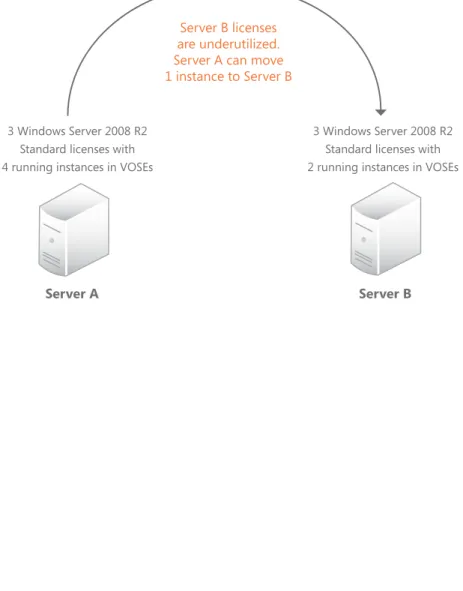
Server B licenses are underutilized Server A can move 1 instance to Server B
Server A Server B
3 Windows Server 2008 R2 Standard licenses with 4 running instances in VOSEs
3 Windows Server 2008 R2 Standard licenses with 2 running instances in VOSEs Diagram B indicates that with Windows Server 2008 R2 Standard, customers may move a virtual instance of the server software to another server that is properly licensed to support the added instance For Volume Licensing customers, the actual license may also be reassigned to another server every 90 days
Diagram B: Moving virtual instances of Windows Server 2008 R2 Standard
Windows Server Standard:
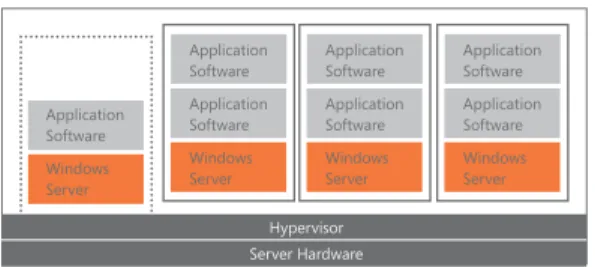
A customer licensed with Windows Server 2008 R2 Enterprise may run one instance of the server software in the POSE and up to four instances of the server software in the VOSE If the customer is running four instances in the VOSE, the instance running in the POSE can only be used to manage the four instances of the operating system running in the VOSE
The diagram below illustrates this license The orange arrow indicates that when running all five instances, the instance of the server software running in the POSE may only be used to manage and service the instances of the operating system running in the VOSE
Diagram C: Running instances of Windows Server 2008 R2 Enterprise
Use Right: 1 Physical and 4 Virtual OSEs
(orange arrow indicates that POSE may only be used to manage/service VOSE)
Windows Server 2008 R2 Enterprise
If Running Apps in 3 Virtual OSEs
If Running Apps Using all 4 Virtual OSEs
Application Software Windows Server Hypervisor Server Hardware Application Software Application Software Windows Server Application Software Application Software Windows Server Application Software Application Software Windows Server Application Software Application Software Windows Server Application Software Application Software Windows Server Application Software Application Software Windows Server Application Software Application Software Windows Server Windows Server Hypervisor Server Hardware
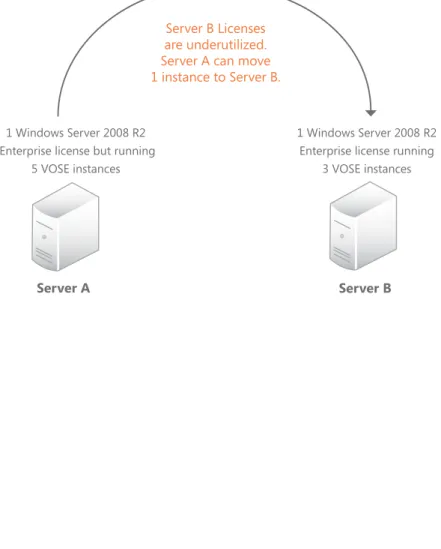
The diagram below indicates that with Windows Server 2008 R2 Enterprise, customers may move a virtual instance of the server software to another server that is properly licensed to support an added instance For Volume Licensing customers, the actual license may also be reassigned to another server every 90 days
Diagram D: Moving virtual instances of Windows Server 2008 R2 Enterprise
Server A has 1 license running 5 virtual instances. Server B has 1 license running only 3 virtual instances.
Server A Server B
1 Windows Server 2008 R2 Enterprise license but running
5 VOSE instances
1 Windows Server 2008 R2 Enterprise license running
3 VOSE instances
Server B Licenses are underutilized Server A can move 1 instance to Server B
Windows Server Enterprise:
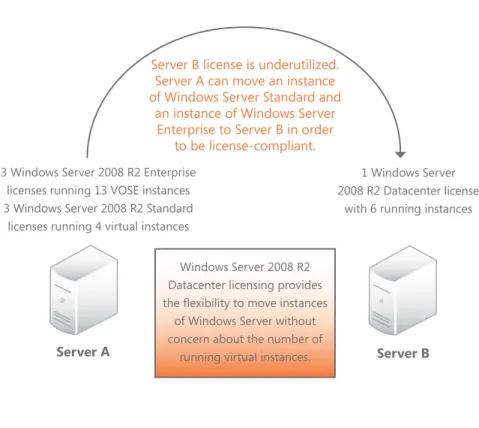
A customer licensed with Windows Server 2008 R2 Datacenter may run one instance of the server software in the POSE and an unlimited number of instances of the server software in the VOSE For Volume Licensing customers, the actual license may also be reassigned to another server every 90 days
Diagram E: Moving virtual instances of Windows Server 2008 R2 to a server running Windows Server 2008 R2 Datacenter
Server A has 3 Enterprise licenses running 13 virtual instances, and 3 Standard licenses running 4 virtual instances. Server B has 1 Windows Server 2008 R2 Datacenter license
only running 6 virtual instances.
Windows Server 2008 R2 Datacenter
Server A Server B
3 Windows Server 2008 R2 Enterprise licenses running 13 VOSE instances 3 Windows Server 2008 R2 Standard
licenses running 4 virtual instances
1 Windows Server 2008 R2 Datacenter license
with 6 running instances
Windows Server 2008 R2 Datacenter licensing provides the flexibility to move instances
of Windows Server without concern about the number of
running virtual instances
Server B license is underutilized Server A can move an instance of Windows Server Standard and
an instance of Windows Server Enterprise to Server B in order
to be license-compliant
Windows Server Datacenter:
Similar to Windows Server 2008 R2 Datacenter, a customer licensed with Windows Server 2008 R2 for Itanium-Based Systems may run one instance of the server software in the POSE and an unlimited number of instances of the server software in the VOSE For Volume Licensing customers, the actual license may also be reassigned to another server every 90 days
Unlike Windows Server 2008 R2 Standard and Enterprise that are licensed by a server plus CAL model, Windows Server 2008 R2 Datacenter and Windows Server 2008 R2 for Itanium-Based Systems are licensed per physical processor (number of processors in the server) plus CAL model
Windows Server 2008 R2 for Itanium-Based Systems is targeted at customers using the Itanium platform and designed for specific workloads. It is designed to be the leading alternative platform for RISC-based UNIX servers, and is intended for scale-up database workloads, custom applications, and line-of-business applications This workload focus is consistent with the majority of current deployments of Windows Server on Itanium Please note that Windows Server 2008 R2 for Itanium-Based Systems does not interoperate with Microsoft Virtual Server, nor does it include or support Microsoft Hyper-V hypervisor technology To virtualize software on Windows Server 2008 R2 for Itanium-Based Systems, customers may use third-party hypervisor technology
With Windows Server 2008 R2 for Itanium-Based Systems, you may run one instance of the server software in the POSE and any number of instances of the server software in VOSEs Unlike in Windows Server 2008 R2 Standard and Enterprise, there is no restriction that the instance of the server software running in the POSE may only be used to manage and service the
operating system environments on the server However, each processor on the partition on which the instances of the server software are running must be licensed Just as with Windows Server 2008 R2 Datacenter (as illustrated in Diagram E on the previous page), you may move as many virtual instances of Windows Server software to a server running Windows Server 2008 R2 for Itanium-Based Systems and not have to be concerned about the number of running virtual instances
Note, when customers are running virtualized instances of the server software, they must be using some form of virtualization or hypervisor technology, such as Microsoft Virtual Server software, Microsoft Hyper-V Technology, or a third-party virtualization software
Windows Server 2008 R2 for
Itanium-Based Systems
Windows Server 2008 R2 for Itanium-Based Systems FAQs
Q: How is Windows Server 2008 R2 for Itanium-Based Systems licensed and priced?
A: Windows Server 2008 R2 for Itanium-Based Systems is licensed and priced the same as Windows Server 2008 R2 Datacenter; Processor plus CAL licensing model applies, and the same price applies as Windows Server 2008 R2 Datacenter
Q What are the specific workloads intended for Windows Server 2008 R2 for Itanium-Based Systems?
A: Windows Server 2008 R2 for Itanium-Based Systems is enabled for mission-critical solutions for large databases, line-of-business applications, and custom applications
Q: Do I have virtualization rights with Windows Server 2008 R2 for Itanium-Based Systems?
A: Yes, with Windows Server 2008 R2 for Itanium-Based Systems, you have the same virtualization rights as Windows Server 2008 R2 Datacenter Although the virtualization role is not part of this edition, you can use Windows Server 2008 R2 for Itanium-Based Systems with a third-party hypervisor to perform virtualization
Q: Where can I acquire licenses of Windows Server 2008 R2 for Itanium-Based Systems?
A: Windows Server 2008 R2 for Itanium-Based Systems can be purchased through Volume Licensing directly from Microsoft or from OEMs preinstalled on servers The Datacenter High Availability Program is only available through OEMs
Windows Server for Itanium Based Systems:
Windows Web Server 2008 R2 is licensed to a server in the POSE It can also run as a guest in the VOSE
Windows Web Server 2008 R2 is specifically designed to be used as a single-purpose Web server It is intended only for Internet-accessible, Web serving of Web pages, Web sites, and Web applications Unlike the other core Windows Server 2008 R2 products described above, Windows Web Server 2008 R2 is licensed by a server license only; no CALs are required Exceptions to this no-CAL rule may occur when Windows Web Server 2008 R2 is used as a scale-out front end for applications In such configurations, Windows Server CALs may still be required on the back end of a scale-out application For Volume Licensing customers, the actual license may also be reassigned to another server every 90 days
Windows Web Server 2008 R2 FAQs
Q Can I use the Web Server as a file server or an application server?
A No Windows Web Server 2008 R2 can be used solely to deploy Internet-facing Web pages, Web sites, Web applications, Web services, and POP3 mail serving
Q: With Windows Web Server 2008 R2, am I restricted to only running non-enterprise level database application software with the server software?
A: No With Windows Web Server 2008 R2, you may run any level of enterprise/ non-enterprise database application software with the server software
Q: Can database software running on Web Server 2008 R2 support external applications running on other servers?
A: No, with Web Server 2008 R2, the database software may only support applications that are running on the same local instance of Web Server 2008 R2
Windows Web Server 2008 R2
Windows Web Server:
Windows HPC Server 2008 is the successor to Windows Compute Cluster Server 2003 and comprises two components: Windows Server 2008 HPC Edition and Microsoft HPC Pack 2008 Both components can be licensed separately or combined as Windows HPC Server 2008
• Windows Server 2008 HPC Edition is the successor to Windows Compute Cluster Server 2003 This is a 64-bit Windows Server operating system provided for the purpose of running clustered high-performance computing (HPC) applications Clustered HPC applications solve complex computational problems or a set of closely related computational problems in parallel, typically using several servers as a group, or cluster
• Microsoft HPC Pack 2008 is the successor to the Microsoft Compute Cluster Pack It provides additional software for job scheduling, management, and high-speed networking
Windows HPC Server 2008 is licensed per server via OEM and volume licensing channels and is available through Service Provider License Agreement (SPLA) Windows Server 2008 HPC Edition follows a licensing model similar to Windows Server 2008 R2 Standard and allows for running one instance of the server software in a POSE plus one instance in a VOSE on a licensed server If both instances are running at the same time, the instance in the POSE is limited It can only be used to (1) run hardware virtualization software, (2) provide hardware virtualization services, or (3) run software to manage and service operating system environments on the licensed server For Volume Licensing customers, the actual license may also be reassigned to another server every 90 days
Windows HPC Server 2008
HPC Server:
Windows Server 2008 Client Access
Licensing: Decision Trees, Types, and Modes
Client Access Licensing: Decision Trees
Windows Server CAL or External Connector License Decision Tree Is device or user accessing
or using Windows Server?
Is access through the Internet and user/device anonymous?
No Each user/device
requires a CAL
Yes
You can either purchase an External Connector for each server, or CALs for each user/device depending upon the economics of the situation
No Yes
No, to one or both conditions
Yes, to both conditions Is server software
Windows Web Server 2008 R2?
Is an external user accessing the server?
No Yes
No CAL required
No CAL required
Client Access Licensing: Types and Modes
CAL Types
Device CAL User CAL
Acquire an access license for every device (used by any user) accessing your servers
Acquire an access license for every named user accessing your servers (from any device)
Makes the most economical and administrative sense for an organization with multiple users for one device, such as shift workers
Makes the most economical and administrative sense for an organization with many roaming employees who need access to the corporate network from unknown devices, and/or employees who access the network via multiple devices (that is, if the number of users is less than the number of devices, then this is the more economical choice) CAL Licensing Mode
Per User or Per Device Mode Per Server Mode
The number of Windows CALs required equals the number of users or devices accessing the server software (the number of servers accessed does not matter)
The number of Windows CALs required equals the maximum number of users or devices that may simultaneously access or use the server software running on a particular server The Windows CALs you acquire are designated for use exclusively with a particular server
RDS CAL or Remote Desktop Services External Connector (RDS-EC) License Decision Tree
Is the device or user accessing or using Remote Desktop Services?
No additional RDS CAL license required
Is an external user accessing the server?
Require each user to have an RDS CAL in addition to
Windows Server CAL
Remote Desktop Services External Connector can be acquired for each
Windows server being accessed for use of Remote Desktop Services
No Yes
No Yes
Windows Server CALs:
CAL FAQs
Q: Can I use a Windows Server 2008 CAL to access a license for Windows Server 2008 R2?
A: Yes, a Windows Server 2008 CAL can be used to access Windows Server 2008 R2
Q: Can I use my Windows Server 2003 CALs to access Windows Server 2008 R2 software?
A: No You must either purchase new Windows Server 2008 CALs or have Software Assurance (to upgrade your CALs) to access instances of Windows Server 2008 R2 Your Windows Server 2003 CALs may continue accessing instances of Windows Server 2003 software
Q: If a user or device accesses a server running Windows Server 2008 R2 but is authenticating via a third-party authentication application (non-Microsoft based authentication), does the user or device still require a Windows Server 2008 CAL?
A: Yes, if the user or device is authenticating by any means to a server running Windows Server 2008 R2, it requires a Windows Server 2008 CAL
Q: If a user is only infrequently accessing certain protocols or services of the server software (such as Network Access Protection or Dynamic Host Configuration Protocol), is a Windows Server CAL still required?
A: Yes, a Windows Server CAL is still required for such infrequent use of the server software
Q: Can I use a Windows Device CAL and a Windows User CAL to access the same server? Also, can I use a Remote Desktop Services Device CAL (RDS Device CAL) and a Remote Desktop Services User CAL (RDS User CAL) on the same Remote Desktop Session Host server?
A: Yes Windows Device and User CALs, as well as RDS Device and User CALs, can be used on the same server
Q: Is there a difference in price between Device CALs and User CALs?
A: No Windows Device CALs and Windows User CALs are priced the same, as are RDS Device CALs and RDS User CALs
Q: Are there any differences between the requirements for CALs in Windows Server 2003 versus Windows Server 2008?
A: The only primary difference with Windows Server 2008 CAL requirements is the following: If you deploy Windows Server 2003 virtual machines onto Windows Server 2008 R2, you do not require Windows Server 2008 CALs for your virtual machine users (you will still require CALs for your appropriate Windows Server edition, in this case for Windows Server 2003) This is only true if the Windows Server 2008 R2 in the physical operating system environment is running the Hyper-V server role
Q: My Windows Server 2008 R2 software came with a set number of CALs because I acquired it through a retail store or with a new piece of hardware How do I designate those CALs as being User or Device CALs?
A: When the software comes packaged with CALs, you choose whether those CALs are User or Device CALs after you make the purchase, on the CAL End User License Agreement document
Q: I have some extra Windows Server 2003 CALs that are not being used Can I apply these to servers running Windows Server 2008 R2?
A: No CALs must be the same version (or higher) as the server software they are accessing In other words, users or devices accessing a server running Windows Server 2008 R2 must have Windows Server 2008 CALs
Q: If I move an instance of Windows 2003 to run as a virtual instance on a server with Windows Server 2008 R2 Enterprise running in the physical operating system environment, can I use Windows Server 2003 CALs to access the virtual instance of Windows Server 2003?
A: Yes If you deploy Windows Server 2003 virtual machines onto Windows Server 2008 R2, you do not require Windows Server 2008 CALs for your virtual machine users (you will still require CALs for your appropriate Windows Server edition, in this case for Windows Server 2003) This is only true if the Windows Server 2008 R2 in the physical operating system environment is running the Hyper-V server role
Q: Can I use a Windows 2008 User CAL to access a server running Windows Server 2003?
A: Yes Both Windows Server 2008 User and Device CALs can be used to access instances of Windows Server 2003
Q: I have Software Assurance for my CALs Can I switch between User and Device CALs?
A: Volume Licensing customers may switch from one to the other when they renew their Software Assurance You must designate your CALs as Device or User when you upgrade them
Q: Will I be allowed to switch between Windows Server 2008 Device CALs and User CALs? What about RDS CALs?
A: If your Windows CALs are covered under Software Assurance, you can convert those Windows CALs from Device CALs to User CALs, or vice versa, when you renew your Software Assurance If your Windows CALs are not covered under Software Assurance, you may not switch; your choice is permanent This also applies to RDS CALs
Q: Are CALs required for Windows Web Server 2008 R2?
A: No, Windows Web Server 2008 R2 is licensed by a server license only and no CALs are required However, when Windows Web Server 2008 R2 is used as a scale-out front end for applications running on back-end servers, Windows Server CALs may still be required on these back-end servers running Windows Server
Windows Server 2008/Terminal Services
2008/Remote Desktop Services 2008
External Connector License Requirements
If you would like External Users to access your network (External Users are users who are not employees or onsite contractors), and do not want to purchase individual CALs for each of them, you can acquire a Windows Server 2008 External Connector (EC) license for each Windows server that will be accessed by these External Users Each physical server that external users access requires only one EC license regardless of the number of instances running The right to run instances of the server software is licensed separately; the EC, like the CAL, simply permits access EC licenses, like CALs, are version and functionality specific. They must be the same version or later than the server software being accessed The decision on whether to acquire CALs or an EC for external users is primarily a financial one.Similarly, instead of acquiring individual RDS CALs for valid External Users of Remote Desktop Services functionality, you can acquire a Windows Server 2008 Remote Desktop Services EC license for each terminal server being accessed Note that a Windows Server EC license is a prerequisite for a Remote Desktop Services EC license
Additionally, instead of acquiring individual RMS CALs for valid External Users of RMS functionality, you can acquire a Windows Server 2008 RMS EC license for each server on which RMS functionality is being accessed Note that a Windows Server EC license must always be acquired when an RMS EC license is acquired
Windows Server EC, Remote Desktop Services EC, and RMS EC licenses can be acquired for servers running instances of Windows Server 2008 R2 Standard, Enterprise, Datacenter, and Windows Server 2008 R2 for Itanium-Based Systems The EC licenses are not applicable to Windows Web Server 2008 R2, Windows HPC Server 2008, or Windows Server 2008 R2 Foundation
Downgrade rights are available for the EC, Remote Desktop Services EC, and RMS EC licenses
Note that the acquisition of an EC license does not negate the requirement to acquire a Windows Server license
EC FAQs
Q: For which Windows servers do I acquire EC licenses?
A: External Connector licenses should be acquired for each Windows server that the External User is accessing or using, not just the server to which they are authenticating
Q: Can I acquire a Windows Server 2008 EC license and use it to access a Windows Server 2003 licensed server?
A: Yes, this is permitted, and its use on a Windows Server 2003 licensed server maintains the rights of the EC license
Q: If I purchase an RDS EC for a Remote Desktop, do I also need to purchase a Windows Server EC for the same server? And do I need additional Windows Server ECs for the other Windows Servers that the RDS User is accessing?
A: Yes, a Windows Server EC license must always be acquired when a
Remote Desktop Services EC license is acquired A Windows Server EC must be purchased for every Windows Server that the RDS User is accessing
Remote Desktop Services Licensing
Requirements
Remote Desktop Services (RDS) in Windows Server 2008 R2 (formerly known as Terminal Services (TS) in Windows Server 2008) is a role within Windows Server that enables a customer to run an application or an entire desktop in one location, but have it be controlled from another
In addition to the Windows Server 2008 CAL, a Terminal Services 2008 CAL (TS CAL) or Windows Server 2008 Remote Desktop Services CAL (RDS CAL) will be required to access any application or graphical user interface remotely hosted by Windows Server 2008 R2 This includes, but is not limited to, the use of Remote Desktop Services Application licensing on Remote Desktop Services will vary by application vendor, and customers should check the licensing requirement with each vendor Windows Server 2008 TS CALs are functionally equivalent to RDS CALs and can be used for connecting to Windows Server 2008 R2 Remote Desktop Session Hosts and Remote Desktop Virtualization Hosts A Windows Server 2008 R2 Remote Desktop license server can issue and track both TS CALs and RDS CALs, but a Windows Server 2008 TS Licensing server needs to be running either Service Pack 2 or have
the QFE (hotfix) described in Microsoft Knowledge Base article 968074
(http://support microsoft com/kb/968074) installed to be able to manage RDS CALs As in Windows Server 2003, the Remote Desktop Services feature in Windows Server is intended for remote administration Up to two administrators can connect for administrative purposes without Terminal Services or RDS CALs However, a Terminal Services CAL or RDS CAL is required for any user or users connecting additional administrators beyond the first two.
If the customer has many external users accessing the Remote Desktop Session Host server, the customer has the option to acquire a Windows Server 2008 Remote Desktop Services External Connector license in place of a Per User or Per Device CAL All Remote Desktop Services CALs or External Connector licenses must be the same version or newer than the Windows Server operating system in use
Note: Customers using RDS on Windows Server 2008 R2 need access to a Windows Server 2008 R2 Remote Desktop license server; a Windows Server 2003 TS Remote Desktop license server cannot be used. However, Terminal Services running on Windows Server 2003 can use a Remote Desktop license server running on Windows Server 2008 R2; therefore, if a customer is running both Windows Server 2003 Terminal Services and Windows Server 2008 R2 Remote Desktop Services in their organization, the customer will need to run a Windows Server 2008 R2 Remote Desktop license server.
Note: As with Windows Server 2003 Terminal Services, Per Device licensing is tracked and enforced in the Remote Desktop Session Host server. A customer has 120 days to activate a Remote Desktop license server after installing a Remote Desktop Session Host server (referred to as a grace period). Once a Remote Desktop license server is activated, the customer has an additional 90 days to add TS CALs or RDS CALs to the Remote Desktop license server (referred to as temporary CALs or tokens).
RDS CAL:
Virtual Desktop Infrastructure Suites
Virtual Desktop Infrastructure (VDI) is a centralized desktop delivery solution that enables organizations to store and execute desktop workloads (OS, apps, data) on virtual machines in the datacenter, and presents the UI via a remote desktop proto-col (such as RDP) to user devices With VDI, client operating systems are decoupled from the client devices (such as desktops, laptops, and thin clients), and are run as virtual machines on servers Users are able to interact with these virtual desktops through a remoting protocol such as Microsoft RDP (Remote Desktop Protocol) All execution of desktop workloads happens on the server, while the UI is presented via RDP to the user devices, thereby enabling users to have a rich desktop experience Multiple Microsoft products were needed to deploy VDI As a result, we have created two dedicated suites for VDI and management software to make it easier for our customers to purchase the components needed to deploy VDI at an affordable price: the Microsoft Virtual Desktop Infrastructure Standard Suite (VDI Standard Suite) and the Microsoft Virtual Desktop Infrastructure Premium Suite (VDI Premium Suite) The VDI Premium Suite includes all of the components of the VDI Standard Suite This means that customers interested in the components unique to the VDI Premium Suite do not need to license both the VDI Standard Suite and the VDI Premium Suite The Microsoft VDI suites are subscription licenses and are available in four different versions, all of which include Remote Desktop Services, Microsoft System Center Virtual Machine Manager, System Center Configuration Manager, and System Center Operations Manager Two of the four also include Microsoft Desktop Optimization Pack
VDI Standard Suite Use Rights
The VDI Standard Suite use rights allow customers to partially or fully use the following products: Remote Desktop Services CAL, Microsoft Desktop Optimization Pack, Microsoft System Center Virtual Machine Manager Client Management License, Microsoft System Center Configuration Manager Standard Server Management License, and Microsoft System Center Operations Manager Standard Server Management License
Use Rights of Remote Desktop Services CAL (RDS CAL). In the VDI Standard Suite, the RDS CAL rights are restricted such that the customer may not use the session virtualization capabilities of RDS (formerly known as Terminal Services) in any way; that is, the customer may not access Windows Server software to host a graphical user interface using RDS functionality or any other technology In other words, the VDI Standard Suite does not allow traditional Terminal Services/Remote Desktop Services session-based desktop virtualization where an operating system on a
server is shared by several devices The VDI Standard Suite only allows VDI desktop virtualization where there is a separate virtual machine image of the operating system for each accessing device
Use Rights of System Center Virtual Machine Manager (SCVMM). SCVMM may be used under the VDI Standard Suite to manage, at any one time, up to four virtual Client Operating System Environments (OSEs) that are accessed by a device licensed under a VDI suite The virtual Client OSEs may be on up to four different VDI hosts, however Client OSEs that are running on hosts with mixed desktop and server workloads may not be managed (only Client OSEs on dedicated VDI host server devices may be managed)
Use Rights of System Center Configuration Manager (SCCM) and System Center Operations Manager (SCOM). Under the VDI Standard Suite, SCCM and SCOM use rights are restricted in the following way: The customer may use SCCM and SCOM under the VDI suite license to manage the physical OSE on the VDI hosts, as long as the physical OSE is used solely to run hardware virtualization software, provide hardware virtualization services, and run software to manage and service virtual Client OSEs on the VDI host SCCM and SCOM under the VDI suites do not include in-guest VDI desktop management—the management of a guest operating system running in the virtual machine
Use Rights of the Microsoft Desktop Optimization Pack (MDOP) Under the VDI Standard Suite license, MDOP use rights are equivalent to the use rights of the product outside the suite
VDI Premium Suite Use Rights
The VDI Premium Suite includes all of the components of the VDI Standard Suite listed above, however there are no restrictions to the use rights of the RDS CAL under the Premium VDI Suite—that is, the RDS CAL use rights are equivalent to those of the product outside the suite. Specifically, all of the session virtualization capabilities of RDS are licensed, including Microsoft Application Virtualization for Terminal Services, which is a product now included in the RDS CAL All use rights restrictions that apply to System Center Virtual Machine Manager, System Center Configuration Manager, and System Center Operation Manager under the VDI Standard Suite apply equally to the VDI Premium Suite as well
The diagram below shows the components offered in the VDI Standard Suite and VDI Premium Suite as of October 1, 2009
Virtual Desktop Infrastructure Premium Suite RDS-CAL SCVMM Client Management
License (CML)*
SCCM Std Server Management
License (SML)* SCOM Std SML* MDOP Virtual Desktop Infrastructure Standard Suite
RDS-CAL* SCVMM CML* SCCM Std SML* SCOM Std SML* MDOP *Use rights restricted to Virtual Desktop Infrastructure (VDI) scenario
Management Server Rights
Both VDI suites include the Management Server licenses for System Center Configuration Manager and System Center Operations Manager as long as all the VDI hosts are dedicated VDI Host server devices That is, the VDI hosts can contain only desktop workloads running on the virtual machines
Online Services Components
An online services component called Microsoft Asset Inventory Service (AIS) is included as part of the Microsoft Desktop Optimization Pack for Software Assurance, which is included in both VDI suites The cost of the online service subscription is included in the VDI suite subscription fee; if subscription coverage of the VDI suite lapses, so do the rights to access the AIS online services components For customers, activation of the AIS online service under the VDI suites is handled the same way as AIS activation for MDOP customers outside of the VDI suites
VDI Suites:
Licensing Scenarios
Example 1: Windows Server in Three-Tier Architecture
XYZ, Inc. has a corporate network with a firewall server, an authentication server, a files/print server, and servers running SQL, Exchange, and a custom application. XYZ, Inc also has 5 internal and external employees, and 20 business partners who are allowed limited access to certain of XYZ’s corporate servers (namely, those running SQL Server® and the custom application)
What are the licensing requirements for this scenario?
Since there are a total of 6 servers running Windows Server software (firewall, authentication, file/print, SQL, custom application, Exchange), 6 Windows Server licenses are required
For employees’ access: 5 Windows User CALs or 7 Windows Device CALs (note that for employees, access can be either internal or external)
For business partners’ access: 20 Windows User CALs or 4 External Connector licenses (1 for each of firewall server & authentication server, and 1 for each of the servers they get access to—in this case, SQL and custom application servers) In this case, it is more cost-effective to license employees on a User CAL basis because there are fewer users than devices And since the External Users are known (and limited in number), it is more cost-effective to acquire individual Windows CALs for them as opposed to acquiring EC licenses for each server accessed by the External Users (20 x $29* vs 4 x $2,000*)
Example 2: Remote Desktop Services External Connector
ABC Health Corp. wants to extend its benefits application to customers and business partners/insurance companies There are 2500 users/devices, but a limited number of users, 500, at any given time Employees, other than administrators, do not access this set of servers
What are the licensing requirements for this scenario?
Since there are a total of 3 servers running Windows Server software (1 firewall/ authentication server, 2 Remote Desktop Session Host servers), 3 Windows Server licenses are required
For external users’ access: 2500 Windows User CALs and 2500 RDS User CALs, or 3 Windows External Connector licenses and 2 Remote Desktop Server External Connector licenses
In this case, the number of external users is quite large so there is a significant cost difference—thus, it is more cost-effective to acquire EC licenses Compare 2500 x $29 vs (3 x $2,000 + 2 x $8,000); that is, $75,000 (and indirect costs of managing 2500 external users) vs $22,000
Note: there is no concurrent licensing for Remote Desktop servers, so “500 users at any given time” does not impact the CALs required UNLESS the 2500 users use the same 500 devices. In this case, 500 RDS Device CALs can be purchased (this is a highly unlikely scenario).
Example 3: Server Plus CAL Licensing Model
Based on the diagram above:
• Internal client users/devices each require Windows Server 2008 and Exchange 2007 CALs
• Users/devices utilizing terminal services functionality of Windows Server 2008 R2 require Windows Server 2008 CALs, Windows Server Remote Desktop Services 2008 CALs, and the Exchange 2007 CALs to access Exchange • External users do not require CALs as the server is licensed with both
Upgrade/Downgrade Options
Windows Server Upgrade Options
Previous versions of Windows Server can be upgraded to Windows Server 2008 R2, as shown below Volume Licensing customers who have Software Assurance (SA) on Windows Server Standard, Enterprise, or Datacenter editions can opt for either Windows Server 2008 with or without Hyper-V Once they decide, they will not be able to switch Upon renewal of their SA, they will acquire the appropriate SA renewal SKU
Customer has: Customer acquires:
Windows 2000 (no SA) New Windows Server 2008 R2 Standard L or L & SA
Windows 2000 (with SA) No additional purchase required
Windows 2000 Advanced (no SA) New Windows Server 2008 R2 Enterprise L or L & SA
Windows 2000 Advanced (with SA) No additional purchase required
Windows Server 2003 Standard Edition (no SA) New Windows Server 2008 R2 Standard L or L & SA Windows Server 2003 Standard Edition (with SA) No additional purchase required
Window Server 2003 Enterprise Edition (no SA) New Windows Server 2008 R2 Enterprise L or L & SA Windows Server 2003 Enterprise Edition
(with SA) No additional purchase required
Windows Server 2003 Enterprise Edition (Itanium
platform) (no SA) New Windows Server 2008 R2 for Itanium-Based Systems or new Windows Server 2008 R2 Enterprise L or L & SA
Windows Server 2003 Enterprise Edition (Itanium
platform) (with SA) No additional purchase required
Windows Server 2003 Datacenter Edition (no SA) New Windows Server 2008 R2 Datacenter L or L & SA Windows Server 2003 Datacenter Edition
(with SA) No additional purchase required
Windows Server 2003 Datacenter Edition
(Itanium platform) (no SA) New Windows Server 2008 R2 for Itanium-Based Systems or new Windows Server 2008 R2 Datacenter L or L & SA
Windows Server 2003 Datacenter Edition
(Itanium platform) (with SA) No additional purchase required
Windows Server 2003 Web Edition (no SA) New Windows Web Server 2008 R2 L or L & SA Windows Server 2003 Web Edition (with SA) No additional purchase required
Windows Server 2003 CAL, 2003 TS CAL, and
2003 RMS CAL (no SA) New Windows Server 2008 CAL, Windows Server 2008 RDS CAL, and Windows Server 2008 RMS CAL, respectively or L & SA
Windows Server 2003 CAL, 2003 TS CAL, and
Customer has: Customer acquires:
Windows Server 2003 R2 Standard Edition
(no SA) New Windows Server 2008 R2 Standard L or L & SA
Windows Server 2003 R2 Standard Edition
(with SA) No additional purchase required
Windows Server 2003 R2 Enterprise Edition
(no SA) New Windows Server 2008 R2 Enterprise L or L & SA
Windows Server 2003 R2 Enterprise Edition
(with SA) No additional purchase required
Windows Server 2003 R2 Datacenter Edition
(no SA) New Windows Server 2008 R2 Datacenter L or L & SA
Windows Server 2003 R2 Datacenter Edition
(with SA) No additional purchase required
Windows Server 2008 Standard (no SA) New Windows Server 2008 R2 Standard L or L & SA
Windows Server 2008 Standard (with SA) No additional purchase required
Windows Server 2008 Standard without
Hyper-V (no SA) New Windows Server 2008 R2 Standard L or L & SA
Windows Server 2008 Standard without
Hyper-V (with SA) No additional purchase required
Windows Server 2008 Enterprise (no SA) New Windows Server 2008 R2 Enterprise L or L & SA Windows Server 2008 Enterprise (with SA) No additional purchase required
Windows Server 2008 Enterprise without
Hyper-V (no SA) New Windows Server 2008 R2 Enterprise L or L & SA
Windows Server 2008 Enterprise without
Hyper-V (with SA) No additional purchase required
Windows Server 2008 Datacenter (no SA) New Windows Server 2008 R2 Datacenter L or L & SA Windows Server 2008 Datacenter (with SA) No additional purchase required
Windows Server 2008 Datacenter without
Hyper-V (no SA) New Windows Server 2008 R2 Datacenter L or L & SA
Windows Server 2008 Datacenter without
Hyper-V (with SA) No additional purchase required
Windows Server 2008 for Itanium-Based
Systems (no SA) Windows Server 2008 R2 for Itanium-Based Systems
Windows Server 2008 for Itanium-Based
Windows Server Downgrade Rights
Windows Server
2008 R2 Windows Server 2008 Windows Server2003 Windows Server 2000
Windows Server 2008
R2 Standard Windows Server 2008 Standard Windows Server 2003 Standard Edition Windows 2000 Server Windows Server 2008
Standard without Hyper-V Windows Server 2008
R2 Enterprise Windows Server 2008 Enterprise Windows Server 2003 Enterprise Edition Windows 2000 Advanced Server Windows Server 2008
Enterprise without Hyper-V Windows Server 2008
R2 Datacenter* Windows Server 2008 Datacenter* Windows Server 2003 Datacenter Edition* Windows 2000 Datacenter Server Windows Server 2008
Datacenter without Hyper-V*
Windows Server 2008 R2 for Itanium-Based Systems*
Windows Server 2008 for
Itanium Based Systems* Windows Server 2003 Datacenter Edition (IA)** or Windows Server 2003 Enterprise Edition (IA)*
N/A - no equivalent
Windows Web Server
2008 R2 Windows Web Server 2008 Windows Server 2003 Web Edition* N/A - no equivalent Windows Server 2008
R2 Foundation** Windows Server 2008 Foundation** N/A - no equivalent N/A - no equivalent
N/A - no equivalent Windows Server 2008 CAL Windows Server 2003
CAL Windows 2000 CAL
N/A - no equivalent Windows Server 2008
External Connector Windows Server 2003 Web Edition Windows 2000 Internet Connector Windows Server 2008
R2 Remote Desktop Services CAL
Windows Server 2008
Terminal Services CAL Windows Server 2003 Terminal Services CAL Windows 2000 Terminal Services CAL
Windows Server 2008 R2 Remote Desktop Services External Connector
Windows Server 2008
Terminal Services CAL Windows Server 2003 Terminal Services External Connector
Windows Terminal Services Internet Connector
N/A - no equivalent Windows Server 2008
Terminal Services CAL Windows Server 2003 Rights Management Services CAL
N/A - no equivalent
N/A - no equivalent Windows Server 2008
Rights Management Services External Connector
Windows Server 2003 Terminal Services External Connector
N/A - no equivalent
*These editions are only available for OEM and VL customers **OEM only
More information about Windows Server 2008 R2 downgrade rights and available downgrade and down-edition kits can be found here:
Fully Packaged Product (FPP) and Volume Licensing Estimated Retail Price (ERP) Pricing
The pricing below represents sample ERP price points for Retail and Volume Licensing channels Not all pricing is listed
Fully Packaged Product (FPP) Retail Pricing – Windows Server 2008 R2
Product ERP* SKU AvailabilityChannel
Windows Server 2008 R2 Foundation N/A No FPP OEM only
Windows Server 2008 R2 Standard $1,029
(with 5 CALs) P73-04754 All
Windows Server 2008 R2 Standard $1,209
(with 10 CALs) P73-04755 All
Windows Server 2008 R2 Enterprise $3,919
(with 25 CALs) P72-03827 All
Windows Server 2008 R2 Datacenter $2,999
(with NO CALs) No FPP No FPP
Windows Server 2008 R2 for
Itanium-Based Systems $2,999 No FPP No FPP
Windows Web Server 2008 R2 $469 LWA-00984 All
Windows Server 2008 R2 5 CAL Pack $199 User: R18-02503
Device: R18-02453 All
Windows Server 2008 R2
20 CAL Pack $799 User: R18-02502Device: R18-02454 All
Rights Management Services 2008 CAL $37 To come All
Remote Desktop Services 2008
1 CAL Pack $149 User: 6VC-00025Device: 6VC-00101 All
Remote Desktop Services 2008
5 CAL Pack $749 User: 6VC-00024Device: 6VC-00083 All
Remote Desktop Services 2008
20 CAL Pack $2,979 User: 6VC-00023 Device: 6VC-00065 All
*ERP—Estimated Retail Price
To date, although there are tools and products that can assist you in assessing your Windows Server and Windows Server CAL asset management, the most accurate process remains a scheduled and disciplined manual audit of the licenses that are being used The Microsoft Assessment and Planning (MAP) Toolkit, which will be highlighted below, can be of great assistance in this effort Being proactive in the management of server licenses, as well as of the number of users and devices within your organization that are accessing Windows Server licenses, will result in more effective use of the software and ultimately cost savings to you since you will always know the number of licenses that you have purchased as well as the number of license that are in use This will ensure that you minimize “over licensing” by always being aware of any license entitlements that are not currently being used
Microsoft expects customers to employ these methods in good faith within the parameters offered Customers are ultimately responsible for compliance with the Product Use Rights (PUR), even in cases not described here
With that understanding, the following are high-level best practices and procedures for managing your Windows Server licenses
Best Practices
• For each infrastructure group within the organization, identify a complete and accurate organizational view of the enterprise. Specifically, for each infrastructure group identify:
1) A summary of hardware and software deployments 2) The number of employees and external users accessing the
Windows Server software
3) Who has direct management responsibility for each unique inventory group throughout the organization
• Assign Volume Licensing (VL) and FPP retail licenses to your servers and track their usage
1) Create an inventory of instances of Windows Server that are deployed or are intended for future use
2) Track available licenses and the assigned licenses in an access-controlled spreadsheet or report to ensure that data is current and won’t
unintentionally be changed by unauthorized users
3) Track the number of available and running instances of the software that corresponds to each assigned license
4) Track the number of employees and external users who access your Windows Server software
5) Review and update the lists on a monthly basis
• For each infrastructure group and business unit in the scope of the enterprise, ensure that there is a centralized license inventory that is periodically reconciled with software vendor records and inventory reports
• Ensure that local business units, infrastructure groups, business functions, legacy acquired companies, and corporate headquarters follow the same strategy, processes, and technology
• Utilize tools that can provide near real-time (daily) deployment and network configuration details. A software asset discovery tool can collect and report on appropriate licensing metrics (For example: user, device, hyper-threaded CPU, core, etc )
• When hardware is retired, institute an automated, comprehensive process that ensures that, once flagged for disposal, installed software is recorded and licenses are tracked and controlled centrally
Servers: What to Count
Except for Windows Server 2008 R2 Datacenter, you must license the maximum number of running instances of Windows Server that runs on each of your servers Because Windows Server VL and FPP retail licenses cannot be reassigned more than once every 90 days, server licenses may not be pooled among servers
1) Using an asset discovery tool such as the MAP Toolkit, or by counting manually, identify each running instance of Windows Server Make note of each instance’s edition and what server it runs on
2) For Windows Server Standard, Windows Server Enterprise, and Windows Web Server editions:
a If you are not virtualizing Windows Server, you need a license for each running instance of the appropriate edition of Windows Server
b If you are virtualizing Windows Server Standard or Windows Web Server editions, count the number of virtual instances on each server If the physical instance is not being used only to manage and service your virtual instances, you need a license for the physical instance as well
c If you are virtualizing Windows Server Enterprise, for each server, count the number of virtual instances, divide by four, and round up to the next whole number If the physical instance is not being used only to manage and service your virtual instances, add one to the number of virtual instances before dividing by four and rounding up
3) For Windows Server Datacenter:
a Count the number of physical processors on each server running Windows Server Datacenter Multi-core processors are considered a single physical processor
Using the MAP Toolkit to Track Servers Licenses
Without the need to deploy software agents on individual machines, the MAP Toolkit (www.microsoft.com/map) identifies Windows Server operating systems installed on a network and provides detailed hardware and device analysis of those servers, including server operating system version information The MAP Toolkit is a self-contained tool that customers use independently; no information or data is reported back to Microsoft
The MAP Toolkit, which can be downloaded from the TechNet Web site (http://technet microsoft com/en-us/library/bb977556 aspx), is a Windows client application that runs on the Windows XP Service Pack 2, Windows Vista®, and
Windows 7 client operating systems, and on the Windows Server 2003 Service Pack 2, Windows Server 2008, and Windows Server 2008 R2 operating systems To get started, follow these steps:
1) Download and install the MAP Toolkit The usual installation steps apply, however there are some significant prerequisites. These include the Microsoft Office 2003 or 2007 versions of Word and Excel®, and the Microsoft Office
primary interop assemblies, which are available on the Microsoft Office install disk All other prerequisites can be downloaded, including SQL Server Express, which the installer will download and install for you
2) Click the Start button and then point to All Programs Click Microsoft Assessment and Planning Toolkit to run the program
3) Create a new database For example, enter “WindSrv2008 ”
4) Perform an inventory using the Inventory and Assessment Wizard: • Select a method to identify computers.
• If you’re using Active Directory® or Windows Networking protocols, specify
your workgroup or domain name
• Specify a working account name for the Windows Management Instrumentation (WMI) connections during inventory If you are in a workgroup that you own, you might have a global administrator account If you are in a corporate domain, this might be more difficult and you may need to get a special account from your domain administrator
• Click Finish The MAP Toolkit will inventory your network and provide you with inventory and upgrade information
5) After the inventory completes, generate reports for either the “Windows Server 2008 Readiness” or “Windows Server 2008 R2 Readiness” scenario
The Hardware Assessment workbook (WS2008HardwareAssessment xls) contains a worksheet titled “Server Inventory” that lists every instance of Windows Server located during the inventory, along with key information about the current operating system, operating system edition, and operating system version and service pack installed on the computer
The Role Assessment workbook (WS2008RoleAssessment xls) contains information on each operating system role enabled on a particular server It can be used to identify, for example, which servers have Hyper-V enabled, which servers have Terminal Server running, etc
For more information on the MAP Toolkit, go to www microsoft com/map
CAL Tracking
Counting Device CALs
If you do not intend to license access on a per-user basis, you need Windows Server CALs for every device that accesses the server software You can manually count your devices or employ management server tools like those provided by Microsoft System Center Configuration Manager or System Center Mobile Device Manager (for mobile phones), which yield a count of devices on your network
If you use device CALs you must ensure that a CAL is assigned to every device that accesses your servers, including mobile devices and remote devices such as those belonging to employees who might access these servers from home Therefore, you may choose to restrict access to your servers from outside your premises to ensure that only devices with CALs may access the server
Device CALs: What to Count
1) Count, manually or with the aid of a management server, every device that directly or indirectly accesses Windows Server
2) If your count includes external access:
a If a Windows Server External Connector is assigned to the server (VL license only), subtract all devices used by non-employees and offsite contractors and agents
b Subtract unauthenticated and anonymous external devices, as these do not require a CAL
Counting User CALs
User CALs have the advantage of allowing users to access the server from any device and generally correlate to user accounts on the server, which are more readily trackable For this reason, Windows Server access licenses are predominantly User CAL–based (Refer to page 19 for “CAL Types ”)
Licensing User CALs, you may choose to manually count people in the same sense you would count devices, either throughout your organization or on a departmental level However, this count may be inaccurate if server access is not limited to the users you are counting, and it also assigns a CAL to users who may never access the server A second option for counting User CALs is to count user accounts that have permis-sion to access the Windows Server This count should be a good indicator of your User CAL requirement as long as anonymous access is disabled on your instances of
Windows Server Likewise, permission to access the server does not require a CAL, only access to the server does; therefore there is a possibility that you may overesti-mate your CAL requirement (while ensuring compliance) if you do not purge expired accounts or some accounts that never access the server
A third option (only for assessing access to your Web servers) is to use the Windows Server Internet Information Services logs to measure actual access to the servers Although this likely will provide the most precise measure of your User CAL obliga-tion, this method has the following challenges:
• You must analyze access logs far enough into the past that all users accessing the server over time are logged Because licenses may be reassigned once every 90 days, analyzing the total number of unique users over the past 90 days will yield the most useful count
• Because every user may not access every server, you will need to analyze the logs of each server, and then de-duplicate users who have accessed more than one server
• Anonymous access to the server will invalidate counting by this method. Finally, by using User and Computer queries in Active Directory, you can assess the number of logon users and devices accessing your servers This is a good, comple-mentary step to a manual counting process The following are the key steps in this process:
1) Create a Group Policy object in Active Directory
2) Link it to the organizational unit in which the Computer objects exist whose usage you want to determine
3) Edit the Group Policy object
4) Expand Computer Settings, expand Windows Settings, expand Security Settings, expand Local Policies, and expand Audit Policy
5) Enable Audit Account Logon Events for Success (and failure if necessary) 6) Once the policy becomes effective, the server will begin logging Logon events
in the Security log (Go to Windows Logs and then Security)
7) These events can be viewed locally or you can present a consolidated view using event Subscriptions or a tool named EventCombMT exe located in Active Directory
User CALs: What to Count
1) Count, manually or with the aid of a management server, every user that directly or indirectly accesses Windows Server
2) If your count includes external access:
a If a Windows Server External Connector is assigned to the server (VL license only), subtract all users who are not employees or onsite contractors and agents