1U Rackmount Server
RS300-H8-PS12
User Guide
ii
Copyright © 2013 ASUSTeK COMPUTER INC. All Rights Reserved.
No part of this manual, including the products and software described in it, may be reproduced, transmitted, transcribed, stored in a retrieval system, or translated into any language in any form or by any means, except documentation kept by the purchaser for backup purposes, without the express written permission of ASUSTeK COMPUTER INC. (“ASUS”).
ASUS provides this manual “as is” without warranty of any kind, either express or implied, including but not limited to the implied warranties or conditions of merchantability or fitness for a particular purpose. In no event shall ASUS, its directors, officers, employees, or agents be liable for any indirect, special, incidental, or consequential damages (including damages for loss of profits, loss of business, loss of use or data, interruption of business and the like), even if ASUS has been advised of the possibility of such damages arising from any defect or error in this manual or product.
Specifications and information contained in this manual ae furnished for informational use only, and are subject to change at any time without notice, and should not be construed as a commitment by ASUS. ASUS assumes no responsibility or liability for any errors or inaccuracies that may appear in this manual, including the products and software described in it.
Product warranty or service will not be extended if: (1) the product is repaired, modified or altered, unless such repair, modification of alteration is authorized in writing by ASUS; or (2) the serial number of the product is defaced or missing.
Products and corporate names appearing in this manual may or may not be registered trademarks or copyrights of their respective companies, and are used only for identification or explanation and to the owners’ benefit, without intent to infringe.
E8379 First Edition June 2013
iii
Contents
Notices ... vii
REACH ... vii
Safety information ... viii
Australia statement notice ...ix
About this guide ... x
Chapter 1:
Product introduction
1.1 System package contents ... 1-2 1.2 Serial number label ... 1-3
1.3 System specifications ... 1-4 1.4 Front panel features ... 1-6 1.5 Rear panel features ... 1-7 1.6 Internal features ... 1-8 1.7 LED information ... 1-9
1.7.1 Front panel LEDs ... 1-9 1.7.2 LAN (RJ-45) LEDs ... 1-10 1.7.3 SFP+ status LEDs ... 1-10 1.7.4 SSD status LEDs ... 1-10
Chapter 2:
Hardware setup
2.1 Chassis cover ... 2-2 2.2 Central Processing Unit (CPU) ... 2-3
2.2.1 Installing the CPU ... 2-3 2.2.2 Installing the CPU heatsink ... 2-6
2.3 System memory ... 2-8
2.3.1 Overview ... 2-8 2.3.2 Memory Configurations ... 2-8 2.3.3 Installing a DIMM ... 2-9
2.4 Hard disk drives (HDDs) ... 2-10 2.5 Installing SSDs ... 2-14 2.6 Expansion slot ... 2-16
2.6.1 Installing an expansion card to the riser card bracket ... 2-16 2.6.2 Configuring an expansion card ... 2-18
iv
Contents
2.7 Cable connections ... 2-19 2.8 Removable/optional components ... 2-20
2.8.1 System fans ... 2-20 2.8.2 Installing ASMB7 series management board (optional) 2-22
Chapter 3:
Installation options
3.1 Friction Rail Kit Installation Guide ... 3-2
3.1.1 Attaching the fixing latches to the server ... 3-2
Chapter 4:
Motherboard Info
4.1 Motherboard layout ... 4-2 4.2 Jumpers ... 4-5 4.3 Internal connectors ... 4-10 4.4 Onboard LEDs ... 4-20
Chapter 5:
BIOS setup
5.1 Managing and updating your BIOS ... 5-2
5.1.1 ASUS CrashFree BIOS 3 utility ... 5-2 5.1.2 ASUS EzFlash Utility ... 5-3 5.1.3 BUPDATER utility... 5-4
5.2 BIOS setup program ... 5-6
5.2.1 BIOS menu screen ... 5-7 5.2.2 Menu bar ... 5-7 5.2.3 Menu items ... 5-8 5.2.4 Submenu items ... 5-8 5.2.5 Navigation keys ... 5-8 5.2.6 General help ... 5-8 5.2.7 Configuration fields ... 5-8 5.2.8 Pop-up window ... 5-8 5.2.9 Scroll bar ... 5-8 5.3 Main menu ... 5-9 5.3.1 System Date ... 5-9 5.3.2 System Time ... 5-9
v
Contents
5.4 Advanced menu ... 5-10 5.4.1 CPU Configuration ...5-11 5.4.2 PCH-IO Configuration ... 5-14 5.4.3 SATA Configuration ... 5-15 5.4.4 System Agent (SA) Configuration ... 5-16 5.4.5 PCI Subsystem Settings ... 5-18 5.4.6 USB Configuration ... 5-20 5.4.7 TPM ... 5-21 5.4.8 ACPI Settings ... 5-21 5.4.9 WHEA Support ... 5-22 5.4.10 NCT6779D Super IO Configuration ... 5-22 5.4.11 IntelServer Platform Services ... 5-23 5.4.12 Onboard LAN Configuration ... 5-23 5.4.13 Serial Port Console Redirection ... 5-24 5.4.14 Runtime Error Logging Support ... 5-26 5.4.15 APM ... 5-26 5.4.16 Onboard LAN BCM57840S Configuration ... 5-27 5.4.17 Network Stack ... 5-27 5.4.18 Intel RC Drivers Version Detail ... 5-285.5 Event Logs menu ... 5-28 5.6 Boot menu ... 5-29 5.7 Monitor menu ... 5-32 5.8 Security ... 5-33 5.9 Tool menu ... 5-36 5.10 Exit menu ... 5-36
Chapter 6:
RAID configuratio
n
6.1 Setting up RAID ... 6-2
6.1.1 RAID definitions ... 6-2 6.1.2 Installing hard disk drives ... 6-3 6.1.3 Setting Jumpers ... 6-3 6.1.4 Setting the RAID mode in BIOS ... 6-3 6.1.5 RAID configuration utilities ... 6-3
vi
Contents
6.2 Intel® Rapid Storage Technology enterprise
SATA Option ROM Utility ... 6-4
6.2.1 Creating a RAID set ... 6-5 6.2.2 Deleting a RAID set ... 6-7 6.2.3 Resetting disks to Non-RAID ... 6-8 6.2.4 Exiting the Intel® Rapid Storage Technology
enterprise SATA Option ROM utility ... 6-9 6.2.5 Rebuilding the RAID ... 6-9 6.2.6 Setting the Boot array in the BIOS Setup Utility ...6-11
6.3 Intel® Rapid Storage Technology enterprise (Windows) ... 6-12
6.3.1 Creating a RAID set ... 6-13 6.3.2 Changing a Volume Type ... 6-15 6.3.3 Deleting a volume ... 6-16 6.3.4 Preferences ... 6-17
6.4 LSI Corporation MPT Setup Utility ... 6-18
6.4.1 RAID 1 volume ... 6-19 6.4.2 RAID 1E/10 volume ... 6-23 6.4.3 RAID 0 volume ... 6-25 6.4.4 Managing Arrays ... 6-27 6.4.5 Viewing SAS topology ... 6-34 6.4.6 Global Properties ... 6-35
Chapter 7:
Driver installation
7.1 RAID driver installation ... 7-2
7.1.1 Creating a RAID driver disk ... 7-2 7.1.2 Creating the LSI 2308 SAS2 driver disk ... 7-4 7.1.3 Installing the RAID controller driver ... 7-6
7.2 Management applications and utilities installation ... 7-15 7.3 Running the Support DVD ... 7-15 7.4 Installing the LAN driver ... 7-23 7.5 Installing the VGA driver ... 7-28 7.6 Installing the Intel® C22x MEI NULL HECI driver ... 7-31 7.7 Installing the Intel® I210 Gigabit Adapter driver ... 7-33 7.8 Installing the Broadcom 10G driver ... 7-37 ASUS contact information ...A-1
vii
Notices
Federal Communications Commission Statement
This device complies with Part 15 of the FCC Rules. Operation is subject to the following two conditions:
• This device may not cause harmful interference, and
• This device must accept any interference received including interference that may cause undesired operation.
This equipment has been tested and found to comply with the limits for a Class B digital device, pursuant to Part 15 of the FCC Rules. These limits are designed to provide reasonable protection against harmful interference in a residential installation. This equipment generates, uses and can radiate radio frequency energy and, if not installed and used in accordance with manufacturer’ s instructions, may cause harmful interference to radio communications. However, there is no guarantee that interference will not occur in a particular installation. If this equipment does cause harmful interference to radio or television reception, which can be determined by turning the equipment off and on, the user is encouraged to try to correct the interference by one or more of the following measures:
• Reorient or relocate the receiving antenna.
• Increase the separation between the equipment and receiver.
• Connect the equipment to an outlet on a circuit different from that to which the receiver is connected.
• Consult the dealer or an experienced radio/TV technician for help.
Canadian Department of Communications Statement
This digital apparatus does not exceed the Class A limits for radio noise emissions from digital apparatus set out in the Radio Interference Regulations of the Canadian Department of Communications.
This Class A digital apparatus complies with Canadian ICES-003.
WARNING! The use of shielded cables for connection of the monitor to the graphics card is required to assure compliance with FCC regulations. Changes or modifications to this unit not expressly approved by the party responsible for compliance could void the user’s authority to operate this equipment.
REACH
Complying with the REACH (Registration, Evaluation, Authorization, and Restriction of Chemicals) regulatory framework, we publish the chemical substances in our products at ASUS REACH website at http://csr.asus.com/english/REACH.htm.
viii
Safety information
Electrical Safety
• Before installing or removing signal cables, ensure that the power cables for the system unit and all attached devices are unplugged.
• To prevent electrical shock hazard, disconnect the power cable from the electrical outlet before relocating the system.
• When adding or removing any additional devices to or from the system, ensure that the power cables for the devices are unplugged before the signal cables are connected. If possible, disconnect all power cables from the existing system before you add a device.
• If the power supply is broken, do not try to fix it by yourself. Contact a qualified service technician or your dealer.
Operation Safety
• Any mechanical operation on this server must be conducted by certified or experienced engineers.
• Before operating the server, carefully read all the manuals included with the server package.
• Before using the server, ensure all cables are correctly connected and the power cables are not damaged. If any damage is detected, contact your dealer as soon as possible.
• To avoid short circuits, keep paper clips, screws, and staples away from connectors, slots, sockets and circuitry.
• Avoid dust, humidity, and temperature extremes. Place the server on a stable surface.
Lithium-Ion Battery Warning
CAUTION! Danger of explosion if battery is incorrectly replaced. Replace only with the same or equivalent type recommended by the manufacturer. Dispose of used batteries according to the manufacturer’s instructions.
CD-ROM Drive Safety Warning
CLASS 1 LASER PRODUCT
Heavy System
CAUTION! This server system is heavy. Ask for assistance when moving or carrying the system.
This product is equipped with a three-wire power cable and plug for the user’s safety. Use the power cable with a properly grounded electrical outlet to avoid electrical shock.
ix DO NOT throw the motherboard in municipal waste. This product has been
designed to enable proper reuse of parts and recycling. This symbol of the crossed out wheeled bin indicates that the product (electrical and electronic equipment) should not be placed in municipal waste. Check local regulations for disposal of electronic products.
DO NOT throw the mercury-containing button cell battery in municipal waste. This symbol of the crossed out wheeled bin indicates that the battery should not be placed in municipal waste.
Australia statement notice
From 1 January 2012 updated warranties apply to all ASUS products, consistent with the Australian Consumer Law. For the latest product warranty details please visit http://support.asus.com. Our goods come with guarantees that cannot be excluded under the Australian Consumer Law. You are entitled to a replacement or refund for a major failure and compensation for any other reasonably foreseeable loss or damage. You are also entitled to have the goods repaired or replaced if the goods fail to be of acceptable quality and the failure does not amount to a major failure.
If you require assistance please call ASUS Customer Service 1300 2787 88 or visit us at http://support.asus.com
x
About this guide
Audience
This user guide is intended for system integrators, and experienced users with at least basic knowledge of configuring a server.
Contents
This guide contains the following parts:
1. Chapter 1: Product introduction
This chapter describes the general features of the server, including sections on front panel and rear panel specifications.
2. Chapter 2: Hardware setup
This chapter lists the hardware setup procedures that you have to perform when installing or removing system components.
3. Chapter 3: Installation options
This chapter describes how to install optional components into the barebone server.
4. Chapter 4: Motherboard information
This chapter gives information about the motherboard that comes with the server. This chapter includes the motherboard layout, jumper settings, and connector locations.
5. Chapter 5: BIOS information
This chapter tells how to change system settings through the BIOS Setup menus and describes the BIOS parameters.
6. Chapter 6: RAID configuration
This chapter tells how to change system settings through the BIOS Setup menus. Detailed descriptions of the BIOS parameters are also provided.
7 Chapter 7: Driver installation
This chapter provides instructions for installing the necessary drivers for different system components.
xi
References
Refer to the following sources for additional information, and for product and software updates.
1. ASUS Server Web-based Management (ASWM) user guide
This manual tells how to set up and use the proprietary ASUS server management utility.
2. ASUS websites
The ASUS websites worldwide provide updated information for all ASUS hardware and software products. Refer to the ASUS contact information.
Conventions
To ensure that you perform certain tasks properly, take note of the following symbols used throughout this manual.
Typography
Bold text Indicates a menu or an item to select. Italics Used to emphasize a word or a phrase.
<Key> Keys enclosed in the less-than and greater-than sign means that you must press the enclosed key. Example: <Enter> means that you must press the Enter or Return key.
<Key1>+<Key2+<Key3> If you must press two or more keys simultaneously, the key names are linked with a plus sign (+). Example: <Ctrl>+<Alt>+<Del>
Command Means that you must type the command exactly as shown, then supply the required item or value enclosed in brackets. Example: At the DOS prompt, type the command line: format A:/S
DANGER/WARNING: Information to prevent injury to yourself when trying to complete a task.
CAUTION: Information to prevent damage to the components when trying to complete a task.
NOTE: Tips and additional information to help you complete a task.
1-This chapter describes the general features
of the chassis kit. It includes sections on front panel and rear panel specifications.
Chapter 1
Chapter 1: Product introduction
1-2
*ASUS System Web-based Management
If any of the above items is damaged or missing, contact your retailer.
1.1
System package contents
Check your system package for the following items. Model Name RS300-H8-PS12
Chassis ASUS 1U Rackmount Chassis Motherboard ASUS P9D-MH Server Board
Component 1 x Single 400W 80Plus Gold Power Supply 4 x Hot-swap 3-in-1 3.5 inch HDD trays 1 x SATA Backplane
1 x PCIE Riser Card
5 x System Fans (40mm x 28mm) Accessories 1 x RS300-H8-PS12 User’s Manual
1 x ASWM* User’s Guide
1 x ASMB7 User’s Guide (if ASMB7-iKVM is selected) 1 x RS300-H8-PS12 Support DVD
1 x ASWM* DVD
1 x ASMB7 DVD (if ASMB7-iKVM is selected) 3 x Bag of Screws
1 x AC Power Cable Optional
Items
1 x CPU Heatsink
ASUS ASMB7-iKVM Remote management card 1 x Friction Rail Kit
ASUS RS300-H8-PS12 1-3
1.2
Serial number label
Before requesting support from the ASUS Technical Support team, you must take note of the product’s serial number containing 14 characters such as xxS0xxxxxxxxxx shown as the figure below. With the correct serial number of the product, ASUS Technical Support team members can then offer a quicker and satisfying solution to your problems.
xxS0xxxxxxxxxx RS300-H8-PS12
Chapter 1: Product introduction
1-4
1.3
System specifications
The ASUS RS300-H8-PS12 is a 1U barebone server system featuring the ASUS P9D-MH Server Board. The server supports Intel®
LGA1150 Intel®
Xeon® E3-1200 Processor v3 plus other latest technologies through the chipsets
onboard.
(continued on the next page)
* Refer to www.asus.com for the complete list of supported CPUs.
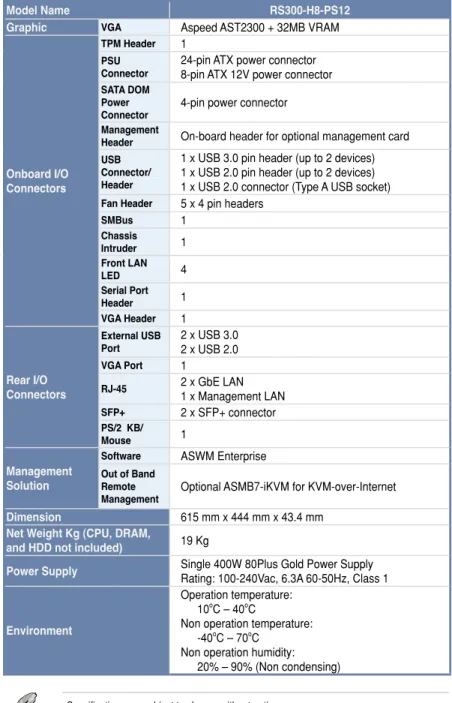
Model Name RS300-H8-PS12
Processor Support /
System Bus 1 x Socket LGA1150Intel® Xeon® Processor E3-1200 v3 Product Family
Core Logic Intel® C224 Chipset
ASUS Features Fan Speed Control Rack Ready (Rack and Pedestal dual use) ASWM Enterprise Memory
Total Slots 4 (2 Channels)
Capacity Maximum up to 32GB
Memory Type DDR3 1333/1600 ECC UDIMM
Expansion Slots (follow SSI Location number) Total PCI/ PCI-E Slots 1 Slot
Location 6 1 x PCI-E x8 (x4 Gen3 link)
Storage SATA Controller
Intel® C224:
- 2 x SATA 3Gb/s ports - 4 x SATA 6Gb/s ports
- Intel® RSTe supports software RAID 0, 1, 10, & 5
(Windows only)
SAS Controller LSI 2308 8-port SAS 6G Controller
HDD Bays I = Internal A or S will be hot-swappable
4 x 3 in 1 Hot-swap 3.5 inch HDD bays (Serial ATA) 2 x Hot-swap SSD bays
NetworkingLAN 2 x Intel
® I210AT controller + 1 x Management LAN
ASUS RS300-H8-PS12 1-5
Model Name RS300-H8-PS12
Graphic VGA Aspeed AST2300 + 32MB VRAM
Onboard I/O Connectors
TPM Header 1
PSU
Connector 24-pin ATX power connector8-pin ATX 12V power connector
SATA DOM Power
Connector 4-pin power connector Management
Header On-board header for optional management card USB
Connector/ Header
1 x USB 3.0 pin header (up to 2 devices) 1 x USB 2.0 pin header (up to 2 devices) 1 x USB 2.0 connector (Type A USB socket)
Fan Header 5 x 4 pin headers
SMBus 1 Chassis Intruder 1 Front LAN LED 4 Serial Port Header 1 VGA Header 1 Rear I/O Connectors External USB
Port 2 x USB 3.0 2 x USB 2.0
VGA Port 1
RJ-45 2 x GbE LAN 1 x Management LAN SFP+ 2 x SFP+ connector
PS/2 KB/
Mouse 1
Management Solution
Software ASWM Enterprise
Out of Band Remote
Management Optional ASMB7-iKVM for KVM-over-Internet
Dimension 615 mm x 444 mm x 43.4 mm
Net Weight Kg (CPU, DRAM,
and HDD not included) 19 Kg
Power Supply Single 400W 80Plus Gold Power SupplyRating: 100-240Vac, 6.3A 60-50Hz, Class 1
Environment
Operation temperature: 10oC – 40oC
Non operation temperature: -40oC – 70oC
Non operation humidity: 20% – 90% (Non condensing)
Chapter 1: Product introduction
1-6
1.4
Front panel features
The front panel of the RS300-H8-PS12 features a simple yet compact design with the four 3-in-1 HDD trays with hot-swap support and I/O boards conveniently located on the front panel for easy access.
The HDD trays’s modular design allows the server to support tool-less installation of up to 12 3.5-inch Serial ATA HDDs.
Refer to section 1.7.1 Front panel LEDs for the LED descriptions.
Turn off the system power and detach the power supply before removing or replacing any system component.
Asset tag
The Asset tag is a small polyester film or foil that is located in the left side of the server’s front panel that allows you to log important information about the server such as asset barcode or serial number. The Asset tag is useful in asset tracking and inventory management.
1
2
3
21 3 321 321 321 1 2 3 4 HDD drive tray Rack screw Rack screw SFP+_LED2 SFP+_LED1 Message LED LAN2 LED LAN1 LED Asset tag Power Button Reset button Location button and LEDHDD1 LED Drive tray handle Drive tray lock HDD2 LED
HDD3 LED
HDD drive tray
ASUS RS300-H8-PS12 1-7
The rear panel of RS300-H8-PS12 includes the hot-swap SSD trays, expansion slots, SFP+ 10G ports, the rear I/O ports, and the system power socket.
The ports for the USB, VGA, and Gigabit LANs do not appear on the rear panel if the motherboard is not present.
The LAN port 3 is for ASUS ASMB7-iKVM controller card only.
VGA port USB 3.0 ports
LAN port 3 SSD drive trays
Gigabit LAN port 1 Gigabit LAN port 2 USB 2.0 ports
Thumbscrew
PS/2 keyboard/mouse port Expansion slot cover
SFP+_2 SFP+_2 LEDs SFP+_1 SFP+_1 LEDs
Chapter 1: Product introduction
1-8
1.6
Internal features
The barebone server includes the basic components as shown.
1. Power supply
2. PCI Express slot Riser Card 3. ASUS P9D-MH Server Boards 4. System fans
5. SATA backplane (hidden) 6. HDD tray 1—Connect to SATA2/SATA3/SATA4 port 7. HDD tray 2—Connect to SAS7/SAS8/SATA1 port 8. HDD tray 3—Connect to SAS4/SAS5/SAS6 port 9. HDD tray 4—Connect to SAS1/SAS2/SAS3 port 10. Front I/O boards (hidden) 11. SSD bay
12. Asset Tag (hidden)
The barebone server does not include a floppy disk drive drive. Connect a USB floppy disk drive to any of the USB ports on the front or rear panel if you need to use a floppy disk.
*WARNING
HAZARDOUS MOVING PARTS KEEP FINGERS AND OTHER BODY PARTS AWAY
Turn off the system power and detach the power supply before removing or replacing any system component.
1
2
3
4
4
4 4
10
9
8
7
6
11
5
12
4
HDD tray 1 SATA4 SATA3 SATA2 HDD tray 2 SATA1 SAS8 SAS7 HDD tray 3 SAS6 SAS5 SAS4 HDD tray 4 SAS3 SAS2 SAS1ASUS RS300-H8-PS12 1-9
1.7
LED information
1.7.1
Front panel LEDs
LED Icon Display status Description
Power LED ON System power ON.
Message LED
OFF System is normal; no incoming event.
ON 1. Without ASMB7-iKVM installed: CPU over-heated 2. With ASMB7-iKVM installed: a hardware monitor event is indicated.
LAN LEDs
OFF No LAN connection.
Blinking LAN is transmitting or receiving data. ON LAN connection is present.
Location LED
ON Location button is pressed.
OFF Normal status. (Press the Location button again to turn off.)
SFP+_LED1/ SFP+_LED2 34
Amber LAN connection of 1 Gbps is present. Green LAN connection of 10 Gbps (Green) is present. OFF No activity.
HDD1/HDD2/ HDD3 LED
Green The installed Serial ATA HDD is in good condition. OFF HDD failure or no HDD is installed.
HDD Access LED
Green Data is being read/written into the HDD. OFF No activity. 2 1 3 3 2 1 3 2 1 3 2 1 1 2 3 4 Message LED LAN2 LED LAN1 LED
Power Button and LED Location LED HDD1 LED HDD2 LED HDD3 LED HDD Access LED SFP+_LED2 SFP+_LED1
Chapter 1: Product introduction
1-10
1.7.3
SFP+ status LEDs
1.7.4
SSD status LEDs
SSD LED Description
GREEN The installed SSD is in good condition OFF SSD failure or no SSD is installed
SFP+_1 LED
Activity/Link LED Speed LED
Status Description Status Description
OFF No activity OFF
-BLINKING Data activity AMBER 1 Gbps connection GREEN 10 Gbps connection SFP+ LED
SPEED LED ACTIVITY LED
1.7.2
LAN (RJ-45) LEDs
ACT/LINK LED SPEED LED
Status Description Status Description
OFF No link OFF 10 Mbps connection
GREEN Linked ORANGE 100 Mbps connection
BLINKING Data activity GREEN 1 Gbps connection
SPEED LED
ACT/LINK LED
SFP+_2 LED
2-This chapter lists the hardware setup
procedures that you have to perform when installing or removing system components.
Chapter 2
Hardware se
Chapter 2: Hardware setup
2-2
2.1
Chassis cover
Removing the rear cover
1. Release the four (4) screws on the sides of the chassis. 2. Release the thumbscrew on the rear of the chassis.
3. Slide the chassis cover towards the rear to disengage it from the chassis. 4. Lift the chassis cover to completely remove it from the chassis.
A protection film is pre-attached to the system cover before shipping. Please remove the protection film before turning on the system for proper heat dissipation.
3 2 4 1 1 1 1
2-3
ASUS RS300-H8-PS12
2.2
Central Processing Unit (CPU)
The motherboard comes with a surface mount LGA 1150 Socket designed for the Intel®
Sandy Bridge and Ivy Bridge series processors.
2.2.1
Installing the CPU
To install a CPU1. Locate the CPU socket on the motherboard.
Ensure that all power cables are unplugged before installing the CPU.
• Upon purchase of the motherboard, ensure that the PnP cap is on the socket and the socket contacts are not bent. Contact your retailer immediately if the PnP cap is missing, or if you see any damage to the PnP cap/socket contacts/motherboard components. ASUS shoulders the repair cost only if the damage is shipment/transit-related.
• Keep the cap after installing the motherboard. ASUS will process Return Merchandise Authorization (RMA) requests only if the motherboard comes with the cap on the LGA 1150 socket.
• The product warranty does not cover damage to the socket contacts resulting from incorrect CPU installation/removal, or misplacement/loss/incorrect removal of the PnP cap.
Before installing the CPU, ensure that the socket box is facing toward you and the load lever is on your right.
Chapter 2: Hardware setup
2-4
Do not remove the PnP cap yet from the CPU socket. Doing so may bend the pins of the socket.
2. Press the load lever with your thumb (A), then move it to the right (B) until it is released from the retention tab.
Retention tab Load lever
3. Lift the load lever until the load plate is completely lifted.
Load plate
4. Position the CPU above the socket, ensuring that the gold triangle mark is on the bottom-left corner of the socket, then fit the CPU notches to the socket's alignment keys.
The CPU fits in only one orientation. DO NOT force the CPU into the socket to prevent bending the pins on the socket and damaging the CPU.
Gold triangle mark CPU notches Alignment key Alignment key
2-5
ASUS RS300-H8-PS12
5. Close the load plate (A), ensuring that the front edge of the load plate slides under the retention lock (B) then push down the load lever (C).
Retention lock Load lever
6. Insert the load lever under the retention tab to remove the PnP cap from the CPU socket.
Retention tab Load lever
7. Apply some Thermal Interface Material to the exposed area of the CPU that the heatsink will be in contact with, ensuring that it is evenly spread in a thin layer.
Some heatsinks come with pre-applied Thermal Interface Material. If so, skip this step.
The Thermal Interface Material is toxic and inedible. DO NOT eat it. If it gets into your eyes or touches your skin, wash it off immediately and seek professional medical help.
Chapter 2: Hardware setup
2-6
2.2.2
Installing the CPU heatsink
To install the CPU heatsink1. Place the heatsink on top of the installed CPU, ensuring that the four fasteners match the holes on the motherboard.
2. Twist each of the four screws with a Phillips screwdriver just enough to attach the heatsink to the motherboard. When the four screws are attached, tighten them one by one to completely secure the heatsink.
A C
D B
3. Place the airduct cover on top of the heatsink and CPU assembly. Ensure that the airduct cover is fitted securely in place.
Tighten the four heatsink screws in a criss-cross sequence.
A
C
D
2-7
ASUS RS300-H8-PS12
4. Secure the airduct cover to the motherboard with a screw.
Chapter 2: Hardware setup
2-8
2.3
System memory
2.3.1
Overview
The motherboard comes with four (4) Double Data Rate 3 (DDR3) Dual Inline Memory Modules (DIMM) sockets.
The figure illustrates the location of the DDR3 DIMM sockets:
2.3.2
Memory Configurations
You may install 2GB, 4GB and 8GB Unbuffered with ECC DDR3 DIMMs into the DIMM sockets using the memory configurations in this section.
UDIMM DIMM Slot Per
Channel DIMM Populated per Channel DIMM Type Speed Rank per DIMM
2 1 Unbuffered DDR3 ECC 1333/1600 Single Rank, Dual Rank
2 2 Unbuffered DDR3 ECC 1333/1600 Single Rank, Dual Rank
• Always install DIMMs with the same CAS latency. For optimum compatibility, it is recommended that you obtain memory modules from the same vendor.
2-9
ASUS RS300-H8-PS12
2.3.3
Installing a DIMM
3. Hold the DIMM by both of its ends then insert the DIMM vertically into the socket. Apply force to both ends of the DIMM simultaneously until the retaining clip snaps back into place and the DIMM cannot be pushed in any further to ensure proper sitting of the DIMM.
Locked Retaining Clip
3
1. Unlock a DIMM socket by pressing the retaining clip outward.
2. Align a DIMM on the socket such that the notch on the DIMM matches the DIMM slot key on the socket.
Unlocked retaining clip DIMM notch
2
1
DIMM slot key
1. Press the retaining clip outward to unlock the DIMM.
2. Remove the DIMM from the socket.
1 2
Removing a DIMM from a single clip DIMM socket
• To install two or more DIMMs, refer to the user guide bundled in the motherboard package.
• Refer to the user guide for qualified vendor lists of the memory modules.
Support the DIMM lightly with your fingers when pressing the retaining clips. The DIMM might get damaged when it flips out with extra force.
Always insert the DIMM into the socket vertically to prevent DIMM notch damage. A DIMM is keyed with a notch so that it fits in only one direction. DO NOT force a DIMM into a socket in the wrong direction to avoid damaging the DIMM.
Chapter 2: Hardware setup
2-10
2.4
Hard disk drives (HDDs)
The system allows you to install up to twelve (12) Serial ATA HDDs via four (4) drive trays that each support three (3) Serial ATA HDDs. Refer to the succeeding steps to install Serial ATA HDDs:
1. Lift the drive tray handle and squeeze the drive tray lock, then pull the drive tray.
2. Press the metal stopper to release the drive tray then pull the drive tray completely out of the drive bay.
2-11
ASUS RS300-H8-PS12
3. Place the drive tray on a flat and stable surface. 4. Prepare your 3.5-inch Serial ATA HDDs.
5. Get four (4) screws from the bundled set of special screws.
6. Attach the screws at the bottom of the Serial ATA HDD that you want to install. Use a Phillips screwdriver to secure the screws and mind the gap between the bottom of the HDD and the head of screws.
Chapter 2: Hardware setup
2-12
7. Orient the HDD on top of the HDD drive tray slot in such a way that the HDD’s connector is aligned with the Serial ATA connector of the HDD slot and the four (4) HDD bottom screws are matched with the four (4) mini-rails of the HDD slot.
8. Carefully place the Serial ATA HDD on the HDD slot of the drive tray then slide the HDD towards the SATA connector.
Ensure that the four HDD bottom screws are fitted securely on the mini-rails of the drive tray HDD slot and the SATA connector is connected properly.
9. Secure the Serial ATA HDD on the drive tray with four (4) flat head screws. Serial ATA connector
2-13
ASUS RS300-H8-PS12
10. Repeat steps 4—8 to install the other two Serial ATA HDDs.
11. After installing all the Serial ATA HDDs, align and insert the HDD drive tray assembly into the drive bay until it is securely fitted in place.
• It is recommended to use both hands when performing this step. • Two people may be required to perform this step.
Chapter 2: Hardware setup
2-14
2.5
Installing SSDs
The server have two SSD bays with Hot-Swap support located at the rear panel. The SSD bays allows you to install up to two 2.5-inch SSDs for additional data storage.
3. Release the screws on each side of the drive tray to release the drive tray metal beam.
The drive tray metal beam provides horizontal support to the empty drive tray and prevents the drive tray from being bent or deformed.
To install an SSD:
1. Press the spring lock to release to release the tray lever.
4. Orient and place the SSD into the tray. Ensure that the SSD is fitted firmly inside the drive tray and that the four screws of the SSD matches the four screw holes of the drive tray.
2. Firmly hold the tray lever then pull the drive tray out of the bay.
drive tray screw hole SSD screw hole
SSD metal beam
spring lock tray lever
2-15
ASUS RS300-H8-PS12
6. Align and insert the drive tray and SSD assembly into the drive bay until it is securely fitted in place.
When installed, the SATA connector on the drive connects to the SATA interface on the backplane.
5. Secure the SDD to the drive tray with four screws that is bundled.
Chapter 2: Hardware setup
2-16
2.6
Expansion slot
2.6.1
Installing an expansion card to the riser card bracket
The barebone server comes with a riser card bracket. You need to remove the bracket if you want to install PCI Express x8 expansion cards.To install a PCI Express x8 card:
1. Remove the chassis cover. Refer to section 2.1 Chassis cover for details. 2. Release the screw that secures the
expansion slot bracket.
3. Remove the expansion slot metal bracket.
4. Remove the PCIe riser card.
2-17
ASUS RS300-H8-PS12
6. Align and insert the PCIe card into the riser card.
7. Secure the PCIe card into the riser card with the screw that you removed in step 5. Ensure that the PCIe card fits firmly into the riser card slot.
8. Align and insert the PCIe riser card and PCIe card assembly into the PCIe slot on the motherboard. Ensure that it is seated firmly in place.
9. Secure the PCIe riser card and PCIe card assembly with the screw that you removed in step 2.
metal cover
Set aside the screw for later use.
5. Release the screw that secures the metal bracket cover.
metal bracket cover
7
Chapter 2: Hardware setup
2-18
2.6.2
Configuring an expansion card
After installing the expansion card, configure the it by adjusting the software settings. 1. Turn on the system and change the necessary BIOS settings, if any. See Chapter 5 for
information on BIOS setup.
2. Assign an IRQ to the card. Refer to the following tables. 3. Install the software drivers for the expansion card.
Standard Interrupt assignments
* These IRQs are usually available for ISA or PCI devices.
IRQ Priority Standard function
0 1 System Timer
1 2 Keyboard Controller
2 - Programmable Interrupt
3* 11 Communications Port (COM2)
4* 12 Communications Port (COM1)
5* 13
--6 14 Floppy Disk Controller
7* 15
--8 3 System CMOS/Real Time Clock
9* 4 ACPI Mode when used
10* 5 IRQ Holder for PCI Steering 11* 6 IRQ Holder for PCI Steering
12* 7 PS/2 Compatible Mouse Port
13 8 Numeric Data Processor
14* 9 Primary IDE Channel
2-19
ASUS RS300-H8-PS12
2.7
Cable connections
• The bundled system cables are pre-connected before shipment. You do not need to disconnect these cables unless you will remove pre-installed components to install additional devices.
• Refer to Chapter 4 for detailed information on the connectors.
Standard cables connected to the motherboard
1. 24-pin ATX power connector (from power supply to motherboard) 2. 8-pin 12V power connector (from power supply to motherboard) 3. System fan connector (from system fan to motherboard) 4. USB connector (from motherboard to front I/O board)
5. SATA conectors (system default; from motherboard to SATA/SAS backplane) 6. System auxiliary panel connector (from motherboard to front I/O board) 7. System panel connector (from motherboard to front I/O board) 8. SAS connectors (from motherboard to SATA/SAS backplane) 9. Serial General Purpose Input/Output connectors
1
2
7
6
8
3
9
5
4
3
3
3
3
9
Chapter 2: Hardware setup
2-20
1 2
2.8
Removable/optional components
You may need to remove previously installed system components when installing or removing system devices. Or you may need to install the optional components into the system. This section tells how to remove/install the following components:
1. System fans
2. ASUS ASMB7-iKVM (optional)
Ensure that the system is turned off before removing any components.
2.8.1
System fans
To reinstall the system fans:
1. Align and insert the fan into the fan slot. To uninstall the system fans:
1. Disconnect the system fan cable from the fan connector on the motherboard. 2. Lift the fan and set aside.
3. Repeat steps 1—2 to remove the other fans.
2-21
ASUS RS300-H8-PS12
3. Connect the system fan cable into the fan connector.
3
Rubber anchors
Rubber anchors
Chapter 2: Hardware setup
2-22
2.8.2
Installing ASMB7 series management board (optional)
Follow the steps below to install an optional ASMB7 series management board on your motherboard.3. Insert the LAN cable plug to the LAN port 3 (dedicated LAN) or LAN port 1 (shared LAN) for server management.
1. Locate the Baseboard Management Card header on the motherboard.
2. Orient and press the Management Card in place.
LAN port 3
2-This chapter describes how to install the
optional components and devices into the barebone server.
Chapter 3
Installation
opt
Chapter 3: Installation options
3-2
3.1
Friction Rail Kit Installation Guide
Your friction rail kit package contains:• One pair of rack rails • One pair of fixing latches
• 4 latch screws, 4 rail screws and 4 rail washers (2 more for each buffer)
3.1.1
Attaching the fixing latches to the server
1. Secure the two fixing latches to the two sides of the server with the four latch screws. Rack rails
Fixing latches
Front end Rear end
Latch screws Rail screws
Rail Washers
The locations of the screw holes vary with different server models. Refer to your server user manual for details.
3-3
ASUS RS300-H8-PS12
2. Select a 1U space on the rack where you want to install the rack rail.
A 1U space is consists of three square mounting holes with two thin lips on the top and the bottom.
3. Adjust the rack rail to fit the depth of the rack.
5. Secure the front and rear ends of the rail with two rack screws and washers.
6. Repeat step 3 to 5 to attach the rack rail on the other side of the rack.
4. From inside the rack, place the rear rail hook on the bottom thin lip of the rear mounting hole, then place the front rail hook on the bottom thin lip of the front mounting hole.
Chapter 3: Installation options
3-4
Do not install the rail kit in the following situation:
DO NOT place the rail hook on a thick lip of the
mounting hole. DO NOT install the rail to the outer side of the server rack. 7. When mounting the server to the rack,
ensure to include the side knots on the two sides of the server in the rack rail holders.
This chapter includes the motherboard layout and brief descriptions of the jumpers and internal connectors.
Chapter 4
Motherboa
Chapter 4: Motherboard information 4-2
4.1
Motherboard layout
Layout contents Jumpers Page 1. Clear RTC RAM (CLRTC1) 4-52. VGA controller setting (3-pin VGA_SW1) 4-6
3. LAN controller setting (3-pin LAN_SW1, LAN_SW2) 4-6 4. RAID configuration utility selection (3-pin RAID_SEL1) 4-7
5. SFP+12_LED connectors (5-pin LAN34_LED1) 4-7
6. VGA connector (16-pin VGA_HDR1) 4-8
7. Broadcom 10GbE controller setting (3-pin BCM10G_SW1) 4-8 8. LSI 2308 SAS/SATA RAID controller setting (3 pin SAS_SW1) 4-9
ASUS RS300-H8-PS12 4-3
Rear panel connectors Page
1. PS/2 keyboard/mouse port (purple/green) 4-10
2. RJ-45 port for iKVM 4-10
3. Video Graphics Adapter port 4-10
4. SFP+_LED1 4-10
5. SFP+_1 4-10
6. SFP+_LED2 4-10
7. SFP+_2 4-10
8. RJ-45 ports for LAN 4-11
9. Location LED 4-11
10. Power-on Button 4-11
11. Power LED 4-11
12. USB 2.0 ports 1 and 2 4-11
13. USB 3.0 ports 1 and 2 4-11
Internal connectors Page
1. Serial ATA 6.0/3.0 Gbps connector
(7-pin SATA 6Gbps 1-4 connector [Light Blue])
(7-pin SATA 3Gbps 5-6 connector [Black]) 4-12
2. SAS connectors (7-pin SAS connector [Light Blue]) 4-13 3. USB 2.0 connector (10-1 pin USB78; A-Type USB9) 4-13
4. USB 3.0 connector (20-1 pin USB3_34) 4-14
5. Thermal sensor cable connectors (3-pin TR1) 4-14
6. CPU, front, and rear fan connectors
(4-pin CPU_FAN1, FRNT_FAN1, FRNT_FAN2, FRNT_FAN3,
REAR_FAN1) 4-15
7. Serial port connectors (10-1 pin COM1) 4-15
8. Serial General Purpose Input/Output connector (6-1 pin SGPIO1) 4-16 Serial General Purpose Input/Output connectors
(8-1 pin SGPIO2, SGPIO3) 4-16
9. Power Supply SMBus connector (5-pin PSUSMB1) 4-17
10. Hard disk activity connector (4-pin HDLED1) 4-17
11. Trusted Platform Module connector (20-1 pin TPM1) 4-18
12. SATA DOM power connector (4-pin PWR3) 4-18
13. ATX power connectors (24-pin EATXPWR1, 8-pin EATX12V1) 4-19
14. System panel connector (20-1 pin PANEL1) 4-20
Chapter 4: Motherboard information
4-4
Onboard LEDs Page
1. Standby Power LED (SB_PWR1) 4-22
2. Baseboard Management Controller LED (BMC_LED1) 4-22
3. CPU Warning LED (ERR_CPU1) 4-23
4. Power LED (+5V_LED) 4-23
5. Location LED (LOC_LED1) 4-24
6. RLED (RLED1) 4-24
7. PCIE Link LED (PCIE_LINKUP1) 4-25
ASUS RS300-H8-PS12 4-5
1. Clear RTC RAM (3-pin CLRTC1)
This jumper allows you to clear the Real Time Clock (RTC) RAM in CMOS. You can clear the CMOS memory of date, time, and system setup parameters by erasing the CMOS RTC RAM data. The onboard button cell battery powers the RAM data in CMOS, which include system setup information such as system passwords.
To erase the RTC RAM:
1. Turn OFF the computer and unplug the power cord.
2. Move the jumper cap from pins 1–2 (default) to pins 2–3. Keep the cap on pins 2–3 for about 5–10 seconds, then move the cap back to pins 1–2.
3. Plug the power cord and turn ON the computer.
4. Hold down the <Del> key during the boot process and enter BIOS setup to re-enter data.
Except when clearing the RTC RAM, never remove the cap on CLRTC jumper default position. Removing the cap will cause system boot failure!
If the steps above do not help, remove the onboard battery and move the jumper again to clear the CMOS RTC RAM data. After the CMOS clearance, reinstall the battery.
Chapter 4: Motherboard information
4-6
2. VGA controller setting (3-pin VGA_SW1)
This jumper allows you to enable or disable the onboard VGA controller. Set to pins 1–2 to activate the VGA feature.
3. LAN controller setting (3-pin LAN_SW1, LAN_SW2)
These jumpers allow you to enable or disable the onboard Intel® I210AT Gigabit LAN
ASUS RS300-H8-PS12 4-7
4. RAID configuration utility selection (3-pin RAID_SEL1)
This jumper allows you to select the RAID configuration utility to use when you create disk arrays. Place the jumper caps to pins 2–3 to use the Intel®
Rapid Storage Technology.
5. SFP+12 LED connectors (5-1 pin LAN34_LED1)
These leads are for 10Gb LAN activity LEDs on the front panel. Connect the LAN LED cable to the backplane for LAN activity indication.
Chapter 4: Motherboard information
4-8
6. VGA connector (16-1 pin VGA_HDR1)
This connector supports the VGA High Dynamic-Range interface HDR1.
7. Broadcom 10GbE controller setting (3 pin BCM10G_SW1)
This jumper allows you enable or disable the Broadcom 10Gb chip. The Broadcom 10Gb chip is a converged controller that enables convergence of all the possible network communications in a server such as data network. Set to pins 1-2 to enable, otherwise set to pins 2-3 to disable the Broadcom 10Gb chip.
ASUS RS300-H8-PS12 4-9
8. LSI 2308 SAS/SATA RAID controller setting (3 pin SAS_SW1)
This jumper allows you enable or disable the LSI 2308 SAS/SATA RAID controller. Set to pin 1-2 to enable, otherwise set to pin 2-3 to disable the LSI 2308 SAS/SATA RAID controller.
Chapter 4: Motherboard information
4-10
4.3
Internal connectors
1. Serial ATA 6.0/3.0 Gbps connectors
(7-pin SATA 6Gbps_1-4 connector [Light Blue]) (7-pin SATA 3Gbps_5-6 connector [Black])
Supported by the Intel® C224 chipset, these connectors are for the Serial ATA signal cables
for Serial ATA hard disk drives that allows up to 6Gbps of data transfer rate.
If you installed Serial ATA hard disk drives, you can create a RAID 0, RAID 1, RAID 10, or RAID 5 configuration.
ASUS RS300-H8-PS12 4-11
3. USB 2.0 connector (10-1 pin USB78; A-Type USB9)
These connectors are for USB 2.0 ports. Connect the USB module cables to connectors USB78. These USB connectors comply with USB 2.0 specification that supports up to 480 Mbps connection speed.
2. SAS connectors (7-pin SAS connector [Light Blue])
Supported by the LSI 2308 SAS/SATA RAID controller, these connectors are for the Serial ATA signal cables for Serial ATA hard disk drives that allows up to 6Gbps of data transfer rate.
If you installed Serial ATA hard disk drives, you can create a RAID 0, RAID 1, RAID 10, or RAID 1E configuration.
Chapter 4: Motherboard information
4-12
4. USB 3.0 connector (20-1 pin USB3_34)
These connectors allow you to connect a USB 3.0 module for additional USB 3.0 front or rear panel ports. With an installed USB 3.0 module, you can enjoy all the benefits of USB 3.0 including faster data transfer speeds of up to 5Gbps, faster charging time for USB-chargeable devices, optimized power efficiency, and backward compatibility with USB 2.0.
5. Thermal sensor cable connectors (3-pin TR1)
This connector allows you to connect a Thermal sensor cable that is used for temperature monitoring. Connect the Thermal sensor cable to the connector and place its probe to the device that you want to check the temperature.
ASUS RS300-H8-PS12 4-13
6. CPU, front, and rear fan connectors
(4-pin CPU_FAN1, FRNT_FAN1, FRNT_FAN2, FRNT_FAN3, REAR_FAN1)
The fan connectors support cooling fans. Connect the fan cables to the fan connectors on the motherboard, ensuring that the black wire of each cable matches the ground pin of the connector.
• DO NOT forget to connect the fan cables to the fan connectors. Insufficient air flow inside the system may damage the motherboard components.
• These are not jumpers! DO NOT place jumper caps on the fan connectors! • All fans feature the ASUS Smart Fan technology.
7. Serial port connectors (10-1 pin COM1)
These connectors are for the serial COM ports. Connect the serial port module cable to one of these connectors, then install the module to a slot opening at the back of the system chassis.
Chapter 4: Motherboard information
4-14
8. Serial General Purpose Input/Output connector (6-1 pin SGPIO1)
The SGPIO 1 connector is used for the Intel Rapid Storage Technology Enterprise SGPIO interface that controls the LED pattern generation, device information, and general purpose data.
Serial General Purpose Input/Output connectors (8-1 pin SGPIO2, SGPIO3) The SGPIO 2 and SGPIO 3 connectors are for the LSI 2308 RAID controller.
ASUS RS300-H8-PS12 4-15
9. Power Supply SMBus connector (5-pin PSUSMB1)
This connector allows you to connect SMBus (System Management Bus) to the power supply unit to read PSU information. Devices communicate with an SMBus host and/or other SMBus devices using the SMBus interface.
This connector functions only when you install the ASUS ASMB7.
10. Hard disk activity connector (4-pin HDLED1)
This LED connector is for the storage add-on card cable connected to the SATA or SAS add-on card. The read or write activities of any device connected to the SATA or SAS add-on card causes the front panel LED to light up.
Chapter 4: Motherboard information
4-16
11. Trusted Platform Module connector (20-1 pin TPM1)
This connector supports a Trusted Platform Module (TPM) system, which can securely store keys, digital certificates, passwords, and data. A TPM system also helps enhance network security, protects digital identities, and ensures platform integrity.
12. SATA DOM power connector (4-pin PWR3)
This 4-pin connector is for 5V power of a certain SATA DOM (Disk on Module) device when using an appropriate cable.
• The SATA DOM power connector is for output power only. It has a maximum output current of 1A.
ASUS RS300-H8-PS12 4-17
13. ATX power connectors (24-pin EATXPWR1, 8-pin EATX12V1)
These connectors are for the ATX power supply plugs. The power supply plugs are designed to fit these connectors in only one orientation. Find the proper orientation and push down firmly until the connectors completely fit.
• DO NOT forget to connect the 24-pin, the 8-pin power plugs, and the 4-pin PWR3; otherwise, the system will not boot up.
• Use of a power supply unit (PSU) with a higher power output is recommended when configuring a system with more power-consuming devices. The system may become unstable or may not boot up if the power is inadequate.
• This motherboard supports ATX2.0 PSU or later version.
• Ensure that your PSU can provide at least the minimum power required by your system.
Chapter 4: Motherboard information
4-18
14. System panel connector (20-1 pin PANEL1)
This connector supports several chassis-mounted functions.
1. System power LED (3-pin PLED)
This 3-pin connector is for the system power LED. Connect the chassis power LED cable to this connector. The system power LED lights up when you turn on the system power, and blinks when the system is in sleep mode.
2. Message LED (2-pin MLED)
This 2-pin connector is for the message LED cable that connects to the front message LED. The message LED is controlled by Hardware monitor to indicate an abnormal event occurance.
3. System warning speaker (4-pin SPEAKER)
This 4-pin connector is for the chassis-mounted system warning speaker. The speaker allows you to hear system beeps and warnings.
4. Hard disk drive activity LED (2-pin +HDLED)
This 2-pin connector is for the HDD Activity LED. Connect the HDD Activity LED cable to this connector. The IDE LED lights up or flashes when data is read from or written to the HDD.
5. Power button/soft-off button (2-pin PWRSW)
This connector is for the system power button. Pressing the power button turns the system on or puts the system in sleep or soft-off mode depending on the BIOS settings. Pressing the power switch for more than four seconds while the system is ON turns the system OFF.
6. Reset button (2-pin RESET)
This 2-pin connector is for the chassis-mounted reset button for system reboot without turning off the system power.
ASUS RS300-H8-PS12 4-19
15. Auxiliary panel connector (20-2 pin AUX_PANEL1)
This connector is for additional front panel features including front panel SMB, locator LED and switch, chassis intrusion, and LAN LEDs.
1. Front panel SMB (6-1 pin FPSMB)
These leads connect the front panel SMBus cable. 2. LAN activity LED (2-pin LAN1LINK and 2-pin LAN2LINK)
These leads are for Gigabit LAN activity LEDs on the front panel. 3. Chassis intrusion (4-1 pin AUX_CHASSIS)
These leads are for the intrusion detection feature for chassis with intrusion sensor or microswitch. When you remove any chassis component, the sensor triggers and sends a high-level signal to these leads to record a chassis intrusion event. The default setting is short CASEOPEN and GND pin by jumper cap to disable the function.
4. Locator LED (2-pin AUX_LOCLED1 and 2-pin AUX_LOCLED2)
These leads are for the Locator LED1 and LED2 on the front panel. Connect the Locator LED cables to these 2-pin connector. The LEDs will light up when the Locator button is pressed.
5. Locator Button/Switch (2-pin AUX_BMCLOCBNT)
These leads are for the locator button on the front panel. This button queries the state of the system locator.
Chapter 4: Motherboard information
4-20
2. Baseboard Management Controller LED (BMC_LED1)
The green heartbeat LED blinks per second to indicate that the ASMB7 is working normally.
The heartbeat LED functions only when you install the ASUS ASMB7 Management card
4.4
Onboard LEDs
1. Standby Power LED (SB_PWR1)
The motherboard comes with a standby power LED. The green LED lights up to indicate that the standby mode of the system is ON, in sleep mode, or in soft-off mode. This is a reminder that you should shut down the system and unplug the power cable before removing or plugging in any motherboard component. The illustration below shows the location of the onboard LED.
ASUS RS300-H8-PS12 4-21
3. CPU Warning LED (ERR_CPU1)
The CPU warning LED lights up to indicate that a CPU error or failure has occurred.
4. Power LED (+5V_LED1)
Chapter 4: Motherboard information
4-22
5. Location LED (LOCLED1)
The Location LED is an onboard LED that ligths up when the Location Button on the front panel is pressed. This LED helps you visually locate the server among other servers especially when you are located at the back of the server rack.
6. RLED (RLED1)
This LED lights up to indicate that the LSI 2308 is working properly. If the LED is unlit, the LSI 2308 is either in fault state or a problem have occurred.
ASUS RS300-H8-PS12 4-23
7. PCIE LINK Status LED (PCIE_LINKUP1)
This LED is for the PCIE link status of the Broadcom 10GbE chip. The unlit LED indicates the PCIE link status is not established and green LED indicates activity or operational condition.
8. Data Layer LED (DL_ACTIVE1)
This LED is for the data layer link status of the Broadcom 10GbE chip. If unlit, the Broadcom 10GbE chip is either in fault state or a problem have occured.
Chapter 4: Motherboard information
This chapter tells how to change the system settings through the BIOS Setup menus. Detailed descriptions of the BIOS parameters are also provided.
Chapter 5
5-2 Chapter 5: BIOS setup
5.1
Managing and updating your BIOS
The following utilities allow you to manage and update the motherboard Basic Input/Output System (BIOS) setup:
1. ASUS CrashFree BIOS 3
To recover the BIOS using a bootable USB flash disk drive when the BIOS file fails or gets corrupted.
2. ASUS EzFlash
Updates the BIOS using a USB flash disk.
3. BUPDATER
Updates the BIOS in DOS mode using a bootable USB flash disk drive. Refer to the corresponding sections for details on these utilities.
Recovering the BIOS from a USB flash drive
To recover the BIOS from a USB flash drive:
1. Insert the USB flash drive with the original or updated BIOS file to one USB port on the system.
2. The utility will automatically recover the BIOS. It resets the system when the BIOS recovery finished.
DO NOT shut down or reset the system while recovering the BIOS! Doing so would cause system boot failure!
The recovered BIOS may not be the latest BIOS version for this motherboard. Visit the ASUS website at www.asus.com to download the latest BIOS file.
Save a copy of the original motherboard BIOS file to a bootable USB flash disk drive in case you need to restore the BIOS in the future. Copy the original motherboard BIOS using the BUPDATER utility.
5.1.1
ASUS CrashFree BIOS 3 utility
The ASUS CrashFree BIOS 3 is an auto recovery tool that allows you to restore the BIOS file when it fails or gets corrupted during the updating process. You can update a corrupted BIOS file using a USB flash drive that contains the updated BIOS file.
ASUS RS300-H8-PS12 5-3
3. Press <Tab> to switch to the Drive field.
4. Press the Up/Down arrow keys to find the USB flash disk that contains the latest BIOS then press <Enter>.
5. Press <Tab> to switch to the Folder Info field.
6. Press the Up/Down arrow keys to find the BIOS file then press <Enter>.
7. Reboot the system when the update process is done.
5.1.2
ASUS EzFlash Utility
The ASUS EzFlash Utility feature allows you to update the BIOS using a USB flash disk without having to use a DOS-based utility.
ASUS Tek. EzFlash Utility
[Up/Down/Left/Right]:Switch [Enter]:Choose [q]:Exit FS0 System Volume Information <DIR>
P9D-MH Bios <DIR> Windows <DIR> P9D-MH Bios <DIR> Current Platform Platform : P9D-MH Version : 0060 Build Date :12/03/2013 New Platform Platform : P9D-MH Version : 0077 Build Date :01/31/2013
The succeeding BIOS screens are for reference only. The actual BIOS screen displays may not be the same as shown.
To update the BIOS using EzFlash Utility:
1. Insert the USB flash disk that contains the latest BIOS file to the USB port.
2. Enter the BIOS setup program. Go to the Tool menu to select ASUS EzFlash Utility and press <Enter> to enable it.
5-4 Chapter 5: BIOS setup
5.1.3
BUPDATER utility
The succeeding BIOS screens are for reference only. The actual BIOS screen displays may not be the same as shown.
The BUPDATER utility allows you to update the BIOS file in DOS environment using a bootable USB flash disk drive with the updated BIOS file.
Updating the BIOS file
To update the BIOS file using the BUPDATER utility:
1. Visit the ASUS website at www.asus.com and download the latest BIOS file for the motherboard. Save the BIOS file to a bootable USB flash disk drive.
2. Download the BUPDATER utility (BUPDATER.exe) from the ASUS support website at support.asus.com to the bootable USB flash disk drive you created earlier.
3. Boot the system in DOS mode, then at the prompt, type:
BUPDATER /i[filename].CAP
where [filename] is the latest or the original BIOS file on the bootable USB flash disk drive, then press <Enter>.
A:\>BUPDATER /i[file name]CAP
• This function can support devices such as a USB flash disk with FAT 32/16 format and single partition only.
• DO NOT shut down or reset the system while updating the BIOS to prevent system boot failure!
Ensure to load the BIOS default settings to ensure system compatibility and stability. Press <F5> and select Yes to load the BIOS default settings.
ASUS RS300-H8-PS12 5-5
The utility verifies the file, then starts updating the BIOS file.
DO NOT shut down or reset the system while updating the BIOS to prevent system boot failure!
The utility returns to the DOS prompt after the BIOS update process is completed. 4. Reboot the system from the hard disk drive.
The BIOS update is finished! Please restart your system.
C:\>
ASUSTek BIOS Update for DOS V1.06 (09/08/04)
Current CAP Update CAP
Note Writing BIOS:
FLASH TYPE: MXIC 25L1605A
PATH: BOARD: P9D-MH VER: 0201 DATE: 12/01/2013 BOARD: P9D-MH VER: 0202 DATE: 12/09/2013