HUAWEI TE30 Videoconferencing Endpoint
V100R001
User Guide
Issue 01
Copyright © Huawei Technologies Co., Ltd. 2013. All rights reserved.
No part of this document may be reproduced or transmitted in any form or by any means without prior written consent of Huawei Technologies Co., Ltd.
Trademarks and Permissions
and other Huawei trademarks are trademarks of Huawei Technologies Co., Ltd.
All other trademarks and trade names mentioned in this document are the property of their respective holders.
Notice
The purchased products, services and features are stipulated by the contract made between Huawei and the customer. All or part of the products, services and features described in this document may not be within the purchase scope or the usage scope. Unless otherwise specified in the contract, all statements, information, and recommendations in this document are provided "AS IS" without warranties, guarantees or representations of any kind, either express or implied.
The information in this document is subject to change without notice. Every effort has been made in the preparation of this document to ensure accuracy of the contents, but all statements, information, and recommendations in this document do not constitute a warranty of any kind, express or implied.
Huawei Technologies Co., Ltd.
Address: Huawei Industrial Base Bantian, Longgang Shenzhen 518129
People's Republic of China Website: http://enterprise.huawei.com
HUAWEI TE30 Videoconferencing Endpoint
User Guide About This Document
About This Document
Overview
This document describes how to install, configure, maintain, and troubleshoot the HUAWEI TE30 Videoconferencing Endpoint (TE30 or endpoint for short). It also includes step-by-step instructions for conferencing tasks.
When using this document, note the following:
Except chapters 11 Web-based Remote Management, 12 Troubleshooting, and 13
Maintenance, which apply to the endpoint web interface, descriptions and configuration in this document apply to the endpoint's user interface controlled by the remote control (remote controlled UI for short).
To access the menu screen, press on the remote control. You can find the option bar
on the left of the menu screen. This option bar is your interface to all functions except calling.
To move up, move down, hide, or show an icon in the option bar, select and then the desired icon.
To hide the option bar, press the left arrow key, , or on the remote control.
To show the option bar again, press on the remote control.
Intended Audience
This document is primarily intended for:
Administrator
The administrator has access to all menus on the web interface and remote controlled UI. When Advanced Settings is password-protected, the administrator must enter the password for access. For details about how to set the password, see 10.2.1 Setting the Administrator Password.
Common user
Common users have access to all menus except Advanced Settings on the web interface and remote controlled UI.
Symbol Conventions
Symbol Description
Indicates a hazard with a high level of risk, which if not avoided, will result in death or serious injury.
Indicates a hazard with a medium or low level of risk, which if not avoided, could result in minor or moderate injury.
Indicates a potentially hazardous situation, which if not avoided, could result in equipment damage, data loss, performance degradation, or unexpected results.
Indicates a tip that may help you solve a problem or save time.
Provides additional information to emphasize or supplement important points of the main text.
Change History
Changes between document issues are cumulative. The latest document issue contains all the changes made in earlier issues.
Issue 01 (2013-01-30)
HUAWEI TE30 Videoconferencing Endpoint
User Guide Contents
Contents
About This Document ... ii
1 Product Introduction ... 1
2 Installation and Initial Configuration ... 3
2.1 Installing Your TE30 ... 3
2.2 Connecting Cables ... 3
2.3 Powering On and Off ... 4
2.4 Using the Wizard ... 6
3 Network ... 10
3.1 Setting IP Parameters ... 11
3.2 Setting H.323 Parameters ... 13
3.3 Setting SIP Parameters ... 15
3.4 Setting Wi-Fi Parameters ... 18
3.5 Setting QoS Parameters ... 20
3.6 Setting Firewall Parameters... 22
3.7 Setting Network Diagnostics Parameters ... 24
4 Display and Camera ... 25
4.1 Configuring Video Output ... 25
4.2 Configuring Video Input ... 29
4.3 Selecting and Controlling a Camera ... 30
4.3.1 Selecting a Camera... 31
4.3.2 Adjusting the Focal Length ... 31
4.3.3 Controlling a Camera ... 31
4.4 Saving and Using Camera Presets ... 32
5 Microphone and Speaker ... 33
5.1 Connecting an Audio Input Device ... 33
5.1.1 Connecting a VPM220 ... 34
5.1.2 Connecting a VPM220W ... 34
5.1.3 Connecting Other Audio Input Devices ... 36
5.2 Connecting a Speaker ... 36
6 Conference ... 39
6.1 Answering an Incoming Call and Exiting a Conference ... 40
6.2 Setting Conference Parameters ... 40
6.3 Initiating a Conference ... 45
6.4 Sharing a Presentation ... 47
6.5 Creating a Favorite Conference ... 48
6.6 Scheduling a Conference ... 50
6.7 Joining an Authentication Conference... 50
6.8 Managing the Address Book ... 52
6.8.1 Managing the Local Address Book ... 52
6.8.2 Managing the Network Address Book ... 55
7 Conference Control ... 59
7.1 Customizing the Displayed Conference Controls ... 59
7.2 Performing Conference Control ... 60
8 Video and Audio ... 65
8.1 Adjusting Video Display Effects ... 65
8.1.1 Adjusting Picture Offset ... 65
8.1.2 Adjusting the Sampling Phase ... 66
8.1.3 Setting Video Parameters ... 66
8.1.4 Customizing the Onscreen Status Icons ... 69
8.2 Adjusting Audio Effects ... 70
8.3 Adjusting the Local Volume ... 71
8.4 Adjusting the Screen Layout ... 71
8.5 Selecting Video Sources ... 72
8.6 Hiding the Local Video ... 72
9 Captions ... 74
9.1 Specifying Caption Settings ... 75
9.2 Creating a Caption ... 76
9.3 Sharing a Caption ... 76
9.4 Sending an Instant Message ... 77
10 Security... 78
10.1 Security Features ... 78
10.2 Configuring Security Settings ... 79
10.2.1 Setting the Administrator Password ... 79
10.2.2 Enabling Encryption ... 80
10.2.3 Allowing Remote Login ... 80
10.2.4 Setting the Upgrade Password ... 82
11 Web-based Remote Management ... 83
11.1 Enabling Web-based Login ... 83
HUAWEI TE30 Videoconferencing Endpoint
User Guide Contents
11.3 Logging In to the Endpoint Web Interface ... 84
11.4 Getting to Know the Web Interface Functions ... 85
11.4.1 Importing and Exporting the Address Book ... 86
11.4.2 Importing and Exporting Settings ... 87
11.4.3 Importing License Files ... 87
11.4.4 Customizing Shortcut and Desktop Icons ... 88
11.4.5 Accessing the Site Map ... 88
11.4.6 Using the Site List ... 88
11.4.7 Conference Control Page ... 88
11.4.8 Importing a Certificate ... 90 11.4.9 Recording a Conference ... 90 11.4.10 Backing Up Settings ... 91 11.4.11 Capturing Photos ... 91
12 Troubleshooting ... 93
12.1 Web Interface ... 93 12.2 Network ... 94 12.3 Video ... 95 12.4 Audio ... 98 12.5 Conference Initiation ... 99 12.6 Conference Control ... 10112.7 Viewing Help on the User Interface ... 102
12.8 Obtaining Technical Support ... 102
13 Maintenance ... 103
13.1 Preventive Maintenance ... 103
13.1.1 Checking the Working Environment Periodically ... 103
13.1.2 Checking the Cables Periodically ... 104
13.1.3 Viewing the System Status ... 104
13.1.4 Viewing the System Information... 105
13.1.5 Querying Logs ... 105
13.2 Software Upgrade ... 106
13.2.1 Automatic Upgrade ... 107
13.2.2 Upgrading the TE30 Locally ... 107
13.2.3 Upgrading the TE30 Using the Bootroom System ... 111
13.2.4 Upgrading the TE30 from the Web Interface ... 111
13.3 Restoring Default Settings... 112
13.4 Configuring the NTP server... 113
13.5 Setting the Sleep and Wakeup Mode ... 113
13.6 Setting the Number Key Functions ... 115
13.7 Using Diagnostics Methods ... 115
B Technical Specifications ... 124
C Videoconferencing Room Layout ... 128
D Default Settings ... 129
E Terminology ... 130
HUAWEI TE30 Videoconferencing Endpoint
User Guide 1 Product Introduction
1
Product Introduction
The TE30 is a compact, easy to install, and easy to use videoconferencing endpoint designed by Huawei.
The TE30 is an all-in-one endpoint incorporating a digital camera and stereo microphone. It is ready for video communication as soon as it is powered on and connected to a network. The TE30 is suitable for executive personnel who want to attend video conferences from their executive offices or small conference rooms as well as home users.
HD Video
The TE30 supports HD video with the following resolutions:
720p (1280 x 720 pixels and progressive scanning) 1080p (1920 x 1080 pixels and progressive scanning)
H.239 Dual Stream
Your TE30 complies with the H.239 standard and supports concurrent transmission of two video channels.
A presentation can either be a video or computer desktop content.
A presentation can be displayed independently or on the same display as the video.
Multiple Conferencing Modes
Point-to-point conference Multipoint conference
Joining a conference as the called party One press to join conference
Joining a conference by dialing two required numbers
Voice dialing with Chinese and English support
UI
Multiple languages
Network Features
Maximum call bandwidth: 4 Mbit/s IP-based network
Packet loss concealment Wi-Fi capable
HUAWEI TE30 Videoconferencing Endpoint
User Guide 2 Installation and Initial Configuration
2
Installation and Initial Configuration
About This Chapter
Install and configure your TE30 before use. 2.1 Installing Your TE30
Your TE30 offers multiple installation options. You can use any of them for quick deployment.
2.2 Connecting Cables
Connect cables to your TE30 before using it for conferencing. 2.3 Powering On and Off
With all cables connected to the TE30, power it on. 2.4 Using the Wizard
The Wizard helps to set the general, network, and camera parameters on your TE30 quickly and conveniently.
2.1 Installing Your TE30
Your TE30 offers multiple installation options. You can use any of them for quick deployment.
For details about your TE30 installation options and instructions, see the HUAWEI TE30
Videoconferencing Endpoint Quick Start Guide provided with your TE30.
2.2 Connecting Cables
Connect cables to your TE30 before using it for conferencing.
Please refer to the HUAWEI TE30 Videoconferencing Endpoint Quick Start Guide to familiarize yourself with the TE30 rear ports. This helps you connect cables. Refer to Figure 2-1 to connect cables to your TE30.
Figure 2-1Connecting cables
In Figure 2-1:
Video input: Use the built-in camera in your TE30 as the video input source. Your TE30
cannot be connected to external cameras.
Presentation input: Use a VGA cable to connect the TE30 VGA IN port to a computer
VGA out port.
Audio input: Use the built-in microphone. Alternatively, use the 10 m proprietary cable
provided by a VPM220 microphone array to connect the integrated cable HD-AI connector and the VPM220.
Computer audio input: Use a 3.5 mm audio cable to connect the TE30 LINE IN port to a computer audio output port.
Video and audio output: Connect the provided integrated cable to the TE30
MIC/TV/LAN/POWER port and use an HDMI cable to connect the HDMI connector to the monitor HDMI input port.
Presentation output: Use a VGA cable to connect the TE30 VGA OUT port to a projector
VGA out port.
LAN connection: Use the provided network cable to connect the integrated cable LAN connector to the network port of a network device.
Power supply: Use the provided power cable and power adapter to connect the integrated cable power connector to the power socket.
The VGA and 3.5 mm audio cables are not provided with your TE30. You need to purchase the cables of the same model by yourself.
The 10 m proprietary cable is provided as standard with the VPM220, and the integrated cable is provided as standard with the TE30.
The cable connection described in this section is provided only for reference.
2.3 Powering On and Off
HUAWEI TE30 Videoconferencing Endpoint
User Guide 2 Installation and Initial Configuration
When your TE30 is powered on, ensure that the power cable is connected to the TE30 securely to prevent power disconnection.
Before isolating your TE30 from its external power supply (for example, the power supply from a power socket) and removing the power cable, power off the TE30 properly.
Check whether the power cable and power adapter are correctly connected to the relevant devices. Ensure that:
The AC power supply voltage is at 50 Hz or 60 Hz within the 100-240 V range. The sequence of and voltage difference between the live wire, neutral wire, and ground
wire comply with the relevant international standards. In addition, ensure that the ground wire is properly grounded.
With all cables connected correctly, use the power adapter to connect the TE30 to a power supply. The power adapter indicator then comes on, and the TE30 is automatically powered on.
Table 2-1 describes the TE30 indicator status. Table 2-1Indicator status
Indicator
Status TE30 Status Blinking
green
Starting
Steady green Operating correctly
Blinking red Encountered a fault, such as a self-check error, overheating, and software malfunction
Blinking orange
Sleeping
Steady orange Being powered off
Off Powered off
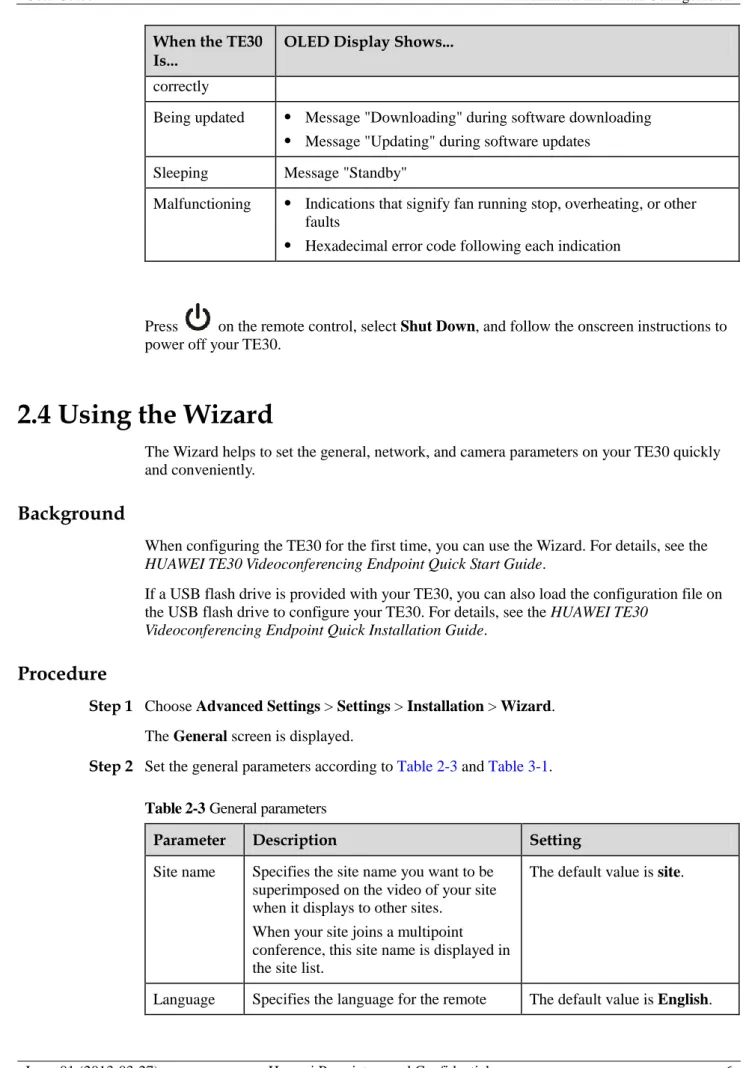
The OLED display shows the IP address, site number, and indications for startup, upgrade, sleep mode, and malfunction. Table 2-2 describes the content shown on the OLED display.
Table 2-2OLED display content
When the TE30
Is... OLED Display Shows... Starting Message "Booting..."
When the TE30
Is... OLED Display Shows... correctly
Being updated Message "Downloading" during software downloading Message "Updating" during software updates
Sleeping Message "Standby"
Malfunctioning Indications that signify fan running stop, overheating, or other
faults
Hexadecimal error code following each indication
Press on the remote control, select Shut Down, and follow the onscreen instructions to power off your TE30.
2.4 Using the Wizard
The Wizard helps to set the general, network, and camera parameters on your TE30 quickly and conveniently.
Background
When configuring the TE30 for the first time, you can use the Wizard. For details, see the
HUAWEI TE30 Videoconferencing Endpoint Quick Start Guide.
If a USB flash drive is provided with your TE30, you can also load the configuration file on the USB flash drive to configure your TE30. For details, see the HUAWEI TE30
Videoconferencing Endpoint Quick Installation Guide.
Procedure
Step 1 Choose Advanced Settings > Settings > Installation > Wizard. The General screen is displayed.
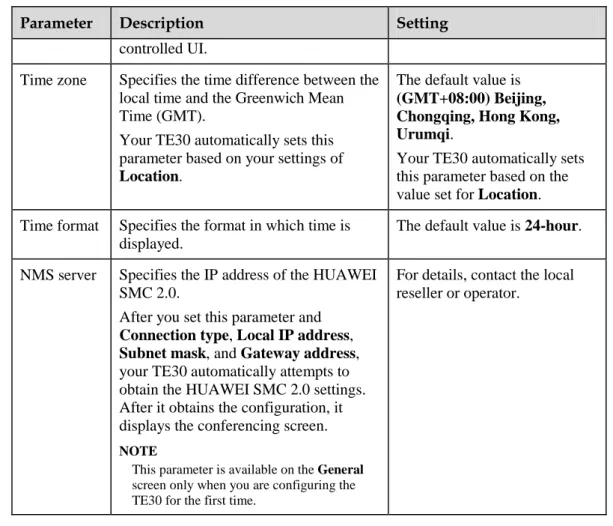
Step 2 Set the general parameters according to Table 2-3 and Table 3-1.
Table 2-3General parameters
Parameter Description Setting
Site name Specifies the site name you want to be superimposed on the video of your site when it displays to other sites. When your site joins a multipoint conference, this site name is displayed in the site list.
The default value is site.
HUAWEI TE30 Videoconferencing Endpoint
User Guide 2 Installation and Initial Configuration
Parameter Description Setting
controlled UI.
Time zone Specifies the time difference between the local time and the Greenwich Mean Time (GMT).
Your TE30 automatically sets this parameter based on your settings of Location.
The default value is (GMT+08:00) Beijing, Chongqing, Hong Kong, Urumqi.
Your TE30 automatically sets this parameter based on the value set for Location. Time format Specifies the format in which time is
displayed.
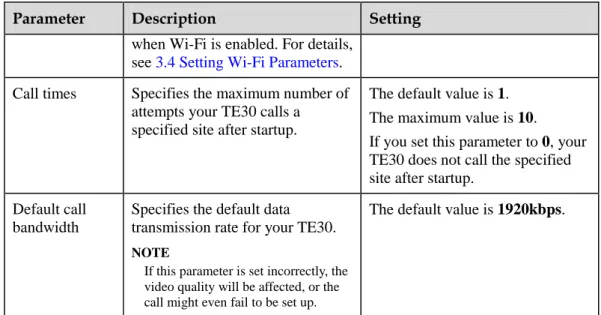
The default value is 24-hour. NMS server Specifies the IP address of the HUAWEI
SMC 2.0.
After you set this parameter and Connection type, Local IP address, Subnet mask, and Gateway address, your TE30 automatically attempts to obtain the HUAWEI SMC 2.0 settings. After it obtains the configuration, it displays the conferencing screen. NOTE
This parameter is available on the General screen only when you are configuring the TE30 for the first time.
For details, contact the local reseller or operator.
Step 3 Select Next. Set the H.323 parameters by referring to Table 3-2.
Step 4 Select Next. Set the Session Initiation Protocol (SIP) parameters by referring to Table 3-3. Step 5 Select Next. Set the video input parameters by referring to Table 4-5.
Step 6 Select Save. ----End
Follow-up Procedure
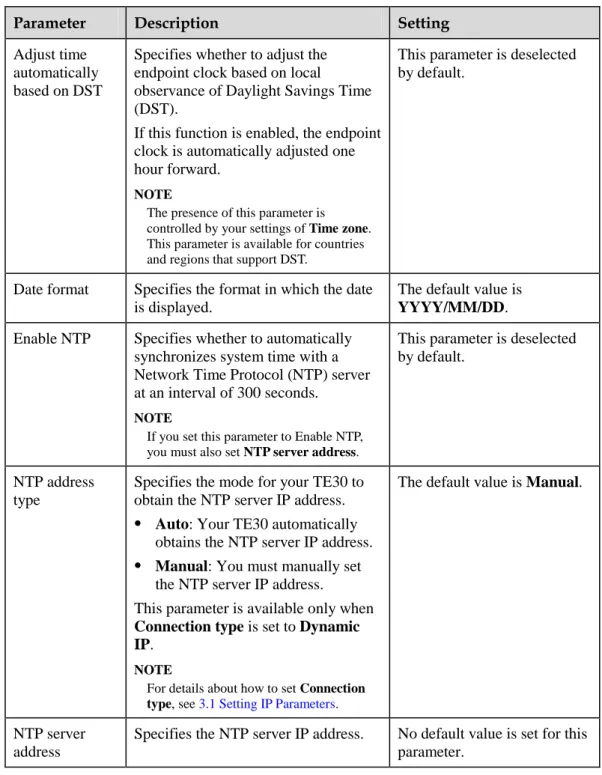
To set date and time parameters listed in Table 2-4, choose Advanced Settings > Settings > General > Date and time.
Table 2-4Date and time parameters
Parameter Description Setting
Location Specifies the country or area where your TE30 is located.
When you set this parameter, your TE30 automatically adjusts the value of the Time zone parameter.
Parameter Description Setting Adjust time
automatically based on DST
Specifies whether to adjust the endpoint clock based on local
observance of Daylight Savings Time (DST).
If this function is enabled, the endpoint clock is automatically adjusted one hour forward.
NOTE
The presence of this parameter is controlled by your settings of Time zone. This parameter is available for countries and regions that support DST.
This parameter is deselected by default.
Date format Specifies the format in which the date is displayed.
The default value is YYYY/MM/DD. Enable NTP Specifies whether to automatically
synchronizes system time with a Network Time Protocol (NTP) server at an interval of 300 seconds.
NOTE
If you set this parameter to Enable NTP, you must also set NTP server address.
This parameter is deselected by default.
NTP address type
Specifies the mode for your TE30 to obtain the NTP server IP address.
Auto: Your TE30 automatically
obtains the NTP server IP address.
Manual: You must manually set
the NTP server IP address.
This parameter is available only when Connection type is set to Dynamic IP.
NOTE
For details about how to set Connection type, see 3.1 Setting IP Parameters.
The default value is Manual.
NTP server address
Specifies the NTP server IP address. No default value is set for this parameter.
To set custom parameters listed in Table 2-5, choose Advanced Settings > Settings > Display > Personalize.
Table 2-5Custom parameters
Parameter Description Setting
Transparenc y
Specifies the transparency of the background photograph of the menu screen.
HUAWEI TE30 Videoconferencing Endpoint
User Guide 2 Installation and Initial Configuration
Parameter Description Setting
If you set the parameter to Opaque, no background photograph is displayed on the menu screen.
If you st this parameter to values other than Opaque, a background photograph is displayed behind the menu screen with a degree of transparency corresponding to the value chosen.
Display IP address
Specifies whether to display the local IP address on the conferencing screen.
This parameter is selected by default.
Select conference control operation
Specifies the conference controls to display on the Conference Control screen.
-
Display position
Specifies the display position for the site name superimposed on the local video.
The default value is Lower right corner.
Display duration
Specifies the duration to display the site name.
The default value is Always display.
Display time and zone
Specifies whether to superimpose the time zone and time on the video of your site after your site joins a conference.
This parameter is deselected by default.
Font color Specifies the color in which the site name is displayed.
The default color is white. Font size Specifies the font size for the site name
display.
The default value is Medium. Font Type Specifies the typeface for the site name.
This parameter is available only when
Language is set to 中文(简体).
The default value is Boldface.
Bold Specifies whether the site name is displayed in bold.
This parameter is deselected by default.
Set the horizontal offset
Fine-tunes the site name's location leftward and rightward on the video.
Value range: 0-96. The default value is 48. Set the
vertical offset
Fine-tunes the site name's location upward and downward on the video.
Value range: 0-96. The default value is 48.
3
Network
About This Chapter
With network settings configured correctly, your TE30 can properly communicate with other network devices.
3.1 Setting IP Parameters
To use your TE30 on an IP network to implement video communication, correctly set IP parameters, which include DNS server address, network interface mode, and gateway address. 3.2 Setting H.323 Parameters
When an H.323 network gatekeeper (GK) is used on your videoconferencing system, set the H.323 parameters.
3.3 Setting SIP Parameters
To prepare your TE30 for video communication using SIP, set SIP parameters, which includes whether to register with a SIP server.
3.4 Setting Wi-Fi Parameters
To use your TE30 to implement video communication over a Wi-Fi network, configure the Wi-Fi settings.
3.5 Setting QoS Parameters
The quality of service (QoS) settings determine the mode for processing IP data packets in a conference.
3.6 Setting Firewall Parameters
With the firewall settings correctly configured, video conferences held using your TE30 are secure.
3.7 Setting Network Diagnostics Parameters
Correct settings on the ports used for diagnostics enable you to use a network diagnostics tool to diagnose your TE30 using the ports.
HUAWEI TE30 Videoconferencing Endpoint
User Guide 3 Network
3.1 Setting IP Parameters
To use your TE30 on an IP network to implement video communication, correctly set IP parameters, which include DNS server address, network interface mode, and gateway address.
Procedure
Step 1 Choose Advanced Settings > Settings > Network > IP > IP. Set the IP parameters by referring to Table 3-1.
Table 3-1IP parameters
Parameter Description Setting
IPv6 Specifies whether IPv6 is used. If you use IPv6, you must also set Connection type, Local IP address, Subnet prefix length, and Gateway address.
This parameter is deselected by default.
DNS server address
Specifies the IP address of the active Domain Name System (DNS) server. After you set this parameter, domain names can be used as the addresses of network gatekeeper (GK) and Session Initiation Protocol (SIP) servers. The DNS server will translate the domain names into the IP addresses of the GK and SIP servers.
Example: 202.98.192.67
Alternate DNS server IP address
Specifies the IP address of the standby DNS server. The standby DNS server is used when the active DNS server is unavailable or responds slowly.
Example: 202.98.198.167
Network interface mode
Specifies the working mode for the network ports on your TE30.
Auto detection: When accessing the
network, your TE30 automatically negotiates with a remote network device to determine the optimal work mode.
10 Mbps and half duplex: The data
transmission rate is 10 Mbit/s, and data cannot be sent and received at the same time.
10 Mbps and full duplex: The data
transmission rate is 10 Mbit/s, and data can be sent and received at the same time.
100 Mbps and half duplex: The data
transmission rate is 100 Mbit/s, and data cannot be sent and received at the same time.
100 Mbps and full duplex: The data
The default value is Auto detection.
NOTE
If the remote network device you wish to communicate with has its network interface mode set to 10 Mbps and full duplex or 100 Mbps and full duplex, set this parameter to be the same as the remote network interface mode. Otherwise, communication will fail.
Parameter Description Setting transmission rate is 100 Mbit/s, and
data can be sent and received at the same time.
PPPoE Specifies whether your TE30 accesses broadband networks using dial-up connections.
NOTE
If you set this parameter to Enable, you must also set Dialing mode, User name, and Password.
The default value is Disable.
Dialing mode
Specifies the dial-up connection mode. The dial-up process complies with the Point-to-Point Protocol over Ethernet (PPPoE) protocol. To use a dial-up connection, in User name and Password, enter the user name and password that are provided by your broadband access service provider.
Auto: When your TE30 starts, it
automatically sets up a dial-up connection over the IP network. If the dial-up service is not free of charge, charging starts when the dial-up connection is established.
Manual: Your TE30 uses the dial-up
program to access the network. Choose Advanced Settings > Utilities > PPPoE Dialing > Connect and set up a PPPoE dial-up connection.
The default value is Auto.
Connection type
Specifies the mode for your TE30 to obtain an IP address.
Static IP: The network administrator
assigns an IP address to your TE30. If you select this option, you must also set Local IP address, Subnet mask, and Gateway address.
Dynamic IP: When a DHCP server is
available on the network, your TE30 automatically obtains an IP address using the Dynamic Host
Configuration Protocol (DHCP).
The default value is Static IP. If you have set NMS server, select Static IP for this parameter.
Local IP address Subnet mask
Specifies the IP address and subnet mask of your TE30.
Contact the network administrator. Examples:
IPv4 address: 192.168.1.10 IPv6 address:
HUAWEI TE30 Videoconferencing Endpoint
User Guide 3 Network
Parameter Description Setting
Gateway address
Specifies the gateway address that corresponds to the IP address of your TE30.
This parameter is mandatory when Connection type is set to Static IP.
Contact the network administrator. Examples: IPv4 address: 192.168.1.1 IPv6 address: 2000:0:0:0:200:55:0:1 Subnet prefix length
Specifies the prefix length for the IPv6 address of your TE30.
The default value is 0.
Step 2 Select Save. ----End
3.2 Setting H.323 Parameters
When an H.323 network gatekeeper (GK) is used on your videoconferencing system, set the H.323 parameters.
Prerequisites
A GK is used on the videoconferencing system.
Background
When a GK is used in the conference system, you can set the site number and name for your TE30. Other endpoint also registered with the GK can then use the site number or name as well as the IP address to call your TE30.
A GK is responsible for network bandwidth management, endpoint authentication, and address translation on the videoconferencing system.
Procedure
Step 1 Choose Advanced Settings > Settings > Network > IP > H.323. Set the H.323 parameters by referring to Table 3-2.
Table 3-2H.323 parameters
Parameter Description Setting
Enable GK Specifies whether to register your TE30 with the GK.
If you select this parameter, the TE30
will register with the GK after being started. After the TE30 successfully registers with the GK, it can call endpoints defined in the address
This parameter is deselected by default.
Parameter Description Setting book by their IP addresses, numbers,
and names.
If you do not select this parameter,
the TE30 will not register with the GK. In this case, the TE30 can call other endpoints by their IP addresses only.
GK registration mode
Specifies the mode for registering your TE30 with a GK.
Auto: Your TE30 automatically
registers with an available GK on the network and obtains the GK address.
Manual: You must set GK address,
which specifies the GK with which you want your TE30 to register.
The default value is Auto.
GK address Specifies the IP address of the server where the desired GK is installed. This parameter is mandatory when GK registration mode is set to Manual.
Example: 192.168.1.10
Site number Specifies the site number for your TE30. If your TE30 registers with a GK,
endpoints that also register with GKs can dial this site number to call your TE30.
The site number can contain only digits.
Example: 12345
H.323 ID Specifies the name by which a GK identifies your TE30 after your TE30 registers with the GK.
The names consist of digits, letters, Chinese characters, and special characters such as @ # %.
Example: ab3@Joe Authenticati
on user name
Specifies the user name used for H.323 authentication.
Obtain the user name from your network service provider. Ensure that this user name is the same as that predefined on the GK.
Password Specifies the password your TE30 uses to register with a GK. The GK uses this password to authenticate your TE30.
Obtain the password from your network service provider. Ensure that this password is the same as that predefined on the GK
Huawei GK Specifies whether your TE30 uses a Huawei GK.
If the Huawei GK is disabled, some functions, such as Conference Control, are unavailable on your TE30.
This parameter is selected by default.
Select this parameter when a Huawei GK is used.
HUAWEI TE30 Videoconferencing Endpoint
User Guide 3 Network
Parameter Description Setting
HTTPS mode
Specifies whether to upload information about conferences initiated from your TE30 in HTTPS encryption mode.
This parameter is available when
Huawei GK is selected.
If you do not select this parameter,
the TE30 will use the Transfer Control Protocol (TCP) to upload conference information, which may be insecure.
This parameter is selected by default.
To improve communication security, select this parameter.
Multipoint conference authenticatio n
Specifies whether a certificate for authentication is required to initiate a SiteCall conference. For details about how to import a certificate, see 11.4.8 Importing a Certificate.
This parameter is available only when HTTPS mode is selected.
This parameter is deselected by default.
To improve communication security, select this parameter.
Use VoIP gateway VoIP gateway address
Specifies whether to use a VoIP gateway and the address of the VoIP gateway. If you set these two parameters, your TE30 can place calls to PSTN endpoints connected to the VoIP gateway. If you select Use VoIP gateway, you must also set VoIP gateway address.
This parameter is deselected by default.
Step 2 Select Save. ----End
3.3 Setting SIP Parameters
To prepare your TE30 for video communication using SIP, set SIP parameters, which includes whether to register with a SIP server.
Prerequisites
All involved parties in the conference support SIP.
Procedure
Step 1 Choose Advanced Settings > Settings > Network > IP > SIP. Set the SIP parameters by referring to Table 3-3.
Table 3-3SIP parameters
Parameter Description Setting
Register with server
Specifies whether to register your TE30 with a SIP server.
If you select this parameter and the
TE30 successfully registers with the SIP server, the TE30 can call
endpoints defined in the address book by their IP addresses, numbers, and names.
If you dot not select this parameter,
the TE30 will not register with any SIP server and can call other
endpoints by their IP addresses only. NOTE
If you select this parameter, you must also set Server address, Conference service number, Site number, User name, and Password.
This parameter is deselected by default.
Server address
Specifies the IP address or domain name of the SIP server with which you want your TE30 to register.
Example: 192.168.1.10
Conference service number
Specifies the conference service number for your TE30 to initiate conferences over an IP multimedia subsystem (IMS) network.
Set this parameter to the conference service number obtained from the administrator of the IMS network. NOTE
Born of the standard IP, the IP Multimedia Subsystem (IMS) uses VoIP applications based on the 3rd Generation Partnership Project (3GPP) SIP to provide fixed and mobile multimedia services for operators. Integrating MCUs can enhance the functionality of the Huawei IMS HD videoconferencing solution.
No default value is set for this parameter.
Enable proxy server
Specifies whether to enable the proxy server. If you set Server address to the SIP server domain name, select this parameter.
This parameter is deselected by default.
Proxy server address
Specifies the address of the proxy server. If you set Server address to the SIP server domain name, set this parameter to the IP address bound to that domain name.
Example: 192.168.1.10
Site number Specifies the site number for your TE30. If your TE30 registers with a SIP server,
The site number can contain only digits.
HUAWEI TE30 Videoconferencing Endpoint
User Guide 3 Network
Parameter Description Setting
endpoints that also register with the SIP server can dial this site number to call your TE30.
Example: 12345
User name Password
Specifies the name by which the SIP server identifies your TE30 after it registers with the SIP server.
The value can consist of numbers, letters, Chinese characters, and special symbols such as @ # %.
Example: ab3@Joe Server type Specifies the SIP server type.
OCS: Select this option if your TE30
registers with the Microsoft Office Communications Server (OCS) or Microsoft Lync Server.
CISCO VCS: Select this option if
your TE30 registers with the Cisco TelePresence Video Communication Server (VCS).
Standard: Select this option if your
TE30 registers with other SIP servers.
The default value is Standard.
Transmissio n type
Specifies the protocol used for SIP signaling transmission.
TCP: Use the Transmission Control
Protocol (TCP) to implement transmission reliability.
UDP: Use the User Datagram
Protocol (UDP) to implement transmission with reduced latency.
TLS: Use Transport Layer Security
(TLS) to implement transmission security. If you select this option, you must import a certificate when your endpoint registers with a SIP server. For details, see 11.4.8 Importing a Certificate.
The default value is UDP.
Video request handling
Specifies how your TE30 handles video requests from a remote endpoint during a point-to-point SIP audio call or
multipoint conference.
Accept automatically: Your TE30
automatically accepts video requests from the remote endpoint.
Reject automatically: Your TE30
automatically rejects video requests from the remote endpoint.
Manual: Your TE30 prompts you to
accept video requests from the remote endpoint.
Step 2 Select Save. ----End
3.4 Setting Wi-Fi Parameters
To use your TE30 to implement video communication over a Wi-Fi network, configure the Wi-Fi settings.
Setting Wi-Fi Client Parameters
After the Wi-Fi client is enabled, your TE30 functions as a Wi-Fi client and access a Wi-Fi network after connecting to a wireless router.
Step 1 Choose Advanced Settings > Settings > Network > Wi-Fi > Wi-Fi Client and enable the Wi-Fi client.
Your TE30 automatically scans for available wireless routers and lists the found wireless routers under Wireless access point.
If you need to set a static IP address for your TE30, go to Step 2. Otherwise, go to Step 4. Step 2 Select Advanced Settings. On the Advanced Wireless Settings screen, set IP parameters by
referring to 3.1 Setting IP Parameters. Step 3 Select Save.
Step 4 Select Scan.
Your TE30 automatically scans for available wireless routers and lists the found wireless routers under Wireless access point.
Step 5 Under Wireless access point, select the wireless router to connect to.
Step 6 Press on the remote control. When prompted, enter the security key or password and select Connect.
When the TE30 is connected to one of the available routers, the status of that router will then change to .
----End
Setting Wi-Fi Hotspot Parameters
When the Wi-Fi hotspot is enabled, other devices can access a Wi-Fi network by connecting to the TE30.
Step 1 Choose Advanced Settings > Settings > Network > Wi-Fi > Wi-Fi Hotspot and enable the Wi-Fi hotspot.
Step 2 Select Advanced Settings. On the Advanced Wireless Settings screen, set the advanced wireless network parameters by referring to Table 3-4.
HUAWEI TE30 Videoconferencing Endpoint
User Guide 3 Network
Table 3-4Advanced wireless network parameters
Parameter Description Setting
SSID Number
Specifies the name for your endpoint's Wi-Fi network.
This parameter is mandatory. The value is a string of 31 characters or less, consisting of digits, letters, Chinese
characters, and special symbols, such as @ # %. Channel Specifies the channel to transmit data
through Wi-Fi signals.
If you select AUTO, your TE30 automatically selects the optimal channel.
The default value is AUTO. Retain the default value.
Protocol Specifies the standard used on the Wi-Fi network.
802.11b: This standard works in the
2.4 GHz band and delivers a maximum transmission rate of 300 Mbit/s.
802.11g: This standard works in the
2.4 GHz band and delivers a maximum transmission rate of 54 Mbit/s.
802.11n: This standard works in the
2.4 GHz band and delivers a maximum transmission rate of 300 Mbit/s.
802.11b/g/n: The 802.11b, 802.11g,
and 802.11n are all supported.
The default value is 802.11b/g/n. Identity authenticatio n mode Encryption mode
Specifies the identity authentication mode used on the Wi-Fi network.
OPEN: If you select this option, the
value available for Encryption mode are NONE and WEP.
SHARE: If you select this option, the
values available for Encryption mode is WEP.
WPA-PSK: If you select this option,
the values available for Encryption mode are TKIP and AES.
WPA2-PSK: If you select this
option, the values available for Encryption mode are TKIP and AES.
Default values:
The default value of
Identity authentication mode is OPEN.
The default value of
Encryption mode is NONE.
NOTE
When the TE30 is connected to a VPM220, you must set Identity authentication mode to WPA-PSK or WPA2-PSK.
Password Specifies the password used by other devices to connect to your TE30.
The required password types vary depending on your settings of Encryption mode.
Parameter Description Setting
If you set Encryption mode to NONE, the Wi-Fi network provided by your TE30 is open to everyone.
Local IP address Subnet mask
Specifies the IP address and subnet mask of your TE30. Examples: Local IP address: 192.168.1.10 Subnet mask: 255.255.255.0 DHCP Specifies whether your endpoint assigns
IP addresses to devices connected to it. If you select this parameter, you must also set Start IP address and End IP address.
This parameter is deselected by default.
Start IP address End IP address
Specifies the IP address segment for the devices connected to your TE30.
Examples:
Start IP address:
192.168.1.10
End IP address:
192.168.1.157
Step 3 Select Save.
Under Connected devices, you can view the MAC and IP addresses of all devices connected to your TE30.
----End
3.5 Setting QoS Parameters
The quality of service (QoS) settings determine the mode for processing IP data packets in a conference.
Procedure
Step 1 Choose Advanced Settings > Settings > Security > QoS. Set the QoS parameters by referring to Table 3-5.
Table 3-5QoS parameters
Parameter Description Setting
QoS type Specifies the QoS type. Available values are Priority and DiffServ.
Priority: If you select this option,
you must also set IP priority and Service type.
HUAWEI TE30 Videoconferencing Endpoint
User Guide 3 Network
Parameter Description Setting
DiffServ: If you select this option,
you must also set DSCP. DSCP stands for Differentiated Services Code Point.
IP priority Specifies the priority that a network device gives to forwarding the data packets sent by your TE30. A larger value indicates a higher priority.
Value range: 0-7 The default value is 7.
Service type Specifies how the data packets sent and received by your TE30 are processed on the network. Five values are available:
Normal: The network devices
transmit the data packets without special processing.
Minimum delay: The data packets
are transmitted at the highest rate with the minimum delay.
Maximum throughput: A large
number of data packets can be transmitted on the network.
Highest reliability: The data packets
can be transmitted to remote sites completely and correctly.
Minimum cost: The network devices
transmit data packets of the same traffic at lower costs.
The default value is Minimum delay. DSCP audio DSCP video DSCP data DSCP signaling
Specifies the service level of data packets sent by your TE30 during transmission.
A larger value indicates a higher service level.
Value range: 0-63 The default value is 63.
Network jitter
Adjusts network jitter settings to address:
Lip synchronization problems during
conferences
Choppy audio problems, by
increasing the network jitter value.
Value range: 0 ms to 1000 ms The default value is 0ms.
Lip sync. Fine-tunes network jitter settings if a slight lip synchronization problem persists after the network jitter settings are adjusted.
Value range: 0 ms to 300 ms The default value is 0ms.
Step 2 Select Save. ----End
3.6 Setting Firewall Parameters
With the firewall settings correctly configured, video conferences held using your TE30 are secure.
Background
The firewall protects your IP network by separating the internal and external network communication data.
With Network Address Translation (NAT) technology, a device on a local area network (LAN) is allocated with a dedicated internal IP address and uses an external IP address to
communicate with external devices. If your LAN uses NAT technology, set the IP address of the NAT wide area network (WAN) on your TE30.
Procedure
Step 1 Choose Advanced Settings > Settings > Network > Firewall. Set the firewall parameters by referring to Table 3-6.
Table 3-6Firewall parameters
Parameter Description Setting
Enable H.460
Specifies whether to use H.460 for traversal between public and private networks after your TE30 is recognized as a private network endpoint.
This parameter is deselected by default.
Use NAT Specifies whether NAT is enabled for traversal between public and private networks. An endpoint installed on a private network is considered as a public network endpoint after NAT is enabled on the endpoint. Even if you then enable H.460 on the endpoint, it is still
considered as a public network endpoint, and H.460 is not used.
This parameter is deselected by default.
NAT address
Specifies the public IP address for your TE30. This parameter is required after you select Use NAT.
No default value is set for this parameter.
H.323 call port
Specifies the port used by a remote site to receive and send RAS signaling during communication with the local site.
The default value is 1720.
RAS source port
Specifies the port used by the local site to receive and send Registration, Admission and Status (RAS) signaling during communication with remote sites.
The default value is 1719.
RAS destination port
Specifies the port used by a remote site to receive and send RAS signaling during communication with the local
HUAWEI TE30 Videoconferencing Endpoint
User Guide 3 Network
Parameter Description Setting
site. Local listen
port
Specifies the local SIP listening port. The default value is 5060. Server listen
port
Specifies the listening port in the SIP server with which your TE30 registers.
The default value is 5060. SIP call port Specifies the port used by your TE30 to
send SIP signaling during communication with remote sites.
The default value is 5060.
Local SIP TLS listen port
Specifies the local SIP listening port when Transmission type is set to TLS.
The default value is 5061. NOTE
For details about how to set Transmission type, see 3.3 Setting SIP Parameters. SIP server
TLS listen port
Specifies the listening port in the SIP server with which your TE30 registers when Transmission type is set to TLS.
The default value is 5061.
SIP TLS call port
Specifies the port used by your TE30 to send SIP signaling during
communication with remote sites when Transmission type is set to TLS.
The default value is 5061.
Port settings Normal: No port number can be
changed.
Port convergence: The port numbers
used in H.323 converge. Specifically, signals of different formats use the same port number. This efficiently saves port resources.
Same port send/receive: Your TE30
sends and receives data streams through the same port.
The default value is Same port send/receive.
Audio port Specifies the port used by your TE30 to receive audio packets during
communication with remote sites.
The default value is 10002.
Video port Specifies the port used by your TE30 to receive video packets during
communication with remote sites.
The default value is 10004.
Step 2 Select Save. ----End
3.7 Setting Network Diagnostics Parameters
Correct settings on the ports used for diagnostics enable you to use a network diagnostics tool to diagnose your TE30 using the ports.
Procedure
Step 1 Choose Advanced Settings > Settings > Network > Diagnostics. Set the network diagnostics parameters by referring to Table 3-7.y
Table 3-7Network diagnostics parameters
Parameter Description Setting
Network diagnostics
Specifies whether to enable the H.323 call port, RAS ports, and SIP call port to be used for network diagnostics. If you select this parameter, you must also set H.323 call port, RAS source port, RAS destination port, and SIP call port.
This parameter is deselected by default.
H.323 call port
Specifies the port the network
diagnostics tool uses to receive and send call signaling during communication with your TE30.
The default value is 1820.
RAS source port
Specifies the port your TE30 uses to receive and send RAS signaling during communication with the network diagnostics tool.
The default value is 1819.
RAS destination port
Specifies the port the network
diagnostics tool uses to receive and send RAS signaling during communication with your TE30.
The default value is 1819.
SIP call port Specifies the port your TE30 uses to send SIP signaling during
communication with the network diagnostics tool.
The default value is 5160.
Test network after exiting conference
Specifies whether to perform the ping operation after your TE30 exits a
conference. Ping results are recorded in a log.
The default value is Enable.
Step 2 Select Save. ----End
HUAWEI TE30 Videoconferencing Endpoint
User Guide 4 Display and Camera
4
Display and Camera
About This Chapter
Before using the TE30, you need to connect video devices to it and set video parameters. Video devices include video input devices, such as a camera, DVD player, and computer, and video output devices, such as displays. To enable your TE30 to deliver HD video quality, ensure the video input and output devices support 720p or higher resolutions.
4.1 Configuring Video Output
After connecting video cables, set the video output parameters, such as output mode, resolution, refresh rate, and stretch mode.
4.2 Configuring Video Input
Correct video input settings enable your TE30 to properly display video input from the built-in camera and VGA IN port.
4.4 Saving and Using Camera Presets
Camera presets are camera positions you stored ahead of time. Each camera preset stores the pan, tilt, and zoom (PTZ) settings of the camera. You can simply control the camera by switching the camera between the camera presets.
4.1 Configuring Video Output
After connecting video cables, set the video output parameters, such as output mode, resolution, refresh rate, and stretch mode.
Background
Your TE30 has two video output ports: VGA OUT and MAIN OUT HD. The MAIN OUT HD port connects to the HDMI connector of the integrated cable.
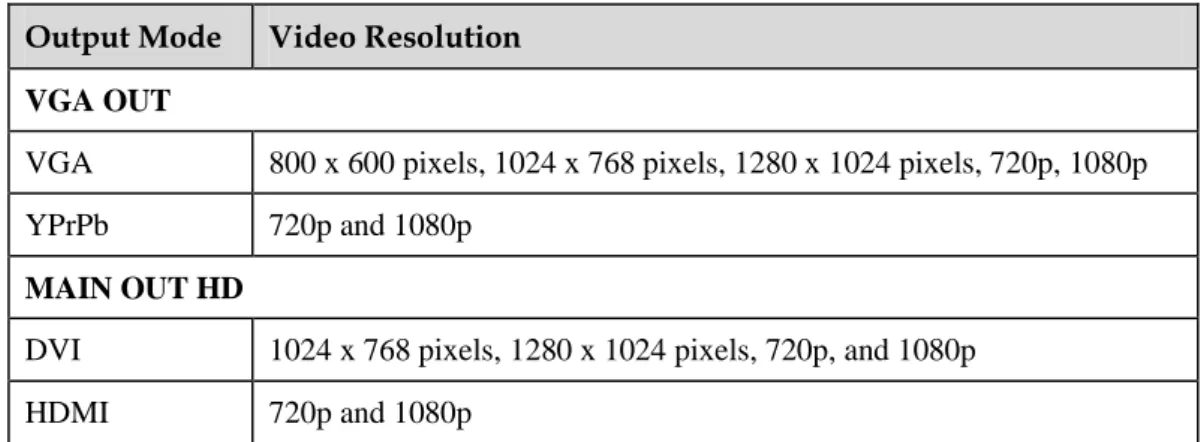
Video is clearer at a higher resolution. Select the video resolution that is the same as the resolution of the display connected to your TE30.
Table 4-1Available video resolutions in each output mode Output Mode Video Resolution
VGA OUT
VGA 800 x 600 pixels, 1024 x 768 pixels, 1280 x 1024 pixels, 720p, 1080p
YPrPb 720p and 1080p
MAIN OUT HD
DVI 1024 x 768 pixels, 1280 x 1024 pixels, 720p, and 1080p
HDMI 720p and 1080p
Video is smoother at a higher refresh rate. Select the refresh rate that is the same as the refresh rate of the display connected to your TE30. Table 4-2 lists the refresh rates available for each video resolution.
Table 4-2Available refresh rates for each resolution Video
Resolution Refresh Rate (Hz) 800 x 600 pixels 56, 60, 72, 75, or 85 1024 x 768 pixels 60, 70, 75, or 85 1280 x 1024 pixels 60, 75, or 85
720p 60, if the output mode is VGA
50 or 60, if the output mode is DVI, YPrPb, or HDMI
1080p 60, if the output mode is VGA
24, 25, 30, 50, or 60, if the output mode is DVI, YPrPb, or HDMI
Procedure
Step 1 Choose Advanced Settings > Settings > Video > Common Settings > Video Output. Set the video output parameters by referring to Table 4-3.
Table 4-3Video output parameters in common settings
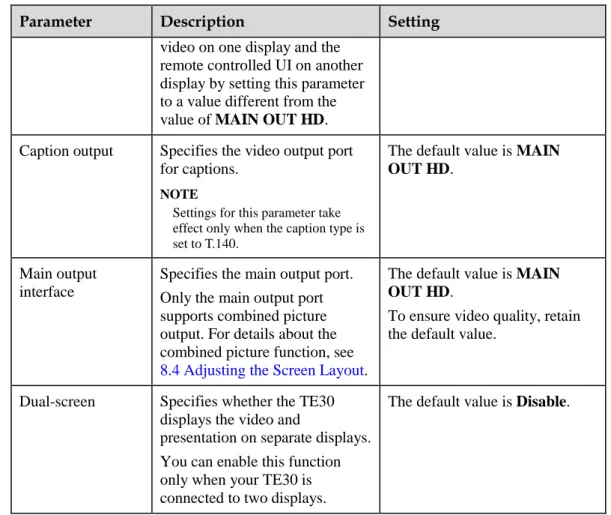
Parameter Description Setting
GUI Specifies the video output port for the remote controlled UI. During a conference, you can configure your TE30 to display
The default value is MAIN OUT HD.
HUAWEI TE30 Videoconferencing Endpoint
User Guide 4 Display and Camera
Parameter Description Setting
video on one display and the remote controlled UI on another display by setting this parameter to a value different from the value of MAIN OUT HD. Caption output Specifies the video output port
for captions. NOTE
Settings for this parameter take effect only when the caption type is set to T.140.
The default value is MAIN OUT HD.
Main output interface
Specifies the main output port. Only the main output port supports combined picture output. For details about the combined picture function, see 8.4 Adjusting the Screen Layout.
The default value is MAIN OUT HD.
To ensure video quality, retain the default value.
Dual-screen Specifies whether the TE30 displays the video and
presentation on separate displays. You can enable this function only when your TE30 is connected to two displays.
The default value is Disable.
Step 2 Select Save.
Step 3 Choose Advanced Settings > Settings > Video > Video Output. Set the video output parameters by referring to Table 4-4.
Table 4-4Video output parameters
Parameter Description Setting
Name Specifies the output port name to help you identify ports during a conference.
The default value for
the MAIN OUT HD port is HDMI OUT.
The default value for
the VGA OUT port is VGA OUT.
Output mode Specifies the format of the video received by the display.
VGA: Select this option if you use a
VGA cable to connect the display to the VGA OUT port on your TE30.
YPrPb: Select this option if you use a
VGA-YPrPb cable to connect the display to the VGA OUT port on your
The default value for
the MAIN OUT HD port is HDMI.
The default value for
the VGA OUT port is VGA.
Parameter Description Setting TE30.
HDMI: Select this option if you use an
integrated cable to connect the HDMI port in the display to the
MIC/TV/LAN/POWER port on your TE30.
DVI: Select this option if you use an
integrated cable to connect the DVI port in the display to the
MIC/TV/LAN/POWER port on your TE30.
Video resolution
Specifies the resolution for each video output port. The available options vary depending on your settings of Output mode. Table 4-1 lists the resolutions supported by the video output ports in each output mode.
The default value is 1080p.
Refresh rate Specifies the video refresh rate. The available options vary depending on your settings of Video resolution. Table 4-2 lists the refresh rates available for each video resolution.
The default value is 60Hz.
Stretch mode Specifies how to adjust the aspect ratio to fit the video into the screen.
Stretch: The aspect ratio is changeable.
No stretch: The aspect ratio is not
changeable.
Intelligent stretch: Your TE30 crops
the video to an appropriate size and stretches the video to full screen with the original aspect ratio. For example, to change a wide-screen video to a narrow-screen video, your TE30 crops the left and right edges of the
wide-screen video and stretches the video to full screen.
The default value is Stretch.
Automatic layout mode
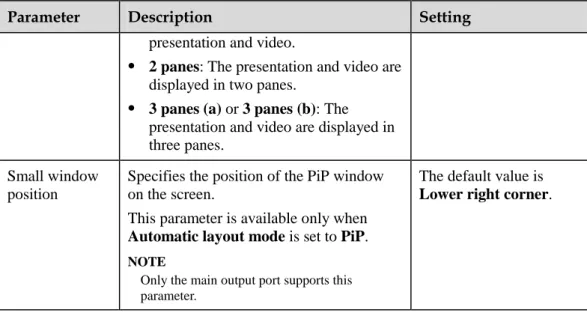
Specifies the display mode for the presentation and video.
NOTE
Only the main output port supports this parameter.
Full screen: Your TE30 displays the
video or presentation in full screen in the following priority sequence: remote presentation, local presentation, remote video, and local video.
PiP: The Picture in Picture (PiP)
function is enabled to display the
The default value is Full screen.
HUAWEI TE30 Videoconferencing Endpoint
User Guide 4 Display and Camera
Parameter Description Setting
presentation and video.
2 panes: The presentation and video are
displayed in two panes.
3 panes (a) or 3 panes (b): The
presentation and video are displayed in three panes.
Small window position
Specifies the position of the PiP window on the screen.
This parameter is available only when Automatic layout mode is set to PiP. NOTE
Only the main output port supports this parameter.
The default value is Lower right corner.
Step 4 Select Save. ----End
4.2 Configuring Video Input
Correct video input settings enable your TE30 to properly display video input from the built-in camera and VGA IN port.
Background
Your TE30 has a built-in camera and cannot be connected to external cameras. Your TE30 also provides a VGA IN port, which can be connected to a VGA port of a computer.
Procedure
Step 1 Choose Advanced Settings > Settings > Video > Video Input. Set the video input parameters by referring to Table 4-5.
Table 4-5Video input parameters
Parameter Description Setting
Name Specifies the video input port name to help you identify ports during a conference.
This name contains 1-64 characters.
Initial position
Specifies the position of the built-in camera when you power on the TE30.
Auto: The camera moves to its initial
position after startup.
Preset 1: The camera moves to the
Parameter Description Setting preset after startup.
NOTE
Each camera preset stores the pan, tilt, and zoom settings of the camera. For details about how to set presets, see 4.4 Saving and Using Camera Presets.
Moving speed
Specifies the movement and zoom speed for the camera at your site.
Select Slow for accurate positioning. Select Fast for quick positioning. Select Medium for medium paced
positioning.
The default value is Medium.
Stretch mode
Specifies how your TE30 adjusts the input video based on the video encoding format.
Stretch: Stretch the video to full
screen with an unfixed aspect ratio.
No stretch: Stretch the video to full
screen with a fixed aspect ratio. Black borders may appear at the upper and lower part of the display.
Intelligent stretch: Crop the video to
an appropriate size and stretch the video to full screen with the original aspect ratio. For example, to change a wide-screen video to a narrow-screen video, your TE30 crops the left and right edges of the wide-screen video and stretches the video to full screen.
The default value is No stretch.
Step 2 Select Save. ----End
You can also specify whether a remote site can control the local camera as follows: Choose Advanced Settings > Settings > Video > Common Settings > Video Input. Set Remote control parameters.
4.3 Selecting and Controlling a Camera
Select local and remote video sources and control the local and remote cameras to obtain the desired view.
HUAWEI TE30 Videoconferencing Endpoint
User Guide 4 Display and Camera
4.3.1 Selecting a Camera
To control a camera, first select the camera.
Background
When the TE30 is not in a conference, you can only select and control the local camera. When the TE30 is in a conference, you can select and control the local and remote cameras.
Procedure
Step 1 Press on the remote control to switch to the local or remote camera. If multiple local or remote cameras are available, use the following method to select a specific camera.
Step 2 Press on the remote control and select the desired camera from the list displayed in the lower right corner.
----End
4.3.2 Adjusting the Focal Length
You can change the magnification of distant objects by adjusting the focal length of the camera.
Step 1 Select .
Step 2 Select Adjust Focus and adjust the focal length as required. ----End
4.3.3 Controlling a Camera
You can perform pan, tilt, and zoom (PTZ) control over a local or remote camera.
Procedure
Step 1 Press on the remote control.
Step 2 On the camera control screen, perform any of the following:
Press to switch between local and remote cameras. The text in the upper left corner indicates the camera that is currently being controlled (local or remote).
Press navigation keys to turn the camera lens.
Press to zoom in or to zoom out.
----End
Follow-up Procedure
You can restore a local or remote camera to its default location: On the camera control screen, press on the remote control and follow the onscreen instructions.
4.4 Saving and Using Camera Presets
Camera presets are camera positions you stored ahead of time. Each camera preset stores the pan, tilt, and zoom (PTZ) settings of the camera. You can simply control the camera by switching the camera between the camera presets.
The camera supports PTZ functions, you can creat and save a maximum of 30 camera presets for the camera. A camera preset remains valid until it is deleted or changed.
Table 4-6 describes the features of camera presets.
Table 4-6Camera preset features
Number of Camera
Presets Whether Data Is Lost After Restart
Local 30 No
Remote 16 Yes
Saving a Camera Preset
A camera preset stores the PTZ settings of the camera.
If you select a number to save a camera preset to and another camera preset is already saved to that number, the new camera preset replaces the exiting one.
To save a camera preset:
Step 1 Set the camera lens position. For details, see 4.3 Selecting and Controlling a Camera. Step 2 Select , select Save Preset, select a number, and press on the remote control to
save the camera preset to the selected number. ----End
Moving a Camera to a Preset
If you have saved camera presets to the TE30, you can tap a preset number to apply that preset to the camera.
To move a selected camera to a camera preset: Step 1 Select and select Switch Preset.
Step 2 Select a camera preset number and press on the remote control to apply that preset to the camera.
----End
Deleting a Camera Preset
HUAWEI TE30 Videoconferencing Endpoint
User Guide 5 Microphone and Speaker
5
Microphone and Speaker
About This Chapter
While your TE30 provides a built-in microphone, you can connect external microphone arrays or other audio devices to the TE30 as audio input sources. Before using the TE30, connect the audio input devices to the TE30 and set audio input parameters correctly.
5.2 Connecting a Speaker
You can connect your TE30 to external speakers for louder audio output and better audio quality.
5.3 Configuring Audio
Before using your TE30 to join a conference, set the audio parameters to produce the best possible audio experience.
5.1 Connecting an Audio Input Device
For better sound pickup quality, you can connect a VPM220 microphone array (VPM220 for short) or VPM220W wireless microphone array (VPM220W for short) to your TE30.
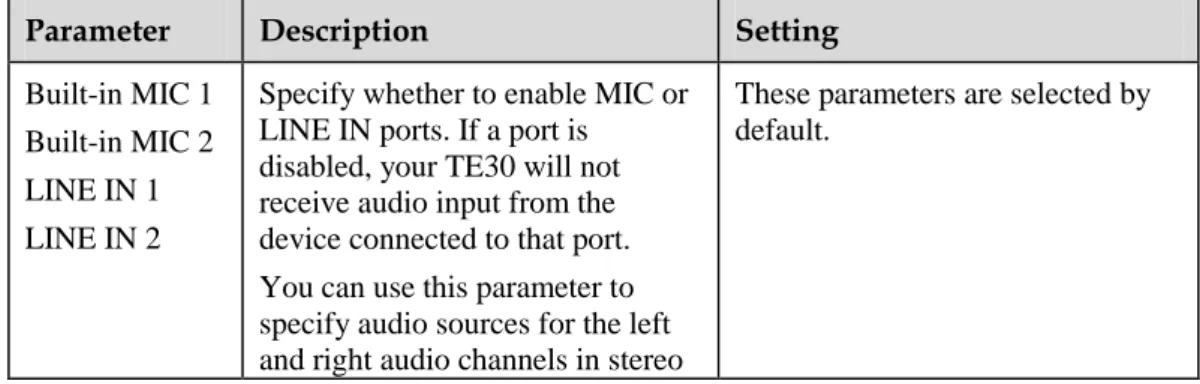
Before connecting any audio input device to your TE30, get to know each audio input port so that you can make the connections quickly and properly. Table 5-1 describes the audio input ports.
Table 5-1Audio input ports
Port Type Supported Audio
Feature
LINE IN 3.5 mm audio port Stereo
MIC/TV/LAN/POWER Proprietary port Audio picked up by microphone arrays