-12 -12 -12 -1 2 -6 -6 -6 -6 -6 -6 -6 -6 -6 -6 -6 -6 -6 -6 -6 -6 -6 -6 -6 -6 -6 -6 -6 -6 -6 -6 -6 -6 -6 -6 -6 6 6 6 6 6 6 6 6 6 6 6 6 6 6 6 6 6 6 6 6 6 6 6 6 6 6 6 6 6 6 6 6 6 6 6 12 12 12 1 2 12 12
Initial date 17/7/2002 00 UTC, Exp 1
Analysis of 500hPa height between Lat 35 and 60
Hovmoller diagram of monthly forecast. Analyzed anomaly (AN – CLIM_Era40)
180° 140°E 100°E 60°E 20°E 20°W 60°W 100°W 140°W 180°
LON 18 17 16 15 14 13 12 11 10 9 8 7 6 5 4 3 2 1 31 30 29 28 27 26 25 24 23 22 21 20 19 18 17
180° 140°E 100°E 60°E 20°E 20°W 60°W 100°W 140°W 180°
LON 768 744 720 696 672 648 624 600 576 552 528 504 480 456 432 408 384 360 336 312 288 264 240 216 192 168 144 120 96 72 48 24 0 Analysis date
Analysis and forecast date
-14 -12 18 17 16 15 14 13 12 11 10 9 8 7 6 5 4 3 2 1 31 30 29 28 27 26 25 24 23 22 21 20 19 18 17 -1 2 -10 -10 -8 -8 -6 -6 -6 -6 -6 -6 -4 -4 -4 -4 -4 -4 -4 -4 -4 -2 -2 -2 -2 -2 -2 -2 -2 -2 -2 -2 -2 -2 -2 -2 -2 -2 -2 -2 2 2 2 2 2 2 2 2 2 2 2 2 2 2 2 2 2 2 2 2 2 2 2 2 2 2 2 4 4 4 4 4 4 4 4 4 4 4 4 6 6 6 6 6 6 6 8 810
Forecast based 17/7/2002 12UTC, Exp 1
Ensemble mean and spread of 500hPa height between Lat 35 and 60
Hovmoller diagram of monthly forecast Analysis plus 32 days forecast
a b L L L L L L L L L L L L L L L L L L L L L L L L L L L L L L L L L L L L L L L L L L L L L L L L L L L L L L H H H H H H H H H H H H H H H H H H H H H H H H H H H H H H H H H H H H H H H H H H H H H H H H H H H H H H H H H
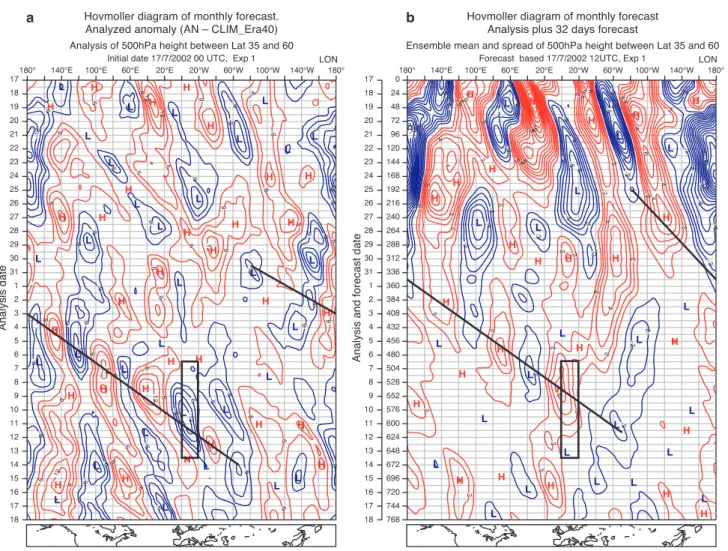
Figure 15 The Hovmöller diagram of 500 hPa geopotential anomaly of the analysis (left) and the monthly forecast (right)
initial-ized at 00 UTC 17 July 2002. (a) The analysed geopotential anomaly with respect to ERA40 climate (1989-2001) (contour interval 3 dam, with red and blue representing positive and negative anomalies, respectively), and (b) the MF ensemble-mean anomaly with respect to the model climate (1989–2001) is shown (contouring interval 1 dam). The black rectangles in both plots highlight the space / time window in which the flood occurred. The solid black lines highlight the wave-train propagation.
Martyn,D.,1992: Climate of the World, Developments in Atmos-pheric Science,Elsevier
Vitart,F., 2002: Monthly forecasting at ECMWF.
http://www.ecmwf.int/publications/member_states_meetings/ seasonal_forecasters/2002/vitart_2002.pdf
Federico Grazzini and Gerald van der Grijn
References
S
oon after ECMWF became operational, access to the computing facilities for remote users became an impor-tant issue. Software was made available to all remote users to enable such access via the dedicated leased lines. By the middle of the 1980s, the New Telecommunication System (NTS) software was running on the VAX servers, allowing remote users to submit and manage batch jobs from external sites to ECMWF and to transfer files between external sites and ECMWF.In the early 1990s, UNIX and TCP/IP became the stan-dards of choice and Telnet, FTP and X11 access for remote users became possible via the new UNIX-based servers.To
secure that access, authentication became based on SecurID software. The equivalent of the NTS software was created in the UNIX-and-TCP/IP-based ECBATCH software package, consisting of the ECcopy and the ECcmd software and suitable for unattended access. ECmars software was created for direct access to part of the MARS system.
The Internet soon offered the possibility of access to all users, not only the Member State sites but also from anywhere in the world.A firewall with Telnet, FTP and X11 Gateways and extensions to the ECBATCH software package securely expanded the access range into the Internet.
Nevertheless, over time, the limitations of these methods became apparent: users need to be very knowledgeable; the user interfaces are disparate and not always easy to use; there are many different transport mechanisms involved, so prob-lems with access are sometimes difficult to resolve. It also became necessary to offer facilities to interact with ECFS and to simplify the access method for users to avoid the double authentication process. In conclusion, to amalga-mate all the different access methods to ECMWF services in a single package, ECaccess was created.
What does ECaccess do?
The new ECaccess software package provides a portal for registered users to access the ECMWF computing and archiv-ing facilities with sarchiv-ingle step authentication from anywhere on the Internet. Authentication is performed in a uniform way, using SecurID cards and standard X509 certificates. ECaccess allows registered users to connect to Ecgate1 and open X11 windows, to transfer files, archive and retrieve data
in ECFS and submit jobs from any Unix workstation or Microsoft Windows PC. Jobs can currently be submitted to Ecgate1 and the VPPs. Submission to the IBM HPC will be offered early in 2003. Users can monitor and control submit-ted jobs through a Web interface. Job output data can be transferred to user workstations or PCs via the ‘ectrans’ command.
ECaccess replaces the current Ecbatch/Eccopy service and the Telnet, FTP and X11 specific Gateways (tn-gw.ecmwf.int, ftp-(tn-gw.ecmwf.int, x-gw.ecmwf.int). ECaccess architecture
The ECaccess Gateway is the interface between the client and the ECaccess server.The Gateway can be located within the protected Local Area Network (LAN) or in a DeMilitar-ised Zone (DMZ). If located outside the protected area, the firewall must be configured to permit legitimate traffic between the clients and the Gateway and between the Gateway and the ECaccess server.
I N T E R N E T ECcert Command F I R E W A L L FTP Server X Server ECaccess Tools FTP Client Telnet Client Web Browser ECMWF Work-Station Member State Gateway JSSE-SSL OpenSSL-SSL ECaccess ECgate1 ECaccess Gateway ECaccess CA (OpenSSL) ECcmd Server (Java app) ECios Server (C app) ECaccess Server (Java app) ECproxy Server (C app) ECaccess Gateway
Figure 1 The ECaccess
The ECaccess Gateway has been developed using Java[tm] object oriented programming technology, and can be run on almost any platform. This is done to avoid the usual porting issues existing with other languages such as C/C++. The ECaccess tools, installed on the remote user’s work-station or PC, offer high-level commands allowing users to manage their files and jobs from within batch scripts. The ECaccess tools are provided for several target operating systems and C sources are included to allow easy porting to most popular programming environments.
Finally, the ECaccess Server provides technical and high-level services to the Gateways, allowing generic access to computing and archiving facilities at ECMWF through Ecgate1.Two types of connections are maintained between the ECaccess Server and the ECaccess Gateways, one dedi-cated to data transfer and one dedidedi-cated to job and file management.The ECproxy Server carries out data transfer. It is a pure C, multithreaded application allowing fast trans-fer rates. The ECaccess Server, based on Enterprise Java Bean (EJB) technology, part of the Java2 Enterprise Edition (J2EE) framework, carries out the jobs and files management. Figure 1 gives a general overview of the ECaccess archi-tecture:
Full ECaccess functionality requires a Gateway to be installed on the remote site. A Gateway is available at ECMWF for individual users, but secure file transfers from ECMWF to remote sites can be performed only if a Gateway is installed on the remote site.
Security
ECaccess addresses security at two levels: user authentica-tion is performed using SecurID cards; batch requests (job submissions, file transfers, etc.) and Gateways are authenti-cated with X509 certificates.
A public-key infrastructure has been set-up by ECMWF to deliver:
◆ X509 certificates (valid for seven days) to authenticate users batch requests: users can request a certificate through a SecurID login process.
◆ X509 certificates (valid for two years) to authenticate ECaccess Gateways: administrators can register and get a certificate for their Gateway on the ECMWF Web site at http://www.ecmwf.int/services/ecaccess.
SSL is used to guarantee the integrity of the application data and the confidentiality of the transferred jobs and the monitoring information.
ECaccess Gateway
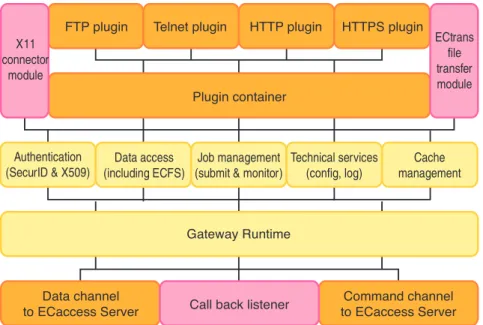
Figure 2 represents the internal organisation of the ECaccess Gateway.
The Gateway includes built-in mechanisms to maintain a secure connection with the ECaccess Server, to authen-ticate users and manage their requests, to transfer data and submit jobs.
The Gateway includes a model for the management of ‘plug-in’ services. A plug-in is a piece of code that handles requests/responses flowing through the Gateway. Currently, there are plug-ins for incoming FTP, HTTP/S, X and Telnet requests to ECMWF. Other plug-ins will be added in the future.
Plug-ins
◆ The FTP plug-in lets users submit jobs and transfer files between their own workstation or PC and the ECMWF file systems. This extended FTP server can be used for access to ECMWF computing and archiving facilities in interactive mode with a standard FTP client (or an FTP browser) or in batch mode from within shell scripts.
◆ The HTTP and HTTPS plug-ins let users manage and monitor their jobs and transfer files.They offer the same functionalities as the FTP plug-in from an HTTP browser.
◆ The Telnet plug-in provides access to Ecgate1 with a single-sign-on login process. Communication and authen-tication is established through the Gateway. The login process is secure and overcome the limitation of the current Telnet specific Gateway.
Figure 2 The ECaccess Gateway
inter-nal architecture.
FTP plugin Telnet plugin
Plugin container
Gateway Runtime
Command channel to ECaccess Server Data channel
to ECaccess Server Call back listener
Authentication (SecurID & X509)
Data access (including ECFS)
Job management (submit & monitor)
Technical services (config, log) Cache management HTTP plugin HTTPS plugin ECtrans file transfer module X11 connector module
Call back
The Call back listener receives notifications from the ECaccess Server and activates either the ECtrans file trans-fer module to transtrans-fer data to a remote user’s workstation, or the X11 connector module to open connections to a remote user’s X11 server.
ECaccess Server
The ECaccess Server runs on the ECMWF side. Figure 3 represents the internal architecture of the ECaccess Server. The ECaccess Server includes built-in mechanisms, such as the Java Authentication and Authorization Service (JAAS) and the SSL protocol, to authenticate the Gateways and provide a secure framework for remote access to ECMWF services.
The application tier provides public services to the Gateways. The Enterprise Java Bean (EJB) container relies on the services tier, which provides internal services to the EJB components (Files, etc.). The communication tier manages communications between the Gateways and the ECproxy Server, for the data transfers, and between the ECaccess Server and the ECcmd daemon.
Why do I need ECaccess?
With ECaccess, scientists from institutions anywhere in Europe can access the complex computer environment at ECMWF via the Internet using any standard FTP,Telnet or HTTP client. Jobs can be prepared and submitted remotely. Data produced by the jobs or MARS retrievals can be trans-ferred back to the remote user’s workstation or PC. Debugging or monitoring a suite of jobs can be done inter-actively starting the X11 applications via a Telnet connection. ECaccess offers remote users uniform access to ECMWF services in both interactive and batch mode. In particular, ECaccess enables remote users to:
◆ Connect directly to Ecgate1 via Telnet.
◆ Open X11 windows on Ecgate1, the VPPs and the HPCs.
◆ Transfer and manage HOME, SCRATCH, ECFS or
MARS files.
◆ Submit and monitor jobs from any desktop.
◆ Automate file transfers from ECMWF to any worksta-tion or PC using ECtrans.
How do I use ECaccess?
In order to use ECaccess, an account at ECMWF is required. Authentication is performed using SecurID cards to use the ECaccess services in interactive mode, or by creating a seven-day X509 certificate for batch access. Users connect to an ECaccess Gateway and go through an authentication procedure. The Gateway authenticates external users and contacts the ECaccess server, which in turn manages access to ECMWF services. Connections to the ECaccess Gateway can be made interactively via standard Telnet, FTP and HTTP clients or in batch mode via the ECaccess tools (a set of UNIX commands which can be called from batch scripts).
Managing files
Files can be managed interactively via FTP and HTTP or in batch mode via the ECaccess tools.
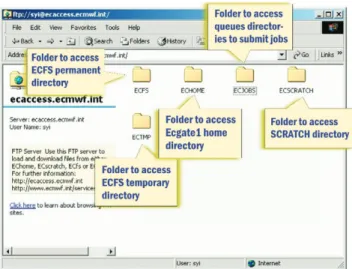
The root directory of the FTP server (Figure 4) contains the ECaccess domains: ECFS and ECTMP (the user’s ECFS permanent and temporary directories); ECHOME (the user’s home directory on Ecgate1); ECSCRATCH (the scratch directory) and ECJOBS (the queue directory).
Simply use drag and drop to transfer files between a local folder and any of the target ECaccess domains.
EJB Container
JBoss Runtime
ECProxy ECcmd DataSpace Tech. services
(config, log) Socket connector Files Service tier Communication tier Application tier Jobs / Queues
Channel to ECcmd Server on ECgate1 Channel to ECproxy Server
Authentication ECtrans Gateway
Figure 3 The ECaccess Server internal
architecture.
With an HTTP browser, the ECaccess domains can be selected using the ‘Browsing’ menu of the ECaccess Web interface (Figure 5).Within the selected domain, users can transfer or delete files, submit jobs and browse directories: With the ECaccess tools, remote users can select a target domain by setting the environment variable ECDOMAIN, and then manage or transfer files to and from this domain. For example, to manage ECFS files, a remote user will set ECDOMAIN to ECFS and use the following commands:
◆ ‘ecls’ or ‘ecdir’: to print the list of ECFS files.
◆ ‘ecget’ or ‘ecreget’: to retrieve an ECFS file.
◆ ‘ecput’: to store a local file in ECFS.
◆ ‘ecmkdir’ or ‘ecrmdir’: to create or remove ECFS direc-tories.
◆ ‘ecdelete’ or ‘ecchmod’: to delete or change permissions of an ECFS file.
Managing jobs
Jobs can be managed interactively via FTP and HTTP or in batch mode via the ECaccess tools.
The ECaccess FTP server can also be used to submit jobs. To submit a job from an FTP browser, click on the ECJOBS folder of the ECaccess root directory. Each ECJOBS subfolder is a target queue for job submissions (Figure 6). A script dragged and dropped into an ECJOBS subfolder is automatically submitted as a new job. Once executed, the job input file is renamed to include the job identifier and the job output file is created.All the files associated with the job can later be inspected or dragged and dropped into a directory local to the user’s workstation or PC.
A user can also use an HTTP browser to submit jobs step-by-step using the ‘Browse queues’ menu of the ECaccess WEB interface (Figure 7).
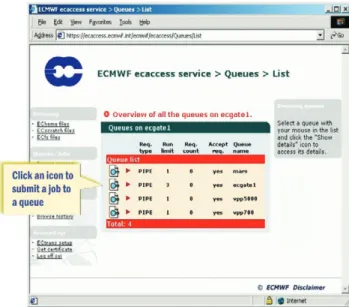
The list of available queues is displayed in a table with an icon for each queue. A target queue can be selected by clicking the appropriate icon. After having checked the details of the selected queue, click the ‘Submit a job to this queue’ button to include the job into the specified queue (Figure 8).
Figure 5 Access to the ECaccess domains.
Figure 6 Jobs submissions using an FTP browser.
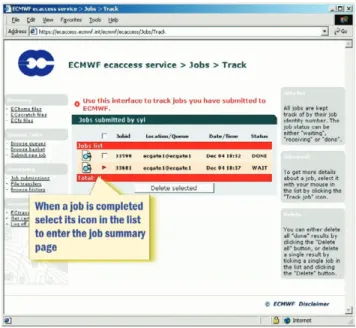
Once the source script is provided (either from a local file or from a text entered in the job input text area) and the settings have been checked, click the ‘Submit job’ button. Once submitted, jobs can be monitored using the job track interface. The monitoring interface provides remote users with information on the job requests referenced by the job identifier number.To access it, click the ‘Job submissions’ link in the ‘Monitoring’ menu (Figure 9).
Jobs submitted via the Web interface or via the ECtools commands will appear in the list of jobs.
Once the job has completed (status is DONE), its outputs can be managed (Figure 10).
The output, input and error files associated to the selected job can be transferred to an ECaccess domain or directly edited using the job editor of the Web interface.
With the ECaccess tools, remote users can prepare batch scripts, transfer them to ECMWF, submit them and retrieve the results.The status of submitted jobs can be interactively monitored.
To submit a job, a user will execute the ‘ecjput’ command, specifying the name of the queue where the job is to start, and the name of the file located on the remote user’s work-station or PC (‘ecjreq’ can be used if the file is located at ECMWF). Optionally, an email address to receive a notifi-cation when the job is started or completed can be provided. Then the following commands are available to monitor and manage the job requests:
◆ ‘ecjget’: to get the job output files.
◆ ‘ecjdel’: to delete and cancel a job request.
◆ ‘ecjls’: to list the submitted job requests. Unattended file transfers
The ECtrans command is provided for batch script running at ECMWF, on ECMWF user accounts. Its purpose is to automate files transfers from the VPPs, Ecgate1 or the HPCs using the secure file transfer feature of the ECaccess Server (Figure 11).
Managing users and hosts
An external user makes a file transfer request from ECMWF, providing a remote user identifier and a remote destination. The destination is either a target file on the ECaccess Gateway host, or an FTP destination on a remote server or remote user’s workstation or PC. The connecting parame-ters to these remote destinations (remote user identifier and passwords) are held in the ECaccess Gateway database.
Via his HTTP browser a user can define the mapping between his ECMWF user identifier and his local user iden-tifiers. He can also check his available destinations by clicking the ‘ECtrans setup’ link in the ‘Account’ menu (Figure 12). Local users (MS users) can be created, updated or deleted. The parameters attached to a local user are a hostname (e.g. the remote workstation or PC for FTP access), a user iden-tifier and a password (e.g. the login parameters of the FTP account). Details on local users and destinations can be viewed by clicking on the appropriate icon.
Figure 9 Batch request monitoring.
With an HTTP browser, a user can monitor the ECtrans spool, by clicking the ‘File transfers’ link in the ‘Monitoring’ menu.The list of the spooled requests is then displayed.To get details for a specific request, click the appropriate icon in the list (Figure 14).
The transfer status is either INIT (spooling of the source file is still in progress), COPY (the transfer of the spooled file to the target destination is still in progress), DONE (the transfer was successful) or STOP (the transfer has failed). When the transfer is completed (successful or not) the user can restart it if necessary, providing new transfer parameters. Similar transfer management can be performed using the ECaccess tools. For example, to initiate a file transfer from the ECaccess domain ECSCRATCH, the user will set ECDOMAIN to ECSCRATCH and use the ‘ectreq’ command.The following commands are also available:
◆ ‘ectls’: to list the transfers carried out by ECtrans.
◆ ‘ectret’: to retry a failed transfer.
◆ ‘ectdel’: to cancel a transfer and remove its file from the spool.
◆ ‘ectinfo’: to display the target destination of a transfer request.
Telnet
The ECaccess Telnet server allows remote users to log into their shell account at ECMWF and execute commands on
Shared File System
ECMWF Network Member State Network MS Workstation ms1 MS Workstation ms3 MS Server running the gateway ECaccess Server (ECMWF) Internet MS Server ms2 ECaccess gateway (Member State) file:// ftp://
Figure 11 ECtrans mechanism.
Figure 12 ECtrans setup.
Sending files
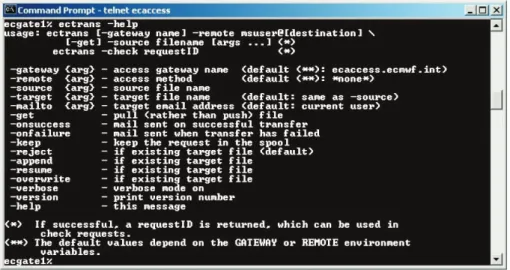
Figure 13 shows the usage of the ECtrans command. Flags can be used to specify the action to perform in case of an existing target file, to request notification in case of a successful and/or a failed transfer and to specify whether the transfer is from ECMWF to a remote site or the other way. When transfers are performed from ECMWF to a remote site, files are transferred to the ECtrans spool. A transfer identifier is returned for each spooled request.This identi-fier can later be used to monitor the transfer.
Figure 13 Usage of the ‘ectrans’
Figure 14 ECtrans monitoring.
Ecgate1. The ECaccess Telnet server comes with a dedi-cated UNIX command, available on Ecgate1, called ‘ecxterm’. Started from an ECaccess Telnet session, this command allows the opening of X applications from any host at ECMWF to any target remote user’s workstation or PC. X11
The ECaccess X11 plug-in allows remote users who have an X server running on their workstation or PC to log into their shell account at ECMWF and start X applications on any ECMWF host.
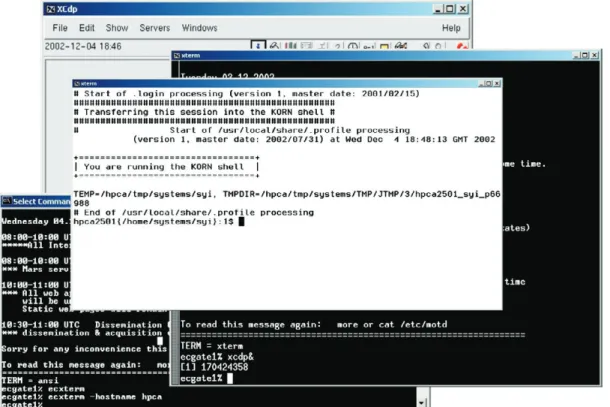
On ECgate1, a user can open xterm windows with the ‘ecxterm’ command. To open xterm windows on a differ-ent ECMWF system, the ‘hostname’ option of ‘ecxterm’ can be used.
The ‘ecxterm’ command is also part of the ECaccess tools. Remote users can start an ‘xterm’ on Ecgate1 running the ‘ecxterm’ command from their local desktop.
ECaccess administration
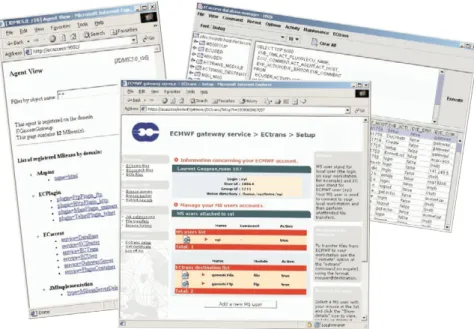
The ECaccess administration package provides tools to manage and monitor the ECaccess Gateway. The package includes a database and a log manager. Through graphic interfaces, administrators can interrogate the ECaccess data-base and monitor the log created by the Gateway activity. Using an HTTP browser, administrators can manage and monitor the services of the Gateway (e.g. start and stop the FTP, HTTP,Telnet or ECtrans service).
Next steps
There currently is only a single ECMWF ECaccess Gateway, for access via the Internet. In the near future, a second ECMWF ECaccess Gateway will be made available for access via RMDCN. Also, ECaccess will continue to be enhanced and adapted to facilitate the life of remote users and allow access to the new ECMWF resources.
If you wish to use ECaccess or make it available to your users, further information regarding ECaccess installation, administration and usage can be found at the ECMWF Web site: http://www.ecmwf.int/services/ecaccess.Also, you may wish to contact [email protected].
Figure 15 In the following example, once logged on Ecgate1 with a Telnet client, the user has opened an
‘xterm’ window and used this window to start an ‘xcdp’ session. An ‘xterm’ window has also been opened on the HPCA using the command ‘ecxterm -hostname hpca’.
Figure 16 Administration tools Matteo Dell’Acqua, Laurent Gougeon and Dieter Niebel
T
he Director presented the Centre’s programme ofactivities for the years 2003 to 2006 to Council in December 2002. The Committees had examined the scientific, technical, administrative and policy aspects of the programme in detail during the autumn, and the Committee Chairmen reported to Council on the gener-ally supportive views of their Committees.
Council delegates expressed support and enthusiasm for the programme during a detailed and lengthy discussion; it was clear that the Member States’ and Co-operating States’ National Meteorological Services all have a great interest in the Centre and its progress.
During the four-year period, the Centre’s Computer Hall will be substantially enlarged, and new office accommoda-tion will be constructed.
Introduction and executive summary
Our mission is to deliver operational forecasts of increasingly high quality and scope from a few days to a few seasons ahead. Our targets for this four-year programme (2003–2006) are to:
◆ continue extension of the skill of medium-range forecasts, both deterministic and probabilistic, (from three days to ten days ahead) at the rate of one day per decade
◆ prepare by 2003/4 an assessment of seasonal forecast skill over the last 40 years;
◆ continually improve the timeliness and reliability of prod-uct dissemination, and availability of the computer facilities to the Member States [1];
◆ extend the range of reliable forecasts of severe weather over land and sea towards day 4 and day 5.
The research and operational activities necessary to achieve these targets flow naturally from our responsibilities, capa-bilities and opportunities, and entail:
◆ Development of a suitably comprehensive earth-system data assimilation capability to make best use of all available data (especially satellite data) to provide analyses, together with estimates of the uncertainty of the analyses;
◆ Development of a suitably comprehensive and integrated high-resolution earth-system model, using efficient and economical numerical methods with a comprehensive and extensively-validated physical parametrization packages together with estimates of uncertainty in these packages;
◆ Development of the methodology of ensemble forecast-ing for medium-range, extended-range and seasonal forecasting, with an emphasis on forecasting severe weather;
◆ Operational delivery of an enhanced range of meteoro-logical and associated products;
ECMWF programme of activities 2003 to 2006
[1] Throughout this document, where appropriate, the term ‘Member State’ is taken to include Co-operating State.