Build cross-platform
applications rapidly
Create desktop
applications with AIR
™Integrate using Java
®,
ColdFusion
®or PHP
Gassner
The book you need to succeed!
Flex your development muscles
with this hefty guide
Write programs using familiar workflows, deliver rich
applications for Web or desktop, and integrate with a
variety of application servers using ColdFusion, PHP, and
others—all with the new Flex Builder 3 toolkit and the
comprehensive tutorials in this packed reference. You’ll
learn the basics of Flex 3, then quickly start using MXML,
ActionScript, CSS, and other tools to create applications
that can run on any browser or operating system.
Shelving Category:
COMPUTERS / Internet / Web Page Design
Reader Level:
Beginning to Advanced
$44.99
USAwww.wiley.com/go/flex3
David Gassner
is the President of Bardo Technical
Services, an Adobe Systems
Authorized Training Partner. He
holds Adobe developer certifi cations
in Flex, AIR, ColdFusion, Flash, and
Dreamweaver. David is the author
of technical training videos from
Lynda.com on Adobe Flex, AIR,
ColdFusion, and Dreamweaver,
and he is a regular contributor
to ColdFusion Journal and XML
Journal.
Companion
Web Site
Visit www.wiley.com/go/fl ex3 to
access code fi les for the projects
in the book.
B
a
Create
applica
Integra
ColdFu
Gassner
Fl
ex
®
3
A
dobe
®
David Gassner
Adobe
®
cross-platform
ations rapidly
Build c
applica
Flex
®
3
Embed Flex applications in HTML pages
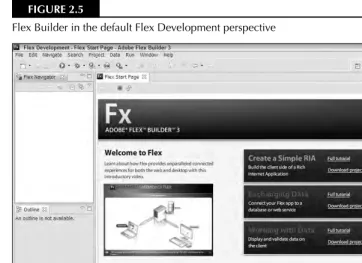
Learn the Flex Builder interface
Build and deploy custom Flex applications
• Install and learn how to use Flex
®Builder
™3
• Explore MXML, ActionScript
®3, and the anatomy of a Flex application
• Lay out Flex controls and containers, and use Cascading Style Sheets
(CSS) to create look and feel
• Incorporate Advanced List controls, Flex charting components, and
data entry forms
• Integrate your Flex applications with a variety of application servers
• Create cross-operating system desktop applications with Adobe
Flex
®Flex
®3 Bible
Published by
Wiley Publishing, Inc. 10475 Crosspoint Boulevard Indianapolis, IN 46256
www.wiley.com
Copyright © 2008 by Wiley Publishing, Inc., Indianapolis, Indiana Published simultaneously in Canada
ISBN: 978-0-470-28764-4
Manufactured in the United States of America 10 9 8 7 6 5 4 3 2 1
No part of this publication may be reproduced, stored in a retrieval system or transmitted in any form or by any means, electronic, mechanical, photocopying, recording, scanning or otherwise, except as permitted under Sections 107 or 108 of the 1976 United States Copyright Act, without either the prior written permission of the Publisher, or authorization through payment of the appropriate per-copy fee to the Copyright Clearance Center, 222 Rosewood Drive, Danvers, MA 01923, (978) 750-8400, fax (978) 646-8600. Requests to the Publisher for permission should be addressed to the Legal Department, Wiley Publishing, Inc., 10475 Crosspoint Blvd., Indianapolis, IN 46256, (317) 572-3447, fax (317) 572-4355, or online at http://www.wiley.com/go/permissions.
Limit of Liability/Disclaimer of Warranty:The publisher and the author make no representations or warranties with respect to the accuracy or completeness of the contents of this work and specifically disclaim all warranties, including without limitation warranties of fitness for a particular purpose. No warranty may be created or extended by sales or promotional materials. The advice and strategies contained herein may not be suitable for every situation. This work is sold with the understanding that the publisher is not engaged in rendering legal, accounting, or other professional services. If professional assistance is required, the services of a competent professional person should be sought. Neither the publisher nor the author shall be liable for damages arising herefrom. The fact that an organization or Website is referred to in this work as a citation and/or a potential source of further information does not mean that the author or the publisher endorses the information the organization or Website may provide or recommendations it may make. Further, readers should be aware that Internet Websites listed in this work may have changed or disappeared between when this work was written and when it is read.
For general information on our other products and services or to obtain technical support, please contact our Customer Care Department within the U.S. at (800) 762-2974, outside the U.S. at (317) 572-3993 or fax (317) 572-4002. Library of Congress Control Number: 2008930827
Trademarks:Wiley, the Wiley logo, and related trade dress are trademarks or registered trademarks of John Wiley & Sons, Inc. and/or its affiliates, in the United States and other countries, and may not be used without written permission. Flex is a registered trademark of Adobe Systems Incorporated. All other trademarks are the property of their respective owners. Wiley Publishing, Inc., is not associated with any product or vendor mentioned in this book.
About the Author
David Gassneris president of Bardo Technical Services, an Authorized Adobe Training Center in Seattle, Washington and an Adobe Systems Rapid Engagement Services partner for Adobe Flex. As an author for Lynda.com, he has recorded video training titles on Flex, AIR, ColdFusion, and Dreamweaver. He holds Adobe developer and instructor certifications in Flex, ColdFusion, Flash, and Dreamweaver, and has been a regular speaker at Allaire, Macromedia, and Adobe conferences. As a contributor to ColdFusion Journal and XML Journal, he has assisted many developers with the integration of ColdFusion with Java, XML, and other development technologies.
Credits
Senior Acquisitions Editor
Stephanie McComb
Project Editor
Martin V. Minner
Technical Editor
Drew Falkman
Copy Editor
Gwenette Gaddis Goshert
Editorial Manager
Robyn Siesky
Business Manager
Amy Knies
Sr. Marketing Manager
Sandy Smith
Vice President and Executive Group Publisher
Richard Swadley
Vice President and Executive Publisher
Bob Ipsen
Vice President and Publisher
Barry Pruett
Senior Project Coordinator
Kristie Rees
Graphics and Production Specialists
Carrie Cesavice, Abby Westcott
Quality Control Technicians
John Greenough, Jessica Kramer
Proofreading
Christine Sabooni
Indexing
Infodex Indexing Services
Cover Design
Michael Trent
Cover Illustration
Preface ...xxv
Part I: Flex Fundamentals . . . 1
Chapter 1: About Flex 3...3
Chapter 2: Using Flex Builder 3 ...29
Chapter 3: Building a Basic Flex Application ...67
Chapter 4: Understanding the Anatomy of a Flex Application ...91
Chapter 5: Using Bindings and Components ...123
Chapter 6: Debugging Flex Applications ...151
Chapter 7: Working with Events ...179
Part II: The Flex Class Library . . . 213
Chapter 8: Using Flex Controls ...215
Chapter 9: Using Layout Containers ...255
Chapter 10: Using Cascading Style Sheets ...283
Chapter 11: Working with Text ...315
Chapter 12: Managing Application Navigation...341
Chapter 13: Working with Pop-up Windows ...373
Chapter 14: Controlling Animation ...401
Chapter 15: Managing View States ...437
Part III: Working with Data . . . 461
Chapter 16: Modeling and Managing Data ...463
Chapter 17: Using List Controls ...497
Chapter 18: Using Advanced List Controls...525
Chapter 19: Using the Flex Charting Controls ...561
Chapter 20: Working with Data Entry Forms ...587
Chapter 21: Working with HTTPService and XML ...619
Part IV: Integrating Flex Applications with
Application Servers and the Desktop . . . 669
Chapter 23: Working with SOAP-Based Web Services ...671
Chapter 24: Integrating Flex Applications with BlazeDS and Java ...701
Chapter 25: Using the Message Service with BlazeDS...739
Chapter 26: Integrating Flex Applications with ColdFusion ...763
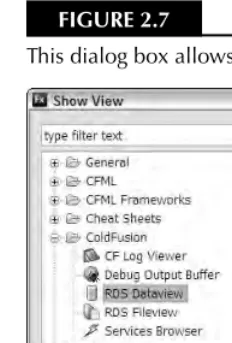
Chapter 27: Using the ColdFusion Extensions for Flex Builder ...793
Chapter 28: Integrating Flex Applications with ASP.NET ...825
Chapter 29: Integrating Flex Applications with PHP ...857
Chapter 30: Deploying Desktop Applications with AIR ...895
Glossary ...925
Preface. . . xxv
Part I: Flex Fundamentals
1
Chapter 1: About Flex 3. . . 3
Learning the Fundamentals of Flex ...4
Getting to know Flex applications ...4
Flex versus Flash development ...7
Flex and Object-Oriented Programming ...9
Understanding the Flash Player ...15
Learning a little history about the Flash Player ...16
Flash Player penetration statistics ...18
The Debug Flash Player ...18
Flash Player installation ...19
Flex 3 development tools ...23
Getting Help...26
Summary ...27
Chapter 2: Using Flex Builder 3. . . 29
Getting Flex Builder 3 ...29
Installing Flex Builder 3 ...30
Installing Flex Builder with the standalone configuration ...30
Installing Flex Builder with the Eclipse workbench ...32
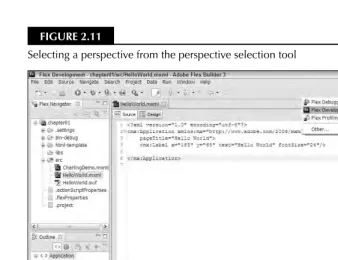
Getting to Know the Eclipse Features ...36
The Eclipse workspace ...36
Configuring Eclipse ...43
Touring the Flex Builder Interface ...45
Creating Flex projects...45
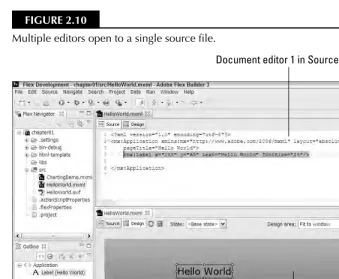
The Flex Builder user interface ...49
Getting Help...54
Exploring the Help contents ...54
Searching for Help terms ...55
Using Dynamic Help ...58
Searching for Code ...60
Using Eclipse search tools...60
Using Flex Builder code model search tools ...62
Chapter 3: Building a Basic Flex Application. . . 67
Creating a “Hello World” Application ...68
Switching workspaces...68
Creating the project ...68
Saying hello ...72
Understanding the html-template Folder ...73
HTML template files ...74
Deploying the Application ...81
Creating the release version ...81
Testing the release version ...82
Deploying the release version ...83
Integrating an application into an existing Web page ...84
Integrating Flex applications with Dreamweaver CS3 ...86
Summary ...90
Chapter 4: Understanding the Anatomy of a Flex Application . . . 91
MXML and ActionScript 3 ...92
Understanding MXML ...95
MXML is XML! ...95
MXML and containership ...100
MXML and non-visual classes...101
Understanding ActionScript 3 ...102
ActionScript syntax...103
Declaring variables ...103
Conditional statements ...105
Looping ...107
Combining MXML and ActionScript ...107
The <mx:Script> tag ...107
Using external ActionScript files ...108
Managing ActionScript code with Flex Builder ...111
Using the Application Container ...117
Passing application parameters ...118
Controlling application dimensions ...119
Setting the layout property ...120
Summary ...122
Chapter 5: Using Bindings and Components . . . 123
Using Binding Expressions ...124
Shorthand MXML binding expressions ...124
Using <mx:Binding>...125
Making expressions bindable ...125
Using MXML Components ...126
Creating MXML components ...126
Adding Properties and Methods to Components ...136
Component properties ...136
Component methods ...139
Using Component Libraries ...142
Creating component libraries ...142
Incorporating component libraries ...146
Summary ...149
Chapter 6: Debugging Flex Applications . . . 151
Debugging Basics ...152
The debug version of the application ...152
Running an application in debug mode ...152
Using trace() and the Logging API ...155
Using the trace() function ...156
Using the Logging API ...158
Using Breakpoints ...163
Setting and clearing breakpoints...163
Setting and removing breakpoints in an MXML or ActionScript editor ...163
Using the Breakpoints view ...165
Using breakpoints in a debugging session...169
Inspecting variables and expressions ...170
Controlling application execution with the Debug view ...173
Profiling Flex Applications ...175
Summary ...177
Chapter 7: Working with Events . . . 179
The Flex Event Architecture ...180
Handling Events in MXML ...182
Creating event handlers in MXML ...182
Working with event objects ...185
Handling Events with addEventListener() ...192
Setting up an event listener...192
Using event name constants ...194
Removing an event listener ...196
Using Event Bubbling...196
Using Custom Events ...198
Declaring custom events ...199
Dispatching custom events ...201
Handling custom events ...203
Using Custom Event Classes ...204
Creating the ActionScript class ...205
Overriding the clone() method ...208
Dispatching a custom event class ...209
Handling a custom event class ...211
Part II: The Flex Class Library
213
Chapter 8: Using Flex Controls . . . 215
Instantiating and Customizing Controls ...216
Instantiating controls with MXML and ActionScript ...216
Setting control properties and styles ...216
Understanding the UIComponent class ...217
Using Text Controls ...219
Common properties of text controls ...219
Text display controls...224
Text entry controls ...226
Using Layout Controls ...231
HRule and VRule ...232
The Spacer control ...233
Using Button Controls ...234
The Button control ...235
The LinkButton control ...237
The CheckBox control ...238
Using RadioButton controls ...239
Other Data Entry Controls ...241
The NumericStepper control ...241
Date controls ...242
Using Interactive Controls ...244
The ScrollBar controls...245
The Slider controls ...247
Working with Images ...249
Using the Image control ...249
Resizing images ...250
Embedding images ...251
Changing images at runtime ...252
Summary ...253
Chapter 9: Using Layout Containers. . . 255
Using Simple Box Containers ...256
Using vertical and horizontal layout containers ...256
Using the Canvas container ...259
Using container styles...261
Using the Panel Container ...264
Panel properties ...264
Panel styles ...266
The ControlBar container ...268
Using Constraint-Based Layout ...270
Positioning components in Design view ...270
Sizing Containers and Controls ...274
Content-based sizing ...275
Absolute sizing ...276
Percentage sizing ...276
Constraint-based sizing ...278
Using Advanced Constraints ...279
Declaring constraint rows and columns ...279
Placing and sizing components with advanced constraints ...280
Summary ...282
Chapter 10: Using Cascading Style Sheets . . . 283
About Cascading Style Sheets ...283
What Is a Style Sheet? ...284
Using Inline Style Declarations ...285
Using Style Selectors ...286
Using type selectors ...286
Using style name selectors ...288
Using the global selector...289
Using embedded style sheets ...289
Using external style sheets ...291
Using Compiled Style Sheets ...297
Compiling style sheets ...297
Loading compiled style sheets ...298
Controlling Styles with ActionScript...300
Setting and getting style information ...300
Modifying style selectors at runtime ...301
Graphical Skinning of Visual Components ...303
Creating graphical skins ...303
Using bitmap graphics as skins...303
Creating vector-based skins in Flash CS3 ...306
Declaring Flash-based skins ...310
Importing skin artwork ...310
Summary ...314
Chapter 11: Working with Text . . . 315
Controlling Fonts with Cascading Style Sheets ...316
Selecting Fonts ...316
Using device fonts ...317
Using embedded fonts ...318
Manipulating Embedded Fonts ...330
Rotating fonts ...330
Using advanced anti-aliasing ...334
Formatting Text Values ...335
Creating formatter objects ...336
Using formatters in binding expressions ...337
Using formatters in static methods ...339
Summary ...340
Chapter 12: Managing Application Navigation . . . 341
Classic Web Navigation ...342
Understanding Flex Navigation ...343
Using Navigator Containers ...343
Declaring a ViewStack in MXML...344
Using custom components in a navigator container ...344
Creating a ViewStack in Design view ...345
Working with navigator containers in ActionScript...349
Managing creation policy ...354
Managing navigator container dimensions ...355
Using Navigator Bar Containers ...356
Using an Array as a dataProvider ...356
Handling navigator bar events ...357
Using a ViewStack as a dataProvider...359
Managing navigator bar presentation ...360
Using Menu Controls ...362
Menu data providers...362
Handling menu events ...363
Using the Menu control ...364
Using the MenuBar control ...365
Using Other Navigator Containers ...367
The TabNavigator container ...367
The Accordion container ...369
TabNavigator and Accordion keyboard shortcuts ...371
Summary ...372
Chapter 13: Working with Pop-up Windows . . . 373
Using the Alert Class ...374
Presenting pop-up windows with Alert.show() ...374
Controlling Alert window modality ...375
Managing Alert window buttons...376
Handling Alert window events ...378
Using a custom graphical icon ...380
Using CSS selectors with the Alert class ...383
Using the PopUpMenuButton Control ...385
Creating a data provider ...385
Handling events ...386
Using the PopUpButton control ...388
Declaring the pop-up window ...388
Working with Custom Pop-up Windows ...391
Defining a custom pop-up window ...391
Using the PopUpManager class...395
Using the TitleWindow container ...398
Summary ...400
Chapter 14: Controlling Animation . . . 401
Using Effects ...402
Using effect classes ...403
Modifying effect class properties ...403
Using behaviors and triggers...404
Playing effects in ActionScript...408
Using tweening and masking effects ...410
Using composite effects ...420
Using easing functions ...424
Using Drag-and-Drop Operations...426
Implementing drag-and-drop with List controls ...426
Implementing custom drag-and-drop operations ...429
Summary ...436
Chapter 15: Managing View States . . . 437
Understanding View States ...438
Defining View States in Design View ...439
Creating a new state ...439
Defining a view state’s overrides ...441
Switching View States at Runtime...444
Declaring View States in MXML ...446
Adding components ...446
Removing components ...448
Overriding properties and styles ...448
Overriding event handlers ...449
Declaring View States with ActionScript ...453
Setting override properties ...453
Overriding event handlers ...454
Managing View States in Components ...456
Using Transitions ...457
Declaring a transition ...458
Using Parallel and Sequence effects in transitions ...458
Summary ...460
Part III: Working with Data
461
Chapter 16: Modeling and Managing Data . . . 463
Creating a Data Model ...464
Using Value Objects ...469
Using the New ActionScript Class wizard ...469
Value object class syntax...470
Instantiating value object classes...477
Using Data Collections ...480
Declaring an ArrayCollection ...481
Setting an ArrayCollection object’s source property...481
Accessing data at runtime ...482
Managing data at runtime ...483
Using data cursors ...489
Summary ...496
Chapter 17: Using List Controls . . . 497
Using Data Providers ...500
Using hard-coded data providers ...500
Using dynamic data providers ...502
Controlling List Item Labels ...504
Using the labelField property ...504
List Control Events and Properties ...509
Handling User Data Selections ...510
Using the change event...510
Using the selectedItem property ...510
Using the selectedIndex property ...512
Selecting complex data objects ...513
Using Custom Item Renderers ...515
Using drop-in item renderers ...516
Using inline renderers and editors ...518
Using component item renderers ...521
Summary ...524
Chapter 18: Using Advanced List Controls . . . 525
Using the ComboBox Control ...525
Using an editable ComboBox ...526
Using a bindable ComboBox ...528
Using the DataGrid Control ...531
Customizing DataGrid display ...533
Generating custom labels with DataGrid columns ...537
Advanced Item Renderers and Editors ...541
Using the dataChange event ...541
Using item editors ...543
Using HorizontalList and TileList Controls ...551
Using the AdvancedDataGrid Control ...555
Hierarchical data display ...556
Grouping flat data ...558
Chapter 19: Using the Flex Charting Controls . . . 561
Understanding Flex’s Types of Charts ...563
Declaring Chart Controls ...564
Setting Chart Properties and Styles ...566
Using pie charts ...566
Using financial charts ...575
Using bar, column, line, and area charts ...579
Summary ...586
Chapter 20: Working with Data Entry Forms . . . 587
Using the Form Container ...588
Using the FormHeading control ...589
Using the FormItem container ...592
Setting a default button ...593
Using Custom Form Components ...595
Creating a custom Form component...595
Adding controls to a Form component ...597
Validating Data Entry ...600
Creating a validator object ...600
Controlling validation with trigger events ...601
Controlling validation with ActionScript...604
Controlling validation rules and error messages ...608
Sharing Data with the Application ...610
Modeling Form data with a value object ...610
Dispatching a custom event ...611
Summary ...617
Chapter 21Working with HTTPService and XML . . . 619
Using RPC and REST Architectures ...620
Understanding the Representational State Transfer architecture ...620
Understanding the Remote Procedure Call architecture ...621
Declaring and Configuring HTTPService Objects ...622
Creating an HTTPService object ...622
Essential HTTPService properties ...623
Sending and Receiving Data ...626
Understanding asynchronous communications...626
Handling HTTPService responses ...626
Working with ItemResponder and AsyncToken ...634
Working with Value Objects ...637
Passing Parameters to Server Pages...639
Using named parameters ...639
Using bound parameters...640
Handling Cross-Domain Policy Issues ...641
Chapter 22: Managing XML with E4X . . . 645
Using XML Classes ...646 Creating an XML object ...647 Using the XMLList class ...650 Using the XMLListCollection class ...651 Using E4X Expressions...652 Extracting data from XML objects...653 Modifying data in XML objects ...660 Working with Namespaces ...665 Summary ...668
Part IV: Integrating Flex Applications with Application
Servers and the Desktop
669
Chapter 23: Working with SOAP-Based Web Services . . . 671
Understanding SOAP ...672 Understanding WSDL ...674 Using the WebService Component ...677 Installing ColdFusion 8 ...677 Creating a WebService object ...677 Handling Web service results ...679 Passing parameters to Web service operations ...687 Using Web Service Introspection ...689 Importing a Web service ...689 Managing Web services...692 Using generated Web service proxy classes ...694 Summary ...699
Chapter 24: Integrating Flex Applications with BlazeDS and Java. . . 701
Passing arguments to remote methods ...731 Passing data between ActionScript and Java ...733 Using value object classes ...734 Summary ...737
Chapter 25: Using the Message Service with BlazeDS . . . 739
Understanding the Message Service ...740 Configuring Messaging on the Server ...741 Configuring channels for messaging ...742 Configuring messaging adaptors and destinations ...744 Creating a Flex Messaging Application ...746 Creating a Flex project ...746 Sending messages ...747 Receiving and processing messages...748 Sending and Receiving Complex Data ...752 Filtering Messages on the Server...755 Using the selector property...755 Using subtopics ...756 Tracing Messaging Traffic ...760 Summary ...761
Chapter 26: Integrating Flex Applications with ColdFusion . . . 763
Working with RemoteObject Faults ...789 Handling the fault event ...789 Generating custom exceptions from a CFC function...790 Summary ...792
Chapter 27: Using the ColdFusion Extensions for Flex Builder . . . 793
Understanding ColdFusion Extension Features ...794 Installing the ColdFusion Extensions for Flex Builder ...795 Configuring RDS Servers ...797 Connecting to ColdFusion Data Sources ...800 Inspecting a data source ...801 Viewing table data ...803 Using the Visual Query Builder ...804 Using the CFC Value Object Wizard...807 Preparing to use the CFC Value Object wizard ...807 Running the CFC Value Object wizard ...809 Understanding generated value object classes ...811 Using the gateway CFC ...817 A conclusion about the CFC Value Object wizard...824 Summary ...824
Chapter 28: Integrating Flex Applications with ASP.NET. . . 825
Installing ASP.NET ...826 Creating an XML Web Service ...828 Creating a gateway file ...828 Creating a code-behind module ...829 Generating a Web Service in Flex Builder 3 ...831 Creating a Flex project with ASP.NET ...832 Creating an SQL Server database connection ...833 Generating a Flex/ASP.NET application...836 Understanding and using the generated code ...838 Building Web Services with Visual Web Developer 2008 ...843 Creating a Web service ...844 Configuring the development Web server...846 Testing a Web service ...848 Exchanging Data with XML Web Services ...849 Setting up the sample files ...849 Returning data from .NET ...850 Passing value objects to .NET service operations ...854 Summary ...856
Chapter 29: Integrating Flex Applications with PHP . . . 857
Installing MAMP on Mac OS X ...862 Managing MAMP servers ...863 Creating a Flex Project for Use with PHP ...866 Using PHP with HTTPService and XML ...868 Using the PHP SimpleXML extension ...868 Retrieving XML data with HTTPService ...869 Generating PHP Code with Flex Builder 3 ...870 Importing a database to MySQL ...870 Creating a MySQL database connection ...873 Generating a Flex/PHP application ...874 Understanding and using the generated code ...877 Using PHP and Remoting with AMFPHP ...884 Installing AMFPHP ...884 Creating an AMFPHP service in PHP ...885 Configuring AMFPHP Remoting in Flex Builder ...887 Calling an AMFPHP service with RemoteObject ...889 Returning complex data from AMFPHP ...890 Summary ...892
Chapter 30: Deploying Desktop Applications with AIR . . . 895
Understanding AIR Architecture...896 Installing the Adobe Integrated Runtime ...897 Downloading the AIR installer ...897 Installing and uninstalling AIR on Windows...898 Installing and uninstalling AIR on Mac OS X ...899 Creating a Flex Desktop Application ...900 Creating a Flex desktop application project ...900 Using the application descriptor file ...904 Packaging a release version of an AIR application ...907 Installing AIR applications ...911 Uninstalling AIR applications ...912 Flex Application Tips and Tricks with AIR ...913 Debugging AIR applications in Flex Builder ...913 Working with HTML-based content ...914 Using the WindowedApplication component ...919 Creating Remoting channels at runtime ...920 A Conclusion about AIR...922 Summary ...923
Glossary . . . 925
W
hen Macromedia first released Flash MX in 2002, the product was branded as the new way to build Rich Internet Applications (known by the acronym RIA). The term was invented at Macromedia to describe a new class of applications that would offer the benefits of being connected to the Internet, including access to various types of Web-based ser-vices, but would solve many of the nagging issues that had been inherent in browser-based appli-cations since the mid-1990s. By using Flash Player to host graphically rich appliappli-cations delivered as Flash documents, issues such as the ongoing differences between Web browsers in implementa-tion of Cascading Style Sheets (CSS) and JavaScript would be overcome. And because such applica-tions would be able to leverage Flash Player’s original strengths, including animation and delivery of rich media (audio and video) to the desktop, the applications could be both functional and visu-ally compelling.The first push into the new frontier of RIAs met with mixed success. Products built and delivered with Flash MX and ColdFusion MX (Macromedia’s recommended middleware application server software at the time) could be very impressive. Perhaps the best known of this class was the iHotelier hotel reservations application, still used by many large hotels around the world to present a Flash-based interface that allows customers to find and reserve hotel rooms from a visually intu-itive single-screen interface. Users could input information and get nearly instantaneous response without having to navigate the multi-page interface of classic HTML-based Web applications. Meanwhile, developers who were creating these applications were madly pulling their hair out. Building data-centric applications in Flash meant that you were working with a binary source file, making it difficult to integrate with source control systems. At the time, ActionScript wasn’t partic-ularly object-oriented (although this part of the situation improved drastically with the release of ActionScript 2 in Flash MX 2004), and there was no enforcement of code placement standards. Its loose data typing and lack of strong compile-time error checking or debugging tools led to phe-nomena such as “silent failure” — the moment when something that’s supposed to happen doesn’t, and no information is offered as to the reason.
In large multi-developer environments, figuring out where to put the code in a Flash document was a significant part of the application planning, because the product wasn’t really designed for application development. And the ActionScript editor built into Flash gave experienced developers fits. Particularly for Java developers who were used to sophisticated code editors, working in Flash slowed productivity and increased developer frustration.
code editor, and was included for those organizations that purchased a server license. Issues remained, but developers who were accustomed to building applications in source code were able to use their usual workflows, and multiple developers could collaborate more easily, because Flex applications were built as source code files that could be shared.
Flex 2 went further with the delivery of ActionScript 3, a true object-oriented language. The Flex 2 SDK was free, and Flex Builder 2 was the first version of the IDE delivered as an Eclipse plug-in. The IDE’s licensing changed to a per-developer model, identical to the model used by other suc-cessful developer tools. For enterprise application developers, the situation got better and better. Now, with the release of Flex 3, Adobe offers developers the ability not only to build better Web-based applications, but also to leverage their skills to deliver desktop applications using the Adobe Integrated Runtime. Anything you can do in Flex on the Web, you can now do in Flex on the desktop. The Flex 3 SDK has expanded with new classes, such as the AdvancedDataGrid. And
Flex Builder 3 is compatible with the latest release of the Eclipse workbench.
This book offers a comprehensive overview of Flex application development. Detailed explanations of building applications using the Flex framework (the class library containing the building blocks of Flex applications) are combined with explorations of how to integrate applications with the most popular Web service architectures and application servers. The book is not designed as a replacement for the Flex 3 documentation (which at last count included multiple publications and over 2,000 pages). Instead, it offers a combination of reference, tutorial, and tips for building and delivering Flex application to the Web and the desktop that take you through learning Flex in a natural sequence.
Many other books may be helpful as you learn Flex. The ActionScript programming language is worthy of an entire book and is described admirably in the ActionScript 3 Bible by Roger Braunstein, Mims H. Wright, and Joshua J. Noble. The AIR Bibleby Peter Else, Benjamin Gorton, Ryan Taylor, and Jeff Yamada offers a deep dive into the unique capabilities of the Adobe Integrated Runtime. And for those who want to understand more about Flash Player, the venerable Flash CS3 Professional Bible by Robert Reinhardt and Snow Dowd is an invaluable reference.
Finally, for those like to listen as they learn, check out my own video training titles at Lynda.com (www.lynda.com), Flex 3 Essential Training, Flex 3 Beyond the Basics, AIR Essential Training, and
AIR for Flex Developers Beyond the Basics.
Getting the most out of this book
Most chapters are accompanied by sample Flex applications and other source code that you can download from the Wiley.com Web site at www.wiley.com/go/flex3. Each chapter’s sample
files are independent from other chapters, so if you want to jump to a particular subject, you don’t first have to go through the sample code for all the preceding chapters.
existing project into Flex Builder. It’s portable between operating systems, so you can import the file into any version of Flex Builder 3, whether on Windows, Mac OS X, or the new version for Linux that was in public beta at the time this was written.
If you’re using the free Flex SDK (rather than Flex Builder), you can still use the Flex Project Archive files. Just extract them to a folder somewhere on your system. Following current best-prac-tice recommendations, the project’s application source code files are always in a subfolder of the archive root named src.
For chapters that deal with application servers such as BlazeDS, ColdFusion, ASP.NET, or PHP, you’ll need to download and install that software to run the sample applications from the Web site. Each relevant chapter includes the URL from which the software can be downloaded and complete installation instructions. For these chapters, you typically are instructed to create a Flex project from scratch and then extract files from a .zip file from the Web site into the project (rather than importing a Flex Project Archive file).
Finally, you can let us know about issues you find in the book or offer suggestions for subjects you’d like to see covered in a future edition. Visit www.bardotech.com/flexbibleto ask questions and offer feedback.
Using the book’s icons
The following margin icons help you get the most out of this book:
Notes highlight useful information that you should take into consideration.
Tips provide additional bits of advice that make particular features quicker or easier to use.
Cautions warn you of potential problems before you make a mistake. The New Feature icon highlights features that are new to Flex 3.
Watch for the Cross-Ref icon to learn where in another chapter you can go to find more information on a particular topic.
This icon points you toward related files on the book’s Web site,
www.wiley.com/go/flex3.
The Web Resource icon directs you to other material available online.
WEB RESOURCE
WEB RESOURCE
ON
theWEB
ON
theWEB
I
t’s a truism, and it’s also true, that no book of any length can be completed without the support and sufferance of family, friends, and colleagues.First, I’d like to thank the great folks at Wiley Publishing who always took my calls. Stephanie McComb and Marty Minner were always willing to hear the newest idea and help me figure out what was next. Gwenette Gaddis Goshert pointed out grammatical faux pasthat made this former English major blush. And Drew Falkman, fellow Flex instructor at Bardo Tech and aspiring screenwriter, ferreted out the technical issues without regard for my sensitive side.
The Adobe Certified Instructors who join me at Bardo Tech in teaching Adobe Flex to the world have taught me more about Flex than just about anyone. Thanks to Simeon Bateman, Drew Falkman (again), Alex Hearnz, Spike Milligan, and Jeanette Stallons.
Neil Salkind and Heather Brown at Studio B relieved me of having to worry about the business details.
Since early in this century, I’ve worked as a technical trainer and courseware developer with an extraordinary crew, the Adobe instructional development team members who have moved from Allaire to Macromedia to Adobe and never lost their stride: Matt Boles, Robert Crooks, Tina Goodine, Sue Hove, Deborah Prewitt, James Talbot, and Leo Schuman. They’re always willing to discuss and argue the teaching points. And thanks also to other Adobe Flex instructors who are always willing to share their knowledge and insights: Emily Kim, David Hussein, Simon Slooten, and Jun Heider.
Members of the Adobe Flex product management team, including Matt Chotin and Phil Costa, pointed me in the right direction more times than they know. Jeff Vroom of the LiveCycle Data Services development team humbled himself to be my teaching assistant at a couple of Adobe con-ferences and is more the master of this material than I.
Flex Fundamentals
IN THIS PART
Chapter 1
About Flex 3
Chapter 2
Using Flex Builder 3
Chapter 3
Building a Basic Flex Application
Chapter 4
Understanding the Anatomy of a Flex Application
Chapter 5
Using Bindings and Components
Chapter 6
Debugging Flex Applications
Chapter 7
F
lex 3 is the most recent version of a platform for developing and deploying software applications that run on top of the Adobe Flash Player. While such tools have existed for many years, the most recent toolkit from Adobe Systems allows programmers with object-oriented back-grounds to become productive very quickly using the skills they already have learned in other programming languages and platforms.Since the release of Flex 2, the Flex development environment has encour-aged a development workflow similar to that used in other desktop develop-ment environdevelop-ments such as Visual Studio, Delphi, and JBuilder. The developer writes source code and compiles an application locally and then uploads the finished application to a Web server for access by the user. That isn’t how Flex started, however.
Flex was originally released by Macromedia as a server-based application deployment and hosting platform. In the early versions of the Flex product line, an MXML/ActionScript compiler was included in a Java-based Web application hosted on a Java 2 Enterprise Edition (J2EE) server. Application source code was stored on the server. When a user made a request to the server, the application was compiled “on request” and delivered to the user’s browser, and hosted by the Flash Player.
This server-based compilation and application deployment model is still available in the most recent version of the server software now known as LiveCycle Data Services ES. But the version of the compiler that’s delivered in LiveCycle Data Services isn’t necessarily the same as the one that’s available in both the Flex 3 Software Developers Kit (SDK) and Flex Builder 3. And most developers find it simpler to use the primary “local compilation” devel-opment model.
IN THIS CHAPTER
Understanding the fundamentals of Flex
Getting to know Flex applications
Developing in Flex versus Flash Using Flex with object-oriented programming
Understanding the Flash Player Learning the history of the Flash Player
Making the most of Flex 3 development tools Getting help
In this chapter, I describe the nature of Flex applications, the relationship between Flex applications and the Flash Player, and how Flex leverages the nearly ubiquitous distribution of Flash Player on multiple operating systems. I also describe how Flex applications can be packaged for deployment as desktop applications using the Adobe Integrated Runtime (AIR), formerly known as Apollo.
Learning the Fundamentals of Flex
The Flex product line allows developers to deploy applications that run on the Flash Player as Web applications and on the Adobe Integrated Runtime (AIR) as desktop applications. The compiled applications that you create with Flex are the same as those produced by the Adobe Flash authoring environment (such as Adobe Flash CS3), but the process of creating the applications is very different.
Getting to know Flex applications
A Flex application is software that you create using the various pieces of the Adobe Flex 3 product line, which includes the following:
The Flex 3 Software Developers Kit (SDK)
Flex Builder 3
One major difference between the SDK and Flex Builder is that the SDK is free, while Flex Builder is available only through a license that you purchase from Adobe Systems. But in addition to the Flex SDK that’s at the core of Flex Builder, the complete development environment includes many tools that will make your application development more productive and less error-prone than working with the SDK and another editing environment.
Flex Builder 3 Professional (the more complete and expensive of the available Flex Builder licenses) also includes a set of components known as the Data Visualization Toolkit that aren’t included in the SDK. The Data Visualization Toolkit includes the Flex Charting components for presenting data as interactive visual charts and a new component called the AdvancedDataGridthat presents relational data with groups, summaries, multi-column sorting, and other advanced features.
The Flex Charting Controls were available as a separately licensed product in the Flex 2 product line. With Flex 3, the Charting Controls, the AdvancedDataGridcomponent, and other advanced controls are now available only as part of a Flex Builder 3 Professional license.
Flex programming languages
Flex 3 applications are written using two programming languages — ActionScript 3 and MXML:
ActionScript 3is the most recent version of the ActionScript language to evolve in the Flash authoring environment over the lifetime of the product. A complete object-oriented language, ActionScript 3 is based on the ECMAScript edition 4 draft language specifica-tion. It includes most of the elements of object-oriented languages, including class definition syntax, class package structuring, strong data typing of variables, and class inheritance.
MXMLis a pure XML-based markup language that is used to define a Flex application and many of its components. Most of the elements in MXML correspond to an ActionScript 3 class that’s delivered as part of the Flex class library.
When you compile a Flex application, your MXML code is rewritten in the background into pure ActionScript 3. MXML can be described as a “convenience language” for ActionScript 3 that makes it easier and faster to write your applications than if you had to code completely in ActionScript.
ActionScript 3 also is used in the Flash CS3 authoring environment for logical code, cre-ating class definitions, and other programming tasks. Unlike Flex 3, which uses only ver-sion 3 of ActionScript, you can create Flash documents in Flash CS3 that use older verver-sions of the language, such as ActionScript 2.
The diagram in Figure 1.1 describes the relationship between the Flex SDK’s command-line com-piler, Flex Builder, the MXML and ActionScript programming languages, and the Flash Player and Adobe Integrated Runtime.
MXML versus ActionScript 3
MXML and ActionScript can be used interchangeably in many situations. MXML is commonly used to declare visual layout of an application and many objects, but it’s usually your choice as a developer as to when to use each language.
NOTE
NOTE
Flex as Open Source
I
n April 2007, Adobe Systems announced its intention to migrate the Flex SDK to an open-source project, to be licensed under the Mozilla Public License (MPL). This license allows developers to modify and extend source code, and to distribute components of the code (or the entire SDK). Any changes that developers make to the ActionScript files that make up the Flex SDK must in turn be made available to other developers. This does not affect the developer’s own proprietary code. You still own the MXML and ActionScript code you write for your own applications.Not all components in the Flex SDK are available in the open-source package. Some components, such as the Flex Charting Components and AdvancedDataGrid, are available only through com-mercial licenses. Also, Flex Builder is available only through a license that you purchase from Adobe.
The open-source Flex SDK is managed through the http://opensource.adobe.com/wiki/ display/flexsdk/Web site. Additional information and ongoing discussion of the Flex open-source project is available at these Web sites:
http://groups.google.com/group/flex-open-source http://flex.org/
FIGURE 1.1
The Flex SDK and Flex Builder both compile source code in MXML and ActionScript, producing exe-cutable applications that are hosted by the Flash Player on the Web or the Adobe Integrated Runtime (“AIR”) on the desktop.
In these examples, I’m declaring an instance of an ActionScript class named Label. The Label
class is part of the Flex class library that’s included with both the Flex SDK and Flex Builder 3. Its purpose is to present a single line of text in a Flex application.
Declaring objects in MXML
The Labelclass is represented in MXML as a tag named <mx:Label/>. To create an instance of the Labelclass using MXML and set its textproperty to a value of Hello World, declare the tag and set the property as an XML attribute:
<mx:Label id=”myLabel” text=”Hello World”/>
This results in creating an instance of the Labelclass that is displayed in the application.
Declaring objects in ActionScript 3
The Labelclass also can be instantiated using ActionScript 3. When using the ActionScript 3 cod-ing model, you first create the object uscod-ing the class’s constructor method and then add the object to the application’s display list so it becomes visible. You can set the textproperty anytime after creating the object:
import mx.controls.Label;
var myLabel:Label = new Label(); myLabel.text = “Hello World”; this.addChild(myLabel); Flex 3 SDK
(Free)
Development tools
Flex Builder 3 (Commercial license)
MXML (Used XML structure)
Programming languages
ActionScript 3 (Based on ECMAScript)
Flash Player 9 (Web applications)
Runtime platforms
This ActionScript code accomplishes exactly the same steps as the MXML code in the first example. Notice that it takes four lines of ActionScript instead of the single line of MXML code. The amount of code needed to accomplish any particular task is a common difference and one of the reasons MXML exists. MXML can significantly reduce the amount of code in your application without compromising its features or performance.
Assuming that the ActionScript code above is in a main application file, the prefix this
in the method call this.addChild()would refer to the Application itself. If the same code were in an MXML component or ActionScript class, thiswould refer to the current instance of that component or class.
Flex versus Flash development
Developers tend to use Flex instead of Flash when they want to create software applications that have these characteristics:
High level of interactivity with the user
Use of dynamic data with application servers such as ColdFusion, ASP.NET, PHP, or J2EE
Highly scaled applications in terms of the number of views, or screens, from which the user can select
In contrast, developers tend to use Flash when they are creating documents with these characteristics:
Documents whose main purpose is to present visual animation
Marketing presentations
Hosting of Web-based video
Many applications that are built in Flash CS3 could be built in Flex, and vice versa. The selection of development environment, then, is frequently driven by a developer’s background and existing skill set.
Developing in Flash
As described above, developers who use Flash are frequently focused on presenting animation, hosting video, and the like. Flash is generally considered superior for animation work because of its use of a timeline to control presentations over a designated period of time. Flash supports a variety of animation techniques that make use of the timeline, including these:
Frame by frame animation
Motion tweening
Shape tweening
Flash also allows you to create animations using pure ActionScript code, but that approach also can be used in Flex. Developers who come from a graphic design background and are used to thinking visually appreciate the precision and visual feedback that the Flash development environ-ment provides.
NOTE
One drawback that application developers encounter with Flash is that the primary source docu-ment used in Flash, the .fla file format, is binary. As a result, it doesn’t work well with the source control systems that application developers commonly use to manage their development projects, because you can’t easily “diff,” or discover differences between, different versions of a binary file.
Developing in Flex
Developers who use Flex to build their applications commonly have a background in some other programming language. Documents can be created and made useful in Flash without any program-ming, but a Flex application is almost entirely code-based. Animations are handled entirely through ActionScript, because Flex doesn’t have a timeline as part of its development toolkit. Flex also has superior tools for handling large-scale applications that have dozens or hundreds of views, or screens. Although Flash CS3 has a screen document feature, this feature hasn’t received the development attention from Adobe that would make it a compelling architectural choice for these “enterprise” applications.
Finally, Flex applications are built in source code, which is stored in text files. These text files are easy to manage in source-code control applications such as CVS and Subversion. As a result, multi-developer teams who are dependent on these management tools find Flex development to be a nat-ural fit to the way they already work.
The Flex Builder 3 design view feature has become more friendly and useful to graphic designers than in previous versions, but it isn’t always intuitive to a designer who’s used to “real” graphic design tools like Adobe’s own Photoshop, Illustrator, and Fireworks.
Table 1.1 describes some of the core differences between Flex and Flash development.
TABLE 1.1
Differences between Flex and Flash Development
Task Flex Flash
Animation Flex uses ActionScript classes called The Flash timeline allows animation Effects to define and play animations. frame-by-frame or tweening, and also There is no timeline. supports programmatic animation with
ActionScript.
Working with data Flex has multiple tools for working Flash can communicate with the same with data and application servers, RPC sources as Flex, but its programming including the RPC components tools aren’t as intuitive or robust.
Task Flex Flash
Design Flex has a design view for WYSIWYG Flash has very good graphic design tools, (“What You See Is What You Get”) although not as complete a toolkit as application layout, but has no visual Illustrator. However, it has excellent tools tools for creating graphic objects for importing and using graphics created from scratch. in Photoshop and Illustrator.
Programming Flex supports ActionScript 3 and MXML. Flash supports all versions of ActionScript
languages (but only one version per Flash document)
and does not support MXML.
Code management Flex applications are created as source Flash documents are binary, which code in text files, which are completely presents problems when building compatible with source-code applications in multi-developer management systems. environments that require source-code
management tools.
Applications built for development in the Adobe Integrated Runtime (AIR) can be cre-ated in either Flex or Flash. AIR applications can be crecre-ated from any compiled Flash document or from HTML-based content.
Flex and Object-Oriented Programming
Flex application development is especially compelling for developers who are already acquainted with object-oriented programming (OOP) methodologies. Object-oriented programming is a set of software development techniques that involve the use of software “objects” to control the behavior of a software application.
Object-oriented programming brings many benefits to software development projects, including these:
Consistent structure in application architectures
Enforcement of contracts between different modules in an application
Easier detection and correction of software defects
Tools that support separation of functionality in an application’s various modules You’ll find no magic bullets in software development: You can create an application that’s difficult to maintain and at risk of collapsing under its own weight in an OOP language just as easily as you can create one that primarily uses procedural programming. But a good understanding of OOP principles can contribute enormously to a successful software development project.
And because ActionScript 3 is a completely object-oriented language, it serves Flex developers well to understand the basic concepts of OOP and how they’re implemented in Flex development. Object-oriented programming is commonly supported by use techniques known as modularity, encapsulation, inheritance, and polymorphism.
NOTE
Modularity
Modularitymeans that an application should be built in small pieces, or modules. For example, an application that collects data from a user should be broken into modules, each of which has a par-ticular purpose. The code that presents a data entry form, and the code that processes the data after it has been collected, should be stored in distinct and separate code modules. This results in highly maintainable and robust applications, where changes in one module don’t automatically affect behavior in another module.
The opposite of modularity is monolithic.In monolithic applications such as the example in Listing 1.1, all the code and behavior of an application are defined in a single source-code file. These applications tend to be highly “brittle,” meaning that changes in one section of the application run a high risk of breaking functionality in other areas. Such applications are sometimes referred to as
spaghetti code because they tend to have code of very different purposes all wrapped around each other.
LISTING 1.1
A monolithic Flex application
<?xml version=”1.0” encoding=”utf-8”?>
<mx:Application xmlns:mx=”http://www.adobe.com/2006/mxml”> <mx:Model> ...data representation... </mx:Model> <mx:Script> ...ActionScript... </mx:Script> <mx:HBox> <mx:DataGrid> <mx:columns> <mx:DataGridColumn .../> <mx:DataGridColumn .../> <mx:DataGridColumn .../> </mx:columns> </mx:DataGrid> <mx:Form>
<mx:FormItem label=”First Name:”> <TextInput id=”fnameInput”/> </mx:FormItem>
In the above application, all the application’s functionality is mixed together: data modeling, data collection, and logical scripting. Although the application might work, making changes without introducing bugs will be difficult, especially for a multi-developer team trying to work together on the application without constantly disrupting each other’s work.
A modular application such as the version in Listing 1.2 breaks up functionality into modules that each handle one part of the application’s requirements. This architecture is easier to maintain because the programmer knows immediately which module requires changes for any particular feature.
LISTING 1.2
A modular Flex application
<?xml version=”1.0” encoding=”utf-8”?>
<mx:Application xmlns:mx=”http://www.adobe.com/2006/mxml”> <mx:Script source=”scriptFunctions.as”/>
<valueObjects:AValueObject id=”vo”/> <views:ADataGrid id=”grid”/>
<forms:AForm id=”form”/> </mx:Application>
Flex implements modularity through the use of MXML components and ActionScript classes that together implement the bulk of an application’s functionality.
Encapsulation
Encapsulationmeans that a software object should hide as much of its internal implementation from the rest of the application as possible, and should expose its functionality only through pub-licly documented “members” of the object. A class definition that’s properly encapsulated exposes and documents these object members to allow the application to set properties, call methods, han-dle events, and refer to constants. The documentation of the object members is known as the application programming interface (API) of the class.
In the Flex class library, class members include:
Properties:Data stored within the object
Methods:Functions you can call to execute certain actions of the object
Events:Messages the object can send to the rest of the application to share information about the user’s actions and/or data it wants to share
Constants:Properties whose values never change
the application to execute functionality that’s encapsulated within the class, without the program-mer who’s calling the method having to know the details of how the action is actually executed. For example, imagine a class that knows how to display a video in the Flash Player and allows the developer to start, stop, and pause the video, and control the video’s audio volume. The code that executes these functions would have to know lots about how video is handled in Flash and the particular calls that would need to be made to make the audio louder or softer. The API of the class, however, could be extremely simple, including methods to execute each of these actions.
public class VideoPlayer() {
public function VideoPlayer(video:String):null { ... call video libraries to load a video ... }
public function start()
{ ... call video libraries to play the video ... }
public function stop()
{ ... call video libraries to stop the video ... }
public function setVolume(volume:int):null
{ ... call video libraries to reset the volume ... }
}
The application that instantiates and uses the class wouldn’t need to know any of the details; it just needs to know how to call the methods:
var myVideoPlayer:VideoPlayer = new VideoPlayer(“myvideo.flv”); myVideoPlayer.start();
myVideoPlayer.setVolume(1);
We say, then, that the VideoPlayerclass encapsulates complex behavior, hiding the details of the implementation from the rest of the application.
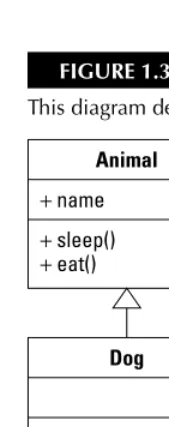
Inheritance
Inheritance refers to the ability of any class to extend any other class and thereby inherit that class’s properties, methods, and so on. An inheritance model allows the developer to define classes with certain members (properties, methods, and so on) and then to share those members with the classes that extend them.
In an inheritance relationship, the class that already has the capabilities you want to inherit is called the superclass,or base class,or parent class.The class that extends that class is known as the
FIGURE 1.2
This is an example of a UML diagram that describes a relationship between a base and a derived class.
[image:45.639.62.147.359.573.2]One class can extend a class that in turn extends another. UML diagrams can be extended to describe these relationships as well. The UML diagram in Figure 1.3 describes a three-tier inheri-tance relationship between a superclass named Animaland subclasses named Dogand Poodle.
FIGURE 1.3
This diagram describes a three-part inheritance relationship.
Animal
+ name + sleep() + eat()
Dog
+ bark() + eat()
Poodle
+ bark()
Animal
In Figure 1.2, methods of the superclass Animalare inherited by the subclass Dog. Doghas addi-tional methods and properties that aren’t shared with its superclass and that can override the superclass’s existing methods with its own implementations. The same relationship exists between
Dogand Poodle.
Because all versions of Animalsleep in the same way, calling Dog.sleep()or
Poodle.sleep()actually calls the version of the method implemented in Animal. But because Doghas its own run()method, calling Dog.run()or Poodle.run()calls that version of the method. And finally, because all dogs bark in a different way, calling Poodle.bark()calls a unique version of the bark()method that’s implemented in that particular class.
Inheritance allows you to grow an application over time, creating new subclasses as the need for differing functionality becomes apparent.
In Flex, the ActionScript inheritance model allows you to create extended versions of the compo-nents included in the Flex class library without modifying the original versions. Then, if an upgraded version of the original class is delivered by Adobe, a simple recompilation of the applica-tion that uses the extended class will automatically receive the upgraded features.
Polymorphism
Polymorphismmeans that you can write methods that accept arguments, or parameters, data typed as instances of a superclass, but then pass an instance of a subclass to the same method. Because all subclasses that extend a particular superclass share the same set of methods, properties, and other object members, the method that expects an instance of the superclass also can accept instances of the subclass and know that those methods can be called safely.
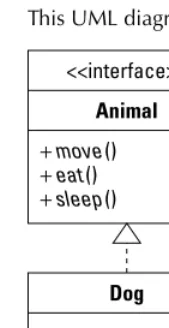
Polymorphism also can be used with a programming model known as an interface.An interface is essentially an abstract class that can’t be directly instantiated. Its purpose is to define a set of meth-ods and other object members and to describe how those methmeth-ods should be written. But in an interface such as the one described in Figure 1.4, the method isn’t actually implemented; it only describes the arguments and return data types that any particular method should have.
A class “implements” an interface by creating concrete versions of the interface’s methods that actu-ally do something. As with the relationship between super and subclasses, a method might be writ-ten that accepts an instance of the interface as an argument. At runtime, you actually pass an instance of the implementing class.
For example, you might decide that Animalshould be abstract; that is, you would never create an instance of an Animal, only of a particular species. The following code describes the interface:
public interface Animal {
public function sleep() {}
FIGURE 1.4
This UML diagram describes the relationship between an interface and an implementing class.
The interface doesn’t actually implement these methods. Its purpose is to define the method names and structures. A class that implements the interface might look like this:
public class Dog implements Animal {
public function sleep()
{ ... actual code to make the dog sleep ... } public function bark()
{ ... actual code to make the dog bark ... } }
Notice that a class that implements an interface can add other methods that the interface doesn’t require. This approach is sometimes known as contract-based programming. The interface consti-tutes a contract between the method that expects a particular set of methods and the object that implements those methods.
Flex supports polymorphism both through the relationship between superclasses and subclasses and through creation and implementation of interfaces in ActionScript 3.
Understanding the Flash Player
Flex applications are executed at runtime by the Flash Player or the Adobe Integrated Runtime. In either case, they start as applications compiled to the .swf file format.
When you deploy a Flex application through the Web, it’s downloaded from a Web server at run-time as a result of a request from a Web browser. The browser starts the Flash Player, which in turn runs the application.
<<interface>>
Animal
+ move() + eat() + sleep()
+ move() + eat() + sleep()
The Adobe Integrated Runtime includes the Flash Player as one of its critical components. Other components include a Web browser kernel to execute HTML, CSS and JavaScript, and APIs for local file access and data storage. But the version of the Flash Player that’s included with AIR is the same as the one that runs on users’ systems as a Web browser plug-in or ActiveX control. As a result, any functionality that you include in a Flex application should work the same regardless of whether the application is deployed to the Web or the desktop.
The diagram in Figure 1.5 describes the architectural difference between the Flash Player’s deploy-ment in a Web browser versus the Adobe Integrated Runtime.
FIGURE 1.5
Flash Player installed with a Web browser versus the Adobe Integrated Runtime
Learning a little history about the Flash Player
FutureWave Software originally created a product called Future Splash Animator, which in turn evolved from a product called SmartSketch. The player for the animations was Java-based and was the ancestor of the current Adobe Flash Player. After its purchase by Macromedia, the product was renamed and released in 1996 as Macromedia Flash 1.0.
The product went through a steady evolution, starting with basic Web animation and eventually becoming a full-featured programming environment with rich media (video and audio) hosting capabilities.
During its time with Macromedia, Flash (the IDE) was packaged as part the Studio bundle and was integrated with other Studio products such as Dreamweaver and Fireworks. Macromedia
Web browser
Web deployment model
Flash Player
Flash Player called as ActiveX or plug-in
Flash Player and Web browser integrated into runtime
Flash Player
positioned Flash MX and MX 2004 as development environments for what the company began to call rich internet applications (RIAs). Although the development environment that was Flash never fully satisfied the requirements of application developers (see the discussion in the section “Flex versus Flash development” of issues that are commonly encountered in Flash when developing true applications), the Flash Player continued to grow in its ability to host the finished applica-tions, however they were built.
After Adobe Systems purchased Macromedia, Flash became a part of the Adobe Creative Suite 3 (CS3) product bundles. Along with this rebundling came increased integration with other CS3 products such as Illustrator and Photoshop. Other Adobe products such as AfterEffects and Premiere received new export features that allow their video-based output files to be integrated into Flash-based presentations.
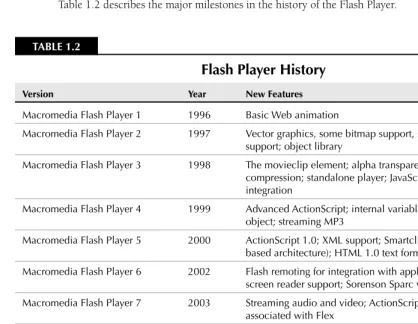
[image:49.639.61.480.275.599.2]Table 1.2 describes the major milestones in the history of the Flash Player.
TABLE 1.2
Flash Player History
Version Year New Features
Macromedia Flash Player 1 1996 Basic Web animation
Macromedia Flash Player 2 1997 Vector graphics, some bitmap support, some audio support; object library
Macromedia Flash Player 3 1998 The movieclip element; alpha transparency, MP3 compression; standalone player; JavaScript plug-in integration
Macromedia Flash Player 4 1999 Advanced ActionScript; internal variables; the input field object; streaming MP3
Macromedia Flash Player 5 2000 ActionScript 1.0; XML support; Smartclips (a component-based architecture); HTML 1.0 text formatting
Macromedia Flash Player 6 2002 Flash remoting for integration with application servers; screen reader support; Sorenson Sparc video codec
Macromedia Flash Player 7 2003 Streaming audio and video; ActionScript 2; first version associated with Flex
Macromedia Flash Player 8 2005 GIF and PNG graphic loading; ON VP6 video codec; faster performance; visual filters including blur and drop shadow; file upload and download; improved text rendering; new security features
Adobe Flash Player 9 2006 ActionScript 3; faster performance; E4X XML parsing; binary sockets; regular expressions
Each new product bundling and relationship has increased the requirements for the Flash Player. As a result, the most recent version of the Player (version 9) has all the features I’ve descri