Voltage Support Test Data
System User’s Guide
Effective Date:
06/22/2016
This document was prepared by: Operations Engineering
New York Independent System Operator 10 Krey Blvd
Rensselaer, NY 12144 (518) 356-6060
www.nyiso.com
Disclaimer
The information contained within this guide, along with the other NYISO documents, is intended to be used for informational purposes and is subject to change. The NYISO is not responsible for the user’s reliance on these publications or for any erroneous or misleading material.
Table of Contents
Table of Figures ... iv Revision History ... v
1. Introduction ... 1-1
1.1 Definition of the Voltage Support Test Data System (VSS) ... 1-1 1.2 Voltage Support Test Data System Users ... 1-2 1.3 Obtaining Help and Handling Error Messages ... 1-2
2. User Requirements ... 2-1
2.1 Browser Recommendations ... 2-1 2.2 Digital Certificates ... 2-1 2.3 Logging in to the Voltage Support Test Data System ... 2-1
3. Voltage Support Test Data System Roadmap ... 3-1
3.1 Process Flow ... 3-1 3.2 Matrix of Role Privileges ... 3-3
4. Submission Summary ... 4-1 5. Submission Summary Details ... 5-1 6. Leading Test Data Entry... 6-1 7. Lagging Test Data Entry ... 7-1 8. Export Batch Unit Data ... 8-1
Table of Figures
Figure 3-1 View Submission Summary ... 3-1 Figure 3-2 View Submission Details ... 3-2 Figure 3-3 Add, Update or Delete – Leading Test Results ... 3-2 Figure 3-4 Add, Update or Delete – Lagging Test Results ... 3-3
Table of Tables
Revision History
Version Date Revisions
1.
I
NTRODUCTION
The purpose of this Voltage Support Test Data System User Guide is to describe the features that are available to Market Participants, and to provide the information necessary to submit Leading and Lagging test data. This application replaces the manual process for voltage support test data submission.
This user guide has been organized in the following fashion: Section 1 – General introduction.
Section 2 – Describes the hardware and software requirements to access the Voltage Support Test Data System.
Section 3 – Presents a roadmap of the Voltage Support Test Data System and the roles of the various users.
Section 4 – Describes how to view test data saved/submitted for each Treatment Group
Section 5 – Describes how to view test data saved/submitted for each Member Unit. Section 6 – Describes how to enter and submit Leading test data entries.
Section 7 – Describes how to enter and submit Lagging test data entries. Section 8 – Describes how to create a batch unit extract file.
1.1
Definition of the Voltage Support Test Data
System (VSS)
The Voltage Support Test Data System is a user friendly, secure, web-based application that allows Market Participants to input, update, delete, save, submit, review and view their Leading and Lagging Test Data. This process consists of the following steps:
1. Market Participants will access the VSS application to enter test data,
review entries, and save/submit test data.
A Treatment Group may include one or more units, depending on
factors such as identical treatment and payment PTIDs.
2. NYISO Administrator will review each test data submission, and will
approve/reject submissions.
3. Market Participant are allowed to submit entries during the following
periods:
In-Period: Test Dates for this option include:
a. Leading test period is from 1/1 to 10/31
b. Lagging test period is from 5/1 to 10/31
c. Must be submitted to the NYISO within ten business days of the
test
Operational: operational data must be submitted to the NYISO within
10 business days of the end of the test period.
Out-of-Period: A test taking place outside of the normal test period
Note: The VSS application will always display the best leading and lagging value. Best Leading value is the largest accepted absolute leading value. Best Lagging is the largest accepted absolute value.
1.2
Voltage Support Test Data System Users
The Voltage Support Test Data System is designed for users participating in Voltage Support Testing
Market Participants who submit Leading and Lagging test data.
NYISO Administrator who reviews Leading and Lagging test data.
1.3
Obtaining Help and Handling Error Messages
When help is required while using the Voltage Support Test Data System software, please contact your Stakeholder Services representative.
Error messages may appear occasionally while using this software. These messages will display in a popup window with information about the error. After reading the message, close the window and proceed. If additional help or information is needed, please contact your Stakeholder Services representative.
2.
U
SER
R
EQUIREMENTS
The computer requirements for the user to run the Voltage Support Test Data System are described in this section.
2.1
Browser Recommendations
The NYISO currently supports Internet Explorer Version 11 (IEv11) and Mozilla Firefox (version 45.x). If you have an older version of that browser (IEv9, IEv10, Firefox 44, Firefox 43, etc.) you may experience difficulties using Voltage Support Test Data System.
2.2
Digital Certificates
All users must have a valid digital certificate installed on their respective computers and specific to their browser in order to access the NYISO Voltage Support Test Data System. For more information on digital certificates (including applying, exporting, obtaining, installing, and validating) please see Market Participant User’s Guide, Section 4.4, Digital Certificates, at:
http://www.nyiso.com/public/webdocs/markets_operations/documents/Manuals_and_Guides/Guides/User_Gu ides/mpug.pdf
Users of the Voltage Support Test Data System do not need to obtain an additional digital certificate. Existing MIS accounts need to be set-up with Voltage Support Test Data System privileges, which may be done by the MIS Administrator of the user’s organization.
2.3
Logging in to the Voltage Support Test Data
System
Some screenshots in this user guide were captured after resizing the application’s window. This may have caused the application to wrap within the window and appear slightly different, compared to viewing in a fully-sized browser window. Some screenshots were cropped for ease of presentation.
When using IE 11: Opening a report will sometimes cause a new tab to open within the browser. In this case, the user may close the tab and will still remain logged into the system.
To log in to the Voltage Support Test Data Systems — MPs and NYISO Admins
Note: In order to access the Voltage Support Test Data System, the user must have Voltage Support Test Data System privileges.
1. From the NYISO webpage (www.nyiso.com) enter the Markets &
2. There are two ways to access the Voltage Support Test Data System. You
can choose the Market Access Login link, as illustrated below.
Step 1
Or, you can choose the Ancillary Services link, as illustrated below.
2. From the Market Access Login page, the system will display the options
available on this page; select Voltage Support System Test Data System
(VSS) as illustrated below.
Step 3 Step 2
3. From the Ancillary Services page, the system will display the options
available on this page; select Voltage Support System Test Data System
(VSS) as illustrated below.
4. Click the Login to Voltage Support Test Data System link. The login page
is displayed as illustrated below.
5. Enter the MIS User ID and Password.
Note: The password is case sensitive.
6. Click the Login button or press the ENTER key.
Step 3
The default screen after login is the Voltage Support Test Data System Submission Summary as illustrated below.
To log out of the Voltage Support Test Data System
1. On the main screen, click the Log Out item as illustrated below.
2. A dialog box appears as illustrated below.
3.
V
OLTAGE
S
UPPORT
T
EST
D
ATA
S
YSTEM
R
OADMAP
This section provides the user with a description of the Voltage Support Test Data System process. The sequence of activities and the roles of the users in each activity are provided.
3.1
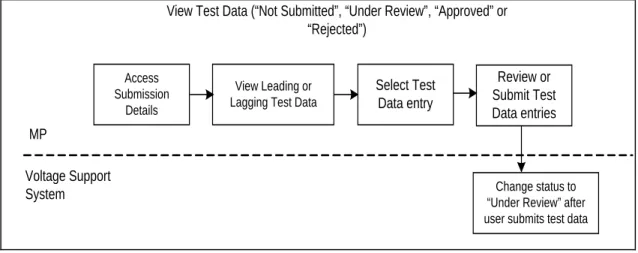
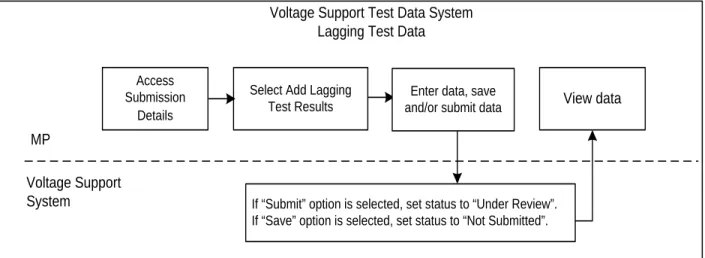
Process Flow
The Voltage Support Test Data System process flow is illustrated by Figure 3-1 through
Figure 3-4. It is intended to give the user an understanding of how the functions within the Voltage Support Test Data System interact. We have separated the process flow into the following parts:
Submission Summary(Figure 3-1)
Submission Details (Figure 3-2)
Leading Test Results (Figure 3-3)
Lagging Test Results (Figure 3-4)
Figure 3-1 View Submission Summary
Access Public Site View Treatment Group(s) Submission Summary Search or Select Treatment Group Load Submission Details MP Voltage Support System
Voltage Support Test Data System Submission Summary View Treatment Group(s) Submission Summary Cancel (returns to previous screen)
Access Submission
Details
View Leading or Lagging Test Data
Select Test Data entry Review or Submit Test Data entries Change status to “Under Review” after user submits test data MP
Voltage Support System
View Test Data (“Not Submitted”, “Under Review”, “Approved” or “Rejected”)
Figure 3-2 View Submission Details
Access Submission
Details
Select Add Leading
Test Results View data
MP
Voltage Support System
Voltage Support Test Data System Leading Test Data
Enter data, save and/or submit data
If “Submit” option is selected, set status to “Under Review”. If “Save” option is selected, set status to “Not Submitted”.
3.2
Matrix of Role Privileges
The Matrix of Role Privileges for the Voltage Support Test Data System is shown in the following table. This matrix lists all of the functions in the Voltage Support Test Data System and shows the read (R) and write (W) access privileges for each of the users. Each of the listed functions is described in the following sections.
Table 3-1 Voltage Support Test Data System Role Privileges Matrix
Ref
Sect Functions MP
NYISO Admin 1 Submission Summary Screen R/W R
Submission Details Screen 4 Leading Tests
Add Leading Test Data R/W R
Update Leading Test Data R/W R
Delete Leading Test Data R/W R
Submit Leading Test Data R/W R
5 Lagging Tests
Add Lagging Test Data R/W R
Update Lagging Test Data R/W R
Delete Lagging Test Data R/W R
Submit Lagging Test Data R/W R
6 Export Batch Unit R/W R R Read access only
R/W Read and write access Access
Submission Details
Select Add Lagging
Test Results View data
MP
Voltage Support System
Voltage Support Test Data System Lagging Test Data
Enter data, save and/or submit data
If “Submit” option is selected, set status to “Under Review”. If “Save” option is selected, set status to “Not Submitted”.
4.
S
UBMISSION
S
UMMARY
Pre-Requisite: Section 4 assumes the user has logged on to the Voltage Support Test Data System. If this is not the case, complete the procedure outlined in Section 2.3.
You can navigate to the Submission Summary screen for any Treatment Group you have saved/submitted test data for.
Read Access: NYISO Admin, Market Participants Write Access: Market Participants
To navigate to the Submission Summary screen
:
1. Perform a search of Treatment Group test data, specifying criteria as
follows:
a) From the Year field, choose individual year
b) Choose the criteria for Status:
• Not Submitted: test data may have been entered and saved but not submitted for NYISO review.
• Rejected: test has been rejected by NYISO for failing to meet test requirements.
• Pending Validation: Test is currently undergoing validation checks. • Ready For Approval: Pending NYISO approval.
• Under Review: Requires additional review by NYISO. • Approved: Approved for payment.
c) Choose the criteria for Treatment Group – this will only include the Treatment Group that belongs to your Organization.
d) Choose the criteria for Payment PTID – the PTID that a unit or group payment will be made to.
e) Choose Only Show Out-of-Period if you want to search for
Out-of-Period test data only.
Step 1 Step 2
Step 1 Step 1
2. Click the Search button.
5.
S
UBMISSION
S
UMMARY
D
ETAILS
Pre-Requisite: Section 5 assumes the user has logged on to the Voltage Support Test Data System. If this is not the case, complete the procedure outlined in Section 2.3.
You can navigate to the Submission Summary screen for any Treatment Group you have saved/submitted test data for.
Read Access: NYISO Admin, Market Participants Write Access: Market Participants
To navigate to the Submission Summary Details screen
1. From the Submission Summary screen, select the Treatment Group you
want to view.
2. The system will display the Submission Summary Details for the selected
Treatment Group as illustrated below.
6.
L
EADING
T
EST
D
ATA
E
NTRY
Pre-Requisite: Section 6 assumes the user has logged on to the Voltage Support Test Data System. If this is not the case, complete the procedure outlined in Section 2.3.
You can navigate to the Submission Detail screen for any Treatment Group you have saved/submitted test data for.
Read/Write Access: Market Participants
To navigate to the Submission Details screen
:
1. From the Submission Detail screen, click Add Leading Test Results as
illustrated below.
2. The system loads the Adding Leading Test data screen as illustrated below.
3. Select Test Date/Time.
4. Select Test type (In-Period, Operational Data or Out-of-Period)
5. Enter the following VSS Leading test data:
Choose test type Gross Generator Output
• Real Power (MW) Step 1 Step 3 Step 4 Step 3 Step 3 Step 3 Step 5 Step 6
• Reactive Power (MVAr)
Net Output to System
• Real Power (MW)
• Reactive Power (MVAr)
Hydrogen Pressure (PSIA)
Generator Terminal Voltage
• Gen Terminal
• Auxiliary Bus
Tap Positions
• GSU
• Auxiliary Bus
In-plant Aux Station Service Load
• MW
• MVAr
Comment
6. After entering test data, the user can do the following
a) Save: the status will be set to “Not Submitted” b) Submit: the status will be set to “Under Review”
c) Cancel: test entry will not be saved, and system returns to previous screen.
7.
L
AGGING
T
EST
D
ATA
E
NTRY
Pre-Requisite: Section 7 assumes the user has logged on to the Voltage Support Test Data System. If this is not the case, complete the procedure outlined in Section 2.3.
You can navigate to the Submission Detail screen for any Treatment Group you have saved/submitted test data for.
Read/Write Access: Market Participants
To navigate to the Submission Details screen
:
1. From the Submission Detail screen, click Add Lagging Test Results as
illustrated below.
2. The system loads the Adding Lagging Test data screen as illustrated below.
Step 1 Step 3 Step 4 Step 5 Step 5 Step 5 Step 5
3. Select Test Date/Time.
4. Select Test type (In-Period, Operational Data or Out-of-Period)
5. Enter the following VSS Lagging test data:
Choose test type Gross Generator Output
• Real Power (MW)
• Reactive Power (MVAr)
Net Output to System
• Real Power (MW)
• Reactive Power (MVAr)
Hydrogen Pressure (PSIA)
Generator Terminal Voltage
• Gen Terminal
• Auxiliary Bus
Tap Positions
• GSU
• Auxiliary Bus
In-plant Aux Station Service Load
• MW
• MVAr
Comment
6. After entering test data, the user can do the following
a) Save: the status will be set to “Not Submitted” b) Submit: the status will be set to “Under Review”
c) Cancel: test entry will not be saved, and system returns to previous screen.
8.
E
XPORT
B
ATCH
U
NIT
D
ATA
Pre-Requisite: Section 8 assumes the user has logged on to the Voltage Support Test Data System. If this is not the case, complete the procedure outlined in Section 2.3.
Market Participants can create an export file (.xls or .csv format) of the Member Units with test data entries.
Read Access: Market Participants Write Access: Market Participants
To navigate to the Submission Details screen
:
1. From the Submission Summary screen, click Export Batch Unit Data
illustrated below.
2. The system will create a batch unit file which will only include the
In-Period Test Data for the selected Test Year, and will contain the following information: Group Name Payment PTID Compensation MVAR Group Type Step 1
Organization Name Test Year Test Type Test Date/Time Member Name PTID
Gross Generator - Real Power (MW)
Gross Generator - Reactive Power (MVAr)
Net Generator - Real Power (MW)
Net Generator - Reactive Power (MVAr)
Hydrogen Pressure (PSIA)
Generator Terminal Voltage - Gen Terminal
Generator Terminal Voltage - Auxiliary Bus
Tap Positions – GSU
Tap Positions - Auxiliary Bus
In-plant Aux Station Service Load - Real Power (MW)
In-plant Aux Station Service Load - Reactive Power (MVAr)
Grand Total Gross Generator - Real Power (MW)
Grand Total Gross Generator - Reactive Power (MVAr)
Grand Total Net Generator - Real Power (MW)
Grand Total Net Generator - Reactive Power (MVAr)