INSTALLATION GUIDE
NEC America, Inc.
functions, or features, at any time, without notice.
NEC America, Inc. has prepared this document for the exclusive use of its employees and customers. The information contained herein is the property of NEC America, Inc. and shall not be reproduced without prior written approval from NEC America, Inc.
NEAX, Dterm, and OpenWorX are registered trademarks of NEC Corporation.
© 2000 NEC America, Inc. Printed in the USA
All other brand or product names are or may be trademarks or registered trademarks of, and are used to identify products or services of, their respective owners.
TABLE OF CONTENTS
Page
Chapter 1 - About This Manual . . . 1
What is Conference 911? . . . 1
How This Guide is Organized . . . 1
Using This Guide . . . 2
General Conventions . . . 2
Procedures. . . 3
Keyboard Conventions. . . 3
General Key Usage. . . 3
Manual Descriptions . . . 3
Chapter 2 - Before Installation . . . 5
Overview of the Installation Process . . . 5
What is Included in the C911 Package? . . . 6
Equipment Requirements . . . 6
C911 Server Requirements . . . . 6
Hardware . . . 6
Software . . . 6
C911 Client Requirements . . . 7
Hardware . . . 7
Software . . . 7
C911 Agent Requirements. . . 7
PBX Requirements . . . 7
LAN Requirements. . . 7
MAT Assignments. . . 8
General MAT Assignments . . . . 8
ASYD - Assignment of System Data. . . 8
ASDT – Assignment of Station Data . . . 9
Configuring Direct Call Restriction . . . 9
AKYD - Dterm Key Data Programming . . . 9
ASFC - Service Feature Restriction Class Data . . . 9
ASCL - Assignment of Station Class Data . . . 9
AACL - Administrative Station Class Change . . . 10
Chapter 3 - Installing the C911 Server Software . . . 11
Installing the C911 Server Software . . . 11
Installing the Message Server. . . 16
Installing the Beeper Interface . . . 20
Installing the C911 Client Software. . . 24
Installing the Web Server . . . 28
Install the Java Runtime Environment . . . 29
Installing the C911 Serial Number and Dongle Activation Key . . . 30
Completion . . . 30
Page
Chapter 5 - Database Requirements . . . 39
Overview . . . 39
Working with the Databases . . . 40
About the Agent Database . . . 42
Field Definitions . . . 42
About the Customer Database . . . 43
Field Definitions . . . 43
About the ALI Database . . . 44
Field Definitions . . . 44
About the PBX Database . . . 46
Field Definitions: . . . 46
About the Pager Database . . . 47
Field Definitions: . . . 47
About the Station Database . . . 48
Field Definitions: . . . 48
About the Trunk Database . . . 49
Field Definitions . . . 49
Chapter 6 - Installing the C911 Client . . . 51
Overview . . . 51
Installing the C911 Client . . . 51
Chapter 7 - Running the C911 Package . . . 59
Overview . . . 59
Initializing C911 . . . 59
Terminating C911 . . . 59
Testing C911 . . . 60
Appendix A - Software Limitations . . . A-1
Overview . . . A-1 Service Conditions . . . A-1
Appendix B - Beeper Interface . . . B-1
Overview . . . B-1 Database Fields . . . B-1 Architecture. . . B-1 Using the Beeper Interface . . . B-3 Interface Configuration . . . B-3 Main Menu . . . B-4 Configuration Menu . . . B-4 Configuration Files . . . B-5 Miscellaneous Parameters . . . B-5 Port Parameters . . . B-6 Timer Parameters . . . B-7 Viewing Transaction Log Files . . . B-8
LIST OF FIGURES
Figure Title Page
3-1 UNIX Login prompt . . . 11
3-2 APM Administration Main menu . . . 12
3-3 Installation Applications/Packages menu . . . 12
3-4 Release Media Device menu . . . 13
3-5 Insert C911 Disk prompt . . . 13
3-6 Processing C911 Installation Files . . . 14
3-7 Root Password prompt . . . 14
3-8 Configure Monitor prompt . . . 15
3-9 APM Administration Main menu . . . 16
3-10 Installation Applications/Packages menu . . . 16
3-11 Release Media Device menu . . . 17
3-12 Insert Message Server Disk prompt . . . 17
3-13 Processing Message Server Installation Files. . . 18
3-14 Root Password prompt . . . 18
3-15 Installing Message Server Files . . . 19
3-16 Message Server Installation Complete prompt . . . 19
3-17 APM Administration Main menu . . . 20
3-18 Installation Applications/Packages menu . . . 20
3-19 Release Media Device menu . . . 21
3-20 Insert Beeper Interface Disk prompt . . . 21
3-21 Processing Beeper Interface Installation Files . . . 22
3-22 Beeper Pre-Install Script . . . 22
3-23 Root Password prompt . . . 23
3-24 Beeper Interface Installation Complete prompt . . . 23
3-25 APM Administration Main menu . . . 24
3-26 Installation Applications/Packages menu . . . 24
3-27 Release Media Device menu . . . 25
3-28 Insert C911 Disk prompt . . . 25
3-29 Processing C911 Installation Files . . . 26
3-30 Root Password prompt . . . 26
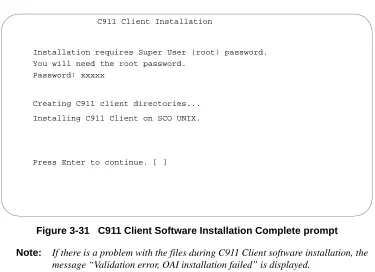
3-31 C911 Client Software Installation Complete prompt . . . 27
3-32 APM Administration Main menu . . . 29
3-33 Connect to the Web Server files subdirectory . . . 29
4-1 UNIX Login prompt . . . 31
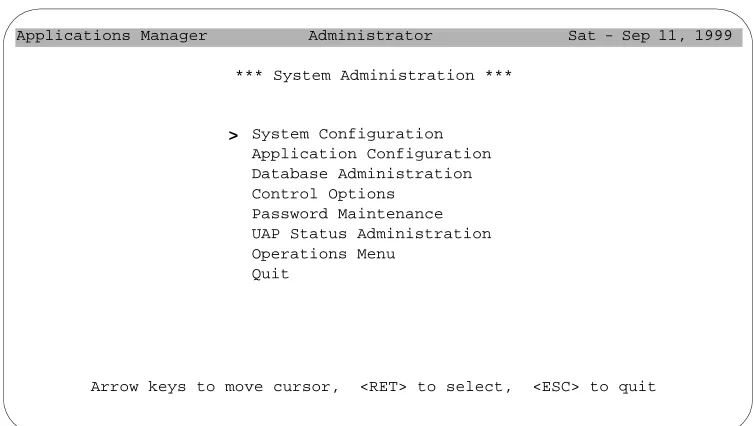
4-2 APM Administration Main menu . . . 32
4-3 APM System Administration menu . . . 32
5-1 Database Creation Process . . . 39
5-2 UNIX Login prompt . . . 40
5-3 APM Administration Main menu . . . 40
5-4 APM System Administration menu . . . 41
5-5 Database Administration menu . . . 41
Figure Title Page
6-6 Welcome dialog box . . . 55
6-7 Choose Destination Directory dialog box . . . 55
6-8 Primary Destination dialog box . . . 56
6-9 Installing Files progress indicator . . . 57
LIST OF TABLES
Table Title Page
2-1 Conference 911 (C911) Installation. . . 5
4-1 C911 Monitor Primary Configuration Parameters . . . 33
4-2 C911 Monitor OAI Configuration Parameters . . . 34
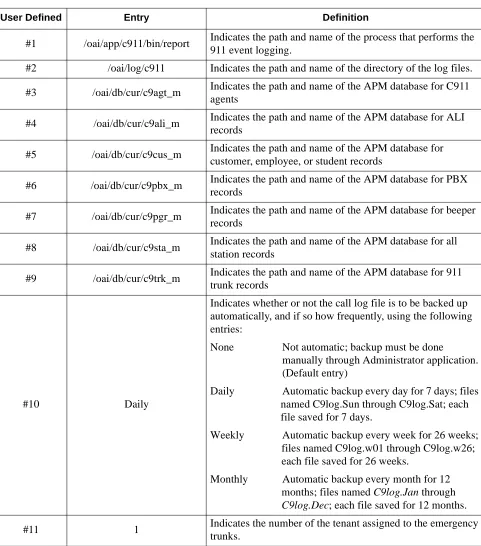
4-3 C911 Monitor User Defined Parameters . . . 35
4-4 C911 Agent Server Primary Configuration Parameters . . . 36
4-4 C911 Agent Server User Defined Parameters . . . 37
5-1 Agent Database Description . . . 42
5-2 Customer Database Description . . . 43
5-3 ALI Database Description . . . 44
5-4 PBX Database Description . . . 46
5-5 Pager Database Description . . . 47
5-6 Station Database Description . . . 48
Chapter 1
About This Manual
The Conference 911 Installation Guide provides the information you need to install and configure the Conference 911 (C911) software. This manual is based on Revision 1.0 of the software.
What is Conference 911?
Conference 911 (C911) is an OAI application that enables telephone users, C911 agents, and emergency agencies or PSAPs (Public Safety Answering Point) to communicate when an emergency call is placed. When an emergency call is placed, C911 notifies the C911 agents and all designated parties of the emergency call and allows the C911 agents to monitor and participate in the emergency calls between telephone users and the PSAP. C911 uses the NEC Open Applications Interface (OAI) to communicate with the NEAX2400.
The Conference 911 package consists of the C911 Server and the C911 Client: • The C911 Server provides connectivity between the PBX, the C911 agent’s
Dterm, and the C911 Client application.
• The C911 Client application is used by C911 agents to monitor and participate in emergency calls.
Refer to the Conference 911 User Guide for information about the operations of the C911 Client application.
How This Guide is Organized
The chapters in this guide are as follows:
Chapter 1 - About This Manual
This chapter outlines how to use the manual, including the actual manual organization, chapter layout, keyboard conventions, function keys, and basic terminology for C911.
Chapter 2 - Before Installation
This chapter specifies the applications, components, and settings that must be in place prior to the installation and configuration of the C911 application, including the hardware and software requirements.
Chapter 3 - Installing the C911 Server Software
This chapter details the step-by-step instructions for the installation of the C911 Server.
Chapter 4 - Application Configuration
Chapter 6 - Installing the C911 Client
This chapter details the step-by-step instructions for the installation of the C911 Client.
Chapter 7 - Running the C911 Package
This chapter details how to test, initialize, and terminate the C911 system, in addition to the limitations of the applications.
Appendix A - Software Limitations
This appendix describes the limitations of the Conference 911 software.
Appendix B - Beeper Interface
This appendix describes the functions and features of the Beeper Interface used by C911.
Appendix C - Glossary
This appendix gives definitions of the common terms relating to C911.
Using This Guide
This guide is designed to make the application easy to understand and simple to use. There are examples of the screens you will see in C911, with step-by-step instructions for the procedures you need to perform.
General
Conventions
This guide uses the following type conventions:
This guide uses the following conventions for menus and shortcuts:
Item Typeface or
Convention
Example
Book titles Italics Conference 911 Operations Manual
User input, variables Boldface Enter password at the prompt.
Menu names, Window titles, field names
Capitalized Options menu, Line Status window, User ID field Any screen output generated
by C911
Monospace A message that appears in a popup window or the status area of the screen.
Example Means
File > Workstation Choose the Workstation submenu on the File menu.
CTRL+N Hold down the CTRL key while pressing the “n” key
CTRL+Shift+N Hold down the CTRL key and the Shift key while pressing the “n” key
Click Right-click
Procedures
Step-by-step instructions are numbered. Simply follow the numbered steps to perform the desired function.Sometimes in step-by-step instructions, you will have more than one option to complete the task. These options are presented in bulleted lists, as shown in the following example:
1. The Fields to display group box contains the fields that are displayed in the Directory window.
• To add a field, select it from the Employee group box, and click Add. • To select all of the fields, click Add all.
2. Click OK.
Keyboard
Conventions
General Key Usage
The general keys used throughout the C911 application are:
Manual Descriptions
Following are descriptions of the manuals referenced in the chapters of this guide:
• Applications Manager (APM) Installation Manual - Contains step-by-step
instructions for installing the software from the release media.
• Applications Manager (APM) Operations Manual - Explains how applications
like C911 are configured in the APM environment and how its databases are created, using the entries and values provided in this guide.
• NEAX2400 System Manuals - Give very detailed explanations about the
assignments that need to be made through the Maintenance Administration Terminal (MAT) commands on the NEAX2400.
Arrow keys Scrolls among options within a menu or field. Backspace Erases the character to the left of the cursor. Enter Accepts a selection or field entry.
ESC Exits the current screen or action and moves to the previous screen or action.
Tab Moves forward through fields and options. Shift+Tab Moves backward through fields and options. CTRL+Tab Moves forward through tabs.
Chapter 2
Before Installation
Overview of the Installation Process
The installation process, including its presentation in this and other manuals, is outlined below:
Table 2-1 Conference 911 (C911) Installation
Installation Step Section in this Guide Instructions in
Other Manuals Before installing C911:
• Gather information on the C911 agents, including the name and station.
• Verify that you have all the components included in the C911 package.
• Set up sublines at each agent Dterm. • Assign data settings on the NEAX
Maintenance Administration Terminal (MAT).
Chapter 2 - Before Installation NEAX2400 IMS
System Manuals
Install software:
• Load the C911 Server software.
• Load the C911 Client software on the server. • Load the Message Server software.
• Load the Beeper Interface software.
Chapter 3 - Installing the C911 Server Software
APM Installation Manual
Configure application:
• Characterize the applications. • Assign the applications’ parameters. • Designate the facilities.
• Assign the OAI parameters. • Assign the user-defined parameters.
Chapter 4 - Application Configuration
APM Operations Manual
Populate the Customer, Station, Agent, ALI, Pager, Trunk, and PBX APM databases:
• Review the master definition file. • Review the master database file.
Chapter 5 - Database Requirements
APM Operations Manual
Install the C911 Client
• Install the C911 Client software. • Configure the C911 Client.
Chapter 6 - Installing the C911 Client
What is Included in the C911 Package?
C911 package should include the following: • C911 Server Disk
• C911 Client Disks (2 disks) • AddClient Utility Disk • Message Server Disk • Beeper Interface Disk
• Java (TM) 2 RunTime Environment Disk (5 disks)
• Serial Number and Activation Key for C911 OAI Application • Conference 911 Installation Guide
• Conference 911 User Guide
Equipment Requirements
The hardware required for any OAI application includes the Private Branch Exchange system (PBX) and the OAI Telephony Server. In order for C911 to operate properly, your operating environment must meet the following requirements.
C911 Server
Requirements
Hardware
• UAP (User Application Processor) 1000, 2000, or 3000 • Floppy drive
• Ethernet connection to the NEAX 2400 PBX and all C911 agent workstations • Unique IP Address
Note: (The IP Address in the UAP must be on the same address as the PBX except for the last octel.)
• 2 serial ports (if using the optional Beeper Interface); one port for a modem and one port for the Beeper Interface
Software
• SCO UNIX OpenServer 5.x
• APM (Applications Manager) 3.x or higher
• Security dongle connected to a parallel port of the UAP. The dongle looks similar to a null modem or DB25 gender changer.
Note: The dongle is only for this UAP and should be included with the UAP packaging. The dongle from a different UAP will not work.
C911 Client
Requirements
Hardware
• Pentium class processor
• 64 Megabytes of RAM recommended; 32 Megabytes of RAM minimum • 200 Megabytes of available hard drive space
• Network Interface Card (NIC) to connect to the LAN that houses the UAP • Sound card
• Maximum of eight C911 Client workstations
Software
• Java™ 2 Runtime Environment version 1.2 or higher
• Any operating system that is compatible with the Java™ 2 Runtime Environment 1.2 or higher, including:
• Microsoft® Windows NT® 4.0 • Microsoft® Windows® 95 • Microsoft® Windows® 98
C911 Agent
Requirements
• Dterm with a minimum 2-line 16 character display
• Optional workstation on UAP LAN for C911 Client application
PBX Requirements
• NEAX2400 with HDS XH 3.x ('M' Version) software or higher with OAI-compatible hardware and software• Ethernet connection to the UAP
Note: A separate, isolated segment is recommended for the connection between the PBX and the UAP. The UAP should be multi-homed with two network cards to meet this recommendation and still achieve full client/server functionality.
LAN Requirements
In order to run C911, the computer must be able to access the LAN where the PBX is located, in addition to the following considerations:• Ethernet connection to the PBX
MAT Assignments
This manual assumes that the data settings that affect the operation of all OAI software on a system-wide basis have already been assigned on the NEAX Maintenance Administration Terminal (MAT). Such settings include system index values and assignment of Interface I/O port data in the Interface Processor (IP). For more information about these settings and the MAT commands described below for C911, refer to the OAI System Manual. This section specifies the required commands and the values at which they are to be set.
General MAT
Assignments
ASYD - Assignment of System Data
Use this command to configure the NEAX2400 MAT settings for the delivery of “MyLine” information over CCIS. If there are no additional NEAX2400s using CCIS, this setting is not needed.
This information must be set in the remote PBX, not the main PBX that has the outgoing 911 trunks.
Feature: SMDR For Subline Via CCIS System Data: 1
Index: 240
Bit: 5
0 = Subline Number (default) 1 = My Line Number/Terminal
This bit needs to be set (0x20) for the NEAX2400 to send “term id” instead of “line id” for CCIS calls. This feature is supported in HDS J4.5 and newer.
The following settings should also be made using the ASYD command: Feature: OAI in Service
System Data: 1
Index: 79
Bit: 6=0
Feature: SMFN notification enabled System Data: 1
Index: 241
Bit: 2=1
Feature: SCF return error notification enabled System Data: 1
Index: 241
ASDT – Assignment of Station Data
Use this command to make station assignments for the C911 agents. The Dterm at each agent’s workstation must be assigned a unique station number and a subline set in off-hook suppress. Each C911 agent must have a Dterm to be notified which station dialed 911. The C911 agent’s Dterm should also have a one subline for each outbound 911 trunk.
Note: Sublines for C911 agents need to be in Direct Call Restriction mode. This prevents these dedicated lines from being busy or in use when needing to conference in to a 911 call.
• STN (Station Number)
• LENS (Line Equipment Number) • TEC (Telephone Class)
Configuring Direct
Call Restriction
It is highly recommended by NEC that you restrict direct calling on the C911 sublines, so that no one can use them internally to call that Dterm.
Sublines dedicated for C911 conferencing should have the SFI 95 Service Feature Index 95 option set to one.
AKYD - D
termKey Data Programming
For every Dterm which is going to be used for C911 agent, you need to assign the sublines chosen for agents on specific keys on the Dterm, preferably the same keys on each C911 agent Dterm.
ASFC - Service Feature Restriction Class Data
Assuming you already programmed your phones with SFC 1 Service Restriction Class 1 option, choose an SFC set that is not being used. For example, to use SFC2, turn on all SFIs in SFC 2 that are already turned on in SFC 1.
Use the backspace every time you assign an SFI to re-enter the same SFC, then enter the new SFI and the “on” or “off” value.
To prevent making a call to that station, turn on SFI 95 in the SFC that you choose.
ASCL - Assignment of Station Class Data
If using a NEAX2400 for business, do the following: 1. Enter the tenant number2. Enter the station number for each C911 agent subline. 3. Enter TEC 12 for Dterm.
4. Enter RSC 1. 5. Enter SFC 2.
AACL - Administrative Station Class Change
If using a NEAX2400 for hospitality, do the following: 1. Enter the tenant number2. Enter the station number for each C911 agent subline. 3. Enter TEC 12 for Dterm.
4. Enter RSC 1. 5. Enter SFC 2.
This setting applies all your normal restriction along with Direct call restriction for these sublines
Chapter 3
Installing the C911 Server Software
This chapter provides instructions for installing the Conference 911 (C911) Server software. C911 includes the following applications:
• C911 Monitor - manages communications among internal processes, agent stations, beepers, and the NEAX2400. This application is the lifeline to C911. • C911 Agent Server - manages the agents configured to use the C911 application. • Message Server - allows multiple C911 agents to communicate with the C911
Agent Server. All C911 agents send their requests to log on and log off as well as receive all 911 event information when a 911 call takes place through this NEC proprietary communications link. The C911 Agent Server will send one event, such as “Station 1234 dialed 911” and the Message Server will send this information to all C911 agents.
• Beeper Interface - sends information from C911 to pagers configured in the Pager database.
Installing the C911 Server Software
To install the C911 Server software, you must use a UNIX terminal. (For more information about the general installation process, refer to the APM Operations
Manual.)
Use the following steps to install the C911 Server software:
Figure 3-1 UNIX Login prompt
1. At the UNIX login prompt, type apmadm (and a password, if one is required) and press Enter.
The APM Administration menu is displayed. login: apmadm
Figure 3-2 APM Administration Main menu
2. Type i at the prompt and press Enter to choose the Installation of Applications/ Packages option.
The “Enter Package to be installed” prompt is displayed.
Figure 3-3 Installation Applications/Packages menu 3. Type applications at the prompt and press Enter.
The “Enter Release Media Device” prompt is displayed:
APM Platform Release Rel3.1.2 (Feb 2, 1999)
Main Menu
APM
Debug Facilities Halt APM System File Archive
Installation of Applications/Packages Configuration of UAP
Removal of Packages Startup APM System Manage Activation Keys
Logout UNIX
Enter Option: [i]
APM Status: ACTIVE NEC America APM Administration Sat - Sep 11, 1999
Installation of Applications/Packages
Available Packages are:
applications asl mtl tcpip timesync x25
Enter Package to be installed: applications
Figure 3-4 Release Media Device menu 4. Type F and press Enter to choose the Floppy Disk Device.
The Installation Procedure screen is displayed, prompting you to insert the C911 installation diskette in the floppy disk device.
Figure 3-5 Insert C911 Disk prompt
5. Insert the disk labeled “C911 Server Release 3.0” into the floppy disk device and press Enter.
The screen displays the status of the application files as they are installed.
Installation of Applications/Packages
Available Packages are:
applications asl mtl tcpip update x25
Enter Package to be installed: applications
Release Media Devices are:
(F)loppy Disk Device (C)artridge Tape Device
Enter Release Media Device: F
NEC America APM Administration Sat - Sep 11, 1999
Installation Procedure
Installing from /dev/fd0
Insert OAI Release Media #1
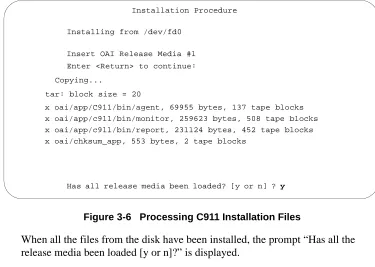
Figure 3-6 Processing C911 Installation Files
When all the files from the disk have been installed, the prompt “Has all the release media been loaded [y or n]?” is displayed.
6. Type y at the prompt and press Enter.
Figure 3-7 Root Password prompt
The prompt “Password” is displayed for you to enter the root (Super User) password.
7. Type the root password and press Enter.
The APM installation procedures begin processing the C911 installation files.
Installation Procedure
Installing from /dev/fd0
Insert OAI Release Media #1
Enter <Return> to continue:
Copying...
tar: block size = 20
x oai/app/C911/bin/agent, 69955 bytes, 137 tape blocks
Has all release media been loaded? [y or n] ? y x oai/app/c911/bin/monitor, 259623 bytes, 508 tape blocks
x oai/app/c911/bin/report, 231124 bytes, 452 tape blocks
x oai/chksum_app, 553 bytes, 2 tape blocks
C911 Installation
Installation requires Super User (root) password.
You will need the root password.
Figure 3-8 Configure Monitor prompt
The screen indicates the status of the installation as it defines the database files and processes the installation files. You will see messages indicating that the databases are defined.
Note: If there is a problem with the files during C911 installation, the message “Validation error, OAI installation failed” is displayed.
When the installation is complete, “C911 installation has completed successfully” is displayed. Then, “Please press Enter to return to APM Administration menu.” is displayed.
8. Press Enter.
The APM Administration Main menu is displayed. Processing Files
Installing the Release Files
Conference 911 Installation Procedure for SCO UNIX
Transferring database definition files...
Agent Database defined.
Ali Database defined.
Customer Database defined.
PBX Database defined.
Pager Database defined.
Station Database defined.
Installing the Message Server
To install the Message Server software, you must use a UNIX terminal to access the APM. (For more information about the general installation process, refer to the APM
Operations Manual.)
Use the following steps to install the Message Server software:
Figure 3-9 APM Administration Main menu
1. From the APM Administration Main menu, type i at the prompt and press Enter to choose the Installation of Applications/Packages option.
The “Enter Package to be installed” prompt is displayed.
Figure 3-10 Installation Applications/Packages menu
APM Platform Release Rel3.1.2 (Feb 2, 1999)
Main Menu
APM
Debug Facilities Halt APM System File Archive
Installation of Applications/Packages Configuration of UAP
Removal of Packages Startup APM System Manage Activation Keys
Logout UNIX
Enter Option: [i]
APM Status: ACTIVE NEC America APM Administration Sat - Sep 11, 1999
Installation of Applications/Packages
Available Packages are:
applications asl mtl tcpip timesync x25
Enter Package to be installed: applications
2. Type applications at the prompt and press Enter.
The “Enter Release Media Device” prompt is displayed:
Figure 3-11 Release Media Device menu 3. Type F and press Enter to choose the Floppy Disk Device.
The Installation Procedure screen is displayed, prompting you to insert the Message Server installation diskette in the floppy disk device.
Figure 3-12 Insert Message Server Disk prompt
4. Insert the disk labeled “Message Server Version 3.0” into the floppy disk device and press Enter.
Installation of Applications/Packages
Available Packages are:
applications asl mtl tcpip update x25
Enter Package to be installed: applications
Release Media Devices are:
(F)loppy Disk Device (C)artridge Tape Device
Enter Release Media Device: F
NEC America APM Administration Sat - Sep 11, 1999
Installation Procedure
Installing from /dev/fd0
Insert OAI Release Media #1
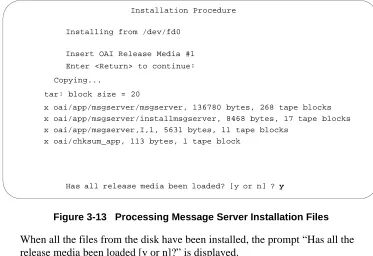
Figure 3-13 Processing Message Server Installation Files When all the files from the disk have been installed, the prompt “Has all the release media been loaded [y or n]?” is displayed.
5. Type y at the prompt and press Enter.
Figure 3-14 Root Password prompt
The prompt “Password” is displayed for you to enter the root (Super User) password.
6. Type the root password and press Enter.
The APM installation procedures begin processing the Message Server installation files.
Installation Procedure
Installing from /dev/fd0
Insert OAI Release Media #1
Enter <Return> to continue:
Copying...
tar: block size = 20
x oai/app/msgserver/msgserver, 136780 bytes, 268 tape blocks
Has all release media been loaded? [y or n] ? y
x oai/app/msgserver/installmsgserver, 8468 bytes, 17 tape blocks
x oai/app/msgserver,I,1, 5631 bytes, 11 tape blocks
x oai/chksum_app, 113 bytes, 1 tape block
Message Server Installation
Installation requires Super User (root) password.
You will need the root password.
Figure 3-15 Installing Message Server Files
The prompt “Press enter key to re-run /etc/inittab (using “init q” command), otherwise press CTRL-C.” is displayed.
7. Press Enter.
The screen indicates the status of the installation as the installation files are processed.
Note: If there is a problem with the files during the Message Server installation, the message “Validation error, OAI installation failed” is displayed.
Figure 3-16 Message Server Installation Complete prompt
When the installation is complete, “Message Server installation has completed successfully” is displayed. Then, “Please press Enter to return to APM
Administration menu.” is displayed.
Press enter key to re-run /etc/inittab (using “init q” command), otherwise press CTRL-C.
Installing the Release Files
Message Server installation has completed successfully.
Installing the Beeper Interface
To install the Beeper Interface software, you must use a UNIX terminal to access the APM. (For more information about the general installation process, refer to the APM
Operations Manual.)
Use the following steps to install the Beeper Interface software:
Figure 3-17 APM Administration Main menu
1. From the APM Administration Main menu, type i at the prompt and press Enter to choose the Installation of Applications/Packages option.
The “Enter Package to be installed” prompt is displayed.
Figure 3-18 Installation Applications/Packages menu
APM Platform Release Rel3.1.2 (Feb 2, 1999)
Main Menu
APM
Debug Facilities Halt APM System File Archive
Installation of Applications/Packages Configuration of UAP
Removal of Packages Startup APM System Manage Activation Keys
Logout UNIX
Enter Option: [i]
APM Status: ACTIVE NEC America APM Administration Sat - Sep 11, 1999
Installation of Applications/Packages
Available Packages are:
applications asl mtl tcpip timesync x25
Enter Package to be installed: applications
2. Type applications at the prompt and press Enter.
The “Enter Release Media Device” prompt is displayed:
Figure 3-19 Release Media Device menu 3. Type F and press Enter to choose the Floppy Disk Device.
The Installation Procedure screen is displayed, prompting you to insert the Beeper Interface installation diskette in the floppy disk device.
Figure 3-20 Insert Beeper Interface Disk prompt
4. Insert the disk labeled “Beeper Interface Version 3.3” into the floppy disk device and press Enter.
The screen displays the status of the application files as they are installed.
Installation of Applications/Packages
Available Packages are:
applications asl mtl tcpip update x25
Enter Package to be installed: applications
Release Media Devices are:
(F)loppy Disk Device (C)artridge Tape Device
Enter Release Media Device: F
NEC America APM Administration Sat - Sep 11, 1999
Installation Procedure
Installing from /dev/fd0
Insert OAI Release Media #1
Figure 3-21 Processing Beeper Interface Installation Files When all the files from the disk have been installed, the prompt “Has all the release media been loaded [y or n]?” is displayed.
5. Type y at the prompt and press Enter.
The APM installation procedures begin processing the Beeper Interface installation files.
Figure 3-22 Beeper Pre-Install Script The prompt “Would you like to upgrade? (y or n)” is displayed.
Installation Procedure
Installing from /dev/fd0
Insert OAI Release Media #1
Enter <Return> to continue:
Copying...
tar: block size = 20
x oai/app/beeper/bin/beeper, 210876 bytes, 412 tape blocks
Has all release media been loaded? [y or n] ? y
x oai/app/beeper/bin/beeperq, 152065 bytes, 298 tape blocks x oai/app/beeper/cfg/config, 1145 bytes, 3 tape blocks
x oai/chksum_app, 483 bytes, 1 tape block
x oai/app/beeper/cfg/version, 11 bytes, 1 tape blocks
x oai/app/beeper/install/kprofile, 18670 bytes, 37 tape blocks x oai/app/beeper/install/bprins, 2935 bytes, 6 tape blocks x oai/app/beeper/install/installer, 5786 bytes, 12 tape blocks x oai/app/beeper/install/pkg.ini, 4680 bytes, 10 tape blocks x oai/app/beeper/install/profile, 947 bytes, 2 tape blocks x oai/app/beeper/install/S98bpradmin, 676 bytes, 2 tape blocks x oai/app/beeper/cfg/varSplit, 140 bytes, 1 tape block
x oai/app/beeper/install/beeper.cfg, 933 bytes, 2 tape blocks x oai/app/beeper.ins, 3521 bytes, 7 tape blocks
Beeper Pre-Install Script
Checking the system configuration...
/oai/app/beeper/install/pkg.ini [113]: test: --Option requires an argument
6. Type n and press Enter.
Figure 3-23 Root Password prompt
The prompt “Password” is displayed for you to enter the root (Super User) password.
7. Type the root password and press Enter.
The Beeper Installation files are processed. The screen indicates the status of the installation as the installation files are processed.
Note: If there is a problem with the files during the Beeper Interface installation, the message “Validation error, OAI installation failed” is displayed.
Figure 3-24 Beeper Interface Installation Complete prompt
When the installation is complete, the prompt “Please press Enter to continue.” is displayed.
8. Press Enter.
Beeper Installation
Installation requires Super User (root) password.
You will need the root password.
Password:
Beeper Installation
Installation requires Super User (root) password.
You will need the root password.
Password: xxxxx
Creating beeper directories...
Installing bpradm on SCO UNIX.
Installing the C911 Client Software
You can install the C911 Client software on the UAP to facilitate installing the software on each C911 Client workstation. To install the C911 Client software, you must use a UNIX terminal. (For more information about the general installation process, refer to the APM Operations Manual.)
Use the following steps to install the C911 Client software to the UAP:
Figure 3-25 APM Administration Main menu
1. From the APM Administration menu, type i at the prompt and press Enter to choose the Installation of Applications/Packages option.
The “Enter Package to be installed” prompt is displayed.
Figure 3-26 Installation Applications/Packages menu
APM Platform Release Rel3.1.2 (Feb 2, 1999)
Main Menu
APM
Debug Facilities Halt APM System File Archive
Installation of Applications/Packages Configuration of UAP
Removal of Packages Startup APM System Manage Activation Keys
Logout UNIX
Enter Option: [i]
APM Status: ACTIVE NEC America APM Administration Sat - Sep 11, 1999
Installation of Applications/Packages
Available Packages are:
applications asl mtl tcpip timesync x25
Enter Package to be installed: applications
2. Type applications at the prompt and press Enter.
The “Enter Release Media Device” prompt is displayed:
Figure 3-27 Release Media Device menu 3. Type F and press Enter to choose the Floppy Disk Device.
The Installation Procedure screen is displayed, prompting you to insert the C911 Client installation diskette in the floppy disk device.
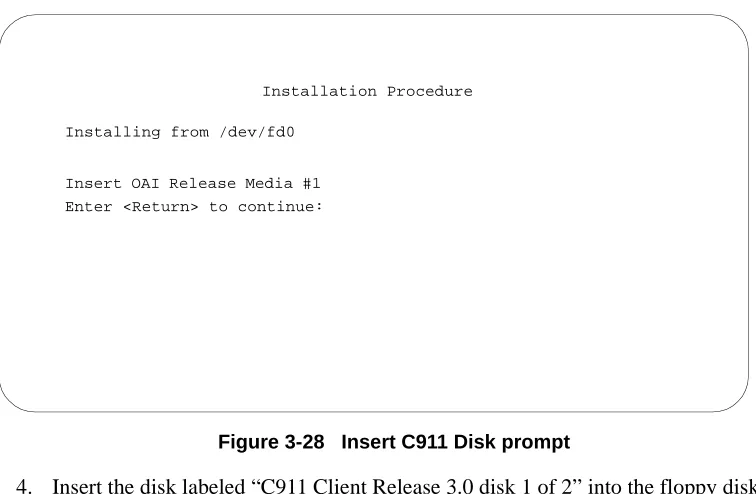
Figure 3-28 Insert C911 Disk prompt
4. Insert the disk labeled “C911 Client Release 3.0 disk 1 of 2” into the floppy disk device and press Enter.
Installation of Applications/Packages
Available Packages are:
applications asl mtl tcpip update x25
Enter Package to be installed: applications
Release Media Devices are:
(F)loppy Disk Device (C)artridge Tape Device
Enter Release Media Device: F
NEC America APM Administration Sat - Sep 11, 1999
Installation Procedure
Installing from /dev/fd0
Insert OAI Release Media #1
5. When all files from Disk 1 have been installed, the prompt “Has all the release media been loaded [Y or N]?” is displayed.
Figure 3-29 Processing C911 Installation Files Type n at the prompt and press Enter.
6. Insert the disk labeled “C911 Client Release 3.0 disk 2 of 2” into the floppy disk device and press Enter.
The screen displays the status of the application files as they are installed. When all the files from Disk 2 have been installed, the prompt “Has all the release media been loaded [y or n]?” is displayed.
7. Type y at the prompt and press Enter.
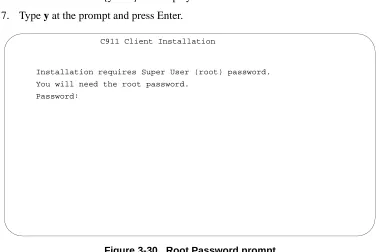
Figure 3-30 Root Password prompt
The prompt “Password” is displayed for you to enter the root (Super User) password.
Installation Procedure
Installing from /dev/fd0
Insert OAI Release Media #1
Enter <Return> to continue:
Copying...
tar: block size = 20
x oai/app/C911/bin/client, 69955 bytes, 137 tape blocks
Has all release media been loaded [y or n] ? y
C911 Client Installation
Installation requires Super User (root) password.
You will need the root password.
8. Type the root password and press Enter.
The C911 Client Installation files are processed. The screen indicates the status of the installation as the installation files are processed.
Figure 3-31 C911 Client Software Installation Complete prompt Note: If there is a problem with the files during C911 Client software installation, the
message “Validation error, OAI installation failed” is displayed.
When the installation is complete, “C911 Client installation has completed successfully” is displayed. Then, “Please press Enter to return to APM Administration menu.” is displayed.
9. Press Enter.
The APM Administration Main menu is displayed. C911 Client Installation
Installation requires Super User (root) password.
You will need the root password.
Password: xxxxx
Creating C911 client directories...
Installing C911 Client on SCO UNIX.
Installing the Web Server
The UAP with the SCO OpenServer 5 Operating System should be configured with the Netscape FastTrack Web Server. The main web page of the Netscape FastTrack Web Server should be set to the /oai/internet directory. OAI applications use the /oai/ internet directory to keep all of the web-based installation applications and instructions.
Some of the earlier UAPs with the SCO OpenServer 5 do not have this setting. In this case, a special disk is used to configure the proper directories and programs. If the AddClient Utility disk is not included in the application package, you should request it. If Netscape FastTrack Web Server is not configured on the UAP, install and configure the web server from the AddClient Utility disk using the following steps:
1. Login as root and insert the AddClient Utility floppy disk.
2. At the # prompt, type cd / and press Enter to go to the root directory. 3. At the # prompt, type tar xv and press Enter to go to the root directory. 4. At the # prompt, type ksh /oai/utils/netscapeconfig and press Enter. 5. Log out.
Install the Java Runtime Environment
The C911 Client and the Web Server require the Java 2 Runtime Environment. Use the following steps to install the Java 2 Runtime Environment software:
Figure 3-32 APM Administration Main menu
1. From the APM Administration menu, type u at the prompt and press Enter to get to the UNIX prompt.
2. At the UNIX prompt, type cd /oai/internet to connect to the web server files subdirectory. (See “Installing the Web Server” on page 28 for more information.)
Figure 3-33 Connect to the Web Server files subdirectory
3. Insert the first disk (1 of 5) labeled “Java Runtime Environment” into the floppy disk device and type tar -xv to extract the code from this diskette.
The files are copied.
APM Platform Release Rel3.1.2 (Feb 2, 1999)
Main Menu
APM
Debug Facilities Halt APM System File Archive
Installation of Applications/Packages Configuration of UAP
Removal of Packages Startup APM System Manage Activation Keys
Logout UNIX
Enter Option: [i]
APM Status: ACTIVE NEC America APM Administration Sat - Sep 11, 1999
4. Insert the second disk (2 of 5) labeled “Java Runtime Environment” into the floppy disk device and type tar -xv to extract the code from this diskette. The “tar” command will show that this file is divided over four separate diskettes. After tar has finished processing this disk, you will be prompted to insert the next floppy disk.
5. When prompted, insert disk 3 and press Enter.
After tar has finished processing this disk, you will be prompted to insert the next floppy disk.
6. When prompted, insert disk 4 and press Enter.
After tar has finished processing this disk, you will be prompted to insert the next floppy disk.
7. When prompted, insert disk 5 and press Enter.
8. When disk 5 is finished processing, type ls -la to check the file and size. When tar has completed you should have one executable file called “jre1_2_2-win.exe” of approximately 5,283,296 bytes.
Installing the C911 Serial Number and Dongle Activation Key
The UAP should also have a serial number and activation key for the APM platform. The serial number and activation key should already be installed, but you should make sure that they are installed correctly.
1. From the APM Administration menu, type m at the prompt to select the Manage Activation Keys option and press Enter.
The License Administration window is displayed. 2. Type a to add a new license.
3. Enter C911 for the application, then enter the serial number and activation key for C911.
The License Manager verifies that these entries are correct for this UAP. Make sure this C911 display shows “Verified” prior to exiting.
Completion
Chapter 4
Application Configuration
This chapter contains the information that you will enter to configure C911. You can configure the applications after installing the C911 software, as shown in Chapter 3. (See “Installing the C911 Server Software” on page 11). C911 includes the following applications:
• C911 Monitor - manages communications among internal processes, agent stations, beepers, and the NEAX2400. This application is the lifeline to C911. • C911 Agent Server - manages the agents configured to use the C911
application.
• Message Server - allows multiple C911 agents to communicate with the C911 Agent Server. All C911 agents send their requests to log on and log off as well as receive all 911 event information when a 911 call takes place through this NEC proprietary communications link. The C911 Agent Server will send one event, such as “Station 1234 dialed 911) and the Message Server will send this information to all C911 agents.
• Beeper Interface - sends information from C911 to pagers configured in the Pager database.
Before
Configuring the
C911 Software
To configure the C911 Server software, you must log in to the APM
Administration applications on a UNIX terminal. Use the following steps to log in to the APM Administration application:
Figure 4-1 UNIX Login prompt
1. At the UNIX login prompt, type apmadm (and a password, if one is required) and press Enter.
The APM Administration menu is displayed. login: apmadm
Figure 4-2 APM Administration Main menu
2. Type a at the prompt and press Enter to choose the APM option. Enter the password when prompted.
The APM System Administration menu is displayed.
Figure 4-3 APM System Administration menu 3. Choose the Application Configuration option from the System
Administration menu.
Once you are in the Application Configuration mode, you can check the parameters set up in the APM for the C911 package. For specific instructions on what these parameters mean and how to make these entries, refer to the
APM Operations Manual.
APM Platform Release Rel3.1.2 (Feb 2, 1999)
Main Menu
APM
Debug Facilities Halt APM System File Archive
Installation of Applications/Packages Configuration of UAP
Removal of Packages Startup APM System Manage Activation Keys
Logout UNIX
Enter Option: [a]
APM Status: ACTIVE NEC America APM Administration Sat - Sep 11, 1999
>
*** System Administration ***
System Configuration Application Configuration Database Administration Control Options
Password Maintenance UAP Status Administration Operations Menu
Quit
Arrow keys to move cursor, <RET> to select, <ESC> to quit
C911 Monitor Configuration
The following steps outline the process for configuring the C911 Monitor application.
Follow these steps to verify that the C911 Monitor application is set up correctly in the APM Application Configuration file:
1. Log in to a UNIX terminal as apmadm.
2. Choose the APM option from the APM Platform Management Menu. 3. Enter the System Administrator password at the APM password screen. 4. Choose the Application Configuration option from the System
Administration menu. 5. Choose Select.
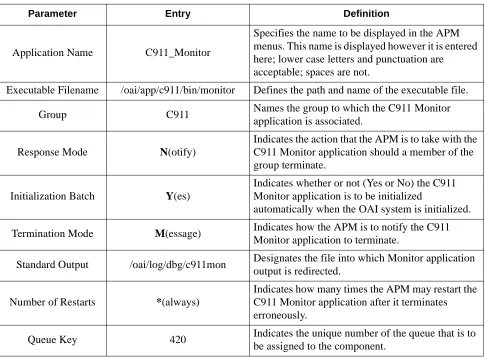
6. On the APM Configuration Entry screen, verify that the entries shown below are configured in the primary parameters for the C911 Monitor application.
Table 4-1 C911 Monitor Primary Configuration Parameters
Parameter Entry Definition
Application Name C911_Monitor
Specifies the name to be displayed in the APM menus. This name is displayed however it is entered here; lower case letters and punctuation are acceptable; spaces are not.
Executable Filename /oai/app/c911/bin/monitor Defines the path and name of the executable file.
Group C911 Names the group to which the C911 Monitor application is associated.
Response Mode N(otify)
Indicates the action that the APM is to take with the C911 Monitor application should a member of the group terminate.
Initialization Batch Y(es)
Indicates whether or not (Yes or No) the C911 Monitor application is to be initialized
automatically when the OAI system is initialized.
Termination Mode M(essage) Indicates how the APM is to notify the C911 Monitor application to terminate.
Standard Output /oai/log/dbg/c911mon Designates the file into which Monitor application output is redirected.
Number of Restarts *(always)
Indicates how many times the APM may restart the C911 Monitor application after it terminates erroneously.
7. Verify that the following NEAX2400 facilities are configured for the C911 Monitor using the Facilities command on the APM Configuration Entry screen. (Use the instructions provided for this option in the APM Operations
Manual.)
• SCF - Switch Control Facility • SMFN - Status Notification Facility • SMFR - Status Request Facility • TCFI - Terminal Control Facility
8. Verify that the following OAI Configuration parameters are configured for the C911 Monitor application using the OAI-Conf command on the APM Configuration Entry screen. (Use the instructions provided for this option in the APM Operations Manual.)
Note: Italicized entries may be changed as desired.
Table 4-2 C911 Monitor OAI Configuration Parameters
Parameter Entry Definition
Database Name #1 not used Indicates the path and name of the database containing information about C911 agent.
Database Name #2 not used Indicates the path and name of the database containing information about C911 agent.
Timeout Value #1 60
Designates the number of minutes following an abandonment that C911 can recover the call; 0 means no limit.
Timeout Value #2 0
Designates the number of minutes following an abandonment that C911 can recover the call; 0 means no limit.
Tenant Number 0 Specifies the number of the tenant that C911 serves. (0 means all tenants)
Source Link Name OAI1TCP
Identifies the port on the source side of the communication link; entry should correspond to a link name in the APM system configuration file. Refer to the APM Operations Manual for information about the system configuration option.
Destination Link Name PBX1TCPB
Identifies the port on the destination side of the communication link; entry should correspond to a link name in the APM system configuration file. Refer to the APM Operations Manual for information about the system configuration option.
Association Recovery 15
9. Verify that the following User Defined parameters are configured for the C911 Monitor application using the UserDefined command on the OAI
Configuration screen. (Use the instructions provided for this option in the APM
Operations Manual.)
Note: Italicized entries may be changed as desired.
Table 4-3 C911 Monitor User Defined Parameters
User Defined Entry Definition
#1 /oai/app/c911/bin/report Indicates the path and name of the process that performs the 911 event logging.
#2 /oai/log/c911 Indicates the path and name of the directory of the log files.
#3 /oai/db/cur/c9agt_m Indicates the path and name of the APM database for C911 agents
#4 /oai/db/cur/c9ali_m Indicates the path and name of the APM database for ALI records
#5 /oai/db/cur/c9cus_m Indicates the path and name of the APM database for customer, employee, or student records
#6 /oai/db/cur/c9pbx_m Indicates the path and name of the APM database for PBX records
#7 /oai/db/cur/c9pgr_m Indicates the path and name of the APM database for beeper records
#8 /oai/db/cur/c9sta_m Indicates the path and name of the APM database for all station records
#9 /oai/db/cur/c9trk_m Indicates the path and name of the APM database for 911 trunk records
#10 Daily
Indicates whether or not the call log file is to be backed up automatically, and if so how frequently, using the following entries:
None Not automatic; backup must be done
manually through Administrator application. (Default entry)
Daily Automatic backup every day for 7 days; files named C9log.Sun through C9log.Sat; each file saved for 7 days.
Weekly Automatic backup every week for 26 weeks; files named C9log.w01 through C9log.w26; each file saved for 26 weeks.
Agent Server Configuration
The following steps outline the process for configuring the C911 Agent Server application.
Follow these steps to verify that the C911 Agent Server application is set up correctly in the APM Application Configuration file:
1. Log in to a UNIX terminal as apmadm.
2. Choose the APM option from the APM Platform Management Menu. 3. Enter the System Administrator password at the APM password screen. 4. Choose the Application Configuration option from the System
Administration menu. 5. Choose Select.
6. On the APM Configuration Entry screen, verify that the entries shown below are configured in the primary parameters for the C911 Agent Server
application.
#12 15 Indicates the number of seconds between heartbeats #13 /oai/app/beeper/cfg/config Indicates the path and name of the beeper configuration
#14 425 Indicates the message queue that receives responses from the beeper interface.
Table 4-3 C911 Monitor User Defined Parameters
User Defined Entry Definition
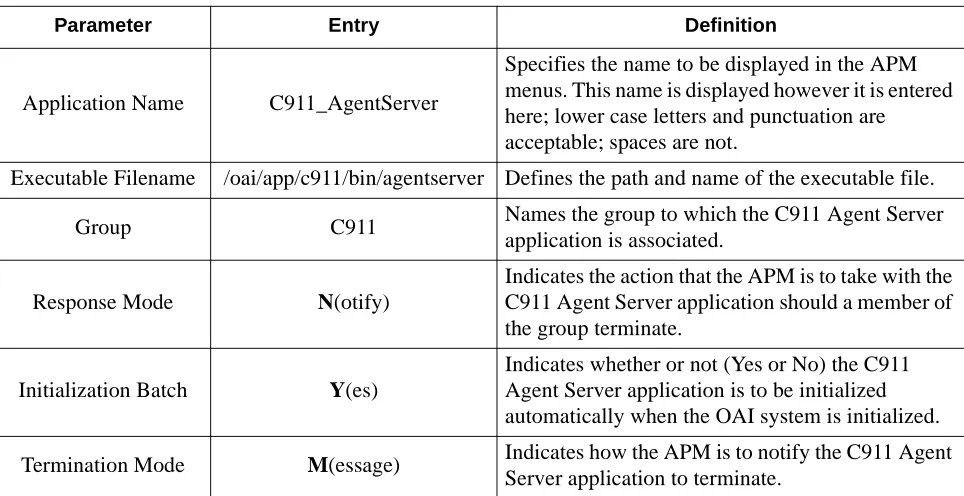
Table 4-4 C911 Agent Server Primary Configuration Parameters
Parameter Entry Definition
Application Name C911_AgentServer
Specifies the name to be displayed in the APM menus. This name is displayed however it is entered here; lower case letters and punctuation are acceptable; spaces are not.
Executable Filename /oai/app/c911/bin/agentserver Defines the path and name of the executable file.
Group C911 Names the group to which the C911 Agent Server application is associated.
Response Mode N(otify)
Indicates the action that the APM is to take with the C911 Agent Server application should a member of the group terminate.
Initialization Batch Y(es)
Indicates whether or not (Yes or No) the C911 Agent Server application is to be initialized automatically when the OAI system is initialized.
7. Verify that the following User Defined parameters are configured for the C911 Agent Server application using the UserDefined command on the OAI Configuration screen. (Use the instructions provided for this option in the APM
Operations Manual.)
Note: Italicized entries may be changed as desired.
Standard Output /oai/log/dbg/c911agt Designates the file into which the C911 Agent Server application output is redirected.
Number of Restarts *(always)
Indicates how many times the APM may restart the C911 Agent Server application after it terminates erroneously.
Queue Key 421 Indicates the unique number of the queue that is to be assigned to the component.
Table 4-4 C911 Agent Server Primary Configuration Parameters
Parameter Entry Definition
Table 4-4 C911 Agent Server User Defined Parameters
User Defined Entry Definition
#1 C911_AgentServer Indicates the application name. #2 C911_Monitor Indicates the application name.
#3 UAP2000 arena
Indicates the name of the UAP being used as a server. To obtain the UAP name, type the following from the UNIX prompt:
uname -X
The UAP name is listed as the Node. Enter UAP2000 in this field.
Chapter 5
Database Requirements
Overview
C911 uses seven databases that are constructed through the APM: Agent, Ali, Customer, PBX, Pager, Station, and Trunk.
These databases are created during the C911 installation process, but they will need to be populated. When the C911 installation process created the databases, a master definition file was created and built for each database, as shown in Figure 5-1:
Figure 5-1 Database Creation Process
1. Create a Master Definition File: This step involves creating the master definition file that defines the fields in the master database file. C911 creates the master definition files for all seven databases during installation. These files should not be changed.
2. Build a Master Database File: This step involves entering tenant-specific data (e.g., name, account code, station, room number or building) into the master database fields that were just defined in the master definition files in Step 1. Note: If you have installed the C911 software as described in “Installing the C911
Server Software” on page 11, the master definition file has been created for each
of the seven databases.
Once the databases are built, deleting or changing the field definitions may adversely affect the integrity of the database records. Do not change the field definitions in the C911 databases!
Once the databases are built, deleting or changing the field definitions may adversely affect the integrity of the database records. Do not change the field definitions in the C911 databases!
Create a Master Definition File
Build a Master Database File
Warning!
Working with the Databases
The information required for each of the seven C911 databases is provided in table form on the following pages. Using this information alongside of the procedural instructions provided in the APM Operations Manual, enter the Database
Administration option on the APM System Administration Menu and build the C911 databases, one at a time. Any messages displayed during these steps are addressed in the Process and Error Messages chapter of the APM Operations Manual.
Use the following steps to build or view the C911 databases:
Figure 5-2 UNIX Login prompt
1. At the UNIX login prompt, type apmadm (and a password, if one is required) and press Enter.
The APM Administration menu is displayed.
Figure 5-3 APM Administration Main menu
2. Type a at the prompt and press Enter to choose the APM option. Enter the password when prompted.
login: apmadm password:
APM Platform Release Rel3.1.2 (Feb 2, 1999)
Main Menu
APM
Debug Facilities Halt APM System File Archive
Installation of Applications/Packages Configuration of UAP
Removal of Packages Startup APM System Manage Activation Keys
Logout UNIX
Enter Option: [a]
The APM System Administration menu is displayed.
Figure 5-4 APM System Administration menu
3. Select the Database Administration option from the System Administration menu.
The Database Administration menu is displayed.
Figure 5-5 Database Administration menu
4. Select the Build Master Database option to create a new database or view an existing database.
>
Applications Manager Administrator Sat - Sep 11, 1999
*** System Administration ***
System Configuration Application Configuration Database Administration Control Options
Password Maintenance UAP Status Administration Operations Menu
Quit
Arrow keys to move cursor, <RET> to select, <ESC> to quit
>
*** Database Administration ***
Define Master Database Fields Build Master Database
Specify Application Database Fields Process Application Database
Install Application Database Verify Application Database List Database Relationships Exhibit Master Database Views Quit
Arrow keys to move cursor, <RET> to select, <ESC> to quit
About the Agent Database
This database contains information about each of the C911 agents and is sorted by agent name. The fields in this database are defined by the user organization. The name of the Agent Master Definition file must be c9agt_m.mdf, and the name of the Agent Master Database file must be c9agt_m.
Field Definitions
Name
Name of the agent; up to 25 characters. This is the key field used in sorting. The recommended form is “Last name, First initial”. This is the login name for the C911 agent.
Password
The agent’s password; up to 25 characters. Supervisor
Name of the agent’s supervisor; up to 25 characters. Station
The agent’s station, up to 25 characters. Location
User-defined alphanumeric field of up to 25 characters describing the agent’s location. Log on/off Date & Time
The agent’s last activity, either logging in or logging out. It is formatted as yyyy-mm-dd hh:mm:ss. The server fills this field automatically.
Table 5-1 Agent Database Description
Field Description Master Definition File Application
Definition File Master Database
Type Size Min. Value
Max.
Value Data Type Typical Entry
Name A 25 ASCII Mary S.
Password A 25 ASCII 123456
Supervisor A 25 ASCII Smith, Ray
Station A 25 ASCII 7301
Location A 25 ASCII Security Office
2nd Floor
Log on/off Date and Time A 25 ASCII 1999-08-01
21:00:55
Arena Handle A 4 ASCII abcd
Arena Handle
Computer generated alphanumeric code associated with this agent used by the C911 Agent Server. The server fills this field automatically.
Status
Indicates if this agent is logged on or logged off; “0” means that the C911 agent is logged off, and “1” means that the C911 agent is logged on. The server fills this field automatically.
About the Customer Database
This database contains information about the telephone users, such as residents, students, or employees. The name of the Customer Master Definition file must be c9cus_m.mdf, and the name of the Customer Master Database file must be c9cus_m.
Field Definitions
Name
The name associated with this Customer record, up to 25 characters. This field can be cross-referenced with the Customer Name field in the ALI database.
ID
Identifies this customer record, up to 25 characters. Station
The station associated with this customer record, up to 25 characters. This field is cross-referenced with the Station field in the Station database.
Table 5-2 Customer Database Description Field
Description Master Definition File
Application
Definition File Master Database
Type Size Min. Value
Max.
Value Data Type Typical Entry
Name A 25 ASCII Baker, Stan
ID A 25 ASCII 123456
About the ALI Database
The Automatic Location Information or ALI database provides information about the callers for the C911 agents and emergency agencies. The name of the ALI Master Definition file must be c9ali_m.mdf, and the name of the ALI Master Database file must be c9ali_m.
The records in the ALI database are mapped to the Station database using the Calling Telephone number field. (See “About the Station Database” on page 48 for more information.) Although the ALI database records are very important, these records are not required for C911 to operate.
Field Definitions
Calling Telephone Number
Telephone number that is cross-referenced from the Calling Number field in the Station table; numeric field of up to 10 characters.
Status
Indicates the status of this record; “A” means that this record is active and “I” means that this record is inactive.
Table 5-3 ALI Database Description
Field Description Master Definition File Application
Definition File Master Database
Type Size Min. Value
Max.
Value Data Type Typical Entry
Calling Telephone Number N 10 Numeric 817-555-2222
Status A 1 ASCII A or I
AddressA A 25 ASCII 123 Main Street
AddressB A 25 ASCII Building A
Community A 25 ASCII Irving
State A 2 ASCII TX
Location Info A A 25 ASCII User-defined
Location InfoB A 25 ASCII User-defined
Also Rings at Address A 25 ASCII 456 Broadway
Customer Name A 25 ASCII Jones, John
Class & Type of Service A 2 ASCII
Emergency Service Number A 5 ASCII
Main Number N 10 Numeric 972-555-1111
AddressA
User-defined address field of up to 25 alphanumeric characters. AddressB
User-defined address field of up to 25 alphanumeric characters. Community
The city where this telephone number is located; up to 25 characters. State
The abbreviation of the state where this telephone number is located; up to 2 characters. Location Info A
User-defined field of up to 25 alphanumeric character; describes the location of this station.
Location Info B
User-defined field of up to 25 alphanumeric character; describes the location of this station.
Also Rings at Address
If this number also rings at secondary address, this field list the other address; up to 25 alphanumeric characters.
Customer Name
The name of the employee, resident, guest, or occupant associated with this station; up to 25 characters. This can be cross-referenced with the Name field in the Customer Database.
Class & Type of Service
Code that specifies whether the phone is PBX station, cell phone, residential, private unlisted; up to 2 digits.
Emergency Service Number
Main number associated with a company or location, assigned by NENA. Main Number
The main number for this station; up to 10 digits. Comments
About the PBX Database
This database contains information about the PBXs in use, such as descriptions, IP addresses, and IP ports. The name of the PBX Master Definition file must be c9pbx_m.mdf, and the name of the PBX Master Database file must be c9pbx_m.
Field Definitions:
PBX Index
Number in the APM database that identifies this PBX, up to 2 digits ranging from 1 - 99 Description
Description of this PBX; up to 25 characters. C911 Monitor Application
Identifies the C911 application that uses this PBX, such as C911 Monitor; up to 25 characters.
IP Address
The IP address associated with this PBX; up to 25 characters. IP Port
The port used at the IP address associated with this PBX; up to 5 digits. Table 5-4 PBX Database Description
Field
Description Master Definition File
Application
Definition File Master Database
Type Size Min. Value
Max.
Value Data Type Typical Entry
PBX Index N 2 1 99 Short Integer 2
Description A 25 ASCII Building 1
C911 Monitor
Application A 25 ASCII C911_Monitor
IP Address A 25 ASCII 143.128.69.43