File management
The majority of computer applications use storage facilities provided by magnetic disk and other media such as optical memory. Such systems, termed ‘secondary storage’, are used to provide non-volatile and relatively cheap storage, at the expense of access time (as compared with semi-conductor storage). The view of the file data as presented to the user by the operating system necessarily hides some major complexities. Problems of physical addressing, blocking, error checking, data input/output etc.are effectively masked from the user. It is possible then, to think of a file using some idealised model which suits the application. For example, a source program consists of lines of text terminated by new-line characters; the programmer using this file need not be concerned about how the file is held on disk in terms of where the data is stored and how it is packed into physical storage units on the disk surface. He can request, via the software he is using, to be given a line of text from the file; the operating system must convert this request to the accessing of a specific number of bytes from a specific area of the disk. Uniform treatment of devices and files
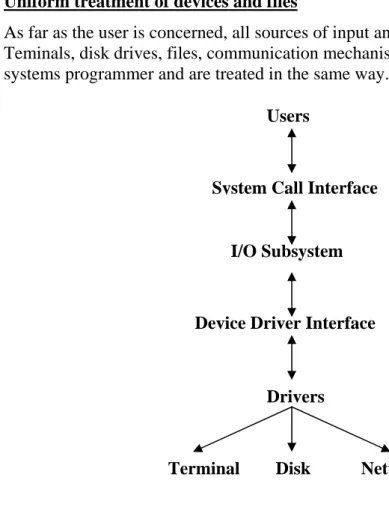
As far as the user is concerned, all sources of input and output in a Unix system are represented as files. Teminals, disk drives, files, communication mechanisms such as pipes and sockets, all look alike to the systems programmer and are treated in the same way.
Users
System Call Interface
I/O Subsystem
Device Driver Interface
Drivers
Terminal Disk Network
Figure 1 Overview of I/O processing
In the kernel, the I/O subsystem is responsible for all device-independent processing. However it considers all devices to be “virtual devices” and only takes care of naming and access control. The I/O subsystem interacts with the device specific layer, the drivers, through a standard interface.
File types
The question could be asked — how much does the operating system ‘know’ about the content and structure of the files under its care? The answer to this question differs from system to system. In many systems, such as the IBM MVS system, the file management routines provide and support a wide range of different file types and organisations such as indexed sequential, variable length records, etc. Hence, software written for these systems can base their file accessing routines on these built-in facilities. Encompassing this level of detail in the operating system has benefits to the user in avoiding the
necessity of the user implementing file management procedures himself. Also, it can prevent erroneous actions such as attempting to use a text editor on a binary file.
However, there are disadvantages in having the operating system know about the file structures. The principal of these is the resultant size and attendant complexity of the system. Additionally, a new application may require a file structure or access facility not implemented by the supplied system. The trend, therefore, has been to minimise the complexity of operating systems in this respect and to
segregate more complex file operations into separate file access packages or to implement the necessary routines within one’s own application. A factor contributing to this trend is the growth in the market of independent software producers who ‘fill the gap’ by supplying file access management packages available to software developers. This contrasts with the earlier situation where hardware and software were provided solely by the computer manufacturer. Also, a large percentage of the software market consists of proprietary packages such as 4GL/databases (dBaselV, Oracle etc), spreadsheets (Lotus 1-2-3, Excel etc) and word-processors (WordPerfect, Word etc) which all require and implement their own file management systems.
In this respect, UNIX and MS-DOS adopt an extreme position; files are considered to be sequences of bytes with no structure. The application program must impose any required structure on the data as it requires it (possibly, as indicated in the previous paragraph, with the aid of additional software). For example, if a program wants to read a series of records from a stock control file, it must be aware of the length of each record and hence read that number of bytes. The other consequence of this simplification is that erroneous actions are not detected by the operating system; e.g. one can display a binary file on the computer screen or one can attempt to execute non-program files.
UNIX recognises a limited number of ‘file types’, which are described briefly below:
regular ‘Ordinary’ files such as programs, text, data etc; in fact any file which is not of the other types.
directory File containing references to other files; described shortly.
char/block special Not ‘true’ files at all but directory entries which refer to devices.
pipe Implementation of pipe mechanism available in UNIX command
language. A pipe file is used as a queuing buffer which holds the standard output of one process and supplies this data as the standard input of another process.
Note
A UNIX utility called file can be used to assist in determining the nature of a file; it does so by
inspecting the contents in order to deduce its usage. Executable files are easily recognised by the content of the first two bytes; various forms of text file are recognised, such as C programs and shell scripts. Both MS-DOS and UNIX use directories which are notional grouping of files; since directories reside on disk, they can be considered as special files. Directories will be described in more detail shortly. With the exception of directories, the nearest that MS-DOS comes to having different file types is that files can have certain attributes. These are used mainly for administration purposes and are of little value to application programs. The possible attributes are:
System Assigned to system files such as the operating system files Archive Used by file back-up systems
Hidden A file with this attribute is ignored by many system commands Read-only The file cannot be written to or deleted
Attributes are not mutually exclusive; e.g.a ‘read-only’ file can also be ‘hidden’.
While it may appear that eliminating the operating system’s facilities in this respect is a retrograde step, it should be noted that the application programmer has been more than adequately provided with data management software packages which ‘sit on top’ of the operating system proper. Hence, the same kind of facilities are still available but not embedded in the operating system. This situation fits in better, in any case, with the modern market where most software is provided by independent vendors and not the hardware manufacturers.
The operating system still provides a wide range of services to the user albeit at a basic level. File identification
In order that programs can refer to specific files, it is necessary that files are assigned symbolic names by which they are known to the operating system and to user programs. The rules for file naming vary from system to system. The current Windows systems have had to contend with maintaining
compatibility with MS-DOS systems in this respect; at the same time, the designers have tried to make the naming of files more natural.
MS-DOS file naming
In MS-DOS, the file name is a twelve character string consisting of an (up to) eight character base name, a dot separator and a three character ‘extension’. For example, LETTERI.DOC, DBASE.EXE, STOKFILE.DAT are all valid names. The name can contain letters, numbers and some special symbols (such as $ # @ etc.). The extension code usually specifies the nature of the file, either generally or within an application; for example, the EXE and COM extensions indicate executable files, the BAT extension indicates a batch command file etc.The base/extension name arrangement enables a group of files to be seen to be related to one another.
An example should clarify this; in C compiler systems, the program source file is, by convention, held in a .C file such as HELLO.C. On compiling this file, the resultant object module is called
HELLO.OBJ. After linking with other object modules, the final executable file is called HELLO.EXE. Hence, the related group of ‘HELLO’ files share the same root name but have different extensions. In general, these extensions are not mandatory, but most software assumes certain extensions in a particular context; e.g.the C compiler, given the name HELLO as a source file name would
UNIX file naming
The naming conventions in UNIX are generally more relaxed and vary somewhat from system to system. Typical filename length is 14 (but BSD UNIX and System V Release 4 for example allows up to 255), with no specific structure as in MS-DOS. Often, filenames are given compound names such as book.chap.1, but this is purely arbitrary and is not meaningful to the operating system. Essentially, any character except / or space is allowable, although certain others such as * > and ? would not be used since they have special meaning in UNIX shell commands.
Windows file naming
The designers of the current Windows and OS/2 operating systems have provided improved file naming facilities while trying to maintain continuity with MS-DOS conventions. In particular, all these systems allow for long path and file names of up to about 255 characters. Additionally, the names can contain embedded spaces and certain other special symbols. In order to accommodate embedded spaces in filenames used in command lines, the names have to be enclosed in quotation marks.
To maintain compatibility with MS-DOS, each file in Windows NT and 95 also has a MS-DOS-style alias; this is generated automatically from the long name by using the first eight characters of the long name. If this does not produce a unique name, the first six characters are used, followed by a tilde — symbol and a number 1. If this name is still non-unique, the number is increased to 2, 3 etc.
Directories Basic principles
Up till now we have assumed that all the disk files were somehow ‘lumped together’ on the disk. Early operating systems indeed did just that. The problem with this arrangement is that files belonging to several different users and/or applications cannot be readily distinguished, leading to problems such as file naming, security and ‘housekeeping’. For example, if several people were using the disk, the name of files would need to be strictly controlled by some person assigned to this task or by enforcing conventions which avoided name conflict. This was not a problem in earlier systems where, in effect, access to the computer was centralised in the data processing department.
Later systems introduced the idea of directories; a directory is a logical grouping of files. This is
managed by using a special directory file which contains a list of the directory’s member files. The first directory systems were simply two level; the top level contained user names plus a pointer to another directory which held all the files for that user. This is illustrated in Figure 2.
USER DIRECTORY
FOR ADAMS
File PROG1 PROG1 ADAMS JONES SMITH List of user namesFigure 2 Two Level Directory System MASTER DIRECTORY
This certainly improved the problems mentioned above, but as the number of users, applications and hence files grew in more modern systems, the technique evolved into the multi-level arrangement to be found in UNIX, Windows and MS-DOS. In these, there is a top-level directory called the ‘root’ ; this can contain references to normal files and/or to other ‘lower-level’ directories. The latter similarly can contain files or further directories, thus forming a tree system. Hence, users can arbitrarily group files within different applications and each application can sub-divide its files as it finds convenient.
The root directory is identified in UNIX by the symbol / and in MS-DOS and Windows systems, rather unfortunately, by the symbol \. The UNIX convention will be used in general. Note that the root
directory is somewhat distinct in nature from other directories, due to its unique position at the top of the tree.
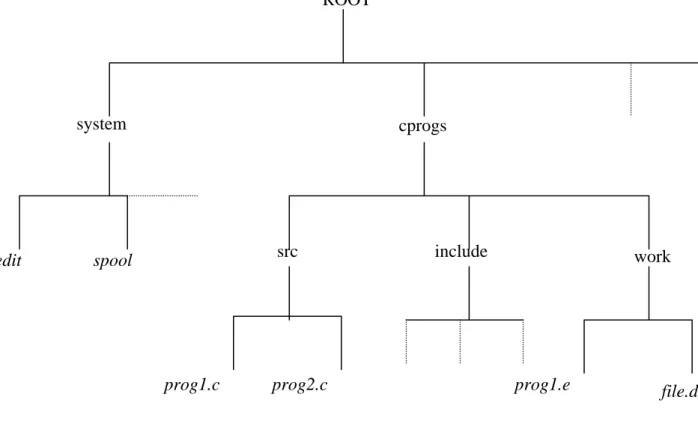
An example of a tree system is shown in Figure 3.
prog1.c prog2.c prog1.e
system cprogs
src include work
ROOT
edit spool
file.dat
Note
The word ‘directory’ is used in two senses:
first, it can refer to the group of files which constitute the directory, as in the sentence: ‘Oh dear! I have just deleted all the files in my directory!’. Second, it can refer to the directory file which contains the list of these filenames; there is, for example, an MS-DOS command rmdir — remove directory — which deletes a directory file (which must be currently empty). This distinction is not normally a problem as the two meanings are closely related and the context usually reveals the intent.
For each of its component files, the directory will generally hold information pertaining to the file. A typical set of such information is shown below. (Note that, in the case of UNIX, most of this
information is not all held in the directory but in a structure, called an inode, associated with the file. • filename, as described earlier
• file type, if the system recognises different file types • file attributes
• information indicating the location of the file on the disk
• access rights; i.e.an indication of who can access the file and how it can be accessed • file size in bytes
• date information: e.g.date of creation , date of last access, date of last amendment
Note that it is admissible to have two or more files with the same name within the system provided that they are in separate directories. This is indeed a major benefit of the multi-directory arrangement. Distinguishing between synonym files is not usually a problem. At any instant, a process has a current directory or in UNIX parlance, a present working directory, i.e.a directory which is assumed by default to be the one intended by a user (either using the command interpreter or within an application
program). In MS-DOS, the current directory is displayed by the command interpreter when the command CD is entered, while the equivalent UNIX command is pwd. When a request is made for a file, the system searches for this file within the current directory. If a file is required which is not in the current directory, it can be specified by means of its full pathname.
Working with directories
The command languages of UNIX and MS-DOS provide commands which enable the interactive user to work with file directories. The most common commands are listed below:
cd Change directory; eg
cd / (UNIX) or cd \ (MS-DOS) changes the current directory to the root. cd cprogs/include (UNIX) changes directory to /cprogs/include.
mkdir Make Directory; eg
mkdir /user makes a new directory below the root
mkdir user makes a new directory below the current directory Note: In MS-DOS, the command md can also be used. rmdir Remove Directory; eg
rmdir user will remove a directory called user below the current directory. The directory being removed would need to be empty.
Paths and pathnames
In order to specify uniquely a file in a tree-structured directory, a pathname can be used. This prefixes the filename with a list of the directories, from a base directory, which have to be traversed in order to reach the file in question. There are two types of pathname, depending on what is used as the base directory. A full pathname uses the root directory, while a relative pathname uses the current directory. For example, in the Figure 2, if we assume that the current directory is /cprogs then the file file1 .dat has the full pathname of /cprogs/work/file1.dat and a relative pathname of work/file1.dat.
UNIX and MS-DOS also provide another mechanism to facilitate access to executable files not in the current directory. This mechanism is called a search path and consists of a list of directories, in a specific order, which the system is asked to search in order to find a requested program, identified only by its basic filename.
The search path is specified as an environment variable in MS-DOS and hence, once established, is available to, and the same for, all programs which are run on the computer. The path is established using the PATH command, e.g:
PATH=\;\DOS;\USERS\FRED\PROGS
Such a command is often included in the AUTOEXEC.BAT file which is automatically executed when the operating system is initially started up. The path contains a list of directories separated by semi-colons, i.e.:
\
\DOS
\USERS\FRED\PROGS
Subsequently, when the user attempts to execute a program, either by simply typing a command-line request or by executing within another program, the operating system will first search the current directory for the program. If this search fails, the path directories will be searched in order. A common application for this system is to make available, from any directory, the MS-DOS-supplied utility programs such as FORMAT and BACK-UP, which traditionally would be held together in directory DOS (or similar). Note that the path applies only to the loading of executable programs; MS-DOS provides another command, with the somewhat unexpected name of ‘APPEND’ which works in a similar way to PATH but which enables any file to be located in another directory.
In UNIX, each logged in user can specify his own search path. The path is usually established at login time by execution of a command in the .profile or .login file, and is assigned to the shell variable ‘PATH’ in the Bourne shell or ‘path’ in the C shell. A typical assignment might be:
PATH = /usr/staff/fred/progs
The path mechanism is very useful but some care must be taken in its usage; for example, if, in the above MS-DOS path example, the user creates a batch file called FORMAT.BAT and stores this in the directory \USERS\FRED\PROGS while the current directory is \USERS\FRED. An attempt to execute this file by entering the command ‘FORMAT’ would fail because FORMAT.COM would be found in the DOS directory first. With a little care and awareness of this problem, such situations can usually be avoided.
Alias filenames
Some operating systems, including UNIX, permit use of alias filenames. The facility allows one physical file to be known by two or more different names, or even by the same name in different directories. If a file needs to be accessible from several different directories, it is first actually placed in one of these directories; then links are created from other directories to this file. This is achieved by the
link() system call or the ln shell command, as illustrated below, using the structure given in Figure 2: Assume that the current directory is work; then the command:
In /system/edit myedit
will create a link entry in directory work. Executing the file myedit will actually invoke the program /system/edit.
The Windows 95 and NT systems provide an alias facility in the form of a shortcut; this is a special file type that can be inserted into a directory and refers to another file within the computer’s file system. A shortcut is created by ‘pointing’ to the icon, in a folder window, that represents the ‘target’ file and depressing the right-hand mouse button; this produces a drop-down menu which includes an option to create a shortcut icon in the current folder. It can then be ‘dragged’ elsewhere. A popular usage of shortcuts is to place them on the user interface desktop to facilitate rapid access to commonly used programs and documents.
Volume concept
The term volume is used to refer to the actual recording medium used in secondary storage. Typically, this is a hard disk system with capacity 20+ Gbytes or a floppy disk system with capacity of typically 1.44Mbytes.
In order to be usable by a particular operating system, the volume must be initialised before use, generally by means of a utility provided with the operating system. In MS-DOS, this utility is called FORMAT, while in UNIX it is called mkfs for make file system (note also that a floppy disk would require to be pre-formatted using a format utility before use of mkfs).
The effect of this initialisation process is to set up necessary structures on specific areas of the disk so that the operating system can recognise the disk as one of ‘its own’ and permit the consequent creation of directories and files on the disk. An attempt to use an uninitialised volume will result in the operating system reporting an error, such as (from MS-DOS) ‘General Failure on Drive A:’.
This explanation is slightly complicated by the fact that one single disk medium can in fact be used for two or more separate ‘volumes’. This is achieved by a process called disk partitioning, which is handled by the disk controller. Using a lower level utility program, the disk can be notionally divided into two or more logical volumes, which appear to the operating systems as if they are distinct physical volumes. It is in fact possible for two different operating system to share one disk unit by partitioning the disk and formatting a separate volume for each of these systems. In this way, MS-DOS and UNIX can share space on one disk unit.
System services
In this section we briefly those services which relate to file management. We consider these under two headings, namely:
• interactive facilities available to the on-line user • facilities available to the programmer
On-line facilities
Most operating systems provide interactive facilities to enable the on-line user to work with files in various ways, usually for the purposes of ‘house-keeping’. Some of these facilities are ‘built-in’ commands of the system, while others are provided by separate utility programs. However, the effect and appearance to the user is very similar.
It would be true to say that many of the powers given to the user in this respect can be somewhat dangerous — it is possible for the user to cause substantial damage to the stored data with carelessly entered commands. This is especially true in more basic operating systems such as MS-DOS which has limited security provisions. Classic examples are the DEL *.* command which can erase all the files in the current directory and, even more devastating, the FORMAT C: command which can erase a whole disk.
A list of typical facilities are given below:
• create a file • delete a file • copy a file • rename a file • display a file • create a directory
• remove an empty directory • list the contents of a directory
neral, they are used by technical support staff or ‘educated’ users.
Programming services
Systems vary greatly with respect to the complexity of the file services offered. However, all systems will provide basic operations on which more complex services can be built. A typical set of operations is given below:
• open: make a file ready for processing • close: make a file unavailable for processing • read: input data from the file
• write: output data to file
• seek : select a position in the file for subsequent data transfer
If using a high level language such BASIC, Pascal or C, these operations will be employed in language verbs (e.g. INPUT in BASIC) or built-in procedures (READ in Pascal) or within supplied library routines (fread in C). The actual implementation for the language will involve additional layers of code, supplied by the compiler, to meet the intent of the command. For example, the Pascal READ can input a data item of arbitrary type, hence the implementation must take account of the number of bytes in the data being read.
If the operating system supported more complex file operations, then we would expect to find a much wider range of facilities, such as reading/writing records, locating a record on the basis of a key value
etc.
At assembler level, one would typically use software interrupts to activate operating system functions. In MS-DOS, interrupt 21 (hex) is a function call request which can perform a wide variety of tasks for the programmer, including opening, reading and writing a file.
In addition to file functions, the operating system must provide support for operations on directories. This is not something which would be implemented in high-level you are unlikely to find a high-level language with a ‘change directory’ command, for example. However, many languages are supplied with procedure libraries which permit many ‘low-level’ operations. In particular, UNIX uses C as a systems programming language, so that all system calls are implemented as C functions.
• create or remove directory • change directory
• read a directory entry • change a directory entry Allocation of file space
When a new file is created on disk, the decision as to where to locate the file, in terms of a cylinder, track and block address, has to be made. In earlier systems, this was the responsibility of the user. Very often, this allocation was made with a view to optimising performance of programs accessing the file; the file would use a contiguous area of disk, or possibly aligned ‘vertically’ (i.e. on the same cylinder) with another file which had to be accessed at the same time, the intention being to minimise head movement. The user was required to estimate the maximum space necessary for the file; an
underestimate could cause a program to fail with an ‘out of disk space’ error. Additional ‘extents’ could be added to the file, not necessarily contiguous with the original space.
In any disk system, space at some time in use will become unwanted and hence will be ‘free’ for another application. With the contiguously allocated scheme, this could result in regions of free space within active space. The situation is very similar to the ‘fragmentation’ problem encountered in memory space allocation. The free space regions will be too small for some applications and too large for others, the eventual outcome being a tendency for the free spaces to become smaller and more distributed, although coalescing of spaces would limit this fragmentation.
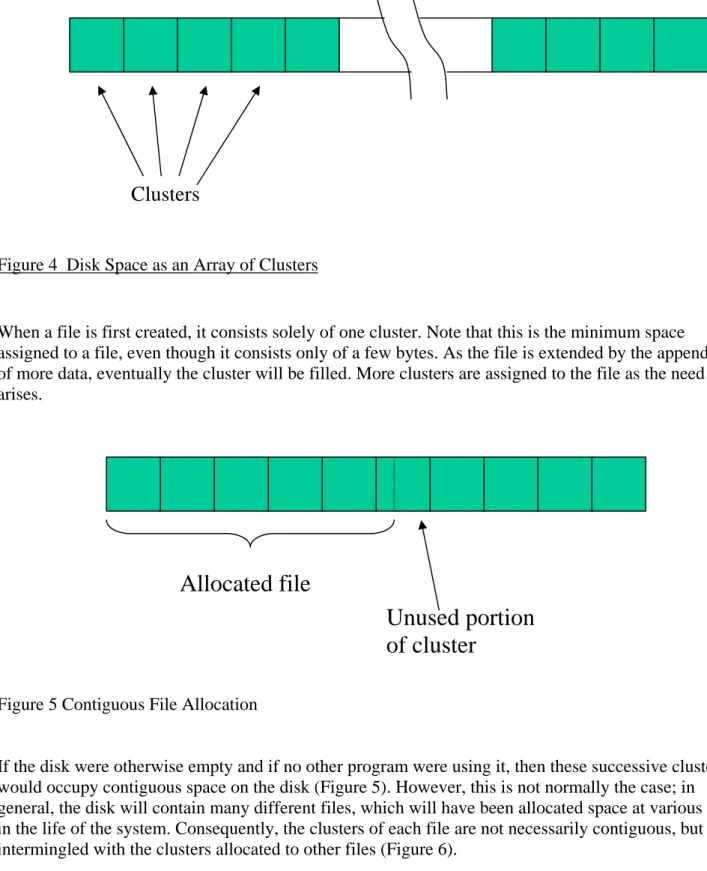
This technique has given way in more recent times to ‘dynamic allocation’ of disk space. The operating system allocates disk space on demand by user programs. Generally, space is allocated in units of a fixed size, called an allocation unit, or in MS-DOS terminology, a cluster, which is a simple multiple of the disk physical sector size, usually 512 bytes. Typical sizes are 512, 1024 and 2048 bytes. In UNIX allocation is undertaken using single sector allocation units. As an aid to visualising this arrangement, we can think of the disk space as a one dimensional array of data stores, each store being a cluster (Figure 4)
Clusters
Figure 4 Disk Space as an Array of Clusters
When a file is first created, it consists solely of one cluster. Note that this is the minimum space assigned to a file, even though it consists only of a few bytes. As the file is extended by the appending of more data, eventually the cluster will be filled. More clusters are assigned to the file as the need arises.
Unused portion
of cluster
Allocated file
Figure 5 Contiguous File Allocation
If the disk were otherwise empty and if no other program were using it, then these successive clusters would occupy contiguous space on the disk (Figure 5). However, this is not normally the case; in
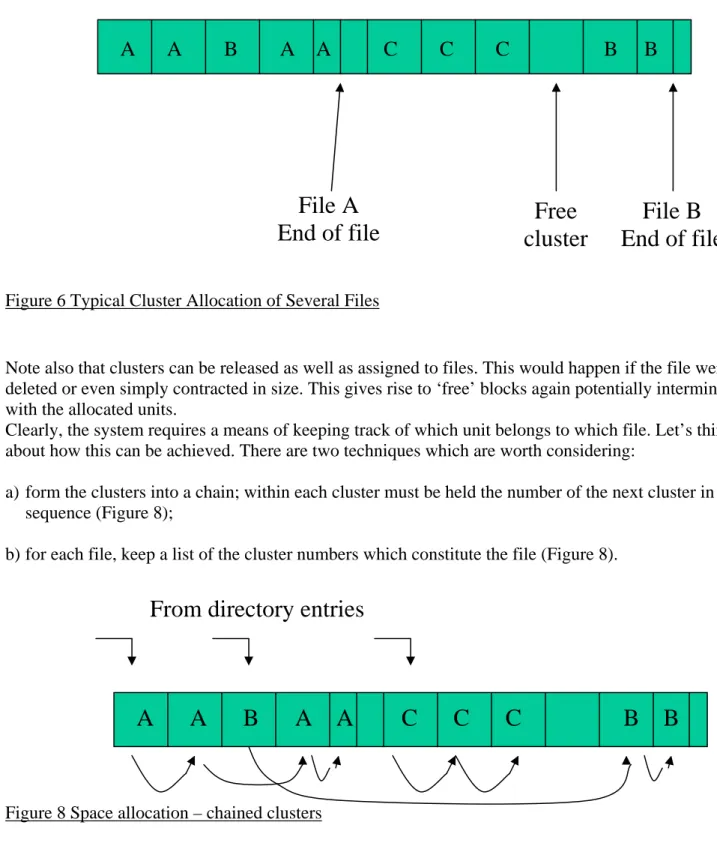
general, the disk will contain many different files, which will have been allocated space at various times in the life of the system. Consequently, the clusters of each file are not necessarily contiguous, but are intermingled with the clusters allocated to other files (Figure 6).
A A B A A C C C B B
File A
End of file
cluster
Free
End of file
File B
Figure 6 Typical Cluster Allocation of Several Files
Note also that clusters can be released as well as assigned to files. This would happen if the file were deleted or even simply contracted in size. This gives rise to ‘free’ blocks again potentially intermingled with the allocated units.
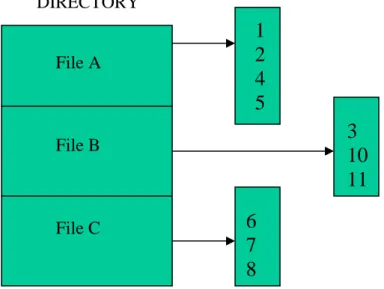
Clearly, the system requires a means of keeping track of which unit belongs to which file. Let’s think about how this can be achieved. There are two techniques which are worth considering:
a) form the clusters into a chain; within each cluster must be held the number of the next cluster in sequence (Figure 8);
b) for each file, keep a list of the cluster numbers which constitute the file (Figure 8).
From directory entries
Figure 8 Space allocation – chained clusters
DIRECTORY
3
10
11
1
2
4
5
6
7
8
File A File B File CFigure 9 Space allocation – cluster list
The chained cluster arrangement is illustrated in Figure 8. One problem with this method is the need to include a ‘pointer’ within the cluster, which should ideally contain only data. This would complicate reading and writing to/from the file. A much more serious problem, however, is the fact that the data can only be accessed by following the chain of pointers; i.e.only serial access is possible, not direct access. This would be unacceptably slow for many applications. While the initial idea is not very promising, there is fortunately a related design which proves to be much superior.
Figure 9 shows the cluster list system. The immediate problem presented by this method is that it appears to require a list of variable length associated with each file, which would be awkward to manage. Again, a variation on this basic theme proves to be more usable and is employed in UNIX. With some suitable enhancements, these two techniques form the basis of the systems used in MS-DOS and UNIX respectively. It’s convenient then, at this point, to describe these two systems in some detail. MS-DOS file system and allocation method
Space allocation
MS-DOS employs a system of chained pointers. Although some systems do employ chained data blocks, it is usually considered too slow for random access of ‘larger’ files. The technique used by MS-DOS is to maintain a table of pointers separate from the data. This table is called the File Allocation Table or FAT. It consists of an array of 16 bit values. Each of these entries, with the exception of the first two which are used for a different purpose (this practical complication will be explained shortly) corresponds to one cluster; i.e.the table entry X corresponds to cluster X. The values in the FAT entries are pointers to other FAT entries. Thus, instead of the clusters being chained together, the appropriate linkages are defined by means of a chain of entries within the FAT.
The critical point to remember is that each entry of the FAT (except the first two) corresponds to one cluster of disk space. Prior to any data being written on to the disk, the FAT entries are all set to zero, indicating a ‘free’ cluster.
File Allocation Table (FAT)
Entry#
Value
………
39
EOF
40
41
41
42
42
44
43
Bad
44
102
...
102
103
103
EOF
Directory entry:
ORDERS DAT no attribs 9/12/00 11:23:44 40 11,230
Figure 10 File allocation table
Field 1- filename
Field 2 – extension e.g .txt, .dat
Field 3 – attributes e.g hidden, read only, directory
Field 4 – date last modified
Field 5 – time last modified
Field 6 - starting cluster
Field 7 – size in bytes
Subsequently, as file space is allocated, the FAT entries contain pointer values to the next entry in the chain. if we consider the case of writing a large file to an otherwise empty disk, contiguous units will be allocated on the disk. The FAT entries corresponding to these will simply point to the next entry.
identifies the disk system type while the second entry is always filled with the value hexadecimal FFFF which identifies the disk as a double-sided, 9 sector per track diskette. The end of a chain of pointers is identified by the code FFFF.
This scheme does not solve the serial searching problem; to reach data which is in, say, the 20th cluster of the file requires the system to follow the FAT pointer chain through 20 entries. However, the total size of the FAT table is such that it can be held in main memory while the disk is in use. Hence, the chain traversing is done in main memory with no disk accessing being required, resulting in satisfactory performance for direct access.
When more file space is requested, the system searches the FAT for an entry with a value of 0000 — the ‘unused’ indicator, and hence allocates the corresponding cluster to the requesting program.
Free space control
Any disk space allocation scheme must cater for the deletion of active files and hence the freeing of allocated clusters. In the MS-DOS FAT system, a freed cluster is indicated by returning its
corresponding FAT entry to the ‘unused’ value of 0000. As indicated in the previous paragraph, this will make the cluster available for re-allocation at some future time.
Volume structure
The disk units of a operating system use a specific layout to accommodate its particular way of working. The layout used in MS-DOS is shown below.
Boot Sector The Boot Sector contains details about the disk’s characteristics, plus a bootstrap loader.
FAT The principal file allocation table
Additional FAT(S) System use one or more duplicate FATs which are updated at the same time as the main FAT. This can be used in the event of corruption of the main FAT.
Root Directory The root directory is distinct from sub-directories in that it is in a fixed position and of fixed size. Generally, the root can accommodate a maximum of 112 entries. This is not generally a problem since the root should be used mainly for sub-directory entries.
File Space The ‘rest of the disk’ which is available for files and subdirectories. The boot sector requires further elaboration. It consists of the following components: • Machine Code Jump to bootstrap loader (see below)
• Maker’s Name and Version
• Allocation details; e.g.sectors/cluster, no. of FATs. • Bootstrap loader
When the computer is first switched on, the boot sector is automatically read from disk by the ROM start-up program and executed. This causes an immediate jump to the Bootstrap Loader code which in turn finds the operating system files IO.SYS and MS-DOS.SYS (the kernel) in the root directory. These are loaded into memory and executed which makes the operating system operational.
Choice of cluster size
Space for files is allocated in clusters, which can be 512, 1024, 2048 or 4096 bytes. This size selection is not under the control of the user — it depends on the disk type. For example, 1.44Mbyte floppy disk uses a cluster size of 512, i.e.one physical sector, while for hard disks 2048 is typical.
Since files are contained in an integral number of clusters, there will, inevitably, be some wastage in the space taken up by each file. Because file space is allocated in ‘chunks’ of, say, 1024 bytes, the actual disk space used up by the file will be the smallest multiple of 1024 which is greater than the file size (i.e.the amount of bytes in the actual data of the file). For example, assume we have stored a file of 10300 bytes and our cluster size is 1024. Ten clusters would provide 10240 bytes which is not enough, so eleven would be needed using up 1024 x 11 = 11264 bytes. The unused space in the 11th cluster is therefore 11264 - 10300 = 964 bytes.
The choice of allocation size has to strike a balance between this wastage and the problems of handling a larger number of allocation units. For a larger number of allocation units, the main problem
encountered would be the increase in the number of separate disk accesses required in reading or writing from/to the file. For example, in order to read the whole of a file of, say, 100,000 bytes would require 100 disk accesses for a cluster size of 1024, but 200 disk accesses if the cluster size were 512. When we remember that allocated clusters of a file can be distributed more or less randomly over the disk space, then we can see that this difference is very appreciable. Also, in the MS-DOS system, one FAT entry is required per unit of allocation; if the allocation size were made smaller, there would be more allocation units and hence a larger number of FAT entries. This in turn would imply more space taken up by the FAT and a longer search time through the FAT chain of pointers to reach a specific record.
On average, one half of one cluster will be unused in each allocated file. If we think of the wasted space in percentage terms, it should be clear than the greater the file size, the (relatively) less will be the wasted space.
UNIX file system and allocation method Space allocation
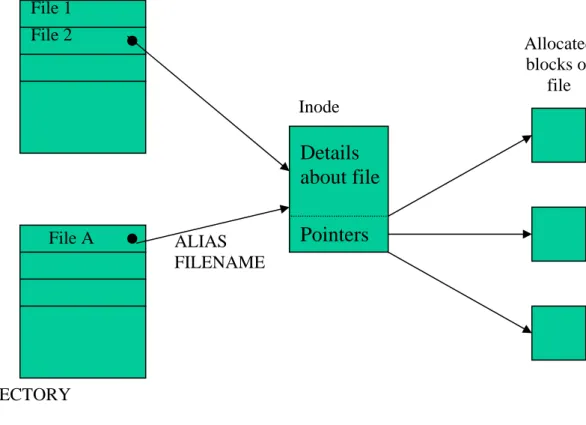
The UNIX directory system differs somewhat from most other systems and certainly from MS-DOS. Directory information, in the main, is not held in the directory itself but in a set of structures called inodes, one of which is associated with each file. A directory entry simply holds the filename and a reference (pointer) to the appropriate inode for the file. Other information such as file size, date of last access etc is held in the inode. In addition, the inode performs the important task of recording which disk blocks are allocated to the file. Space for inodes is drawn from the pool of total disk space on the disk volume. A disk system is given a fixed allocation of inodes when the volume is initialised, but this allocation can be modified at a later date. Note that the number of inodes allocated fixes the maximum number of files on the disk. The pool of inodes is sometimes viewed as a centralised directory which complements the hierarchical structure of the ‘actual’ directories.
Volume structure
Unused Block for booting
Super Block
i-node 1
i-node 2
--
i-node n
storage
storage
available
available
storage
storage
available
available
Figure 11At the beginning of the hard disk is the boot block, needed to boot the operating system. After that comes the super block, which keeps information describing the layout of the file system, as shown in Figure 11 above. The main function of the super block is to tell the file system how big the various pieces of the file system are.
Next comes the i-nodes followed by the block available for storage. Note that the free space is maintained as a linked list of available blocks.
The structure of a typical inode is shown in Figure 12.
Field Example
Owner of file (username) Fred
Group Id (group to which owner belongs) staff
File Type regular
Permissions (see notes below) -rwwxr-xr-x
Last accessed 10 Dec 1889 12:00
Last Modified 21 Nov 1888 17:45
Last inode Modification 21 Nov 1888 17:45
File size 10300 bytes
Number of links see notes below
Pointers to disk allocations see section ’Inode Pointer System’ below Figure 12
switch. The inode shows that the file ‘belongs’ to a user with username ‘fred’, within the group ‘staff’. The permissions field controls access to the file for different users. The file size entry indicates the amount of bytes taken up by the user’s data in the file. As mentioned when discussing the MS-DOS system, since the allocation is in ‘chunks’ of a fixed size, some space will be unused at the end of the allocated space for each file.
The number of links field specifies the number of separate directory entries which reference the inode. A single physical file can be known and referenced by several aliases. The inode system facilitates the use of aliases by holding the filenames in directories while holding the rest of the information about files in inodes.
The pointers field in the inode control the allocation of disk blocks to the file. (Note that UNIX does not use the ‘cluster’ concept — files are allocated in terms of physical disk blocks). The relationship
between the various parts of the system can be illustrated by the diagram in Figure 13. Inode pointer system
We discussed earlier the idea of managing the allocation of disk space to a file by recording, for each file, a list of the blocks (i.e.their disk addresses) allocated to the file. This is the role played by the inode pointer set, although with some enhancements to make the system more practical.
A file can range in size from zero bytes to several million bytes. If an inode were to hold a set of pointers which referenced a file of any size, the number of pointers and hence inode space required would have to be very large.
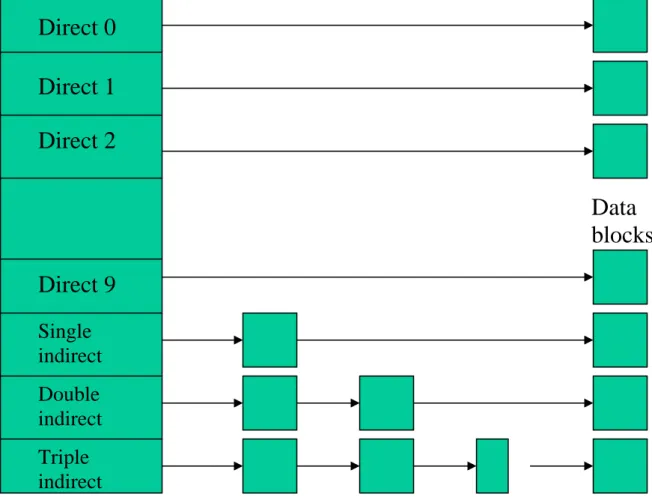
In UNIX, the inodes have a fixed size, which, accordingly can only accommodate a fixed number of pointer entries. In order to be able to specify the data blocks which constitute the file, UNIX uses a more elaborate scheme of pointers which is detailed in Figure 13 below
DIRECTORY Allocated blocks of file
Pointers
Details
about file
Inode File A File 2 File 1 ALIAS FILENAME DIRECTORYThe inode holds thirteen pointers; the first ten of these are ‘direct’ pointers, i.e.they each supply directly a physical address of a block of the file. The other three pointers do not point directly to data blocks but to ‘index blocks’ which themselves contain lists of pointers. These pointers reference either data blocks or further index blocks. The overall situation is best explained with the aid of a diagram (Figure 14). The first 10 pointers directly address disk blocks which belong to the file. If we assume a block size of 512 bytes, then a file of 512 x 10 = 5120 bytes or less could be defined purely by these direct addresses, resulting in efficient access times.
For files greater than 5120 bytes, the direct pointers are unable to list completely the component blocks of the file and use has to be made of the eleventh pointer. The eleventh pointer references a block which itself contains a set of pointers, each of which addresses a block of the file. If we assume a block size of 512 bytes and a pointer address size of 4 bytes, then this block of pointers can reference a maximum of 128 further data blocks, yielding a maximum addressable file size of 5120 + 128 x 512 = 70656 bytes. If this is still insufficient, the twelfth pointer has to be employed. This points to a block which contains a set of pointers, each of which points to another index block. Ultimately, but rarely, the thirteenth pointer may be needed. This introduces yet another level of indirection as illustrated in Figure 14 yielding a truly enormous potential file size.
Inode pointers
Data
blocks
Triple
indirect
Double
indirect
Single
indirect
Direct 9
Direct 2
Direct 1
Direct 0
Index blocks
Example
4096
228
45423
0
0
11111
0
101
367
0
428
9156
824
9156
331
3333
0
1024
2048
3072
4096
5120
6144
7168
8092
9216
10240
11264
12288
13312
367 data block 331 3333double
single
data
indirect
indirect
block
1. A program needs to access offset 9000 and the kernel calculates that it is in direct block 8 i.e. 8 x 1024 = 8192. This is clearly between address 8092 and 9216 and therefore accesses block
number 367. The difference between the start of the block and the required offset is 9000 – 8192 = 808.
2. Now a program needs to access offset 350,000. The first byte accessed is 272,384 (256k + 10k) i.e. 10 blocks accessed in i-node plus a double indirect block can access 256k . This leaves 350,000 – 272,384 = 77,616. Since each block can access 256k then byte number must be in the 0th single indirect block of the double direct block – number 331.
3. Since each direct block contains 1k byte, then byte number 77,616 of a single indirect block is the 75th block of the single indirect block (75 x 1024 = 76800). Finally byte 350,000 file is at byte number 816 (77,616 – 76,800 = 816) in block 3333.
Directories in Unix
A directory is a file whose data is a sequence of entries each consisting of an inode number and the name of the file contained in the directory. Directories do not contain the the files themselves