Landmann
Red Hat Network Satellite 5.0
Reference Guide
Red Hat Network Satellite
Edition 1
Red Hat Network Satellite 5.0 Reference Guide
Red Hat Network Satellite
Edition 1
Landmann
Copyright © 2007 Red Hat, Inc.
This document is licensed by Red Hat under the Creative Commons Attribution-ShareAlike 3.0 Unported License. If you distribute this document, or a modified version of it, you must provide attribution to Red Hat, Inc. and provide a link to the original. If the document is modified, all Red Hat trademarks must be removed.
Red Hat, as the licensor of this document, waives the right to enforce, and agrees not to assert, Section 4d of CC-BY-SA to the fullest extent permitted by applicable law.
Red Hat, Red Hat Enterprise Linux, the Shadowman logo, JBoss, MetaMatrix, Fedora, the Infinity Logo, and RHCE are trademarks of Red Hat, Inc., registered in the United States and other countries. Linux ® is the registered trademark of Linus Torvalds in the United States and other countries. Java ® is a registered trademark of Oracle and/or its affiliates.
XFS ® is a trademark of Silicon Graphics International Corp. or its subsidiaries in the United States and/or other countries.
MySQL ® is a registered trademark of MySQL AB in the United States, the European Union and other countries.
Node.js ® is an official trademark of Joyent. Red Hat Software Collections is not formally related to or endorsed by the official Joyent Node.js open source or commercial project.
The OpenStack ® Word Mark and OpenStack Logo are either registered trademarks/service marks or trademarks/service marks of the OpenStack Foundation, in the United States and other countries and are used with the OpenStack Foundation's permission. We are not affiliated with, endorsed or
sponsored by the OpenStack Foundation, or the OpenStack community. All other trademarks are the property of their respective owners.
Abstract
Welcome to the Red Hat Network 5.0.0 Reference Guide. The RHN Reference Guide guides you through registering systems with Red Hat Network and using its many features.
. . . . . . . . . . . . . . . . . . . . . . . .
Table of Contents
Introduction to the Guide 1. More to Come
1.1. Send in Your Feedback
Chapter 1. Red Hat Network Overview 1.1. Update
1.2. Management 1.3. Provisioning 1.4. Monitoring
1.5. Errata Notifications and Scheduled Package Installations 1.6. Security, Quality Assurance, and Red Hat Network 1.7. Before You Begin
Chapter 2. Red Hat Update Agent 2.1. Starting the Red Hat Update Agent 2.2. Registration
2.2.1. Registering a User Account 2.2.2. Activate
2.2.3. Channels
2.2.4. Packages Flagged to be Skipped 2.2.5. Available Package Updates 2.2.6. Retrieving Packages 2.2.7. Installing Packages 2.3. Command Line Version
2.3.1. Installing the Red Hat GPG key 2.3.2. Manual Package Installation 2.3.3. Synchronizing Your System Profile 2.3.4. Log File
2.4. Configuration
2.4.1. Using the Red Hat Update Agent Configuration Tool 2.4.1.1. General Settings
2.4.1.2. Retrieval/Installation Settings 2.4.1.3. Package Exceptions Settings 2.4.2. Command Line Version
2.5. Registering with Activation Keys Chapter 3. Red Hat Network Daemon
3.1. Configuring 3.2. Viewing Status 3.3. Disabling
3.4. Troubleshooting
Chapter 4 . Red Hat Network Alert Notification Tool 4.1. Configuring the Applet
4.2. Notification Icons 4.3. Viewing Updates 4.4. Applying Updates
4.5. Launching the RHN Website
Chapter 5. Red Hat Network Registration Client 5.1. Configuring the Red Hat Network Registration Client 5.2. Starting the Red Hat Network Registration Client 5.3. Registering a User Account
13 13 14 15 16 16 17 17 18 18 19 21 21 23 24 26 28 29 29 30 31 33 35 37 37 38 38 38 38 39 40 41 42 4 5 45 45 45 45 4 7 47 48 49 49 50 51 51 52 54
. . . . 5.4. Registering a System Profile
5.4.1. Hardware System Profile 5.4.2. Software System Profile
5.4.2.1. Gathering RPM Database Information
5.4.2.2. Choosing RPM Packages to Exclude from the System Profile 5.5. Finishing Registration
5.6. Entitling Your System
5.7. Text Mode RHN Registration Client Chapter 6. Red Hat Network Website
6.1. Navigation
6.1.1. Entitlement Views 6.1.2. Categories and Pages 6.1.3. Errata Alert Icons 6.1.4. Quick Search 6.1.5. Systems Selected 6.1.6. Lists
6.2. Logging into the RHN Website 6.3. Your RHN
6.3.1. Your Account 6.3.1.1. Addresses 6.3.1.2. Change Email
6.3.1.3. Account Deactivation 6.3.2. Your Preferences
6.3.3. Locale Preferences
6.3.4. Subscription Management 6.3.4.1. System Entitlements 6.3.4.2. Virtualization Entitlements 6.3.4.3. Software Channel Entitlements 6.3.4.4. Purchase or Renew
6.3.4.5. Expiration Dates &Purchase History 6.4. Systems
6.4.1. Overview — 6.4.2. Systems
6.4.2.1. All
6.4.2.2. Virtual Systems 6.4.2.3. Out of Date 6.4.2.4. Unentitled — 6.4.2.5. Ungrouped 6.4.2.6. Inactive 6.4.2.7. Satellite 6.4.2.8. Proxy
6.4.2.9. System Details
6.4.2.9.1. System Details ⇒ Details
6.4.2.9.1.1. System Details ⇒ Details ⇒ Overview 6.4.2.9.1.2. System Details ⇒ Details ⇒ Properties
6.4.2.9.1.3. System Details ⇒ Details ⇒ Remote Command — 6.4.2.9.1.4. System Details ⇒ Details ⇒ Reactivation — 6.4.2.9.1.5. System Details ⇒ Details ⇒ Hardware 6.4.2.9.1.6. System Details ⇒ Details ⇒ Notes
6.4.2.9.1.7. System Details ⇒ Details ⇒ Custom Info — 6.4.2.9.1.8. System Details ⇒ Details ⇒ Proxy
6.4.2.9.1.9. System Details ⇒ Details ⇒ Satellite 6.4.2.9.2. System Details ⇒ Software
6.4.2.9.2.1. System Details ⇒ Software ⇒ Errata 6.4.2.9.2.2. System Details ⇒ Software ⇒ Packages
56 56 57 57 58 59 60 61 62 62 62 63 64 65 65 65 65 66 68 68 68 68 68 69 69 70 70 71 71 71 71 71 72 73 73 73 73 73 73 74 74 74 75 75 78 79 79 80 80 80 80 80 80 80 81
6.4.2.9.2.3. System Details ⇒ Software ⇒ Software Channels 6.4.2.9.3. System Details ⇒ Configuration —
6.4.2.9.3.1. System Details ⇒ Configuration ⇒ Overview 6.4.2.9.3.2. System Details ⇒ Configuration ⇒ Managed Files 6.4.2.9.3.3. System Details ⇒ Configuration ⇒ Compare Files
6.4.2.9.3.4. System Details ⇒ Configuration ⇒ Manage Configuration Channels 6.4.2.9.3.5. System Details ⇒ Configuration ⇒ Local Overrides
6.4.2.9.3.6. System Details ⇒ Configuration ⇒ Sandbox 6.4.2.9.4. System Details ⇒ Provisioning —
6.4.2.9.4.1. System Details ⇒ Provisioning ⇒ Kickstart — 6.4.2.9.4.2. System Details ⇒ Provisioning ⇒ Snapshots — 6.4.2.9.4.3. System Details ⇒ Provisioning ⇒ Snapshot Tags — 6.4.2.9.5. System Details ⇒ Virtualization
6.4.2.9.5.1. System Details ⇒ Virtualization ⇒ Details 6.4.2.9.5.2. System Details ⇒ Monitoring —
6.4.2.9.5.3. System Details ⇒ Groups —
6.4.2.9.5.3.1. System Details ⇒ Groups ⇒ List/Leave — 6.4.2.9.5.3.2. System Details ⇒ Groups ⇒ Join — 6.4.2.9.5.4. System Details ⇒ Events
6.4.2.9.5.4.1. System Details ⇒ Events ⇒ Pending 6.4.2.9.5.4.2. System Details ⇒ Events ⇒ History 6.4.3. System Groups —
6.4.3.1. Creating Groups
6.4.3.2. Adding and Removing Systems in Groups 6.4.3.3. System Group Details —
6.4.3.3.1. System Group Details ⇒ Details — 6.4.3.3.2. System Group Details ⇒ Systems —
6.4.3.3.3. System Group Details ⇒ Target Systems — 6.4.3.3.4. System Group Details ⇒ Errata —
6.4.3.3.5. System Group Details ⇒ Admins — 6.4.4. System Set Manager —
6.4.4.1. System Set Manager ⇒ Overview — 6.4.4.2. System Set Manager ⇒ Systems — 6.4.4.3. System Set Manager ⇒ Errata — 6.4.4.4. System Set Manager ⇒ Packages —
6.4.4.4.1. System Set Manager ⇒ Packages ⇒ Upgrade — 6.4.4.4.2. System Set Manager ⇒ Packages ⇒ Install — 6.4.4.4.3. System Set Manager ⇒ Packages ⇒ Remove — 6.4.4.5. System Set Manager ⇒ Verify
6.4.4.6. System Set Manager ⇒ Patches 6.4.4.7. System Set Manager ⇒ Patch Clusters 6.4.4.8. System Set Manager ⇒ Groups — 6.4.4.9. System Set Manager ⇒ Channels —
6.4.4.9.1. System Set Manager ⇒ Channels ⇒ Channel Subscriptions — 6.4.4.9.2. System Set Manager ⇒ Channels ⇒ Config Channels —
6.4.4.9.2.1. System Set Manager ⇒ Channels ⇒ Config Channels ⇒ Deploy — 6.4.4.9.2.2. System Set Manager ⇒ Channels ⇒ Config Channels ⇒ Diff —
6.4.4.9.2.3. System Set Manager ⇒ Channels ⇒ Config Channels ⇒ Subscriptions — 6.4.4.9.3. System Set Manager ⇒ Channels ⇒ Base Channel Alteration —
6.4.4.10. System Set Manager ⇒ Provisioning —
6.4.4.10.1. System Set Manager ⇒ Provisioning ⇒ Kickstart — 6.4.4.10.2. System Set Manager ⇒ Provisioning ⇒ Tag Systems — 6.4.4.10.3. System Set Manager ⇒ Provisioning ⇒ Rollback —
6.4.4.10.4. System Set Manager ⇒ Provisioning ⇒ Remote Command — 6.4.4.11. System Set Manager ⇒ Misc —
82 82 83 83 83 83 84 84 84 84 85 85 85 86 86 87 87 87 87 87 87 87 88 88 89 89 89 89 89 89 89 90 90 90 90 90 91 91 91 91 91 91 91 91 92 92 92 92 93 93 93 93 93 93 93
6.4.4.11.1. System Set Manager ⇒ Misc ⇒ System Profile Updates — 6.4.4.11.2. System Set Manager ⇒ Misc ⇒ Custom System Information — 6.4.4.11.3. System Set Manager ⇒ Misc ⇒ Reboot Systems —
6.4.4.11.4. System Set Manager ⇒ Misc ⇒ Lock Systems — 6.4.4.11.5. System Set Manager ⇒ Misc ⇒ Delete Systems —
6.4.4.11.6. System Set Manager ⇒ Misc ⇒ Add or Remove Add-On Entitlements — 6.4.4.11.7. System Set Manager ⇒ Misc ⇒ System Preferences —
6.4.5. Advanced Search — 6.4.6. Activation Keys —
6.4.6.1. Managing Activation Keys
6.4.6.2. Using Multiple Activation Keys at Once — 6.4.7. Stored Profiles —
6.4.8. Custom System Info — 6.4.9. Kickstart —
6.4.9.1. Introduction to Kickstart 6.4.9.1.1. Kickstart Explained 6.4.9.1.2. Kickstart Prerequisites
6.4.9.1.3. Building Bootable Kickstart ISOs 6.4.9.1.4. Integrating Kickstart with PXE 6.4.9.2. View a List of Kickstart Profiles 6.4.9.3. Create a New Kickstart Profile
6.4.9.3.1. Kickstart Details ⇒ Details —
6.4.9.3.2. Kickstart Details ⇒ Operating System — 6.4.9.3.3. Kickstart Details ⇒ Advanced Options — 6.4.9.3.4. Kickstart Details ⇒ Bare Metal Kickstart — 6.4.9.3.5. System Details ⇒ Details —
6.4.9.3.6. System Details ⇒ Locale — 6.4.9.3.7. System Details ⇒ Partitioning — 6.4.9.3.8. System Details ⇒ File Preservation — 6.4.9.3.9. System Details ⇒ GPG and SSL — 6.4.9.3.10. System Details ⇒ Troubleshooting — 6.4.9.3.11. Software ⇒ Package Groups — 6.4.9.3.12. Software ⇒ Package Profiles — 6.4.9.3.13. Activation Keys —
6.4.9.3.14. Scripts — 6.4.9.3.15. Kickstart File — 6.4.9.4. Kickstart ⇒ Bare Metal —
6.4.9.5. Kickstart ⇒ GPG and SSL Keys — 6.4.9.6. Kickstart ⇒ Distributions —
6.4.9.7. Kickstart ⇒ File Preservation — 6.5. Errata
6.5.1. Relevant Errata 6.5.2. All Errata
6.5.2.1. Apply Errata Updates 6.5.2.2. Errata Details
6.5.2.2.1. Errata Details ⇒ Details 6.5.2.2.2. Errata Details ⇒ Packages
6.5.2.2.3. Errata Details ⇒ Affected Systems 6.5.3. Advanced Search
6.6. Channels
6.6.1. Software Channels 6.6.1.1. Relevant Channels 6.6.1.2. Retired Channels 6.6.1.3. All Channels
6.6.1.4. Software Channel Details
93 94 94 94 94 94 94 95 95 95 96 97 97 97 98 98 99 99 100 100 101 101 102 102 102 102 103 103 103 103 103 103 104 104 104 105 105 105 105 106 106 107 108 108 109 109 109 110 110 110 110 111 111 111 111
6.6.1.4.1. Software Channel Details ⇒ Details
6.6.1.4.2. Software Channel Details ⇒ Subscribers — 6.6.1.4.3. Software Channel Details ⇒ Managers — 6.6.1.4.4. Software Channel Details ⇒ Errata 6.6.1.4.5. Software Channel Details ⇒ Packages
6.6.1.4.6. Software Channel Details ⇒ Subscribed Systems 6.6.1.4.7. Software Channel Details ⇒ Target Systems 6.6.1.4.8. Software Channel Details ⇒ Downloads 6.6.1.4.9. Software Channel Details ⇒ License 6.6.2. Channel Entitlements
6.6.3. Download Software 6.6.3.1. Relevant ISOs 6.6.3.2. All ISOs 6.6.4. Package Search
6.6.5. Manage Software Channels
6.6.5.1. Manage Software Channels ⇒ Channel Details
6.6.5.1.1. Manage Software Channels ⇒ Channel Details ⇒ Channel Details 6.6.5.1.2. Manage Software Channels ⇒ Channel Details ⇒ Managers 6.6.5.1.3. Manage Software Channels ⇒ Channel Details ⇒ Errata 6.6.5.1.4. Manage Software Channels ⇒ Channel Details ⇒ Packages 6.6.5.2. Manage Software Channels ⇒ Manage Software Packages 6.6.6. Manage Config Channels —
6.6.6.1. Preparing Systems for Config Management 6.6.6.2. Manage Config Channels ⇒ Config Channels —
6.6.6.2.1. Manage Config Channels ⇒ Config Channels ⇒ Global — 6.6.6.2.2. Manage Config Channels ⇒ Config Channels ⇒ System — 6.6.6.3. Manage Config Channels ⇒ Manage Files —
6.6.6.4. Manage Config Channels ⇒ Quota — 6.6.6.5. Configuration Channel Details —
6.6.6.5.1. Configuration Channel Details ⇒ Details — 6.6.6.5.2. Configuration Channel Details ⇒ Files —
6.6.6.5.2.1. Configuration Channel Details ⇒ Files ⇒ List — 6.6.6.5.2.2. Configuration Channel Details ⇒ Files ⇒ Upload — 6.6.6.5.2.3. Configuration Channel Details ⇒ Files ⇒ Create File — 6.6.6.5.2.4. Configuration Channel Details ⇒ Files ⇒ Create Directory — 6.6.6.5.3. Configuration Channel Details ⇒ Systems —
6.6.6.5.4. Configuration Channel Details ⇒ Target Systems — 6.6.6.6. Configuration File Details —
6.6.6.6.1. Configuration File Details ⇒ Details — 6.6.6.6.2. Configuration File Details ⇒ Revisions — 6.6.6.6.3. Configuration File Details ⇒ Diff — 6.6.6.6.4. Configuration File Details ⇒ Copy — 6.6.6.7. Including Macros in your Configuration Files 6.7. Schedule
6.7.1. Pending Actions 6.7.2. Failed Actions 6.7.3. Completed Actions 6.7.4. Archived Actions 6.7.5. Actions List
6.7.5.1. Action Details
6.7.5.1.1. Action Details ⇒ Details
6.7.5.1.2. Action Details ⇒ Completed Systems 6.7.5.1.3. Action Details ⇒ In Progress Systems 6.7.5.1.4. Action Details ⇒ Failed Systems 6.8. Users —
111 112 112 112 112 113 113 113 113 113 113 114 114 114 114 114 114 114 115 115 115 115 116 116 116 116 116 117 117 117 117 117 117 117 118 118 118 118 118 118 119 119 119 120 121 121 121 121 122 122 122 122 122 122 122
. . . . 6.8.1. User List ⇒ Active —
6.8.1.1. User List ⇒ Active ⇒ User Details —
6.8.1.1.1. User List ⇒ Active ⇒ User Details ⇒ Details —
6.8.1.1.2. User List ⇒ Active ⇒ User Details ⇒ System Groups — 6.8.1.1.3. User List ⇒ Active ⇒ User Details ⇒ Systems —
6.8.1.1.4. User List ⇒ Active ⇒ User Details ⇒ Channel Permissions —
6.8.1.1.4.1. User List ⇒ Active ⇒ User Details ⇒ Channel Permissions ⇒ Subscription — 6.8.1.1.4.2. User List ⇒ Active ⇒ User Details ⇒ Channel Permissions ⇒
Management —
6.8.1.1.5. User List ⇒ Active ⇒ User Details ⇒ Preferences — 6.8.1.1.6. User List ⇒ Active ⇒ User Details ⇒ Addresses —
6.8.1.1.7. User List ⇒ Active ⇒ User Details ⇒ Notification Methods — 6.8.2. User List ⇒ Deactivated —
6.8.3. User List ⇒ All — 6.9. Monitoring —
6.9.1. Probe Status —
6.9.1.1. Probe Status ⇒ Critical — 6.9.1.2. Probe Status ⇒ Warning — 6.9.1.3. Probe Status ⇒ Unknown — 6.9.1.4. Probe Status ⇒ Pending — 6.9.1.5. Probe Status ⇒ OK — 6.9.1.6. Probe Status ⇒ All — 6.9.1.7. Current State — 6.9.2. Notification —
6.9.2.1. Notification ⇒ Filters
6.9.2.1.1. Notification ⇒ Notification Filters ⇒ Active Filters 6.9.2.1.2. Notification ⇒ Notification Filters ⇒ Expired Filters 6.9.3. Probe Suites
6.9.4. Scout Config Push — 6.9.5. General Config — 6.10. Satellite Tools
6.10.1. Satellite Tools ⇒ Satellite Configuration
6.10.1.1. Satellite Tools ⇒ Satellite Configuration ⇒ General 6.10.1.2. Satellite Tools ⇒ Satellite Configuration ⇒ Monitoring 6.10.1.3. Satellite Tools ⇒ Satellite Configuration ⇒ Certificate 6.10.1.4. Satellite Tools ⇒ Satellite Configuration ⇒ Bootstrap 6.10.1.5. Satellite Tools ⇒ Satellite Configuration ⇒ Restart 6.11. Help
6.11.1. Help Desk
6.11.2. Quick Start Guide 6.11.3. FAQ
6.11.4. Migration FAQ 6.11.5. Reference Guide 6.11.6. Best Practices Guide 6.11.7. Contact RHN
6.11.8. Satellite Installation Guide 6.11.9. Proxy Guide
6.11.10. Client Configuration Guide 6.11.11. Channel Management Guide 6.11.12. Terms &Conditions
6.11.13. Outage Policy 6.11.14. Release Notes 6.11.15. Get RHN Software Chapter 7. Monitoring
7.1. Prerequisites 123 124 125 126 126 126 126 126 126 127 127 127 127 127 128 128 128 129 129 129 129 129 129 129 130 130 131 132 132 133 133 133 133 133 134 134 134 134 134 134 134 134 135 135 135 135 135 135 135 135 135 135 137 137
. . . .
. . . . 7.2. Red Hat Network Monitoring Daemon (rhnmd)
7.2.1. Probes requiring the daemon
7.2.2. Installing the Red Hat Network Monitoring Daemon 7.2.3. Configuring SSH
7.2.4. Installing the SSH key 7.3. mysql-server package 7.4. Notifications
7.4.1. Creating Notification Methods 7.4.2. Receiving Notifications 7.4.3. Redirecting Notifications 7.4.4. Filtering Notifications
7.4.5. Deleting Notification Methods 7.5. Probes
7.5.1. Managing Probes
7.5.2. Establishing Thresholds 7.5.3. Monitoring the RHN Server 7.6. Troubleshooting
7.6.1. Examining Probes with rhn-catalog 7.6.2. Viewing the output of rhn-runprobe Chapter 8. Virtualization
8.1. Setting Up the Host System for Your Virtual Systems 8.1.1. Create a Kickstart Profile for the Guest Systems 8.1.2. Kickstart Your Host System
8.1.2.1. Your Host System Has Red Hat Enterprise Linux 4 or Earlier Installed 8.1.2.2. You Host System Does Not have Red Hat Enterprise Linux Installed 8.1.2.3. Your Host System Has Red Hat Enterprise Linux 5 Installed
8.2. Setting Up Your Virtual Systems
8.2.1. Create a Kickstart Profile for the Guest Systems 8.2.2. Provision Your Guest Systems
8.3. Working With Your Virtual Systems
8.3.1. Logging into Virtual Systems Directly via SSH 8.3.2. Gaining Console Access Via the Host
8.3.3. Installing Software Via the Satellite Web Interface 8.3.4. Installing Software Via Yum From the Virtual System 8.3.5. Deleting Virtual Systems
Chapter 9. UNIX Support Guide 9.1. Introduction
9.1.1. Supported UNIX Variants 9.1.2. Prerequisites
9.1.3. Included Features
9.1.4. Differences in Functionality 9.1.5. Excluded Features
9.2. Satellite Server Preparation/Configuration 9.3. Client System Preparation
9.3.1. Download and Install Additional Packages 9.3.1.1. Install Third-Party Packages
9.3.1.2. Configure the Library Search Path 9.3.1.3. Download RHN Client Packages 9.3.1.4. Install the RHN Packages
9.3.1.5. Include RHN Packages in the PATH 9.3.2. Deploying Client SSL Certificates
9.3.3. Configuring the clients 9.4. Registration and Updates
9.4.1. Registering Systems
137 137 138 139 139 140 140 140 141 141 142 142 143 143 144 144 144 144 145 14 7 147 147 148 148 149 150 152 152 153 154 154 154 155 155 155 157 157 157 157 157 157 158 158 160 160 160 161 161 162 162 163 163 164 164
. . . .
. . . .
. . . . 9.4.2. Obtaining Updates
9.4.2.1. Uploading Packages to the Satellite 9.4.2.1.1. solaris2mpm
9.4.2.1.2. rhnpush with .mpm Files 9.4.2.2. Updating Through the Website 9.4.2.3. Updating From the Command Line 9.5. Remote Commands
9.5.1. Enabling Commands 9.5.2. Issuing Commands
Command Line Config Management Tools A.1. Red Hat Network Actions Control
A.1.1. General command line options A.2. Red Hat Network Configuration Client
A.2.1. Listing Config Files A.2.2. Getting a Config File A.2.3. Viewing Config Channels
A.2.4. Differentiating between Config Files A.2.5. Verifying Config Files
A.3. Red Hat Network Configuration Manager A.3.1. Creating a Config Channel
A.3.2. Adding Files to a Config Channel
A.3.3. Differentiating between Latest Config Files A.3.4. Differentiating between Various Versions A.3.5. Downloading All Files in a Channel A.3.6. Getting the Contents of a File A.3.7. Listing All Files in a Channel A.3.8. Listing All Config Channels A.3.9. Removing a File from a Channel A.3.10. Deleting a Config Channel
A.3.11. Determining the Number of File Revisions A.3.12. Updating a File in a Channel
A.3.13. Uploading Multiple Files at Once RHN API Access
B.1. Using the auth Class and Getting the Session B.2. Obtaining the system_id
B.3. Determining the sid B.4. Viewing the cid B.5. Getting the sgid B.6. Channel Labels B.7. Sample API Script Probes
C.1. Probe Guidelines C.2. Apache 1.3.x and 2.0.x
C.2.1. Apache::Processes C.2.2. Apache::Traffic C.2.3. Apache::Uptime
C.3. BEA WebLogic 6.x and higher C.3.1. BEA WebLogic::Execute Queue C.3.2. BEA WebLogic::Heap Free
C.3.3. BEA WebLogic::JDBC Connection Pool C.3.4. BEA WebLogic::Server State
C.3.5. BEA WebLogic::Servlet C.4. General 165 165 165 166 167 168 168 168 169 170 170 170 171 171 172 172 172 173 173 174 174 175 175 176 176 177 177 177 178 178 178 179 180 180 180 180 180 180 181 181 183 183 184 184 185 185 186 186 187 187 188 188 189
C.4.1. General::Remote Program
C.4.2. General::Remote Program with Data C.4.3. General::SNMP Check
C.4.4. General::TCP Check C.4.5. General::UDP Check C.4.6. General::Uptime (SNMP) C.5. Linux
C.5.1. Linux::CPU Usage
C.5.2. Linux::Disk IO Throughput C.5.3. Linux::Disk Usage
C.5.4. Linux::Inodes
C.5.5. Linux::Interface Traffic C.5.6. Linux::Load
C.5.7. Linux::Memory Usage
C.5.8. Linux::Process Counts by State C.5.9. Linux::Process Count Total C.5.10. Linux::Process Health C.5.11. Linux::Process Running C.5.12. Linux::Swap Usage
C.5.13. Linux::TCP Connections by State C.5.14. Linux::Users
C.5.15. Linux::Virtual Memory C.6. LogAgent
C.6.1. LogAgent::Log Pattern Match C.6.2. LogAgent::Log Size
C.7. MySQL 3.23 - 3.33
C.7.1. MySQL::Database Accessibility C.7.2. MySQL::Opened Tables
C.7.3. MySQL::Open Tables C.7.4. MySQL::Query Rate C.7.5. MySQL::Threads Running C.8. Network Services
C.8.1. Network Services::DNS Lookup C.8.2. Network Services::FTP
C.8.3. Network Services::IMAP Mail
C.8.4. Network Services::Mail Transfer (SMTP) C.8.5. Network Services::Ping
C.8.6. Network Services::POP Mail C.8.7. Network Services::Remote Ping C.8.8. Network Services::RPCService
C.8.9. Network Services::Secure Web Server (HTTPS) C.8.10. Network Services::SSH
C.8.11. Network Services::Web Server (HTTP) C.9. Oracle 8i and 9i
C.9.1. Oracle::Active Sessions C.9.2. Oracle::Availability
C.9.3. Oracle::Blocking Sessions C.9.4. Oracle::Buffer Cache C.9.5. Oracle::Client Connectivity C.9.6. Oracle::Data Dictionary Cache C.9.7. Oracle::Disk Sort Ratio
C.9.8. Oracle::Idle Sessions C.9.9. Oracle::Index Extents C.9.10. Oracle::Library Cache C.9.11. Oracle::Locks 189 189 190 191 191 192 192 192 193 193 194 194 195 195 196 196 197 198 199 199 200 200 201 201 202 203 203 204 204 204 205 205 205 206 206 207 207 208 208 209 209 210 210 211 212 212 212 213 213 214 214 215 215 216 216
. . . .
. . . . C.9.12. Oracle::Redo Log
C.9.13. Oracle::Table Extents C.9.14. Oracle::Tablespace Usage C.9.15. Oracle::TNS Ping
C.10. RHN Satellite
C.10.1. RHN Satellite::Disk Space C.10.2. RHN Satellite::Execution Time C.10.3. RHN Satellite::Interface Traffic C.10.4. RHN Satellite::Latency
C.10.5. RHN Satellite::Load
C.10.6. RHN Satellite::Probe Count C.10.7. RHN Satellite::Process Counts C.10.8. RHN Satellite::Processes C.10.9. RHN Satellite::Process Health C.10.10. RHN Satellite::Process Running C.10.11. RHN Satellite::Swap
C.10.12. RHN Satellite::Users Glossary A B C D E M N O P R S U V Y Index A B C D E G H I K L M N O P Q R S T U V W 217 217 218 219 219 219 220 220 220 221 221 221 222 222 223 223 224 224 224 224 224 225 225 226 226 226 226 227 228 228 229 229 229 229 230 230 231 232 232 233 233 233 233 234 235 235 236 239 239 242 245 245 245 246
Y 246
Introduction to the Guide
Welcome to the Red Hat Network 5.0.0 Reference Guide. The RHN Reference Guide guides you through registering systems with Red Hat Network and using its many features.
Since Red Hat Network offers a variety of service levels, from the most basic Update module to the most advanced Monitoring package, some content of this guide may be inapplicable to you. This is particularly true of the RHN website, which displays selected categories, pages, and tabs depending on the
entitlement level of the account used to log in. Refer to Chapter 6, Red Hat Network Website to determine what is available to you.
Depending on the version of Red Hat Enterprise Linux installed and the addition of new features, the Red Hat Network Registration Client and the Red Hat Update Agent may differ from the
descriptions in this manual. Use Red Hat Network to update these applications before referring to the latest version of this manual.
All versions of this manual are available in HTML and PDF formats at http://www.redhat.com/docs/manuals/RHNetwork/.
This version of the manual covers version 4.4.5 of the Red Hat Enterprise Linux 3 and 4 Red Hat Update Agent and versions 2.9.14 and 2.9.12 of the Red Hat Enterprise Linux 2.1 Red Hat Update Agent and Red Hat Network Registration Client, respectively.
Warning
Systems running Red Hat Enterprise Linux 2.1 must use the Red Hat Network Registration Client before starting the Red Hat Update Agent. Refer to Chapter 5, Red Hat Network Registration Client for instructions. Systems running Red Hat Enterprise Linux 3, Red Hat Enterprise Linux 4 and later register with the Red Hat Update Agent. Refer to Chapter 2, Red Hat Update Agent for instructions.
For an overview of Red Hat Network offerings, please review the descriptions available at http://www.redhat.com/software/rhn/.
1. More to Come
The Red Hat Network Reference Guide is constantly expanding as new Red Hat Network features and service plans are launched. HTML and PDF versions of this and other manuals are available within the Help section of the RHN website and at http://www.redhat.com/docs/.
Note
Although this manual reflects the most current information possible, read the RHN Release Notes for information that may not have been available prior to the finalization of the documentation. The notes can be found on the RHN website and at http://www.redhat.com/docs/manuals/RHNetwork/. The following RHN documentation has been translated for the RHN 4.0 release: RHN 3.7 Reference Guide, RHN 3.7 Satellite Guide, RHN 3.7 Release Notes, and the RHN 4.0 Release Notes. Translations of the remaining RHN 4.0 documentation will be available after the initial release. Translated
documentation is available at http://rhn.redhat.com/help/
1.1. Send in Your Feedback
If you would like to make suggestions about the Red Hat Network Reference Guide, please submit a report in Bugzilla: http://bugzilla.redhat.com/bugzilla/
Be sure to select the Red Hat Network product and the Documentation component. To easily associate the problem with this guide, mention its identifier:
Chapter 1. Red Hat Network Overview
Have you ever read about a new version of a software package and wanted to install it but could not find it?
Have you ever tried to find an RPM through an Internet search engine or an RPM repository and been linked to an unknown site?
Have you ever tried to find an RPM but instead found only source files that you had to compile yourself? Have you ever spent hours or even days visiting different websites to see if you have the latest
packages installed on your system, only to have to do it again in a few months?
Those days are over with Red Hat Network (RHN). RHN provides the solution to all your system software management needs.
Red Hat Network is an Internet solution for managing a single Red Hat Enterprise Linux system or a network of Red Hat Enterprise Linux systems. All Security Alerts, Bug Fix Alerts, and Enhancement Alerts (collectively known as Errata Alerts) can be downloaded directly from Red Hat or your own custom collection. You can even schedule updates for delivery to your system immediately after release. The main components of Red Hat Network are as follows:
the Red Hat Update Agent
the Red Hat Network website, whether this is hosted by the central RHN Servers, an RHN Satellite, or fed through an RHN Proxy Server
Red Hat Network Daemon
the Red Hat Network Registration Client - for systems running Red Hat Enterprise Linux 2.1 only.
The Red Hat Update Agent (up2date) provides your initial connection to Red Hat Network. Red Hat Enterprise Linux 3 and newer systems use the Red Hat Update Agent to register with RHN. Registration involves creating a unique RHN username and password, probing the hardware on your system to create a Hardware Profile, and probing the software packages installed on your system to create a Package Profile. This information is sent to RHN and RHN returns a unique System ID to your system. Once registered, the Red Hat Update Agent enables channel subscription, package installs, and management of System Profiles. See Chapter 2, Red Hat Update Agent for further information.
The Red Hat Update Agent, as the base component of RHN, is designed to manage a single system. It allows the system's superuser to view and apply Errata to the system. The RHN web interface facilitates the management, monitoring, and provisioning of a large deployment of systems, including the
configuration of the Red Hat Update Agent for each system.
The Red Hat Network Daemon (rhnsd) runs in the background as a service and probes the Red Hat Network for notifications and updates at set time intervals (see Chapter 3, Red Hat Network Daemon for further information). This daemon is necessary in order to schedule updates or other actions through the website.
The Red Hat Network Registration Client allows you to register your Red Hat Enterprise Linux 2.1 systems with RHN. (Newer versions of Red Hat Enterprise Linux have registration functionality built into the Red Hat Update Agent.) See Chapter 5, Red Hat Network Registration Client for more
information.
Many Red Hat Network terms are used throughout this manual. As you read the Red Hat Network
Reference Guide, refer to the Glossary as necessary for an explanation of common terms.
Tip
For a comparison chart of RHN service levels, refer to http://www.redhat.com/software/rhn/table/.
1.1. Update
The RHN Update service is ideal for a user with one Red Hat Enterprise Linux system or a small number of Red Hat Enterprise Linux systems. Updated Subscription to Update can be purchased at
https://www.redhat.com/apps/commerce/rhn/.
With each Update subscription, you receive the following services:
Download Software — For customers who have purchased subscriptions to Red Hat Network, ISO images are available for immediate download.
Priority Access during periods of high load — When Red Hat releases a large erratum, users with Priority Access can be guaranteed that they will be able to access the updated packages
immediately.
RHN Support Access — All paying customers of Red Hat Network receive web based support for their RHN questions.
Errata Notification, Multiple Systems — Subscriptions for multiple systems means Errata notification for Errata to all of those systems. Note that only one email is distributed per each Erratum,
regardless of the number of systems affected.
Errata Updates, Multiple Systems — Get quick updates for multiple systems with an easy button click for each system.
1.2. Management
In addition to the features offered in the RHN Update subscription level, the RHN Management
subscription service allows you to manage your network of Red Hat Enterprise Linux systems, users, and system groups through its System Set Manager interface.
RHN Management is based upon the concept of an organization. Each Management-level Red Hat customer has the ability to establish users who have administration privileges to system groups. An Organization Administrator has overall control over each Red Hat Network organization with the ability to add and remove systems and users. When users other than the Organization Administrator log into the Red Hat Network website, they see only the systems they have permission to administer.
To create an account that can be used to entitle systems to RHN Management, go to
https://rhn.redhat.com/ and click on the Create Login link under the Sign In fields. On the Create a Red Hat Login page, click Create a new Business Login. After creating a business account, you may add users within your organization to it.
The Red Hat Network features available to you depend on the subscription level for each Red Hat Enterprise Linux system. With each Management subscription, you receive the functionality provided to Update users, plus:
Package Profile Comparison — Compare the package set on a system with the package sets of similar systems with one click.
Search Systems — Search through systems based on a number of criteria: packages, networking information, even hardware asset tags.
System Grouping — Web servers, database servers, workstations and other workload-focused systems may be grouped so that each set can be administered in common ways.
Multiple Administrators — Administrators may be given rights to particular system groups, easing the burden of system management over very large organizations.
System Set Manager — You may now apply actions to sets of systems instead of single systems, work with members of a predefined system group, or work with an ad-hoc collection of systems. Install a single software package to each, subscribe the systems to a new channel, or apply all Errata to them with a single action.
Batch Processing — Compiling a list of outdated packages for a thousand systems would take days for a dedicated sysadmin. Red Hat Network Management service can do it for you in seconds.
1.3. Provisioning
As the highest management service level, RHN Provisioning encompasses all of the features offered in the RHN Update and Management subscription levels. It is designed to allow you to deploy and manage your network of Red Hat Enterprise Linux systems, users, and system groups.
Like Management, Provisioning is based upon an organization. It takes this concept a step further by enabling customers with Provisioning entitlements to kickstart, reconfigure, track, and revert systems on the fly.
In addition to all of the features mentioned in lower service levels, Provisioning provides:
Kickstarting — Systems with Provisioning entitlements may be re-installed through RHN with a whole host of options established in kickstart profiles. Options include everything from the type of
bootloader and time zone to packages included/excluded and IP address ranges allowed. Even GPG and SSL keys can be pre-configured.
Client Configuration — RHN Satellite Customers may use RHN to manage the configuration files on Provisioning-entitled systems. Users can upload files to custom configurations channels on the Satellite, verify local configuration files against those stored on the Satellite, and deploy files from the Satellite.
Snapshot Rollbacks — Provisioning-level users have the ability to revert the package profile and RHN settings of systems. RHN Satellite customers can also roll back local configurations files. This is possible because snapshots are captured whenever an action takes place on a system. These snapshots identify groups, channels, packages, and configuration files.
Custom System Information — Provisioning customers may identify any type of information they choose about their registered systems. This differs from System Profile information, which is generated automatically, and the Notes, which are unrestricted, in that the Custom System
Information allows you to develop specific keys of your choosing and assign searchable values for that key to each Provisioning-entitled system. For instance, this feature allows you to identify the cubicle in which each system is located and search through all registered systems according to their cubicle.
1.4. Monitoring
Monitoring entitlements are available to RHN Satellite customers with Red Hat Enterprise Linux systems. Monitoring allows an organization to install probes that can immediately detect failures and identify performance degradation before it becomes critical. Used properly, the Monitoring entitlement can
provide insight into the applications, services, and devices on each system. Specifically, Monitoring provides:
Probes — Dozens of probes can be run against each system. These range from simple ping checks to custom remote programs designed to return valuable data.
Notification — Alerts can be sent to email and pager addresses with contact methods identified by you when a probe changes state. Each probe notification can be sent to a different method, or address.
Central Status — The results of all probes are summarized in a single Probe Status page, with the systems affected broken down by state.
Reporting — By selecting a probe and identifying the particular metric and a range of time, you can generate graphs and event logs depicting precisely how the probe has performed. This can be instrumental in predicting and preventing costly system failures.
Probe Suites — Groups of probes may be assigned to a system or set of systems at once rather than individually. This allows Administrators to be certain that similar systems are monitored in the same way and saves time configuring individual probes.
Notification Filters — Probe notifications may be redirected to another recipient, halted, or sent to an additional recipient for a specified time based on probe criteria, notification method, scout or
organization.
1.5. Errata Notifications and Scheduled Package Installations
You can configure Red Hat Network to send you email notifications of new and updated software packages as soon as the packages are available through RHN. You receive one email per Erratum, regardless of the number of affected systems. You can also schedule package installs or package updates. The benefits include:Reduced time and effort required by system administrators to stay on top of the Red Hat Errata list Minimized security vulnerabilities in your network through the application of updates as soon as Red Hat releases them
Filtered list of package updates (packages not relevant to your network are not included) Reliable method of managing multiple systems with similar configurations
1.6. Security, Quality Assurance, and Red Hat Network
Red Hat Network provides significant benefits to your network, including security and quality assurance. All transactions made between your systems and Red Hat Network are encrypted and all RPM packages are signed with Red Hat's GNU Privacy Guard (GPG) signature to ensure authenticity.
Red Hat Network incorporates the following security measures:
1. Your System Profile, available at http://rhn.redhat.com, is accessible only with an RHN-verified username and password.
2. A Digital Certificate is written to the client system after registration and is used to authenticate the system during each transaction between the client and Red Hat Network. The file is only readable by the root user on the client system.
3. Red Hat signs all communications with an electronic signature using GPG. RPM can be used to verify the authenticity of the package before it is installed.
5. The Red Hat Quality Assurance Team tests and verifies all packages before they are added to the Red Hat Errata list and Red Hat Network.
1.7. Before You Begin
By default, all software packages necessary to access Red Hat Network are installed with Red Hat Enterprise Linux distributions. However, if you chose not to install them during the installation process, you must obtain the Red Hat Update Agent (up2date) and possibly the Red Hat Network
Registration Client (rhn_register). In Red Hat Enterprise Linux 3 and later, registration
functionality is built into the Red Hat Update Agent, while Red Hat Enterprise Linux 2.1 users will need the Red Hat Network Registration Client.
Warning
The SSL certificate packaged with older versions of the Red Hat Update Agent and the Red Hat Network Registration Client reached its end of life August 28, 2003. Users attempting to connect using this certificate will receive SSL connection or certificate verification errors. You may view and obtain the versions of these applications containing new certificates at the RHN Client Software page. In the RHN website, click Help at the top-right corner, Get RHN Software in the left navigation bar, and scroll down to examine the packages and versions.
To determine the versions of the client applications installed, run the rpm -q command followed by the package name. For instance, for the Red Hat Network Registration Client, type the following
command:
rpm -q rhn_register
If the Red Hat Network Registration Client is installed, it will return something similar to:
rhn_register-2.9.3-1
The version number might differ slightly.
If you do not have the Red Hat Network Registration Client installed, the command will return:
package rhn_register is not installed
Perform this check for every package in Table 1.1, “Red Hat Network Packages” that is relevant to your system. Remember, only Red Hat Enterprise Linux 2.1 users need Red Hat Network Registration Client. If you prefer to use the command line versions, the two packages ending in gnom e are not required..
Table 1.1. Red Hat Network Packages
Package Name Description
rhn_register Provides the Red Hat Network Registration Client program and the text mode interface
rhn_register-gnom e Provides the GNOME interface (graphical version) for the Red Hat Network Registration Client; runs if the X Window System is available
up2date Provides the Red Hat Update Agent command line version and the Red Hat Network Daemon
up2date-gnom e Provides the GNOME interface (graphical version) for the Red Hat Update Agent; runs if the X Window System is available
Chapter 2. Red Hat Update Agent
The Red Hat Update Agent is your connection to Red Hat Network. It enables you to register your systems, create System Profiles, and alter the settings by which your organization and RHN interact. Once registered, your systems can use the Red Hat Update Agent to retrieve the latest software packages from Red Hat. This tool allows you to always have the most up-to-date Red Hat Enterprise Linux systems with all security updates, bug fixes, and software package enhancements.
Remember, this tool must be run on the system you wish to update. You cannot use the Red Hat Update Agent on the system if it is not entitled to an RHN service offering.
Warning
Only systems running Red Hat Enterprise Linux 3 and later can use the Red Hat Update Agent to register with RHN. Systems running Red Hat Enterprise Linux 2.1 must use Red Hat Network Registration Client before starting the Red Hat Update Agent. Refer to Chapter 5, Red Hat Network Registration Client for instructions, then return to this chapter for Red Hat Update Agent instructions.
Important
You must use Red Hat Update Agent Version 2.5.4 or higher to upgrade your kernel
automatically. It installs the updated kernel and configures LILO or GRUB to boot the new kernel the next time the system is rebooted. To ensure that you are running the latest version, execute the command up2date up2date. If you do not have the latest version installed, this command updates it.
2.1. Starting the Red Hat Update Agent
If you are not running the X Window System or prefer the command line version of the Red Hat Update Agent, skip to Section 2.3, “Command Line Version”.
You must be root to run the Red Hat Update Agent. If started as a standard user, Red Hat Update Agent prompts you to enter the root password before proceeding. The Red Hat Update Agent can be started using one of the following methods:
For Red Hat Enterprise Linux 3 and 4:
On the GNOME and KDE desktops, go to Applications (the main menu on the panel) => System Tools => Red Hat Network.
At a shell prompt (for example, an xterm or gnome-terminal), type the command up2date. For Red Hat Enterprise Linux 2.1:
On the GNOME desktop, go to the Main Menu Button (on the Panel) => Programs => System => Update Agent.
On the KDE desktop, go to the Main Menu Button (on the Panel) => Update Agent. At a shell prompt (for example, an xterm or gnome-terminal), type the command up2date.
If you choose the last option and start the application from a shell prompt, you can specify the options in Table 2.1, “Graphical Update Agent Options”. To view these options, type the command up2date --help.
For example, use the following command to specify the directory in which to download the updated packages (temporarily overriding your saved configuration):
up2date --tmpdir=/tmp/up2date/
Table 2.1. Graphical Update Agent Options
Option Description
--configure Configure Red Hat Update Agent options. Refer to Section 2.4, “Configuration” for detailed instructions.
-d, --download Download packages only; do not install them. This argument temporarily overrides the configuration option Do not install packages after retrieval. Use this option if you prefer to install the packages manually.
-f, --force Force package installation. This option temporarily overrides the file, package, and configuration skip lists.
-i, --install Install packages after they are downloaded. This argument temporarily overrides the configuration option Do not install packages after retrieval.
-k, --packagedir Specify a colon separated path of directories in which to look for packages before trying to download them.
--nosig Do not use GPG to check package signatures. This option temporarily overrides the saved configuration option.
--tm pdir=directory Temporarily override the configured package directory. The default location is /var/spool/up2date. This option is useful if you do not have enough space in the configured location.
--dbpath=dir Specify an alternate RPM database to use temporarily.
The first time you run the Red Hat Update Agent, two dialog boxes appear that you will not see in subsequent startups: Configure Proxy Server and Install GPG Key.
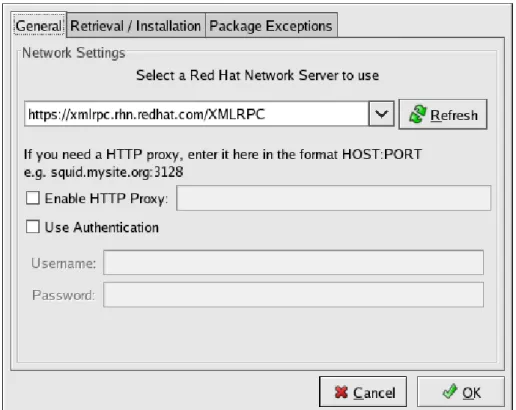
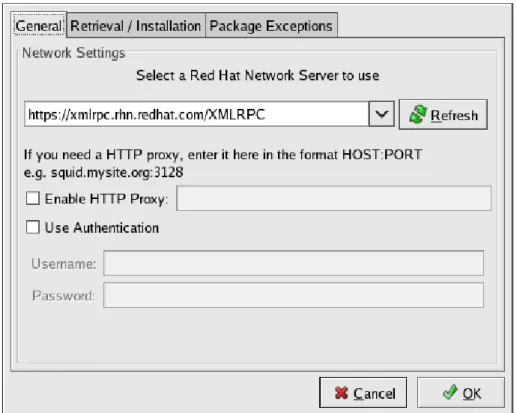
As shown in Figure 2.1, “Configure Proxy Server”, the first dialog box to appear prompts you for HTTP Proxy Server information. This is useful if your network connection requires you to use a proxy server to make HTTP connections. To use this feature, select the Enable HT T P Proxy checkbox and type your proxy server in the text field with the format HOST:PORT, such as squid.m ysite.org:3128. Additionally, if your proxy server requires a username and password, select the Use Authentication checkbox and enter your username and password in the respective text fields.
An HTTP Proxy Server is not required by Red Hat Network. If you do not want to use this feature, click the OK button without making any selections. Note that the Red Hat Network Server dropdown menu at the top of the dialog box is only useful to RHN Proxy and Satellite customers. These customers should refer to the RHN Client Configuration Guide for registration steps. Also note that this dialog box is actually the General tab of the Red Hat Update Agent Configuration Tool. Refer to Section 2.4, “Configuration” for detailed instructions.
Figure 2.1. Configure Proxy Server
The second dialog box to appear prompts you to install the Red Hat GPG key, as shown in Figure 2.2, “Install GPG Key”. This key is used to verify the packages you download for security purposes. Click Yes to install the key, and you will not see this message again.
Figure 2.2. Install GPG Key
2.2. Registration
Before you begin using Red Hat Network, you must create a username, password, and System Profile. Upon launch, the Red Hat Update Agent senses whether these tasks have been accomplished. If not, it guides you through the registration process.
If you ever need to force the Red Hat Update Agent into registration mode, such as to re-register an existing system, you may do so by issuing the following command at a shell prompt:
up2date --register
Important
If your username is part of a larger organizational account, you should take caution when
registering systems. By default, all systems registered with the Red Hat Update Agent end up in the Ungrouped section of systems visible only to Organization Administrators. To ensure you retain management of these systems, Red Hat recommends that your organization create an activation key associated with a specific system group and grant you permissions to that group. You may then register your systems using that activation key and find those System Profiles within RHN immediately. Refer to Section 2.5, “Registering with Activation Keys” for instructions. After installing the Red Hat GPG Key, the screen shown in Figure 2.3, “Welcome Screen” appears. It appears each time you start the Red Hat Update Agent. Click Forward to continue.
Figure 2.3. Welcome Screen
2.2.1. Registering a User Account
Before you create a System Profile, you must create a user account. Red Hat recommends that you do so through the website at https://rhn.redhat.com/newlogin/, but you may also do so via Red Hat Update Agent (up2date).
Important
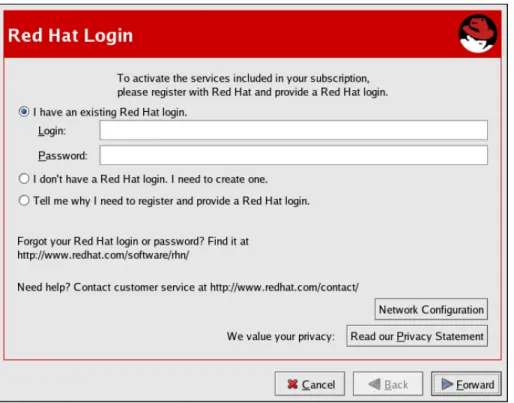
Users may access and read Red Hat's privacy statement from this screen. Click the Read our Privacy Statem ent button to do so. Red Hat is committed to protecting your privacy. The information gathered during the registration process is used to create a System Profile, which is essential to receiving update notifications about your system. When finished, click OK
Those users that have created a Red Hat login previously may enter their username and password and click the Forward button to continue.
Users that have registered at least one system with Red Hat Network can add new machines to the same account. To do so, run the Red Hat Update Agent on the new machine and enter the existing Red Hat username and password at this screen.
Figure 2.4 . Red Hat Login Screen
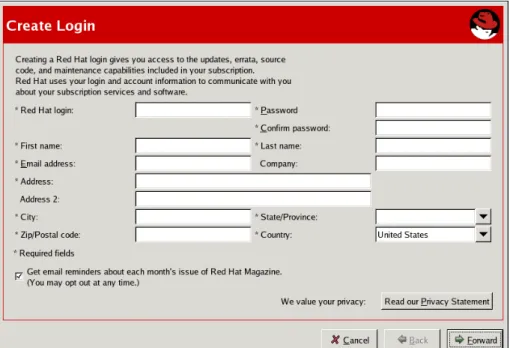
New users must select the I don't have a Red Hat login. I need to create one. radio button and click the Forward button. Add details about yourself and your business to the screen shown in Figure 2.5, “Create a User Account”, and identify the methods by which you may be reached.
Your username has the following restrictions: Cannot contain any spaces
Cannot contain the characters & +, %, or '
Is not case-sensitive, thereby eliminating the possibility of duplicate usernames differing only by capitalization
In addition, the following restrictions apply to both your username and password: Must be at least four characters long
Cannot contain any tabs Cannot contain any line feeds
Passwords are case-sensitive for obvious reasons.
Note
You must choose a unique username. If you enter one already in use, you will see an error message. Try different usernames until you find one that has not been used.
Complete all fields marked by an asterisk (*). The address and email addresses are required so that Red Hat may communicate with you regarding your account. You may select to receive monthly copies of Red Hat Magazine, a valuable source of tips, insights, and Red Hat news.
When finished, click Forward.
Figure 2.5. Create a User Account
2.2.2. Activate
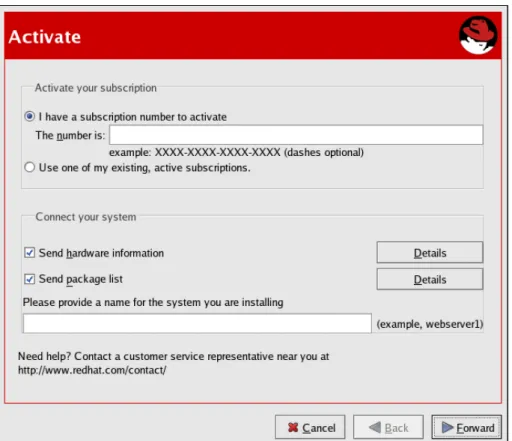
The Activation screen allows you to select various details of your registration. If you have a subscription number, enter it in the appropriate field. If not, select the Use one of m y existing, active
subscriptions radio button.
In the Connect Your System option group, select whether to send a hardware or software profile. After creating a username and password for your Red Hat Network account, the Red Hat Update Agent probes your system for the following information:
Red Hat Enterprise Linux version Hostname
IP address CPU model CPU speed Amount of RAM PCI devices
Disk sizes Mount points
The software System Profile consists of a list of RPM packages for which you wish to receive notifications. The Red Hat Update Agent displays a list of all RPM packages listed in the RPM database on your system and then allows you to customize the list by deselecting packages.
To see the details of the information gathered from your system, click the Details button next to the profile. When finished, click OK. If you uncheck the box to the left of the profile, that information is not sent to RHN.
Note
If you do not send a Software Profile, this system will receive no Errata Updates. Click Forward to send the information to RHN.
Figure 2.6. Activate
Figure 2.7, “Sending System Profile to Red Hat Network” shows the progress bar displayed as the System Profile is sent.
Figure 2.7. Sending System Profile to Red Hat Network
2.2.3. Channels
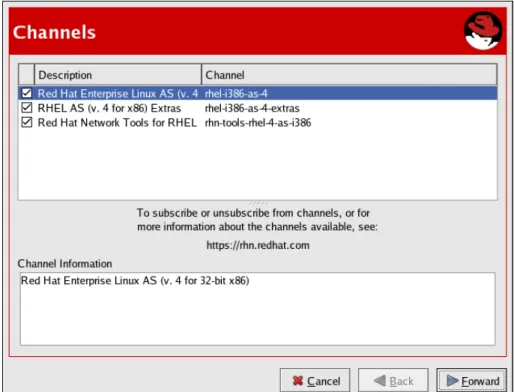
Red Hat Update Agent next displays all package channels to which you have access. The channels you select from this screen must match the base operating system of the system you are registering. if any child channels are available, such as the RHEL AS (v.4 for x86) Extras channel in the figure, you may select them as well. Additional information regarding the selected channel is displayed in the
Channel Inform ation pane. When finished, click Forward to continue.
Figure 2.8. Channels
Red Hat Update Agent now compares the packages in your RPM database with those available from the Channel you selected. The progress bar shown in Figure 2.9, “Fetching package list” is displayed during this process.
Note
If the version of up2date on your system is older than the one in your selected channel, the Red Hat Update Agent asks whether you would like to update it. If you agree, the only package that will be updated is the up2date package. This is equivalent to executing the up2date up2date command from a shell prompt. Once the updated process has completed, the Red Hat Update Agent restarts and completes the initial update of the system.
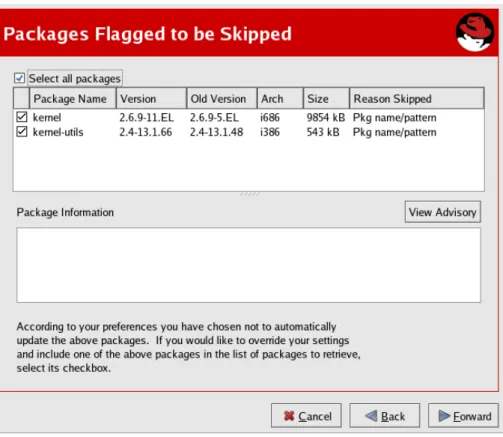
2.2.4. Packages Flagged to be Skipped
The next step in the initial update is the selection of files to be skipped. Any packages checked here will not be downloaded and updated by the Red Hat Update Agent. This screen is displayed whenever packages are available that are currently selected to be ignored. You may change these settings at any time from the Red Hat Network Alert Notification Tool. Refer to Chapter 4, Red Hat Network Alert Notification Tool for addition information.
Make your selections and click Forward to continue.
Figure 2.10. Packages Flagged to be Skipped
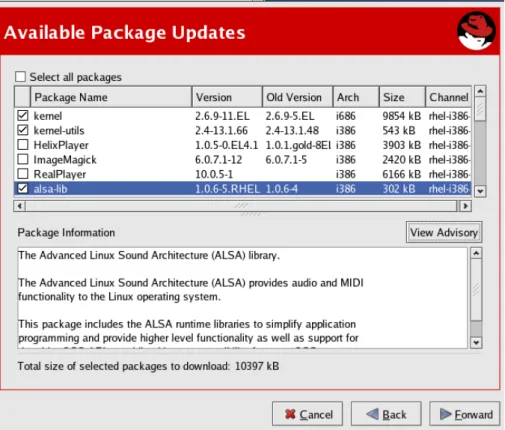
2.2.5. Available Package Updates
The Red Hat Update Agent next displays all available updates except those you chose to skip in the previous screen. Select those you wish to download and click Forward to continue.To view the complete Errata Advisory text for an update, highlight the relevant package and click the View Advisory button. When finished, click OK.
Select those you wish to download and click Forward to continue.
Figure 2.11. Available Package Updates
Figure 2.12. Example Errata Advisory
2.2.6. Retrieving Packages
The Red Hat Update Agent tests the packages you selected to be certain that the requirements of each RPM are met. If any additional packages are required, Red Hat Update Agent displays an error message. Click OK to continue.
Once all dependencies are met, Red Hat Update Agent retrieves the packages from RHN. As the packages are downloaded, they are temporarily stored in /var/spool/up2date/.
When all packages have been downloaded, click Forward to continue.
Figure 2.13. Retrieving Packages
2.2.7. Installing Packages
The packages must be installed after downloading them via the Red Hat Update Agent. If you chose not to install the packages via the Red Hat Update Agent, skip to Section 2.3.2, “Manual Package Installation” for further instructions. If you configured the Red Hat Update Agent to install the packages (the default setting), the installation process begins. The progress of installing each package, as well as the total progress, is displayed. When the packages have been installed, as seen in Figure 2.14,
“Installing Packages”, click Forward to continue.
Figure 2.14 . Installing Packages
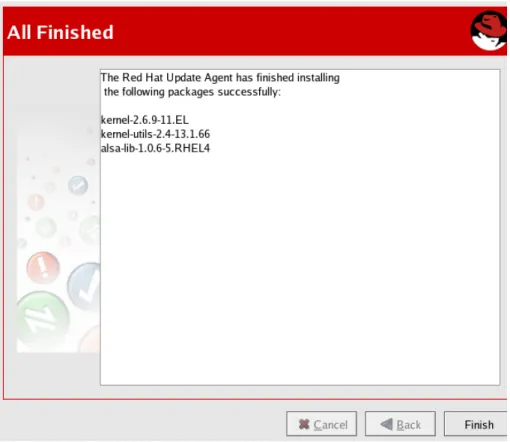
When the Red Hat Update Agent has finished downloading the desired packages (and installing them if you chose the install option), it displays the screen in Figure 2.15, “All Finished”. Click Finish to exit the Red Hat Update Agent.
2.3. Command Line Version
If you are not running X, you can still run the Red Hat Update Agent from a virtual console or remote terminal. If you are running X but want to use the command line version, you can force it not to display the graphical interface with the following command:
up2date --nox
The command line version of the Red Hat Update Agent allows you to perform advanced functions or to perform actions with little or no interaction. For example, the following command updates your system with no interaction. It downloads the newer packages and installs them if you configured it to do so.
up2date -u
The command line version of the Red Hat Update Agent accepts the following arguments:
Table 2.2. Update Agent Command Line Arguments
Option Description
-?, --usage Briefly describe the available options. -h, --help List the available options and exit.
--arch=architecture Force up2date to install this architecture of the package. Not valid with --update, --list, or --dry-run.
--channel=channel Specify from which channels to update using channel labels. --configure Configure Red Hat Update Agent options. Refer to
Section 2.4, “Configuration” for detailed instructions.
-d, --download Download packages only; do not install them. This argument temporarily overrides the configuration option Do not install packages after retrieval. Use this option if you prefer to install the packages manually. --dbpath=dir Specify an alternate RPM database to use temporarily. --dry-run Do everything but download and install packages. This is
useful in checking dependencies and other requirements prior to actual installation.
-f, --force Force package installation. This option temporarily overrides the file, package, and configuration skip lists.
--firstboot Pop up in the center of the screen for Firstboot. --get Fetch the package specified without resolving
dependencies.
--get-source Fetch the source package specified without resolving dependencies.
--gpg-flags Show the flags with which GPG is invoked, such as the keyring.
--hardware Update this system's hardware profile on RHN.
-i, --install Install packages after they are downloaded. This argument temporarily overrides the configuration option Do not install packages after retrieval.
--installall=<channel-label> Install all available packages from a given channel
--justdb Only add packages to the database and do not install them. -k, --packagedir Specify a colon-separated path of directories in which to
look for packages before trying to download them. -l, --list List packages relevant to the system.
--list-rollbacks Show the package rollbacks available.
--nodownload Do not download packages at all. This is useful in testing. --nosig Do not use GPG to check package signatures. This option
temporarily overrides the saved configuration option. --nosrc Do not download source packages (SRPMs).
--nox Do not attempt to run in X. This launches the command line version of the Red Hat Update Agent.
-p, --packages Update packages associated with this System Profile. --proxy=proxy URL Specify an HTTP proxy to use.
--proxyPassword=proxy password Specify a password to use with an authenticated HTTP proxy.
--proxyUser=proxy user ID Specify a username to use with an authenticated HTTP proxy.
--register Register (or re-register) this system with RHN. Refer to Section 2.2, “Registration” for detailed instructions.
--serverUrl=server URL Specify an alternate server from which to retrieve packages. --showall List all packages available for download.
--show-available List all packages available that are not currently installed. --show-channels Show the channel name associated with each package. --show-orphans List all packages currently installed that are not in channels
to which the system is subscribed.
--show-package-dialog Show the package installation dialog in GUI mode. --solvedeps=dependencies Find, download, and install the packages necessary to
resolve dependencies.
--src Download source packages, as well as binary RPMs. --tm pdir=directory Temporarily override the configured package directory. The
default location is /var/spool/up2date. This option is useful if you do not have enough space in the configured location.
-u, --update Update system with all relevant packages. --undo Reverse the last package set update. --upgrade-to-release=release
version
Upgrade to the channel specified.
--uuid=uuid Pass in a Unique User ID generated by the Alert Notification tool.
-v, --verbose Show additional output while updating. --version Show up2date version information.
--whatprovides=dependencies Show the packages that resolve the comma-separated list of dependencies.
Note
The --solvedeps and --whatprovides options can be used to solve the dependencies for an RPM regardless even if your system does not currently have access to a channel that contains that package.
2.3.1. Installing the Red Hat GPG key
The first time you run the graphical version of the Red Hat Update Agent, it prompts you to install the Red Hat GPG key. This key is required to authenticate the packages downloaded from Red Hat Network. If you run the command line version the first time you start Red Hat Update Agent, you must install the Red Hat GPG key manually. If you do not have it installed, you will see the following message:
Your GPG keyring does not contain the Red Hat, Inc. public key. Without it, you will be unable to verify that packages Update Agent downloads are securely signed by Red Hat.
Note
GPG keys must be installed for each user. To install the key to use with Red Hat Network, import the key while logged in as root.
The method for installing the key varies depending on your version of RPM. Starting with version 4.1, which shipped with Red Hat Enterprise Linux 3, you may use RPM to import GPG keys. Issue the following command at a shell prompt as root:
rpm --import /usr/share/doc/rpm-4.1/RPM-GPG-KEY
For older versions of RPM, such as the one that came with Red Hat Enterprise Linux 2.1, use the gpg command (as root):
/usr/bin/gpg --import /usr/share/rhn/RPM-GPG-KEY To download the Red Hat GPG key first, you may obtain it from https://www.redhat.com/security/team/key.html . Here's an example:
Type bits/keyID Date User ID pub 1024D/650D5882 2001-11-21 Red Hat, Inc. (Security Response Team) sub 2048g/7EAB9AFD 2001-11-21 ---BEGIN PGP PUBLIC KEY BLOCK--- Version: GnuPG v1.2.1 (GNU/Linux)
mQGiBDv70vQRBADh701rf8WUzDG88kqlV/N5KQ1PF0amnODB/1EeuAD7n6bCBRmV ekQWJCdfab0Rf1S+VsFg6IAAAmDIarVnacTLQzqCdGJqTpXm/rGVpLv+mCh+OmT9 QRFbjSzB0uPJOpiIvJwSS00D/wJ8XKzHkVNgW3DiJ9Qz2BHYszU2ISI6FwCgxY6d IVjWT5jblkLNjtD3+fR024ED/i0e2knetTX3S9LjC+HdGvP8Eds92Ti2CnJLaFJk Rp749PucnK9mzxPcO2jSHgdtjWAXst/st+gWFVbFmkjBQDVSd00B/xEwI1T1+LN8 V7R8BElBmg99IlJmDvA2BI/seXvafhzly9bxSHScFnceco/Az9umIs3NXwv3/yOm ZakDBAC6SAGHBmpVkOdeXJDdb4LcbEhErFU3CpRCjZ6AOnFuiV1MGdulZXvEUgBA I6/PDE5nBHfZY3zPjyLPZVtgYioJpZqcRIx/g+bX2O8kPqvJEuZ19tLCdykfZGpy bsV7QdSGqBk3snNOizmFj543RaHyEbnwKWbNADhujWMeUAxN+7Q8UmVkIEhhdCwg SW5jLiAoU2VjdXJpdHkgUmVzcG9uc2UgVGVhbSkgPHNlY2FsZXJ0QHJlZGhhdC5j b20+iFcEExECABcFAj3GczYFCwcKAwQDFQMCAxYCAQIXgAAKCRBeVICDZQ1YghAU AJoCeQfuMR2dKyLft/10O6qUs+MNLQCggJgdO8MUO2y11TWID3XOYgyQG+2InAQT AQIABgUCPtyYpQAKCRDurUz9SaVj2e97A/0b2s7OhhAMljNwMQS4I2UWVGbgtxdu D+yBcG/3mwL76MJVY7aX+NN/tT9yDGU+FSiQZZCL/4OFOHMvjpcDqfJY+zpTlBii ZMAPJWTs2bB+0QaXxUgWlwW84GVf2rA6RSbvMLTbDjTH8t7J1RGP9zAqu8SgraTA QbQdao6TNxVt+ohGBBMRAgAGBQI+3LjCAAoJECGRgM3bQqYOf5MAoIjiJDe+hDOj 9+jlR0qDs9lIi/C2AJ9SBBfd4A8hyR4z3lY7e0LzjWF51LkCDQQ7+9O3EAgA8tMs xdUmuTfA+X78fMXh7LCvrL4Hi28CqvNM+Au81XJjDLNawZvpVmFlMmd9h0Xb5Jt2 BZWLR13rcDUByNdw1EWhVAzCz6Bp9Z3MIDhcP00iIBctIHn7YP9fi5vV0G03iryT XE01mhWoBlC233wr3XHwsqxFfZzaCZqqNKTl0+PNfEAIzJRgtYiW8nzFTPpIR05E oRn6EvmQfayOF2uYDX9Sk//lOD7T7RLtKjM/hPW/9NoCGwwROaG+VUzVv4aelh1L dJGEjpFtdxcrOUMD8xbkuGMznu0mpDI+J2BUDh5n57yOyEMaGrQ0jfY1ZqdqDvZg osY1ZHa6KlmuCWNTnwADBQf/XYhCicp6iLetnPv6lYtyRfFRpnK98w3br+fThywC t81P2nKv8lio6OsRbksGc1gX8Zl6GoHQYfDe7hYsCHZPoWErobECFds5E9M7cmzV TTyNTvrELrs07jyuPb4Q+mHcsYPILGR3M+rnXKGjloz+05kOPRJaBEBzP6B8SZKy QNqEfTkTYU4Rbhkzz/UxUxZoRZ+tqVjNbPKFpRraiQrUDsZFbgksBCzkzd0YURvi CegO2K7JPKbZJo6eJA10qiBQvAx2EUijZfxIKqZeLx40EKMaL7Wa2CM/xmkQmCgg Hyu5bmLSMZ7cxFSWyXOst78dehCKv9WyPxHV3m4iANWFL4hGBBgRAgAGBQI7+9O3 AAoJEF5UgINlDViCKWcAoMCeYStWVKXJTytzHEL6Wl8rXr8WAKCHuapJIA4/eFsf 4ciWtjY8cO0v8Q== =yOVZ ---END PGP PUBLIC KEY BLOCK---
Save the text file and import it into your keyring using the method applicable to your version of RPM.
2.3.2. Manual Package Installation
If you chose to download, but not install, the software updates with the Red Hat Update Agent or from the RHN website, you must install them manually using RPM.
To install them, change to the directory that contains the downloaded packages. The default directory is /var/spool/up2date. Type the command rpm -Uvh * .rpm. When the packages finish installing, you can delete them if you wish. You do not need them anymore.
After installing the packages, you must update your System Profile so that you are not prompted to download them again. Refer to Section 2.3.3, “Synchronizing Your System Profile” for details.
2.3.3. Synchronizing Your System Profile
If you configured the Red Hat Update Agent to install the latest packages, the System Profile stored by Red Hat Network is updated after the packages are installed. However, if you only download the latest RPM packages using the Red Hat Update Agent, download the RPM packages from the website, or upgrade/install/remove RPM packages yourself, your System Profile is not updated automatically. You must send your updated System Profile to the RHN Servers.
To synchronize the RPM package list on your local system and on Red Hat Network, run the command:
up2date -p
After running this command, your RHN System Profile reflects the latest software versions installed on your system.
2.3.4. Log File
The Red Hat Update Agent keeps a log of all the actions that it performs on your system in the file /var/log/up2date. It uses the standard rotating log method. Thus, older logs are in
/var/log/up2date.1, /var/log/up2date.2, and /var/log/up2date.3. The log files store actions performed by the Red Hat Update Agent such as when your RPM database is opened, when it connects to Red Hat Network to retrieve information from your System Profile, which packages are downloaded, which packages are installed using the Red Hat Update Agent, and which packages are deleted from your system after installation. If you choose to install and delete packages yourself, it is not logged in this file. Red Hat Network recommends that you keep a log of actions not performed with the Red Hat Update Agent.
2.4. Configuration
The Red Hat Update Agent offers various options to configure its settings.
If you are not running the X Window System or prefer the command line version, skip to Section 2.4.2, “Command Line Version”.
2.4.1. Using the Red Hat Update Agent Configuration Tool
You must be root to run the Red Hat Update Agent Configuration Tool. If started by a user other than root, the Red Hat Update Agent prompts you for the root password. The Red Hat Update Agent Configuration Tool can be started by typing the command up2date --config at a shell prompt (for example, an xterm or a gnome-terminal).
2.4 .1.1. General Settings
The General tab allows you to enable an HTTP Proxy Server. If your network connection requires you to use an HTTP Proxy Server to make HTTP connections, select the Enable HT T P Proxy option and type your proxy server in the text field with the format http://HOST:PORT. For example, to use the proxy server squid.mysite.org on port 3128, you would enter squid.m ysite.org:3128 in the text field. Additionally, if your proxy server requires a username and password, select the Use Authentication option and enter your username and password in the respective text fields.