O
PE R A TI NGI
NS T R U C TIOC L V 4 1 x B a r C o d e S c a n n e r
S t a n d a r d l i n e
These Operating Instructions describe the procedure for installing and setting up the CLV 41x using the default settings defined at the factory and the steps required to replace the device (transferring the application-specific parameter set). The CLV 41x is simply referred to as the CLV in the sections below.
General
Software version
Software Function Version
CLV Setup User interface (Windows-based) from V 1.1.0
CLV Setup Help Online help (HTML) from V 1.0.1
FCC class
This appliance meets FCC class B, subject to the FCC-regulations, paragraph 15. Remark: To meet the FCC-regulations, the cables have to shielded including connections from shielding to the connector casings.
Section Page 1. Intended use ... 4 2. Scope of delivery ... 4 3. System requirements ... 4 4. Laser protections ... 4 5. Design ... 5 6. Beeper ... 5
7. Function of the LEDs ... 6
8. Electrical installation 8.1 Pin assignment of connector ...6
8.2 Supply voltage ...7
8.3 Connecting the CLV to the AMV/AMS 40 ...7
8.4Connecting the PC to the CLV ...8
8.5 Connecting the interfaces ...9
9. Assembly 9.1 Securing the CLV ...13
9.2 Mounting the polling reflector ...15
9.3 Mounting the external reading pulse sensor (alternative) ...15
10. Power on and setup 10.1 Step-by-step setup instructions ...17
10.2 Default settings ...18
10.3 Profile programming ...19
10.4 AutoSetup (code configuration) ...22
10.5 Parametrization with the CLV Setup software ...23
10.6 Operating modes/functions ...28
11. Replacing a CLV 410 11.1 Transferring the application-specific parameter set ...30
11.2 Disassembly and environmentally-friendly disposal of the CLV ...31
12. Troubleshooting 12.1 Self-monitoring function ...32
12.2 Error messages ...32
12.3 Causes of error and troubleshooting ...32
13. Maintenance ... 36
14.
Scannable bar codes (samples) ...
3715. Additional safety instructions (laser protection) ... 37
16. Reading field diagrams ... 38
17. Technical data ... 41
18. Dimensioned diagrams ... 42
19. Overview: supplementary technical documentation ... 43
20. Index ... 44
The CLV 41x with fixed focus is used to detect and decode bar codes in a
stationary reading station automatically, e.g. on objects on a conveyor belt. For this purpose, it must be mounted securely on the station and supplied with an operating voltage of 4.5...30 V DC to IEC 742. The CLV outputs the read result via its host inteface to a higher-level computer for further processing.
1. Intended use
The CLV 41x is supplied with the following:
• two polling reflectors for automatic reading pulse generation • a note on device (yellow) with power connection diagram
• an additional set of laser warning labels (Class 2) in German and French One or more of the following, depending on the number of devices ordered: • CLV 41x Operating Instructions, in German and English
• a CD-ROM with the CLV Setup program for Windows™, the online CLV Setup Help (HTML) software and the browser Iview™
• a fold-out card with 12 printed profile bar codes
2. Scope of delivery
The following are required to set up and operate the CLV:
• a SICK AMV 40-011 Connection Module (no. 1 017 132) or AMS 40-013 (no. 1 017 135)
Alternatively, an external power supply unit with an output voltage of 4.5 ... 30 V DC to IEC 742 (functional extra-low voltage) and min. 3 W power output
• a PC with Windows-based GUI (Windows 3.1™, Windows 95™ or Windows NT™) and serial port (COM x)
• an HTML browser (e.g. Netscape™) to use the online help • an RS 232 data connection cable (e.g. no. 2 020 319).
Alternatively, the programming adapter for the LCV 410 (order no. available on request) to connect the PC between the CLV 410 and AMV/AMS 40 as well as an RS 232 data connection cable (e.g. no. 2 014 054) from the programming adapter to the PC
• a 24 V DC ±20% operating voltage for the AMV 40 or 230 V AC (115V) ±10% for the AMS 40
• a suitable sensor, e.g. a photoelectric switch, if the reading pulse is to be supplied externally via the switching input on the CLV
3. System requirements
4. Laser protection
Laser radiation!
The radiation emitted by the laser diode (red or IR light) on the CLV 410 is harmful to the human eye. For this reason, do not look directly into the laser beam.
Opening the housing while the device is in operation does not prevent the laser diode from being activated by the reading pulse.
The maximum output power of the laser beam at the reading window is 1 . 2 mW. The CLV, therefore, is assigned to protection class 2.
Laser radiation, do not stare into the beam, class 2 laser product. Max. output radiation: 1 . 2 mW (223 µµµµµs), emitted wavelength: 670 nm See Section 15 for further safety instructions!
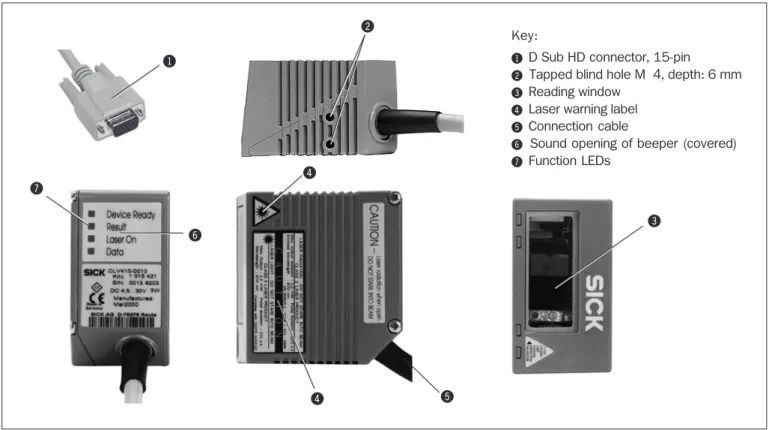
Fig. 1. CLV 41x design
5. Design
The beeper can be assigned a different result indicator function and the beeper volume changed (default: low) by means of the EDIT RESULT OUTPUTS field on the DEVICE CONFIGURATION card of the operating interface.
In these operating instructions, it is assumed that the beeper is operated with the default settings.
TIP:
The beeper
6
either provides an acoustic confirmation that a function was executed successfully or indicates a malfunction. The sound opening is located below the LED label on the rear, narrow side of the device (Fig. 1).Operating mode/function Beeper function Sequence
Reading mode*) 1. The beeper confirms the start of reading mode when the device is switched on 1. 2 tones after the wait time for teach-in mode has elapsed
2. The beeper confirms a good read (default setting) and output of the read result 2. 1 tone Percentage Evaluation The beeper confirms output of the reading result after every 100 reads 1. 1 tone AutoSetup*) 1. The beeper confirms successful read of the presented profile bar code 1. 1 tone
for the start or end of AutoSetup
2. The beeper confirms successful read of the application-specific bar code 2. 1 tone 3. The beeper signals unsuccessful read of the application-specific bar code 3. 3 tones
after approx. 35 seconds
Profile programming*) 1. The beeper confirms successful read of the presented profile bar code 1. 1 tone 2. The beeper confirms the start of reading mode 10 s after the last profile 2. 2 tones
bar code has been read
Self-test The beeper signals successful completion of the self-test after power-up 1 . 1 tone *)After a laser timeout of 10 minutes (default), the beeper indicates with one long tone that the laser diode has been switched off
and that the reading pulse has been deactivated automatically. Table 1
6. Beeper function
&
"
§
/
Key:!
D Sub HD connector, 15-pin"
Tapped blind hole M 4, depth: 6 mm§
Reading window$
Laser warning label%
Connection cable&
Sound opening of beeper (covered)/
Function LEDs!
$
7. Function of the LEDs
The LED function indicators
7
are located on the rear, narrow side of the device (Fig. 1).LED Color Function
Device Ready green Indicates that the the CLV is ready (Reading mode). Lights up when the device is switched on, after the self-test has been successfully completed and when the wait time for teach-in mode has expired. The LED extinguishes when the device is switched to a different operating mode.
Result green Function depends on the operating mode of the scanner:
• In Reading Mode or Teach-in Mode, the LED indicates a successful read (good read).
If the match code comparison is activated, it lights up if the bar code read matches the specified match code(s).
The LED lights up constantly until the start of the next reading pulse
• In Percentage Evaluation with 100 scans per reading interval, the LED indicates the trend in the read quality as follows:
LED off good read rate < 30%
LED blinks (frequency 2 Hz) good read rate 30%...70% LED blinks (frequency 5 Hz) good read rate 70% ... 90% LED lights up constantly good read rate > 90%
• The LED lights up briefly when set to AutoSetup before it starts to scan the presented bar code Laser On green Lights up when the laser diode is activated for reading the bar code.
The laser diode is activated and deactivated by the reading pulse.
The laser diode is activated constantly in Percentage Evaluation and Free-running modes. In Reflector Polling pulse mode, it is activated in accordance with the scanning frequency at every 20th scan (LED flickers).
The scan line(s) are dimmed (with red-light scanner only)
Data yellow Flickers when the CLV is transferring data to the host on the serial data interface Table 2
Device Ready Result Laser On Data
8. 1 Pin assignment of connector
8. Electrical installation
Pin Signal Function Wire colors
of cable no. 6 010 1371)
1 DC +4.5...+30 V Supply voltage red
2 Sensor 2 Switching input teach-in (match code 1) purple 3 Result 3 Switching output (to PLC) yellow 4Term RS 422 Termination for data interface 1 red/black
5 GND Ground black
6 RD+ (RS 422/485) Data interface 1 (receiver) light blue 7 RD- (RS 422/485) Data interface 1 (receiver) blue
8 TD+ (RS 422/485) Data interface 1 (transmitter) gray/turquoise 9 TD- (RS 422/485) Data interface 1 (transmitter) green 1 0 RxD (RS 232) Data interface 2 (receiver) gray 1 1 TxD (RS 232) Data interface 2 (transmitter) pink 1 2 Result 1 Switching output (to PLC) brown 1 3 Result 2 Switching output (to PLC) orange 1 4Sensor 1 Switching input for ext. reading pulse white 1 5 SensorGND Common ground (all inputs) black/white
– – Shield white/green
1) Cable with 15-pin D Sub HD socket and open cable end
5 6 11 10 15 1 Table 3
8. 2 Supply voltage
The CLV 41x requires a supply voltage of 4.5 ... 30 V DC to IEC 742 (safety extra-low voltage, listed class II power supply).
8. 3 Connecting the CLV to the AMV/AMS 40 (Connection Module)
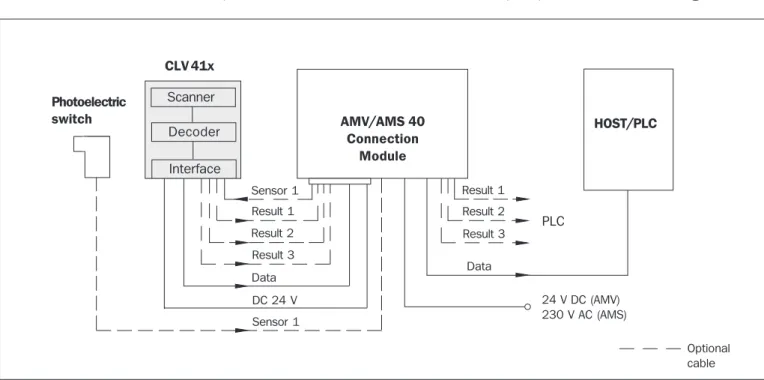
Before it can be used in the reading station, the CLV must be connected to the AMV/AMS 40 Connection Module and the host/PLC/sensor as shown in Fig. 2.
Fig. 2. Block diagram: connecting the CLV in the reading station via the AMV/AMS 40 Connection Module
AMV/AMS 40 Connection Module Sensor 1 Result 1 Scanner Decoder Interface CLV 41x Result 2 Result 3 Data DC 24 V 24 V DC (AMV) 230 V AC (AMS) HOST/PLC Data Result 1 Result 2 Result 3 PLC Sensor 1 Photoelectric switch Optional cable
A description of the basic wiring and configuration of the Connection Module is provided in the AMV/AMS 40 Operating Instructions (no. 8 008 292) supplied with the module.
ØMount the AMV/AMS 40 as close as possible to the CLV
ØConnect the CLV to the 15-pin D Sub HD socket of the AMV/AMS 40
The connection cable can be extended with extension cable no. 6 010 075 (2 m). ØDo not exceed the max. cable lengths (host interface) between the CLV and the
host/PLC (see 8.5.1 Connecting the host interface)
ØConnect a suitable, external reading pulse sensor via the AMV/AMS 40 if reflector polling (default setting) is not to be used for automatic reading pulse generation ØIf an external power supply unit is used instead of the AMV/AMS 40, it must be
able to provide a continuous output of at least 3 W and must comply with IEC 742 (functional extra-low voltage). The core cross-section for the CLV power supply (pins 1 and 5) must be at least 0.09 mm2.
Use cable no. 6 010 137 (open wire ends) to connect the CLV. See Table 3 for wire color assignment
8. 4 Connecting the PC to the CLV
A PC with Windows™ must be connected to the RS 232 port on the CLV to operate and parametrize the device. There are two ways of connecting the PC:
1. Connect the PC COM x port to the internal terminals on the AMV/AMS 40 ØSwitch off the power supply to the Connection Module and the PC and connect
the PC and Connection Module as described in the AMV/AMS 40 Operating Instructions
ØDisconnect the CLV from the host if they are already connected (RS 232 interface)
ØSwitch on the PC and AMV/AMS
ØCopy the operating and parametrization software CLV Setup and the online help CLV Setup Help to the hard disk of the PC and install the software accordingly ØSet the communication parameters in CLV Setup for port COM x (SERIAL PORT
under OPTIONS) as shown in Table 4 (Default setting on CLV)
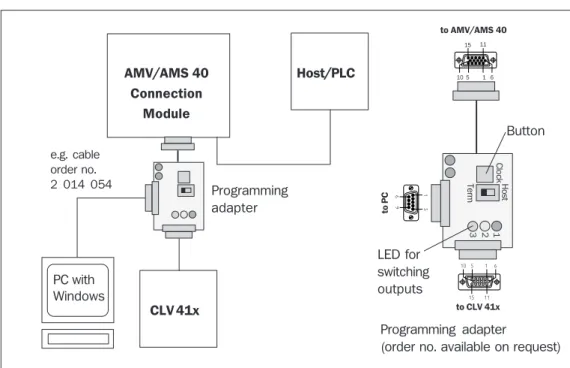
2. Connecting the PC port COM x via the optional programming adapter
Fig. 3. Connecting the PC to the optional programming adapter PC with Windows AMV/AMS 40 Connection Module CLV 41x Host/PLC Programming adapter
(order no. available on request) e.g. cable order no. 2 014 054 1 10 15 6 11 5 5 1 9 6 to CLV 41x to AMV/AMS40 to P C 5 6 11 10 15 1 11 15 5 10 16 Host Term 1 2 3 Clock Button LED for switching outputs Programming adapter
ØSwitch off the power supply to the Connection Module and PC ØDisconnect the CLV connector from the Connection Module (Fig. 3)
ØConnect the 15-pin cable connector of the programming adapter to the socket on the AMV/AMS 40. Connect the free 15-pin socket of the programming adapter to the CLV connector. The adapter is supplied with power from the Connection Module
ØConnect the PC port COM x to the 9-pin connector of the programming adapter via an RS 232 cable (e.g. no. 2 014 054)
ØSet the slide switch on the programming adapter to TERM (the CLV is then disconnected from host and communicates with the PC only). The PC is disconnected from the CLV when the switch is set to HOST
Parameter Value
COM port freely selectable
Baud rate 9600 bit/s
Data bits 8
Parity none
Stop bit 1
Table 4
ØCopy the operating and parametrization software CLV Setup and the online help CLV Setup Help to the hard disk of the PC and install the software accordingly ØSet the communication parameters in CLV Setup for port COM x (SERIAL PORT under
OPTIONS) as shown in Table 4 (default setting of the CLV)
With the CLV pulse mode “Sensor Input“, the reading pulse can be triggered with the Clock button on the programming adapter. For this purpose, choose the pulse mode via the EDIT READING PULSE field on the DEVICE CONFIGURATION card of the user interface and download it to the CLV.
8. 5 Connecting the interfaces
All of the interfaces are routed via the 15-pin D Sub HD connector À (Table 3). 8. 5. 1 Connecting the host interface
The CLV is equipped with two host interfaces (RS 232 and RS 422/485). One of these must be selected for data communication with the host/PC. If the RS 232 interface is not connected to the host, it can be used exclusively to monitor data traffic on the parallel RS 422/482 interface.
TIP:
The internal modules of the CLV may be damaged irreparably if the data interface is connected incorreclty.
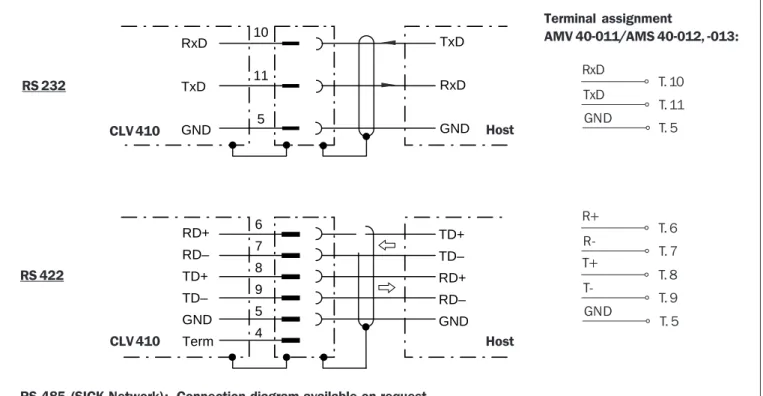
ØConnect the host interface of the CLV to the host in accordance with the EMC requirements using shielded cables(Fig. 4)
ØTo prevent interference, do not lay the data cables over a long distance parallel to the power supply and motor cables, e.g. in cable ducts
ØApply the shield on one side (SICK recommendation) Recommended max. cable lengths between the CLV and host:
CAUTION
Interface type Transmission rate Distance from host
RS 232 up to 19 200 bits/s max. 10 m
38 400 ... 57 600 bits/s max. 3 m
RS 422/4851) max. 38 400 bits/s max. 1 200 m
max. 57 600 bits/s max. 500 m
1) with appropriate line termination
Fig. 4. Connecting the host interface
The default communication parameters of the CLV host interface are as follows:
Parameter Value
Data transmission rate 9600 bit/s
Data bits 8
Parity none
Stop bit 1
Protocol Sick (start character: STX, stop character: ETX, no repeat request: none, timeout: 50 ms) Table 6
The parameters can be changed in the DATA FORMAT and INTERFACE PROTOCOL fields on the HOST INTERFACE card of the user interface.
By reading in profile bar code nos. 11 and 12 (Section 10.2 Default setting), you can define the above default settings temporarily with a different parameter set to allow the PC to communicate with the CLV.
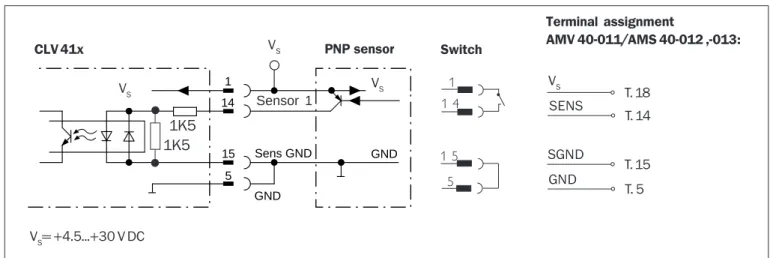
8. 5. 2 Connecting the functional interfaces Sensor 1 switching input
In order to trigger a reading process, the CLV requires a suitable clock pulse in Reading mode that signals the presence of a conveyor object in the reading field. The clock pulse generates the reading interval (time window for evaluation) internally in the CLV. In the default setting, the reading pulse is supplied by means of internal, continuous reflector polling (see Section 9.2).
If an external sensor (e.g. photoelectric switch, switch) is to notify the CLV of the presence of a conveyor object, the following steps must be performed:
ØConnect the sensor to the CLV as shown in Fig. 5 TIP: IMPORTANT RxD TxD GND RD+ RD– TD+ TD– GND Term TxD RxD GND TD+ TD– RD+ RD– GND 10 11 5 6 7 8 9 5 4 CLV 410 Host RS 422 CLV 410 Host RS 232
RS 485 (SICK Network): Connection diagram available on request
Terminal assignment AMV 40-011/AMS 40-012, -013: T. 6 T. 7 R+ R-T. 8 T. 9 T+ T-T. 5 GND T. 10 T. 11 RxD TxD GND T. 5
ØSet the trigger source to SENSOR INPUT via the EDIT READING PULSE field on the DEVICE CONFIGURATION card of the user interface and download the parameter settings to the CLV
An external clock pulse is not required for Percentage Evaluation operating mode.
Fig. 5. Connecting the Sensor 1 input to an external reading pulse sensor
Sensor 1 switching input
Switching Start internal reading interval when input
characteristics live (active high; default setting)
Properties opto-decoupled, non-interchangeable
Electrical values Low: -1V ≤ Vin≤ +1 V High: -28 V ≤ Vin≤ -3 V -0.3 mA ≤ Iin≤ +0.3 mA -18 mA ≤ Iin≤ -1.4 mA
+3 V ≤ Vin≤ +28 V +1.4 mA ≤ Iin≤ +18 mA Table 7
Sensor 2 switching input
This input is used exclusively to teach in match code 1. The teach-in procedure is an alternative to entering the match code on the keyboard via the CODE COMPARISON field on the DEVICE CONFIGURATION card of the user interface.
In order to teach in the match code, the input is connected briefly to the power supply via a switch (Fig. 6). This can also take place in the Connection Module.
Fig. 6. Connection of Sensor 2 input for teaching in match code 1
Switch CLV 41x PNP sensor DC 24V 6K8 1 14 15 5 Sensor GND GND DC 24V DC 24V Sens GND Sensor 1 1K5 1K5 VS= +4.5...+30 V DC VS VS VS 1 5 5 1 1 4 Terminal assignment AMV 40-011/AMS 40-012 ,-013: T. 18 T. 14 T. 15 VS SENS SGND T. 5 GND CLV 41x DC 24V 6K8 1 14 15 5 Sensor GND GND DC 24V DC 24V Sens GND 1K5 1K5 VS Sensor 2 VS SensGND GND 2 Switch S
Electrical values and properties: as Sensor 1 (see Table 7)
Terminal assignment AMV 40-011/AMS 40-012, -013: T. 18 T. 2 T. 15 VS Sensor 2 SGND T. 5 GND VS= +4.5...+30 V DC Note:
Instead of the bridge the “GND-SGND“ Jumper can be set in the AMV/S 40.
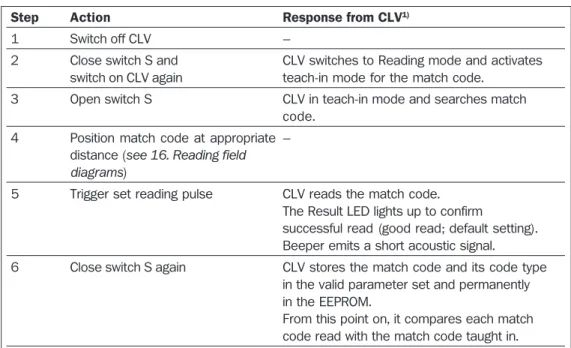
ØProcedure for teaching in match code 1
Prerequisite: CLV is in Reading mode and the current parameter set (if application-specific) is stored permanently.
Notes:
1. In order to replace the match code taught in in this way with a different match code, you can repeat steps 3 to 6 without having to switch off the CLV.
2. If match code 1 is set using the teach-in method, it must not be modified with the user interface (or command strings) until the CLV is switched off again. The methods used to set the match code cannot be mixed. This does not affect match code 2.
Result 1 to Result 3 switching outputs
The three outputs (Fig. 7) can each be assigned different result functions. When the associated result occurs, the corresponding output becomes live for the selected pulse duration at the end of the reading interval. The pulse duration can be set separately for each output.
Step Action Response from CLV1)
1 Switch off CLV –
2 Close switch S and CLV switches to Reading mode and activates
switch on CLV again teach-in mode for the match code.
3 Open switch S CLV in teach-in mode and searches match
code. 4Position match code at appropriate –
distance (see 16. Reading field diagrams)
5 Trigger set reading pulse CLV reads the match code.
The Result LED lights up to confirm
successful read (good read; default setting). Beeper emits a short acoustic signal.
6 Close switch S again CLV stores the match code and its code type
in the valid parameter set and permanently in the EEPROM.
From this point on, it compares each match code read with the match code taught in. 1) We recommend that you connect the PC with the CLV Setup interface to check the read result
Table 8
Fig. 7. Connection example: Result 1 output
Configuration of Result 2 (pin 13/terminal 13) and Result 3 (pin 3/terminal 3): as Result 1 output
VS= depending on operating voltage applied (+4.5...+30 V DC) „Result 1“ VS Vo CLV 41x Pulse duration: 10 ms ... 9.9 s or static (to end of next reading pulse) 12 5 Terminal assignment AMV 40-011/AMS 40-012, -013: T. 12 T. 5 Result 1 GND
The function assignment, pulse duration and polarity of the signals can be modified via the EDIT RESULT OUTPUTS field on the DEVICE CONFIGURATION card of the user interface. The Result LED is not affected by this and lights up in Reading mode for a Good Read until the end of the next reading pulse.
TIP:
Result 1 to Result 3 switching outputs
Switching PNP-switching to supply voltage VS
characteristics
Properties short-circuit + temperature-protected, not electrically isolated from VS
Function assignmentResult 1: Device Ready, polarity: not inverted (default setting) Result 2: Good Read, polarity: not inverted
Result 3: No Read, polarity: not inverted Pulse duration: 100 ms
Electrical values 0 V ≤ VOut ≤ VS Guaranteed: VOut≤ VS− 1.5 V at IOut≤ 600 mA IOut≤ 600 mA
Table 9
9. 1 Securing the CLV
The two fastening threads (
2
, Fig. 1) on the bottom, narrow side of the housing are used to secure the CLV. The thread dimensions are shown in Section18. Dimensioned diagrams.9. Assembly
Mounting accessories
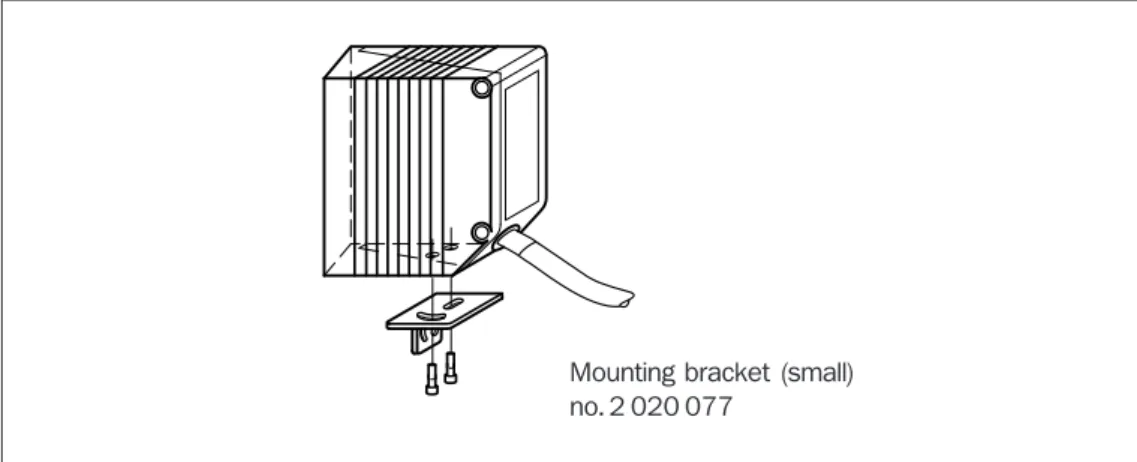
The CLV can be easily secured to the base to suit the relevant application using one of the two optional mounting brackets (Fig. 8). This facilitates precise adjustment in two planes. The dimensions of these brackets are shown in Section 18.
Dimensioned drawings. The elongated holes in the brackets allow the CLV to be adjusted with a freedom of rotation of approx. ± 15°.
Risk of damage to the housing
The max. depth of engagement of the two M 4 tapped blind holes is 6 mm from the housing surface. Do not exceed this depth.
Fig. 8. Mounting example: securing the CLV using the mounting bracket (accessory) Aligning the CLV with the bar code
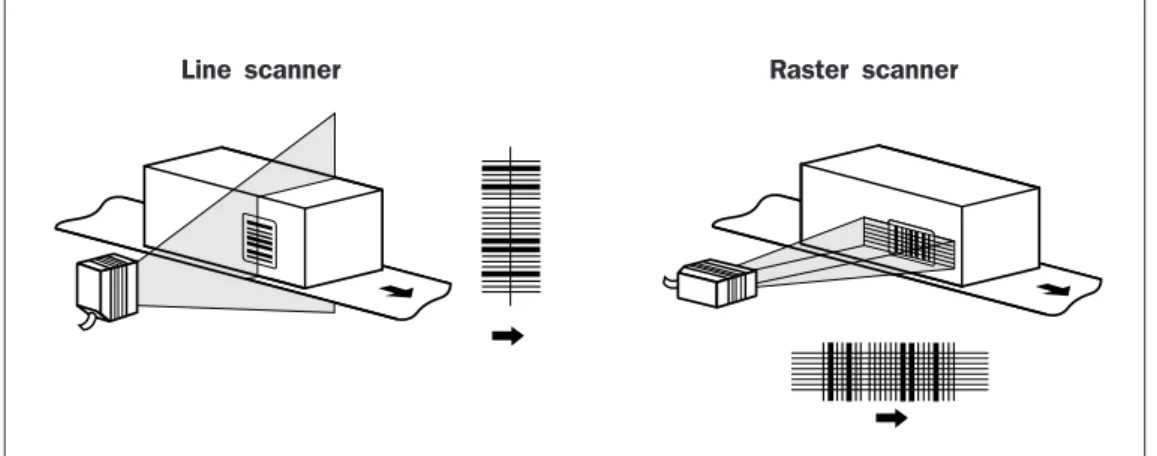
The alignment between the CLV and line or raster scanner depends on the application. The basic alignment between the two scanning methods and the conveyor object is shown in Fig. 9.
Mounting bracket (small) no. 2 020 077
Fig. 9. Scanning method alignment relative to the bar code and conveyor direction
Line scanner Raster scanner
Reading angle and distance
When mounting the device, ensure that all of the possible reading angles at which the bar code can be positioned relative to the scan line are taken into account. Fig. 10 shows this using a line scanner as an example. The reading window and code should be almost parallel, whereby total surface reflection (see below) should be avoided.
Fig. 10. Mounting example of CLV with line scanner: reading angles taken into account
α: Tilt β: Pitch γ: Skew Reading distance Reading range β α γ
The following angle limits should not be exceeded (CLV):
Angle Tilt α Pitchβ Skewγ
Limit value 15° (depening on code print) 45° 45°
Table 10
When selecting the mounting location for the device, the limit values of the reading range for the selected bar code resolution and the useful aperture angle (max. 60° with front light emission) must be taken into account. See also Section 16. Reading field diagrams.
Avoiding surface reflection
If the reading beam strikes the surface of the bar code vertically, reflection interference may be caused when the returned light is received.
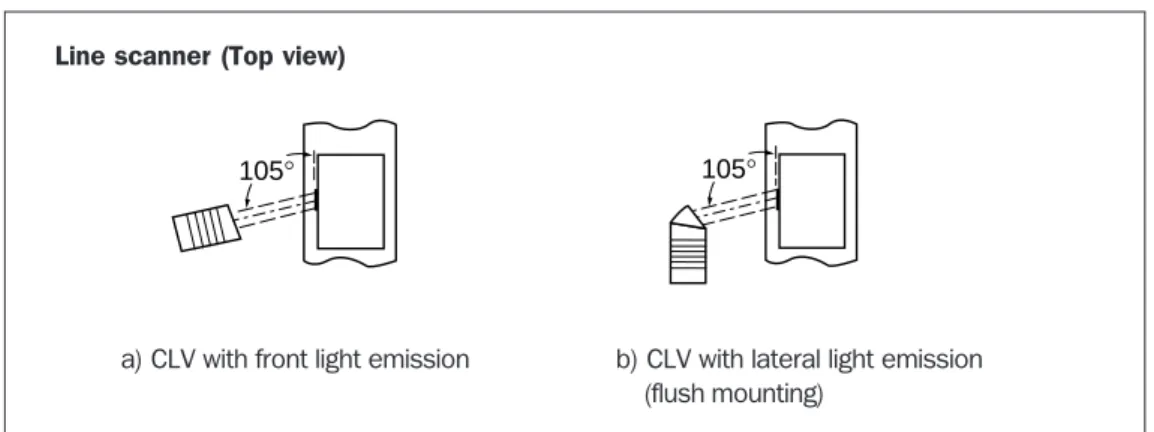
ØMount the CLV with front light emission (a) in such a way that the scan line(s) strike the bar code at an angle less than approx. 15° from the vertical reference (Fig. 11). ØThe CLV with lateral light emission (b) must be mounted flush so that the scan line
Fig. 11. Preventing surface reflection by rotating the CLV from the perpendicular
Line scanner (Top view)
a) CLV with front light emission b) CLV with lateral light emission (flush mounting)
105° 105°
Count direction of code position CP
The CLV determines the position of the bar code within the scan line (CP value), Fig. 12. This can be used to separate several identical bar codes (identical code type, length and content) and output them accordingly.
Fig. 12. CLV 41x: Count direction of the code position CP
9. 2 Mounting the polling reflector
In order to generate the reading pulse automatically using internal reflector polling (default setting), one of the two polling reflectors supplied (special bar code) must be mounted opposite the CLV behind the conveyor section.
ØNote the maximum ranges of the two reflectors (Fig. 13)
ØMount the polling reflector (self-adhesive) opposite the CLV (in the alignment line) in such a way that the CLV can view the reflector freely in the gaps between the conveyor objects and can scan it reliably (center of scan line).
The scan line of the CLV should scan the code lines of the polling reflector vertically.
ØCheck the polling reflector installation for 100% read quality using the Percentage Evaluation mode in the TERMINAL option of the user interface (see Section 10.6). The CLV outputs the code content of the polling reflector and signals REPO as the code type.
Function of reflector polling
In Reflector Polling pulse mode, the CLV activates the laser diode with every 20th scan and checks whether it detects the reflector:
- if the reflector is still detected, the CLV repeates the procedure after the 20th scan
0 CP 100
Fig. 13. Mounting the polling reflector (REPO) white blue 50 50 144 144 Polling reflector
- the CLV starts the reading interval when the reflector is concealed by a conveyor object in the reading field. The interval ends when the CLV detects the reflector again. It then repeats the procedure above.
Notes:
This clock mode (max. delay approx. 100 ms at a scan rate of 200 Hz) is only suitable for applications that are not critical with respect to time.
When the CLV is switched on, it must be able to detect the polling reflector. The first reading interval can only start if this is the case.
In Reading mode, the CLV does not output the content of the polling reflector.
9. 3 Mounting the external reading pulse sensor (alternative)
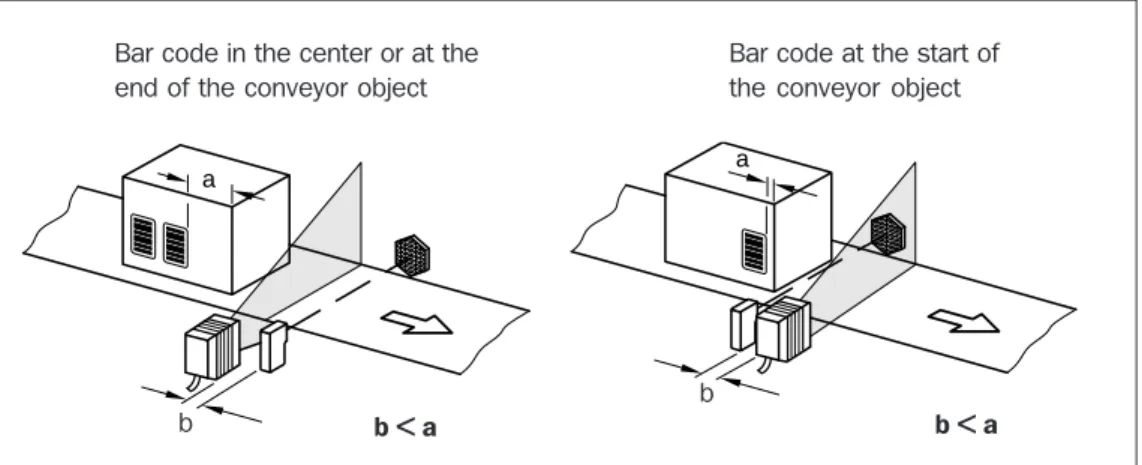
If an external sensor (e.g. photoelectric switch) is used to generate the reading pulse, it must be mounted on the CLV in a suitable manner. Ensure that objects of different size carrying bar codes trigger the internal reading pulse in such a way that sufficient time is provided to read the code. Examples of the CLV with line scanner are provided in Fig. 14.
Fig. 14. Example of the position of the external reading pulse generator Bar code in the center or at the
end of the conveyor object
Bar code at the start of the conveyor object
b
b
b < a b < a
ØChoose the external sensor as the trigger source via the SENSOR INPUT field under EDIT READING PULSE on the DEVICE CONFIGURATION card of the user interface and then download the parameters to the CLV
a a
• Reading distances (REPO) Other distances must be respected for CLV 412 and CLV 414. Only blue REPO is allowed.
• Reading distances (REPO) CLV 412: 150 ... 350 mm
• Reading distances (REPO) CLV 414: 230 ... 650 mm
Distance: 500 ... 800 mm Distance:
10. Power on and setup
10. 1 Step-by-step setup instructions
ØSetup with the default settings1. Connect the CLV to the 4.5...30 V DC power supply (see also Section 8.1 Pin assignment of the connector)
2. Align the CLV with the white polling reflector supplied (special code), distance approx. 300 mm
(see also Section 9.2 Mounting the polling reflector)
3. Present the bar code sample above at a distance of approx. 200 mm and cover the polling reflector
(see also Section 10.6.1 Reading mode ) 4. Uncover the polling reflector again
The CLV confirms that the read was successful with acoustic signal from the beeper and the Result LED lights up
5. The CLV can now be operated with the default settings!
(see Section 10.2 Default settings of the CLV for the default settings) ØSetup with profile bar codes (change parameter set)
1. Present the required printed profile bar code(s) on the card supplied to the CLV
The CLV confirms every good read of the profile bar code with an acoustic signal from the beeper. If a further bar code is not presented to the CLV within 10 s, the CLV switches to Reading mode and outputs two consecutive acoustic signals (see also Section 10.3 Profile programming)
2. The CLV can now be operated with the modified settings! ØAutoSetup (modified code configuration)
1. Present bar code no. 10 to the CLV
The CLV confirms the start of AutoSetup by means of an acoustic signal from the beeper and the Result LED lights up for an extended period of time.
(see also Section 10.4 AutoSetup)
2. Present the application-specific bar code to the CLV at the maximum reading distance in the application
The CLV confirms the good read by means of an acoustic signal from the beeper and the Result LED lights up. It then switches to Reading mode and outputs two consecutive acoustic signals.
3. The CLV can now be operated with the modified code configuration! The code type presented to the CLV is then evaluated
Bar code sample
Code type: Code 39 Module width: 0.5 mm
Quick start
Profile programming
Teaching in application-specific bar codes
ØSetup with CLV Setup software (change parameter set) 1. Connect the PC to the CLV
(see also Section 8.4 Connecting the PC to the CLV) 2. Start the CLV Setup program on the PC
(see also Section 10.5 Parametrization with the CLV Setup software) 3. Upload the configuration from the CLV
4. Change the configuration cards as required.
The parameters and their functions are explained in the online help. 5. Download the configuration to the CLV and store the values permanently 6. Save the modified parameter set on the PC as a configuration file!
Alternative:
5. Print out the profile bar codes and present them to the CLV in the specified sequence
(see also Section 10.3 Profile programming) ØSetup with command strings from the host
(not described here, further information is available on request) Alternative
procedure
10. 2 Default settings
A concise overview of the default CLV settings that are effective when the device is switched on for the first time after delivery is shown in Table 11.
The tried-and-tested default parameters have been selected so that CLV can be used directly in many applications without requiring modification.
Parameter Default setting (CLV 410)
Code types (active) Code 39, Code 128, Code 93, Codabar, EAN, EAN 128, UPC, 2/5 Interleaved
Code length Freely definable (all code types, except EAN and UPC, 2/5 Interleaved: 4...50 characters)
Multiple read 3 (all code types) Min./max. no. of codes 1
Resolution 0.5 mm Scanning frequency 500 Hz Min. reading distance 50 mm
Reading pulse generation Start: polling reflector End: polling reflector Beeper Result function: Good Read, volume: low
Switching outputs Result 1: Device Ready; Result 2: Good Read; Result 3: No Read Protocol (Host) Start character: STX, stop character: ETX
Transmission rate (host) 9600 bits/s
Data format (host) 8 data bits, no parity, 1 stop bit
Output format (host) Header: blank, separator: blank, terminator: blank, error string: NOREAD+separator Output sequence Code position
Output time Read result: end of pulse Separator: after code Test string Inactive
Table 11
TIP: You can call up the entire default settings from the CLV Setup program as follows: Ø Choose FACTORY DEFAULTS in the FILE menu or
The CLV must not be connected with the PC (offline mode). The default setting values are stored permanently in the user interface and on the CLV. The parameter values are displayed in the menu options of the individual configuration cards. You can print out the entire default settings by clicking the icon.
Note:
When you make changes to the default settings, we recommend that you save them as a different configuration file (*.scl) on the PC using the SAVEAS option in the program.
IMPORTANT
Temporary host interface defaults
In order to allow you to access the CLV with the PC at any time, you can set the host interface temporarily to the default setting (9600 bits/s, 8 data bits/1 stop bit, no parity) using the profile bar codes:
ØPresent profile bar code no. 11 to the CLV in Reading mode and supply an appropriate clock pulse to the device.
The CLV resets the host interface to the default values and confirms this with an acoustic signal from the beeper. It then resumes Reading mode
immediately
ØTo restore the previous host interface configuration on the CLV, present profile bar code no. 12 to the CLV.
The CLV confirms that the values have been reset with an acoustic signal and resumes Reading mode immediately.
Alternative:
ØSwitch the CLV off and on again to return to the original configuration
10. 3 Profile programming
Profile programming uses special bar codes to change the CLV parameters directly without having to connect the PC with user interface. The profile bar codes are simply presented to the CLV. The device then transfers the coded parameter values to the current parameter set and stores them permanently. The changes remain valid after the programming procedure has been completed and affect the further reading procedure. The CLV waits 10 s after each profile bar code. If no more profile bar codes are presented, it resumes standard Reading mode and confirms with two consecutive acoustic signals.
Since the CLV overwrites important parameter values (e.g. those generated with AutoSetup) without requiring confirmation, we recommend that you upload the valid parameter set to the PC and store it as a configuration file (*.scl) with the SAVEAS option in the user menu before you change the parameter settings.
You can program the CLV at any time in Reading mode. Alternatively, you can present one or more profile bar codes to the CLV for reading within 5 seconds after the device has been switched on and the self-test has been completed (free-running). The CLV does not output any reading results during profile programming and does not respond to an external reading pulse.
IMPORTANT
Printing out the default settings
Parametrization without a PC
Printed profile bar codes
A total of 12 selected profile bar codes are provided on the „Configuration Profiles for CLV 41x Bar Code Scanner“ card to make important changes (from the default settings or the application-specific parameter set respectively). By folding the individual segments of the card, you can ensure that the CLV only reads the required profile bar code. The function of the profile bar codes is explained in Table12.
If you cannot access the host interface of the CLV from the “CLV Setup” user interface (e.g. baud rate or data format not in line with default settings), the profile bar code no. 11 can be used temporarily to set the CLV to the default settings (host interface). To reset the system, use profile bar code no. 12 or switch off CLV.
IMPORTANT
Barcode Function
Profile 1 Default settings for all parameter values on the CLV
(Code configuration: all code types are enabled for evaluation). Overwrites the code configuration generated by AutoSetup! Profile 2 Changes the configuration on the host interface only:
- Data transmission rate: 38400 Bits/s - Data format: 8 data bits, no parity, 1 stop bit - Repeat request: none
Profile 3 Changes the configuration on the host interface only: - Activates RS 422/485 interface
- SICK network protocol (standard) - Data transmission rate: 38400 Bits/s - Data format: 7 data bits, odd parity, 1 stop bit - Device number: 99
Profile 4Changes the configuration on the host interface only:
Outputs the read result immediately after the evaluation criteria have been fulfilled Profile 5 Changes the configuration on the host interface only:
- Outputs the error status ST in the separator
- CLV outputs: CR LF in terminator (at the start of the line after every code) Profile 6 Parameterizes the CLV as Master in master/slave configuration
- No. of slaves: 1 - Timeout: automatic
Profile 7 As profile 6, but no. of slaves: 2
Profile 8 Parameterizes the CLV as Slave in master/slave configuration Profile 9 Parameterizes the CLV for pass-through mode:
Outputs “ / “ and the device number in the header Profile 10 Starts or ends AutoSetup
Profile 11 Resets the host interface parameters to the defaults temporarily Profile 12 Returns the host interface parameters to the original values
Table 12
The function of the individual parameters is explained in the online CLV Setup Help. TIP:
ØProfile programming procedure
Prerequisite: Valid parameter set (default settings or application specific) stored permanently in CLV (EEprom).
Step Action Response from CLV
1 Present the required, printed profile CLV confirms a good read with an acoustic bar code or the profile bar code signal and transfers the new values to the generated with the software valid parameter set. This does not have any (in the order in which it was effect yet1).
printed) to the CLV at a distance of CLV sets the timer and waits 10 s for the
approx. 200 mm. next profile bar code (the reading interval
Trigger reading pulse! remains active).
2 If the CLV is switched off, switch CLV switches to teach-in mode for 5 on the device and continue as seconds after the acoustic signal described in step 1, reading (free-running mode).
pulse is generated automatically
3 Present the next profile bar code As described in step 1. within 10 s
4Complete the procedure by waiting CLV now stores the new values permanently 10 s after the last profile bar code in the EEPROM and switches to Reading
has been presented mode (two consecutive acoustic signals
from the beepers). The new parameters take effect immediately.
1) in the case of profile nos. 11 and 12, the host interface parameters are affected immediately
Table 13 Note:
When changing the reading pulse type, we recommend that you present the corresponding profile bar code (3 LT...) last so that reading of further profile bar codes in free-running mode is not interrupted.
Printing out profile bar codes via the user interface
You can print out the profile bar codes offline (CLV not connected to PC), for example, using the modified values in the configuration cards. One or more profile bar codes are printed out on a page, depending on the number of changes made to the default settings. You can set the size, position and number of codes printed out on the page as required. Longer profile bar codes must be printed out in landscape format (using the printer configuration window).
ØProcedure for printing out profile bar codes
Step Action
1 Start the CLV Setup program on the PC
2 Open the stored configuraiton file (*.scl) for the CLV 3 Change the relevant parameters in the configuration cards 4Define the print conditions using the CONFIGURE PRINTING menu option
in the PROFILES menu or accept the defaults
5 Print out the profiles using the PRINT PROFILES menu option in the
PROFILES menu
6 Save the modified parameter set to a new configuration file (*new.scl) Table 14
Printing out profile bar codes
10. 4 AutoSetup (code configuration)
The AutoSetup function allows you to set the application-specific parameters automatically to read
•a bar code (from a code type with a fixed code length) •at a fixed reading distance.
For this purpose, the PC with the user interface must not be connected .
During AutoSetup, the CLV automatically determines the code type, code length and the optimum scanning rate in free-running mode for the bar code presented at the maximum reading distance. All other code types are disabled for further
evaluation. The CLV writes the parameter values to the parameter set directly and stores it permanently (EEPROM).
Since the CLV overwrites important code configuration parameters without requiring confirmation from the user, we recommend that you upload the valid CLV parameter set to the PC and store it as a configuration file (*.scl) using the SAVE AS menu option in the user interface before you change the CLV parameters.
AutoSetup can be started at any time in Reading mode by presenting profile bar code no. 12 and triggering the corresponding reading pulse. Alternatively, the CLV can read profile bar code no. 12 in free-running mode directly after the device has been switched and within the wait time of 5 seconds after the self-test has been completed.
The CLV does not output any reading results during teach-in mode and does not respond to an external reading pulse.
Note:
The CLV does not enter any real values for the Minimum Distance and Minimum Bar Width parameters, since it cannot determine absolute dimensions. When you upload the parameter set from the CLV to the PC, therefore, the values in the READING
CONFIGURATION card do not correspond to the actual values.
AutoSetup can also be called under the TERMINAL menu of the user interface by choosing the corresponding entry in the VIEW menu. The CLV, however, does not output any reading results here. By connecting the PC, you can also subsequently check the read quality of the bar code that was read in by switching to PERCENTAGE EVALUATION mode.
IMPORTANT
TIP:
Step Action Response from CLV
1 Present profile bar code no. 10 CLV confirms the good read with an acoustic printed on the card at a distance signal and the Result LED lights up for an
of approx. 200 mm. extended period of time.
Trigger reading pulse! AutoSetup is started, the CLV is in free-running mode.
2 If the CLV is switched off, CLV switches to teach-in mode for 5 switch on the device, seconds after the first acoustic signal then proceed as described in step 1, (free-running mode).
reading pulse is triggered automatically ØAutoSetup procedure with profile barcodes
Prerequisite: Valid parameter set (defaults or application-specific) stored permanently in the CLV (EEPROM).
Table 15 Teaching in
Step Action Response from CLV
3 Present the application-specific a) CLV confirms the good read with an bar code at the maximum acoustic signal and permanently
reading distance in the application overwrites the corresponding parameters for up to 10 seconds (see also in the code configuration.
16. Reading field diagrams) It then outputs two consective
acoustic signals and switches to Reading mode. The Device Ready LED lights up. b) If the CLV does not detect a bar code
within approx. 35 s (e.g. incorrect reading distance, poor print quality), three acoustic signals are output. AutoSetup is then restarted automatically. 4After the three acoustic signals, adjust a) As 1 a
the reading distance or skew (scan b) The CLV cancels AutoSetup automatically line angle relative to bar code) after three unsuccessful attempts 5 Cancel AutoSetup prematurely: CLV cancels Autosetup automatically and
present profile bar code no. 10 switches to Reading mode (two consecutive
again acoustic signals). The current parameter
set is not modified. Table 15 (contd)
Step Action Response from CLV
1 Call PERCENTAGE EVALUATION mode CLV displays the evaluation results for
from the TERMINAL menu 100 scans.
of the user interface
(see also Section 10.6 Operating modes/functions)
2 Present the application-specific CLV displays the reading quality obtained
bar code again. at the corresponding distance.
Table 16
ØTest read of the bar code taught in with AutoSetup Prerequisite: AutoSetup successfully completed
10. 5 Parametrization with the CLV Setup software
10. 5. 1 Installing the user and parametrization software
In order to switch between operating modes and set the parameters manually, you need the Windows-based CLV Setup software supplied with the device. The pro-gram runs on Windows 3.11™, Windows 95™ and Windows NT™. The user interface can also be used when it is not connected to the CLV to configure application-specific parameter sets (offline mode). The CLV must be connected to the PC, however, to transfer modified parameter values (download) directly (online mode). ØCopy the CLV Setup and CLV Setup Help software to the hard disk of your PC and
install the programs.
The user interface (Fig. 16) is largely self-explanatory. The introduction and online CLV Setup Help function demonstrate how easy it is to use.
The data displayed on the configuration cards is first stored temporarily to the main memory of the PC. You can save this data permanently to a configuration file (*.scl) on the PC using the SAVE AS command in the FILE menu.
Fig. 15. Windows-based CLV Setup program
Initial steps after the user interface has been started Displaying the default settings in the configuration cards
The program then loads the internal description of the CLV as well as the default parameter values and displays them on the tabs. Finally, CLV Setup uploads the current parameter set from the RAM of the CLV and displays the values on the tabs instead of the default values.
You can edit the current parameter set on the tabs. The default values are displayed when the device is used for the first time.
Troubleshooting
If the CLV-setup screen shows “no connection” in the lower right menu bar, the program couldn’t connect to the CLV. There may be two reasons, either the CLV is not connected or the communication parameters of CLV and PC do not match. The CLV setup program stores the type of CLV which was successfully contacted before in the list field “appliance” of the symbol bar. When calling the CLV setup program for the first time the CLV type is by default “CLV 41x”. For this CLV type, the
program loads the internal appliance description and the default parameters from its data base and displays the values in the corresponding tabs.
Displaying the active CLV parameter set
To view the active CLV parameter set and change it via the configuration cards, you must first either
Øtransfer (upload) it from the CLV to the PC or Øopen the active configuration file (*.scl) on the PC.
IMPORTANT
From this point onwards, it is assumed that the user has started the program and that the CLV is connected to the PC. Any existing data connections to the host must be disconnected.
Temporary default host interface settings
If you cannot access the CLV via the host interface after you start the device (red indicator at the bottom right displays NO CONNECT!)
Øupload the parameter set from the CLV or
Øpresent profile bar code no. 11 after you switch on the CLV (see also Section 10.3 Profile parametrization)
10. 5. 2 Setting the parameters via the configuration cards
After the start of the CLV setup program, the cards display the parameter values of the current CLV.
Upload
The ”CLV Setup” loads the current parameter settings of the CLV to the database and displays the values of the configuration cards. During the data transfer, the „Device Ready“ LED is off.
If the ”CLV Setup” software is unable to read the loaded parameters during the upload, a warning is issued. Unknown parameters can be edited in the “EXTRAS” tab, following the general rules for command strings. When saving the parameter set, these parameters are taken into account.
Download
The changes made to the configuration cards do not take effect until they have been transfered to the CLV. When you download the file, the CLV asks you whether you want to store the new parameter set temporarily or permanently.
If the current parameter set has been changed and transferred to the CLV
permanently, we recommend that you back up this parameter set by saving it as a configuration file (*new.scl) on the PC using the SAVE AS command.
Online Help function
The parametrization procedure is supported by the online CLV Setup Help function. The online help runs on an HTML browser (e.g. Netscape™ or Internet Explorer™). The PC searches for this browser and opens it automatically. If it cannot be found, a window is displayed asking you to specify the directory in which the browser is stored on the hard disk.
You can call context-sensitive help on the parameter you are currently processing by pressing F1. You can choose the configuration card on which you want help in the top, horizontal frame. The associated parameters are then displayed in the left-hand frame. When you click one of these parameters, a detailed description is displayed in the right-hand frame. To display the help overview, choose the CONTENTS command in the HELP menu.
To prevent several browser windows from being opened, we recommend that you use the ALT + TAB keys in Windows to switch quickly between the CLV Setup and CLV Setup Help applications.
TIP: TIP: IMPORTANT IMPORTANT Quick help IMPORTANT
Function of the configuration cards
Reading Configuration
This card is used to change the scanning frequency, reading distance, resolution, start/stop ratio and the evaluation range of the scan line.
Device Configuration
This card is used to change the device number, reading pulse, output time of the reading result and the separator in the data output string as well as the functional assignment of the three switching outputs Result 1...3 and the beeper.
Code Configuration
This card is used to activate/deactivate the individual code types that are to be evaluated and to change the number of identical reads as well as the minimum and maximum number of bar codes to be read/output.
We recommend that you only activate those codes that are actually relevant in order to enhance the reading reliability with fast applications.
ØProcedure for setting parameters via the configuration cards
Step Action
1 Connect the CLV to the PC
2 Start the CLV Setup program on the PC
2 Open the configuration file (*.scl) for the relevant CLV or click the (upload) icon (CLV transfers the active parameter set to the PC) 3 Modify the required parameters in the configuration cards
4Click the (download) icon (CLV receives the modified parameter set) 5 Choose the storage option*) for the CLV in the dialog window
6 Save the modified parameter set as a new configuration file (*new.scl) on the PC *) permanently?:
The CLV saves the modified parameter set in the main memory (RAM) to the EEprom.
These values remain stored when you switch off the device. The next time you switch on the CLV, these values are loaded to the main memory of the CLV and are used as the active parameter set. temporary?:
The CLV only transfers the modified parameter set to the main memory (RAM). These values are lost when you switch off the device. The parameter set last stored in the EEprom is loaded to the main memory and used as the active parameter set the next time you switch on the CLV.
Table 17 Note:
You can print out and archive new parameter sets by clicking the icon. The manual entitled Menu-Driven Parametrization of the CLV Bar Code Scanner explains the parameters and their functions and can be used as a reference for more complex applications.
TIP: Printing out parameter sets
Host Interface
This card is used to change the protocol, start and stop characters, data format and the transmission rate.
Data Strings
This card is used to change the data output format of the host interface. ASCII characters and reading diagnosis data can be transferred to the host in the header, separator and terminator (default setting: no characters). The output format for no reads and the content of the error string can be modified. The test string function can also be activated here. If more than one bar code is to be read during each reading pulse, you can specify the output sequence and sort criteria.
Extras
If required, these tabs are used to treat parameters, which are unknown to the CLV setup program after an upload from the CLV.
Note:
The program “CLV-Setup Help” describes the functionality and the allowed values of the parameters. Call “CLV-Setup Help” by pressing “F1”.
10. 6 Operating modes/functions
The CLV features the following operating modes/functions: •Reading mode •Percentage evaluation •Profile programming •AutoSetup •Parametrization •Operating data 10. 6. 1 Reading mode
The CLV switches to this mode automatically when it is switched on and after the self-test has been successfully completed. In the default setting, the CLV generates the reading pulse by means of reflector polling. The reading result is output at the end of the reading pulse.
You can use the software to display the reading result from the CLV directly:
ØChoose the TERMINAL command in the FILE menu or click the icon. The terminal window is then displayed in READING MODE
ØPresent the polling reflector to the CLV (start of reading interval), and then the bar code to be read followed by the polling reflector again (end of reading interval) 10. 6. 2 Percentage evaluation
This temporary operating mode is only accessible via the user interface and is used to assess the quality of the reading function. In this case, the CLV evaluates 100 scans statistically (independent of the set pulse type) in free-running mode. It outputs the reading result continuously. You can view the results with the user interface.
ØChoose the TERMINAL command as described above
ØClick the terminal mode PERCENT EVAL on the right of the screen (Fig. 17)
Fig. 16. Percentage Evaluation in the TERMINAL option of the user interface Standard mode
Read quality evaluation
10. 6. 3 Profile programming and AutoSetup
These functions are used to modify parameter values automatically. See Section 10.3 Profile programming and 10.4 AutoSetup.
10. 6. 4 Parametrization mode
This function allows you to enter command strings directly in the TERMINAL menu of the user interface (e.g. error query) and can be used to configure special device. To call the function, choose the PARAMETERIZE command in the VIEW menu or in the TERMINAL menu if the CLV is connected.
Fig. 17. Percentage Evaluation mode: reading results display where:
T T*)= Duration of reading interval
MG*)= Time average of identification quality n*)= Number of codes detected C39*)= ID, code type Code 39 100%*)= Identification quality
ST*)= Read status (0= Good read) CP*)= Code position
CL*)= Code length CA*)= Required scans CS*)= Code reliability CK*)= Code continuity UVWXYZ= Code content
T T= _ _210 ms MG=_46 % n=_1
C39 100% ST=0 CP=_50 CL=_6 CA=100 CS=100 CK=100 UVWXYZ
Good Read:
Sample code (Code 39):
Module width 0.5 mm
No Read:
where:
T T*)= Duration of reading interval
MG*)= Time average of identification quality n*)= Number of codes detected no code = No codes detected T T= _ _210 ms MG=_46% n=_0 no code !
*) Reading diagnosis data - the CLV does not send this data to the host in Reading mode (default settings)
Note:
Profile bar codes (see 10.3 Profile programming) read in by the CLV in Percentage Evaluation mode do not modify the parameter set and, therefore, do not affect the reading process. You also cannot use this method to teach in match code 1.
ØPresent the bar code shown in Fig. 18, for example, to the CLV at a reading distance of approx. 200 mm (see Section 14. Sample bar codes for further patterns). The CLV reads the bar code and displays the result on the screen. An acoustic signal is output at the same time to confirm the read. The Result LED lights up or blinks, depending on the read quality (see also Section 7. Function of the LEDs). UV W X Y Z
11. 1 Transferring the application-specific parameter set
If you have to replace a CLV on site and therefore transfer the active parameter set to the new device, there are two methods of doing so. The parameter set can only be transferred to a device of the same type.
Transferring the parameter set locally using profile bar codes
Prerequisite: the active parameter set is available in archived form as printed profile bar codes.
It is not necessary to connect the PC to the CLV Setup program.
11. Replacing a CLV 41x
Step Action
1 Disconnect the power supply to the AMV/AMS Connection Module 2 Disconnect the CLV connector from the AMV/AMS Connection Module.
Remove the CLV from the bracket on the reading station. Mark the position and alignment on the bracket/station. 3 Mount the new CLV and connect it to the AMV/AMS
4Reconnect the power supply to the AMV/AMS Connection Module
5 Present the first archived profile bar code to the CLV within 5 seconds5 seconds5 seconds5 seconds5 secondsafter the first acousticsignal.
The CLV confirms the good read with an acoustic signal and waits 10 s for the next profile bar code.
6 Present all of the other profile bar codes consecutively in the order in which they were printed.
7 Finally, allow the last 10 s wait time to expire.
The CLV then outputs two consecutive acoustic signals and switches to Reading mode. The Device Ready LED lights up.
The new CLV can now be used with the transferred parameter set.
Table 18 Notes:
The procedure for printing out the profile bar codes is described in Table 14 in Section 10.3 Profile programming.
If none of the profile bar codes of the parameter set for the device to be replaced has been printed out and if the configuration file (*.scl) has not been saved on the PC, you can try, depending on the reason why the device is to be replaced, to upload the parameter set from the CLV to be replaced to the user interface and then download it to the new CLV.
ØTransferring the parameter set by means of a download
If the profile bar codes of the parameter set have not been printed out but a configuration file (*.scl) does exist, you must connect the PC with the CLV Setup software to the new CLV (see Section 8.4 Connecting the PC to the CLV).
In the following section, it is assumed that the new CLV is using the default settings. 10. 6. 5 Operating data
This function allows you to interrogate and reset important counters in the user interface that are updated continuously by the CLV during the reading procedure. To open the dialog window, click the icon with the CLV connected. The CLV data is then loaded to the window directly and displayed.
11. 2 Disassembly and environmentally friendly disposal of the CLV
If the CLV is to be disposed of (after it has reached the end of its service life), the national waste disposal regulations applicable at the time at which the device is taken out of service must be observed.
•The housing of the CLV (chassis and cover) is made of die-cast zinc and can be submitted for recycling after the glass plate of the reading window has been removed.
•The electronic modules and connection cables can be easily removed. However, they must not be disposed of as domestic waste but rather sent to a suitable plant for treatment as problem waste.
If a parameter set is duplicated on other devices with the same application conditions, you may have to change the device number of the individual CLVs subsequently using the DEVICE CONFIGURATION card for this parameter set so that it can be evaluated in the host and then download the parameter set again.
TIP:
Step Action
1 Replace the CLV as described in steps 1 to 3 in Table 18 2 Disconnect any data connections to the host
3 Connect an RS 232 data connection cable to the AMV/AMS and PC 4Reconnect the power supply to the AMV/AMS Connection Module 5 Start the CLV Setup program on the PC
6 If you cannot access the new CLV (red display NO CONNECT! at bottom right) click the (upload) icon (CLV transfers its parameter set to the PC) 7 Open the configuration file (*.scl) stored for the old CLV
8 Click the (Download) icon (new CLV receives the application-specific parameter set)
9 Choose the Permanently storage option for the CLV in the dialog window 10 Close the configuration file (*.scl) again.
11 Disconnect the RS 232 data connection cable from the CLV 12 Re-establish the data connection to the host.
12. 1 Self-monitoring function
The CLV is equipped with the following monitoring functions:
• After it is switched on, the device always performs a self-test before it is initialized in order to check the important hardware components.
• During operation, the CLV constantly monitors the function of its laser diode and the speed of its polygon mirror wheel. A watchdog circuit also responds to any malfunctions in the device.
• If the CLV detects a malfunction during the self-test or operation, it outputs the error status ST=3 if this has been enabled for transfer to the host in the separator of the output string (default setting: no).
12. 2 Error messages
The CLV does not output any error messages apart from the error status ST.
12. 3 Causes of error and troubleshooting
The following tools and resources are required to perform the troubleshooting measures described in Table 20:
• these Operating Instructions • set of tools
• a measuring tape
• a multimeter for measuring voltage and current values • a PC with the CLV Setup software
• an RS 232 data connection cable, e.g. no. 2 020 319 from SICK
We recommend that you perform the troubleshooting measures in the following order.
12. Troubleshooting
Malfunction
1. The CLV is not
ready.
- The Dev. Rdy. LED is not lit
- The Result 1 switching output (default: Dev. Rdy) is disabled
2a. Reading mode: (Dev. Rdy. LED lit) Pulse: reflector polling
The CLV cannot be clocked.
- The Laser On LED flickers but is not lit constantly. - Red-light scanner: the
scan line is very faint
Possible cause
1. The operating voltage (4.5 ...30V DC) is not connected
2. The CLV is not in Reading mode
3. The CLV has detected a malfunction during the self-test
1. Incorrect reading pulse source set in parameters
2. Reading distance incorrect
3. Polling reflector incorrect
4. Incorrect pulse sequence (reflector is not covered to start the reading interval)
Check
1a.Check power supply.
1b.Mechanical noise? 2. Return to Reading mode
3a. Switch the device off and on again. Does the LED now light up after approx. 10 s? 3b. Has the CLV sent the status
ST=3 in the data output string (prerequisite: ST is enabled for output in the separator)?
1. Are the device parameter settings for the reading pulse correct?
2. Is the reading distance within the defined reading field? 3. Is the polling reflector suitable
for the reading distance? 4. Is the reflector polling
sequence correct? (read: 1. cover reflector, 2. read bar code, 3. uncover reflector)
Remedy
1a.Check the wiring! (see Section 8.1) Measure the voltage value 1b.Listen to the housing 2a.User interface: call READING
MODE
2b.or switch the device off and on again
3a.If so, the device is ok. If not, contact the SICK Service department
3b.If so, contact the SICK Service department
1. User interface: choose
REFLECTOR POLLING in EDIT READING
PULSE MODE on the DEVICE
CONFIGURATION card,
download to CLV!
2. Change reading distance (see
16. Reading field diagrams)
3. Choose correct reflector (see Section 9.2) 4. Adjust sequence, see also
Section 10.6.1
Malfunction
2b. Reading mode: (Dev. Rdy LED lit) Pulse: external sensor
The CLV cannot be clocked via the Sensor 2 switching input.
- The Laser On LED does not light up
- Red-light scanner: the scan line does not appear
2c. Reading mode: (Dev. Rdy LED lit) Pulse: ser. interface
The CLV cannot be clocked.
- The Laser On LED does not light up
- Red-light scanner: the scan line does not appear
3. Reading mode: (Dev. Rdy LED lit)
The Result LED does not light up at the end of the reading pulse.
- The CLV outputs the status ST=2 in Reading mode (if ST is enabled for the separator)
- The Result 2 switching output (default: Good Read) does not supply a pulse
Possible cause
1. Incorrect clock pulse source defined in parameters
2. The photoelectric switch is not aligned with the reflector (photoelectric proximity switch or inductive transducer not dumped) 3. The external sensor is not
connected correctly
4. No ground potential (if sensor supplied by CLV)
1. Incorrect clock pulse source defined in parameters
2. The CLV is not receiving any command strings for the pulse via the data interface
1. Read not successful since no bar code was in the reading field during the reading pulse 2. Match code comparison: the read
bar code does not match the specified match code 3. Scan line positioned incorrectly
4. Bar code presented at incorrect reading distance
5. Reading configuration of the CLV parametrized incorrectly for the presented bar code
6. Reading angle at which the bar code appears is too large (e.g. bar code slanted on object)
7. CLV is in total reflection
Check
1. Are the device parameter settings for the reading pulse correct?
2. Check the function of the external sensor and whether it is obstructed
3. Check sensor wiring
4. Is the jumper inserted between pin 5 and pin 15?
1. Are the device settings for the reading pulse correct?
2a.Check the CLV host interface parameters
2b.Check the data connection between the CLV and host
2c. Check the host command string
1. Check timing between pulse and presence of bar code in the reading field
2. Not applicable
3. Is the bar code at the center of the scan line (optimal)?
4. Is the reading distance feasible with this device type in relation to the module width of the bar code?
5. Are the values for min. reading distance and min. bar thickness correct?
6. Tilt, skew or pitch of bar code on scan line incompatible?
7. The scan line should strike bar code at a skew of approx. 15°
Remedy
1. User interface: choose SENSOR
INPUT in EDIT READING PULSE
MODE on the DEVICE
CONFIGURATION card, download
to the CLV
2. Align the sensor correctly
3. Measure the output signal of the sensor and the input signal on the CLV 4. If not, insert jumper
1. User interface: choose SERIAL
INTERFACE in EDIT READING PULSE
MODE on the DEVICE
CONFIGURATION card,
download to the CLV! 2a.User interface (after upload
from CLV): check DATAFORMAT,
PROTOCOL, START and STOP
2b.Pin assignment and connection diagram, see
Section 8.1
2c. User interface (after upload from CLV): check SER. INTERFACE
in EDIT READING PULSE on the
DEVICE CONFIGURATION card.
Check host interface in
TERMINAL
1. See malfunctions 2a, 2b or 2c. Synchronize clock pulse accordingly
2. None
3. Align the CLV. User interface: call PERCENTAGE EVALUATION mode and test the readability of the bar code
4. Adjust distance. See Section
16. Reading field diagrams
5. User interface: enable all code types on the CODE
CONFIGURATION card. Download
to CLV temporarily. Call
PERCENTAGE EVALUATION mode,
choose sample code with matching module width from
Section 14 and check the
reading range from min. to max. reading distance (read quality >70%!). Adjust read configuration if necessary 6. Readjust CLV if necessary to
optimize reading angle.
See Section 9.1
7. Optimize CLV alignment.
See Section 9.1