LiveUpdate™
LiveUpdate™ Administrator’s Guide
The software described in this book is furnished under a license agreement and may be used only in accordance with the terms of the agreement.
Documentation version 3.0
Copyright Notice
Copyright 2005 Symantec Corporation. All Rights Reserved.
Any technical documentation that is made available by Symantec Corporation is the copyrighted work of Symantec Corporation and is owned by Symantec Corporation. NO WARRANTY. The technical documentation is being delivered to you AS-IS, and Symantec Corporation makes no warranty as to its accuracy or use. Any use of the technical documentation or the information contained therein is at the risk of the user. Documentation may include technical or other inaccuracies or typographical errors. Symantec reserves the right to make changes without prior notice. No part of this publication may be copied without the express written permission of Symantec Corporation, 20330 Stevens Creek Blvd., Cupertino, CA 95014.
Trademarks
Symantec, the Symantec logo, and Norton AntiVirus are U.S. registered trademarks of Symantec Corporation. LiveUpdate, LiveUpdate Administration Utility, Symantec AntiVirus, and Symantec Security Response are trademarks of Symantec Corporation.
This product includes software developed by the Apache Software Foundation
<http://www.apache.org/>. Tomcat, Xerces, and Apache XML-RPC are trademarks of The Apache Software Foundation. Copyright © 1999, 2000 The Apache Software Foundation. All rights reserved.
Hypersonic SQL is a trademark of HSQL Development Group. Copyright © 2001-2002, The HSQL Development Group. All rights reserved.
This product includes software developed by Ultimate Technology, Inc.
(http://www.UltimateTech.com/). Ultimate Technology, Inc. Open Source License, Version 1.1. Copyright © 1999-2003 Ultimate Technology, Inc. All rights reserved.
The LogDriver software consists of the following files:
■ Utility.h - contains a number of useful helper data structures ■ Log.h - main CLog Class Definition
■ LogAppender.h - abstract CLogAppender Class Definition ■ ConsoleLogAppender.h - Console log appender class definition ■ FileLogAppender.h - File log appender class definition ■ EventLogAppender.h - Event log appender class definition
■ Utility.cpp - useful helper data structures ■ Log.cpp - main CLog Class Implementation
■ LogAppender.cpp - abstract CLogAppender Class Implementation ■ ConsoleLogAppender.cpp - Console log appender class implementation ■ FileLogAppender.cpp - File log appender class implementation ■ EventLogAppender.cpp - Event log appender class implementation Which are used by permission as stated in the notice below.
COPYRIGHT AND PERMISSION NOTICE Copyright (c) 2002 Will Senn All rights reserved.
Permission is hereby granted, free of charge, to any person obtaining a copy of this software and associated documentation files (the "Software"), to deal in the Software without restriction, including without limitation the rights to use, copy, modify, merge, publish, distribute, and/or sell copies of the Software, and to permit persons to whom the Software is furnished to do so, provided that the above copyright notice(s) and this permission notice appear in all copies of the Software and that both the above copyright notice(s) and this permission notice appear in supporting documentation.
THE SOFTWARE IS PROVIDED "AS IS", WITHOUT WARRANTY OF ANY KIND, EXPRESS OR IMPLIED, INCLUDING BUT NOT LIMITED TO THE WARRANTIES OF
MERCHANTABILITY, FITNESS FOR A PARTICULAR PURPOSE AND NONINFRINGEMENT OF THIRD PARTY RIGHTS. IN NO EVENT SHALL THE COPYRIGHT HOLDER OR HOLDERS INCLUDED IN THIS NOTICE BE LIABLE FOR ANY CLAIM, OR ANY SPECIAL INDIRECT OR CONSEQUENTIAL DAMAGES, OR ANY DAMAGES WHATSOEVER RESULTING FROM LOSS OF USE, DATA OR PROFITS, WHETHER IN AN ACTION OF CONTRACT, NEGLIGENCE OR OTHER TORTIOUS ACTION, ARISING OUT OF OR IN CONNECTION WITH THE USE OR PERFORMANCE OF THIS SOFTWARE.
Except as contained in this notice, the name of a copyright holder shall not be used in advertising or otherwise to promote the sale, use or other dealings in this Software without prior written authorization of the copyright holder.
Other brands and product names mentioned in this manual may be trademarks or registered trademarks of their respective companies and are hereby acknowledged.
Technical support
As part of Symantec Security Response, the Symantec global Technical Support group maintains support centers throughout the world. The Technical Support group’s primary role is to respond to specific questions on product
feature/function, installation, and configuration, as well as to author content for our Web-accessible Knowledge Base. The Technical Support group works collaboratively with the other functional areas within Symantec to answer your questions in a timely fashion. For example, the Technical Support group works with Product Engineering as well as Symantec Security Response to provide Alerting Services and Virus Definition Updates for virus outbreaks and security alerts
Symantec technical support offerings include the following:
■ A range of support options that give you the flexibility to select the right amount of service for any size organization
■ Telephone and Web support components that provide rapid response and up-to-the-minute information
■ Upgrade insurance that delivers automatic software upgrade protection ■ Content Updates for virus definitions and security signatures that ensure the
highest level of protection
■ Global support from Symantec Security Response experts, which is available 24 hours a day, 7 days a week worldwide in a variety of languages
■ Advanced features, such as the Symantec Alerting Service and Technical Account Manager role, offer enhanced response and proactive security support
Licensing and registration
If the product that you are implementing requires registration and/or a license key, the fastest and easiest way to register your service is to access the Symantec licensing and registration site at www.symantec.com/certificate. Alternatively, you may go to www.symantec.com/techsupp/ent/enterprise.html, select the product that you wish to register, and from the Product Home Page, select the Licensing and Registration link.
Contacting Technical Support
Customers with a current support agreement may contact the Technical Support group via phone or online at www.symantec.com/techsupp.
Customers with Platinum support agreements may contact Platinum Technical Support via the Platinum Web site at www.secure.symantec.com/platinum/.
When contacting the Technical Support group, please have the following: ■ Product release level
■ Hardware information
■ Available memory, disk space, NIC information ■ Operating system
■ Version and patch level ■ Network topology
■ Router, gateway, and IP address information ■ Problem description
■ Error messages/log files
■ Troubleshooting performed prior to contacting Symantec ■ Recent software configuration changes and/or network changes
Customer service
Customer service information is available at the following URL: www.symantec.com/techsupp/ent/enterprise.html
Select your country or language under Global Support.
Customer Service is available to assist with the following types of issues: ■ Questions regarding product licensing or serialization
■ Product registration updates such as address or name changes
■ General product information (features, language availability, local dealers) ■ Latest information about product updates and upgrades
■ Information about upgrade insurance and maintenance contracts ■ Information about the Symantec Value License Program
■ Advice about Symantec's technical support options ■ Nontechnical presales questions
Symantec Software License Agreement
LiveUpdate™ Administrator’s Guide
IMPORTANT: PLEASE READ THE TERMS ANDCONDITIONS OF THIS LICENSE AGREEMENT CAREFULLY BEFORE USING THE SOFTWARE. SYMANTEC CORPORATION AND/OR ITS SUBSIDIARIES (“SYMANTEC”) IS WILLING TO LICENSE THE SOFTWARE TO YOU AS THE INDIVIDUAL, THE COMPANY, OR THE LEGAL ENTITY THAT WILL BE UTILIZING THE SOFTWARE (REFERENCED BELOW AS “YOU” OR “YOUR”) ONLY ON THE CONDITION THAT YOU ACCEPT ALL OF THE TERMS OF THIS LICENSE AGREEMENT. THIS IS A LEGAL AND ENFORCEABLE CONTRACT BETWEEN YOU AND SYMANTEC. BY OPENING THIS PACKAGE, BREAKING THE SEAL, CLICKING THE “ACCEPT” OR “YES” BUTTON OR OTHERWISE INDICATING ASSENT ELECTRONICALLY, OR LOADING THE SOFTWARE, YOU AGREE TO THE TERMS AND CONDITIONS OF THIS AGREEMENT. IF YOU DO NOT AGREE TO THESE TERMS AND
CONDITIONS, CLICK THE “I DO NOT ACCEPT” OR “NO” BUTTON OR OTHERWISE INDICATE REFUSAL, MAKE NO FURTHER USE OF THE SOFTWARE, AND CONTACT SYMANTEC CUSTOMER SERVICE FOR INFORMATION ON HOW TO OBTAIN A REFUND OF THE MONEY YOU PAID FOR THE SOFTWARE (LESS SHIPPING,
HANDLING, AND ANY APPLICABLE TAXES) AT ANY TIME DURING THE SIXTY (60) DAY PERIOD FOLLOWING THE DATE OF PURCHASE.
1. License:
The software and documentation that accompanies this license (collectively the “Software”) is the property of Symantec, or its licensors, and is protected by copyright law. While Symantec continues to own the Software, You will have certain rights to use the Software after Your acceptance of this license. This license governs any releases, revisions, or enhancements to the Software that Symantec may furnish to You. Except as may be modified by a Symantec license certificate, license coupon, or license key (each a “License Module”) that accompanies, precedes, or follows this license, Your rights and obligations with respect to the use of this Software are as follows.
You may:
A. use one copy of the Software on a single computer. If a License Module accompanies, precedes, or follows this license, You may make the number of copies of the Software licensed to You by Symantec as provided in Your License Module. Your License Module shall constitute proof of Your right to make such copies; B. make one copy of the Software for archival purposes, or copy the Software onto the hard disk of Your computer and retain the original for archival purposes;
C. use the Software on a network, provided that You have a licensed copy of the Software for each computer that can access the Software over that network;
D. after written notice to Symantec, transfer the Software on a permanent basis to another person or entity, provided that You retain no copies of the Software and the transferee agrees to the terms of this license; and
E. use the Software in accordance with any additional permitted uses set forth below.
You may not:
A. copy the printed documentation that accompanies the Software;
B. sublicense, rent, or lease any portion of the Software; reverse engineer, decompile, disassemble, modify, translate, make any attempt to discover the source code of the Software, or create derivative works from the Software;
C. use the Software as part of a facility management, timesharing, service provider, or service bureau arrangement;
D. use a previous version or copy of the Software after You have received and installed a disk replacement set or an upgraded version. Upon upgrading the Software, all copies of the prior version must be destroyed; E. use a later version of the Software than is provided herewith unless You have purchased upgrade insurance or have otherwise separately acquired the right to use such later version;
F. use, if You received the software distributed on media containing multiple Symantec products, any Symantec software on the media for which You have not received a permission in a License Module;
G. use the Software in any manner not authorized by this license; nor
H. use the Software in any manner that contradicts any additional restrictions set forth below.
2. Content Updates:
Certain Software utilize content that is updated from time to time (including but not limited to the following Software: antivirus software utilize updated virus definitions; content filtering software utilize updated URL lists; some firewall software utilize updated firewall rules; and vulnerability assessment products utilize updated vulnerability data; these updates are collectively referred to as “Content Updates”). You shall have the right to obtain Content Updates for any period for which
You have purchased maintenance, except for those Content Updates that Symantec elects to make available by separate paid subscription, or for any period for which You have otherwise separately acquired the right to obtain Content Updates. Symantec reserves the right to designate specified Content Updates as requiring purchase of a separate subscription at any time and without notice to You; provided, however, that if You purchase maintenance hereunder that includes particular Content Updates on the date of purchase, You will not have to pay an additional fee to continue receiving such Content Updates through the term of such maintenance even if Symantec designates such Content Updates as requiring separate purchase. This License does not otherwise permit the licensee to obtain and use Content Updates.
3. Product Installation and Required
Activation:
There are technological measures in this Software that are designed to prevent unlicensed or illegal use of the Software. You agree that Symantec may use these measures to protect Symantec against software piracy. This Software may contain enforcement technology that limits the ability to install and uninstall the Software on a computer to not more than a finite number of times for a finite number of computers. This License and the Software containing enforcement technology require activation as further set forth in the documentation. The Software will only operate for a finite period of time prior to Software activation by You. During activation, You will provide Your unique product key accompanying the Software and computer configuration in the form of an alphanumeric code over the Internet to verify the authenticity of the Software. If You do not complete the activation within the finite period of time set forth in the documentation, or as prompted by the Software, the Software will cease to function until activation is complete, which will restore Software functionality. In the event that You are not able to activate the Software over the Internet, or through any other method specified during the activation process, You may contact Symantec Customer Support using the information provided by Symantec during activation, or as may be set forth in the documentation.
4. Sixty Day Money Back Guarantee:
If You are the original licensee of this copy of the Software and are not completely satisfied with it for any reason, please contact Symantec Customer Service for a refund of the money You paid for the Software (less shipping, handling, and any applicable taxes) at any time during the sixty (60) day period following the date of purchase.5. Limited Warranty:
Symantec warrants that the media on which the Software is distributed will be free from defects for a period of sixty (60) days from the date of delivery of the Software
to You. Your sole remedy in the event of a breach of this warranty will be that Symantec will, at its option, replace any defective media returned to Symantec within the warranty period or refund the money You paid for the Software. Symantec does not warrant that the Software will meet Your requirements or that operation of the Software will be uninterrupted or that the Software will be error-free.
TO THE MAXIMUM EXTENT PERMITTED BY APPLICABLE LAW, THE ABOVE WARRANTY IS EXCLUSIVE AND IN LIEU OF ALL OTHER WARRANTIES, WHETHER EXPRESS OR IMPLIED, INCLUDING THE IMPLIED WARRANTIES OF MERCHANTABILITY, FITNESS FOR A PARTICULAR PURPOSE, AND NONINFRINGEMENT OF INTELLECTUAL PROPERTY RIGHTS. THIS WARRANTY GIVES YOU SPECIFIC LEGAL RIGHTS. YOU MAY HAVE OTHER RIGHTS, WHICH VARY FROM STATE TO STATE AND COUNTRY TO COUNTRY.
6. Disclaimer of Damages:
SOME STATES AND COUNTRIES, INCLUDING MEMBER COUNTRIES OF THE EUROPEAN ECONOMIC AREA, DO NOT ALLOW THE LIMITATION OR EXCLUSION OF LIABILITY FOR INCIDENTAL OR CONSEQUENTIAL DAMAGES, SO THE BELOW LIMITATION OR EXCLUSION MAY NOT APPLY TO YOU. TO THE MAXIMUM EXTENT PERMITTED BY APPLICABLE LAW AND REGARDLESS OF WHETHER ANY REMEDY SET FORTH HEREIN FAILS OF ITS ESSENTIAL PURPOSE, IN NO EVENT WILL SYMANTEC OR ITS LICENSORS BE LIABLE TO YOU FOR ANY SPECIAL, CONSEQUENTIAL, INDIRECT, OR SIMILAR DAMAGES, INCLUDING ANY LOST PROFITS OR LOST DATA ARISING OUT OF THE USE OR INABILITY TO USE THE SOFTWARE EVEN IF SYMANTEC HAS BEEN ADVISED OF THE POSSIBILITY OF SUCH DAMAGES. IN NO CASE SHALL SYMANTEC'S OR ITS LICENSORS' LIABILITY EXCEED THE PURCHASE PRICE FOR THE SOFTWARE. The disclaimers and limitations set forth above will apply regardless of whether You accept the Software.
7. U.S. Government Restricted Rights:
RESTRICTED RIGHTS LEGEND. All Symantec products and documentation are commercial in nature. The software and software documentation are “Commercial Items,” as that term is defined in 48 C.F.R. section 2.101, consisting of “Commercial Computer Software” and “Commercial Computer Software Documentation,” as such terms are defined in 48 C.F.R. section252.227-7014(a)(5) and 48 C.F.R. section
252.227-7014(a)(1), and used in 48 C.F.R. section 12.212 and 48 C.F.R. section 227.7202, as applicable. Consistent with 48 C.F.R. section 12.212, 48 C.F.R. section 252.227-7015, 48 C.F.R. section 227.7202 through 227.7202-4, 48 C.F.R. section 52.227-14, and other relevant sections of the Code of Federal Regulations, as applicable, Symantec's computer software and computer
software documentation are licensed to United States Government end users with only those rights as granted to all other end users, according to the terms and conditions contained in this license agreement. Manufacturer is Symantec Corporation, 20330 Stevens Creek Blvd., Cupertino, CA 95014.
8. Export Regulation:
Certain Symantec products are subject to export controls by the U.S. Department of Commerce (DOC), under the Export Administration Regulations (EAR) (see www.bxa.doc.gov). Violation of U.S. law is strictly prohibited. You agree to comply with the requirements of the EAR and all applicable international, national, state, regional and local laws, and regulations, including any applicable import and use restrictions. Symantec products are currently prohibited for export or re-export to Cuba, North Korea, Iran, Iraq, Libya, Syria and Sudan or to any country subject to applicable trade sanctions. Licensee agrees not to export, or re-export, directly or indirectly, any product to any country outlined in the EAR, nor to any person or entity on the DOC Denied Persons, Entities and Unverified Lists, the U.S. Department of State's Debarred List, or on the U.S. Department of Treasury's lists of Specially Designated Nationals, Specially Designated Narcotics Traffickers, or Specially Designated Terrorists. Furthermore, Licensee agrees not to export, or re-export, Symantec products to any military entity not approved under the EAR, or to any other entity for any military purpose, nor will it sell any Symantec product for use in connection with chemical, biological, or nuclear weapons or missiles capable of delivering such weapons.
9. General:
If You are located in North America or Latin America, this Agreement will be governed by the laws of the State of California, United States of America. Otherwise, this Agreement will be governed by the laws of England and Wales. This Agreement and any related License Module is the entire agreement between You and Symantec relating to the Software and: (i) supersedes all prior or contemporaneous oral or written communications, proposals, and representations with respect to its subject matter; and (ii) prevails over any conflicting or additional terms of any quote, order, acknowledgment, or similar communications between the parties. This Agreement shall terminate upon Your breach of any term contained herein and You shall cease use of and destroy all copies of the Software. The disclaimers of warranties and damages and limitations on liability shall survive termination. Software and documentation is delivered Ex Works California, U.S.A. or Dublin, Ireland respectively (ICC INCOTERMS 2000). This Agreement may only be modified by a License Module that accompanies this license or by a written document that has been signed by both You and Symantec. Should You have any questions concerning this Agreement, or if You desire to contact Symantec for any reason, please write to: (i) Symantec Customer Service, 555 International
Way, Springfield, OR 97477, U.S.A., (ii) Symantec Authorized Service Center, Postbus 1029, 3600 BA Maarssen, The Netherlands, or (iii) Symantec Customer Service, 1 Julius Ave, North Ryde, NSW 2113, Australia.
ACKNOWLEDGEMENTS
The Apache Software License, Version 1.1 Copyright (c) 1999, 2000 The Apache Software Foundation. All rights reserved.
Redistribution and use in source and binary forms, with or without modification, are permitted provided that the following conditions are met:
1. Redistributions of source code must retain the above copyright notice, this list of conditions and the following disclaimer.
2. Redistributions in binary form must reproduce the above copyright notice, this list of conditions and the following disclaimer in the documentation and/or other materials provided with the distribution.
3. The end-user documentation included with the redistribution, if any, must include the following acknowledgement: “This product includes software developed by the Apache Software Foundation <http://www.apache.org/>.” Alternately, this
acknowledgement may appear in the software itself, if and wherever such third-party acknowledgements normally appear.
4. The names “The Jakarta Project”, “Tomcat”, and “Apache Software Foundation” must not be used to endorse or promote products derived from this software without prior written permission. For written
permission, please contact <[email protected]>. 5. Products derived from this software may not be called “Apache” nor may “Apache” appear in their names without prior written permission of the Apache Software Foundation.
THIS SOFTWARE IS PROVIDED “AS IS” AND ANY EXPRESSED OR IMPLIED WARRANTIES INCLUDING, BUT NOT LIMITED TO, THE IMPLIED WARRANTIES OF MERCHANTABILITY AND FITNESS FOR A PARTICULAR PURPOSE ARE DISCLAIMED. IN NO EVENT SHALL THE APACHE SOFTWARE FOUNDATION OR ITS CONTRIBUTORS BE LIABLE FOR ANY DIRECT, INDIRECT, INCIDENTAL, SPECIAL, EXEMPLARY, OR CONSEQUENTIAL DAMAGES (INCLUDING, BUT NOT LIMITED TO, PROCUREMENT OF SUBSTITUTE GOODS OR SERVICES; LOSS OF USE, DATA, OR PROFITS; OR BUSINESS INTERRUPTION) HOWEVER CAUSED AND ON ANY THEORY OF LIABILITY, WHETHER IN CONTRACT, STRICT LIABILITY, OR TORT (INCLUDING NEGLIGENCE OR OTHERWISE) ARISING IN ANY WAY OUT OF THE USE OF THIS SOFTWARE, EVEN IF ADVISED OF THE POSSIBILITY OF SUCH DAMAGE. This software consists of voluntary contributions made by many individuals on behalf of the Apache Software Foundation. For more information on the Apache
Software Foundation, please see
<http://www.apache.org/>. This product includes software developed by the Apache Software Foundation (http://www.apache.org/), namely Tomcat, Xerces, and Apache XML-RPC. A copy of the license may be found at www.apache.org/LICENSE. Copyright © 2000 The Apache Software Foundation. All rights reserved.
---Copyright (c) 2001-2002, The HSQL Development Group. All rights reserved.
Redistribution and use in source and binary forms, with or without modification, are permitted provided that the following conditions are met:
Redistributions of source code must retain the above copyright notice, this list of conditions and the following disclaimer.
Redistributions in binary form must reproduce the above copyright notice, this list of conditions and the following disclaimer in the documentation and/or other materials provided with the distribution.
Neither the name of the HSQL Development Group nor the names of its contributors may be used to endorse or promote products derived from this software without specific prior written permission.
THIS SOFTWARE IS PROVIDED BY THE COPYRIGHT HOLDERS AND CONTRIBUTORS “AS IS” AND ANY EXPRESS OR IMPLIED WARRANTIES, INCLUDING, BUT NOT LIMITED TO, THE IMPLIED WARRANTIES OF MERCHANTABILITY AND FITNESS FOR A PARTICULAR PURPOSE ARE DISCLAIMED. IN NO EVENT SHALL HSQL DEVELOPMENT GROUP, HSQLDB.ORG, OR
CONTRIBUTORS BE LIABLE FOR ANY DIRECT, INDIRECT, INCIDENTAL, SPECIAL, EXEMPLARY, OR CONSEQUENTIAL DAMAGES (INCLUDING, BUT NOT LIMITED TO, PROCUREMENT OF SUBSTITUTE GOODS OR SERVICES; LOSS OF USE, DATA, OR PROFITS; OR BUSINESS INTERRUPTION) HOWEVER CAUSED AND ON ANY THEORY OF LIABILITY, WHETHER IN CONTRACT, STRICT LIABILITY, OR TORT (INCLUDING NEGLIGENCE OR OTHERWISE) ARISING IN ANY WAY OUT OF THE USE OF THIS SOFTWARE, EVEN IF ADVISED OF THE POSSIBILITY OF SUCH DAMAGE.
---Ultimate Technology, Inc. Open Source License, Version 1.1. Copyright (c) 1999-2003 Ultimate Technology, Inc. All rights reserved.
Redistribution and use in source and binary forms, with or without modification, are permitted provided that the following conditions are met:
1. Redistributions of source code must retain the above copyright notice, this list of conditions and the following disclaimer.
2. Redistributions in binary form must reproduce the above copyright notice, this list of conditions and the following disclaimer in the documentation and/or other materials provided with the distribution.
3. The end-user documentation included with the redistribution, if any, must include the following acknowledgement: “This product includes software developed by Ultimate Technology, Inc.
(http://www.UltimateTech.com/).” Alternately, this acknowledgement may appear in the software itself, if and wherever such third-party acknowledgements normally appear.
4. Ultimate Technology and product names such as Ultimate Console may not be used to endorse or promote products derived from this software without prior written permission. For written permission, please contact [email protected].
5. Products derived from this software may not be called “Ultimate” nor may “Ultimate” appear in their names without prior written permission of Ultimate Technology, Inc.
THIS SOFTWARE IS PROVIDED “AS IS” AND ANY EXPRESSED OR IMPLIED WARRANTIES INCLUDING, BUT NOT LIMITED TO, THE IMPLIED WARRANTIES OF MERCHANTABILITY AND FITNESS FOR A PARTICULAR PURPOSE ARE DISCLAIMED. IN NO EVENT SHALL THE APACHE SOFTWARE FOUNDATION OR ITS CONTRIBUTORS BE LIABLE FOR ANY DIRECT, INDIRECT, INCIDENTAL, SPECIAL, EXEMPLARY, OR CONSEQUENTIAL DAMAGES (INCLUDING, BUT NOT LIMITED TO, PROCUREMENT OF SUBSTITUTE GOODS OR SERVICES; LOSS OF USE, DATA, OR PROFITS; OR BUSINESS INTERRUPTION) HOWEVER CAUSED AND ON ANY THEORY OF LIABILITY, WHETHER IN CONTRACT, STRICT LIABILITY, OR TORT (INCLUDING NEGLIGENCE OR OTHERWISE) ARISING IN ANY WAY OUT OF THE USE OF THIS SOFTWARE, EVEN IF ADVISED OF THE POSSIBILITY OF SUCH DAMAGE. Portions of this software are based upon other open source products and are subject to their respective licenses.
Technical support
Chapter 1
Introducing the LiveUpdate Administration Utility
About LiveUpdate ... 17
Symantec and Central LiveUpdate servers ... 18
About the LiveUpdate Administration Utility ... 20
What's new in LiveUpdate ... 20
Components of LiveUpdate ... 21
LiveUpdate product and index files ... 22
How LiveUpdate works ... 23
How clients are updated using a Symantec LiveUpdate server ... 23
How clients are updated using a Central LiveUpdate server ... 24
How the LiveUpdate Administration Utility works ... 26
About LuAdmin and Central LiveUpdate ... 27
What you can do with the LiveUpdate Administration Utility ... 28
Where to get more information about LiveUpdate ... 29
Chapter 2
Installing the LiveUpdate Administration Utility
Before you install ... 31LiveUpdate Administration Utility and LiveUpdate client compatibility ... 31
LiveUpdate Administration Utility files ... 32
System requirements ... 33
Installing the LiveUpdate Administration Utility ... 34
Post-installation tasks ... 34
Updating the LiveUpdate Administration Utility ... 35
Uninstalling the LiveUpdate Administration Utility ... 35
Chapter 3
Using the LiveUpdate Administration Utility
Starting the LiveUpdate Administration Utility ... 37Setting up a Central LiveUpdate server ... 37
Setting update retrieval options ... 38
Retrieving Update Packages ... 39
Configuring clients to use a Central LiveUpdate server ... 40
Creating a LiveUpdate host file for clients ... 40
Configuring LiveUpdate UNC support (LAN transport) ... 43
Implementing LiveUpdate UNC support ... 44
Enabling TCP/IP by location ... 45
Making all connection options available ... 46
Retrieving Update Packages automatically ... 46
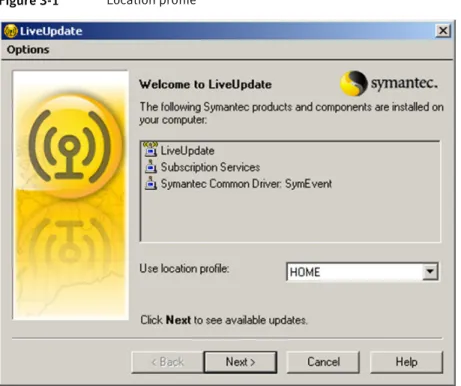
Enabling location profiles ... 46
Changing LiveUpdate Administration Utility retrieval settings ... 49
Adding a product ... 49
Removing a product ... 50
Clearing the download directory ... 50
Handling interrupted downloads ... 51
Updating the Symantec Product Line and Languages of Updates checklists ... 51
Using custom LiveUpdate packages ... 52
Working with LiveUpdate events ... 53
Viewing and deleting events ... 53
Chapter 4
Using the LiveUpdate Administration Utility with the
Symantec System Center
Configuring a host file for use with the Symantec System Center ... 55Configuring multiple LiveUpdate servers for the Symantec System Center ... 56
Enabling and scheduling client updates from the Symantec System Center ... 57
Configuring NetWare servers to retrieve updates in the Symantec System Center ... 58
Configuring a host file for unmanaged clients ... 59
Chapter 5
Managing LiveUpdate clients with SESA
About LiveUpdate and SESA ... 62Automatic detection of the SESA Agent ... 62
How SESA manages LiveUpdate client settings ... 63
About the Symantec management console ... 64
Viewing LiveUpdate events ... 64
About Windows LiveUpdate client configurations ... 65
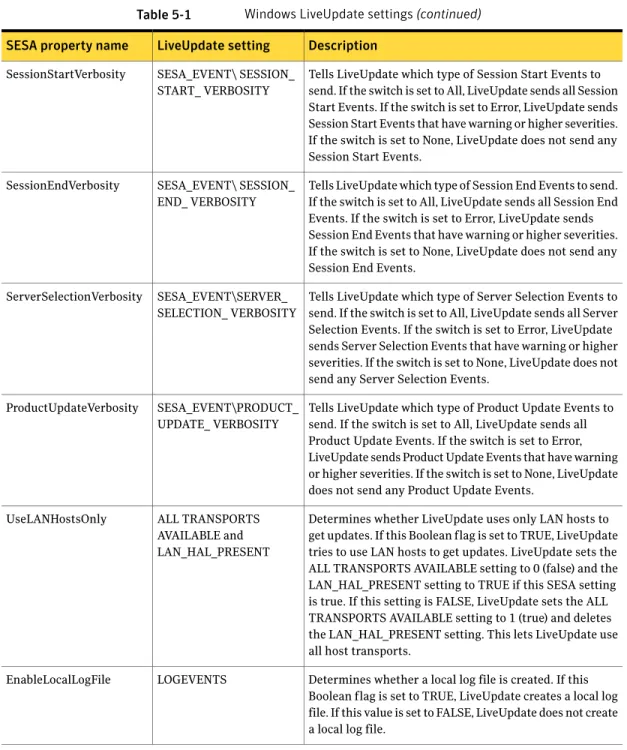
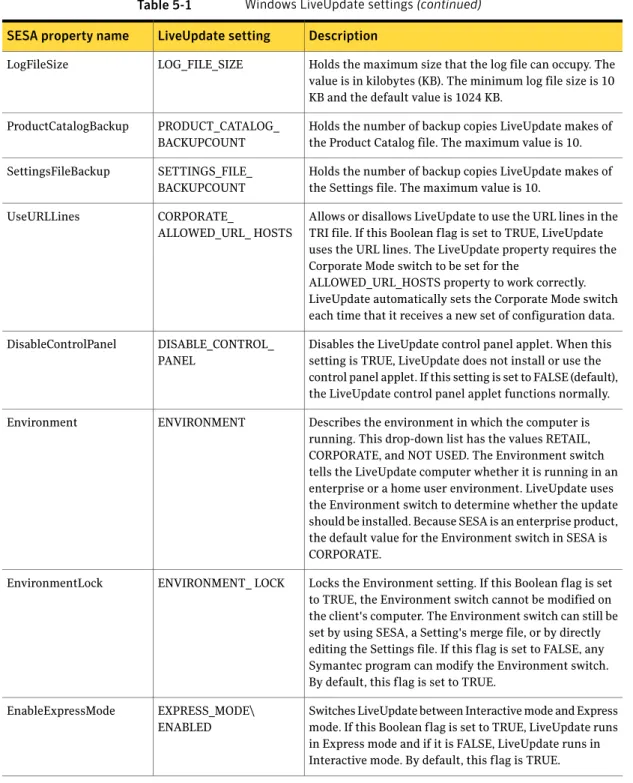
General settings ... 66
Windows LiveUpdate settings ... 66
Windows Custom Content settings ... 71
Windows Hosts settings ... 72
Working with Windows LiveUpdate configurations ... 74 Contents
Editing Windows LiveUpdate configuration properties ... 76
Modifying a Windows LiveUpdate configuration ... 77
Distributing a Windows LiveUpdate configuration ... 78
About Java LiveUpdate client configurations ... 78
General settings ... 79
Java LiveUpdate settings ... 79
Java LiveUpdate Hosts settings ... 80
Java LiveUpdate 3.0 settings ... 81
Java LiveUpdate Custom Content settings ... 83
Working with Java LiveUpdate configurations ... 84
Editing Java LiveUpdate configuration properties ... 86
Modifying a Java LiveUpdate configuration ... 87
Distributing a Java LiveUpdate configuration ... 88
Chapter 6
Working with LiveUpdate clients
Upgrading the LiveUpdate client ... 91About checking version numbers ... 92
About LiveUpdate client files ... 93
LiveUpdate client file locations ... 95
About LiveUpdate client configuration files ... 96
Understanding corporate mode settings ... 108
Adding or changing LiveUpdate client computers ... 109
Adding a new client computer to the network ... 109
Changing a client computer to receive updates from a Symantec LiveUpdate server ... 109
Changing a client computer to receive updates from a Central LiveUpdate server ... 110
Understanding Automatic LiveUpdate Scheduler logging ... 110
Understanding LiveUpdate package authentication ... 110
Ensuring that Automatic LiveUpdate and scheduled LiveUpdate authenticate ... 111
Adding trusted root certificates ... 112
Running LiveUpdate from a command line or scheduler ... 113
Accessing LiveUpdate in the Control Panel in Windows XP 64-bit ... 113
Configuring the Automatic LiveUpdate Scheduler service ... 114
Chapter 7
Using Java LiveUpdate
About Java LiveUpdate ... 115Configuring Java LiveUpdate ... 116
Java LiveUpdate configuration guidelines ... 119
Sample liveupdate.conf files ... 120 13 Contents
Configuring Java LiveUpdate to use a Central LiveUpdate
server ... 121
Running Java LiveUpdate from the command line ... 122
Java LiveUpdate command-line switches ... 122
Support for EBCDIC character encoding ... 124
Enabling Java LiveUpdate logging on Linux servers ... 124
Configuring startup options ... 125
Importing SSL certificates into the Java keystore ... 128
Chapter 8
Incorporating LiveUpdate with Intel Active
Management Technology
About Intel Active Management Technology and LiveUpdate ... 129About LiveUpdate Intel AMT client files ... 131
About setting up the BIOS on the Intel AMT computer ... 131
Running sysprovision.exe ... 132
Creating a configuration file for use with sysprovision.exe ... 133
Running sysprovision.exe remotely ... 134
Running the Symantec Provisioning Tool ... 134
Creating a configuration file to provision a range of computers ... 135
Running the Symantec Provisioning Tool locally ... 136
Running the Symantec Provisioning Tool remotely ... 136
Starting a LiveUpdate session ... 137
Installing the LiveUpdate Administrator for Intel AMT program ... 139
Using the LiveUpdate Administrator for Intel AMT console ... 139
Starting a new scan in the LiveUpdate Administrator for Intel AMT console ... 140
Opening an existing .xml file that was created by luamtscan.exe ... 141
Running luamtscan.exe ... 142
Creating a configuration file to scan a range of computers ... 144
Creating a host file to scan a range of computers ... 144
Running luamtscan.exe remotely ... 145
Chapter 9
Working with custom content
About LiveUpdate custom content publishing ... 147About roles and users ... 148
Working with the Custom Content Publishing Application ... 148
CCPA and LOTS file locations and Windows Start menu shortcuts ... 149
Planning for content publishing ... 149
Installing the Custom Content Publishing Application ... 151 Contents
After you install the Custom Content Publishing Application ... 151
Uninstalling the Custom Content Publishing Application ... 152
Using the LOTS Manager ... 152
How the LOTS file is used in the custom content publishing process ... 153
Working with certificates ... 154
Enabling SSL support over HTTPS ... 154
Performing administrative tasks ... 156
Starting and logging on to CCPA ... 157
Navigating the Custom Content Publishing Application ... 157
Uploading the LOTS file ... 158
Working with CCPA servers ... 158
Working with User Profiles ... 160
Working with products and languages ... 162
Working with update types ... 163
Setting the System Configuration ... 164
Managing publishing sessions ... 167
Enabling LiveUpdate clients to retrieve custom content ... 172
Chapter 10
Publishing custom content
About the content publishing session ... 175Submitting updates ... 178
Defining product updates ... 179
Using PreConditions ... 182
About PreCondition syntax ... 183
PreCondition errors ... 197
Using the PreCondition Editor ... 200
Signing and publishing updates ... 202
Uploading a signing certificate ... 204
Publishing updates ... 204
Rejecting updates ... 205
Testing product updates ... 206
Index
15 Contents
Contents 16
Introducing the LiveUpdate
Administration Utility
This chapter includes the following topics: ■ About LiveUpdate
■ What's new in LiveUpdate ■ Components of LiveUpdate ■ How LiveUpdate works
■ How the LiveUpdate Administration Utility works
■ What you can do with the LiveUpdate Administration Utility ■ Where to get more information about LiveUpdate
About LiveUpdate
LiveUpdate™ is the Symantec™ technology for automatically updating Symantec virus definitions and products. The LiveUpdate client is included with each Symantec product and is installed automatically. Periodically, the LiveUpdate client connects to a LiveUpdate server to check for new updates that apply to the Symantec products that are installed on the computer. If any updates are found, the LiveUpdate client prompts the user to download and install the update. Downloading virus definitions and program updates usually requires a paid subscription, but the updates are included in many corporate contracts.
1
Symantec and Central LiveUpdate servers
LiveUpdate offers the option to use either a Symantec LiveUpdate server or, for host computers that are connected to a private network, an internal Central LiveUpdate server. Each LiveUpdate client can be configured separately to use either server. When a Symantec server is used, LiveUpdate clients connect using HTTP or FTP to a server that is located at a Symantec LiveUpdate site. If an internal Central LiveUpdate server is used, clients communicate with it for new updates. Using a Central LiveUpdate server means that clients do not need to connect to an external network for virus definitions and product updates. This reduces the LiveUpdate traffic between the local network and Symantec LiveUpdate sites. In addition, using a Central LiveUpdate server gives you control over the types of updates that are available to users, and supports the use of Custom Content publishing, a new feature in LiveUpdate.
See“About LiveUpdate custom content publishing”on page 147.
When you configure a Central LiveUpdate server, the LiveUpdate Administration Utility (LuAdmin) performs the following tasks:
■ Selects the Symantec products and languages for which updates will be downloaded
■ Provides the full path to the directory in which downloads will be stored ■ Retrieves all of the update packages and related index files from the Symantec
LiveUpdate site that apply to the selected products
The LiveUpdate Administration Utility stores all of the downloaded update packages and index files on the local server. After the updates are initially retrieved, LuAdmin checks with the Symantec LiveUpdate site for new update packages and automatically retrieves and stores them in the designated directory. You may want to set up the Central LiveUpdate server on a separate computer from the LiveUpdate Administration Utility. New updates can then be tested before they are moved to the Central LiveUpdate server.
Once the Central LiveUpdate server has been configured, you can use LuAdmin to establish communication with client computers on the network. You can select the HTTP, FTP, or LAN transport method, and then create a LiveUpdate host file based on your selection. The host file contains the information that is needed by the client to connect to the Central LiveUpdate server.
The host file is then distributed to each of the clients on the network. Depending on the time interval that has been set, each LiveUpdate client periodically connects to the Central LiveUpdate server and checks for new updates. Applicable updates are automatically downloaded from the Central LiveUpdate server and installed on the clients.
Introducing the LiveUpdate Administration Utility
About LiveUpdate
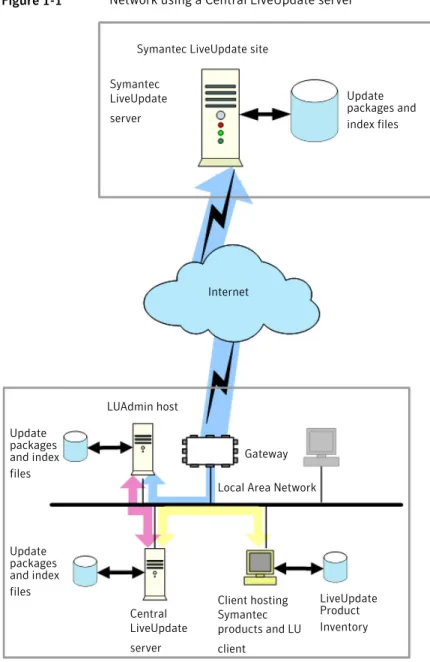
Figure 1-1 shows a typical network using a Central LiveUpdate server. Figure 1-1 Network using a Central LiveUpdate server
Internet Update packages and index files LUAdmin host Client hosting Symantec products and LU client
Symantec LiveUpdate site Symantec LiveUpdate server Update packages and index files
Local Area Network
LiveUpdate Product Inventory Gateway Central LiveUpdate server Update packages and index files 19 Introducing the LiveUpdate Administration Utility
About the LiveUpdate Administration Utility
The LiveUpdate Administration Utility (LuAdmin) maintains a local LiveUpdate repository for product and virus definitions updates. It checks with an external Symantec LiveUpdate site at frequent intervals for new updates, and downloads the updates that apply to the Symantec products that are installed on the local network.
The LiveUpdate Administration Utility is typically installed on one computer on the network. The LiveUpdate Administration Utility does not need to be installed on the same server that is used as the Central LiveUpdate server. You can periodically move the update packages and their associated index files from the LiveUpdate Administration Utility host to the Central LiveUpdate server, based upon schedules and protocols that you determine.
What's new in LiveUpdate
LiveUpdate (Win32) includes the following new enhancements and features: On Windows 2K/NT/XP client computers, the LiveUpdate service loads on system startup and remains resident for the remainder of the Windows session.
LiveUpdate service
The LiveUpdate service integrates with the Windows Event Log. Events are logged in response to standard commands, including Service Start and Service Stop. Events specific to LiveUpdate are also logged, including server selected, patch installed, and patch failed.
Integration with the Windows Event Log
The LiveUpdate Update Cache on the Windows 32 LiveUpdate client retains downloaded packages until they are successfully installed. Packages that fail to install are retained in the Update Cache. Users can configure the Update Cache to override the default maximum cache size of 5% of the drive where LiveUpdate is installed, and can empty the cache on demand.
LiveUpdate will not attempt to download any updates if insufficient disk space is available to download and install all selected updates.
The user is notified of low disk space in one of the following ways:
■ Interactive LiveUpdate: a message box appears.
■ Silent Automatic LiveUpdate (ALU): a system tray notification message appears.
Improved network bandwidth utilization Introducing the LiveUpdate Administration Utility
What's new in LiveUpdate
LiveUpdate provides improved Express Mode error reporting and error descriptions to aid in troubleshooting.
Usability improvements
Components of LiveUpdate
Table 1-1 lists the LiveUpdate components and their functions. Table 1-1 LiveUpdate components
Function Component
The LiveUpdate client is automatically installed on every computer that has a Symantec product installed. The LiveUpdate client handles checking for, downloading, and installing available updates for all Symantec products on the computer.
See“Upgrading the LiveUpdate client”on page 91. LiveUpdate client
The LiveUpdate Administration Utility is typically installed on one computer on the network. LuAdmin maintains a local and up-to-date repository of product and virus definitions updates, and their related index files, that is used by other computers on the network. LuAdmin periodically checks for and downloads new updates.
See“How the LiveUpdate Administration Utility works” on page 26.
LiveUpdate Administration Utility (LuAdmin)
A LiveUpdate server is located at one of the LiveUpdate sites maintained by Symantec. When a Central LiveUpdate server is not used, clients communicate directly with a Symantec LiveUpdate site to check for new virus definitions and program updates. When a Central LiveUpdate server is used, only the computer running LuAdmin communicates with a Symantec LiveUpdate server.
See“Symantec and Central LiveUpdate servers”on page 18. Symantec LiveUpdate
server
21 Introducing the LiveUpdate Administration Utility
Table 1-1 LiveUpdate components(continued) Function
Component
A Central LiveUpdate server resides on an internal network that is used to store LiveUpdate packages and index files. LiveUpdate clients direct their requests for updates to this server, instead of communicating with a server that is located at a Symantec site. Normally, an FTP, HTTP, or HTTPS server is used, but a standard network server may also be used. Periodically, you may want to transfer new update packages and index files from the LiveUpdate Administration Utility to the Central LiveUpdate server.
See“Setting up a Central LiveUpdate server”on page 37. Central LiveUpdate server
LiveUpdate product and index files
LiveUpdate uses the following files to maintain catalog and index information: A file that must exist on each computer where the LiveUpdate client is installed. The Client Product Inventory is maintained and used by the client. It contains information about each Symantec product that is installed on the client, including product identifiers, version numbers, language, release date sequence numbers, and other product attributes.
Client Product Inventory
A compressed file that is sent by the LiveUpdate server to the client in response to a request for new updates. This file comprises the Update Index file, a Symantec signature, and a guard file. The Update Index file contains an index entry, or specification, for every update package that is available on the server (whether it is a Symantec server or a Central LiveUpdate server). These entries contain the same information that is in the Client Product Inventory.
Update Index (xxxxtri.zip)
A set of files that contains the update content that is to be installed on the client. There is one Update Package for each update that is listed in the Update Index file. The signature and guard files that are sent with the xxxxtri.zip file are used to authenticate the Update Package and ensure that it has been delivered without modification. Update Package
Introducing the LiveUpdate Administration Utility
Components of LiveUpdate
A file that contains basic product identifiers and attributes for every product that uses LiveUpdate. This file is used by LuAdmin to generate the list from which users can select the product versions and language versions. This file is refreshed each time that LuAdmin performs an update operation. All Products List (Products.xml)
The LiveUpdate Administration Utility and LiveUpdate client have additional files.
See“LiveUpdate Administration Utility files”on page 32. See“About LiveUpdate client configuration files”on page 96.
How LiveUpdate works
When you start LiveUpdate, it displays a list of the registered Symantec products that are on the computer and establishes the versions and languages of the products to be updated. LiveUpdate then determines the types of updates that are needed, and the order in which to apply the updates.
LiveUpdate finds and connects to either an external Symantec server or an internal Central LiveUpdate server that has been set up by an administrator using the LiveUpdate Administration Utility.
LiveUpdate operates in either Interactive or Express mode. In Interactive mode, LiveUpdate downloads a list of updates that are available for your Symantec products. You can then choose which updates to install. If you run LiveUpdate in Express mode, LiveUpdate automatically installs all the updates for your Symantec products.
How clients are updated using a Symantec LiveUpdate server
The following steps are performed when a client uses a Symantec LiveUpdate server for its updates:
The LiveUpdate client performs an update check periodically, based on a time interval setting that you define for the client. When LiveUpdate is started on the client, the local Client Product Inventory, which lists all of the Symantec products that are installed on the client, is read. Start up
23 Introducing the LiveUpdate Administration Utility
For each Symantec product that is installed, there is an entry in the Client Product Inventory that contains the name of the Update Index file in which the updates are listed. The client collects the Update Index file names and sends a request to the LiveUpdate server for these files to be downloaded to the client.
Request Update Indexes
When the Update Index files have been received by the client, the client checks each of the products in the local Client Product Inventory against its index file to see if there are any new updates available for it. If a match is found, the corresponding Update Package is added to the list of updates to retrieve.
Check Update Indexes
After each product in the Client Product Inventory has been checked against its Update Index, the client checks the list of updates. If the list is empty, the LiveUpdate operation is immediately terminated on the client. If there are Update Packages listed, they are automatically downloaded using the default Express mode setting. If Interactive mode is enabled, the client displays the list and prompts the user to select the updates to be downloaded. If the user selects one or more of the updates, a request is sent to the LiveUpdate server for them. If the user declines all of the updates, the LiveUpdate operation is terminated.
Update Package Request
When the Update Packages have been
downloaded, the client verifies that the updates match those that were initially requested, and that they have been delivered without modification. Each Update Package is then installed on the local computer. Following the installation, the local Client Product Inventory is updated.
Update Package Installation
The update operation is terminated. Update completion
How clients are updated using a Central LiveUpdate server
The following steps are performed when a client uses a Central LiveUpdate server for its updates:
Introducing the LiveUpdate Administration Utility
How LiveUpdate works
The LiveUpdate client performs an update check periodically, based on a time interval setting that you define.
Start up
The client sends a request to the Central LiveUpdate server for the Update Index file (xxxxtri.zip).
Request Update Indexes
When the client has received the Update Index file, it checks each of the products in its local Client Product Inventory against the Update Index file to see if there are any new updates available. If a match is found, the corresponding Update Package is added to the list of updates to be downloaded.
Check Update Indexes
After each product in the Client Product Inventory has been checked against its Update Index file, the client checks the list of updates. If the list is empty, the LiveUpdate operation is immediately terminated on the client. If there are Update Packages listed, they are automatically downloaded using the default Express mode setting. If Interactive mode is enabled, the client displays the list and prompts the user to select the updates to be downloaded. If the user selects one or more of the updates, a request is sent to the LiveUpdate server for them. If the user declines all of the updates, the LiveUpdate operation is terminated, and no updates are downloaded.
Update Package Request
When the Update Packages have been received, the client authenticates the sender and verifies that the packages have been delivered without modification. Each Update Package that is accepted by the client is installed on the local computer. Following each installation, the local Client Product Inventory is updated to reflect the package that was installed.
Update Package Installation
The update operation is terminated. Update completion
You can configure a LiveUpdate host file for LiveUpdate clients version 1.6x and later so that they can download updates from the closest internal LiveUpdate server. This typically results in decreased download times. You can also configure the host file to use an external LiveUpdate server.
25 Introducing the LiveUpdate Administration Utility
See“Creating a LiveUpdate host file for clients”on page 40.
LiveUpdate clients version 1.7x and later perform additional authentication and error checking. Descriptive warnings and error messages assist in troubleshooting LiveUpdate failures.
See“Understanding LiveUpdate package authentication”on page 110.
How the LiveUpdate Administration Utility works
The LiveUpdate Administration Utility (LuAdmin) has its own update checking and retrieval operation. This operation is similar to the one that is performed by the client. However, there are important differences.The following steps are performed when LuAdmin is updated:
The LiveUpdate Administration Utility performs an update check periodically based on its time interval setting.
Start up
The LiveUpdate Administration Utility sends a request to a Symantec LiveUpdate server for the Update Index file (xxxxtri.zip) to be retrieved. Request Update Indexes
When the LiveUpdate Administration Utility receives the Update Index file, it checks each product in its Product Inventory against it to see if there are any new updates available. The Product Inventory for LuAdmin contains not only Symantec products that are installed on the computer on which LuAdmin is installed, but also those for which updates are being maintained on behalf of the other computers on the network. If a match is found, the corresponding Update Package is added to the list of updates to be downloaded.
Check Update Indexes
After each product in the Client Product Inventory has been checked against the Update Index file, LuAdmin checks the list of updates to be requested. If the list is empty, LuAdmin skips to the Retrieve Product List operation immediately. If the list is not empty, LuAdmin sends a request to the Symantec LiveUpdate server for the selected Update Packages.
Update Package request Introducing the LiveUpdate Administration Utility
How the LiveUpdate Administration Utility works
When the Update Packages that were ordered have been received, the client authenticates the sender and verifies that the packages have been delivered without modification. Each Update Package that is accepted by the client is stored on the local computer. The Client Product Inventory is updated to reflect the stored packages. Store Update Packages
Using the Update Index file that was received from the Symantec LiveUpdate server earlier as a starting point, LuAdmin creates an Update Index for the local network by eliminating entries for products that are not supported by the Central LiveUpdate server. At the same time, the new Update Index file is compared to the previous Update Index. Any Update Packages that were listed in the old index, but are not included in the new index, are deleted.
Create new local Update Index
LuAdmin requests the Product List from the Symantec LiveUpdate server. This file is stored locally and is used to set download options, specifically to select products and language versions to be supported on the Central LiveUpdate server.
Retrieve Product List
The update operation is terminated. Update completion
About LuAdmin and Central LiveUpdate
The LiveUpdate Administration Utility continues to update its cache of update packages periodically using the download settings that you defined. On most networks, you can perform some type of testing and acceptance process on new update packages. Then you can copy the update packages, and the new Update Index file, from the computer that hosts LuAdmin to the Central LiveUpdate server.
You can use LuAdmin to manage update retrieval and storage operations on a continuing basis, including the following:
■ Add and delete Symantec products and languages for which update packages are retrieved and made available on the Central LiveUpdate server.
■ View and manage the local LiveUpdate repository of Symantec product and virus definitions updates and related files.
■ Set the time intervals for checking the Symantec LiveUpdate site for new updates.
27 Introducing the LiveUpdate Administration Utility
■ View, add, delete, and manage custom content Update Packages that are stored on the Central LiveUpdate server and related index information.
■ View and manage the LiveUpdate event log.
What you can do with the LiveUpdate Administration
Utility
Using the LiveUpdate Administration Utility (LuAdmin), you can set up and manage a Central LiveUpdate server. The Central LiveUpdate server can be either an intranet HTTP, HTTPS, or FTP server, or a directory on a standard file server. Once a Central LiveUpdate server is set up, you can use LuAdmin to create configuration files for LiveUpdate clients so that they send their LiveUpdate requests to the Central LiveUpdate server, rather than to an external Symantec LiveUpdate site.
Note:The LuAdmin host file editor only supports FTP, HTTP, and LAN. If you want to point to an HTTPS server, you can create a host file that specifies FTP, HTTP, or LAN and then manually change that setting in the LiveUpdate.Settings file.
See“About LiveUpdate client configuration files”on page 96.
You can use the LiveUpdate Administration Utility to perform the following administrative tasks:
■ Create a Central LiveUpdate server.
See“Setting up a Central LiveUpdate server”on page 37.
■ Configure LiveUpdate clients to use the Central LiveUpdate server. See“Configuring clients to use a Central LiveUpdate server”on page 40. ■ Change update retrieval settings.
See“Changing LiveUpdate Administration Utility retrieval settings”on page 49. ■ View Update Packages and other product files.
■ View and edit LiveUpdate events.
See“Working with LiveUpdate events”on page 53. Introducing the LiveUpdate Administration Utility
What you can do with the LiveUpdate Administration Utility
Where to get more information about LiveUpdate
The Symantec Web site includes information on troubleshooting LiveUpdate and the LiveUpdate Administration Utility, product updates, and knowledge base articles.On the Web, go to the following URL: www.symantec.com/techsupp/
29 Introducing the LiveUpdate Administration Utility
Introducing the LiveUpdate Administration Utility
Where to get more information about LiveUpdate
Installing the LiveUpdate
Administration Utility
This chapter includes the following topics: ■ Before you install
■ System requirements
■ Installing the LiveUpdate Administration Utility ■ Post-installation tasks
■ Updating the LiveUpdate Administration Utility ■ Uninstalling the LiveUpdate Administration Utility
Before you install
Before you install the LiveUpdate Administration Utility, you should become familiar with where the setup program installs the software. Make sure that your LiveUpdate clients are updated to the correct version for full compatibility, and that your environment meets the system requirements.
LiveUpdate Administration Utility and LiveUpdate client compatibility
Because of the changes in configuration file locations in LiveUpdate version 1.6x and later, it is important that you use the correct version of the LiveUpdate Administration Utility (LuAdmin) when you manage LiveUpdate client computers. Table 2-1 lists the versions of the LiveUpdate Administration Utility that you can use with the versions of the LiveUpdate client.
2
Table 2-1 LiveUpdate version compatibility
LiveUpdate Administration Utility version LiveUpdate client version
LuAdmin 1.5x only LiveUpdate 1.5x
LuAdmin 1.5.3.18 or later LiveUpdate 1.6x
LuAdmin 1.5.3.21 or later LiveUpdate 1.7x and later
To take full advantage of the increased security features in LiveUpdate clients 1.7x and later, you must use LuAdmin version 1.5.3.21 or later.
LiveUpdate Administration Utility files
By default, the LiveUpdate Administration Utility is installed in the Program Files\LiveUpdate Administration folder.
Table 2-2 lists and describes the files that are used by the LiveUpdate Administration Utility.
Table 2-2 LiveUpdate Administration Utility files
Description File
Custom install and uninstall library. ISLUA.DLL
LiveUpdate Administration Utility program. LuAdmin.exe
Host file that contains information that is used by LuAdmin to connect to a Symantec LiveUpdate site.
LuAdmin.hst
File that logs messages for events, such as the retrieval process, custom update merging, and host file encryption/decryption. Logs from both the background execution of the application and the execution of the application in user mode. The contents of this file are viewable and editable in the log file viewer within the LiveUpdate Administration Utility.
See“Viewing and deleting events”on page 53. Lualog.xml
Executable file. When the LiveUpdate Administration Utility itself is being updated, this file closes the LiveUpdate Administration Utility, runs LiveUpdate, then relaunches the LiveUpdate Administration Utility. This eliminates the need to restart the computer.
Luaupdat.exe Installing the LiveUpdate Administration Utility
Before you install
Table 2-2 LiveUpdate Administration Utility files(continued) Description
File
File that contains a comprehensive list of Symantec products. This file is the source of the product information that is displayed by LuAdmin in the Retrieve Updates window, where the product and language versions are selected for the update retrieval operation. Every time that the LiveUpdate
Administration Utility checks for updates, the Product List is updated. This file also stores your LiveUpdate Administration Utility preferences. The contents of this file are viewable in the log file viewer within the LiveUpdate Administration Utility. See“Viewing and deleting events”on page 53.
Products.xml
Text file that documents the latest changes to the LiveUpdate Administration Utility, as well as any technical and late-breaking information that is not included in the LiveUpdate
Administrator's Guide. README.TXT
Host file that is customized by LuAdmin to provide clients with location and method directions for connecting to the internal Central LiveUpdate server.
SAMPLE.HST
Silent LiveUpdate Administrator executable file.
See“Retrieving Update Packages automatically”on page 46. SilntLuA.exe
LiveUpdate ZIP engine/compression library. SYMZIP.DLL
File that uninstalls the LiveUpdate Administration Utility. Uninst.isu
System requirements
For LiveUpdate Administration Utility 1.5 and later, the system requirements are as follows:
■ Windows 2000 Professional, Windows 2003, Windows XP Professional 32-bit with Service Pack 2
■ Internet Explorer 5.0 or later
■ Pentium 100-MHz processor or faster ■ 16 MB RAM
■ 25 MB hard disk space (up to 3 GB of additional space for LiveUpdate packages) For LiveUpdate clients, the system requirements are as follows:
33 Installing the LiveUpdate Administration Utility
■ Windows 98/98 SE/Me, Windows NT 4.0 Workstation/Server/Enterprise Server/Terminal Server, Windows 2000 Professional/Server/Advanced Server/Data Center, Windows XP Home Edition/Professional
Note:LiveUpdate clients that are using Intel Active Management Technology (AMT) are supported only on Windows Server 2003 or Windows XP Professional with Service Pack 1 or later.
See“About Intel Active Management Technology and LiveUpdate”on page 129.
■ Windows Internet (WinINet) 4.71.30.1 or later ■ Pentium 100-MHz processor or faster ■ 16 MB RAM
■ 10 MB hard disk space (up to 50 MB of additional space for package downloads, depending on the size of the LiveUpdate package)
LiveUpdate clients that are using Intel Active Management Technology (AMT) also have the following requirements:
■ An Intel AMT-enabled system on the local computer to enable Intel AMT support in LiveUpdate
■ Java™ Runtime Environment (JRE) 1.4_02 (as a minimum) to run the LiveUpdate Administrator for Intel AMT console (JRE 5.0 is recommended)
See“About Intel Active Management Technology and LiveUpdate”on page 129.
Installing the LiveUpdate Administration Utility
The LiveUpdate Administration Utility (Luau.exe) is a self-extracting, compressed archive that is included with many Symantec products. You can also download the latest version of the LiveUpdate Administration Utility installation file (luau.exe) from the Symantec Web site at:
http://www.symantec.com/techsupp/files/lu/lu.html To install the LiveUpdate Administration Utility
◆ Launch luau.exe, and then follow the on-screen instructions.
Post-installation tasks
You can complete the following post-installation tasks: Set up a Central LiveUpdate server.
Installing the LiveUpdate Administration Utility
Installing the LiveUpdate Administration Utility
See“Setting up a Central LiveUpdate server”on page 37.
Updating the LiveUpdate Administration Utility
The LiveUpdate Administration Utility (LuAdmin) can update itself. When the LuAdmin finishes downloading packages, it automatically checks for new LiveUpdate Administration Utility updates and, if one is found, downloads it.Note:The LiveUpdate Administration Utility temporarily quits while retrieving and installing updates for itself.
To update the LiveUpdate Administration Utility
1
Start LuAdmin.See“Starting the LiveUpdate Administration Utility”on page 37.
2
On the Tools menu, click Update LiveUpdate Administration Utility.3
Click Next to see the available updates.4
Click Finish.Uninstalling the LiveUpdate Administration Utility
You can uninstall the LiveUpdate Administration Utility using Add/Remove Programs in the Control Panel.35 Installing the LiveUpdate Administration Utility
Installing the LiveUpdate Administration Utility
Uninstalling the LiveUpdate Administration Utility
Using the LiveUpdate
Administration Utility
This chapter includes the following topics: ■ Starting the LiveUpdate Administration Utility ■ Setting up a Central LiveUpdate server ■ Retrieving Update Packages
■ Configuring clients to use a Central LiveUpdate server ■ Changing LiveUpdate Administration Utility retrieval settings ■ Using custom LiveUpdate packages
■ Working with LiveUpdate events
Starting the LiveUpdate Administration Utility
When you install the LiveUpdate Administration Utility, it creates a shortcut to LuAdmin.exe in the Programs folder.
To start the LiveUpdate Administration Utility
◆ On the Windows taskbar, click Start > Programs > LiveUpdate Administration
Utility > LiveUpdate Administration Utility.
Setting up a Central LiveUpdate server
After you have installed the LiveUpdate Administration Utility, you must create and configure a Central LiveUpdate server.
3
The following steps must be performed:
Using LuAdmin, you first select the Symantec products and languages that you want to download from the Symantec LiveUpdate site and support on the Central LiveUpdate server. You also enter the location on the server in which Update Packages will be stored locally. See“Setting update retrieval options”on page 38. Set download options.
Using LuAdmin, you download all of the available Update Packages, and their related Update Index files, from the Symantec LiveUpdate site for the products and languages that you've selected, and then store them in the location on the host computer that you've designated for that purpose.
See“Retrieving Update Packages”on page 39. Download initial updates.
You copy all of the Update Packages and the Update Index file to the Central LiveUpdate server (LuAdmin is not used to do this).
Transfer updates to the Central LiveUpdate server.
Setting update retrieval options
You can select products for which to retrieve updates and languages in the following ways:
■ Select the primary language that applies to all of the products and then select full product lines.
■ Select individual product components and the language versions for each. You must also designate the directory in which downloaded update packages will be stored.
To set update retrieval options
1
Start LuAdmin.See“Starting the LiveUpdate Administration Utility”on page 37.
2
In the LiveUpdate Administration Utility window, in the left pane, clickRetrieve Updates.
3
In the right pane, under Languages of Updates, select a language for download packages.4
Under Symantec Product Line, do one of the following:■ Check the Symantec product lines for which you want updates. Using the LiveUpdate Administration Utility
Setting up a Central LiveUpdate server
Because all installed Symantec products that use LiveUpdate now point to your intranet server, you should download full product lines rather than individual products.
■ To select individual product components by checking the appropriate product line, click Details, and then check the Languages and Product Updates to download.
When you select individual product components to update, you may miss other available updates. For example, new virus definitions files for Symantec AntiVirus may require an engine update that is also available.
5
Under Download Directory, do one of the following:■ Type the path to the directory to which you want to download updates. ■ Click Browse and specify a download directory.
The download directory can be any directory on the server or a directory on the FTP or HTTP server.
Retrieving Update Packages
LuAdmin retrieves the Update Packages and stores them in the directory that was defined in the download settings.
LuAdmin also downloads the Update Index files for the products that are selected and edits them to eliminate index entries for Update Packages that were not selected. These index files include Symtri.zip, Livetri.zip, and Symtri16.zip, as well as Products.xml. These files are required by different versions of LiveUpdate. To retrieve Update Packages
1
Start LuAdmin.See“Starting the LiveUpdate Administration Utility”on page 37.
2
In the LiveUpdate Administration Utility window, in the left pane, clickRetrieve Updates.
3
In the right pane, click Retrieve to begin downloading update packages.4
Follow the on-screen instructions.If the LiveUpdate Administration Utility does not successfully download all of the packages that you selected, then none of the packages will appear in your specified download directory. Check the log file for details about the download activity.
See“Working with LiveUpdate events”on page 53.
39 Using the LiveUpdate Administration Utility