NVIDIA Quadro Professional
Drivers
Release 182 Notes
Version
182.46
(Doc. rev. A) For Windows XP / 2000Windows XP Professional x64 Edition Windows Server 2003 x64 Edition
NVIDIA Corporation
April 2, 2009
Published by
NVIDIA Corporation 2701 San Tomas Expressway Santa Clara, CA 95050
Notice
ALL NVIDIA DESIGN SPECIFICATIONS, REFERENCE BOARDS, FILES, DRAWINGS, DIAGNOSTICS, LISTS, AND OTHER DOCUMENTS (TOGETHER AND SEPARATELY, “MATERIALS”) ARE BEING PROVIDED “AS IS.” NVIDIA MAKES NO WARRANTIES,
EXPRESSED, IMPLIED, STATUTORY, OR OTHERWISE WITH RESPECT TO THE MATERIALS, AND EXPRESSLY DISCLAIMS ALL IMPLIED WARRANTIES OF NONINFRINGEMENT, MERCHANTABILITY, AND FITNESS FOR A PARTICULAR PURPOSE.
Information furnished is believed to be accurate and reliable. However, NVIDIA Corporation assumes no responsibility for the consequences of use of such information or for any infringement of patents or other rights of third parties that may result from its use. No license is granted by implication or otherwise under any patent or patent rights of NVIDIA Corporation. Specifications mentioned in this publication are subject to change without notice. This publication supersedes and replaces all information previously supplied. NVIDIA Corporation products are not authorized for use as critical components in life support devices or systems without express written approval of NVIDIA Corporation.
Trademarks
NVIDIA, the NVIDIA logo, 3DFX, 3DFX INTERACTIVE, the 3dfx Logo, STB, STB Systems and Design, the STB Logo, the StarBox Logo, NVIDIA nForce, GeForce, NVIDIA Quadro, NVDVD, NVIDIA Personal Cinema, NVIDIA Soundstorm, Vanta, TNT2, TNT, RIVA, RIVA TNT, VOODOO, VOODOO GRAPHICS, WAVEBAY, Accuview Antialiasing, the Audio & Nth Superscript Design Logo, CineFX, the Communications & Nth Superscript Design Logo, Detonator, Digital Vibrance Control, DualNet, FlowFX, ForceWare, GIGADUDE, Glide, GOFORCE, the Graphics & Nth Superscript Design Logo, Intellisample, M-BUFFER, nfiniteFX, NV, NVChess, nView, NVKeystone, NVOptimizer, NVPinball, NVRotate, NVSensor, NVSync, the Platform & Nth Superscript Design Logo, PowerMizer, Quincunx Antialiasing, Sceneshare, See What You've Been Missing, StreamThru, SuperStability, T-BUFFER, The Way It's Meant to be Played Logo, TwinBank, TwinView and the Video & Nth Superscript Design Logo are registered trademarks or trademarks of NVIDIA Corporation in the United States and/or other countries. Other company and product names may be trademarks or registered trademarks of the respective owners with which they are associated.
Intel, Indeo, and Pentium are registered trademarks of Intel Corporation.Microsoft, Windows, Windows NT, Windows Vista, Direct3D, DirectDraw, and DirectX are trademarks or registered trademarks of Microsoft Corporation. OpenGL is a registered trademark of Silicon Graphics Inc. PCI Express, PCI-SIG, and the PCI-SIG design marks are registered trademarks and/or service marks of PCI-SIG.
Other company and product names may be trademarks or registered trademarks of the respective owners with which they are associated.
Copyright
N V I D I A Q u a d r o P r o f e s s i o n a l D r i v e r s R e l e a s e 1 8 2 N o t e s
1. Introduction to
Release 182
Notes
Structure of the Document . . . . 1
Changes in this Edition . . . . 1
2. Changes in the Release 182
Driver for Windows XP
Version 182.46 Highlights . . . . 4What’s New in Release 182 . . . . 4
What’s New in Version 182.46 . . . . 4
Special Instructional Notes for this Release. . . . 5
Turning Off V-Sync to Boost Performance . . . 5
NVIDIA Application Configuration Engine (ACE) 5 Changes in Version 182.46 . . . . 6
Fixed Issues–Windows XP 32-bit . . . . 6
Fixed Issues–Windows XP x64 . . . . 6
Changes in Version 182.08 . . . . 8
Fixed Issues–Windows XP 32-bit . . . . 8
Fixed Issues–Windows XP x64 . . . . 8
Changes in Version 181.20 . . . 10
Fixed Issues–Windows XP 32-bit . . . 10
Fixed Issues–Windows XP x64 . . . 11
Open Issues in Version 182.46 . . . 12
NVIDIA Recommendations. . . 12
Windows XP x86 Issues . . . 13
Windows XP x64 Issues . . . 15
Not NVIDIA Issues . . . 16
Known Product Limitations . . . 17
SLI Connector Requirement on NVIDIA Quadro SLI Cards. . . 18
Image Sharpening Control not Available with Quadro FX 4600 and later GPUs. . . 18
DVD Playback Issues with Dual NVIDIA Quadro NVS Cards . . . 18
PowerDVD 5.0 Does Not Display Correctly in nView Span Mode . . . 18
DirectX Fails When Detaching/Reattaching Displays in Dualview Mode. . . 19
OpenGL Viewport Scaling Problem in Horizontal Span Mode . . . 19
Video Playback in nView Clone and Span Modes . . . 20
Monitor Ordering in the Windows Settings Page 20 Applying Workstation Application Profiles . . 21
No Antialiasing of 3DMark03 Image Quality Screen Captures. . . 22
Windows XP/2000 Issue with Settings Tab Monitor Positioning. . . 23
Antialiasing Problems With Certain Applications 23 Poor Quality S-Video Output on Some TVs . 23 AGP and PCI-E Programs May Hang With AMD K7 and K8 Processors . . . 24
Desktop Manager Does Not Re-Center Logon Screen . . . 24
3. The Release 182 Driver for
Windows XP
Hardware and Software Support . . . 25Supported Operating Systems. . . 25
Supported NVIDIA Products. . . 26
Supported Languages. . . 28
Driver Installation . . . 29
System Requirements . . . 29
Installation Instructions . . . 29
A. Mode Support for Windows
General Mode Support Information. . . 34Default Modes Supported by GPU for Windows XP 35 Understanding the Mode Format . . . 35
NVIDIA Quadro FX 5600/4700 X2/4600/4400/ 4000/3700/1800/1700/1400/580/570/550/540/ 470/380/360 and NVS Family of GPUs . . 36
NVIDIA Quadro FX 5800/4800/3800 Family of GPUs. . . 43
NVIDIA Quadro FX 5500/4500/4500 X2/3500/ 1500/560 Family of GPUs . . . 50
TV-Out Modes Supported by TV Encoders. . . 56
N V I D I A Q u a d r o P r o f e s s i o n a l D r i v e r s R e l e a s e 1 8 2 N o t e s
N V I D I A Q u a d r o P r o f e s s i o n a l D r i v e r s , R e l e a s e 1 8 2 V e r s i o n 1 8 2 . 4 6
C
H A P T E R
I
NTRODUCTION
TO
R
ELEASE
182 N
OTES
This edition of Release 182 Notes describes the Release 182 Quadro Professional Graphics Drivers for Microsoft® Windows® XP. NVIDIA provides these notes to describe performance improvements and bug fixes in each documented version of the driver.
Structure of the Document
This document is organized in the following sections:
• “Changes in the Release 182 Driver for Windows XP” on page 3 gives a summary of changes, and fixed and open issues in this version.
• “The Release 182 Driver for Windows XP” on page 25 describes the NVIDIA products and languages supported by this driver, the system requirements, and how to install the driver.
• “Mode Support for Windows” on page 33 lists the default resolutions supported by the driver.
Changes in this Edition
This edition of the Release 182 Notes for Windows XP includes information about NVIDIA Quadro Professional graphics driver version 182.46, and lists changes made to the driver since version 178.46. These changes are discussed beginning with the chapter “Changes in the Release 182 Driver for Windows
Q u a d r o P r o f e s s i o n a l D r i v e r s , R e l e a s e 1 8 2 V e r s i o n 1 8 2 . 4 6
C
H A P T E R
C
HANGES
IN
THE
R
ELEASE
182 D
RIVER
FOR
W
INDOWS
XP
This chapter describes open issues for version 182.46, and resolved issues and driver enhancements for versions of the Release 182 driver up to version 182.46. The chapter contains these sections:
•
“Version
182.46
Highlights”
on
page 4
•
“Special
Instructional
Notes
for
this
Release”
on
page 5
•
“Changes
in
Version
182.46”
on
page 6
•
“Changes
in
Version
182.08”
on
page 8
•
“Changes
in
Version
181.20”
on
page 10
•
“Open
Issues
in
Version
182.46”
on
page 12
•
“Not
NVIDIA
Issues”
on
page 16
CH A P T E R 2 : C h a n g e s i n t h e R e l e a s e 1 8 2 D r i v e r f o r W i n d o w s X P V e r s i o n 1 8 2 . 4 6 H i g h
-Version 182.46 Highlights
This section provides highlights of version 182.46 of the NVIDIA Release 182 Driver.
What’s New in Release 182
• Added
support
for
the
following
NVIDIA
products:
• NVIDIA Quadro FX 380 • NVIDIA Quadro FX 580 • NVIDIA Quadro FX 1800 • NVIDIA Quadro FX 3800 • NVIDIA Quadro NVS 420 • NVIDIA Quadro NVS 295
What’s New in Version 182.46
• Added
support
forthe
following
NVIDIA
products:
• NVIDIA Quadro FX 380
• NVIDIA Quadro FX 580
• NVIDIA Quadro FX 1800
• NVIDIA Quadro FX 3800
• NVIDIA Quadro NVS 295
• Resolved
Issues
for
Windows
XP
N V I D I A Q u a d r o P r o f e s s i o n a l D r i v e r s , R e l e a s e 1 8 2 V e r s i o n 1 8 2 . 4 6
Special Instructional Notes for this Release
This section clarifies certain features and controls.
Turning Off V-Sync to Boost Performance
To get the best benchmark and application performance measurements, turn V‐ Sync off as follows:
1
Open
the
NVIDIA
Control
Panel
and
make
sure
that
Advanced
Settings
is
selected
from
the
control
panel
tool
bar.
2
From
the
Select
a
Task
pane,
under
3D
Settings,
click
Manage
3D
Settings
,
then
click
the
Global
Settings
tab.
3
From
the
Global
presets
pulldown
menu,
select
Base
profile.
4
From
the
Settings
listbox,
select
Vertical
sync
and
change
its
value
to
Force
off
,
then
click
Apply
.
5
From
the
Global
presets
pulldown
menu,
select
3D
App
‐
Default
Global
Settings
(the
driver’s
default
profile)
or
use
the
application
profile
that
matches
the
application
you
are
testing,
then
click
Apply
.
Be sure to close the NVIDIA Control Panel completely —leaving it open will affect benchmark and application performance.
NVIDIA Application Configuration Engine (ACE)
This driver includes the NVIDIA Application Configuration Engine (ACE)
,
which
automatically
detects the workstation application and configures the appropriate profile settings in the NVIDIA Control Panel.See the
NVIDIA Quadro Professional Drivers: NVIDIA Control Panel Quick
Start Guide
for more information about this feature.: C h a n g e s i n V e r s i o n 1 8 2 . 4 6
Changes in Version 182.46
The following sections list the changes made and issues resolved since driver version 182.08.
• “Fixed Issues–Windows XP 32‐bit” on page 6
• “Fixed Issues–Windows XP x64” on page 6
Fixed Issues–Windows XP 32-bit
Single-GPU Fixed Issues
• Workstation application profiles needed for Lumiscaphe Patchwork 3D. • Workstation application profile needed for Presagis Vega Prime • SolidWorks–with Dualview mode and 8x antialiasing enabled, the
application hangs when opening a second document.
• Maya–Cgfx shader does not display correctly during playback.
• Quadro CX: Acrobat–the application freezes, crashes, or a blue‐screen crash occurs when panning while a 3D animation plays in a 3D window.
• Quadro FX 4800: Present timer query returns unexpected values. • Quadro FX 4800: Maya 6.5–performance degradation.
• Quadro FX 3700: glGetStringi(GL_EXTENSIONS, i) always returns NULL with OpenGL 3.0 context.
Fixed Issues–Windows XP x64
Single-GPU Fixed Issues
• Workstation application profile needed for Presagis Vega Prime • Workstation application profiles are needed for ESRI applications. • Workstation application profile is needed for Lumiscaphe Patchwork 3D. • FlightSimulator–lines (from a cloud pattern) show only in FSAA 8xMS
mode, and not in 4xMS or 8xMS/8xCS antialiasing modes. • ICEM Surf 4.7.2–performance slow on 64‐bit OS.
• thinkdesign–the application crashes.
• Quadro FX 4600: Vital Images –volume rendering is slow when using the NVIDIA Manage 3D Settings Base Profile.
• Quadro FX 4600/5600: Mathematica–spurious triangles are generated when running the application.
N V I D I A Q u a d r o P r o f e s s i o n a l D r i v e r s , R e l e a s e 1 8 2 V e r s i o n 1 8 2 . 4 6
• Quadro FX 4800: Dualview displays connected to the DisplayPort through the DVI adapter become inactive if the monitor is shut off or the computer enters into sleep mode for an extended period of time.
: C h a n g e s i n V e r s i o n 1 8 2 . 0 8
Changes in Version 182.08
The following sections list the changes made and issues resolved since driver version 181.20.
• “Fixed Issues–Windows XP 32‐bit” on page 8
• “Fixed Issues–Windows XP x64” on page 8
Fixed Issues–Windows XP 32-bit
Single-GPU Fixed Issues
• Added “Autodesk Mudbox” and “Autodesk Mudbox ‐ compatible” to the list of applications in the NVIDIA Control Panel.
• Added several Altair executables to the list of applications in the NVIDIA Control Panel.
• AliasStudio ‐ the NVIDIA Base 3D profile causes instability with the application.
• Changed the HiCAD application profile settings to VSync OFF and UBB OFF.
• Quadro FX 5600: Memory leak occurs when using glTexSubImage2D. • Quadro FX 4600: There is a horizontal ripple or tear that moves down the
screen when using the ISSD application profile with Microstation v8. (Intergraph)
• Quadro FX 3500/4600: Memory use increases with Catia compared to previous driver versions.
Fixed Issues–Windows XP x64
Single-GPU Fixed Issues
• Added “Autodesk Mudbox” and “Autodesk Mudbox ‐ compatible” to the list of applications in the NVIDIA Control Panel.
• Added several Altair executables to the list of applications in the NVIDIA Control Panel. ]
• AliasStudio ‐ the NVIDIA Base 3D profile causes instability with the application.
• Photoshop CS4–There is corruption on the secondary Dualview display when overlays are enabled in the NVIDIA Control Panel.
• Changed the HiCAD application profile settings to VSync OFF and UBB OFF.
N V I D I A Q u a d r o P r o f e s s i o n a l D r i v e r s , R e l e a s e 1 8 2 V e r s i o n 1 8 2 . 4 6
• Quadro FX 5600: Memory leak occurs when using glTexSubImage2D. • Quadro FX 4800: Photoshop CS4–OpenGL settings are greyed out and
cannot be set for the application.
• Quadro FX 4800/4600: When creating a, OpenGL window with a 10‐bit pixel format, the window contains some corruption drawn over it.
• Quadro FX 4600: Vital Images ‐ Volume Rendering is slow when using the NVIDIA Control Panel Base Profile settings
: C h a n g e s i n V e r s i o n 1 8 1 . 2 0
Changes in Version 181.20
The following sections list the changes made and issues resolved since driver version 178.46.
• “Fixed Issues–Windows XP 32‐bit” on page 10
• “Fixed Issues–Windows XP x64” on page 11
Fixed Issues–Windows XP 32-bit
Single-GPU Fixed Issues
• SolidMX 2D drawing data does not move smoothly.
• Allplan BIM 2008 is significantly slower compared to previous version (Allplan (2006).
• Maya 2009: driver versions and configurations need to be defined for the application in order to properly run in stereo.
• KOMPAS‐3D V9 SP1 –the CAD software runs faster on a GeForce card when compared to a Quadro card.
• Quadro FX 5500: ArchiCAD12–the application disables antialiasing due to “insufficient video card resources”
• Quadro FX 4600/4800: Readpixel and drawpixel performance is poor. • Quadro FX 4700 x2: OpenGL deadlock occurs when running in multiple
threads.
• Quadro FX4700 x2: The driver is not reporting PCI‐E bus information properly.
• Quadro FX 4800/NVS 290: The secondary Dualview HD display cannot be set to an HD format.
• Quadro FX 4400/4000/3400/350, 3D Stereo: When using the Stereo Clone mode option, some graphics are missing from the right‐hand screen. • Dual Quadro NVS 290: The system hangs or crashes when running power
management sleep/wake tests.
• Quadro FX 1700/3700: Pixel errors occur on the secondary Clone mode or Dualview mode display.
• Quadro FX 1700: SPECviewperf performance is slow using previous release 180 drivers.
• Quadro FX 1500: The GPU fan stays on at full speed after resume from Hibernate.
N V I D I A Q u a d r o P r o f e s s i o n a l D r i v e r s , R e l e a s e 1 8 2 V e r s i o n 1 8 2 . 4 6
Multi-GPU Fixed Issues
• Dual Quadro FX 570: SPEC viewperf dual‐card performance has dropped. • [Multi‐GPU]: There is no application scaling when using glReadPixels() with
GPU affinity.
Fixed Issues–Windows XP x64
Single-GPU Fixed Issues
• KOMPAS‐3D V9 SP1 –the CAD software runs faster on a GeForce card when compared to a Quadro card.
• Quadro FX 3700: ProductView 9.1–ʺnvoglnt.dllʺ exception error occurs when running the application.
• Quadro FX 4700 x2: OpenGL deadlock occurs when running in multiple threads.
C h a p t e r 2 : R e l e a s e 1 8 2 D r i v e r I s s u e s O p e n I s s u e s i n V e r s i o n 1 8 2 . 4 6
Open Issues in Version 182.46
As with every released driver, version 182.46 of the Release 182 driver has open issues and enhancement requests associated with it. This section includes lists of issues that are either not fixed or not implemented in this version. Some problems listed may not have been thoroughly investigated and, in fact, may not be NVIDIA issues. Others will have workaround solutions.
They are listed in the following sections: • “NVIDIA Recommendations” on page 12
• “Windows XP x86 Issues” on page 13
• “Windows XP x64 Issues” on page 15
NVIDIA Recommendations
• Single display modes such as TV only, DFP/LCD only or CRT only provide the best performance and quality from Windows Media Center Edition. Dual display modes such Dualview and nView Clone and Span modes are not recommended.
• When using the trial version of WinDVD 6 from InterVideo.com, you may experience TV or DVD playback problems in Windows Media Center if you change resolutions during video playback. This is most often seen when switching from windowed to full screen mode.
This problem does not occur with the latest full OEM versions of WinDVD or with other Windows Media Center qualified DVD decoders.
• If you perform a clean driver installation (no previous NVIDIA drivers installed), you must reboot your computer. If you do not reboot, the
predefined application profiles will not be activated and you may experience application stability problems.
R e l e a s e 1 8 2 V e r s i o n 1 8 2 . 4 6
Windows XP x86 Issues
This section includes issues that occur under the Windows XP or Windows 2000:
Single-GPU Issues
• Workstation application profile needed for AVID Deko. • Maya: glClampColorARB goes into software rendering mode.
• nView Desktop Manager: Minimized applications cannot be restored when the application taskbar icon is clicked.
You can work around this bug using either of the following methods:
• Right‐click the application taskbar icon and then click Restore, or
• Disable all title bar buttons from the nView Desktop Manager User Interface tab. • The online Help does not include information about workstation features. • NVIDIA Control Panel‐>Workstation‐> Frame Sync: The View Status Page
does not detect which is the first and which is the second display attached to the GPU.
• Video color‐space range for DVI‐only1 outputs is erroneously set to standard mode (16‐235) instead of extended mode (0‐255).
A new detection feature to apply Standard CSC mode to TV outputs (including NTSC, PAL, 480i, and 576i), included DVI‐only outputs by mistake.
Note:
The driver correctly applies extended mode to analog outputs, and
standard mode to TV outputs (including NTSC, PAL, 480i, and 576i).
A future driver release will correct this and apply the extended‐mode color space to DVI‐only outputs.You can work around this issue by forcing either standard or extended mode as follows:
1 Launch regedit and determine the current primary display card by looking in
HKey_Local_Machine\Hardware\DeviceMap\Video
and note the GUID (global unique identifier assigned by Windows), which is the long string in brackets { } at the end of the entry
ʺ\device\video0ʺ. 2 Look in
HKey_Local_Machine\SYSTEM\CurrentControlSet\Control\Video\ {GUID}\0000
C h a p t e r 2 : R e l e a s e 1 8 2 D r i v e r I s s u e s O p e n I s s u e s i n V e r s i o n 1 8 2 . 4 6
where {GUID} is the number derived from the previous step.
3 Open the ʺ0000ʺ directory and create a new DWORD called
VMRCCCSStatus and give it a value of
0x3 ‐ to force use of the standard YUV range of 16‐235 0x1 ‐ to force use of the extended YUV range of 0‐255
• Quadro FX 5600: Presagis Vega Prime– flashing polygons appear in the terrain.
• Quadro FX 5600: The NVIDIA Control Panel custom resolution settings behave inconsistently.
• Quadro FX 5500: ArchiCAD12–Rotating Gradient fill while zooming is erroneous.
• Quadro FX 4800: Mipmapping error occurs with texts in Dualview mode and with multiple display performance mode or compatibility performance mode set in the NVIDIA Control Panel.
• Quadro FX 4800: Redway Turbine Demonstration–performance regression occurs when running the benchmark.
• Quadro FX 4700 X2: When four displays are enabled, one of the displays connected to the second GPU flashes.
• Quadro FX 4600: Intergraph Microstation v8 – a horizontal “ripple” or tear flows from the top to the bottom when using ISSD application profile. • Quadro FX 4500/4500 X2/4600: Autodesk Alias 2009–blue‐screen crash occurs
when running the application.
• Quadro FX 4500/3500: Maya–cpvTransparencyTest no longer renders properly with Cg2.0+.
• Quadro FX 3700: Deko3000–the application starts up with gamma correction applied even though the NVIDIA Control Panel specifies linear color correction.
• Quadro FX 3700: Avid NewsCutter and Avid PostDeko for Editors–OpenGL rendering slows down after 5 minutes wall time.
• Quadro FX 1500/3700: Vertical sync does not work on the secondary display. • Quadro FX 1500: The graphics cards do not work as the secondary GPUs. • Quadro FX 1700, 3700 or 4600: There is video flickering, artifacts, and screen
corruption when using VMR9 and GDI rendering simultaneously.
• Quadro FX 1700/3700: dCoder 2.0 ‐ the application crashes when opening a QuickTime movie.
Multi-GPU Issues
• NVIDIA Control Panel: When two graphics cards are installed, after
changing properties from the NVIDIA Control Panel, the Apply button does not work until the system is rebooted.
R e l e a s e 1 8 2 V e r s i o n 1 8 2 . 4 6
Windows XP x64 Issues
Single-GPU Issues
• Workstation application profile needed for AVID Deko.
• SolidEdge (32‐bit)–the application cannot determine the driver version under a non‐administrator account.
• Dual Quadro FX 5600: With four displays connected and used under Dualview mode, there is a drop in OpenGL application performance at high framebuffer usage.
• Memory accessing is non‐coalesced for mapped PBOs. • Quadro FX 5600/4600: Driver performance has dropped.
• Quadro FX 4800/4600: Depth buffer is affected inappropriately when changing mode/projection transforms in order to shade the background.
C h a p t e r 2 : R e l e a s e 1 8 2 D r i v e r I s s u e s N o t N V I D I A I s s u e s
Not NVIDIA Issues
This section lists issues that are not due to the NVIDIA driver.
• AutoCAD 2009 SP2/SP3–the application crashes with recent OpenGL drivers.
• Linear interpolation on a 3D texture with format GL_RGBA32F_ARB produces banding.
This is not an NVIDIA driver bug, but a normal result of the filtering methods used by the hardware.
• CATIA V5R18–there are no ʺEnable OpenGL Shaderʺ options. This is not an NVIDIA bug, but rather an issue with Windows XP SP2. • Windows Vista 64‐bit: XSI ‐ the application viewport doesnʹt refresh
properly.
This is not an NVIDIA bug, but rather an issue with the application. • CATIAV5R18– Draft Analysis images are displayed incorrectly.
This is not an NVIDIA bug, but rather an issue with the application.
• NVIDIA Quadro FX 570/1700: Catnap corrupts the projection matrix for the Reflect OpenGL Demo.
This is not n NVIDIA bug, but an issue with the OS–see Microsoft KB 934198. To work around this problem, do not put the computer into standby when it is running a program that performs intense floating‐point calculations.
• Dual Quadro FX 3700: MicroStation–when both cards are set up in Spanning mode, an application runtime error occurs.
• Quadro FX 5600/1700: System crashes or hangs when running Catia application.
• Quadro FX 570: Solidworks 2009–lines are covered when moving parts. • Quadro FX 570, FX 1700 does not operate as secondary VGA.
• Quadro FX 1400: Cadence Allegro 16.0–UI performance is slow when using OpenGL.
• Quadro FX 3500: Large FBOs are not drawn properly when using low‐ memory graphics cards.
• Quadro FX 1700: CATIA 64‐bit –error reposting does not work. • Quadro FX 1700: CATIA– an update binding error occurs. • Quadro FX 1700: CATIA V5 R18–the application crashes.
• Quadro FX 1700: Yamaha ESPRi CAD–When testing dots and line, dots disappear intermittently.
• Quadro FX 3700/1700/570: The graphics cards do not work as the secondary GPUs.
N V I D I A Q u a d r o P r o f e s s i o n a l D r i v e r s , R e l e a s e 1 8 2 V e r s i o n 1 8 2 . 4 6
Known Product Limitations
This section describes problems that will not be fixed. Usually, the source of the problem is beyond the control of NVIDIA. Following is the list of problems and where they are discussed in this document:
• “SLI Connector Requirement on NVIDIA Quadro SLI Cards” on page 18
• “Image Sharpening Control not Available with Quadro FX 4600 and later
GPUs” on page 18
• “DVD Playback Issues with Dual NVIDIA Quadro NVS Cards” on page 18
• “PowerDVD 5.0 Does Not Display Correctly in nView Span Mode” on
page 18
• “DirectX Fails When Detaching/Reattaching Displays in Dualview Mode” on
page 19
• “OpenGL Viewport Scaling Problem in Horizontal Span Mode” on page 19
• “Video Playback in nView Clone and Span Modes” on page 20
• “Monitor Ordering in the Windows Settings Page” on page 20
• “Applying Workstation Application Profiles” on page 21
• “No Antialiasing of 3DMark03 Image Quality Screen Captures” on page 22
• “Windows XP/2000 Issue with Settings Tab Monitor Positioning” on page 23
• “Antialiasing Problems With Certain Applications” on page 23
• “Poor Quality S‐Video Output on Some TVs” on page 23
• “AGP and PCI‐E Programs May Hang With AMD K7 and K8 Processors” on
page 24
: K n o w n P r o d u c t L i m i t a t i o n s
SLI Connector Requirement on NVIDIA Quadro SLI
Cards
The SLI connector that links two SLI cards is needed for proper SLI operation. However, the connector can be removed if you do not intend to enable SLI mode. If you remove the connector, then you must make sure that SLI mode is disabled from the NVIDIA control panel. Enabling SLI mode without the SLI connector installed will result in video corruption.
Image Sharpening Control not Available with Quadro
FX 4600 and later GPUs
With Quadro FX 4600 and later graphics cards, the Image sharpening slider on the NVIDIA Control Panel‐> Display‐>Adjust Desktop Color Settings page is grayed out.
This control is intentionally disabled because image sharpening is not supported on Quadro FX 4600 and later GPUs.
DVD Playback Issues with Dual NVIDIA Quadro NVS
Cards
With both AGP and PCI NVIDIA Quadro NVS cards installed in the system, when attempting to play DVDs in full‐screen mode on the display connected to the PCI card, the screen is blank.
This is not an NVIDIA bug, but rather a problem with older point releases of PowerDVD and WinDVD.
PowerDVD 5.0 Does Not Display Correctly in nView
Span Mode
With nView Horizontal Span mode enabled, when the PowerDVD 5.0 playback window is dragged to the second display and then stretched to fill the display, the right area of the display is corrupted.
N V I D I A Q u a d r o P r o f e s s i o n a l D r i v e r s , R e l e a s e 1 8 2 V e r s i o n 1 8 2 . 4 6
DirectX Fails When Detaching/Reattaching Displays
in Dualview Mode
This problem can be duplicated as follows: 1 Enable both displays in Dualview mode. 2 Detach monitor 2 and apply settings. 3 Reattach monitor 2 and apply settings.
DirectX runtime fails on monitor 1.
This is not an NVIDIA bug, but a limitation in the operating system where DirectX does not enumerate the second device. DirectX can be restored to both displays by rebooting the system
OpenGL Viewport Scaling Problem in Horizontal Span
Mode
With nView Horizontal Span mode enabled, when opening an OpenGL model in a viewport, the model image is scaled too large to fit in the viewport. The problem occurs with such applications as Maya 5.0 and 3D Studio MAX 4.26. This is not an NVIDIA bug, but a limitation in the application’s ability to properly maintain the aspect ratio in Horizontal Span mode.
: K n o w n P r o d u c t L i m i t a t i o n s
Video Playback in nView Clone and Span Modes
• Problem
With nView Clone or Span mode enabled, video playback appears on only one display under the following conditions:
• Under nView Clone mode, when full‐screen video mirror is not used.
• Under nView Span mode, when full‐screen video mirror is not used and the video is positioned to span across both monitors.
• Explanation
With applications that render using the hardware overlay—such as DirectX applications—the default driver behavior is to enable the hardware overlay when nView Clone or Span mode is enabled.
Because the driver supports only one hardware overlay, the video appears on only one display.
Monitor Ordering in the Windows Settings Page
Monitor Ordering on a Single GPU
• Issue
The monitor order in the Display Properties Settings page is not consistently matched with the connectors on the graphics card.
• Explanation
The driver does not distinguish connector positions, but instead
distinguishes the display type, and consequently assigns monitor numbers according to the display type and not according to the connector.
Monitor Ordering on a Multiple GPU System
• Issue
When four monitors are connected to a system with multiple PCI GPUs, such as a NVIDIA Quadro NVS 400 graphics card, and enabled in Dualview mode, many customers expect the monitor ordering in the Display Properties Settings page to conform to the following:
Connector Position Monitor Number
Primary GPU—Output 1 1
N V I D I A Q u a d r o P r o f e s s i o n a l D r i v e r s , R e l e a s e 1 8 2 V e r s i o n 1 8 2 . 4 6
The monitor ordering, in fact, does not conform to this scheme.
• Explanation
The monitor ordering is not controlled by the driver, but rather by the Windows OS method of enumerating PCI devices. The Windows enumeration results in the following monitor numbering:
Considerations for nView Span Modes: Outputs from the same GPUs are grouped together in nView Span modes, resulting in the desktop spanning across monitors 1 and 3, or across 2 and 4.
Applying Workstation Application Profiles
• Application Profiles Should be Used
The workstation application profiles are software settings used by the NVIDIA Display Drivers to provide optimum performance when using a selected application. The profile also works around known application issues and bugs.
If there is an available setting for an application, it should be used, otherwise incorrect behavior or reduced performance is likely to occur.
• Applying Application Profiles
If you make a configuration change while the application is open, you must exit and then re‐open the application for the change to take effect.
When an application is running it does not receive notification of configuration changes.
Secondary GPU—Output 1 3
Secondary GPU—Output 2 4
Connector Position Monitor Number
Primary GPU—Output 1 1
Seconday GPU—Output 1 2
Primary GPU—Output 2 3
Secondary GPU—Output 2 4
: K n o w n P r o d u c t L i m i t a t i o n s
No Antialiasing of 3DMark03 Image Quality Screen
Captures
• Problem
After enabling antialiasing from the NVIDIA Properties page, 3DMark03 screen captures—obtained using the application’s screen capture function— might not be antialiased.
• Explanation
This is not an NVIDIA bug, but rather a result of different methods used to render antialiased images.
Depending on a combination of factors, the driver may take advantage of the NVIDIA hardware’s ability to bypass the front buffer while rendering an antialiased image. In this case, the front buffer does not contain antialiased data, so if an application takes data from the front buffer—as is the case with 3DMark03’s Image Quality screen captures—then the resulting image is not antialiased.
To accommodate applications that request use of the front buffer, the NVIDIA software can provide the antialiased data in a buffer to the application. Since this negates the advantages of the NVIDIA hardware capability, this support is enabled only when antialiasing is enabled within the application, and not from the NVIDIA control panel.
In all cases when antialiasing is enabled, screen images as well as screen captures obtained using the Print Screen key are always antialiased.
N V I D I A Q u a d r o P r o f e s s i o n a l D r i v e r s , R e l e a s e 1 8 2 V e r s i o n 1 8 2 . 4 6
Windows XP/2000 Issue with Settings Tab Monitor
Positioning
• Problem
In the Windows Display Properties > Settings tab, the secondary monitors cannot be positioned directly above monitor #1 without snapping
horizontally to a position diagonal to monitor #1.
• When the Problem Occurs
The problem occurs when four monitors are connected to the graphics adapter card, but only two of them are enabled.
• Cause and Workaround
This is a Microsoft—not an NVIDIA—bug, and there is no workaround to correct the positioning of the monitor icons. However, the actual positioning of the displays on the desktop can be corrected using the nView Desktop Manager window as follows:
1 Under the Tools tab in the Desktop Manager windows, make sure Automatically Align Displays is checked.
2 In the Settings tab, position the appropriate monitor icon above monitor #1, then click Apply.
The mouse cursor movement between monitor desktops will correspond to a vertical orientation of the monitors, even though the monitor icons in the Settings tab are diagonal to each other.
Note:
This will be the case even if the monitor icons are deliberately
positioned diagonal to each other.
Antialiasing Problems With Certain Applications
Antialiasing in the NVIDIA Direct3D driver requires each new frame to be rendered from scratch. This requirement adversely affects applications that render only that portion of the content that has changed since the last frame. A common symptom of this problem is geometric structures that incorrectly disappear and re‐appear as the scene shifts.
Poor Quality S-Video Output on Some TVs
NVIDIA drivers differentiate an S‐video TV from a composite TV by searching for 75‐Ohm loads on the chrominance and luminance lines. If the driver detects only one such load, it assumes that it has a composite TV and drives both chroma and luma onto that line. This approach allows both types of TV to display in color.
Unfortunately, some S‐video TVs do not apply the correct load to both lines, causing the driver to detect an S‐video TV as a composite. The driver, in turn, sends the lower quality signal to the S‐video TV. To work around this problem, use the Control Panel to override the Auto‐select feature. This can be done following these steps:
: K n o w n P r o d u c t L i m i t a t i o n s 1 In the Settings tab of the Display Properties Control Panel, click Advanced. 2 In the nView tab, click Device Settings and click Select Output Device. 3 In the Device Selection tab, click the TV option.
4 Change the Video output format to S‐video.
AGP and PCI-E Programs May Hang With AMD K7 and
K8 Processors
• Issue
Microsoft® Windows® 2000 and Windows XP systems using AMD K7 and K8 processors can hang when an AGP or PCI‐E program is used.
• Root Cause
There is a known problem with Microsoft® Windows® 2000 and Windows XP systems using AMD K7 and K8 CPUs that results in the Microsoft operating system allocating overlapping 4M cached pages with 4k write‐ combined pages. This condition results in undefined behavior and data corruption, and is explicitly disallowed by the AMD CPU manual.
This problem can affect any device driver in the system that allocates write‐ combined system memory, but is usually most easily reproduced with graphics drivers since graphics drivers generally make heavy use of write‐ combined system memory for performance reasons.
• Resolution
Microsoft has a knowledge base article on the issue, the text of which is unfortunately quite outdated. While the article only mentions Windows 2000, AGP, and K7, both the root cause and resolution also apply to Windows 2000 or Windows XP, AGP or PCI‐E, and AMD K7 or K8. The article can be found at http://support.microsoft.com/?id=270715.
The issue is resolved by applying an operating system registry key as described in the referenced article that instructs the Microsoft operating system to not use the 4M pages, thus avoiding the conflict.
The registry key is automatically applied by installation of the latest NVIDIA nForce platform driver package (including 4.57 SMBUS or later). It is imperative for the package to be installed or for the registry key to be applied before the NVIDIA graphics driver or any other device drivers are installed. The registry key takes effect only after an operating system reboot.
Desktop Manager Does Not Re-Center Logon Screen
On Windows XP multi‐display systems that are set to nView Span mode, the Windows logon screen is centered on the extended desktop. This usually causes it to be split across two displays, which users may find annoying. Although users can normally use the Desktop Manager to restrict a window’s appearance to one display, security restrictions in the operating systems prevent this in the case of the logon screen.
N V I D I A Q u a d r o P r o f e s s i o n a l D r i v e r s , R e l e a s e 1 8 2 V e r s i o n 1 8 2 . 4 6
C
H A P T E R
T
HE
R
ELEASE
182 D
RIVER
FOR
W
INDOWS
XP
This chapter covers the following main topics:
•
“Hardware
and
Software
Support”
on
page 25
•
“Driver
Installation”
on
page 29
Hardware and Software Support
Supported Operating Systems
This Release 182 driver includes drivers designed for the following Microsoft® operating systems:
• Microsoft Windows® XP • Windows XP Professional
• Windows XP Home Edition
• Windows XP Professional x64 Edition
• Microsoft
Windows
Server
2003
x64
Edition
1• Microsoft
Windows
2000
CH A P T E R 3 : T h e R e l e a s e 1 8 2 D r i v e r f o r W i n d o w s X P H a r d w a r e a n d S o f t w a r e S u p p o r t
Supported NVIDIA Products
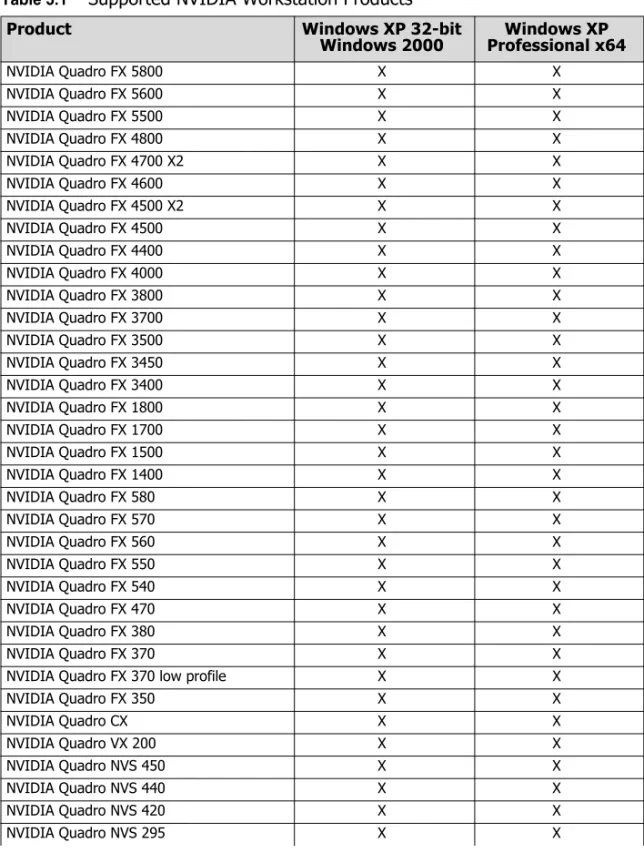
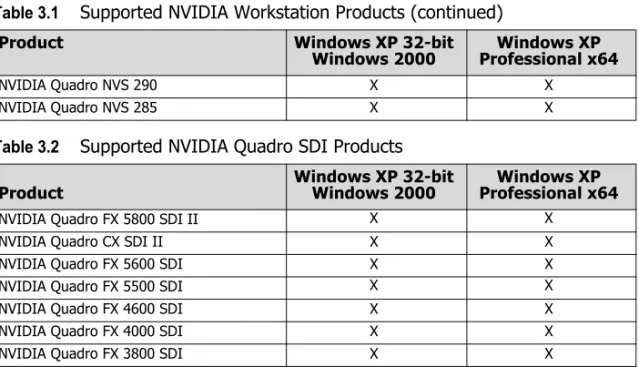
Table 3.1 through Table 3.2 lists the NVIDIA workstation products supported by this Release 182 driver.
Table 3.1 Supported NVIDIA Workstation Products
Product Windows XP 32-bit
Windows 2000 Professional x64Windows XP
NVIDIA Quadro FX 5800 X X NVIDIA Quadro FX 5600 X X NVIDIA Quadro FX 5500 X X NVIDIA Quadro FX 4800 X X NVIDIA Quadro FX 4700 X2 X X NVIDIA Quadro FX 4600 X X NVIDIA Quadro FX 4500 X2 X X NVIDIA Quadro FX 4500 X X NVIDIA Quadro FX 4400 X X NVIDIA Quadro FX 4000 X X NVIDIA Quadro FX 3800 X X NVIDIA Quadro FX 3700 X X NVIDIA Quadro FX 3500 X X NVIDIA Quadro FX 3450 X X NVIDIA Quadro FX 3400 X X NVIDIA Quadro FX 1800 X X NVIDIA Quadro FX 1700 X X NVIDIA Quadro FX 1500 X X NVIDIA Quadro FX 1400 X X NVIDIA Quadro FX 580 X X NVIDIA Quadro FX 570 X X NVIDIA Quadro FX 560 X X NVIDIA Quadro FX 550 X X NVIDIA Quadro FX 540 X X NVIDIA Quadro FX 470 X X NVIDIA Quadro FX 380 X X NVIDIA Quadro FX 370 X X
NVIDIA Quadro FX 370 low profile X X
NVIDIA Quadro FX 350 X X NVIDIA Quadro CX X X NVIDIA Quadro VX 200 X X NVIDIA Quadro NVS 450 X X NVIDIA Quadro NVS 440 X X NVIDIA Quadro NVS 420 X X NVIDIA Quadro NVS 295 X X
N V I D I A Q u a d r o P r o f e s s i o n a l D r i v e r s , R e l e a s e 1 8 2 V e r s i o n 1 8 2 . 4 6
NVIDIA Quadro NVS 290 X X
NVIDIA Quadro NVS 285 X X
Table 3.2 Supported NVIDIA Quadro SDI Products
Product Windows XP 32-bitWindows 2000 Professional x64Windows XP NVIDIA Quadro FX 5800 SDI II X X
NVIDIA Quadro CX SDI II X X
NVIDIA Quadro FX 5600 SDI X X
NVIDIA Quadro FX 5500 SDI X X
NVIDIA Quadro FX 4600 SDI X X
NVIDIA Quadro FX 4000 SDI X X
NVIDIA Quadro FX 3800 SDI X X
Table 3.1 Supported NVIDIA Workstation Products (continued)
Product Windows XP 32-bit
CH A P T E R 3 : T h e R e l e a s e 1 8 2 D r i v e r f o r W i n d o w s X P H a r d w a r e a n d S o f t w a r e S u p p o r t
Supported Languages
The Release 182 Quadro Professional Drivers supports the following languages in the main driver Control Panel:
English (USA) German Portuguese (Euro/Iberian)
English (UK) Greek Russian
Arabic Hebrew Slovak
Chinese (Simplified) Hungarian Slovenian Chinese (Traditional) Italian Spanish
Czech Japanese Spanish (Latin America)
Danish Korean Swedish
Dutch Norwegian Thai
Finnish Polish Turkish
N V I D I A Q u a d r o P r o f e s s i o n a l D r i v e r s , R e l e a s e 1 8 2 V e r s i o n 1 8 2 . 4 6
Driver Installation
System Requirements
The hard disk space requirement for 32 bit is minimum 68.3 MB for English‐ only, and 107 MB for International.
The hard disk space requirement for 64 bit is minimum 80 MB for English‐only, and 117 MB for International.
Installation Instructions
Before You Begin
• If NVIDIA nTune is already installed
If you have previously installed NVIDIA nTune, NVIDIA recommends that you uninstall nTune before installing this driver. After the driver install is complete, you can reinstall nTune.
• If you do not have System Administrator access privileges, it is assumed that the appropriate person with System Administrator access in your
organization will set up and install the NVIDIA graphics driver software on your computer.
• The installation process copies all necessary files for operation into the appropriate directories.
• The nView system files are copied to your Windows\System directory. • nView Desktop Manager Profile files (*.tvp) are saved in the Windows\Nview
directory.
Depending on the version of the NVIDIA driver previously installed, profiles may also be located in the Documents and Settings\All Users\ Application Data\nView_Profiles directory.
• As part of the install process, an uninstall is registered in your system. • Under Windows XP, the NVIDIA driver is installed in “Dualview mode”
display. However, note that the second display is not activated by default, but must be enabled.
CH A P T E R 3 : T h e R e l e a s e 1 8 2 D r i v e r f o r W i n d o w s X P D r i v e r I n s t a l l a t i o n
Preserving Settings Before Upgrading Your Software
Before uninstalling or installing software, your can preserve your nView Desktop Manager and/or NVIDIA Display settings by using the nView Desktop Manager Profiles features.
Note: Follow the steps below and/or refer to the
NVIDIA nView Desktop
Manager User’s Guide
for details. Under Windows XP/2000 andWindows NT 4.0, you must have, at least, Power User access privileges in order to create or save a profile. (Refer to Windows Help if you need an explanation of Power User access rights.)
Follow the steps below and/or refer to the
NVIDIA nView Desktop Manager
User’s Guide
for details.1 Open the nView Desktop Manager Profiles page (Figure 4.1).
2 To preserve your current settings, you can use either the Save or the New option from the nView Desktop Manager Profiles page:
• If you want to overwrite the currently loaded profile with your changed settings, use the Save option. Notice that a warning message indicates that you are about to overwrite the selected profile.
• If you want to retain the currently loaded profile and want to save your changed settings to a new file, click the New option. Enter a name and description of the profile in the New Profile dialog box. For example, you can name this profile My Settings.
3 If you are an “advanced” user and want to customize certain settings in the saved profile, click Advanced << to expand the dialog box (Figure 4.2). 4 To customize the settings, you can select or clear any of the settings check
boxes.
5 Click Save to return to the main Profiles page.
If you created a new profile, you will see the name of the newly created profile in the profiles list.
If you overwrote a current profile, the same profile name is retained in the list.
Note: nView Desktop Manager profile (.tvp) files are saved in the Windows\ nView directory. Depending on the version of the NVIDIA driver previously installed, profiles may also be saved in the Documents and Settings\All Users\Application Data\ nView_Profiles directory.
6 Now you can uninstall your current driver for a driver upgrade.
7 After you restart your computer following an NVIDIA new driver install, you can easily load the saved profile from the Profiles page of nView Desktop Manager.
About Using Saved Profiles in Another Computer
You can easily use any saved profile (.tvp file in the Windows\nView directory) from one computer and use it in another computer, if you want. You’ll need to copy it to the Windows\nView directory of a computer that has the NVIDIA ForceWare graphics display driver, etc. installed properly. Then
N V I D I A Q u a d r o P r o f e s s i o n a l D r i v e r s , R e l e a s e 1 8 2 V e r s i o n 1 8 2 . 4 6
this profile can be loaded from another computer from the nView Desktop Manager Profiles page just as it can from your original computer.
Uninstalling the NVIDIA Display Driver Software
Note: It is highly recommended that you follow the steps in this section to completely uninstall the NVIDIA Display Driver software before updating to a new version of the software.
To uninstall the nView software, follow these steps:
1 From the Windows taskbar, click Start > Settings > Control Panel to open the Control Panel window.
2 Double‐click the Add/Remove Programs item. 3 Click the NVIDIA Display Driver item from the list. 4 Click Change/Remove.
5 Click Yes to continue.
A prompt appears asking whether you want to delete all of the saved nView profiles.
• If you click Yes, all of the nView software and all of your saved profiles will be deleted.
• If you click No, the nView software is removed, but the profile files are saved in the Windows\nView directory on your hard disk.
Your system now restarts.
Installing the NVIDIA ForceWare Graphics Drivers
1 Follow the instructions on the NVIDIA .com Web site driver download page to locate the appropriate driver to download, based on your hardware and operating system.
2 Click the driver download link.
The license agreement dialog box appears.
3 Click Accept if you accept the terms of the agreement, then either open the file or save the file to your PC and open it later.
Opening the EXE file launches the NVIDIA InstallShield Wizard.
4 Follow the instructions in the NVIDIA InstallShield Wizard to complete the installation.
N V I D I A Q u a d r o P r o f e s s i o n a l D r i v e r s , R e l e a s e 1 8 2 V e r s i o n 1 8 2 . 4 6
A
P P E N D I X
M
ODE
S
UPPORT
FOR
W
INDOWS
This chapter details the Windows modes supported by the Release 182 driver for NVIDIA products. It contains these sections:
•
“General
Mode
Support
Information”
on
page 34
•
“Default
Modes
Supported
by
GPU
for
Windows
XP”
on
page 35
AP P E N D I X A : M o d e S u p p o r t f o r W i n d o w s G e n e r a l M o d e S u p p o r t I n f o r m a t i o n
General Mode Support Information
The NVIDIA graphics driver includes a standard list of display modes that are supported by default. These modes are listed in the section “Default Modes
Supported by GPU for Windows XP” on page 35.
The actual modes available depend on the capabilities of the display. In addition, the NVIDIA graphics driver has a “dynamic EDID detection”
capability and will make available additional modes that are listed in the display EDID, provided the graphics hardware can support it.
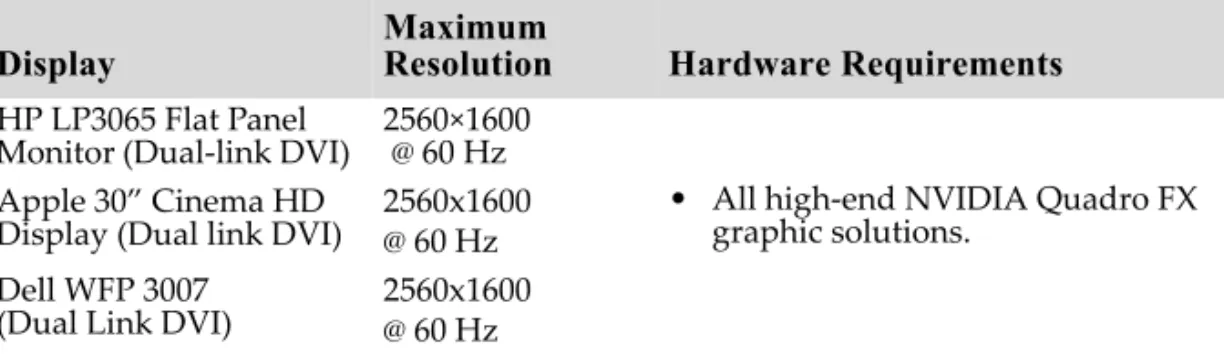
The NVIDIA graphics driver also supports the high resolutions available with the displays listed in Table A.1 as well as the non‐standard modes listed in
Table A.2.
Table A.1 Modes Supported for High Resolution Displays
Display Maximum Resolution Hardware Requirements HP LP3065 Flat Panel
Monitor (Dual‐link DVI) 2560×1600 @ 60 Hz Apple 30” Cinema HD
Display (Dual link DVI) 2560x1600 @ 60 Hz • All high‐end NVIDIA Quadro FX graphic solutions. Dell WFP 3007
(Dual Link DVI) 2560x1600 @ 60 Hz
Table A.2 Non-standard Modes Supported
Resolution 1680 x 1050 1366 x 768
N V I D I A Q u a d r o P r o f e s s i o n a l D r i v e r s , R e l e a s e 1 8 2 V e r s i o n 1 8 2 . 4 6
Default Modes Supported by GPU for Windows XP
This section lists the modes that are included by default in the driver INF for the following product families:
•
“NVIDIA
Quadro
FX
5600/4700
X2/4600/4400/4000/3700/1800/1700/
1400/580/570/550/540/470/380/360
and
NVS
Family
of
GPUs”
on
page 36
•
“NVIDIA
Quadro
FX
5800/4800/3800
Family
of
GPUs”
on
page 43
•
“NVIDIA
Quadro
FX
5500/4500/4500
X2/3500/1500/560
Family
of
GPUs”
on
page 50
Understanding the Mode Format
Figure A.1 gives an example of how to read the mode information presented in this section.
Figure A.1 Mode Format
Note:
• Horizontal spanning modes of 3840x1080 and above, and vertical
spanning modes of 1920x2160 and above generally require at least 32 MB of video memory at 32 bpp.
• An “i” next to the refresh rate indicates an interlaced refresh rate.
Resolution Example entry: 1024 x 768 32 60 70 72 75 85 100 120 140 144 150 170 200 Meaning: Resolution: 1024 x 768 Color depth: 32 bpp Refresh rates: 60 Hz, 70 Hz, 72 Hz, 75 Hz, 85 Hz, 100 Hz, 120 Hz,
140 Hz, 144 Hz, 150 Hz, 170 Hz, and 200 Hz Color Depth Refresh Rates
AP P E N D I X A : M o d e S u p p o r t f o r W i n d o w s D e f a u l t M o d e s S u p p o r t e d b y G P U f o r W i n d o w s
NVIDIA Quadro FX 5600/4700 X2/4600/4400/4000/
3700/1800/1700/1400/580/570/550/540/470/
380/360 and NVS Family of GPUs
This sections lists the supported display resolutions, color depths, and refresh rates for the following products:
• NVIDIA
Quadro
FX
5600
• NVIDIA
Quadro
FX
4700
X2
• NVIDIA
Quadro
FX
4600
• NVIDIA
Quadro
FX
3400/4400
• NVIDIA
Quadro
FX
4000
• NVIDIA
Quadro
FX
3700
• NVIDIA
Quadro
FX
1800
• NVIDIA
Quadro
FX
1700
• NVIDIA
Quadro
FX
1400
• NVIDIA
Quadro
FX
580
• NVIDIA
Quadro
FX
570
• NVIDIA
Quadro
FX
550
• NVIDIA
Quadro
FX
540
• NVIDIA
Quadro
FX
470
• NVIDIA
Quadro
FX
380
• NVIDIA
Quadro
FX
360
• NVIDIA
Quadro
NVS
440
• NVIDIA
Quadro
NVS
420
• NVIDIA
Quadro
NVS
295
• NVIDIA
Quadro
NVS
290
• NVIDIA
Quadro
NVS
285
• NVIDIA
Quadro
NVS
210S
Standard Modes
640 x 480 8 60 70 72 75 85 100 120 140 144 150 170 200 240 720 x 480 8 60N V I D I A Q u a d r o P r o f e s s i o n a l D r i v e r s , R e l e a s e 1 8 2 V e r s i o n 1 8 2 . 4 6 720 x 576 8 50 60 800 x 600 8 60 70 72 75 85 100 120 140 144 150 170 200 240 848 x 480 8 60 70 72 75 85 100 120 140 144 150 170 200 240 960 x 600 8 60 70 72 75 85 100 120 140 144 150 170 200 240 1024 x 768 8 60 70 72 75 85 100 120 140 144 150 170 200 240 1152 x 864 8 60 70 72 75 85 100 120 140 144 150 170 200 1280 x 720 8 60 70 72 75 85 100 120 140 144 150 170 1280 x 768 8 60 70 72 75 85 100 120 140 144 150 170 1280 x 800 8 60 70 72 75 85 100 120 140 144 150 170 1280 x 960 8 60 70 72 75 85 100 120 140 144 150 170 1280 x 1024 8 60 70 72 75 85 100 120 140 144 150 170 1360 x 768 8 60 70 72 75 85 100 120 140 144 150 170 1440 x 900 8 60 70 72 75 85 100 120 140 144 150 170 200 1600 x 900 8 60 70 72 75 85 100 120 1600 x 1200 8 60 70 72 75 85 100 120 1680 x 1050 8 60 1920 x 1080 8 60 1920 x 1200 8 60 70 72 75 85 100 1920 x 1440 8 60 70 72 75 85 2048 x 1536 8 60 70 72 75 85 640 x 480 16 60 70 72 75 85 100 120 140 144 150 170 200 240 720 x 480 16 60 720 x 576 16 50 60 800 x 600 16 60 70 72 75 85 100 120 140 144 150 170 200 240 848 x 480 16 60 70 72 75 85 100 120 140 144 150 170 200 240 960 x 600 16 60 70 72 75 85 100 120 140 144 150 170 200 240 1024 x 768 16 60 70 72 75 85 100 120 140 144 150 170 200 240 1152 x 864 16 60 70 72 75 85 100 120 140 144 150 170 200 1280 x 720 16 60 70 72 75 85 100 120 140 144 150 170 1280 x 768 16 60 70 72 75 85 100 120 140 144 150 170 1280 x 800 16 60 70 72 75 85 100 120 140 144 150 170 1280 x 960 16 60 70 72 75 85 100 120 140 144 150 170 1280 x 1024 16 60 70 72 75 85 100 120 140 144 150 170 1360 x 768 16 60 70 72 75 85 100 120 140 144 150 170 1440 x 900 16 60 70 72 75 85 100 120 140 144 150 170 200 1600 x 900 16 60 70 72 75 85 100 120 1600 x 1200 16 60 70 72 75 85 100 120 1680 x 1050 16 60