by Barbara Obermeier
and Ted Padova
Photoshop
®
Elements 4
Just the Steps
™
FOR
by Barbara Obermeier
and Ted Padova
Photoshop
®
Elements 4
Just the Steps
™
FOR
111 River Street
Hoboken, NJ 07030-5774 www.wiley.com
Copyright © 2006 by Wiley Publishing, Inc., Indianapolis, Indiana Published by Wiley Publishing, Inc., Indianapolis, Indiana Published simultaneously in Canada
No part of this publication may be reproduced, stored in a retrieval system or transmitted in any form or by any means, electronic, mechanical, photocopying, recording, scanning or otherwise, except as permitted under Sections 107 or 108 of the 1976 United States Copyright Act, without either the prior written permission of the Publisher, or authorization through payment of the appropriate per-copy fee to the Copyright Clearance Center, 222 Rosewood Drive, Danvers, MA 01923, (978) 750-8400, fax (978) 646-8600. Requests to the Publisher for permission should be addressed to the Legal Department, Wiley Publishing, Inc., 10475 Crosspoint Blvd., Indianapolis, IN 46256, (317) 572-3447, fax (317) 572-4355, or online at http://www.wiley.com/go/permissions.
Trademarks:Wiley, the Wiley Publishing logo, For Dummies, the Dummies Man logo, A Reference for the Rest of Us!, The Dummies Way, Dummies Daily, The Fun and Easy Way, Dummies.com, Just the Steps, and related trade dress are trademarks or registered trademarks of John Wiley & Sons, Inc. and/or its affiliates in the United States and other countries, and may not be used without written permission. Photoshop is a registered trademark of Adobe Systems, Incorporated in the United States and/or other countries. All other trademarks are the property of their respective owners. Wiley Publishing, Inc., is not associated with any product or vendor mentioned in this book.
LIMIT OF LIABILITY/DISCLAIMER OF WARRANTY: THE PUBLISHER AND THE AUTHOR MAKE NO REPRESENTATIONS OR WARRANTIES WITH RESPECT TO THE ACCURACY OR COMPLETENESS OF THE CONTENTS OF THIS WORK AND SPECIFICALLY DISCLAIM ALL WARRANTIES, INCLUDING WITHOUT LIMITATION WARRANTIES OF FITNESS FOR A PARTICULAR PURPOSE. NO WARRANTY MAY BE CREATED OR EXTENDED BY SALES OR PROMOTIONAL MATERIALS. THE ADVICE AND STRATEGIES CONTAINED HEREIN MAY NOT BE SUITABLE FOR EVERY SITUATION. THIS WORK IS SOLD WITH THE UNDERSTANDING THAT THE PUBLISHER IS NOT ENGAGED IN RENDERING LEGAL, ACCOUNT-ING, OR OTHER PROFESSIONAL SERVICES. IF PROFESSIONAL ASSISTANCE IS REQUIRED, THE SERVICES OF A COMPETENT PROFESSIONAL PERSON SHOULD BE SOUGHT. NEITHER THE PUBLISHER NOR THE AUTHOR SHALL BE LIABLE FOR DAMAGES ARISING HEREFROM. THE FACT THAT AN ORGANIZATION OR WEBSITE IS REFERRED TO IN THIS WORK AS A CITATION AND/OR A POTENTIAL SOURCE OF FUR-THER INFORMATION DOES NOT MEAN THAT THE AUTHOR OR THE PUBLISHER ENDORSES THE INFORMATION THE ORGANIZATION OR WEBSITE MAY PROVIDE OR RECOMMENDATIONS IT MAY MAKE. FURTHER, READERS SHOULD BE AWARE THAT INTERNET WEBSITES LISTED IN THIS WORK MAY HAVE CHANGED OR DISAPPEARED BETWEEN WHEN THIS WORK WAS WRITTEN AND WHEN IT IS READ.
For general information on our other products and services, please contact our Customer Care Department within the U.S. at 800-762-2974, out-side the U.S. at 317-572-3993, or fax 317-572-4002.
For technical support, please visit www.wiley.com/techsupport.
Wiley also publishes its books in a variety of electronic formats. Some content that appears in print may not be available in electronic books. Library of Congress Control Number: 2005938251
ISBN-13: 978-0-7645-7478-8 ISBN-10: 0-7645-7478-7
Manufactured in the United States of America 10 9 8 7 6 5 4 3 2 1
About the Authors
Barbara Obermeieris principal of Obermeier Design, a graphic design studio in Ventura, California. She’s the author of Photoshop CS2 All-in-One Desk Reference
For Dummies and has contributed as author, coauthor,
or technical editor on numerous books. Barb is also a faculty member in the Visual Communication Department at Brooks Institute.
Ted Padovais the author of over 20 computer books. He writes primarily on Adobe Acrobat, Adobe Photoshop, Photoshop Elements, and Adobe Illustrator. He is a nationally and internationally known speaker on Adobe Acrobat and digital imaging.
Dedications
I would like to dedicate this book to Gary, Kylie, and Lucky.
—Barbara Obermeier
For Arnie
—Ted Padova
Authors’ Acknowledgments
Acquisitions, Editorial, and Media Development
Project Editor:Rebecca Huehls
Sr. Acquisitions Editor:Bob Woerner
Copy Editor:Virginia Sanders
Technical Editor:David Herman
Editorial Manager:Leah P. Cameron
Media Development Manager:Laura VanWinkle
Editorial Assistant:Amanda Foxworth
Cartoons:Rich Tennant (www.the5thwave.com)
Composition Services
Project Coordinator:Adrienne Martinez
Layout and Graphics:Denny Hager, Lynsey Osborn, Heather Ryan, Erin Zeltner
Proofreaders:Leeann Harney, Betty Kish, Dwight Ramsey
Indexer:Sherry Massey
Publisher’s Acknowledgments
We’re proud of this book; please send us your comments through our online registration form located at www.dummies.com/register/. Some of the people who helped bring this book to market include the following:
Publishing and Editorial for Technology Dummies
Richard Swadley,Vice President and Executive Group Publisher
Andy Cummings,Vice President and Publisher
Mary Bednarek,Executive Acquisitions Director
Mary C. Corder,Editorial Director
Publishing for Consumer Dummies
Diane Graves Steele,Vice President and Publisher
Joyce Pepple,Acquisitions Director
Composition Services
Gerry Fahey,Vice President of Production Services
Introduction...1
Part I: Acquiring and
Organizing Images ...3
Chapter 1: Getting Familiar with Photoshop Elements ...5
Chapter 2: Acquiring Photos ...15
Chapter 3: Changing Image Attributes ...25
Chapter 4: Organizing Images...37
Chapter 5: Saving and Undoing Edits ...47
Part II: Fixing Photos ...55
Chapter 6: Quick Fixing Images...57
Chapter 7: Repairing Images ...73
Part III: Editing Techniques ...87
Chapter 8: Making Selections...89
Chapter 9: Getting Creative with Layers ...103
Chapter 10: Working with Type ...119
Chapter 11: Drawing and Painting...127
Chapter 12: Applying Filters ...147
Part IV: Outputting Photos ...157
Chapter 13: Preparing Images for Screen Viewing...159
Chapter 14: Printing Images ...167
Part V: Working with Creations...177
Chapter 15: Making Creations ...179
Chapter 16: Sharing Images...201
Index...213
Introduction...1
Part I: Acquiring and
Organizing Images ...3
Chapter 1: Getting Familiar with Photoshop Elements . . . .5
Start Up Photoshop Elements ...6
Navigate the Workspaces...7
Open the Creation Setup Wizard ...8
Open a Photo...9
Open Multiple Photos...9
View Image Attributes...10
Maximize the Image Window ...10
Zoom a View ...11
Use the Navigator Palette...12
Show and Hide the Palette Bin...12
Use the Photo Bin ...13
Tile Images ...14
Move Images Inside Windows ...14
Cascade Images...14
Close All Windows ...14
Chapter 2: Acquiring Photos . . . .15
Add Photos from Your Hard Drive to the Organizer ...16
Scan a Photo ...17
Scan Multiple Photos ...18
Get Photos from an Online Sharing Service ...19
Get Photos from Media Cards ...20
Open Camera Raw Files ...22
Get Photos from Mobile Phones...23
Chapter 3: Changing Image Attributes . . . .25
Show More Image Attributes ...26
Resize an Image ...27
Change Canvas Size...27
Change Image Bit Depth...28
Convert to Grayscale ...29
Convert to Bitmap ...30
Colorize a Bitmap File...31
Convert an Image to Indexed Color ...32
Change Color Settings...33
Embed a Custom Color Profile for Print...34
Remove a Color Profile ...36
Save an Image with a Screen Color Profile...36
Chapter 4: Organizing Images . . . .37
Sort Images by Date ...38
Create a Catalog...39
Create a Collection ...40
Create a Tag ...41
Tag Images ...41
Rank Photos with Stars ...42
Remove Tags...42
Add Captions ...43
Find Files by Captions...43
Find Images by Media Type ...44
Find Images by Filename ...44
Find Faces...45
Use Other Find Criteria...45
Chapter 5: Saving and Undoing Edits . . . .47
Undo Multiple Edits...48
Use the Undo History Palette ...49
Save a File...50
Save a Version Set...51
Back Up Photos ...52
Restore Files from a Backup Copy...53
Part II: Fixing Photos ...55
Chapter 6: Quick Fixing Images . . . .57
Improve Overall with Auto Smart Fix ...58
Fix Contrast with Auto Levels ...58
Adjust Contrast with Auto Contrast ...59
Remove Color Casts with Auto Color Correction ...59
Edit with Quick Fix ...60
Erase Red Eye with Auto Red Eye Fix ...62
Click with the Red Eye Removal Tool ...62
Adjust Smart Fix...63
Adjust Shadows and Highlights...63
Adjust Brightness and Contrast ...64
Fix Contrast with the Levels Dialog Box ...65
Adjust Hue/Saturation...66
Fix Color with Remove Color Cast...67
Remove Color ...67
Replace Colors with Others ...68
Adjust Color for Skin Tones...69
Adjust Color with Color Variations ...70
Defringe to Remove Colored Halos...71
Chapter 7: Repairing Images . . . .73
Crop an Image ...74
Straighten an Image...75
Divide Scanned Photos ...76
Rotate or Flip an Image ...76
Freely Rotate a Layer or Selection...77
Transform a Layer or Selection ...78
Remove Dust and Scratches ...79
Clone and Repair with the Clone Stamp...80
Zap Small Flaws with Spot Healing Brush...81
Retouch with the Healing Brush ...82
Burn Areas to Darken ...83
Dodge Areas to Lighten...83
Soften with the Smudge Tool ...84
Saturate or Desaturate an Image ...85
Soften with the Blur Tool...85
Sharpen an Image...86
Part III: Editing Techniques ...87
Chapter 8: Making Selections . . . .89
Make a Rectangular Selection ...90
Make an Elliptical Selection ...91
Make a Freeform Selection with the Lasso Tool...92
Make a Magnetic Lasso Selection ...93
Make a Polygon Lasso Selection...93
Make a Magic Wand Selection...94
Select Similar Content...95
Inverse a Selection ...95
Select with the Magic Selection Brush ...96
Create a Mask with the Selection Brush ...97
Move a Selection...98
Feather a Selection...98
Use the Magic Extractor ...99
Cut Out with the Cookie Cutter...100
Save a Selection ...101
Load a Selection ...101
Transform a Selection...102
Chapter 9: Getting Creative with Layers . . . .103
Convert a Background into a Layer ...104
Create a New Layer in an Existing File ...105
Get Contents on a Layer...105
Create a Layer Using Layer via Copy and Layer via Cut Commands ...106
Drag and Drop a Layer between Files ...106
Duplicate an Existing Layer ...107
Select a Layer ...107
Delete a Layer...108
View and Hide Layers ...108
Rearrange Layers...109
Link Layers...109
Lock Layers...110
Rename Layers ...110
Simplify Layers...111
Create a Clipping Group...111
Blend Layers with Blend Modes...112
Create an Adjustment Layer ...112
Create a Fill Layer...114
Apply a Layer Effect ...116
Apply a Layer Style...117
Merge Layers ...118
Flatten Layers...118
Chapter 10: Working with Type . . . .119
Create Horizontal Type ...120
Create Vertical Type ...121
Change Type Formatting ...121
Create Paragraph Text...122
Create a Type Mask ...123
Rasterize Type ...124
Apply a Type Style ...124
Paste into Text...125
Create Warped Type ...126
Chapter 11: Drawing and Painting . . . .127
Select a Foreground or Background Color...128
Sample a Color with the Eyedropper Tool ...129
Select a Color from the Swatches Palette...130
Draw with the Pencil Tool ...131
Paint with the Brush Tool ...132
Create a Custom Brush ...134
Create a Painting with the Impressionist Brush...134
Fill a Selection with Color ...135
Stroke or Outline a Selection with Color ...136
Fill a Selection with the Paint Bucket Tool...137
Fill a Selection with a Preset Gradient ...138
Create a Custom Noise Gradient ...139
Create a Custom Solid Gradient ...140
Apply a Preset Pattern ...142
Create a Custom Pattern ...143
Create a Shape ...144
Edit Shapes ...146
Chapter 12: Applying Filters . . . .147
Apply Artistic Effects to an Image ...148
Apply Multiple Filters to an Image ...149
Reapply the Same Filters to an Image...150
Apply a Texture Filter ...150
Create a Custom Texture ...151
Apply a Motion Blur Filter...152
Apply a Gaussian Blur Filter ...153
Sharpen an Image with Unsharp Mask...154
Use Photo Filters ...155
Part IV: Outputting Photos ...157
Chapter 13: Preparing Images for Screen Viewing . . . .159
Save a JPEG Image for the Web ...160
Save a GIF Image for the Web ...162
➟
ixCreate an Animated GIF Image ...163
View a Slide Show in the Organizer ...164
Chapter 14: Printing Images . . . .167
Set Up a Color Printer Profile ...168
Adjust Printer Properties ...169
Print a Photo...170
Print Multiple Photos ...171
Print a Contact Sheet ...172
Print a Picture Package...173
Order Prints Online ...174
Part V: Working with Creations...177
Chapter 15: Making Creations . . . .179
Create a Slide Show Project ...180
Output a Slide Show to PDF ...182
View a PDF Slide Show...183
Change Slides and Transitions ...184
Add Media to a Slide Show ...184
Fit Slides to an Audio File...185
Record Sounds as Audio Captions ...185
Export a Slide Show to a Movie File ...186
Preview a Movie File ...187
Burn a CD of a Slide Show ...188
Create a TV-Safe Template...190
Drop Images into a TV-Safe Template...192
Output a Slide Show for TV Viewing ...193
Create Photo Album Pages ...194
Create a 4-Fold Greeting Card...197
Create Calendar Pages...198
Create a Photo Greeting Card ...200
Chapter 16: Sharing Images . . . .201
E-Mail a Photo Attachment ...202
E-Mail a Photo Mail (HTML) File ...204
E-Mail a Slide Show ...205
Order Prints Online for Others ...206
Order a Bound Photo Album Online ...207
Order a Bound Calendar Online...208
Share Photos Online ...209
Download Images to a Palm PDA...209
Create an HTML Photo Gallery...210
Index...213
W
elcome to Adobe Photoshop Elements 4. This new version of Photoshop Elements has an abundant number of tools and com-mands to satisfy all your digital photo editing needs. Whether you’re a novice, a serious amateur, or a professional photographer, PhotoshopElements 4 Just the Steps For Dummies has something for you.
About This Book
This book cuts all the fluff out of a computer book and takes you right to steps to produce an effect, task, or job. The book is not linear. However, in some cases you might need to move around a little to understand one concept before moving to another. Each series of steps is defined with headings to simplify your task of searching for a specific item and finding similar tasks related to a particular concept. Be certain to look back at the Table of Contents when you aren’t certain where to find one task or another.
Whenever you want to get something done with this book, simply fol-low this method:
1. Pick the task. Glance over the Table of Contents to find a cate-gory you want to explore — something like working with layers, which we cover in Chapter 8.
2. Find it fast. This is easy because the chapters are designed with coverage of similar items within each chapter. Look over the head-ings listed in the Table of Contents to find a specific task within a given chapter.
3. Get it done. Mimic each step and look at the accompanying fig-ures to help you thoroughly understand a given task.
Why You Need This Book
Adobe Photoshop Elements is a true bargain. Although you pay far less for Elements than its bigger sibling, Photoshop, you acquire a sophisti-cated program with many complex tools and methods for producing
Conventions used
in this book
➟
We use the ➪symbol for menu commands. This tells you to follow the path to select a menu command. Something like Image➪Resize➪Image Size instructs you to click the Image menu, move the cursor down to the Resize com-mand, and choose Image Size from the Resize submenu. When you select this particular menu command, the Image Size dialog box opens.
➟
Web site addresses appear in a monospace type font to make them easy to identify. Type the URL in your Web browser Location bar exactly as you see the monospace type. For example: www.dummies.com➟
To help clarify steps, some figures contain a [image:14.666.407.606.71.478.2]circle or callout symbol. Look carefully at each figure to fully understand what we talk about in the text.
Look for this icon to find tips, notes, and special points of interest throughout the text.
results. The user documentation and help guides don’t suffi-ciently describe all that you can do with the program. What’s more, to find a specific solution, you might need to wade through a lot of text to describe a method you want to use in your workflow.
This book eliminates background descriptions and detailed text explanations and takes you directly to a series of steps to produce precisely what you want to do with a photo. It isn’t a sit down seven-course meal; it’s more like a fast food restau-rant that satisfies your appetite for knowledge immediately.
How This Book Is Organized
This book is organized into five parts. The following sections introduce each one.
Part I: Acquiring and Organizing Images
The first thing you need to know about working in Photoshop Elements is how to get photos into your computer. This first section describes acquiring photos from a variety of sources including digital cameras, digital scanners, mobile phones, CD/DVD ROMs, and media storage devices. If you have a great number of photos you copy to your hard drive, you’ll want to find out all the organization opportunities provided by Photoshop Elements that we cover in this part.
Part II: Fixing Photos
Just about any photo you acquire from any source requires you to enhance the images for brightness controls, color bal-ance, removal of dust and scratches, and other anomalies you might find. Look to this part to discover the best way to make image enhancements.
Part III: Editing Techniques
Whether it be applying an effect, merging photos, adding some text to a photograph, or a host of other edits you want to apply to your photos, this part covers it all.
Part IV: Outputting Photos
You take a photo with a digital camera, scan a photo on your scanner, or acquire a photo from another source and make edits to the photo. When you finish editing an image, the next logical step is to show the image either on screen or in a print. This part covers preparing images for screen viewing in slide shows, on Web browsers, or with other screen viewers. This part also covers printing your files locally on your own desktop printer or prepping and sending them to a commer-cial photo lab printer.
Part V: Working with Creations
Photoshop Elements 4 is really two programs in one package: The original photo editor that was simply Photoshop Elements prior to version 3 and the former Adobe Photoshop Album program. Photoshop Album is fully integrated in Photoshop Elements 4, where you find tools and commands to help you create cards, calendars, slide shows, TV videodiscs, and more. This section covers all the marvelous features for assembling a number of different creations.
Get Ready To
Glance over the Table of Contents to locate the task you want to perform in Photoshop Elements. You don’t need to grasp any background information. Just jump into the series of steps that defines a solution for a project you want to complete.
Part I
Chapter 1: Getting Familiar
with Photoshop Elements . . . .5
Start Up Photoshop Elements...6
Navigate the Workspaces ...7
Open the Creation Setup Wizard ...8
Open a Photo...9
Open Multiple Photos...9
View Image Attributes...10
Maximize the Image Window ...10
Zoom a View ...11
Use the Navigator Palette ...12
Show and Hide the Palette Bin...12
Use the Photo Bin...13
Tile Images ...14
Move Images Inside Windows ...14
Cascade Images ...14
Close All Windows ...14
Chapter 2: Acquiring Photos . . . .15
Add Photos from Your Hard Drive to the Organizer ...16
Scan a Photo ...17
Scan Multiple Photos ...18
Get Photos from an Online Sharing Service...19
Get Photos from Media Cards ...20
Open Camera Raw Files ...22
Get Photos from Mobile Phones...23
Chapter 3: Changing Image Attributes . . . .25
Show More Image Attributes ...26
Resize an Image ...27
Change Canvas Size...27
Change Image Bit Depth...28
Convert to Grayscale...29
Convert to Bitmap ...30
Colorize a Bitmap File ...31
Convert an Image to Indexed Color...32
Change Color Settings...33
Embed a Custom Color Profile for Print ...34
Remove a Color Profile ...36
Save an Image with a Screen Color Profile ...36
Chapter 4: Organizing Images . . . .37
Sort Images by Date...38
Create a Catalog...39
Create a Collection ...40
Create a Tag ...41
Tag Images ...41
Rank Photos with Stars...42
Remove Tags ...42
Add Captions ...43
Find Files by Captions...43
Find Images by Media Type ...44
Find Images by Filename ...44
Find Faces ...45
Use Other Find Criteria...45
Find Images by Using Metadata ...46
Chapter 5: Saving and Undoing Edits . . . .47
Undo Multiple Edits...48
Use the Undo History Palette ...49
Save a File ...50
Save a Version Set ...51
Back Up Photos ...52
Getting Familiar
with Photoshop
Elements
P
hotoshop Elements is like having two programs in the same pack-age: an image editor and an image organizer. Its many features can make moving around the program’s workspaces a challenge until you get familiar with the user interface.Throughout your work in Photoshop Elements, you will continually move among the workspaces. For editing your pictures, you can choose to open one of two editing workspaces. When you want to create proj-ects and organize photos, you move to another workspace.
This chapter helps you become familiar with moving around the various workspaces that Elements provides and covers some basic methods for viewing your pictures in one of Elements’ two editors. By getting a grasp on how to edit a picture and how to perform one of the organizing tasks, you will be able to work much faster and more efficiently. This chapter helps by giving you a solid understanding about how to begin your work in Photoshop Elements.
1
Get ready to . . .
➟
Start Up Photoshop Elements...6➟
Navigate the Workspaces ...7➟
Open the Creation Setup Wizard ...8➟
Open a Photo ...9➟
Open Multiple Photos ...9➟
View Image Attributes...10➟
Maximize the Image Window ...10➟
Zoom a View ...11➟
Use the Navigator Palette ...12➟
Show and Hide the Palette Bin ...12➟
Use the Photo Bin ...13➟
Tile Images...14➟
Move Images Inside Windows ...14➟
Cascade Images ...14➟
Close All Windows ...14Start Up Photoshop Elements
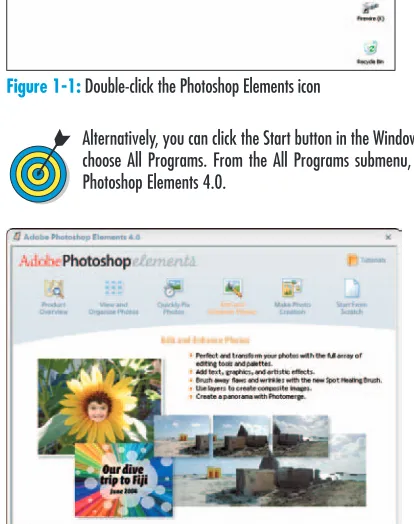
1. After installing Photoshop Elements, a shortcut icon appears on your desktop. Double-click this icon (shown in Figure 1-1) to launch Photoshop Elements.
2. When you launch Photoshop Elements, you see the Welcome Screen, shown in Figure 1-2. From the Welcome Screen, you can navigate to one of several different work-spaces. Here are the options available to you:
• Product Overview: Click this button for information about Photoshop Elements.
• View and Organize Photos:Click this button to open the Elements Organizer. The Organizer is the central navigation environment for Elements, and you can switch to any other workspace from the Organizer.
• Quickly Fix Photos:Click this button to make some minor fixes on your photos and enhance the appear-ance. This workspace is known as the Quick Fix edit-ing mode.
• Edit and Enhance Photos:Click this button to take advantage of all Elements’ editing features. This work-space is known as the Standard Edit mode.
• Make Photo Creation:Click this button to open the Creation Setup wizard, where you can make photo albums, slideshows, greeting cards, and more.
• Start from Scratch:Click this button if you want to create a new, blank document. When you create a new, blank document, it opens in the Standard Edit mode.
• Tutorials:Click Tutorials to open a Web page that shows tutorials hosted by Adobe Systems.
Figure 1-1:Double-click the Photoshop Elements icon
[image:19.666.363.570.157.419.2]Alternatively, you can click the Start button in the Windows Taskbar and choose All Programs. From the All Programs submenu, choose Adobe Photoshop Elements 4.0.
Figure 1-2:The Welcome Screen
Navigate the Workspaces
1. Launch Elements and click the View and Organize Photos button in the Welcome Screen.
2. The Organizer workspace opens, as shown in Figure 1-3. By default, you see pictures in the window. To change the thumbnail sizes of the images, move the slider in the lower-right corner of the window. Moving it left makes the thumbnails smaller; right makes them larger.
3. Click an image thumbnail in the Organizer window.
4. Choose Edit➪Go to Standard Edit. The selected image opens in the Standard Edit workspace, as shown in Figure 1-4. The image appears inside an Image window. All the editing tools are available in the Standard Edit mode. The Tools palette appears on the left side of the window, and the Palette Bin appears on the right side.
5. Return to the Organizer by clicking the Photo Browser button near the top of the program window. (The button resides on a row of buttons called the Shortcuts bar.)
6. Elements returns you to the Organizer workspace, where you can select other images for editing, sort images, and organize them.
Notice the Quick Fix button on the Shortcuts bar on the far-right side of the Standard Edit mode window. Click this button and you change your workspace to the Quick Fix workspace. In the Quick Fix workspace, you also have buttons for Standard Edit and Photo Browser that toggle your workspace views to the Standard Edit mode and the Organizer mode.
Figure 1-3:The Organizer workspace
Figure 1-4:The Standard Edit workspace
Corbis Digital Stock
➟
7Open the Creation Setup Wizard
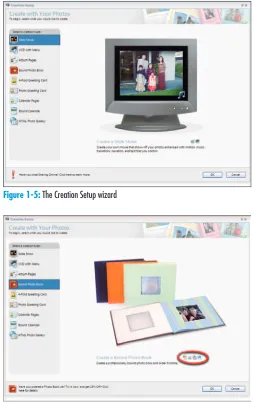
1. To organize your files in collections for greeting cards, photo albums, slideshows, and more, click the Create button in the Quick Fix, Standard Edit, or Organizer mode. The Creation Setup wizard opens, as shown in Figure 1-5. The default selection on the left is Slide Show.
2. View the options you have in the Creation Setup wizard. To select an option, click the icons on the left side of the first pane in the wizard.
3. As you click other icons, notice that the description below the center image changes to explain the selected creation, and as many as four icons appear, as shown in Figure 1-6. These icons represent different output options you have for the selected creation project. They include:
• Adobe PDF:The creation supports converting the project to a PDF document.
• Printer:The creation supports output to a printer. • Sharing Service:You can share your creation online
with other users and order the finished document from online service centers.
• E-Mail:The creation supports e-mailing the final doc-ument to other users.
[image:21.666.363.617.71.473.2]The icons in the first pane of the Creation Setup wizard are informational only. They inform you of the services that the wizard supports. As you progress through the panes in the wizard and pro-duce the final document, you see buttons to click for your output choice.
Figure 1-5:The Creation Setup wizard
Figure 1-6:The output options appear as small icons in the wizard
Open a Photo
1. You can open individual photos in either Quick Fix or Standard Edit mode. To open a file for editing in either mode, choose File➪Open. Alternatively, you can click the Open button on the Shortcuts bar or press Ctrl+O.
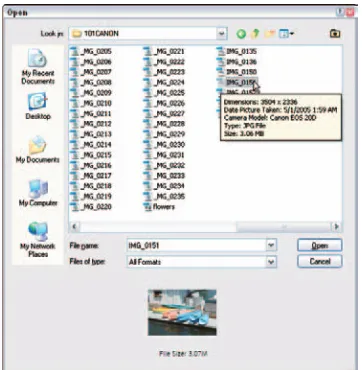
2. In the Open dialog box that appears, navigate your hard drive and select a photo. If you place the cursor on a filename and pause a moment, a ToolTip appears to dis-play the file attributes, as you see in Figure 1-7.
3. Click Open; the file opens in an Image window.
Notice that when you click a photo, an image thumbnail preview appears at the bottom of the Open dialog box, and the file size appears below the thumbnail.
Open Multiple Photos
1. Open either Quick Fix or Standard Edit mode by click-ing the respective button in the Shortcuts bar.
2. Choose File➪Open. Alternatively, you can click the Open button on the Shortcuts bar or press Ctrl+O.
3. Select a file in the Open dialog box. To open multiple photos at once, hold down the Ctrl key and click to select the additional photos, as shown in Figure 1-8.
To select a group of photos in a contiguous list, click the first photo. Press Shift and select the last photo in the list. All photos between the first and last are selected.
When multiple photos are selected, no image preview appears in the Open dialog box. Additionally, the file sizes of the selected pho-tos don’t appear in the Open dialog box.
[image:22.666.353.534.70.255.2]4. Click Open. All the selected photos open in separate Image windows.
Figure 1-7:The file attributes appear in a ToolTip
Figure 1-8:Ctrl+click to select multiple images
➟
9 [image:22.666.353.535.284.469.2]View Image Attributes
1. Open an image in Standard Edit mode.
2. View the top-left of the image title bar. You see informa-tion about the image, as shown in Figure 1-9. For the image in Figure 1-9, you see the following attributes:
• .JPG:The filename extension tells you the file is saved in JPEG format.
• 19.2%: This figure informs you the current view is the percentage of actual size.
• RGB:This item tells you the file is in RGB color mode. • /8: This item tells you the file is an 8-bit image. 3. In the lower-left corner of the Image window, the value
in the Status Bar shows you the file size of the image opened in Elements (for example, 23.4MB) and the sec-ond number is the file size in an unflattened state such as when layers are present.
If you click the right-pointing arrow next to the file size, a pop-up menu appears. From this menu, you can choose additional infor-mation to display along with the file size.
Maximize the Image Window
1. In the title bar of the image window, click the square icon on the right (next to the X). The Image window maximizes, hiding the title bar, as shown in Figure 1-10.
2. To bring back the title bar and status bar, click the Cascade icon in the top-right corner of the Standard Edit workspace, as shown in Figure 1-10.
Figure 1-9:The Title Bar displays some of the document’s properties
Figure 1-10:A maximized view
Zoom a View
1. You’ll zoom in and out of a photo in all your Elements sessions, particularly when editing details. You can zoom in on an image in a number of ways. For begin-ners, click the Zoom tool in the Tools palette to select it, as shown in Figure 1-11.
2. Move the cursor to the Image window and click several times. The image zooms, as you can see in Figure 1-12.
3. Try other zoom commands that help you zoom in and out of images, too. The commands include the following:
• Zoom out:Press the Alt key and click with the Zoom tool. Alternatively, press Ctrl+- (minus).
• Zoom in:Press Ctrl++(plus).
• Actual Pixels:Click the Actual Pixels button to zoom to an actual size. Or press Alt+Ctrl+0 (zero).
• Fit Screen:Click the Fit Screen button to show the Image window as large as it can fit in the available work area. Alternately you can press Ctrl+0 (zero) to fit the entire image in the Image window.
• Print Size:Click the Print Size button to zoom to the current printing resolution.
• Zoom percentage: With the Zoom tool selected, the Options bar above the image shows the current zoom percentage. You can edit the number or select a new zoom value from a drop-down list.
• Rectangle marquee:Click and drag the Zoom tool to create a rectangle marquee in the area you want to zoom into.
Remember the keyboard shortcuts Ctrl+- and Ctrl++ to zoom out and in, respectively. Press Ctrl+0 for a Fit Screen view and you’ll soon move much faster when editing your pictures.
Figure 1-11:The Zoom tool in the Tools palette
Figure 1-12:Click with the Zoom tool selected to zoom in
➟
11Use the Navigator Palette
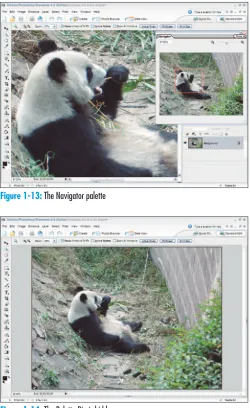
1. Choose Window➪Navigator to open the Navigator palette.
2. In the Navigator palette, drag the slider to the right to zoom into the image, as shown in Figure 1-13. Alternatively, you can click the magnifying glasses to zoom out or in. Or type a zoom percentage in the box just below the Navigator tab.
3. Move the red rectangle around the Navigator palette’s image area to change the zoom location.
4. Click the X in the palette’s top-right corner to dismiss it.
Show and Hide the Palette Bin
1. Choose Window➪Palette Bin. If the Palette Bin is open, selecting the menu command hides the bin, as shown in Figure 1-14.
2. Press Ctrl+0 to fit the image in the available window space. As you can see, hiding the Palette Bin provides much more space to see your picture in higher zoom views.
3. Choose Window➪Palette Bin when you want to open the palettes docked in the Palette Bin.
[image:25.666.366.616.70.478.2]When your editing work doesn’t require using a palette docked in the Palette Bin, be certain to keep the bin closed. You’ll have much more room to edit your photos.
Figure 1-13:The Navigator palette
Figure 1-14:The Palette Bin is hidden
Use the Photo Bin
1. Click the Open button on the Shortcuts bar or press Ctrl+O.
2. In the resulting Open dialog box, Ctrl+click to select several photos.
3. Click Open.
When you open multiple files, each photo appears in a separate Image window. The windows are stacked when they open, and the default view shows only the last file opened in the foreground. As files are opened, the Window menu lists them by filename. You can select any file listed in the menu and bring it to the foreground.
4. If the Photo Bin isn’t open, drag the separator bar up to open it, as shown in Figure 1-15. Alternatively, you can choose Window➪Photo Bin.
5. Click an image in the Photo Bin. The image is brought to the foreground.
6. Right-click in the Palette Bin to open a pop-up menu.
7. Choose Auto-Hide from the menu, as shown in Figure 1-16.
8. Move the cursor up to the image area. You’ll notice the Photo Bin hides. Move the cursor down to the bottom of the Image window, and the Photo Bin reappears. You’ll find the Auto-Hide feature very helpful when editing several images together in Elements.
Figure 1-15:Drag the separator bar up to open the palette
Figure 1-16:Right-click and choose Auto-Hide
➟
13Tile Images
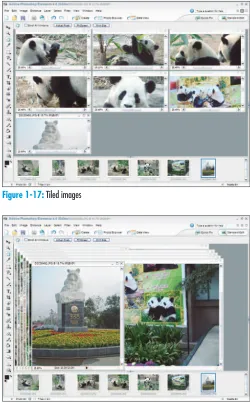
1. Open several images in Standard Edit mode. (See “Open Multiple Photos,” earlier in this chapter).
[image:27.666.364.614.71.474.2]2. Choose Window➪Images➪Tile. Elements evenly places the individual files around the workspace, as shown in Figure 1-17.
Move Images Inside Windows
1. Click the Hand tool in the Tools palette or press H.
2. Click and drag an image to show more image area. Note that you need to have images sized down and appearing with scroll bars, as shown in Figure 1-17, in order to move the image inside the window.
Cascade Images
1. Choose Window➪Images➪Cascade.
2. The Image windows appear in a cascading order, as shown in Figure 1-18.
Close All Windows
1. Press Alt+Ctrl+W and all open windows close.
Figure 1-17:Tiled images
Figure 1-18:Cascading Image windows
Acquiring Photos
Y
ou’re likely to acquire pictures from one of three main sources. If you have a digital camera, you’ll want to open photos that are stored on a media card. If you have a digital scanner, you’ll want to scan pictures you get processed at a photo lab. If you receive files from other users, you’ll want to copy the pictures to your hard drive and open them. Photoshop Elements supports all three of these methods for acquiring photos when you’re working in either an editing mode or the Organizer.The workspace you use dictates the options you have for acquiring images. If you work in an editing mode, you can open files in either editor (Standard Edit or Quick Edit). If you work in the Organizer, you acquire photos that are added to the Organizer catalog where you can see thumbnail previews of the acquired images.
This chapter explains how to get your photos from a variety of sources into Photoshop Elements.
2
Get ready to . . .
➟
Add Photos from Your Hard Driveto the Organizer ...16
➟
Scan a Photo ...17➟
Scan Multiple Photos...18➟
Get Photos from an OnlineSharing Service...19
➟
Get Photos from Media Cards ...20➟
Open Camera Raw Files ...22➟
Get Photos from Mobile Phones...24Add Photos from Your Hard Drive
to the Organizer
1. Open the Organizer by clicking View and Organize Photos in the Welcome Screen or by clicking the Photo Browser tool near the top of the program window.
2. Choose File➪Get Photos➪From Files and Folders to open the Get Photos from Files and Folders dialog box.
3. Navigate your hard drive and select the folder that con-tains files you want to import.
4. From the Files of Type drop-down list, shown in Figure 2-1, select the file types to import. Your choices include Media Files (photos, video, audio), PDF Files (*.pdf), and All Files (photos, video, sound, and PDFs).
You can see a file’s type at a glace in the Organizer window. On an image thumbnail, a tiny filmstrip icon represents a video file. The speaker icon indicates a sound file. An Adobe Acrobat PDF icon indi-cates that the file is a PDF.
5. Select the Get Photos from Subfolders check box if you want to add photos in nested folders to the Organizer.
6. Click Get Photos, and the files are added to a new Organizer window, as shown in Figure 2-2.
7. Click Back to All Photos to see all photos in the Organizer. If you add more photos by using the From Files and Folders menu command, all the newly imported photos appear in a new Organizer window. When you click Back to All Photos, you see the newly imported photos in the same Organizer window as pre-viously imported photos.
Figure 2-1:Importing files in the Organizer
Figure 2-2:Click Back to All Photos to view newly imported photos
Scan a Photo
1. Be certain your scanner is properly configured according to the user guide that shipped with your scanner.
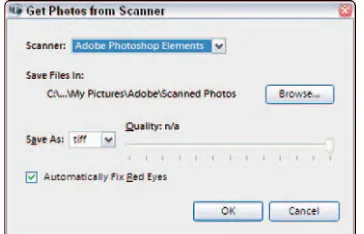
2. Open the Organizer and choose File➪Get Photos➪From Scanner. The Get Photos from Scanner dialog box appears, as shown in Figure 2-3.
3. Select your scanner from the Scanner drop-down list, and select a file format from the Save As drop-down list.
4. If you like, select the Automatically Fix Red Eyes check box and click OK to open your scanner program.
When you click OK and open your scanner, Photoshop Elements is no longer in control. You scanner program takes on the responsibil-ity for scanning images, and most likely your scanner program won’t match Figure 2-4. However, many of the controls discussed here are typically found on most scanners.
5. Select the output dimensions for your scan. Be certain the width and height are set properly for the desired output size.
6. Select a resolution that’s appropriate for your output.
Generally, choose 72 ppi (pixels per inch) if you want to show the image on-screen or on the Web. Choose 300 ppi if you’re printing using a desktop or commercial printer.
7. Preview the scan. Be certain the entire photo appears in the preview area. Most scanner programs support previewing.
8. Scan the photo. Click Scan, Acquire, OK, or a similar command, depending on your scanner software.
9. The scan opens in a new Organizer window. Click the Back to All Photos button to view your scan along with the other files in the Organizer window.
[image:30.666.352.534.72.189.2]Figure 2-3:The Get Photos from Scanner dialog box
Figure 2-4:Preview a photo before completing the scan
➟
17Scan Multiple Photos
1. Arrange multiple photos on your scanner glass, as shown in Figure 2-5.
Ideally, try to keep the alignment of photos on your scanner as straight as possible. In this example, the photos are slightly rotated to illustrate the steps we outline here.
2. Choose File➪Get Photos➪From Scanner.
3. Select the size and resolution in your scanning software.
4. Click Preview to see how the images fit within the scan area. Make adjustments if some images are outside the scan area.
5. If your scanner has an option for selecting a destination, select Photoshop Elements. Otherwise, your scanner might save the file to your hard drive.
6. Scan the images. A new Untitled-1 document opens in Standard Edit mode if the destination was set to Photoshop Elements. If your scanner saved the file to your hard drive, click the Open button in either editing mode and open the saved file.
7. Choose Image➪Divide Scanned Photos. Elements magi-cally divides the scanned photos into separate Image windows. The images are also straightened, as shown in Figure 2-6.
Figure 2-5:Preview a photo before completing the scan
Figure 2-6:The Divide Scanned Photos command divides and straightens photos
Corbis Digital Stock
Get Photos from an Online
Sharing Service
1. Set up your sharing service from the Organizer by choosing Edit➪Preferences or pressing Ctrl+K.
2. Click Services in the left pane of the Preferences dialog box, as shown in Figure 2-7.
3. Items to adjust in the Services preferences include:
• Check for Services:Leave the check boxes selected so Elements automatically checks your services.
• Location:Click this button to select the location where you live and work.
• Settings:Click the Update Creations button to update all services and make them accessible to you. Click Reset Accounts to save your account information.
4. Click OK in the Preferences dialog box then choose File➪Get Photos➪From Online Sharing Service.
5. Press the Share button in the Shortcuts bar and select Share Online. The Share Online wizard opens, and you order and share photos online. (See Chapter 16 for using the Share Online wizard).
Figure 2-7:Making choices for the Sharing Services
To receive files from a service, you must have an account and files must be accessible to you. The first time you access the service, the service instructs you on how to set up an account and proceed.
➟
19Get Photos from Media Cards
1. Launch Elements and open the Organizer window.
2. Insert a media card into a slot in your PC if your com-puter has a slot to accommodate your type of media card. If you have a USB card reader, attach the USB cable to your computer and card reader and insert your media card. If you have neither a slot in your computer nor a card reader, attach a USB cable from your camera to your computer. (You can use any one of these methods.)
3. By default, Windows interrupts your procedure for acquir-ing images in Elements. When the Removable Disk dialog box appears, as shown in Figure 2-8, click Cancel.
4. From the Organizer, choose File➪Get Photos➪From Camera or Card Reader or press Ctrl+G.
5. In the Adobe Photoshop Elements — Photo Downloader, shown in Figure 2-9, select your media card or camera from the Get Photos From drop-down list.
6. Click the Browse button to locate a folder for the saved files. You can also create a folder within another folder.
7. To rename files, select the Rename Files to check box and type a base name in the text box. For example, you might want to change default digital camera files from names such as IMG_001.jpg, IMG_002.jpg, and so on to a more descriptive name. You might use an event, an assignment, or a location for a base name. For example, if you use a base name such as Egypt,
Elements would name the files Egypt001.jpg, Egypt002.jpg, and so on.
8. Select the Automatically Fix Red Eyes check box if you want to use the auto-fix feature for photos you took indoors with flash.
[image:33.666.365.504.72.213.2]Figure 2-8:Click Cancel if you want to stay in Elements to manage your files
Figure 2-9:Select the photos you want to import and click Get Photos
9. Select the check boxes for the photos you want to import. To save all photos from the media card to your hard drive, press Ctrl+A to select all and then select any check box below a thumbnail preview. Elements adds check marks to all the photos.
10. Click Get Photos. Elements copies photos to your hard drive. You can watch the progress in the dialog box shown in Figure 2-10. Be patient and let Elements copy all the files.
11. After copying is complete, the Delete Files on Device dialog box opens. Click Yes if you want to remove the copied files from your media storage device. Otherwise, click No.
If you want to be certain you won’t lose your data, keep the files on your media card and burn a CD from your desktop. After you copy the files to a CD, you can delete them from your media card. Later, after you rename files and organize them on your hard drive in Elements, you can create a backup CD from within Elements and toss away the first CD. Because CDs are so inexpensive, a little extra cau-tion ensures that you won’t lose data due to a hard drive failure.
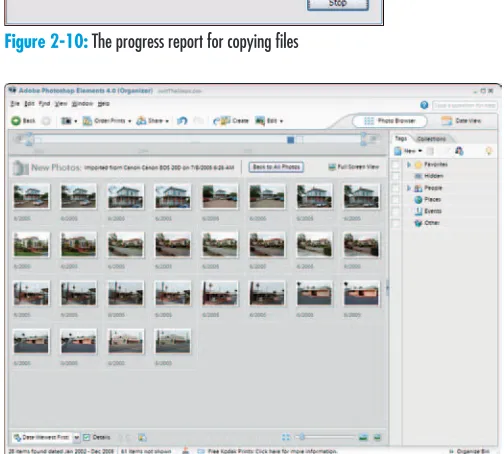
12. When Elements finishes copying files, a new Organizer window opens, showing only the files copied to your hard drive, as shown in Figure 2-11.
13. If you want to delete any files, click a thumbnail image and press Delete.
Don’t press the Backspace key when deleting files. Pressing Backspace moves the view back to the last view you opened in the Organizer.
[image:34.666.353.547.71.180.2]14. To view all added photos as well as original photos in your Organizer, click the Back to All Photos button.
Figure 2-10:The progress report for copying files
Figure 2-11:View your recent imports and original photos in the Organizer
➟
21 [image:34.666.352.604.163.390.2]Open Camera Raw Files
1. Select a file saved in Camera Raw format in the Organizer window.
Some medium-grade and all the higher-end cameras save files in both JPEG and Camera Raw. When shooting images with your digi-tal camera, if you have a choice, use the Camera Raw format, which most often renders a better image than JPEG format.
If your camera shot both JPEG and Camera Raw and you aren’t sure which file is the Camera Raw file, open the Properties palette, shown in Figure 2-11, by choosing Window➪Properties (or press Alt+Enter) and look at the selected image’s filename. In Figure 2-12, the
.CR2extension indicates a Camera Raw file.
2. From the Edit drop-down list on the Shortcuts bar, select Quick Fix or Standard Edit mode, as shown in Figure 2-12. The Camera Raw window (an Elements plug-in) opens.
3. From the White Balance drop-down list, select the appro-priate setting. For example, if you took the photo in day-light, select Daylight. A preview of the selected setting appears in the Camera Raw window, shown in Figure 2-13.
Figure 2-12:Select an editor from the Edit drop-down list
4. Also in the Camera Raw plug-in window (Figure 2-13), make other adjustments from the settings controls you have for Exposure, Shadows, Brightness, Contrast, and Saturation by moving the slider for each control. As you adjust each item, the preview shows you the results of the changes.
5. Click Open to open the file in the editor you want to use. When you click Open, the file is processed with the settings you made in the Camera Raw window.
The advantage of Camera Raw is that it captures and saves all pos-sible data with the image. So if you shoot an image outdoors, you can process the image by selecting Shade, Cloudy, Daylight, or other White Balance option. Also, after you adjust an image, you can return to the Camera Raw image, select the Camera Raw Defaults option from the Settings drop-down list, and then process
the image with different settings. Figure 2-13:Make adjustments in the Camera Raw window
➟
23Get Photos from Mobile Phones
1. If you have a mobile phone that can take pictures, copy the photos to your computer, according to the phone manufacturer’s recommendations.
Note that Elements does not support a direct link to your phone to copy files. You must first copy files from your phone to your computer.
2. Open the Organizer and choose File➪Get Photos➪
From Mobile Phone. The Specify Mobile Phone Folder dialog box opens as shown in Figure 2-14.
3. Click Browse to identify the folder where your mobile phone pictures have been copied.
4. If you want to correct red eye, select the check box for Automatically Fix Red Eyes.
5. Click OK to import the mobile phone pictures in the Organizer.
Figure 2-14:The Specify Mobile Phone Folder dialog box
Changing Image
Attributes
W
hatever edits you perform in Elements, you need to constantly be aware of image attributes. When you know specifics about your images (such as color mode, dimensions, image resolution, and so on) you can make edits and change image attributes to create quality images. Not knowing an image’s attributes or chang-ing attributes inappropriately can lead to degraded images of poor quality.In addition to knowing image attributes, you need to make color deci-sions for the kind of output you want. You manage color in Photoshop Elements by embedding color profiles suited for screen/Web viewing and for color printing. You need to know what profiles to use for a specific output, how to embed color profiles in images, and how to finesse color profiles not supported by Elements so that you can make decisions for all your editing jobs.
In this chapter, you find out how to assess image attributes, change images from one color mode to another, and work with color profiles for various output results.
3
Get ready to . . .
➟
Show More Image Attributes ...26➟
Resize an Image ...27➟
Change Canvas Size ...27➟
Change Image Bit Depth ...28➟
Convert to Grayscale...29➟
Convert to Bitmap...30➟
Colorize a Bitmap File...31➟
Convert an Image to Indexed Color ...32➟
Change Color Settings ...33➟
Embed a Custom Color Profile for Print ...34➟
Remove a Color Profile ...36➟
Save an Image with a Screen Color Profile ....36Show More Image Attributes
1. Open an image in Standard Edit mode.
2. Click the right-pointing arrow in the bottom right cor-ner of the Elements window to hide the Palette Bin (see Figure 3-1). With it hidden, you can see your images in more screen area.
3. Click the Fit Screen button below the Shortcuts bar. The image expands to fill the Image window.
4. In the lower-left corner of the Image window, click the right-pointing arrow on the status bar. A pop-up menu opens (see Figure 3-2). When you choose a menu item, information is reported on the status bar. Choose from the following:
• Document Sizes:Shows you the file size as the file is opened in Elements.
• Document Profile:Shows you the color profile used with the file.
• Document Dimensions:Shows you the physical size in your default unit of measurement, such as inches.
• Scratch Sizes:Shows two memory values. The value on the left represents the amount of memory cur-rently being used to display all open images. The number on the right represents the total amount of RAM available for working on images.
• Efficiency:Shows you the time Elements actually spends performing an operation.
• Timing:Indicates the time it took to complete the last operation.
• Current Tool:Shows the name of the current tool selected in the Tools palette.
Figure 3-1:Click the right-pointing arrow to hide the Palette Bin
Figure 3-2:Click the right-pointing arrow in the Image window to open a menu
Resize an Image
1. In Standard Edit mode, open an image by locating a file on your hard drive, selecting it, and clicking Open.
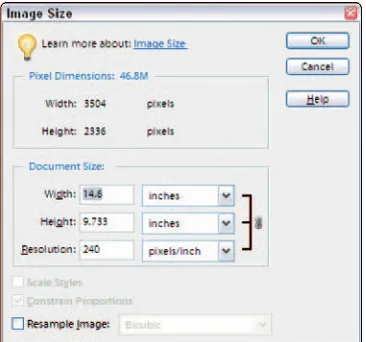
2. Choose Image➪Resize➪Image Size to open the Image Size dialog box (see Figure 3-3).
3. Type a value in the Width, Height, or Resolution text box to change resolution and dimensions. Click OK.
Be certain the Resample Image check box is deselected. As you size up dimensions, the resolution drops. Conversely, as you increase resolution, the dimensions are sized down. To change resolution for a fixed size, select the Resample Image check box and type the desired resolution value. As a matter of practice, don’t increase res-olution with Resample Image selected. Doing so can produce degraded images.
Change Canvas Size
1. Open an image in Standard Edit mode.
2. Choose Image➪Resize➪Canvas Size to open the Canvas Size dialog box.
3. Click an anchor square according to the way you want additional canvas added to the image (see Figure 3-4).
[image:40.666.354.537.71.242.2]4. Enter Width and Height values and click OK. Elements adds more empty canvas area to the image.
Figure 3-3:The Image Size dialog box
Figure 3-4:The Canvas Size dialog box
➟
27 [image:40.666.352.537.268.441.2]Change Image Bit Depth
1. Open a 16-bit image in Standard Edit mode.
Almost all high-end digital cameras, many medium-priced digital cameras, and almost all digital scanners can capture 16-bit images. A 16-bit image provides more image data and often captures high-lights (the light areas) and shadows (the dark areas) better than lower-bit images. But when an image is in 16-bit mode, many edit-ing features aren’t available in Elements. To use many different menu commands, you need to change the image mode from a 16-bit image to an 8-16-bit image.
2. Click Layer to open the layers menu.
3. Notice the Layer menu commands are all grayed out (see Figure 3-5).
Layer commands are unavailable when you’re working with 16-bit images. If the commands are accessible, you know your image is not 16-bit.
4. Click outside the menu to close it.
5. Choose Image➪Mode➪8 Bits/Channel to convert the image (see Figure 3-6). After converting the image, the Layer menu commands become available.
[image:41.666.361.616.60.454.2]If the 8 Bits/Channel menu command is available, you’re working on a 16-bit image. If the command is grayed out, the image is 8-bit.
Figure 3-5:The grayed-out Layer menu
Figure 3-6:Convert from 16-bit to 8-bit
Convert to Grayscale
1. Open an RGB color image in Standard edit mode.
2. Convert to 8-bit mode if the image is a 16-bit image.
3. Choose Layer➪New Adjustment Layer➪Hue/Saturation.
4. Click OK in the New Layer dialog box, and the Hue/Saturation dialog box opens (see Figure 3-7).
Elements provides you a direct conversion from RGB color to grayscale by choosing Image➪Mode➪Grayscale. Using an adjust-ment layer often results in a slightly better image with a little more detail shown in shadow areas.
5. Click the Saturation slider and drag it to the far-left side of the dialog box to desaturate the image.
6. Click OK, and the image appears as a grayscale image (see Figure 3-8).
[image:42.666.351.615.70.491.2]You can save the file after adding an adjustment layer and return to the color layer by hiding or deleting the adjustment layer. When the adjustment layer is shown, you can print the image as grayscale. Hiding the adjustment layer returns the view to the color image, and you can print the file as a color photo.
Figure 3-7:The Hue/Saturation dialog box
Figure 3-8:A grayscale image
➟
29Convert to Bitmap
1. Open an RGB image in Standard Edit mode.
2. Choose Image➪Mode➪Grayscale.
To convert to grayscale, you can use an adjustment layer instead, as we explain earlier in “Convert to Grayscale.” If you do use an adjustment layer, you need to flatten the layers before proceeding with the steps we outline here.
3. Choose Image➪Mode➪Bitmap to open the Bitmap dia-log box.
4. Select a method from the Use drop-down list (see Figure 3-9). Your choices are:
• 50% Threshold:This method takes all pixels above the 128 gray level and converts them to white. All pixels with gray values between 0 and 127 are con-verted to black. The result is strong black and white contrast.
• Pattern Dither: This method converts a picture by organizing the gray levels into geometric configura-tions of black and white dots. The result appears like a pattern of dots.
• Diffusion Dither: This conversion method creates a diffused appearance in the image. Because of the arrangement of the dots, the image appears almost grayscale, but the pixel values are only black and white.
5. Click OK to convert your image.
Figure 3-9:Select a method from the Use drop-down list
Note that the bitmap mode is not the same as the Bitmap (.bmp) file format. Bitmap mode is a color mode containing only two colors — black and white.
Colorize a Bitmap File
1. Open a Bitmap color mode file in Standard Edit mode or convert an image to bitmap mode.
2. Convert to RGB color by first choosing Image➪Mode➪
Grayscale. Then choose Image➪Mode➪RGB Color.
3. Choose Layer➪New Adjustment Layer➪Hue/Saturation.
4. In the Hue/Saturation dialog box that appears, select the Colorize check box and be certain the Preview check box is selected (see Figure 3-10).
5. Move the Hue slider back and forth to create a color tint to your liking. You can also move the Saturation and Lightness sliders to create the look you desire.
6. Click OK and save the image.
Figure 3-10:Add a color tint to the bitmap image
➟
31Convert an Image to Indexed Color
1. Open an RGB image in Standard Edit mode.
If you’re working with a 16-bit image, you need to first convert it to 8-bit. In the Title bar at the top of the Image Window, Elements displays the current color mode and bit depth after the filename.
2. Choose Image➪Mode➪Indexed Color.
3. Select the Preview check box (see Figure 3-11) to see a dynamic preview of any setting you make in the Indexed Color dialog box. The preview helps you become more familiar with the number of options for indexed color conversions.
4. Select settings in the Indexed Color dialog box:
• Palette drop-down list: Select from Web safe colors, platform system palettes, and more.
• Colors:Type a fixed number of colors in the text box. • Transparency: For artwork that requires transparency,
like a circular logo, select this check box, and the area outside the logo appears transparent.
• Dither: When fewer colors are selected, adding dither-ing makes the color transitions appear smoother.
5. Click OK.
6. If you plan to print the file, choose Image➪Mode➪RGB (see Figure 3-12). If the file will appear online, choose File➪Save for Web.
Figure 3-11:The Indexed Color dialog box
When preparing images for Web viewing, you typically save artwork as an indexed color image, whereas you should usually save photographs as JPEG files. In addition to preparing files for Web hosting, you can con-vert images to indexed color for some dramatic color effects (see Figure 3-12).
Figure 3-12:Convert to RGB color if you want to print the final file
Change Color Settings
1. Open Elements in Standard Edit mode and choose Edit➪Color Settings. The Color Settings dialog box (see Figure 3-13) offers choices for managing color. The No Color Management option turns off color management. You can select Always Optimize Colors for Computer Screens or Always Optimize for Printing if you prepare images for only one of those outputs. Selecting the Allow Me to Choose option tells Elements to give you a prompt, so you can choose screen views or print.
You can open the Color Settings dialog box from any editing mode. A file doesn’t need to be open when you select the Color Settings command.
2. Select Allow Me to Choose and click OK in the Color Settings dialog box.
3. Click the Open tool on the Shortcuts bar and open a file that contains no embedded color profile (such as a file from a digital camera that you haven’t yet opened in Elements). Before the image opens in Elements, the Missing Profile dialog box opens (see Figure 3-14).
4. Select the color profile you want to associate with your file. Select Optimize Colors For Computer Screen Display (use sRGB IEC61922-2.1) if you’re outputting the file for screen and Web views. Select Optimize Colors For Print Output (use AdobeRGB) if you’re print-ing the file.
When you select the option to optimize for screen views and save your file, the sRGB profile is embedded in the document. When you select the option to optimize for print output and save the file, the AdobeRGB (1998) profile is embedded in the document.
Figure 3-13:Select Allow Me to Choose and click OK
Figure 3-14:Managing color for screen or print output
➟
33Embed a Custom Color Profile for Print
1. Log on to your service provider’s Web site and download a color profile for printing on your provider’s equipment.
Many service providers, such as Costco and PhotoBox, offer color pro-files online. Simply log on to the provider Web site and download the color profiles the provider uses with its equipment. As an example, we use a color profile from Costco here. For Costco profiles, go to
www.costco.comand click the Photo Center link. Then create an account, log on, and click the Printer Profiles link. There, you can download the profiles for the paper types you want to use.
2. Copy the downloaded color profile to C:/WINDOWS/ system32/spool/drivers/color, the folder where profiles are stored on your hard drive.
3. Open images you want to send to a service provider and make sure their color profiles are Adobe RGB. To con-vert their profiles, choose Image➪Convert Color Profile➪
Apply Adobe RGB Profile (see Figure 3-15).
4. Save the files with the Adobe RGB (1998) profile as TIFF images by choosing TIFF from the Format drop-down list in the Save As dialog box.
5. Download a color profile conversion utility. For a free conversion utility to convert color profiles in TIFF images, go to http://drycreekphoto.com/tools/ profile_converter.
6. Double-click the downloaded file, and the Dry Creek color profile converter is installed.
7. Launch the color profile converter. Choose Start➪
Programs➪Dry Creek Photo➪Profile Converter➪ICC Profile Converter.
8. Select the source image(s) by clicking the ellipsis (. . .), as shown in Figure 3-16.
Figure 3-15:Converting the color to Adobe RGB
The Dry Creek Photo Web site contains information about color man-agement and many custom profiles used for commercial printing devices.
9. Click the Source Color Profile ellipsis. In the Select Profile For Output dialog box, select Adobe RGB1998 and click OK.
10. Click the Destination Image ellipsis (Figure 3-16) and select a location for your converted files.
11. Click the Destination Color Profile ellipsis. From the Select Profile for Output dialog box, select the profile you downloaded from your photo service and click OK.
12. Back in the ICC Profile converter, select the Embed Profile in Image check box and click Convert. The con-verter processes your images and embeds the destina-tion profiles.
13. Click Quit after completing the conversion process for all your images.
14. Open your converted images in Standard Edit mode.
Using the ICC Profile Converter requires you to save your source images in TIFF format. However, because many service centers require files saved in JPEG format, you need to save your files as JPEG while preserving the embedded color profiles.
15. Choose File➪Save As.
16. Select a target folder. The target folder name will appear in the Save In drop-down list.
17. Type a name for the saved file in the File Name text box.
18. Select JPEG (*.JPG, *.JPEG, *.JPE) from the Format drop-down list.
19. Make sure you leave the Color check box selected and click Save (see Figure 3-17).
20. In the JPEG Options dialog box that opens, move the Quality slider to the maximum 12 setting and click OK.
[image:48.666.352.533.195.389.2]Figure 3-16:The ICC Profile Converter
Figure 3-17:The Save As dialog box
Photoshop Elements offers only two color profiles you can embed in images (sRGB and AdobeRGB). However, when an image contains an embedded profile, you can retain the embedded profile as long as you leave the Color check box selected.
➟
35Remove a Color Profile
1. Open an image with an embedded color profile in Standard Edit Mode. To verify that the profile is embed-ded, click the right-pointing arrow on the Image window status bar and choose Document Profile from the menu options.
2. Choose Image➪Convert Color Profile➪Remove Profile (see Figure 3-18).
3. Choose File➪Save As. Be certain the Color check box is deselected so that the profile is removed. Provide a name and click Save.
Save an Image with a Screen
Color Profile
1. Choose Edit➪Color Settings to open the Color Settings dialog box.
2. Select the Always Optimize for Computer Screens option.
3. Open images you want to repurpose from print output to screen and/or Web viewing.
4. Choose File➪Save As.
5. Select the Color check box to embed the sRGB color profile (see Figure 3-19).
You can process images originally designed for print so that they’re for screen or Web viewing in other ways, too. Choose Image➪Convert Color Profile➪Apply sRGB Profile and use the Save As command to embed the color profile. Or set your color settings for sRGB, open images, and save them with the sRGB color profile.
[image:49.666.360.615.73.468.2]Figure 3-18:Removing an embedded profile
Figure 3-19:Embedding the sRGB color profile
Organizing Images
T
he Photoshop Elements Organizer is your central workplace. From the Organizer, you can quickly locate images stored on CD-ROMs, DVDs, memory cards, external hard drives, and your local computer hard drive.After you add image thumbnails to the Organizer, you have many options for sorting, searching, and locating files by a number of differ-ent criteria. The more you know about how to manage all your files in the Organizer, the faster and more efficient you become in all your editing tasks.
In this chapter, you discover how to sort images, create different catalogs and collections, tag images, and how to find files by using collections, tags, and other search criteria.
4
Get ready to . . .
➟
Sort Images by Date ...38➟
Create a Catalog ...39➟
Create a Collection ...40➟
Create a Tag ...41➟
Tag Images...41➟
Rank Photos with Stars ...42➟
Remove Tags ...42➟
Add Captions ...43➟
Find Files by Captions ...43➟
Find Images by Media Type...44➟
Find Images by Filename ...44➟
Find Faces ...45➟
Use Other Find Criteria ...45➟
Find Images by Using Metadata ...46Sort Images by Date
1. Open the Organizer to a catalog that contains images.
2. Choose View➪Arrangement➪Date (Oldest First), as shown in Figure 4-1.
3. Choose Window➪Organize Bin to close the bin. Alternatively, you can click the left arrow for the Organize Bin in the lower-right corner of the Organizer window.
By default, the Organize Bin on the right side of the Organizer win-dow is open. This bin is helpful when organizing photos in Collections and adding tags to images for the purposes of sorting your photos. If you just want to view your pho