Undergraduate Topics in Computer Science
Series EditorIan Mackie
Undergraduate Topics in Computer Science (UTiCS) delivers high-quality instructional content for undergraduates studying in all areas of computing and information science. From core foundational and theoretical material to final-year topics and applications, UTiCS books take a fresh, concise, and modern approach and are ideal for self-study or for a one- or two-semester course. The texts are all authored by established experts in their fields, reviewed by an international advisory board, and contain numerous examples and problems. Many include fully worked solutions.
Kent D. Lee
Python Programming Fundamentals
Kent D. Lee
Luther College, Decorah, IA, USA ISSN 1863-7310 e-ISSN 2197-1781
ISBN 978-1-4471-6641-2 e-ISBN 978-1-4471-6642-9 DOI 10.1007/978-1-4471-6642-9
Springer London Heidelberg New York Dordrecht Library of Congress Control Number: 2014956498 © Springer-Verlag London 2014
This work is subject to copyright. All rights are reserved by the Publisher, whether the whole or part of the material is concerned, specifically the rights of translation, reprinting, reuse of illustrations, recitation, broadcasting, reproduction on microfilms or in any other physical way, and transmission or information storage and retrieval, electronic adaptation, computer software, or by similar or dissimilar methodology now known or hereafter developed.
The use of general descriptive names, registered names, trademarks, service marks, etc. in this publication does not imply, even in the absence of a specific statement, that such names are exempt from the relevant protective laws and regulations and therefore free for general use.
The publisher, the authors and the editors are safe to assume that the advice and information in this book are believed to be true and accurate at the date of publication. Neither the publisher nor the authors or the editors give a warranty, express or implied, with respect to the material contained herein or for any errors or omissions that may have been made.
Printed on acid-free paper
Preface
Computer Science is a creative, challenging, and rewarding discipline. Computer programmers, sometimes called software engineers, solve problems involving data: computing, moving, and handling large quantities of data are all tasks made easier or possible by computer programs. Money magazine ranked software engineer as the number one job in America in terms of flexibility, creativity, low stress levels, ease of entry, compensation, and job growth within the field [4].
Learning to program a computer is a skill that can bring you great enjoyment because of the creativity involved in designing and implementing a solution to a problem. Python is a good first language to learn because there is very little overhead in learning to write simple programs. Python also has many libraries available that make it easy to write some very interesting programs including programs in the areas of Computer Graphics and Graphical User Interfaces: two topics that are covered in this text.
In this text, students are taught to program by giving them many examples and practice exercises with solutions that they can work on in an interactive classroom environment. The interaction can be accomplished using a computer or using pen and paper. By making the classroom experience active, students reflect on and apply what they have read and heard in the classroom. By using a skill or concept right away, students quickly discover if they need more reinforcement of the concept, while teachers also get immediate feedback. There is a big difference between seeing a concept demonstrated and using it yourself and this text encourages applying concepts immediately to test understanding. This is vital in Computer Science since new skills and concepts build on what we have already learned.
In several places within this book there are examples presented that highlight patterns of programming. These patterns appear over and over in programs we write. In this text, patterns like the Accumulator Pattern and the Guess and Check Pattern are presented and exercises reinforce the recognition and application of these and other abstract patterns used in problem-solving. Learning a language is certainly one important goal of an introductory text, but acquiring the necessary problem-solving skills is even more important. Students learn to solve problems on their own by recognizing when certain patterns are relevant and then applying these patterns in their own programs.
Recent studies in Computer Science Education indicate the use of a debugger can greatly enhance a student’s understanding of programming [1]. A debugger is a tool that lets the programmer inspect the state of a program at any point while it is executing. There is something about actually seeing what is happening as a program is executed that helps make an abstract concept more concrete. This text introduces students to the use of a debugger and includes exercises and examples that show students how to use a debugger to discover how programs work.
Python is a good language for teaching introductory Computer Science because it is very accessible and can be incrementally taught so students can start to write programs before having to learn the whole language. However, at the same time, Python is also a developing language. Python 3.1 was recently released to the public. This release of Python included many performance enhancements which were very good additions to the language. There were also some language issues with version 2.6 and earlier that were cleaned up at the same time that were not backwards compatible. The result is that not all Python 2 programs are compatible with Python 3 and vice versa. Because both Python 2 and Python 3 are in use today, this text will point out the differences between the two versions where appropriate. These differences will be described by inset boxes titled
within the text where the differences are first encountered.
Acknowledgments
Credits
At times in this text Microsoft Windows is referred to when installing software. Windows is a registered trademark of Microsoft Corporation in the United States and other countries. Mac OS X is referred to at times within this text. Mac and Mac OS are trademarks of Apple Inc., registered in the U.S. and other countries.
Suggestions
Contents
1 Introduction
1.1 The Python Programming Language
1.2 Installing Python and Wing IDE 101
1.3 Writing Your First Program
1.4 What Is a Computer?
1.5 Binary Number Representation
1.6 What Is a Programming Language?
1.7 Hexadecimal and Octal Representation
1.8 Writing Your Second Program
1.9 Syntax Errors
1.10 Types of Values
1.11 The Reference Type and Assignment Statements
1.12 Integers and Real Numbers
1.13 Strings
1.14 Integer to String Conversion and Back Again
1.15 Getting Input
1.16 Formatting Output
1.17 When Things Go Wrong
1.18 Review Questions
1.19 Exercises
1.20 Solutions to Practice Problems
2 Decision Making
2.1 Finding the Max of Three Integers
2.2 The Guess and Check Pattern
2.3 Choosing from a List of Alternatives
2.4 The Boolean Type
2.5 Short Circuit Logic
2.6 Comparing Floats for Equality
2.7 Exception Handling
2.8 Review Questions
2.10 Solutions to Practice Problems
3 Repetitive Tasks
3.1 Operators
3.2 Iterating Over a Sequence
3.3 Lists
3.4 The Guess and Check Pattern for Lists
3.5 Mutability of Lists
3.6 The Accumulator Pattern
3.7 Reading from and Writing to a File
3.8 Reading Records from a File
3.9 Review Questions
3.10 Exercises
3.11 Solutions to Practice Problems
4 Using Objects
4.1 Constructors
4.2 Accessor Methods
4.3 Mutator Methods
4.4 Immutable Classes
4.5 Object-Oriented Programming
4.6 Working with XML Files
4.7 Extracting Elements from an XML File
4.8 XML Attributes and Dictionaries
4.9 Reading an XML File and Building Parallel Lists
4.10 Using Parallel Lists to Draw a Picture
4.11 Review Questions
4.12 Exercises
4.13 Solutions to Practice Problems
5 Defining Functions
5.1 Why Write Functions?
5.2 Passing Arguments and Returning a Value
5.3 Scope of Variables
5.5 Mutable Data and Functions
5.6 Predicate Functions
5.7 Top-Down Design
5.8 Bottom-Up Design
5.9 Recursive Functions
5.10 The Main Function
5.11 Keyword Arguments
5.12 Default Values
5.13 Functions with Variable Number of Parameters
5.14 Dictionary Parameter Passing
5.15 Review Questions
5.16 Exercises
5.17 Solutions to Practice Problems
6 Event-Driven Programming
6.1 The Root Window
6.2 Menus
6.3 Frames
6.4 The Text Widget
6.5 The Button Widget
6.6 Creating a Reminder!
6.7 Finishing up the Reminder! Application
6.8 Label and Entry Widgets
6.9 Layout Management
6.10 Message Boxes
6.11 Review Questions
6.12 Exercises
6.13 Solutions to Practice Problems
7 Defining Classes
7.1 Creating an Object
7.2 Inheritance
7.3 A Bouncing Ball Example
7.5 Getting Hooked on Python
7.6 Review Questions
7.7 Exercises
7.8 Solutions to Practice Problems
8 Appendix A: Integer Operators
9 Appendix B: Float Operators
10 Appendix C: String Operators and Methods
11 Appendix D: List Operators and Methods
12 Appendix E: Dictionary Operators and Methods
13 Appendix F: Turtle Methods
14 Appendix G: TurtleScreen Methods
15 Appendix H: The Reminder! Program
16 Appendix I: The Bouncing Ball Program
© Springer-Verlag London 2014
1. Introduction
Kent D. Lee
1(1)
Luther College, Decorah, IA, USA
Kent D. Lee
Email: [email protected]
The intent of this text is to introduce you to computer programming using the Python programming language. Learning to program is a bit like learning to play piano, although quite a bit easier since we won’t have to program while keeping time according to a time signature. Programming is a creative process so we’ll be working on developing some creative skills. At the same time, there are certain patterns that can be used over and over again in this creative process. The goal of this text and the course you are taking is to get you familiar with these patterns and show you how they can be used in programs. After working through this text and studying and practicing you will be able to identify which of these patterns are needed to implement a program for a particular task and you will be able to apply these patterns to solve new and interesting problems.
As human beings our intelligent behavior hinges on our ability to match patterns. We are pattern-matchers from the moment we are born. We watch and listen to our parents and siblings to learn how to react to situations. Babies watch us to learn to talk, walk, eat, and even to smile. All these behaviors are learned through pattern matching. Computer Science is no different. Many of the programs we create in Computer Science are based on just a few patterns that we learn early in our education as programmers. Once we’ve learned the patterns we become effective programmers by learning to apply the patterns to new situations. As babies we are wired to learn quickly with a little practice. As we grow older we can learn to use patterns that are more abstract. That is what Computer Science is all about: the application of abstract patterns to solve new and interesting problems.
1.1 The Python Programming Language
Python is the programming language this text uses to introduce computer programming. To run a Python program you need an interpreter. The Python interpreter is a program that reads a Python program and then executes the statements found in it, as depicted in Fig. 1.1. While studying this text you will write many Python programs. Once your program is written and you are ready to try it you will tell the Python interpreter to execute your Python program so you can see what it does.
Fig. 1.1 The Python Interpreter
For this process to work you must first have Python installed on your computer. Python is free and available for download from the internet. The next section of this chapter will take you through downloading and installing Python. Within the last few years there were some changes to the Python programming language between Python 2 and Python 3. The text will describe differences between the two versions of Python as they come up. In terms of learning to program, the differences between the two versions of Python are pretty minor.
To write Python programs you need an editor to type in the program. It is convenient to have an editor that is designed for writing Python programs. An editor that is specifically designed for writing programs is called an IDE or Integrated Development Environment. An IDE is more than just an editor. It provides highlighting and indentation that can help as you write a program. It also provides a way to run your program straight from the editor. Since you will typically run your program many times as you write it, having a way to run it quickly is handy. This text uses the Wing IDE 101 in many of its examples. This IDE is simple to install and is free for educational use. Wing IDE 101 is available for Mac OS X, Microsoft Windows, and Linux.
1.2 Installing Python and Wing IDE 101
To begin writing Python programs on your own computer, you need to have Python installed. There were some significant changes between Python 2.7 and Python 3 which included a few changes that make programs written for version 3 incompatible with programs written for version 2.7 and vice versa. If you are using this book as part of an introductory course, your instructor may prefer you install one version or the other. Example programs in this text are written using Python 3 syntax but the differences between Python 2 and 3 are few enough that it is possible to use either Python 2 or 3 when writing programs for the exercises in this text. Inset boxes titled Python 2 3 will highlight
[image:17.595.147.450.233.459.2]the differences when they are first encountered in the text.
Fig. 1.2 Installing Python on Windows
Fig. 1.3 Installing Python on Mac OS X
If you have a Mac, then Python is already installed and may be the version you want to use, depending on how new your Mac is. You can find out which version of Python you have by opening a terminal window. Go to the Applications folder and look in the Utilities sub-folder for the Terminal application. Start a terminal and in the window type python. You should see something like this:
[image:18.595.124.464.466.767.2]You can press and hold the control key (i.e. the ctrl key) and press ‘d’ to exit Python or just close the terminal window. If you do not have version 3.1 or newer installed on your Mac you may wish to download the latest Python 3 MacOS Installer Disk Image
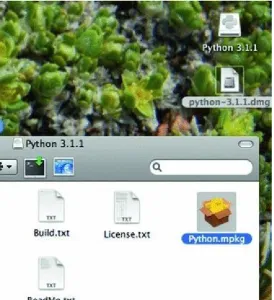
from the http://python.org web site. Once the file is downloaded you can double-click the disk image file and then look for the Python.mpkg file and double-click it as pictured in Fig. 1.3. You will need an administrator password to install it which in most cases is just your own password.
While you don’t need an IDE like Wing to write and run Python programs, the debugger support that an IDE like Wing provides will help you understand how Python programs work. It is also convenient to write your programs in an IDE so you can run them quickly and easily. To install Wing IDE 101 you need to go to the http://wingware. com web site. Find the Download link at the top of the web page and select Wing IDE 101
to download the installation package. Be sure to pick Wing IDE 101 to download if you don’t want to pay for a license. If you are installing on a Mac, pick the Mac version. If you are installing on Windows, pick the Windows version. Download and run the installation package if you are using Windows. Running the Windows installer should display an installer window like that pictured in Fig. 1.4. Take all the defaults to install it.
If you are installing Wing IDE 101 on a Mac then you need to mount the disk image. To do this you must double-click a file that looks like wingide-101-3.2.2-1-i386.dmg. After double-clicking that file you will have a mounted disk image of the same name, minus the .dmg extension). If you open a Finder window for that disk image you will see a window that looks like Fig. 1.5. Drag the Wing IDE icon to your Applications folder and you can add it to your dock if you like.
Fig. 1.6 Configuring Wing’s Python Interpreter
1.2.1 Configuring Wing
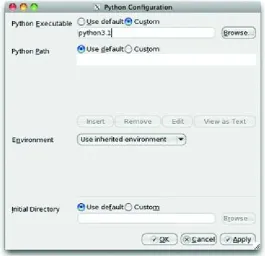
If you look at Fig. 1.8 you will see that the Python interpreter shows up as Python 3.1.1. When you install Wing, you should open it and take a look at your Python Shell tab. If you see the wrong version of Python then you need to configure Wing to use the correct Python Shell. To do this you must open Wing and go to the Edit menu. Under the Edit menu, select Configure Python and type in the appropriate interpreter. If you are using a Mac and wish to use version 3.1 then you would type python3.1. Figure 1.6 shows you what this dialog box looks like and what you would type in on a Mac. In Windows, you should click the browse button and find python.exe. This will be in a directory like :
[image:20.595.164.430.39.295.2]if you chose the defaults when installing.
Fig. 1.7 Configuring Indent Guides
These indent guides will not show up in this chapter, but they will in subsequent chapters. Go to the Edit menu again and select Preferences. Then click on the Indentation selection in the dialog box as shown in Fig. 1.7. Select the checkbox that says Show Indent Guides.
1.3 Writing Your First Program
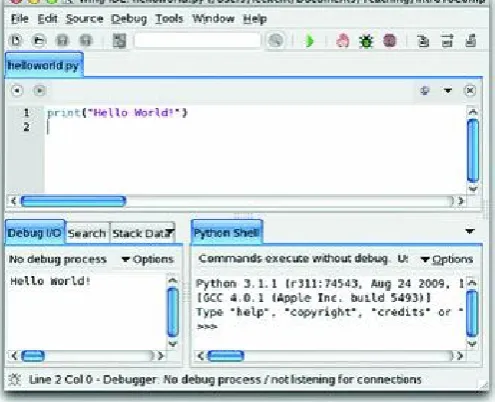
To try out the installation of your IDE and Python you should write a program and run it. The traditional first program is the Hello World program. This program simply prints “Hello World!” to the screen when it is run. This can be done with one statement in Python. Open your IDE if you have not already done so. If you are using Windows you can select it by going to the Start menu in the bottom left hand corner and selecting All Programs. Look for Wing IDE 101 under the Start menu and select it. If you are using a Mac, go to the Applications folder and double-click the Wing IDE icon or click on it in your dock if you installed the icon on your dock. Once you’ve done this you will have a window that looks like Fig. 1.8.
In the IDE window you go to the File menu and select New to get a new edit tab within the IDE. You then enter one statement, the print statement shown in Fig. 1.8 to print Hello World! to the screen. After entering the one line program you can run it by clicking the green debug button (i.e. that button that looks like a bug) at the top of the window. You will be prompted to save the file. Click the Save Selected Files button and save it as
Fig. 1.8 The Wing IDE
1.4 What Is a Computer?
So you’ve written your first program and you’ve been using a computer all your life. But, what is a computer, really? A computer is composed of a Central Processing Unit (abbreviated CPU), memory, and Input/Output (abbreviated I/O) devices. A screen is an output device. A mouse is an input device. A hard drive is an I/O device.
The CPU is the brain of the computer. It is able to store values in memory, retrieve values from memory, add/subtract two numbers, compare two numbers and do one of two things depending on the outcome of that comparison. The CPU can also control which instruction it will execute next. Normally there are a list of instructions, one after another, that the CPU executes. Sometimes the CPU may jump to a different location within that list of instructions depending on the outcome of some comparison.
That’s it. A CPU can’t do much more than what was described in the previous paragraph. CPU’s aren’t intelligent by any leap of the imagination. In fact, given such limited power, it’s amazing how much we are able to do with a computer. Everything we use a computer for is built on the work of many, many people who have built layers and layers of programs that make our life easier.
The memory of a computer is a place where values can be stored and retrieved. It is a relatively fast storage device, but it loses its contents as soon as the computer is turned off. It is called volatile store. The memory of a computer is divided into different locations. Each location within memory has an address and can hold a value. Figure 1.9 shows the contents of memory location 100 containing the number 48.
Fig. 1.9 Conceptual view of a computer
The hard drive is non-volatile storage or sometimes called persistent storage. Values can be stored and retrieved from the hard drive, but it is relatively slow compared to the memory and CPU. However, it retains its contents even when the power is off.
In a computer, everything is stored as a sequence of 0’s and 1’s. For instance, the string 01010011 can be interpreted as the decimal number 83. It can also represent the capital letter ‘S’. How we interpret these strings of 0’s and 1’s is up to us. We can tell the CPU how to interpret a location in memory by which instruction we tell the CPU to execute. Some instructions treat 01010011 as the number 83. Other instructions treat it as the letter ‘S’.
One digit in a binary number is called a bit. Eight bits grouped together are called a
1.5 Binary Number Representation
Each digit in a decimal number represents a power of 10. The right-most digit is the number of ones, the next digit is the number of 10’s, and so on. To interpret integers as binary numbers we use powers of 2 just as we use powers of 10 when interpreting integers as decimal numbers. The right-most digit of a binary number represents the number of times is needed in the representation of the integer. Our choices are only 0 or 1 (i.e. we can use one if the number is odd), because 0 and 1 are the only choices for digits in a binary number. The next right-most is and so on. So 01010011 is
. Any binary number can be converted to its decimal representation by following the steps given above. Any decimal number can be converted to its binary representation by subtracting the largest power of two that is less than the number, marking that digit as a 1 in the binary number and then repeating the process with the remainder after subtracting that power of two from the number.
Practice 1.1
What is the decimal equivalent of the binary number
Example 1.1
There is an elegant algorithm for converting a decimal number to a binary number. You need to carry out long division by 2 to use this algorithm. If we want to convert to binary then we can repeatedly perform long division by 2 on the quotient of each result until the quotient is zero. Then, the string of the remainders that were accumulated while dividing make up the binary number. For example,
The remainders from last to first are which is . This set of steps is called an algorithm. An algorithm is like a recipe for doing a computation. We can use this algorithm any time we want to convert a number from decimal to binary.
Practice 1.2
Use the conversion algorithm to find the binary representation of .
format. So, for instance, . In decimal format this is . In binary format, any time we add two 1’s, the result is 0 and 1 is carried.
To represent negative numbers in a computer we would like to pick a format so that when a binary number and its opposite are added together we get zero as the result. For this to work we must have a specific number of bits that we are willing to work with. Typically thirty-two or sixty-four bit addition is used. To keep things simple we’ll do some eight bit addition in this text. Consider .
It turns out that the 2’s complement of a number is the negative of that number in binary. For example, the numbers and . is the 2’s complement of . It can be found by reversing all the 1’s and 0’s (which is called the 1’s complement) and then adding 1 to the result.
Example 1.2
Adding 00000011 and 11111101 together gives us
This only works if we limit ourselves to 8 bit addition. The carried 1 is in the ninth digit and is thrown away. The result is 0.
Practice 1.3
Fig. 1.10 The ASCII table
If binary does that mean that 253 can’t be represented? The answer is yes and no. It turns out that can represent or it can represent depending on whether we want to represent both negative and positive values or just positive values. The CPU instructions we choose to operate on these values determine what types of values they are. We can choose to use signed integers in our programs or unsigned integers. The type of value is determined by us when we write the program.
Typically, 4 bytes, or one word, are used to represent an integer. This means that
different signed integers can be represented from to . In fact, Python can handle more integers than this but it switches to a different representation to handle integers outside this range. If we chose to use unsigned integers we could represent
numbers from 0 to using one word of memory.
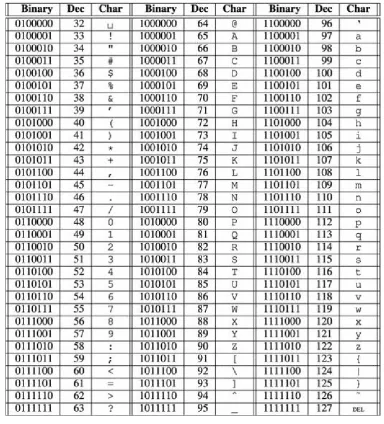
255 also define extended ASCII codes which are used for some character graphics. Each ASCII character is contained in one byte. Figure 1.10 shows the characters and their equivalent integer representations.
Practice 1.4
What is the binary and decimal equivalent of the space character?
Practice 1.5
1.6 What Is a Programming Language?
If we were to have to write programs as sequences of numbers we wouldn’t get very far. It would be so tedious to program that no one would want to be a programmer. In the spring of 2006 Money Magazine ranked Software Engineer [4] as the number one job in America in terms of overall satisfaction which included things like compensation, growth, and stress-levels. So it must not be all that tedious.
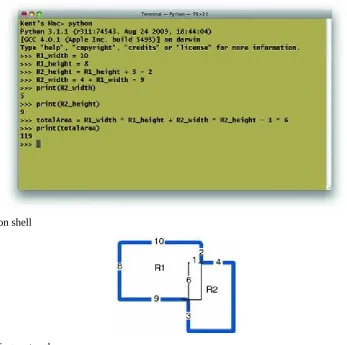
[image:30.595.122.470.318.663.2]A programming language is really a set of tools that allow us to program at a much higher level than the 0’s and 1’s that exist at the lowest levels of the computer. Python and the Wing IDE provides us with a couple of tools. The lower right corner of the Wing IDE has a tab labeled Python Shell. The shell allows programmers to interact with the Python interpreter. The interpreter is a program that interprets the programs we write. If you have a Mac or Linux computer you can also start the Python interpreter by opening up a terminal window. If you use Windows you can start a Command Prompt by looking under the Accessories program group. Typing python at a command prompt starts a Python interpreter as shown in Fig. 1.11.
Fig. 1.11 The Python shell
Fig. 1.12 Overlapping rectangles
Consider computing the area of a shape constructed of overlapping regular polygons. In Fig. 1.12 all angles are right angles and all distances are in meters. Our job is to figure out the area in square meters. The lighter lines in the middle help us figure out how to compute the area. We can compute the area of the two rectangles and then subtract one of the overlapping parts since otherwise the overlapping part would be counted twice.
first line sets a variable called R1_width to the value of 10. Then R1_height is set to 8. We can store a value in memory and give it a name. This is called an assignment statement. Your calculator can store values. So can Python. In Python these values can be given names that mean something in our program. R1_height is the name we gave to the height of the R1 rectangle. Anytime we want to retrieve that value we can just write R1_height
and Python will retrieve its value for us.
Practice 1.6
Open up the Wing IDE or a command prompt and try out the assignment and print statements shown in Fig. 1.11. Make sure to type the statements into the python shell. You DO NOT type the . That is the Python shell prompt and is printed by Python. Notice that you can’t fix a line once you have pressed enter. This will be remedied soon.
Practice 1.7
Take a moment and answer these questions from the material you just read.
1.
What is an assignment statement?
2.
How do we retrieve a value from memory?
3.
Can we retrieve a value before it has been stored? What happens when we try to do that?
1.7 Hexadecimal and Octal Representation
Most programmers do not have to work with binary number representations. Programming languages let programmers write numbers in base 10 and they do the conversion for us. However, once in a while a programmer must be concerned about the binary representation of a number. As we’ve seen, converting between binary and decimal isn’t hard, but it is somewhat tedious. The difficulty arises because 10 is not a power of 2. Converting between base 10 and base 2 would be a lot easier if 10 were a power of 2. When computer programmers have to work with binary numbers they don’t want to have to write out all the zeroes and ones. This would obviously be tedious as well. Instead of converting numbers to base 10 or writing all numbers in binary, computer programmers have adopted two other representations for binary numbers, base 16 (called hexadecimal) and base 8 (called octal).
In hexadecimal each digit of a number can represent 16 different binary numbers. The 16 hexadecimal digits are 0–9, and A–F. Since 16 is a power of 2, there are exactly four binary digits that make up each hexadecimal digit. So, is and is . So, the binary number is in hexadecimal notation and in octal notation. If we wish to convert either of these two numbers to binary format the conversion is just as
easy. is for instance. Again, these conversions can be done quickly because there are four binary digits in each hexadecimal digit and three binary digits in each octal digit.
Example 1.3
To convert the binary number to hexadecimal we have only to break the number into two four digit binary numbers and . and
. So the hexadecimal representation of is .
Python has built-in support of hexadecimal numbers. If you want to express a number in hexadecimal form you preface it with a to signify that it is a hexadecimal number. For instance, here is how Python responds to being entered into the Python shell.
the left-most octal digit corresponds to the left-most two binary digits. The other two octal digits each have three binary digits. Again, Python has built-in support for representing octal digits. Writing a number with a leading zero and the letter o means that it is in octal format. So is the Python representation of and it is equal to .
Practice 1.8
[image:33.595.96.487.161.413.2]Convert the number to binary and then to hexadecimal and octal.
1.8 Writing Your Second Program
Writing programs is an error-prone activity. Programmer’s almost never write a non-trivial program perfectly the first time. As programmers we need a tool like an Integrated Development Environment (i.e. IDE) that helps us find and fix our mistakes. Going to the
File menu of the Wing IDE window and selecting New opens a new edit pane. An edit pane can be used to write a program but it won’t execute each line as you press enter. When writing a program we can write a little bit and then execute it in the Python interpreter by pressing F5 on the keyboard or by clicking the debug button.
When we write a program we will almost certainly have to debug it. Debugging is the word we use when we have to find errors in our program. Errors are very common and typically you will find a lot of them before the program works perfectly. Debugging refers to removing bugs from a program. Bugs are another name for errors. The use of the words
bug and debugging in Computer Science dates back to at least 1952 and probably much earlier. Wikipedia has an interesting discussion of the word debugging if you want to know more. While you can use the Python Shell for some limited debugging, a debugger
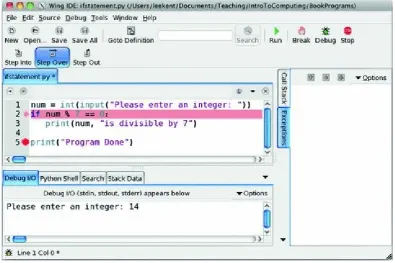
is a program that assists you in debugging your program. Figure 1.13 has a picture of the Wing IDE with the program we’ve been working on typed into the editor part of the IDE. To use the debugger we can click the mouse in the area where the red circle appears next to the numbers. This is called setting a breakpoint. A breakpoint tells Python to stop running when Python reaches that statement in the program. The program is not finished when it reaches that step, but it stops so you can inspect the state of the program.
The state of the program is contained in the bottom left corner of the IDE. This shows you the Stack Data which is just another name for the program’s state. You can see that the variables that were defined in the program are all located here along with their values at the present time.
Practice 1.9
Create an edit pane within the Wing IDE and write the program as it appears in Fig. 1.13. Write a few lines, then run it by pressing F5 on the keyboard or clicking on the Debug button. The first time you press F5 you will be prompted to save the program. Make sure you save your program where you can find it later.
Try setting a break point by clicking where the circle appears next to the numbers in Fig. 1.13. You should see a red circle appear if you did it right. Then run the program again to see that it stops at the breakpoint as it appears in Fig. 1.13. You can stop a program at any point by setting a breakpoint on that line. When the debugger stops at a breakpoint it stops before the statement is executed. You must click the Debug button, not the Run button to get it to stop at breakpoints.
Look at the Stack Data to inspect the state of the program just before the word
1.9 Syntax Errors
Not every error is found using a debugger. Sometimes errors are syntax errors. A syntax error occurs when we write something that is not part of the Python language. Many times a syntax error can occur if we forget to write something. For instance, if we forget a parenthesis or a double quote is left out it will not be a correct Python program. Syntax errors are typically easier to find than bugs in our program because Python can flag them right away for us. These errors are usually highlighted right away by the IDE or interpreter. Syntax errors are those errors that are reported before the program starts executing. You can tell its a syntax error in Wing because there will not be any Stack Data. Since a syntax error shows up before the program runs, the program is not currently executing and therefore there is not state information in the stack data. When a syntax error is reported the editor or Python will typically indicate the location of the error after it actually occurs so the best way to find syntax errors is to look backwards from where the error is first reported.
Fig. 1.14 A syntax error
Example 1.4
Forgetting a parenthesis is a common syntax error.
This is not valid syntax in Python since the right parenthesis is missing. If we were to try to run a Python program that contains this line, the Python interpreter complains that this is not valid syntax. Figure 1.14 shows how the Wing IDE tells us about this syntax error. Notice that the Wing IDE announces that the syntax error occurs on the line after where it actually occurred.
1.10 Types of Values
Earlier in this chapter we found that bytes in memory can be interpreted in different ways. The way bytes in memory are interpreted is determined by the type of the value or object and the operations we apply to these values. Each value in Python is called an object. Each object is of a particular type. There are several data types in Python. These include integer (called int in Python), float, boolean (called bool in Python), string (called str in Python),
list, tuple, set, dictionary (called dict in Python), and None.
1.11 The Reference Type and Assignment Statements
There is one type in Python that is typically not seen, but nevertheless is important to understand. It is called the reference type. A reference is a pointer that points to an object. A pointer is the address of an object. Each object in memory is stored at a unique address and a reference is a pointer that points to an object.
An assignment statement makes a reference point to an object. The general form of an assignment statement is:
An identifier is any letters, digits, or underscores written without spaces between them. The identifier must begin with a letter or underscore. It cannot start with a digit. The
expression is any expression that when evaluated results in one of the types described in Sect. 1.10. The left hand side of the equals sign must be an identifier and only one identifier. The right hand side of the equals sign can contain any expression that may be evaluated.
In Fig. 1.15, the variable R1_width (orange in the figure) is a reference that points at the integer object 10 colored green in the figure. This is what happens in memory in response to the assignment statement:
Fig. 1.15 A reference
Fig. 1.16 Before
The is the reference value, written in hexadecimal, which is a pointer (i.e. the address) that points at the integer object 10. However, typically you don’t see reference values in Python. Instead, you see what a reference points to. So if you type R1_width in the Python shell after executing the statement above, you won’t see printed to the screen, you’ll see 10, the value that R1_width refers to. When you set a breakpoint and look at the stack data in the debugger you will also see what the reference refers to, not the reference itself (see Fig. 1.13).
Fig. 1.17 After
According to what we have just seen, Fig. 1.16 depicts the state of memory after executing the first line of code and before executing the second line of code. In the second line of code, writing x = x + 1 is not an algebraic statement. It is an assignment statement where one is added to the value that x refers to. The correct way to read an assignment statement is from right to left. The expression on the right hand side of the equals sign is evaluated to produce an object. The equals sign takes the reference to the new value and stores it in the reference named by the identifier on the left hand side of the equals sign. So, to properly understand how an assignment statement works, it must be read from right to left. After executing the second statement (the line beginning with a pound sign is a comment and is not executed), the state of memory looks like Fig. 1.17. The reference called x is updated to point to the new value that results from adding the old value referred to by x and the 1 together.
The space for the two left over objects containing the integers 1 in Fig. 1.17 is reclaimed by the garbage collector. You can think of the garbage collector as your favorite arcade game character running around memory looking for unattached objects (objects with no references pointing to them—the stuff in the cloud in Fig. 1.17). When such an object is found the garbage collector reclaims that memory for use later much like the video game character eats dots and fruit as it runs around.
1.12 Integers and Real Numbers
In most programming languages, including Python, there is a distinction between integers and real numbers. Integers, given the type name int in Python, are written as a sequence of digits, like 83 for instance. Real numbers, called float in Python, are written with a decimal point as in 83.0. This distinction affects how the numbers are stored in memory and what type of value you will get as a result of some operations.
In Fig. 1.18 the type of the result is a float if either operand is a float unless noted otherwise in the table.
Fig. 1.18 Numeric operations
Dividing the integer 83 by 2 yields 41.5 if it is written . However, if it is written
then the result is . This goes back to long division as we first learned in
elementary school. is with a remainder of . The result of floor division isn’t
always an int. yields so be careful. While floor division returns an integer, it doesn’t necessarily return an int.
number. So, float(83)//2 also yields 41.0. Likewise, int(83.0)//2 yields 41.
There are infinitely many real numbers but only a finite number of floats that can be represented by a computer. For instance, the number PI is approximately 3.14159. However, that number can’t be represented in some implementations of Python. Instead, that number is approximated as 3.1415899999999999 in at least one Python implementation. Writing 3.14159 in a Python program is valid, but it is still stored internally as the approximated value. This is not a limitation of Python. It is a limitation of computers in general. Computers can only approximate values when there are infinitely many possibilities because computers are finite machines.
You can use what is called integer conversion to transform a floating point number to its integer portion. In effect, integer conversion truncates the digits after the decimal point in a floating point number to get just the whole number part. To do this you write int in front of the floating point number you wish to convert. This does not convert the existing number. It creates a new number using only the integer portion of the floating point number.
Example 1.5
Assume that you work for the waste water treatment plant. Part of your job dictates that you report the gallons of water treated at the plant. However, your meter reports lbs of water treated. You have been told to to report the amount of treated waste water in gallons and ounces. There are 128 ounces in a gallon and 16 ounces in a pound. Here is a short program that performs the conversion.
In Example 1.5 the lbs were first converted to ounces. Then the whole gallons were computed from the ounces by converting to an integer the result of dividing the ounces float by 128. On line 4 the remaining ounces were computed after taking out the number of ounces contained in the computed gallons.
Several of the operations between ints and floats are given in Fig. 1.18. If you need to round a float to the nearest integer (instead of truncating the fractional portion) you can use the round function. Absolute value is taken using abs. There are other operations between floats and ints that are not discussed in this chapter. A complete list of all operations supported by integers and floats are given in Chaps. 8 and 9. If you need to read some documentation about an operator you can use the appendices or you can search for Python documentation on the internet or you can start a Python shell and type
help(float) or help(int). This help facility is built into the Python programming language. There is extensive documentation for every type within Python. Typing help(type) in the Python shell where type is any type within Python will provide you with all the operations that are available on that type of value.
Practice 1.10
given the two legs as pictured in Fig. 1.23 on p. 35. The program should use three variables, sideA, sideB, and sideC. The Pythagorean theorem states that the sum of the squares of the two legs of the triangle equals the square of the hypotenuse. Be sure to assign all three variables their correct values and print the length of sideC at
1.13 Strings
Strings are another type of data in Python. A string is a sequence of characters.
This is a short program that initializes a variable called name to the string ‘Sophus Lie’. A string literal is an actual string value written in your program. String literals are
delimited by either double or single quotes. Delimited means that they start and end with quotes. In the code above the string literal Sophus Lie is delimited by single quotes. The string A famous Norwegian Mathematician is is delimited by double quotes. If you use a single quote at the beginning of a string literal, you must use a single quote at the end of the string literal. Delimiters must come in matching pairs.
Strings are one type of sequence in Python. There are other kinds of sequences in Python as well, such as lists which we’ll look at in a couple of chapters. Python supports operations on sequences. For instance, you can get an individual item from a sequence. Writing,
will print the first character of the string that name references. The 0 is called an index. Each subsequent character is assigned a subsequent position in the string. Notice the first position in the string is assigned 0 as its index. The second character is assigned index 1, and so on. Strings and their operations are discussed in more detail in Chap. 3.
Practice 1.11
Write the three line program given in the two listings on p. 24. Then, without writing the string literal “house”, modify it to print the string “house” to the screen using string indexing. HINT: You can add strings together to build a new string. So,
1.14 Integer to String Conversion and Back Again
It is possible in Python to convert an integer to a string. For instance,
This program converts 83 to ‘83’ and back again. Integers and floats can be converted to a string by using the str conversion operator. Likewise, an integer or a float contained in a string can be converted to its numeric equivalent by using the int or float conversion operator. Conversion between numeric types and string types is frequently used in programs especially when producing output and getting input.
Conversion of numeric values to strings should not be confused with ASCII conversion. Integers may represent ASCII codes for characters. If you want to convert an integer to its ASCII character equivalent you use the conversion operator. For instance, chr(83) is ‘S’. Likewise, if you want to convert a character to its ASCII code equivalent you use the conversion operator. So ord(‘S’) is equal to 83.
Practice 1.12
Change the program above to convert 83 to its ASCII character equivalent. Save the value in a variable and print the following to the screen in the exact format you see here.
You might have noticed in Fig. 1.19 there is an operator called int and another called float. Both of these operators are also numeric operators and appear in Fig. 1.18. This is called an overloaded operator because int and float are operators that work for both numeric and string operands. Python supports overloaded operators like this. This is a nice feature of the language since both versions of int and float do similar things.
1.15 Getting Input
To get input from the user you can use the input function. When the input function is called the program stops running the program, prompts the user to enter something at the keyboard by printing a string called the prompt to the screen, and then waits for the user to press the Enter key. The user types a string of characters and presses enter. Then the input
function returns that string and Python continues running the program by executing the next statement after the input statement.
Example 1.6
Consider this short program.
The input function prints the prompt “Please enter your name:” to the screen and waits for the user to enter input in the Python Shell window. The program does not continue executing until you have provided the input requested. When the user enters some characters and presses enter, Python takes what they typed before pressing enter and stores it in the variable called name in this case. The type of value read by Python is always a string. If we want to convert it to an integer or some other type of value, then we need to use a conversion operator. For instance, if we want to get an int from the user, we must use the int conversion operator.
Practice 1.13
Assume that we want to pause our program to display some output and we want to let the user press some key to continue. We want to print “press any key to continue ” to the screen. Can we use the input function to implement this? If so, how would you write the input statement? If not, why can’t you use input?
Example 1.7
This code prompts the user to enter their age. The string that was returned by input is first converted to an integer and then stored in the variable called age. Then the age variable can be added to another integer. It is important to remember that input
1.16 Formatting Output
In this chapter just about every fragment of code prints something. When a value is printed, it appears on the console. The location of the console can vary depending on how you run a program. If a program is run from within the Wing IDE, the console is the
Python Shell window in the IDE. If the program is debugged from within Wing IDE 101, the output appears in the Debug I/O window.
When printing, we may print as many items as we like on one line by separating each item by a comma. Each time a comma appears between items in a print statement, a space appears in the output.
Example 1.8
Here is some code that prints a few values to the screen.
The output from this is:
To print the contents of variables without spaces appearing between the items, the variables must be converted to strings and string concatenation can be used. The operator adds numbers together, but it also concatenates strings. For the correct operator to be called, each item must first be converted to a string before concatenation can be performed.
Example 1.9
Assume that we ask the user to enter two floating point numbers, and , and we wish to print the result of raising to the th power. We would like the output to look like this.
Here is a program that will produce that output, with no spaces in the exponentiation expression. NOTE: The caret symbol (i.e.ˆ) is not the Python symbol for exponentiation.
In Example 1.9, line 4 of the program prints three items to the console. The last two items are the = and the value that the answer variable references. The first item in the print statement is the result of concatenating str(base), the caret, and str(exp). Both base and
operator because the operands on either side of the are both strings.
Practice 1.14
The sum of the first n positive integers can be computed by the formula
Write a short Python program that computes the sum of the first 100 positive integers and prints it to the screen in the format shown below. Use variables to represent the 1, the 100, and the result of the computation. Your program must compute the 5050 value. You cannot just print the result to the screen. You must compute it first from the 100.
For advanced control of the format of printing we can use string formatting. String formatting was first used in the C language printf function back in the 1970s. It’s an idea that has been around a long time, but is still useful. The idea is that we place formatting instructions in a string and then tell Python to replace the formatting instructions with the actual values. This is best described with an example.
Example 1.10
Assume we wish to re-implement the program in Example 1.9. However, in this version of the program, if the user enters more than two decimal places for either number we wish to round the numbers to two digits of precision when they are printed to the console. Assume we wish to round the answer to four decimal places when displayed. The following code will do this.
Fig. 1.20 Format specifiers
Line 4 in Example 1.10 prints the result of formatting a string. To use Python formatting, a format string must be written first, followed by a percent sign, followed by the replacement values. If there is more than one replacement value, they must be written in parentheses. Each time a % appears inside the format string it is replaced by one of the
values that appear after the format string. How a value is formatted when it is placed in the format string is controlled by the format specifier. Figure 1.20 contains some specifiers for common types of data in Python. Every format specifier may include an optional width field. If specified, the width field specifies the actual width of the replaced data. If the width of the data being inserted into the format string exceeds the allotted width, the entire field is included anyway, stretching the width of the formatted string. String formatting can be very useful when generating a printed report of some data.
Practice 1.15
1.17 When Things Go Wrong
As a programmer, you will soon discover that things can go wrong when writing a program. No programmer writes every program correctly the first time. We are all human and make mistakes. What makes a programmer a really good programmer is when they can find their mistakes and correct them. Debugging programs is a skill that can be learned and therefore can be taught as well. But, it takes lots of practice and patience. Fortunately, you will have many chances to practice as you work your way through this book.
Sometimes, especially when you are first learning to debug your programs, it can help to have someone to talk to. Just the act of reading your code to someone else may cause you to find your mistake. Of course, if you are using this text as part of a course you may not want to read your code to another class member as that may violate the guidelines your instructor has set forth. But, nevertheless, you might find that reading your code to someone else may help you discover problems. This is called a code walk-through by programming professionals. It is a common practice and is frequently required when writing commercially available programs.
There is no substitute for thorough testing. You should run your program using varied values for input. Try to think of values that might cause your program to break. For instance, what if 0 is entered for an integer? What if a non-integer value is entered when an integer was required? What happens if the user enters a string of characters when a number was required?
Sometimes the problems in our code are not due to user input. They are just plain old mistakes in programming caused either by temporarily forgetting something, or by our misunderstanding how something works. For instance, in this chapter we learned about assignment statements. You can store a value in the memory of a computer and point a named reference at the value so you can retrieve it later. But, you must assign a name to a value before you can retrieve it. If you don’t understand that concept, or if you forgot where you assigned a value a name in your program, you might accidentally write some code that tries to use that value before it is assigned a name. For instance, consider the program in Fig. 1.21. The program is trying to use the gallons variable which has not been assigned a value. The error message is on the right side of the window. The line where the error was first detected by Python is highlighted.
Fig. 1.21 A run-time error
Fig. 1.22 An index out of range error
Another common error is the index out of range error. This can occur when trying to access a value in a sequence by indexing into the sequence. If the index is for an item that is outside the range of the sequence, an index out of range error will occur. For instance, if you have a string called x that is one character long and you try to access the second element of the string, your program will abort with an index out of range error. Figure 1.22
shows this happening in a snippet of code.
Once again, in the example in Fig. 1.22 the error did not occur on the line that is highlighted. The error occurred because the programmer meant to take the str(83) which would result in “83” as a string instead of the chr(83) which results in the string “S”. If the string had been “83” then line 3 would have worked and would have printed 3 to the screen.
1.18 Review Questions
1.
What does the acronym IDE stand for? What does it do?
2.
What does the acronym CPU stand for? What does it do?
3.
How many bytes are in a GB? What does GB stand for?
4.
What is the decimal equivalent of the binary number 01101100?
5.
What is the hexadecimal equivalent of the binary number 01101100?
6.
What is the binary equivalent of the number 62?
7.
What is the ASCII equivalent of the decimal number 62?
8.
9.
How can you tell what type of value is stored in 4 contiguous bytes of memory?
10.
How can you interactively work with the Python interpreter?
11.
What is prototyping as it applies to computer programming?
12.
Name two different types of errors that you can get when writing a computer program? What is unique about each type of error?
13.
What is a reference in a Python program?
14.
Why is it that the result of 4.01 3.59 is 0.41999999999999993 when using at least some implementations of Python 3?
15.
What would you have to write to ask the user to enter an integer and then read it into a variable in your program? Write some sample code to do this.
16.
1.19 Exercises
1.
Write a program that asks the user to enter their name. Then it should print out the ASCII equivalent of each of the first four characters of your name. For instance, here is a sample run of the program below.
2.
Write a program that capitalizes the first four characters of a string by converting the characters to their ASCII equivalent, then adding the necessary amount to capitalize them, and converting the integers back to characters. Print the capitalized string. Here is a sample of running this program.
3.
You can keep track of your car’s miles per gallon if you keep track of how many miles you drive your car on a tank of gas and you always fill up your tank when getting gas. Write a program that asks the user to enter the number of miles you drove your car and the number of gallons of gas you put in your car and then prints the miles per gallon you got on that tank of gas. Here is a sample run of the program.
4.
5.
Write a program that converts centimeters to yards, feet, and inches. There are 2.54 cm in an inch. You can solve this problem by doing division, multiplication, addition, and subtraction. Converting a float to an int at the appropriate time will help in solving this problem. When you run the program it should look exactly like this (except possibly for decimal places in the inches):
6.
Write a program that computes the minimum number of bills and coins needed to make change for a person. For instance, if you need to give $34.36 in change you would need one twenty, one ten, four ones, a quarter, a dime, and a penny. You don’t have to compute change for bills greater than $20 dollar bills or for fifty cent pieces. You can solve this problem by doing division, multiplication, subtraction, and converting floats to ints when appropriate. So, when you run the program it should look exactly like this:
7.
Write a program that converts a binary number to its decimal equivalent. The binary number will be entered as a string. Use the powers of 2 to convert each of the digits in the binary number to its appropriate power of 2 and then add up the powers of two to get the decimal equivalent. When the program is run, it should have output identical to this:
8.
You may assume that the number that is entered is in the range 0–255. If you want to check your work, you can use the bin function. The bin function will take a decimal number and return a string representation of that binary number. However, you should not use the bin function in your solution (Fig. 1.23).
9.
Complete the program started in Practice Problem 1.10. Write a program that asks the user to enter the two legs of a right triangle. The program should print the length of the hypotenuse. If sideA and sideB are the lengths of the two legs and sideC is the length of the third leg of a right triangle, then the Pythagorean theorem says that
. Ask the user to enter and . Your program should print the value of .
1.20 Solutions to Practice Problems
These are solutions to the Practice Problems in this chapter. You should only consult these answers after you have tried each of them for yourself first. Practice Problems are meant to help reinforce the material you have just read so make use of them.
1.20.1 Solution to Practice Problem
1.1
The decimal equivalent of the binary number is 85.
1.20.2 Solution to Practice Problem
1.2
So the answer is .
1.20.3 Solution to Practice Problem
1.3
1.20.4 Solution to Practice Problem
1.4
The ASCII code for space is 32.
1.20.5 Solution to Practice Problem
1.5
We, as programmers, determine how bytes in memory are interpreted by the statements that we write. If we want to interpret the bits as a character we write ‘S’ in our program. If we want the same bits to represent an integer, we write 83 in our program.
1.20.6 Solution to Practice Problem
1.6
There is no solution needed for this exercise. Try it out and if you have problems, talk to your instructor or someone who can help to make sure you get this working before proceeding.
1.20.7 Solution to Practice Problem
1.7
1.
An assignment statement is written as
where a variable is assigned the value of an expression.
To retrieve a value from memory we write the name of the variable that refers to that value.
3.
If we use a variable before it has been assigned a value Python will complain of a name error, meaning the variable has not been assigned a value yet.
1.20.8 Solution to Practice Problem
1.8
The binary representation of 58 is 00111010. The number is and . In Python syntax that would be and .
1.20.9 Solution to Practice Problem
1.9
There is no solution needed for this since it is in the text. However, you should make sure you try this so you understand the mechanics of writing a program using the IDE. If you can’t get it to work you should ask someone that did get it to work for help or ask your instructor.
1.20.10 Solution to Practice Problem
1.10
1.20.11 Solution to Practice Problem
1.11
Here is one program that you might get as a result.
1.20.12 Solution to Practice Problem
1.12
Here is one version of the program. Do you understand why + was used at the end of the
print statement?
1.20.13 Solution to Practice Problem
1.13
You cannot use input to implement this because the input function waits for the enter key to be pressed, not just any key. You could prompt the user though with “Press Enter to continue ”.
1.20.14 Solution to Practice Problem
1.14
© Springer-Verlag London 2014
2. Decision Making
Kent D. Lee
1(1)
Luther College, Decorah, IA, USA
Kent D. Lee
Email: [email protected]
[image:63.595.235.361.344.582.2]In this chapter we explore how to make choices in our programs. Decision making is valuable when something we want to do depends on some user input or some other value that is not known when we write our program. This is quite often the case and Python, along with all interesting programming languages, has the ability to compare values and then take one action or another depending on that outcome.
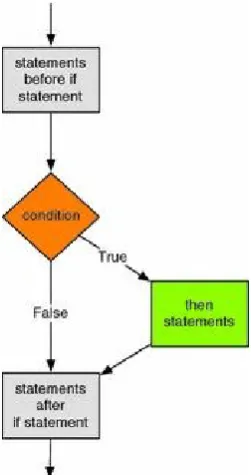
Fig. 2.1 If statement
For instance, you might write a program that reads data from a file and takes one action or another based on the data it read. Or, a program might get some input from a user and then take one of several actions based on that input.
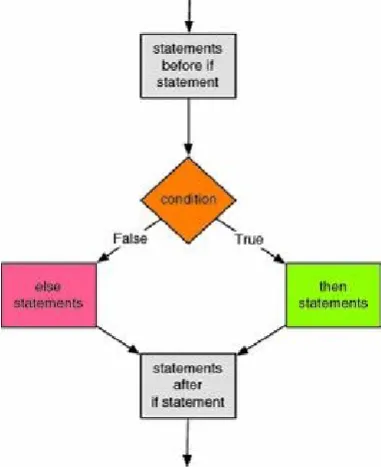
Figure 2.1 depicts this graphically. An if statement evaluates the conditional expression and then goes to one of two places depending on the outcome. Notice the indentation in the if statement above. The indentation indicates the then statements are part of the if statement. Indentation is very important in Python. Indentation determines the control flow of the program. Figure 2.1 graphically depicts this as well. If the condition evaluates to true, a detour is taken to execute the then statements before continuing on after the if statement.
Generally, we want to know if some value in our program is equal to, greater, or less than another value. The comparison operators, or relational operators, in Python allow us to compare two values. Any value in your program, usually a variable, can be compared with another value to see how the two values relate to each other.
Fig. 2.2 Relational operators
Figure 2.2 lists the operators you can use to compare two values. Each of these operato