REFERENCE
MANUAL
_
BORlAnD
version
3.0
Reference Manual
Copyright c1983 Copyright c1984 Copyright c1985
by
This software is protected by both United States Copyright Law and International Treaty provisions. Therefore you must treat this software just
like a book with the following single exception. Borland International authorizes you to make archival copies of the software for the sole purpose of backing-up your software and protecting your investment from loss.
By saying, "just like a book", Borland means for example that this software may be used by any number of people and may be freely moved from one computer location to another so long as there is No Possibility of it being used at one location while it's being used at another. Just like a book that can't be read by two different people in two different places at the same time, neither can the software be used by two different people in two different places at the same time. (Unless, of course, Borland's Copyright has been violated.)
WARRANTY
With respect to the physical diskette and physical documentation enclosed herein, BORLAND INTERNATIONAL, INC., ("BORLAND") warrants the same to be free of defects in materials and workmanship for a period of 30 days from the date of purchase. In the event of. notification within the warranty period of defects in material or workmanship, BORLAND will replace the defective diskette or documentation. The remedy for breach of this warranty shall be limited to replacement and shall not encompass any other damages, including but not limited to loss of profit, special, incidental, consequential, or other similar claims.
BORLAND INTERNATIONAL, INC., SPECIFICALLY DISCLAIMS ALL OTHER WARRANTIES, EXPRESSED OR IMPLIED, INCLUDING BUT NOT LIMITED TO, IMPLIED WARRANTIES OF MERCHANTABILITY AND FITNESS FOR A PARTICULAR PURPOSE WITH RESPECT TO DEFECTS IN THE DISKETTE AND DOCUMENTAITON, AND THE PROGRAM LICENSE GRANTED HEREIN. IN PARTICULAR, AND WITHOUT LlMIMTING OPERATION OF THE PROGRAM LICENSE WITH RESPECT TO ANY PARTICULAR APPLICATION, USE, OR PURPOSE. IN NO EVENT SHALL BORLAND BE LIABLE FOR ANY LOSS OF PROFIT OR ANY OTHER COMMERCIAL DAMAGE, INCLUDING BUT NOT LIMITED TO SPECIAL, INCIDENTAL, CONSEQUENTIAL OR OTHER DAMAGES.
GOVERNING LAW
INTRODUCTION ... ... ... ... ... ... ... ... ... ... 1
The Pascal Language ... 1
TURBO Pascal ... 1
Structure of This Manual ... ... ... ... ... ... ... ... .... 2
Typography ... 4
Syntax Descriptions .... ... ... ... ... ... ... ... ... ... ... ... ... 4
Chapter 1. USING THE TURBO SYSTEM ... ... .... ... ... ... ... 7
.COM and .CMD files ... ... 7
BEFORE USE ... ... ... ... 7
IMPORTANT NOTE III ... 7
Files On The Distribution Disk ... 8
Starting TURBO Pascal... ... ... ... ... ... ... ... ... ... ... ... 10
Installation ... ... ... ... ... ... ... ... ... ... ... .... 12
IBM PC Screen Installation .. ... ... ... ... ... ... .... ... ... 12
Non-IBM PC Screen Installation ... ... 12
Installation of Editing Commands ... ... ... ... .... ... ... .... ... ... 13
The Menu ... 14
Logged Drive Selection ... 15
Work File Selection ... 15
Main File Selection ... 16
Edit Command ... 17
Compile Command ... ... ... ... ... ... ... ... 17
Run Command ... ... ... ... ... ... .... ... ... ... ... ... ... ... 17
Save Command ... ... ... ... ... ... ... 17
Directory Command ... 18
Quit Command ... 18
compiler Options ... 18
The TURBO Editor ... 19
The Status Line ... 19
Editing Commands ... 20
A Note on Control Characters ... 22
Before You Stalt: How To Get Out ... 22
Basic Movement Commands ... 22
Extended Movement Commands ... 25
Insert and Delete Commands .. ... ... ... ... ... ... 26
Block Commands .. ... ... ... ... ... ... ... ... ... 28
Mark Single Word ... ... 34
End Edit ... 35
Line Restore ... ... ... ... ... ... ... 35
Tabulator ... 35
Auto Indentation .... ... ... ... ... ... ... .... ... ... ... 35
Chapter 2. BASIC LANGUAGE ELEMENTS ... ... 37
Basic Symbols ... ... 37
Reserved Words ... ... ... ... ... ... ... .... ... .... ... 37
Standard Identifiers . ... ... ... ... ... ... ... ... .... ... ... ... 38
Delimiters ... ... ... ... 39
Program Lines ... ... ... ... ... 39
Chapter 3. STANDARD SCALAR TYPES ... 41
Integer ... 41
Byte ... 41
Real ... 42
Boolean ... 42
Char ... 42
Chapter 4. USER DEFINED LANGUAGE ELEMENTS ... 43
Identifiers ...•... 43
Numbers ... 43
Strings ... 44
Control Characters ... ... ... ... ... 45
Comments ... ... ... ... ... 46
Compiler Directives ... ;... 46
Chapter 5. PROGRAM HEADING AND PROGRAM BLOCK ... 47
Program Heading ... ... ... ... ... ... 47
Declaration Part ... ;... 47
Label Declaration Part ... ... ... ... 48
Constant Definition Part ... ... ... 48
Type Definition Part ... ... 49
Variable Declaration Part ... 49
Procedure and Function Declaration Part ... ... 50
Statement Part ... ... 50
Unary Minus ... 51
Not Operator ... 52
Multiplying Operators ... 52
Adding Operators ... ... 53
Relational Operators ... ... ... 53
Function Designators ... 54
Chapter 7. STATEMENTS ... 55
Simple Statements ... 55
Assignment Statement ... ... 55
Procedure Statement ... ... ... 56
Goto Statement ... 56
Empty Statement ... ... 56
Structured Statements ... ... ... 57
Compound Statement ... 57
Conditional Statements ... 57
If Statement ... ... ... 57
Case Statement ... 58
Repetitive Statements ... ,... 59
For Statement ... ... ... 60
While statement ... 61
Repeat Statement ... 61
Chapter 8. SCALAR AND SUBRANGE TYPES .... ... ... 63
Scalar Type ... ... 63
Subrange Type... ... ... 64
Type Conversion ... 65
Range Checking ... ... ... 65
Chapter 9. STRING TYPE ... ... ... ... 67
String Type Definition ... ... ... ... 67
String Expressions ... ... ... 67
String Assignment ... ... ... 68
String Procedures ... ... 69
Delete ... 69
Insert ... 69
Str ... 70
Concat ... 71
Length ... 72
Pos ... 72
Strings and Characters ... 73
Chapter 1 O. ARRAY TYPE ... ... ... ... ... 75
Array Definition ... 75
Multidimensional Arrays ... 76
Character Arrays ... 77
Predefined Arrays ... 77
Chapter 11. RECORD TYPE ... ... ... 79
Record Definition... 79
With Statement ... 81
Variant Records ... 82
Chapter 12. SET TYPE ... 85
Set Type Definition ... 85
Set Expressions ... 86
Set Constructors ... 86
Set Operators ... 87
Set Assignments ... 88
Chapter 13. TYPED CONSTANTS .. ... ... ... ... 89
Unstructured Typed Constants ... ... 89
Structured Typed Constants ... ... 90
Array Constants ... 90
Multi-dimensional Array Constants ... ... 91
Record Constants ... 91
Set Constants ... 92
Chapter 14. FILE TYPES ... 93
File Type Definition ... ,'... 93
Operations on Files ... 94
Assign ... 94
Rewrite ... 94
Reset ... 94
Read ... 95
Write ... 95
Seek ... 95
Flush ... 96
Close ... 96
File Standard Functions ... ... ... ... 97
EOF ... 97
FilePos ... 97
FileSize ... 98
Using Files ... ... ... ... ... ... 98
Text Files ... 101
Operations on Text Files ... 101
ReadLn ... 101
WriteLn ... 101
Eoln ... 102
SkpEoln ... 102
SkpEof ... 102
Logical Devices ... 104
Standard Files ... 105
Text Input and Output ... 108
Read Procedure ... 108
Readln Procedure ... 110
Write Procedure ... 111
Write Parameters ... 112
Writeln Procedure ... 113
Untyped Files ... 114
BlockRead / BlockWrite ... 114
I/O checking ... 116
Chapter 15. POINTER TYPES ... 119
Defining a Pointer Variable ... 119
Allocating Variables (New) ... 120
Mark and Release ... 120
Using Pointers ... 122
Dispose ... 124
GetMem ... 125
FreeMem ... 125
Relaxations on Parameter Type Checking ... ... ... ... ... ... 129
Untyped Variable Parameters ... 130
Procedures ... 131
Procedure Declaration ... , ... 131
Standard Procedures ... 133
ClrEol ... 133
ClrScr ... 133
Crtlnit ... 133
CrtExit ... 134
Delay ... 134
Del Line ... 134
InsLine ... 134
GotoXY ... 134
Exit ... 135
Halt ... 135
LowVideo ... 135
NormVideo ... 135
Randomize ... 135
Move ... 136
FiIIChar ... 136
Functions ... 137
Function Declaration ... 137
Standard Functions ... 139
Arithmetic Functions ... 139
Abs ... 139
ArcTan ... 139
Cos ... 139
Exp ... 140
Frac ... 140
Int ... 140
Ln ... 140
Sin ... 140
Sqr ... : ... 141
Sqrt ... 141
Scalar Functions ... 141
Pred ... 141
Succ ... 141
Odd ... 141
Ord ... 142
Round ... 142
Trunc ... 142
Miscellaneous Standard Functions ... 143
Hi ... 143
KeyPressed ... 143
Lo ... 143
Random ... 143
Random(Num) ... 143
SizeOf ... 144
Swap ... 144
UpCase ... 144
Forward References ... 145
Chapter 17. INCLUDING FILES ... 147
Chapter 18. OVERLAY SYSTEM ... 149
Creating Overlays ... 152
Nested Overlays ... 154
Automatic Overlay Management ... 155
Placing Overlay Files ... 155
Efficient Use of Overlays ... 155
Restrictions Imposed on Overlays ... 156
Data Area ... 156
Forward Declarations ... 156
Recursion ... 156
Run-Time Errors ... 156
Chapter 19. IBM PC GOODIES ... 159
Screen Mode Control ... 160
Text Modes ... 160
Color Modes ... 161
TextColor ... 161
TextBackground ... 162
Cursor Position ... 162
WhereX ... 162
GraphMode ... 164
HiRes ... 164
HiResColor ... 164
Palette ... 165
GraphBackground ... 166
Windows ... 168
Text Windows ... 168
Graphics Windows ... 169
Basic Graphics ... 171
Plot ... 171
Draw ... 171
Extended Graphics ... 172
ColorTable ... 172
Arc ... 173
Circle ... 173
GetPic ... 173
PutPic ... 174
GetDotColor ... 174
FiIIScreen ... 175
FiIIShape Procedure ... 175
FiIIPattern ... 175
Pattern ... 176
Turtlegraphics ... 177
Back ... 178
ClearScreen ... 179
Forward ... 179
Heading ... 179
HideTurtle ... 179
Home ... 179
NoWrap ... : ... 180
PenDown ... 180
PenUp ... 180
Set Heading ... 180
SetPenColor ... 181
Set Position ... 181
ShowTurtle ... 181
TurnLeft ... 181
TurnRight ... 181
TurtleWindow ... 182
TurtleThere ... 183
Wrap ... 184
Xcor ... 184
Editor Command Keys ... 186
Chapter 20. PC-DOS AND MS-DOS ... 187
Tree-Structured Directories ... 187
On the Main Menu ... 187
Directory-related procedures ... 1 89 ChOir ... 189
MkDir ... 189
RmDir ... 189
GetDir ... 189
Compiler Options ... 190
Memory / Com file / cHn-file ... 190
Minimum Code Segment Size ... 191
Minimum Data Segment Size ... 191
Minimum Free Dynamic Memory ... 192
Maximum Free Dynamic Memory ... ... 192
Command Line Parameter ... 192
Find Run-time Error ... 192
Standard Identifiers ... 193
Chain and Execute ... 193
Overlays ... 196
OvrPath Procedure ... 196
Files ... 198
File Names ... 198
Number of Open Files ... 198
Extended File Size ... 199
File of Byte ... 199
Flush Procedure ... 199
Truncate Procedure ... 199
Text Files ... 200
Buffer Size ... 200
Append Procedure ... 200
Flush Procedure ... 200
Logical Devices ... 200
I/O redirection ... 201
Absolute Variables ... 203
Absolute Address Functions ... 204
Addr ... 204
Ofs ... 204
Port Array ... 206
With Statements ... 206
Pointer Related Items ... 206
MemAvail ... 206
Pointer Values ... 207
Assigning a Value to a Pointer ... 207
Obtaining The Value of a Pointer ... 207
Function Calls ... 208
User Written I/O Drivers ... 209
External Subprograms ... 210
In-line Machine Code ... 211
Interrupt Handling ... 214
Intr procedure ... 214
Internal Data Formats ... 216
Basic Data Types ... 216
Scalars ... 216
Reals ... 217
Strings ... 217
Sets ... 218
Pointers ... 218
Data Structures ... 219
Arrays ... 219
Records ... 219
Disk Files ... 220
File Interface Blocks ... 220
Random Access Files ... 221
Text Files ... 221
Parameters ... 221
Variable Parameters ... 223
Value Parameters ... 223
Scalars ... 223
Reals ... 223
Strings ... 223
Sets ... 224
Pointers ... 224
Arrays and Records ... 224
Function Results ... 224
The Heap and The Stacks ... 225
Memory Management ... 226
Memory / Cmd file / cHn-file ... 227
Minimum Code Segment Size ... , ... 228
Minimum Data Segment Size ... 229
Minimum Free Dynamic Memory ... 229
Maximum Free Dynamic Memory ... 229
Command Line Parameter ... 229
Find Runtime Error ... 229
Standard Identifiers ... 230
Chain and Execute ... 231
Overlays ... 233
OvrDrive Procedure ... 233
Files ... 235
File Names ... 235
Text Files ... 235
Buffer Size ... 235
Absolute Variables ... , ... , ... 236
Absolute Address Functions ... 237
Addr ... 237
Ofs ... 237
Seg ... 237
Cseg ... 237
Dseg ... 238
Sseg ... 238
Predefined Arrays ... 238
Mem Array ... 238
Port Array ... 239
With Statements ... 239
Pointer Related Items ... 239
MemAvaii ... 239
Pointer Values ... 239
Assigning a Value to a Pointer ... 240
Obtaining The Value of a Pointer .. , ... 240
Function Calls ... 240
User Written I/O Drivers ... 241
External Subprograms ... ~ ... 242
In-line Machine Code ... 243
Interrupt Handling ... 245
Scalars ... 247
Reals ... 247
Strings ... '" ... 248
Sets ... 248
Pointers ... 249
Data Structures ... 249
Arrays ... 249
Records ... 250
Disk Files ... 250
File Interface Blocks ... 250
Random Access Files ... 251
Text Files ... 252
Parameters ... ; ... : ... 252
Variable Parameters ... 253
Value Parameters ... 253
Scalars ... 254
Reals ... 254
Strings ... 254
Sets ... 254
Pointers ... 254
Arrays and Records ... 254
Function Results ... 255
The Heap and The Stacks ... 255
Memory Management ... 256
Chapter 22. CP IM-80 ... 259
eXecute Command ... 259
compiler Options ... 259
Memory
I
Com fileI
cHn-file ... 260Start Address ... 261
End Address ... 261
Command Line Parameter ... 262
Find Runtime Error ... 262
Standard Identifiers ... 263
Chain and Execute ... 263
Overlays ... 265
OvrDrive Procedure ... 265
Files ... 267
File Names ... 267
Text Files ... 267
Absolute Variables ... 267
Addr Function ... 268
Port Array ... 269
Array Subscript Optimization ... 269
With Statements ... 269
Pointer Related Items ... 270
MemAvail ... 270
Pointers and Integers ... 270
CPIM Function Calls ... 271
Bdos procedure and function ... 271
BdosHL function ... 271
Bios procedure and function ... 272
BiosHL function ... 272
User Written 110 Drivers ... 272
External Subprograms ... 274
In-line Machine Code ... 274
Interrupt Handling ... 277
Internal Data Formats ... 278
Basic Data Types ... 278
Scalars ... 278
Reals ... 278
Strings ... 279
Sets ... 279
File Interface Blocks ... 280
Pointers ... 281
Data Structures ... 281
Arrays ... 281
Records ... 282
Disk Files ... 282
Random Access Files ... 282
Text Files ... 283
Parameters ... 283
Variable Parameters ... 283
Value Parameters ... 283
Scalars ... 283
Reals ... 284
Strings ... 284
Sets ... 284
Pointers ... 285
Arrays and Records ... 285
Function Results ... 285
Compilation in Memory ... 288
Compilation To Disk ... 289
Execution in Memory ... 290
Execution of A Program File ... 291
Chapter 23. TURBO BCD PASCAL ... 293
Files On the TURBO BCD Pascal Distribution Diskette ... 293
BCD Range ... 293
Form function ... 294
Numeric Fields ... 294
String Fields ... ,' ... 297
Writing BCD Reals ... 297
Formatted Writing ... 298
Internal Data Format ... 298
Chapter 24. TURBO-87 ... 301
Files On the TURBO-87 Distribution Diskette ... 301
Writing 8087 Reals ... 302
Internal Data Format ... 302
Appendix A. SUMMARY OF STANDARD PROCEDURES AND FUNCTIONS ... 303
Input/Output Procedures and Functions ... 303
Arithmetic Functions ... 304
Scalar Functions ... 304
Transfer Functions ... 304
String Procedures and Functions ... 305
File Handling Routines ... 305
Heap Control Procedures and Functions ... 306
Screen Related Procedures and Functions ... 306
Miscellaneous Procedures and Functions ... 307
IBM PC Procedures and Functions ... 308
Basic GraphiCS, Windows, and Sound ... 308
Extended Graphics ... ' ... 309
Turtlegraphics ... 309
Appendix B. SUMMARY OF OPERATORS ... 311
•
Common Compiler Directives ... 314
B -I/O Mode Selection ... 314
C-Control C and S ... 314
/ - I/O Error Handling ... 314
/- Include Files ... 314
R -Index Range Check ... 315 .
V -Var-parameter Type Checking ... 315
U -User Interrupt ... 315
PC-DOS and MS-DOS Compiler Directives ... 316
G -Input File Buffer ... 316
P -Output File Buffer ... 316
D -Device Checking ... 316
F-Number of Open Files ... 317
PC-DOS, MS-DOS, and CP/M-86 Compiler Directive ... 317
K -Stack Checking ... 317
CP/M-80 Compiler Directives ... 318
A -Absolute Code ... 318
W -Nesting of With Statements ... 318
X -
Array Optimization ... 318Appendix D. TURBO VS. STANDARD PASCAL ... 319
Dynamic Variables .. ... 319
Recursion ... 319
Get and Put ... 319
Goto Statements ... 319
Page Procedure ... 320
Packed Variables ... 320
Procedural Parameters ... 320
Appendix E. COMPILER ERROR MESSAGES ... 321
Appendix F. RUN-TIME ERROR MESSAGES ... 325
Appendix G. I/O ERROR MESSAGES ... 327
Appendix H. TRANSLATING ERROR MESSAGES ... 329
Error Message File Listing ... 330
Appendix K. KEYBOARD RETURN CODES ... 341
Appendix L. INSTALLATION ... 345
Terminal Installation ... 345
IBM PC Display Selection ... 345
Non-IBM PC Installation ... 346
Editing Command Installation .. , ... '" ... 350
Appendix M. CP
1M
PRIMER ... '" ... 355How to use TURBO on a CPIM system ... 355
Copying Your TURBO Disk ... 355
Using Your TURBO Disk ... 356
Appendix N. HELP!!! ... 357
Appendix O. SUBJECT INDEX ... 363
1-1 Log-on Message ... 10
1-2 Main Menu ... 11
1-3 Installation Main Menu .. ... ... ... ... ... ... 12
1-4 Main Menu ... 14
1-5 Editor Status Line ... 19
15-1 Using Dispose ... 124
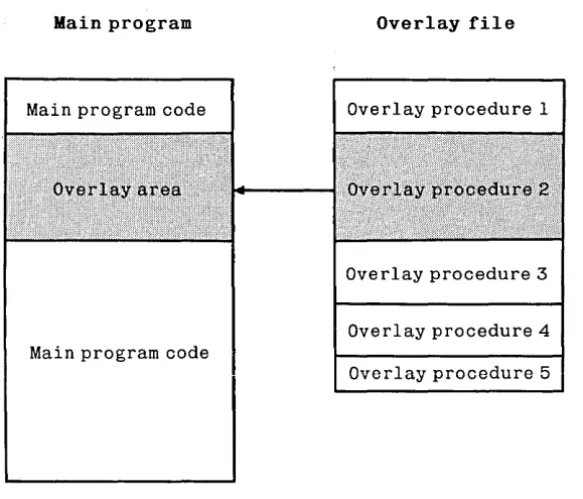
18-1 Principle of Overlay System ... 149
18-2 Largest Overlay Subprogram Loaded ... 150
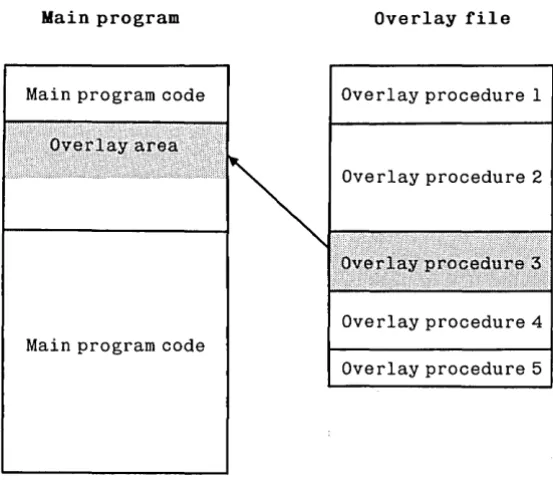
18-3 Smaller Overlay Subprogram Loaded ... 151
18-4 Multiple Overlay Files ... 153
18-5 Nested Overlay Files ... 154
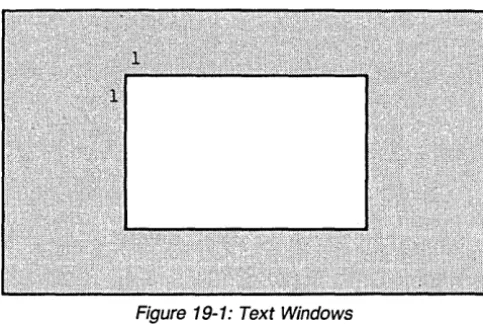
19-1 Text Windows ... 169
19-2 Graphics Windows ... 170
19-3 Turtle Coordinates ... 178
19-4 Turtle Coordinates ... 183
20-1 TURBO Main Menu under DOS 2.0 ... 187
20-2 Options Menu ... 190
20-3 Memory Usage Menu ... 191
20-4 Run-time Error Message ... 192
20-5 Find Run-time Error ... 192
21-1 Options Menu ... 227
21-2 Memory Usage Menu ... 228
21-3 Run-time Error Message ... 230
21-4 Find Run-time Error ... 230
22-1 Options Menu ... 260
22-2 Start and End Addresses ... 261
22-3 Run-time Error Message ... 262
22-4 Find Run-time Error ... 262
22-5 Memory map during compilation in memory ... 288
22-6 Memory map during compilation to a file ... 289
22-7 Memory map during execution in direct mode ... 290
1-1 Editing Command Overview ... 21
14-1 Operation of EOLN and Eof ... 105
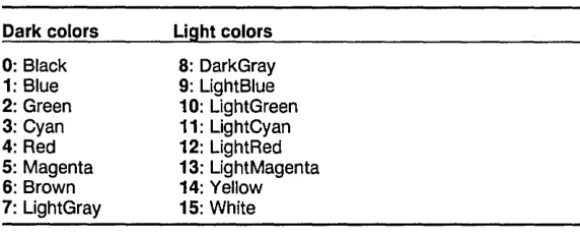
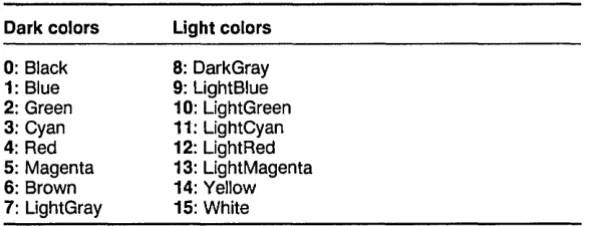
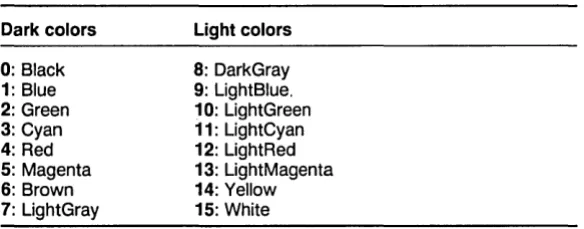
19-1 Text Mode Color Scale ... 161
19-2 High Resolution Graphics Color Scale ... 165
19-3 Color Palettes in Color Graphics ... ... 165
19-4 Color Palettes in B/W Graphics ... 166
19-5 Graphics Background Color Scale .. ... ... ... 167
19-6 IBM PC Keyboard Editing Keys ... 186
K-1 Keyboard Return Codes ... 343
L-1 Secondary Editing Commands ... 353
This book is a reference manual for the TURBO Pascal system as imple-mented for the PC-DOS, MS-DOS, CP/M-86, and CP/M-80 operating systems. Although making thorough use of examples, it is not meant as a Pascal tutorial or textbook, and at least a basic knowledge of Pascal is assumed.
A TURBO Pascal Tutorial, however, is also available from Borland. Please see page 3 for ordering information.
The Pascal Language
Pascal is a general-purpose, high level programming language originally designed by Professor Niklaus Wirth of the Technical University of Zur-ich, Switzerland and named in honor of Blaise Pascal, the famous French Seventeenth Century philosopher and mathematician.
Professor Wirth's definition of the Pascal language, published in 1971, was intended to aid the teaching of a systematic approach to computer programing, specifically introducing structured programming. Pascal has since been used to program almost any task on almost any computer and it is today established as one of the foremost high-level languages; whether the application is education, hobby, or professional program-ming.
TURBO Pascal
TURBO Pascal is designed to meet the requirements of all categories of users: it offers the student a friendly interactive environment which greatly aids the learning process; and in the hands of a programmer it becomes an extremely effective development tool providing both compi-lation and execution times second to none.
Direct access to CPU memory and data ports Dynamic strings
Free ordering of sections within declaration part Full support of operating system facilities In-line machine code generation
Include files
Logical operations on integers Overlay system
Program chaining with common variables Random access data files
Structured constants Type conversion functions
IBM PC and compatibles only:
Colors Graphics Turtlegraphics Windows Sound
Furthermore, many extra standard procedures and functions are includ-ed to increase the versatility of TURBO Pascal.
Structure of This Manual
As this manual describes slightly different TURBO Pascal implementa-tions, namely PC-DOS, MS-DOS, CP/M-86, and CP/M-80, the reader should keep the following structure in mind:
1: 'Chapter 1 describes the installation and use of TURBO Pascal, the built-in editor, etc. This information applies to all implementations.
2: The main body of the manual, chapters 2 through 18, describe the com-mon parts of TURBO Pascal, i.e. those parts of the language which are identical in all three versions. These include Standard Pascal and many extensions. As long as you use the language as described in these chapters, your programs will be fully portable between implementations.
tions, for example special features, requirements, and limitations of each implementation. In particular, you should notice that chapter 19 explains all the IBM PC extensions such as colors, graphics, sound, windows, etc. To avoid confusion, you need only read the chapter(s) pertaining to your implementation.
Parts of chapters 20, 21, and 22 deal with technicalities such as internal data formats, interrupts, direct memory and port accesses, in-line as-sembly code, user written I/O drivers, etc. It is assumed that the reader has previous knowledge of such matters, and no attempt is made to teach these things. Remember that these chapters are imple-mentation dependent, so programs using techniques described there are no longer directly portable between implementations.
In fact, you need not bother with these chapters at all if your aim is to write plain Pascal code, or if portability between the different TURBO im-plementations is important to you. .
4: Chapter 23 describes TURBO-BCD. This is a special version of TURBO Pascal for PC-DOS, MS-DOS, and CP/M-86 which uses binary coded decimal (BCD) arithmetic for higher precision in real operations; especial-ly useful for business applications.
5: Chapter 24 describes the special 16-bit TURBO-8? which uses the optio- nal 808? co-processor for added speed and extended range in Real arithmetic.
6: The appendices are common to all implementations and contain sum-maries of language elements, syntax diagrams, error messages, details on installation procedures, an alphabetical subject index, etc.
7: Appendix N contains answers to a number of the most common ques-tions - please read it if you have any problems.
The body of this manual is printed in normal typeface. Special charac-ters are used for the following special purposes:
Typewriter
Italics
Typewriter-characters are used to illustrate program examples and screen output. Screen images are furthermore shown in rectangular fields of thin lines.
Italics are used in general to emphasize sections of the text. In particu-lar, pre-defined standard identifiers and elements in syntax descriptions (see below) are printed in italics. The meaning of the use of italics thus depends on the context.
Boldface
Boldface is used to mark reserved words; and also to highlight particu-larly important passages in the text.
Syntax Descriptions
4
The entire syntax of the Pascal language expressed as Backus-Naur Forms is collected in in Appendix I which also describes the typography and special symbols used in these forms.
Where appropriate syntax descriptions are also used more specifically to show the syntax of single language elements as in the following syntax description of the function Concat:
Concat ( Stt , St2 { , StN) )
Reserved words are printed in boldface, identifiers use mixed upper and lower case, and elements explained in the text are printed in italics.
by two or more string expressions, separated by commas and enclosed in parentheses. In other words, the following examples are legal (assum-ing that Name is a string variable):
USING THE TURBO SYSTEM
This chapter describes the installation and use of the TURBO Pascal system, specifically the built-in editor .
. COM and .CMD files
Files with the extension .COM mark the executable program files in CP/M-80 and PC-DOS / MS-DOS. In CP/M-86 these will instead be marked .CMD. Thus, whenever .COM-files are mentioned in the follow-ing, it should be understood as .CMD if your operating system is CP/M-86.
BEFORE USE
Before using the TURBO Pascal you should, for your own protection, make a work-copy of the distribution diskette and store the original safely away. Remember that the User's License allows you to make as many copies as you need for your own personal use and for backup purposes only. Use a file-copy program to make the copy, and make sure that all files are successfully transferred.
IMPORTANT NOTE
!!!
Files On The Distribution Disk
The distribution disk contains the following files:
TURBO.COM
The TURBO Pascal program: compiler, editor, and all. When you enter the command TURBO on your terminal, this file will load, and TURBO will be up and running.
TURBO.OVR
Overlay file for TURBO.COM (CP/M-80 version only). Needs only be present on the run-time disk if you want to execute .COM files from TURBO.
TURBO.MSG
Text file containing error messages. Needs not be present on your run-time disk if you will accept the system without explanatory compile-run-time error messages. Errors will in that case just print out an error number, and the manual can be consulted to find the explanation. In any case, as the system will automatically point out the error, you may find it an ad-vantage to use TURBO without these error messages; it not only saves space on the disk, but more importantly, it gives you approx. 1.5 Kbytes extra memory for programs. This message file may be edited if you wish to translate error messages into another language as described in
Appendix H. .
TINST.COM
Installation program. Just type TINST at your terminal, and the gram takes you through a completely menu-driven installation pro-cedure. This and the following files need not be present on your run-time disk.
TINST.DTA
Terminal installation data (not present on IBM PC versions).
TINST.MSG
Messages for the installation program. Even this file may be translated into any language desired ..
• PAS files
Sample Pascal programs.
GRAPH.P
IBM PC versions only. Contains the external declarations necessary to
use the extended graphics and turtlegraphics routines contained in GRAPH.BIN. Only necessary on the run-time disk if you want to do tur-tlegraphics.
GRAPH.BIN
IBM PC versions only. This file contains the extended graphics and tur-tlegraphics machine language routines. Only necessary on the run-time disk if you want to do extended or turtle graphics.
READ.ME
If present, this file contains the latest corrections or suggestions on the use of the system.
Only TURBO. COM must be on your run-time disk. A fully operative
Starting TURBO Pascal
10
When you have a copy of the system on your work-disk, enter the com-mand
TURBO
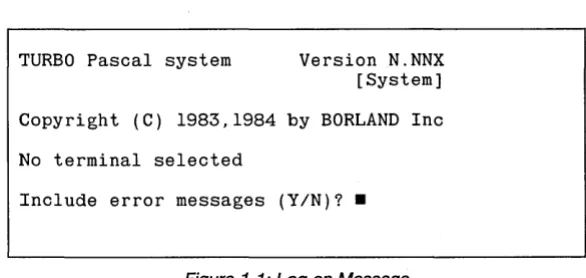
at your terminal. The system will log on with the following message:
[image:31.415.60.353.151.290.2]TURBO Pascal system Version N.NNX [System]
Copyright (C) 1983,1984 by BORLAND Inc
No terminal selected
Include error messages
(YIN)? •
Figure 1-1: Log-on Message
N.NNX specifies your release number and [System] indicates the operating environment (operating system and CPU), for example CP IM-86 on IBM PC . The second-last line tells you which screen is installed. At the moment none - but more about that later.
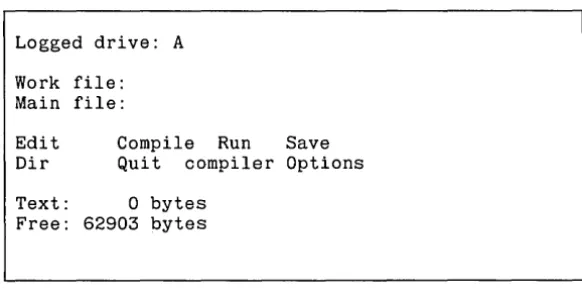
If you enter a Y in response to the error message question, the error message file will be read into memory (if it is on the disk), briefly display-ing the message Loaddisplay-ing TURBO. MSG. You may instead answer N and save about 1.5 Kbytes of memory. Then the TURBO main menu will appear:
Logged drive: A
Work file: Main file:
Edit Compile Run Save
Dir Quit compiler Options
Text: 0 bytes
[image:32.417.84.375.76.223.2]Free: 62903 bytes
Figure 1-2: Main Menu
The menu shows you the commands available, each of which will be described in following sections. Each command is executed by entering the associated capital letter (highlighted after terminal installation if your terminal has that feature). Don't press
<
RETURN> ; the command ex-ecutes immediately. The values above for Logged drive and memory use are for the sake of example only; the values shown will be the actual values for your computer.Installation
Type TINST to start the installation program. All TINST files and the
TURBO. COM file must be on the logged drive. This menu will appear:
TURBO Pascal installation menu. Choose installation item from the following:
[S]creen installation I [C]ommand installation [Q]uit
Enter S. C. or Q:
Figure 1-3: Installation Main Menu
IBM PC Screen Installation
When you hit S to perform Screen installation, a menu will appear which lets you select the screen mode you want the TURBO environment to use (see Appendix L for details). When you have made your choice, the main menu re-appears, and you may now continue with the Command installation described on pages 350 pp, or you may terminate the instal-lation at this point by entering Q for Quit.
Non-IBM PC Screen Installation
12
Now hit S to select Screen installation. A menu containing the names of the mostly used terminals will appear, and you may choose the one that suits you by entering the appropriate number. If your terminal is not on the menu, nor compatible with any of these (note that a lot of terminals are compatible with ADM-3A), then you must perform the installation yourself. This is quite straightforward, but you will need to consult the manual that came with your terminal to answer the questions asked by the installation menu. See Appendix L for details. .
When you have chosen a terminal, you are asked if you want to modify it before installation. This can be used if you have for example an ADM-3A compatible terminal with some additional features. Choose the ADM-3A and add the required commands to activate the special features. If you answer Yes, you will be taken through a series of ques-tions as described in Appendix L.
Normally, you will answer No to this question, which means that you are satisfied with the pre-defined terminal !nstallation. Now you will be asked the operating frequency of your microprocessor. Enter the appropriate value (2,4,6 or 8,' most probably 4).
After that, the main menu re-appears, and you may now continue with the Command installation described in the next section or you may ter-minate the installation at this point by entering Q for Quit.
Installation of Editing Commands
The built-in editor responds to a number of commands which are used to move the cursor around on the screen, delete and insert text, move text etc. Each of these functions may be activated by either a primary or a secondary command. The secondary commands are installed by' Bor-land and comply with the 'standard' set by WordStar. The primary com-mands are un-defined for most systems, and using the installation pro-gram, they may easily be defined to suit your' taste or your keyboard. IBM PC systems are supplied with the arrows and dedicateq function keys installed as primary commands as described in chapter 19.
~ ,
The Menu
14
After installation, you once again activate TURBO Pascal by typing the command TURBO. Your screen should now clear and display the menu, this time with the command letters highlighted. If not, check your instal-lation data.
Logged drive: A
Work file: Main file:
Edit Compile Run Save Dir Quit compiler Options
Text: 0 bytes Free: 62903 bytes
> •
Figure 1-4: Main Menu
By the way, whenever highlighting is mentioned here, it is assuming that your screen has different video attributes to show text in different inten-sities, inverse, underline or some other way. If not, just disregard any mention of highlighting.
This menu shows you the commands available to you while working with TURBO Pascal. A command is activated by pressing the associated upper case (highlighted) letter. Don't press
<
RETURN>, the com-mand is executed immediately. The menu may very well disappear from the screen when working with the system; it is easily restored byenter-ing an 'illegal command', i.e. any key that does not activate a command.<
RETURN> or<
SPACE> will do perfectly.The following sections describe each command in detail.
Logged Drive Selection
The L command is used to change the currently logged drive. When you press L, this prompt:
New drive:
-invites you to enter a new drive name, that is, a letter from A through P, optionally followed by a colon and terminated with
<
RETURN> . If you don't want to change the current value, just hit<
RETURN> . The L command performs a disk-reset, even when you don't change the drive, and should therefore be used whenever you change disks to avoid a fa-tal disk write error.The new drive is not immediately shown on the menu, as it is not au-tomatically updated. Hit for example
<
SPACE> to display a fresh menu which will show the new logged drive.Work File Selection
The W command is used to select a work file which is the file to be used to Edit, Compile, Run, eXecute, and Save. The W command will issue this command:
Work file name:
-and you may respond with any legal file name: a name of one through eight characters, an optional period, and an optional file type of no more than three characters:
FILENAME.TYP
If you enter a file name without period and file type, the file type PAS is automatically assumed and appended to the name. You may explicitly specify a file name with no file type by entering a period after the name, but omitting the type.
Examples:
PROGRAM
PROGRAM.
becomes
PROGRAM. PAS
File types .BAK, .CHN, and .COMj.CMD should be avoided, as TURBO uses these names for special purposes.
When the Work file has been specified, the file is read from disk, if present. If the file does notalready exist, the message New File is is-sUE!d. If you have edited another file which you have not saved, the mes-sage:
Workfile
X:FILENAME.TYPnot,saved. Save
(YIN)? •
warns you that you are about to load a new file into memory and overwrite the one you have just worked on. Answer Y to save or N to skip.
The new work filename will show on the menu the next time it is updat-ed, like when you hit
<
SPACE> .Main File Seiection
16
The
Nt
command mayb~
used to define a main' file when working with programs which use the compiier directive $1 tQ include a file. The Main file should be'the file which' which contains the include directives. You can then define the Work file to be diff~rent' from the Main file, and thus edit different include files while leaving the name of the Main file un-changed.When a compilation is started, and the Work file
i~,
different from the Main file, the, current Work file is automatically saved , and the Main file is loaded into memory. 'If an error is found during compilation, the file containing the error (whether it is the Main file or an include file) au-tomatically becomes. the Work file w~ich may then be edited. When the error has been corrected and compilation is started again, the corrected Work file is automatically saved, and the Main file is re-Ioaded.The Main file name is specified as described for the Work file name in the previous section.
Edit Command
The E command is used to invoke the built-in editor and edit the file defined as the Work file. If no Work file is specifie'd, you are first asked to specify one. The menu disappears, and the editor is activated. More about the use of the editor on pages 19 pp.
While you may use the TURBO system to compile and run programs without installing a terminal, the use of the editor requires that your ter-minal be installed. See page 12. .
Compile Command
The C command is used to activate the compiler. If no Main file is specified, the Work file will be compiled, otherwise the Main file will be compiled. In the latter case, if the Work file has been edited, you will be asked whether or not to save it before the Main file is loaded and com-piled. The compilation may be interrupted at any moment by 'pressing a key.
The compilation may result either in a program residing in memory, in a .COM file, or in a .CHN file. The choice is made on the compiler Options menu described on pages 190 (PC/MS-DOS systems), 227 (CP/M-86), and 259 (CP/M-80). The default is to have the program residing in memory.
Run Command
The R command is used to activate a program residing in memory or, if the C-switch on the compiler Options menlJ' is active, a TURBO object code file (.COM or .CMD file). If a compiled program is . already in memory, it will be activated. If not, a compilation will automatically take place as described above.
Save Command
Directory Command
The D command gives you a directory listing and information about remaining space on the logged drive. When hitting D, you are prompted thus:
Dir mask:
-You may enter a drive designator or a drive designator followed by a file name or a mask containing the usual wildcards
*
and ? Or you may just hit<
RETURN> to get a full directory listing.Quit Command
The Quit command is used to leave the TURBO system. If the Work file has been edited since it was loaded, you are asked whether you want to save it before quitting.
compiler Options
18
The 0 command selects a menu on which you may view and change some default values of the compiler. It also provides a helpful function to find run-time errors in programs compiled into object code files.
As these options vary between implementations, further discussion is deferred to chapters 20, 21, and 22.
The TURBO Editor
The built-in editor is a full-screen editor specifically designed for the creation of program source text. If you are familiar with MicroPro's
WordS tar, you need but little instruction in the use of the TURBO editor, as all editor commands are exactly like the ones you know from
WordStar. There are a few minor differences, and the TURBO editor has a few extensions; these are discussed on page 34. You may install your own commands 'on top' of the WordStar commands, as described on page 13; and IBM PC systems come with arrows and dedicated function keys already installed. The WordS tar commmands, however, may still be used.
Using the TURBO editor is simple as can be: when you have defined a Work file and hit E, the menu disappears, and the editor is activated. If the Work file exists on the logged drive, it is loaded and the first page of text is displayed. If it is a new file, the screen is blank apart from the
status line at the top.
You leave the editor and return to the menu by pressing Ctrl-K-D; more about that later.
Text is entered on the keyboard just as if you were using a typewriter. To terminate a line, press the
<
RETURN> key (or CR or ENTER or whatever it is called on your keyboard). When you have entered enough lines to fill the screen, the top line will scroll off the screen, but don't worry, it is not lost, and you may page back and forth in your text with the editing commands described later.Let us first take a look at the meaning of the status line at the top of the screen.
The Status Line
The top line on the screen is the status line containing the following in-formation:
Line n
Coin
Insert
ShQws the number of the line containing the cursor counted from the start of the file.
Shows the number of the column containing the' cursor counted from the left of the line.
Indicates that characters entered on the keyboard will be inserted at the cursor position. Existing text to the right of the cursor will move to the right as you write new text. Using the insert mode on/off command (Ctrl-V by default) will instead display the text Overwrite. Text entered on the keyboard will then overwrite characters under the cursor instead of inserting them.
Indent .,
Indicates that auto-indent is in. effect It may be switched off by the auto-indent on/off command (Ctrl-Q-I by default).
X:FILENAME.TYP
The drive, name, and type of the file being edited.
Editing
Command~
20
As mentioned before, you use the editor almost as a typewriter, but as this is a computerized text editor it offers you a number of editing facili-ties which make text manipulation, and in this case specifically program writing, much easier than on paper.
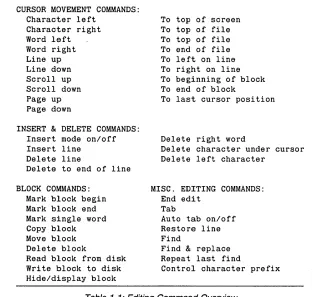
The T.URBO, editor accepts a total of 45 editing commands to move the cursor around, page through the text, find and replace text strings, etc, etc. These commands can be grouped into the following four categories:
Cursor movem~nt commands, Insert and delete commands, Block commands, and Miscellaneous commands
Each of these groups contain logically related commands which will be described separately· in following sections. The following table provides an overview of the commands available:
CURSOR MOVEMENT COMMANDS: Character left
Character right Word left Word right Line up Line down Scroll up Scroll down Page up Page down
INSERT
&
DELETE COMMANDS: Insert mode on/off Insert lineDelete line
Delete to end of line
BLOCK COMMANDS: Mark block begin Mark block end Mark single word Copy block Move block Delete block
Read block from disk Write block to disk Hide/display block
To top of screen To top of file To top of file To end of file To left on line To right on line To beginning of block To end of block
To last cursor position
Delete right word
Delete character under cursor Delete left character
MISC. EDITING COMMANDS: End edit
Tab
Auto tab on/off Restore line Find
Find
&
replace Repeat last findControl character prefix
Table 1-1: Editing Command Overview
In a case like this, the best way of learning is by doing; so start TURBO, specify one of the demo Pascal programs as your Work file, and enter E to start Editing. Then use the commands as you read on.
[image:42.414.70.384.80.377.2]Each of the following descriptions consists of a heading defining the command, followed by the default keystrokes used to activate the com-mand, with room in between to note which keys to use on your terminal, if you use other keys. If you have arrow keys and dedicated word pro-cessing keys (insert, delete, etc.), it might be convenient to use these. Please refer to pages 13 pp for installation details.
The following descriptions of the commands assume the use of the default WordStar compatible keystrokes.
A Note on Control Characters
All commands are issued using control characters. A control character is a special character generated by your keyboard when you hold down the
<
CONTROL> (or<
CTRL»
key on your keyboard and press any key from A through Z (well, even the [, \, ], ", and _ keys generate control characters for that matter).The
<
CONTROL> key works like the<
SHIFT> key: if you holddown the
<
SHIFT> key and press A, you will get a capital A; if you hold down the<
CONTROL> key and press A, you will get a Control-A (Ctrl-Control-A for short).Before You Start: How
To
Get Out
The command which takes you out of the editor is described on page 3D, but you may find it useful to know already now that the Ctrl-K-O command exits the editor and returns you to the menu environment. This command does not automatically save the file; that must be done with the Save command from the menu.
Basic Movement Commands
22
The most basic thing to learn about an editor is how to move the cursor around on the screen. The TURBO editor uses a special group of con-trol characters to do that, namely the concon-trol characters A,S, 0, F, E, R, X, and C.
Why these? Because they are conveniently located close to the control key, so that your left little finger can rest on that while you use the mid-dle and index fingers to activate the commands. Furthermore, the char-acters are arranged in such a way on the keyboard as to logically indi-cate their use. Let's examine the basic movements: cursor up, down, left, and right:
E S D
X
These four characters are placed so that it is logical to assume that Ctrl-E moves the cursor up, Ctrl-X down, Ctrl-S to the left, and Ctrl-D to the right. And that is exactly what they do. Try to move the cursor around on the screen with these four commands. If your keyboard has repeating keys, you may just hold down the control key and one of these four keys, and the cursor will move rapidly across the screen.
Now let us look at some extensions of those movements:
E R
A S D F X C
The location of the Ctrl-R next to the Ctrl-E suggests that Ctrl-R moves the cursor up, and so it does, only not one line at a time but a whole page. Similarly, Ctrl-C moves the cursor down one page at a time.
Likewise with Ctrl-A and Ctrl-F: Ctrl-A moves to the left like Ctrl-S, but a whole word at a time, and Ctrl-F moves one word to the right.
The two last basic movement commands do not move the cursor but scrolls the entire screen upwards or downwards in the file:
W E R
A S D F
Z X C
Character left Ctrl-S
Moves the cursor one character to the left non-destructively, without affecting the character there.
<
BACKSPACE> may be installed to have the same effect. This command does not work across line breaks; when the cursor reaches the left ·edge of the screen, it stops.Character right Ctrl-D
Moves the cursor one character to the right non-destructively, without affecting the character there. This command does not work across line breaks, i.e. when the cursor reaches the right end of the screen, the text starts scrolling horizontally until the cursor reaches the extreme right of the line, in column 128, where it stops.
Word left Ctrl-A
Moves the cursor to the beginning of the word-to the left. A word is defined as a sequence of characters delimited by one of the following characters: Is pace!
<
> ,;. () [ ] A , *+ - /
$. This command worksacross line breaks.
Word right Ctrl-F
Moves the cursor to the beginning of the word to the right. See the definition of a word above. This command works across line breaks.
Line up Ctrl-E
Moves the cursor to the line above. If the cursor is on the top line, the screen scrolls down one line.
Line down Ctrl-X
Moves the cursor to the line below. If the cursor is on the second-last line, the screen scrolls up one line.
Scroll up Ctrl-W
Scrolls 'up' towards the beginning of the file, one line at a time (the en-tire. screen scrolls down). The cursor remains on its line until it reaches the bottom of the screen.
Scroll down Ctrl-Z
24
Scrolls 'down' towards the end of the file, one line at a time (the entire screen scrolls up). The cursor remains on its line until it reaches the top of the screen.
Page up Ctrl-R Moves the cursor one page up with an overlap of one line; the cursor moves one screenful less one line backwards in the text.
Page down Ctrl-C
Moves the cursor one page down with an overlap of one line; the cursor moves one screenful less one line forwards in the text.
Extended Movement Commands
The commands discussed above will let you move freely around in your program text, and they are easy to learn and understand. Try to use them all for a while and see how natural they feel.
Once you master them, you will probably sometimes want to move more rapidly. The TURBO editor provides six commands to move rapidly to the extreme ends of lines, to the beginning and end of the text, and to the last cursor position.
These commands require two characters to be entered: first a Ctrl-Q and then one of the following control characters: S, 0, E, X, R, and C. They repeat the pattern from before:
E R
S D
X C
Ctrl-Q-S moves the cursor to the extreme left of the line, and Ctrl-Q-O moves it to the extreme right of the line. Ctrl-Q-E moves the cursor to the top of the screen, Ctrl-Q-X moves it to the bottom of the screen. Q-R moves the cursor all the way 'up' to the start of the file, Ctrl-Q-C moves it all the way 'down' to the end of the file.
To left on line Ctrl-Q-S
Moves the cursor all the way to the left edge of the screen, to column one.
To right on line Ctrl-Q-O
To top of screen Ctrl-Q-E Moves the cursor to the top of the screen.
To bottom of screen Ctrl-Q-X
Moves the cursor to the bottom of the screen.
To top of file Ctrl-Q-R
Moves to the first character of the text.
To end of file Ctrl-Q-C
Moves to the last character of the text.
Finally the Ctrl-Q prefix with a B, K, or P control character allows you to jump far within the file:
To beginning of block Ctrl-Q-B
Moves the cursor to the the position of the block begin marker set with Ctrl-K-B (hence the Q-B). The command works even if the block is not displayed (see hide/display block later), or the block end marker is not set.
To end of block Ctrl-Q-K
Moves the cursor to the position of the block end marker set with Ctrl-K-K (hence the Q-K). The command works even if the block is not displayed (see hide/display block later), or the block begin marker is not set.
To last cursor position Ctrl-Q-P Moves to the last Position of the cursor. This command is particularly useful to move back to the last position after a Save operation or after a find or find/replace operation.
Insert and Delete Commands
26
These commands let you insert and delete characters, words, and lines. They can be divided into three groups: one command which controls the text entry mode (insert or overwrite), a number of simple commands, and one extended command.
Notice that the TURBO editor provides a 'regret' facility which lets you 'undo' changes as long as you have not left the line. This command (Ctrl-Q-L) is described on page 31 .
Insert mode on/off Ctrl-V When you enter text, you may choose between two entry modes: Insert
and Overwrite. Insert mode is the default value when the editor is in-voked, and it lets you insert new text into an existing text. The existing text to the right of the cursor simply moves to the right while you enter the new text.
Overwrite mode may be chosen if you wish to replace old text with new text. Characters entered then replace existing characters under the cur-sor.
You switch between these modes with the insert mode on/off command Ctrl-V, and the current mode is displayed in the status line at the top of the screen.
Delete left character
<
DEL> Moves one character to the left and deletes the character there. Any characters to the right of the cursor move one position to the left. The<
BACKSPACE> key which normally backspaces non-destructively like Ctrl-S may be installed to perform this function if it is more con-veniently located on your keyboard, or if your keyboard lacks a<
DELETE> key (sometimes labeled<
DEL>,<
RUBOUT >, or<
RUB». This command works across line breaks, and can be used to remove line breaks.Delete character under cursor Ctrl-G Deletes the character under the cursor and moves any characters to the right of the cursor one position to the left. This command does not work across line breaks.
Delete right word Ctrl-T
Deletes the word to the right of the cursor. A word is defined as a se-quence of characters delimited by one of the following characters: Ispacel
<
> ,;. ( ) [ ] A , *+ - /
$. This command works across linebreaks, and may be used to remove line breaks.
Insert line Ctrl-N
Inserts a line break at the cursor position. The cursor does not move.
Delete to end of line Ctrl-Q-Y Deletes all text from the cursor position to the end of the line.
Block Commands
All block commands are extended commands (two characters each in the standard command definition), and you may ignore them at first if you feel a bit dazzled at this point. Later on, when you feel the need to move, delete, or copy whole chunks of text, you should return to this section.
For the persevering, we'll go on and discuss the use of blocks.
A block of text is simply any amount of text, from a single character to several pages of text. A block is marked by placing a Begin block mark-er at the first charactmark-er and an End block markmark-er at the last charactmark-er of the desired portion of the text. Thus marked, the block may be copied, moved, deleted, and written to a file. A command is available to read an external file into the text as a block, and a special command convenient-ly marks a single word as a block.
Mark block begin Ctrl-K-B
This command marks the beginning of a block. The marker itself is not visible on the screen, and the block only becomes visibly marked when the End block marker is set, and then only if the screen is installed to show some sort of highlighting. But even if the block is not visibly marked, it is internally marked and may be manipulated.
Mark block end Ctrl-K-K
This command marks the end of a block. As above, the marker itself is not visible on the screen, and the block only becomes visibly marked when the Begin block marker is also set. .
Mark single word Ctrl-K-T
28
This qommand marks a single word as a block, and thus replaces the Begin block - End block sequence which is a bit clumsy when marking just one word. If the cursor is placed within a word, then this word
will
be marked; if not then the word to the left of the cursor will be marked. A word is defined as a sequence of characters delimited by one of the following characters: Ispacel<
> ,;. ( ) []
~,
*+ - /
$.
Hide/display block Ctrl-K-H This command causes the visual marking of a block (dim text) to be al-ternately switched off and on. Block manipulation commands (copy, move, delete, and write to a file) work only when the block is displayed. Block related cursor movements Oump to beginning/end of. block) work whether the block is hidden or displayed.
Copy block Ctrl-K-C
This command places· a copy of a previously marked block starting at the cursor position. The original block is left unchanged, and the mark-ers are placed around the new copy of the block. If no block is marked, the command performs no operation, and no error message is issued.
Move block Ctrl-K-V
This command moves a previously marked block from its original tion to the cursor position. The block disappears from its original posi-tion and the markers remain around the block at its new posiposi-tion. If no block is marked, the command performs no operation, and no error message is issued.
Delete block Ctrl-K-Y
This command deletes the previously marked block. No provision exists to restore a deleted block, so be careful!
Read block from disk Ctrl-K-R
Write block to disk Ctrl-K-W This command is used to write a previously marked block to a file. The block is left unchanged, and the markers remain in place. When this command is issued, you are prompted for the name of the file to write to. If the file specified already exists, a warning is issued before the ex-isting file is overwritten. If no block is marked, the command performs no operation, and no error message is issued.The file specified may be any legal filename. If no file type is specified, .PAS is automatically as-sumed. A file without type is specified as a name followed by a period. Avoid the use of file types .BAK, .CHN, and .COM/.CMD, as they are used for special purposes by the TURBO system.
Miscellaneous Editing Commands
This section collects a number of commands which do not logically fall into any of the above categories. They are nonetheless important, espe-cially this first one: .
End edit Ctrl-K-D
This command ends the edit and returns to the main menu. The editing has been performed entirely in memory, and any associated disk file is not affected. Saving the edited file on disk is done explicitly with the Save command from the main menu or automatically in connection with a compilation or definition of a new Work file.
Tab T AB/etrl-I
There are no fixed tab positions in the TURBO editor. Instead, tab posi-tions are automatically set to the beginning of each word on the line im-mediately above the cursor. This provides a very convenient automatic tabbing feature especially useful in program editing where you often want to line up columns of related items, like variable declarations and such. Remembe