Arctic Network Data Management Standard Operating Procedure
Copying and Attaching a SQL
Server Database to a Tablet PC
Summary
Arctic Network
Inventory & Monitoring Program
U.S. Department of the Interior
Data Management
Standard Operating Procedure
NPS/ARCN/DMSOP-2009-05
This document explains how to make a child copy of a master SQL Server database for disconnected use on a tablet PC.
Contents
Summary ... 1
Contents ... 1
Introduction ... 1
Copying A SQL Server Database File From a Master Server To A Child Server On A Field Computer ... 1
Attaching The Database File To The Field Computer’s SQL Server ... 2
Starting and Stopping a SQL Server ... 3
About This Standard Operating Procedure ... 4
Revision History ... 5
Introduction
Arctic Network stores a substantial amount of data on a Microsoft SQL Server. Occasionally it is necessary to copy a database from the master server onto a field computer. This SOP explains how to detach a master database from the SQL Server and attach it to a tablet or laptop PC.
Explanation of SQL Server Database Files
SQL Server databases exist as files (.mdf and .ldf) in a certain directory, usually C:\Program Files\Microsoft SQL Server\MSSQL.1\MSSQL\Data. When you attach a database to a SQL Server what you are doing is showing the SQL Server where your database files exist. Understanding this fact makes it easier to understand what you are doing when you are attaching a database to a SQL Server.
Copying A SQL Server Database File From a Master
Server To A Child Server On A Field Computer
1. Open a file explorer and navigate to the SQL Server data directory (You need server adiministrator privileges to do this; contact your friendly local IT specialist, if needed). This directory may be in a custom location but the usual location is
Arctic Network Data Management Standard Operating Procedure
C:\Program Files\Microsoft SQL Server\MSSQL.1\MSSQL\Data
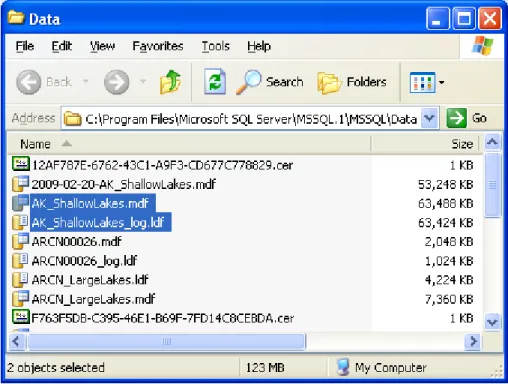
2. Each .mdf file is named according to the database name you see in management studio. Select both the .mdf file and the .ldf file and copy them to the
corresponding SQL Server data directory on your field computer. Figure 1 shows an example of the two parts of a SQL Server database file.
Figure 1. Example of SQL Server database files. Copy both the .mdf and the .ldf file to the corresponding folder on your field computer.
Attaching The Database File To The Field Computer’s
SQL Server
Note: If the database you want to attach already exists on the SQL Server (i.e., if you are attaching an earlier version of the same database or a backup copy, you may need to stop the SQL Server to break all data connections before attaching the new database. This is covered in it’s own section below).
Note: If you are attaching a different copy of the same database be sure not to overwrite the existing .mdf and .ldf files. Archive them elsewhere.
Arctic Network Data Management Standard Operating Procedure
4. Select ‘Attach…’ 5. Click ‘Add…’
6. Navigate to the .mdf file you would like to attach. 7. Click ‘OK’. The SQL Server will attach the database.
Starting and Stopping a SQL Server
Some database maintenance operations require the server to be stopped in order to sever existing database connections. Existing database connections put a lock on the database files making it impossible to overwrite database files. This is mostly a problem if you want to attach a different copy of an existing database (i.e., an earlier, backed up copy of an existing database). You will not likely need to stop the SQL Server just to attach a brand new database.
Note: Stopping a SQL Server is not a big deal on a field computer where there is likely only one connection, but weigh the consequences before stopping any SQL Server in a production environment that may have multiple data connections.
Note: You must have administrative rights on the computer. All ARCN field computer accounts have these rights.
To Stop and Start a SQL Server:
1. Click the Start menu and navigate to ‘Administrative Tools’ (the location of this link varies from computer to computer. It may also exist in the computer’s Control Panel.
Arctic Network Data Management Standard Operating Procedure
2. From Administrative Tools select ‘Services’
3. Navigate to ‘SQL Server (SQLEXPRESS) and right click
4. Select ‘Stop’
SQL Server maintenance tasks
directions except choose ‘Start’ in
About This Standard Operating Procedure
ate: July 21, 2009
anager, Arctic Network Inventory & Monitoring This document explains how to make a child copy of a master SQL Server 5. Perform your
6. Restart the SQL Server by following the same Step 4.
Version: 1.0 Status: Final Publication D
Author(s): Scott D. Miller, Data M Program.
Arctic Network Data Management Standard Operating Procedure
Revision History
Version Version Date Revised By Changes
1.0 2009-05-07 S. Miller Original
This table reflects changes to this document. Version numbers will be incremented by one (e.g., Version 1.3 to Version 2.0) each time there is a significant change in the process and/or changes are made that affect the interpretation of the data. Version numbers will be incremented after the decimal (e.g., Version 1.6 to Version
1.7…1.10….1.21) when there are changes to grammar, spelling, or formatting, or minor modifications in the process that do not affect the interpretation of data.