Microsoft
Exchange 2013
Citrix NetScaler
Table of contents
What’s new in Microsoft Exchange 2013 3
Exchange 2013 Architecture 3 Load Balancing Exchange 2013 5 Lync and SharePoint integration 6 Mobility for Outlook Web App (OWA) 6
Edge Transport servers 6
Exchange 2013 Architecture summary 7
Configuration examples for Exchange 2013 7
Product versions 7
Topology 7 Exchange protocol / Port requirements 9 Configuring NetScaler for Outlook Web App (OWA) 9 Configuring NetScaler for Microsoft Outlook Anywhere (OA) 16 Configuring NetScaler for Microsoft Exchange ActiveSync (AS) 17 Configuring NetScaler for IMAP4 18 Configuring NetScaler with POP3 24
Conclusion 30 References 31
p
NetScaler is an application delivery controller (ADC)
that optimizes and enhances the performance,
availability, scalability and security of Microsoft
Exchange 2013 deployments. Citrix NetScaler is
available as a physical or a virtual appliance. This
guide will take you through an easy to understand
step by step process of deploying NetScaler for
Microsoft Exchange 2013.
What’s new in Microsoft Exchange 2013
Exchange 2013 Architecture
For Microsoft Exchange 2013, there have been major architectural changes to the Exchange server roles.1 Instead of the five server roles that were present in Exchange 2010 and Exchange 2007, in Exchange 2013, the number of server roles has been reduced to two:
Client Access server
The Client Access server provides authentication, limited redirection, and proxy services. The Client Access server itself doesn’t do any data rendering. The Client Access server is a thin and stateless server. There is never anything queued or stored on the Client Access server. The Client Access server offers all the usual client access protocols: HTTP, POP and IMAP, and Simple Mail Transfer Protocol (SMTP).
Mailbox server
The Mailbox server includes all the traditional server components found in Exchange 2010: the Client Access protocols, Transport service, Mailbox
databases, and Unified Messaging. The Mailbox server handles all activity for the active mailboxes on that server.
Previous versions of Exchange were optimized and architected with certain technological constraints that existed at that time. For example, during development for Exchange 2007, one of the key constraints was CPU
performance. To alleviate that constraint, Exchange 2007 was split into different server roles that allowed scale out through server separation. However, server roles in Exchange 2007 and Exchange 2010 were tightly coupled. The tight coupling of the roles had several downsides including version dependency, geo-affinity (requiring all roles in a specific site), session geo-affinity (requiring expensive layer 7 hardware load balancing), and namespace complexity.
Today, CPU horsepower is significantly less expensive and is no longer a constraining factor. With that constraint lifted, the primary design goal for Exchange 2013 is for simplicity of scale, hardware utilization, and failure isolation. With this new architecture, the Client Access server and the Mailbox server have become “loosely coupled”. All processing and activity for a specific mailbox occurs on the Mailbox server that houses the active database copy where the mailbox resides. All data rendering and data transformation is performed local to the active database copy, eliminating concerns of version compatibility between the Client Access server and the Mailbox server.
The Exchange 2013 architecture provides the following benefits:
Version upgrade flexibility
No more rigid upgrade requirements. A Client Access server can be upgraded independently and in any order in relation to the Mailbox server.
Session indifference
With Exchange 2010, session affinity to the Client Access server role was required for several protocols. In Exchange 2013, the client access and mailbox components reside on the same Mailbox server. Because the Client Access server simply proxies all connections for a user to a specific Mailbox server, no session affinity is required at the Client Access servers. This allows inbound connections to Client Access servers to be balanced using techniques provided by load-balancing technology like least connection or round-robin.
Deployment simplicity
With an Exchange 2010 site-resilient design, you needed up to eight different namespaces: two Internet Protocol namespaces, two for Outlook Web App fallback, one for Autodiscover, two for RPC Client Access, and one for Simple Mail Transfer Protocol (SMTP). A legacy namespace was also required if you were upgrading from Exchange 2003 or Exchange 2007. With Exchange 2013, the minimum number of namespaces drops to two. If you’re coexisting with Exchange 2007, you still need to create a legacy hostname, but if you’re coexisting with Exchange 2010 or you’re installing a new Exchange 2013 organization, the minimum number of namespaces you need is two: one for client protocols and one for Autodiscover. You may also need a Simple Mail Transfer Protocol (SMTP) namespace.
As a result of these architectural changes, there have been some changes to client connectivity. First, RPC is no longer a supported direct access protocol. This means that all Outlook connectivity must take place using RPC over HTTP (also known as Outlook Anywhere). At first glance, this may seem like a limitation, but it actually has some added benefits. The most obvious benefit is that there is no need to have the RPC client access service on the Client Access server. This results in the reduction of two namespaces that would normally be required for a site-resilient solution. In addition, there is no longer any requirement to provide affinity for the RPC client access service.
Second, Outlook clients no longer connect to a server FQDN as they have done in all previous versions of Exchange. Outlook uses Autodiscover to create a new connection point comprised of mailbox GUID, @ symbol, and the domain portion of the user’s primary Simple Mail Transfer Protocol (SMTP) address. This simple change results in a near elimination of the unwelcome message of “Your administrator has made a change to your mailbox. Please restart.” Only Outlook 2007 and higher versions are supported with Exchange 2013.
The high availability model of the mailbox component has not changed significantly since Exchange 2010. The unit of high availability is still the database availability group (DAG). The DAG still uses Windows Server failover clustering. Continuous replication still supports both file mode and block mode replication. However, there have been some improvements. Failover times have been reduced as a result of transaction log code improvements and deeper checkpoint on the passive databases. Now, each database runs under its own process, allowing for isolation of store issues to a single database.
The Client Access server has the following features:
Stateless server
In previous versions of Exchange, many of the Client Access protocols required session affinity. For example, Outlook Web App required that all requests from a particular client be handled by a specific Client Access server within a load balanced array of Client Access servers. In Exchange 2013, the Client Access server is stateless. In other words, because all processing for the mailbox happens on the Mailbox server, it doesn’t matter which Client Access server in an array of Client Access servers receives each individual client request. This change in functionality means that session affinity is no longer required at the load balancer level. This allows inbound connections to Client Access servers to be balanced using simple techniques provided by load balancing technology such as DNS round-robin. It also allows hardware load balancing devices to support significantly more concurrent connections.
Connection pooling
The Client Access servers handle client authentication and send the AuthN data to the Mailbox server. The account used by the Client Access servers to connect to the Mailbox servers is a privileged account that’s a member of the Exchange Servers group. This allows the Client Access servers to pool connections to the Mailbox servers effectively. An array of Client Access servers can handle millions of client connections from the Internet, but far fewer connections are used to proxy the requests to the Mailbox servers than in previous releases of Exchange. This improves processing efficiency and end-to-end latency.
Load Balancing Exchange 2013
to an available server by the NetScaler with no additional processing necessary. The NetScaler still has an important role in providing high availability of the Exchange service because it can detect when a specific Client Access server has become unavailable and remove it from the set of servers that will handle inbound connections.2
Lync and SharePoint integration
• Exchange 2013 integrates with SharePoint 2013 to allow users to collaborate more effectively by using site mailboxes.
• Lync Server 2013 can archive content in Exchange 2013 and use Exchange 2013 as a contact store.
• Discovery Managers can perform In-Place eDiscovery and Hold searches across SharePoint 2013, Exchange 2013, and Lync 2013 data.
• Oauth authentication allows partner applications to authenticate as a service or impersonate users where required.
Mobility for Outlook Web App (OWA)
The Outlook Web App user interface is new and optimized for tablets and smartphones as well as desktop and laptop computers. New features include apps for Outlook, which allow users and administrators to extend the capabilities of Outlook Web App; Contact linking, the ability for users to add contacts from their LinkedIn accounts; and updates to the look and features of the calendar. Edge Transport servers
The Edge Transport server is not currently available in Microsoft Exchange Server 2013.4 However, you can continue to use existing Exchange Server 2007 or Exchange Server 2010 Edge Transport servers that you have deployed in your perimeter network. Or, you can install a new Exchange 2007 or Exchange 2010 Edge Transport server in your perimeter network for a new or upgraded Exchange 2013 organization.
Here are the things you need to know:
• An Exchange 2007 or Exchange 2010 Edge Transport server expects a connection to a Hub Transport server. In Exchange 2013, the Transport service exists on the Mailbox server. Therefore, Internet mail flow occurs between the Transport service on the Mailbox server and the Edge Transport server, which effectively bypasses the Exchange 2013 Client Access server.
• You can subscribe an Exchange 2007 or Exchange 2010 Edge Transport server to an Active Directory site that contains only Exchange 2013 servers. You can import the Edge Subscription file and run EdgeSync on a standalone Exchange 2013 Mailbox server, or on a server where the Mailbox server and the Client Access server are installed on the same computer. You can’t import the Edge Subscription file or run EdgeSync on a standalone Exchange 2013 Client Access server.
• The procedures to deploy a new Exchange 2007 or Exchange 2010 Edge Transport server in your Exchange 2013 organization are basically the same as in
previous versions of Exchange. However, any procedures that are performed on the Hub Transport server are performed on the Mailbox server in Exchange 2013. Exchange 2013 Architecture summary
• Exchange 2013 has only two roles: – Client Access server
– Mailbox server
• RPC is no longer a supported direct access protocol
– Outlook connectivity must take place using RPC over HTTPS (aka Outlook Anywhere)
• Session affinity no longer required
• Only Client Access server needs to be load balanced
• As of this writing, SSL Offloading is not supported (even though the option is visible in EAC).3 However, end-to-end encryption is available via NetScaler allowing for compression and cookie persistence. Additionally, NetScaler utilizes SSL session multiplexing to reuse existing SSL sessions with the back-end servers, thus avoiding CPU-intensive key exchange (full handshake) operations. This reduces the overall number of SSL sessions on the server, and therefore accelerates the SSL transaction while maintaining end-to-end security.
• Edge Transport server is not currently available in Microsoft Exchange Server 20134
Configuration examples for Exchange 2013
Product versions
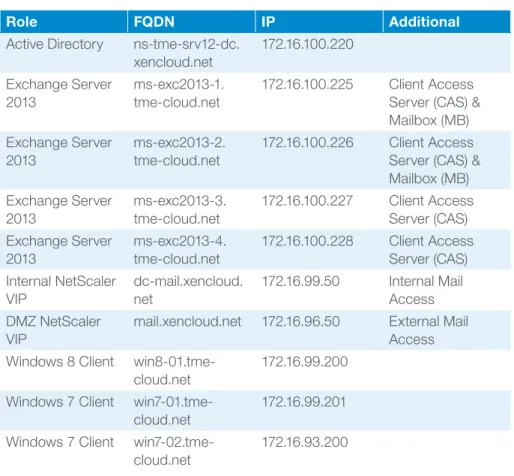
Microsoft Exchange 2013 mu_exchange_server_2013_x64 Office Client (MS Office 2013) en_office_professional_plus_2013_x86 Exchange Platform (Server 2012) en_windows_server_2012_x64 Active Directory (Server 2012) en_windows_server_2012_x64 NetScaler 10.1 NS10.1: Build 112.15.nc Topology
Figure 1: Lab topology
Role FQDN IP Additional
Active Directory ns-tme-srv12-dc. xencloud.net 172.16.100.220 Exchange Server 2013 ms-exc2013-1. tme-cloud.net 172.16.100.225 Client Access Server (CAS) & Mailbox (MB) Exchange Server 2013 ms-exc2013-2. tme-cloud.net 172.16.100.226 Client Access Server (CAS) & Mailbox (MB) Exchange Server 2013 ms-exc2013-3. tme-cloud.net 172.16.100.227 Client Access Server (CAS) Exchange Server 2013 ms-exc2013-4. tme-cloud.net 172.16.100.228 Client Access Server (CAS) Internal NetScaler VIP dc-mail.xencloud. net 172.16.99.50 Internal Mail Access DMZ NetScaler VIP
mail.xencloud.net 172.16.96.50 External Mail Access Windows 8 Client
win8-01.tme-cloud.net
172.16.99.200 Windows 7 Client
win7-01.tme-cloud.net
172.16.99.201 Windows 7 Client
win7-02.tme-cloud.net
172.16.93.200
Exchange protocol / Port requirements
Description VIP Port Protocol LB Method, Persistency, & Client Timeout Outlook Web App
Provides access to e-mail from any Web browser.
443 SSL • Method: Least Connection or Round Robin
• Persistence: SOURCEIP or COOKIEINSERT
• Client Timeout: 2 minutes
Outlook Anywhere
Allows Exchange access through the Microsoft Outlook client by tunneling Outlook’s MAPI protocol over an HTTP connection
443 SSL • Method: Least Connection or Round Robin
• Persistence: SOURCEIP or COOKIEINSERT
• Client Timeout: 2 minutes
Active Sync
Synchronizes data between your mobile phone and Exchange. You can synchronize e-mail, contacts, calendar information, and tasks.
443 SSL • Method: Least Connection or Round Robin
• Persistence: SOURCEIP or COOKIEINSERT
• Client Timeout: 2 minutes
IMAP4 (SSL)
Internet Message Access Protocol allows online and offline access to mail by non-Outlook mail clients
993 SSL_TCP • Method: Least Connection or Round Robin
• Persistence: None (Not needed)
POP3 (SSL)
Post Office Protocol allows online and offline access to mail by non-Outlook mail clients
995 SSL_TCP • Method: Least Connection or Round Robin
• Persistence: None (Not needed)
Table 2.
Configuring NetScaler for Outlook Web App (OWA)
Microsoft Outlook Web App (OWA) lets users access their Exchange mailbox from almost any Web browser. The Client Access server role provides proxy and redirection services for Outlook Web App. Fully supported web browsers give users access to features such as conversation view, Inbox rules, the reading pane, and the Scheduling Assistant. Browsers that aren’t fully supported can still be used, but users will see the light version of Outlook Web App, which has fewer features.
NetScaler provides the following benefit for OWA: • Check the health of the Client Access server.
• Load Balance multiple Client Access servers to scale and ensure high availability for client access.
• Increase performance by compressing payload.
• SSL session multiplexing to reuse existing SSL sessions with the back-end servers, thus avoiding CPU-intensive key exchange (full handshake) operations. This reduces the overall number of SSL sessions on the server, and therefore accelerates the SSL transaction while maintaining end-to-end security.
1) Enable basic features
2) Install SSL Certificate exported from Client Access server
Additional information can be found at Managing NetScaler Certificates
3) Create servers
4) Create Service Group
5) Create Virtual Server
CLI Commands
add server ms-exc2013-3 172.16.97.227 add server ms-exc2013-4 172.16.97.228
add serviceGroup ms-exchange2013-owa SSL -maxClient 0 -maxReq 0 -cip DISABLED -usip NO -useproxyport YES -cltTimeout 180 -svrTimeout 360 -CKA NO -TCPB NO -CMP YES -appf lowLog DISABLED
add ssl certKey mail-exchange-cas -cert “/nsconfig/ssl/mail-xencloud-net.pem” -key “/nsconfig/ssl/mail-xencloud-net.pem”
add lb vserver ms-exchange2013-owa SSL 172.16.96.50 443 -persistenceType COOKIEINSERT -cookieName exchange-owa -cltTimeout 180
bind lb vserver ms-exchange2013-owa
bind serviceGroup ms-exchange2013-owa ms-exc2013-3 443 -CustomServerID “\”None\””
bind serviceGroup ms-exchange2013-owa -monitorName https
set ssl vserver ms-exchange2013-owa -tls11 DISABLED -tls12 DISABLED bind ssl serviceGroup ms-exchange2013-owa -certkeyName mail-exchange-cas bind ssl vserver ms-exchange2013-owa -certkeyName mail-exchange-cas Configuring NetScaler for Microsoft Outlook Anywhere (OA)
In Microsoft Exchange Server 2013, the Outlook Anywhere (OA) feature, formerly known as RPC over HTTP, allows clients that use Microsoft Office Outlook 2013, Outlook 2010, Outlook 2007, or Outlook 2003 connect to their Exchange servers over the Internet using the RPC over HTTPS Windows networking component. In Exchange 2013, Outlook Anywhere is enabled by default, because all Outlook connectivity takes place via Outlook Anywhere. The only post-deployment task you must perform to successfully use Outlook Anywhere is to install a valid SSL certificate on your Client Access server. Mailbox servers in your organization only require the default self-signed SSL certificate.
NetScaler provides the following benefit for OA: • Check the health of the Client Access server.
• Load Balance multiple Client Access servers to scale and ensure high availability for client access.
• Increase performance by compressing payload.
• SSL session multiplexing to reuse existing SSL sessions with the back-end servers, thus avoiding CPU-intensive key exchange (full handshake) operations. This reduces the overall number of SSL sessions on the server, and therefore accelerates the SSL transaction while maintaining end-to-end security. Steps to configure NetScaler are the same as documented in Configuring NetScaler for Outlook Web App (OWA):
1. Enable Basic Features
2. Install SSL Certificate Exported from Client Access Server 3. Create Servers
4. Create Service Group a. Add Members b. Select Monitor c. Select SSL Certificate 5. Create Virtual Server
a. Configure VIP b. Select Protocol: SSL
c. Configure Port: 443 d. Select Service Group
e. Select LB Method: Least Connection or Round Robin f. Select Persistence: SOURCEIP or COOKIEINSERT g. Set Client Timeout: 2 minutes
h. Select SSL Certificate
Configuring NetScaler for Microsoft Exchange ActiveSync (AS)
Exchange ActiveSync® lets devices such as a cellular telephone or a Microsoft Windows Mobile® powered device access corporate information on a server that is running Exchange. Exchange ActiveSync is a data synchronization service that enables mobile users to access their e-mail, calendar, and contacts and retain access to this information while they are offline.
NetScaler provides the following benefit for AS: • Check the health of the Client Access server.
• Load Balance multiple Client Access servers to scale and ensure high availability for client access.
• Increase performance by compressing payload.
• SSL session multiplexing to reuse existing SSL sessions with the back-end servers, thus avoiding CPU-intensive key exchange (full handshake) operations. This reduces the overall number of SSL sessions on the server, and therefore accelerates the SSL transaction while maintaining end-to-end security.
• NOTE: ActiveSync RULE-based persistence (i.e. Basic Authentication with http. REQ.HEADER(“Authorization”)) is no longer required in Exchange 2013.
Steps to configure are the same as documented in Configuring NetScaler for Outlook Web App (OWA):
1. Enable Basic Features
2. Install SSL Certificate Exported from Client Access Server 3. Create Servers
4. Create Service Group a. Add Members b. Select Monitor c. Select SSL Certificate
5. Create Virtual Server a. Configure VIP b. Select Protocol: SSL c. Configure Port: 443 d. Select Service Group
e. Select LB Method: Least Connection or Round Robin f. Select Persistence: SOURCEIP or COOKIEINSERT g. Set Client Timeout: 2 minutes
h. Select SSL Certificate
Configuring NetScaler for IMAP4
Internet Message Access Protocol (IMAP4) is an Application Layer Internet protocol operating on secure port 993 that allows an e-mail client to access e-mail on a remote mail server. Within Microsoft Exchange, IMAP4 clients are serviced by the Client Access server component.
IMAP4 does not offer advanced collaboration features, such as calendaring, contacts, and tasks. IMAP4 is commonly used in e-mail clients, such as Windows Mail, Windows Live Mail, and Mozilla Thunderbird.
IMAP4 cannot be used to send messages from a client application to the e-mail server. E-mail applications that use IMAP4 to send messages rely on the Simple Mail Transfer Protocol (SMTP) protocol to send messages.
NetScaler provides the following benefit for secure IMAP4: • Check the health of the Client Access server
• Load Balance multiple Client Access servers to scale and ensure high availability for client access
1) Install SSL Certificate exported from Client Access server
2) Create an application level monitor for IMAP (optional)
3) Create Service Group
4) Create Virtual Server
CLI Commands
add server ms-exc2013-3 172.16.97.227 add server ms-exc2013-4 172.16.97.228
add serviceGroup ms-exchange2013-IMAP4 TCP -maxClient 0 -maxReq 0 -cip DISABLED -usip NO -useproxyport YES -cltTimeout 9000 -svrTimeout 9000 -CKA NO -TCPB NO -CMP NO -appflowLog DISABLED
add ssl certKey ns-server-certificate -cert ns-server.cert -key ns-server.key add ssl certKey mail-exchange-cas -cert “/nsconfig/ssl/mail-xencloud-net.pem” -key “/nsconfig/ssl/mail-xencloud-net.pem”
add lb vserver ms-exchange2013-imap4 SSL_TCP 172.16.96.50 993 -persistenceType NONE -cltTimeout 9000
bind lb vserver ms-exchange2013-imap4 ms-exchange2013-IMAP4
add lb monitor Exchange2013_IMAP4_monitor TCP-ECV -send “GET /” -recv “The Microsoft Exchange IMAP4 service is ready.” -LRTM ENABLED -interval 30 -destIP 172.16.97.227 -destPort 143
bind serviceGroup ms-exchange2013-IMAP4 ms-exc2013-3 143 -CustomServerID “\”None\””
bind serviceGroup ms-exchange2013-IMAP4 ms-exc2013-4 143 -CustomServerID “\”None\””
bind serviceGroup ms-exchange2013-IMAP4 -monitorName Exchange2013_ IMAP4_monitor
set ssl vserver ms-exchange2013-imap4 -tls11 DISABLED -tls12 DISABLED bind ssl vserver ms-exchange2013-imap4 -certkeyName mail-exchange-cas Configuring NetScaler with POP3
Post Office Protocol version 3(POP3) is an application-layer Internet protocol operating on secure port 995 and used by local e-mail clients to retrieve e-mail from a remote server over a TCP/IP connection. POP and IMAP (Internet Message Access Protocol) are the two most prevalent Internet standard protocols for e-mail retrieval. Virtually all modern e-mail clients and servers support both. POP3 was designed to support offline mail processing. With POP3, e-mail messages are removed from the server and stored on the local POP3 client, unless the client has been set to leave mail on the server. This puts the data management and security responsibility in the hands of the user. POP3 does not offer advanced collaboration features, such as calendaring, contacts, and tasks. POP3 cannot be used to send messages from a client application to the e-mail server. E-mail applications that use POP3 to send messages rely on the Simple Mail Transfer Protocol (SMTP) protocol to send messages.
NetScaler provides the following benefit for secure POP3: • Check the health of the Client Access server
• Load Balance multiple Client Access servers to scale and ensure high availability for client access
1) Install SSL Certificate exported from Client Access server
Additional information can be found at Managing NetScaler Certificates
2) Create an application level monitor for POP3 (optional)
3) Create Service Group
4) Create Virtual Server
CLI Commands
add server ms-exc2013-3 172.16.97.227 add server ms-exc2013-4 172.16.97.228
add serviceGroup ms-exchange2013-POP3 TCP -maxClient 0 -maxReq 0 -cip DISABLED -usip NO -useproxyport YES -cltTimeout 9000 -svrTimeout 9000 -CKA NO -TCPB NO -CMP NO -appflowLog DISABLED
add ssl certKey ns-server-certificate -cert ns-server.cert -key ns-server.key add ssl certKey mail-exchange-cas -cert “/nsconfig/ssl/mail-xencloud-net.pem” -key “/nsconfig/ssl/mail-xencloud-net.pem”
add lb vserver ms_exchange2013-pop3 SSL_TCP 172.16.96.50 995 -persistenceType NONE -cltTimeout 9000
bind lb vserver ms_exchange2013-pop3 ms-exchange2013-POP3
add lb monitor Exchange2013_POP3_monitor POP3 -scriptName nspop3.pl -dispatcherIP 127.0.0.1 -dispatcherPort 3013 -userName pop3testuser -password d22a145a72d73226fd9368f92e97b797 -encrypted -LRTM ENABLED -interval 30 -destIP 172.16.97.227 -destPort 110
bind serviceGroup ms-exchange2013-POP3 ms-exc2013-3 110 -CustomServerID “\”None\””
bind serviceGroup ms-exchange2013-POP3 ms-exc2013-4 110 -CustomServerID “\”None\””
bind serviceGroup ms-exchange2013-POP3 -monitorName Exchange2013_ POP3_monitor
set ssl vserver ms_exchange2013-pop3 -tls11 DISABLED -tls12 DISABLED bind ssl vserver ms_exchange2013-pop3 -certkeyName mail-exchange-cas
Conclusion
This concludes the NetScaler deployment guide for MS Exchange 2013. NetScaler can front-end and improve the performance, scalability, availability and security for Exchange 2013 deployments.
About Citrix
Citrix (NASDAQ:CTXS) is the cloud company that enables mobile workstyles—empowering people to work and collaborate from anywhere, easily and securely. With market-leading solutions for mobility, desktop virtualization, cloud networking, cloud platforms, collaboration and data sharing, Citrix helps organizations achieve the speed and agility necessary to succeed in a mobile and dynamic world. Citrix products are in use at more than 260,000 organizations and by over 100 million users globally. Annual revenue in 2012 was $2.59 billion. Learn more at www.citrix.com. Corporate Headquarters
Fort Lauderdale, FL, USA Silicon Valley Headquarters Santa Clara, CA, USA EMEA Headquarters Schaffhausen, Switzerland
India Development Center Bangalore, India
Online Division Headquarters Santa Barbara, CA, USA Pacific Headquarters Hong Kong, China
Latin America Headquarters Coral Gables, FL, USA UK Development Center Chalfont, United Kingdom References
1. What’s New in Exchange 2013
http://technet.microsoft.com/en-us/library/jj150540(v=exchg.150).aspx#BKMK_Arch 2. Load Balancing http://technet.microsoft.com/en-us/library/jj898588(v=exchg.150).aspx 3. Exchange Forum http://social.technet.microsoft.com/Forums/exchange/en-US/39315d05-d764-4afa-b9c6-e341f7b14384/does-exchange-2013-cu1-now-support-ssl-offloading 4. Use an Edge Transport Server in Exchange 2013