Part Number 900-691-R Revision A July 2013
xPico Wi-Fi
Embedded Device Server
User Guide
Intellectual Property
© 2013 Lantronix, Inc. All rights reserved. No part of the contents of this book may be transmitted or reproduced in any form or by any means without the written permission of Lantronix.
Lantronix® and xPico® are registered trademarks of Lantronix, Inc. in the United States and other countries. DeviceInstaller™ is a trademark of Lantronix, Inc. U.S. patents pending.
Windows® and Internet Explorer® are registered trademarks of Microsoft Corporation. Mozilla® and Firefox® are registered trademarks of the Mozilla Foundation. Chrome™ is a trademark of Google, Inc. Wi-Fi® is a registered trademark of Wi-Fi Alliance. All other trademarks and trade names are the property of their respective holders.
Warranty
For details on the Lantronix warranty policy, please go to our web site at www.lantronix.com/support/warranty.
Contacts
Lantronix, Inc. Corporate Headquarters
167 Technology Drive Irvine, CA 92618, USA Toll Free: 800-526-8766 Phone: 949-453-3990 Fax: 949-453-3995 Technical Support Online: www.lantronix.com/support Sales Offices
For a current list of our domestic and international sales offices, go to the Lantronix web site at www.lantronix.com/about/contact.
Disclaimer
The information in this guide may change without notice. The manufacturer assumes no responsibility for any errors that may appear in this guide.
Revision History
Date Rev. Comments
xPico® Wi-Fi® Embedded Device Server User Guide 3
Table of Contents
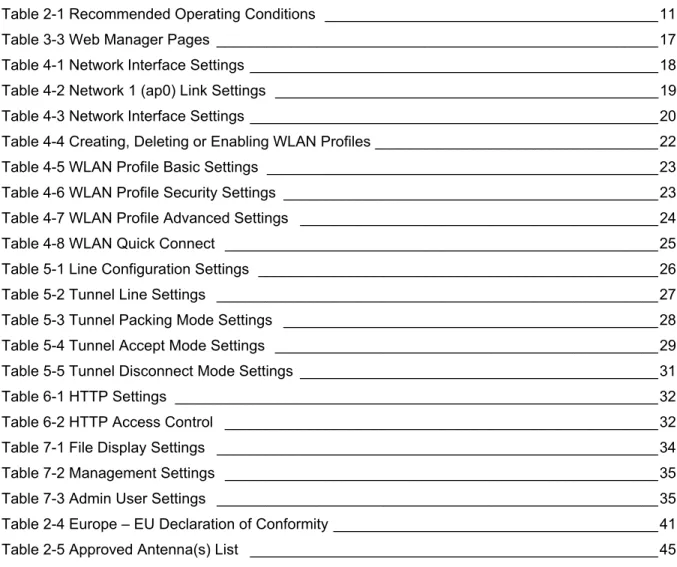
Intellectual Property ________________________________________________________2 Warranty _________________________________________________________________2 Contacts _________________________________________________________________2 Disclaimer ________________________________________________________________2 Revision History ___________________________________________________________2 List of Figures _____________________________________________________________6 List of Tables _____________________________________________________________71: Using This Guide
8
Purpose and Audience ______________________________________________________8 Summary of Chapters _______________________________________________________8 Additional Documentation ____________________________________________________8
2: Introduction
10
Key Features _____________________________________________________________10 Protocol Support _________________________________________________________12 Troubleshooting Capabilities _________________________________________________12 Configuration Methods _____________________________________________________12 Addresses and Port Numbers ________________________________________________12 Hardware Address _____________________________________________________12 IP Address ___________________________________________________________12 Port Numbers _________________________________________________________12 Product Information Label ___________________________________________________133: Configuration Using Web Manager
14
Accessing Web Manager ___________________________________________________14 Status Page ______________________________________________________________15 Web Manager Components _________________________________________________16 Navigating Web Manager ___________________________________________________16
4: Network Settings
18
Network 1 Interface (ap0) Configuration ________________________________________18 To Configure Network 1 Interface Settings ___________________________________18 To View Network 1 Interface Status ________________________________________19 Network 1 (ap0) Link Settings ________________________________________________19 To Configure Network 1 Link Settings ______________________________________19 To View Network 1 Link Status ____________________________________________20 Network 2 (wlan0) Interface Configuration ______________________________________20 To Configure Network 2 Interface Settings ___________________________________21
To View Network 2 Interface Status ________________________________________21 Network 2 (wlan0) Link Status _______________________________________________21 To View Network 2 Link Status ____________________________________________21 WLAN Profiles ____________________________________________________________22 To Configure WLAN Profiles _____________________________________________22 To Configure WLAN Profile Settings _______________________________________23 WLAN Quick Connect ______________________________________________________24 To Configure WLAN Quick Connect ________________________________________24
5: Line and Tunnel Settings
26
Line Settings _____________________________________________________________26 To Configure Line Settings _______________________________________________26 To View Line Status ____________________________________________________27 Tunnel Settings ___________________________________________________________27 Line Settings __________________________________________________________27 To View Tunnel Serial Settings ___________________________________________27 Packing Mode _________________________________________________________28 To Configure Tunnel Packing Mode Settings _________________________________29 Accept Mode __________________________________________________________29 To Configure Tunnel Accept Mode Settings __________________________________30 Disconnect Mode ______________________________________________________30 To Configure Tunnel Disconnect Mode Settings ______________________________31 Statistics _____________________________________________________________31 To View Tunnel Statistics ________________________________________________31
6: Services Settings
32
HTTP Settings ____________________________________________________________32 To Configure HTTP Settings _____________________________________________32 To View HTTP Status ___________________________________________________32 To Configure HTTP Access Control ________________________________________33
7: Maintenance and Diagnostics Settings
34
Filesystem Settings ________________________________________________________34 Filesystem ___________________________________________________________34 To View Filesystem Statistics _____________________________________________34 System Settings __________________________________________________________34 System Management ___________________________________________________35 To Reboot or Restore Factory Defaults _____________________________________35 Admin User ___________________________________________________________35 To Configure Admin User on the Device ____________________________________35
xPico® Wi-Fi® Embedded Device Server User Guide 5
8: Advanced Settings
36
XML Import and XML Export _________________________________________________36 To Import or Export XML Configuration _____________________________________36
9: Updating Firmware
37
Obtaining Firmware ________________________________________________________37 Loading New Firmware through Web Manager __________________________________37
Appendix A: Technical Support
39
Appendix B: Compliance
40
Federal Communication Commission Interference Statement _______________________42 Radiation Exposure Statement ____________________________________________42 End Product Labeling ___________________________________________________43 Manual Information To the End User _______________________________________43 Industry Canada Statement _________________________________________________43 Radiation Exposure Statement ____________________________________________43 Déclaration d'exposition aux radiations _____________________________________43 End Product Labeling ___________________________________________________44 Plaque signalétique du produit final ________________________________________44 Manual Information To the End User _______________________________________44 Manuel d'information à l'utilisateur final _____________________________________45 Antenna Requirement ___________________________________________________45
Appendix C: Binary to Hexadecimal Conversions
47
Converting Binary to Hexadecimal ____________________________________________47 Conversion Table ______________________________________________________47 Scientific Calculator ____________________________________________________47
List of Figures
Figure 2-2 xPico Wi-Fi Product Label ________________________________________________13 Figure 3-1 Status Page ____________________________________________________________15 Figure 3-2 Components of the Web Manager Page ______________________________________16 Figure 9-1 Uploading New Firmware _________________________________________________37
xPico® Wi-Fi® Embedded Device Server User Guide 7
List of Tables
Table 2-1 Recommended Operating Conditions ________________________________________11 Table 3-3 Web Manager Pages _____________________________________________________17 Table 4-1 NetworkInterface Settings _________________________________________________18 Table 4-2 Network 1 (ap0) Link Settings ______________________________________________19 Table 4-3 NetworkInterface Settings _________________________________________________20 Table 4-4 Creating, Deleting or Enabling WLAN Profiles __________________________________22 Table 4-5 WLAN Profile Basic Settings _______________________________________________23 Table 4-6 WLAN Profile Security Settings _____________________________________________23 Table 4-7 WLAN Profile Advanced Settings ___________________________________________24 Table 4-8 WLAN Quick Connect ____________________________________________________25 Table 5-1 Line Configuration Settings ________________________________________________26 Table 5-2 Tunnel Line Settings _____________________________________________________27 Table 5-3 Tunnel Packing Mode Settings _____________________________________________28 Table 5-4 Tunnel Accept Mode Settings ______________________________________________29 Table 5-5 Tunnel Disconnect Mode Settings ___________________________________________31 Table 6-1 HTTP Settings __________________________________________________________32 Table 6-2 HTTP Access Control ____________________________________________________32 Table 7-1 File Display Settings _____________________________________________________34 Table 7-2 Management Settings ____________________________________________________35 Table 7-3 Admin User Settings _____________________________________________________35 Table 2-4 Europe – EU Declaration of Conformity _______________________________________41 Table 2-5 Approved Antenna(s) List _________________________________________________45
1: Using This Guide
Purpose and Audience
This guide provides the information needed to configure, use, and update the xPico® Wi-Fi® embedded device server. It is intended for software developers and system integrators who are embedding this product into their designs.
Summary of Chapters
The remaining chapters in this guide include:
Additional Documentation
Visit the Lantronix Web site at www.lantronix.com/support/documentation for the latest documentation and the following additional documentation.
Chapter Description
2: Introduction Main features of the product and the protocols it supports. Includes technical specifications.
3: Configuration Using Web Manager Instructions for accessing Web Manager and using it to configure settings for the device.
4: Network Settings Instructions for configuring network settings.
5: Line and Tunnel Settings Instructions for configuring lineand tunnel settings.
6: Services Settings Instructions for configuring HTTP settings.
7: Maintenance and Diagnostics
Settings Instructions to maintain the xPico Wi-Fi, view statistics, files, and diagnose problems. 8: Advanced Settings Provides additional information on security settings available.
9: Updating Firmware Instructions for obtaining the latest firmware and updating the xPico Wi-Fi.
Appendix A: Technical Support Instructions for contacting Lantronix Technical Support.
Appendix B: Compliance Lantronix compliance information.
Appendix C: Binary to Hexadecimal
Conversions Instructions for converting binary values to hexadecimals.
Document Description
xPico Wi-Fi Embedded Device Server Integration Guide
Information about the xPico Wi-Fi hardware, testing the device server using the demonstration board, and integrating the unit into your product.
xPico Wi-Fi Evaluation Kit Embedded Device Server Quick Start Guide
1: Using This Guide
xPico® Wi-Fi® Embedded Device Server User Guide 9
xPico Wi-Fi Evaluation Kit Embedded Device Server User Guide
Information needed to use the xPico Wi-Fi on the evaluation board.
Com Port Redirector Quick Start and Online Help
Instructions for using the Lantronix Windows-based utility to create virtual com ports.
2: Introduction
This chapter summarizes the basic information and features of the xPico Wi-Fi embedded device server. It provides an overview of key features and describes suitable applications.
Key Features
Wireless LAN Interface:
IEEE 802.11 b/g and IEEE 802.11n (single stream) WLAN interface (2.4 GHz only)
IEEE 802.11 d/h/i/j/k/w/r
u.FL connector for external antenna Serial Interface:
Two Serial CMOS Ports (3.3V, 5V tolerant)1 1200 to 921.6Kbps
Flow control: XON/XOFF, RTS/CTS (Line 1 only) Lantronix tunneling application (Line 1 only) Host Interface:
Dual Serial Port, SPI, USB2.0 (device) 8 GPIO
Network Protocols: TCP/IP, UDP/IP, DHCP Server (software-enabled Access Point interface), ARP, ICMP, DHCP Client (WLAN interface), Auto-IP, DNS
Networking Capabilities:
Soft Access Point with DHCP Server
Roaming: continually tracks Wi-Fi signal strength within range, resulting in smooth and automatic transition between access points without delay.
QuickConnect: Dynamic Profiles facilitate easy and rapid connections to access points Management and Control:
Web Server
CLI (Serial Monitor Port)
XML Configuration Import and Export (XCR, XML Status Export [XSR]) Field upgradable firmware (OTA)
Security:
IEEE 802.11i Support – WPA-Personal, WPA2-Personal 256-bit AES Encryption
1. For xPico Wi-Fi 5V tolerant pins, in order to sustain a voltage higher than Vcc+0.3, the internal pull up/pull down resistors must be disabled.
2: Introduction
xPico® Wi-Fi® Embedded Device Server User Guide 11
Architecture:
ARM Cortex-M3 class processor with on-chip Flash and SRAM 1MB Flash and 128KB SRAM
SPI Flash 1 MB
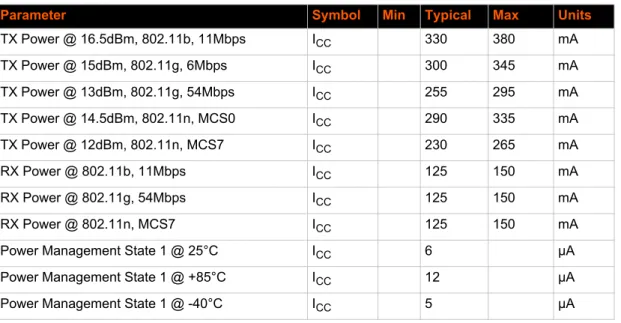
Power: Input Voltage: 3.3VDC
Table 2-1 Recommended Operating Conditions
Physical Interface: 40-pin Board-to-Board SMT Connector Environmental:
Operating Temperature: –40°to +85° C Storage Temperature : –40°to +85° C
Relative Humidity: 0% to 90% non-condensing Certifications: FCC, IC, EU, Japan, UL, CE Packaging:
Dimensions: 24mm (L) x 16.5mm (W) x 5.64mm (H) Weight: 2.5g
Warranty: 5-Year Limited
Parameter Symbol Min Typical Max Units
TX Power @ 16.5dBm, 802.11b, 11Mbps ICC 330 380 mA TX Power @ 15dBm, 802.11g, 6Mbps ICC 300 345 mA TX Power @ 13dBm, 802.11g, 54Mbps ICC 255 295 mA TX Power @ 14.5dBm, 802.11n, MCS0 ICC 290 335 mA TX Power @ 12dBm, 802.11n, MCS7 ICC 230 265 mA RX Power @ 802.11b, 11Mbps ICC 125 150 mA RX Power @ 802.11g, 54Mbps ICC 125 150 mA RX Power @ 802.11n, MCS7 ICC 125 150 mA Power Management State 1 @ 25°C ICC 6 μA
Power Management State 1 @ +85°C ICC 12 μA Power Management State 1 @ -40°C ICC 5 μA
2: Introduction
Protocol Support
The xPico Wi-Fi intelligent gateway contains a full-featured IP stack. Supported protocols include: IEEE 802.11 b/g and IEEE 802.11n (single stream) WLAN interface (2.4 GHz only)
802.11i - WPA-Personal, WPA2-Personal Soft-AP with DHCP Server
HTTP Server
TCP/IP, UDP/IP, DHCP Server (Software enabled Access Point interface), ARP, ICMP, DHCP Client (WLAN interface), Auto-IP, DNS
Troubleshooting Capabilities
The xPico Wi-Fi offers the abilty to view system log messages.
Configuration Methods
After installation, the xPico Wi-Fi embedded device server requires configuration. For the unit to operate correctly on a network, it must have a unique IP address on the network. These methods may be used for logging into the xPico Wi-Fi and assigning IP addresses and other configurable settings:
Web Manager: View and configure settings easily through a web browser using the Lantronix Web Manager. See “Configuration Using Web Manager” on page 14.
XML: The xPico Wi-Fi supports XML import and XML export through a terminal emulator software such as Tera Term. See “XML Import and XML Export” on page 36.
Addresses and Port Numbers
Hardware Address
The hardware address is also referred to as the physical address or MAC address. Sample hardware address:
00-80-A3-FF-FF-FF
00:80:A3:FF:FF:FF
IP Address
Every device connected to an IP network must have a unique IPv4 address. This address references the specific unit.
Port Numbers
TCP Port 80: HTTP Server (Web Manager configuration) TCP Port 10001: Tunnel
2: Introduction
xPico® Wi-Fi® Embedded Device Server User Guide 13
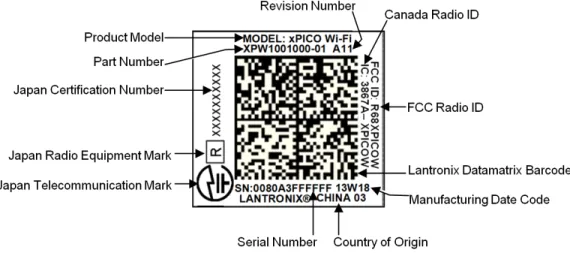
Product Information Label
The product information label on the unit contains the following information about the specific unit: Lantronix Datamatrix Code
Product Revision Part Number
Serial Number Hardware Address (MAC Address) Manufacturing Date Code
3: Configuration Using Web Manager
This chapter describes how to configure the xPico Wi-Fi embedded device server using Web Manager, the Lantronix browser-based configuration tool. The unit’s configuration is stored in nonvolatile memory and is retained without power. All changes take effect immediately, unless otherwise noted. It contains the following sections:
Accessing Web Manager Web Manager Components Navigating Web Manager
Accessing Web Manager
To access Web Manager, perform the following steps:
1. Open a standard web browser. Lantronix supports the latest version of Internet Explorer, Mozilla Firefox, Safari or Chrome.
2. Enter the IP address or hostname of the xPico Wi-Fi in the address bar. The IP address may have been assigned manually or automatically by DHCP.
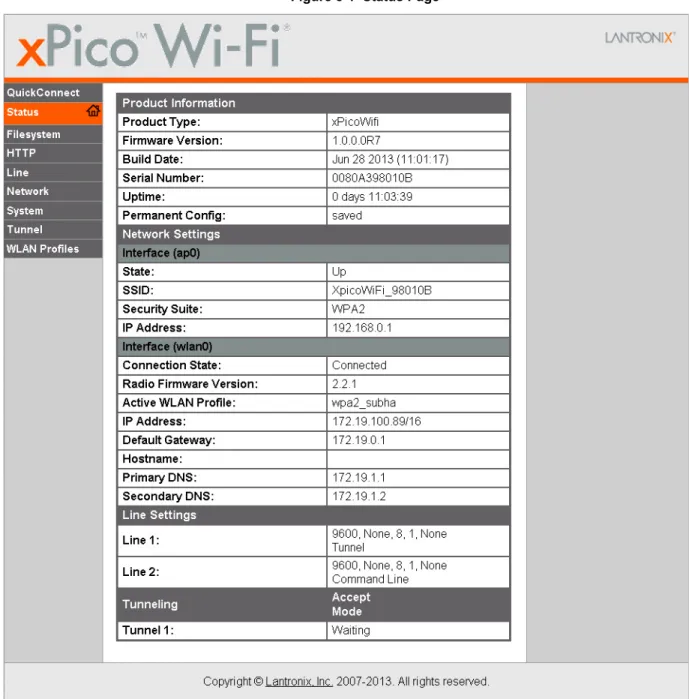
3. Enter your username and password.The factory-default username is “admin” and the password is “PASSWORD” (all capitalized). The Status web page displays product information, network settings, line settings, and tunneling settings.
3: Configuration Using Web Manager
xPico® Wi-Fi® Embedded Device Server User Guide 15
Status Page
The Status page is the first to appear after you log into Web Manager. The Status page also appears when you click Status tab in Web Manager.
3: Configuration Using Web Manager
Web Manager Components
The layout of a typical Web Manager page is below.
Figure 3-2 Components of the Web Manager Page
Navigating Web Manager
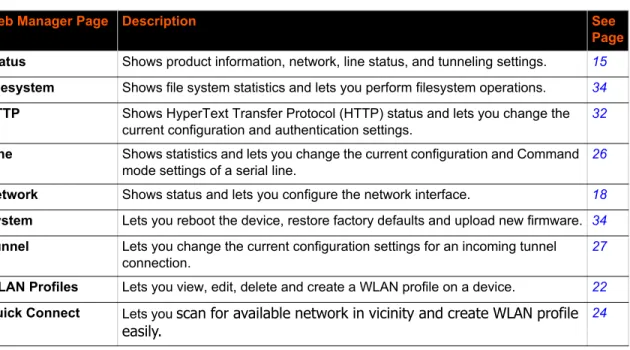
The Web Manager provides an intuitive point-and-click interface. A menu bar on the left side of each page provides links you can click to navigate between pages. Some pages are read-only, while others let you change configuration settings.
Note: There may be times when you must reboot the xPico Wi-Fi for the new configuration settings to take effect. The chapters that follow indicate when a change requires a reboot. Anytime you reboot the unit, this operation will take some time to complete. Please wait a minimum of 10-20 seconds after rebooting the unit before attempting to make any subsequent connections.
Menu Bar Links to subpages Items to configure Information and Help Area Header
Configuration and/or Status Area Footer
3: Configuration Using Web Manager
xPico® Wi-Fi® Embedded Device Server User Guide 17
Table 3-3 Web Manager Pages
Web Manager Page Description See
Page Status Shows product information, network, line status, and tunneling settings. 15
Filesystem Shows file system statistics and lets you perform filesystem operations. 34
HTTP Shows HyperText Transfer Protocol (HTTP) status and lets you change the current configuration and authentication settings.
32
Line Shows statistics and lets you change the current configuration and Command mode settings of a serial line.
26
Network Shows status and lets you configure the network interface. 18
System Lets you reboot the device, restore factory defaults and upload new firmware. 34
Tunnel Lets you change the current configuration settings for an incoming tunnel connection.
27
WLAN Profiles Lets you view, edit, delete and create a WLAN profile on a device. 22
Quick Connect Lets you scan for available network in vicinity and create WLAN profile
easily.
4: Network Settings
The Network Settings show the status of the Software enabled Access Point (SoftAP) or WLAN interface/link and let you configure the settings on the device. Interface settings are related to the configuration of the IP and related protocols. Link settings are related to the physical link
connection, which carries the IP traffic.
The xPico Wi-Fi embedded device server contains two network interfaces. The Software enabled Access Point interface is also called interface 1 or ap0, and the WLAN interface is called interface 2 or wlan0.
Note: All network settings require a reboot to take effect. Wait a minimum of 10-20 seconds after rebooting the unit before attempting to make any subsequent connections.
Network 1 Interface (ap0) Configuration
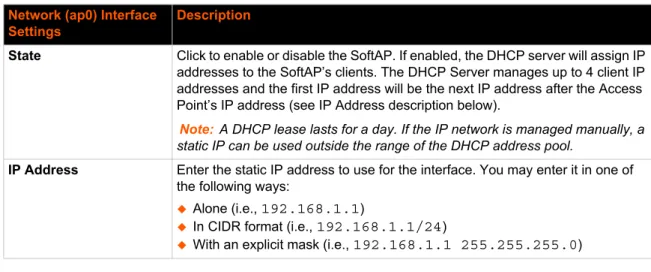
Table 4-1 shows the network interface settings that can be configured. These settings apply to the Software enabled Access Point (ap0) interface.
Table 4-1 NetworkInterface Settings
To Configure Network 1 Interface Settings
Using Web Manager
To modify Software enabled Access Point (ap0) settings, go to Network on the menu and select Network 1 -> Interface -> Configuration.
Using XML via CLI
Include in your file: <configgroup name = "Interface" instance = "ap0"> Network (ap0) Interface
Settings
Description
State Click to enable or disable the SoftAP. If enabled, the DHCP server will assign IP addresses to the SoftAP’s clients. The DHCP Server manages up to 4 client IP addresses and the first IP address will be the next IP address after the Access Point’s IP address (see IP Address description below).
Note:A DHCP lease lasts for a day. If the IP network is managed manually, a static IP can be used outside the range of the DHCP address pool.
IP Address Enter the static IP address to use for the interface. You may enter it in one of the following ways:
Alone (i.e., 192.168.1.1)
In CIDR format (i.e., 192.168.1.1/24)
4: Network Settings
xPico® Wi-Fi® Embedded Device Server User Guide 19
To View Network 1 Interface Status
Using Web Manager
In Network Interface Status, you can view both the current operational settings as well as the settings that would take effect upon a device reboot.
To view current access point (ap0) settings, go to Network on the menu and select Network 1
-> Interface -> Status.
Using XML via CLI
Look for the status header: <statusgroup name = "Interface" instance = "ap0">
Network 1 (ap0) Link Settings
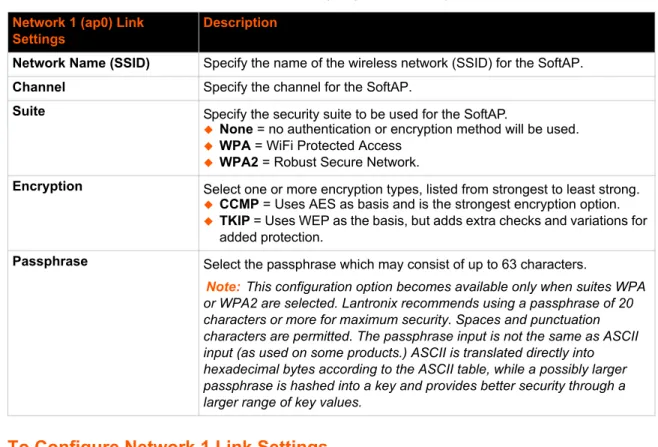
Physical link parameters can be configured for an access point (ap0) Network Interface (see Table 4-2).
Table 4-2 Network 1 (ap0) Link Settings
To Configure Network 1 Link Settings
Using Web Manager
To modify network (ap0) Link information, click Network on the menu and select Network 1 >
Link > Configuration. Network 1 (ap0) Link Settings
Description
Network Name (SSID) Specify the name of the wireless network (SSID) for the SoftAP.
Channel Specify the channel for the SoftAP.
Suite Specify the security suite to be used for the SoftAP.
None = no authentication or encryption method will be used. WPA = WiFi Protected Access
WPA2 = Robust Secure Network.
Encryption Select one or more encryption types, listed from strongest to least strong. CCMP = Uses AES as basis and is the strongest encryption option. TKIP = Uses WEP as the basis, but adds extra checks and variations for
added protection.
Passphrase Select the passphrase which may consist of up to 63 characters.
Note:This configuration option becomes available only when suites WPA or WPA2 are selected. Lantronix recommends using a passphrase of 20 characters or more for maximum security. Spaces and punctuation characters are permitted. The passphrase input is not the same as ASCII input (as used on some products.) ASCII is translated directly into hexadecimal bytes according to the ASCII table, while a possibly larger passphrase is hashed into a key and provides better security through a larger range of key values.
4: Network Settings
Using XML via CLI
Include in your file: <configgroup name = "Access Point" instance = "ap0">
To View Network 1 Link Status
Using Web Manager
In Network Link Status, you can view the current operational settings.
To view current network (ap0) settings, go to Network on the menu and select Network 1 ->
Link -> Status.
Using XML via CLI
Look for the status header: <statusgroup name = "Interface" instance = "ap0">
Network 2 (wlan0) Interface Configuration
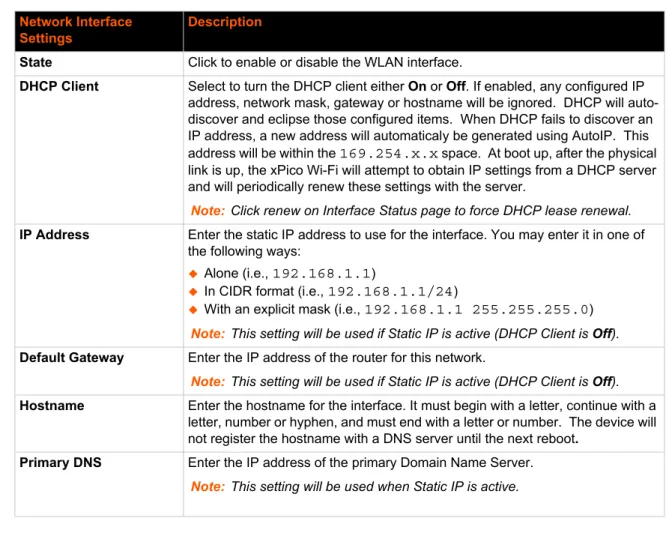
This page is used to configure the network 2 interface on the device. To see the effect of these items after a reboot, view the Status page.
Table 4-3 NetworkInterface Settings
Network Interface Settings
Description
State Click to enable or disable the WLAN interface.
DHCP Client Select to turn the DHCP client either On or Off. If enabled, any configured IP address, network mask, gateway or hostname will be ignored. DHCP will auto-discover and eclipse those configured items. When DHCP fails to auto-discover an IP address, a new address will automaticaly be generated using AutoIP. This address will be within the 169.254.x.x space. At boot up, after the physical
link is up, the xPico Wi-Fi will attempt to obtain IP settings from a DHCP server and will periodically renew these settings with the server.
Note:Click renew on Interface Status page to force DHCP lease renewal. IP Address Enter the static IP address to use for the interface. You may enter it in one of
the following ways:
Alone (i.e., 192.168.1.1)
In CIDR format (i.e., 192.168.1.1/24)
With an explicit mask (i.e., 192.168.1.1 255.255.255.0)
Note:This setting will be used if Static IP is active (DHCP Client is Off). Default Gateway Enter the IP address of the router for this network.
Note:This setting will be used if Static IP is active (DHCP Client is Off). Hostname Enter the hostname for the interface. It must begin with a letter, continue with a
letter, number or hyphen, and must end with a letter or number. The device will not register the hostname with a DNS server until the next reboot.
Primary DNS Enter the IP address of the primary Domain Name Server.
4: Network Settings
xPico® Wi-Fi® Embedded Device Server User Guide 21
To Configure Network 2 Interface Settings
Using Web Manager
To modify network 2 WLAN interface information, click Network on the menu and select
Network 2 > Interface > Configuration.
Using XML via CLI
Include in your file: <configgroup name = "Interface" instance = "wlan0">
To View Network 2 Interface Status
Using Web Manager
In Network Interface Status, you can view both the current operational settings as well as the settings that would take affect upon a device reboot.
To view current access piont (ap0) settings, go to Network on the menu and select Network 2
-> Interface -> Status.
Using XML via CLI
Look for the status header: <statusgroup name = "Interface" instance = "wlan0">
Network 2 (wlan0) Link Status
This page shows status of a Link on the device.
To View Network 2 Link Status
Using Web Manager
To view network 2 link interface information, click Network on the menu and select Network 2
> Link > Status.
Using XML via CLI
Include in your file: <configgroup name = "Interface" instance = "wlan0">
Secondary DNS Enter the IP address of the secondary Domain Name Server.
Note:This setting will be used when Static IP is active. Network Interface
Settings (continued)
4: Network Settings
WLAN Profiles
A WLAN profile defines all of the settings necessary to establish a wireless connection with an access point (in infrastructure mode). A maximum of four profiles can exist on the xPico Wi-Fi at a time and only one profile may be active at any given time.
xPico Wi-Fi supports dynamic profiles. Dynamic Profiles are the ones created via QuickConnect.
WLAN Profile WEP Settings
WEP is a simple and efficient security mode encrypting the data via the RC4 algorithm. However, WEP has become more vulnerable due to advances in hacking technology. State of the art equipment can find WEP keys in five minutes. For stronger security, please use WPA, or better, WPA2 with AES (CCMP).
WLAN Profile WPA and WPA2 Settings
WPA is a security standard specified by the WiFi Alliance and is a close derivative of an early draft of the IEEE802.11i specification. WEP was becoming vulnerable when finalizing the IEEE802.11i standard was still far away. WPA2 is WiFi’s subset of the broad IEEE802.11i standard to enforce better interoperability. The xPico Wi-Fi is compliant with both WPA2 and IEEE802.11i.
To Configure WLAN Profiles
You can view, edit, create or delete a WLAN profile.
Using WebManager
Click WLAN Profiles on the menu.
Using XML via CLI
Include in your file: <configgroup name = "WLAN Profile" instance = "name">
Table 4-4 Creating, Deleting or Enabling WLAN Profiles
WLAN Profile Basic Settings Description
Create new profile Type the name of the new profile to be created into the Create new profile field. Then, click the Submit button which appears to create the profile. Once created, the profile name may be clicked so you may edit profile settings.
Delete (checkbox) Click the Delete checkbox beside the profile(s) to be deleted. Three buttons will appear:
Click the Submit button to permanently delete profile(s).
Click the Apply button to delete the profile for testing purposes. If the
device reboots, this change will not be applied.
Click the Cancel button to cancel this action, as desired.
Enabled (checkbox) Click the Enabled checkbox beside the profile(s) to be enabled (or unchecked to disable). Three buttons will appear:
Click the Submit button to permanently enable profile(s).
Click the Apply button to enable the profile for testing purposes. If the
device reboots, this change will not be applied.
4: Network Settings
xPico® Wi-Fi® Embedded Device Server User Guide 23
To Configure WLAN Profile Settings
Using Web Manager
To view or edit an existing WLAN profile, click WLAN Profiles on the menu and select an existing profile (see Table 4-5, Table 4-6 and Table 4-7).
Using XML via CLI
Include in your file: <configgroup name = "WLAN Profile" instance = "name">
Table 4-5 WLAN Profile Basic Settings
Table 4-6 WLAN Profile Security Settings
View or Edit
(link to specific profile)
Click on a specific WLAN Profile name to edit the WLAN profile basic settings.
WLAN Profile Basic Settings
Description
Network Name (SSID) Specify the name of the wireless network (SSID.)
State Select to Enable or Disable this profile.
WLAN Profile Security Settings
Description
Suite Specify the security suite to be used for this profile.
None = no authentication or encryption method will be used. WEP = Wired Equivalent Privacy
WPA = WiFi Protected Access WPA2 = Robust Secure Network.
Key Size Select the appropriate key size in bits. Select 40 for WEP40 and WEP64; select 104 for WEP104 and WEP128.
Note:This option is available if WEP suite is selected above.
TX Key Index Select one of four index listing keys for transmitting data. Reception is allowed with all four keys.
Note:For operability with some products that generate four identical keys from a passphrase, this index must be one. This option is available if WEP suite is selected above.
Key 1-4 Enter one or more encryption keys in hexadecimal format. Enter 10 hexadecimal digits (0-9, a-f) for WEP40 and 26 for WEP104. The configured keys are not shown for security reasons.
Note:This option is available if WEP suite is selected above. Key Type Select the format of the security key.
Note:This configuration option becomes available only when suites, WPA or WPA2 are selected.
WLAN Profile Basic Settings (continued)
4: Network Settings
Table 4-7 WLAN Profile Advanced Settings
WLAN Quick Connect
WLAN QuickConnect allows users to view and add up to four WLAN profiles from a list of up to 20 wireless devices sorted by RSSI. Details of the selected network are pre-populated, so little or no configuration is required by the user.
To Configure WLAN Quick Connect
Using Web Manager
To view or edit an existing WLAN Quick Connect settings, click QuickConnect on the menu.
Using XML via CLI
Not applicable.
Password Select the password consists of up to 63 characters.
Note:Lantronix recommends using a passphrase of 20 characters or more for maximum security. Spaces and punctuation characters are permitted. The passphrase input is not the same as ASCII input (as used on some products.) ASCII is translated directly into hexadecimal bytes according to the ASCII table, while a possibly larger passphrase is hashed into a key and provides better security through a larger range of key values. This configuration option becomes available only when suites, WEP, WPA or WPA2 are selected.
Encryption Select one or more encryption types, listed from strongest to least strong. At least one selection will have to match the Access Points intended to connect with.
CCMP = Uses AES as basis and is the strongest encryption option.
TKIP = Uses WEP as the basis, but adds extra checks and variations for added
protection.
Note:In case the encryption settings on the Access Point(s) can still be chosen, the capabilities of the Access Point(s) and the other clients that need to use the network need to be taken into account.This configuration option becomes available only when suites WPA or WPA2 are selected.
WLAN Profile Advanced Settings Description
TX Power Maximum Specify the maximum transmission output power in dBm.
Power Management Select to Enable or Disable power management, which reduces the overall power consumption of the xPico Wi-Fi unit, but can increase latency.
Enabled = allows the xPico Wi-Fi to turn off the receiver when it is
idling.
Disabled = keeps the receiver on at all times.
Power Management Interval Select number of beacons (100 msec interval) between 1 and 5. The above-mentioned latency can be up to this number “X” 100 msec.
WLAN Profile Security Settings
4: Network Settings
xPico® Wi-Fi® Embedded Device Server User Guide 25
Table 4-8 WLAN Quick Connect
WLAN Quick Connect Settings
Description
Network Name (search field) Enter a network name and click Scan to search for a network.
Scan “<network SSID>” Perform a scan for devices within range of the xPico Wi-Fi. Including the optional network SSID limits the scan to devices configured with the specified network SSID. Omitting the network SSID performs a scan for all devices in range.
Network Name (link) Lists the SSID of a network. Click a specific Network Name to display the Quick Connect profile. If you provide the Password for a specific Quick Connect Profile, you can add that profile to your list of WLAN Profiles. Up to four WLAN profiles may be added, and only one may be connected at any given time.
BSSID Lists the basic service set identifier. This is a unique 48-bits address that identifies the access point that creates the wireless network.
CH Provides the channel number of a network.
RSSI Displays an instantaneous value indicating the signal strength of the network. The best to worst signal strength is indicated by green, yellow and red respectively.
Note: RSSI reported in scan results is a single sampling. Security Suite Lists the security suite of a network (e.g., WEP, WPA, WPA2).
5: Line and Tunnel Settings
The xPico Wi-Fi embedded device server has one tunnel through which you may view statistics or configure the Accept Mode. The device has two lines and the second line is available for
diagnostic and maintenance.
Line Settings
The Line Settings allow configuration of the serial lines (ports). Some settings may be specific to only certain lines. Such settings are noted below.
Note: The settings described below apply to both Line 1 and Line 2 unless otherwise noted.
Table 5-1 Line Configuration Settings
To Configure Line Settings
Note: The following section describes the steps to view and configure Line 1 settings; these steps apply to other line instances of the device.
Line Settings Description
Name Enter a name or short description for the line, if desired. By default, there is no name specified. A name that contains white space must be quoted.
State Select to Enable or Disable the operational state of the Line. The default is an enabled state.
Protocol Set the operational protocol for the Line. The default is Tunnel for Line 1 and Command Line for Line 2. Choices are:
None
Tunnel = Serial-Network tunneling protocol (Line 1 only) Trouble Log
Command Line
Baud Rate Set the Baud Rate (speed) of the Line. The default is 9600.
Any set speed between 1200 and 921600 may be selected: 1200, 2400, 4800, 9600, 19200, 38400, 57600, 115200, 230400, 460800, 921600.
Parity Set the Parity of the Line. The default is None.
Data Bits Set the number of data bits for the Line. The default is 8.
Stop Bits Set the number of stop bits for the Line. The default is 1.
Flow Control Set the flow control for the Line. The default is None. Hardware flow control is only supported on Line 1.
Gap Timer Set the Gap Timer delay to Set the number of milliseconds to pass from the last character received before the driver forwards the received serial bytes. By default, the delay is four character periods at the current baud rate (minimum 1 msec). Gap Timer range is 1 to 5000 milliseconds.
Threshold Set the number of threshold bytes which need to be received in order for the driver to forward received characters. Default value is 56 bytes.
5: Line and Tunnel Settings
xPico® Wi-Fi® Embedded Device Server User Guide 27
Using Web Manager
To configure a specific line, click Line in the menu and select Line 1 -> Configuration (Table 5-1).
Using XML via CLI
Include in your file: <configgroup name = "Line" instance = "1">
To View Line Status
Using Web Manager
To view statistics for a specific line, click Line in the menu and select Line 1 ->Status.
Using XML via CLI
Look for the status header: <statusgroup name = "Line" instance = "1">
Tunnel Settings
Tunneling allows serial devices to communicate over a network, without “being aware” of the devices which establish the network connection between them. Tunneling parameters are configured using the Tunnel menu and submenus. The Tunnel settings allow you to configure how the Serial-Network tunneling operates. Tunneling is available only on Line 1.
Line Settings
These serial settings for the tunnel apply to the Serial Line interface. The Line Settings and Protocol are displayed for informational purposes and must be configured from the Line settings.
Table 5-2 Tunnel Line Settings
To View Tunnel Serial Settings
Using Web Manager
To view the Serial Settings for a specific tunnel, click Tunnel in the menu and select Tunnel 1
-> Line Settings.
Using XML via CLI
Include in your file: <configgroup name = "Tunnel Line" instance = "1"> Tunnel Serial
Settings
Description
Line Settings Line Settings information here is display only. Go to the section, To Configure Line Settings to modify these settings.
Protocol Protocol information here is display only. Go to the section, To Configure Line Settings to modify these settings.
5: Line and Tunnel Settings
Packing Mode
With Packing, data from the serial Line is not sent over the network immediately. Instead, data is queued and sent in segments, when either the timeout or byte threshold is reached. Packing applies to both Accept and Connect Modes.
Table 5-3 Tunnel Packing Mode Settings
Tunnel Packing Mode Settings
Description
Mode Configure the Tunnel Packing Mode. Choices are:
Disable = Data not packed.
Timeout = data sent after timeout occurs.
Send Character = data sent when the Send Character is read on the Serial
Line.
Threshold Set the threshold (byte count). If the received serial data reaches this threshold, then the data will be sent on the network. Valid range is 100 to 1450 bytes. Default is 512.
Note: This configuration option becomes available when Timeout is the selected Mode.
Timeout Set the timeout value, in milliseconds, after the first character is received on the serial line, before data is sent on the network. Valid range is 1 to 30000 milliseconds. Default is 1000.
Note: This configuration option becomes available when Timeout is the selected Mode.
Send Character Enter Control Characters in any of the following forms:
<control>J
0xA (hexadecimal) \10 (decimal)
If used, the Send Character is a single printable character or a control character that, when read on the Serial Line, forces the queued data to be sent on the network immediately.
Note: This configuration option becomes available when Send Character is the selected Mode.
Trailing Character Enter Control Characters in any of the following forms:
<control>J 0xA (hexadecimal)
\10 (decimal).
If used, the Trailing Character is a single printable character or a control character that is injected into the outgoing data stream right after the Send Character. Disable the Trailing Character by blanking the field (setting it to <None>).
Note: This configuration option becomes available when Send Character is the selected Mode.
5: Line and Tunnel Settings
xPico® Wi-Fi® Embedded Device Server User Guide 29
To Configure Tunnel Packing Mode Settings
Using Web Manager
To configure the Packing mode for a specific tunnel, click Tunnel in the menu and select
Tunnel 1 -> Packing.
Using XML via CLI
Include in your file: <configgroup name = "Tunnel Packing" instance = "1">
Accept Mode
In Accept mode, the xPico Wi-Fi listens (waits) for incoming connections from the network. A remote node on the network initiates the connection.
The configurable local port is the port the remote device connects to for this connection. There is no remote port or address. The default local port is 10001.
Serial data can still be received while waiting for a network connection, keeping in mind serial data buffer limitations.
Table 5-4 Tunnel Accept Mode Settings
Tunnel Accept Mode Settings
Description
Mode Set the method used to start a tunnel in Accept mode. Choices are:
Disable = do not accept an incoming connection.
Always = accept an incoming connection (default).
Any Character = start waiting for an incoming connection when any character is read on the serial line.
Start Character = start waiting for an incoming connection when the start character for the selected tunnel is read on the serial line.
Start Character Enter the start character which will enable the tunnel to listen for a network connection. The start character may be designated as a single printable character or as a control character. Control characters may be input in any of the following forms:
<control>J or 0xA (hexadecimal) or \10 (decimal)
Note: This configuration option becomes available when Start Character is the selected Mode.
Flush Start Character Enable or disable the flush start character:
Enabled = prevents forwarding of a start character from the Line into the network.
Disabled = the flush start character allows forwarding of a start character from the line into the network.
Note: This configuration option becomes available when Start Character is the selected Mode.
Local Port Set the port number for use as the network local port. The default local port is 10001.
5: Line and Tunnel Settings
To Configure Tunnel Accept Mode Settings
Using Web Manager
To configure the Accept Mode for a specific tunnel, click Tunnel in the menu and select
Tunnel 1 -> Accept.
Using XML via CLI
Include in your file: <configgroup name = "Tunnel Accept" instance = "1">
Disconnect Mode
Specifies the optional conditions for disconnecting any Accept Mode connection that may be established. If any of these conditions are selected but do not occur and the network disconnects from the device, a Connect Mode connection will attempt to reconnect. However, if none of these conditions are selected, a closure from the network is taken as a disconnect.
Flush Line Set whether the serial line data buffer is flushed upon a new network connection. Choices are:
Enabled = serial data buffer is flushed on network connection
Disabled = serial data buffer is not flushed on network connection
(default)
Block Line Set whether Block Line is enabled for debugging purposes. Choices are:
Enabled = if Enabled, incoming characters from the serial line will not be forwarded to the network. Instead, they will be buffered and will eventually flow off the serial line if hardware or software flow control is configured.
Disabled = this is the default setting; incoming characters from the Serial Line are sent into the network. Any buffered characters are sent first.
Block Network Set whether Block Network is enabled for debugging purposes. Choices are:
Enabled = if Enabled, incoming characters from the network will not be
forwarded to the Serial Line. Instead, they will be buffered and will eventually flow off the network side.
Disabled = this is the default setting; incoming characters from the network are sent on the Serial Line. Any buffered characters are sent first.
Password Enter a password. This password can be up to 31 characters in length and must contain only alphanumeric characters and punctuation. When set, clients must send the correct password string to the unit within 30 seconds from opening network connection in order to enable data transmission. The password sent to the unit must be terminated with one of the following:
0A (Line Feed)
00 (Null)
0D 0A (Carriage Return/Line Feed)
0D 00 (Carriage Return/Null)
If, Prompt for Password is set to Enabled and a password is provided, the user will be prompted for the password upon connection.
Tunnel Accept Mode Settings (continued)
5: Line and Tunnel Settings
xPico® Wi-Fi® Embedded Device Server User Guide 31
Table 5-5 Tunnel Disconnect Mode Settings
To Configure Tunnel Disconnect Mode Settings
Using Web Manager
To configure the Disconnect Mode for a specific tunnel, click Tunnel in the menu and select
Tunnel 1 -> Disconnect.
Using XML via CLI
Include in your file: <configgroup name = "Tunnel Disconnect" instance = "1">
Statistics
Tunnel statistics contains data counters, error counters, connection time and connection information. Statistics are available at each individual connection and aggregated across all connections.
To View Tunnel Statistics
Using Web Manager
To view statistics for a specific tunnel, click Tunnel in the menu and select the Tunnel 1 ->
Statistics.
Using XML via CLI
Look for the status header: <statusgroup name = "line" instance = "1"> Tunnel Disconnect
Mode Settings
Description
Stop Character Enter the Stop Character which when received on the Serial Line, disconnects the tunnel. The Stop Character may be designated as a single printable character or as a control character. Control characters may be input in any of the following forms: <control>J or 0xA (hexadercimal) or \10 (decimal). Disable the Stop Character by blanking the field to set it to <None>.
Timeout Enter the number of milliseconds a tunnel may be idle before disconnection. The value of zero disables the idle timeout.
Flush Line Set whether to flush the Serial Line when the Tunnel is disconnected. Choices are:
Enabled
6: Services Settings
HTTP Settings
Hypertext Transfer Protocol (HTTP) is the transport protocol for communicating hypertext documents on the Internet. HTTP defines how messages are formatted and transmitted. It also defines the actions web servers and browsers should take in response to different commands. HTTP Authentication enables the requirement of usernames and passwords for access to the device.
Table 6-1 HTTP Settings
To Configure HTTP Settings
Using Web Manager
To configure HTTP settings, click HTTP in the menu and select Configuration.
Using XML via CLI
Include in your file: <configgroup name = "HTTP Server">
To View HTTP Status
Using Web Manager
To view HTTP status, click HTTP in the menu and select Status.
Using XML via CLI
Look for the status header: <statusgroup name = "HTTP Server">
Table 6-2 HTTP Access Control
HTTP Settings Description
State Select to enable or disable the HTTP server:
Enabled (default) Disabled
Port Enter the port for the HTTP server to use. The default (80) will be restored when the field is cleared.
HTTP Access Control Settings
Description
URI Displays the root of the Uniform Resource Identifier (URI) to apply access control settings.
6: Services Settings
xPico® Wi-Fi® Embedded Device Server User Guide 33
To Configure HTTP Access Control
Using Web Manager
To configure HTTP Access Control, click HTTP in the menu and select Access Control.
Using XML via CLI
Include in your file: <configgroup name = "HTTP Server Access Control" instance=”1”>
Auth Type Select the authentication type:
None: no authentication is necessary. Basic: encodes passwords using Base64.
Users Displays the username allowed to access the configured URI.
HTTP Access Control Settings (continued)
7: Maintenance and Diagnostics Settings
Filesystem Settings
Use the Filesystem to view Statistics. A user may also compact or format the Filesystem. The xPico Wi-Fi embedded device server uses an EXT3 flash file system to store files.
This is a journalled file system, which means that changes to the file system are recorded before the actual changes themselves are made. In the event of power loss, the use of journaling can usually recover from changes that had been started but not completed.
Some file systems may contain a 'lost+found' directory. In the event of power loss in the midst of file system I/O, file data that cannot be fully recovered will be placed in this directory. It is recommended to always restart the system from the Web Manager application.
Note: It is recommended to always use the Web Manager application to shutdown/ restart the system.
Filesystem
Table 7-1 File Display Settings
To View Filesystem Statistics
Using Web Manager
To view, compact or format existing files and file contents, click FIlesystem in the menu.
Using XML via CLI
Look for the status header: <statusgroup name = "Filesystem”>
System Settings
The xPico Wi-Fi System settings allow for rebooting the device, restoring factory defaults, updating passwords, and uploading new firmware.
Note: Anytime you reboot the unit, this operation will take some time to complete. Please wait a minimum of 10-20 seconds after rebooting the unit before attempting to make any subsequent connections.
File Display Commands Description
Format Format the Filesystem and remove all data.
7: Maintenance and Diagnostics Settings
xPico® Wi-Fi® Embedded Device Server User Guide 35
System Management
Table 7-2 Management Settings
Note: Go to Chapter 9: Updating Firmware for directions on uploading new firmware.
To Reboot or Restore Factory Defaults
Using Web Manager
To access the area with options to reboot, restore to factory defaults, upload new firmware, click System in the menu and select Management.
Using XML via CLI
Not applicable.
Admin User
Table 7-3 Admin User Settings
To Configure Admin User on the Device
Using Web Manager
To access the area with options to reboot, restore to factory defaults, upload new firmware, click System in the menu and select Admin User.
Using XML via CLI
Look for the status header: <configgroup name = "Users" instance=”admin”> System Settings Description
Reboot (button) Reboots the device. When rebooted, your browser should be refreshed and redirected to the main status page after 30 seconds.
Note: The redirect will not work as expected if the IP address of the devices changes after reboot. After setting the configuration back to the factory defaults, the device will automatically be rebooted. If web manager is access through SoftAP, your connection to SofAP may be dropped when device reboots.
Factory Defaults (button) Restores the device to the original factory settings. All configuration will be lost. The xPico Wi-Fi automatically reboots upon setting back to the defaults.
Firmware Upload (button) Device will reboot to the Over-The-Air (OTA) firmware upgrade application to continue the operation.
System Settings Description
Password Enter a new password and click Submit. Users will need to log in again after
8: Advanced Settings
XML Import and XML Export
The xPico Wi-Fi embedded device server allows for the configuration of devices by using XML configuration records (XCRs). You can export an existing configuration for use on other xPico Wi-Fi devices or import a saved configuration file.
Note: The xPico Wi-Fi module itself only supports serial TTL signaling on both Lines. If used with the evaluation board (see the xPico Embedded Device Server Evaluation Kit User Guide), then Line 2 may be routed through a serial-to-USB converter via jumper settings.
To Import or Export XML Configuration
1. Connect the xPico Wi-Fi embedded device server to a PC using: - A null modem cable for line 1.
- A USB cable for line 2. The USB driver will automatically install into your PC. 2. Configure command line on line and select hardware or software flow control.
Note: If you are using line 2, select software flow control as hardware flow control is not supported.
3. Open a terminal emulator from the PC, e.g., Tera Term version 4.58.
4. Select the Com port or USB serial port and set the serial settings, on the terminal emulator, to match the appropriate line on the device server.
5. When you see prompt ‘>’ on the terminal emulator, type 'h' to view the single character commands available.
>h
Single character commands:
c - Dumps XML configuration with secrets; stop with any character. d - Dumps XML configuration without secrets; stop with any character. h or ? - Shows this help.
s - Dumps XML status; stop with any character. t - Shows Trouble Log; stop with any character. (Paste of XML) - Imports XML configuration.
6. Type c in the terminal window prompt to get the current xPico Wi-Fi xml configuration in the form of a text dump.
7. Copy and paste the configuration text into notepad or some other basic text editor.
8. Remove all the spaces in the script within the text editor. This basic text is the exported XML configuration and is now available for copy-paste into any xPico Wi-Fi embedded device server. 9. Make any additional changes to the configuration text to modify the XML configuration. 10. Copy and paste <CR> all of the text into the terminal emulator connected to the desired xPico
Wi-Fi embedded device server, to "import" the new configuration.
xPico® Wi-Fi® Embedded Device Server User Guide 37
9: Updating Firmware
Obtaining Firmware
Obtain the most up-to-date firmware and release notes for the unit from the Lantronix Web site (www.lantronix.com/support/downloads/) or by using anonymous FTP (ftp://ftp.lantronix.com/).
Loading New Firmware through Web Manager
Upload the firmware using the device web manager System page.To upload new firmware:
1. Select System in the menu bar. The System page appears.
Note: See System Settings (on page 34) for options to restore factory defaults or reboot the debice.
Figure 9-1 Uploading New Firmware
2. Click Firmware Upload (under the Upload New Firmware heading) to browse to the firmware file.
3. Click OK to confirm uploading a new firmware image. A few moments will pass as the firmware upload is prepared.
4. Click Choose File to select the file and click Open.
9: Updating Firmware 6. Click OK in the confirmation popup which appears. The firmware will be installed and the
device will automatically reboot afterwards.
7. Close and reopen the web manager internet browser to view the device’s updated web pages.
Note: You may need to increase HTTP Max Bytes in some cases where the browser is sending data aggressively within TCP windows size limit when file (including firmware upgrade) is uploaded from webpage.
xPico® Wi-Fi® Embedded Device Server User Guide 39
Appendix A: Technical Support
If you are unable to resolve an issue using the information in this documentation, please contact Technical Support:
Technical Support US
Check our online knowledge base or send a question to Technical Support at http://www.lantronix.com/support.
Technical Support Europe, Middle East, Africa
Phone: +33 13 930 4172
Email: [email protected] or [email protected]
Firmware downloads, FAQs, and the most up-to-date documentation are available at http://www.lantronix.com/support
When you report a problem, please provide the following information: Your name, and your company name, address, and phone number Lantronix model number
Lantronix serial number/MAC address
Firmware version (on the first screen shown when you Telnet to the device and type show) Description of the problem
Status of the unit when the problem occurred (please try to include information on user and network activity at the time of the problem)
Appendix B: Compliance
(According to ISO/IEC Guide and EN 45014)Manufacturer's Name & Address:
Lantronix, Inc.
167 Technology Drive, Irvine, CA 92618 USA Declares that the following product:
Product Name Model: xPico® Wi-Fi® Embedded Device Server Conforms to the following standards or other normative documents:
Table B-1 Country Certifications
Table B-2 Country Transmitter IDs
Country Specification
USA FCC Part 15, Subpart B, Class B ICES-003:2012 Issue 5, Class B ANSI C63.4-2009
USA FCC Part 15, Subpart C (Section 15.247) ANSI C63.10-2009
FCC Part 2 (Section 2.1091)
FCC OET Bulletin 65, Supplement C (01-01) IEEE C95.1
Canada Canada RSS-210 Issue 8 (2010-12) Canada RSS-Gen Issue 3 (2010-12) ANSI C63.10-2009 RSS-102 Issue 4 (2010-12) EU EN 300 328 V1.8.1 (2012-06) EN 301 489-1 V1.9.2 (2011-09) EN 301 489-17 V2.2.1 (2012-09) EN 55022:2010+AC:2011, Class B EN62311:2008
Australia, New Zealand N11206 AS/NZS 4268: 2012
Japan ARIB STD-T66, MIC notice 88 Appendix 43 RCR STD-33, MIC notice 88 Appendix 44
Country Specification
USA FCC ID R68XPICOW
Canada IC ID 3867A-XPICOW
Appendix B: Compliance
xPico® Wi-Fi® Embedded Device Server User Guide 41
Table B-3 Safety
Hereby, Lantronix, declares that this xPico Wi-Fi is in compliance with the essential requirements and other relevant provisions of Directive 1999/5/EC.
Country Specification
World Wide CB
EN 60950-1:2006 + A11:2009 + A1:2010 + A12:2011 In accordance with the council directive 2006/95/EC US, Canada UL 60950-1 (2nd Edition)
Table 2-4 Europe – EU Declaration of Conformity
Česky [Czech] Lantronix, Inc. tímto prohlašuje, že tento xPico Wi-Fi je ve shodě se základními požadavky a dalšími příslušnými ustanoveními směrnice 1999/5/ES.
Dansk [Danish] Undertegnede Lantronix, Inc. erklærer herved, at følgende udstyr xPico Wi-Fi overholder de væsentlige krav og øvrige relevante krav i direktiv 1999/5/EF.
Deutsch [German] Hiermit erklärt Lantronix, Inc., dass sich das Gerät xPico Wi-Fi in Übereinstimmung mit den grundlegenden Anforderungen und den übrigen einschlägigen Bestimmungen der Richtlinie 1999/5/EG befindet.
Eesti [Estonian] Käesolevaga Lantronix, Inc. seadme xPico Wi-Fi vastavust direktiivi 1999/5/EÜ põhinõuetele ja nimetatud direktiivist tulenevatele teistele asjakohastele sätetele. English Hereby, Lantronix, Inc., declares that this xPico Wi-Fi is in compliance with the
essential requirements and other relevant provisions of Directive 1999/5/EC. Español [Spanish] Por medio de la presente Lantronix, Inc. declara que el xPico Wi-Fi cumple con los
requisitos esenciales y cualesquiera otras disposiciones aplicables o exigibles de la Directiva 1999/5/CE.
Ελληνική [Greek] ΜΕΤΗΝΠΑΡΟΥΣΑ Lantronix, Inc. ΔΗΛΩΝΕΙΟΤΙ xPico Wi-FiΣΥΜΜΟΡΦΩΝΕΤΑΙ
ΠΡΟΣΤΙΣΟΥΣΙΩΔΕΙΣΑΠΑΙΤΗΣΕΙΣΚΑΙΤΙΣΛΟΙΠΕΣΣΧΕΤΙΚΕΣΔΙΑΤΑΞΕΙΣΤΗΣ ΟΔΗΓΙΑΣ 1999/5/ΕΚ.
Français [French] Par la présente Lantronix, Inc. déclare que l'appareil xPico Wi-Fi est conforme aux exigences essentielles et aux autres dispositions pertinentes de la directive 1999/5/CE. Italiano [Italian] Con la presente Lantronix, Inc. dichiara che questo xPico Wi-Fi è conforme ai requisiti
essenziali ed alle altre disposizioni pertinenti stabilite dalla direttiva 1999/5/CE. Latviski [Latvian] Ar šo Lantronix, Inc. deklarē, ka xPico Wi-Fi atbilst Direktīvas 1999/5/EK būtiskajām
prasībām un citiem ar to saistītajiem noteikumiem.
Lietuvių [Lithuanian] Šiuo Lantronix, Inc. deklaruoja, kad šis xPico Wi-Fi atitinka esminius reikalavimus ir kitas 1999/5/EB Direktyvos nuostatas.
Nederlands [Dutch] Hierbij verklaart Lantronix, Inc. dat het toestel xPico Wi-Fi in overeenstemming is met de essentiële eisen en de andere relevante bepalingen van richtlijn 1999/5/EG.
Malti [Maltese] Hawnhekk, Lantronix, Inc.], jiddikjara li dan xPico Wi-Fi jikkonforma mal-ħtiġijiet essenzjali u ma provvedimenti oħrajn relevanti li hemm fid-Dirrettiva 1999/5/EC. Magyar [Hungarian] Alulírott, Lantronix, Inc. nyilatkozom, hogy a xPico Wi-Fi megfelel a vonatkozó alapvetõ
követelményeknek és az 1999/5/EC irányelv egyéb elõírásainak.
Polski [Polish] Niniejszym Lantronix, Inc. oświadcza, że xPico Wi-Fi jest zgodny z zasadniczymi wymogami oraz pozostałymi stosownymi postanowieniami Dyrektywy 1999/5/EC. Português
[Portuguese]
Lantronix, Inc. declara que este xPico Wi-Fi está conforme com os requisitos essenciais e outras disposições da Directiva 1999/5/CE.
cs da de et en es el fr it nl mt hu pl pt
Appendix B: Compliance
Federal Communication Commission Interference Statement
This device complies with Part 15 of the FCC Rules. Operation is subject to the following two conditions: (1) This device may not cause harmful interference, and (2) this device must accept any interference received, including interference that may cause undesired operation.
This equipment has been tested and found to comply with the limits for a Class B digital device, pursuant to Part 15 of the FCC Rules. These limits are designed to provide reasonable protection against harmful interference in a residential installation. This equipment generates, uses and can radiate radio frequency energy and, if not installed and used in accordance with the instructions, may cause harmful interference to radio communications. However, there is no guarantee that interference will not occur in a particular installation. If this equipment does cause harmful interference to radio or television reception, which can be determined by turning the equipment off and on, the user is encouraged to try to correct the interference by one of the following measures: Reorient or relocate the receiving antenna.
Increase the separation between the equipment and receiver.
Connect the equipment into an outlet on a circuit different from that to which the receiver is connected.
Consult the dealer or an experienced radio/TV technician for help.
FCC Caution
: Any changes or modifications not expressly approved by the partyresponsible for compliance could void the user's authority to operate this equipment.
This transmitter must not be co-located or operating in conjunction with any other antenna or transmitter.
Radiation Exposure Statement
This equipment complies with FCC radiation exposure limits set forth for an uncontrolled environment. This equipment should be instal