From Least Privilege to Best Privilege
on your Windows® Desktops
`
By Darren Mar-Elia
Microsoft Group Policy MVP, and founder of
gpoguy.com
&
October 2010
www.beyondtrust.com
BeyondTrust – Corporate Headquarters 30401 Agoura Road, Suite 200
Table of Contents
Overview ... 3
Where We’ve Been ... 3
But Why is it Bad? ... 4
Challenges around Getting to Least Privilege ... 4
Application Compatibility ... 4
ActiveX Controls ... 5
Administrative and Systems Maintenance Tasks ... 5
Microsoft’s own security model ... 6
Does UAC help? ... 7
The Different Approaches ... 8
The “Do Nothing” Approach! ... 8
Permission-ing Around the Problem ... 9
Virtualization... 10
Elevate the Right Privileges for the Right Applications ... 10
How to achieve “Best Privilege” ... 11
Understanding your Users and their Applications ... 11
Creating Policies for Best Privilege... 12
Implementing a Scalable and Manageable Solution Going Forward ... 13
Overview
For as long as I’ve been a Windows engineer (and it’s a long time!), balancing the needs of the user with the needs of the security folks has always been a huge challenge. Users want access to everything, all the time—they want to be able to browse anywhere and install any software they find to get their job done. On the other side, the security folks want to protect an organization’s assets—be they customer information, intellectual property or the ability to sell a product.
These seemingly incongruous needs often come to a head on the Windows desktop, which is the main entry point for the user into an enterprise network. In this whitepaper, I’ll examine this age-old struggle and help you understand how you can find the right balance with something I call “Best Privilege.”
Where We’ve Been
When Windows NT 3.5 came out in the mid-90s, I spent a lot of time trying to figure out how to make it manageable in an enterprise environment. This new platform represented a lot of challenges and opportunities for the typical user desktop. Coming from the bad old days of Windows 9x, where there really was no security model to speak of, NT represented a major advancement for the Windows platform in the granularity and flexibility of the security model. But with it came many challenges.
Most Windows applications were written to assume that the user had full control over their system—from registry to file system—the whole thing was an open playing field for an application to do what it wanted. Given that, most IT shops, when faced with the
complexity of this new security model and being under the gun to get applications up and running, opted to grant their users “administrator-equivalent” access over their desktops. The reality was that in the pre-Internet days of Windows NT, this “administrator-for-everyone” practice wasn’t very risky. As the Internet became the dominant mechanism for communication, and the risks of attack from outside an organization’s walls increased exponentially, this policy has proven flawed. Amazingly, however, this practice of granting full rights over a system has continued, unabated, even to this day.
However, with the reality of what that means overwhelming most IT shops when malware strikes, this is rapidly coming to end. These days all the talk is about getting to “least privilege”—reducing what the user can do on their system to the absolute minimum set of tasks. But what does that mean and how exactly do you get there? Or, perhaps the better question is, how do you find the right mix of giving your users the control they need without giving away the keys to the bad guys? How do you get to “Best Privilege?”
How do you find the right mix of giving your users the control they need without giving away the keys to the bad guys?
But Why is it Bad?
You may be reading this and thinking, “Why is it so wrong to have my users run as local Administrator on their Windows?” It’s a fair question if you’ve been lucky enough to avoid having your user’s machines compromised by viruses or malware. The problem with a user running as administrator is, simply put everything they do runs with full rights to do anything on their Windows desktop.
So you can imagine that if a user downloads some software they find on the Internet, it’s a simple matter to run the installer to install it fully onto the system, and you have no idea what that software does or where it came from. Similarly if the user clicks on one of those nasty emails that contains some attachment that spreads a worm, that worms executes on their machine as…that’s right…an administrator. It has full access to do whatever it wants on that machine.
If the user was not an administrator, the unlicensed software or worm may not have sufficient rights to actually successfully install, because limited users are prevented from writing to key areas in Windows, such as the C:\Windows\System32 folder, C:\Program Files and the HKEY_LOCAL_MACHINE registry hive. Many application installs will simply fail when they can’t write to these locations.
Additionally, if the user is an administrator on their workstation, any controls you try to put in place for them are essentially useless. As an administrator, they can absolutely whatever they want on Windows, including undoing those Group Policy lockdowns you put in place to keep your users in line. Nothing you do to control the user’s behavior is immune from the intrepid administrator who has just a little bit of curiosity and access to Google.
Challenges around Getting to Least Privilege
It’s all well and good talking about the perils of granting your users’ administrative access to their PCs. It’s another thing to actually be able to do something about it. Before we can talk about getting to best privilege, let’s look at some of the common reasons why Windows administrators find themselves unable to break the habit of making their users administrator.
Application Compatibility
Application compatibility is probably the biggest reason that Windows admins have chosen to give their users administrative access on their systems. Microsoft has long had a “Logo” program that specifies how well-behaved applications should interact with Windows. That includes things not writing to protected areas of the registry or file system and not requiring the user to be an administrator to run the application.
Needless to say, many application vendors—even big, well-known ones, simply ignored or didn’t bother to adhere to this specification. This resulted in IT shops being forced to make their users administrators on their desktops in order to meet their business partner’s requirements. Even if you tried to hold fast against this tide, its hard to tell your business
One Thing to Note About the Power Users Group—On XP this group is not much less powerful than the local Administrators group. If you think you are doing better by putting your users in this group, don’t rely on it—it can do almost as much as a full administrator.
partners that they have to find a new application that solves their problems because the existing one requires admin rights.
Similarly, customers who complained to the vendors to “get with the program” and build their apps without requiring administrative access were often ignored. More recently, in the world of higher security consciousness, vendors are hearing the call, but I’m still amazed at the number of vendor applications out there that assume that the user is an administrator.
ActiveX Controls
ActiveX controls are a special case within the application compatibility bucket. ActiveX controls are downloaded and installed via Internet Explorer and require the user to have elevated rights in order to successfully install these.
ActiveX controls may come from 3rd parties (e.g. Flash, WebEx, Java, etc.) or may be delivered by your internal websites, but the bottom line is that if the user doesn’t have sufficient rights (usually administrator) they will not be able to install and run these controls on-demand.
Administrative and Systems Maintenance Tasks
Another area where IT staff has been forced to relent on administrative access for their users is for tasks in Windows that required elevated permissions. In XP, this includes tasks such as reconfiguring network adapters or installing printers.
These problems are especially difficult for organizations with a large mobile population, since users who are travelling are often the ones that need more flexible access to their systems than those who are on the corporate network.
But they are also the ones who spend the most time accessing public networks, and are most likely to download something bad that introduces malware into their machines, or worse, into your corporate network. Having these administrator-equivalent users roaming around wild on the public Internet using your corporate resource is just a recipe for disaster, but they have to be able to do their job while travelling!
Microsoft has done some good work around breaking out some of these tasks in newer versions of the OS, such as Windows 7, so that regular users can, for example, manage their clocks, but there are still some things that may require you to elevate the user’s privileges to administrator to get accomplished.
The bottom line is that if the user doesn’t have sufficient rights (usually administrator) they will not be able to install and run controls on-demand.
Microsoft’s own security model
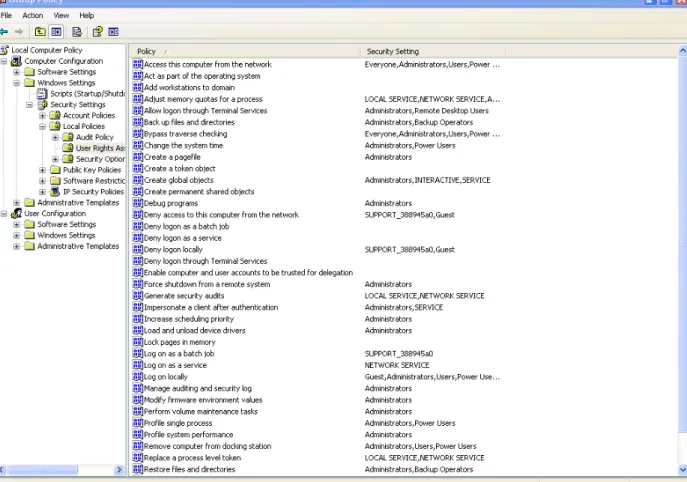
Perhaps the single biggest challenge to getting to Best Privilege is one of the strengths of the Windows platform. That is, Windows provides an extremely granular security model that lets you delegate rights to very low level operations. For example, note in Figure 1, the list of user rights that you can delegate on a typical Windows XP system:
Figure 1. User Rights in Windows XP
But from an IT system administrator’s perspective, the complexity of understanding and managing this in the context of tasks that the user has to perform, and which of those rights translates to allowing a particular task, is daunting.
As a result administrators often “punt” and just give the user administrative access to their systems, because it’s easier than trying to define and manage the myriad of rights required for each task.
Does UAC help?
With the introduction of Windows Vista and Windows 7, Microsoft introduced the User Account Control (UAC) feature. The underlying premise of UAC was exactly meant to address the topic of this whitepaper—how do we force the hand of IT staff and software vendors to prevent their users from running with over-elevated privileges?
To explain how UAC works, let’s start from the beginning. When you log into a Windows workstation with your AD credentials, all processes created by Windows, including Explorer and any applications you run, have a set of tokens associated with them. Those tokens include all of your group memberships as well as the user rights that you have. So if I’m in the local administrators group, all of the process tokens on all of the applications I run will contain that local administrators group Security Identifier (SID) as well as all of its user rights.
UAC starts from the premise that no one is an administrator. Even if you put yourself in the local Administrators group, whenever you run an application, UAC sets all of the
administrative groups and rights on your process tokens from Allow to Deny, as shown below:
If a user who is not in the local administrators group runs an application, they too will not have any administrative access, of course. If they run an application that needs to write to protected areas of the operating system (e.g. c:\windows or c:\program files) they will be prompted for the password of an administrative credential before they are elevated to those rights, and it’s only done on that one process—not all processes across the board.
When UAC elevates the user, for example, when they right-click an application icon and select, “Run As Administrator”, those administrative groups and user rights token are all set to allow. So even though I might not need, for example, Domain Admins rights for a particular application, the elevation that UAC performs is all or nothing. So I go from under-privileged to over-privileged with a flick of the mouse!
So in principle, UAC can help with the problem of too much privilege. In practice, it has proven challenging as a Best Privilege solution. Many applications that were expecting administrative privileges will choke in the presence of UAC, unless they are specifically remediated for it. This often caused people to turn off UAC completely, which of course is exactly the opposite of where we’re trying to go.
With UAC, there is little to no granularity to the prompting. You can’t say, “don’t prompt me for these line-of-business applications that I need to run but do prompt me if the user tries to do anything else”. There’s also no control over what tokens an applications gets. Its either all or nothing. And the user experience of needing to type in a password every time they need to be elevated for a particular task is not a good one. So in the end UAC is a great solution for preventing individual users from shooting themselves in the foot, but it doesn’t scale very well as a solution for managing privilege across an organization.
The Different Approaches
So we’ve talked about some of the challenges around managing privilege on the Windows desktop, and why it can be hard to get to Best Privilege. Let’s now talk about the different approaches that I’ve seen IT staff use to try and solve this problem.
The “Do Nothing” Approach!
I call this the bury-your-head-in-the-sand strategy. This is clearly one way to address problem—by not addressing it. I still see a surprisingly large number of IT shops that take it for granted that their users run as administrators on their desktops.
If they haven’t yet had problems with malware or users wiping out their own systems, they will. Some shops will try to justify it by saying, “well we have a lot of developers and they need to be administrators”.
Developers are indeed a challenge, but I would also argue they are a big risk group
because they tend to download anything and everything from the Internet. Suffice it to say that I do not believe the “Do Nothing” approach is sustainable in the long run. If Windows 7 and UAC isn’t forcing you to address this problem head-on, then sooner or later you will
need to confront it. If you need business justification to go to management to make the case for this, try some of these:
• Better security on your desktops and within your organization. If your company is even mildly regulated by a government organization, I can’t imagine how you can get away with this for long. It’s a PR nightmare waiting to happen!
• Lower TCO around managing your desktops as a result of less user futzing
• More reliable end-user experience since installing untested, non-standard software and making user-driven tweaks can seriously impact desktop reliability
Permission-ing Around the Problem
This approach has been tried with minor success over the years. This approach attempts to get around the application compatibility issues that many applications have if you don’t make your users administrators on their desktops. Primarily the issues around many applications is that when the user runs them, they try to write to protected areas of the file system and registry as a normal part of their operation.
Common examples of this include attempting to write configuration values to
HKEY_LOCAL_MACHINE or writing temporary files to their C:\Program Files directory, or worse, to C:\windows\system32. The “Permissioning” approach is where the administrator attempts to use tools such as Process Monitor from Microsoft, to spy on all the registry and file system locations that an applications attempts to write to. Armed with this information, IT staff will re-permission those keys or folders so that users can write to them, thus
allowing the application to function.
This can be a good stop-gap approach when you have an application that absolutely, positively have to get working and you have no other choices. But there are several problems with it when you have to move beyond one or two applications. First, it takes a lot of work to uncover exactly what an application, especially a 3rd party application that you didn’t write, is doing. Poring over Process Monitor traces is tedious at best, and assumed you can actually understand the data you’re looking at, which is not always the case.
Second, assuming you can do this for a few applications on a few machines, it doesn’t scale very well to many machines and many applications without requiring a huge amount of work. This is especially true if you are trying to permission around ActiveX control installations, which is really not do-able on any large scale.
Third, this approach qualifies as “over-privilege”. Rather than just elevating one application or one user, you are essentially doing it for every user and application that logs into that system, because file system and registry permission changes are generally system-wide and don’t respect application boundaries. As long as a user has writes to read to a restricted folder or registry key, they can do so regardless of which application they are doing it with, including malware.
Finally, this approach rarely works for the system tasks I talked about above. Things like delegation of system rights for tasks like editing network properties, adding printers or the like tend to be fairly complex to perform using native security, especially if a user needs to perform a variety of tasks. Its no longer a relatively simple matter of changing file or registry permissions—its often a complex set of file or registry permissions, user rights and other security options.
Virtualization
Recently, virtualization (application and desktop) has become more widely adopted. Application virtualization is the practice of packaging an application such that it does not impact the underlying OS on installation. The application is usually streamed or installed to the desktop within a “sandbox” that allows it to run without affecting the underlying file system or registry. When the user is done with the application, the application can be removed or left in place, but the underlying OS does not change.
Depending upon the technology used, the user typically doesn’t need any special rights to install and use the application. This challenge around this approach is that it requires re-packaging your applications to take advantage of this application virtualization
technology, and it requires a new infrastructure to manage and deploy these applications. In addition, not all applications lend themselves to virtualization (e.g. device drivers and applications that interact with hardware directly can be problematic). And of course, operating system tasks cannot be virtualized.
Desktop virtualization, also referred to as VDI, is another approach for delivering desktops to your users. The OS runs within a virtual machine environment and the user accesses it via remote desktop protocols. The advantages around VDI have less to do with privilege management and more to do with securing your desktops in a data center and reducing desktop management costs. The one advantage around least privilege that VDI provides, is that if your administrative users cause problems with their VDI desktops, you can quickly and easily re-image them. And, because the VDI desktops are running in the data center, the user is less able to do things like plug USB thumb drives into their system, that introduce malware.
Elevate the Right Privileges for
the Right Applications
The last approach I’ll talk about for getting to best privilege is a relatively new one. There are now 3rd party products (e.g. BeyondTrust PowerBroker Desktops) on the market that let you centrally define policies for elevating a pre-defined set of applications and system tasks, with just the right set of rights and privileges needed to get the job done. These solutions take a unique approach to the problem. Essentially, you define the rights and privileges that a given application needs. Those “rules” about which applications should be elevated for which users are defined and managed using good-old Windows Group Policy (GP). You deploy the rules using the same mechanisms that you’re using for other
At the client, there is an agent that processes the policy rules. When you launch one of the applications that are specified in the rules, that application is launched with your normal process token, but as the application is launched its process token gets additional tokens granting just that process the required group memberships and/or user rights required to allow the application to run properly.
The advantage of this is quickly apparent. Only that particular application is elevated, rather than the user and their whole system. And, if managed correctly, only the minimum rights needed to allow the application to function are added to the process token. When the application stops running, the elevated rights go away.
With respect to system tasks such as adding printers or changing system properties, once again these products come with pre-defined rules that cover many OS-specific tasks, allowing you to elevate these tasks for the user only when they need to run them. This can have obvious advantages for mobile users. You can deliver a set of elevated tasks to that user when they are travelling to give them as much freedom as they need to get their job done, without exposing the whole system to exploits installing and running as
administrator.
Again, the key here with this class of product is that you don’t have to grant administrator rights over the whole system and you don’t have to re-permission any folders or registries keys or deal with complex Windows security modifications. You merely have to identify which applications and tasks need elevation, ideally which groups and rights they need to belong to in order to have the application function properly (e.g. administrators or power users) and push out the rules through Group Policy to groups of users as needed.
How to achieve “Best Privilege”
So now that I’ve laid out the landscape of challenges and possible solutions, how do you go from a world of too much privilege or too little privilege to a world of Best Privilege on your Windows desktops? There’s a set of steps that I usually recommend to people when tackling this problem, in an effort to get to that holy grail of balancing security and user productivity. It’s the same balance I often recommend to administrators trying to use Group Policy to lockdown and secure their user’s desktops. The first step in the process is to know what you’re dealing with!
Understanding your Users and their Applications
Clearly the first step in any process to get a handle on desktop privileges is to understand how your users are using their desktops-what applications and tasks they need to run in order to get their jobs done. There’s a couple of ways you can do this in order to get to a good concise list of which applications need to be elevated and which don’t. The first is to simply remove admin rights from one or more of your users and watch what breaks!
By observing first hand which applications fail in a least privilege environment, you will have a pretty good idea of the applications and tasks you’ll need to tackle to get to Best Privilege.
However, there is a more scientific approach you can take, that is less impactful and more likely to result in capturing most of the applications and tasks your users need to perform. Namely, by using the auditing capabilities built into one of the 3rd party products I mentioned above, such as BeyondTrust PowerBroker Desktops, you can actually log which applications are requesting elevated privileges as they run without having to change anything on your user’s desktops. While running in this “watch but don’t impact” mode, you can get a complete list of not only the applications and tasks your users need to run elevated, but also the rights being requested by those applications. Armed with this information, your job of creating policies to get to Best Privilege becomes a lot easier!
Creating Policies for Best Privilege
Once you know what the applications and tasks are for getting your users to Best Privilege, the next step comes in building the policies needed to achieve your goal. As I mentioned above, of the three methods I talked about earlier in this whitepaper, the approach taken by 3rd party products that escalate privileges for a specific application or task makes this process less painful.
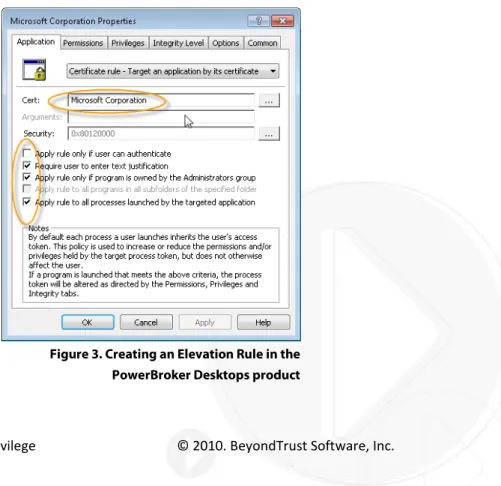
If you have a set of applications and tasks that you’ve identified in the previous step, then your next step is to define a set of elevation rules that you can distribute to your users via a mechanism like Group Policy. Figure 3 below shows an example of creating an elevation rule based on the digital signature of the application involved.
Figure 3. Creating an Elevation Rule in the PowerBroker Desktops product
The goal around this is to remove your users from the local Administrators (or Power Users) groups on their Windows desktops, and have them not be impacted by the change. If you deploy rules to these users that elevate only those tasks and applications that they need to get their jobs done, with the minimum privileges required for those applications and tasks to run, then you will have achieved Best Privilege and minimized the risks associated with have too many or too few privileges on your systems.
Implementing a Scalable and Manageable Solution
Going Forward
One thing to keep in mind, especially if you are using a mechanism such as Group Policy to distribute your elevation rules, is that simplicity is key. As with Group Policy, the myriad of options for creating and targeting rules can cause complexity. My suggestion is to create classes of user populations.
For example, if you have a set of general-use applications that all of your users need to use, you can group those applications together from a policy perspective. Likewise, for each business function (e.g. Marketing, Sales, etc.) that has their own unique applications that need to be elevated, you can group those together as well. The good thing about using Group Policy for distribution of elevation rules is that it is a proven, scalable system with well-known tools for creating and targeting policies.
Whatever approach you use, it’s important to have a “closed loop” system for managing Best Privilege. What that means is that you want to ensure that you have a good process in place for identifying applications that need to be elevated (e.g. using the proactive auditing I mentioned earlier and/or providing a user-based request system to allow requests for new application elevations).
Once identified, the next step is to author and deploy the elevation rules, using a trusted, scalable technology such as Group Policy. The final step in the loop is ensuring that your policies are in place and working. Again, this is where you can rely on auditing at the client to ensure that the correct applications are getting elevated with the correct privileges. Having these three pieces in place will ensure that no matter how large or complex your user base, you’ll have a good handle on getting your users to Best Privilege without impacting their productivity.
Summary
In this whitepaper, I laid out the case for getting to Best Privilege—the notion that your users have enough privileges on their desktops to perform their jobs, without opening the door to malware and other costly impacts to your systems.
And while there are a number of approaches to getting to Best Privilege, 3rd party
solutions such a
manageable way of taking control of your users without a lot of manual work and painful trial and error.