Apollo
MX20
Multi-Function Display
Installation Manual
June 2003 560-1025-07
2003 by UPS Aviation Technologies, Inc. All rights reserved. Printed in the USA.
This document and the information disclosed herein are proprietary information of UPSAT. Neither this document nor the information contained herein shall be transmitted, reproduced, copied, or disclosed in any form or by any means without the written authorization of UPSAT.
The information disclosed herein includes trade secrets and confidential business and/or financial information and falls within exemption (b) (4) of 5 USC 552 (FOIA) and the prohibitions of 18 USC 1905.
UPS Aviation Technologies® is a registered trademark of United Parcel Service of America, Inc.
UPS Aviation Technologies, Inc. 2345 Turner Rd., SE
PO Box 13549 Salem, OR 97302 Salem, OR 97309 USA Phone (503) 581-8101 www.upsat.com 1-800-525-6726 In Canada 1-800-654-3415 FAX (503) 364-2138
Part No. Revision Date Description
-- 11/1/99 Initial Release.
560-1025-01 -- 11/11/99 Updated installation package contents and equipment mounting information.
560-1025-02 -- 1/17/00 Added the MX20 configuration procedure, expanded post installation checkout procedures, added Appendix A.
560-1025-02 a 4/3/00 Clarified unit installation position. Corrected wiring diagram. Incorporated changes for software version 1.2.
560-1025-02 b 7/25/00 Incorporated changes for software version 2.0. 560-1025-02 c 10/3/00 Added mounting tube considerations
560-1025-03 -- 12/1/00 Changes for class and category in environmental qualifications and new ADS-B messages.
560-1025-04 -- 7/18/01 Changes to mounting tube and environmental qualifications for helicopters.
560-1025-05 -- 4/12/02 Added I/O board option and SW to support traffic and radar. 560-1025-05 a 6/12/02 Added JTSO
560-1025-06 -- 11/13/02 Added landmark support for the TAWS8000 560-1025-07 -- 6/18/03 Changes for SW Ver 5.0. Radar and WSI.
O
RDERING
I
NFORMATION
To receive additional copies of this publication, order part # 560-1025-07, Apollo MX20 Multi-Function Display Installation Manual.
O
THER
P
UBLICATIONS
GX50/60 Installation Manual, P/N 560-0959
WX-500 Installation Manual, Goodrich Avionics P/N 009-11500-001 SKY899 Installation Manual, Goodrich Avionics P/N 009-11900-001 RDR2000 Installation Manual, Allied Signal P/N 006-00643-0004 9900B Installation Manual, Ryan TCAD P/N 32-2301
9900BX Installation Manual, Ryan TCAD P/N 32-2351 WSI InFlight Installation Manual, WSI P/N 305427-00
Refund. If you do not agree to the terms of this EULA, UPS Aviation Technologies and Microsoft are unwilling to license the MX20 and its Operating System to you. In such event, you may not use or copy the Licensed Product, and you should promptly contact UPS Aviation Technologies for instructions on return of the unused product(s) for a refund.
Client Access Licenses. If you use the MX20 Operating System to access or utilize the services or functionality of Microsoft Windows NT Server (all editions) or use the MX20 Operating System to permit workstation or computing devices to access or utilize the services or functionality of Microsoft Windows NT Server, you may be required to obtain a Client Access License for the MX20 Operating System and/or each such workstation or computing device.
No Warranties. Except as expressly provided in the limited warranty section, the MX20 and its operating system are provided to you “as is” without warranty of any kind, either expressed or implied, including, but not limited to, warranties of noninfringement, merchantability, and/or fitness for a particular purpose. The entire risk of the quality and performance of the software is with the user.
No Liability for Consequential Damages. UPS Aviation Technologies and/or UPS Aviation
Technologies’ software suppliers shall not be held liable for any damages suffered or incurred by you (including, but not limited to, general, special, consequential or incidental damages including damages for loss of business profits, business interruption, loss of business information and the like), arising from or in connection with the delivery, use, or performance of the software.
Customer Remedies. UPS Aviation Technologies’ and UPS Aviation Technologies suppliers’ entire liability and your exclusive remedy shall be, at UPS Aviation Technologies’ option, either (a) return of the price paid, or (b) repair or replacement of the MX20 and its operating system that does not meet the above Limited Warranty and which is returned to UPS Aviation Technologies with a copy of your receipt. This Limited Warranty is void if failure of the MX20 or its operating system has resulted from accident, abuse, or misapplication. Any replacement MX20 and its operating system will be warranted for the remainder of the original warranty period or thirty (30) days, whichever is longer.
Limitations on Reverse Engineering, Decompilation and Disassembly. You may not reverse engineer, decompile, or disassemble the MX20 or its operating system, except and only to the extent that such activity is expressly permitted by applicable law notwithstanding this limitation.
Separation of Components. The MX20 and its operating system are licensed as a single product. Its component parts may not be separated for use on more than one MX20.
Single Embedded System. The MX20 and its operating system are licensed with the MX20 as a single integrated product. The MX20 operating system may only be used with the MX20 as set forth in these licensing terms.
U.S. Government Restricted Rights Legend: This Software is furnished with Restricted Rights. Use, duplication, or disclosure of the Software by the U.S. Government is subject to the restrictions as set forth in subparagraph (c)(1)(ii) of the Rights in Technical Data and Computer Software clause at 48 C.F.R. Sec. 252.227-7013 or in subparagraphs (c)(1) and (2) of the Commercial Computer Software-Restricted Rights clause at 48 C.F.R. Sec. 52-227-19, as applicable. UPS Aviation Technologies, 2345 Turner Road S.E., Salem, OR 97302.
T
ABLE OF
C
ONTENTS
1 INTRODUCTION... 1
1.1 ABOUT THIS MANUAL... 1
1.2 SYSTEM DESCRIPTION... 1
1.3 REGULATORY COMPLIANCE... 3
1.4 UNPACKING THE EQUIPMENT... 4
1.5 PACKAGE CONTENTS... 4
1.6 SPECIAL TOOLS REQUIRED... 6
1.7 LICENSE REQUIREMENTS... 6
1.8 OPERATING INSTRUCTIONS... 6
1.8.1 MX20...6
1.9 EXTERNAL DATA SOURCE COMPATIBILITY... 6
2 INSTALLATION ... 7 2.1 PRE-INSTALLATION INFORMATION... 7 2.2 INSTALLATION OVERVIEW... 7 2.3 INSTALLATION CONSIDERATIONS... 7 2.3.1 EXISTING SENSORS...7 2.3.2 MOUNTING CONSIDERATIONS...7
2.3.3 MINIMUM SYSTEM CONFIGURATION...11
2.3.4 AIR CIRCULATION...11
2.3.5 COMPASS SAFE DISTANCE...11
2.3.6 VIEWING ANGLE...11
2.4 EQUIPMENT MOUNTING... 12
2.5 ELECTRICAL CONNECTIONS... 14
2.5.1 MX20BASIC DATA PORT CONFIGURATION...15
2.5.2 MX20I/ODATA PORT CONFIGURATION...16
2.5.3 DATA CARD...16
2.5.4 PLACARD...17
2.5.5 POWER...17
2.5.6 ELECTRICAL LOAD ANALYSIS...17
2.5.7 SAMPLE WIRING DIAGRAMS...18
2.6 WEIGHT AND BALANCE... 24
2.7 CONFIGURING THE MX20&MX20I/O... 25
2.7.1 ENABLE/DISABLE FUNCTIONS...26
2.7.2 EXTERNAL DATA SOURCE...27
2.7.3 EXTERNAL DATA SOURCE FOR THE MX20I/O...29
2.7.4 MISCELLANEOUS SETUP OPTIONS...30
2.8 MX20POST INSTALLATION CHECKOUT... 32
2.8.1 MOUNTING /WIRING CHECK...32
2.8.2 SOFTWARE AND DATABASE TEST...32
2.8.3 EXTERNAL DATA SOURCE TESTS...32
2.8.4 EMI/RFITEST...34
2.8.5 ALTITUDE TEST...35
2.8.6 COMPASS TEST...35
2.8.7 STORMSCOPE INTERFACE TEST...35
2.8.8 SKYWATCH INTERFACE TEST...35
2.8.9 RYAN TCADINTERFACE TEST...36
2.8.10 RADARCONFIGURATION &CHECKOUT PROCEDURES...36
2.8.11 LANDMARK TAWS8000 AND KGP560CHECKOUT PROCEDURE...39
2.8.12 GARMIN GTX330CHECKOUT PROCEDURE...40
3 SPECIFICATIONS ... 43
3.1 MX20FEATURES...43
3.1.1 DISPLAY... 43
3.1.2 USER INTERFACE... 43
3.1.3 EXPANSION/INTERNAL ARCHITECTURE... 43
3.1.4 POSITION SOURCE... 43
3.1.5 ELECTRICAL... 43
3.1.6 AVIONICS OUTPUTS... 44
3.1.7 AVIONICS INPUTS... 44
3.1.8 AVIONICS OUTPUTS (I/OMODEL)... 44
3.1.9 AVIONICS INPUTS (I/OMODEL) ... 44
3.1.10 SERIAL INTERFACE DATA SOURCES... 44
3.1.11 PHYSICAL SPECIFICATIONS... 44
3.1.12 ENVIRONMENTAL SPECIFICATIONS... 45
3.1.13 TSOAUTHORIZATIONS... 45
3.1.14 INTERNAL GPSRECEIVER PERFORMANCE... 46
3.2 REAR CONNECTOR PINOUTS...47
4 TROUBLESHOOTING ... 51
4.1 TROUBLESHOOTING GUIDE...51
4.2 INTEGRATION TROUBLESHOOTING PROCEDURE... 54
4.3 CONTACTING THE FACTORY FOR ASSISTANCE...56
5 CONTINUED AIRWORTHINESS INSTRUCTIONS ... 57
5.1 EQUIPMENT CALIBRATION...57
5.2 CLEANING THE FRONT PANEL... 57
5.3 DISPLAY BACKLIGHT... 57
5.4 LITHIUM BATTERY REPLACEMENT...57
5.5 ALTITUDE ENCODER...57
5.6 MANUALS...57
6 ENVIRONMENTAL QUALIFICATIONS... 59
APPENDIX A – I/O SPECIFICATIONS... 61
6.1 MOVING MAP INPUT...61
6.2 BINARY NEAREST LIST DATA (WHEN EXTENDED DATA IS ENABLED ONLY) ... 62
6.3 FLIGHT PLAN WAYPOINT TYPES (WHEN EXTENDED DATA IS ENABLED ONLY)... 64
6.4 ALTITUDE ENCODER/CONVERTER INPUT... 66
6.5 STORMSCOPE INPUTS... 67
L
IST OF
T
ABLES
TABLE 1-INSTALLATION PACKAGE CONTENTS...5TABLE 2-PREFERRED DATA PORT CONFIGURATIONS... 15
TABLE 3–MX20I/ODATA PORT CONFIGURATIONS... 16
TABLE 4–UNIT POWER LOADS... 17
TABLE 5-UNIT WEIGHTS... 24
TABLE 6–UNIT POWER LOADS... 43
TABLE 7-UNIT WEIGHTS... 45
TABLE 8- MX20REAR PANEL CONNECTOR PINOUT (J1) ... 47
TABLE 9-MX20I/OCONNECTOR PINOUT (J2) ... 48
TABLE 10-TROUBLESHOOTING GUIDE... 51
TABLE 11-MOVING MAP ASCIINAVIGATION DATA... 61
TABLE 12-NEAREST WAYPOINT LIST DATA... 62
TABLE 13-MOVING MAP BINARY ROUTE DATA... 63
TABLE 14-FLIGHT PLAN WAYPOINT TYPE... 64
TABLE 15-ALTITUDE INPUT DATA... 66
L
IST OF
I
LLUSTRATIONS
FIGURE 1–MX20SYSTEM BLOCK DIAGRAM... 2FIGURE 2-MX20I/OSYSTEM BLOCK DIAGRAM... 2
FIGURE 3-MX20FRONT PANEL DESCRIPTION... 3
FIGURE 4-COCKPIT PANEL CONFIGURATION FOR A LARGE PANEL... 8
FIGURE 5-COCKPIT PANEL CONFIGURATION FOR A SMALL PANEL... 8
FIGURE 6-SAMPLE GX60&MX20MOUNTING... 9
FIGURE 7-ALTERNATE MX20MOUNTING CONFIGURATION... 9
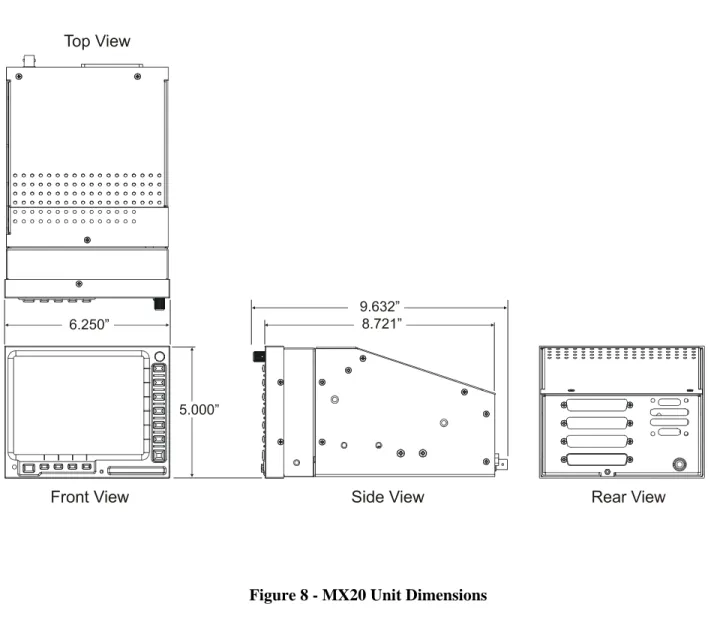
FIGURE 8-MX20UNIT DIMENSIONS... 10
FIGURE 9-MX20MOUNTING TUBE ASSEMBLY DIMENSIONS... 11
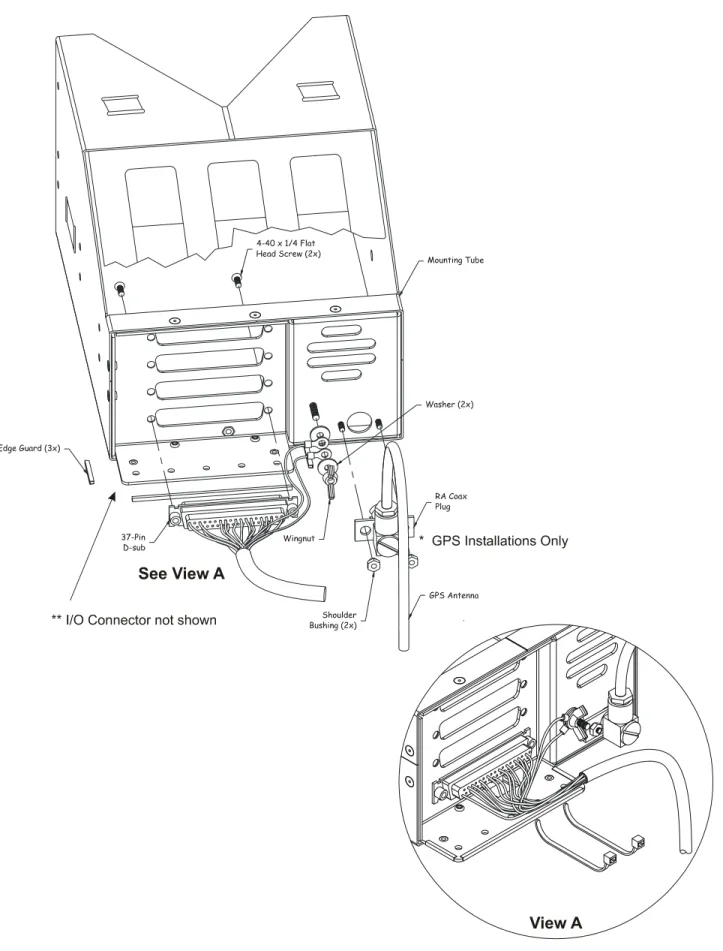
FIGURE 10-MX20TYPICAL REAR PANEL WIRING CONNECTIONS... 13
FIGURE 11-DATA PORT LOCATION... 14
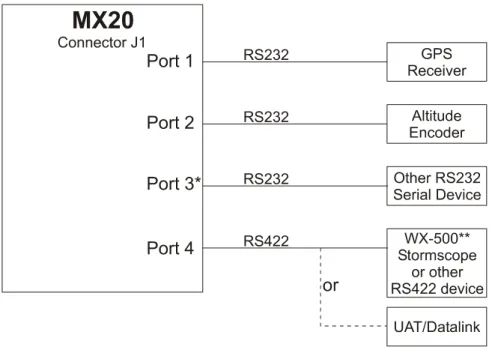
FIGURE 12–PREFERRED DATA PORT DESCRIPTION... 15
FIGURE 13–DATA I/OPORT DESCRIPTION... 16
FIGURE 14-SAMPLE SYSTEM WIRING DIAGRAM (INTERNAL GPSVERSION) WITH UAT ... 18
FIGURE 15-SAMPLE SYSTEM WIRING DIAGRAM (NO INTERNAL GPSVERSION) WITH WX500... 19
FIGURE 16-SAMPLE SYSTEM WIRING DIAGRAM FOR TCAD AND STORMSCOPE... 20
FIGURE 17-SAMPLE SYSTEM WIRING DIAGRAM I/O MODEL WITH RADAR,GOODRICH SKYWATCH, AND WSIINFLIGHT RECEIVER... 21
FIGURE 18-SAMPLE SYSTEM WIRING DIAGRAM OF MX20I/O WITH LANDMARK TAWS... 22
FIGURE 19-SAMPLE SYSTEM WIRING DIAGRAM OF MX20I/O WITH GARMIN GTX330 ... 23
FIGURE 20-SAMPLE SYSTEM WIRING DIAGRAM OF MX20I/O WITH KGP-560... 24
FIGURE 21-MOVING MAP DATA OUTPUT (EXTENDED DATA DISABLED)... 64
FIGURE 22-MOVING MAP DATA OUTPUT (EXTENDED DATA ENABLED)... 65
1
I
NTRODUCTION
1.1
A
BOUT
T
HIS
M
ANUAL
This manual describes the installation of the Apollo MX20 Multi-Function Display. It is intended for use by persons certified by the Federal Aviation Administration (FAA) to install aircraft navigation devices. It includes installation and checkout procedures for the MX20 to standards described in 14CFR Part 43.
Provides an introduction to the MX20. TSO certification information is also included in
this section.
Includes installation and checkout procedures.
Includes complete specifications.
Includes troubleshooting information.
Includes continued airworthiness instructions requirements.
Includes the environmental qualification form.
Includes I/O specifications.
1.2
S
YSTEM
D
ESCRIPTION
The MX20 is a multi-function display capable of displaying moving maps, terrain awareness, obstructions, and VFR/IFR charting functions. An optional datalink provides ADS-B traffic, FIS-B and TIS-B information. Interfacing to the WX-500 provides lightning strike information on the display. Interfacing to the WSI Inflight sensor provides Nexrad images, graphic and text METARs, graphic and text TAFs, EchoTops, Sigmet, Airmet, and Temporary Flight Restriction (TFR) information.
The MX20 display is also available with an internal GPS. The internal GPS position source permits a Navigation Uncertainty Category (NUC) value to be calculated and transmitted for ADS-B broadcast. The MX20 I/O option includes additional interface capabilities that allow connection to the ARINC 453 bus for the display of radar, ARINC 429 support for Goodrich Skywatch interfaces, RS-232 support for Ryan TCAD, Landmark TAWS, and the Honeywell KGP560. The MX20 I/O model is not available with the optional GPS engine. Interfacing to a Garmin GTX330 Mode S Transponder provides TIS-A traffic information.
The MX20 must be connected to an external GPS navigation source, such as the UPSAT Apollo GX or CNX-series, to provide route and flight plan information. The MX20 must be connected to an external serial altitude source to provide terrain awareness information.
Section 1 Section 2 Section 3 Section 4 Section 5 Section 6 Appendix A
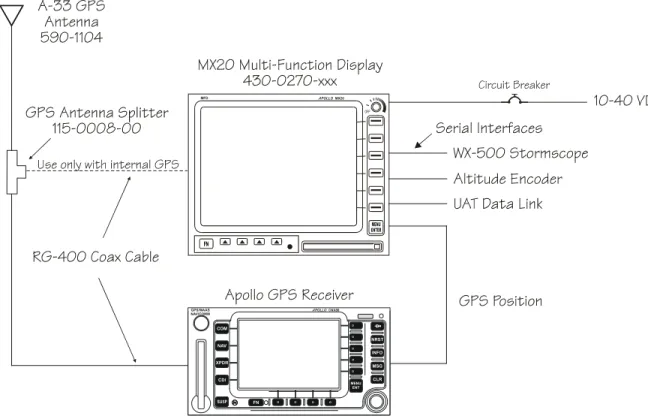
Figure 1 – MX20 System Block Diagram
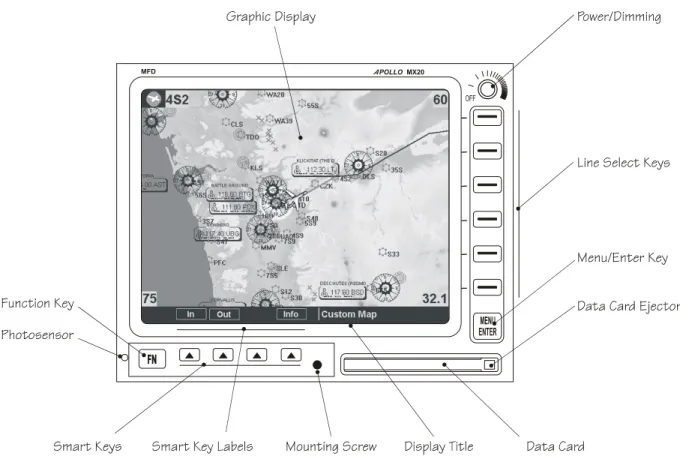
Figure 3 - MX20 Front Panel Description
1.3
R
EGULATORY
C
OMPLIANCE
The MX20 is designed and tested to meet the following TSOs when connected to the appropriate equipment:
• FAA TSO-C63c/JTSO 2C63c Airborne Weather Radar
• FAA TSO-C110a/JTSO-C110a Passive Thunderstorm Detection (Goodrich WX500)
• FAA TSO-C113/JTSO-C113 Multi-purpose Electronic Display
• FAA TSO-C118/JTSO-C118 Traffic Alert and Collision Avoidance (TCAS I)
• FAA TSO-C147 Traffic Advisory System (TAS)
• FAA TSO-C151a Terrain Awareness and Warning System (TAWS) The MX20 software is designed and tested to RTCA/DO-178B, levels C and D.
NOTE
Unauthorized changes or modifications to the MX20 will void the compliance to required regulatory agencies and authorization for continued equipment usage.
“The conditions and tests required for TSO approval of this article are minimum performance standards. It is the responsibility of those desiring to install this article either on or within a specific type or class of aircraft to determine that the aircraft installation conditions are within the TSO standards. If not within the TSO standards, the article may be installed only if the applicant documents further evaluation for an acceptable installation and it is approved by the Administrator.”
"The conditions and tests required for TSO/JTSO approval of this article are minimum performance standards. It is the responsibility of those installing this article either on or within a specific type or class of aircraft to determine that the aircraft installation conditions are within the TSO/JTSO standards. The article may be installed only if the installation is performed in accordance with Part 43 or the applicable airworthiness requirements.”
1.4
U
NPACKING THE
E
QUIPMENT
Carefully unpack the equipment. Visually inspect the package contents for any evidence of shipping damage. Retain all shipping containers and packaging material in case reshipment is necessary.
1.5
P
ACKAGE
C
ONTENTS
As shipped from the UPS Aviation Technologies factory, the MX20 Installation package includes most necessary items for installation other than supplies normally available at the installation shop. The items included in the package are listed in Table 1.
Table 1 - Installation Package Contents
Part # Description Quantity w/o GPS 424-0751 Quantity w/ GPS Quantity w/ I/O 424-0753 Unit
430-0270-0xx Apollo MX20 Multifunction Display with GPS 1 430-0270-5xx Apollo MX20 Multifunction Display without GPS 1
430-0270-6xx Apollo MX20 I/O Traffic Multifunction Display 1 430-0270-7xx Apollo MX20 I/O Traffic/Radar Multifunction Display 1
MX20 Installation Kit
115-0007-00 GPS 1575 MHz 2:1 splitter 1 162-1008 Right angle coax plug 1 162-1060 TNC Connector 3 162-1577* 37-pin d-Sub 1 1 1 202-0001 Cable tie 4 4 4 204-0037 Edge grommet 6" 6" 6" 204-2100 Shoulder bushing 2 220-0637 6-32 Wing nut 1 1 1 240-0615 #6 Washer 2 2 2
224-0404 4-40 x 1/4 SS flat head Phillips machine screw 2 2 2 245-0027* Crimp contact for d-sub, 20 to 24 AWG wire 30 30 40 310-0429-xx MFD Mounting Tube 1 1 1 998-0048 3/32" hex driver 1 1 1
MX20 I/O Installation Kit
160-0138 62-pin d-Sub, high density 1 245-0059 Crimp contact for high density d-sub, 22 to 30 AWG wire 20
564-0076-0xx Manual Kit 1 1 1
560-1025-xx MX20 Installation Guide 1 1 1 560-1026-xx MX20 User's Guide 1 1 1 561-0263 MX20 Quick Reference Guide 1 1 1 564-0078-0xx STC Kit (AFM & MDL) 1 1 1
Notes:
* Pin has a barrel over the contact. Use ITT Cannon tools.
Other Required Materials
The MX20 equipment is intended for use with standard aviation accessories. See section 1.9 for a list of compatible equipment. The following items are required for the installation:
• Compatible position locating source, such as: Apollo GX50/55/60/65 GPS receiver, or Apollo CNX-series receiver
1.6
S
PECIAL
T
OOLS
R
EQUIRED
Crimp Tool
A crimp tool meeting MIL specification M22520/1-01 and a positioner/locator are required to ensure consistent, reliable crimp contact connections for the rear d-sub connectors. Examples of these tools are shown below:
For pin P/N 245-0027
ITT Cannon Phone (714) 261-5300
1851 E. Deere Ave. Fax (714) 575-8324
Santa Ana, CA 92705-6500
Insertion tool: ITT part # 274-7006-000 (Desc. CIET-20HD) Regular duty Crimp tool: ITT part # 995-0001-585 (Desc. M22520/1-01) Regular duty Locator tool: ITT part # 995-0001-244 (Desc. TH25)
Heavy duty Crimp tool: ITT part # 995-0001-584 (Desc. M22520/2-01)
Heavy duty Locator tool: ITT part # 995-0001-604 (Desc. M22520/2-08)
For pin P/N 245-0059 (High Density Connector – I/O Only)
Astro Tool Corp Phone (503) 642-9853
21615 SW TV Highway Fax (503) 591-7766 Beaverton, OR 97006
Crimp tool: Astro Tool part # 615708 Positioner: Astro Tool part # 616356
1.7
L
ICENSE
R
EQUIREMENTS
There are no license requirements for the MX20.
1.8
O
PERATING
I
NSTRUCTIONS
1.8.1
MX20
The MX20 User's Guide, UPS Aviation Technologies P/N 560-1026-xx, covers operation and pilot interface. The MX20 Quick Reference Guide is P/N 561-0263-xx.
1.9
E
XTERNAL
D
ATA
S
OURCE
C
OMPATIBILITY
External serial data sources intended for use with the MX20 should be checked for compatibility before installation. Devices from other manufacturers or unlisted models are supported if they adhere to the interface specifications provided in this manual. The list of supported devices is located in Section 3.1.10 of this manual.
2
I
NSTALLATION
This section describes the installation of the MX20 including mounting, wiring, connections, and software configuration. A post-installation checkout procedure is included at the end of this section.
2.1
P
RE
-I
NSTALLATION
I
NFORMATION
Always follow good avionics installation practices per FAA Advisory Circulars (AC) 43.13-1B, 43.13-2A, and AC 20-138, or later FAA approved revisions of these documents.
Follow the installation procedure in this section as it is presented for a successful installation. Read the entire section before beginning the procedure. Prior to installation, consider the structural integrity of the MX20 installation as defined in AC 43.13.2A, Chapter 1. Perform the post installation checkout before closing the work area in case problems occur.
Complete an electrical load analysis in accordance with AC 43.13-1B, Chapter 11, on the aircraft prior to starting modification to ensure aircraft has the ability to carry the MX20 load. Refer to Section 2.5.6 for the power consumption of each MX20 mode of operation (heater on). Document the results of the electrical load analysis on FAA Form 337.
2.2
I
NSTALLATION
O
VERVIEW
A successful installation should start with careful planning including determination of mounting location for the MX20, cable routing, and other required modifications. Once the mounting location has been determined, prepare the mounting frames for installation. It may be easier to complete the wiring harness and attach the connectors to the mounting frame before installing the mounting frame.
Carefully plan which external devices are to be connected to which MX20 ports observing the special characteristics of ports 3 and 4.
2.3
I
NSTALLATION
C
ONSIDERATIONS
2.3.1
EXISTING SENSORS
When the MX20 is installed with external sensors, these sensors must be installed with manufacturer's data. This manual does not provide information for the installation of specific external sensors.
2.3.2
MOUNTING CONSIDERATIONS
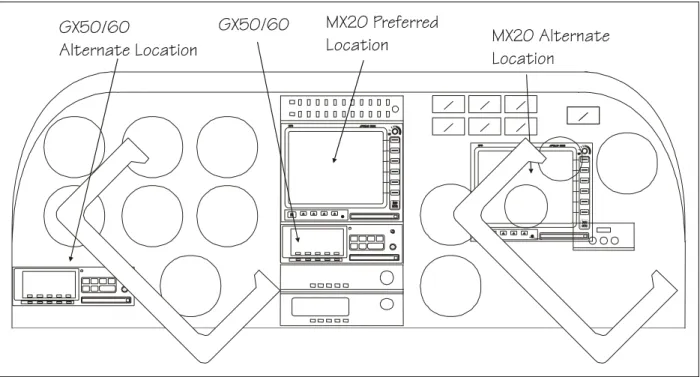
The MX20 is designed to mount in the avionics stack in the aircraft instrument panel within view and reach of the pilot. The MX20 must be located where the operator will have easy access to the controls and adequate viewing of the display. The preferred location would minimize pilot head movement when transitioning between looking outside of the flight deck and viewing and operating the MX20. Sample diagrams of typical cockpit front panel views of the MX20 are shown in Figure 4 and Figure 5.
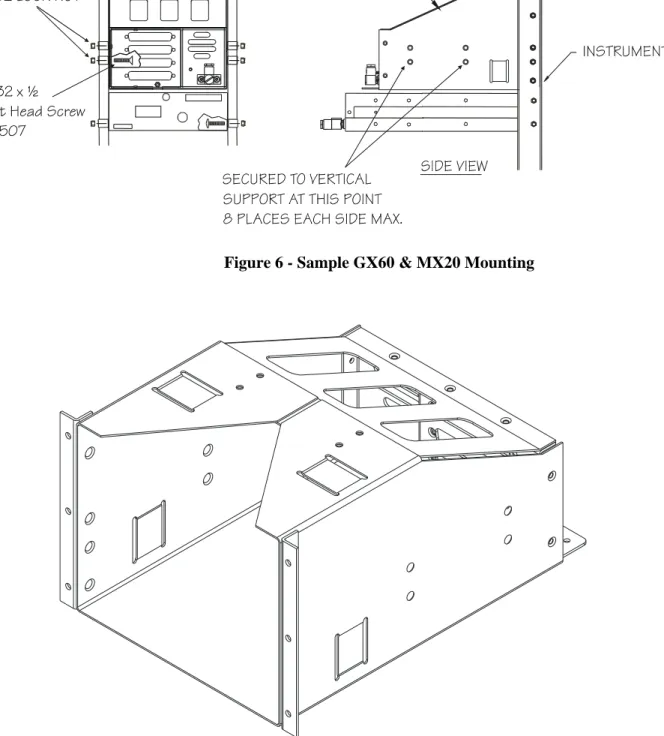
The standard package includes a mounting frame for ease of mounting, connections, and service of the unit. Allow an additional one-inch clearance to the rear of the mounting frame for connectors and cables. Mounting frame details are shown in Figure 6, Figure 7, Figure 8, and Figure 9. Use of mounting tube P/N 310-0429-01, or later FAA approved revision, is recommended for all installations and is required for helicopter installations.
The MX20 does not require external cooling. When mounting the MX20, leave a clearance of 1/8 to 1/4 inch between avionics to allow for air circulation.
Figure 4 - Cockpit Panel Configuration for a Large Panel
Figure 6 - Sample GX60 & MX20 Mounting
Figure 7 - Alternate MX20 Mounting Configuration NOTE
This configuration utilizes an angle bracket along each side of the mounting tube. The installer must consider the structural integrity of the installation as defined in AC43.13.2a Chapter 1.
Figure 8 - MX20 Unit Dimensions
NOTE
Use of mounting tube P/N 310-0429-01, or later FAA approved revision, is recommended for all installations and is required for helicopter installations.
Figure 9 - MX20 Mounting Tube Assembly Dimensions
Note: Use of mounting tube P/N 310-0429-01, or later FAA approved revision, is recommended for all
installations and is required for helicopter installations.
2.3.3
MINIMUM SYSTEM CONFIGURATION
The MX20 requires connections to the following equipment as a minimum, as appropriate for each unit:
• Power input
• Serial position input device (such as the Apollo GX60, Apollo CNX-series, or equivalent)
• Serial altitude encoder
The serial I/O requirements are located in Appendix A of this manual.
2.3.4
AIR CIRCULATION
No external cooling is required for the MX20. Newer units will have an internal fan installed. Previous units may be modified to include an internal fan, if desired. No special provisions are required during installation to accommodate the fan except to ensure the fan opening is not blocked.
2.3.5
COMPASS SAFE DISTANCE
After reconfiguring the avionics in the cockpit panel, if the MX20 is mounted less than seven inches from the compass, recalibrate the compass and make the necessary changes for noting correction data.
2.3.6
VIEWING ANGLE
The MX20 shall be located such that the operator will have easy access to the controls and have adequate view of the display. The MX20 may be adequately viewed from the primary pilot’s position when the following minimums are met:
Down: 30 degrees off pilot’s eye center line Right: 50 degrees off pilot’s eye center line Left: 50 degrees off pilot’s eye center line
2.4
E
QUIPMENT
M
OUNTING
Once the cable assemblies have been made, attach each connector to the rear connector mounting plate and the mounting tube as illustrated in Figure 10. Route the wiring bundle as appropriate.
Use tie wraps to secure the cable to the rear connector plate to provide strain relief for the cable assembly as shown in View A of Figure 10. Connect the shield grounds directly to the grounding lug.
Mounting Tube
Secure the mounting tube to the instrument panel structure using the sixteen screws. The AN507 6-32 screws have a 100o countersink head. The mating holes in the instrument panel structure must also be
countersunk to accept the screw head so that the screw head is flush with the inside surface of the mounting tube.
CAUTION
Failure to properly countersink the mounting holes will result in damage to the MX20. Mounting screw heads must not protrude into the mounting tube.
The mounting tube should be flush to the instrument panel and allow sufficient clearance for the back of the bezel of the MX20 to mount flush to the mounting tube. Sufficient clearance must exist in the instrument panel opening to allow ease of insertion and removal of the MX20.
CAUTION
If the back of the MX20 bezel does not mount flush to the mounting tube, the connector may not engage fully.
An alternate mounting configuration can be accomplished using locally-fabricated L brackets. Make the brackets from 20-24 T3 aluminum, 0.040", and form a 90o bend. When attaching the
L brackets to the mounting tube, screw heads must not protrude into the mounting tube.
Once the cable assemblies are complete and the connectors are attached to the mounting frame, install the mounting frame assembly in the instrument panel. Be sure to use AN507 flat head screws so the unit will slide in and out freely. Attach the front of the mounting frame to the instrument panel. Use support brackets to attach the rear of the frame to the aircraft. Cable wiring to the mounting frame is shown in Figure 10.
Slide the unit into the frame and hand-tighten the threaded screw shaft using the 3/32" hex driver provided in
the installation package. The unit will be pulled into the frame by the shaft and the connectors will fully engage. The back of the bezel must only be flush to the mounting tube.
To remove the unit from the mounting frame, unscrew the screw shaft. The unit will be loosened and then may be pulled from the frame. No special extraction tools are required.
2.5
E
LECTRICAL
C
ONNECTIONS
The MX20 installation kit includes connectors and crimp contacts. Make the crimp connections with a crimp tool as specified in the Special Tools Required section on page 6. Wires should be 20 to 24 AWG for the 37-pin connector and 22-30 AWG for the 62-pin connector, unless otherwise specified. Power and ground wires should be 20 AWG. Shield grounds should be as short as possible and connected to the grounding lug on the back of the chassis with wire of three inches, or less.
• Wiring shall be in accordance with AC 43.13-1B.
• All RS-422 or RS-232 connections should be made with twisted pair shielded cable.
• All ARINC 453/708 connections should be made with 70 ohm, constant impedance, twisted pair shielded cable.
• All ARINC 429 connections should be made with twisted pair shielded cable.
2.5.1
MX20 BASIC DATA PORT CONFIGURATION
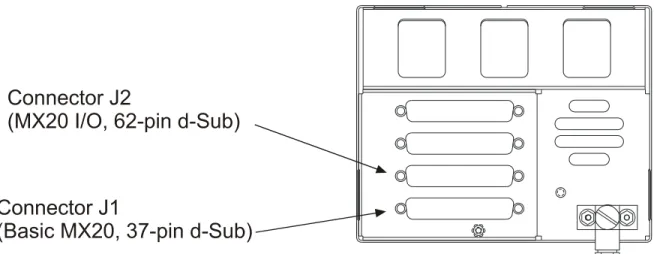
The basic MX20 supports four I/O ports on connector J1. Three of the ports are RS232 and one is RS422. The usage of each port is assigned during the configuration procedure (see section 2.7). The diagram below provides an example of a configuration for the data ports. Samples of typical wiring configurations are shown in section 2.5.7.
The following table shows the suggested port usage, however note that the software must be configured to match the installed MX20 wiring configuration. Note that only one traffic source may be connected to the MX20 I/O at one time.
Table 2 - Preferred Data Port Configurations
MX20 With GPS MX20 Without GPS
PORT 1 RS232 GX50/60* or equivalent GX50/60* or equivalent PORT 2 RS232 Altitude Encoder* or option Altitude encoder* or option
PORT 3 RS232 Internal GPS** SL30, or option
PORT 4 RS422 UAT Datalink Radio or option WX-500 or option
* A GX-series unit running software version 3.2 or higher and enabled for extended mode and a CNX-series unit is capable of receiving altitude data from the altitude encoder and passing the data to the MX20. This configuration opens up an MX20 port for other options.
** If the MX20 is configured with an internal GPS engine, Port 3 is not available for external connections.
2.5.2
MX20 I/O DATA PORT CONFIGURATION
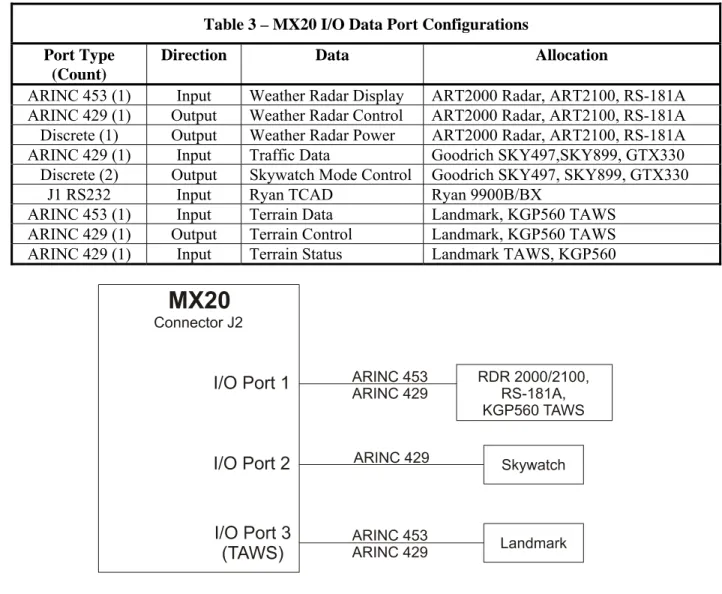
The I/O product variation of the MX20 supports an array of additional I/O capabilities on connector J2 as shown below. Note that the hardware connected to the MX20 I/O ports must be connected as shown in Table 3, as reconfiguration by software is not available. See the sample wiring diagrams and connector pinouts in section 2.5.7 for detailed connections. One possible configuration is shown in Figure 13.
Table 3 – MX20 I/O Data Port Configurations Port Type
(Count)
Direction Data Allocation
ARINC 453 (1) Input Weather Radar Display ART2000 Radar, ART2100, RS-181A ARINC 429 (1) Output Weather Radar Control ART2000 Radar, ART2100, RS-181A
Discrete (1) Output Weather Radar Power ART2000 Radar, ART2100, RS-181A ARINC 429 (1) Input Traffic Data Goodrich SKY497,SKY899, GTX330 Discrete (2) Output Skywatch Mode Control Goodrich SKY497, SKY899, GTX330
J1 RS232 Input Ryan TCAD Ryan 9900B/BX
ARINC 453 (1) Input Terrain Data Landmark, KGP560 TAWS ARINC 429 (1) Output Terrain Control Landmark, KGP560 TAWS ARINC 429 (1) Input Terrain Status Landmark TAWS, KGP560
Figure 13 –Data I/O Port Description
2.5.3
DATA CARD
The data card is a Compact Flash™ card that contains the NAV database, operating software, and other information. The data card is required for MX20 operation.
CAUTION
2.5.4
PLACARD
The aircraft will have a placard identifying the MFD circuit breaker. The placard will be placed directly adjacent to the respective breaker.
2.5.5
POWER
The power and fuse requirements for each external sensor are described in their respective installation manuals. The MX20 will operate on voltages between 10 and 40 VDC. Install a five amp circuit breaker for a 14 VDC aircraft and a three amp circuit breaker for a 28 VDC aircraft. Use separate wires for the heater and CPU power inputs; one wire to each pin. Power and ground wires should be 20 AWG.
2.5.6
ELECTRICAL LOAD ANALYSIS
An electrical load analysis should be completed on each aircraft prior to installation in accordance with AC 43.13-1B, Chapter 11. Use the following values for computation:
Table 4 – Unit Power Loads
14 VDC 28 VDC
Unit
Typical Max Typical Max
MX20 2.0 A 3.0 A 1 A 1.5 A
MX20 with heater (1) 3.0 A 4.0 A 1.5 A 2.0 A
MX20 I/O 2.5 A 3.5 A 1.25 A 1.75 A
MX20 I/O with heater (1) 3.5 A 4.5 A 1.75 A 2.25 A
Notes:
1. Heater element turns on below approximately 30oC.
Note: Circuits should be protected in accordance with guidelines in AC 43.13-1B, chapter 11, section 2, paragraph 429.Power inputs should be across a minimum of all four specified input pins.
2.5.7
SAMPLE WIRING DIAGRAMS
Figure 17 - Sample System Wiring Diagram I/O model with Radar, Goodrich Skywatch, and WSI InFlight Receiver
Figure 20 - Sample System Wiring Diagram of MX20 I/O with KGP-560
2.6
W
EIGHT AND
B
ALANCE
Weight and balance computation is required after the installation of the MX20. Follow the guidelines as established in AC 43.13-1B, Chapter 10, section 2. Make appropriate entries in the equipment list indicating items added, removed, or relocated along with the date accomplished. Include your name and certificate number in the aircraft records. The following table identifies the weight of the new MX20 equipment.
Table 5 - Unit Weights
Unit Weight
MX20 only, with GPS 4.08 lb. (1.85 kg)
MX20 only, without GPS 3.92 lb. (1.78 kg)
MX20 only, with I/O Option 4.07 lb. (1.85 kg)
2.7
C
ONFIGURING THE
MX20
&
MX20
I/O
1. Turn on power to the MX20.2. Immediately after the self-test is complete, press line select keys 1, 4, and 6 in sequence before pressing any other keys (where 1 is the top line select key, 4 is the fourth key down, and 6 is the lower most line select key). If other keys are pressed before or during this sequence, the MX20 will be in the normal operational mode. To enter the install mode, turn off the MX20 and start again at step 1.
3. Press the function key until the INSTL function is present. If INSTL function is not found, restart the unit. Carefully press line select keys 1, 4, and 6 in sequence. Do not press any other buttons before pressing the 1, 4, 6 line select key sequence.
4. Select the INSTL function by pressing the smart key directly below the INSTL label. The Enable/Disable Functions will be the first screen to appear.
NOTE
MX20 power must be cycled before configuration changes will take affect.
After a configuration change, a message will appear on the screen telling you to wait 30 seconds before turning off power. You may continue to make configuration changes without pausing; however, do not turn off power to the MX20 until waiting 30 seconds after the last configuration/ setting change. The message will disappear when it is safe to cycle power.
Line Select Keys
-1
-2
-3
-4
-5
-6
2.7.1
ENABLE/DISABLE FUNCTIONS
This menu allows the activation or deactivation of MX20 functions.
1. Ensure the Enable/Disable Functions page of the MX20 has the desired configuration. Modifications can be made using the line select keys.
a. Enable Message to allow viewing of system messages.
b. Enable Custom Map to allow viewing of the Custom Map function. c. Enable IFR En Route Map to allow viewing of the IFR Map function. d. Enable VFR Sectional Map to allow viewing of the VFR Map function.
e. Enable the Split Screen function to allow viewing of two functions side by side. 2. Press the Next Page line select key to view additional functions.
a. Enable Traffic only if UAT, Skywatch, or GTX330 are installed.
b. Enable FIS Data Link only if a UAT or WSI InFlight system is installed. c. Enable Flight Plan to allow viewing of flight plan route lines on the display.
d. Enable Terrain only if an altitude encoder is installed, either directly or through a navigation source, or if a TAWS sensor is installed.
e. Enable Lightning only if WX-500 is installed.
3. Press the Next Page line select key to view additional functions.
a. Enable the System function to allow viewing of the System function. b. Enable Radar only if a unit is an I/O model and interfaced to a radar unit.
4. A typical installation will have all functions enabled except those noted above based on what hardware is installed in the aircraft.
2.7.2
EXTERNAL DATA SOURCE
This menu allows the software to assign ports to the installed sensors. 1. Press the DATA smart key while still in the INSTL function.
2. Ensure the External Data Sources pages of the MX20 have the desired configuration. Modifications can be made using the line select keys. Port allocations must match how the system is wired. Set port source to None if the hardware is not installed. The Internal GPS Position Source, when present, must always be configured to Port 3. If the altitude data is supplied from the GX model unit, the Altitude
Source port must be set to the same port number that the GX model unit is connected to (such as Port 1 in the example shown below).
Main Menu
2.7.3
EXTERNAL DATA SOURCE FOR THE MX20 I/O
The MX20 I/O allocates fixed data source ports for interface to the radar, TAWS, and traffic sensors. Software configuration is not required for Skywatch, GTX330, or TCAD traffic sensors. The I/O version of the MX20 adds traffic and radar functionality. These data sources are configured in a similar manner as the basic MX20 external sensors. Note that only one traffic source may be connected to the MX20 I/O at one time.
2.7.3.1 RYAN TCAD SOURCE
Select the RS-232 port 1-4 where the TCAD unit is connected.
2.7.3.2 SKYWATCH
Select the configuration which matches the physical installation. The two model options are SKY497 and SKY899. Additionally, if the MX20 is not wired to drive the discrete inputs (when an additional display such as the WX1000 is being used), select the + DISP option. If the MX20 is wired to drive the Skywatch discrete inputs, select just the basic SKY model without the + DISP option. Using the +DISP option indicates that an external display is responsible for driving the discrete inputs and the corresponding MX20 controls will be disabled on the MX20 Traffic page.
2.7.3.3 RADAR
Select the model of the Radar connected. Currently the ART-2000 and the RS-181A are supported. The ART-2100 is supported if it is configured as an ART-2000.
2.7.3.4 TAWS
Select the model of the TAWS sensor connected in the system. Currently only the L-3 (Goodrich) Landmark TAWS 8000 and KGP560 are supported. Select TAWS8000 for the Landmark 8000 and EGPWS for the KGP560.
2.7.3.5 TRANSPONDER TIS
Select the model of the TIS data source selected. Currently, only the Garmin GTX330 is supported.
2.7.4
MISCELLANEOUS SETUP OPTIONS
1. Press the MISC smart key while still in the INSTL function.
2. Ensure the Misc Setup Options pages of the MX20 are configured with respect to the aircraft it is being installed in. Modifications can be made using the line select keys.
See Step 3 See Step 4 See Step 5
3. Obtain ICAO address of the aircraft from the FAA only if the UAT/ADS-B system is installed. The ICAO address is a unique eight number code assigned to each aircraft. For U.S. registered aircraft, it will be necessary to have a specific address code assigned. These address codes are presently issued by:
Federal Aviation Administration FAA Aircraft Registry
P.O. Box 25504
Oklahoma City, OK 73125 Tel: (405) 954-3116 Fax: (405) 954-3548
If the aircraft is registered in a country other than the United States, please contact the local aviation authority of the country in which the aircraft is registered.
4. Enter in Flight ID. (Required if UAT/ADS-B system is installed.) 5. Enter Category Code. (Required if UAT/ADS-B system is installed.)
Category Code Aircraft Weight
Small < 15,500 lbs.
Medium 15,500 to 75,000 lbs.
Large 75,000 to 190,000 lbs.
Extra Large 190,000 to 300,000 lbs.
Heavy > 300,000 lbs.
High Performance > 5g acceleration and > 400 kts
6. Enter in Ownship Symbol (Single Engine, Twin, or Jet). 7. Set the Terrain Clearance Mode to Normal for all operations.
8. Demo Mode must be disabled for all aircraft installations.
9. Press Enter/Menu to confirm all settings.
10. After the 30-second waiting period, turn the MX20 power off to apply all configuration settings.
NOTE
MX20 power must be cycled before configuration changes will take affect.
After a configuration change, a message will appear on the screen telling you to wait 30 seconds before turning off power. You may continue to make configuration changes without pausing; however, do not turn off power to the MX20 until waiting 30 seconds after the last configuration/ setting change. The message will disappear when it is safe to cycle power.
2.8
MX20
P
OST
I
NSTALLATION
C
HECKOUT
Once the unit is installed, complete the checkout procedure to verify proper operation. Refer to the MX20 Multi-Function Display User’s Guide, 560-1026-xx, for operating instructions.
2.8.1
MOUNTING / WIRING CHECK
Verify that all cables are properly secured and shields are connected to the rear of the mounting frame. Check the movement of the flight and engine controls to verify that there is no interference. Ensure wiring is
installed in accordance with AC 43.13-1B, Chapter 11.
2.8.2
SOFTWARE AND DATABASE TEST
1. Turn on power to the MX20.
2. Verify all self-tests pass on the main startup screen. 3. Verify the expiration on the NavData database.
4. Verify the Terrain and Geography databases are applicable to the area of intended flight (CONUS, Alaska, etc.).
5. Press the MSG smart key and verify that “Unit configured for Special Terrain Mode” is NOT
displayed.
2.8.3
EXTERNAL DATA SOURCE TESTS
Verify that all external data sources are connected. See section 3.1.13 to check the compatibility of the external devices for use with the MX20.
1. Turn on power to the MX20 and the external data sources. Activate the Installation Mode (see section 2.7).
2. Verify that the MX20 data ports are configured properly. See sections 2.5.1 and 2.5.2 for details on the data port configuration. See section 2.7 for information on configuring the MX20 in Installation Mode.
4. Verify that the external data sources are properly configured to output the proper data to the MX20, i.e., the Apollo GX should be configured to output Moving Map data. If the altitude data is supplied from a GX model unit, it must have extended mode enabled.
5. Check the System Info page on the MX20 to verify that the data is available to each port and that it is being processed properly.
6. Verify ALT data flag is not displayed in the lower left portion of the MX20 display. 7. With external navigation source off, the POS and RTE data flags should be present.
NOTE
! The external navigation source may need to be properly configured prior to this step.
! Direct To sequence may need to be entered for external navigation source to output POS and RTE.
! If an internal GPS exists, it can also provide a valid position to the MX20.
8. Turn the external navigation source power on. Verify that the navigation source acquires a position. 9. Create/activate a flight plan on the external navigation source.
10. Verify the RTE and POS data flags are not displayed. 11. Flight plan will be displayed on the MX20 on the FPL page.
12. Turn the traffic source power on. Verify the SKWY, TCAD, XPDR, or TRAF data flags are not displayed.
13. With the Lightning sensor turned off, verify that the LT data flag is displayed. 14. Turn the Lightning sensor power on. Verify that the LT data flag is not displayed.
15. With the WSI InFlight sensor, if installed, turned off, verify that the Link data flag is displayed.
Step 7-10
Step 12-15
16. Turn the WSI InFlight sensor on. Verify that the Link data flag is not displayed.
2.8.4
EMI/RFI TEST
This test validates that interference does not exist between the MX20 and other systems on the aircraft. Turn off the power to all avionics devices.
2.8.4.1 TEST WITHOUT MX20
1. Start the aircraft engine(s) and switch to engine power, as appropriate.
2. Turn on power to the external GPS navigation source. Clear visibility to satellites is required. 3. Load a flight plan on the external GPS navigation source.
4. Test the function and/or observe for operation of each of the following if installed, or other appropriate systems.
____ Transponder (if equipped)
____ NAV/VOR/ILS unit and tune to a local frequency (VOR/DME) ____ Any other navigation source
____ Radio Altimeter ____ DME ____ ADF ____ VHF Comm Transceiver ____ Encoding Altimeter ____ Flight Director
____ Marker Beacon Receiver ____ Weather Radar
____ Ground Proximity Warning System ____ Autopilot
____ Directional Gyro/HSI ____ RMI
____ WSI InFlight Weather Sensor. Visibility to the southern sky is required. The aircraft must be far enough from buildings to avoid multipath effects. Note if the InFlight sensor causes interference to other equipment. The MX20 must be turned on to see any effects on the WSI InFlight sensor by other equipment.
____ Garmin GTX330 TIS-A Traffic Sensor. TIS-A is available only in areas with a Terminal Approach Radar.
____ TAWS Sensor
5. Turn the power off to each of the avionics systems.
2.8.4.2 TEST WITH MX20
While performing the following tests, observe the MX20, external GPS navigation source (signal reception), and the system under test for interference or abnormal operation.
1. Turn on power to the MX20.
2. Turn on the power to each avionics system. Observe for proper operation of the MX20 and the other avionics systems.
____ Transponder (if equipped)
____ NAV/VOR/ILS unit and tune to a local frequency (VOR/DME) ____ Any other navigation source
____ DME ____ ADF
____ VHF Comm Transceiver ____ Encoding Altimeter ____ Flight Director
____ Marker Beacon Receiver ____ Weather Radar
____ Ground Proximity Warning System or Enhanced Ground Proximity Warning System (EGPWS)
____ Autopilot
____ Directional Gyro/HSI ____ RMI
____ TIS-A Sensor
____ WSI InFlight Weather Sensor ____ TAWS Sensor
2.8.5
ALTITUDE TEST
1. Perform the installation and calibration tests in accordance with the altitude source manufacturer’s installation manual.
2. Perform a flight check against the aircraft altimeter. Verify readings at ground level and at three additional altitude points.
3. The altitude will be displayed on the bottom right-hand corner of the MFD terrain page.
2.8.6
COMPASS TEST
If the MX20 is located within seven inches of any compass, the compass will require a compass calibration.
2.8.7
STORMSCOPE INTERFACE TEST
If a Goodrich WX-500 Stormscope® sensor has been connected to the MX20, the interface should be verified in the LT function on the MX20. Four standard Stormscope test screens are available to support system checkout. Refer to the WX-500 Stormscope Installation Manual, P/N 009-11500-001. These test screens are System Data, Self-Test, Noise Monitor, and Strike Test.
2.8.8
SKYWATCH INTERFACE TEST
If a Goodrich SKY497 or SKY899 Skywatch® sensor has been connected to the MX20 I/O, the interface should be verified under the TRAF function on the MX20.
1. Turn power on to the MX20 I/O and Skywatch Unit. After the MX20 I/O self-tests have completed, enter the Traffic Function by pressing the FN key until the TRAF menu option is available and press the corresponding traffic smart key.
2. (If the TRAF function is not available, verify that the MX20 is an I/O model and that the traffic function has been enabled as described in previous sections.)
3. From the traffic function, verify in the lower right corner of the screen that status of the Skywatch unit. The unit should be either in the TAS Standby mode or no status should be presented. If a Data Timeout error is presented, re-check the wiring.
4. From any function, verify that no amber SKYW annunciator is present in the upper left corner of the display. If this is present, re-check the wiring.
5. From the traffic function, or from the SKY1000 display if connected, command a Skywatch Self Test. The status presented in the lower left of the display should change to a white ‘TAS Test’ and clear after several moments.
6. From the Message function, verify that no error messages have been posted from the Skywatch
system.
2.8.9
RYAN TCAD INTERFACE TEST
If a Ryan TCAD 9900B or 9900BX sensor has been connected to the MX20 I/O, the interface should be verified under the TRAF function on the MX20.
1. Turn power on to the MX20 I/O and TCAD unit. After the MX20 I/O self-tests have completed, enter the Traffic Function by pressing the FN key until the TRAF menu option is available and press the corresponding traffic smart key.
2. If the TRAF function is not available, verify that the MX20 is an I/O model and that the traffic function has been enabled as described in previous sections.
3. Ensure that power is applied to the TCAD unit.
4. From the traffic function, verify that no amber TCAD Annunciator is present.
5. Perform additional checkout procedures in accordance to the TCAD installation manual.
2.8.10
RADAR CONFIGURATION & CHECKOUT PROCEDURESThe following steps are performed to verify the interface between the RADAR sensor and the MX20 I/O. The radome should NOT be installed during these tests as visual verification of antenna movement is required.
Note that the Antenna Receiver/Transmitter should be installed and calibrated in accordance to the
manufacturer’s specifications. This manual does not cover the installation or calibration of the actual ART unit.
WARNING
Configuration procedures include steps that require the radar antenna to be powered on. Please observe all safety precautions during these steps including: Do not perform in the vicinity of refueling operations; Do not perform while personnel are in the vicinity (approximately 20 feet) of the radar sweep area.
NOTE
See FAA AC20-68B “Recommended Radiation Safety Precautions For Airborne Weather Radar” for safety precautions to be taken by personnel when operating airborne weather radar on the ground.
2.8.10.1 ART2000CONFIGURATION AND CALIBRATION
2.8.10.1.1 Configuring the MX20
First configure the MX20 for the ART2000 option. Do this in the normal way by entering the install key sequence (1, 4, 6) on the menu keys after boot-up is complete. Enable “RADAR” under the “FUNC” menu-set, then select the “DATA” menu-set and select the “ART2000” choice. After selection, wait 30 seconds then turn the power off and on again. Note that the MX20 is compatible with the ART2100 when the ART2100 is programmed to emulate the ART2000.
2.8.10.1.2 Calibration Procedures
Refer to the Bendix/King RDR 2000 Color Weather Radar System Installation Manual, Revision 4 or later. Follow the instructions in "Stabilization calibration with Radar Indicator" or its equivalent.
Skip the description in the RDR 2000 manual on how to enter calibration mode. The MX20 allows a single button push to enter calibration mode. The MX20 MUST be in Install mode to calibrate the radar head. Follow the instructions below.
1. Turn the MX20 on.
2. After boot-up is complete, key-in the install sequence 1, 4, 6, on the menu keys.
3. Press the FN key until one of the options is RADAR. If the RADAR option is not available, see the section on "Configuring Radar".
4. Press the "smart key" corresponding to the RADAR option. You will now switch to the Radar page. 5. Press the STBY key to put the radar unit into standby mode. This may take up to twenty seconds. 6. Once the MX2O is in standby mode, one of the menu options will be "Test". Press the TEST key. 7. Once the MX20 is in Test mode, press the ENTER key to switch to the "Setup" page.
8. On the "Setup" page, press the key labeled CALB to enter calibration mode. This will take a couple of seconds.
9. The MX20 will flash all faults briefly to indicate calibration mode has been entered. If this fails, turn power off and try again.
At this point, follow directions in the RDR 2000 Installation Manual starting with "400 Hz Ref Gain" section. Selection of calibration parameters is done by adjusting the gain setting according to the values in the RDR 2000 Installation Manual. On the MX20, the "smart keys" labeled "Gain" are used to adjust the gain setting and select the parameter to be calibrated. Follow the RDR 2000 Installation Manual instructions for
calibrating the selected parameters.
2.8.10.2 RS-181ACONFIGURATION AND CALIBRATION
2.8.10.2.1 RS-181A Calibration
First configure the MX20 for the RS181 option. Do this in the normal way by entering the install key sequence (1, 4, 6) on the menu keys after boot-up is complete. Enable “RADAR” under the “FUNC” menu-set, then select the “DATA” menu-set and select the “RS181” choice. After selection, wait 30 seconds then turn the power off and on again.
2.8.10.2.2 RS-181A calibration and Roll/Trim
1. Turn the MX20 on and wait until the startup page is completely drawn. When the green labels on the smart keys (buttons at bottom) appear, it’s complete.
2. Press menu keys 1, 4, 6 to enable install mode. (buttons on right-hand side numbering from top to bottom)
3. Next press the “FN” key until the “RADAR” label appears, then press that key. This will cause a switch to the “RADAR” page.
4. Press the “STBY/ON” button (top right) on the RADAR page. 5. Wait until the unit has powered-up. 15 to 30 seconds.
7. A test pattern should appear within a few seconds.
8. Now press the “MENU/ENTER” key (bottom right) to get to the R/T Calibration SETUP page. 9. To enter calibration mode, press the “CALB” menu key. The “CALB” label should turn green and the
text near the bottom of the display should read “Calibration Enabled.”
10. From here you may follow the manufacturer’s calibration instructions and procedure or set the roll/trim parameter. Remember that the antenna is radiating during the setting of roll/trim.
11. To return to test mode and the test-pattern display, press the “MENU/ENTER” key. Once you return to test mode, calibration mode is disabled.
12. So each time you return to test mode and the test pattern, and then return to the R/T Calibration SETUP page (by pressing the “MENU/ENTER” key, you will need to press the “CALB” key again to enter calibration mode.
2.8.10.2.3
Setting Roll/TrimWhen setting roll trim, after returning to r/t calibration (setup) page, it is important to wait 30 seconds then power-off. Do not attempt to re-enter calibration mode or use the unit without cycling the power.
2.8.10.3 GROUND BASED CHECKOUT PROCEDURES
2.8.10.3.1 Radar Test Mode Checkout
Turn power on to the MX20 I/O and radar antenna assembly. After the MX20 I/O self-tests are completed, enter the Radar Function by pressing the FN key until the RADAR menu option is available. Then, press the corresponding RADAR "smart key."
(If the Radar Function is not available, verify that the MX20 is an I/O model and that the radar function has been enabled as described in previous sections).
The RADAR should remain in the off state with no scanning occurring when the Radar Function is entered for the first time.
2.8.10.3.2 Test Pattern
Press the ON/STBY line item and allow approximately twenty seconds for the radar to power up. Verify at this point that the RADAR powers up and performs the antenna clearance test. Once the unit is powered-up, the radar will be in standby mode.
Press the TEST line item to place the unit in Test mode.
Verify that the test pattern is displayed. Press the range UP/DOWN keys if necessary until the test pattern can be seen.
2.8.10.3.3 Tilt Test
Press the TILT line item and verify that the tilt can be adjusted from +15 degrees up, to –15 degrees down: Pressing and holding the key will auto increment the value. Verify that both the RADAR antenna
mechanically follows the commands and that the display tilt indicator value on the MX20 I/O screen corresponds to the actual angle of the antenna.
2.8.10.3.4 Vertical Test - ART 2000 ONLY
Press the VERT line item and verify that the antenna scan changes from the horizontal profile to the vertical profile.
2.8.10.3.5 Radar On Mode Checkout
WARNING
When in ON mode, the radar antenna will be radiating.
If the MX20 radar function is not in standby mode, place it in standby mode by pressing the STBY line item. Once in standby, press the ON line item (same key as STBY). The unit is now in “WX” mode. Verify that the mode can be changed to MAP mode by pressing the MAP line item. Now verify that the unit can be placed in vertical profile by pressing the HORZ/VERT line item (ART 2000 ONLY). The display should change to a vertical profile scan.
1. Press the Brg "smart keys" and verify that the bearing can be changed from 45 L to 45 R. ART 2000 ONLY.
2. Press the TILT/BRG line item to select the TILT on mode. ART 2000 ONLY
3. Press the Tilt "smart keys" and verify that the tilt angle can be changed from 15 DN to 15 UP. The Radar Function should still be in MAP mode. If not in MAP mode, press the MAP line item. In map mode the bottom line item will have a second option: GAIN. Press the GAIN line item. A bar-gauge should appear in the bottom left of the display. Verify that the gain can be adjusted from minimum to maximum by pressing the Gain "smart keys." At minimum, the green bar in the gauge will not be present. At maximum, the green bar fills the entire gauge.
2.8.10.4 FINAL RADAR CHECKOUT
Ensure all ground checkout procedures are completed and verified prior to "open air" checkout.
With stabilization on, during takeoff or prolonged aircraft maneuvers, the displayed radar returns may not be accurate. Point the aircraft radar sensor across the airport and paint buildings and terrain.
2.8.11
LANDMARK TAWS8000 AND KGP560 CHECKOUT PROCEDURE
2.8.11.1 KGP560CONFIGURATION
The MX20 with I/O option and version 5.0 (or later) software is required in order to display terrain from the KGP-560 EGPWS. External terrain caution and warning annunciator lamps are also required.
The figure below shows the connections between the MX20 display and the KGP560 EGPWS.
KGP560 EGPWS 30 10 62-pin D-sub Connector MX 20 Display 42 21 ARINC 453/708 IN 1 AB 17 18 ARINC 429 OUT 0 AB 62 61 ARINC 429 IN 1 AB 47 66 68 49 A B KCPB OUTPUT A B RANGE IN A
B EGPWS ARINC 429 OUT
To interface with the MX20, the KGP560 must be configured as follows: - Category 4: Terrain Display ID = 4
- Category 5: I/O Discrete ID = 1
- Category 9: Terrain Display Popup ID = 0
The remainder of the KGP560 configuration items is installation-specific and consequently not specified.
NOTE
The MX20 will automatically range to 10 nmi if a terrain pop-up occurs.
NOTE
With Terrain Display ID 4 the peaks data will be embedded in the terrain sweep. A future version of the MX20 will support Terrain Display ID 6 and display peaks data
outside the terrain sweep area.
2.8.11.2 GOODRICH LANDMARK TAWS AND HONEYWELL KGP560TAWSCHECKOUT
If a Goodrich Landmark TAWS or Honeywell KGP560 TAWS system has been connected to the MX20 I/O, the interface should be verified under the TER (Terrain) function on the MX20.
1. Turn power on to the MX20 I/O and the TAWS system. After the MX20 I/O tests have completed, enter the Terrain Function by pressing the FN key until the TER menu option is available and press the corresponding terrain smart key.
2. If the TER function is not available, verify that the MX20 is an I/O model and that the terrain function has been enabled as described in previous sections.
3. After the TAWS has completed its self-tests, verify that an amber TAWS data-fail annunciator is not present on the left side of the screen. Other annunciators may be present.
4. From the TAWS control panel, execute a self-test. The MX20 display should present the TAWS8000 generated test pattern.
5. After the self-test has completed, verify that the MX20 range up and range down keys change the corresponding range being presented by the TAWS.
2.8.12
GARMIN GTX330 CHECKOUT PROCEDURE
First, perform the Post-Installation Checkout Procedure in Section 3.3 of the GTX330D Transponder Installation Manual. Once completed successfully, turn on the MX20. After the MX20 self-tests are completed, enter the Traffic (TRAF) function by pressing the FN key until the TRAF menu option is available. Then, press the corresponding TRAF “smart” key, followed by the Menu/Enter key. Press the “Operate” Line Selection key. Verify that “TIS Standby” is displayed in the lower right corner. Press the “Standby” Line Selection key. Verify that “TIS Operating” or “TIS Unavailable” are displayed in the lower right corner of the display.
2.8.13
WSI INFLIGHT CHECKOUT PROCEDURE
The checkout procedure involves checking that the satellite signal is acquired and being tracked. Turn on the power to the MX20 and WSI InFlight receiver. After the MX20 performs its self-tests, enter the FIS function by pressing the FN key until the FIS menu option is available. Then, press the corresponding FIS “smart key” followed by the Menu/Enter key, and finally the “Status” Line Selection key. The top three lines indicate signal reception quality. Perform the Post-Installation Checkout Procedure as described in Section 4 of the WSI InFlight AV-120/200 Installation Manual.
3
S
PECIFICATIONS
This section includes detailed electrical, physical, environmental, and performance specifications for the MX20.
3.1
MX20
F
EATURES
3.1.1
DISPLAY6" Diagonal, Color AMLCD Display 640x480 Resolution (921,600 RGB Dots) 65,535 Simultaneous Colors
Direct Sunlight Readable Auto/Manual Dimming
3.1.2
USER INTERFACE
Back-lit, high tactile buttons
Six general purpose "line select keys" Four general purpose "smart keys" Dedicated Function and Menu/Enter keys Front Panel Data-Card Access
Open Software Architecture Field-Upgradeable Code
3.1.3
EXPANSION/INTERNAL ARCHITECTURE
Open software architecture Field-Upgradeable software PC-104/PC-104L expansion bus
Four external high-speed serial I/O ports Four general purpose input flags
3.1.4
POSITION SOURCE
Primary - External GPS or Loran via RS-232 serial input Optional internal GPS
3.1.5
ELECTRICAL
Table 6 – Unit Power Loads
14 VDC 28 VDC Unit
Typical Max Typical Max MX20 2.0 A 3.0 A 1 A 1.5 A
MX20 with heater (1) 3.0 A 4.0 A 1.5 A 2.0 A
MX20 I/O 2.5 A 3.5 A 1.25 A 1.75 A MX20 I/O with heater (1) 3.5 A 4.5 A 1.75 A 2.25 A
Notes:
Heater element turns on below approximately 30oC.
Note: Circuits should be protected in accordance with guidelines in AC 43.13-1B, chapter 11, section 2, paragraph 429.Power inputs should be across a minimum of all four specified input pins.
3.1.6
AVIONICS OUTPUTS
Serial Ports ...3 High Speed RS232 1 High Speed RS422
3.1.7
AVIONICS INPUTS
Serial Ports ...3 High Speed RS232 1 High Speed RS422 Discrete Inputs...4 General Purpose
3.1.8
AVIONICS OUTPUTS (I/O MODEL)
Serial Ports ...2 ARINC 429 High/Low Discrete Outputs...3 General Purpose
3.1.9
AVIONICS INPUTS (I/O MODEL)
Serial Ports ...2 ARINC 429 High/Low 2 ARINC 453/708 Radar
3.1.10
SERIAL INTERFACE DATA SOURCES
Position Source...Apollo GX50/55/60/65, Apollo CNX-series, or internal GPS Apollo SL50/60
Trimble 2000, 2000 Approach, 2000 Approach Plus, 2101, 2101 I/O, 2101 I/O Plus
Garmin GNC 250 XL, GNC 430/530, and equivalent Bendix/King KLN 90B TSO and equivalent
Northstar Avionics M3 GPS Approach Nav Source ...Apollo SL30, Apollo CNX-series Altitude Source...Apollo SL70
Apollo CNX-series,
Apollo GX50/55/60/65 (with extended data enabled) Trans-Cal SSD120-(XX)(x)-RS232-(XX)
ICARUS U3000
Sandia Aerospace Model SAE5-35 Traffic Source...Apollo UAT
(only one traffic source may be connected L-3 (Goodrich) SKY497 (MX20 I/O Model Only)
to the MX20) L-3 (Goodrich) SKY899 (MX20 I/O Model Only)
Ryan TCAD 9900B (MX20 I/O Model Only) Ryan TCAD 9900BX (MX20 I/O Model Only) Garmin GTX330 (MX20 I/O Model Only) Weather Source ...Apollo UAT
Bendix/King RDR2000 Radar (MX20 I/O Model Only) RDR2100 (MX20 I/O Model Only)
Allied Signal RS-181A (MX20 I/O Model Only) L-3 (Goodrich) WX500
WSI InFlight (MX20 will communicate at 38,400 baud) Terrain TAWS Source...L-3 (Goodrich) Landmark TAWS 8000
Honeywell KGP-560 EGPWS