Visualization Of Hard Disk Geometry
And Master Boot Record
1Kamaruddin Malik Mohamad, 2Mustafa Mat Deris
Fakulti Sains Komputer dan Temnologi Maklumat, Universiti Tun Hussein Onn Malaysia (UTHM), 86400 Parit Raja, Batu Pahat JOHOR.
e-mail : 1malik at uthm.edu.my, 2mmustafa at uthm.edu.my
Abstract. Every hard disk contains disk geometry information (size, cylinder, track, sector)
and Master Boot Record (MBR). Visualing both of these data are not something new. However, the actual codes for obtaining these information directly from hard disk is not much discussed or revealed. In this paper, the disk geometry information and the content of MBR are visualized directly from a hard disk using two developed C programs. The output from both of these programs are successfully verified by comparing their output with that of existing tools. This paper shares the working C codes to directly obtain information of the disk geometry and the content of MBR.
Keywords: Master Boot Record (MBR), Hard Disk Geometry, Data Visualization
1.0 Introduction
Hard disk is one of the important component in a computer for data storage. A file system is a method for storing and organizing arbitrary collections of data, which will then be used for manipulation and retrieval by the computer's operating system. Each discrete collection of data in a file system is referred to as a computer file [1]. Windows makes use of FAT or NTFS file systems. The overview of hard disk structure is illustrated in Figure 1. Each hard disk contain information about cylinder, track, sector and disk size, which are also known as
disk geometry.
Figure 1. Hard disk structure [2]
information is stored is called the master boot record (MBR). It is also sometimes called the
master boot sector or even just the boot sector.
The master boot record is always located at cylinder 0, head 0, and sector 1, the first sector on the disk. This is the consistent "starting point" that the disk always uses. When the BIOS boots the computer, it will look at the MBR for instructions and information on how to boot the disk and load the operating system (boot loader codes). MBR, partition entry (PE) and
PE’s sample values are illustrated in Figure 2, 3 and 4 respectively.
Each PE contains partition entry contains Master Partition Table and Master Boot Code
(or Boot Indicator). Master Partition Table is a small table contains the descriptions of the partitions that are contained on the hard disk. There is only room in the master partition table
for the information describing four partitions. Therefore, a hard disk can have only four true partitions, also called primary partitions. Any additional partitions are logical partitions that are linked to one of the primary partitions.
One of the partitions is marked as active, indicating that it is the one that the computer should use for booting up. Most computers has one primary partition, because only one operating system is used. Even if hard disk is split into multiple FAT file system partitions, only the first will be a primary partition, while the rest will be logical drives within an extended partition. However, if you are using more than one operating system, the computer may have multiple primary partitions, one per operating system. An error message "No boot device available" will be displayed, if no active partition is set.
Master Boot Code is a small initial boot program that the BIOS loads and executes to start the boot process. This program eventually transfers control to the boot program stored on whichever active partition used for booting the computer.
Due to the great importance of the information stored in the MBR, serious data loss can occur if it ever becomes damaged or corrupted. Since the master boot code is the first program executed when computer is turned on
Visualizing the hard disk geometry information and MBR content are not something new, but little has been discussed or revealed on the basic codes needed to obtain these information directly from hard disk using actual C language codes.
[image:2.595.159.451.541.640.2]The rest of the paper is organized as follows. Section 2 describes related work. Section 3 describes the C codes for visualizing hard disk geometry structure. Section 4 describes the C codes for visualizing MBR content and finally section 5 concludes this paper.
Figure 3. PE structure [4]
Figure 4. Sample values of PE [4]
2.0 Related Work
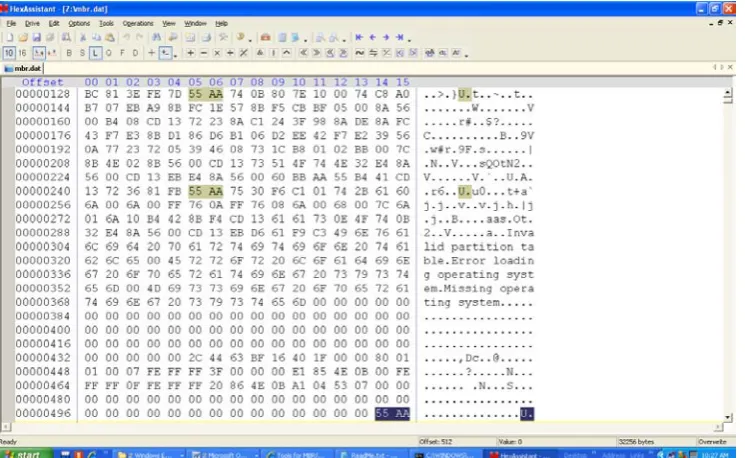
[image:3.595.151.448.501.678.2]entire MBR (512 bytes) into a mbr.dat file. The content of mbr.dat is viewed using HexAssistant hex editor [7] as illustrated in Figure 6.
Figure 6. MBR content acquired from MBRutil.exe and then viewed using HexAsssistant.
This paper shares the basic codes used to obtain the disk geometry information and the MBR content; while PowerQuest Partition Table Editor and MBRutil.exe will be used to verify the output from these introduced C programs.
3.0 C Codes for Visualizing Hard Disk Geometry Structure
The information from a hard disk such as cylinders, tracks/cylinder, sectors/track, bytes/sector and disk size can be obtained directly from a hard disk by using
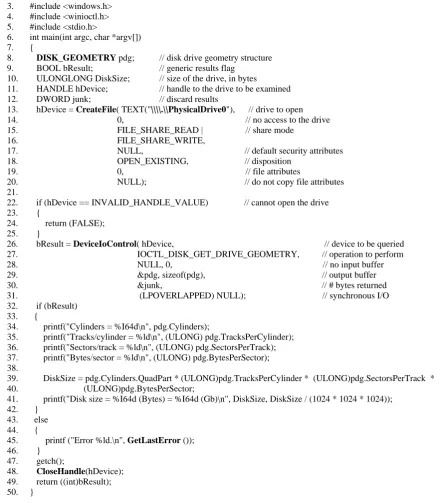
DeviceIoControl( ) function. The C codes (infoHDD.c) is shown in Figure 7.
By referring to Figure 7, CreateFile( ) function is used to open the first sector of the first hard disk using Win32 Namespace //./PhysicalDrive0 (line 13). If the drive is successfully opened, then get the hard disk geometry information using DiskIoControl( ) function (line 26). If the read is successful, then display the disk geometry (line 32-42). The output of
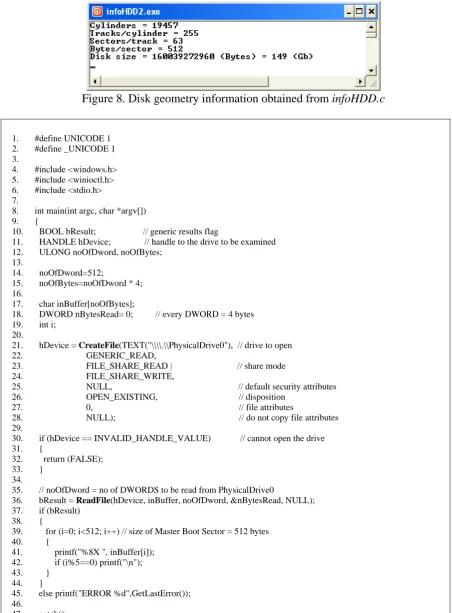
infoHDD.c is shown in Figure 8. The disk geometry information from infoHDD.c (Figure 8) is similar as the output displayed by PowerQuest Partition Table Editor (Figure 5).
4.0 C Codes for Visualizing MBR Content
MBR is the first sector of a hard disk. The size of MBR is normally 512 bytes. The MBR
contains information on boot loader codes, Master Partition Table and Master Boot Code.
MBR stores the information used during the booting process. The detail structure of MBR is illustrated in Figure 5. MBR contains data about a maximum of four partitions and ends with
The C codes (infoMBR.c) for displaying MBR content is shown in Figure 8. The MBR is located at the first sector of the first hard disk (drive) or \\.\PhysicalDrive0 in Win32 Namespace notation (line 21). CreateFile( ) function is used to open the first sector of the first hard disk. If the drive is successfully opened, then read the content of the drive or MBR
using ReadFile( ) function(line 36). If the read is successful, then display the content of MBR
to the screen in hex format or %X (line 37-44). The output of infoMBR.c is shown in Figure 9. The last two bytes of MBR (offset 510-511 bytes) shown in the output are 0x55AA, which is the boot signature of MBR (end of MBR).
1. #define UNICODE 1 2. #define _UNICODE 1 3. #include <windows.h> 4. #include <winioctl.h> 5. #include <stdio.h>
6. int main(int argc, char *argv[])
7. {
8. DISK_GEOMETRY pdg; // disk drive geometry structure 9. BOOL bResult; // generic results flag
10. ULONGLONG DiskSize; // size of the drive, in bytes
11. HANDLE hDevice; // handle to the drive to be examined 12. DWORD junk; // discard results
13. hDevice = CreateFile( TEXT("\\\\.\\PhysicalDrive0"), // drive to open 14. 0, // no access to the drive 15. FILE_SHARE_READ | // share mode 16. FILE_SHARE_WRITE,
17. NULL, // default security attributes 18. OPEN_EXISTING, // disposition
19. 0, // file attributes
20. NULL); // do not copy file attributes 21.
22. if (hDevice == INVALID_HANDLE_VALUE) // cannot open the drive 23. {
24. return (FALSE); 25. }
26. bResult = DeviceIoControl( hDevice, // device to be queried 27. IOCTL_DISK_GET_DRIVE_GEOMETRY, // operation to perform 28. NULL, 0, // no input buffer 29. &pdg, sizeof(pdg), // output buffer 30. &junk, // # bytes returned 31. (LPOVERLAPPED) NULL); // synchronous I/O 32. if (bResult)
33. {
34. printf("Cylinders = %I64d\n", pdg.Cylinders);
35. printf("Tracks/cylinder = %ld\n", (ULONG) pdg.TracksPerCylinder); 36. printf("Sectors/track = %ld\n", (ULONG) pdg.SectorsPerTrack); 37. printf("Bytes/sector = %ld\n", (ULONG) pdg.BytesPerSector); 38.
39. DiskSize = pdg.Cylinders.QuadPart * (ULONG)pdg.TracksPerCylinder * (ULONG)pdg.SectorsPerTrack * 40. (ULONG)pdg.BytesPerSector;
41. printf("Disk size = %I64d (Bytes) = %I64d (Gb)\n", DiskSize, DiskSize / (1024 * 1024 * 1024)); 42. }
43. else 44. {
[image:5.595.76.521.227.730.2]Figure 8. Disk geometry information obtained from infoHDD.c
1. #define UNICODE 1 2. #define _UNICODE 1 3.
4. #include <windows.h> 5. #include <winioctl.h> 6. #include <stdio.h> 7.
8. int main(int argc, char *argv[])
9. {
10. BOOL bResult; // generic results flag
11. HANDLE hDevice; // handle to the drive to be examined 12. ULONG noOfDword, noOfBytes;
13.
14. noOfDword=512;
15. noOfBytes=noOfDword * 4; 16.
17. char inBuffer[noOfBytes];
18. DWORD nBytesRead= 0; // every DWORD = 4 bytes 19. int i;
20.
21. hDevice = CreateFile(TEXT("\\\\.\\PhysicalDrive0"), // drive to open 22. GENERIC_READ,
23. FILE_SHARE_READ | // share mode 24. FILE_SHARE_WRITE,
25. NULL, // default security attributes 26. OPEN_EXISTING, // disposition
27. 0, // file attributes
28. NULL); // do not copy file attributes 29.
30. if (hDevice == INVALID_HANDLE_VALUE) // cannot open the drive 31. {
32. return (FALSE); 33. }
34.
35. // noOfDword = no of DWORDS to be read from PhysicalDrive0
36. bResult = ReadFile(hDevice, inBuffer, noOfDword, &nBytesRead, NULL); 37. if (bResult)
38. {
39. for (i=0; i<512; i++) // size of Master Boot Sector = 512 bytes 40. {
41. printf("%8X ", inBuffer[i]); 42. if (i%5==0) printf("\n"); 43. }
44. }
45. else printf("ERROR %d",GetLastError()); 46.
47. getch();
[image:6.595.79.523.184.734.2]48. CloseHandle(hDevice); 49. return ((int)bResult); 50. }
Figure 10. MBR data output from infoMBR.c
MBR content displayed by infoMBR.c (Figure 9) is similar as the output of MBRutil.exe
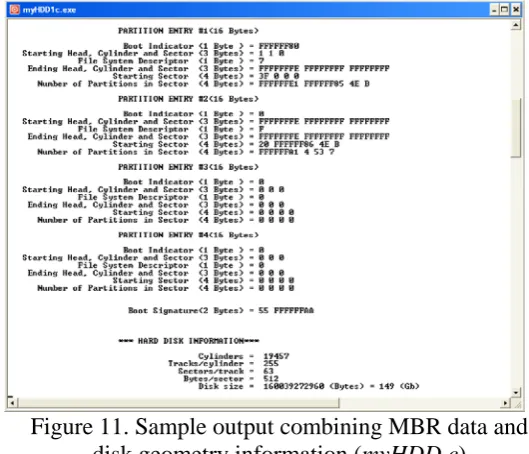
(Figure 6). The disk geometry information and MBR content can be combined into a single program as shown in Figure 11. It shows a more detailed visualization of PEs’ information which are broken down into fields.
Figure 11. Sample output combining MBR data and disk geometry information (myHDD.c)
[image:7.595.165.430.396.623.2]References
1. Wikipedia: File system. http://en.wikipedia.org/wiki/File_system. Accessed on 26 Apr. 2011.
2. Hard Disk Sector Structures.
http://www.dewassoc.com/kbase/hard_drives/hard_disk_sector_structures.htm. Accessed on 21 Apr. 2011.
3. Master Boot Record. http://www.pcguide.com/ref/hdd/file/structMBR-c.html. Accessed on 26 Apr. 2011.
4. The MBR (master boot record) and the Partition Tables.
http://www.diydatarecovery.nl/kb_mbr_article.htm. Accessed on 26 Apr. 2011. 5. FREE Software Tools for Windows 95/98/NT/2000/XP .
http://thestarman.narod.ru/tool/FreeTools.html. Accessed on 26 Apr. 2011. 6. Tools and References for the MBR and OS Boot Records.
http://thestarman.narod.ru/asm/mbr/BootToolsRefs.htm. 26 Apr 2011.
7. VeryTools: HexAssistant hex editor. http://www.verytools.com. Accessed on 26 Apr 2011.
![Figure 2. MBR structure [4]](https://thumb-us.123doks.com/thumbv2/123dok_us/8778906.903050/2.595.159.451.541.640/figure-mbr-structure.webp)
![Figure 4. Sample values of PE [4]](https://thumb-us.123doks.com/thumbv2/123dok_us/8778906.903050/3.595.99.518.66.360/figure-sample-values-of-pe.webp)